OceanProtect V200R001C10 All-in-One Backup Solution Best Practices (Integration with Commvault for NAS Backup)

Axians Global All Rights Reserved
Purpose
This document describes the best practices (OceanProtect Appliance integrating Commvault for NAS backup) of the centralized backup solution.
Intended Audience
This document is intended for technical support engineers who are required to:
- Be familiar with the current networking and related network element (NE) versions.
- Have device maintenance experience and be familiar with device operation and maintenance.
Change History
Issue | Date | Change Description |
|---|---|---|
01 | 2026-04-30 | This issue is the first official release. |
1.Product Introduction
1.1OceanProtect Appliance
Product Positioning
With exponential changes of data amounts, types, and growth speed, data protection becomes increasingly important as enterprises are facing increasing data loss risks due to human misoperations, viruses, natural disasters, and other cyber threats.
The OceanProtect Appliance is designed as a dedicated backup device in backup service scenarios. It features fast backup and restoration, efficient reduction, and high reliability, helping users achieve efficient backup and restoration and significantly reducing the total cost of ownership (TCO). It is widely used in industries, such as the government, finance, carrier, healthcare, and manufacturing industries. In addition, the OceanProtect Appliance offers easy management and convenient local/remote maintenance, significantly lowering device management and maintenance costs.
The OceanProtect Appliance can be deployed in two forms: all-flash and hybrid flash.
Product Highlights
With the full-process acceleration and active-active high-reliability architecture design, the OceanProtect Appliance features fast backup and restoration, efficient reduction, and high reliability.
1.1.1 Fast Backup and Restoration
- Full-process acceleration: The front-end network protocol offload technology reduces the CPU workload, and the back-end CPU multi-core parallel scheduling is implemented. Dedicated cores are used through grouping and job partitioning, significantly improving the processing capability of nodes.
- Based on backup service characteristics, multiple sequential data flows are aggregated to significantly improve the bandwidth performance.
- The mainstream backup software can be used together to support instant data restoration and reuse.
1.1.2 Efficient Reduction
- Industry-leading algorithms are adopted to identify data flow features for precise slicing. Advanced technologies, such as inline variable-length deduplication, adaptive compression, and byte-level compaction, are used to improve effective capacity and reduce the TCO.
- In backup data preprocessing, backup data is aggregated and deduplicated to improve the data reduction ratio.
- The system investment is significantly reduced through on-demand expansion, small-scale initial configuration, and small incremental steps.
1.1.3 High Reliability
- The active-active hardware architecture design ensures that ongoing backup jobs can be switched over within seconds if a single controller is faulty, ensuring uninterrupted backup jobs.
- The RAID-TP technology is adopted so that the failure of a maximum of three disks can be tolerated.
- Silent data consistency check is used to ensure data integrity and validity.
- DME IQ is connected to implement proactive O&M, intelligent prediction, real-time notification, and mobile O&M.
1.2 Commvault
Commvault provides enterprises with services, such as data protection, backup and restoration, disaster recovery (DR), and cloud migration, through a unified intelligent data platform. For details about the product, see the official documentation.
2.Solution Introduction
2.1 Solution Overview
This solution is based on Huawei OceanProtect Appliance. In the OceanProtect Appliance, storage pools are added and independent physical ports are allocated to provide a storage space as backup storage. Besides, the backup storage can be shared with third-party backup software over standard protocols as backup media.
This solution applies to the following scenarios:
Scenario 1: With the above functions, one device can serve two purposes. That is, one OceanProtect Appliance can provide both backup software and backup storage capabilities, acting as an intermediate state for a customer to transition from its backup storage to the OceanProtect Appliance.
Scenario 2: If the backup applications used by a customer are beyond the compatibility scope of the OceanProtect Appliance, a backup space can be allocated in the OceanProtect Appliance to integrate with third-party backup software for supplementing the compatibility of the OceanProtect Appliance.
Scenario 3: If a customer uses backup media from other vendors, this solution enables the OceanProtect Appliance to provide backup storage and take over backup services, ensuring that the customer’s services are not interrupted. After the copies expire, the customer can gradually transition to using the OceanProtect Appliance for backup.

The OceanProtect DataBackup software uses storage pool 0 of the OceanProtect Appliance by default. The backup storage provided for other backup software uses storage pool 1 by default.
This document describes only the related solution and configuration for creating file system shares in storage pool 1 to integrate with the Commvault backup software. For details about the solution and configuration of the OceanProtect DataBackup software, see the OceanProtect X6000, X8000, X9000, E6000 Appliance Product Documentation.
SourceDedupe (Source Deduplication)
OceanProtect Appliance V200R001C10 supports the SourceDedupe feature, which requires DataTurbo shares to be configured on storage systems and the OceanStor DataTurbo software to be deployed on backup servers.
- The DataTurbo protocol is a file system sharing protocol developed by Huawei for SourceDedupe (source deduplication) and SourceCompression (source compression) in Linux operating systems (OSs).
- SourceDedupe is a technology that identifies and deletes duplicate data at the source end by comparing the data to be transmitted with that on the OceanProtect Backup Storage.
- SourceCompression is a technology that compresses data using a lossless compression algorithm to reduce the bandwidth used for transmitting data to the OceanProtect Backup Storage.
- The OceanStor DataTurbo software supports both SourceDedupe and SourceCompression. Deploying OceanStor DataTurbo on clients can reduce required transmission bandwidth, save storage resources, and improve backup performance.
2.2 Solution Architecture
This solution uses the Commvault backup software to back up NAS share files to the OceanProtect Appliance. In addition, replication links are established between the local and remote ends to replicate copies to the remote end through remote replication.
- CommServe Server (master server): CommServe is the only management core in the Commvault backup environment. It coordinates and executes all backup and restoration operations, and manages all instructions, policies, monitoring, and records.
- MediaAgent: MediaAgent is the data transmission manager in the backup environment. It efficiently and securely transmits data from the production server (client) to the final storage media (such as disks, tapes, and cloud storage).
- OceanProtect Appliance: As an appliance that integrates OceanProtect Backup Storage and backup software, the OceanProtect Appliance creates file systems and mounts them to the Commvault backup server as backup repositories using the Huawei DataTurbo protocol to store backup copies made by Commvault.
2.3 Precautions
Commvault must meet the SourceDedupe host compatibility requirements. For details, visit OceanProtect Compatibility Query.
3.Configuration Planning
3.1 Backup Capacity and Performance Planning
3.2 Planning and Configuration of the OceanProtect Appliance
3.3 Commvault Planning and Configuration
3.1 Backup Capacity and Performance Planning
- Backup capacity calculation
Generally, the capacity of the OceanProtect Appliance is planned based on the customer’s backup data capacity and retention period. In this solution, 25 × 3.84 TB SSDs are used.

For details about the OceanProtect Appliance commercial configuration, visit eDesigner at https://app.huawei.com/unistar/edesigner/#/.
3.1.1 Backup Performance Calculation
Generally, the backup performance of a backup system is planned based on the backup window and backup capacity of the customer. In this solution, the backup performance of the bandwidth of the OceanProtect Appliance is planned.
3.2 Planning and Configuration of the OceanProtect Appliance
Storage Resource Planning
- Disk type planning: Storage pools can be created using solid-state drives (SSDs) and hard disk drives (HDDs). Table 3-1 describes the disk type planning.
Table 3-1 Disk planning
Disk Planning | OceanProtect Appliance (all-flash) | OceanProtect Appliance (hybrid flash) |
Disk Type | A storage pool consists of only SSDs. | A storage pool consists of SSDs and HDDs. |
Disk Quantity |
|
|
- Storage capacity planning: Generally, the capacity of the OceanProtect Appliance is planned based on the customer’s backup data capacity and retention period.
- Compression mode planning: Two compression modes (high reduction ratio (default) and high performance) are supported for storage pools.
With regard to the compression ratio, the high reduction ratio mode outperforms the high performance mode. If the customer has a tight backup window and requires high backup bandwidth, the high performance mode is recommended.
- Storage pool planning: A storage pool is a container that stores resources. It provides storage space for all application servers. For core services, you are advised to set the RAID policy to RAID-TP. Table 3-2 describes storage pool protection levels. By default, the first eight disks are used to create storage pool 0 for the OceanProtect Appliance. If the disks are insufficient, you can expand the capacity. The remaining disks are used to create storage pool 1 and NAS file systems for Commvault.
Table 3-2 Storage pool protection levels
Protection Level | Number of Parity Bits | Redundancy and Data Restoration Capability | Maximum Number of Disks Allowed to Fail Simultaneously |
|---|---|---|---|
RAID 6 (default) | 2 | High. Parity data is distributed on different chunks. In each chunk group, parity data occupies the space of two chunks. A simultaneous failure of any two data chunks can be tolerated. If three or more chunks fail simultaneously, the entire RAID array fails. | 2 |
RAID-TP | 3 | High. Parity data is distributed on different chunks. In each chunk group, parity data occupies the space of three chunks. A simultaneous failure of any three data chunks can be tolerated. If four or more chunks fail simultaneously, the entire RAID array fails. | 3 |
- File system planning: Table 3-3 describes key parameters for file system planning.
Table 3-3 File system planning
Parameter | Description |
|---|---|
Capacity | The capacity of file systems is planned based on actual services. |
Quantity | To ensure performance, you are advised to configure file systems of the same quantity as the gateway servers. This document uses four file systems as an example. |
Application Type |
|
- Dtree planning: A dtree is a subdirectory of a file system. You can set quotas and shares on a dtree to manage the used space of all files in the dtree and access permissions on the dtree. You are advised to create dtrees for all file systems and mount them to the front-end backup host to prevent the same file system from being repeatedly mounted across multiple logical ports. You are advised to set hard quotas for multiple dtrees under the same file system to evenly share the file system capacity.
- File system sharing: The OceanProtect Appliance provides CIFS, NFS, and DataTurbo shares. SourceDedupe is planned in this solution. Therefore, select DataTurbo shares for file system sharing. For details about the OS versions and backup software versions supported by the DataTurbo client, visit the compatibility query website.

Compatibility query website: https://info.support.huawei.com/storage/comp/#/oceanprotect?lang=en
Network Planning
- Planning physical ports
- Quantity planning: After SourceDedupe is enabled, the required physical bandwidth can be planned based on the number of backup hosts. Two 10GE ports for each backup host can meet the bandwidth requirements. For example, if there are four backup hosts, plan eight physical ports for the back-end OceanProtect Appliance. If both OceanProtect DataBackup and Commvault need to provide backup services, the physical ports used by them must be isolated. In this case, the number of ports to be allocated depends on the service volume, and you need to plan 8 + X physical ports (X indicates the number of physical ports used by OceanProtect DataBackup) for the back-end OceanProtect Appliance.
- Configuration planning: The OceanProtect Appliance is a dual-controller device. To ensure reliability, the planned network interface cards (NICs) must be evenly distributed to controllers A and B. The physical ports used by the OceanProtect Appliance and Commvault must be isolated. It is recommended that the interface modules in slot 0 of each controller be used for the OceanProtect Appliance and the interface modules in slot 1 of each controller be used for Commvault.
- Planning logical ports
- Quantity planning: Logical ports are created for running NAS services. You are advised to configure at least one logical port for each physical port.
- Configuration planning: The OceanProtect Appliance has two controllers: controller A and controller B. It is recommended that the two 10GE ports of the same backup host be connected separately to the logical ports of controllers A and B of the OceanProtect Appliance.
3.3 Commvault Planning and Configuration
CommServe Server (Master Server) Planning
As the core component of the backup infrastructure, the CommServe server manages all Commvault components, and can be deployed only on the Windows OS. For details about the OS and compatibility, see the Commvault official website.
MediaAgent Planning
When you are installing MediaAgent on a Linux host, the Windows master server will be configured and associated during the installation. Therefore, before the installation and deployment, you need to add the IP address and host name of the master server to the host file of the Linux host.
4.Configuration Example
This chapter describes a configuration example of backing up NAS shares using OceanProtect Appliance integrating Commvault.
4.2 Hardware and Software Configuration
4.3 Configuration for NAS Share Backup and Restoration
4.1 Solution Networking
Figure 4-1 shows the networking diagram for backup verification of Huawei OceanProtect Appliance.
Figure 4-1 Networking diagram of OceanProtect Appliance integrating Commvault
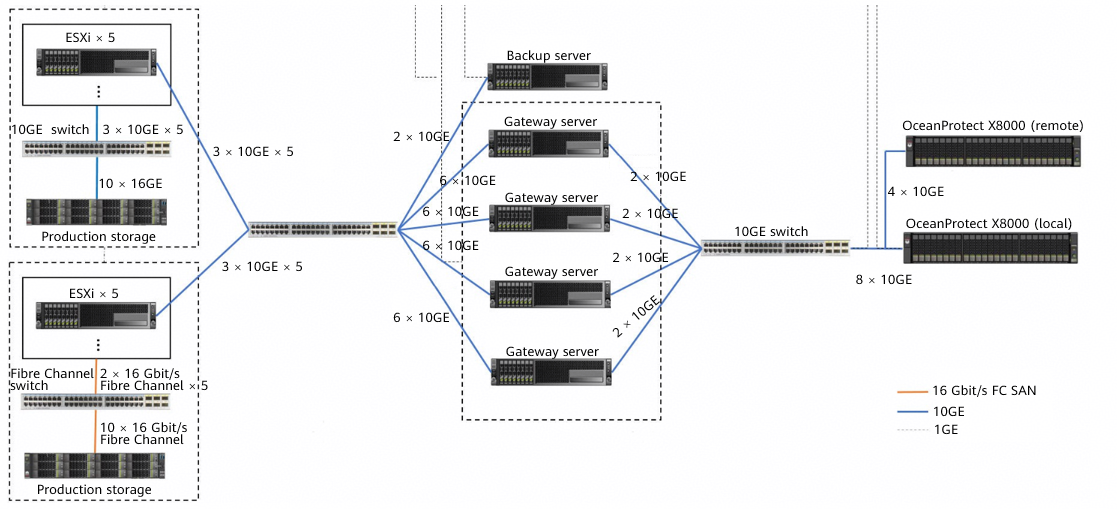

The networking diagram shown in Figure 4-1 is for reference only. For details about the cable connections between controller enclosures and application servers, between controller enclosures and disk enclosures, and between controller enclosures of the OceanProtect Appliance, see « Cabinet Layout Planning » and « Networking Planning » in the OceanProtect X6000, X8000, X9000, E6000 Appliance Product Documentation.
Networking description:
- VMware vSphere: In this solution, VMs are deployed through 10 ESXi physical hosts.
- Three 10GE distributed ports (working in active/standby mode) are configured for each ESXi physical host using vCenter.
- Five ESXi hosts are connected to OceanStor Dorado 6000 V6 as the production storage through 2 × 16GE Fibre Channel links. The other five ESXi hosts are connected to OceanStor Dorado 8000 V6 as the production storage through 4 × 10GE iSCSI links. Four VMs are planned for each datastore. A total of 100 VMs are deployed, and each VM contains six disks, including one system disk and five data disks. 500 GB or 600 GB data is preset in each data disk.
- Backup server: connects to a 10GE switch through 2 × 10GE links and runs the Windows OS. The CommServe server software is deployed on the Windows OS, and manages backup components and backup jobs.
- Backup proxy: works in Hot-Add mode. Each ESXi host uses four VMs (Linux) as backup proxies, meaning that 40 backup proxies are required in total. In addition, 32 CPU cores and 64 GB memory are configured for each backup proxy.
- Gateway server: Four gateway servers are connected to the ESXi physical hosts and the OceanProtect Appliance through 10GE switches.
- Front-end network: Each gateway server uses 6 × 10GE optical fibers to connect to the ESXi hosts through a 10GE switch. Six 10GE bonds (mode 0) are configured for each gateway server (Linux host), and Eth-Trunk (mode manual) is configured for the switch.
- Back-end network: Each gateway server uses 2 × 10GE optical fibers to connect to one port on controller A and one port on controller B of the OceanProtect Appliance through a 10GE switch.
- OceanProtect Appliance: The OceanProtect Appliance connects to four gateway servers through a 10GE switch. Each of controllers A and B of the OceanProtect Appliance has five 10GE ports (ten 10GE ports in total) for connecting to the 10GE switch.
4.2 Hardware and Software Configuration
4.2.1 Hardware Configuration
Table 4-1 Hardware requirements
Item | Description | Quantity | Function |
|---|---|---|---|
ESXi server |
| 4 | Used to create VMs as file system hosts. |
Backup server |
| 1 | Used to install the Windows OS and manage backup jobs and backup copies as the backup server. |
Production storage | OceanStor Dorado 6000, dual controllers, 25 × 3.492 TB SAS SSDs, 3 × 4-port 16 Gbit/s Fibre Channel SmartIO cards | 1 | Used as production storage of the ESXi servers. |
Production storage | OceanStor Dorado 8000, dual controllers, 26 × 6.984 TB SSDs, 5 × 4-port 10 Gbit/s SmartIO cards | 1 | Used as production storage of the ESXi servers. |
10GE switch | Huawei CE6850 | 3 | Used as 10GE network switches on the backup service plane. |
Fibre Channel switch | SNS2224 | 2 | Used as Fibre Channel network switches on the production service plane. |
4.2.2 OceanProtect Appliance (All-Flash) Configuration
Table 4-2 OceanProtect Appliance (all-flash) configuration
Item | Description | Quantity |
|---|---|---|
OceanProtect engine | Huawei OceanProtect Appliance, with two controllers | 1 |
10GE front-end interface module | 4 × 10 Gbit/s SmartIO interface modules | 4 |
4.2.3 Test Software and Tools
Table 4-3 Required software description
Software Name | Description |
|---|---|
OceanProtect DataTurbo 1.0.0 | SourceDedupe client, which is deployed on the backup server to perform source deduplication and compression on backup data, reducing the amount of physical data transmitted from the backup server to the storage and improving the overall bandwidth capability of backup services. |
Commvault | Commvault backup and restoration software |
ESXi 7.0 | Enterprise-class hypervisor developed by VMware, which is used to provide hardware virtualization services |
Windows Server 2016 | Used for installing a Windows host |
CentOS 7.6 | CentOS Linux open-source OS |
Vdbench 5.04.06 | Third-party tool for generating test data |
SSH client software | SSH terminal connection tool |
4.3 Configuration for NAS Share Backup and Restoration
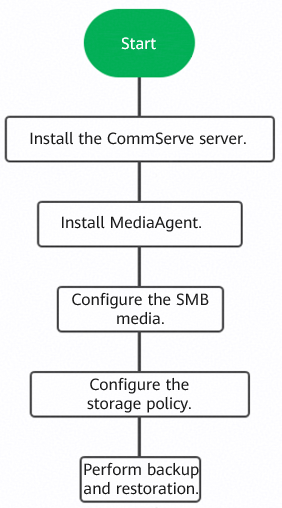
4.3.1 Configuration Process
Figure 4-2 Solution configuration process
4.3.2 Installing the CommServe Server (Master Server)
CommServe server configuration requirements:
OS: Windows Server 2019
CPU: 16 cores
Memory: 32 GB or above
System disk: 300 GB or above
Data disk: 300 GB or above
Host name: user-defined
4.3.2.1 Installing the CommServe Server
4.3.2.1.1 Installing Core Components
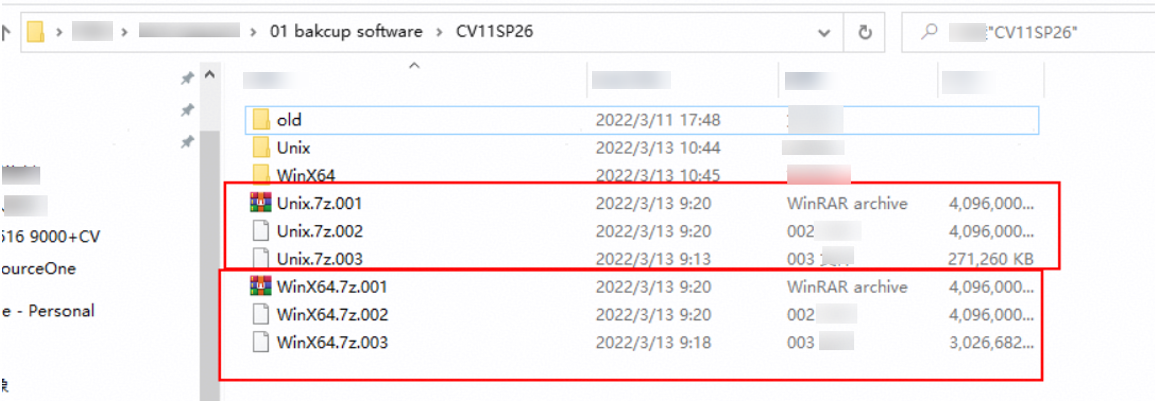
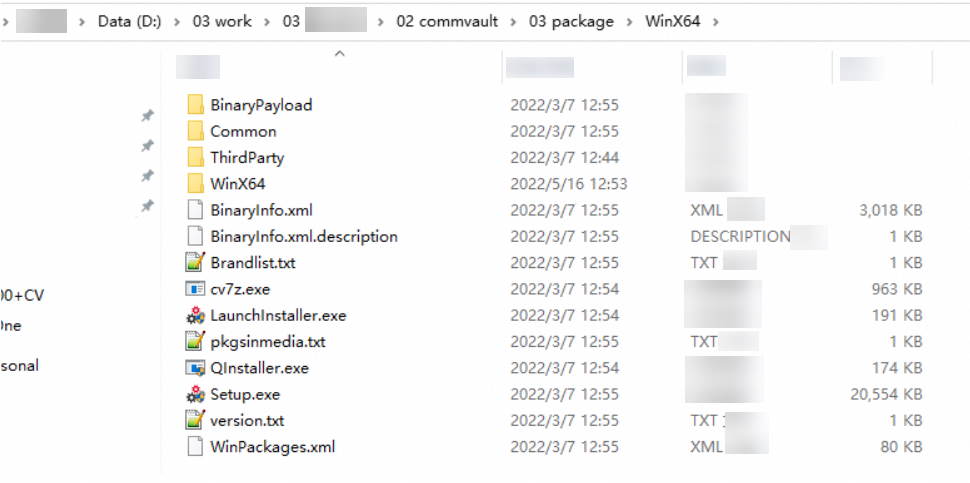
Step 1 Log in as an administrator to the server where CommServe is to be installed. Decompress the Windows installation package. Double-click Setup.exe to run the installation program of the Commvault backup software.
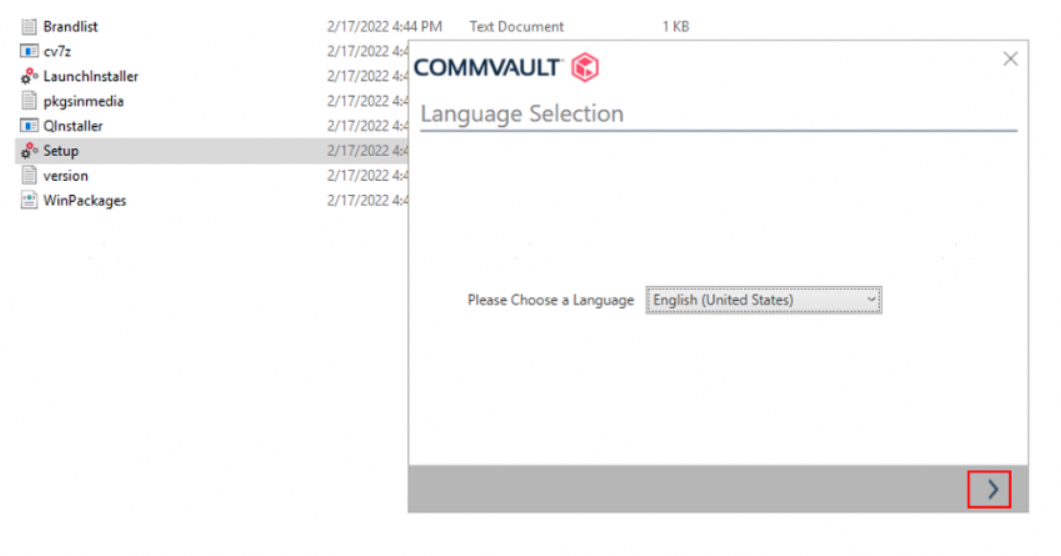
Step 2 In the dialog box that is displayed, select English as the default language and click >.
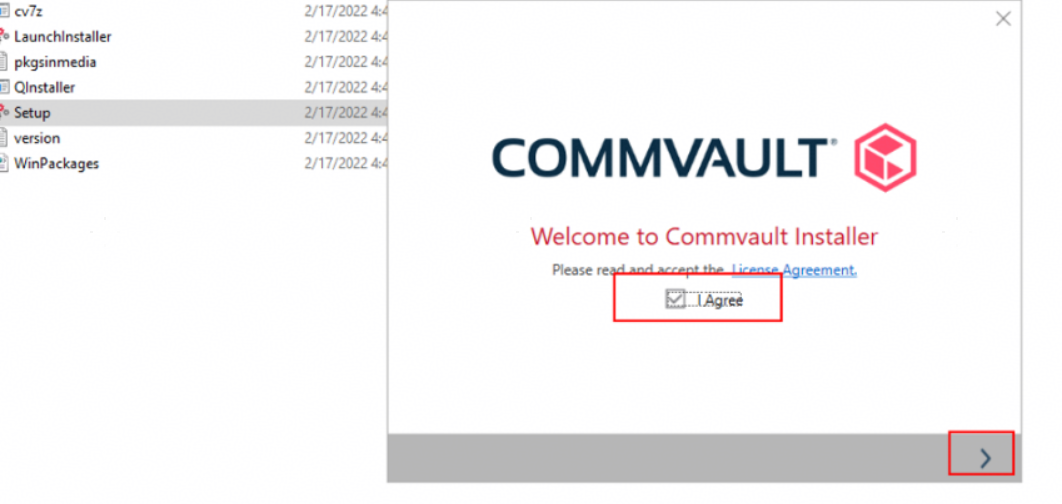
Step 3 In the dialog box that is displayed, select I Agree and click >.
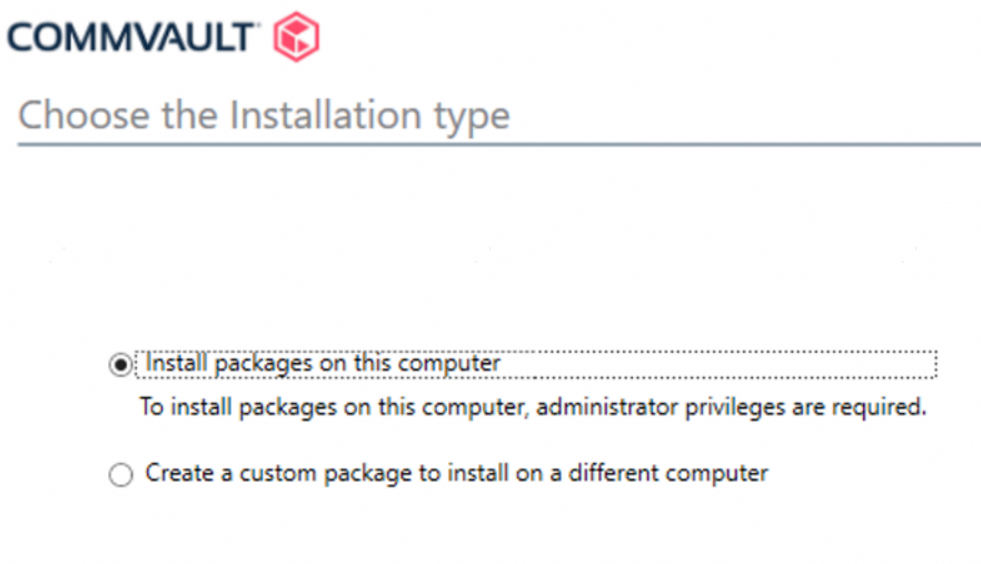
Step 4 Select Install packages on this computer and click >.
Step 5 Select Create a new CommCell and click >.
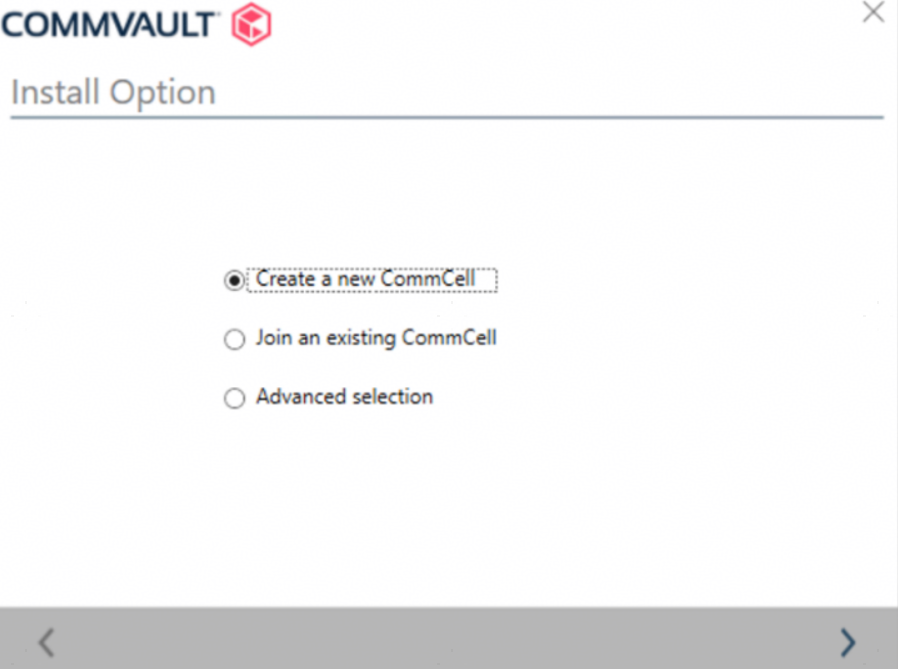
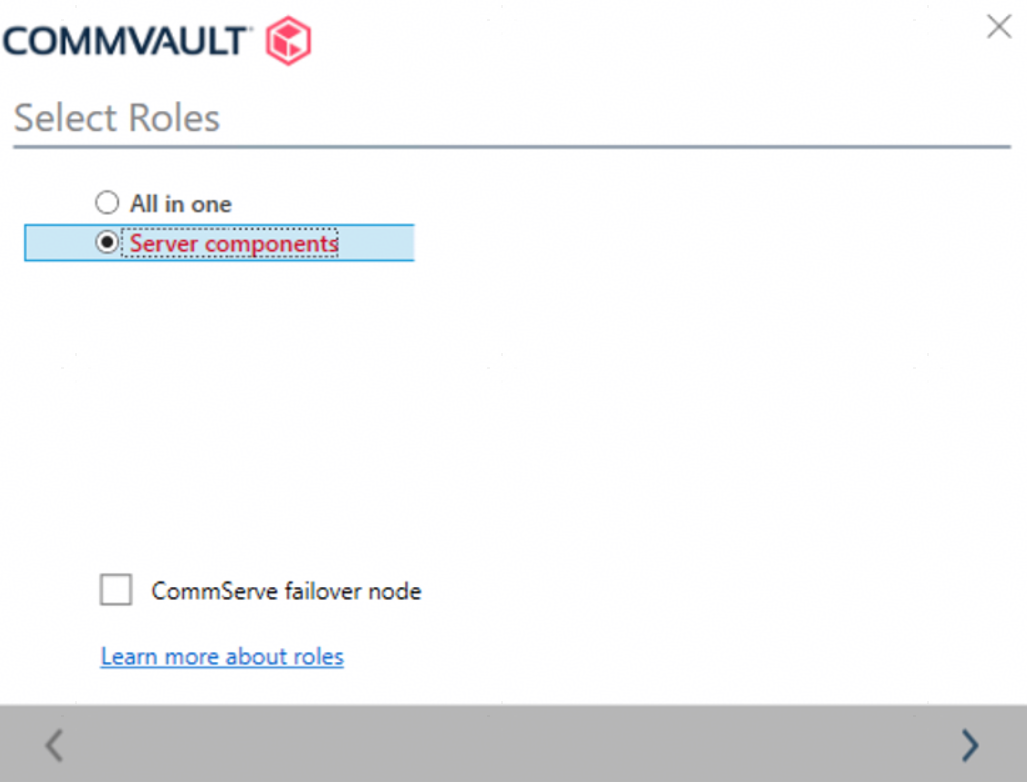
Step 6 Select Server components and click >.
If you select All in one, the installation takes a long time. Some components can be installed later.
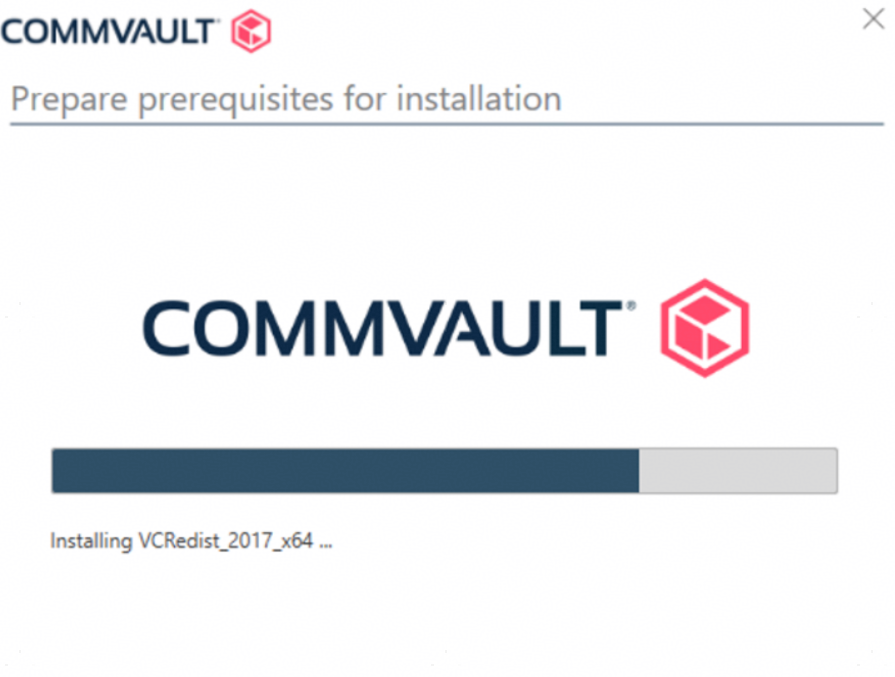
Waiting for the installation of dependent components
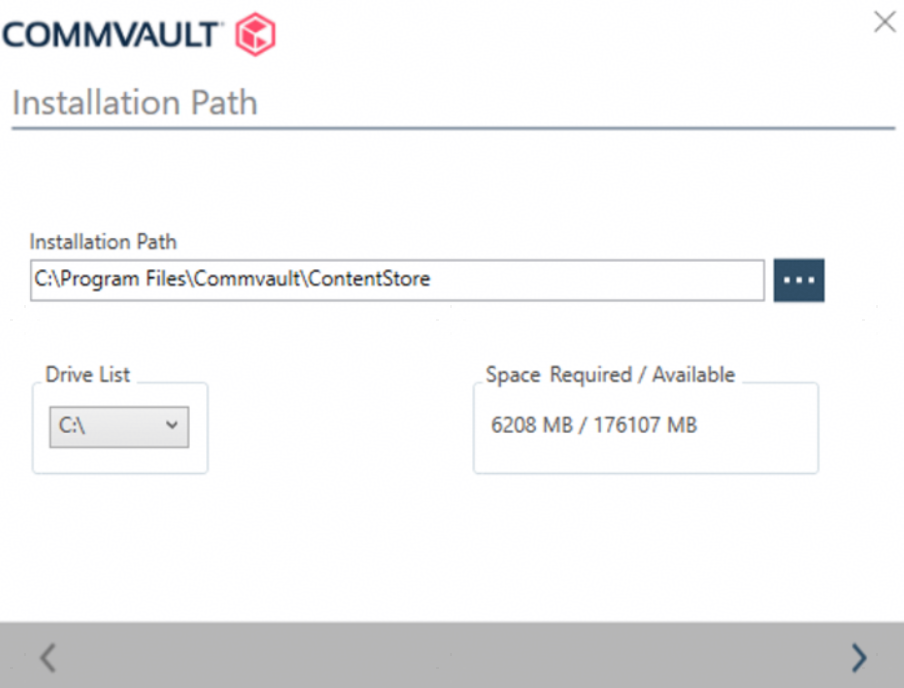
Step 7 Select the default installation path C:\Program Files\Commvault\ContentStore and click >.
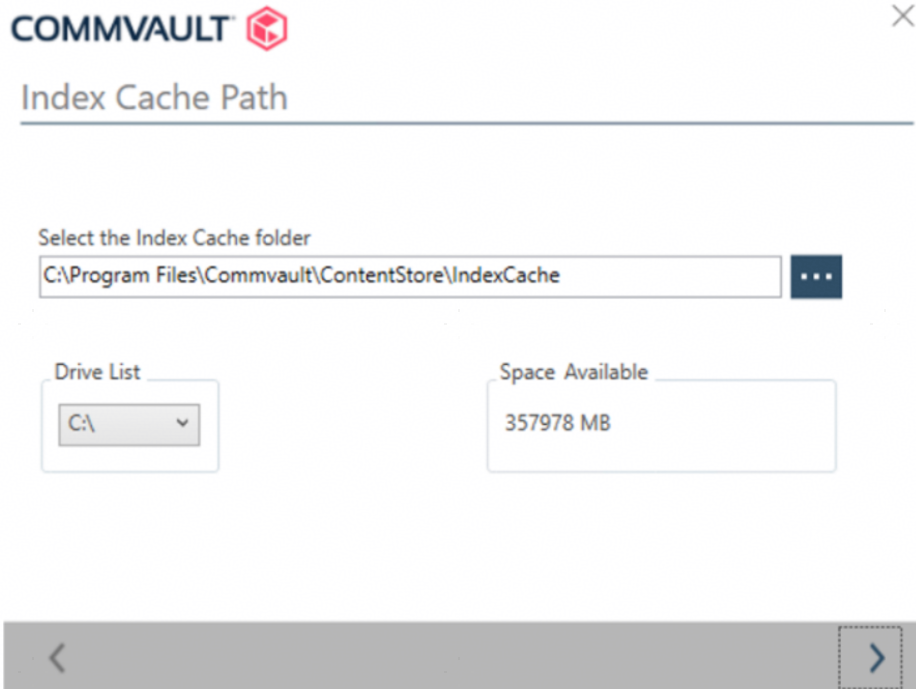
Step 8 Select the default installation path C:\Program Files\Commvault\ContentStore\IndexCache and click >.
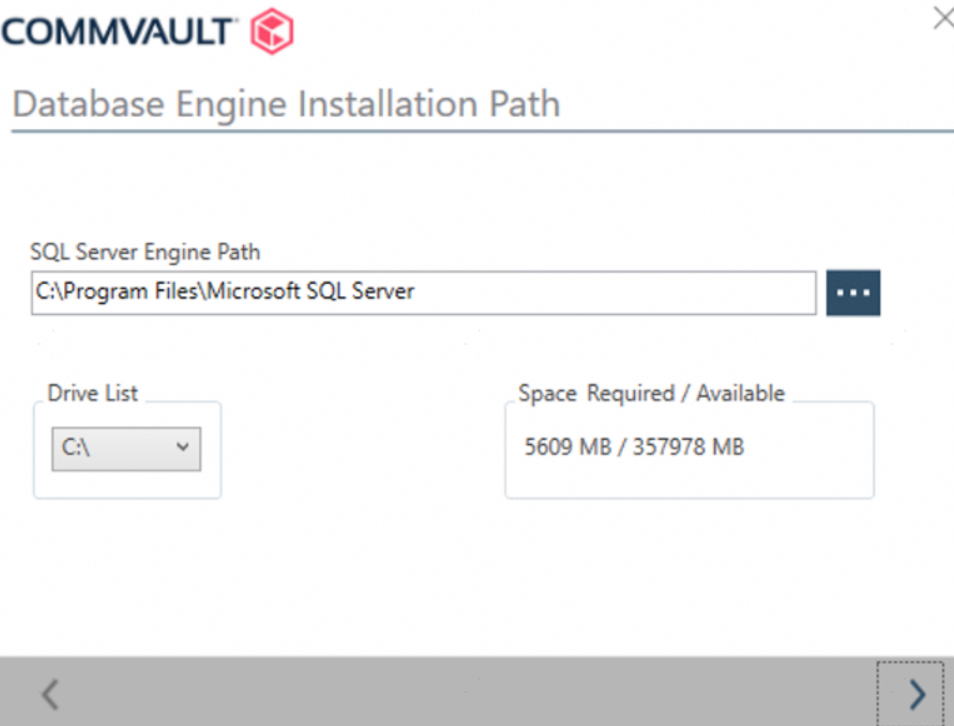
Step 9 Select the default installation path C:\Program Files\Microsoft SQL Server and click >.
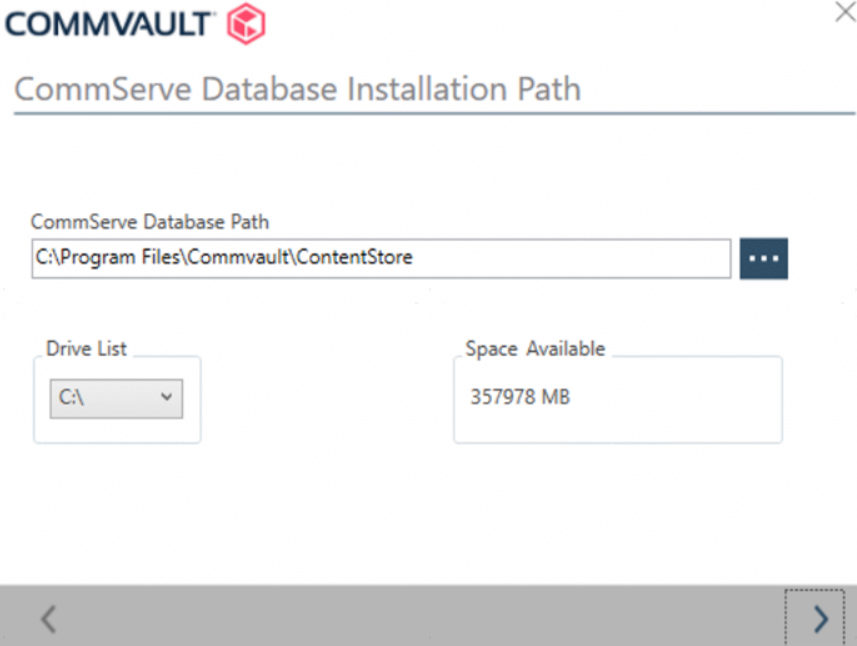
Step 10 Select the default installation path C:\Program Files\Commvault\ContentStore and click >.
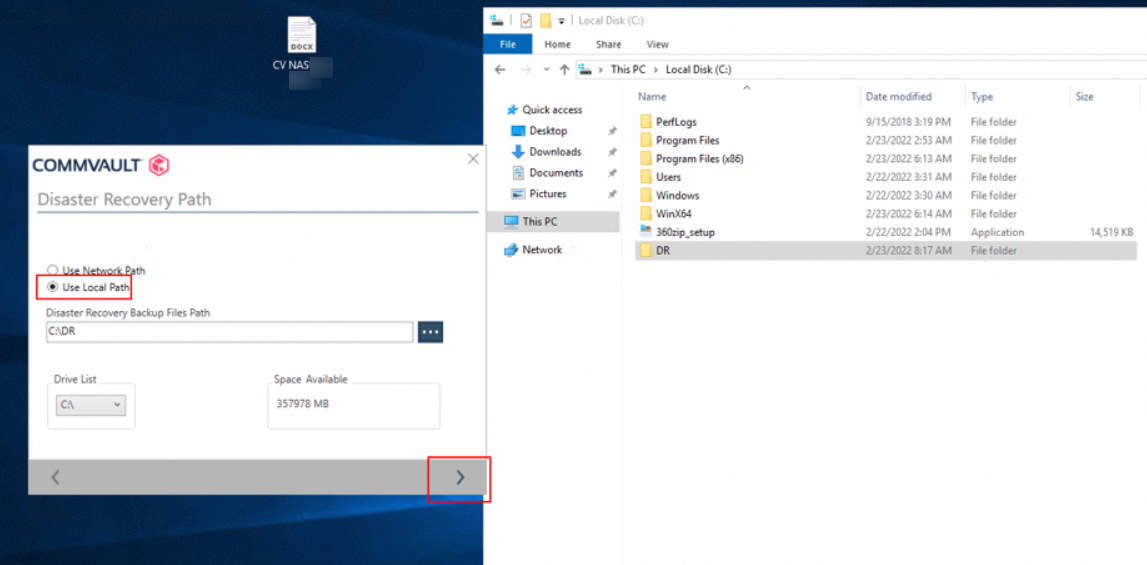
Step 11 Select Use Local Path, select the created DR file storage path C:\DR, and click >.
Step 12 Confirm the server component information and click >.
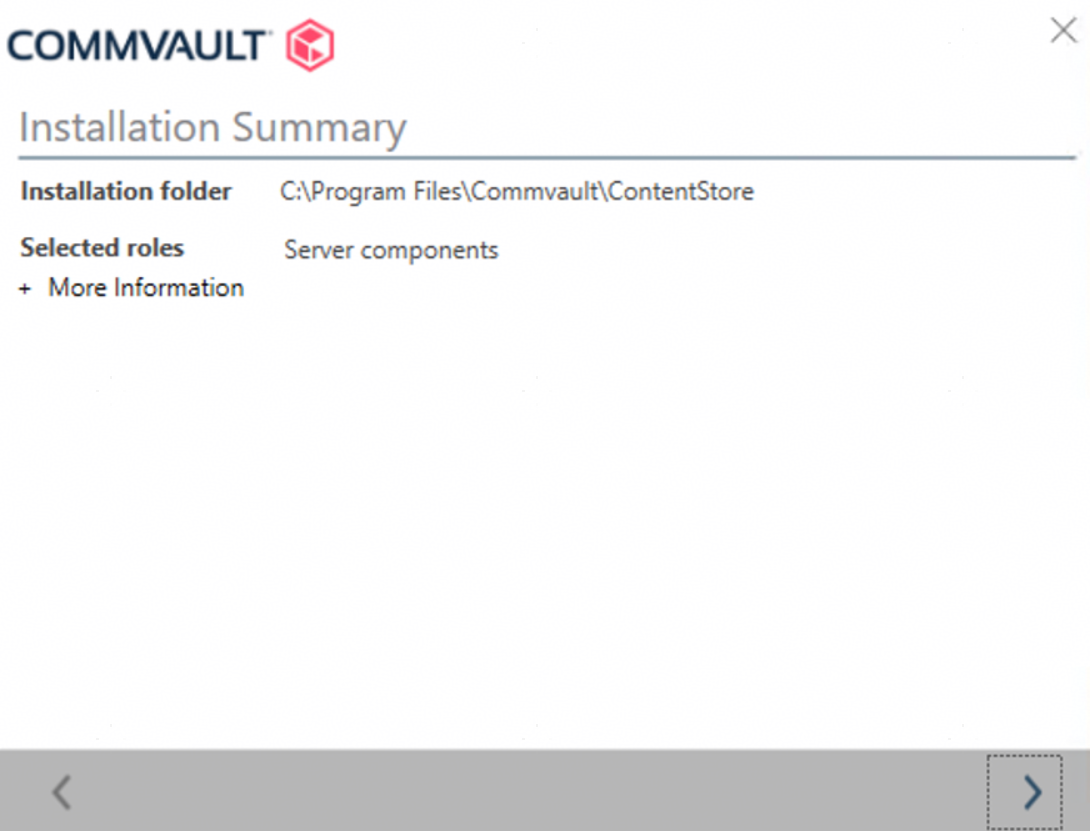
Step 13 Start the component installation and wait patiently.
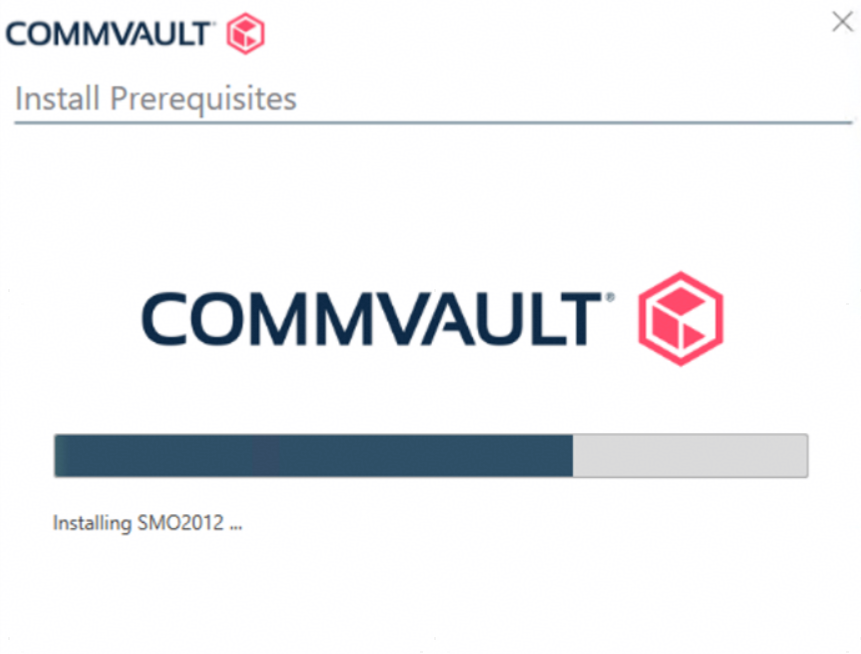
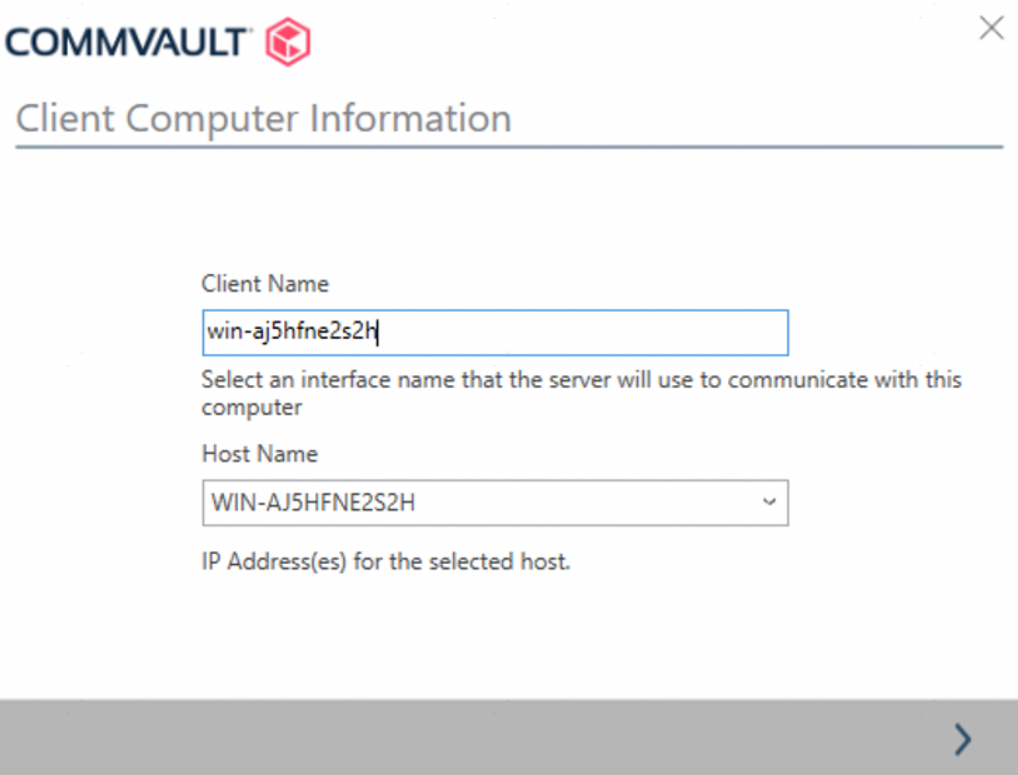
Step 14 After the installation is complete, the host information page is displayed. The values of Client Name and Host Name are automatically identified based on the computer name and full computer name of the local host. Retain the default settings and click >.
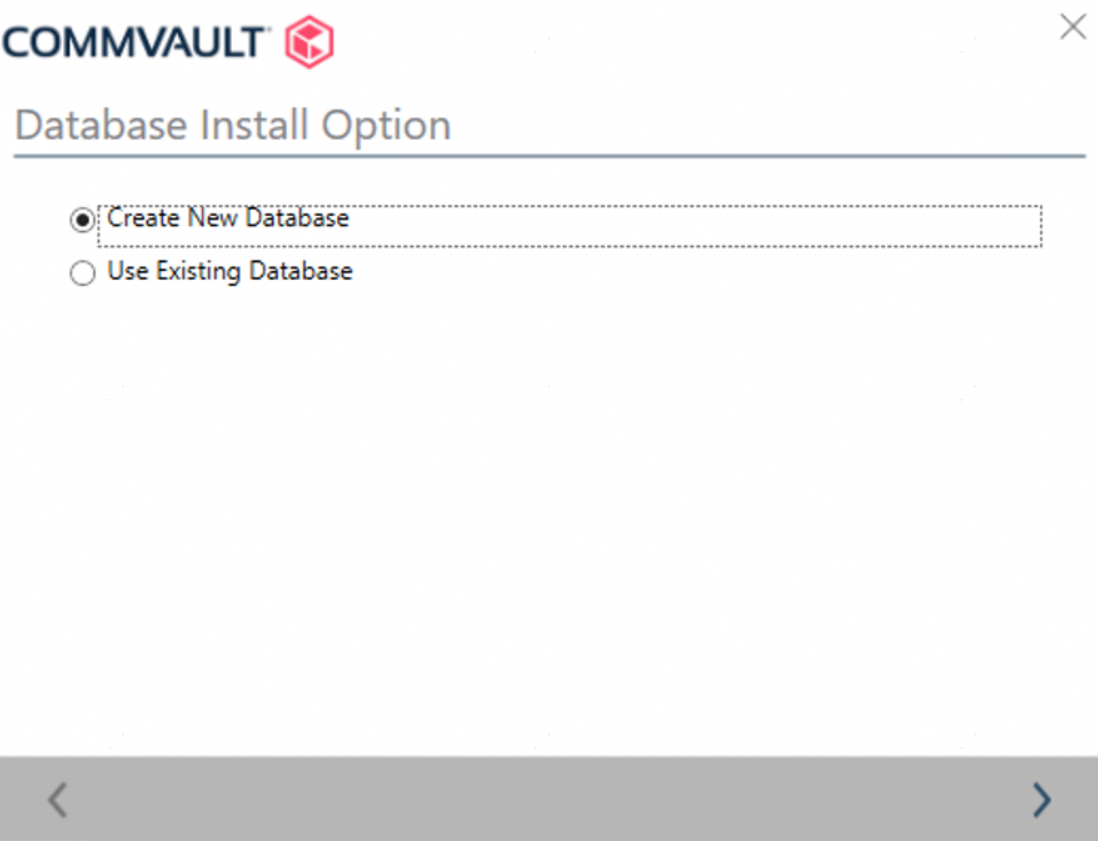
Step 15 Select Create New Database and click >.
Step 16 Start the installation, which takes a long time.
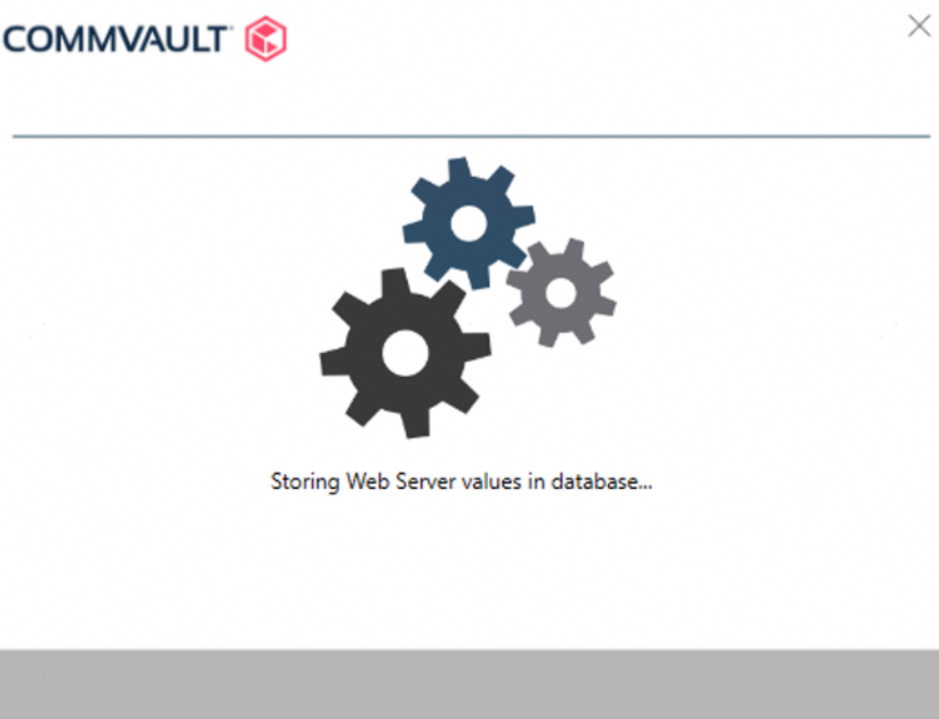
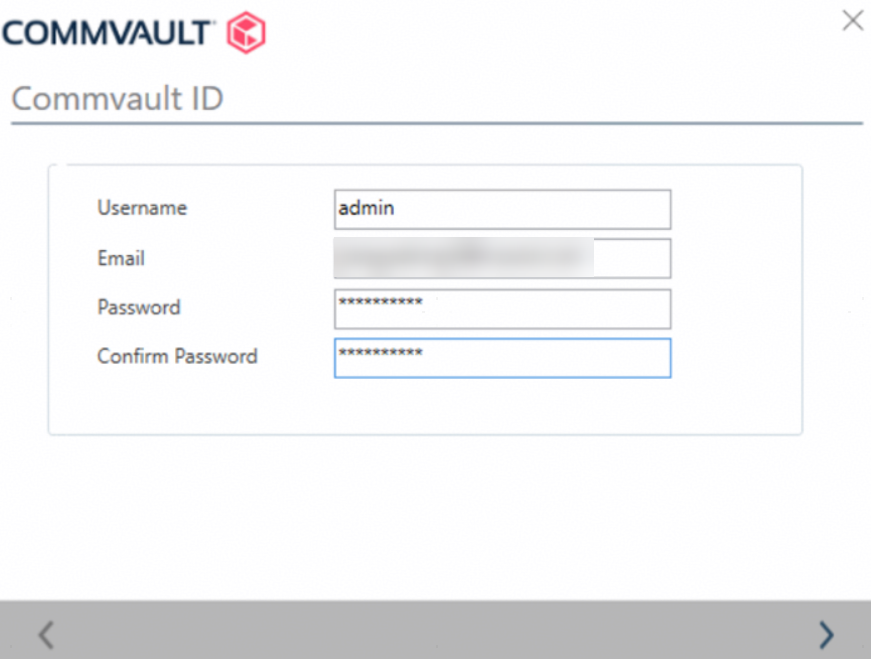
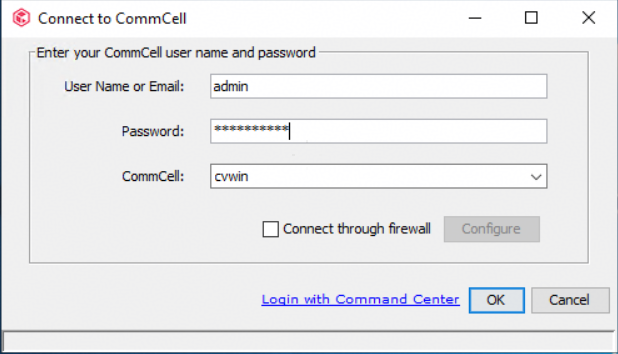
Step 17 Enter username admin and the password, save the settings, and click >. (The username and password will be used to log in to the Commvault CommCell Console. You can customize the email address.)
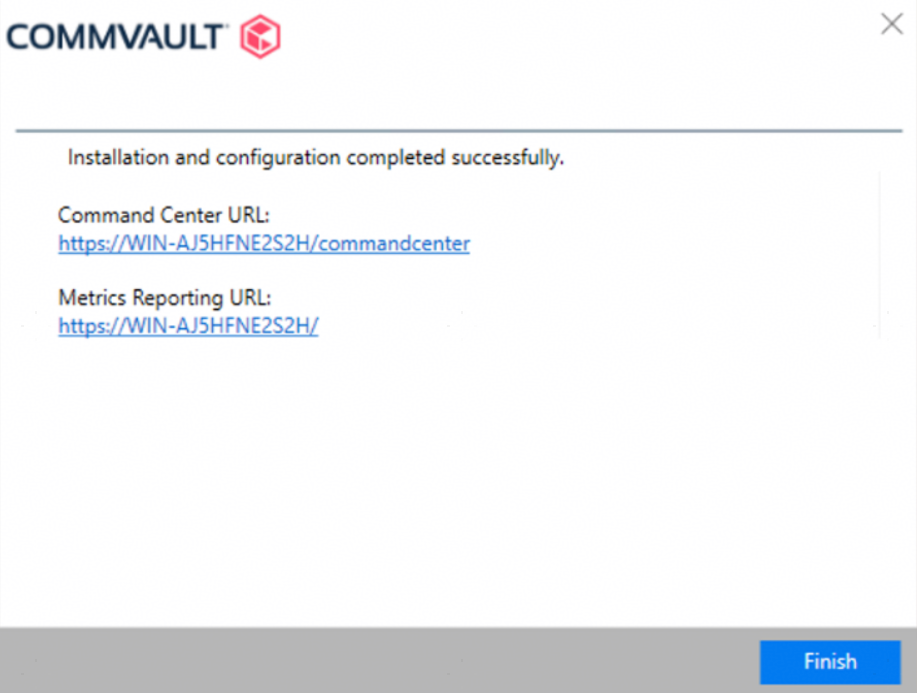
Step 18 Installation completed
—-End
4.3.2.1.2 Performing Supplementary Component Installation
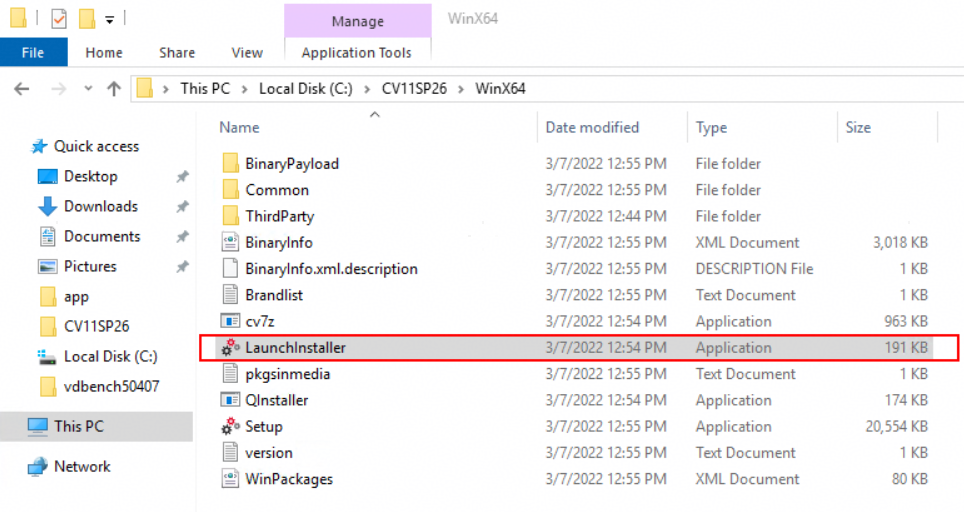
Step 1 Double-click LaunchInstaller.
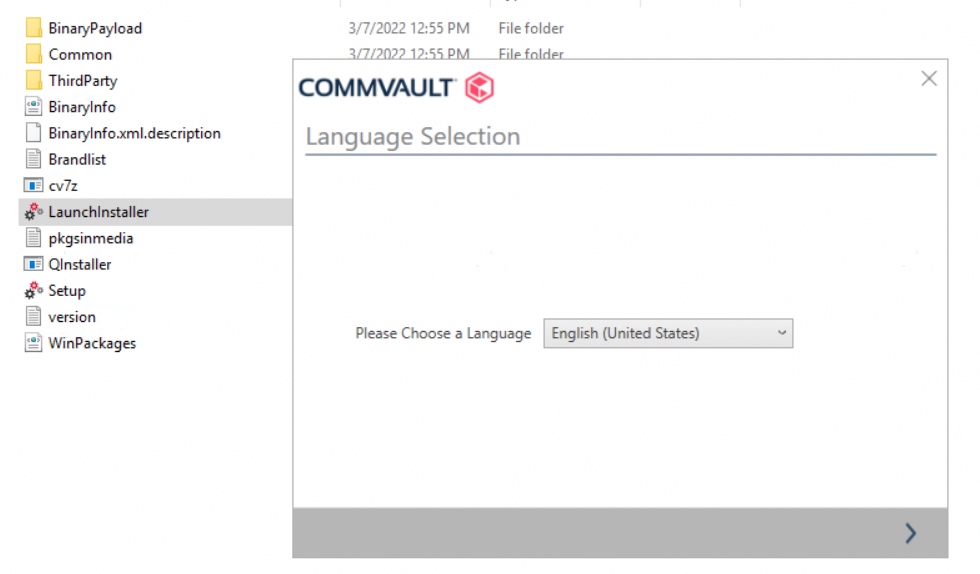
Step 2 In the dialog box that is displayed, select English as the default language and click >.
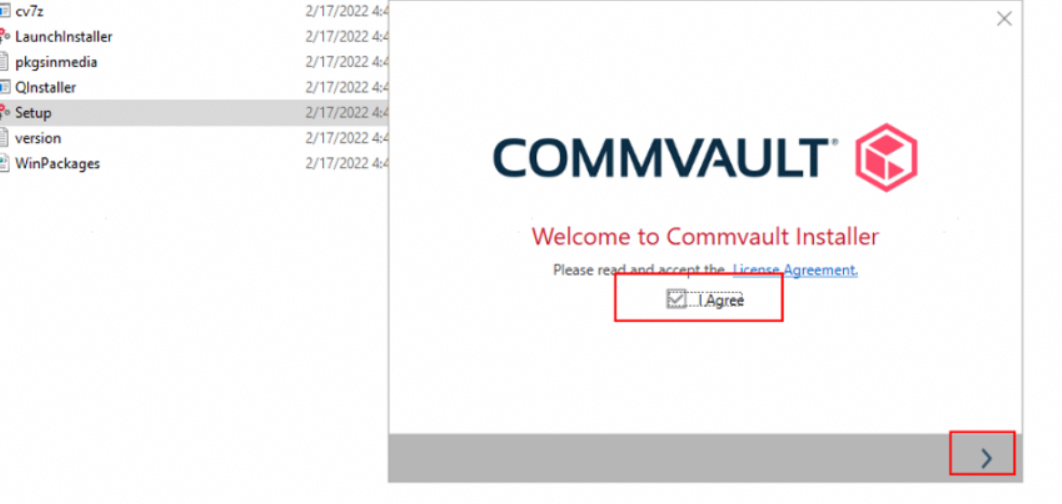
Step 3 In the dialog box that is displayed, select I Agree and click >.
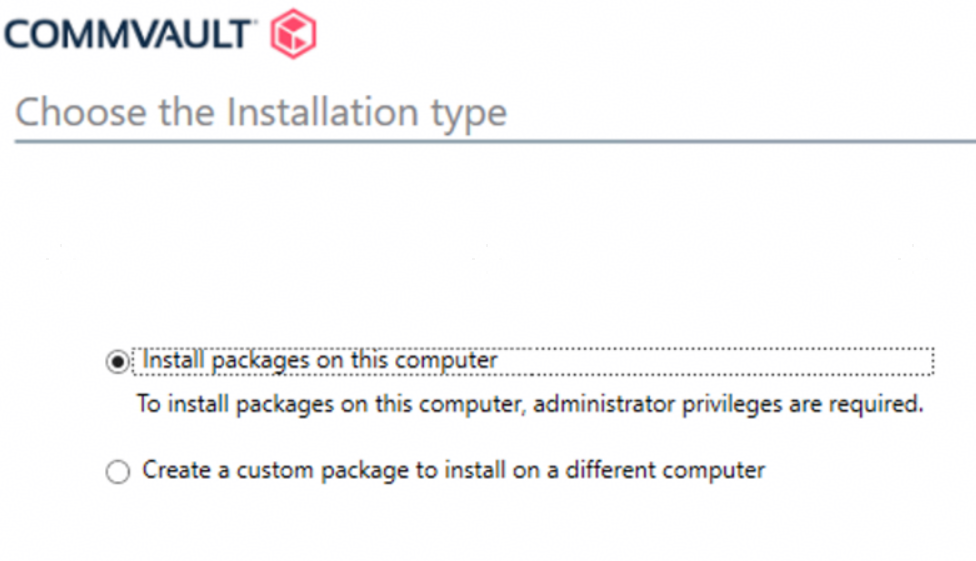
Step 4 Select Install packages on this computer and click >.
Step 5 Select Add Packages and click >.
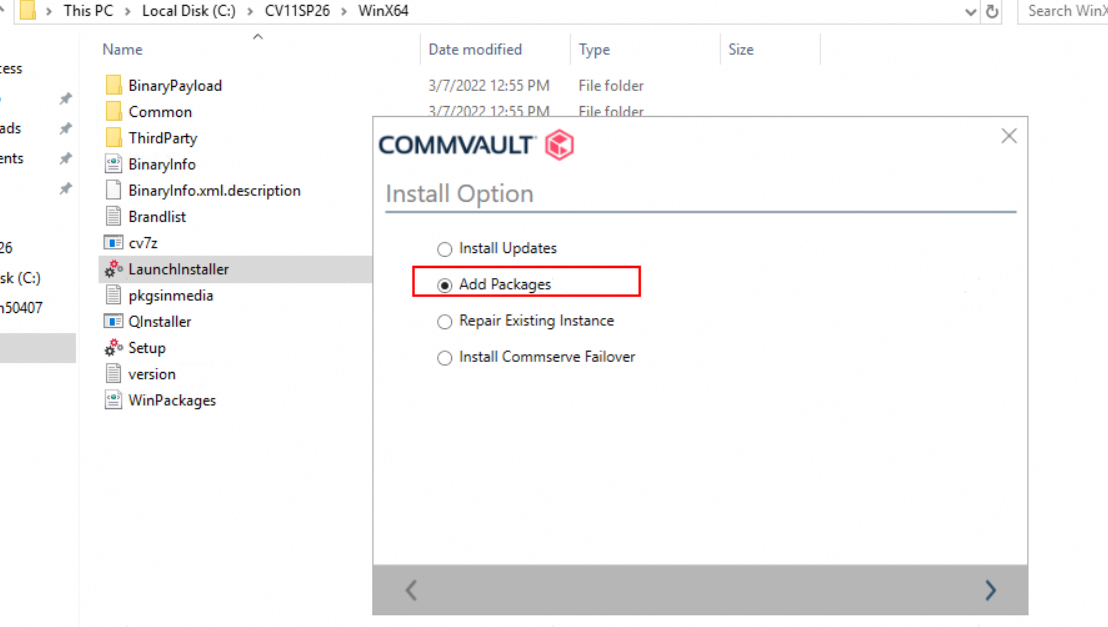

Install supplementary components and applications based on the backup service scenario.
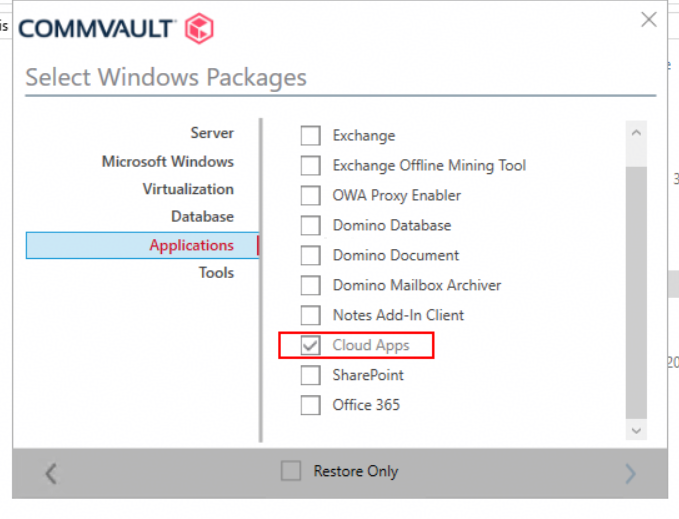
Example 1: If the S3 protocol is used by storage for backup, install Cloud Apps in Applications.
Example 2: In the file archiving service scenario, install Driver for File Archiver in Microsoft Windows.
Example 3: In the database backup scenario, install the Oracle component in Database.
Example 4: In the snapshot backup scenario, install the corresponding IntelliSnap component in Server.
Refer to the following:
https://documentation.commvault.com
Step 6 To use the S3 protocol for backup, install Cloud Apps and click >.
—-End
4.3.2.2 Verifying the CommServe Server Installation
4.3.2.2.1 Verifying That Services Are Normal
- Choose Start > All Programs and check whether the Commvault Process Manager icon exists. If it exists, the backup management service has been successfully installed.
- Click Commvault Process Manager. In the displayed window, check whether services are running properly.
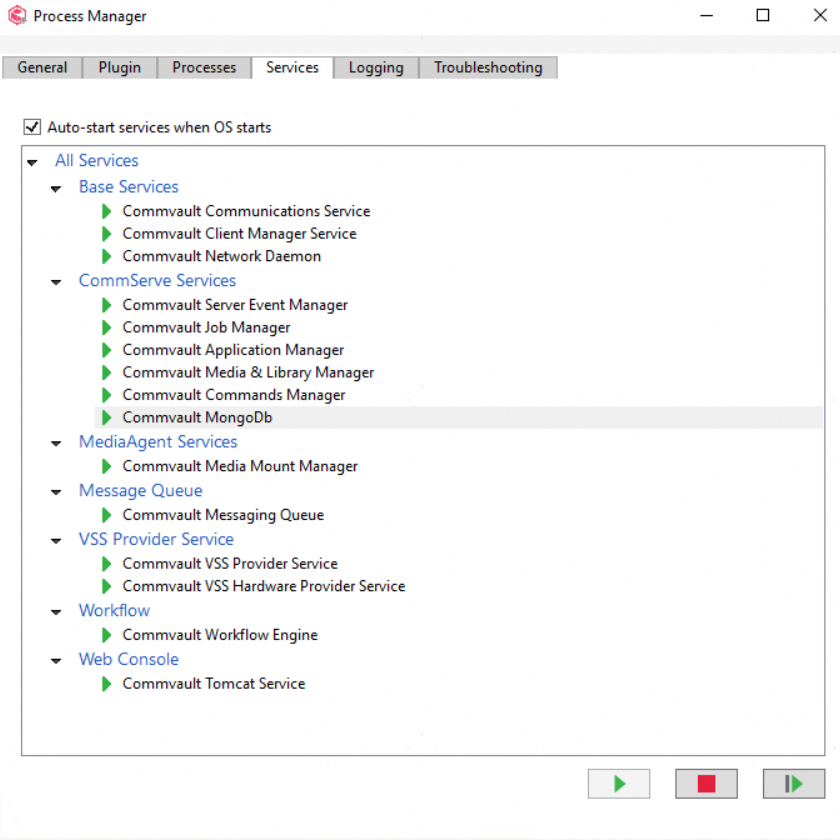
If all services are in Running state, all services are started up normally.
4.3.2.2.2 Logging In to the Commvault CommCell Console
- Choose Start > All Programs and run the Commvault CommCell Console.
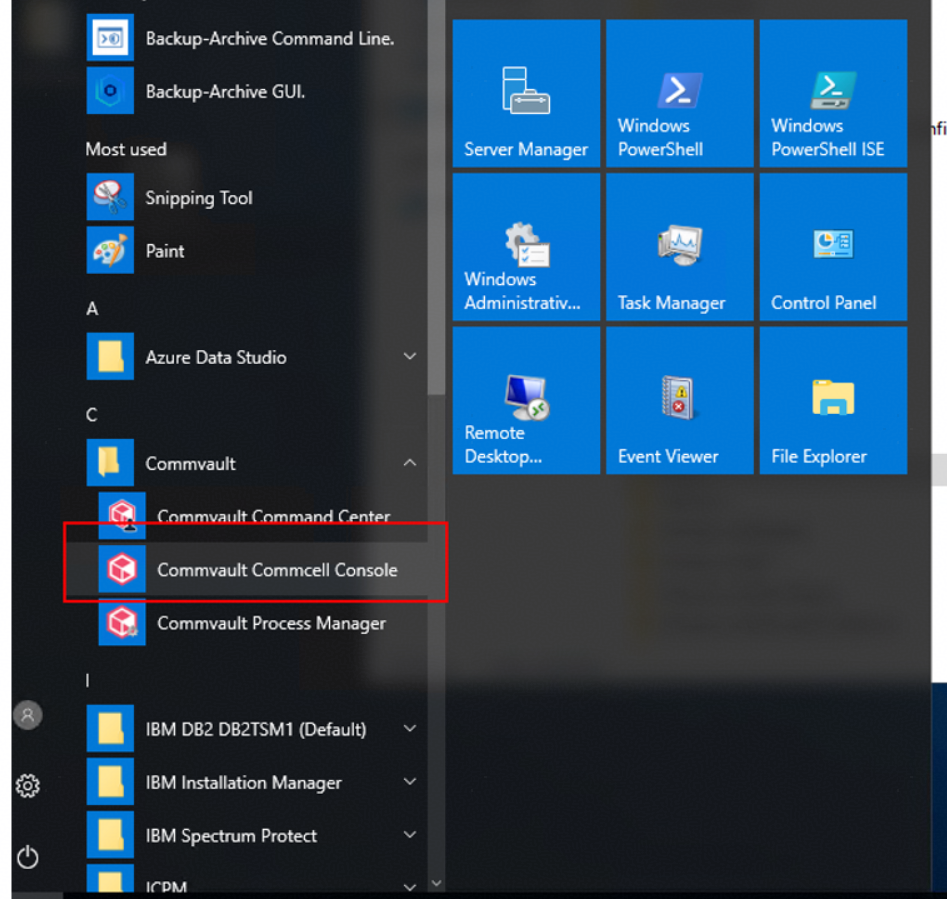
2.In the displayed window, enter the username and password specified during the installation and click OK.
After the login is successful, the system displays a message indicating that the license has expired. The default trial period is two months. Click Close.
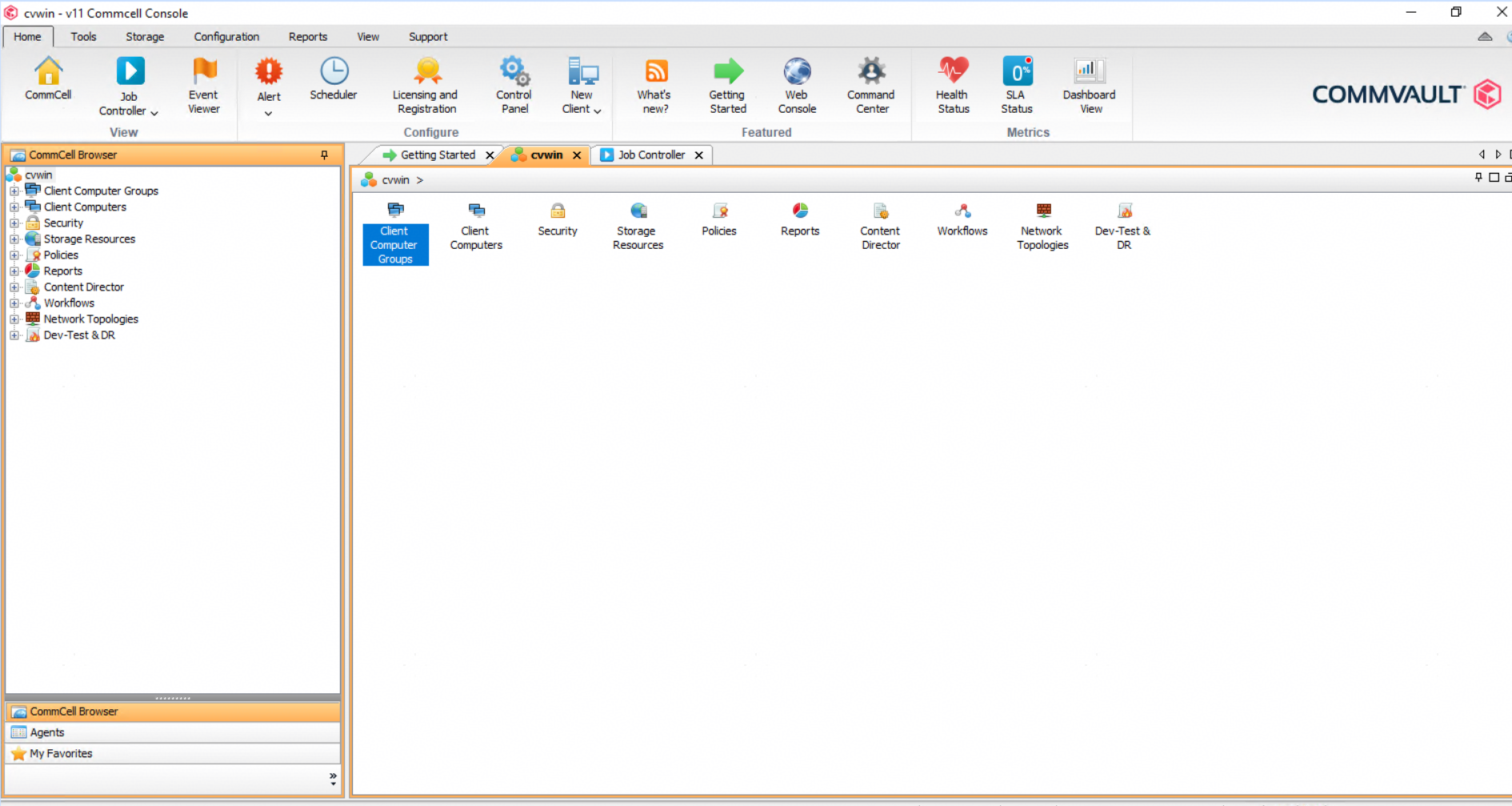
3.If the following page is displayed, login to the Commvault CommCell Console is successful.
4.3.3 Installing MediaAgent
MediaAgent must be installed if the NFS protocol is used.
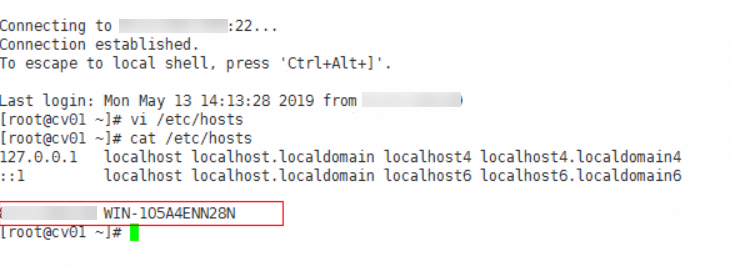
Note: When you are installing MediaAgent on a Linux host, the Windows master server will be configured and associated during the installation. Therefore, before the installation and deployment, you need to add the IP address and host name of the master server to the host file of the Linux host.
Prepare the Commvault compressed installation package Unix.rar and Linux rar tool.
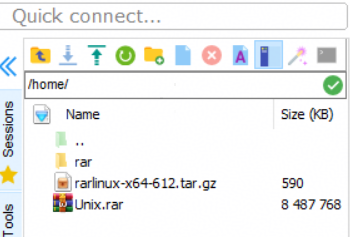
- Install the Linux rar tool.
Run the following commands in sequence:
tar -xzpvf rarlinux-x64-612.tar.gz
ls
cd rar
make
make install
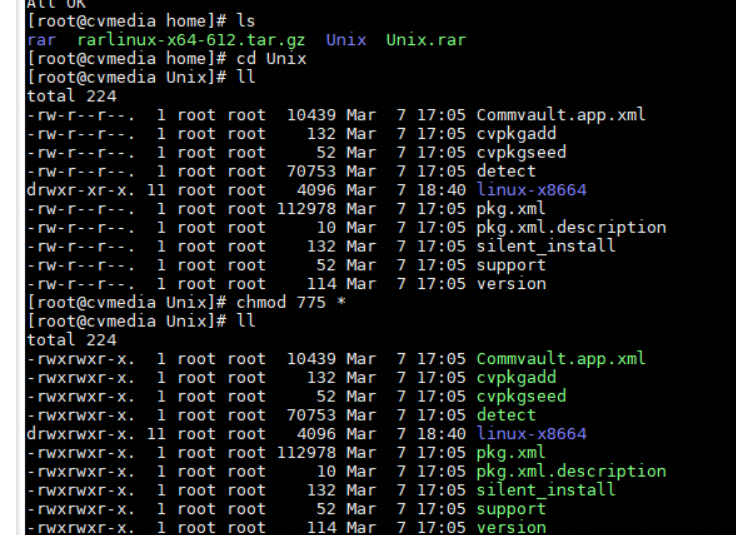
2. Decompress the Commvault installation package Unix.rar.
Run unrar x Unix.rar.
After the decompression is complete, run the cd Unix command and run the chmod -R 775 * command to modify the execution permission.
Configure the required host (interconnection must be configured on both Windows and Linux).
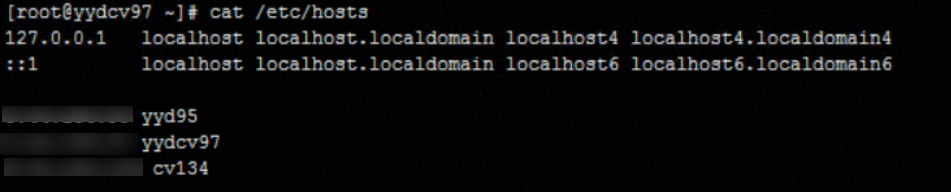
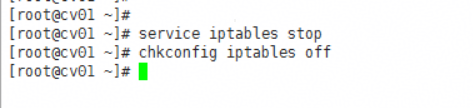
Prepare the installation package.

Grant permissions and run the chmod –R 755 * command to add permissions.
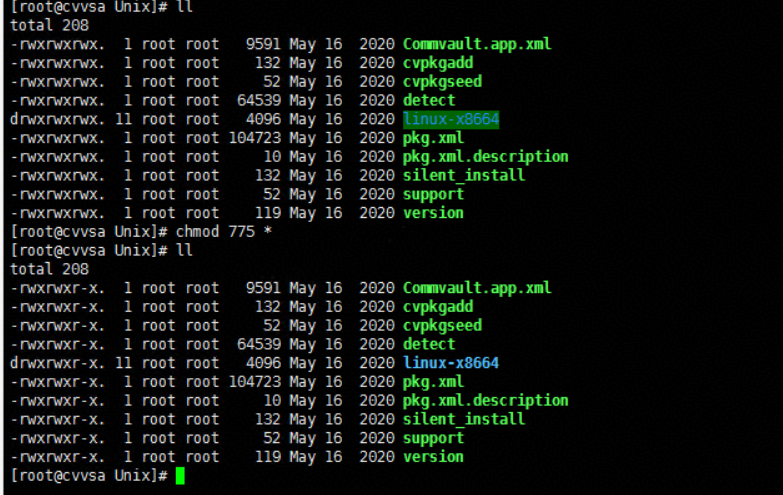
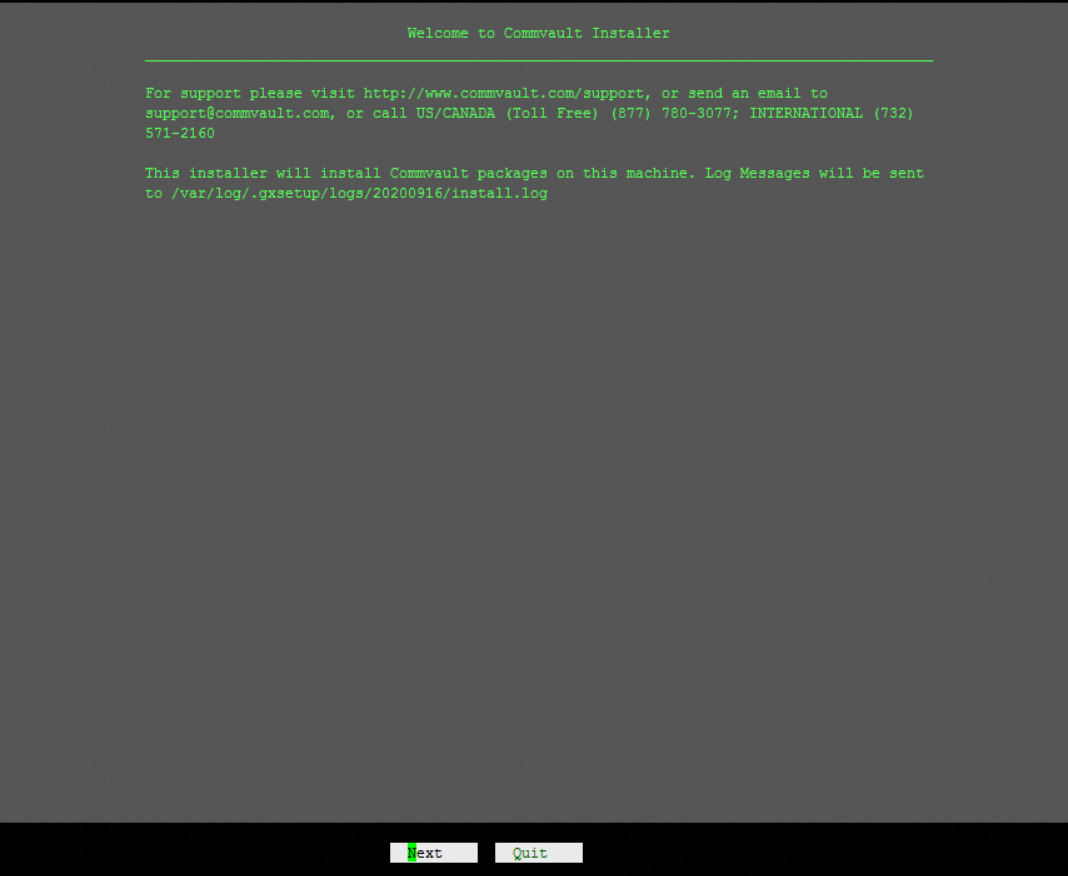
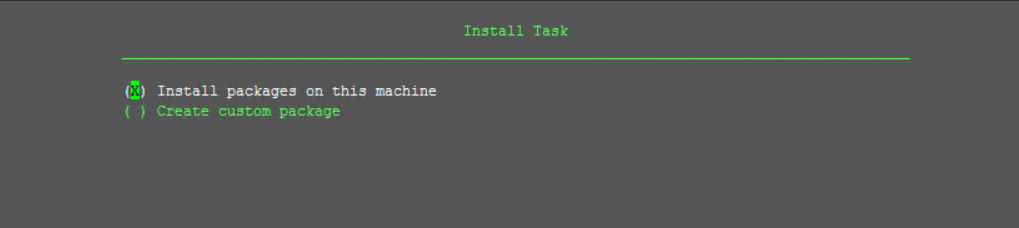
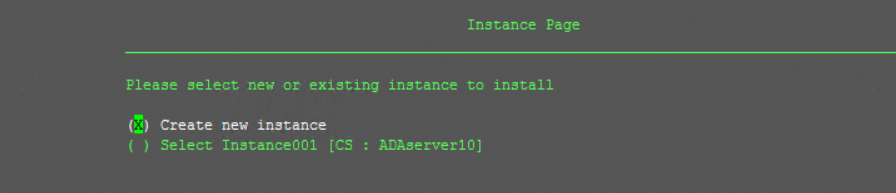

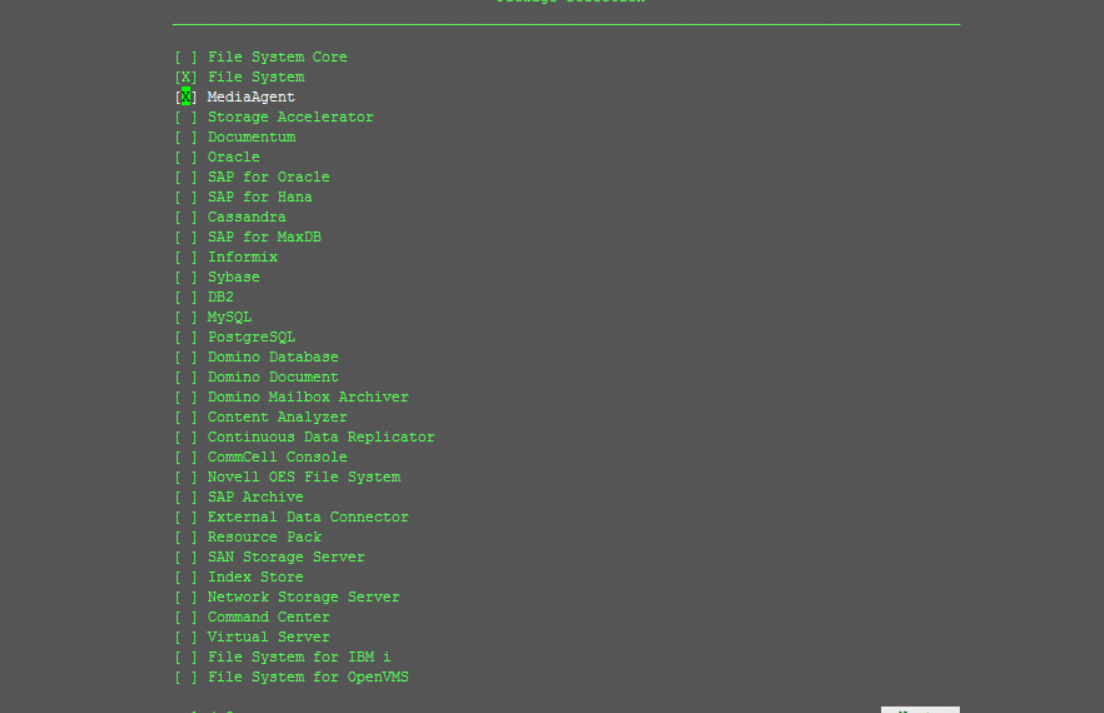
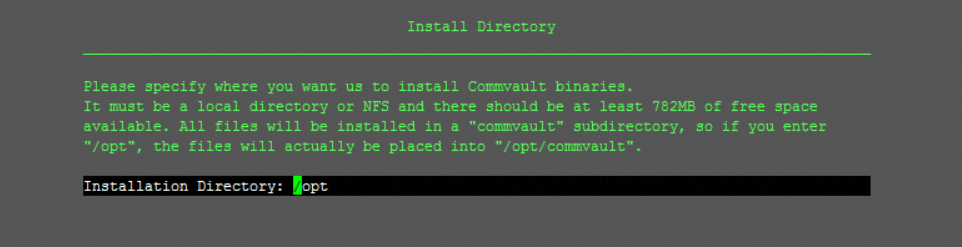
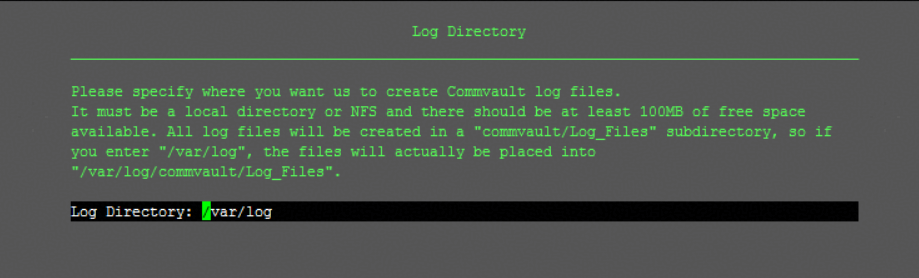
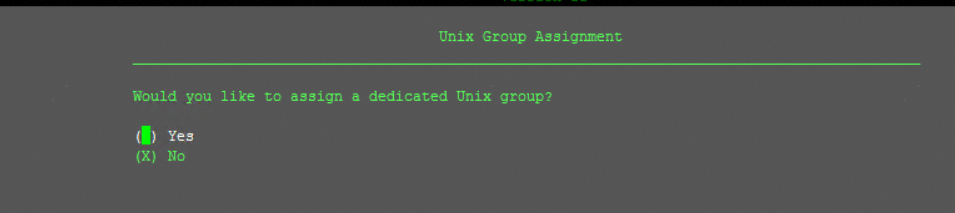
You do not need to configure a group if the Oracle database is not backed up.
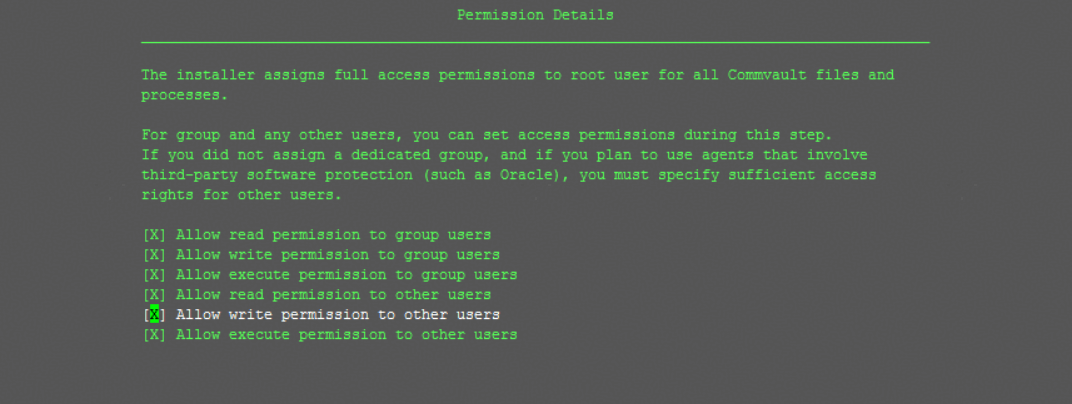
Common client installation options
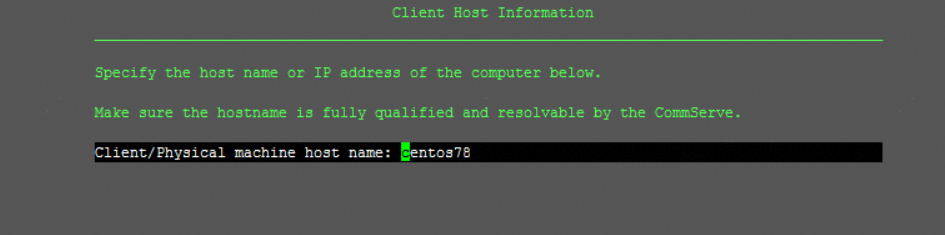

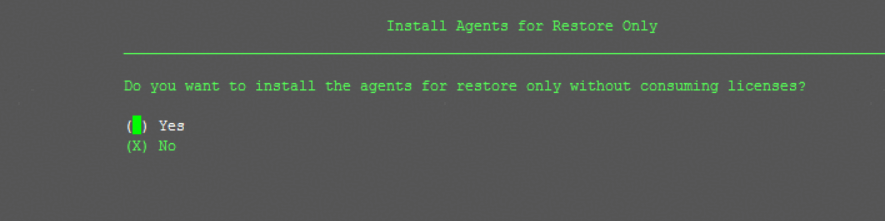
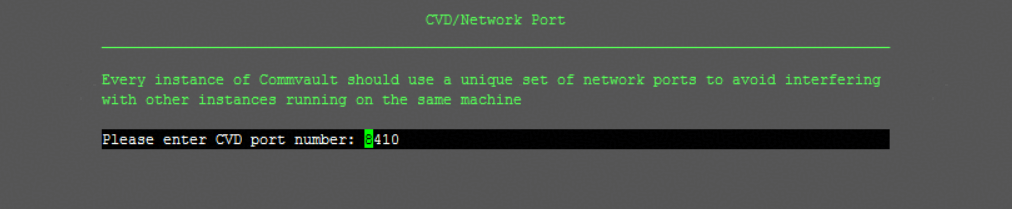
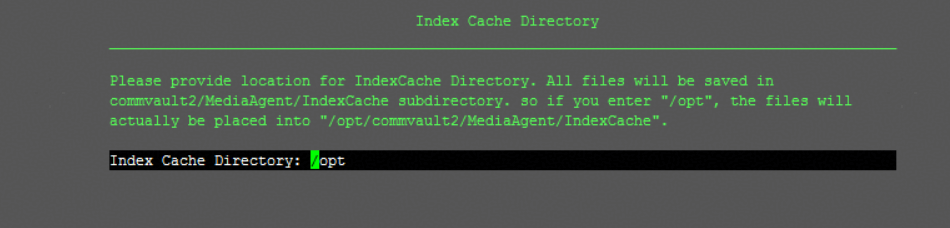
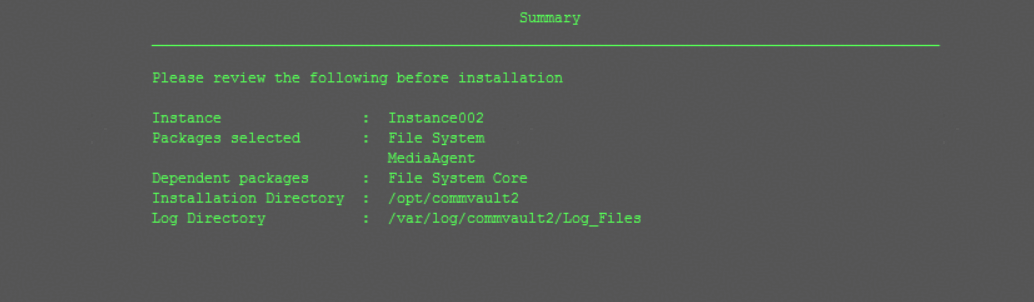
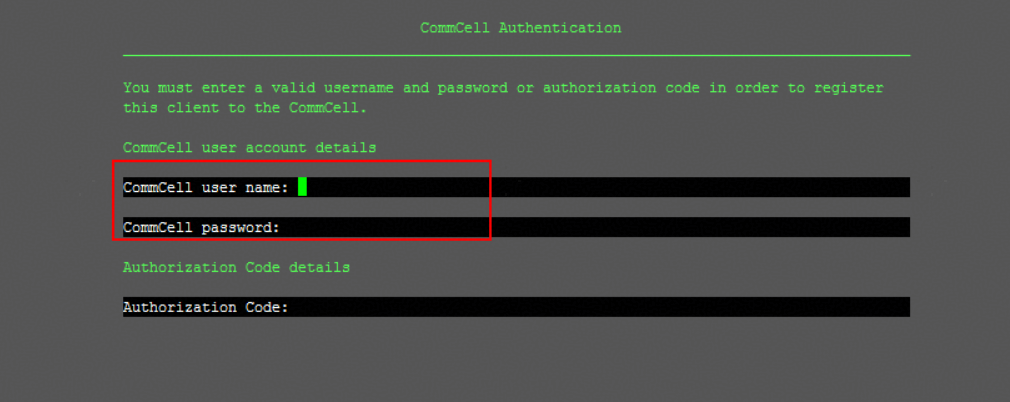
Note: The password of the server cannot contain special characters, such as the at sign (@).
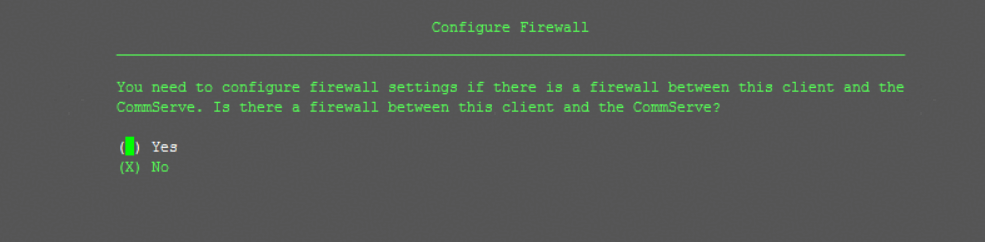
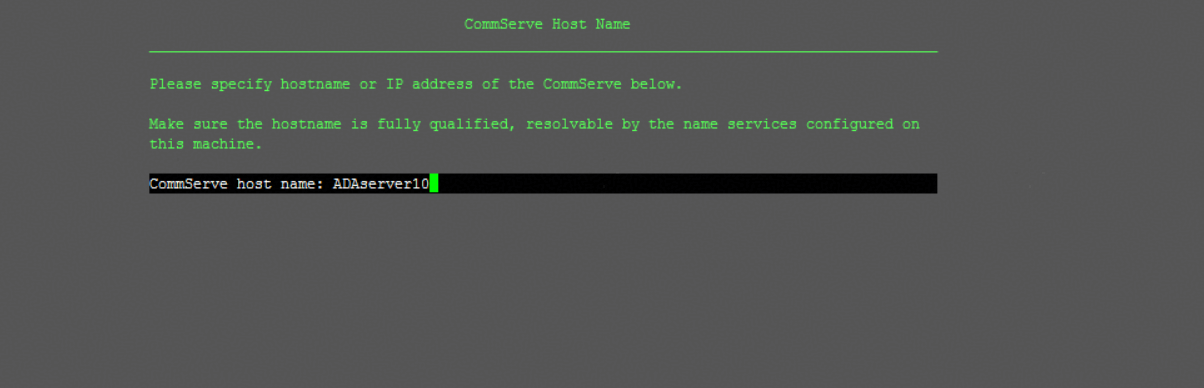
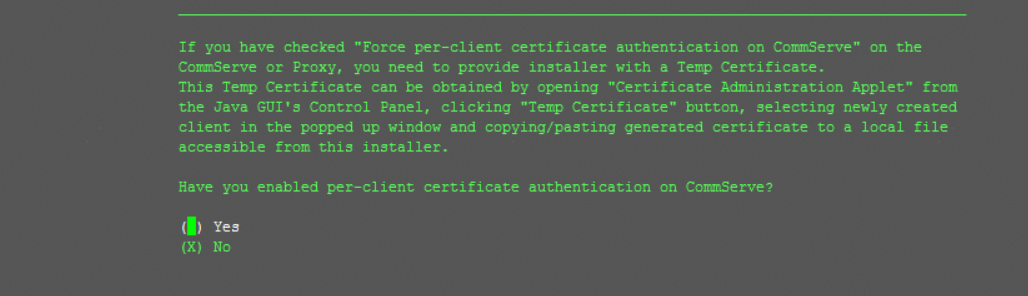
Commvault ComCell login information
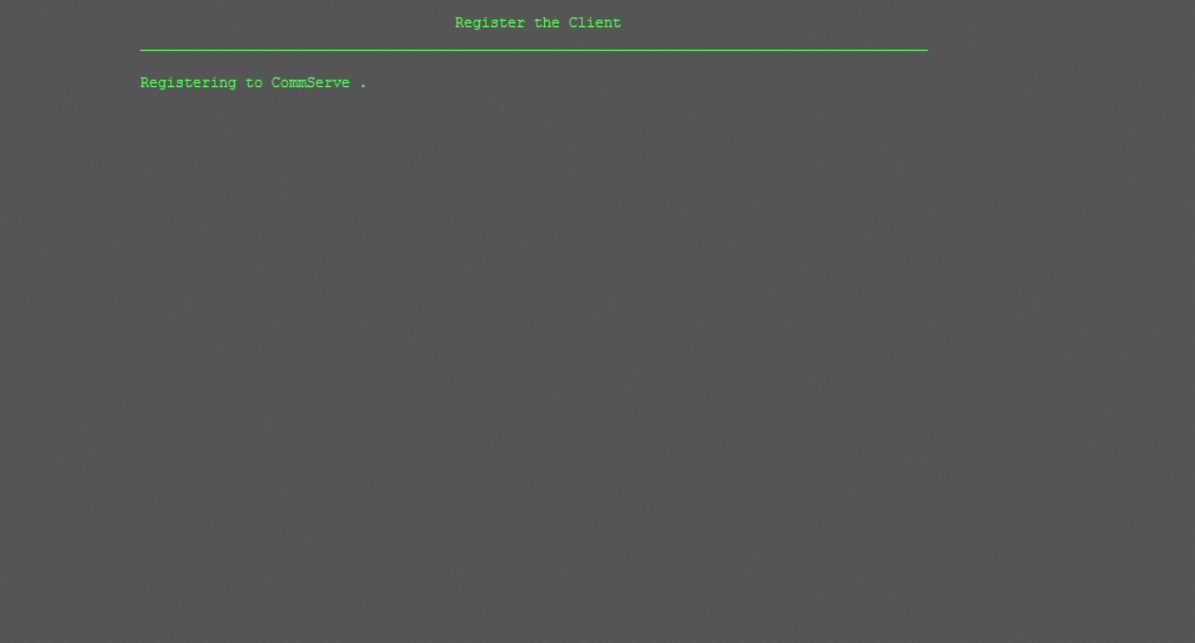
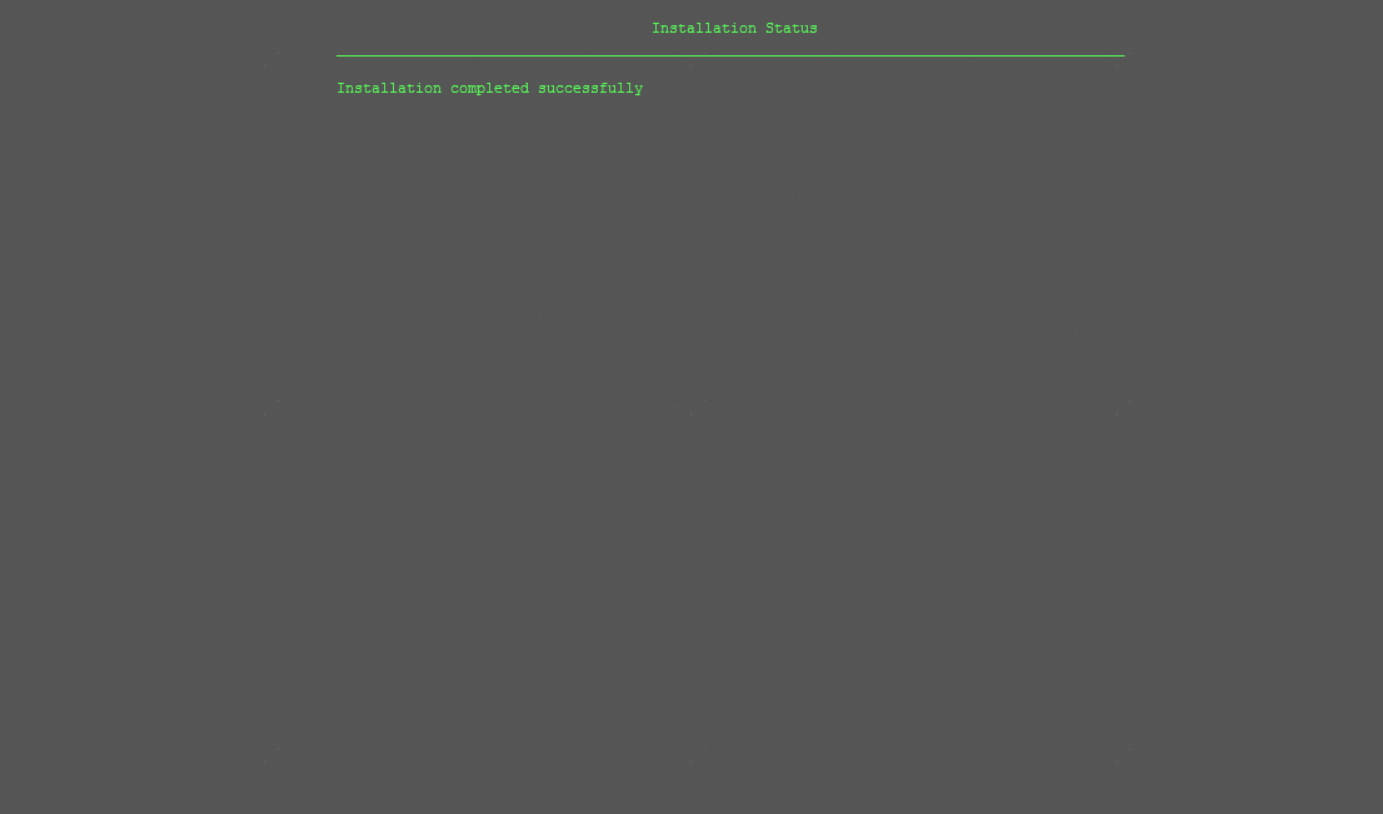
Verify that the installation is successful. In this example, the CommServe Server is installed on a Windows host, and MediaAgent is installed on a RHEL host.
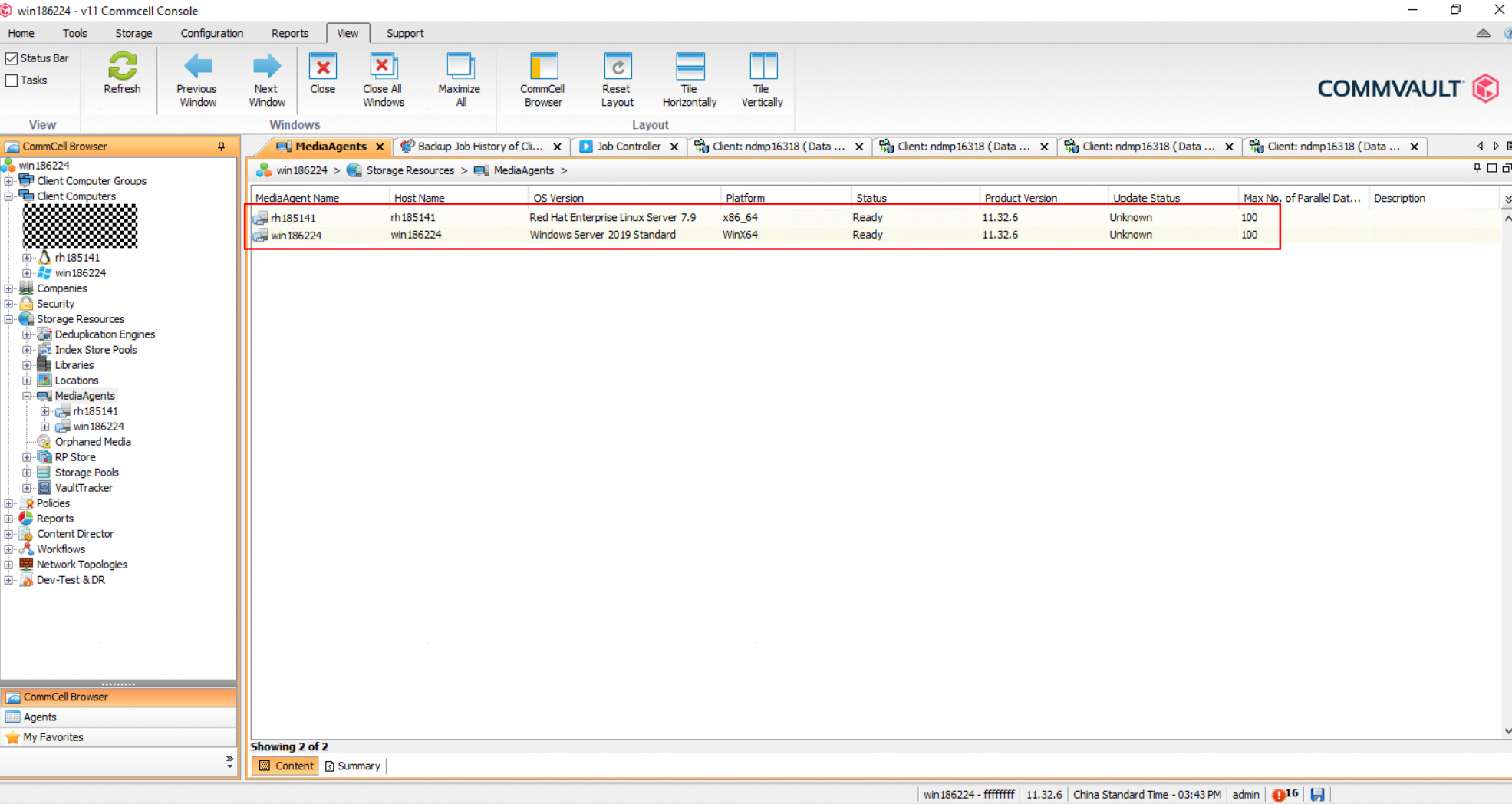
Note: The overall configuration process for NFS protocol interconnection is the same. The difference lies in the selection of the Linux file system and the use of the Linux agent as the access node.
4.3.4 Configuring the SMB Media
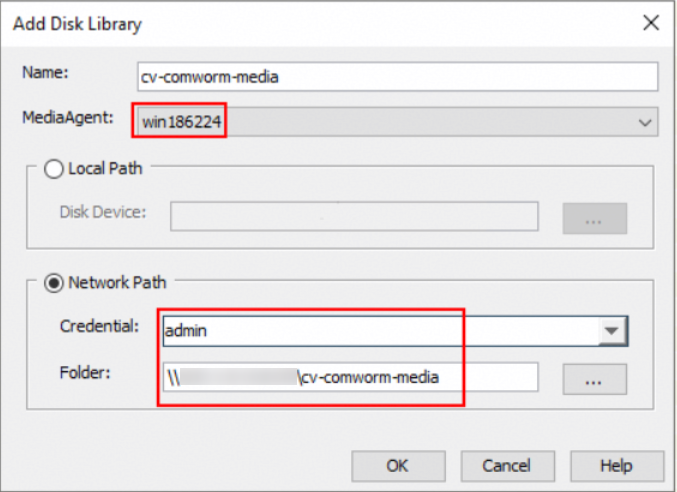
4.3.4.1 Creating Libraries
- Add disk storage.
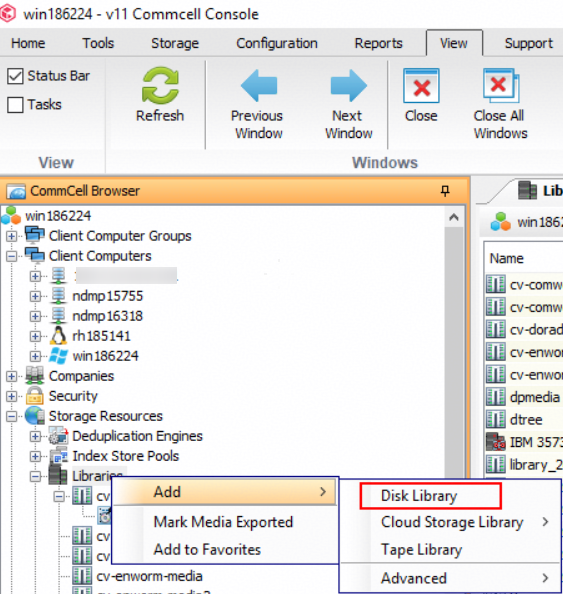
2.Customize the library name, select the Windows host MediaAgent, and enter the share path and authentication user.
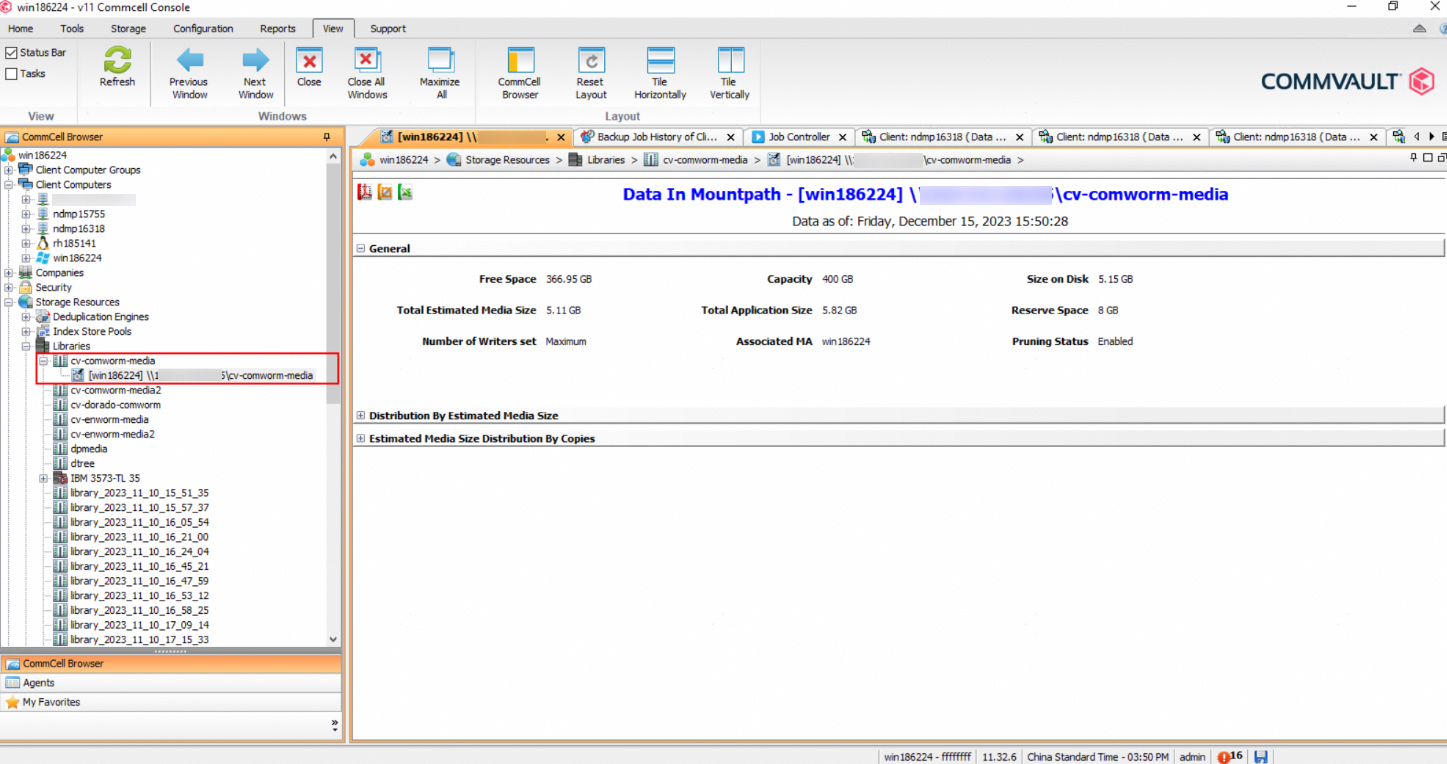
3. Complete the configuration.
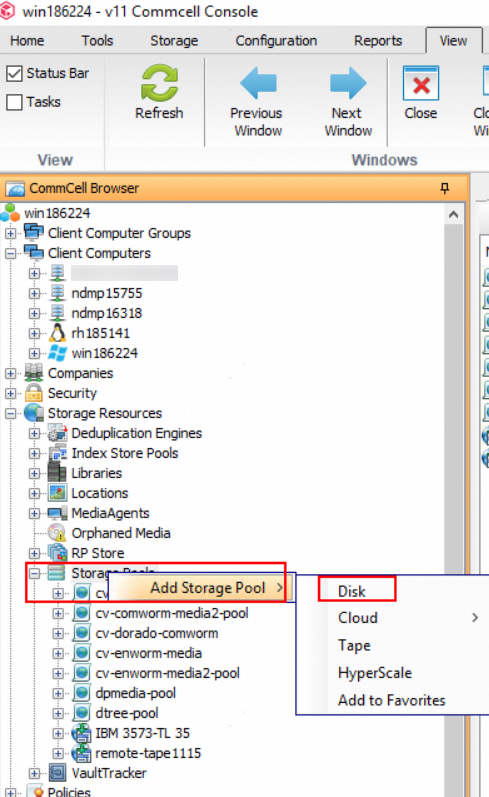
4.3.4.2 Configuring a Pool
- Add disk storage.
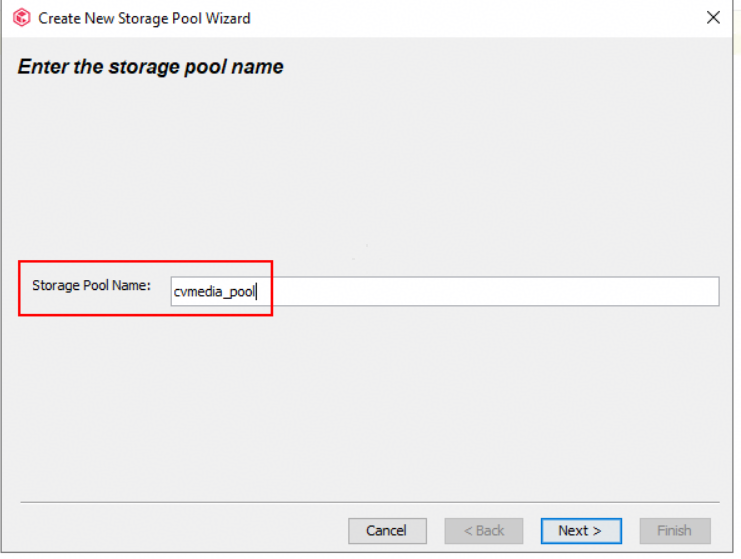
2.Customize a pool name.
3.Select the created library.
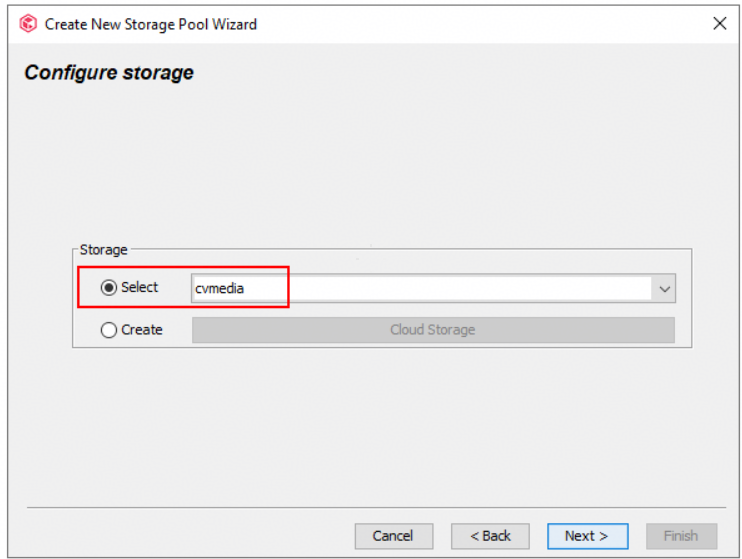
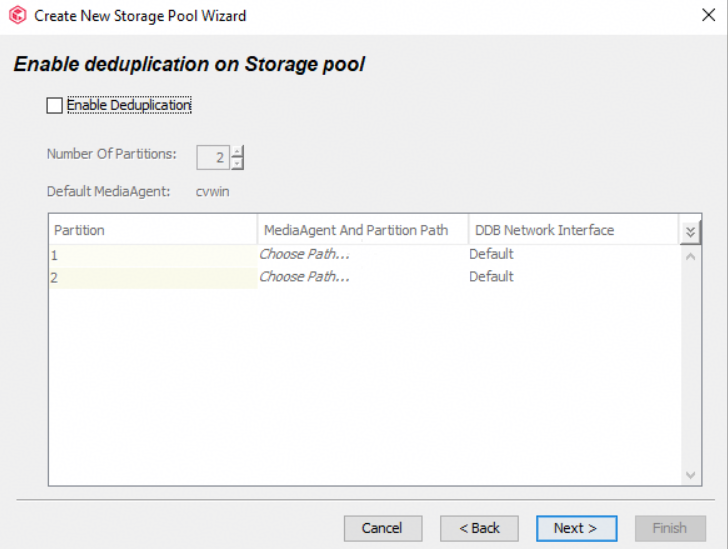
4.Disable deduplication.
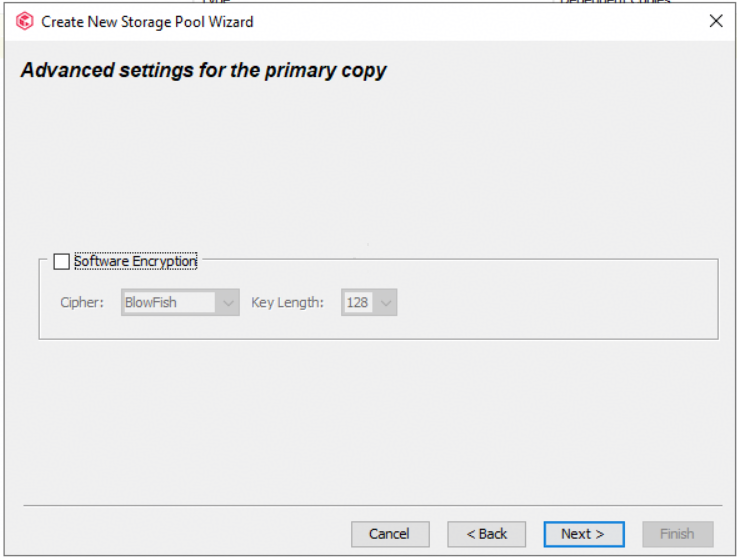
5.Disable encryption.
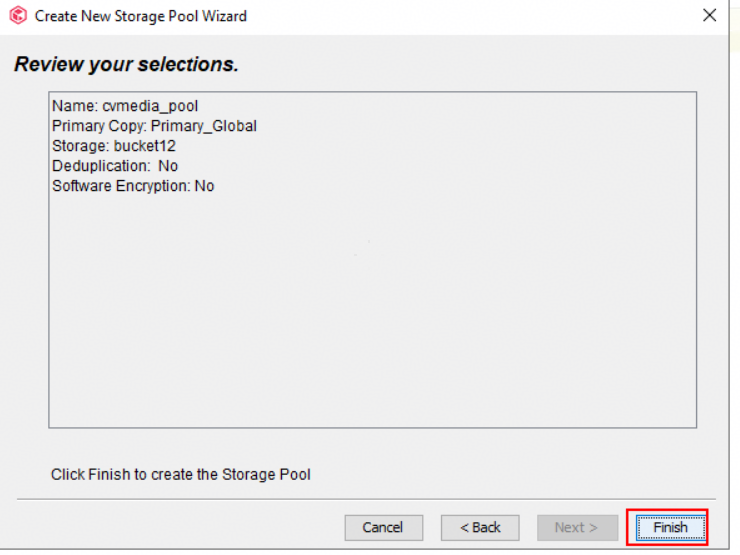
6.Confirm the information and click Finish.
7.The pool is created.
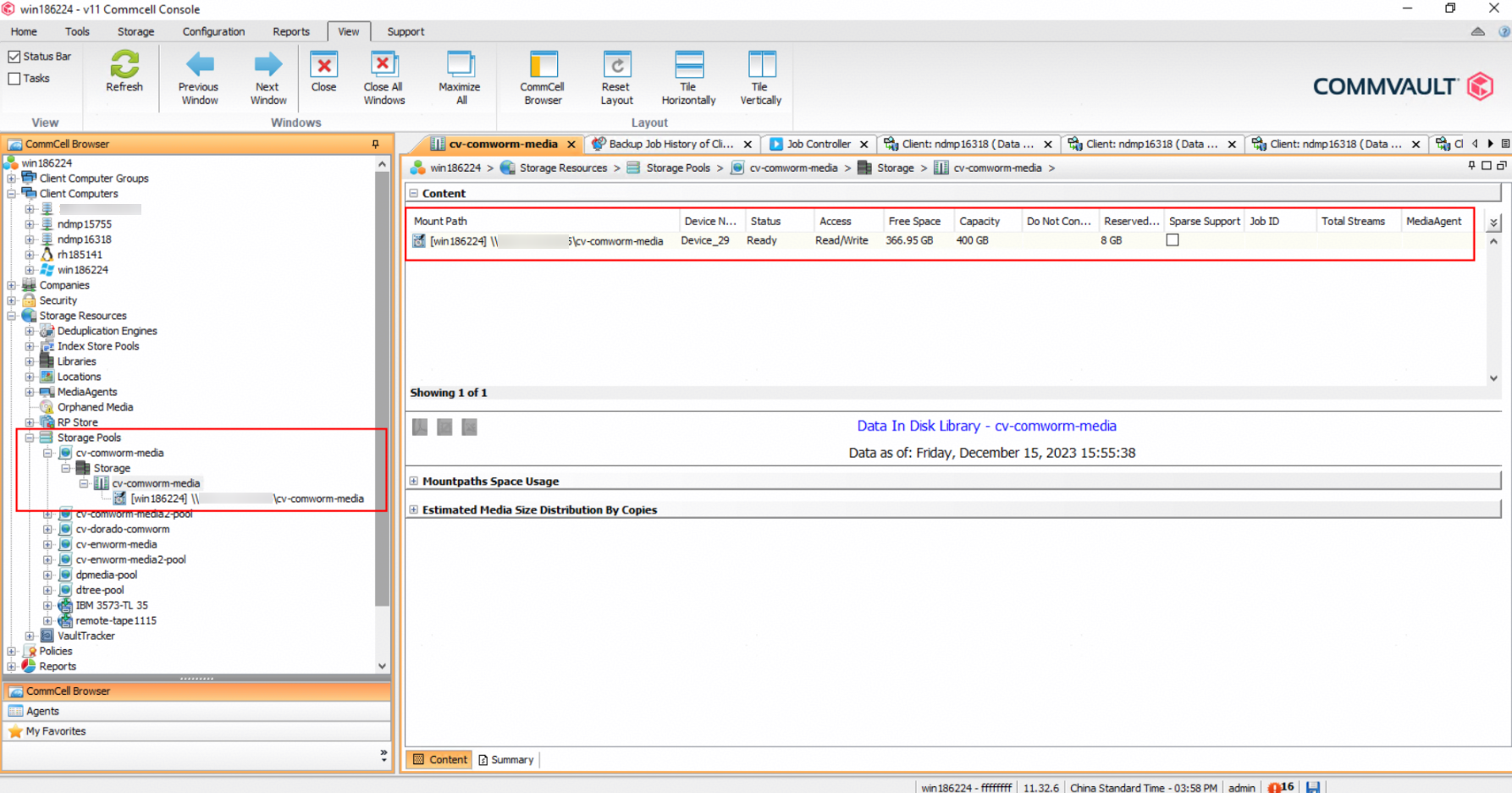
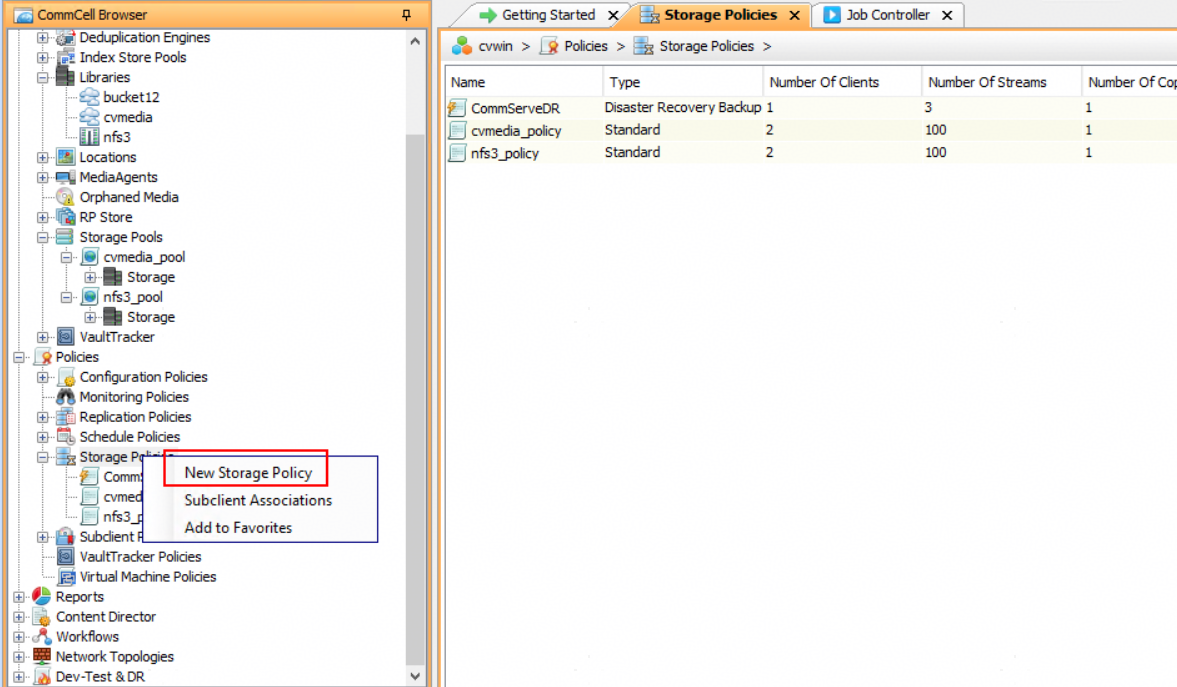
4.3.5 Configuring a Storage Policy
- Create a storage policy.
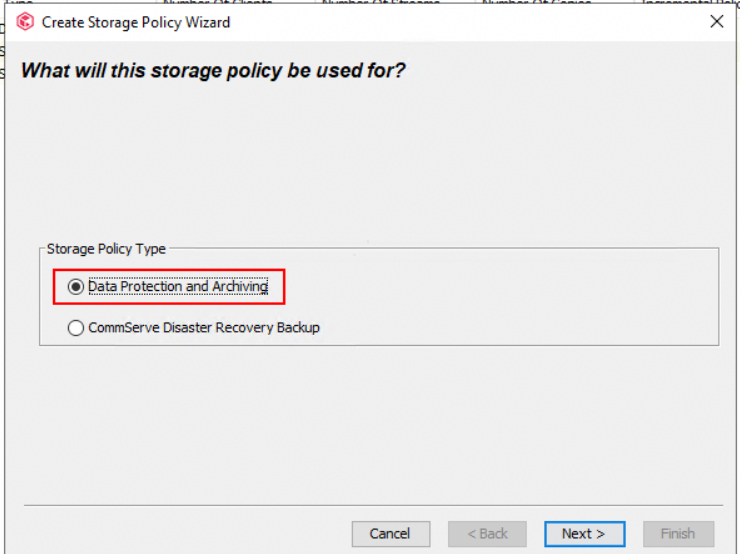
2.Select a storage policy type.
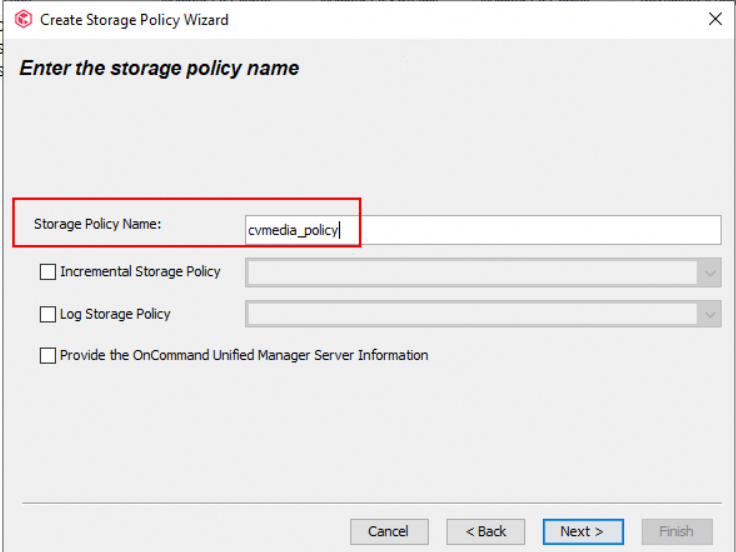
3.Customize a storage policy name.
4. Select the storage pool that has been created.
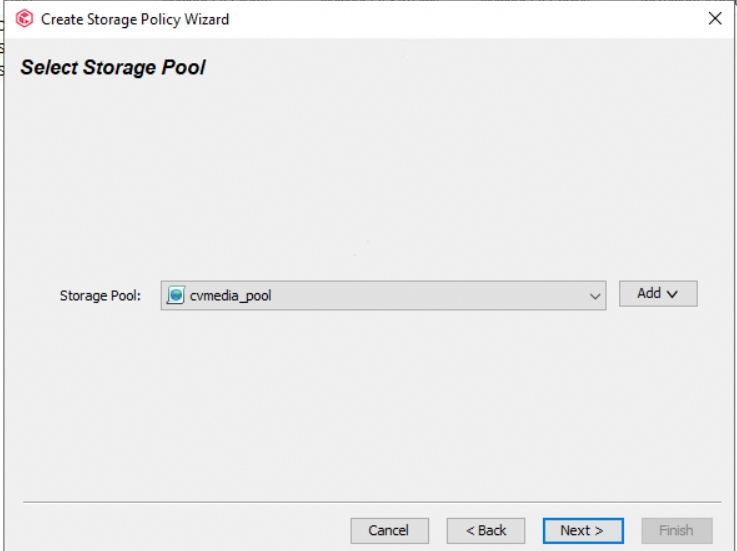
5.Retain the default setting of Number of Device Streams and the retention period.
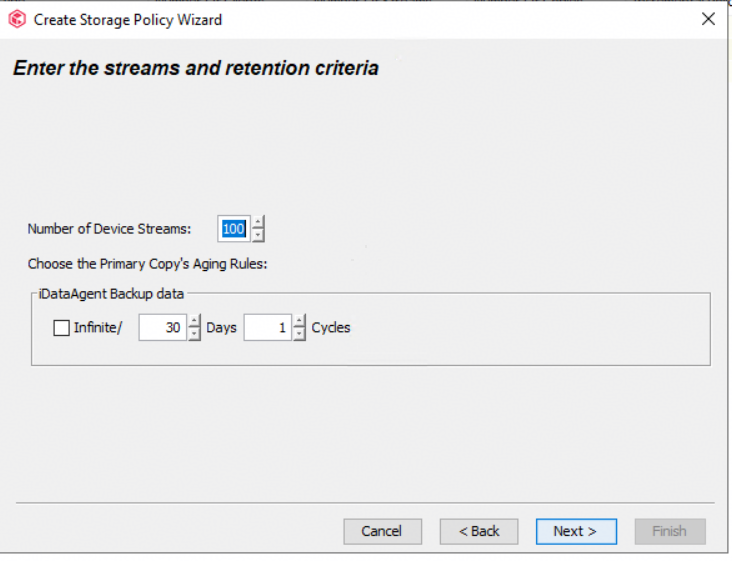
6.Confirm the information and click Finish.
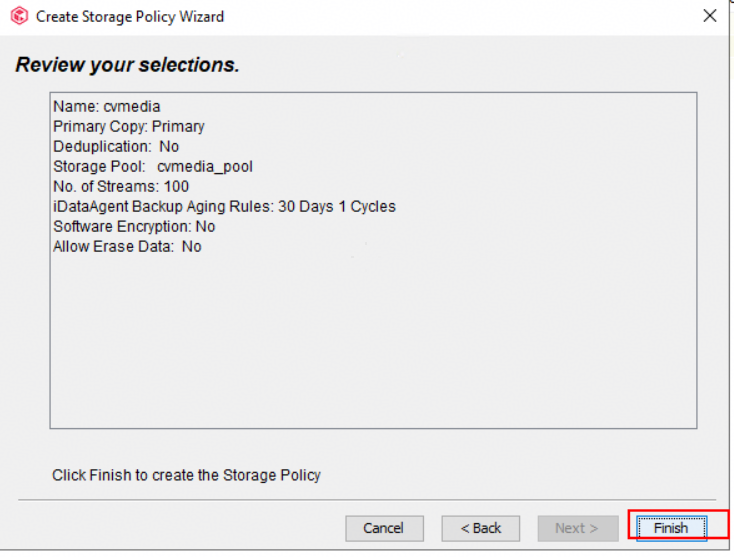
7.The policy is created.
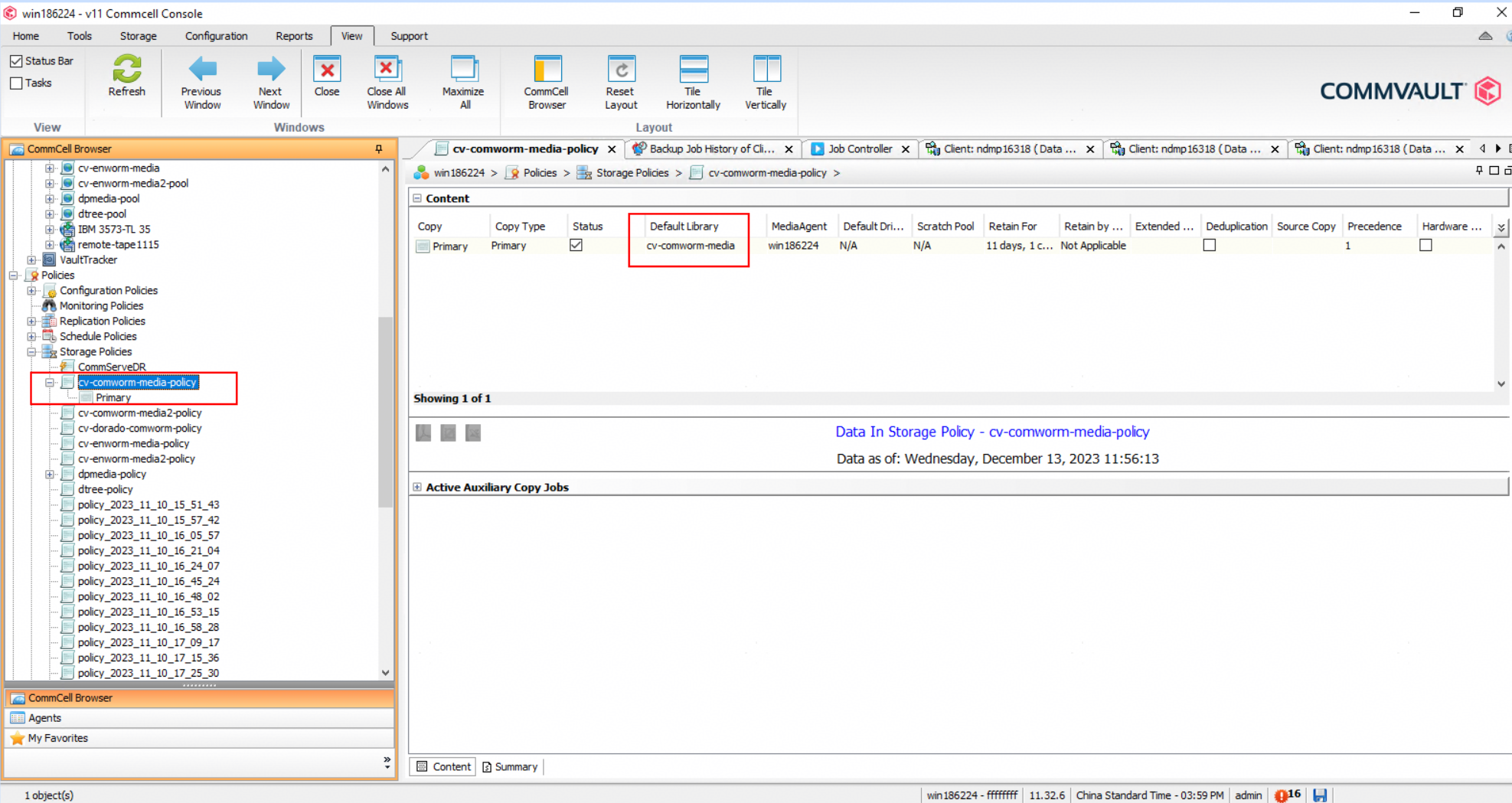
4.3.6 Performing Backup and Restoration
4.3.6.1Configuring the Backup Source
- Create a NAS client.
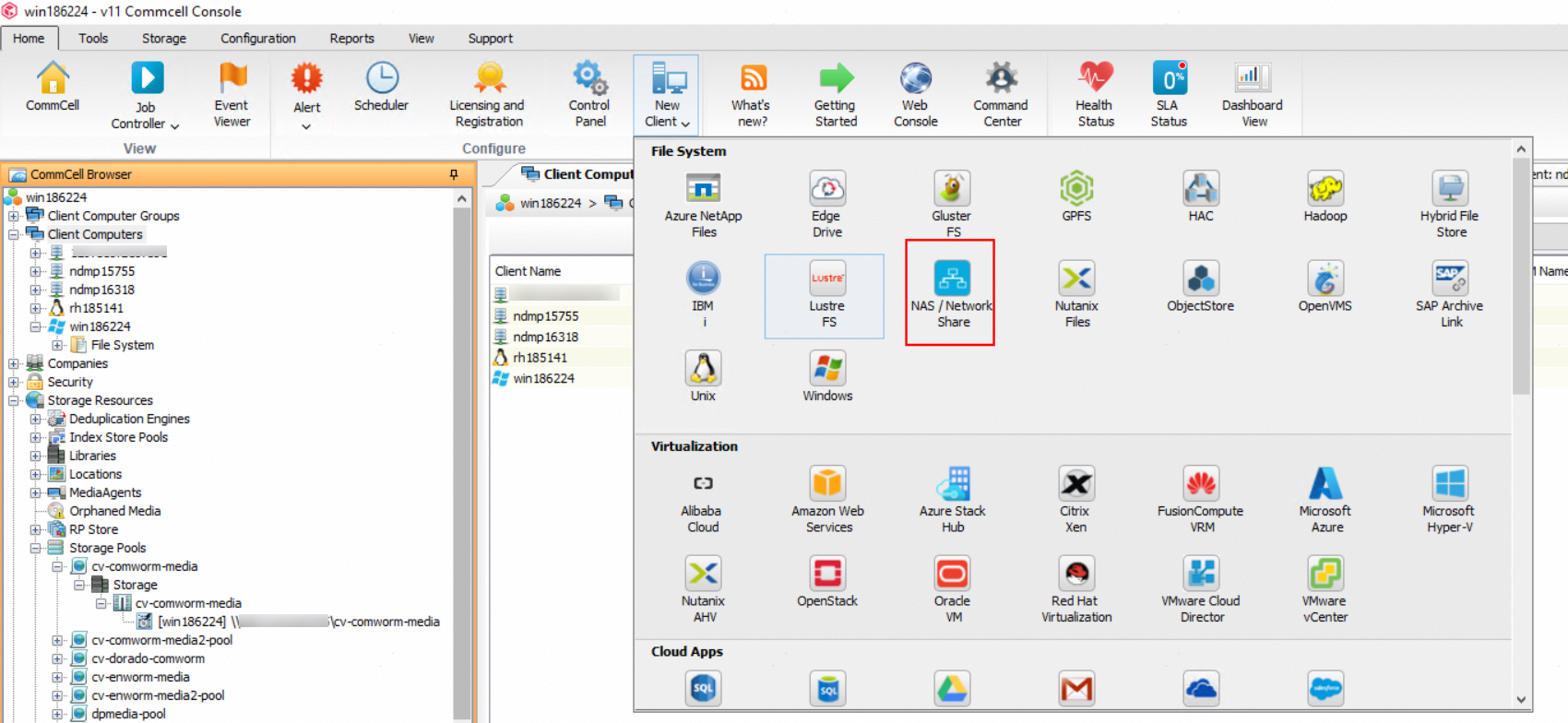
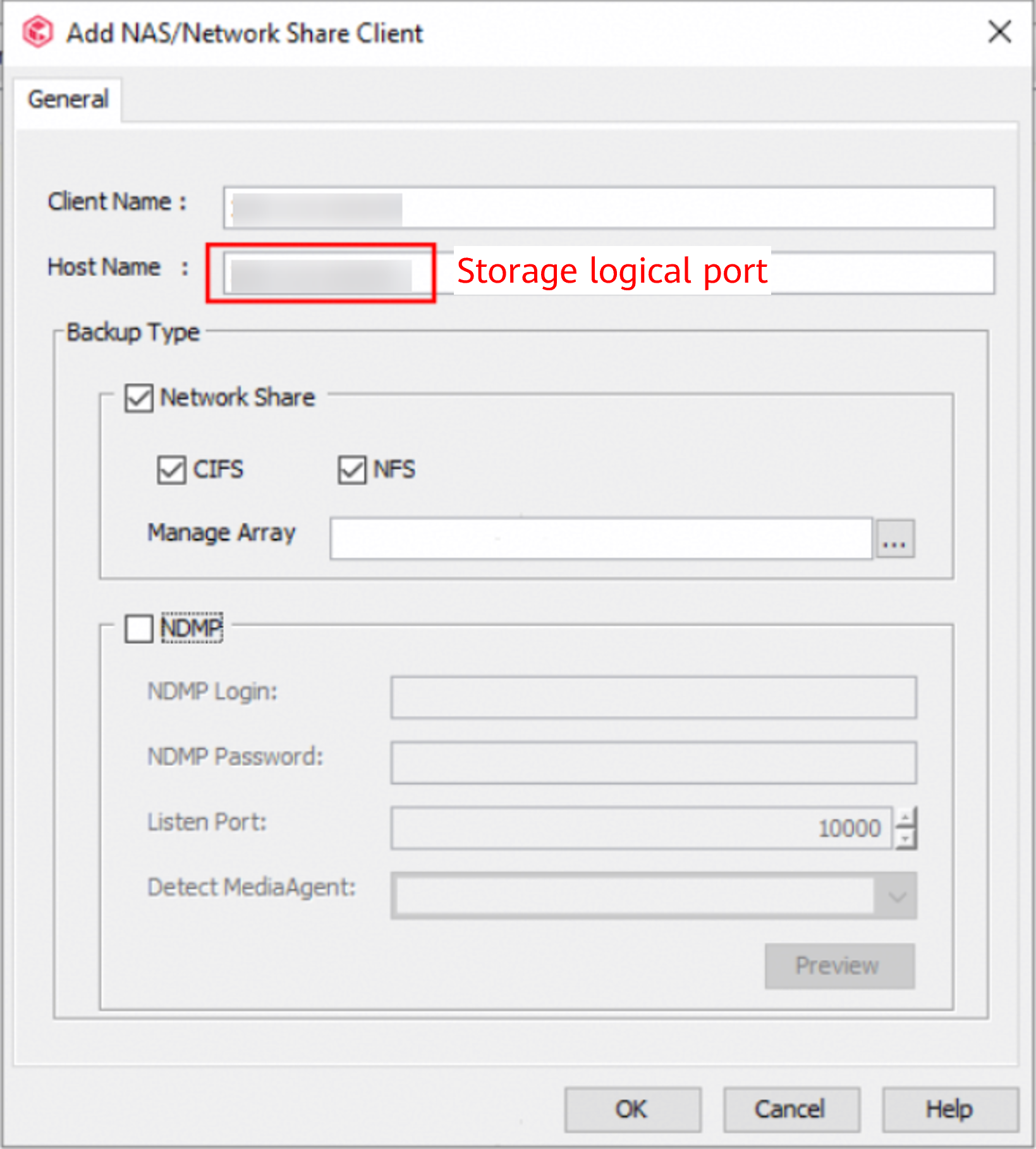
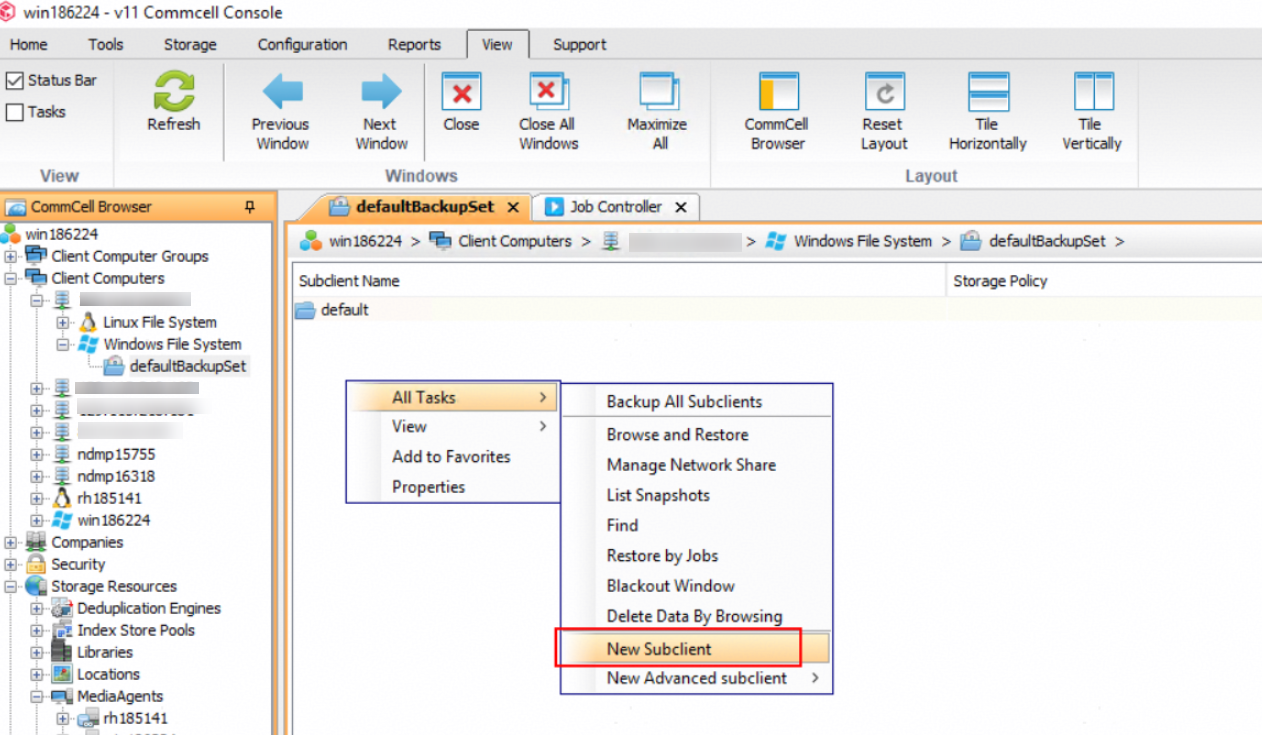
2.Configure a subclient (in Windows File System).
Customize a name.
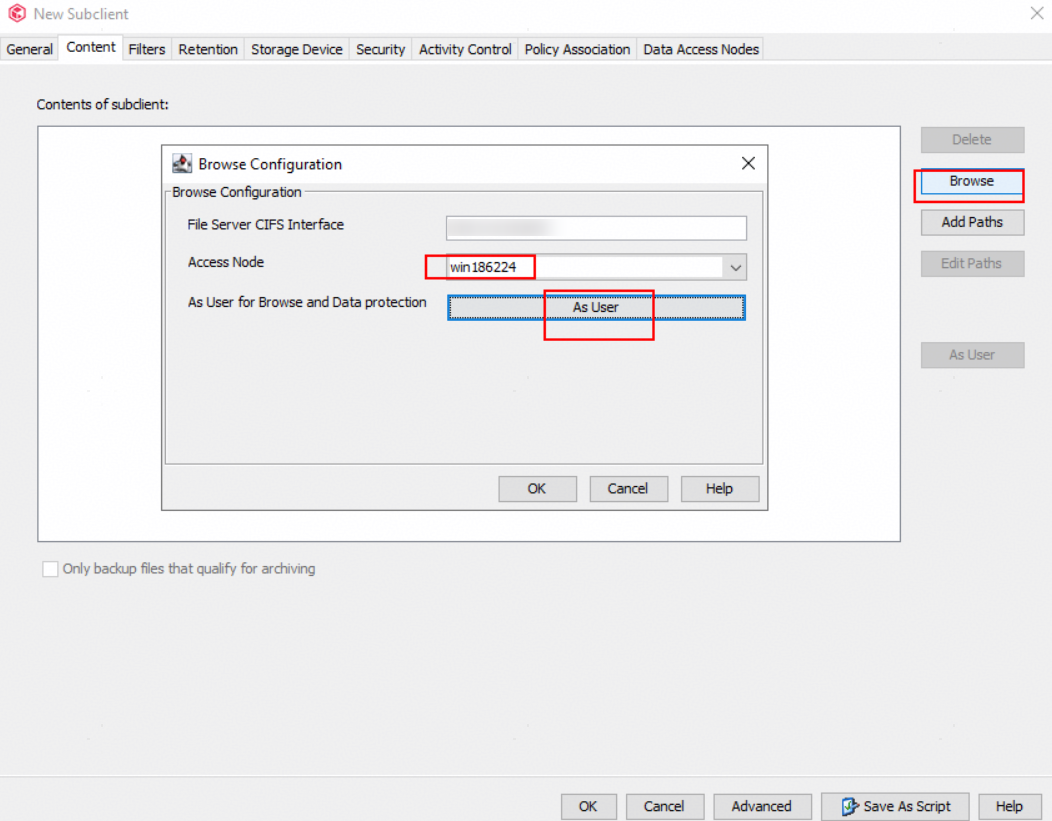
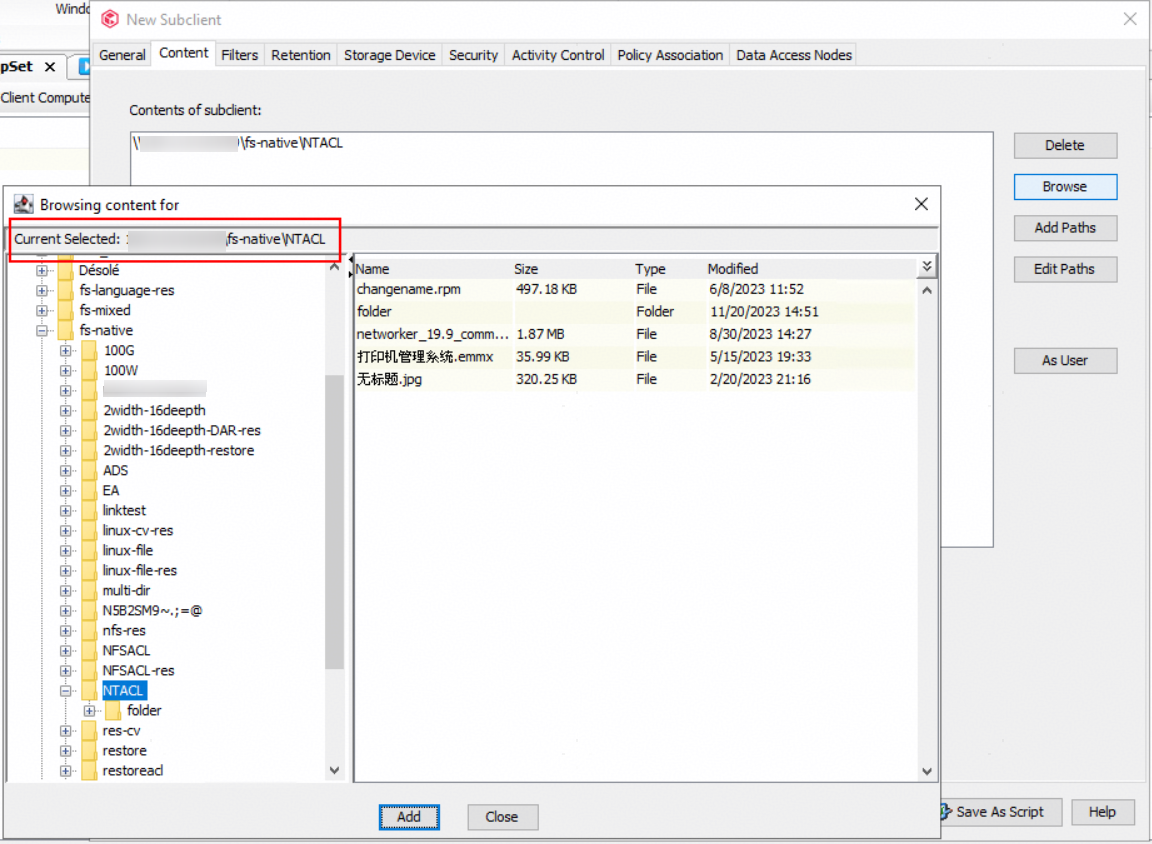
3.Configure the backup object content.
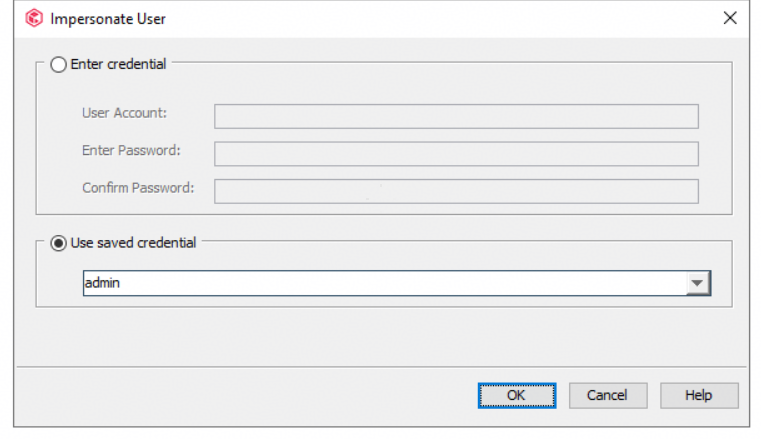
Browse and add files or data to be backed up. Select the Windows client for Access Node. Click As User and enter the authentication account and password.
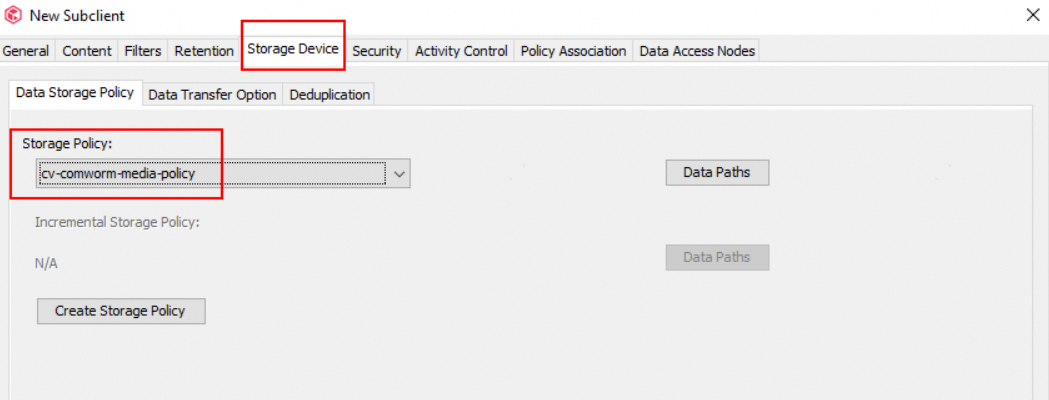
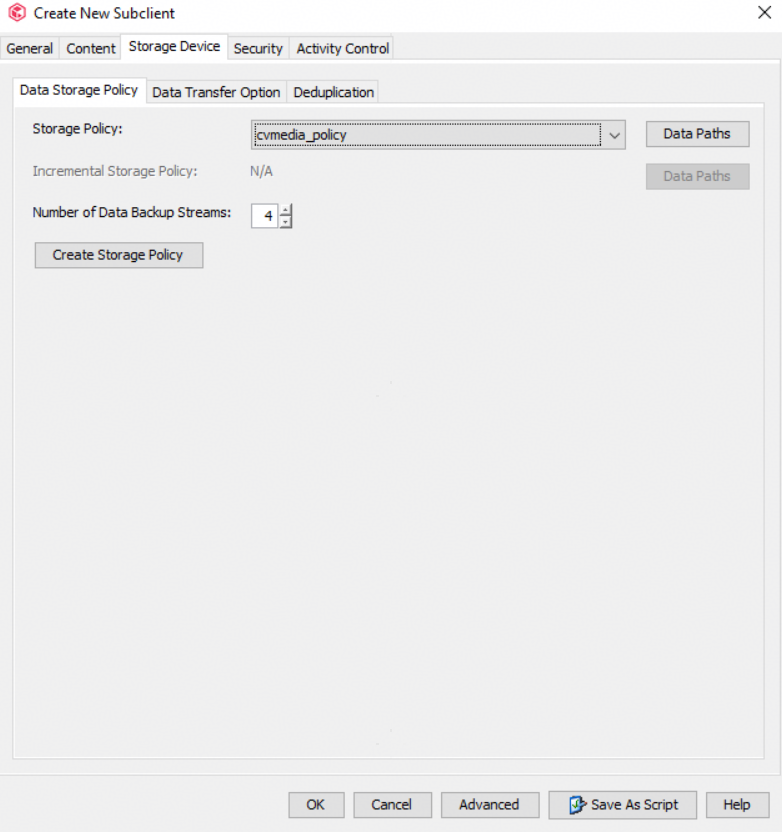
4.Configuring a storage policy.
Select the configured backup media.
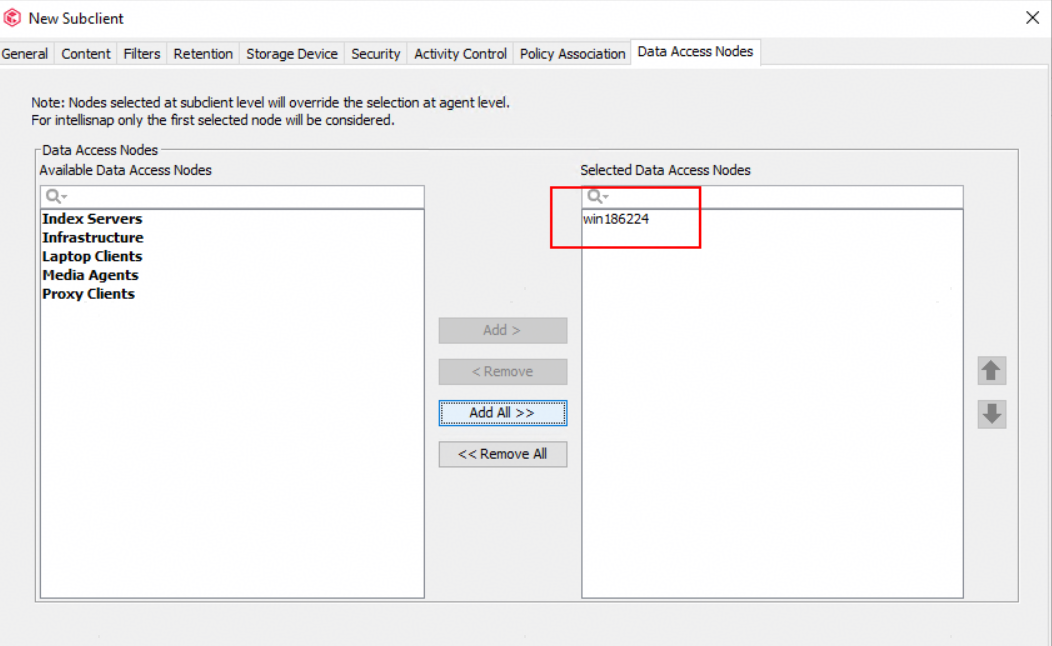
5.Select data access nodes.
4.3.6.2 Configuring a Backup Job
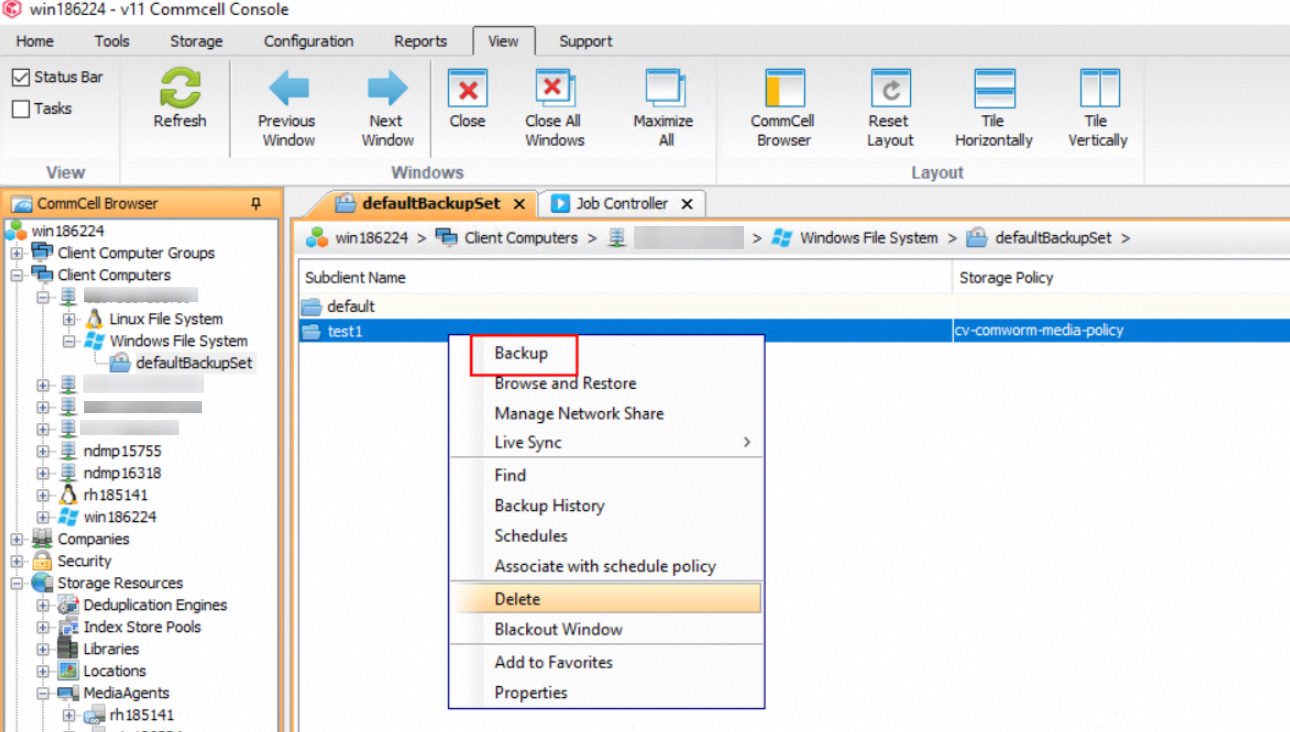
- Create a backup job.
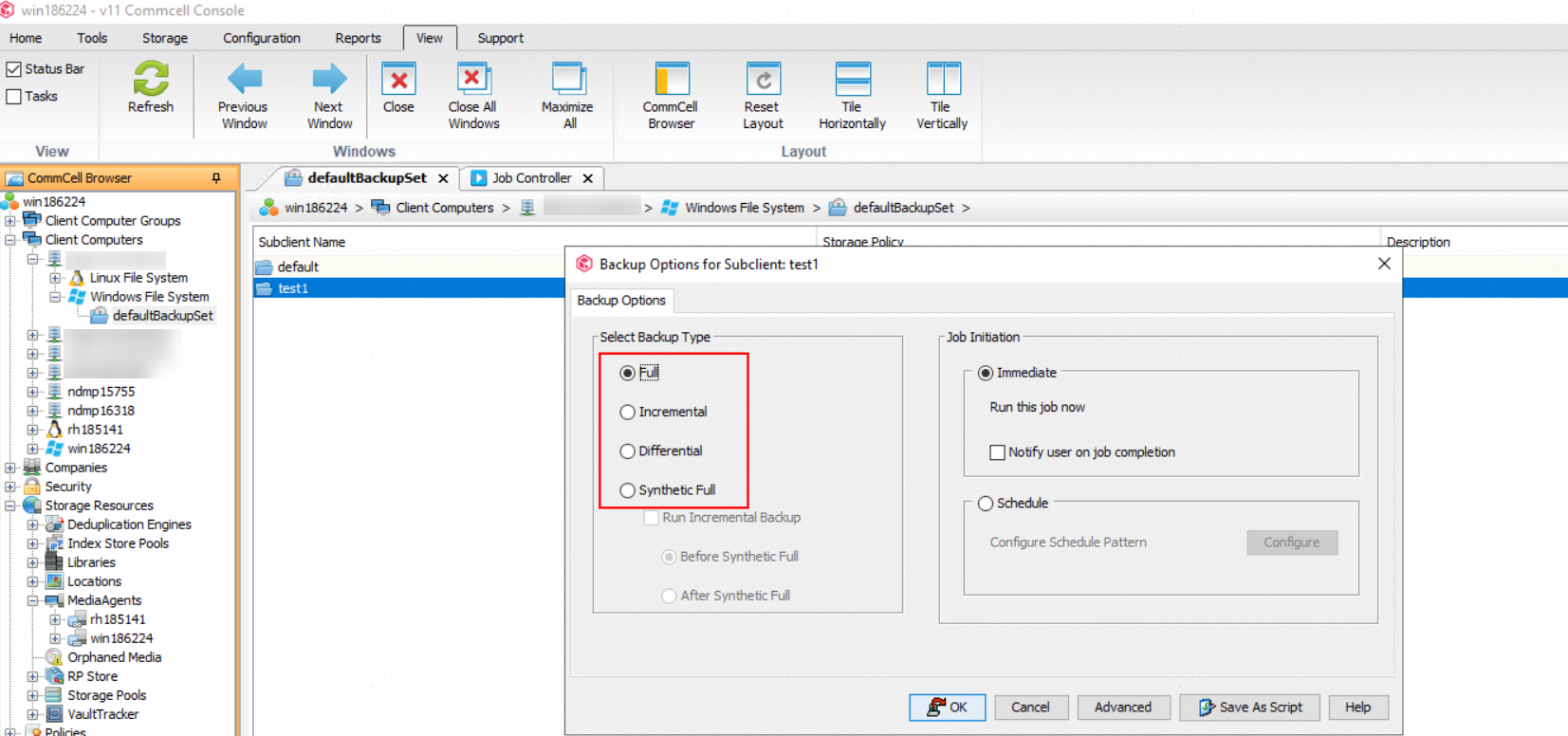
2.Select the full or incremental backup type based on service requirements.
3. The backup job is completed.

4.3.6.3 Configuring a Restoration Job
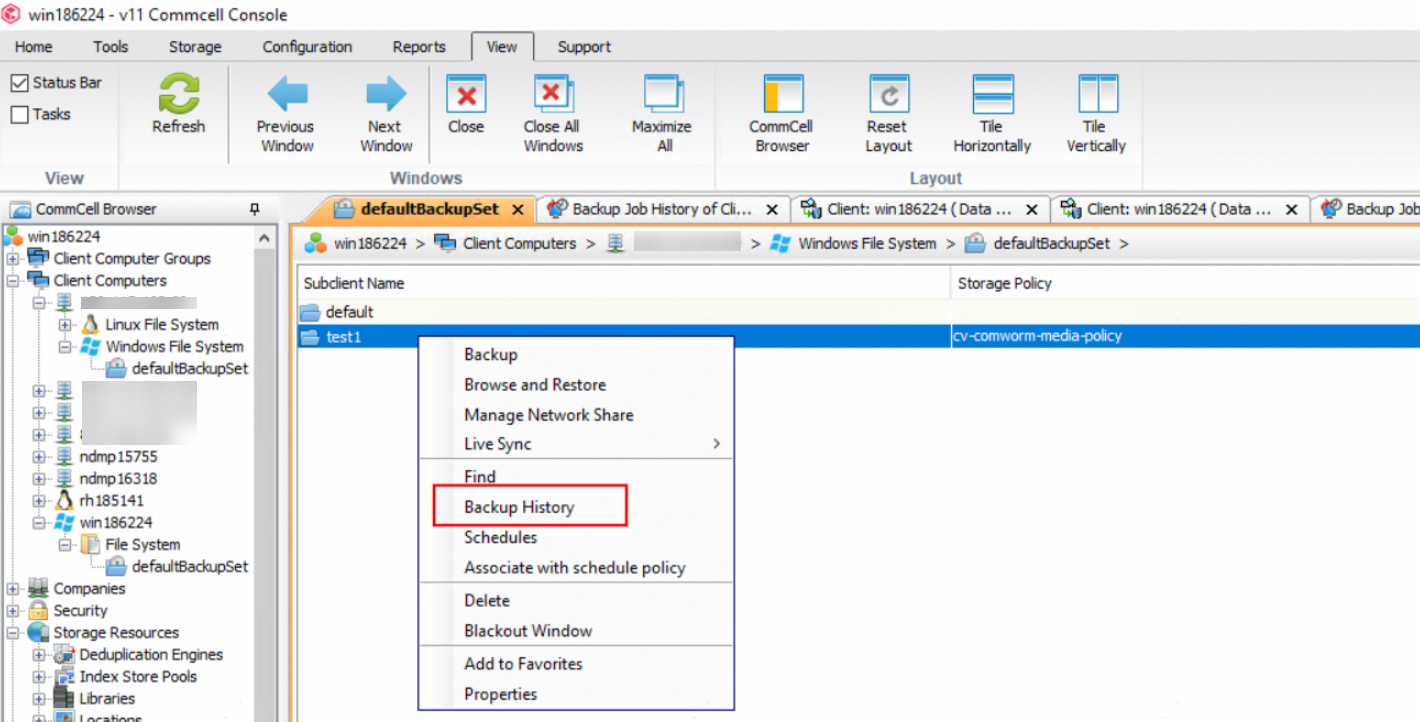
- Choose Backup History.
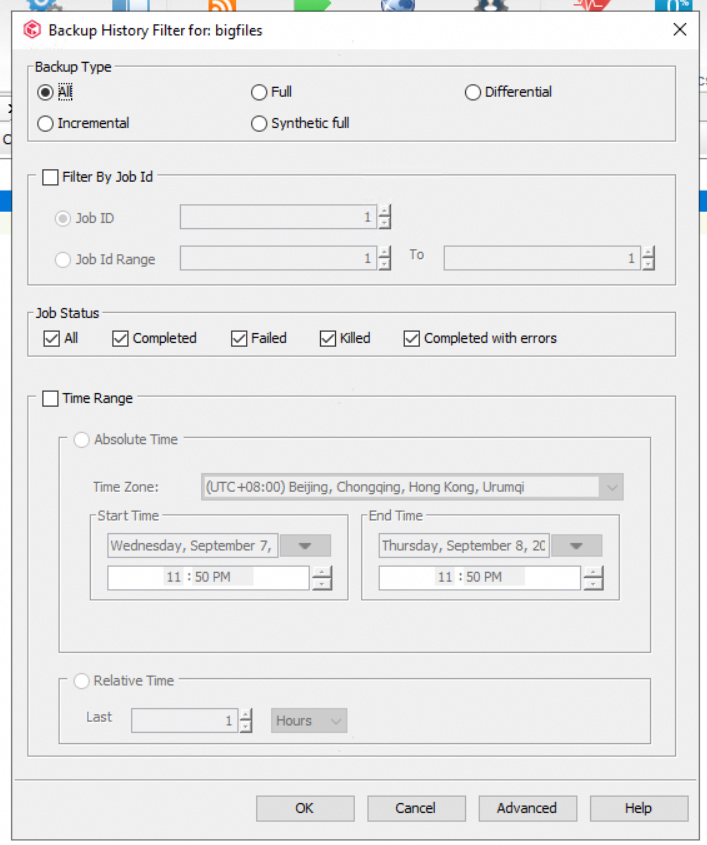

2.Select the original path or a specified path for file restoration.
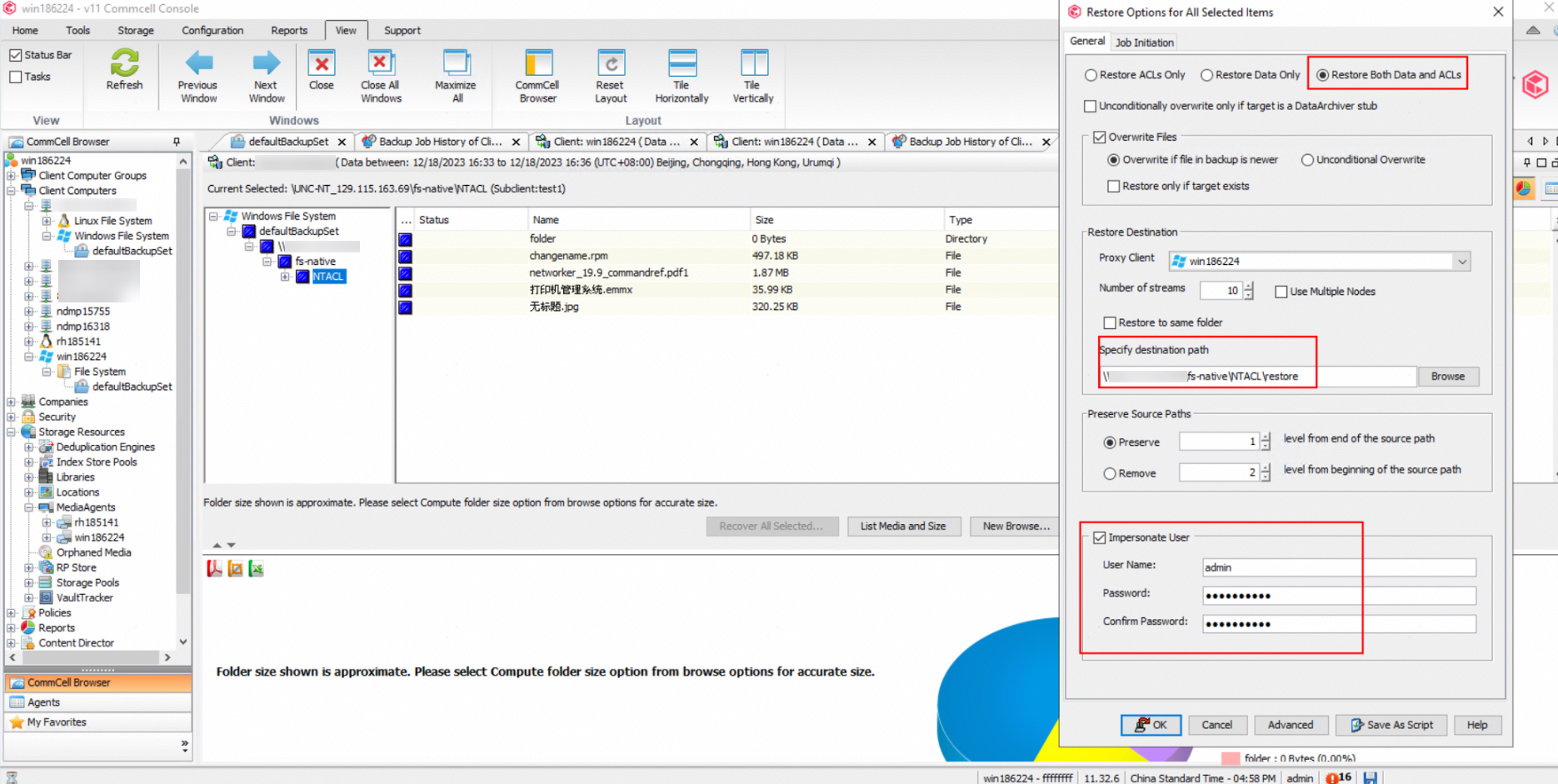
3. The restoration job is completed.
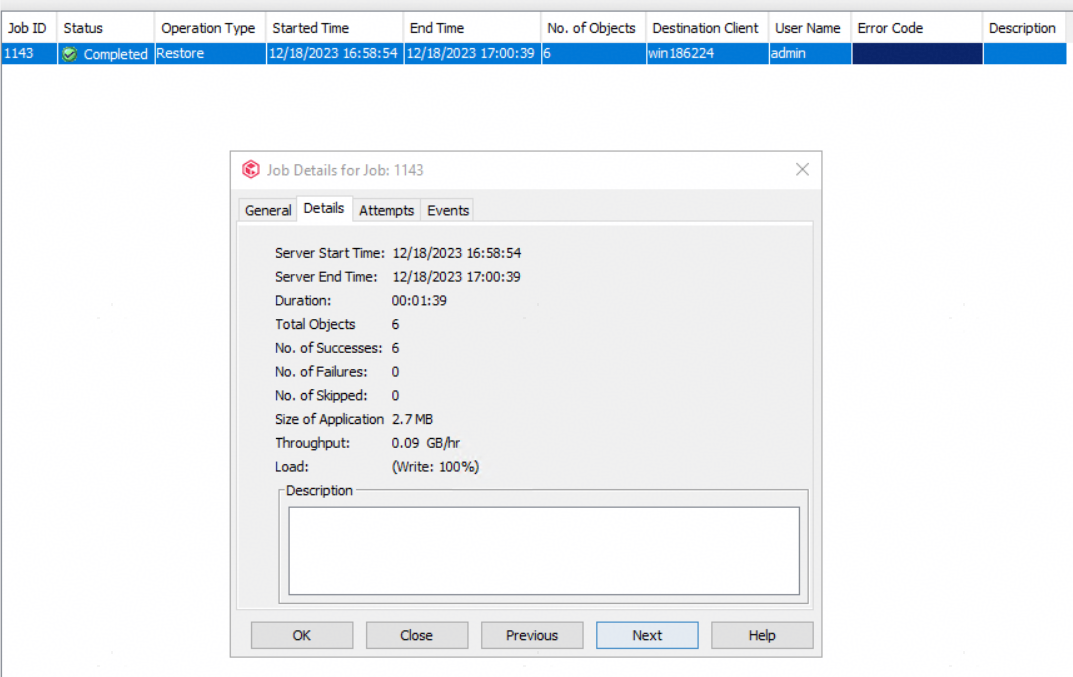
4. Compare data consistency.