Huawei OceanStor Dorado All-Flash Storage and Veeam Backup & Replication 13
Interoperability Test Report

Axians Global
Executive Summary
Axians Global (“Axians”) assessed the interoperability of Veeam Backup & Replication with Huawei OceanStor Dorado All-Flash Storage. The goal of the assessment is to validate that Veeam Backup & Replication is interoperable with Huawei OceanStor Dorado All-Flash Storage.
During the assessment, all interoperability test cases were successfully completed. Veeam Backup & Replication can use Huawei OceanStor Dorado All-Flash storage as repository to back up and restore VMware.
Axians has determined that Veeam Backup & Replication backup and restore jobs will function with Huawei OceanStor Dorado All-Flash Storage for the following scenarios:
Test Scenario | Storage Involved | Protocol Tested | Result | |
Test Scenario 1: Used as immutable Cloud Backup Repository in the VMware backup scenario | Veeam Backup & Replication 13 | Huawei OceanStor Dorado All-Flash Storage | S3 | Passed |
Test Scenario 2: Used as immutable Capacity Tier of Scale-out Repository in the VMware backup scenario | Veeam Backup & Replication 13 | Huawei OceanStor Dorado All-Flash Storage | S3 | Passed |
Tips:All test results are also applicable to Huawei OceanStor Capacity Flash Storage and Huawei OceanStor Hybrid Flash Storage.
1.Environment Configuration
1.1 Network Diagram
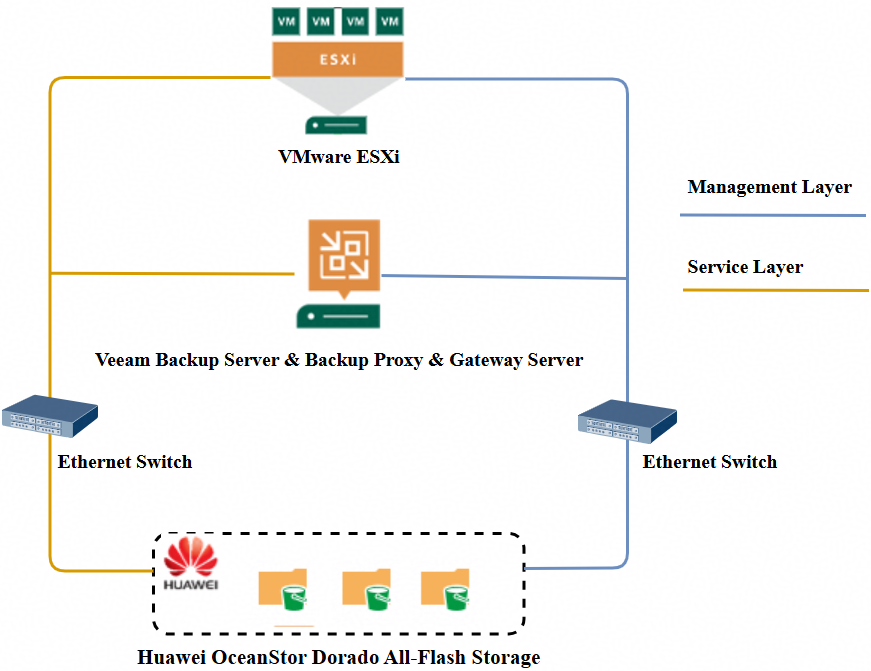
Test Scenario 1: In the VMware backup scenario, the Veeam backup server backs up VMs to the Cloud Backup Repository. Figure 1.1 below illustrates the network architecture.
Figure 1.1 Huawei OceanStor Dorado All-Flash Storage serves as the Cloud Backup Repository network diagram
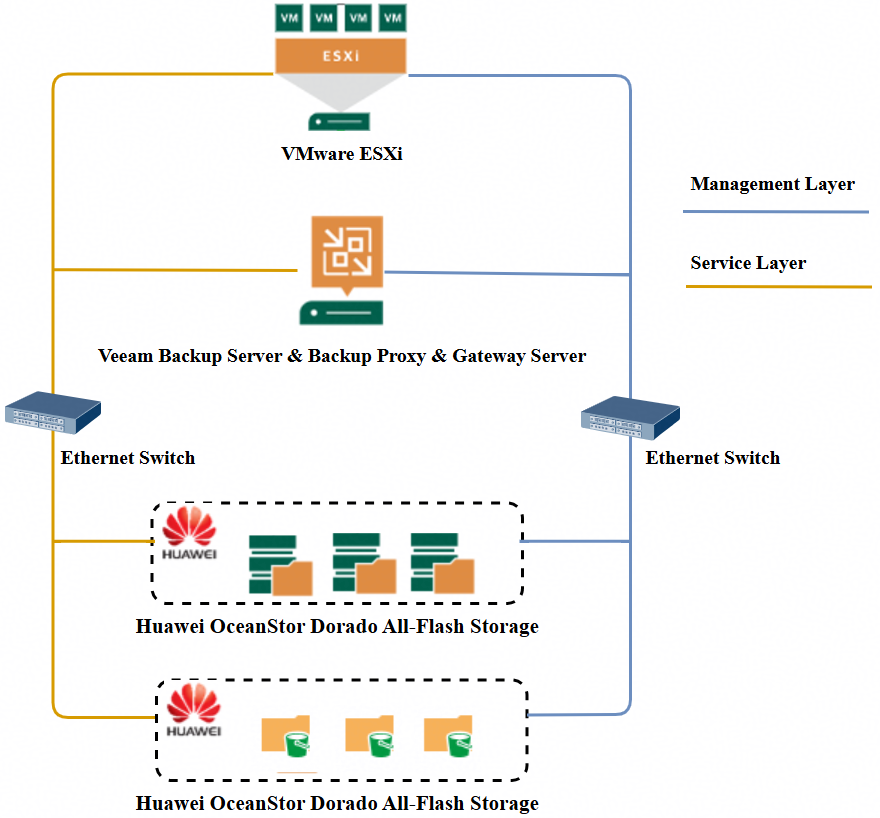
Test Scenario 2: In the VMware backup scenario, the Veeam backup server backs up VMs to Scale-out Repository. The NFS share Served as the Performance-Tier of scale-out repository. The bucket Served as the Capacity-Tier of scale-out repository. Figure 1.2 below illustrates the network architecture.
Figure 1.2 Huawei OceanStor Dorado All-Flash Storage serves as the Scale-out Repository network diagram
1.2 Hardware and Software Configuration
1.2.1 Hardware Configuration
Table 1-1 Hardware Configuration table
Hardware Name | Configuration | Usage | Quantity |
Storage |
| Used as the Veeam Backup Repository for storing backup objects. | 1 |
VMware ESXi Server |
| Deploy VMware virtualization environment. | 1 |
Veeam Backup Server |
| Deploy Veeam Backup & Replication software. Tips: In this test, Veeam Backup Server, Backup Proxy server and Gateway Server are the same host. | 1 |
Ethernet switch |
| The CE6855 Ethernet switch connects the management layer network and service layer network between the backup server, VMware ESXi, Storage. | 2 |
1.2.2 Software and Tools
Table 1-2 Software and Tool table
Software Name | Usage | Version | Quantity |
OceanStor Dorado Software | Deploy and manage Huawei OceanStor Dorado 5000 storage. | V700 | 1 |
VMware vSphere Client | Manage VMware ESXi for backup and Recovery. | 8.0 | 1 |
VMware ESXi Software | Manage VMs used for backup and Recovery. | 7.0 | 1 |
Veeam Backup & Replication Software | Manage backup and recovery tasks. | 13 | 1 |
Operation System | Deploy the Windows Host for Veeam Backup & Replication. | Windows Server 2025 | 1 |
S3 Browser | Used to check bucket data | 12.2.9 | 1 |
2.Test Preparation
2.1 Huawei OceanStor Dorado All-Flash Storage Pre-configuration
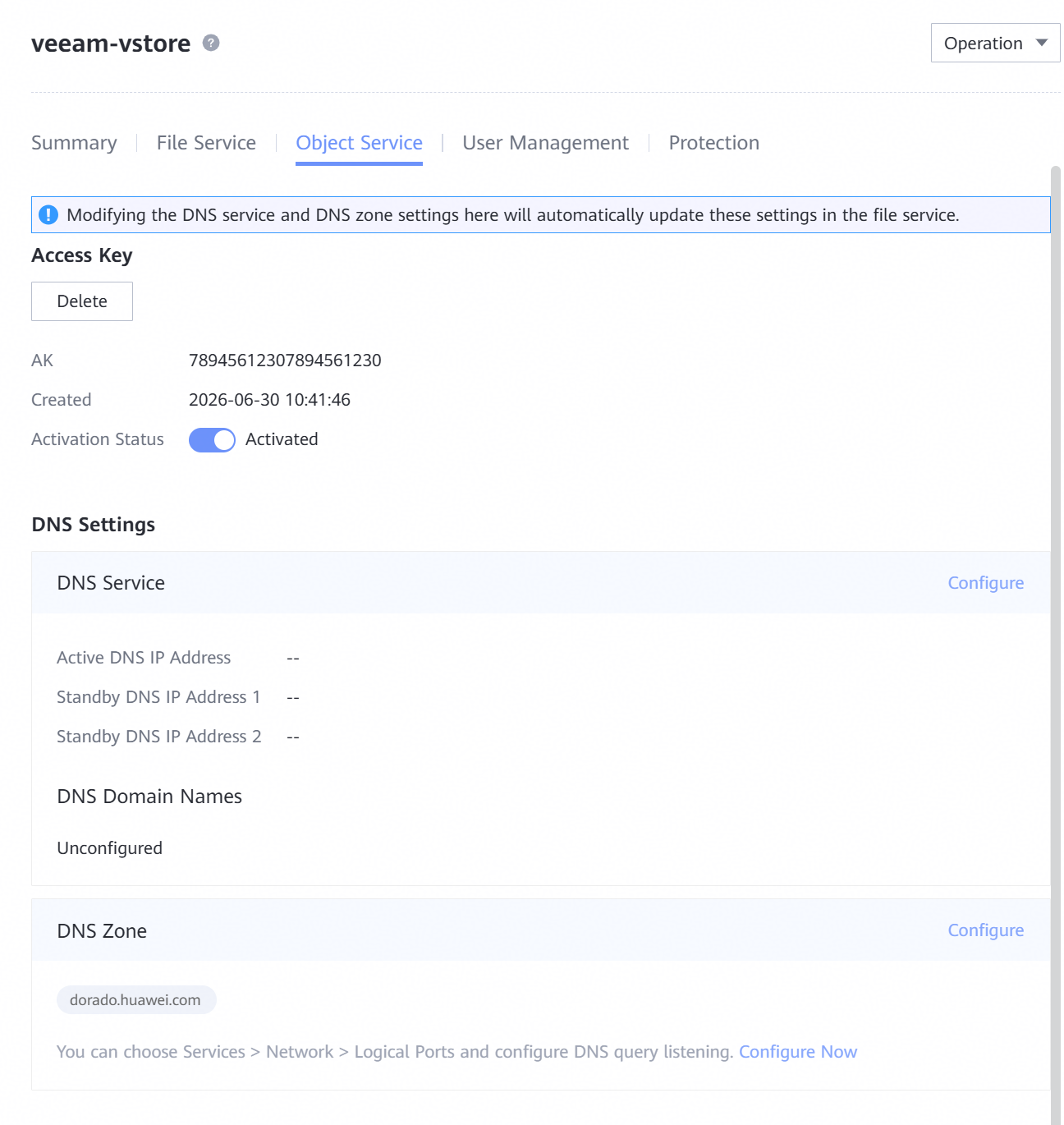
2.1.1 Create the vStore, AK, SK, DNS Zone
2.1.2 Create the Logical Port
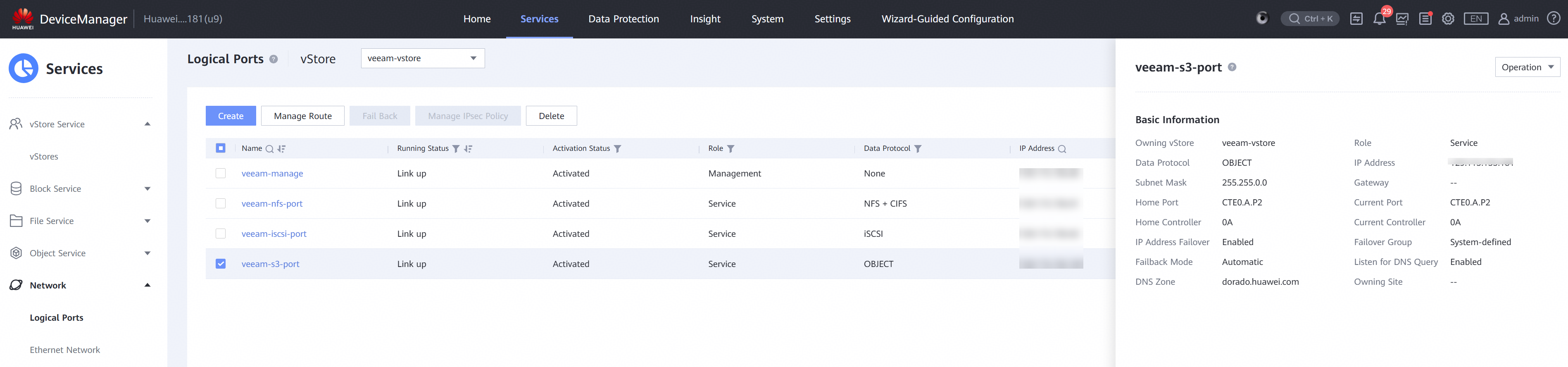
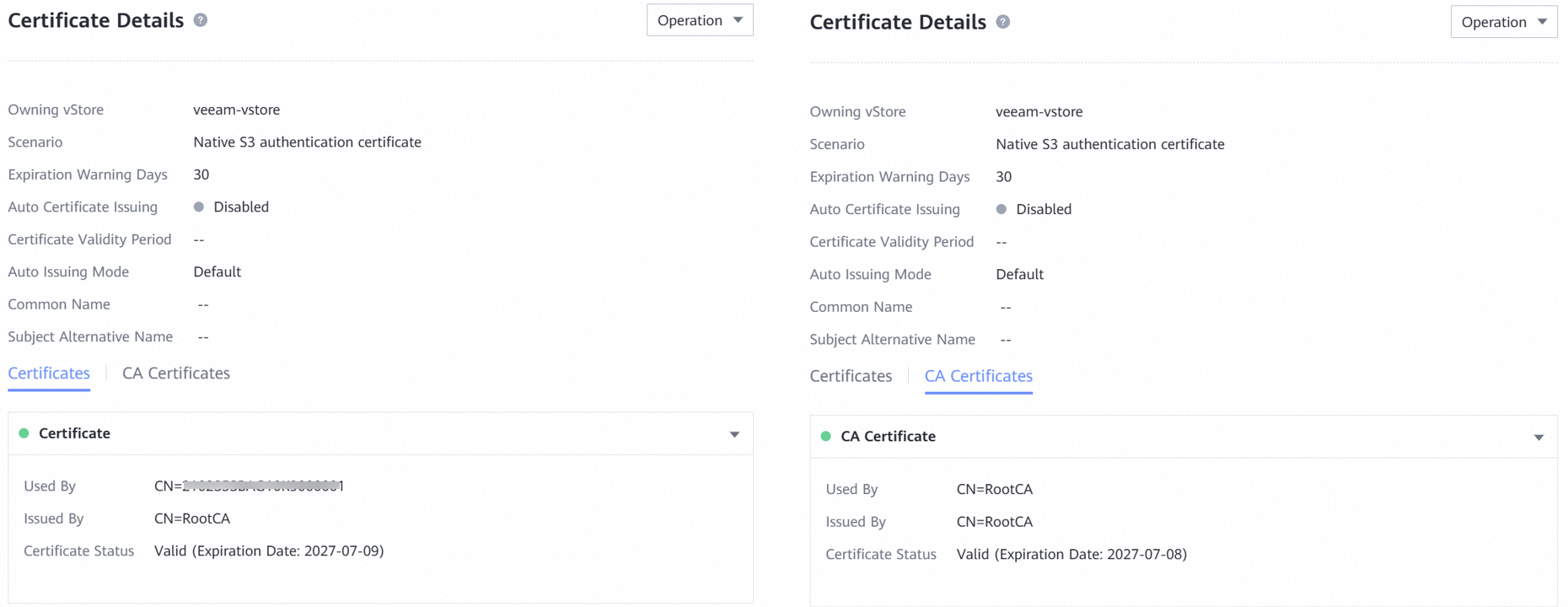
2.1.3 Configure the Native S3 authentication certificate
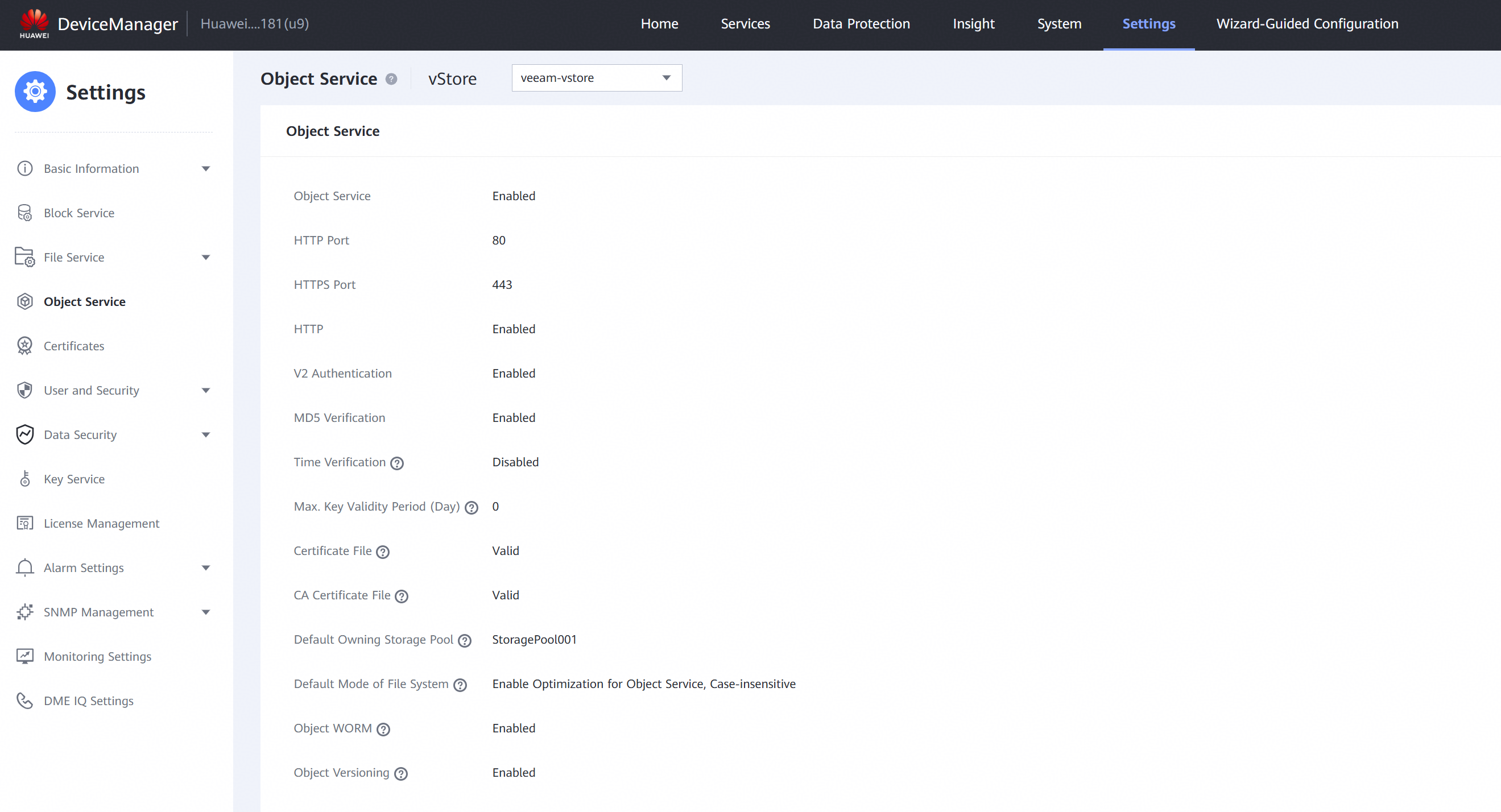
2.1.4 Configure the Object Service
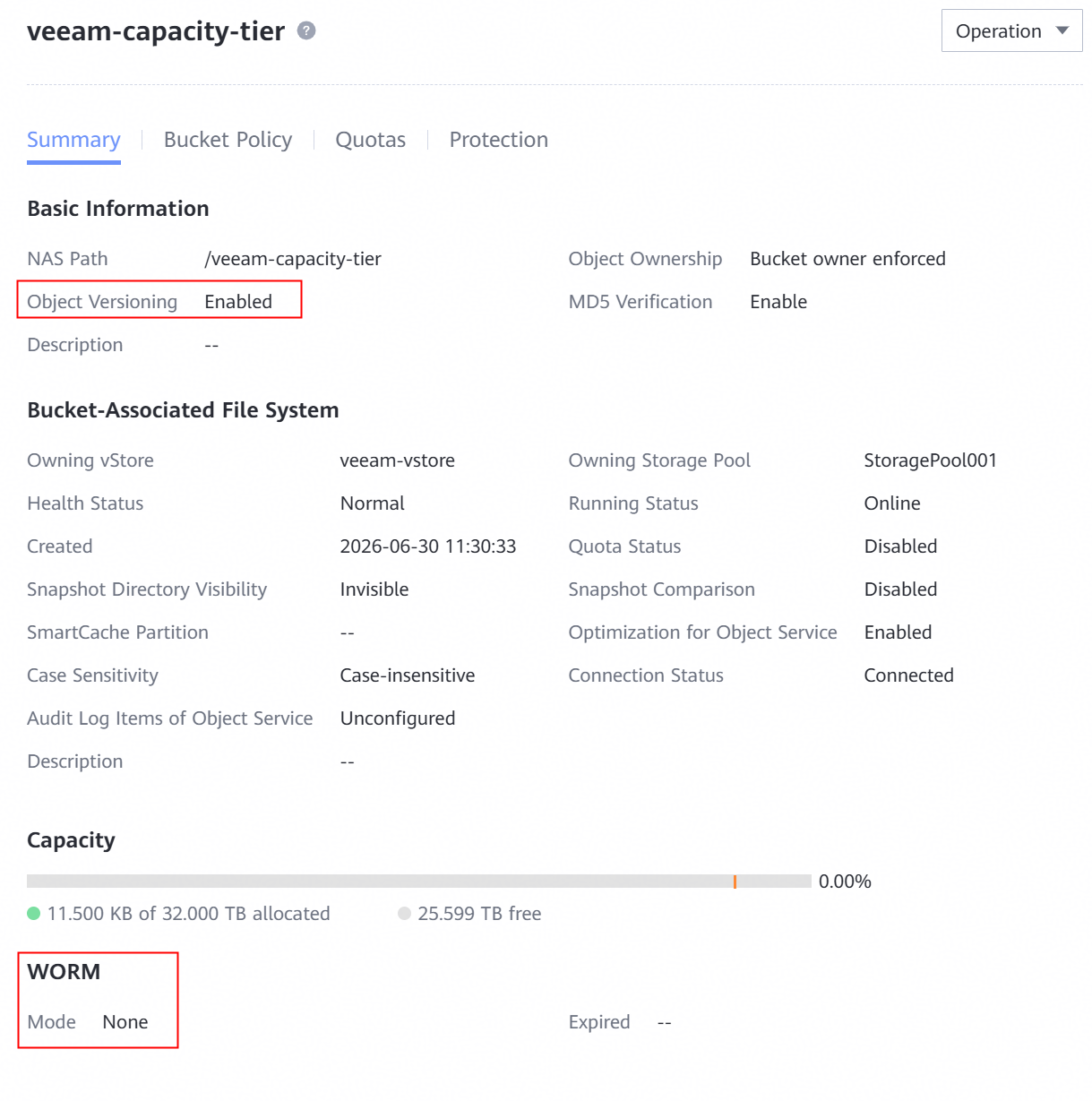
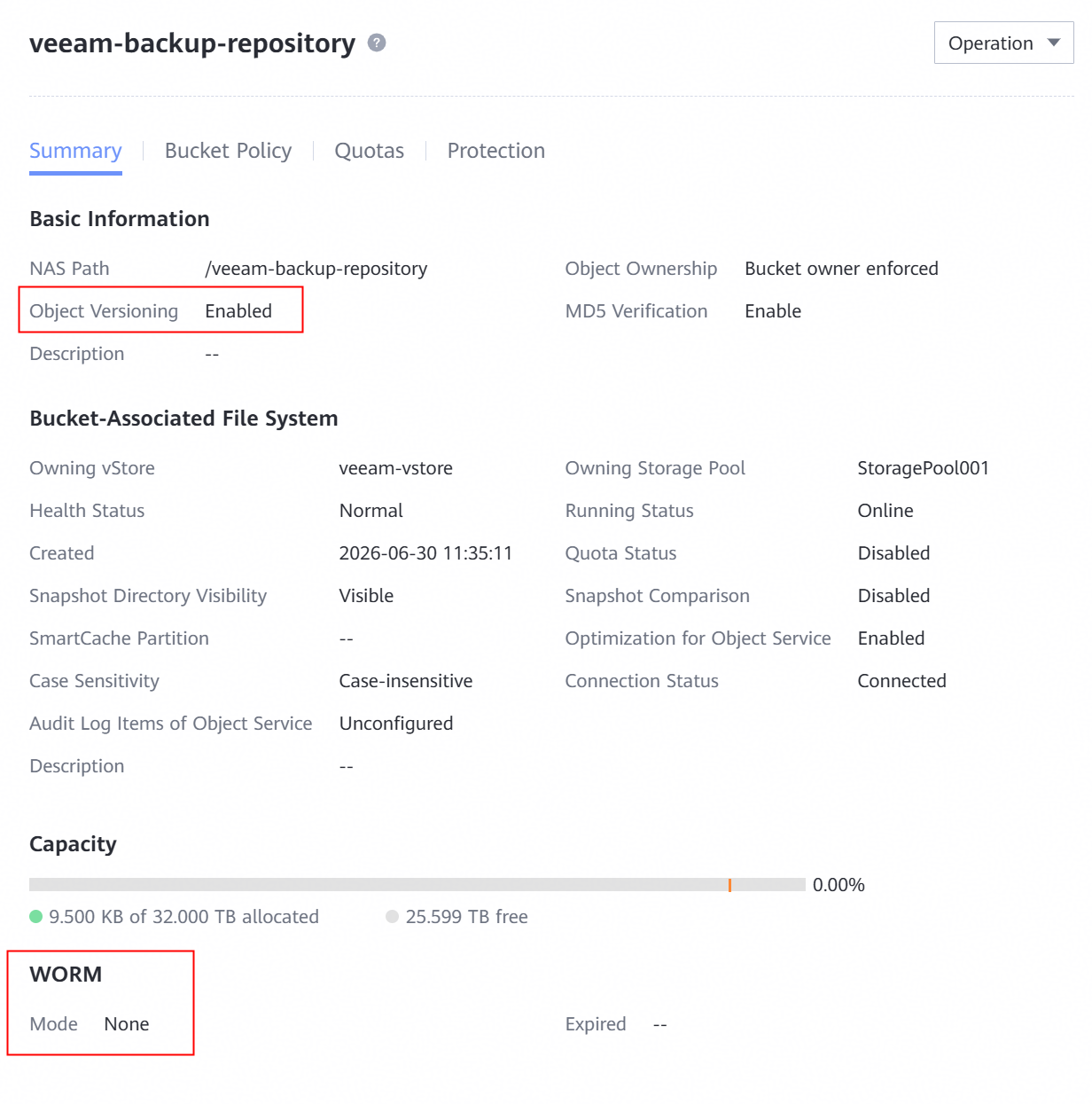
2.1.5 Create the Bucket
Enable the Object Versioning and configure the WORM mode of None type.
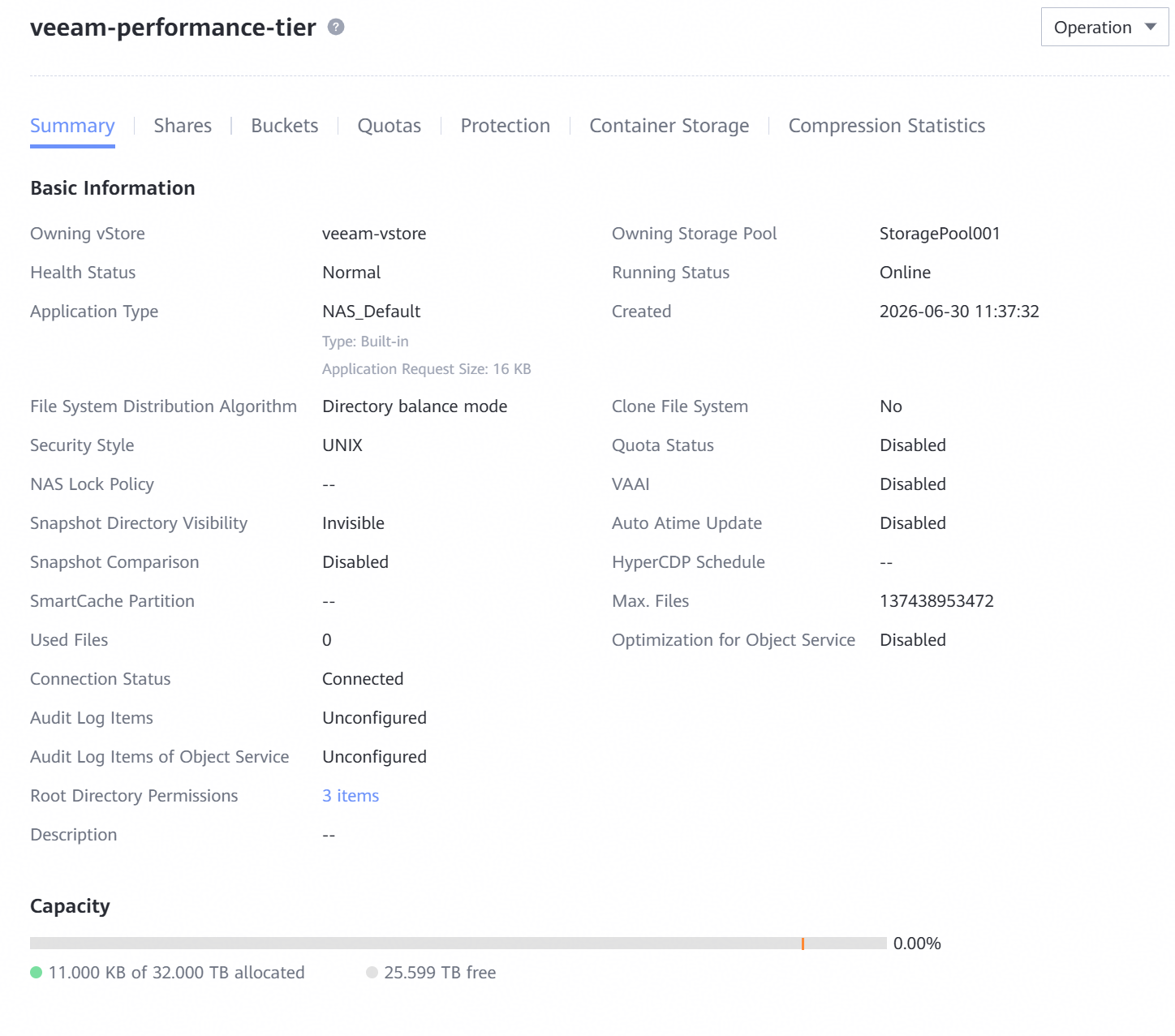
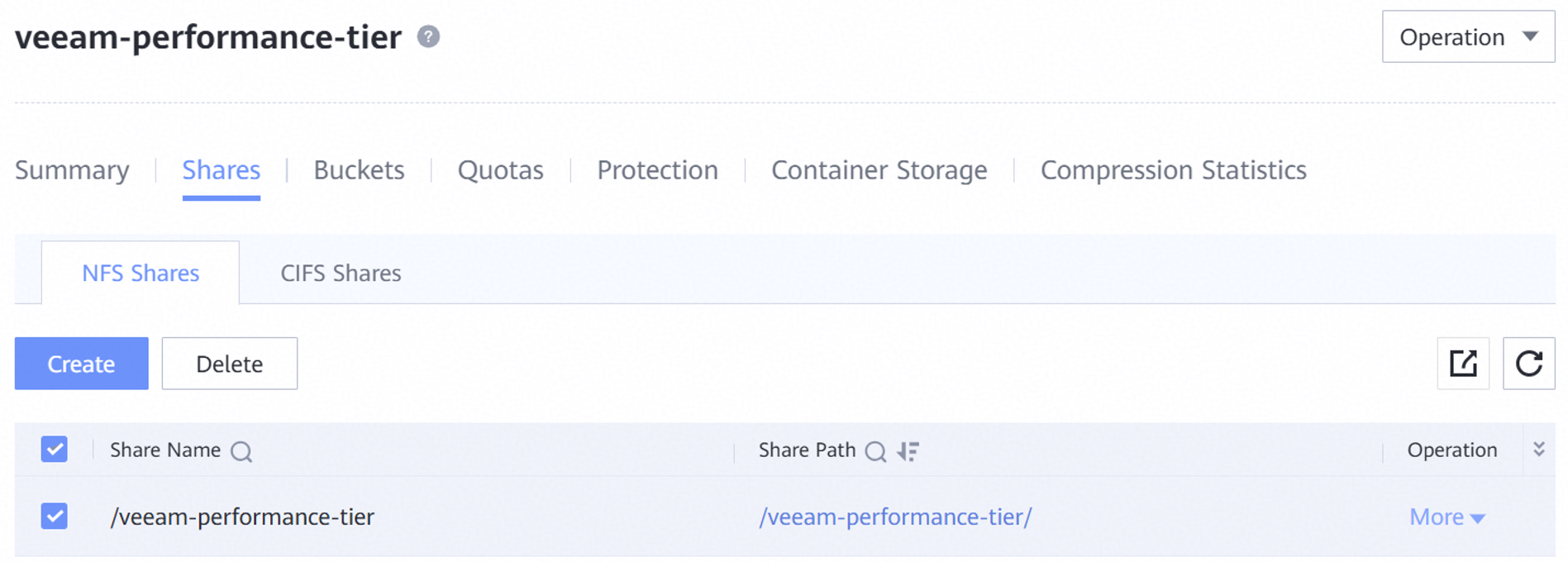
2.1.6 Create the NFS share
NFS share is served as the Performance Tier of Scale-out Repository.
2.2 Backup Server Pre-configuration
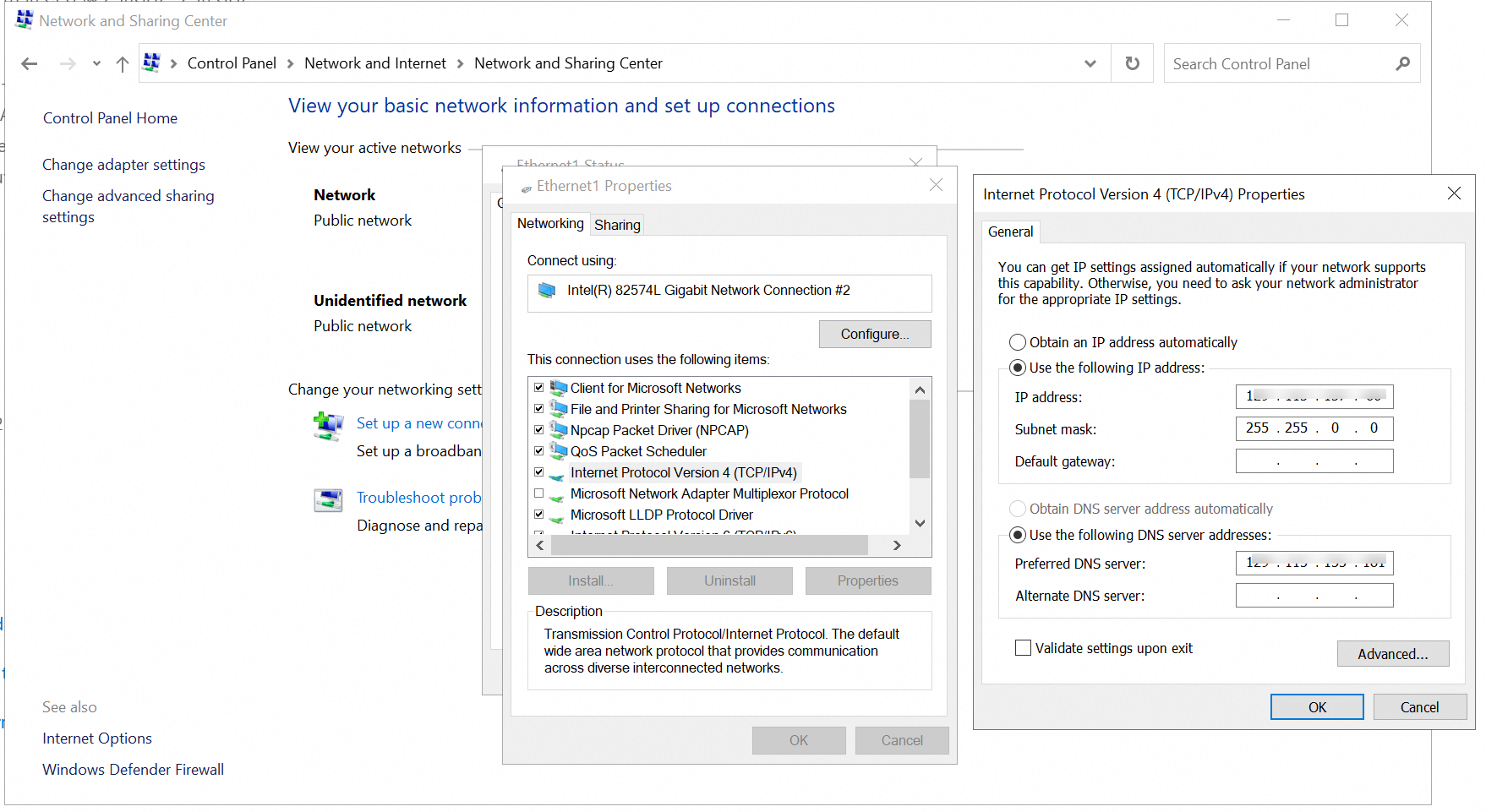
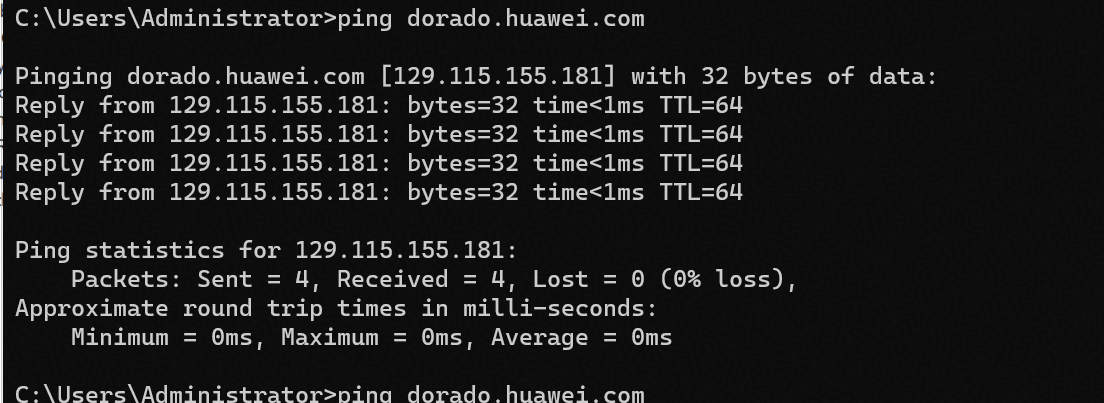
2.2.1 Configure the network of DNS server
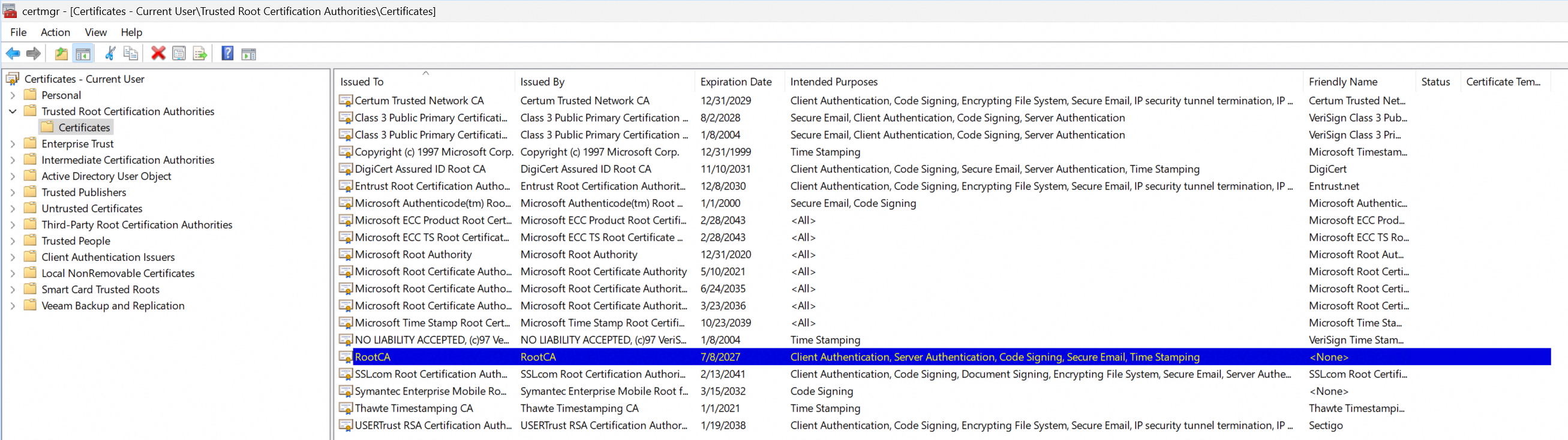
2.2.2 Import the RootCA certificate
3. Test Scenario 1 and Results
3.1 Add the bucket to the backup server as the immutable Cloud Backup Repository
Test Purpose | To verify that the Huawei OceanStor Dorado All-Flash Storage can be added to the backup server as the immutable Cloud Backup Repository. |
Network Diagram | Reference to Figure 1.1 |
Prerequisites | The Huawei OceanStor Dorado All-Flash Storage, backup server, VMware ESXi have been deployed and configured successfully. The S3 services of the Huawei OceanStor Dorado All-Flash Storage have been configured successfully, including vStore, AK, SK, DNS Zone, Logical Port and Native S3 authentication certificate. Versioning has been enabled for the bucket, and the WORM mode of the None type has been configured. |
Test Procedures | Step 1: Select the Backup Infrastructure, and right-click the Backup Repositories. Step 2: Select the Object storage type of S3 Compatible to add the Object Storage Repository. Step 3: Enter the name, Service point (https), region, and credential. Step 4: Select the created bucket and folder. Step 5: Select the option of Make backups immutable and set the Minimum immutability duration for 1 day. Step 6: Keep the default settings and click Next until the configuration is complete. Step 7: Add the S3 Compatible Object storage repository and finish. Step 8: Check the bucket of the repository through the S3 Browser. |
Expected Results |
|
Test Results | 1. Select the Backup Infrastructure, and right-click the Backup Repositories. 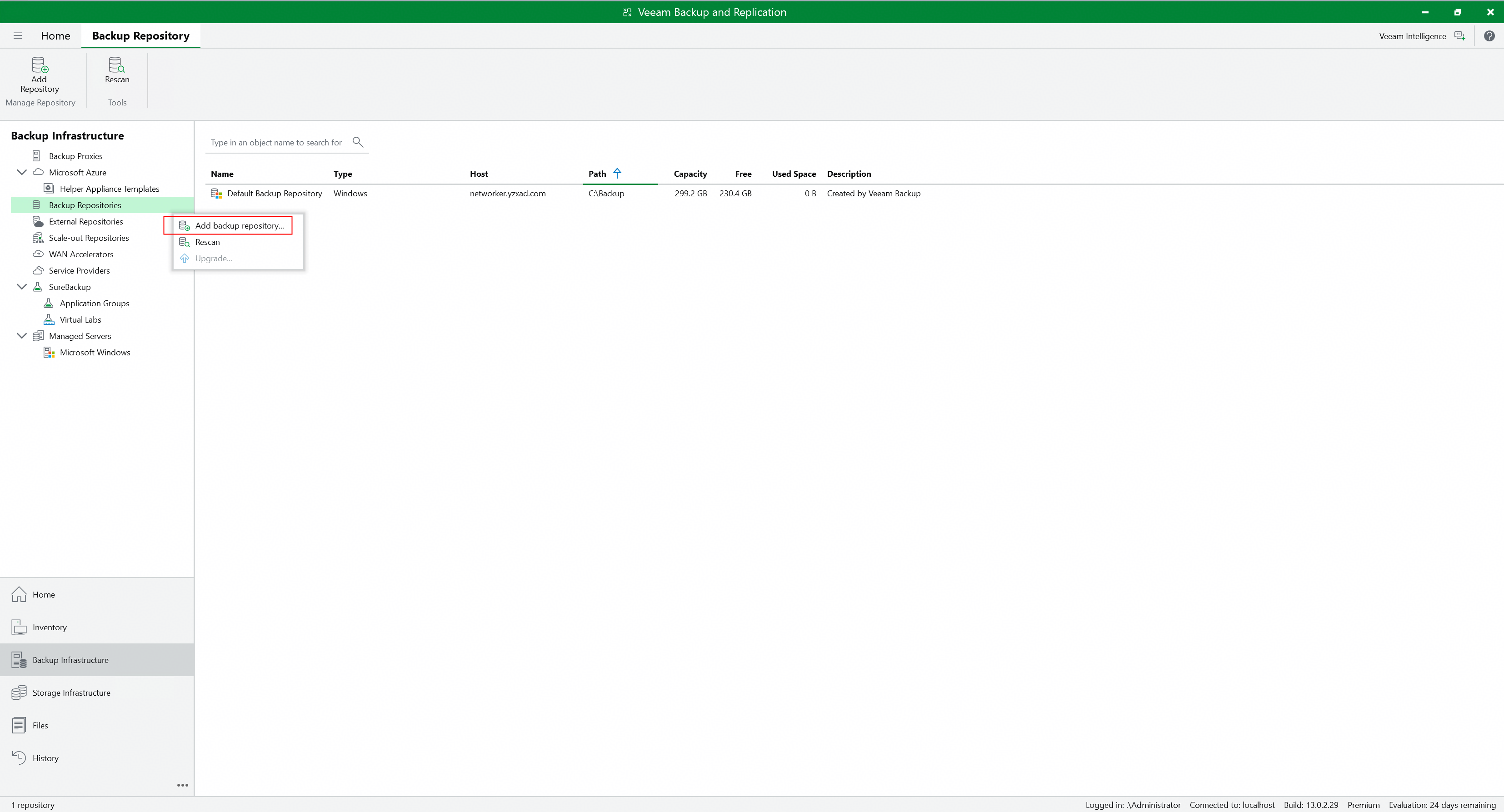
2. Select the Object storage type of S3 Compatible to add the Object Storage Repository. 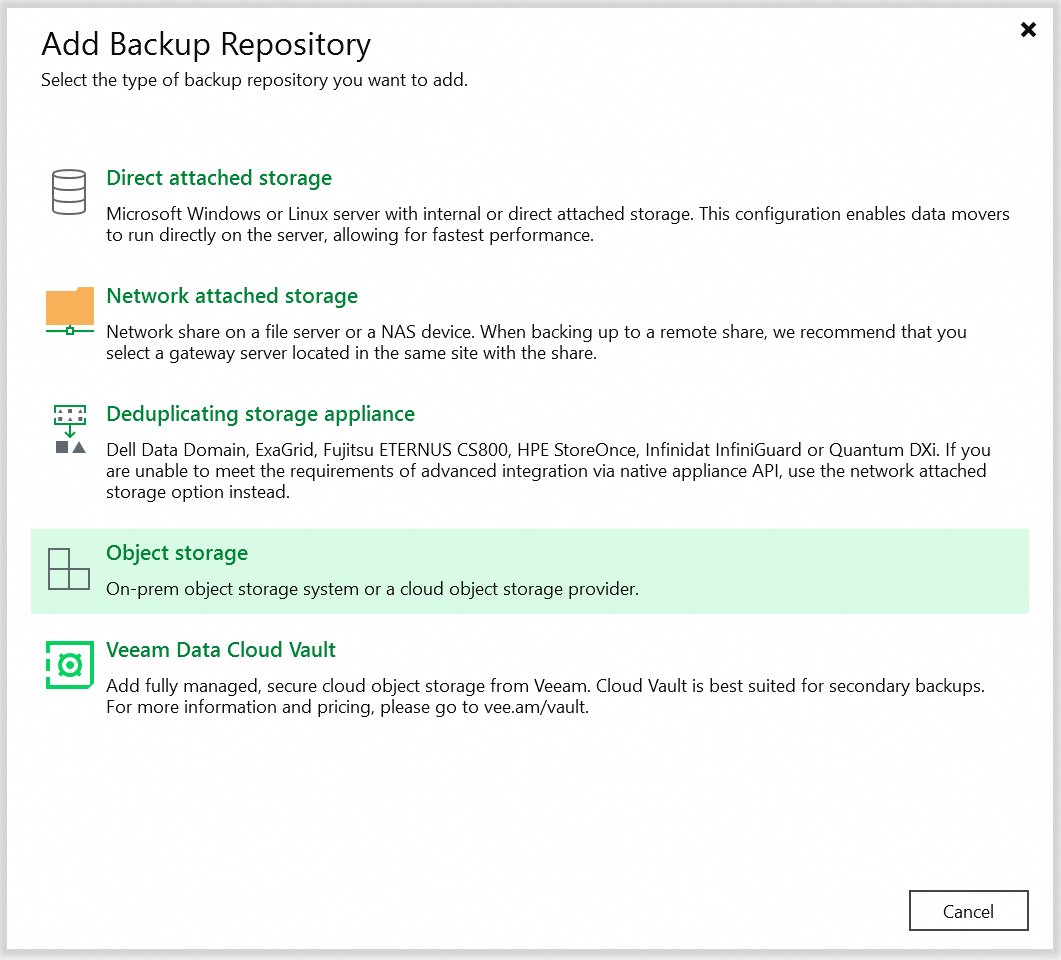
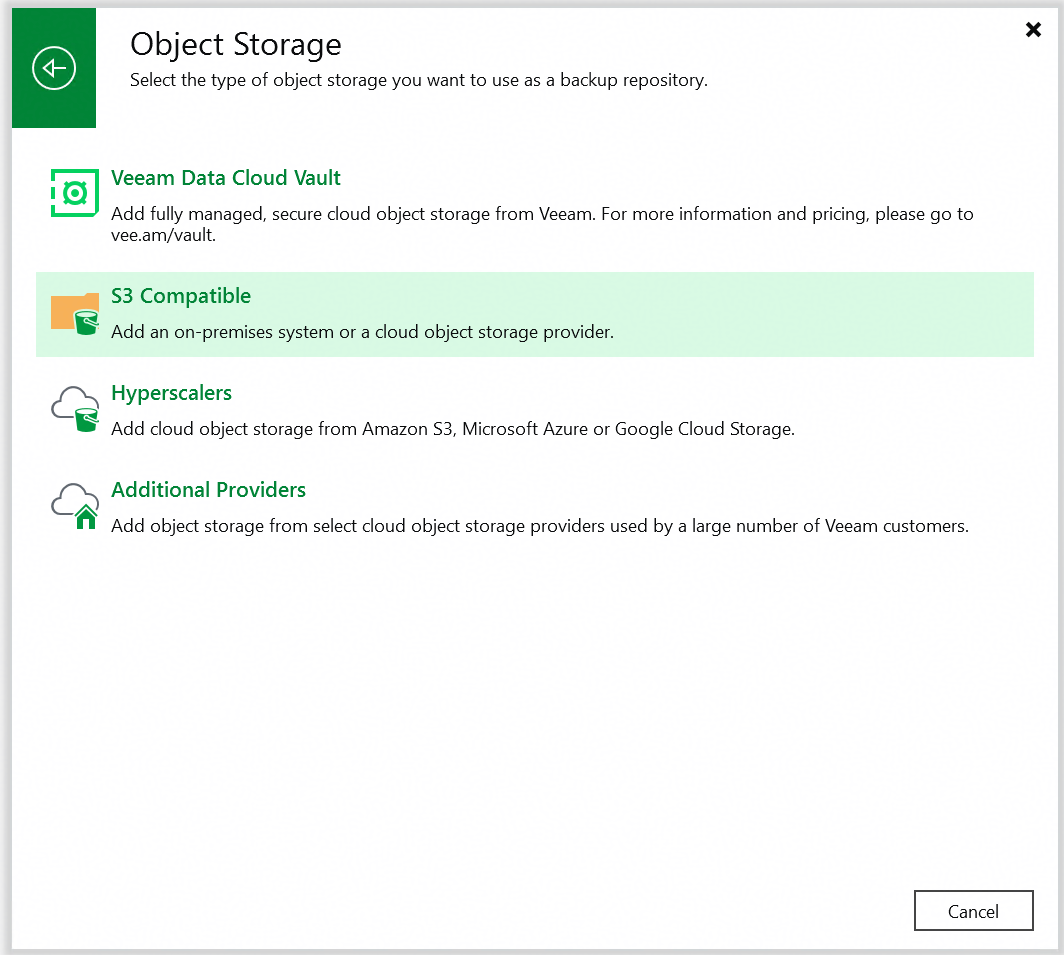 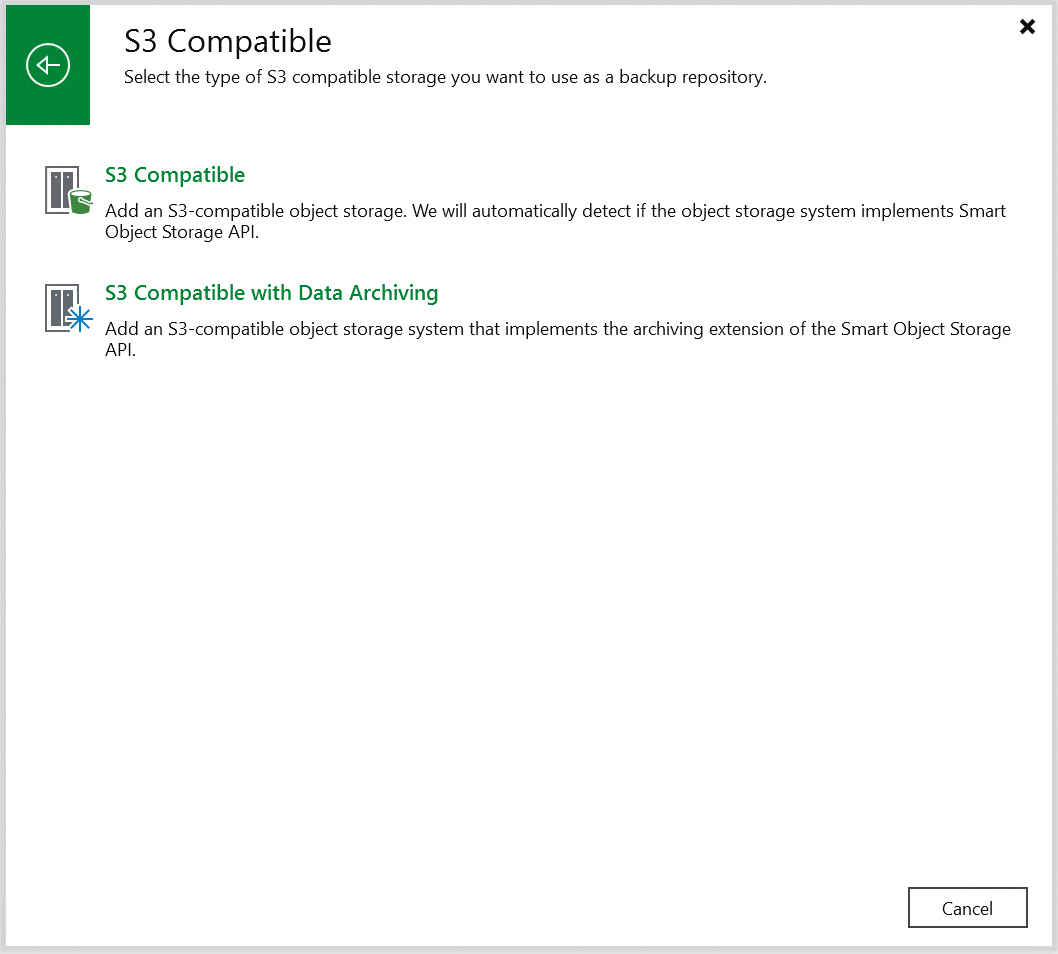
3. Enter the name, Service point (https), region, and credential. 3.1 Enter the name, and next. 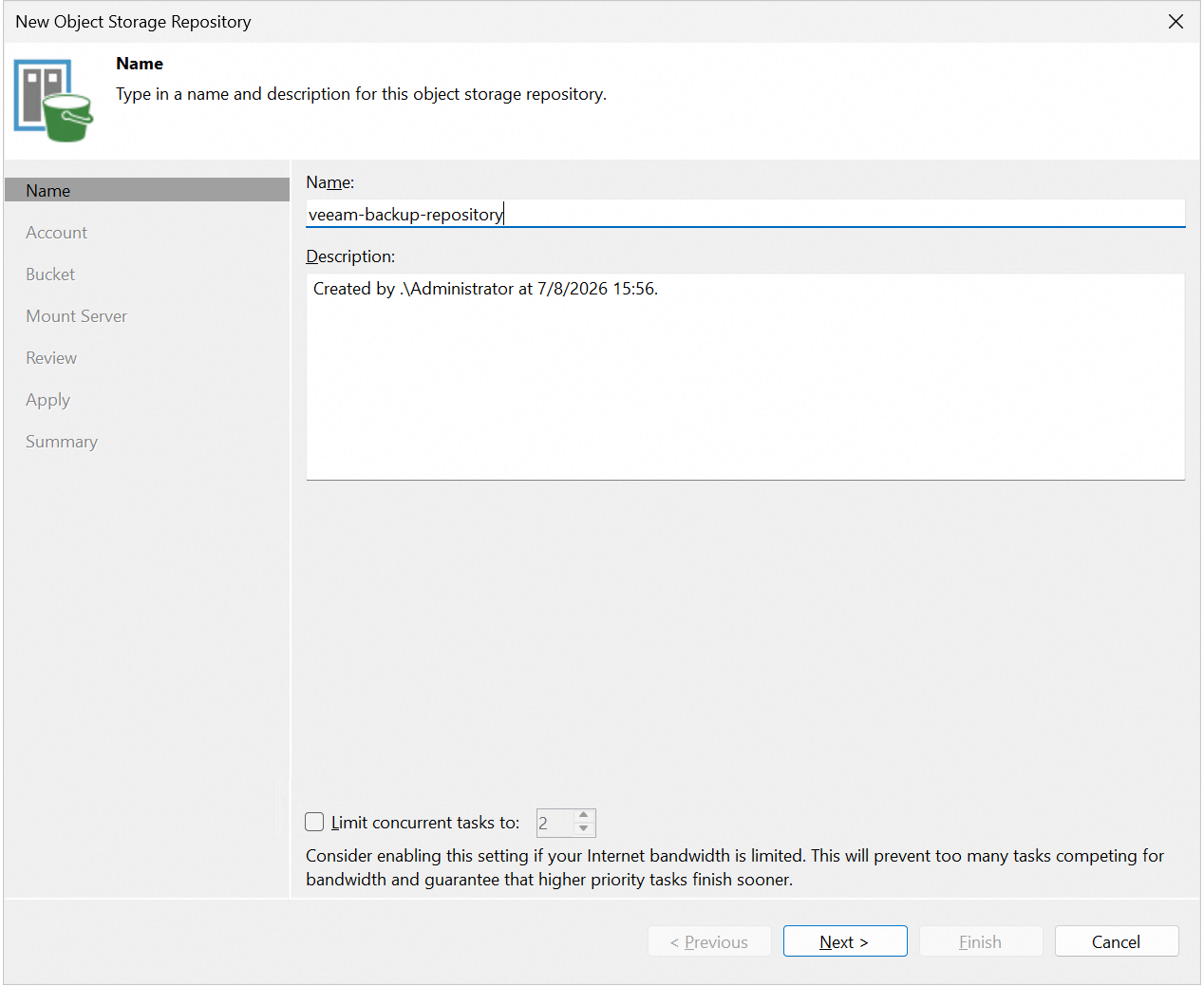
3.2 Enter the Service point (https), region, and credential, and succeed to connect to the Huawei OceanStor Dorado All-Flash Storage. 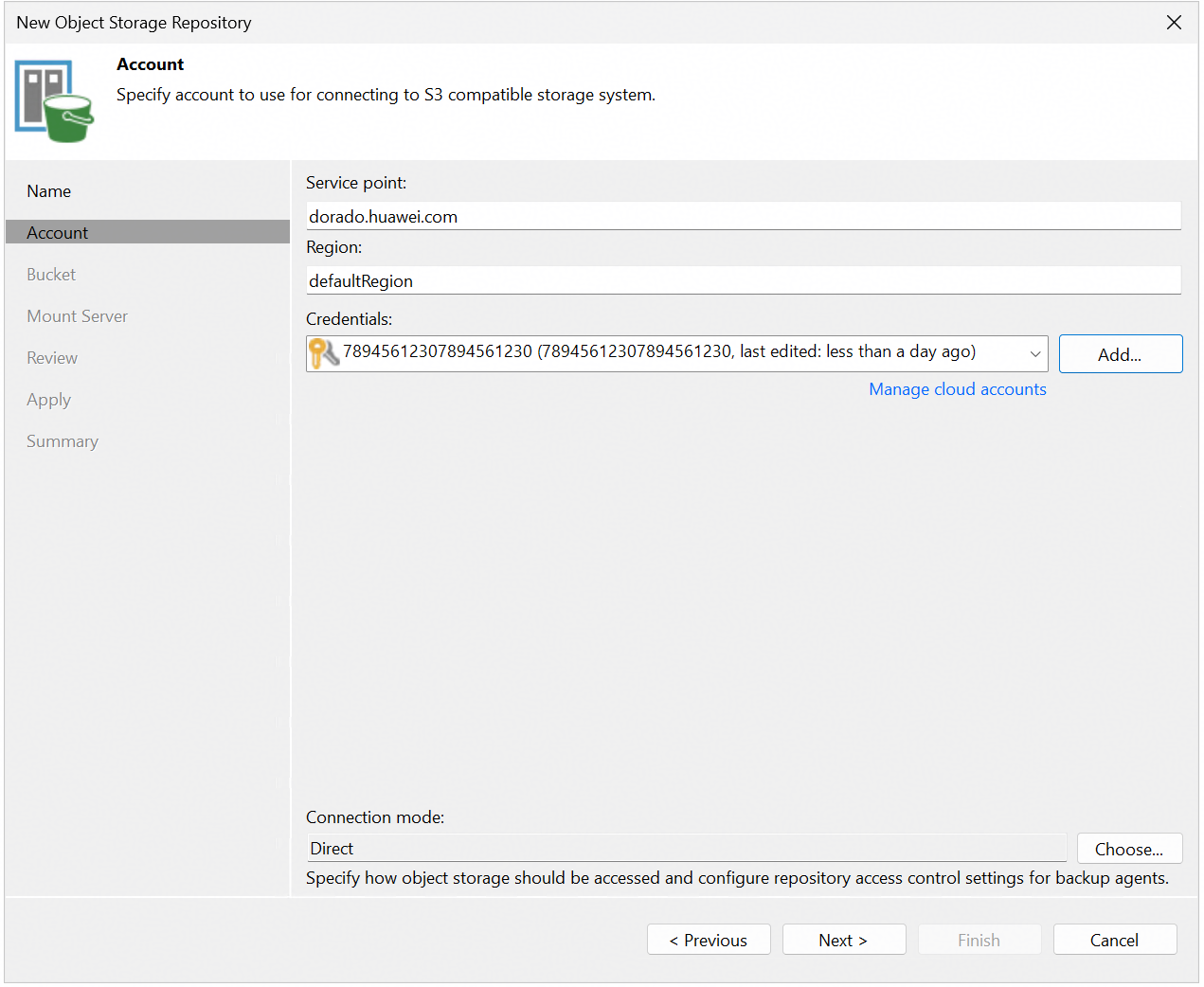
4. Select the created bucket and folder. 4.1 Browse and Select the created bucket. Succeed to browse the created bucket. 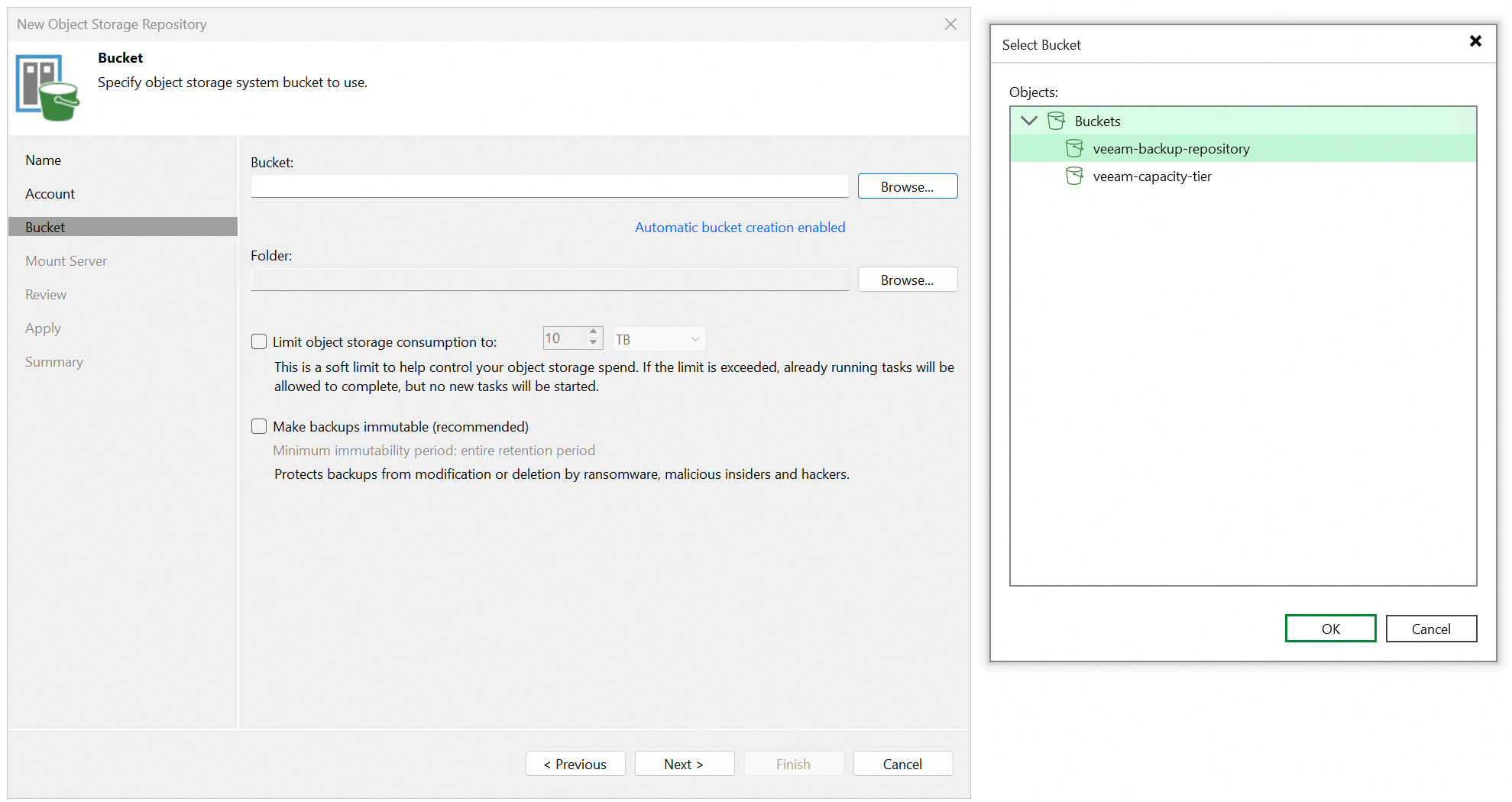
4.2 Browse and add a folder. Succeed to create a folder. 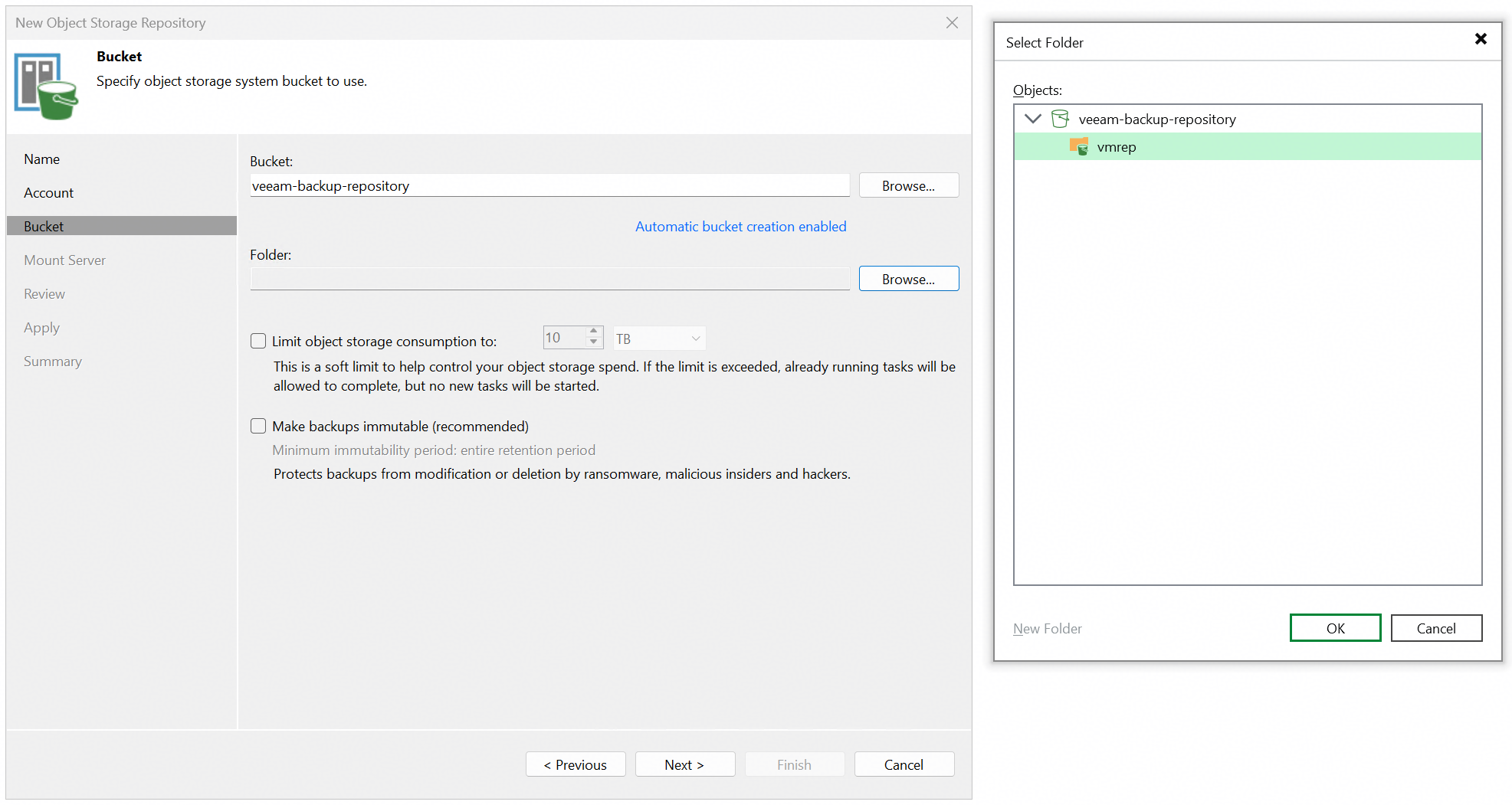
5. Select the option of Make backups immutable and set the Minimum immutability duration for 1 day. 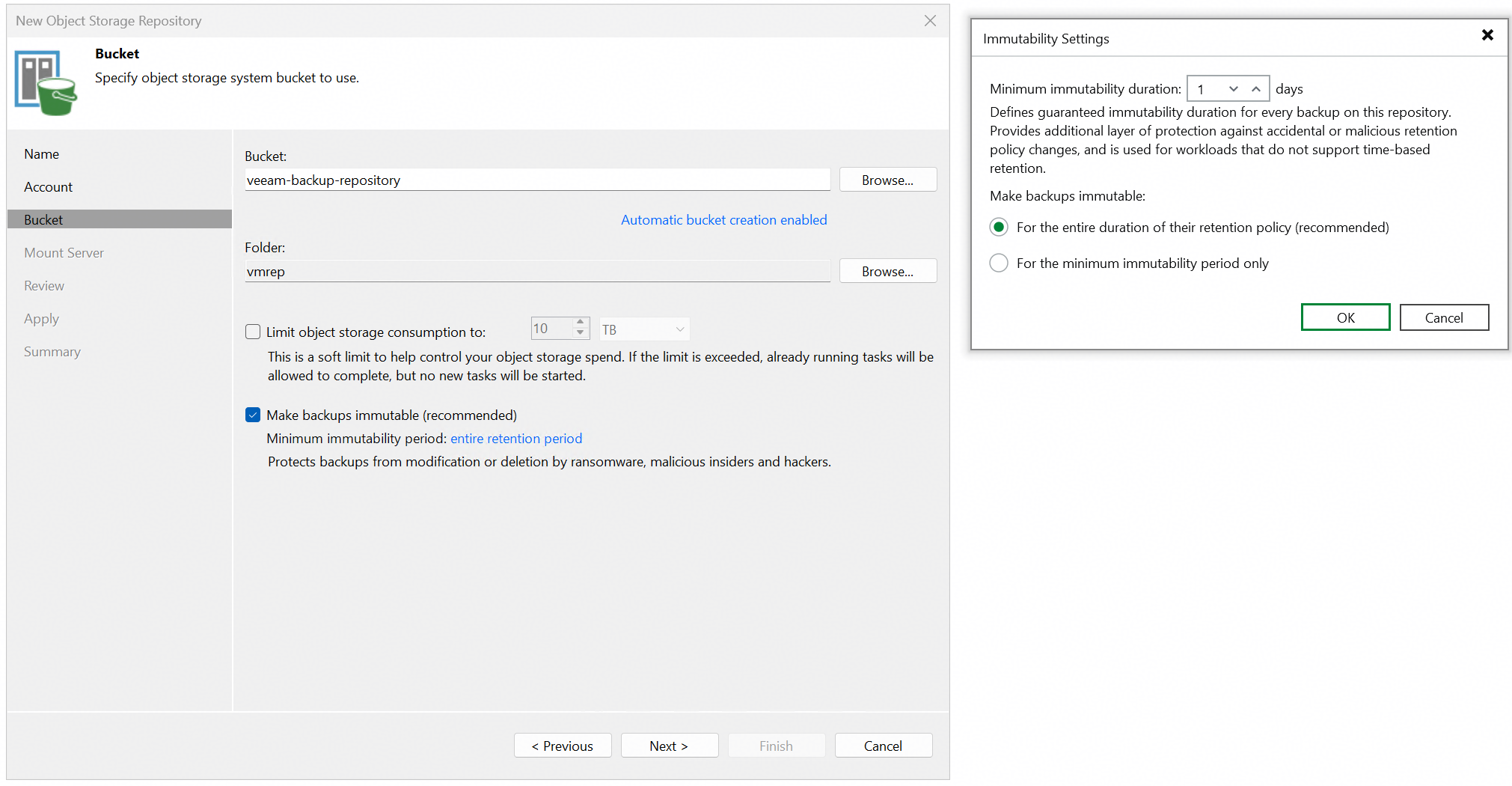
6. Keep the default settings and click Next until the configuration is complete. All the configuration is successful, and no error is reported. 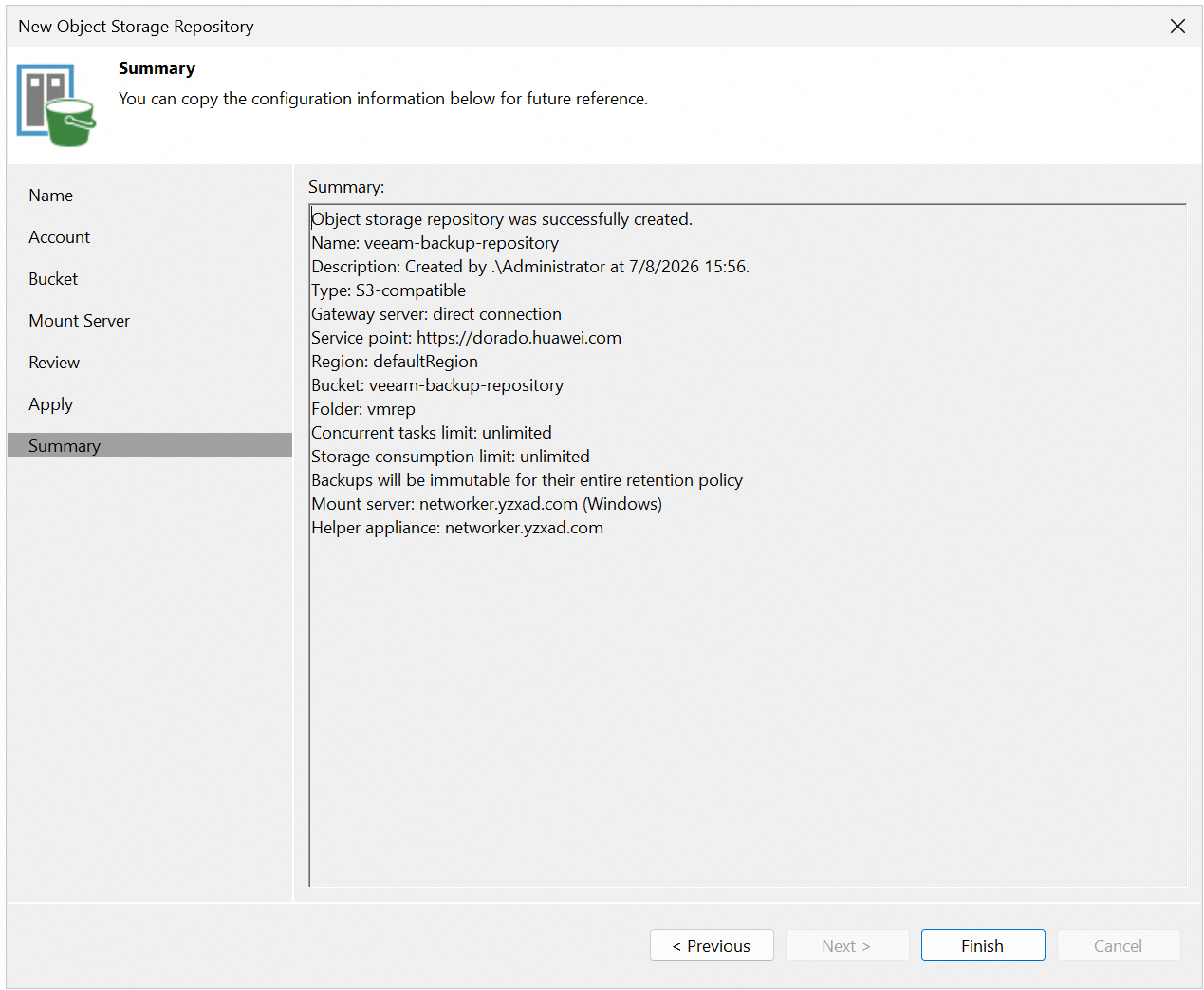
7. Add the S3 Compatible Object storage repository and finish. 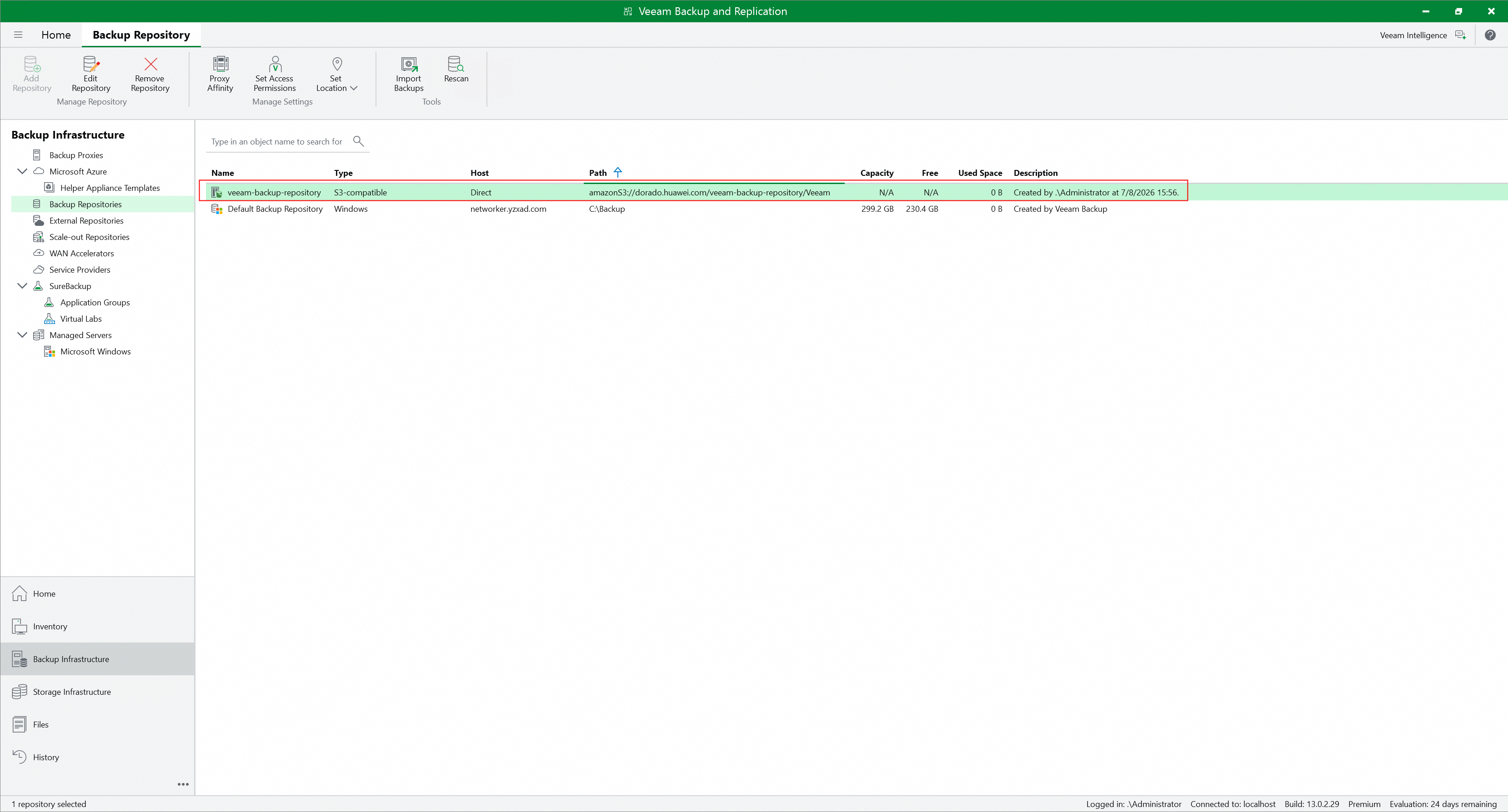
8. Check the bucket of the repository through the S3 Browser. 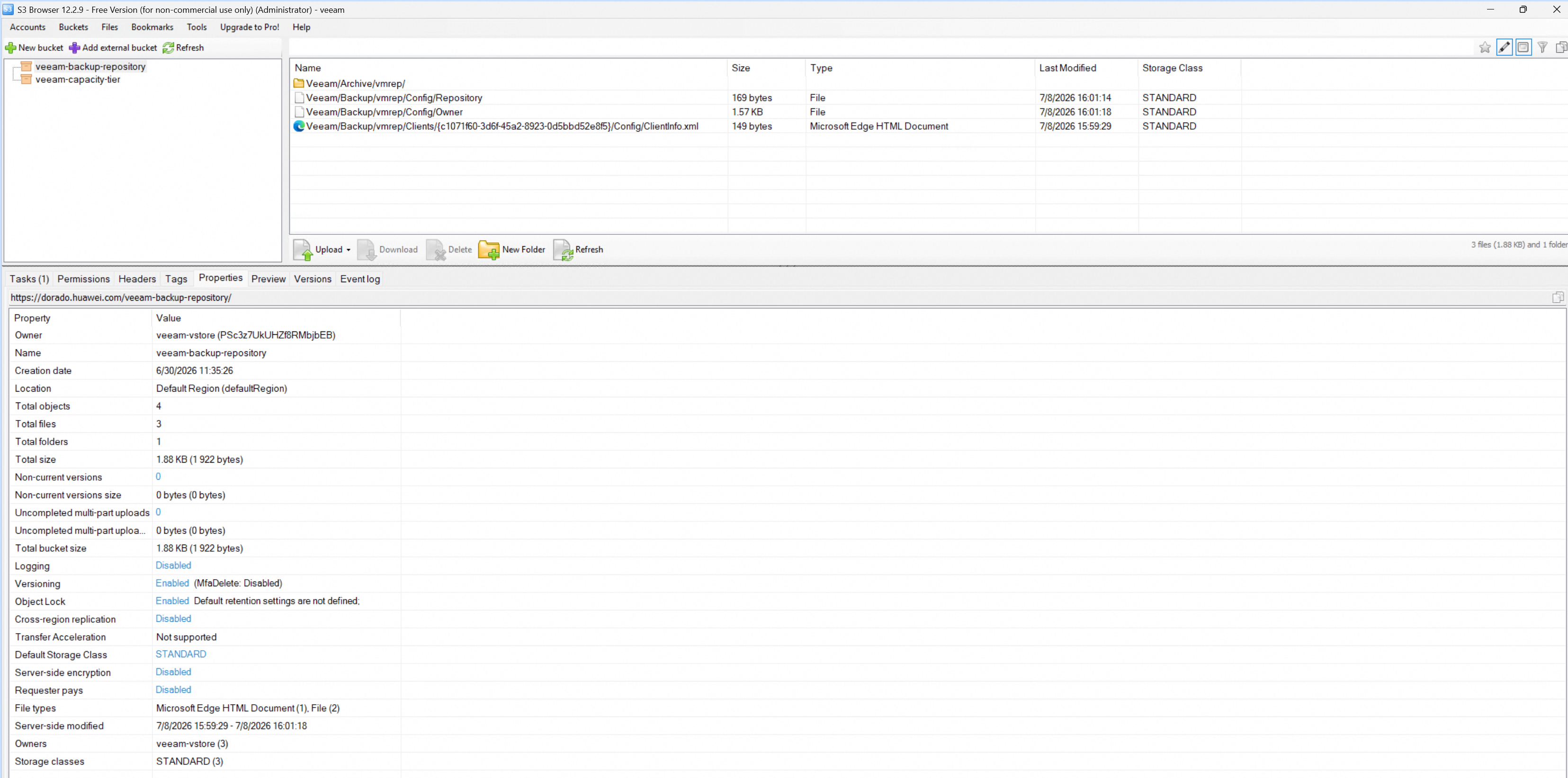 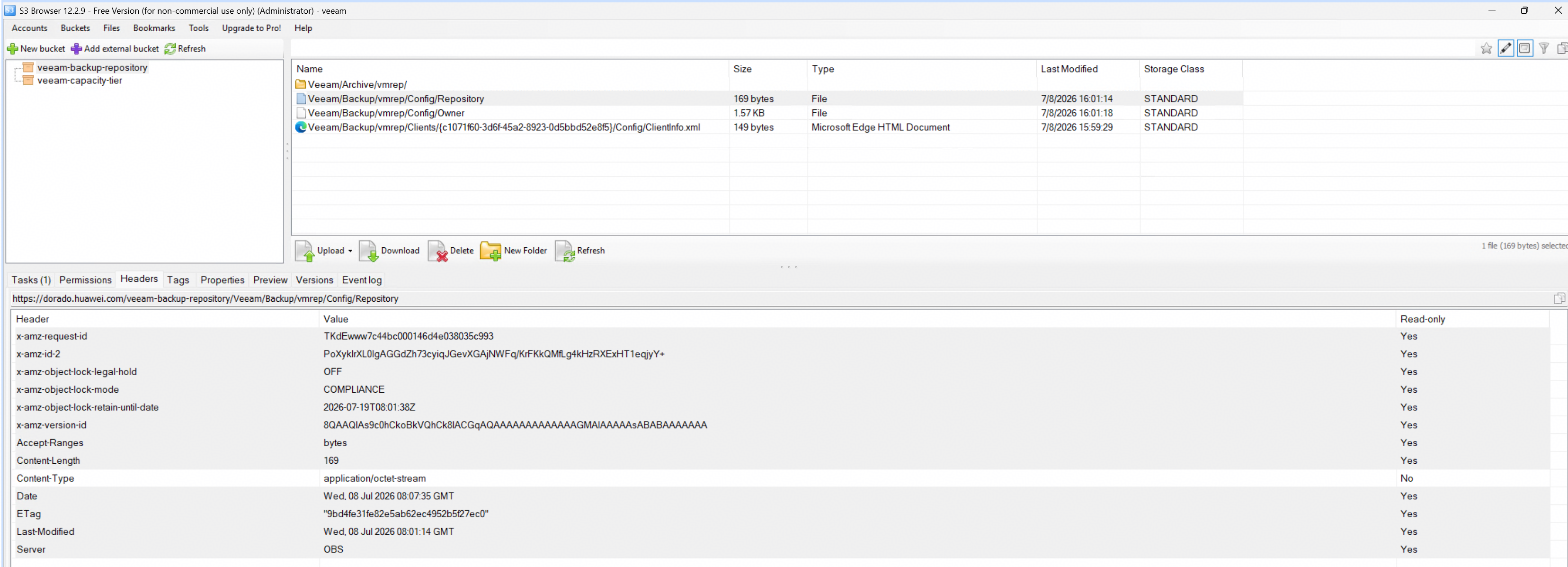 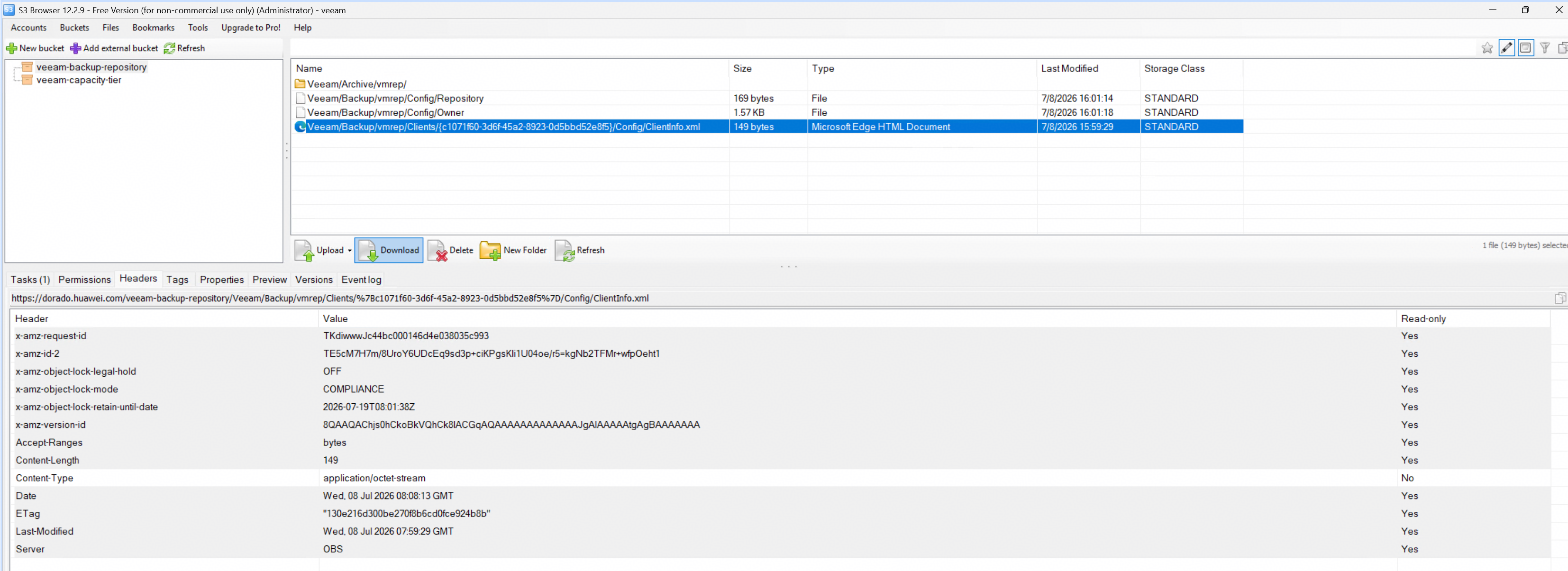
|
Test Conclusion | Passed |
3.2 Full back up VM to the immutable Cloud Backup Repository
Test Purpose | To verify that the backup server can full back up the VM to the immutable Cloud Backup Repository. |
Network Diagram | Reference to Figure 1.1 |
Prerequisites |
|
Test Procedures | Step 1: Select the Home and the Backup job type of Virtual machine on the backup server. Step 2: Create a Virtual Machine backup job and select the immutable Cloud Backup Repository created in section 3.1 as the storage. Step 3: Complete the configuration and start the full backup job (Active full). Step 4: Check the full backup job status on the backup server. Step 5: After the full backup job is complete, check the size of backup files on the Huawei OceanStor Dorado All-Flash Storage. |
Expected Results |
|
Test Results |
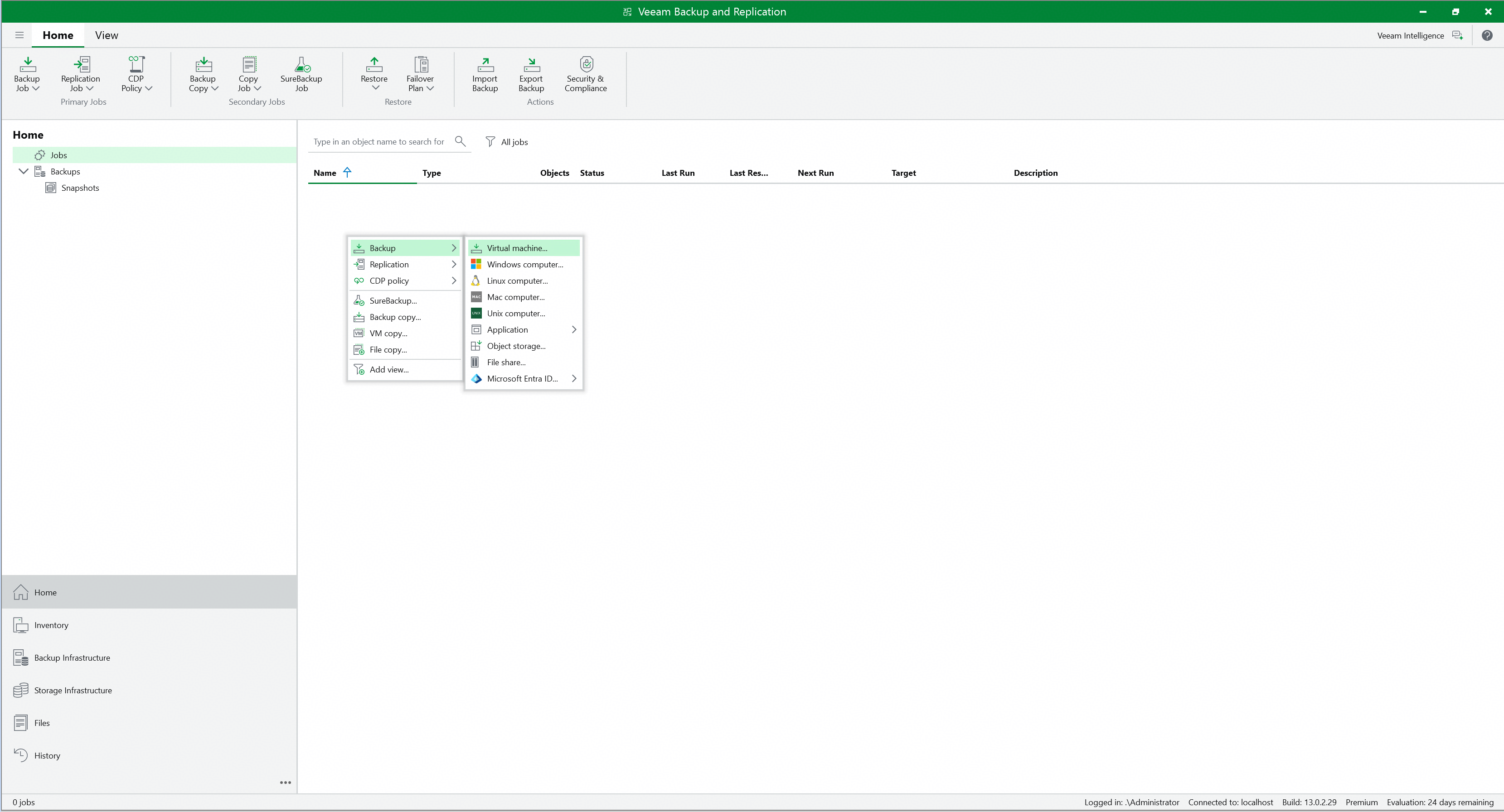 2. Create a Virtual Machine backup job and select the immutable scale-out repository created in 3.1 as the Storage. 2.1 Enter the backup job name, and next. 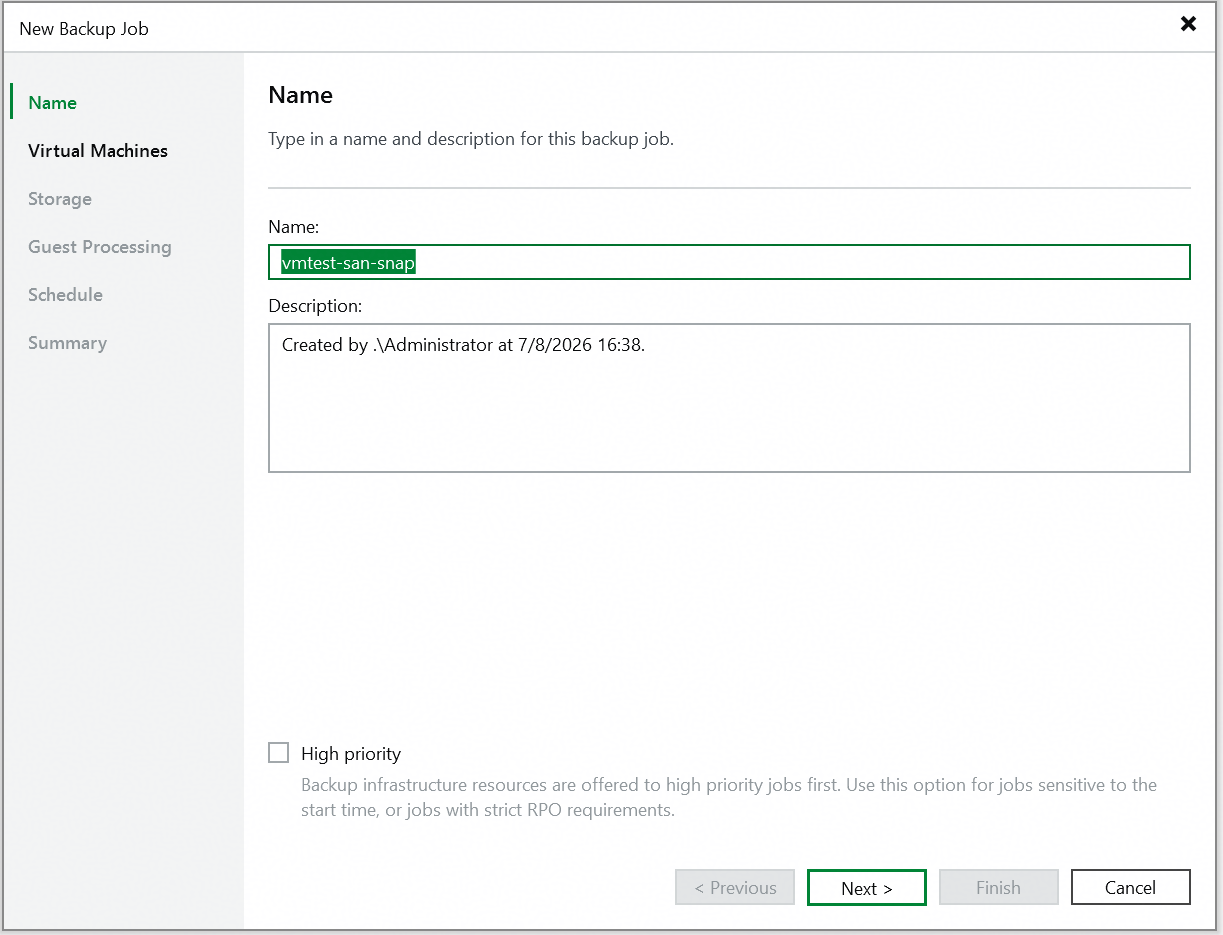 2.2 Select the VM to be backed up, and next. 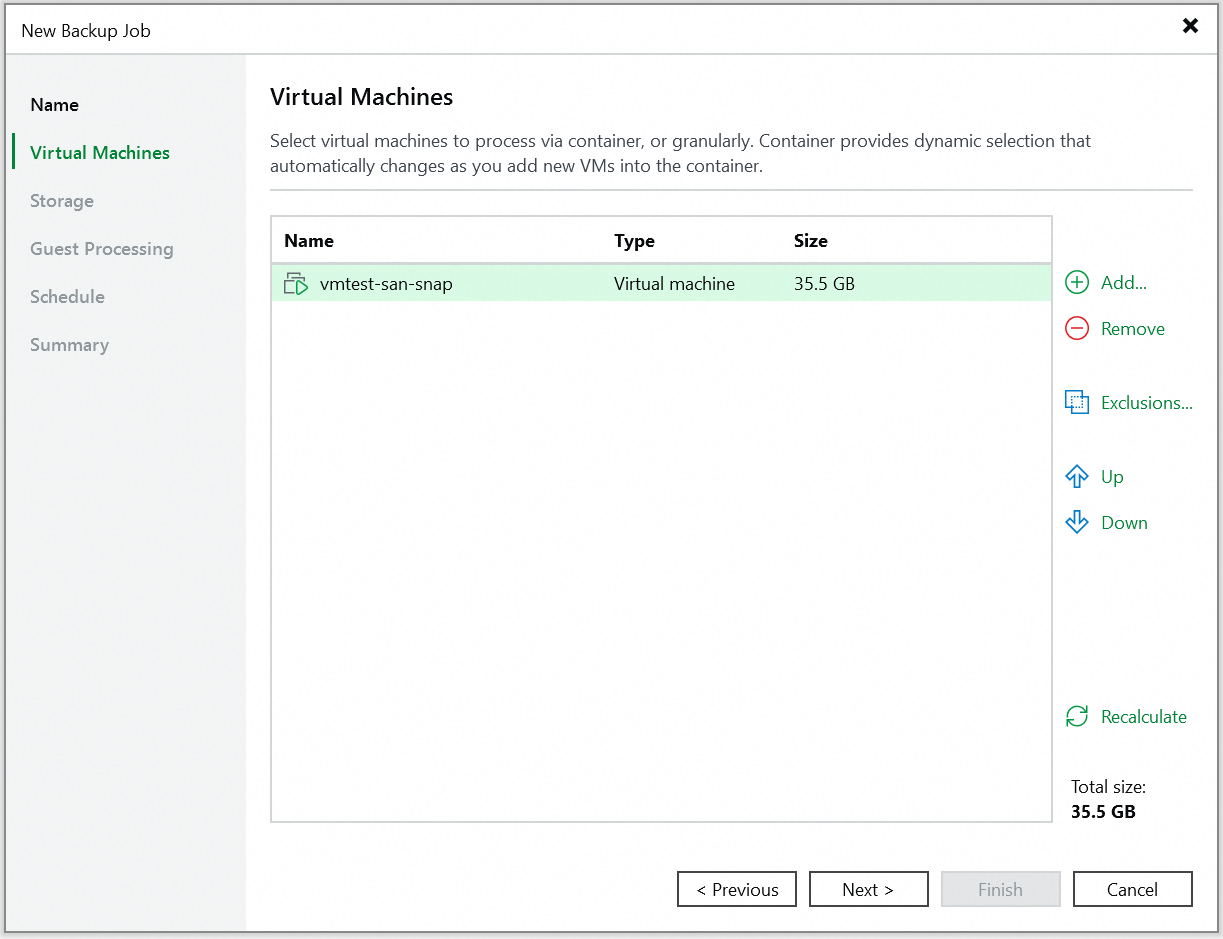 2.3 Select the immutable Cloud Backup Repository created in 3.1 as the Storage. 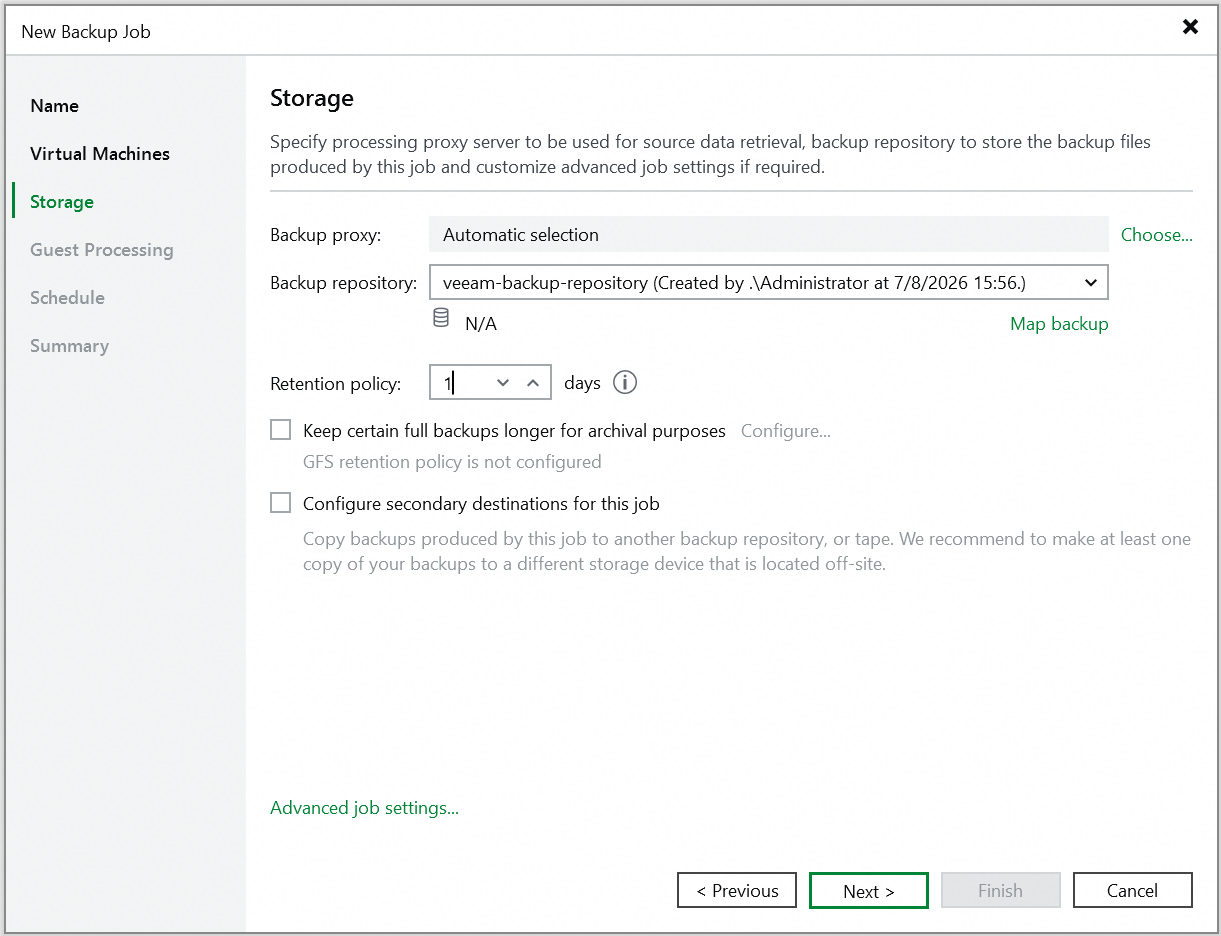 2.4 Keep the default settings and click Next until the configuration is complete. Succeed to Create a Virtual Machine backup job. No error is reported. 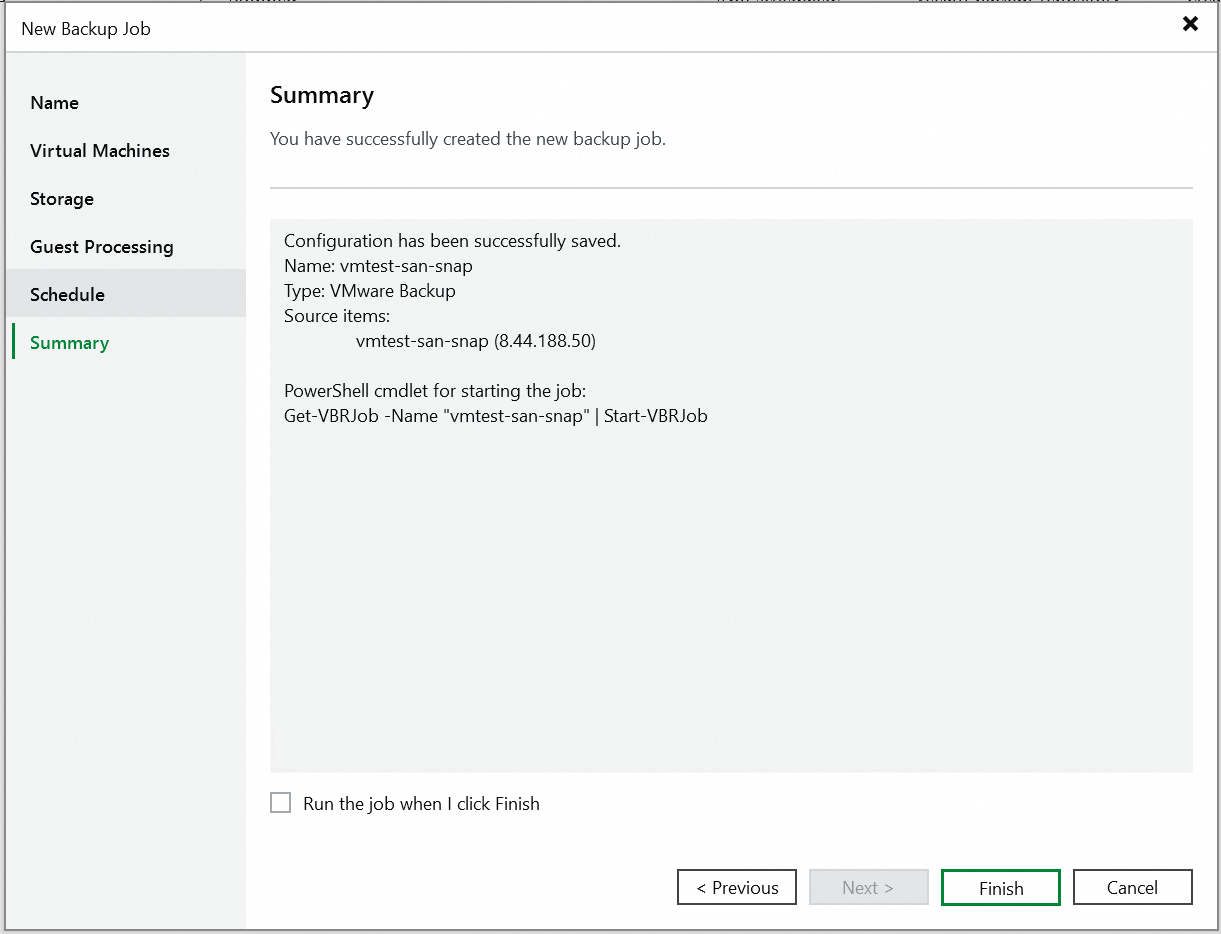  3. Complete the configuration and start the full backup task (Active full). 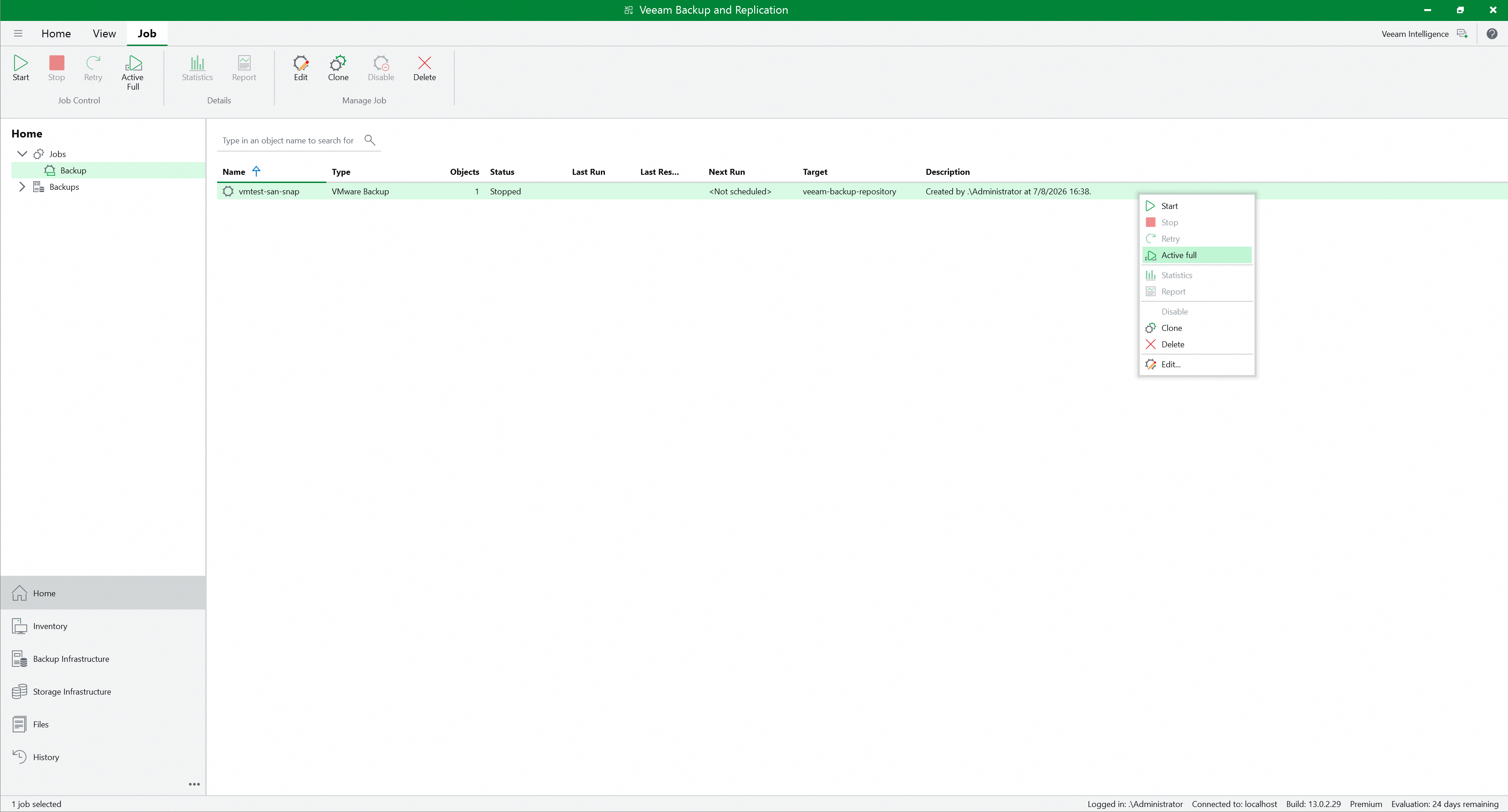 4. Check the full backup job status on the backup server. The full backup job status is successful. No error is reported. 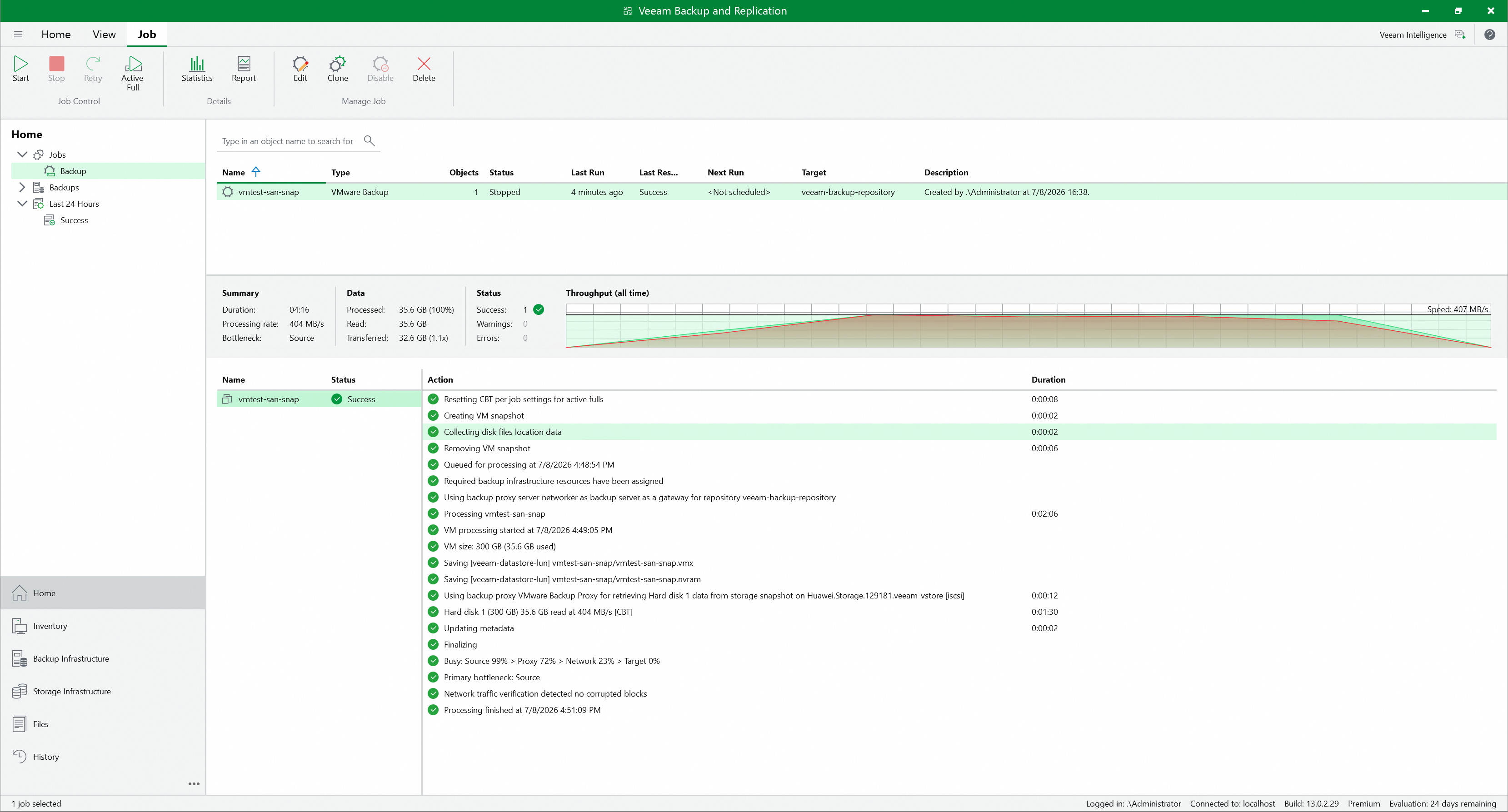 5. After the full backup job is complete, check the size of backup files on the Huawei OceanStor Dorado All-Flash Storage. The backup files are written to the Huawei OceanStor Dorado All-Flash Storage successfully, and the size of backup files same as the size of transferred data on backup server. 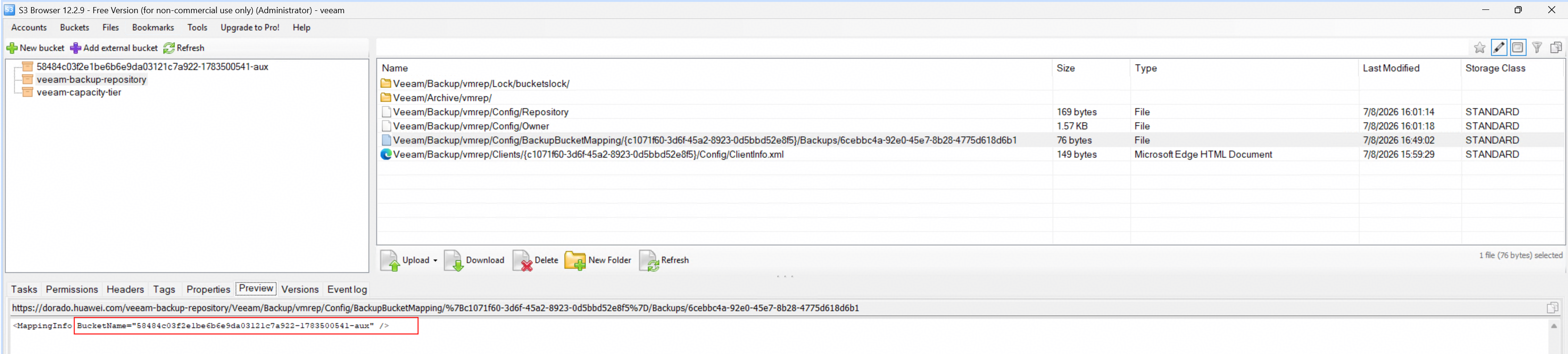 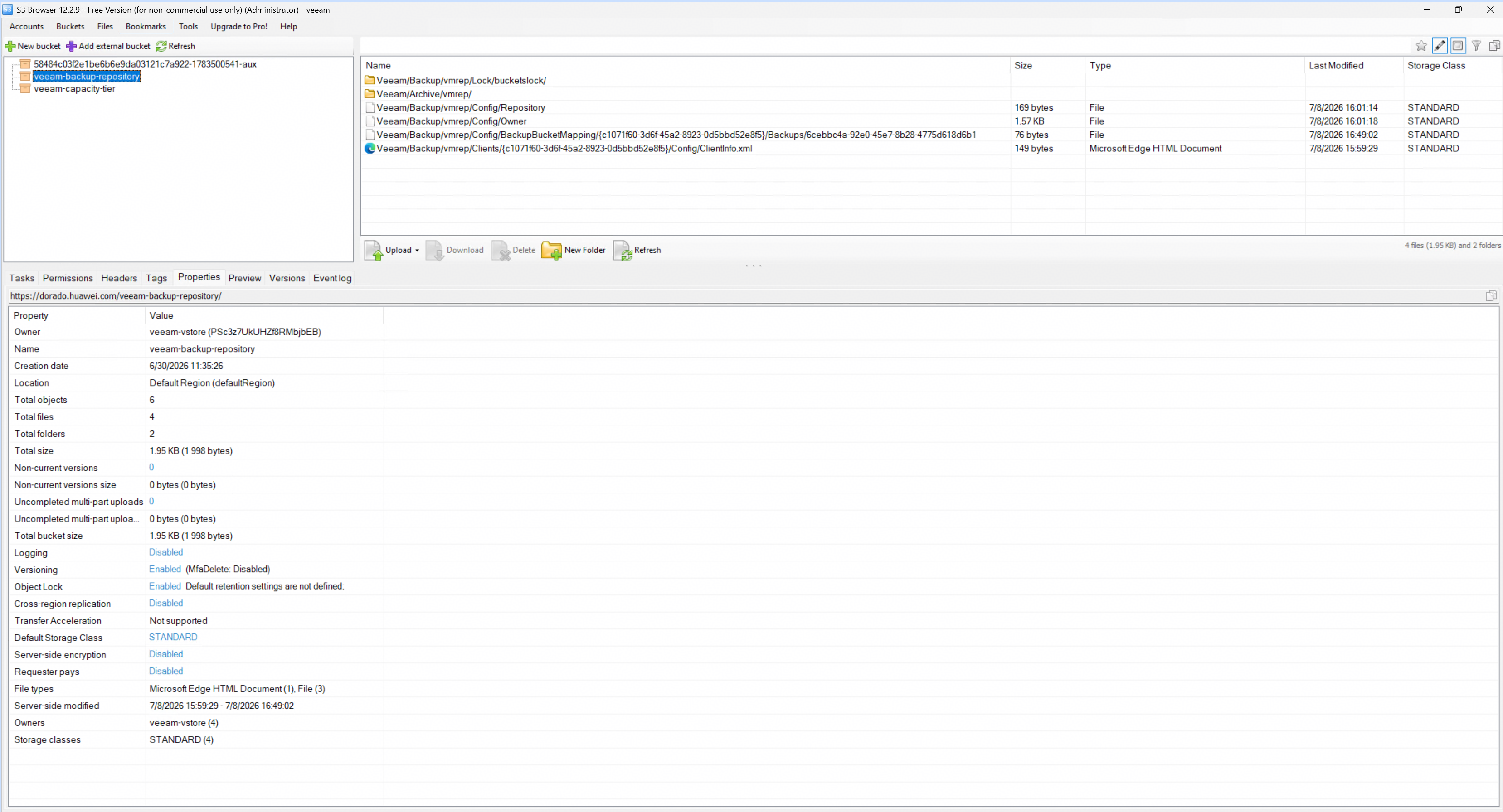 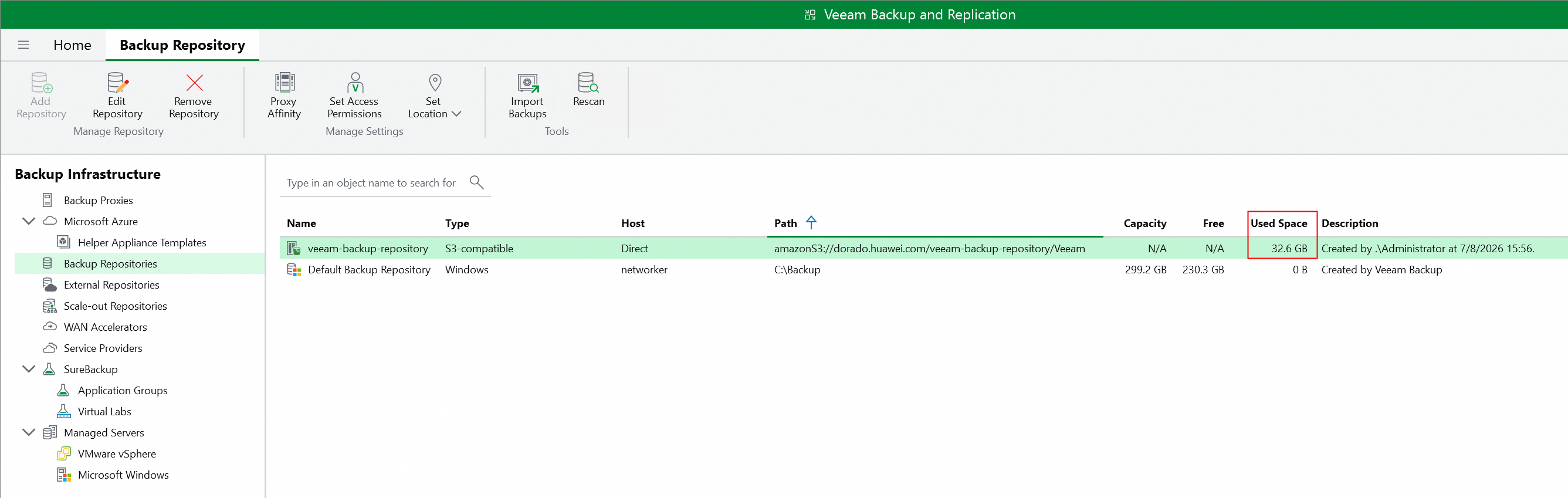 |
Test Conclusion | Passed |
3.3 Incremental back up VM to the immutable Cloud Backup Repository
Test Purpose | To verify that the backup server can incremental back up the VM to the immutable Cloud Backup Repository. |
Network Diagram | Reference to Figure 1.1 |
Prerequisites |
|
Test Procedures | Step 1: Right-click the created Virtual Machine backup job in section 3.2 and perform incremental backup. Step 2: Check the incremental backup job status on the backup server. Step 3: After the incremental backup job is complete, check the size of backup files on the Huawei OceanStor Dorado All-Flash Storage. |
Expected Results |
|
Test Results |
Modify the VM data. 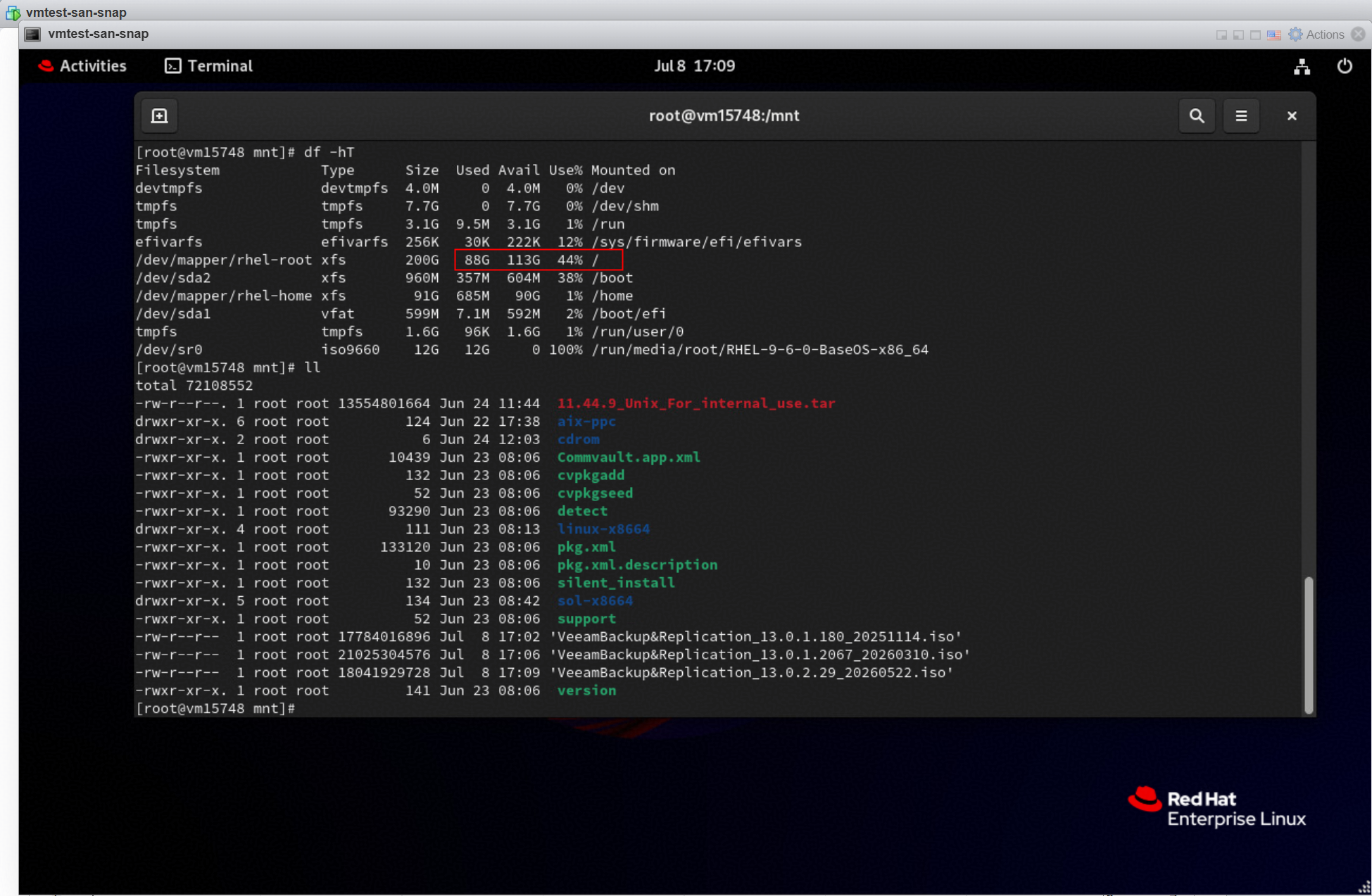 Perform the incremental backup. 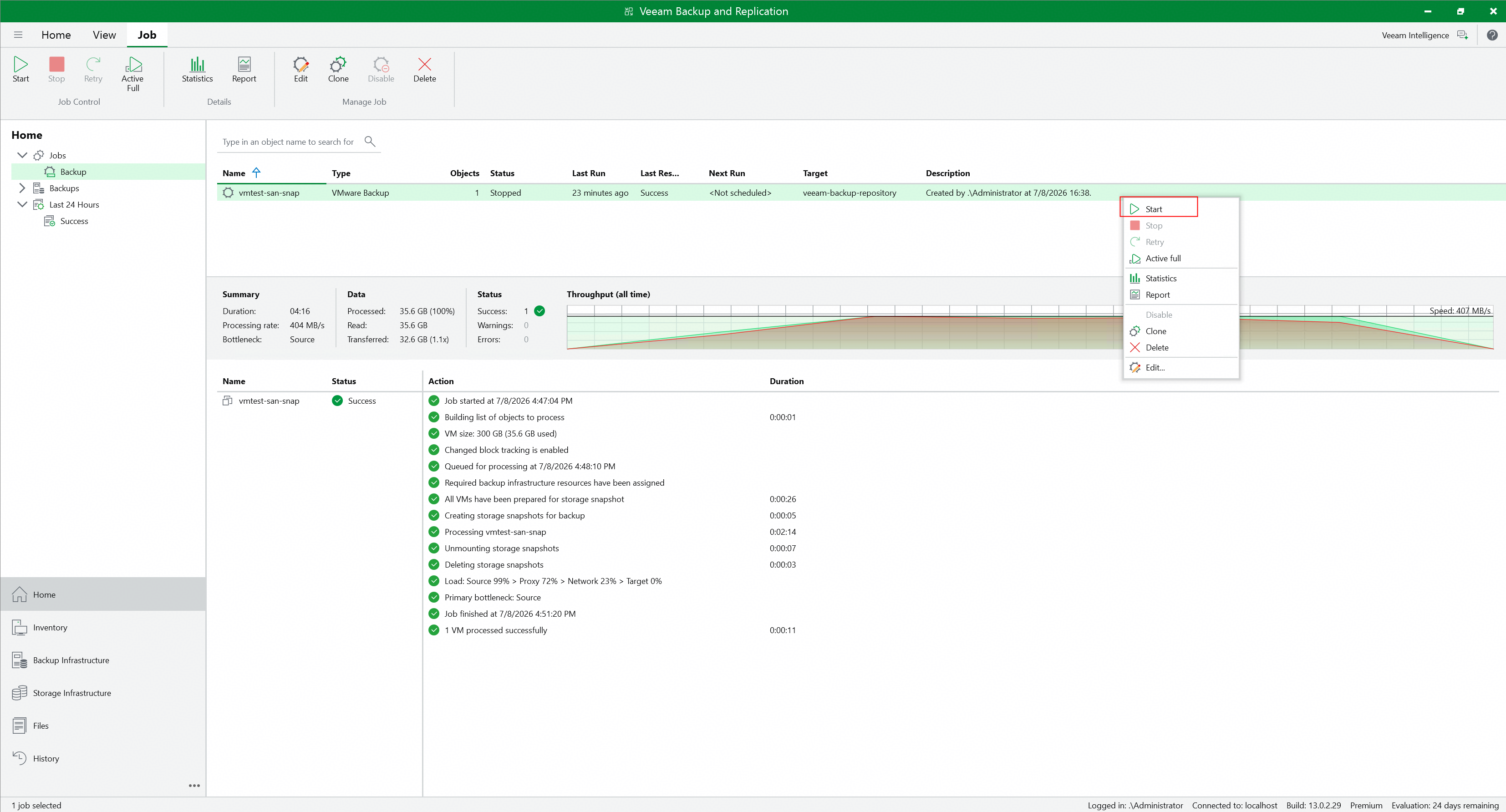 2. Check the incremental backup job status on the backup server. The incremental backup job status is successful. No error is reported. 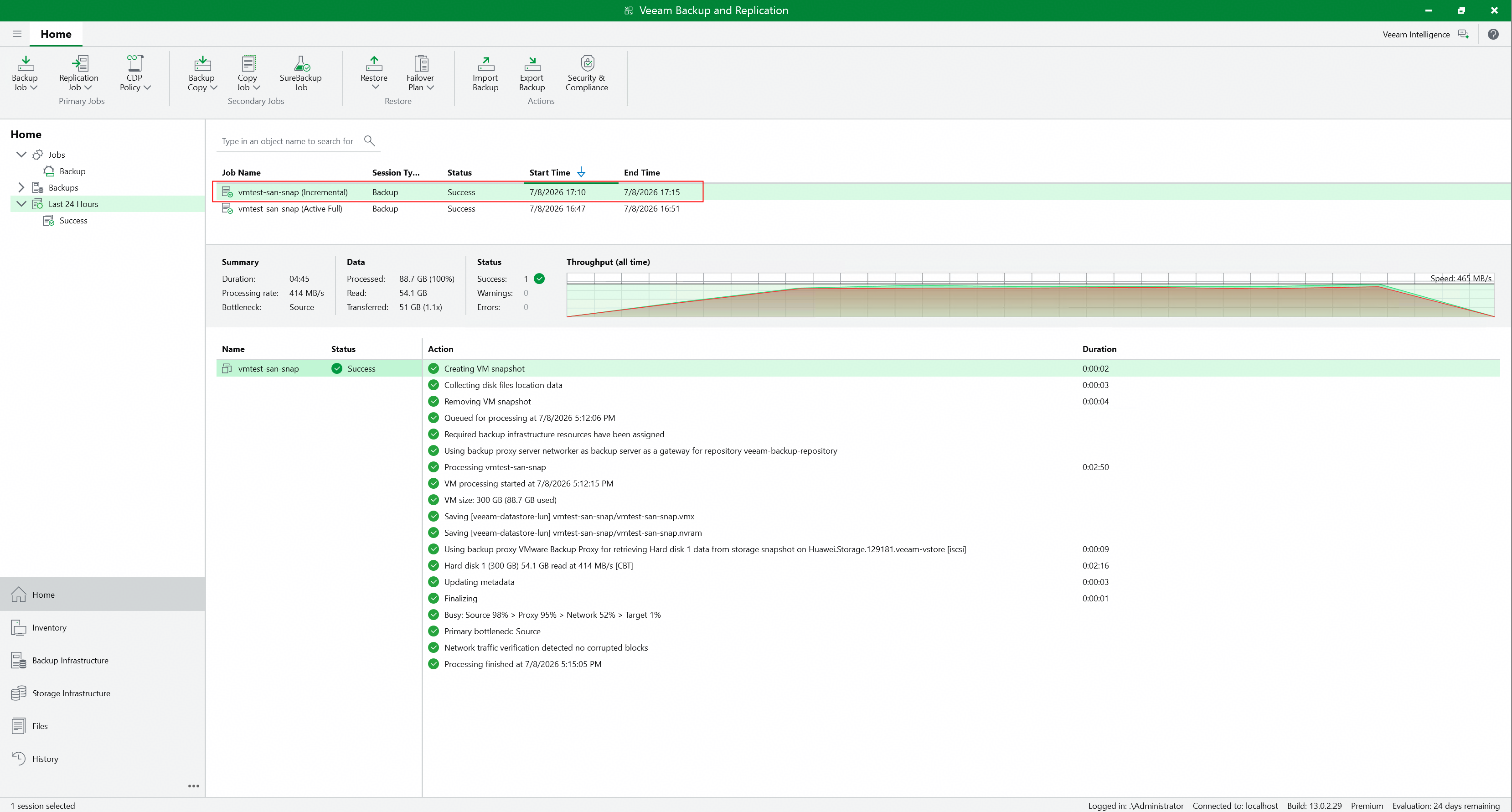 3. After the full backup job is complete, check the size of backup files on the Huawei OceanStor Dorado All-Flash Storage. The backup files are written to the Huawei OceanStor Dorado All-Flash Storage successfully, and the size of backup files same as the size of transferred data on backup server. 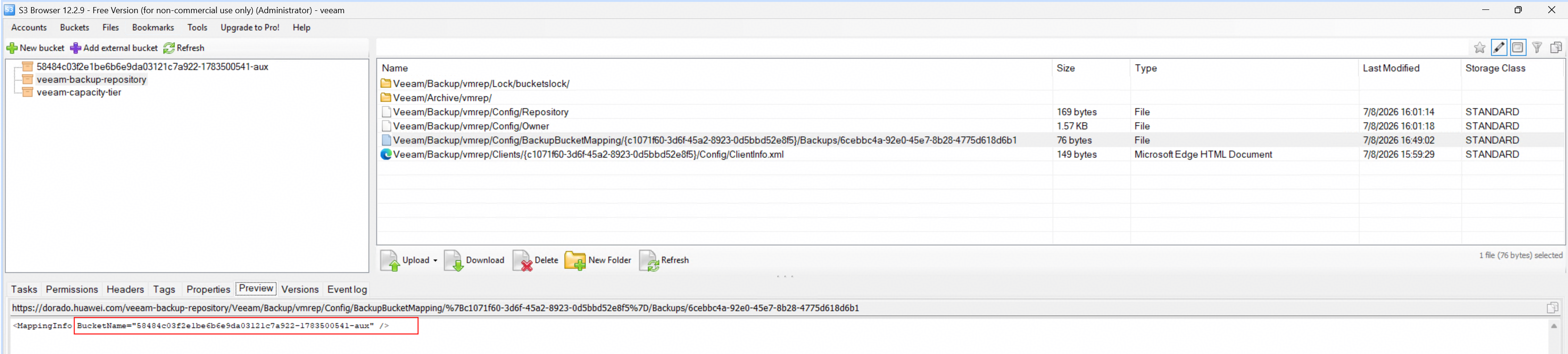 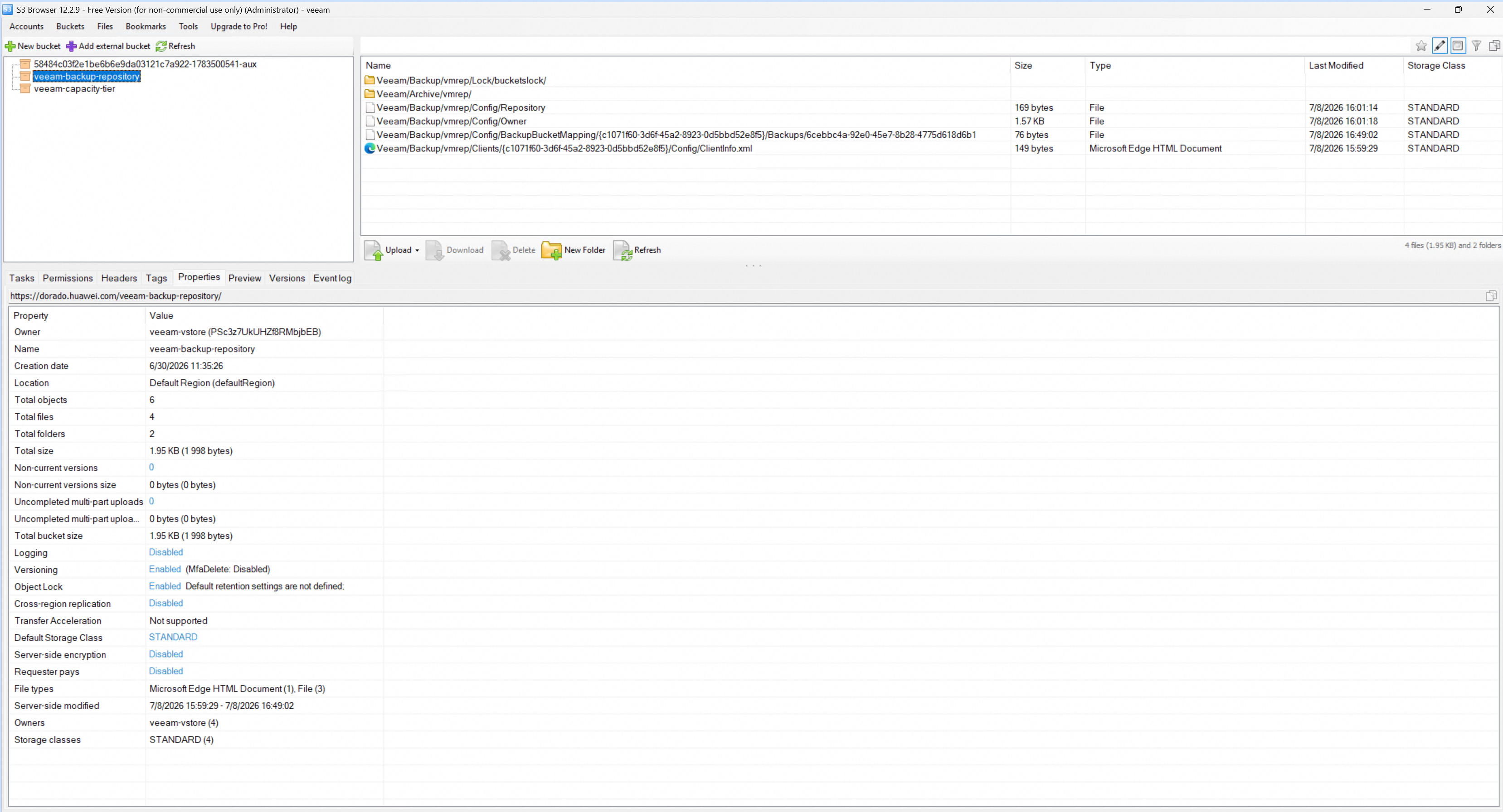 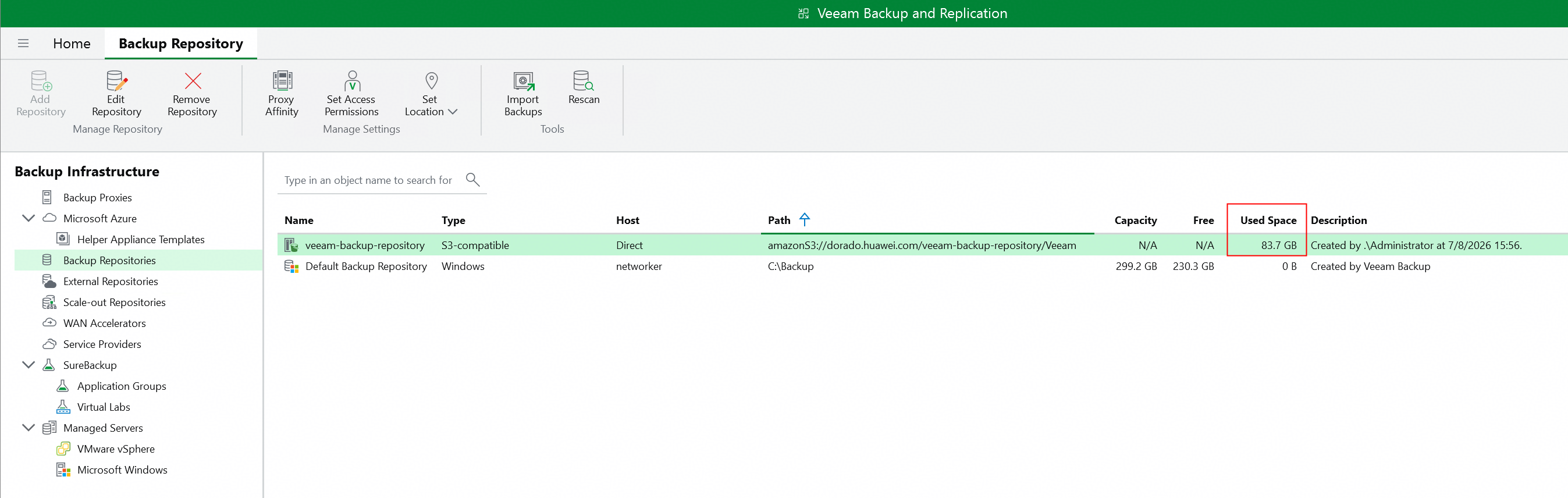 |
Test Conclusion | Passed |
3.4 Restore the VM from the immutable Cloud Backup Repository
Test Purpose | To verify that the backup server can restore the VM from the immutable Cloud Backup Repository. |
Network Diagram | Reference to Figure 1.1 |
Prerequisites |
|
Test Procedures | Step 1: Select the Home and the Backups type of Object Storage on the backup server. Step 2: Select the performed job in section 3.2 and right-click the VM to restore entire VM. Step 3: Select the restore point of the VM full backup to restore, and next. Step 4: Select the restore to the original location, and next. Step 5: Complete the configuration and start the restore job. Step 6: Check the restore job status on the backup server. Step 7: Check the VM status. |
Expected Results |
|
Test Results |
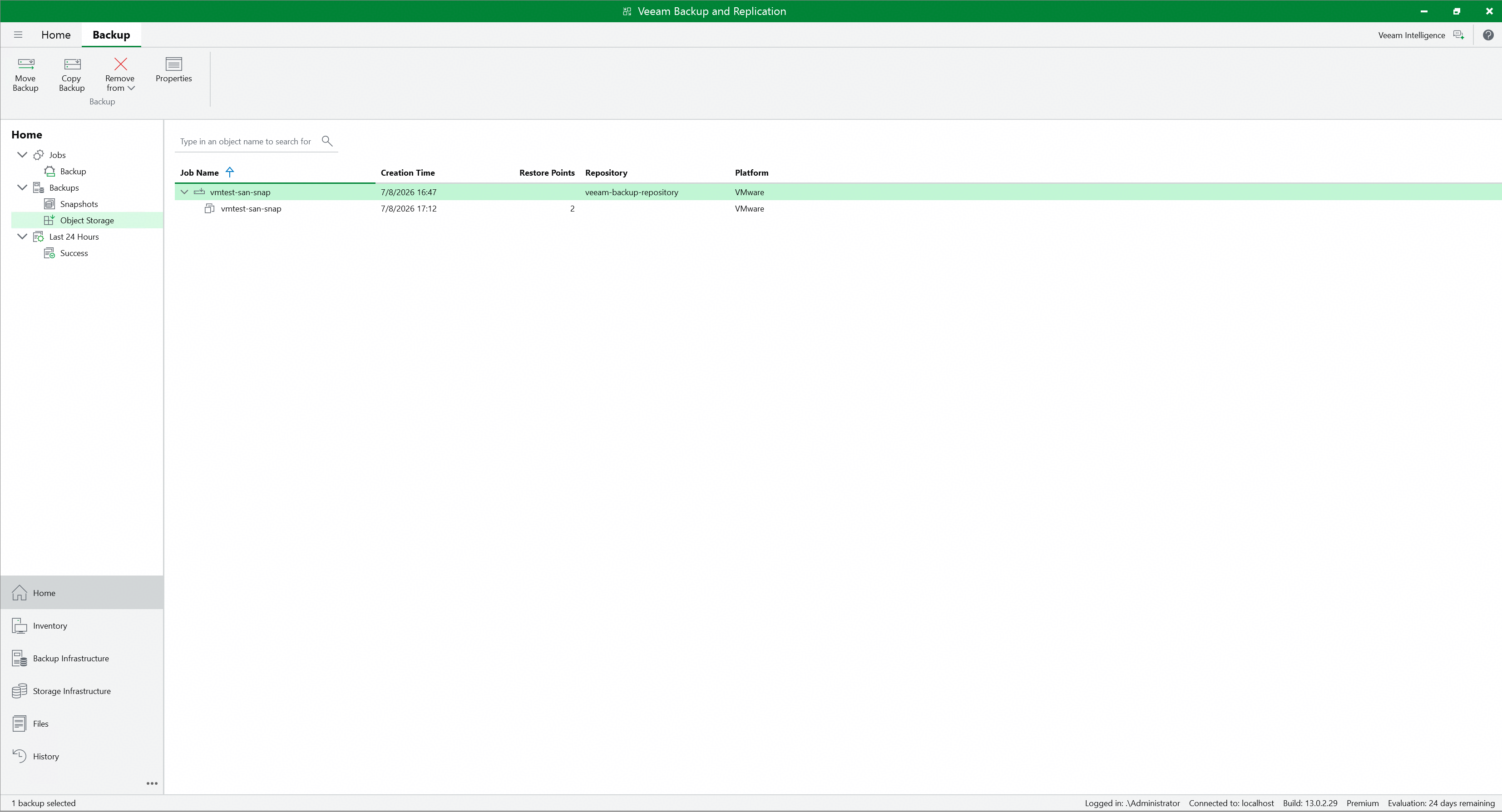 2. Select the performed job in section 3.2 and right-click the VM to restore entire VM. 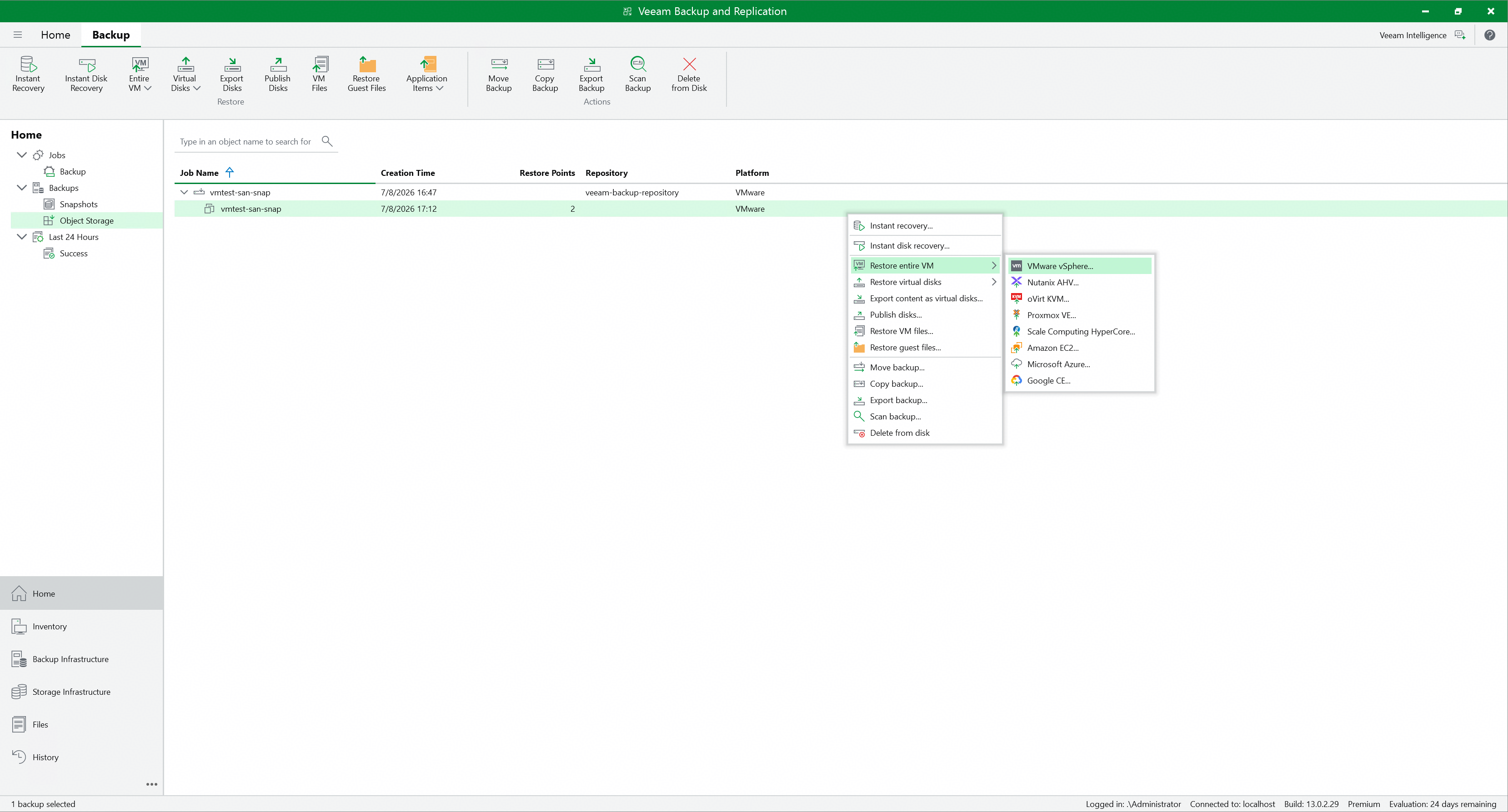 3. Select the restore point of the VM full backup to restore, and Next. 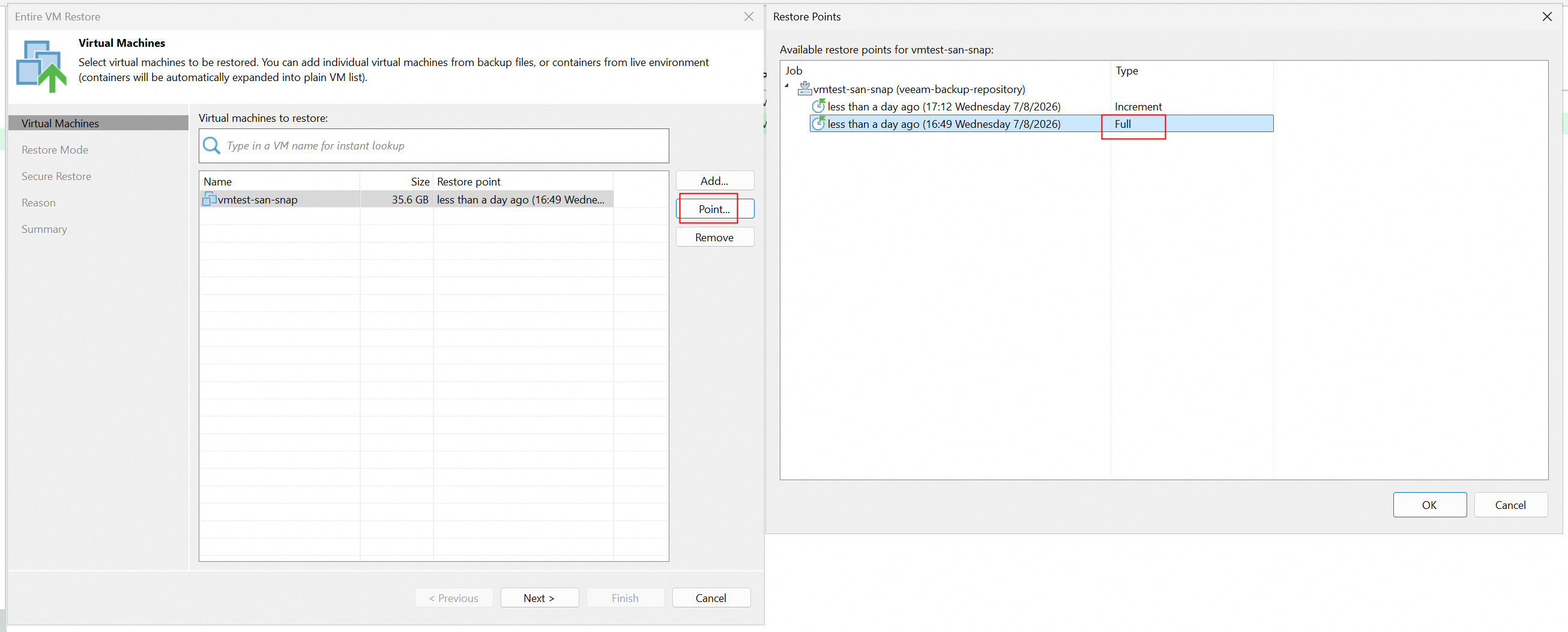 4. Select to restore to the original location, and Next. 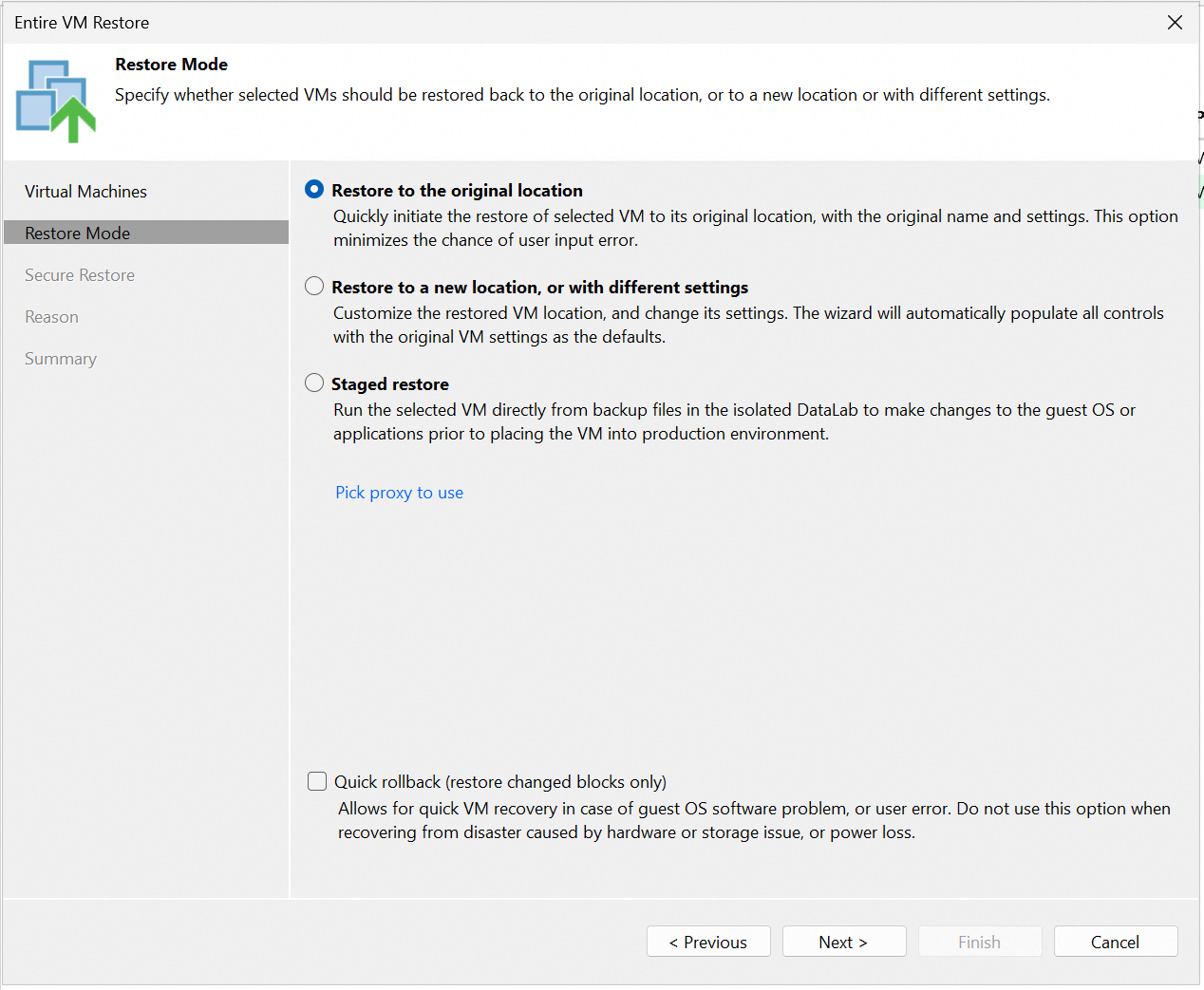 5. Complete the configuration and start the restore job. succeed to complete the configuration. No error is reported. 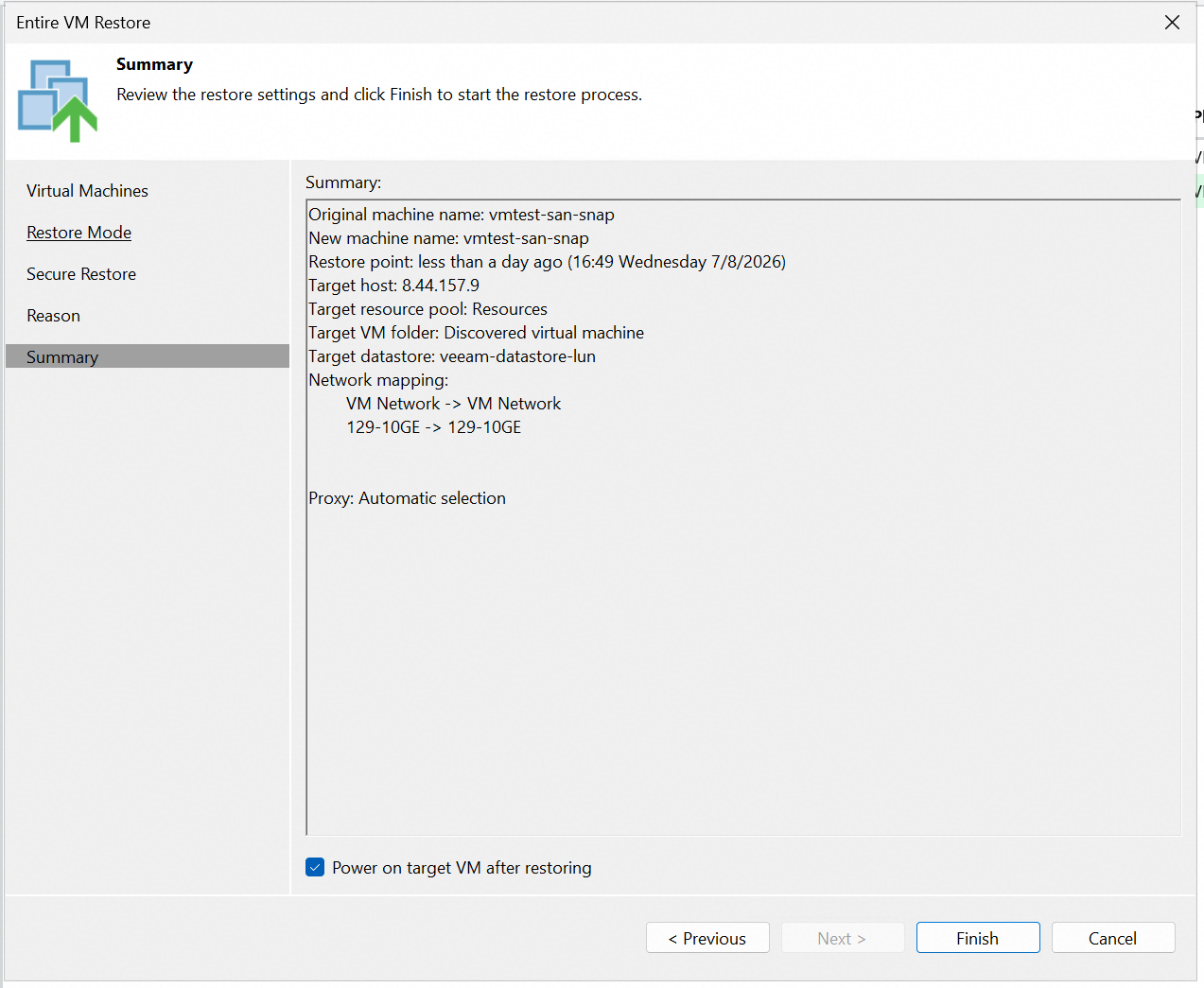 6. Check the restore job status on the backup server. The restore job status is successful. No error is reported. 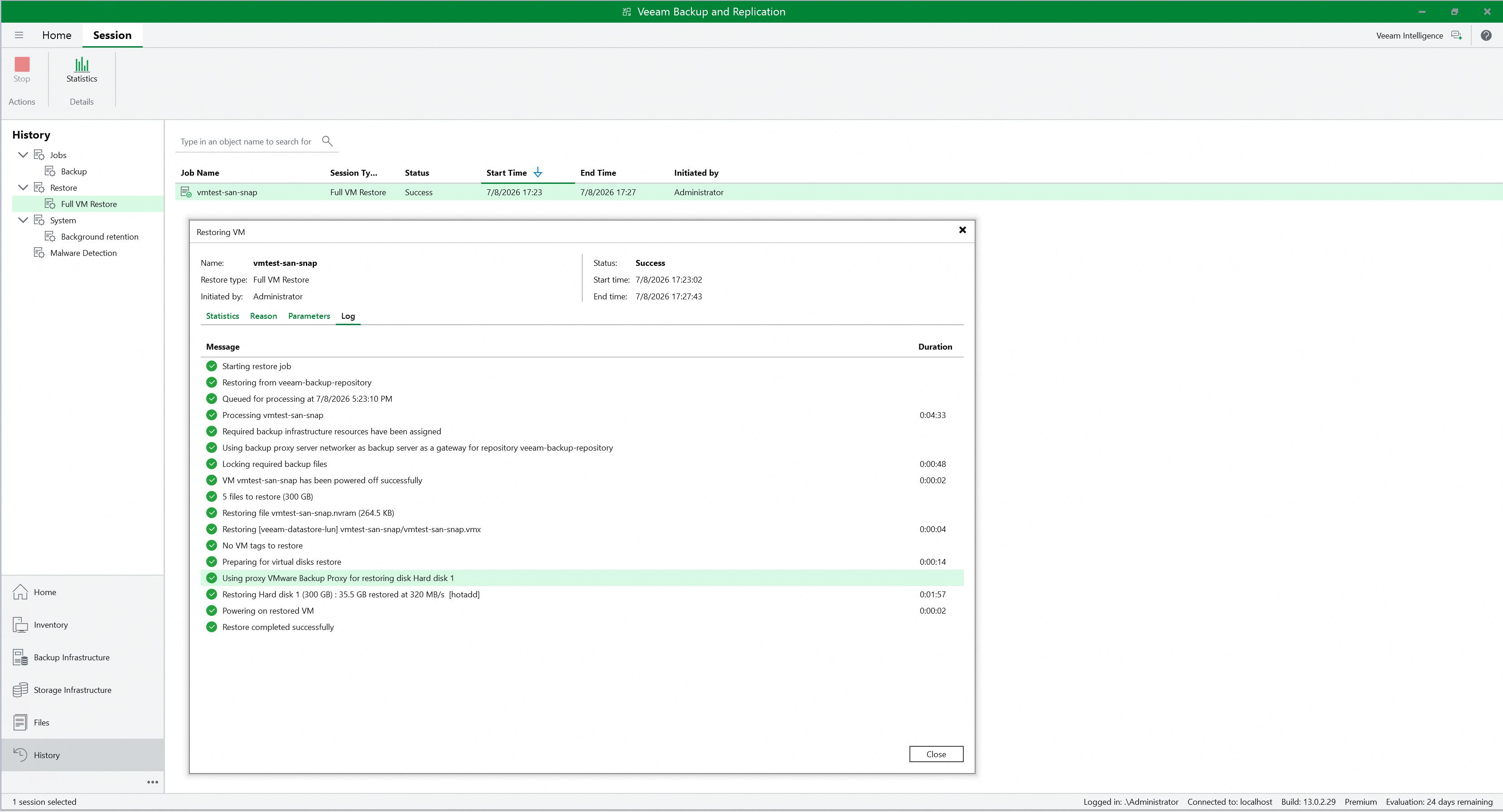 7. Check the VM status. The VM restore the status of full backup successfully. 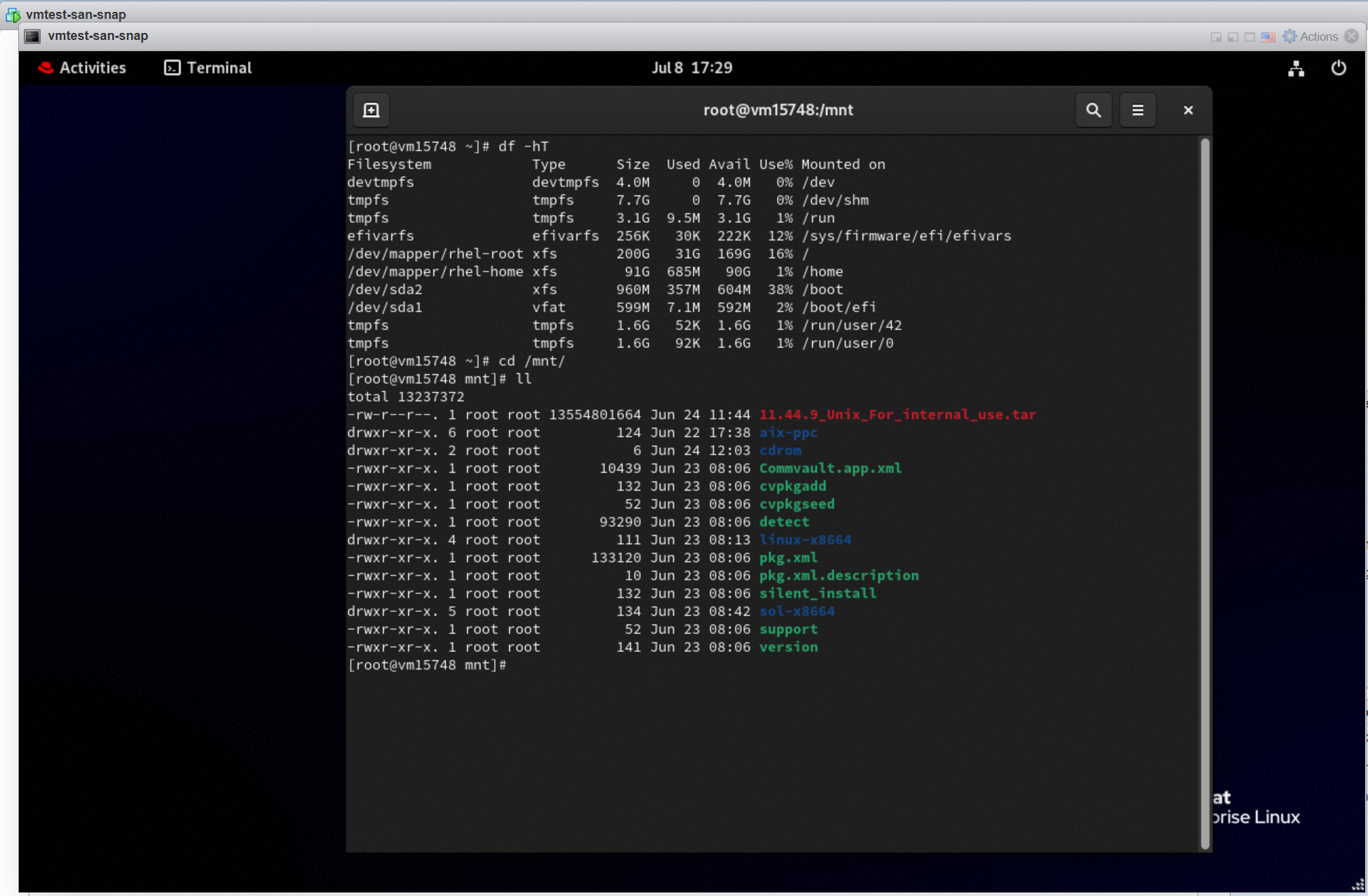 |
Test Conclusion | Passed |
3.5 Verify Retention Period of immutable Cloud Backup Repository
Test Purpose | To verify that the retention period is supported when the Huawei OceanStor Dorado All-Flash Storage is used as immutable Cloud Backup Repository. |
Network Diagram | Reference to Figure 1.1 |
Prerequisites |
|
Test Procedures | Step 1: Check the headers of the backup files on the s3 Browser. Step 2: Delete the backup files within the retention period on the backup server. Step 3: Delete the backup files within the retention period on the s3 Browser. |
Expected Results |
|
Test Results |
1.1 On the S3 browser, the headers of the full backup files on the storage contain the ‘x-amz-object-lock-mode’ and the value is COMPLIANCE. And the headers of the full backup files on the storage contain the ‘x-amz-object-lock-retain-until-date’ and the value is 2026-07-19T08:48:09Z. 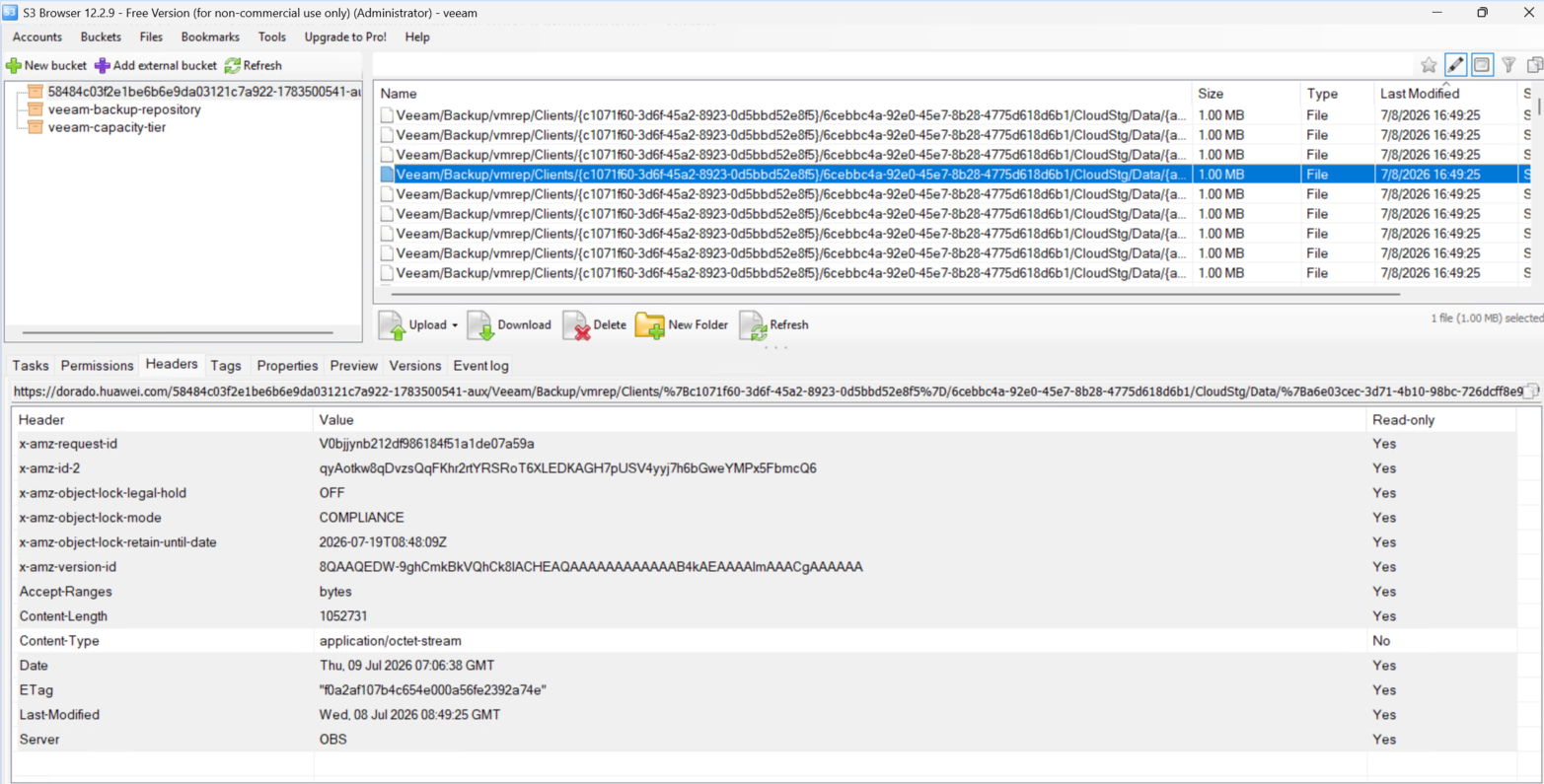 1.2 On the S3 browser, the headers of the incremental backup files on the storage contain the ‘x-amz-object-lock-mode’ and the value is COMPLIANCE. And the headers of the incremental backup files on the storage contain the ‘x-amz-object-lock-retain-until-date’ and the value is 2026-07-19T08:48:09Z. 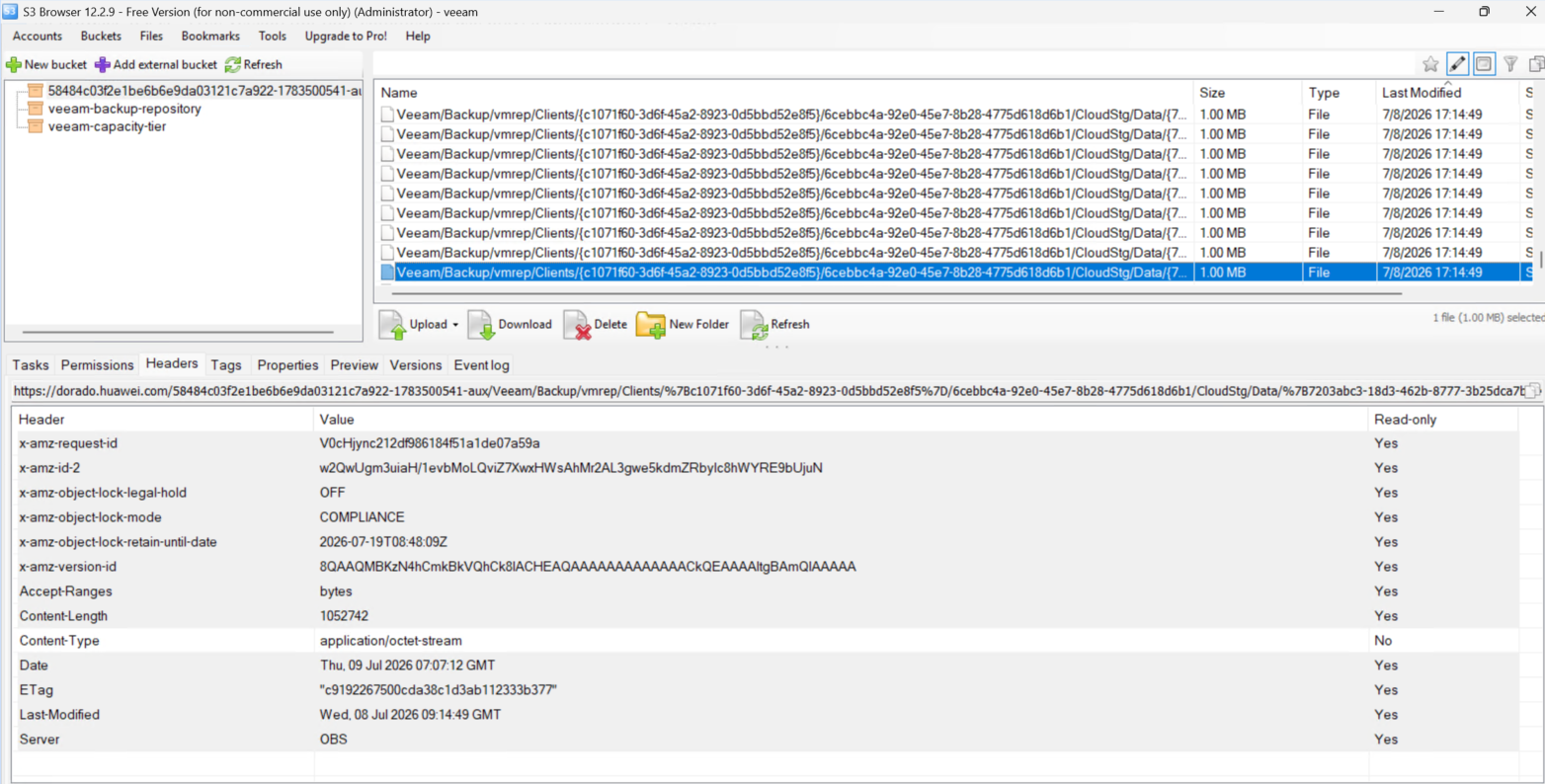 2. The backup files could not be deleted on the backup server within the retention period (2026-07-19T08:48:09Z UTC+0/2026-07-19T16:48:09Z UTC+8). 2.1 The WORM clock in the storage is within the retention period. 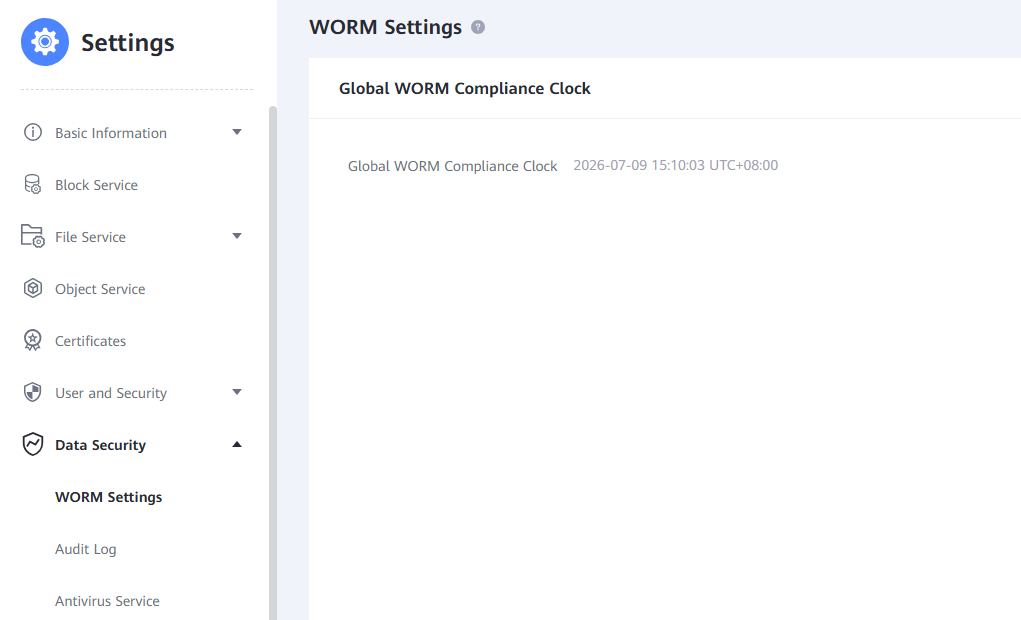 2.2 Files could not be deleted on the backup server. The error is reported: 7/9/2026 15:10:59 Failed: [vmtest-san-snap – vmtest-san-snap] Failed to delete backup Error: Unable to delete the backup because it is marked as immutable until 19 July 2026 16:48:09 (0:00:03) 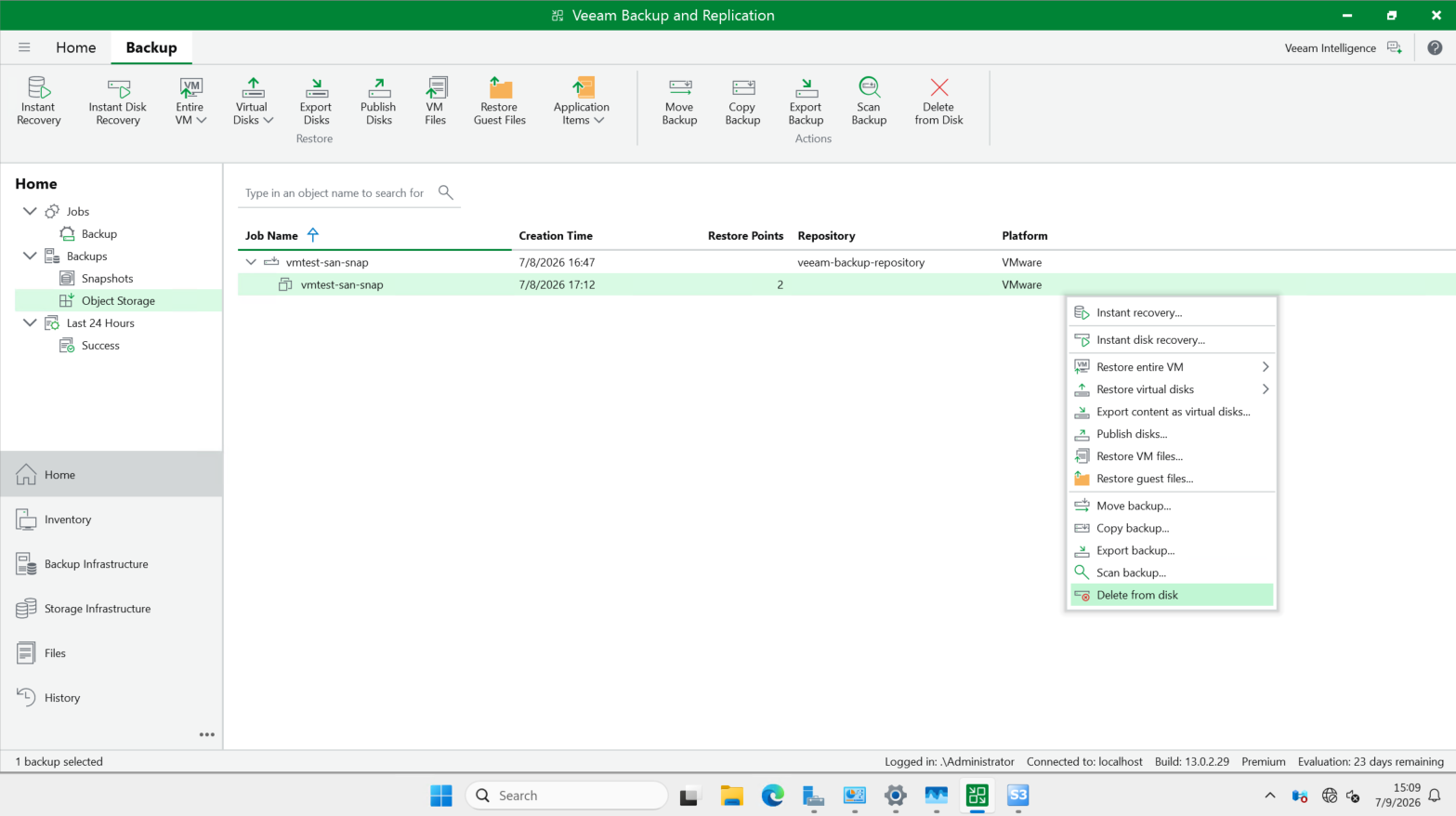 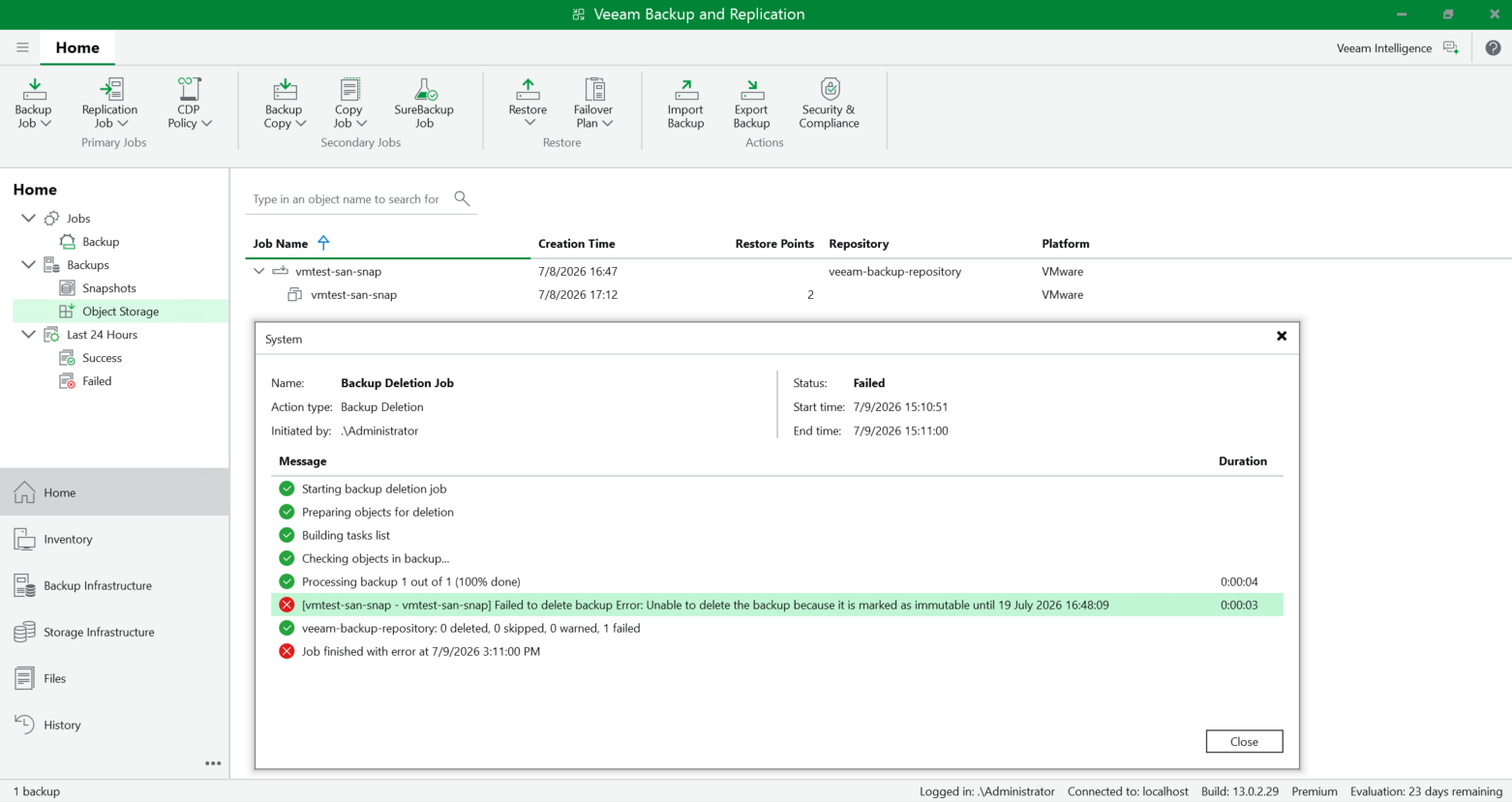 3. The backup files could not be deleted on the s3 browser within the retention period (2026-07-19T08:48:09Z UTC+0/2026-07-19T16:48:09Z UTC+8). The error is reported: Failed – AccessDenied: Operation not permitted. 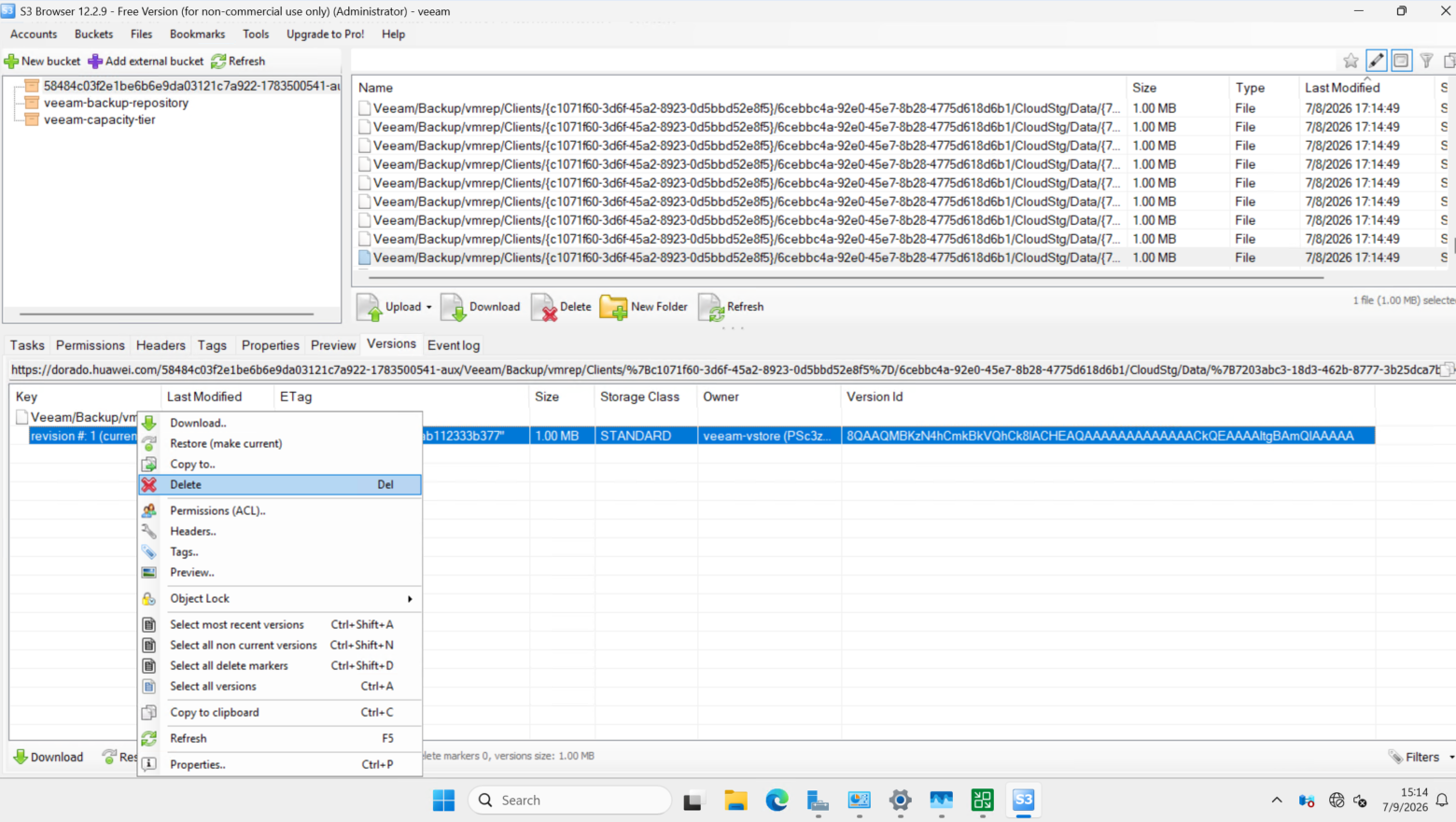 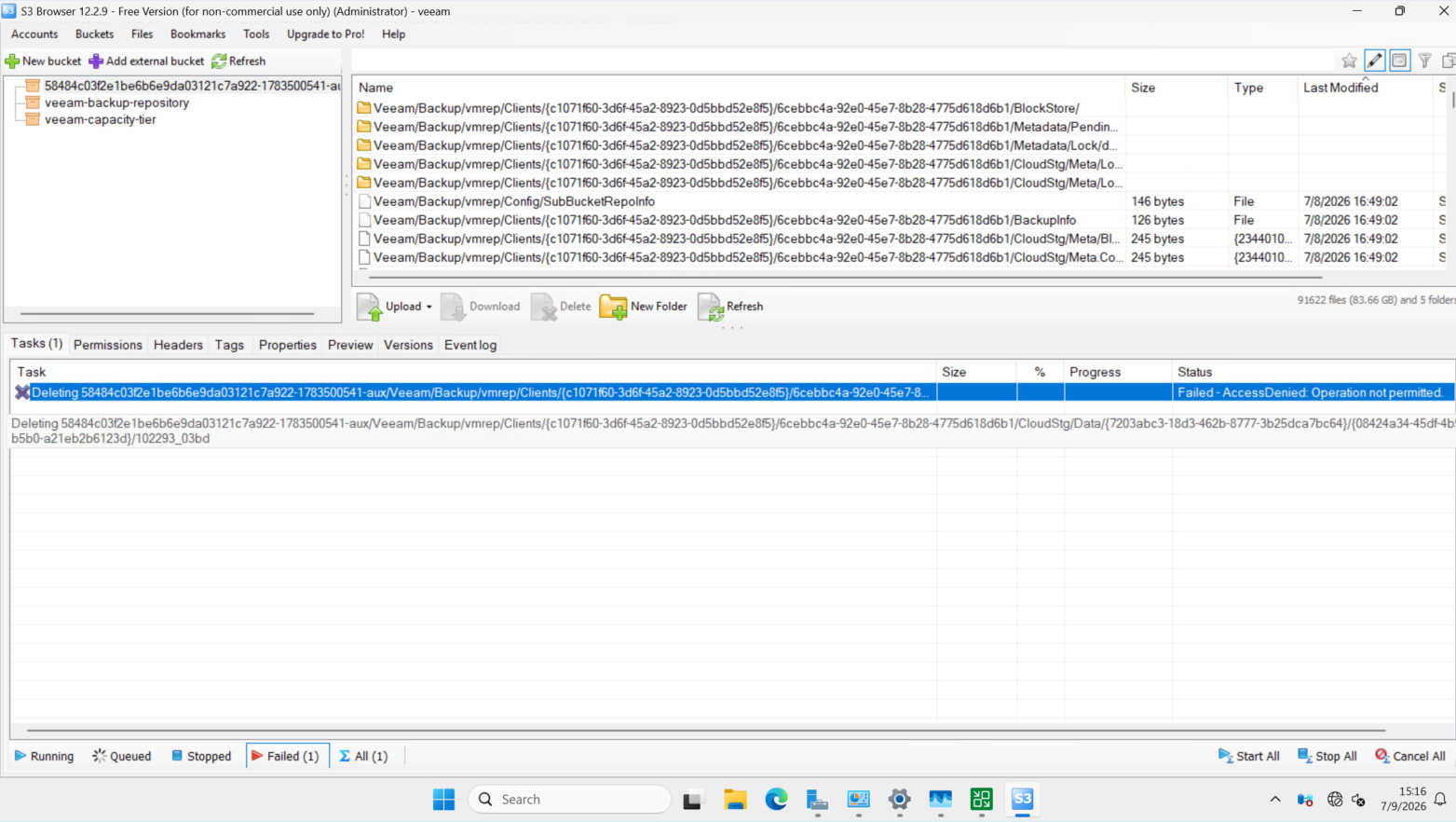 |
Test Conclusion | Passed |
4.Test Scenario 2 and Results
4.1 Add the NFS share to the backup server as the NAS backup repository
Test Purpose | To verify that the Huawei OceanStor Dorado All-Flash Storage can be added to the backup server as the NAS backup repository. |
Network Diagram | Reference to Figure 1.2 |
Prerequisites |
|
Test Procedures | Step 1: Select the Backup Infrastructure, and right-click the Backup Repositories. Step 2: Select the Network attached storage type of NFS share to add the NAS backup repository. Step 3: Enter the name, shared folder. Step 4: Keep the default settings and click Next until the configuration is complete. |
Expected Results |
|
Test Results | 1. Select the Backup Infrastructure, and right-click the Backup Repositories. 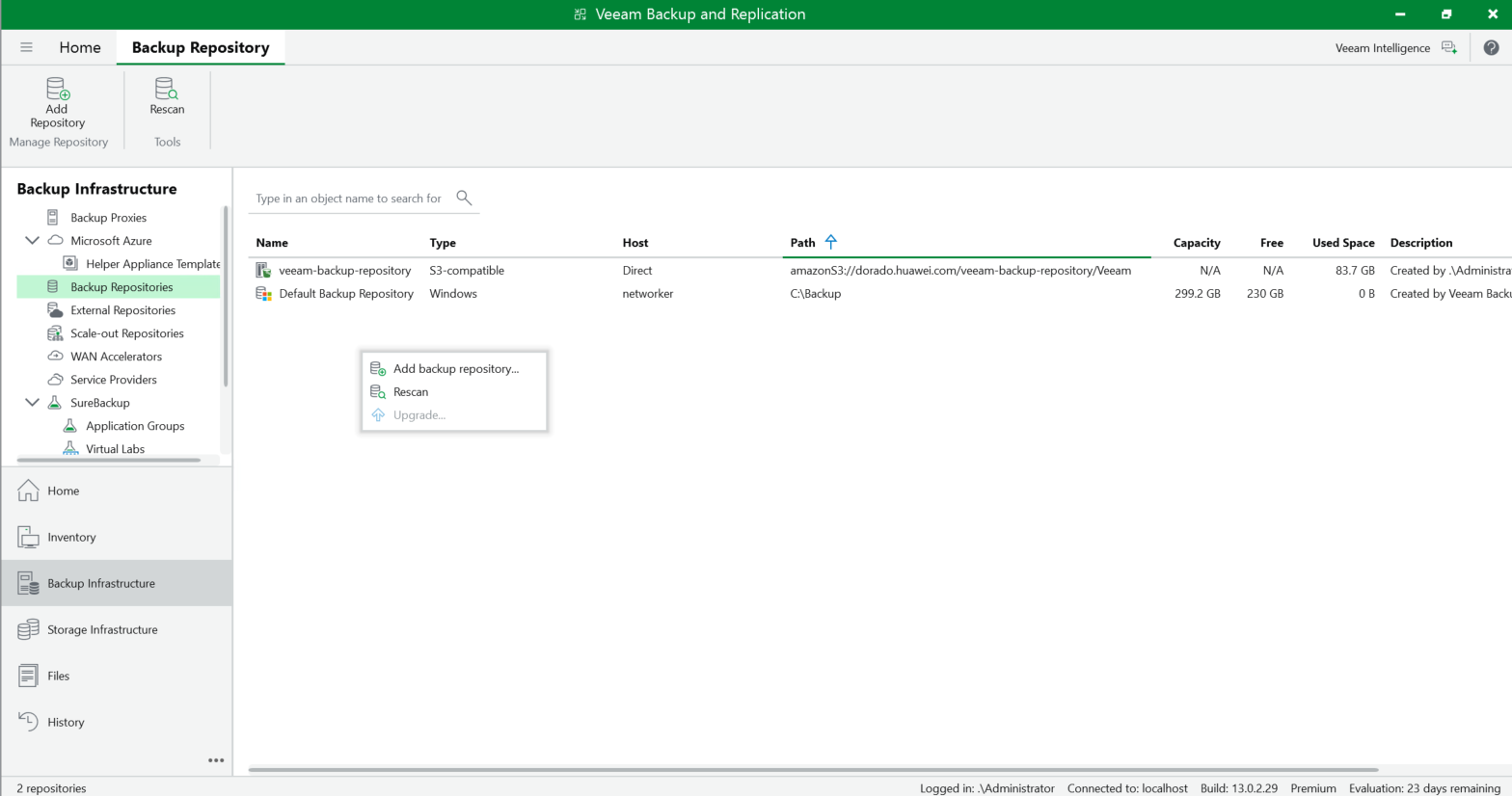
2. Select the Network attached storage type of NFS share to add the NAS backup repository. 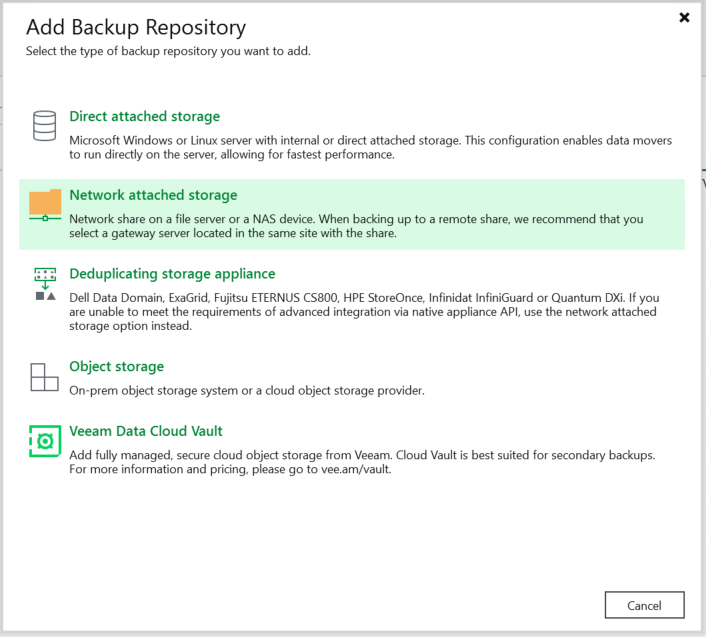
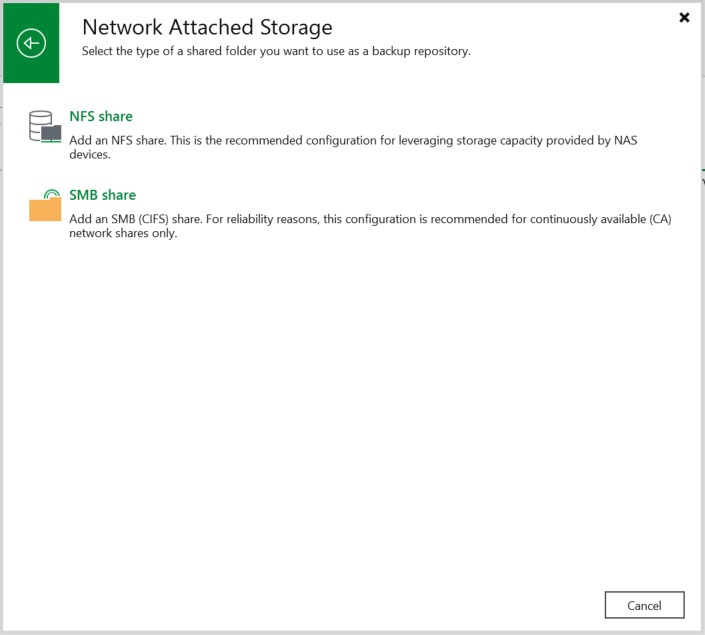
3. Enter the name, shared folder. 3.1 Enter the name, and next. 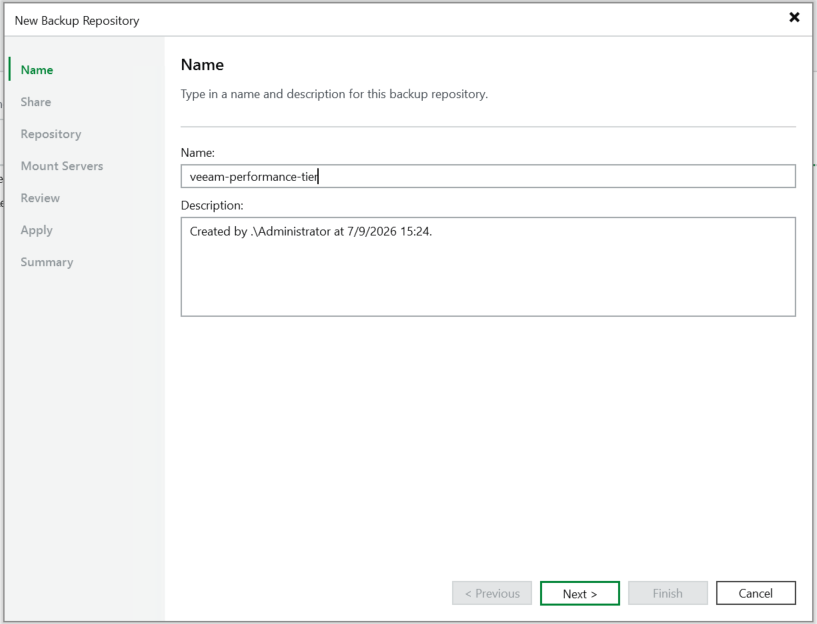
3.2 Enter the shared folder. 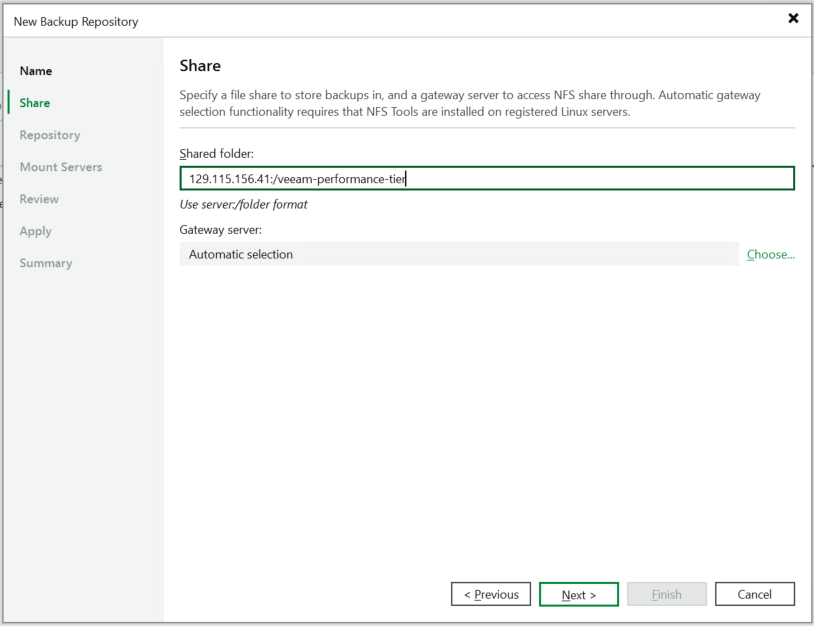
4. Keep the default settings and click Next until the configuration is complete. Succeed to add the NFS share folder as the NAS backup repository. 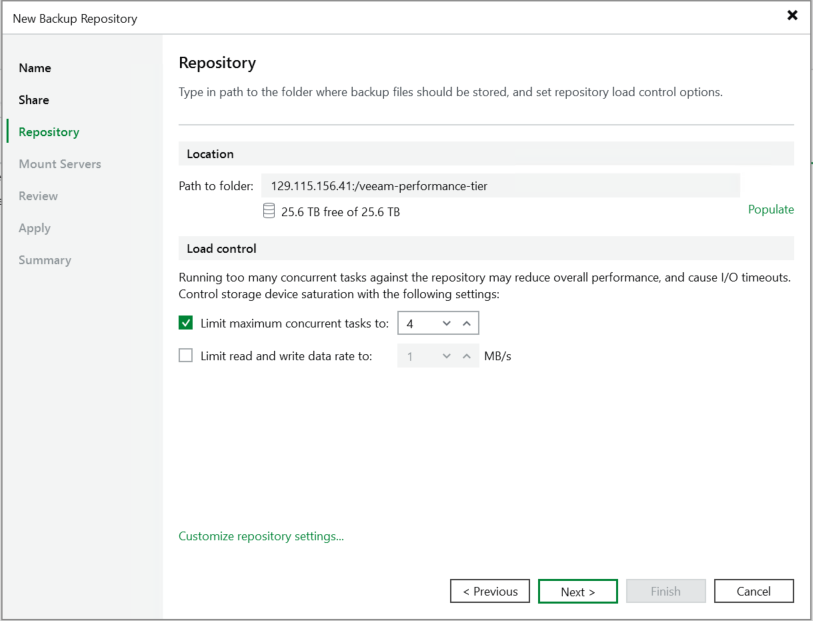 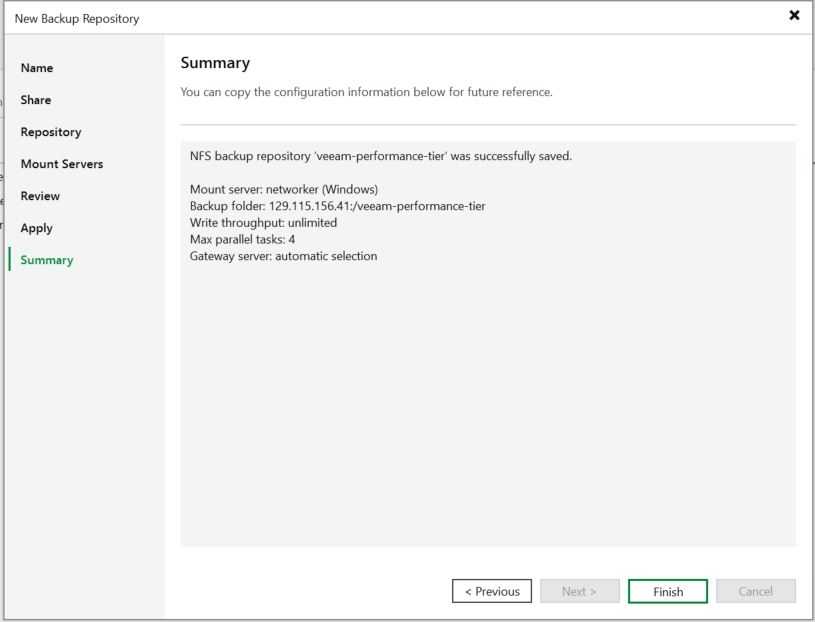 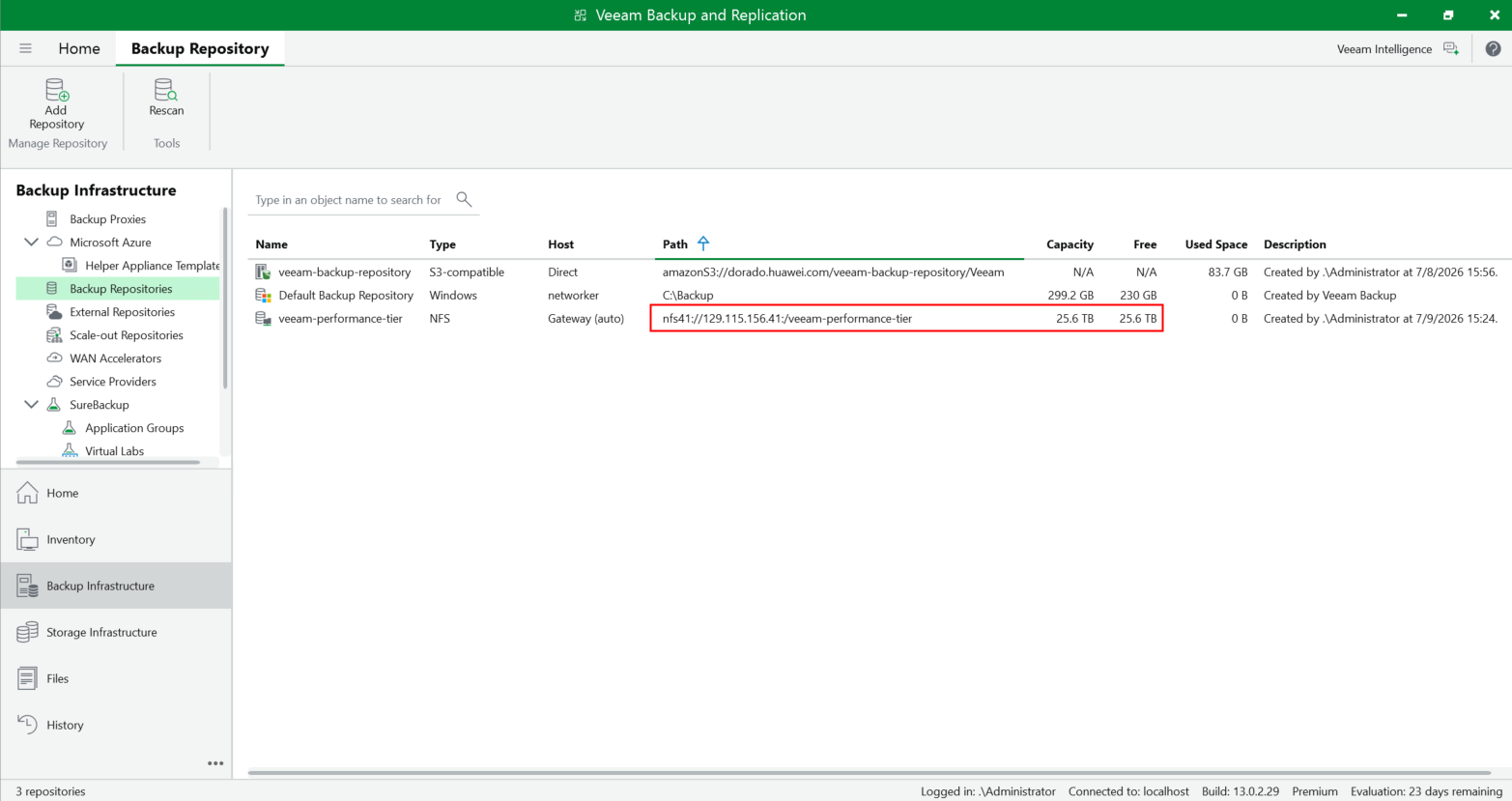
|
Test Conclusion | Passed |
4.2 Add the bucket to the backup server as the immutable Cloud Backup Repository
Test Purpose | To verify that the Huawei OceanStor Dorado All-Flash Storage can be added to the backup server as the immutable Cloud Backup Repository. |
Network Diagram | Reference to Figure 1.2 |
Prerequisites |
|
Test Procedures | Step 1: Select the Backup Infrastructure, and right-click the Backup Repositories. Step 2: Select the Object storage type of S3 Compatible to add the Object Storage Repository. Step 3: Enter the name, Service point (https), region, and credential. Step 4: Select the created bucket and folder. Step 5: Select the option of Make backups immutable and set the Minimum immutability duration for 1 day. Step 6: Keep the default settings and click Next until the configuration is complete. Step 7: Add the S3 Compatible Object storage repository and finish. Step 8: Check the bucket of the repository through the S3 Browser. |
Expected Results |
|
Test Results | 1. Select the Backup Infrastructure, and right-click the Backup Repositories. 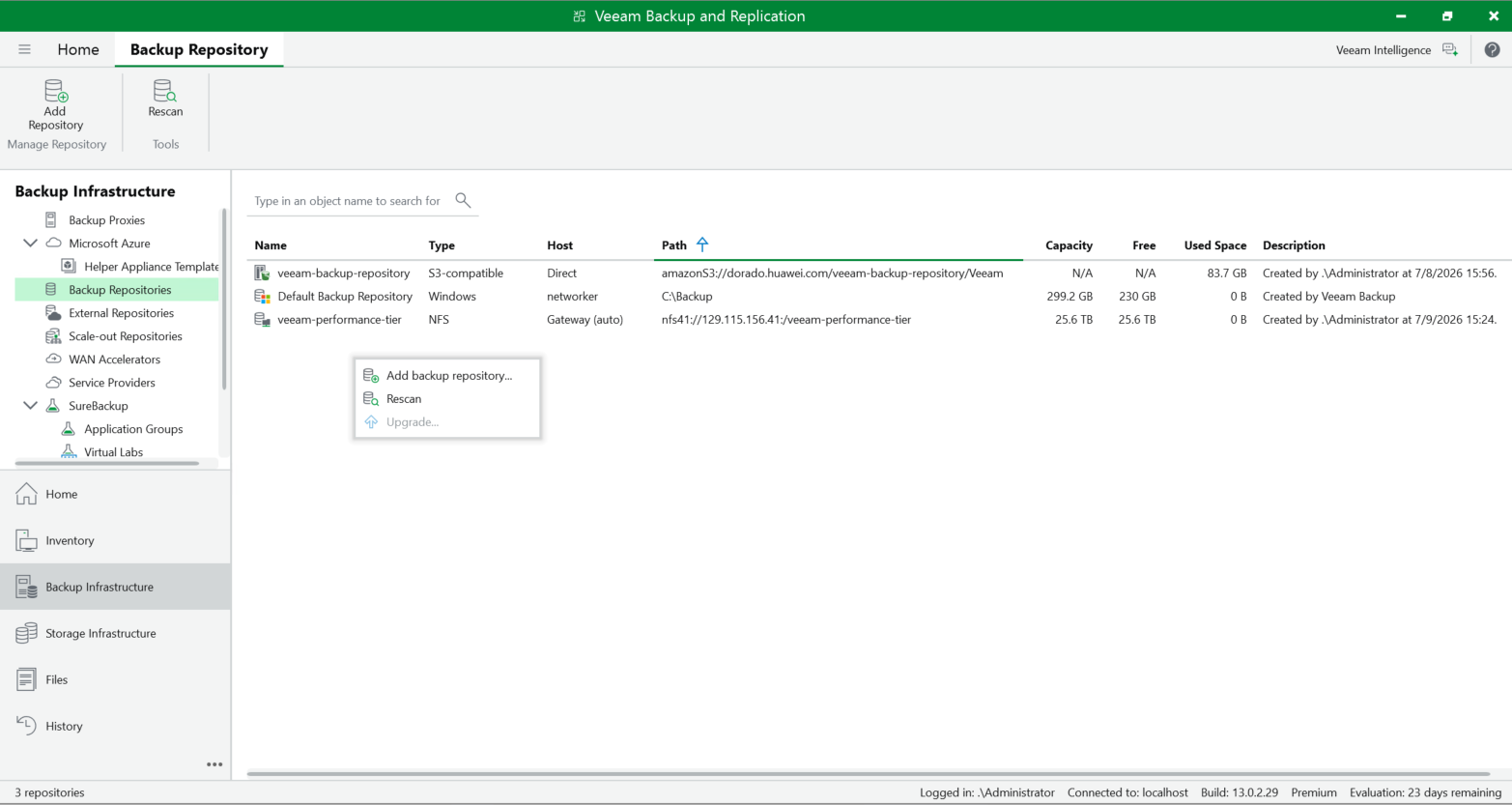
2. Select the Object storage type of S3 Compatible to add the Object Storage Repository. 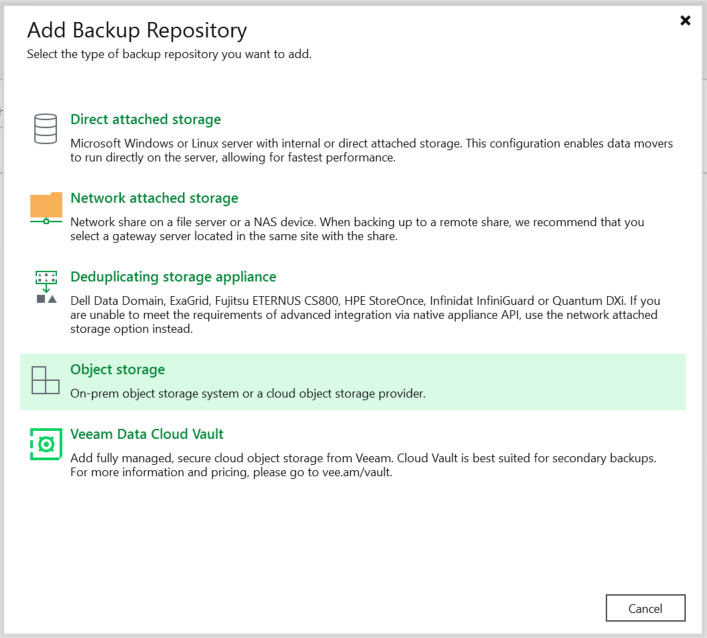
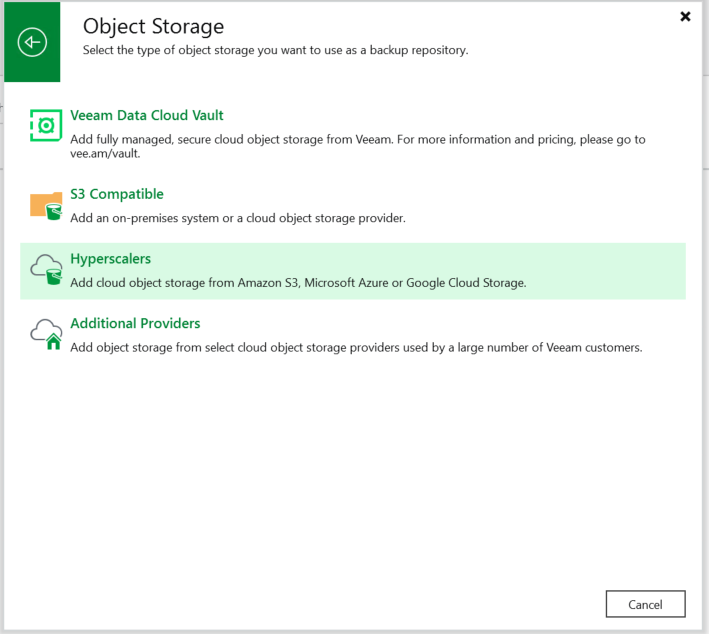 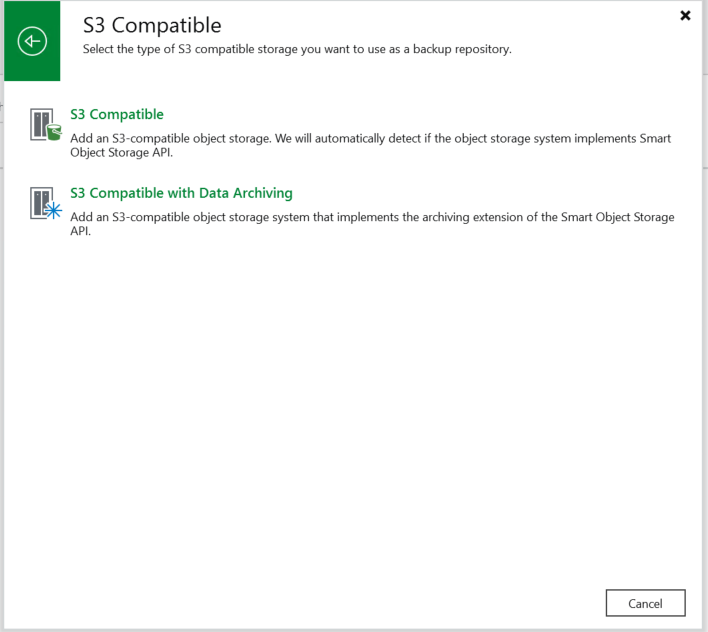
3. Enter the name, Service point (https), region, and credential. 3.1 Enter the name, and next. 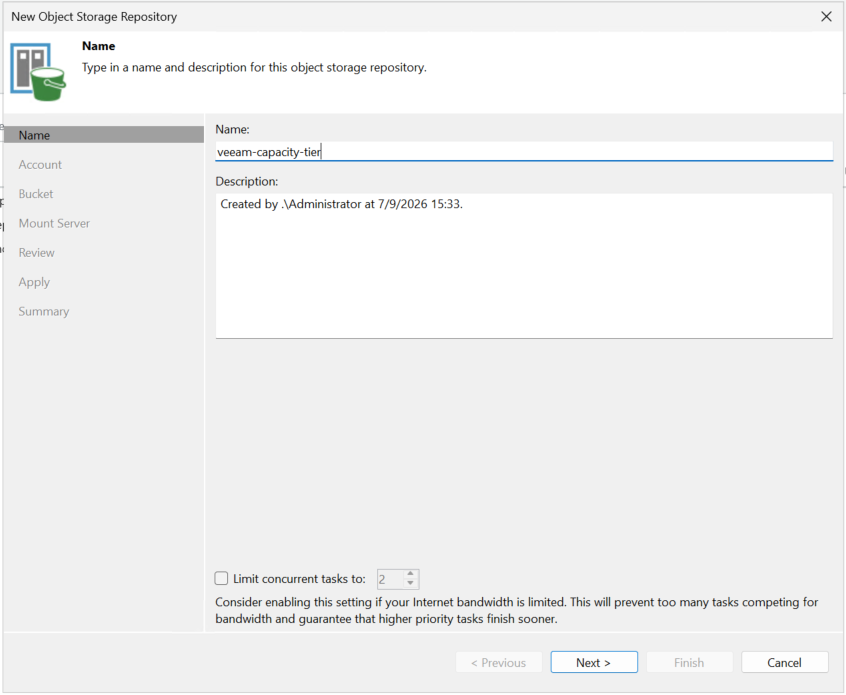
3.2 Enter the Service point (https), region, and credential, and succeed to connect to the Huawei OceanStor Dorado All-Flash Storage. 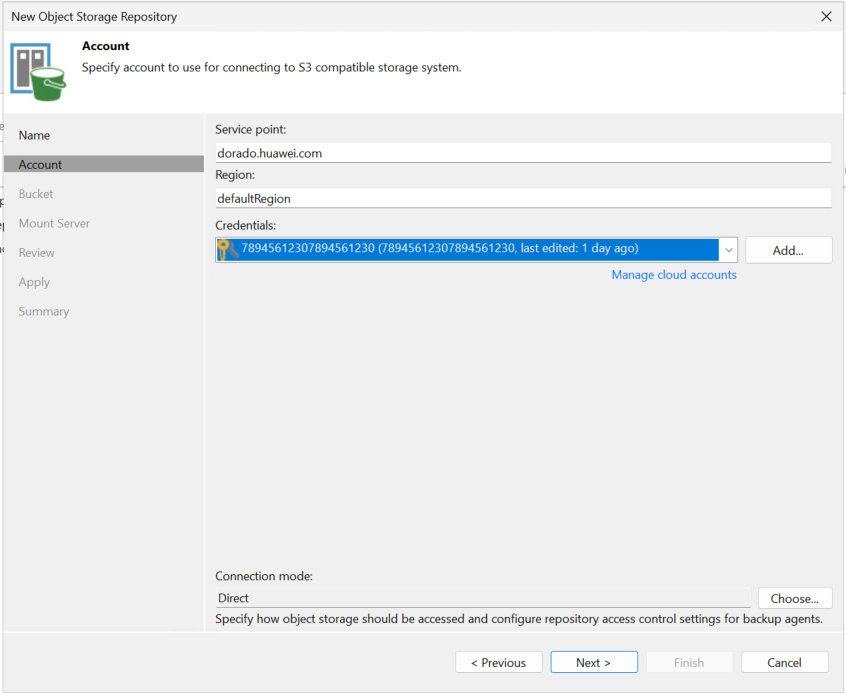
4. Select the created bucket and folder. 4.1 Browse and Select the created bucket. Succeed to browse the created bucket. 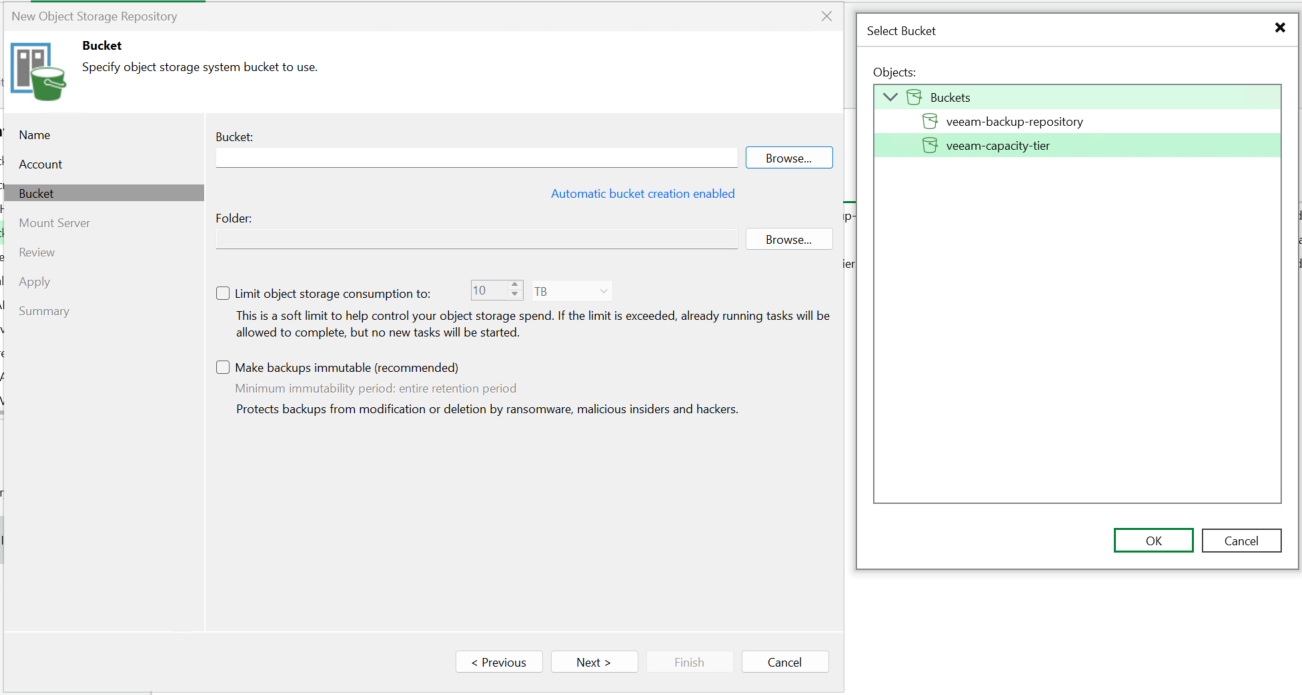 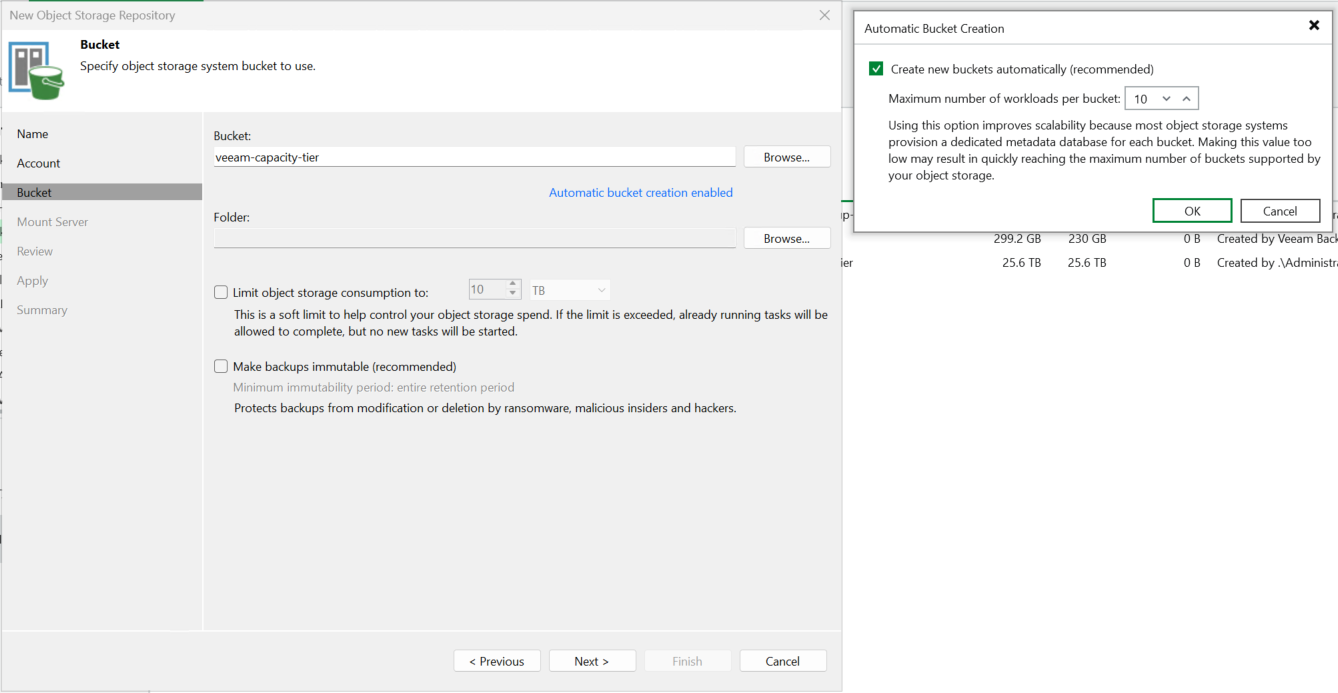
4.2 Browse and add a folder. Succeed to create a folder. 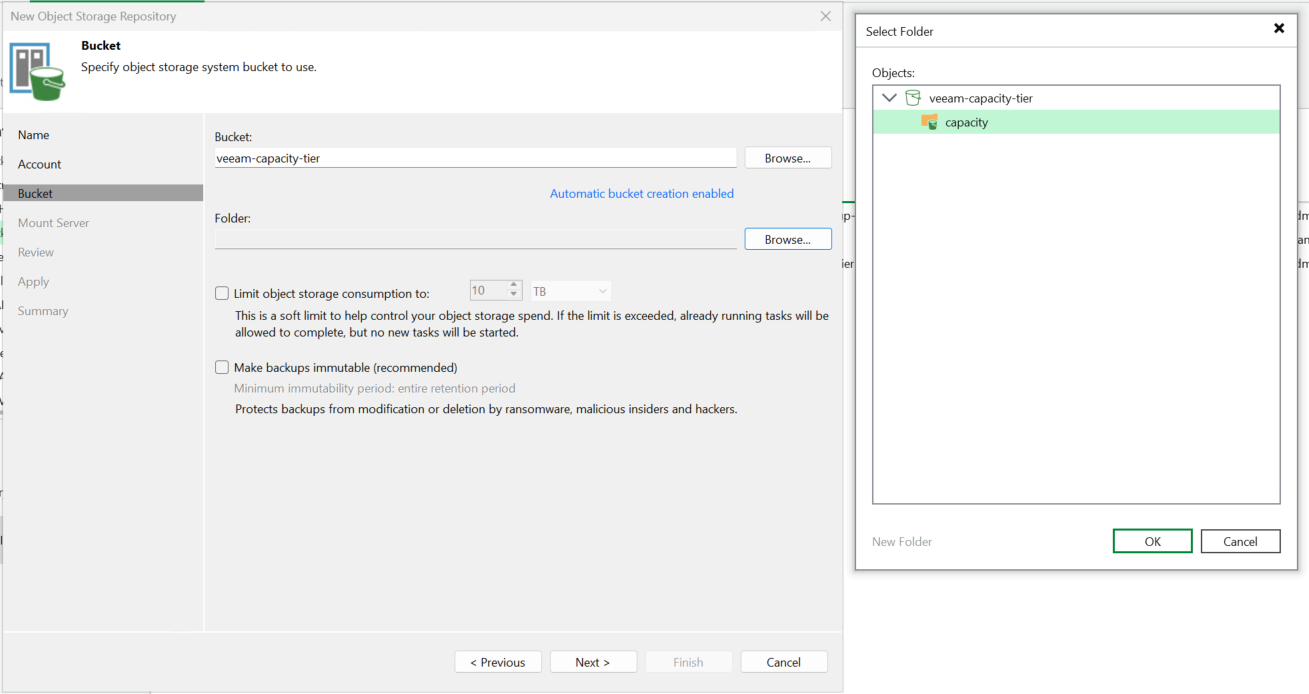
5. Select the option of Make backups immutable and set the Minimum immutability duration for 1 day. 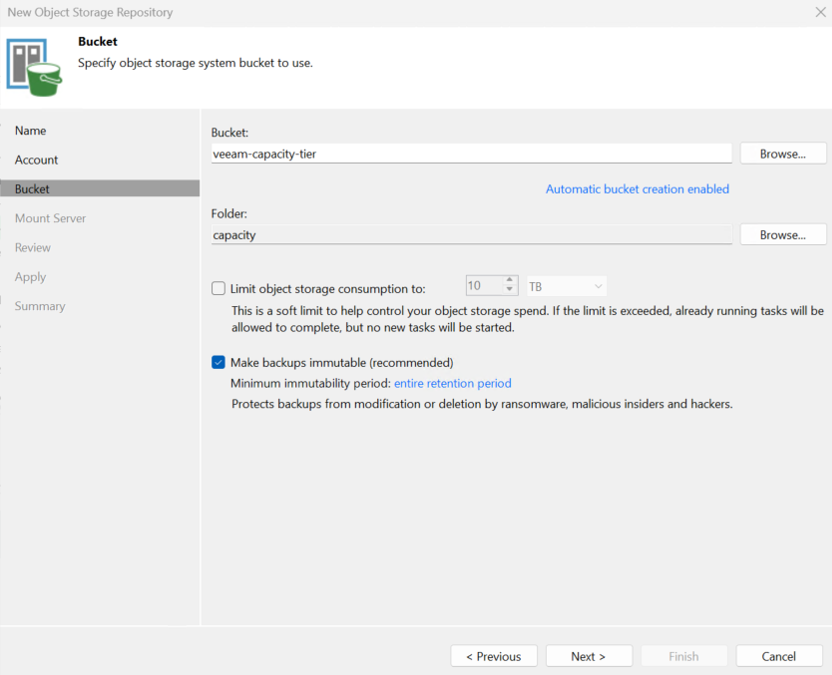
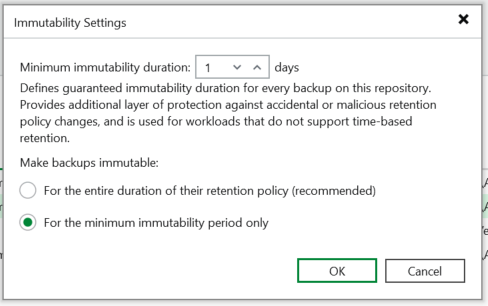
6. Keep the default settings and click Next until the configuration is complete. All the configuration is successful, and no error is reported. 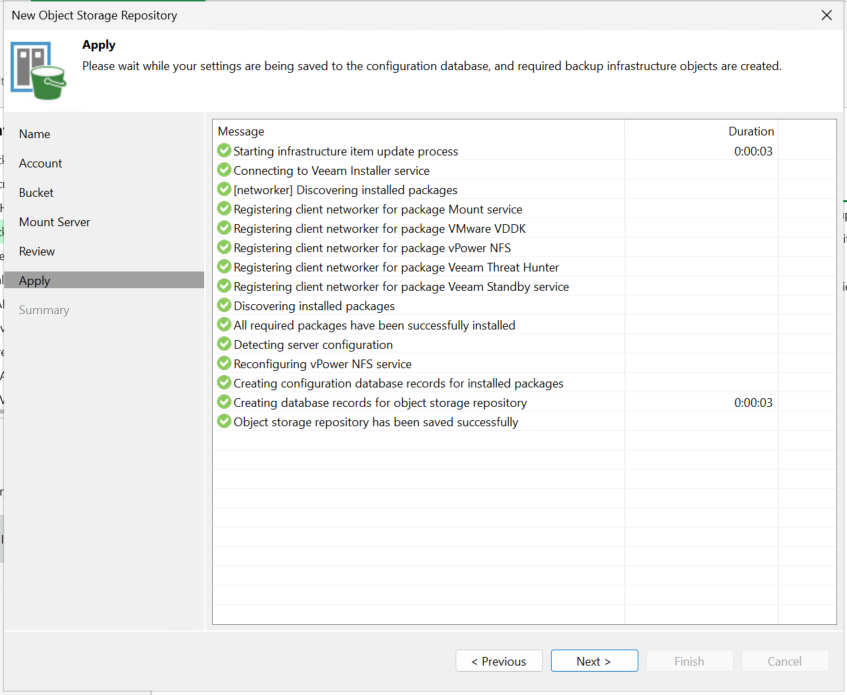
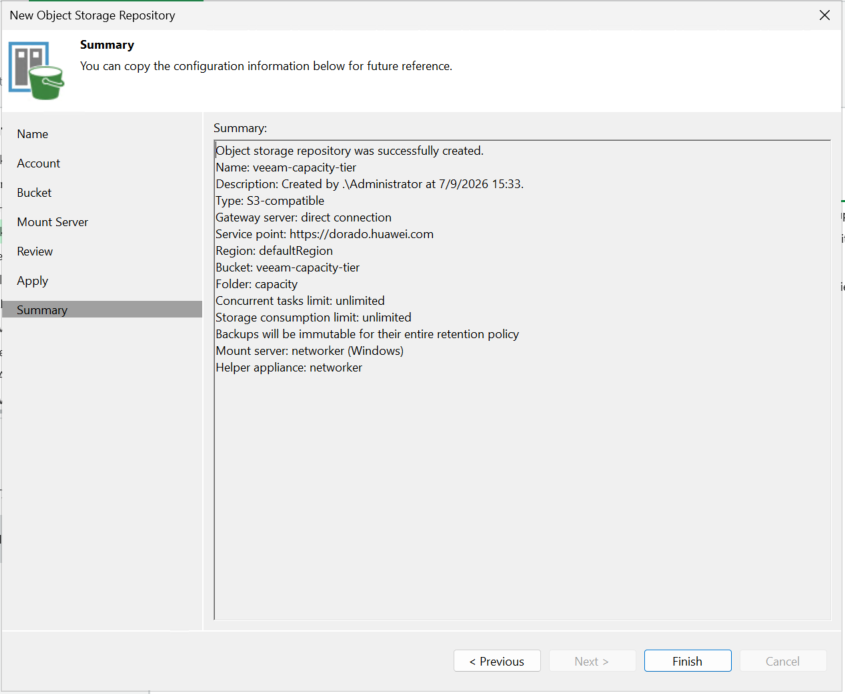
7. Add the S3 Compatible Object storage repository and finish. 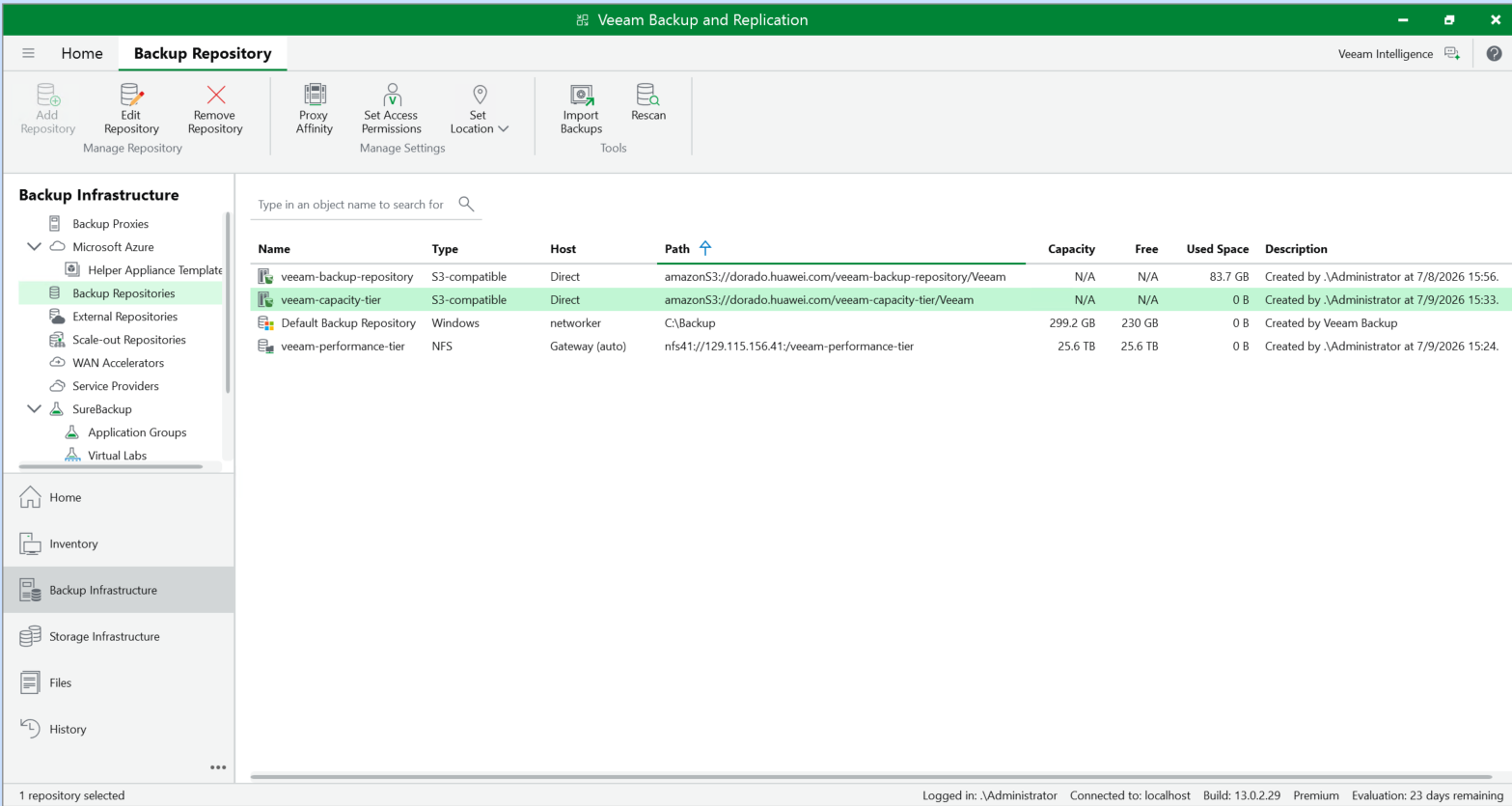
8. Check the bucket of the repository through the S3 Browser. 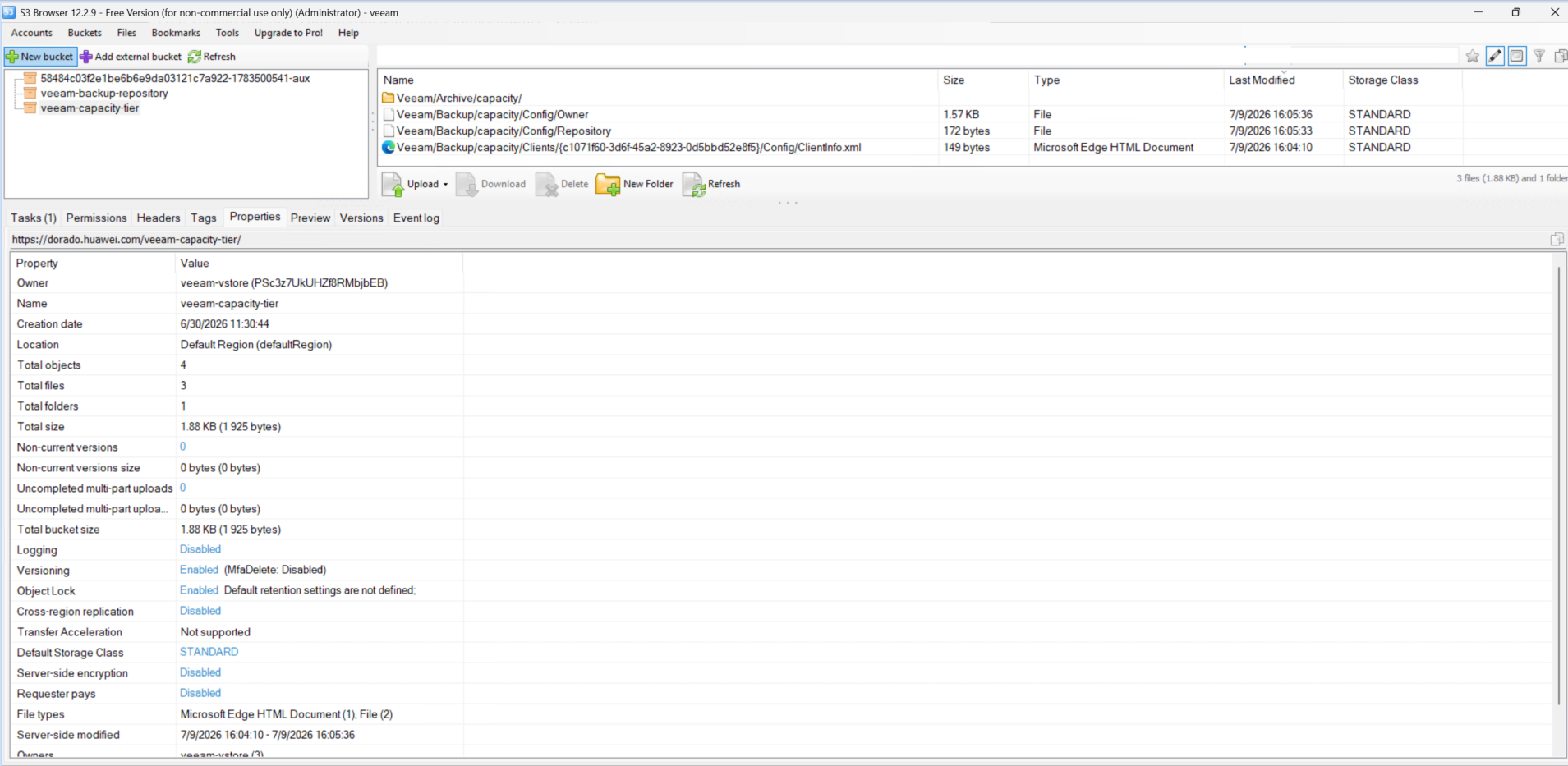
|
Test Conclusion | Passed |
4.3 Add the immutable Cloud Backup Repository to the backup server as the Capacity Tier of Scale-out Repository
Test Purpose | To verify that the Huawei OceanStor Dorado All-Flash Storage can be added to the backup server as the Capacity Tier of Scale-out Repository. |
Network Diagram | Reference to Figure 1.2 |
Prerequisites |
|
Test Procedures | Step 1: Select the Backup Infrastructure, and right-click the Scale-out Repositories. Step 2: Enter the name of the scale-out repository, and next. Step 3: Select the created backup repository of NFS share folder in section 4.1 as Performance-Tier of scale-out repository. Step 4: Select the created backup repository of s3 bucket in section 4.2 as Capacity-Tier of scale-out repository. Choose the option of ‘Copy backups to object storage as soon as they are created’. Step 5: Keep the default settings and click Next until the configuration is complete. |
Expected Results |
|
Test Results | 1. Select the Backup Infrastructure, and right-click the Scale-out Repositories to add scale-out repository. 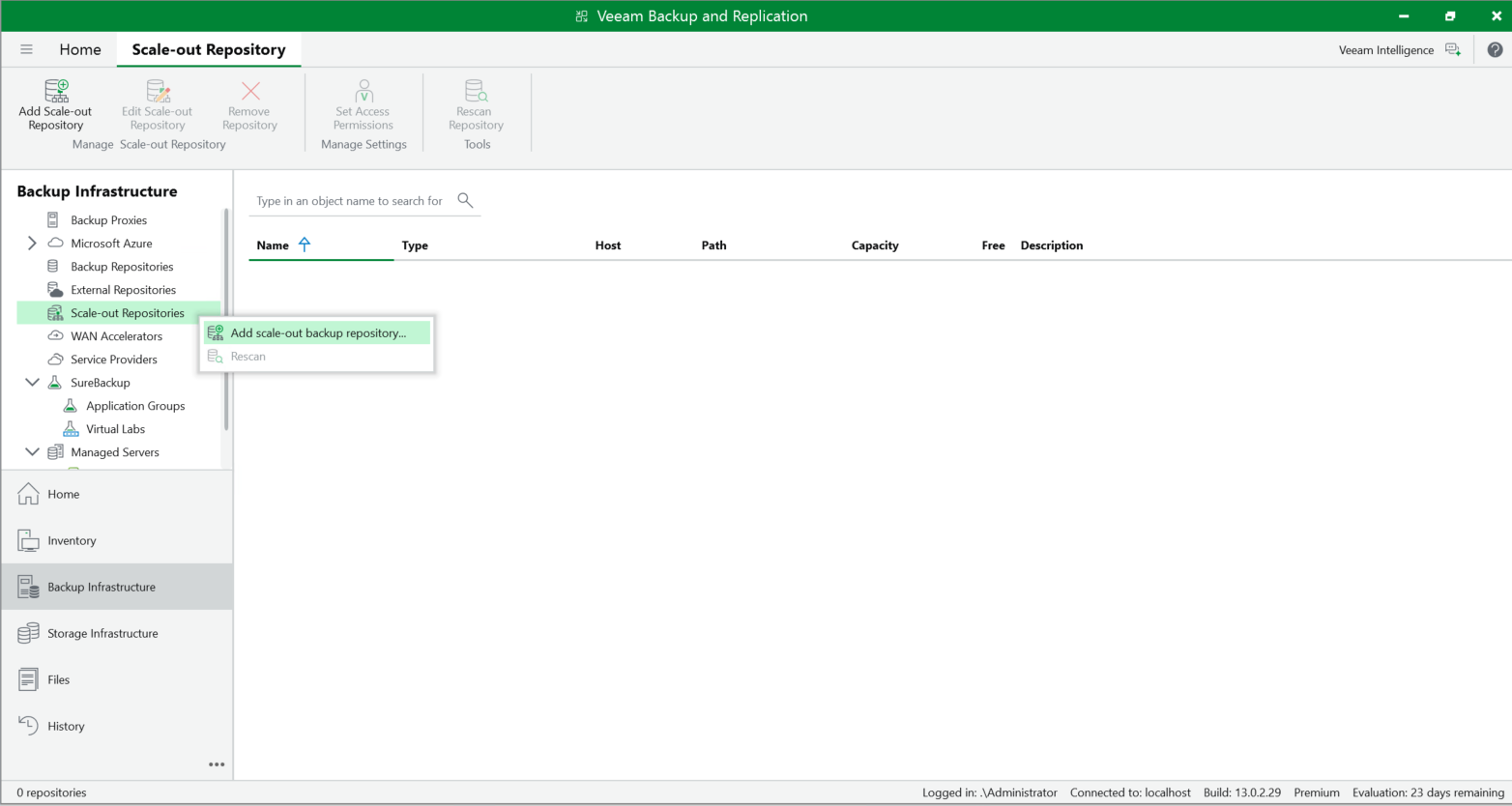
2. Enter the name of the scale-out repository, and next. 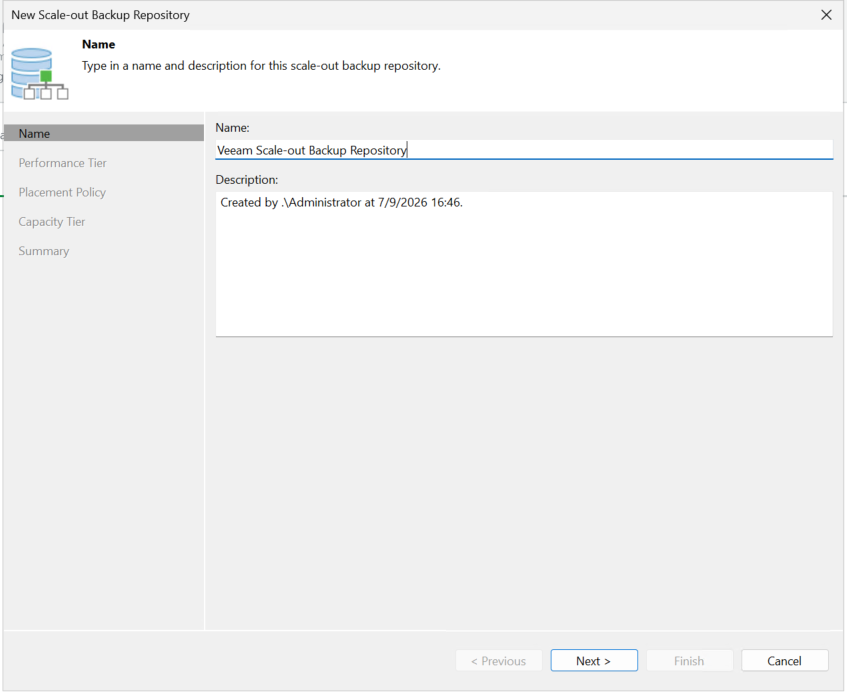
3. Select the created backup repository of NFS share folder in section 3.1 as Performance-Tier of scale-out repository, and next. 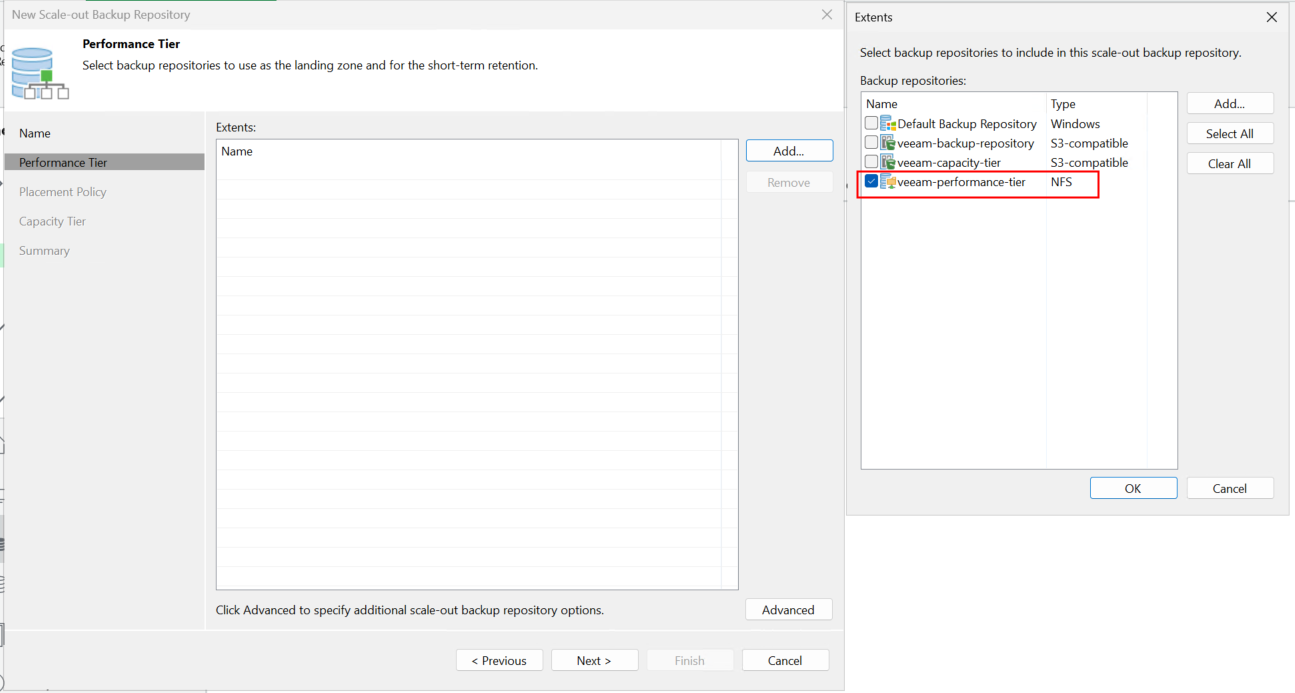
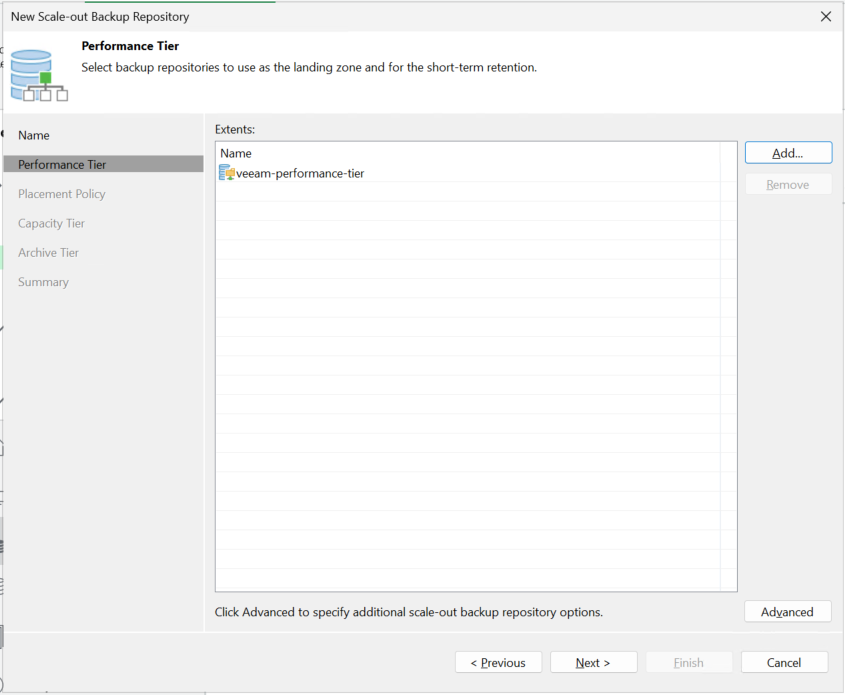
4. Select the created backup repository of s3 bucket in section 3.2 as Capacity-Tier of scale-out repository. Choose the option of ‘Copy backups to object storage as soon as they are created’. 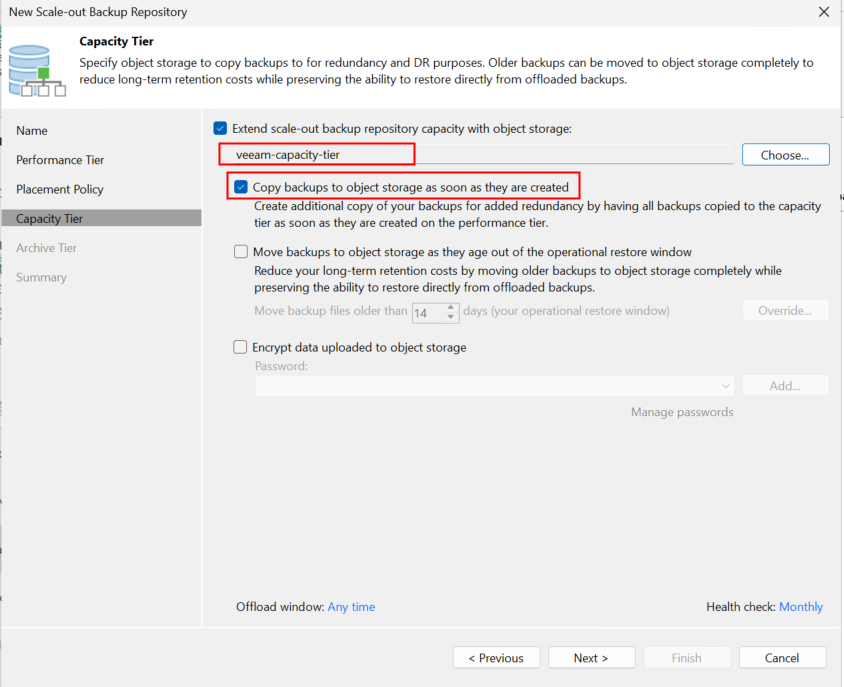
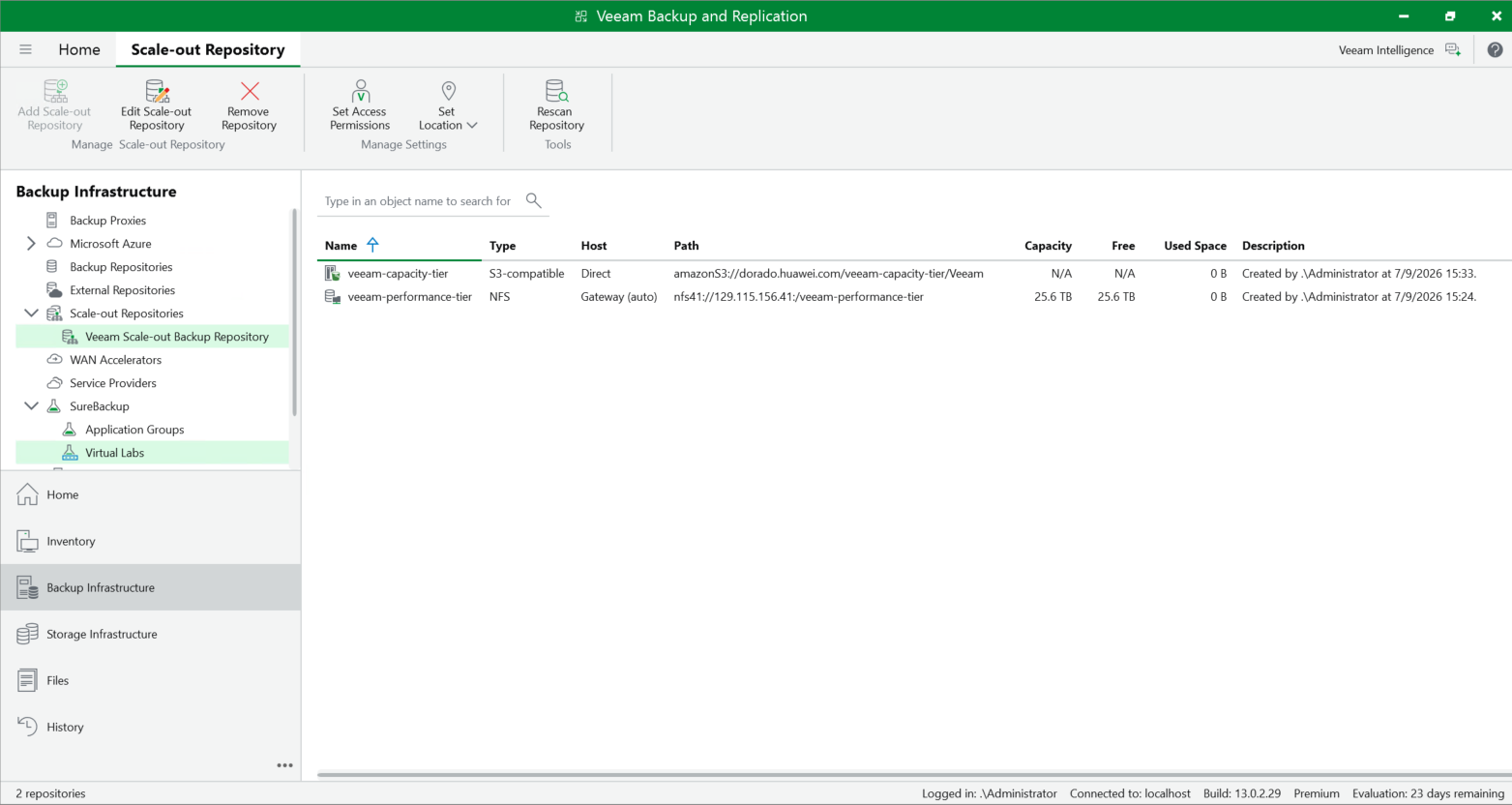
5. Keep the default settings and click Next until the configuration is complete. Succeed to add the scale-out repository. 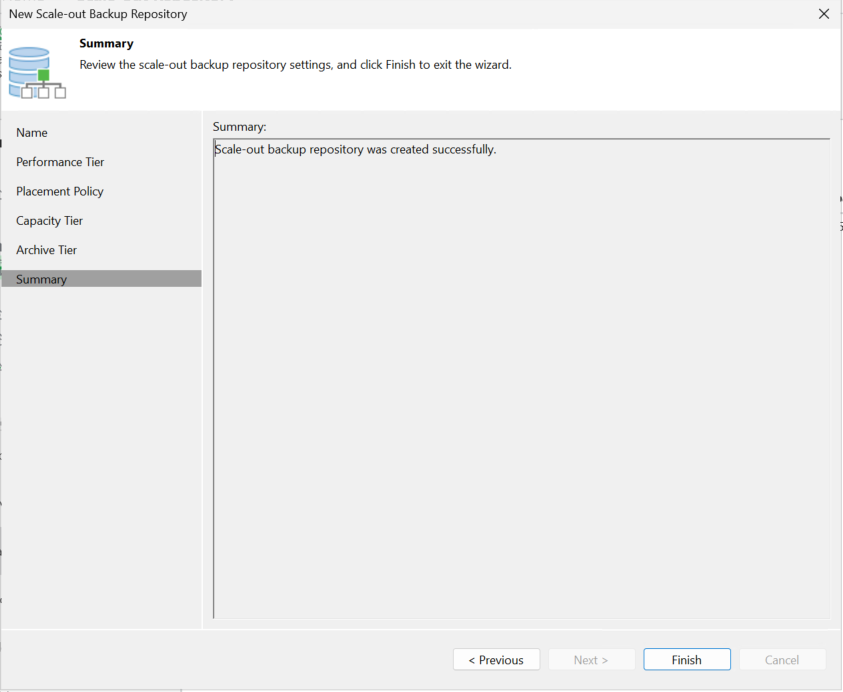
|
Test Conclusion | Passed |
4.4 Full back up VM to the Scale-out Repository
Test Purpose | To verify that the backup server can full back up the VM to the scale-out repository. |
Network Diagram | Reference to Figure 1.2 |
Prerequisites |
|
Test Procedures | Step 1: Select the Home and the Backup job type of Virtual machine on the backup server. Step 2: Create a Virtual Machine backup job and select the scale-out repository created in section 4.3 as the storage. Step 3: Complete the configuration and start the full backup job (Active full). Step 4: Check the full backup job status on the backup server. Step 5: After the full backup job is complete, check whether an offload task synchronizes data to the S3 bucket. Step 6: Check the size of backup files on the Huawei OceanStor Dorado All-Flash Storage through S3 Browser. |
Expected Results |
|
Test Results |
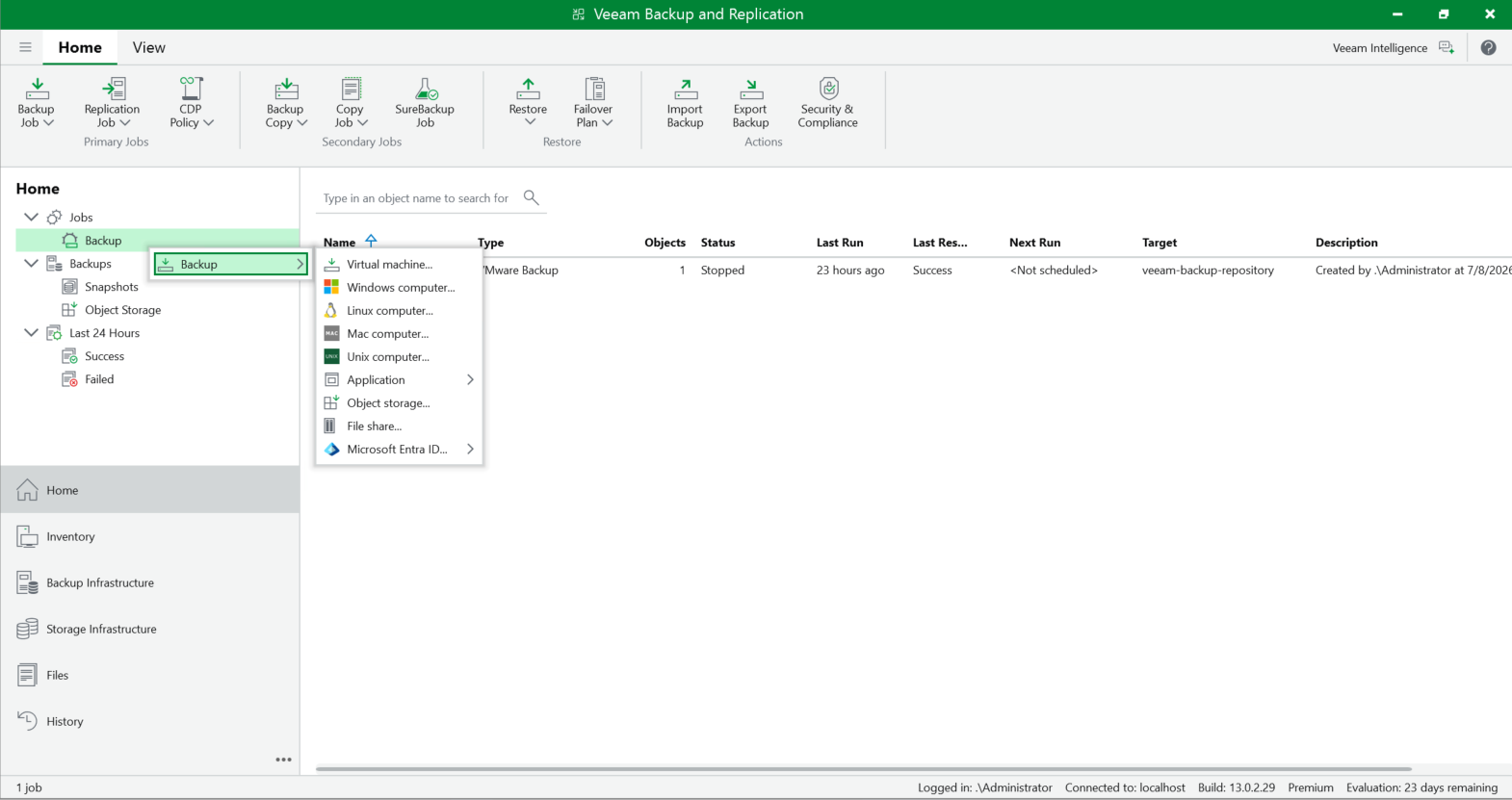 2. Create a Virtual Machine backup job and select the scale-out repository created in 4.3 as the Storage. 2.1 Enter the backup job name, and next. 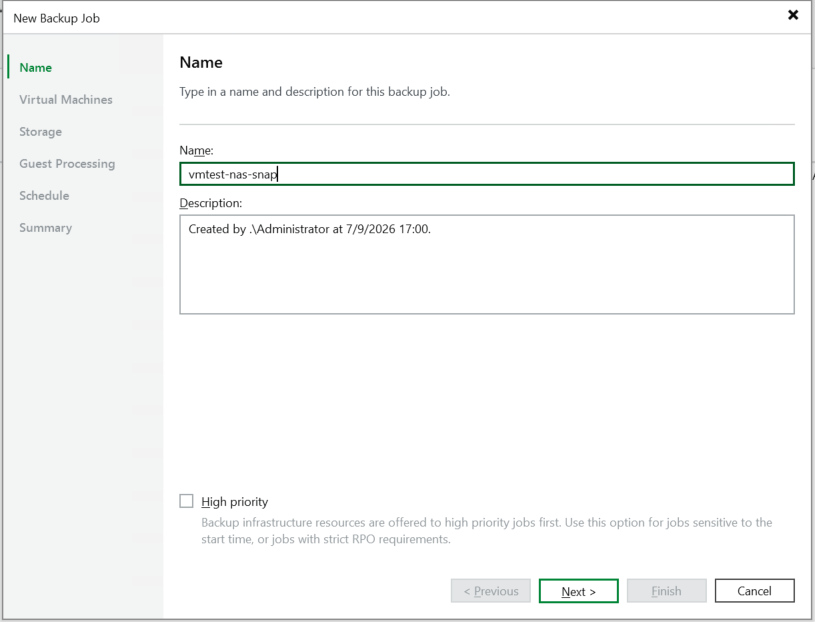 2.2 Select the VM to be backed up, and next. 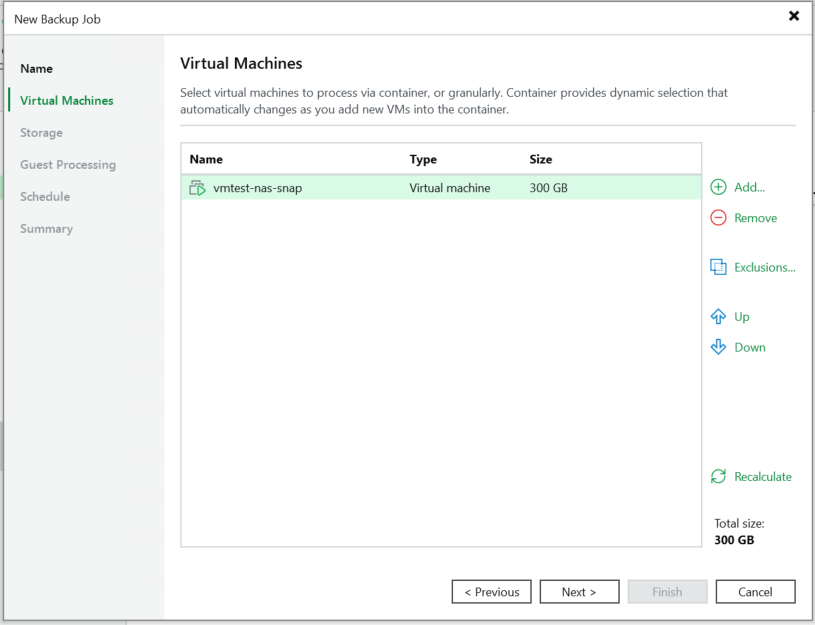 2.3 Select the scale-out repository created in 4.3 as the Storage. 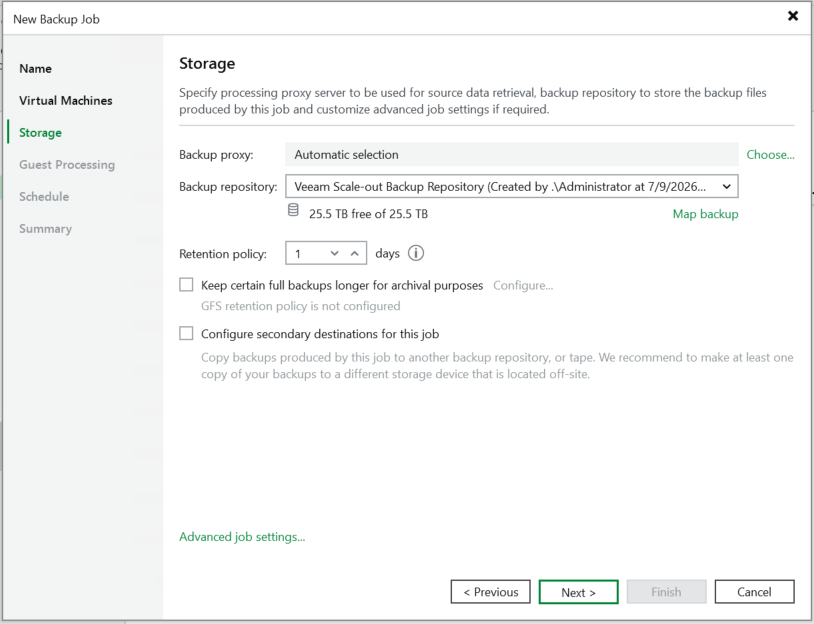 2.4 Keep the default settings and click Next until the configuration is complete. Succeed to Create a Virtual Machine backup job. No error is reported. 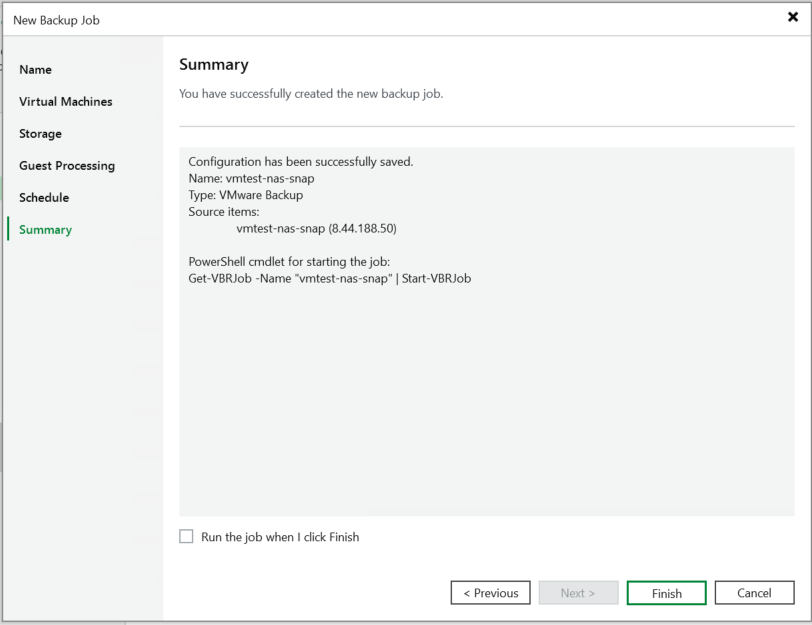 3. Complete the configuration and start the full backup task (Active full). 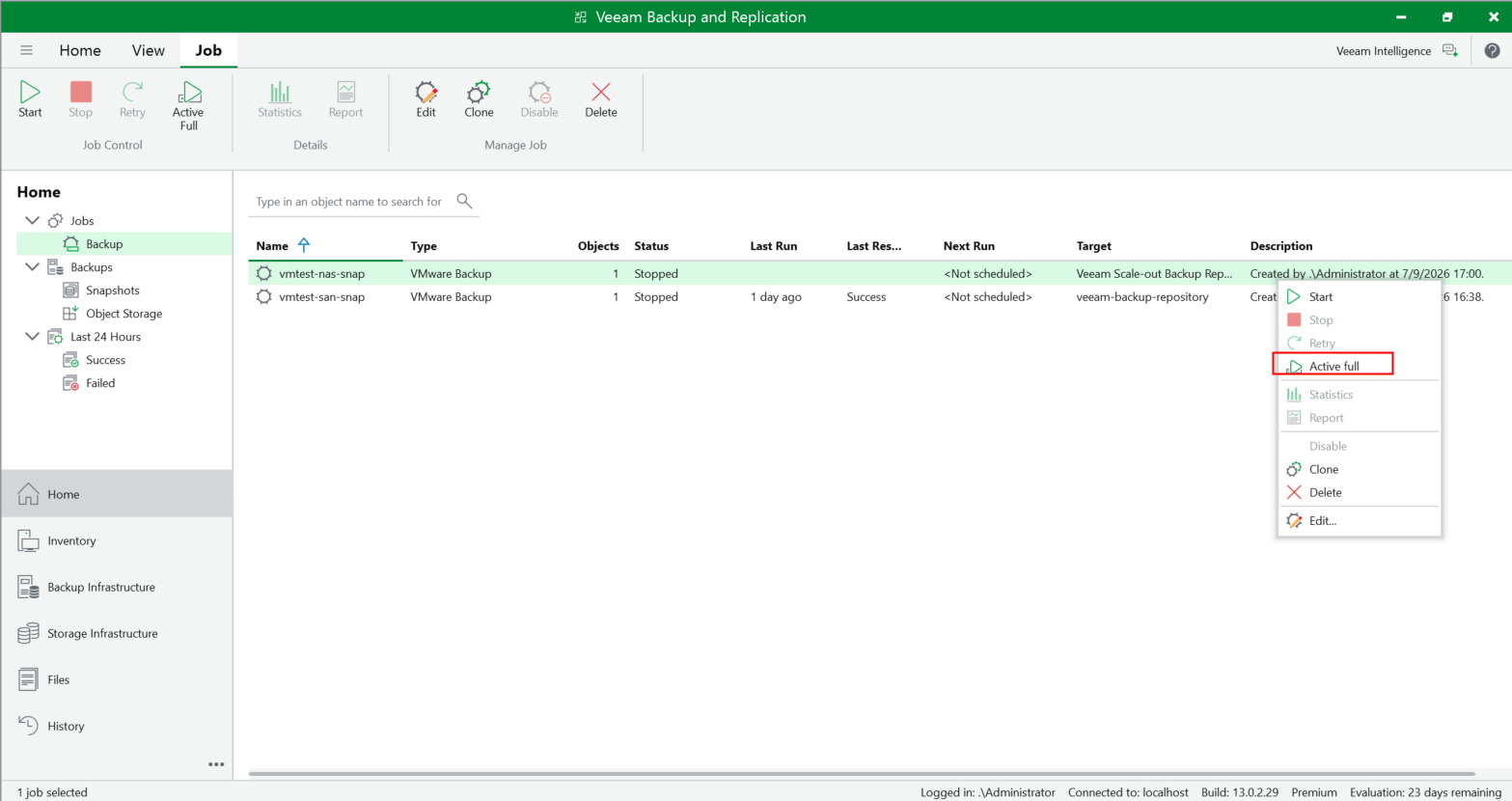 4. Check the full backup job status on the backup server. The full backup job status is successful. No error is reported. 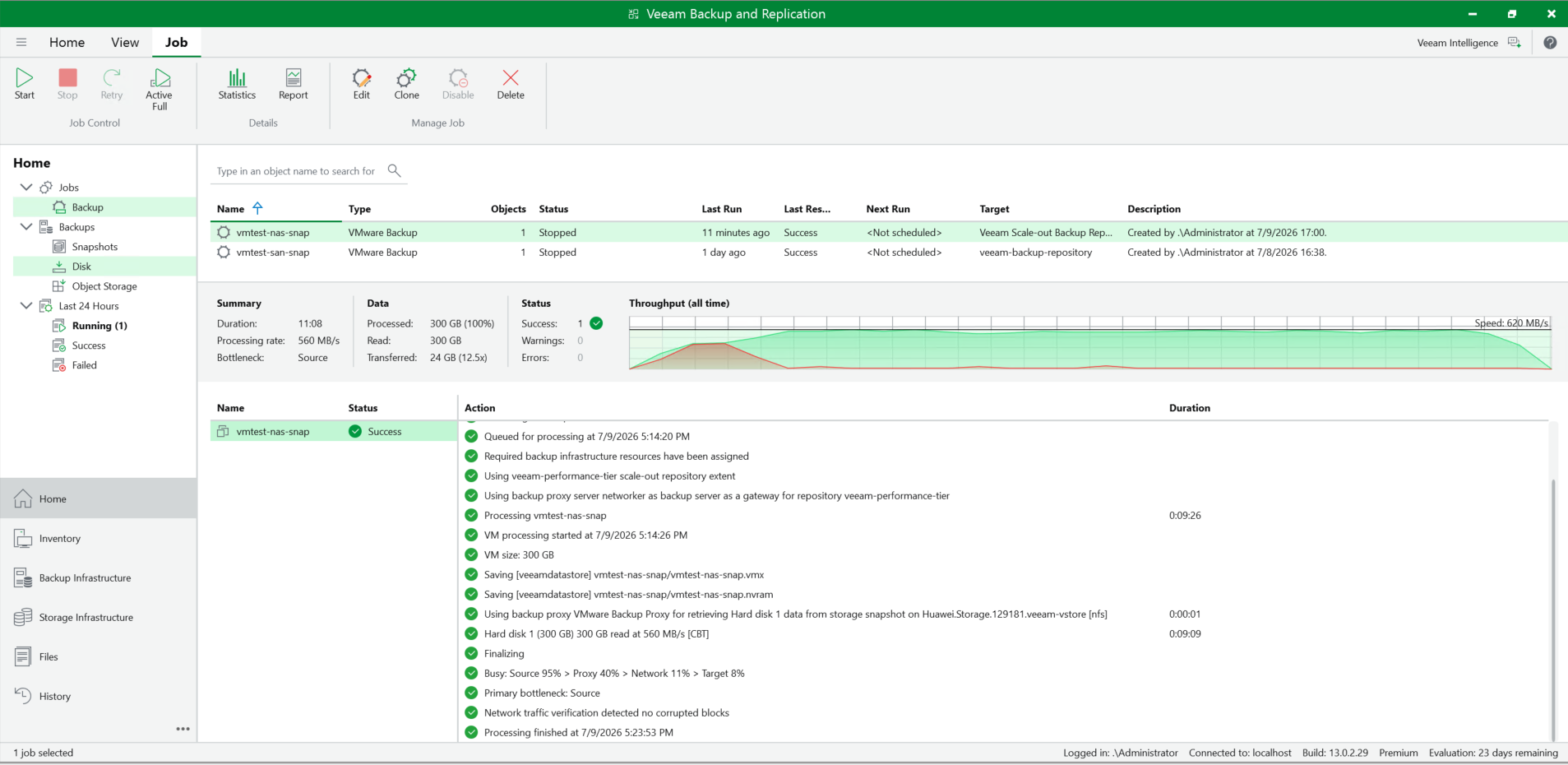 5. After the full backup job is complete, check whether an offload task synchronizes data to the S3 bucket. The offload task synchronizes data to the S3 bucket successfully. 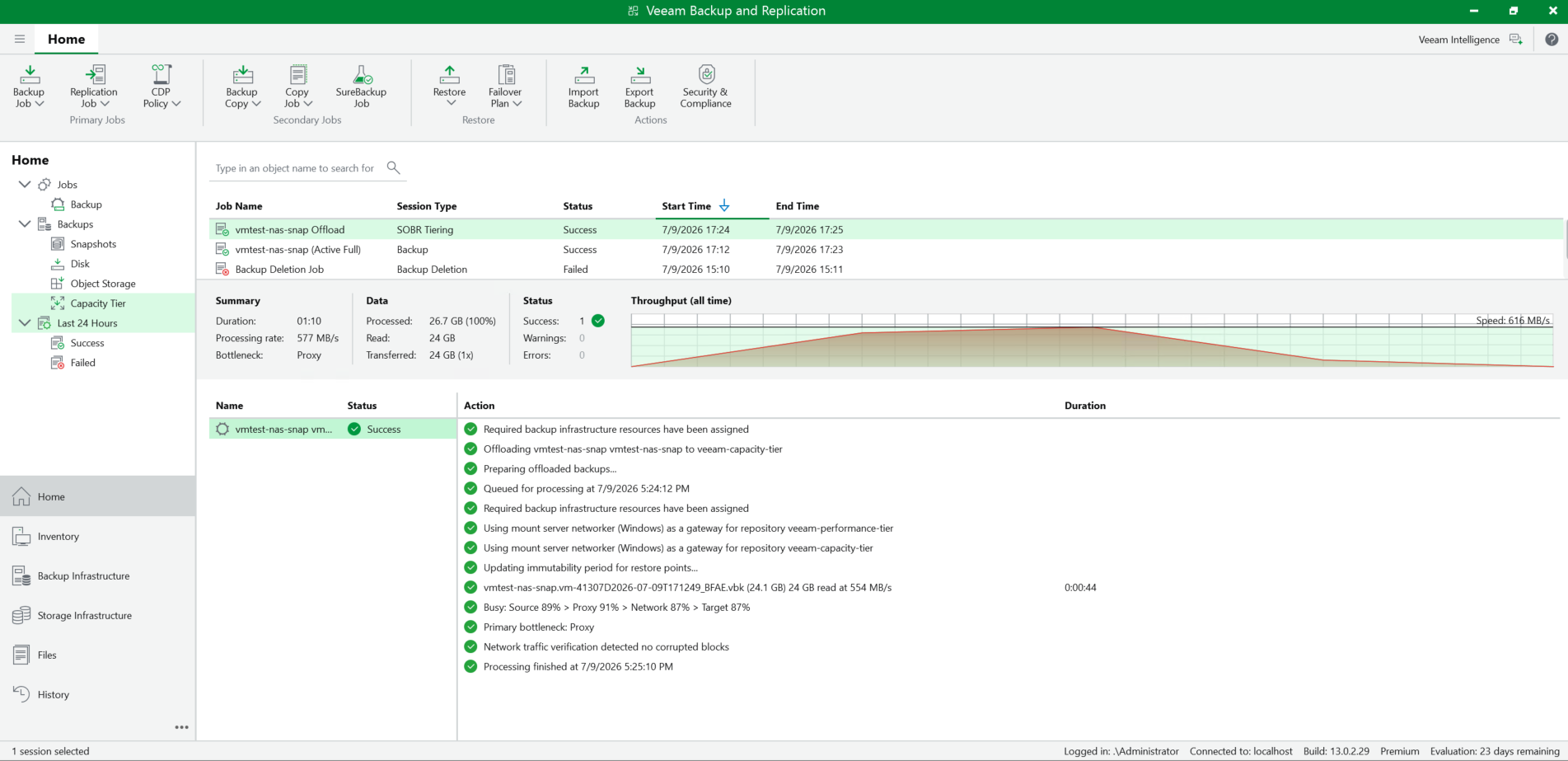 6. Check the size of backup files on the Huawei OceanStor Dorado All-Flash Storage through S3 Browser. The backup files are offloaded to the Huawei OceanStor Dorado All-Flash Storage successfully, and the size of backup files same as the size of transferred data on backup server. 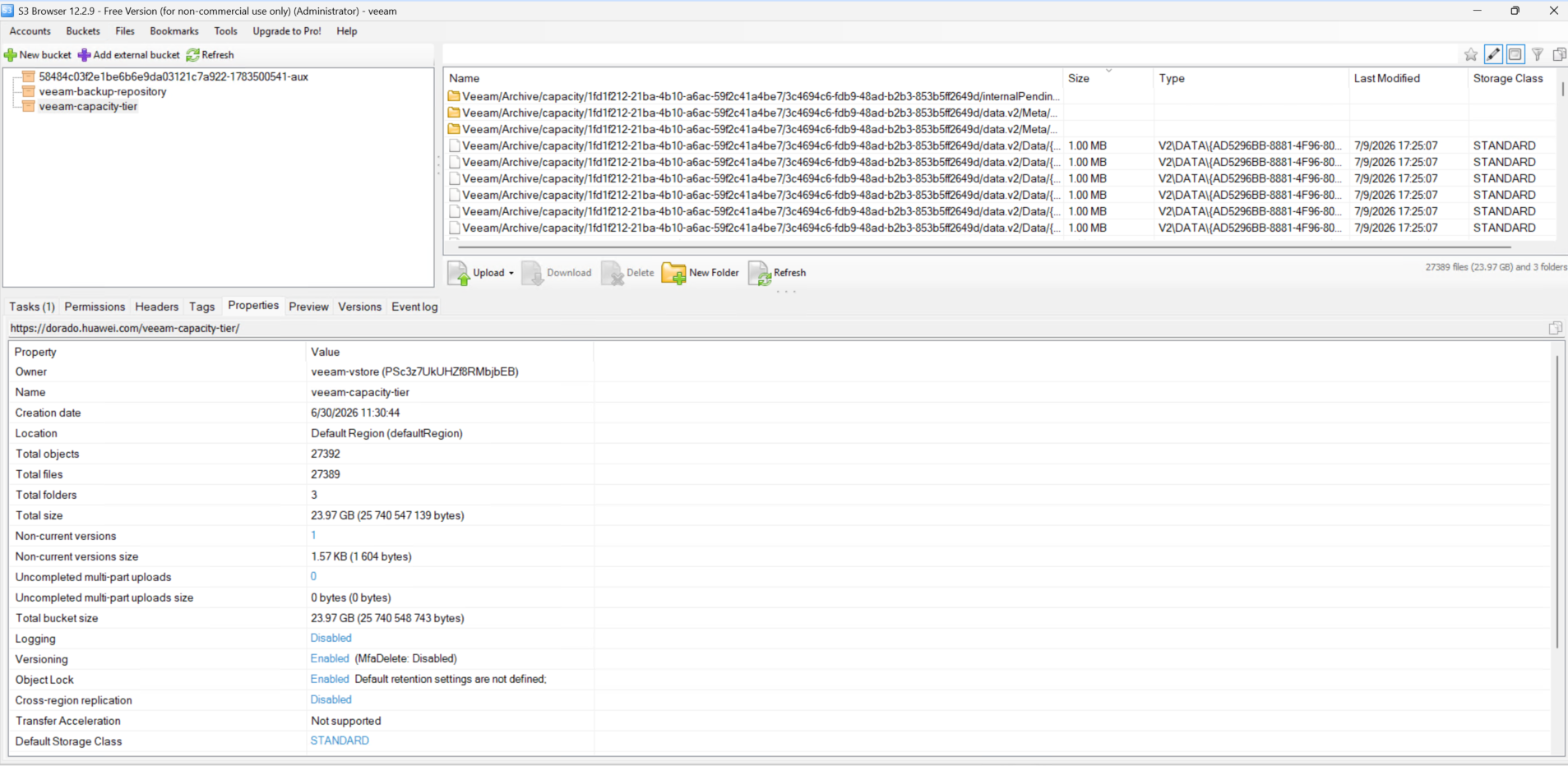 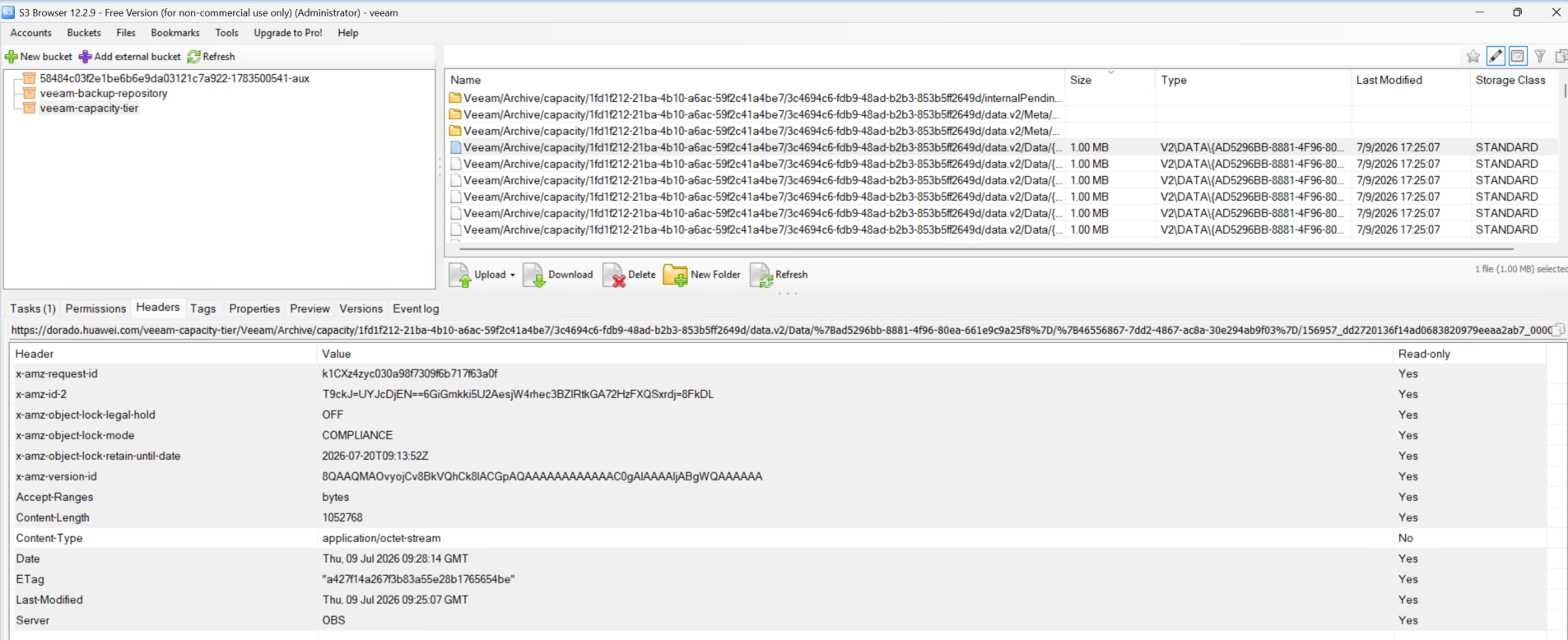 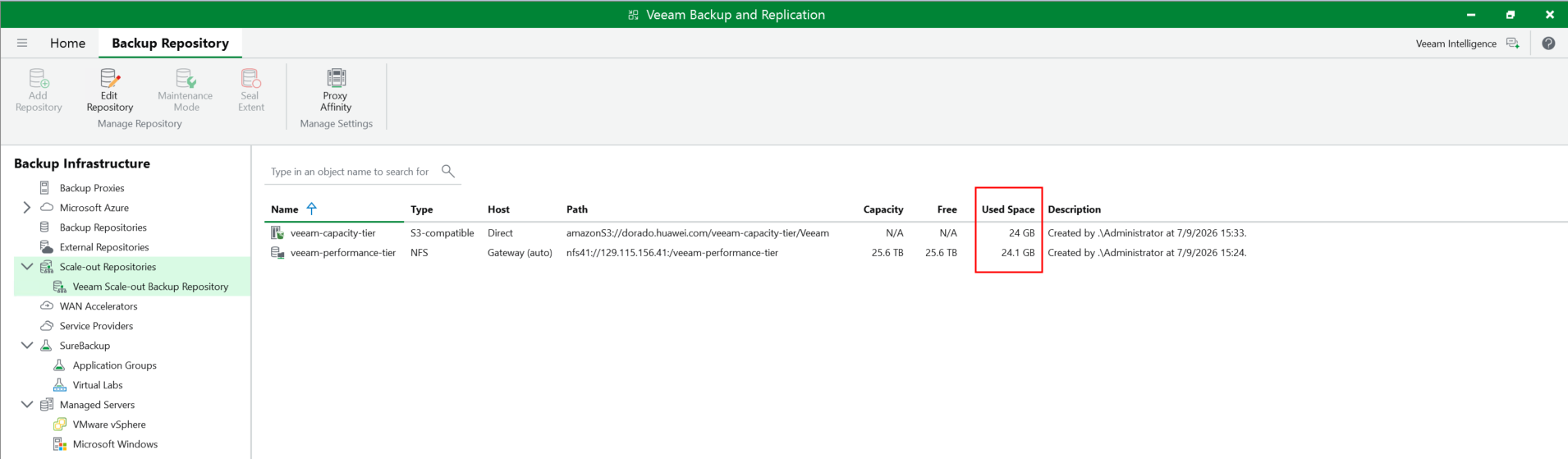 |
Test Conclusion | Passed |
4.5 Incremental back up VM to the Scale-out Repository
Test Purpose | To verify that the backup server can incremental back up the VM to the backup repository. |
Network Diagram | Reference to Figure 1.2 |
Prerequisites |
|
Test Procedures | Step 1: Modify the VM data, and then Right-click the created Virtual Machine backup job in section 4.3. Perform the incremental backup. Step 2: Check the incremental backup job status on the backup server. Step 3: After the incremental backup job is complete, check whether an offload task synchronizes data to the S3 bucket. Step 4: Check the size of backup files on the Huawei OceanStor Dorado All-Flash Storage. |
Expected Results |
|
Test Results |
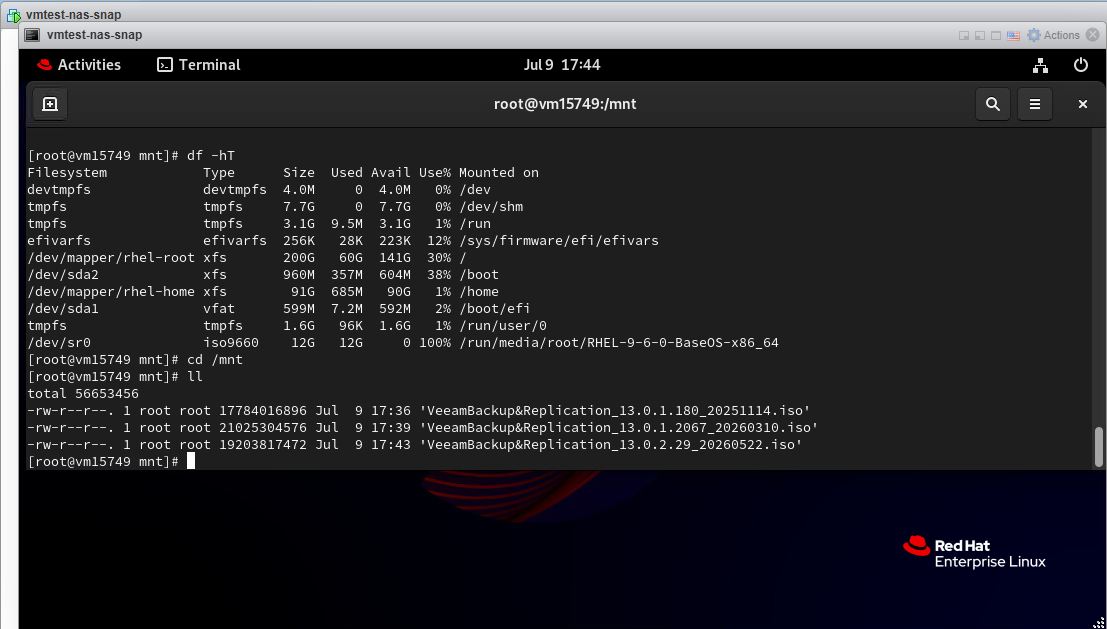 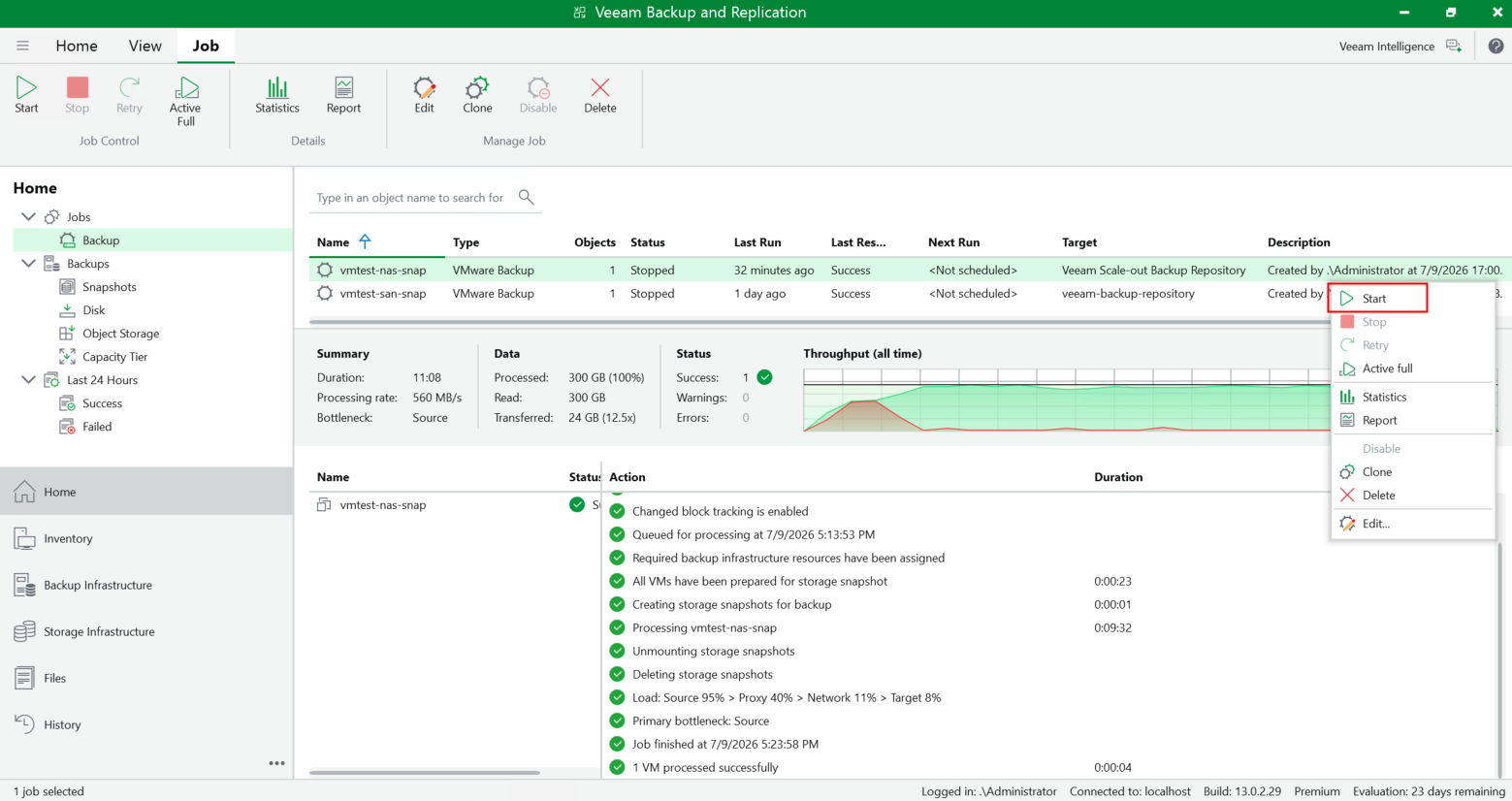 2. Check the incremental backup job status on the backup server. The incremental backup job status is successful. No error is reported. 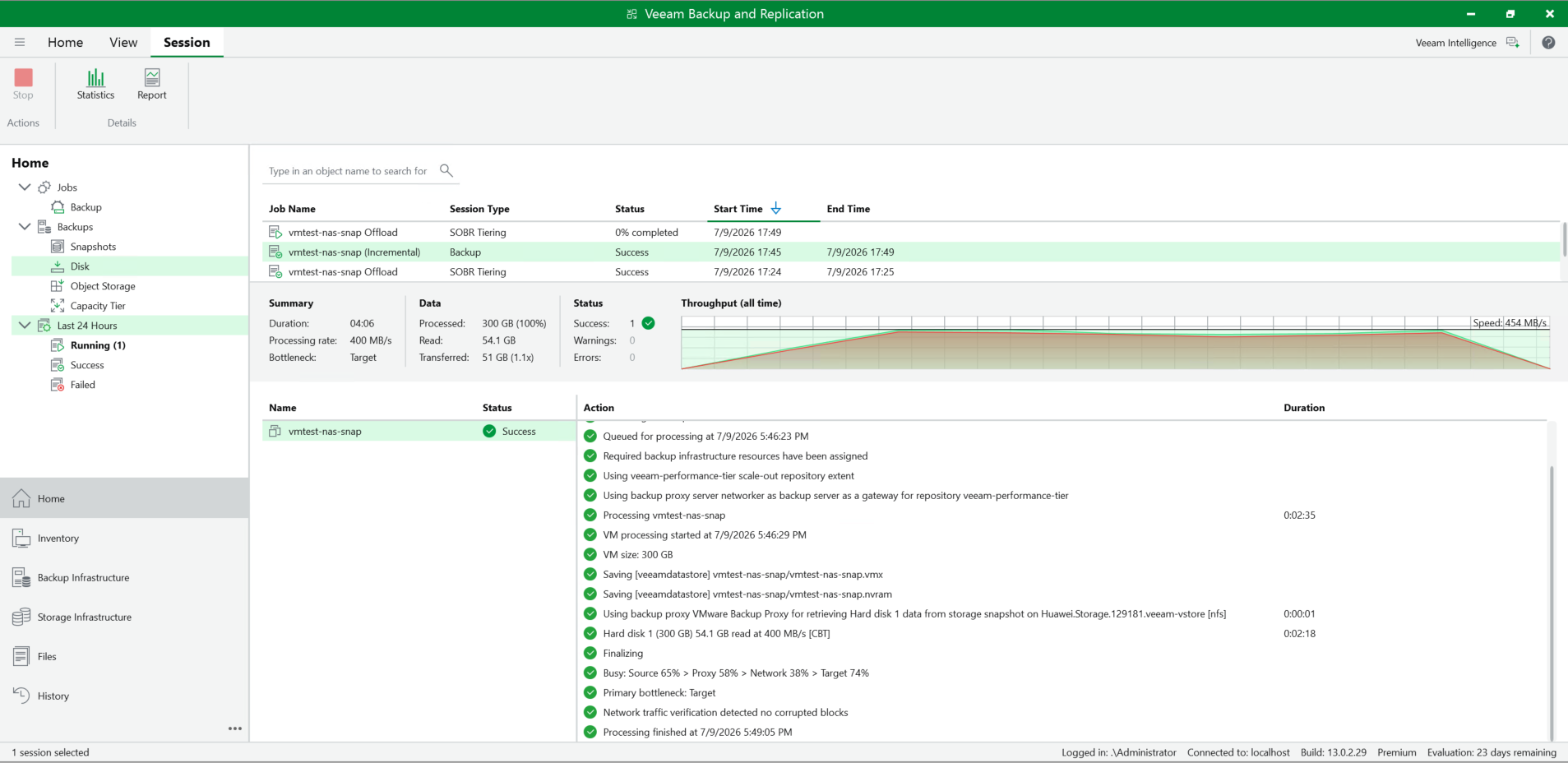 3. After the full backup job is complete, check whether an offload task synchronizes data to the S3 bucket. The offload task synchronizes data to the S3 bucket successfully. 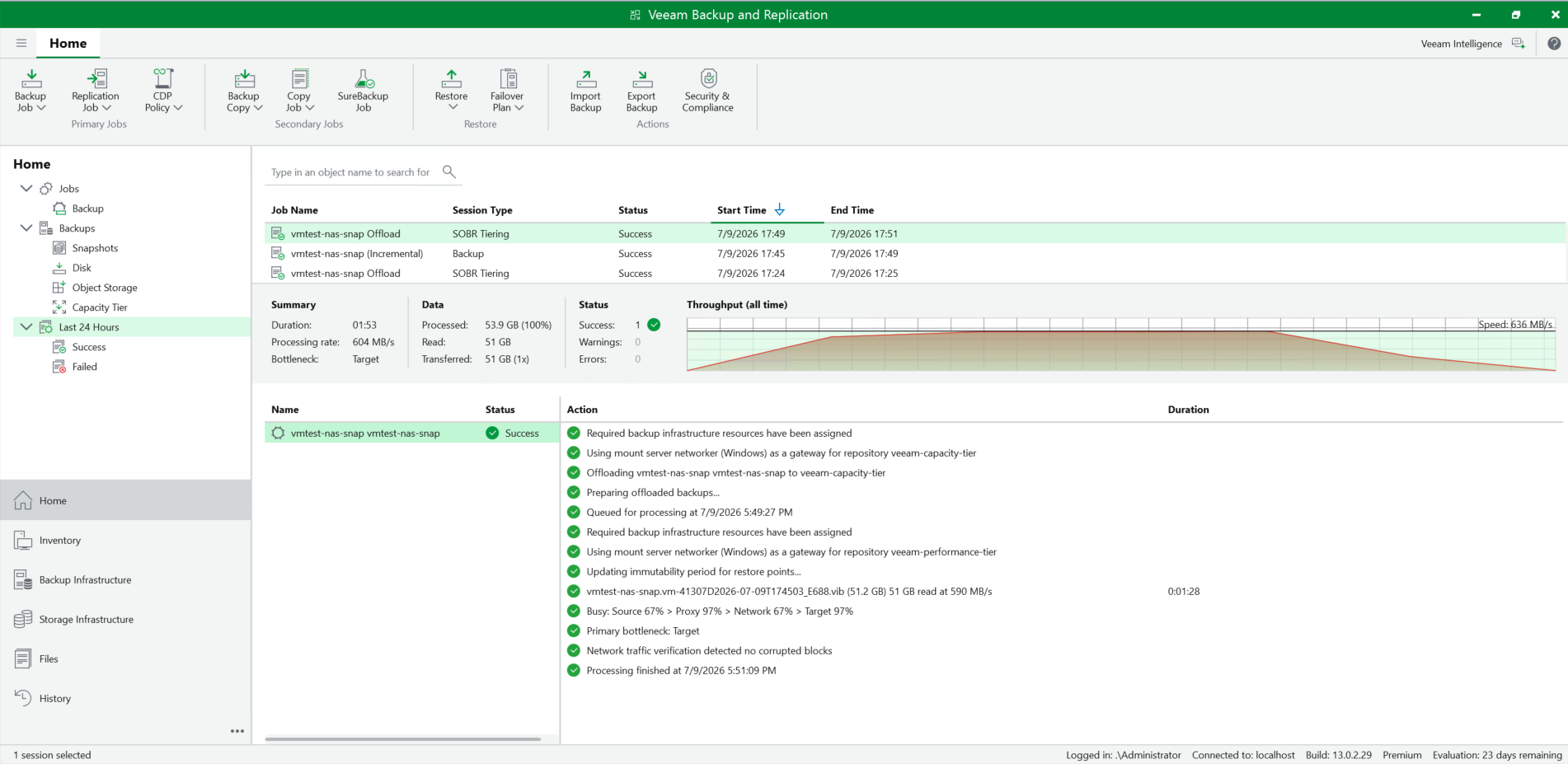 4. Check the size of backup files on the Huawei OceanStor Dorado All-Flash Storage. The backup files are written to the Huawei OceanStor Dorado All-Flash Storage successfully, and the size of backup files same as the size of transferred data on backup server. 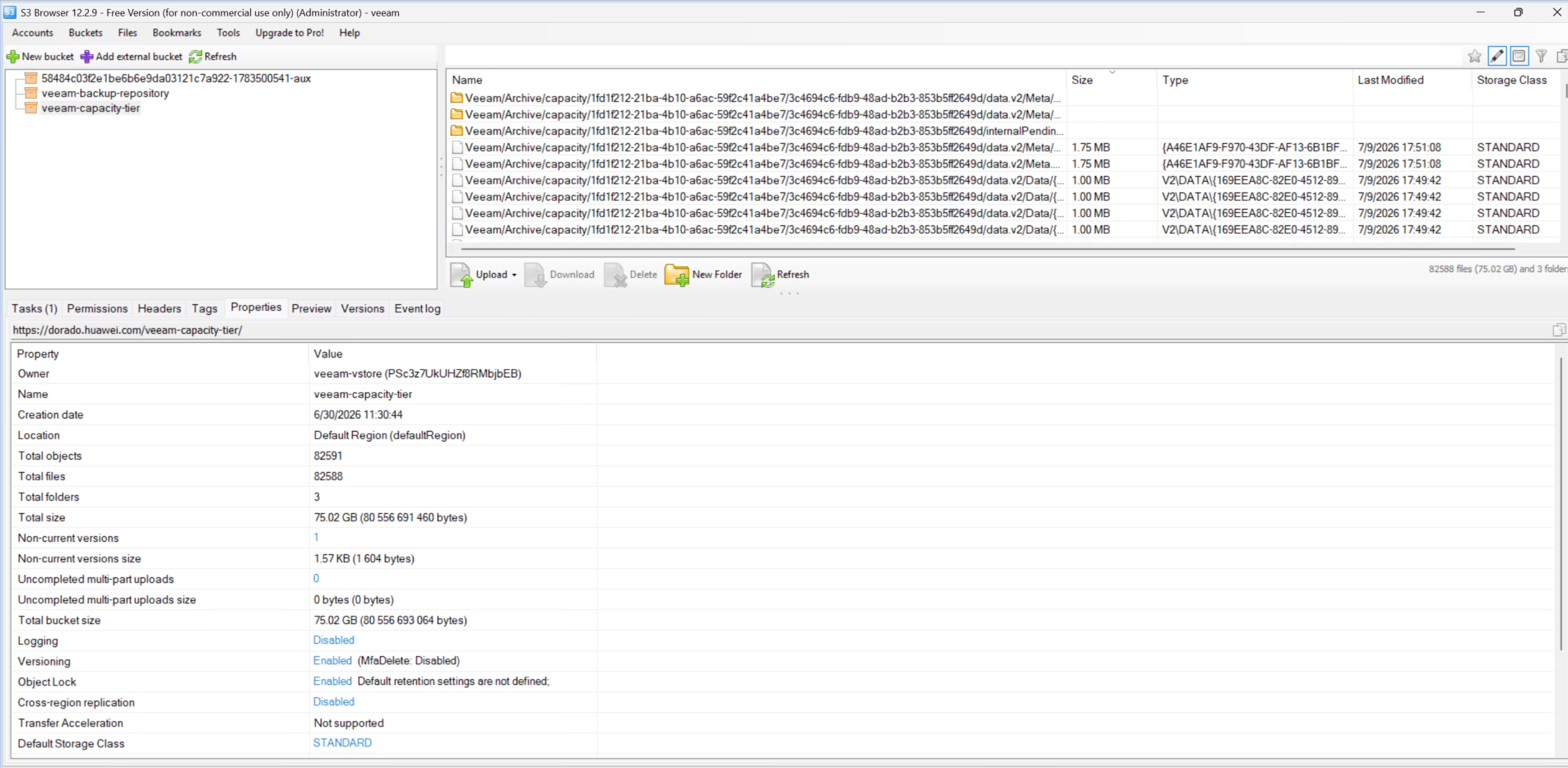 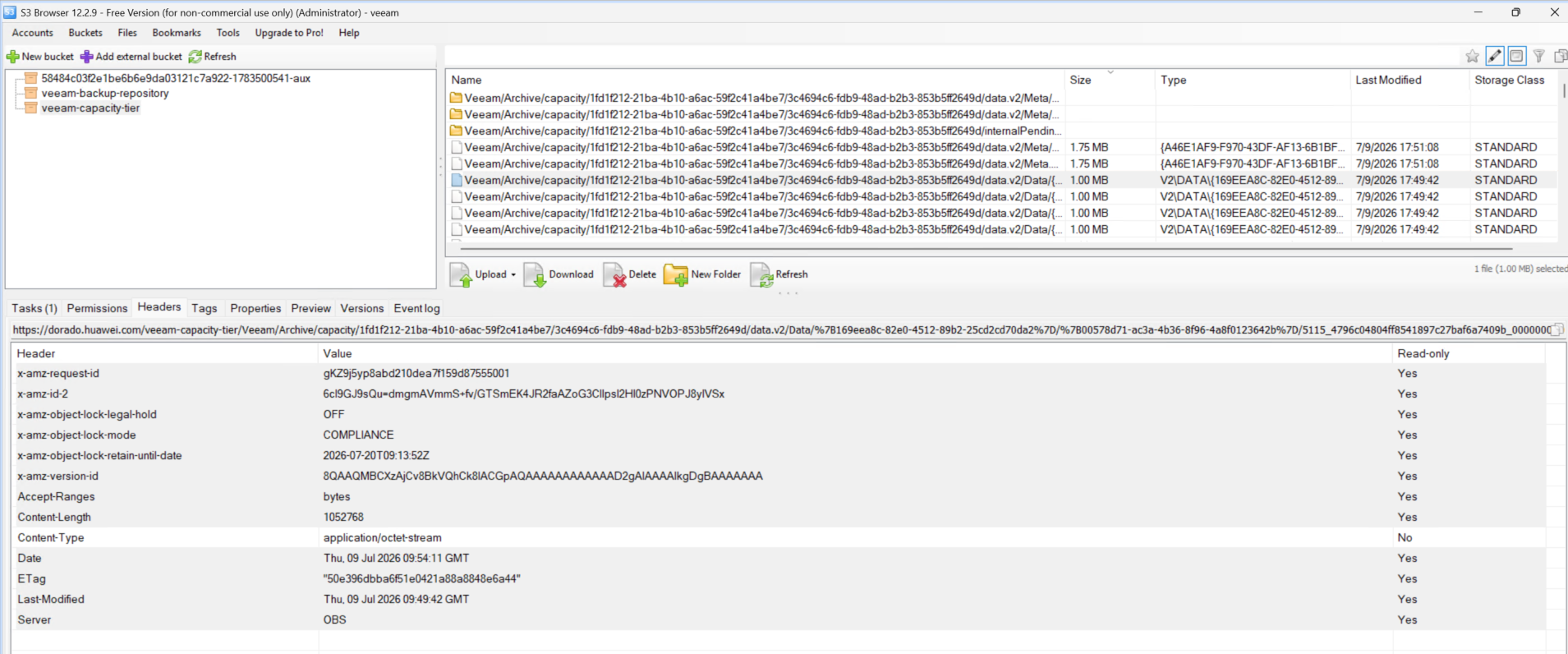 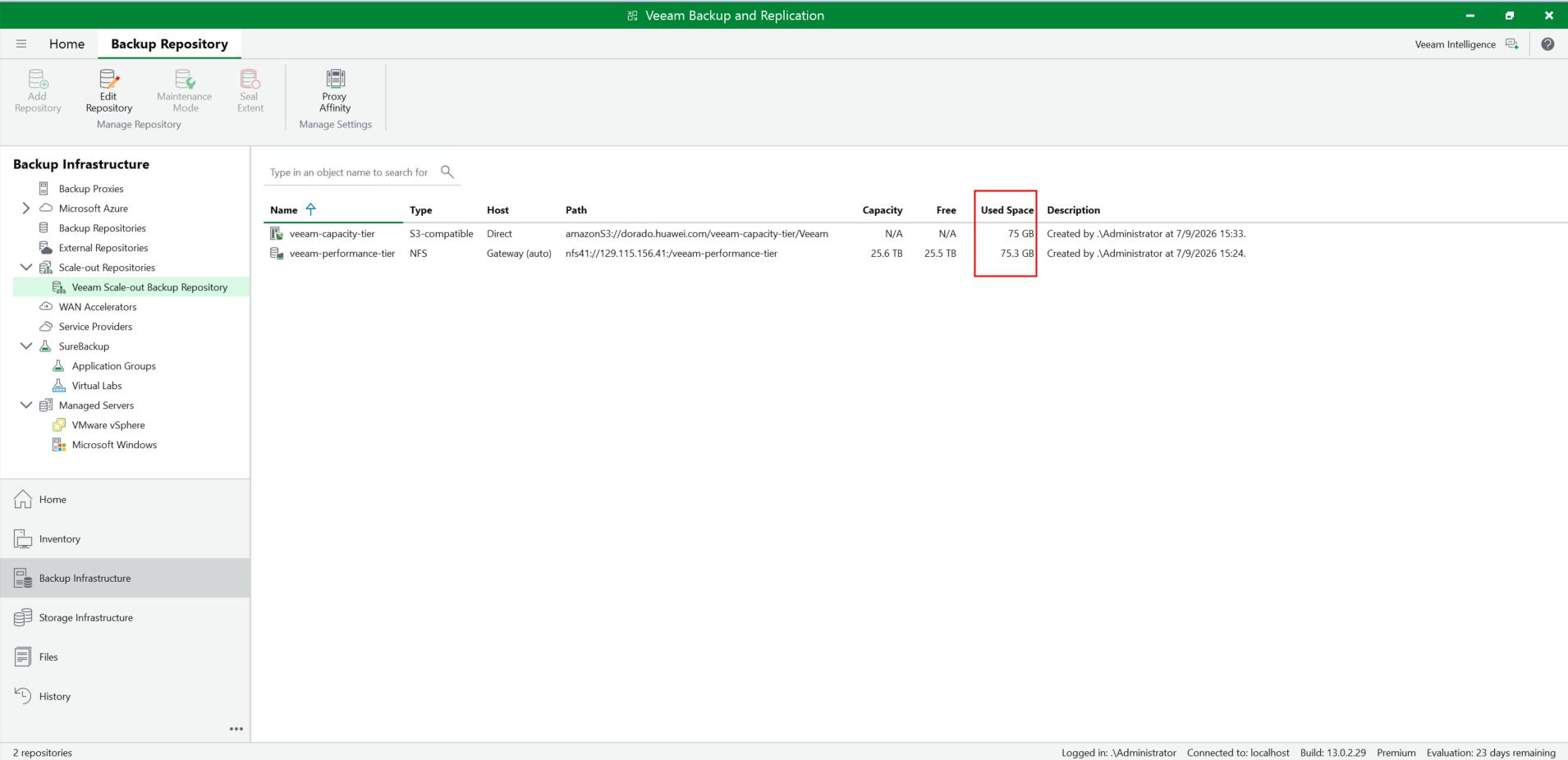 |
Test Conclusion | Passed |
4.6 Restore the VM from the Capacity Tier of Scale-out Repository
Test Purpose | To verify that the backup server can restore the VM from the Capacity-Tier of Scale-out Repository. |
Network Diagram | Reference to Figure 1.2 |
Prerequisites |
|
Test Procedures | Step 1: Select the Home and the Backups type of Capacity Tier on the backup server. Step 2: Select the performed job in section 4.4 and right-click the VM to restore entire VM. Step 3: Select the restore point of the VM full backup to restore, and next. Step 4: Select the restore to the original location, and next. Step 5: Complete the configuration and start the restore job. Step 6: Check the restore job status on the backup server. Step 7: Check the VM status. |
Expected Results |
|
Test Results |
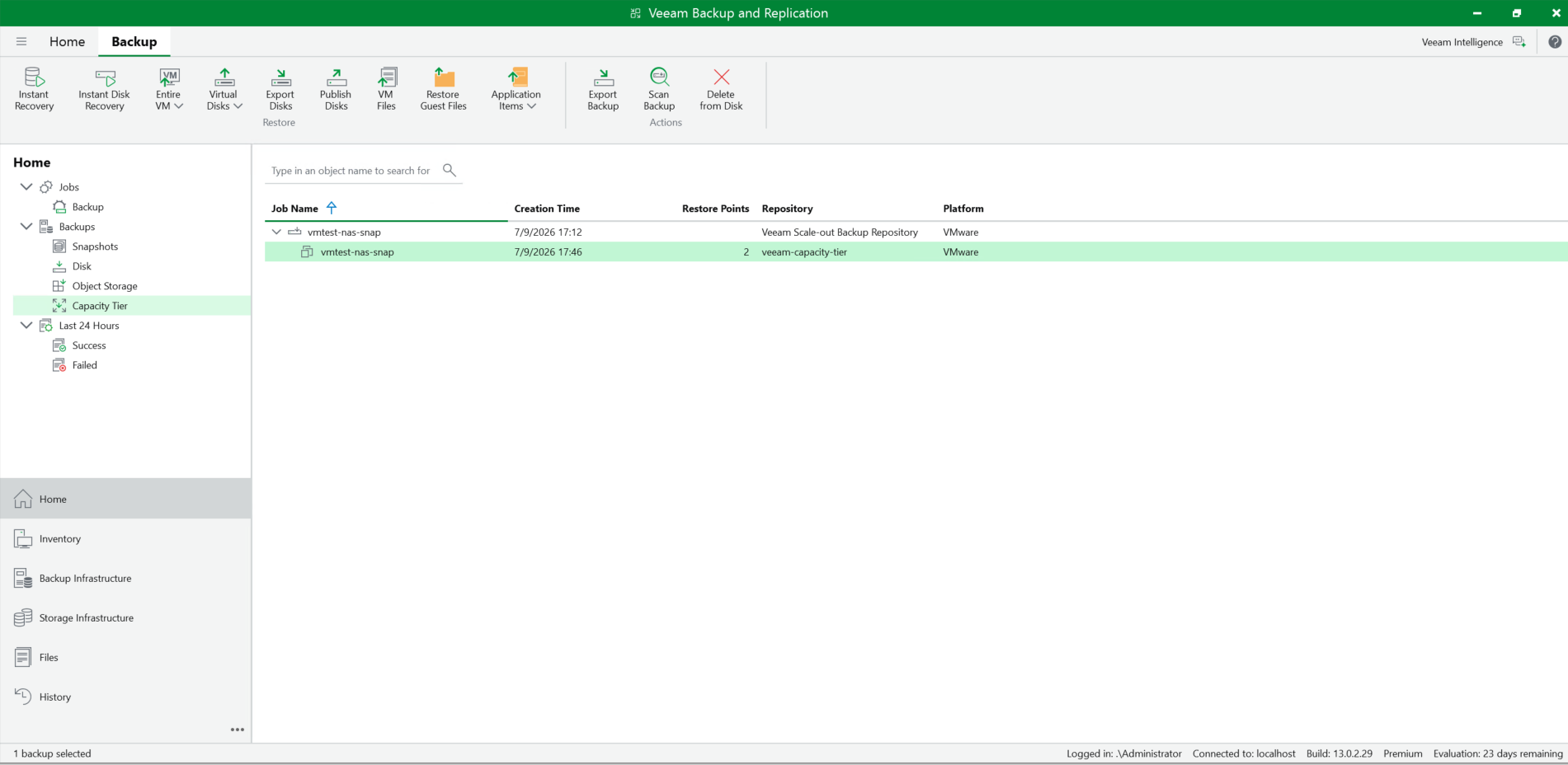 2. Select the performed job in section 3.4 and right-click the VM to restore entire VM. 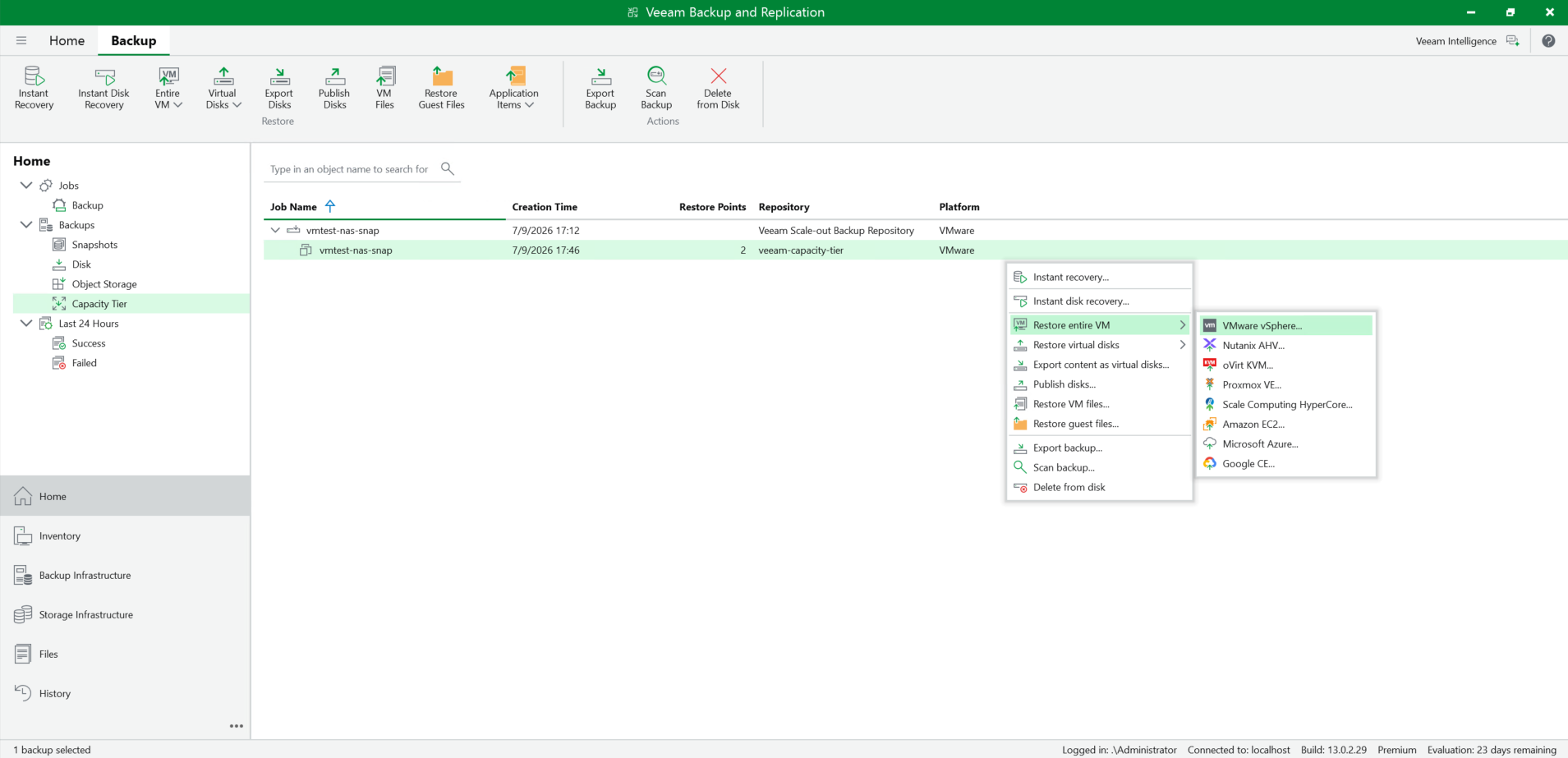 3. Select the restore point of the VM full backup to restore, and Next. 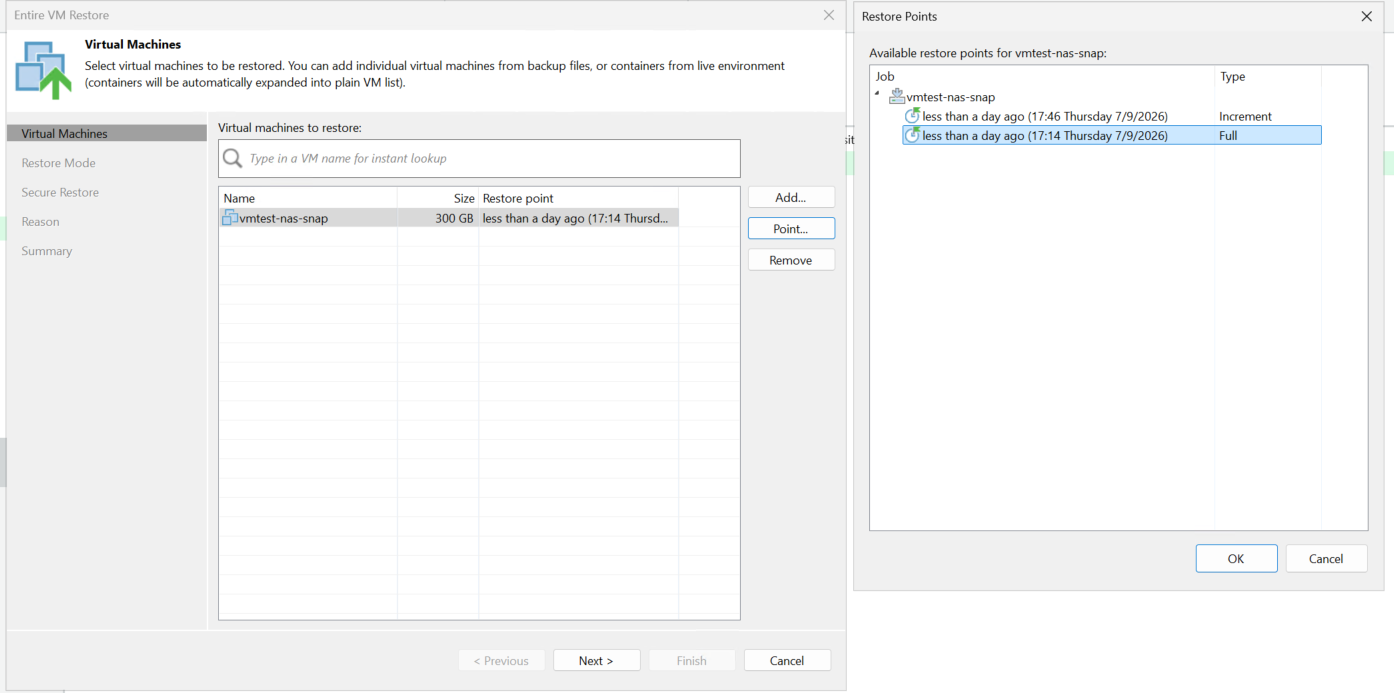 4. Select to restore to the original location, and Next. 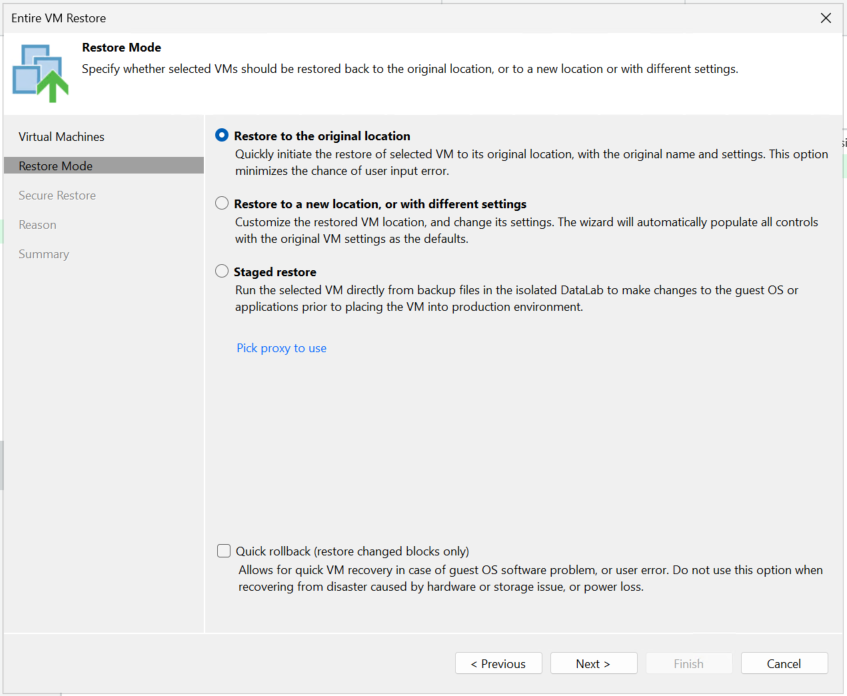 5. Complete the configuration and start the restore job. succeed to complete the configuration. No error is reported. 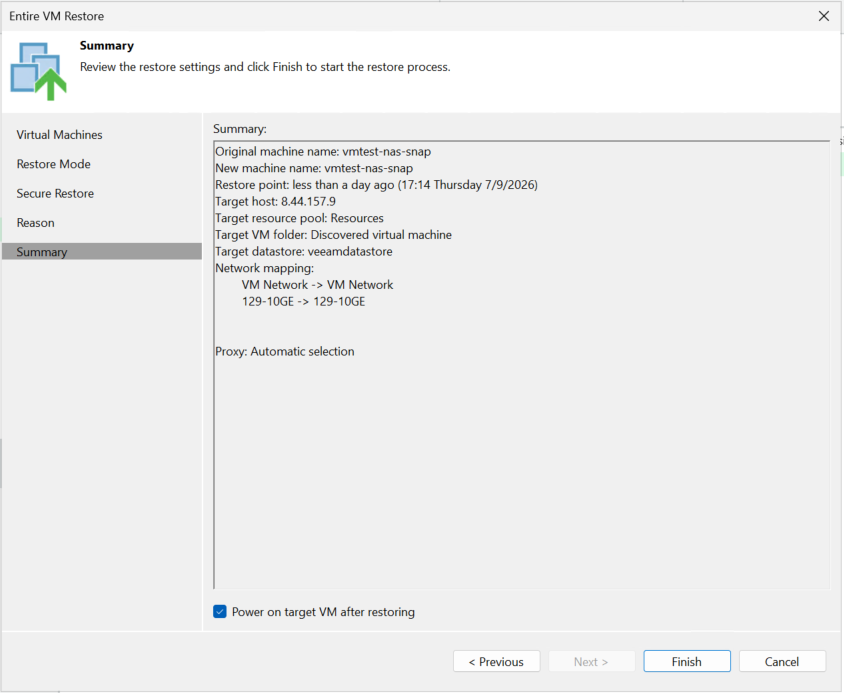 6. Check the restore job status on the backup server. The restore job status is successful. No error is reported. 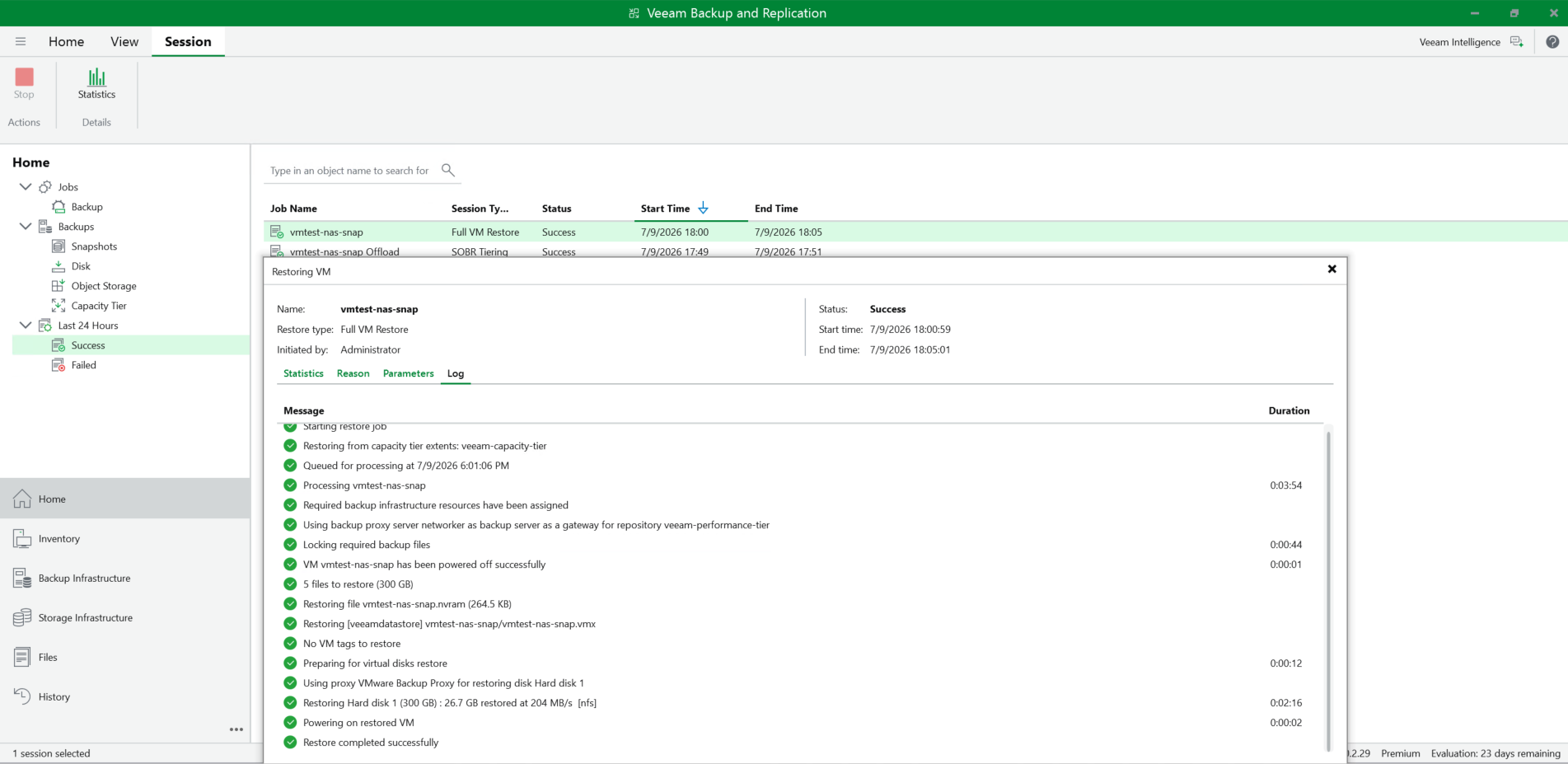 7. Check the VM status. The VM restore the status of full backup successfully. 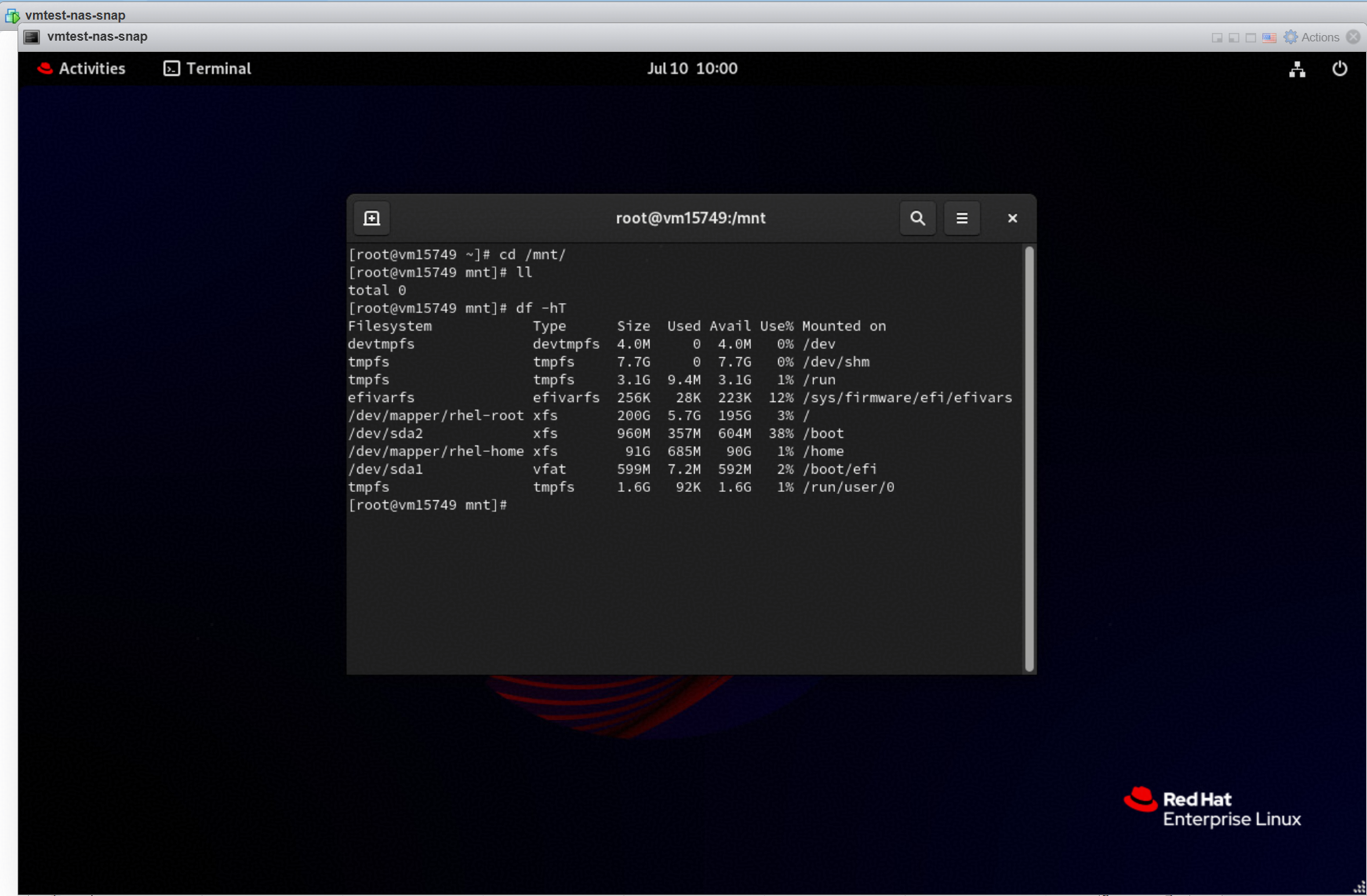 |
Test Conclusion | Passed |
4.7 Verify Retention Period of immutable Capacity Tier of Scale-out Repository
Test Purpose | To verify that the retention period is supported when the Huawei OceanStor Dorado All-Flash Storage is used as immutable Capacity Tier of Scale-out Repository. |
Network Diagram | Reference to Figure 1.2 |
Prerequisites |
|
Test Procedures | Step 1: Check the headers of the backup files on the s3 Browser. Step 2: Delete the backup files within the retention period on the backup server. Step 3: Delete the backup files within the retention period on the s3 Browser. |
Expected Results |
|
Test Results |
1.1 On the S3 browser, the headers of the full backup files on the storage contain the ‘x-amz-object-lock-mode’ and the value is COMPLIANCE. And the headers of the full backup files on the storage contain the ‘x-amz-object-lock-retain-until-date’ and the value is 2026-07-20T09:13:52Z. 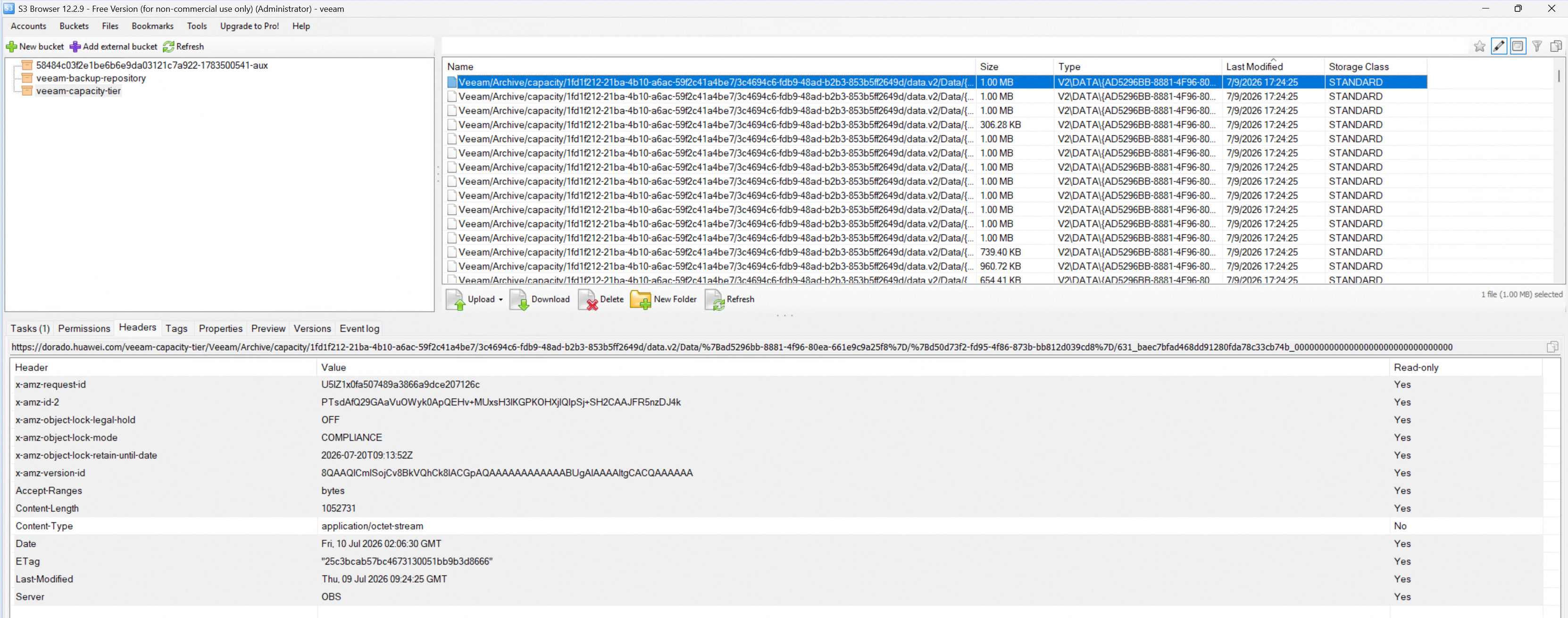 1.2 On the S3 browser, the headers of the incremental backup files on the storage contain the ‘x-amz-object-lock-mode’ and the value is COMPLIANCE. And the headers of the incremental backup files on the storage contain the ‘x-amz-object-lock-retain-until-date’ and the value is 2026-07-20T09:13:52Z. 2. The backup files could not be deleted on the backup server within the retention period (2026-07-20T09:13:52Z UTC+0/2026-07-20T17:13:52Z UTC+8). 2.1 The WORM clock in the storage is within the retention period. 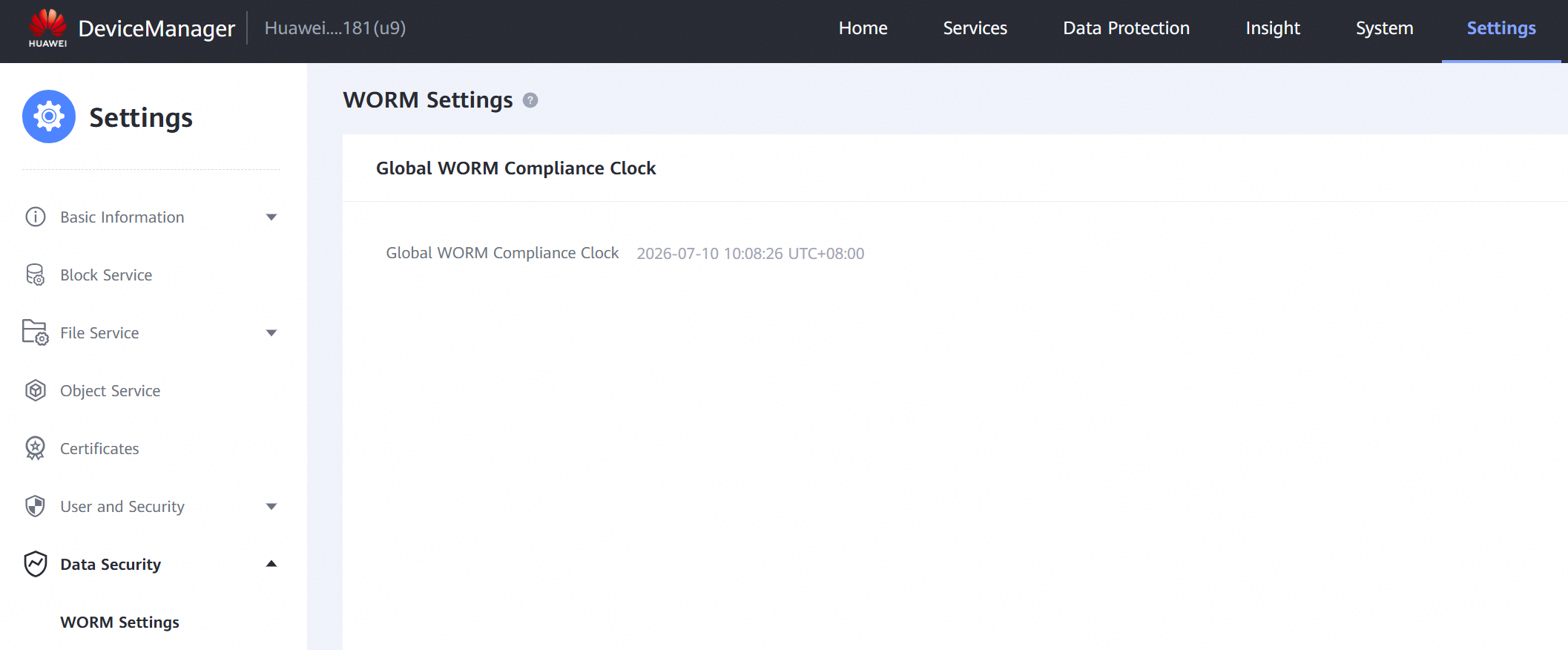 2.2 Files could not be deleted on the backup server. The error is reported: 7/10/2026 10:09:25 Failed : [vmtest-nas-snap] Failed to delete backup Error: Unable to delete backup in the Capacity Tier because it is immutable until 20 July 2026 17:13:52 (0:00:03) 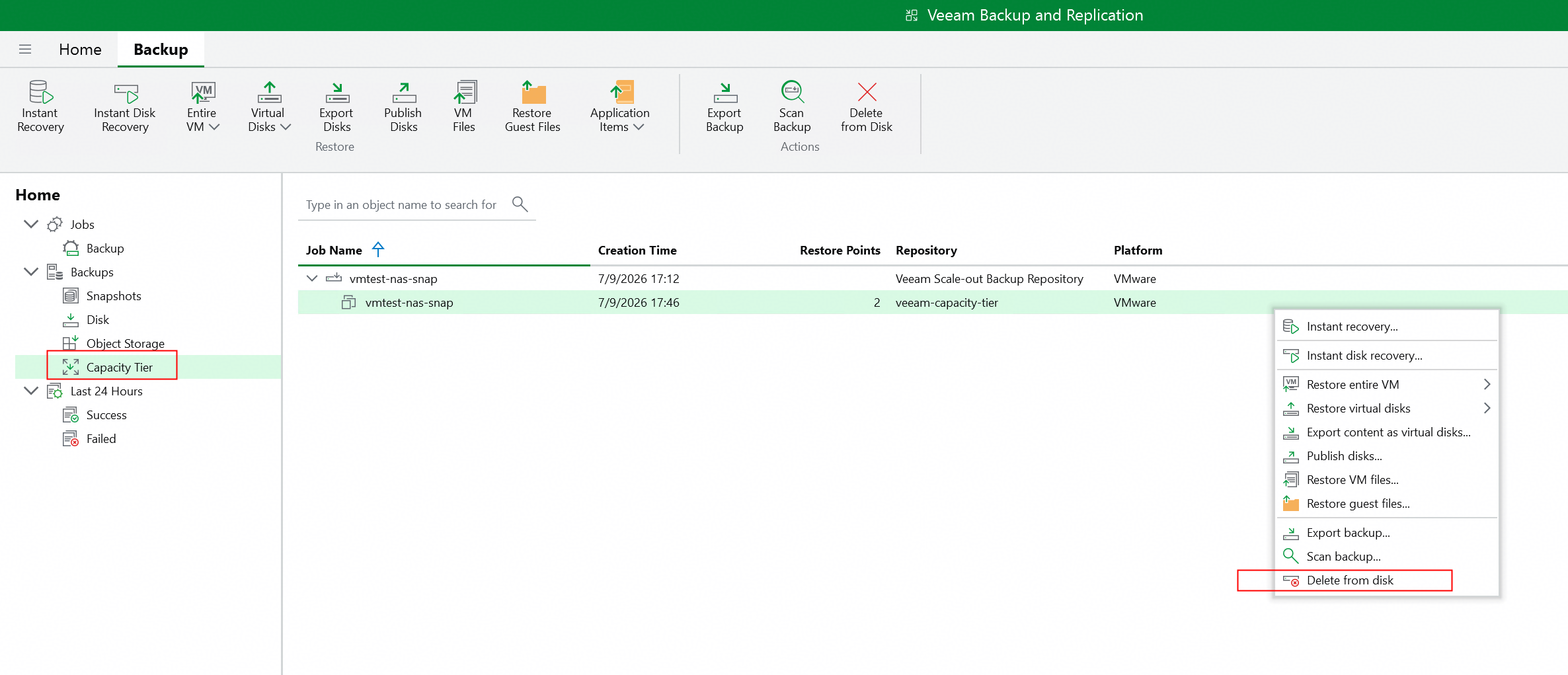 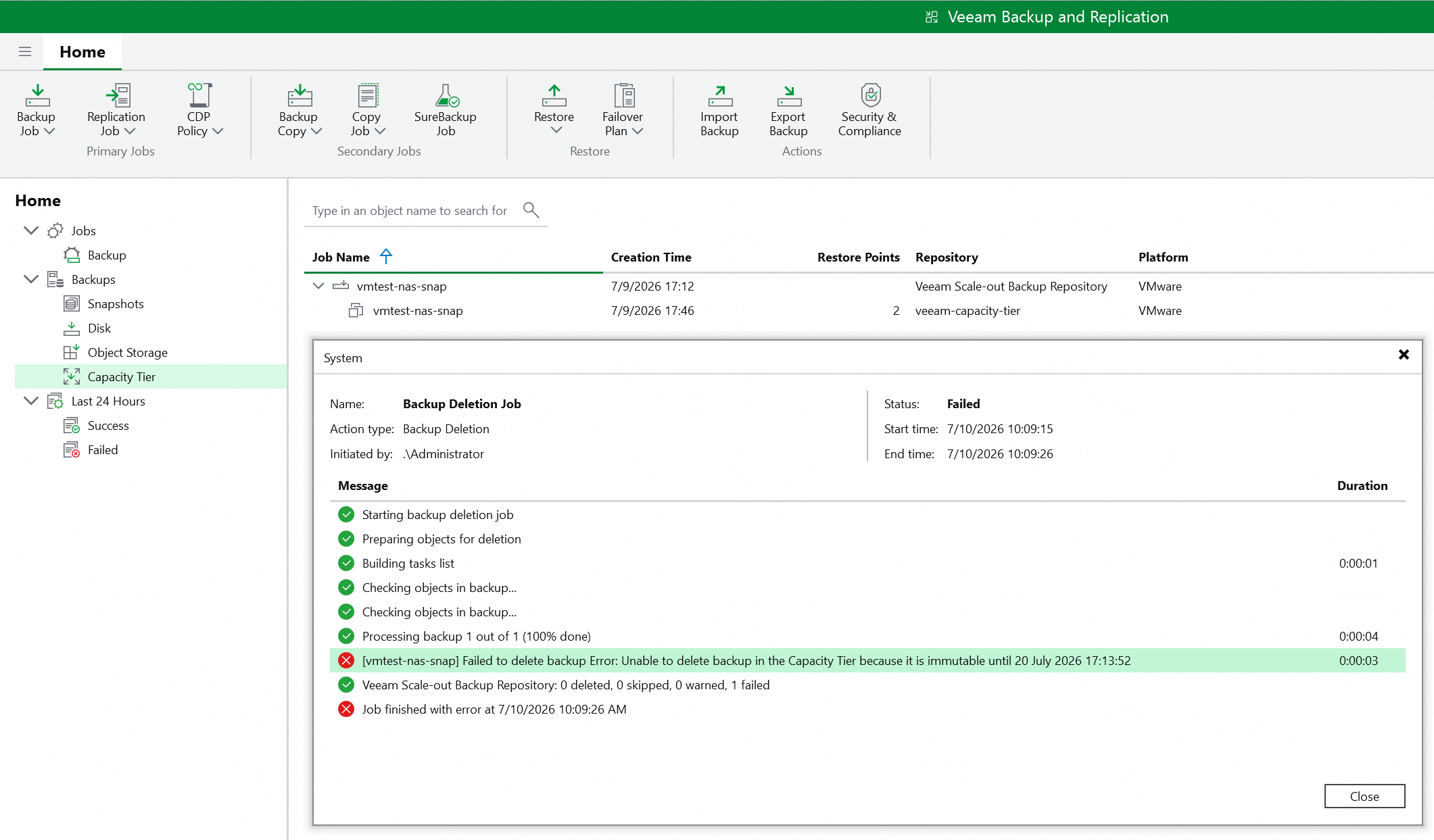 3. The backup files could not be deleted on the s3 browser within the retention period (2026-07-20T09:13:52Z UTC+0/2026-07-20T17:13:52Z UTC+8).The error is reported: Failed – AccessDenied: Operation not permitted. 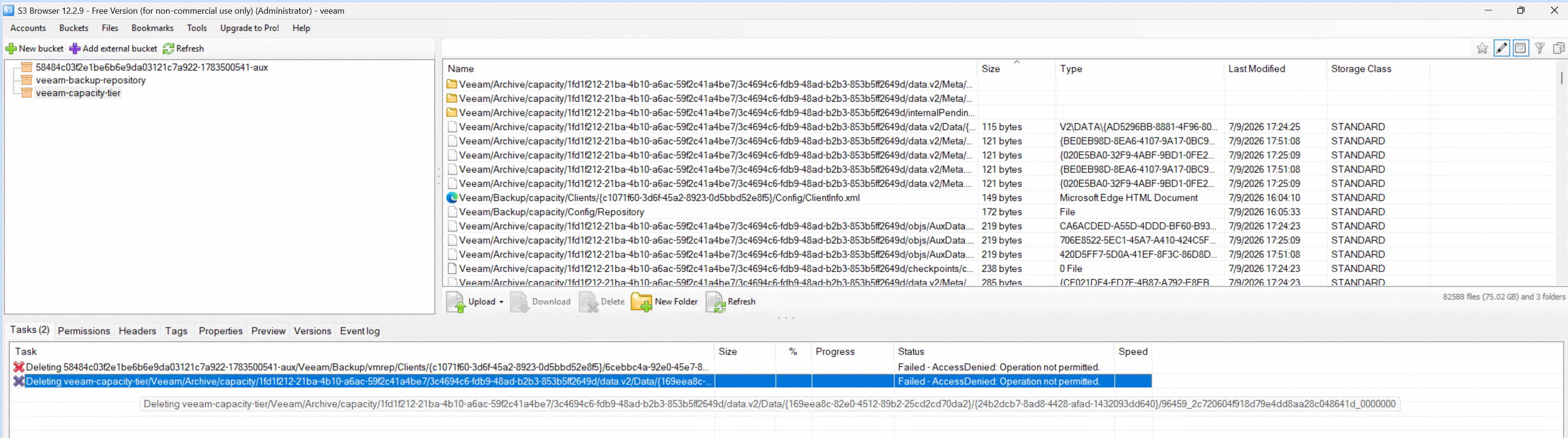 |
Test Conclusion | Passed |
5. Reference
5.1 Veeam Backup & Replication User Guide
https://helpcenter.veeam.com/docs/vbr/userguide/object_storage_repository.html?ver=13
https://helpcenter.veeam.com/docs/vbr/userguide/backup_repository_sobr.html?ver=13
5.2 Huawei OceanStor Dorado All-Flash Storage User Guide
https://support.huawei.com/hedex/hdx.do?docid=EDOC1100489522&id=public_path_object_base_config_003
