Huawei OceanStor Dorado All-Flash Storage and OpenText Archive Center 25.4
Interoperability Test Report

Axians Global
All Rights Reserved
Executive Summary
Axians Global (“Axians”) assessed the interoperability of OpenText Archive Center with Huawei OceanStor Dorado All-Flash Storage. The goal of the assessment is to validate that OpenText Archive Center is interoperable with Huawei OceanStor Dorado All-Flash Storage.
During the assessment, all interoperability test cases were successfully completed. OpenText Archive Center can use Huawei OceanStor Dorado all-flash storage as storage device to archive and retrieve files.
Axians has determined that OpenText Archive Center archiving and retrieving jobs will function with Huawei OceanStor Dorado All-Flash Storage for the following scenarios:
Test Scenario | Software Involved | Storage Involved | Protocol Tested | Results |
Used as S3 Storage Device with Retention Period in the archiving scenario | OpenText Archive Center 25.4 | Huawei OceanStor Dorado All-Flash Storage | S3 | Passed |
Tips:All test results are also applicable to Huawei OceanStor Capacity Flash Storage and Huawei OceanStor Hybrid Flash Storage.
1. Environment Configuration
1.1 Network Diagram
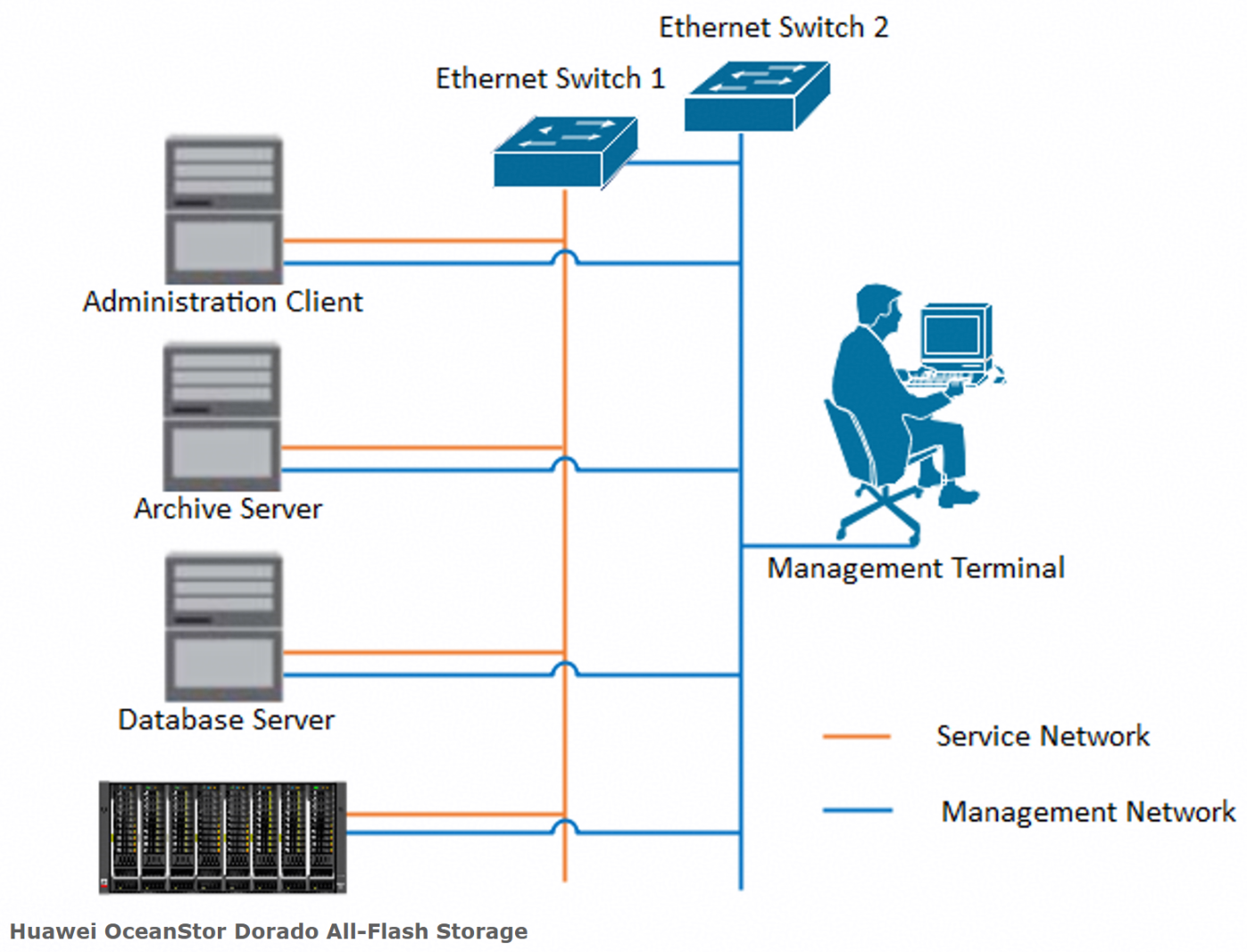
In the archiving scenario, the OpenText Archive server archive files to the Storage Device. Figure 1.1 below illustrates the network architecture.
Figure 1.1 Huawei OceanStor Dorado All-Flash Storage serves as the Storage Device network diagram
1.2 Hardware and Software Configuration
1.2.1 Hardware Configuration
Table 1-1 Hardware Configuration table
Hardware Name | Configuration | Usage | Quantity |
Storage |
| Used as the Storage Device for storing archived objects. | 1 |
OpenText Archive Server |
| Deploy OpenText Archive Server and OpenText Administration Client software. | 1 |
Database Server |
| Deploy SQL Server software | 1 |
Ethernet switch |
| The CE6855 Ethernet switch connects the management layer network and service layer network between the archive server, Database Server, Storage. | 2 |
1.2.2 Software and Tools
Table 1-2 Software and Tool table
Software Name | Usage | Version | Quantity |
OceanStor Dorado Software | Deploy and manage Huawei OceanStor Dorado 5000 storage | V700 | 1 |
OpenText Administration Client | Manage archive job and storage device | 25.4 | 1 |
OpenText Archive Server | Archive and retrieve files from the storage device | 25.4 | 1 |
Microsoft SQL Server | Hold the configuration information of OpenText Archive Server | SQL Server 2022 | 1 |
Operation System | Deploy the Windows Host for OpenText Archive Server and SQL Server | Windows 2022 | 1 |
S3 Browser | Used to check bucket data | 12.2.9 | 1 |
2. Test Preparation
2.1 Huawei OceanStor Dorado All-Flash Storage Pre-configuration
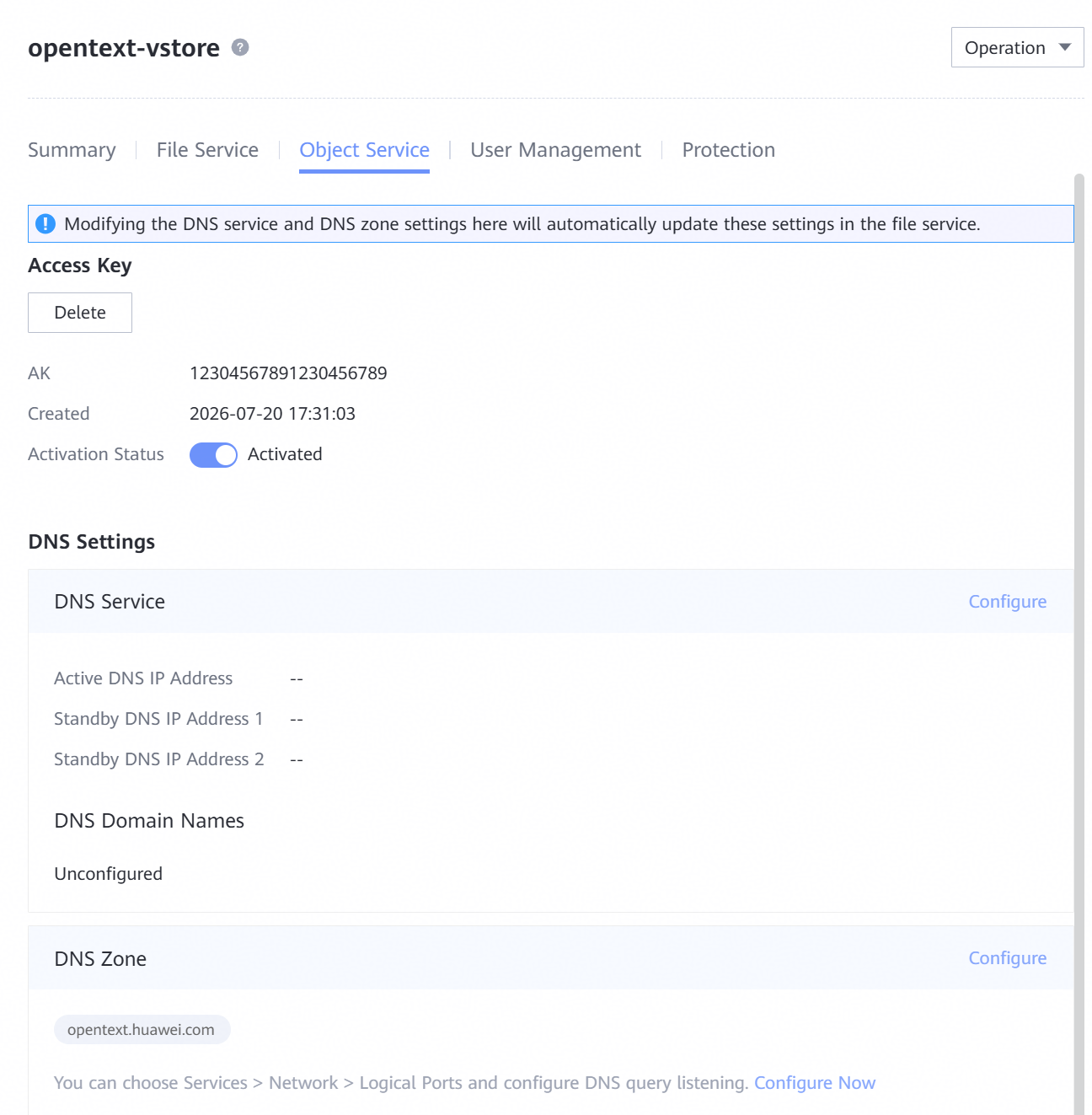
2.1.1 Create the vStore, AK, SK, DNS Zone
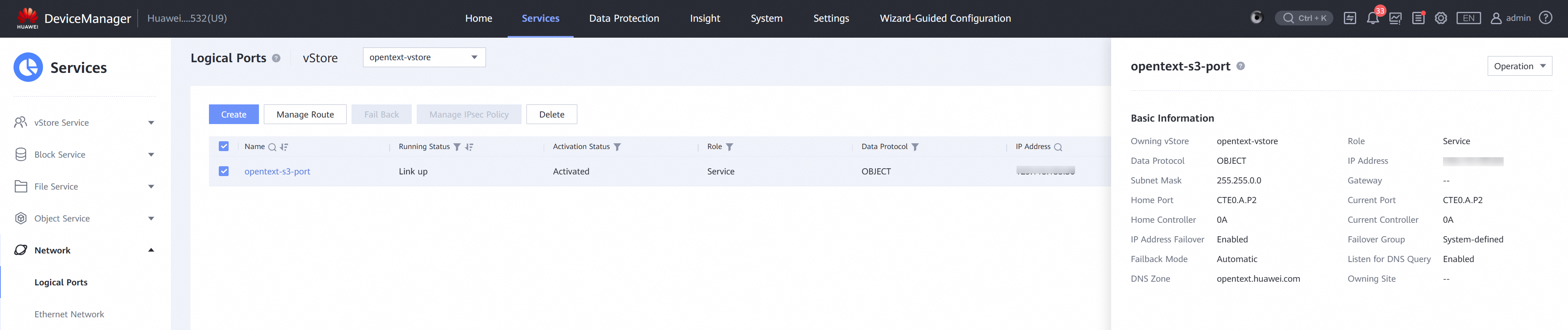
2.1.2 Create the Logical Port
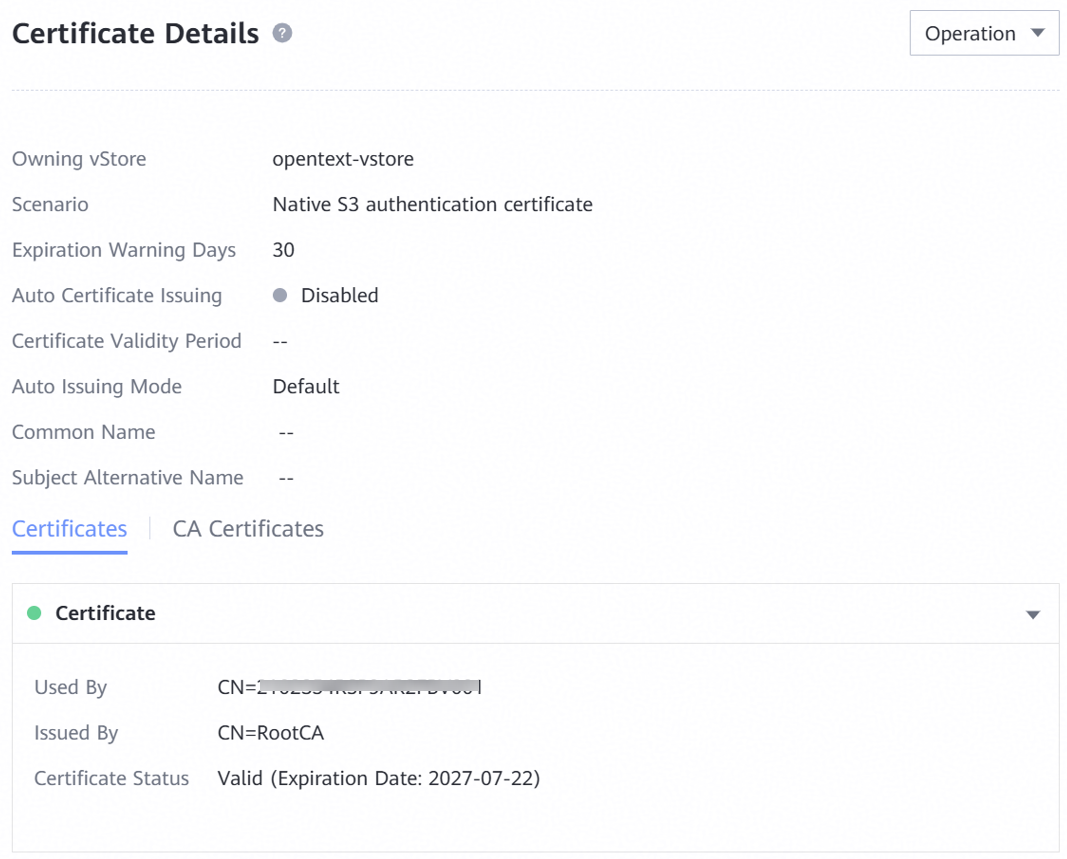
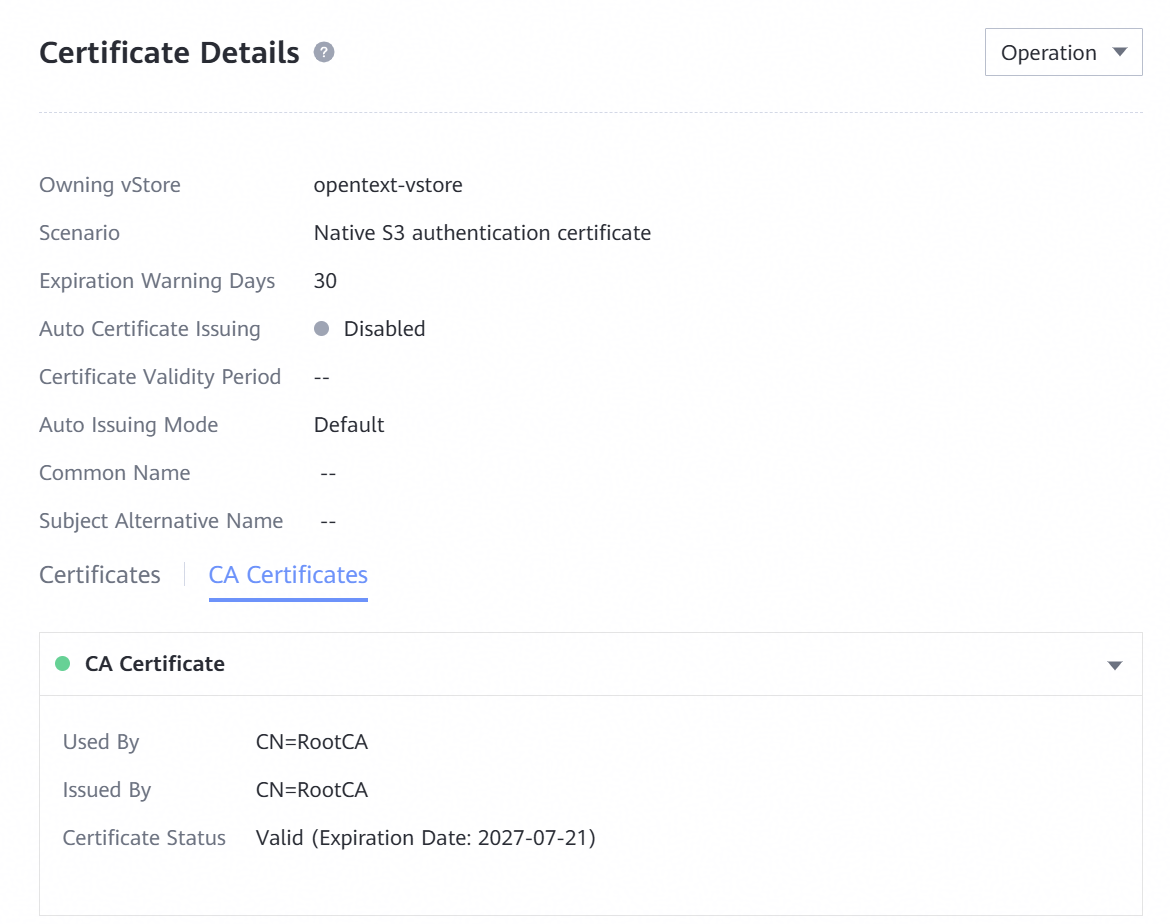
2.1.3 Configure the Native S3 authentication certificate
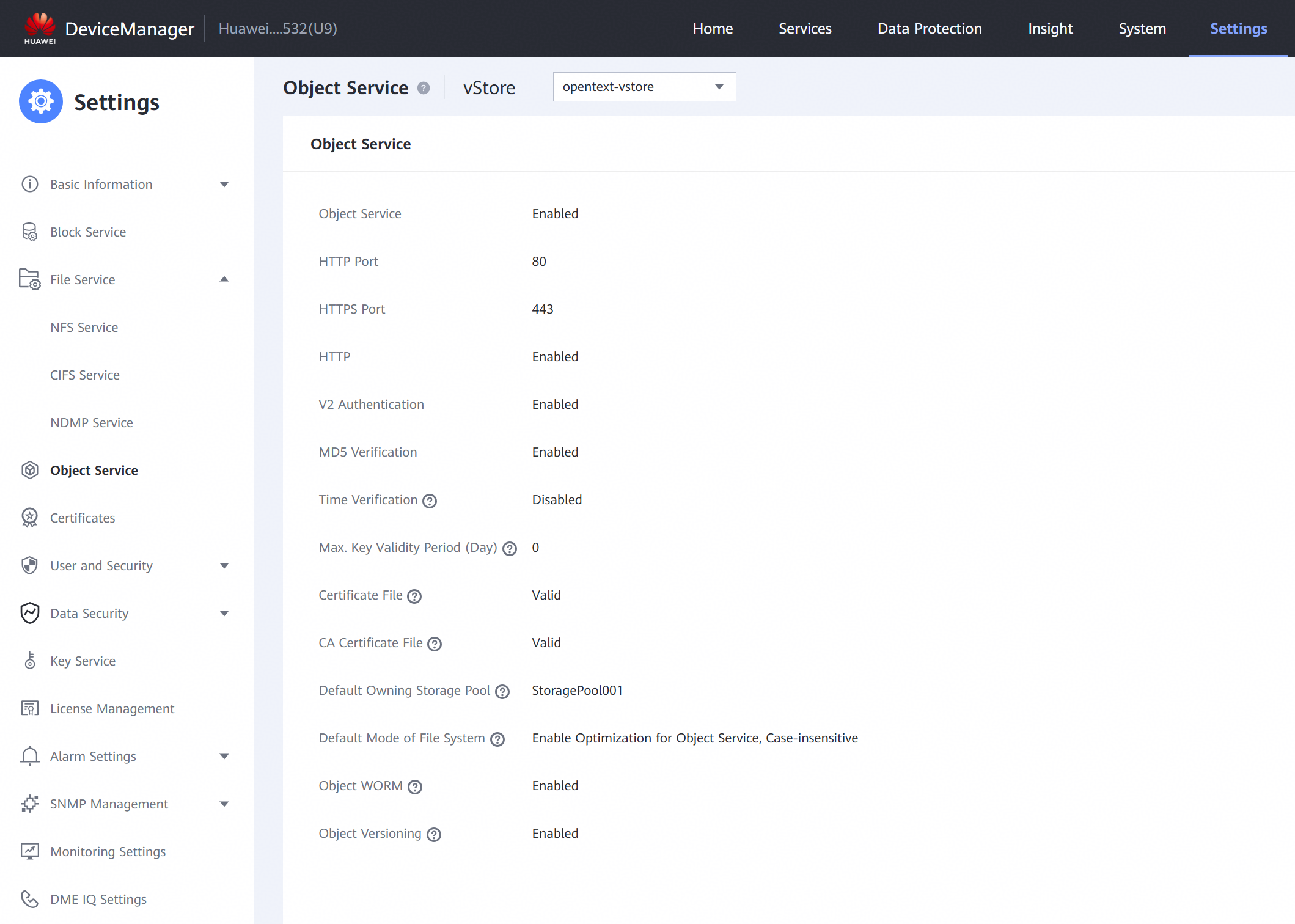
2.1.4 Configure the Object Service
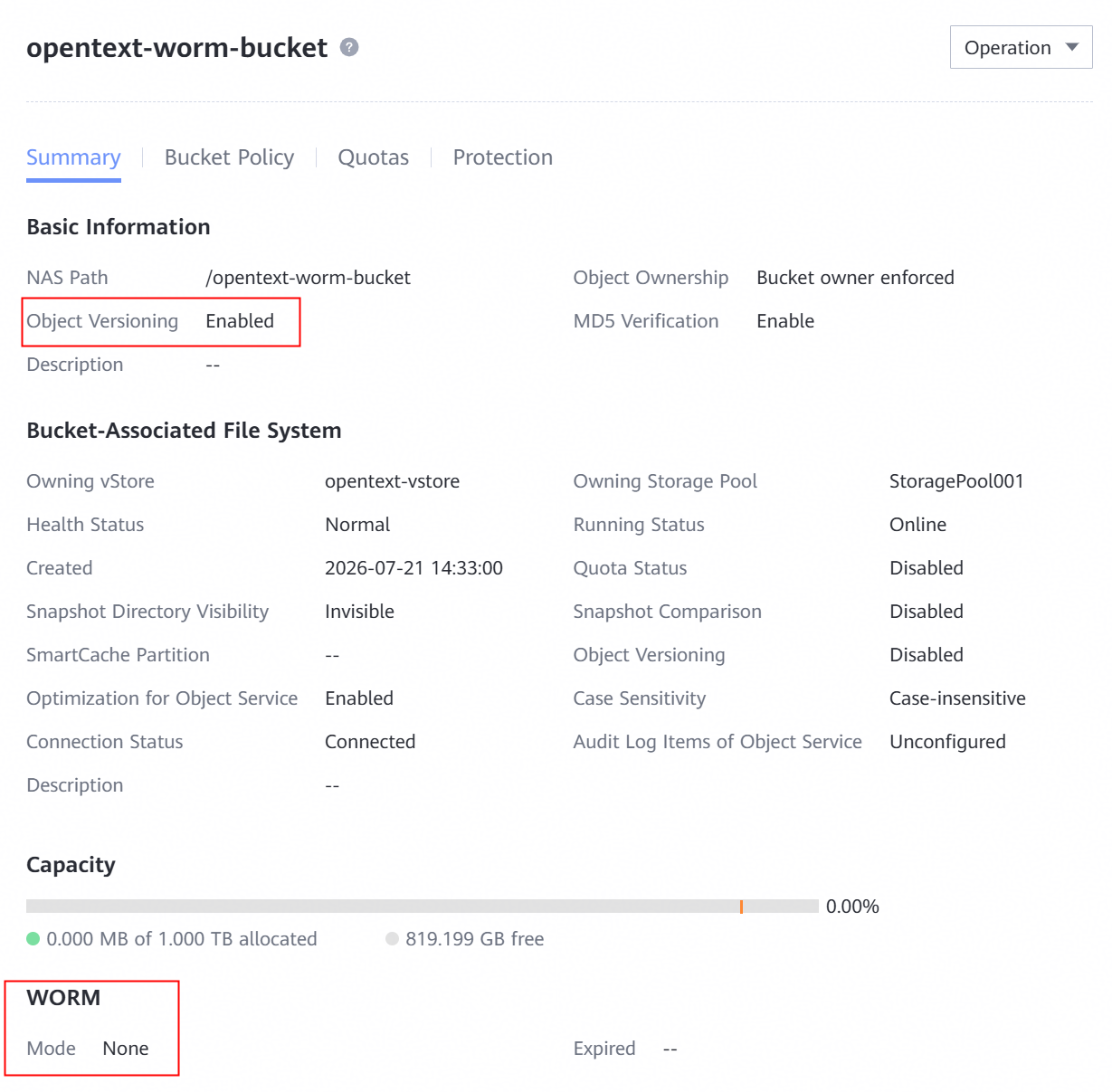
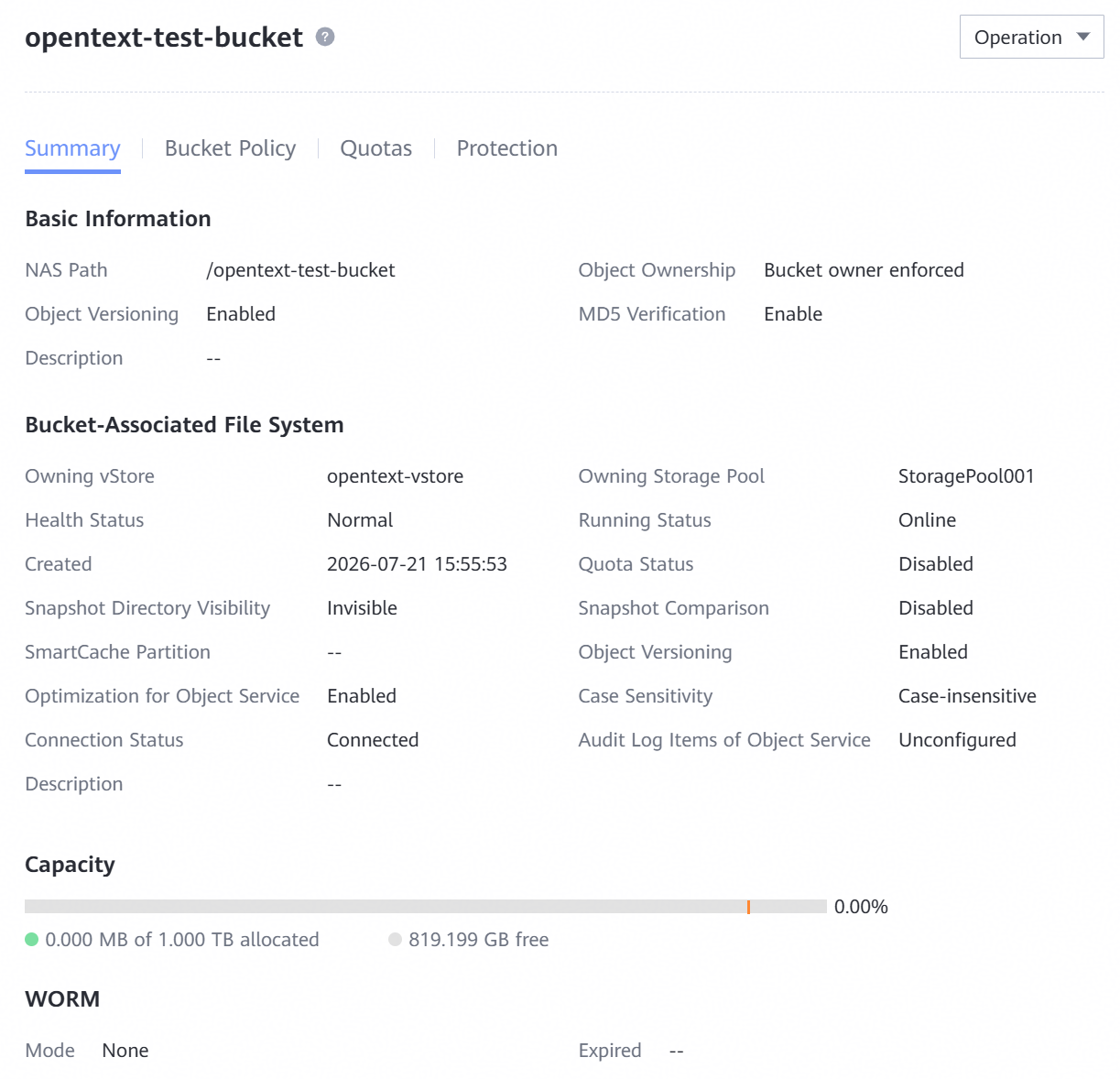
2.1.5 Create the Bucket
Enable the Object Versioning and configure the WORM mode of None type.
2.2 Archive Server Pre-configuration
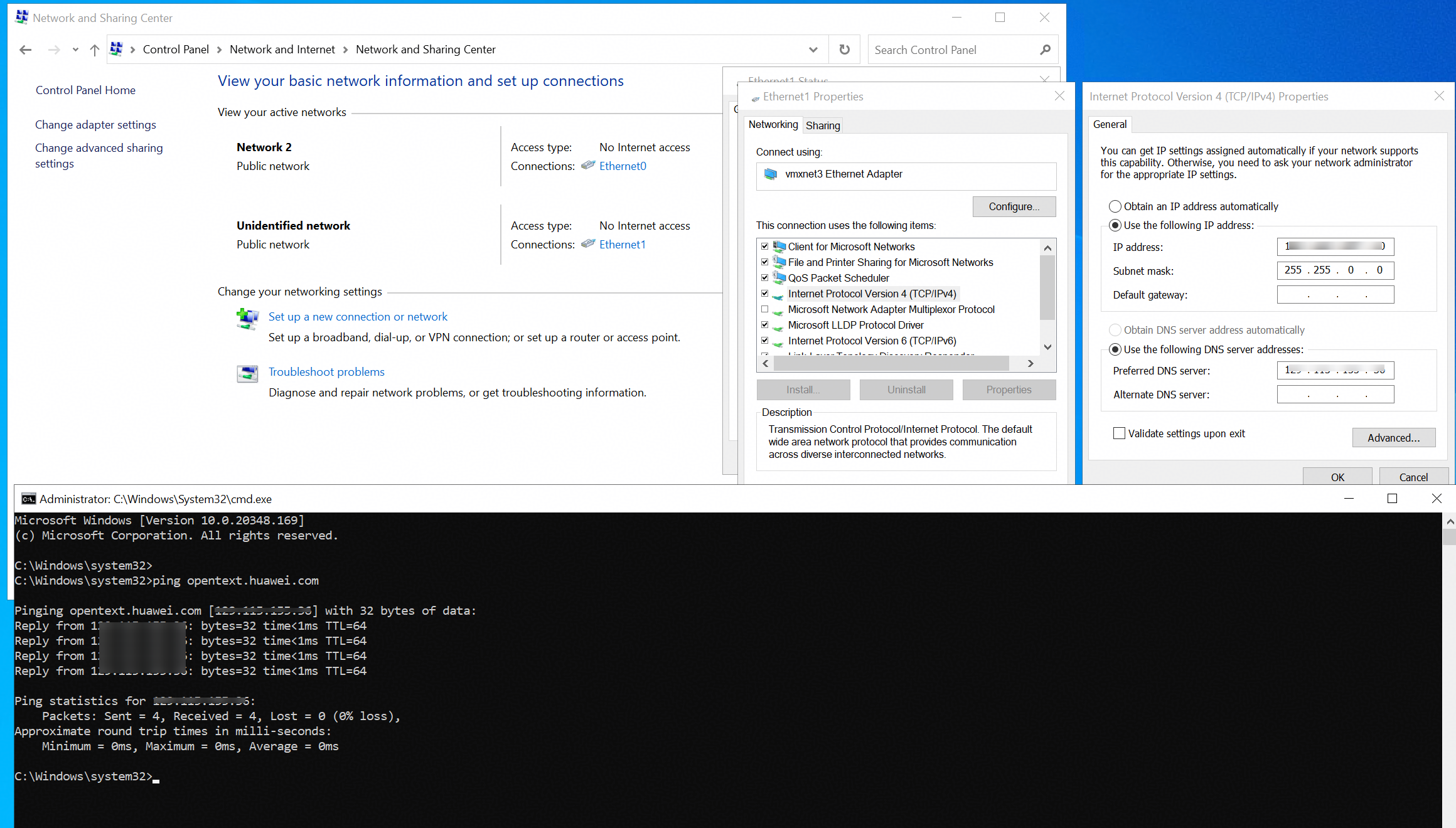
2.2.1 Configure the network of DNS server
3. Test Scenario and Results
3.1 Add the bucket to the archive server as S3 Storage Device using Virtual Style
Test Purpose | To verify that the Huawei OceanStor Dorado All-Flash Storage can be added to the archive server as S3 Storage Device using Virtual style. |
Network Diagram | Reference to Figure 1.1 |
Prerequisites |
|
Test Procedures | Step 1: Login the administration client, add the archive server. Step 2: Add the storage to the archive server through the S3 protocol. Step 3: Test the connection between the storage and the archive server. Step 4: Add the connection for the storage device. Step 5: Initialize volume for the connection. Step 6: Check the bucket data through S3 Browser. |
Expected Results |
|
Test Results | 1. Login the OpneText administration client, add the archive server. 1.1 Input the IP address of the archive server in the Server name field. And input the Port and Display name. Then click OK. 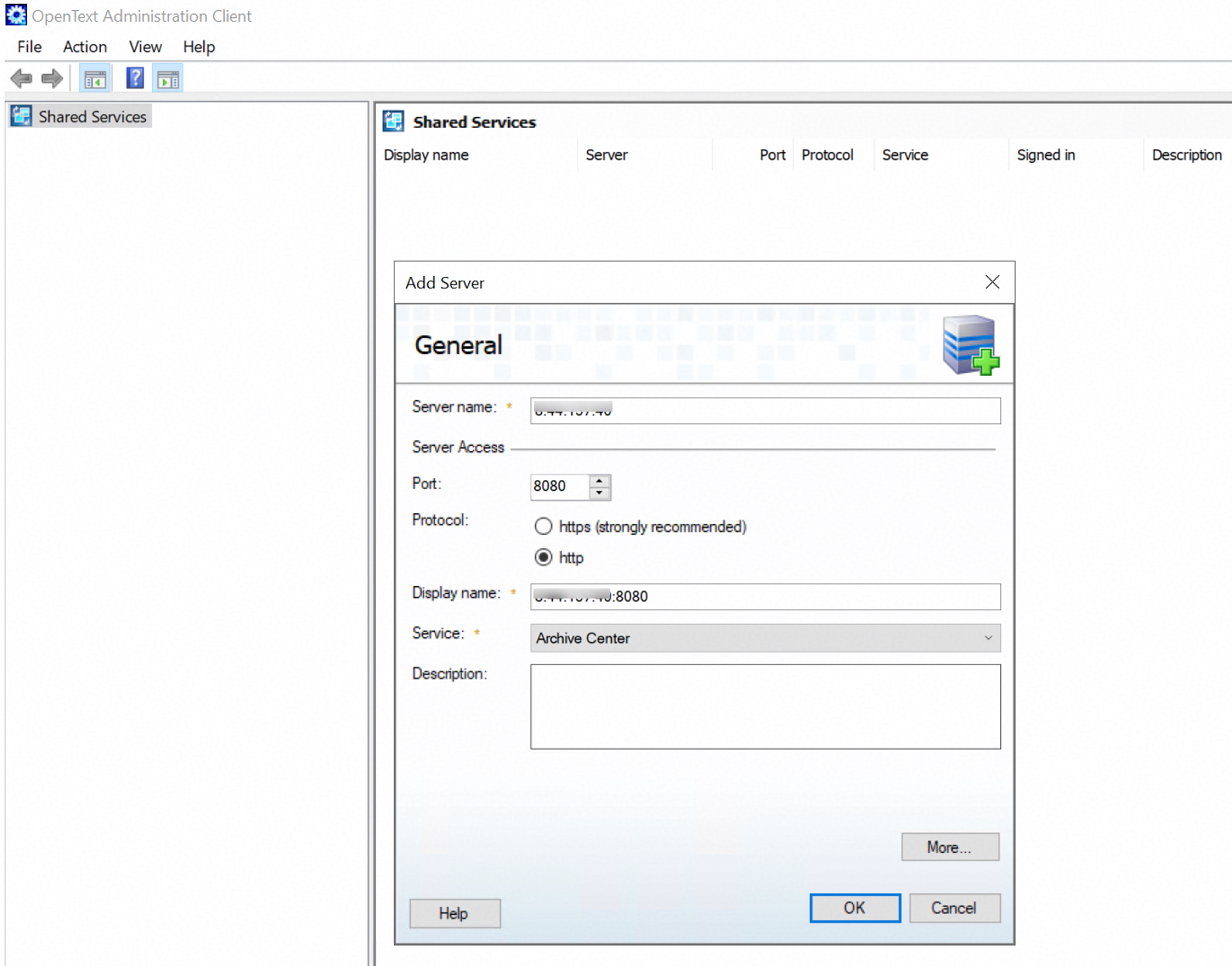 1.2 Sign in to the archive server created in the previous step. 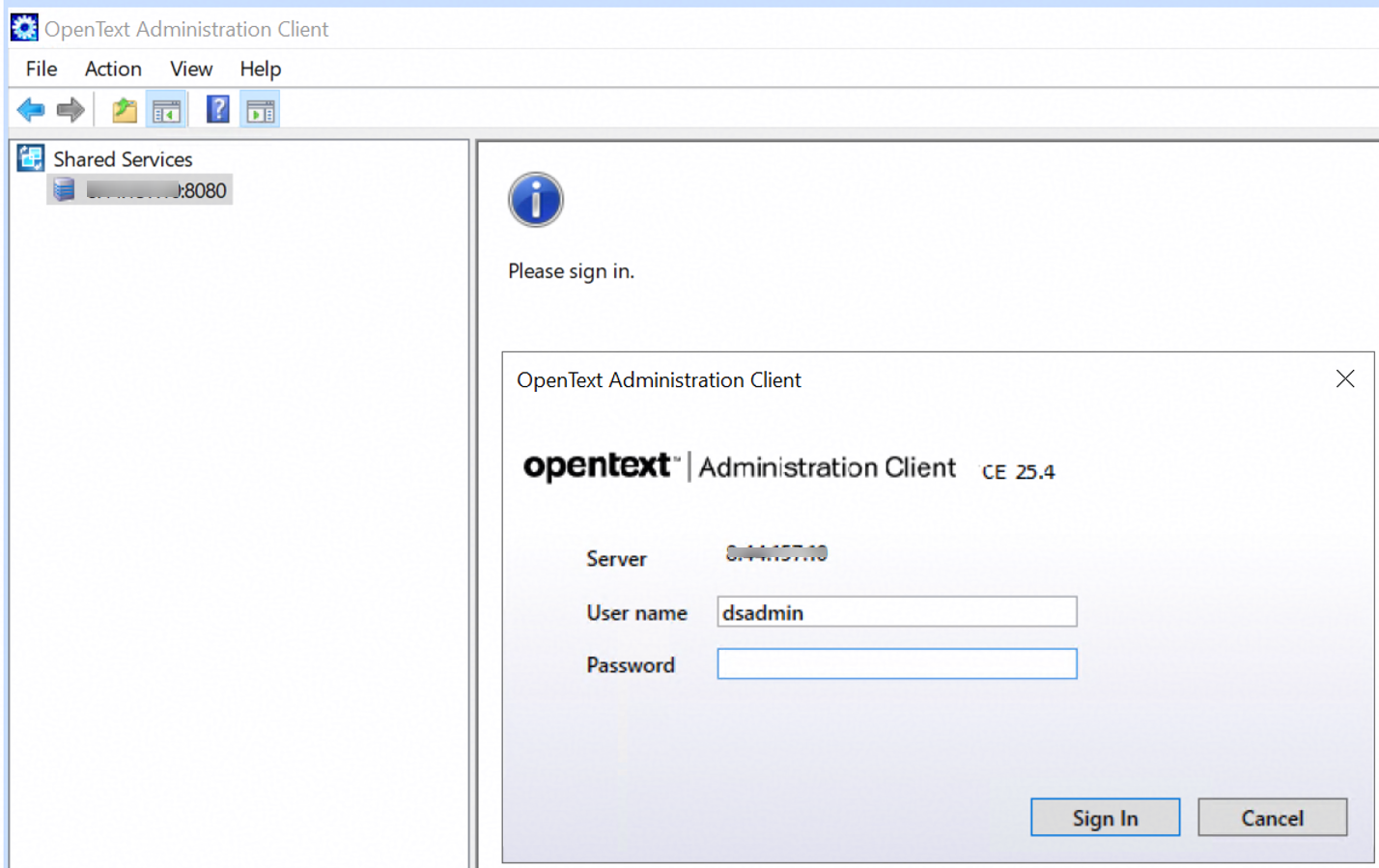 2. Add the storage to the archive server through the S3 protocol. 2.1 Right-click Storage Devices and choose Add Storage Device. 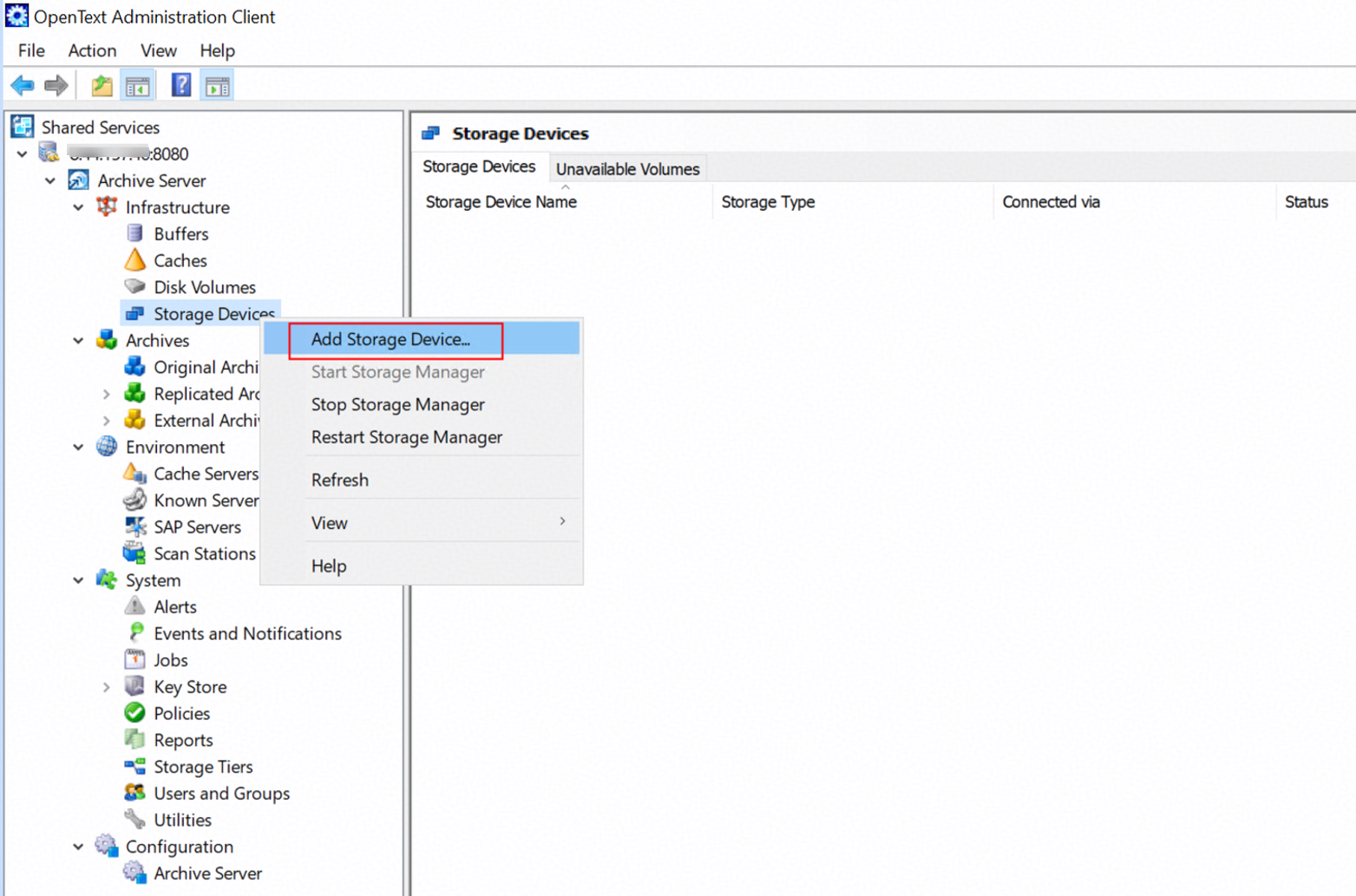 2.2 Input the Storage Device name, and select Simple Storage Service(S3) as Storage type. 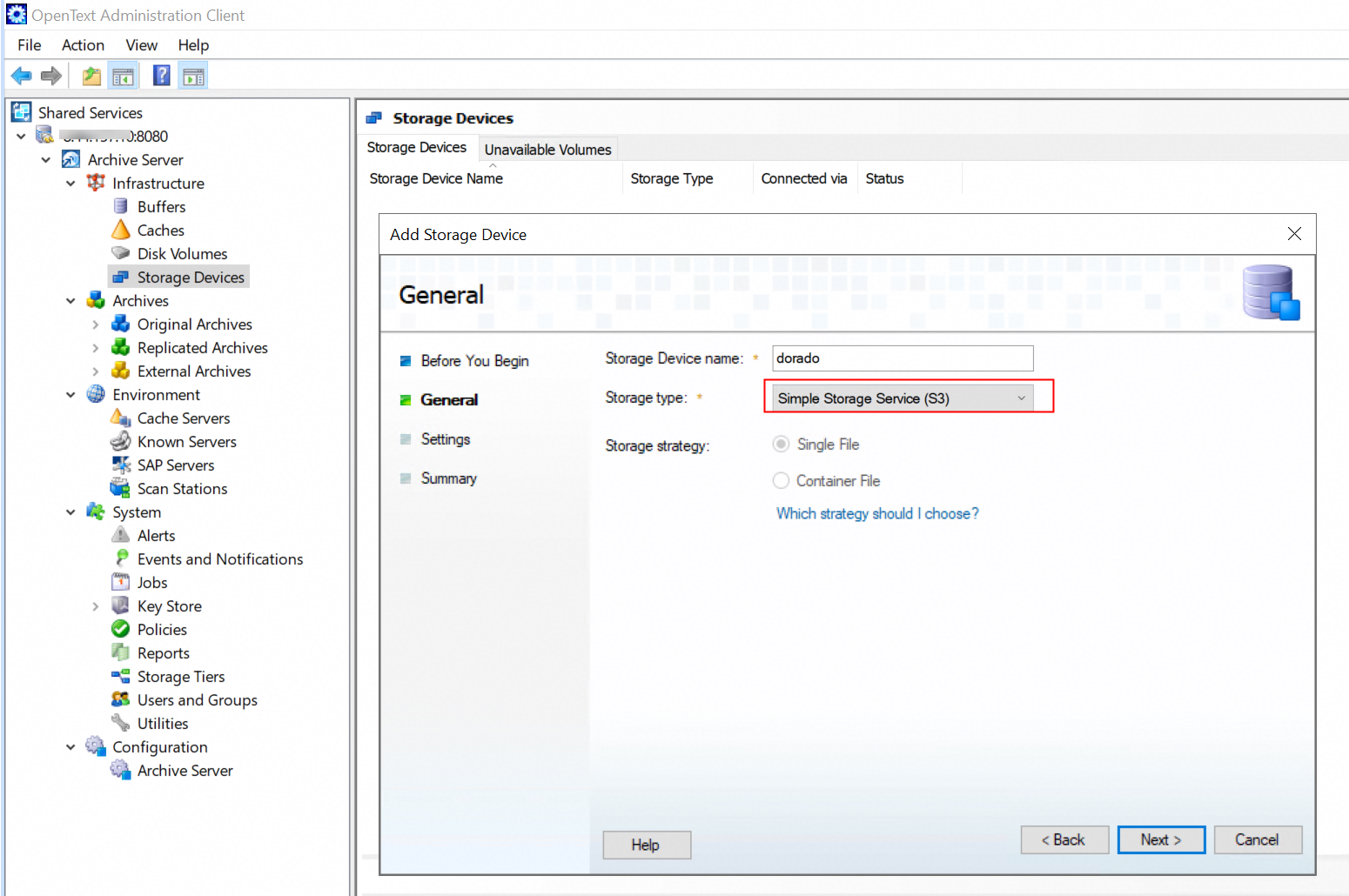 2.3 Input the domain name of the storage in the Service Address field, and choose the RootCA certificate exported from the storage as the SSL certificates. Select the VIRTUAL_HOST_STYLE in the Bucket Address Style field. Configure the Signature Version to 4. 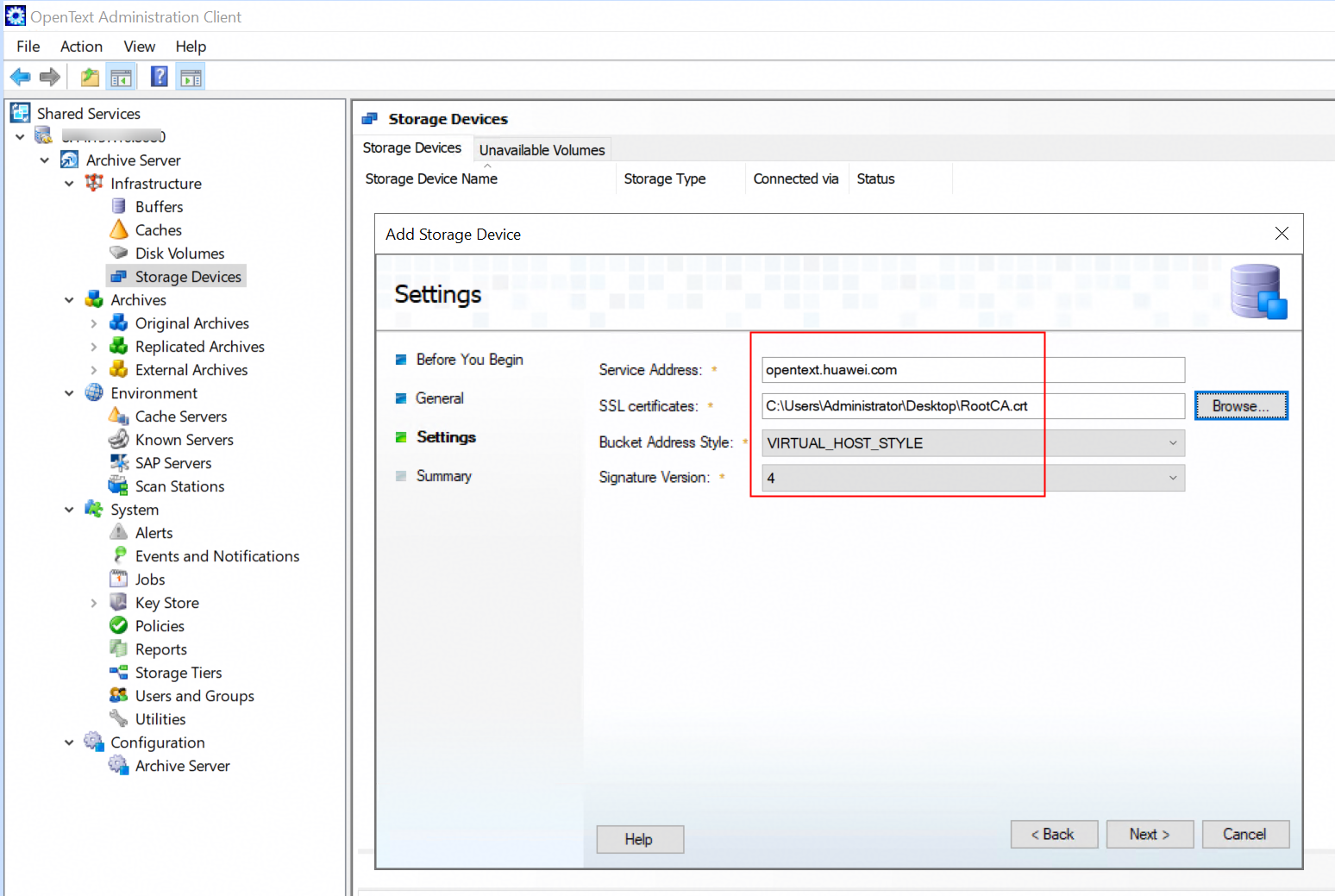 2.4 Click Finish to complete Add Storage Device. 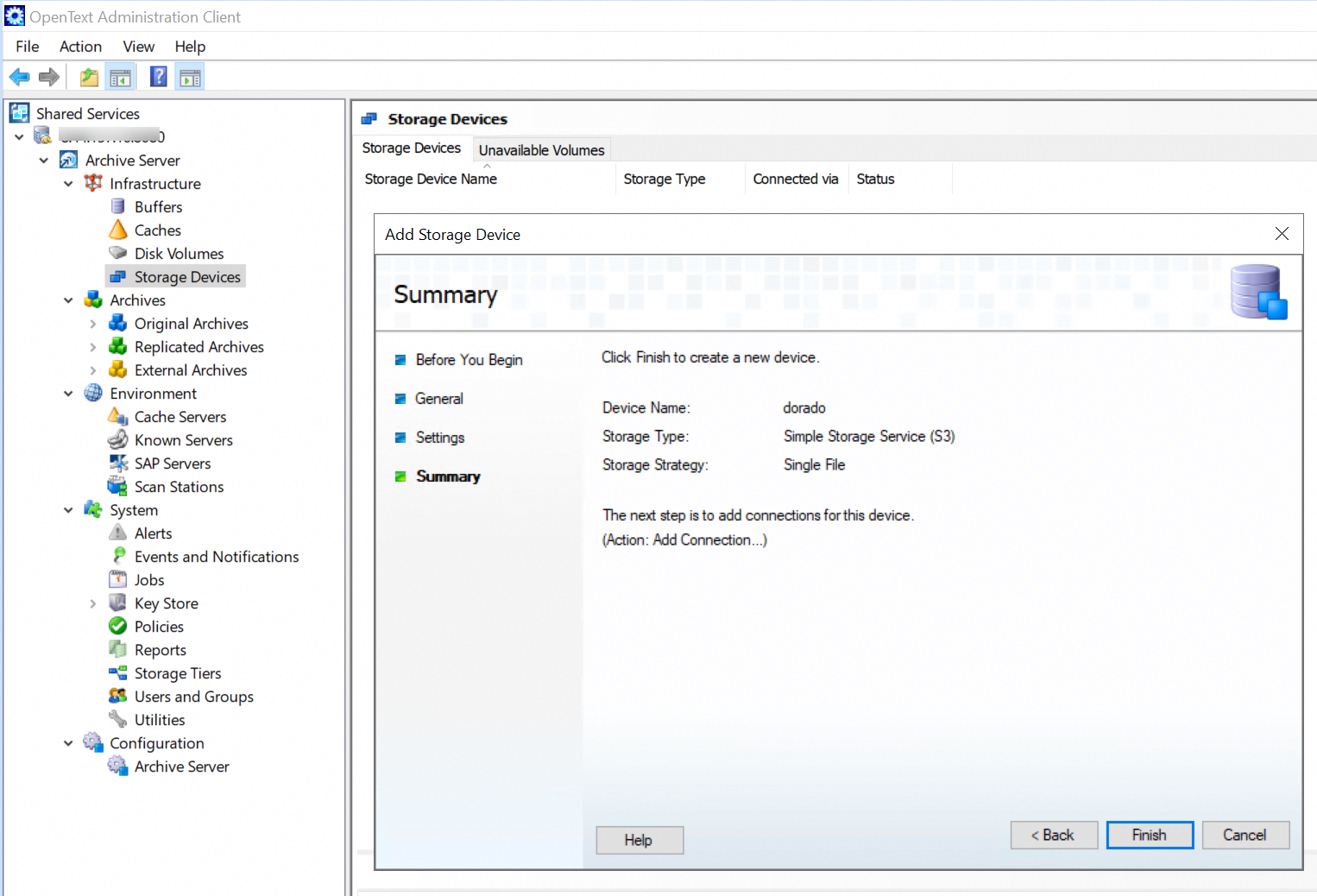 3. Test the connection between the storage and the archive server. 3.1 Right-click the storage device created in the previous step, and choose Add connection. 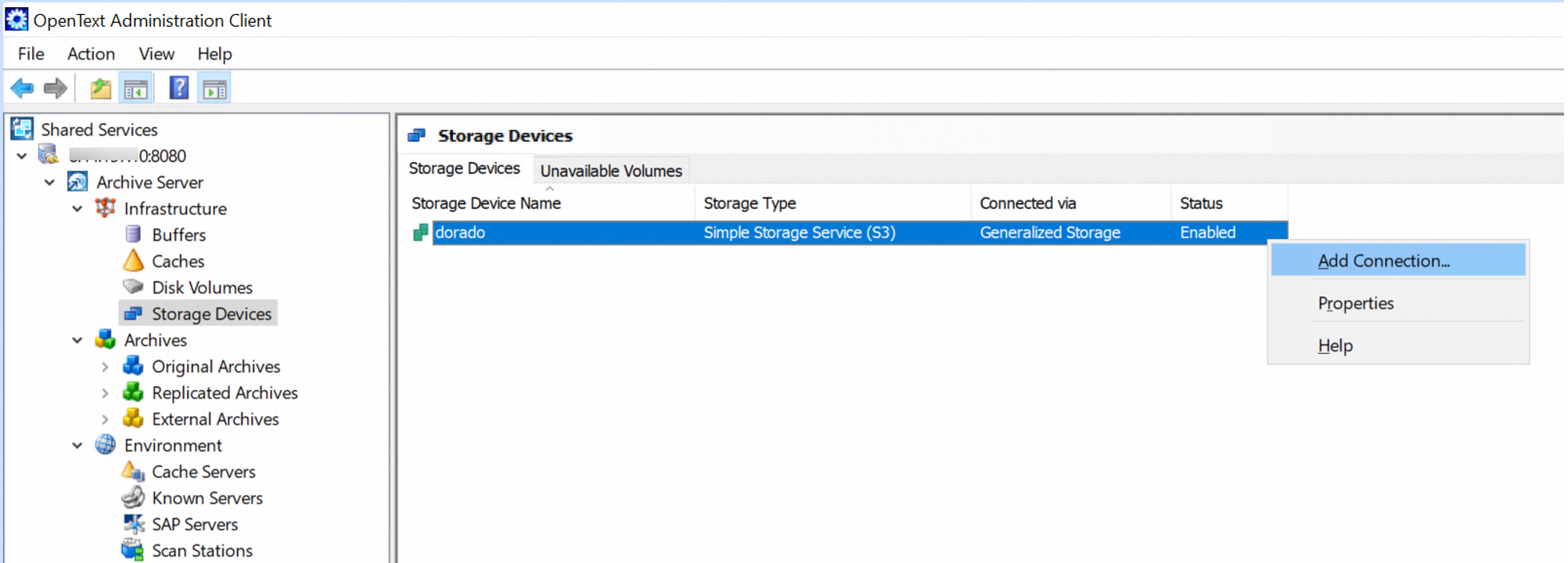 3.2 Input a name in the Bucket field. Select defaultRegion in the Region field. Input the Access key and Secret key of the storage. Click Test Connection and the result is OK. 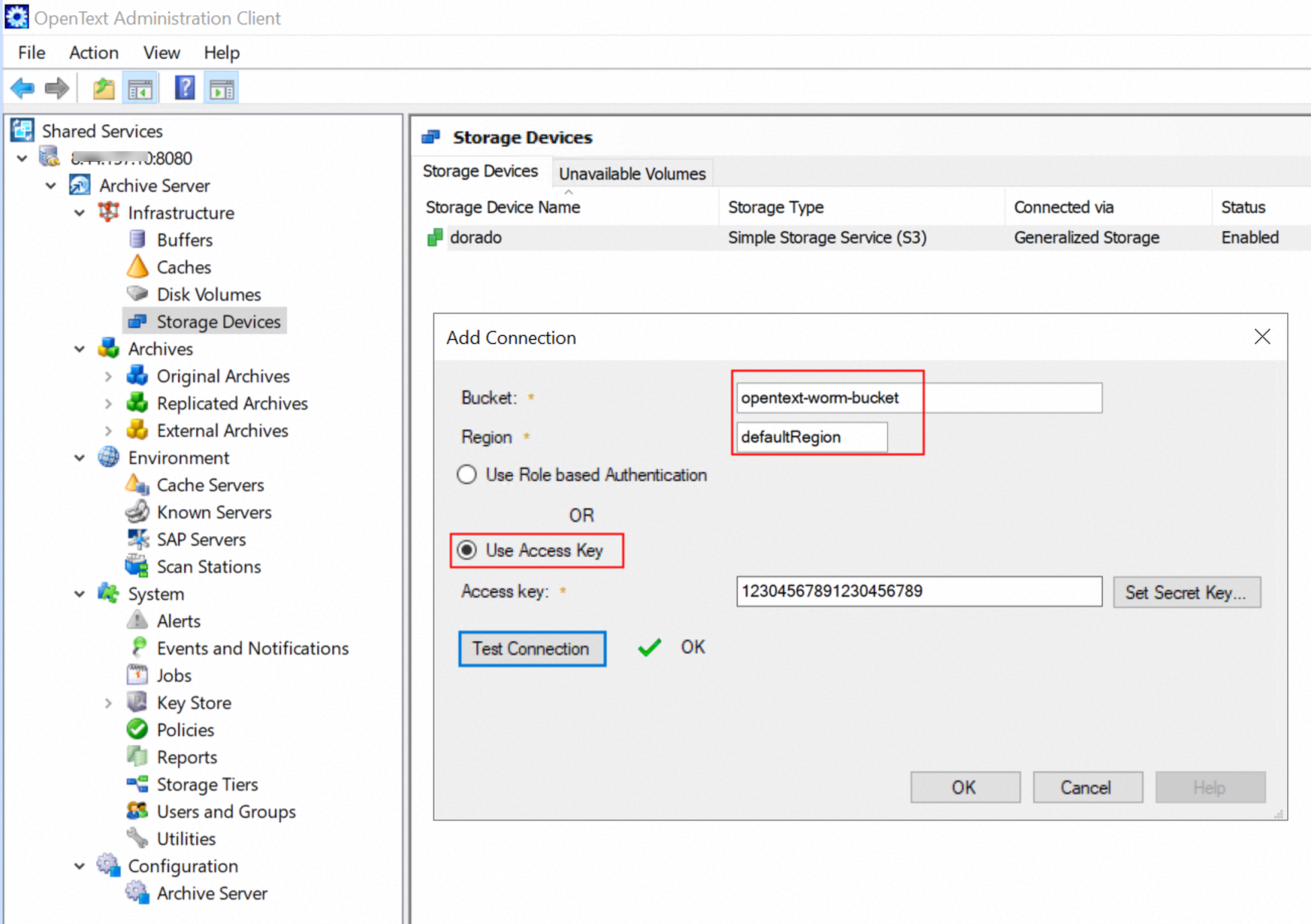 4. Add the connection for the storage device. 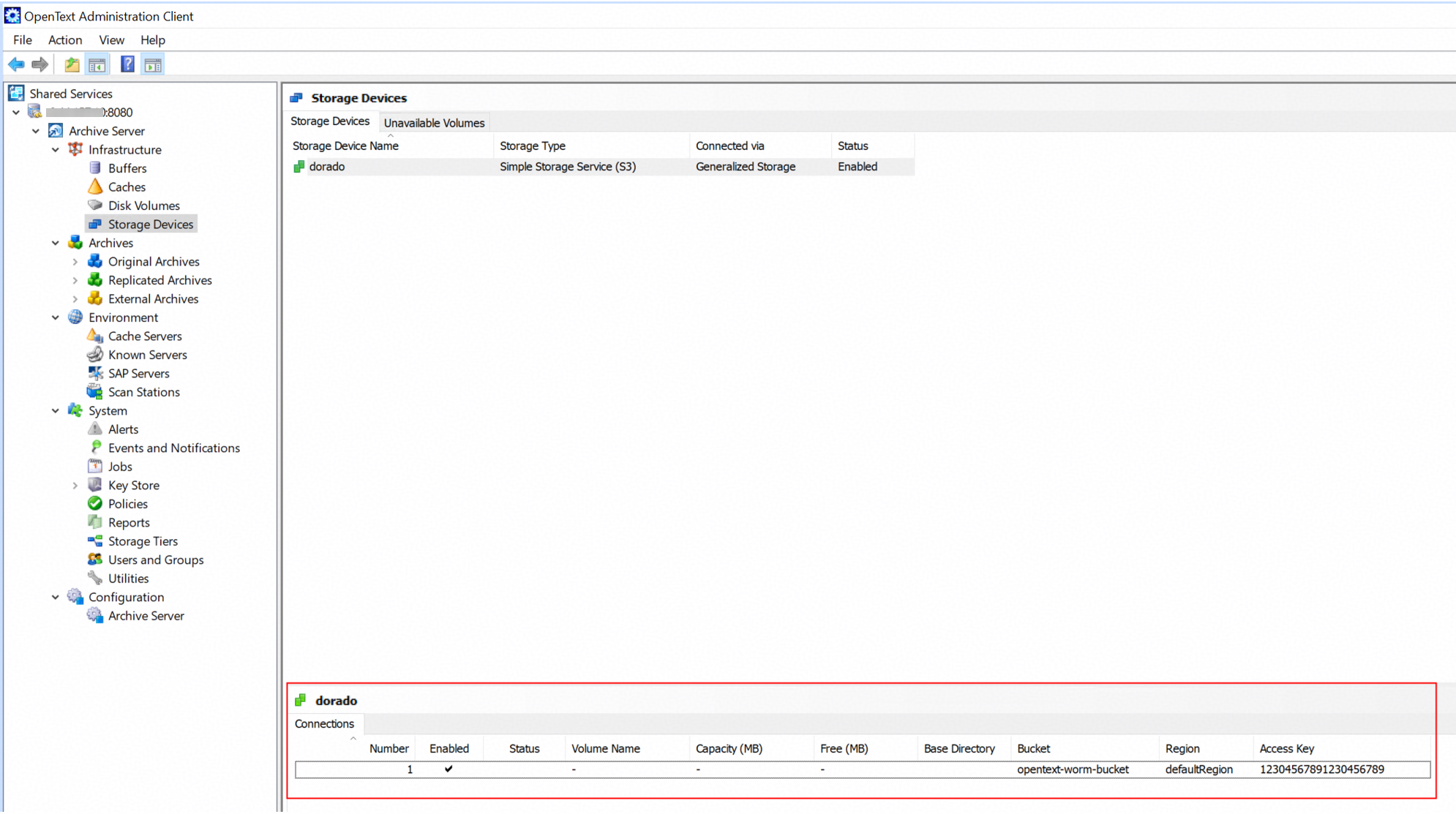 5. Initialize volume for the connection. 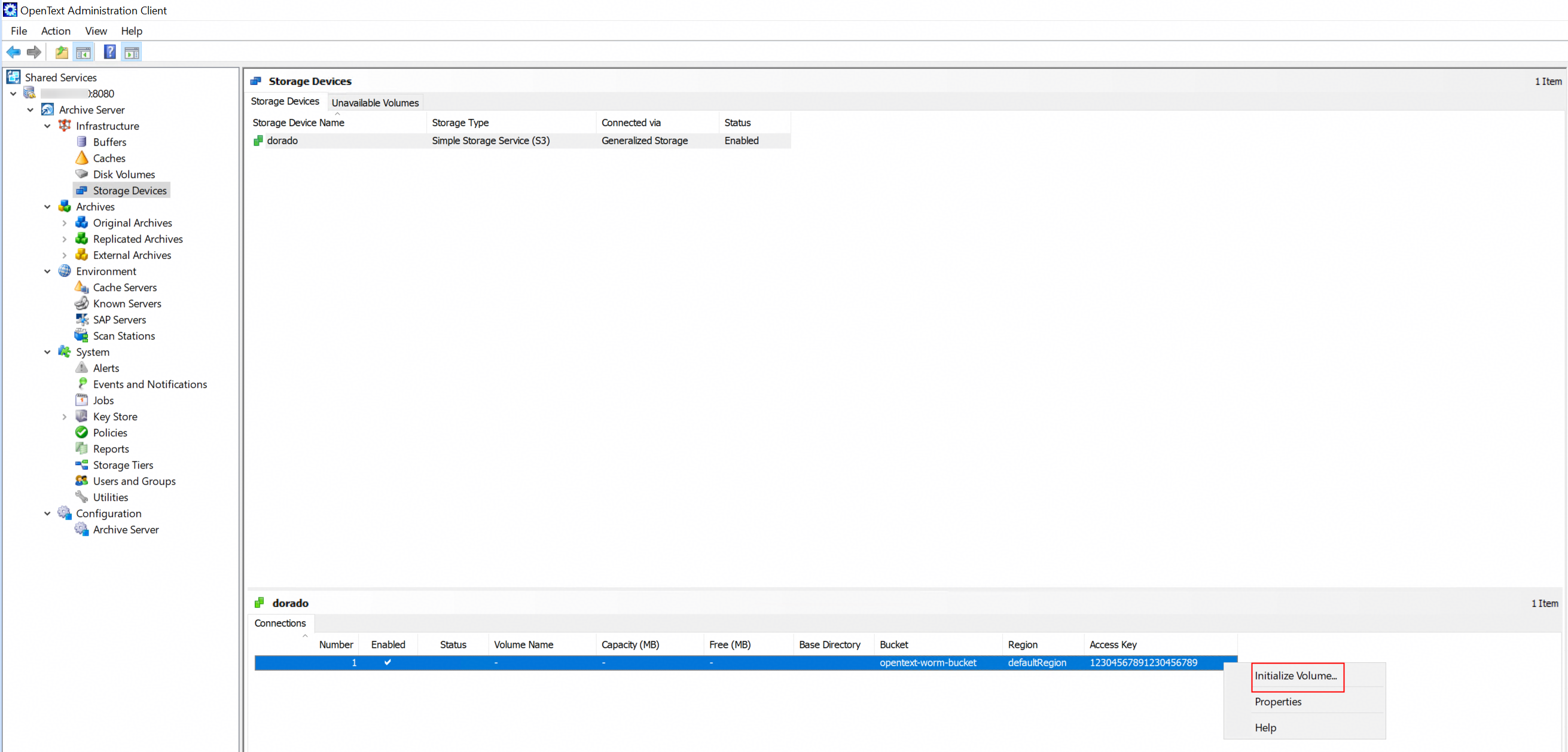 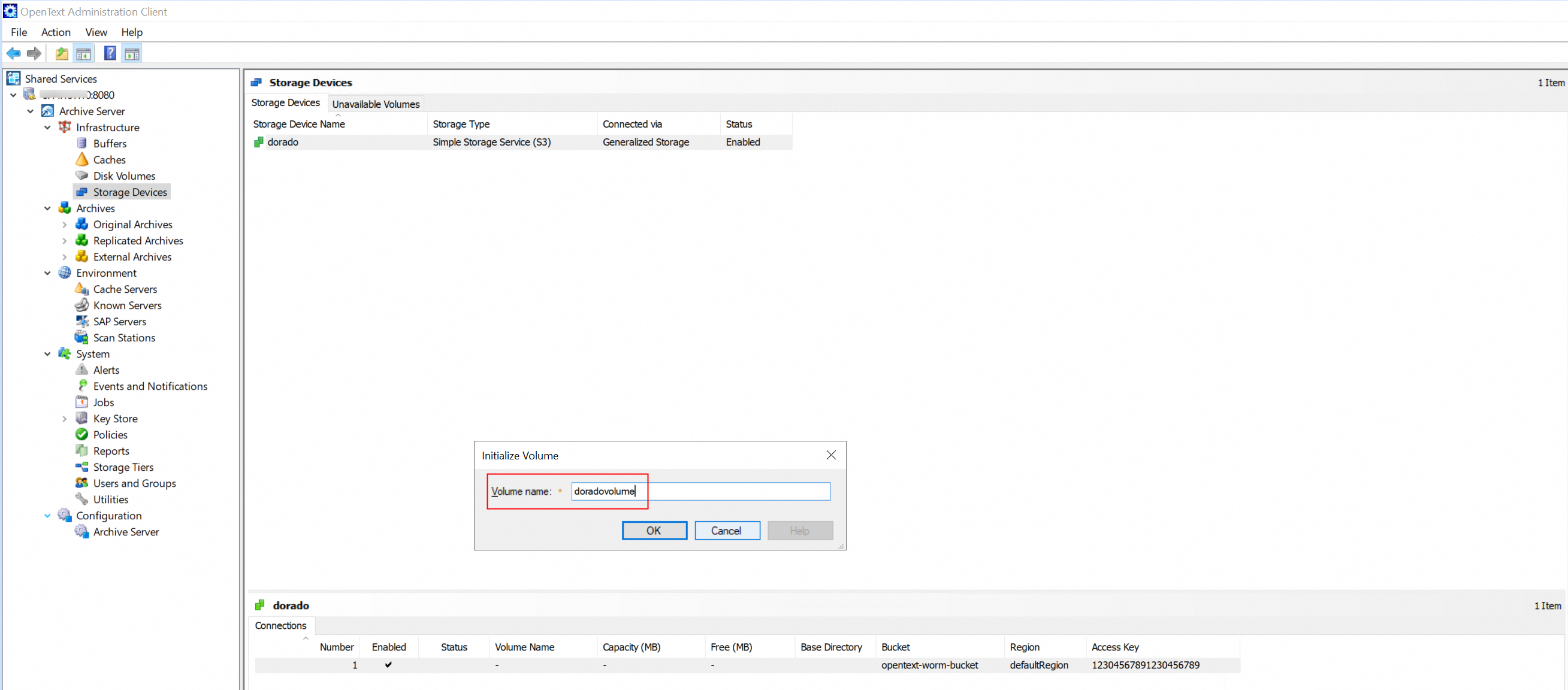 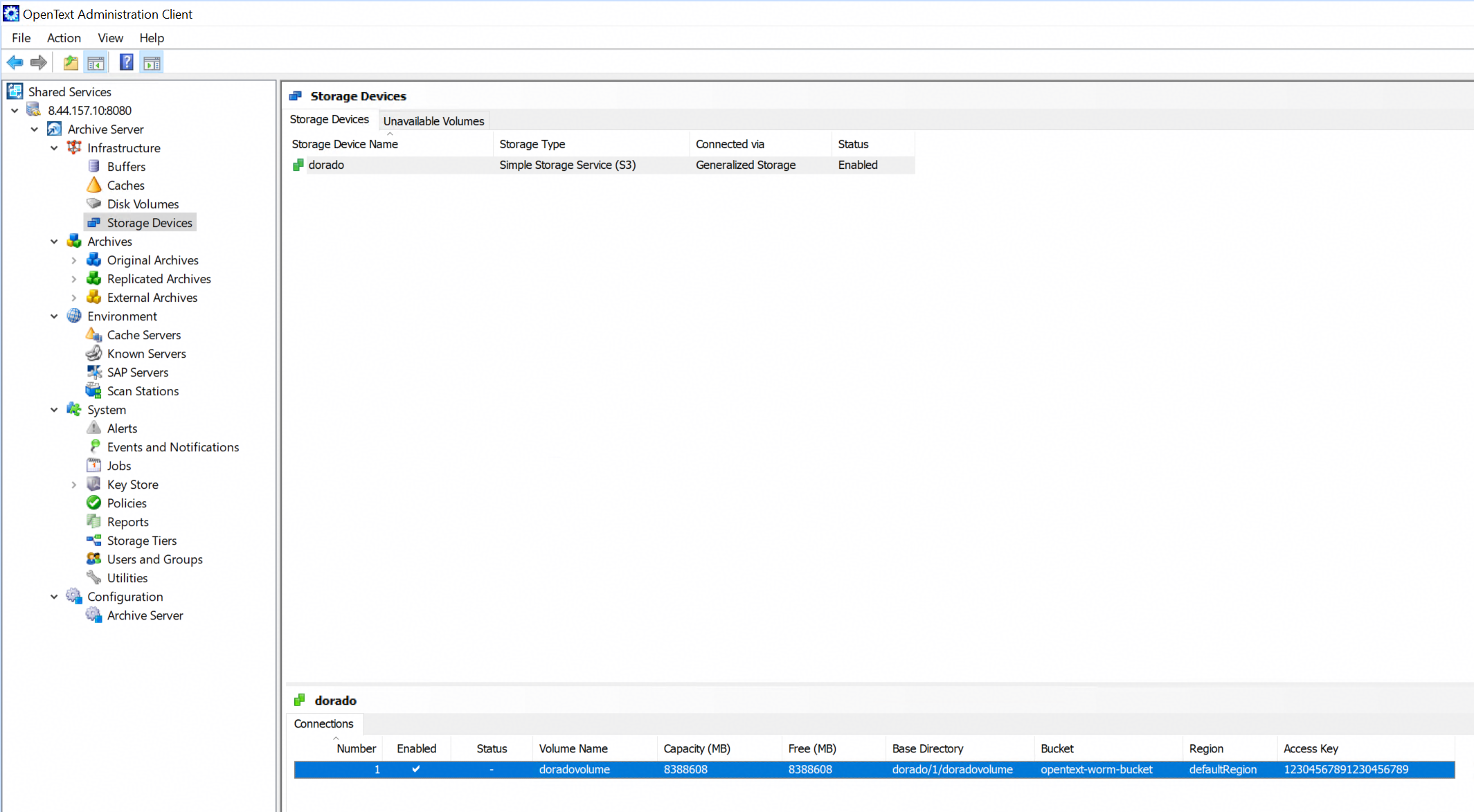 6. Check the bucket data through S3 Browser. No OpenText profile in the bucket. 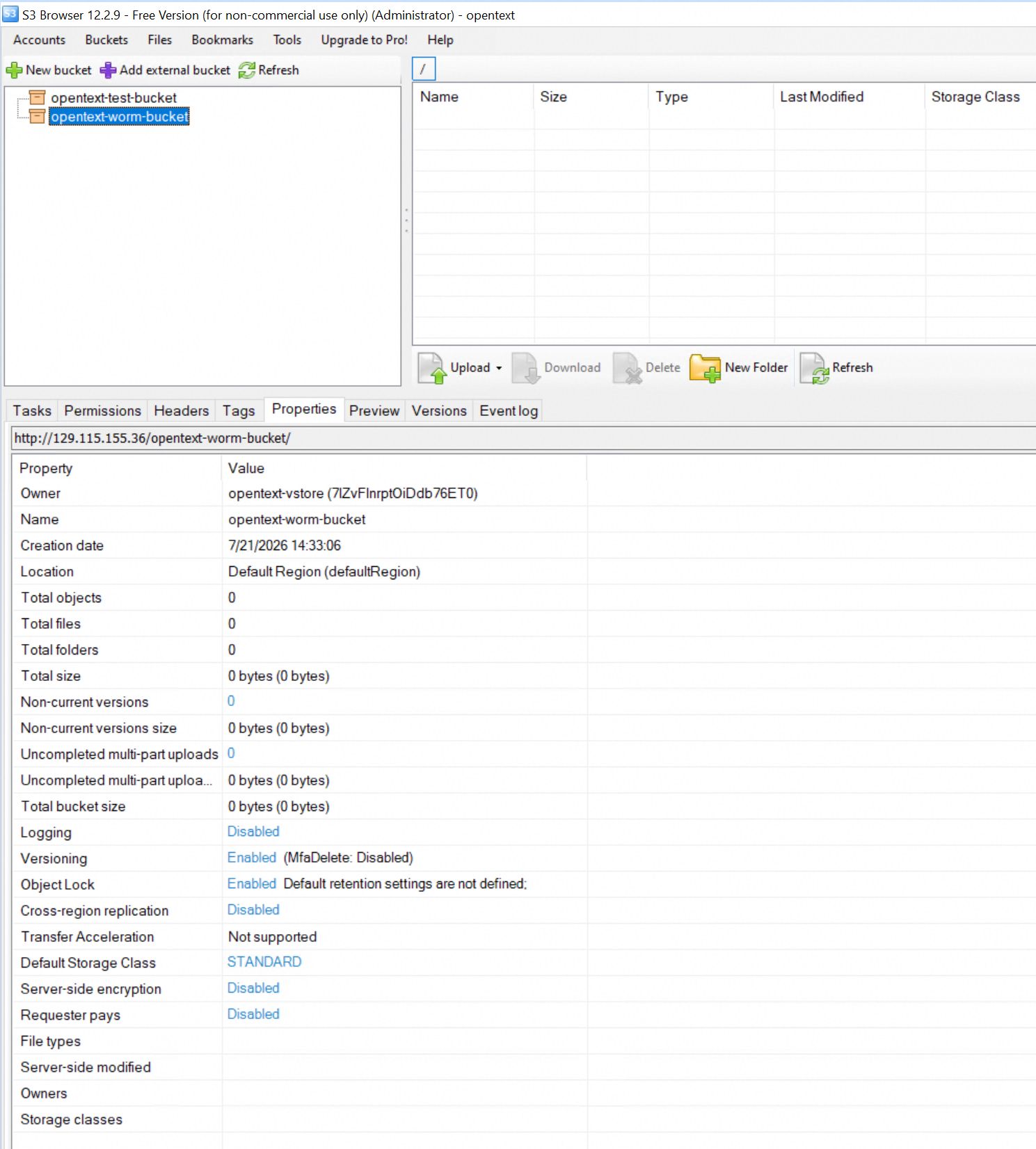 |
Test Conclusion | Passed |
3.2 Add the bucket to the archive server as S3 Storage Device using Path Style
Test Purpose | To verify that the Huawei OceanStor Dorado All-Flash Storage can be added to the archive server as S3 Storage Device using Path Style. |
Network Diagram | Reference to Figure 1.1 |
Prerequisites |
|
Test Procedures | Step 1: Modify the setup file of the storage device generated in section 3.1 and set the S3_BUCKET_ADDR parameter to PATH_STYLE. Step 2: Test the connection between the storage and the archive server. Step 3: Add the connection for the storage device. Step 4: Initialize volume for the connection. Step 5: Check the bucket data through S3 Browser. |
Expected Results |
|
Test Results | 1. Modify the setup file of the storage device generated in section 3.1 and set the S3_BUCKET_ADDR parameter to PATH_STYLE. 1.1 Navigate to the default OpenText directory at C:\ProgramData\OpenText\Archive Server 25.4.0\config\gs, and locate the generated dorado.Setup file. 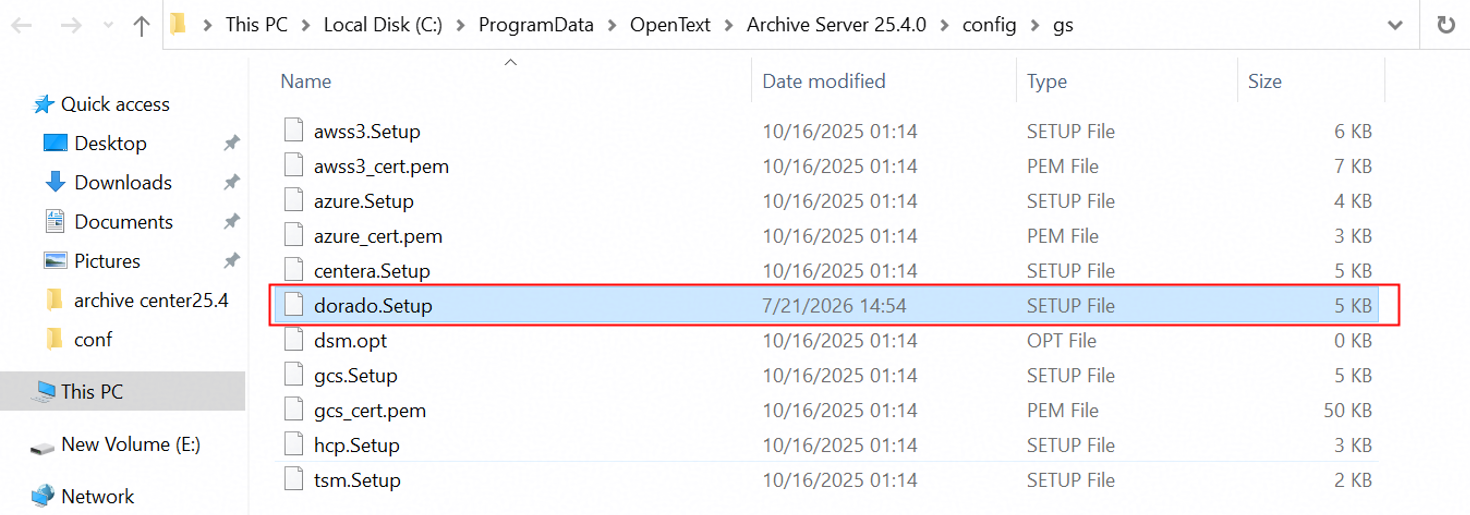 1.2 Check the Dorado.Setup file. 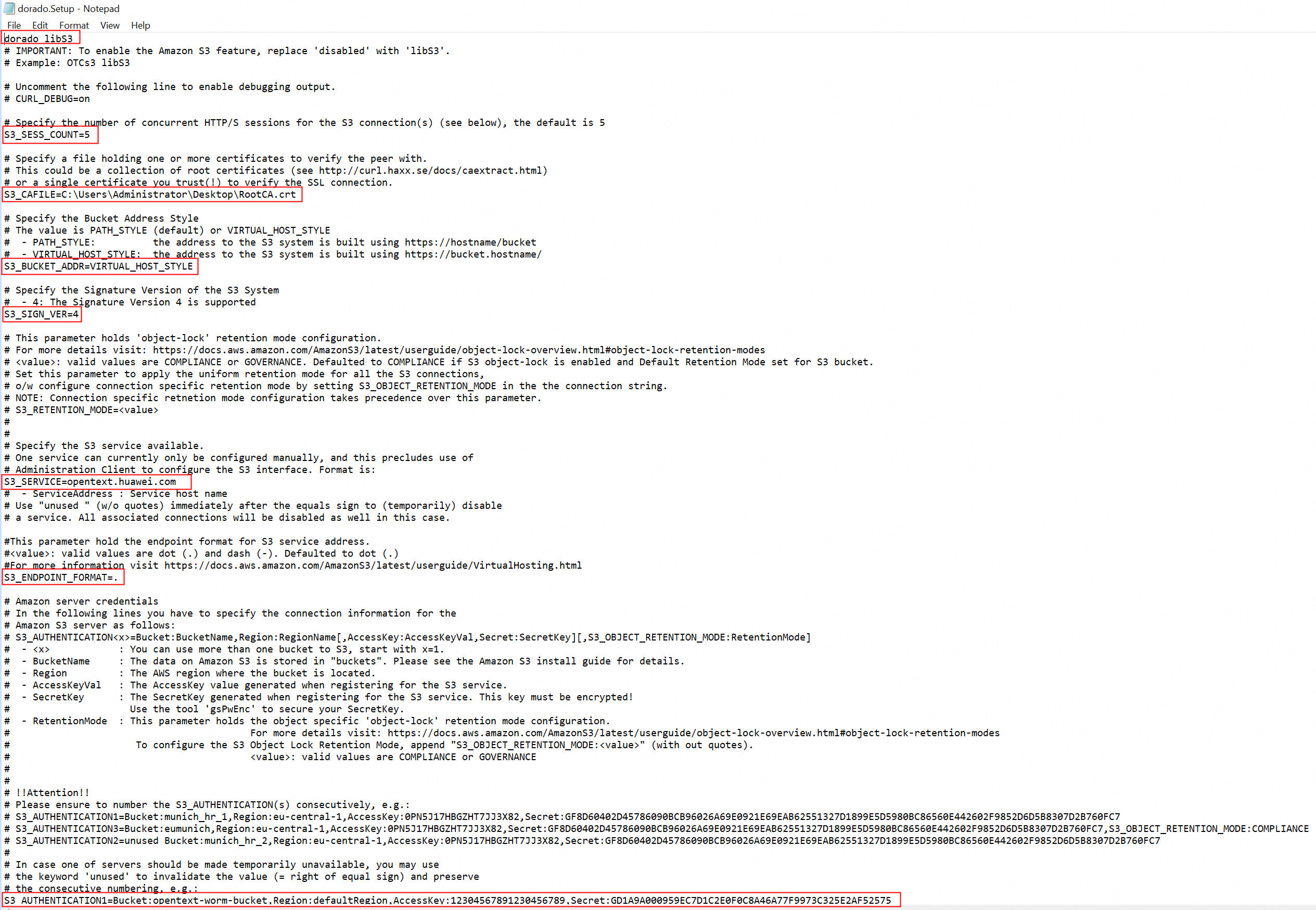 1.3 Modify the Dorado.Setup file and set the S3_BUCKET_ADDR parameter to PATH_STYLE. Save the changes. 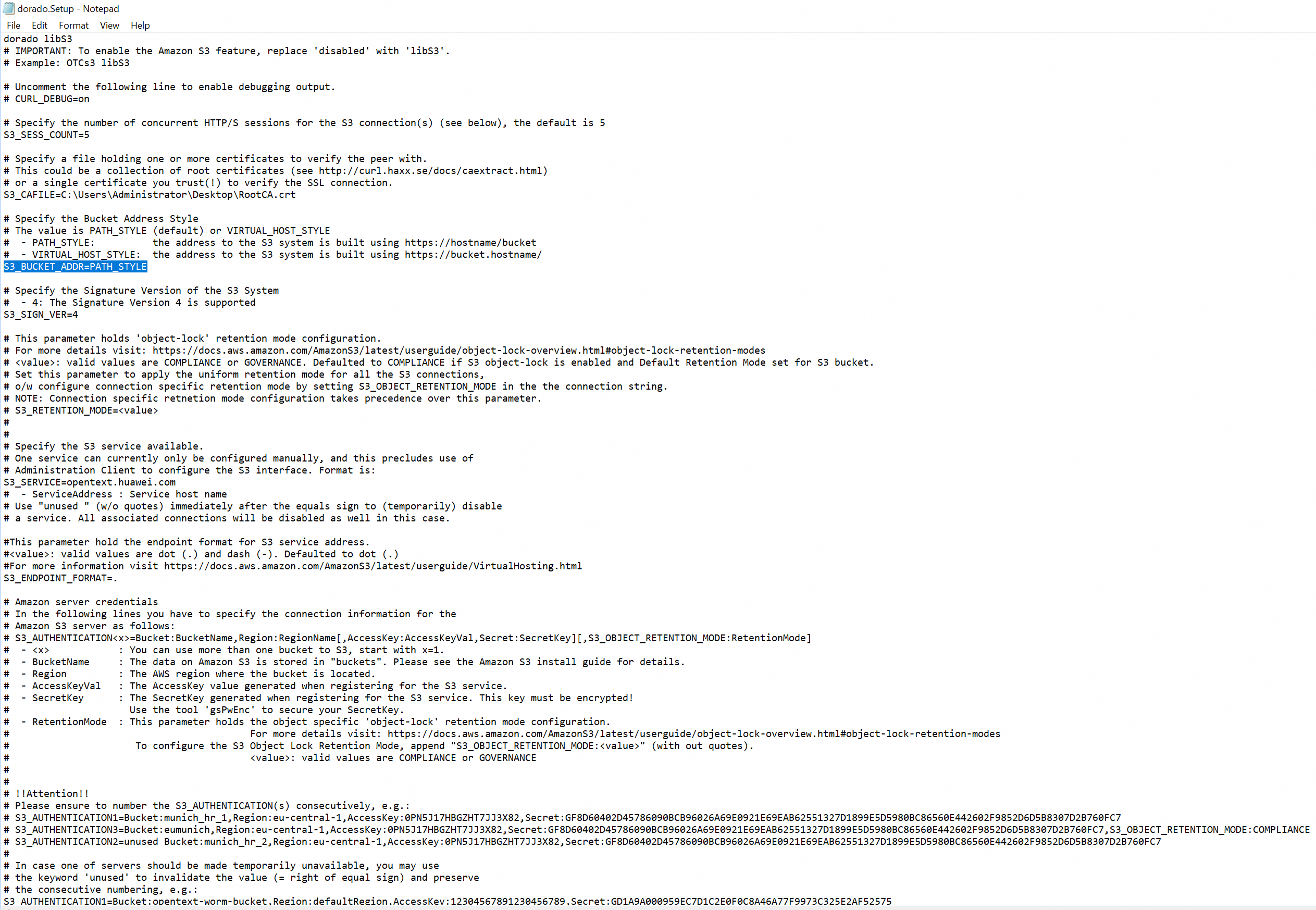 1.4 Refresh the storage device on the archive server and check the property of the storage device. The Bucket Address Style has been changed to path style successfully. 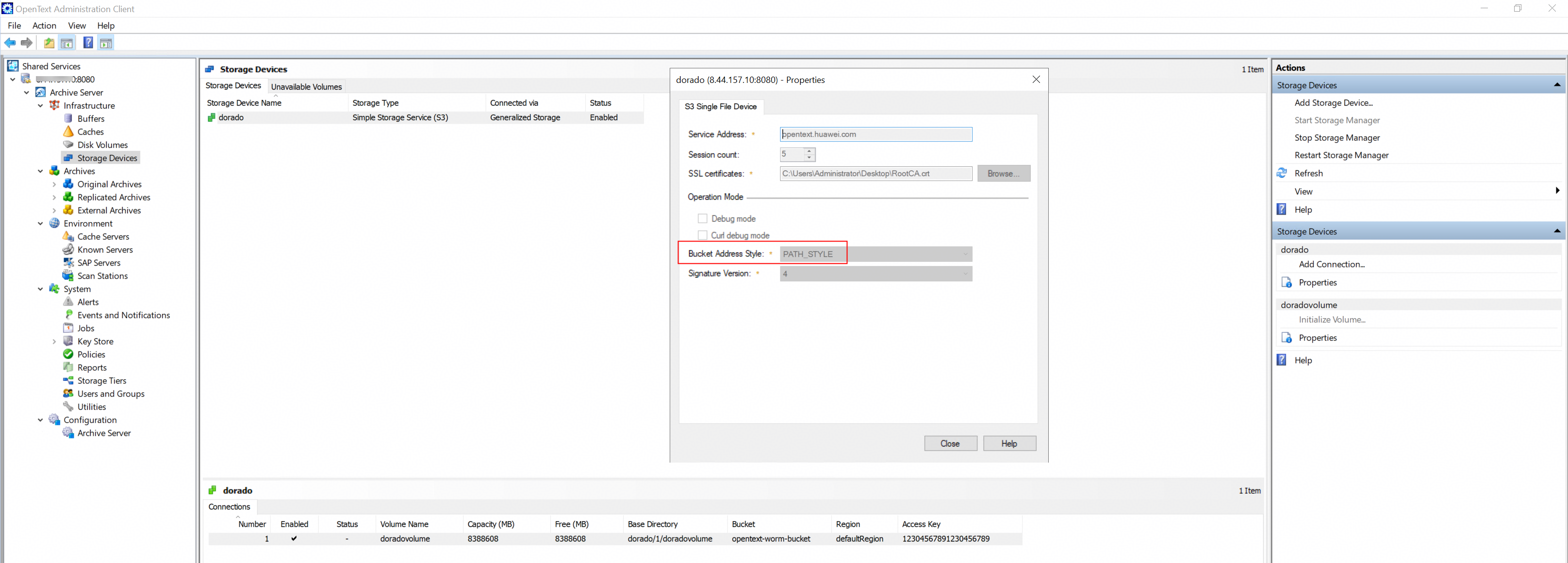 2. Test the connection between the storage and the archive server. 2.1 Right-click the storage device created in the previous step, and choose Add connection. 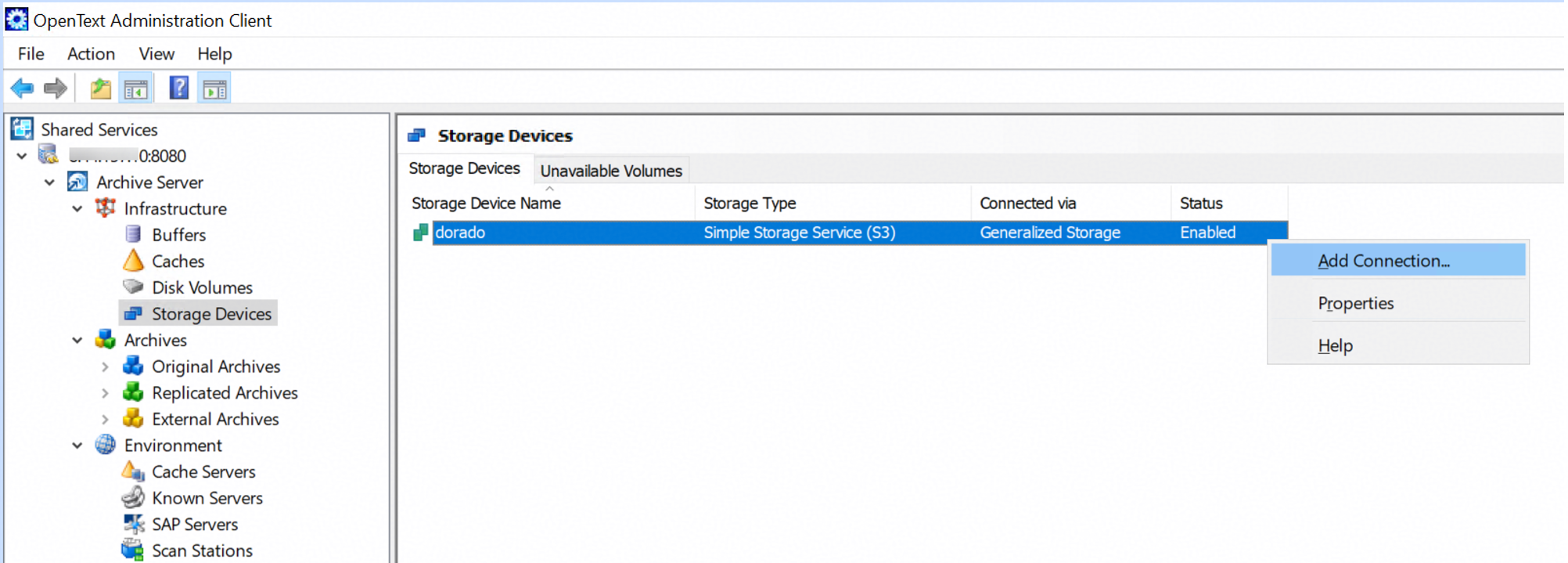 2.2 Input a name in the Bucket field. Select defaultRegion in the Region field. Input the Access key and Secret key of the storage. Click Test Connection and the result is OK. 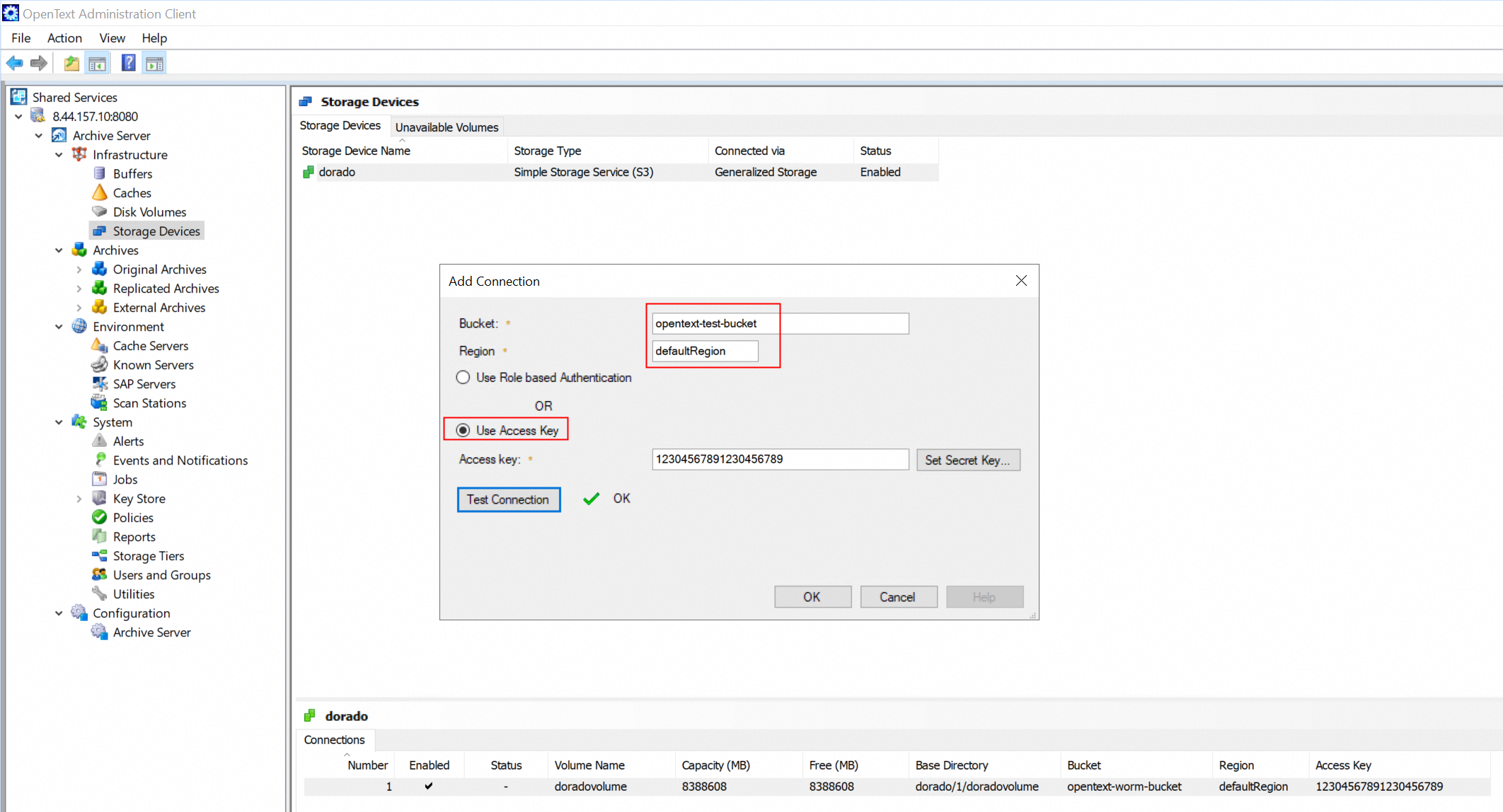 3. Add the connection for the storage device. 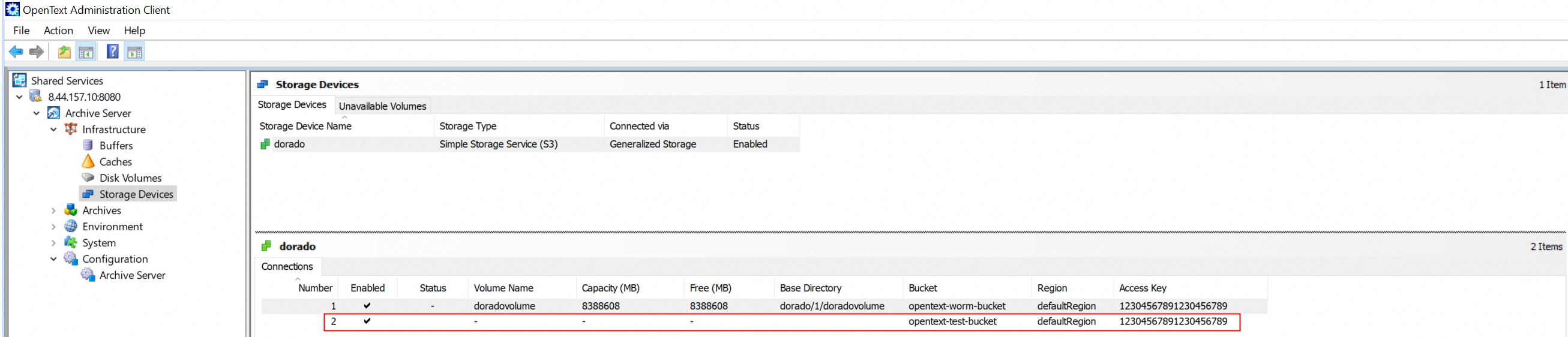 4. Initialize volume for the connection. 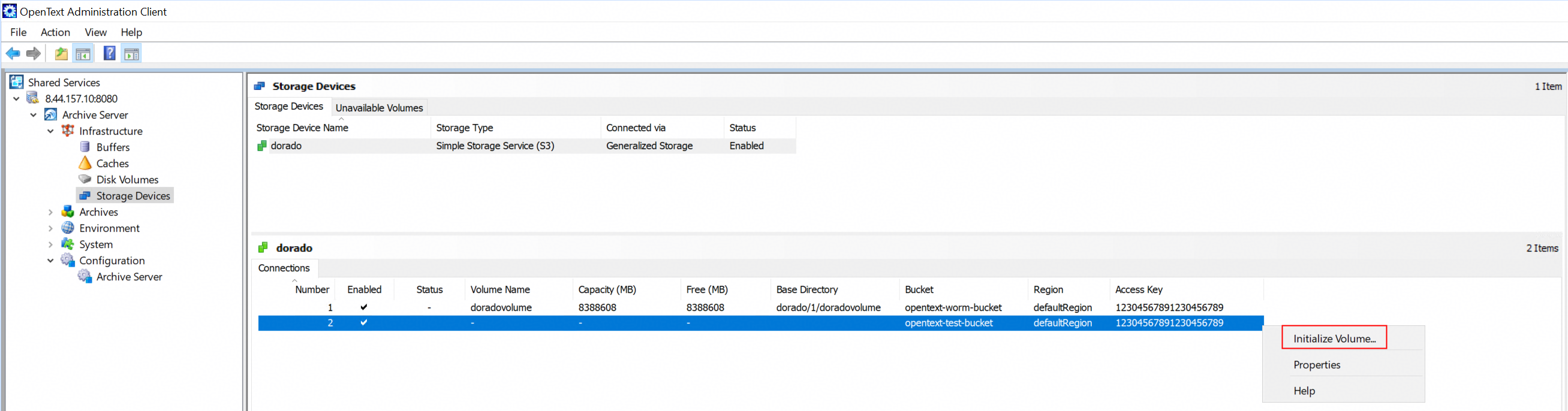 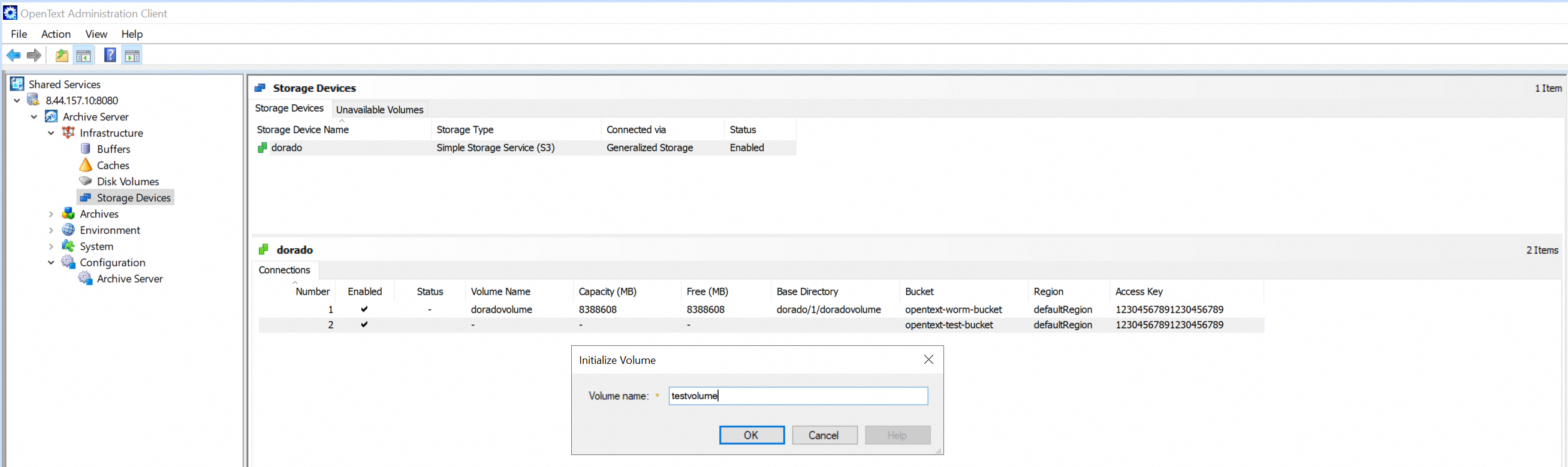 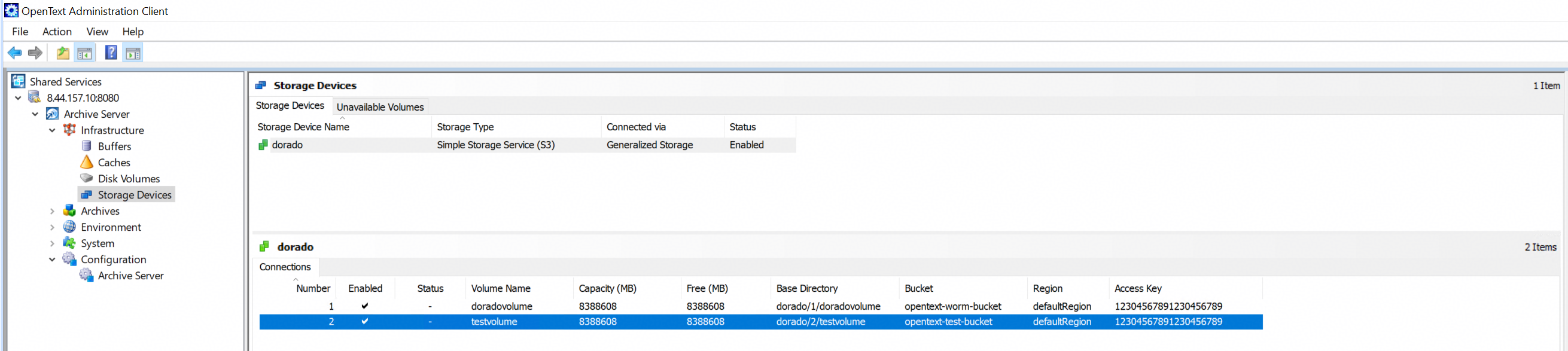 5. Check the bucket data through S3 Browser. No OpenText profile in the bucket. 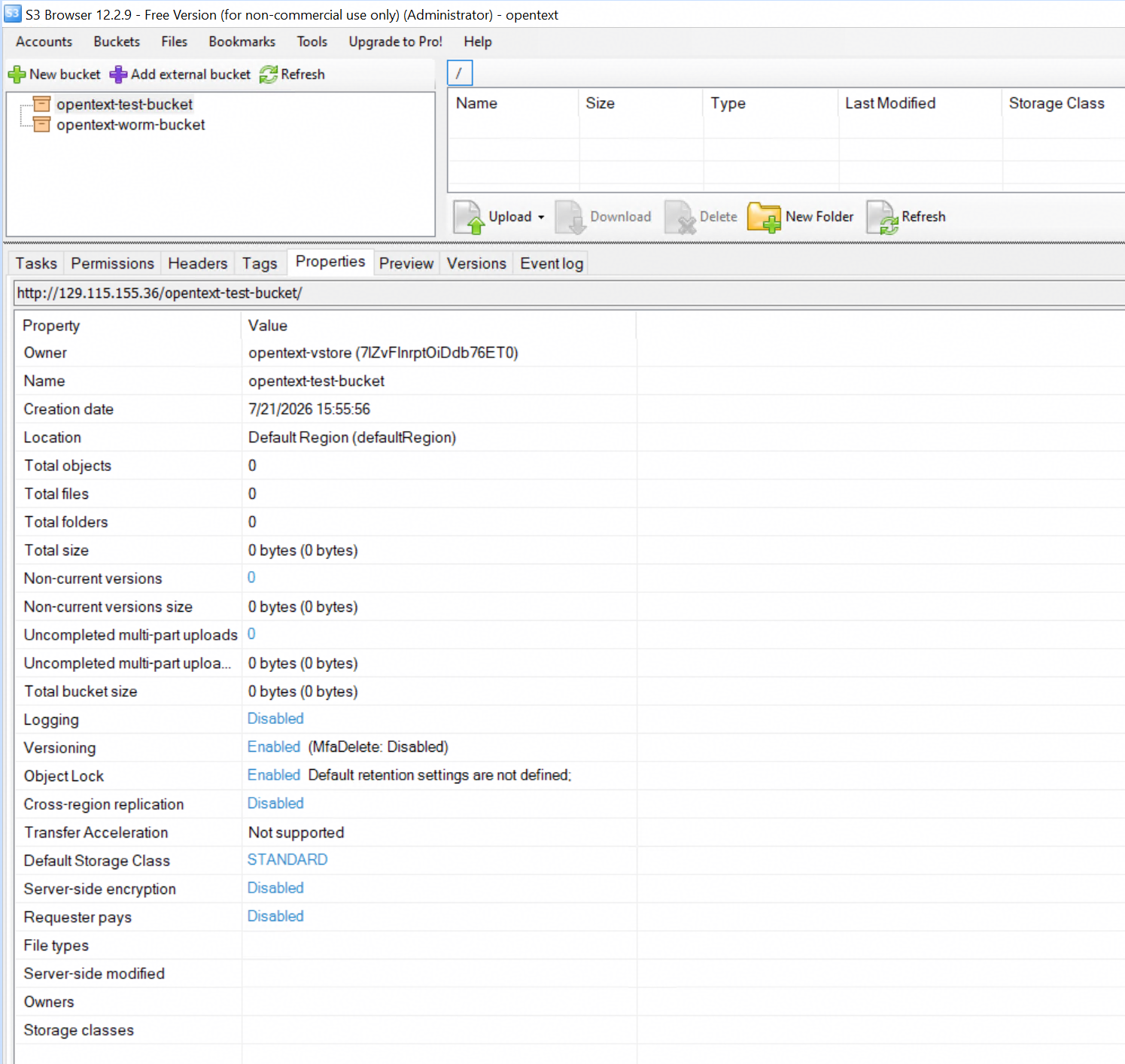 |
Test Conclusion | Passed |
3.3 Archive files to the S3 Storage Device with Retention period
Test Purpose | To verify that the archive server can archive files to the S3 Storage Device with Retention period. |
Network Diagram | Reference to Figure 1.1 |
Prerequisites |
|
Test Procedures | Step 1: Create the Original Disk Buffer on the archive server. Step 2: Create the Original Archive on the archive server. Step 3: Prepare some files and write the files to the archive server’s local buffer. Check the files in the archive server’s local buffer. Step 4: Run related PoolWrite job to write the files in the archive server’s local buffer to the volumes of the storage. Check the bucket data through S3 Browser. Step 5: Check the headers of the archive files through S3 Browser. |
Expected Results |
|
Test Results | 1. Create the Original Disk Buffer on the archive server. 1.1 Create a new disk volume in the local disk E:\. 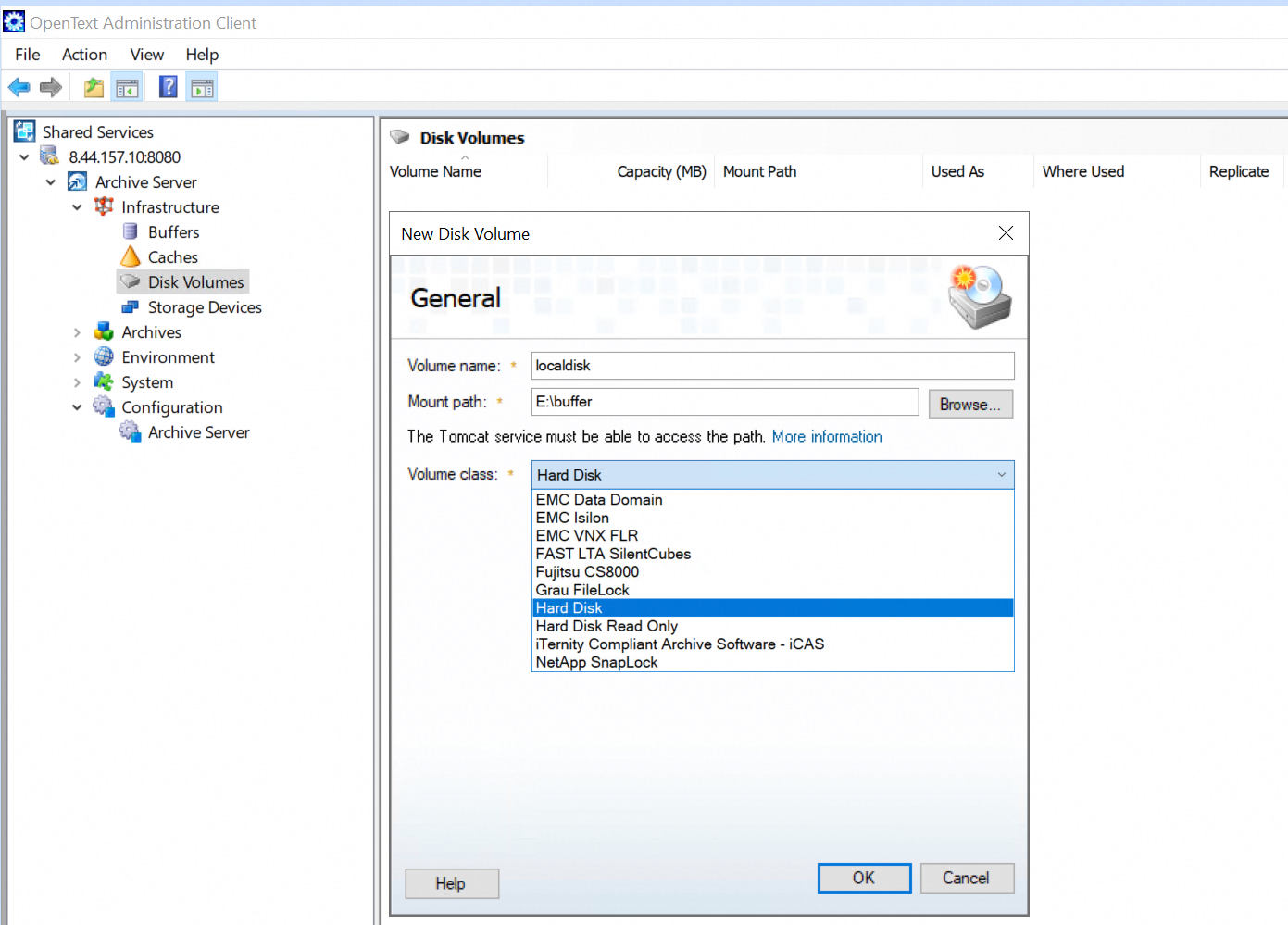 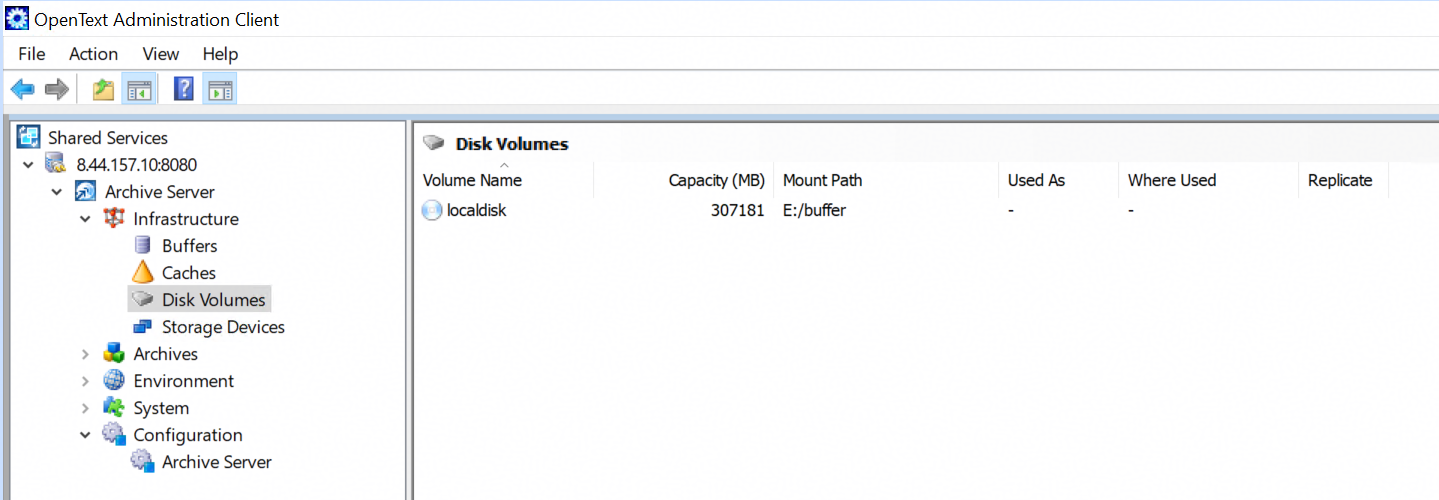 1.2 Create a new disk buffer. 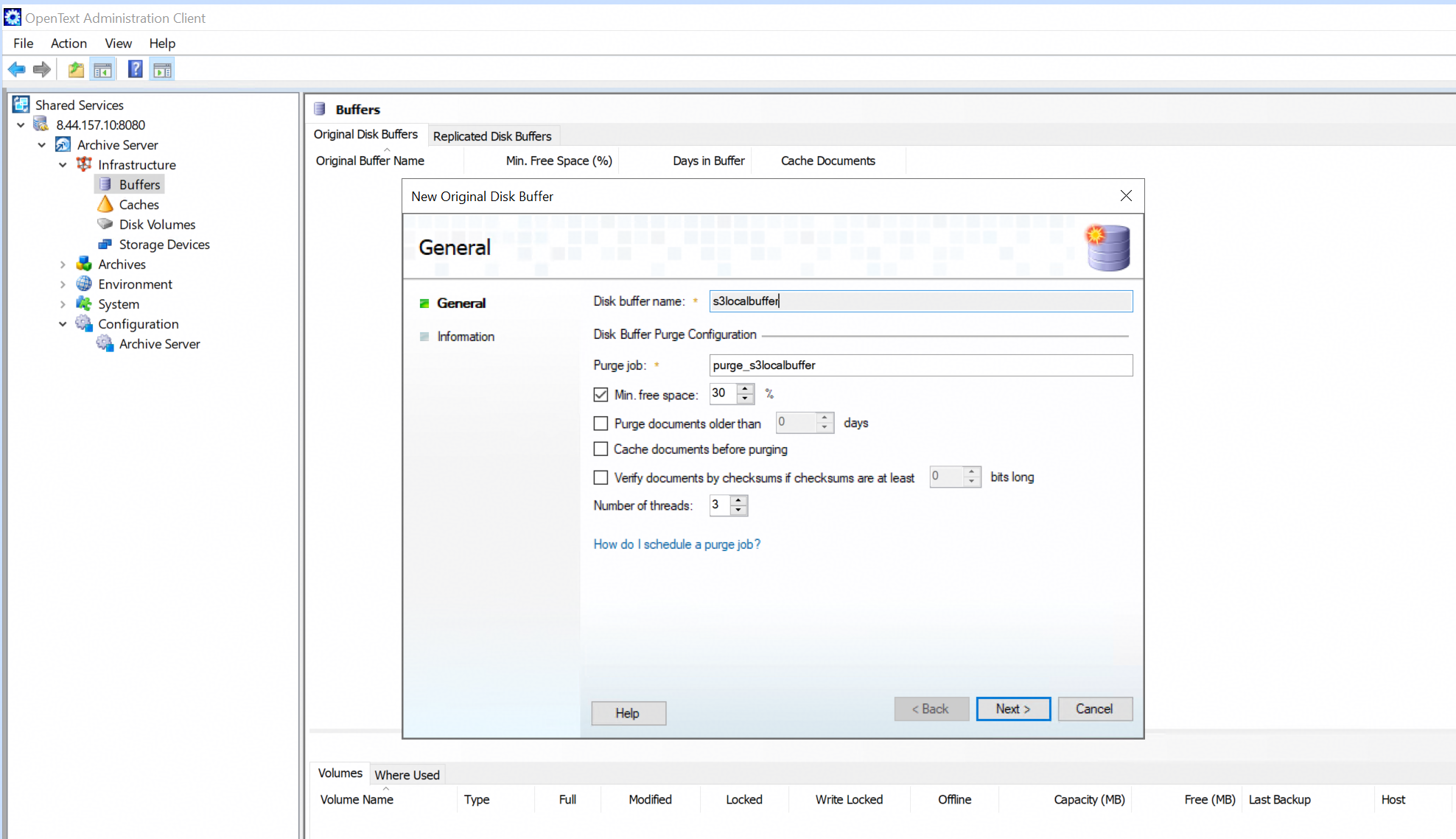 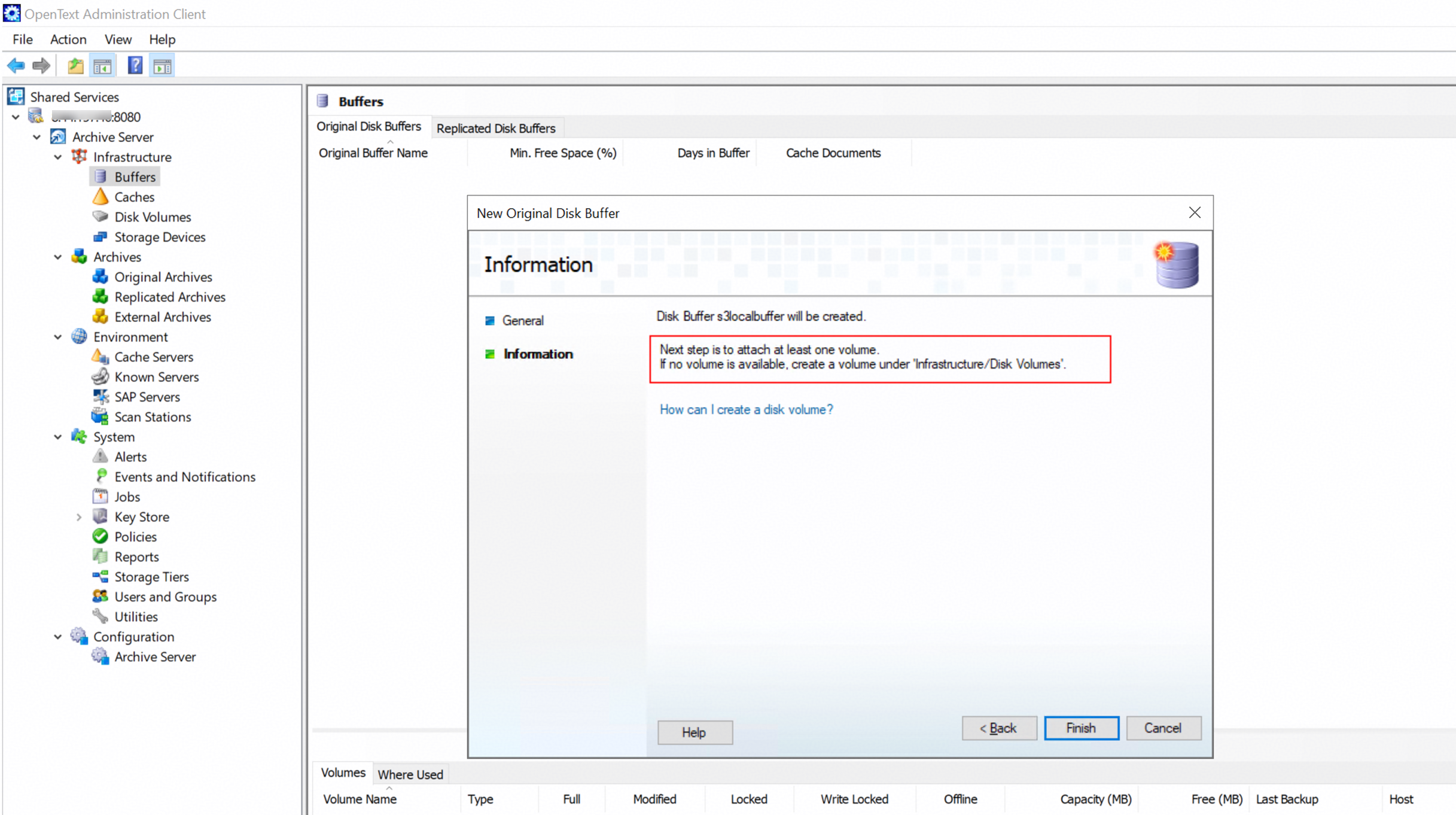 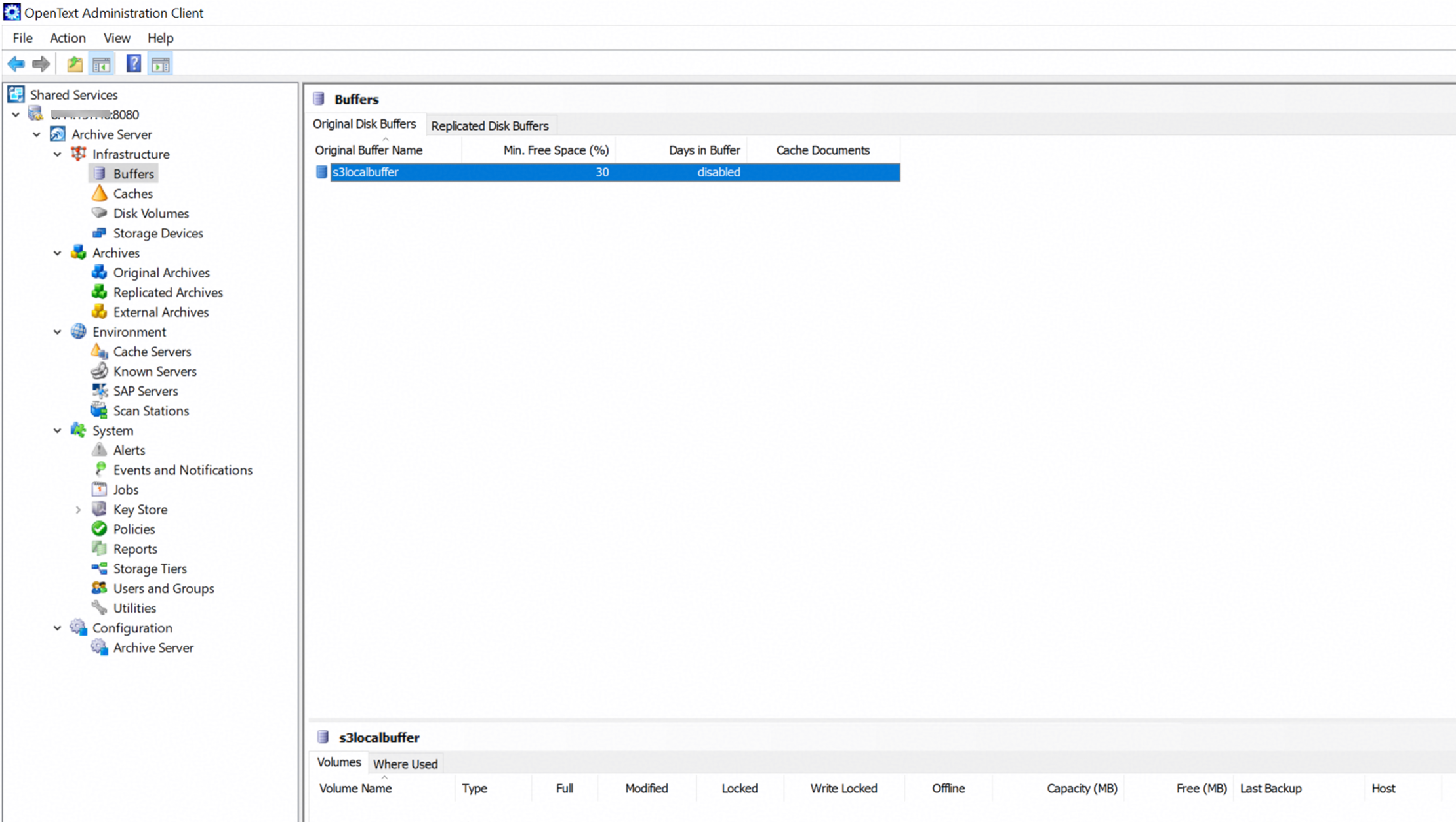 1.3 Attach the local disk volume to the buffer created in the previous step. 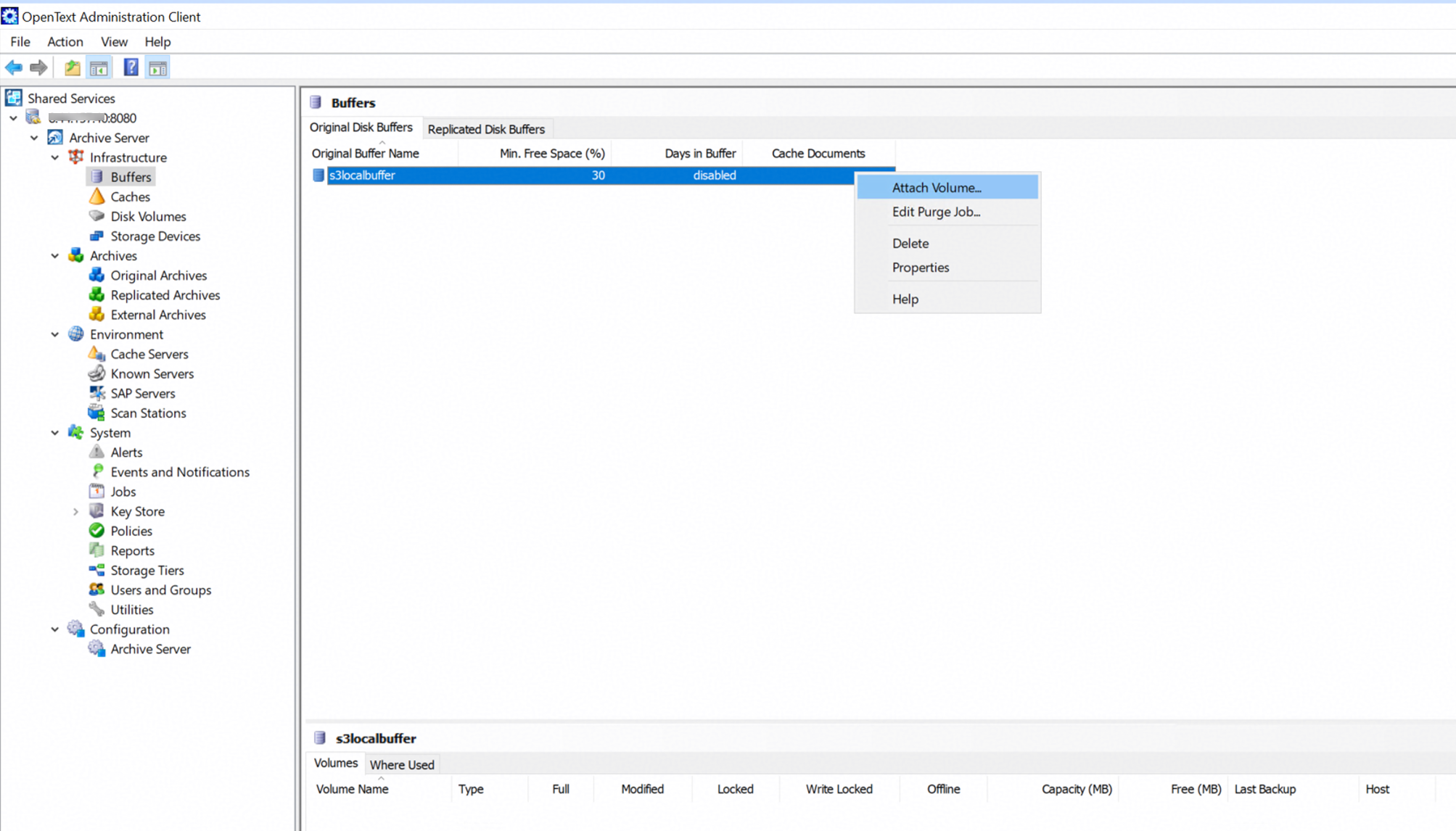 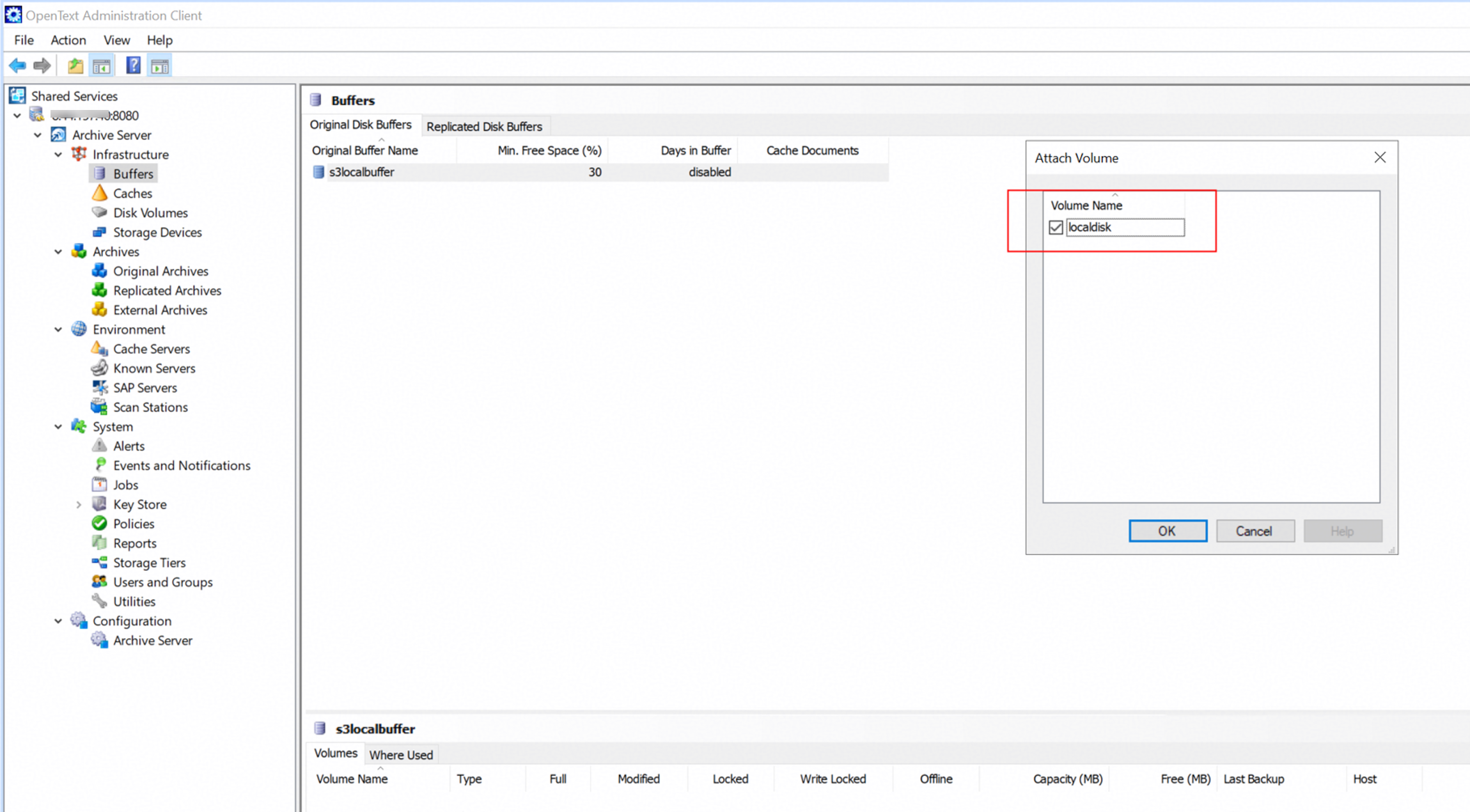 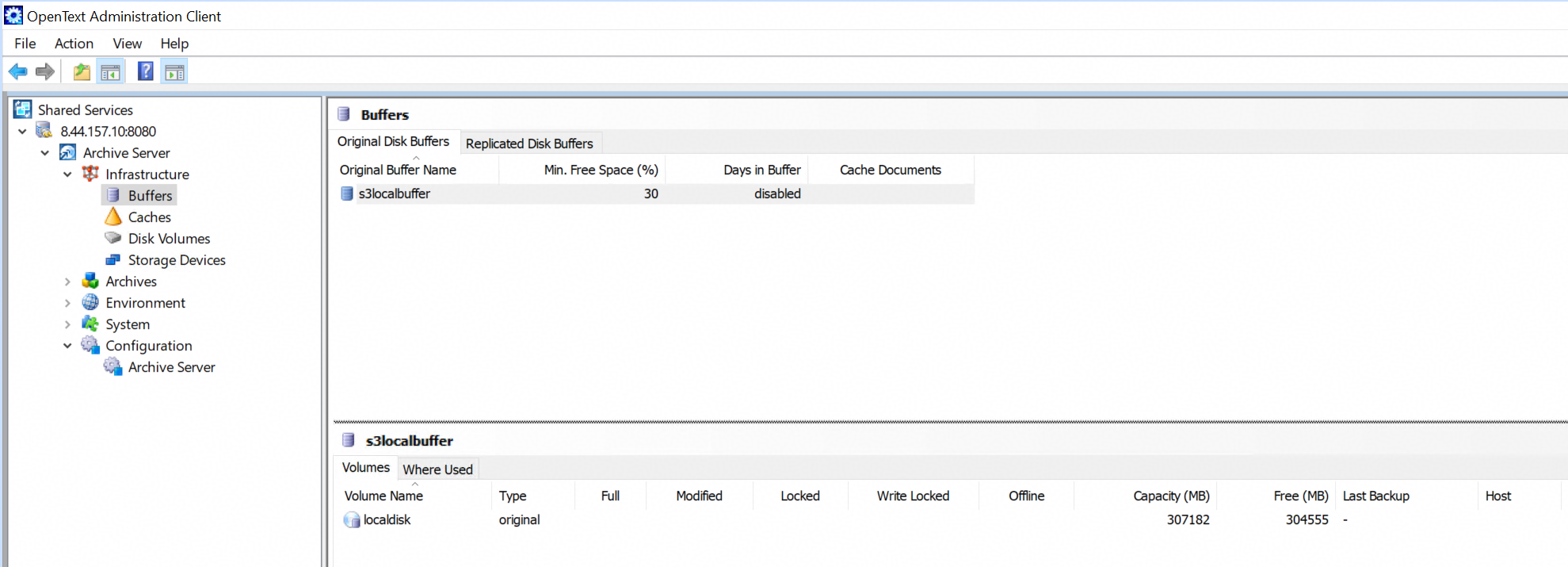 2. Create the Original Archive on the archive server. 2.1 New an Original Archive on the archive server. 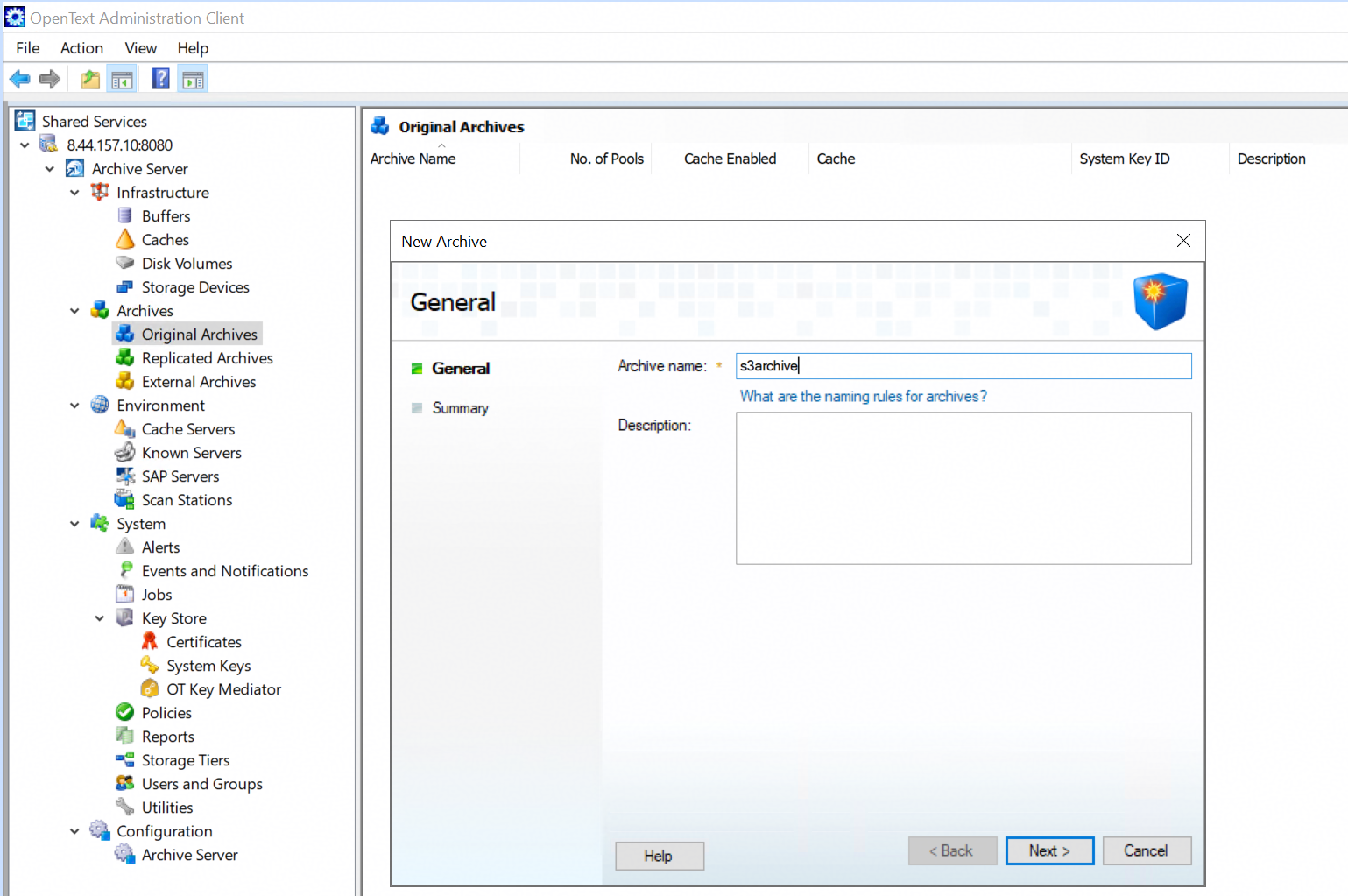 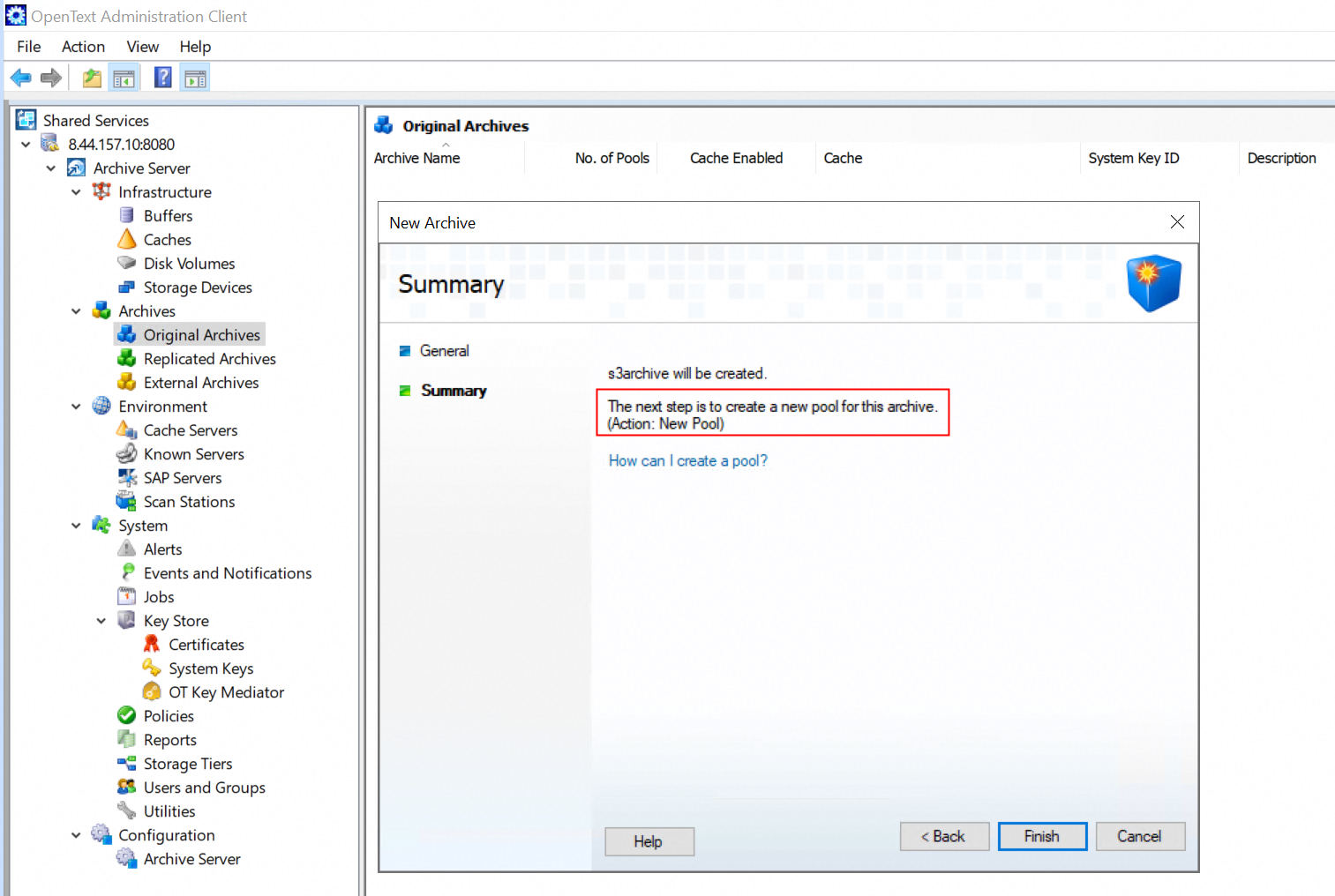 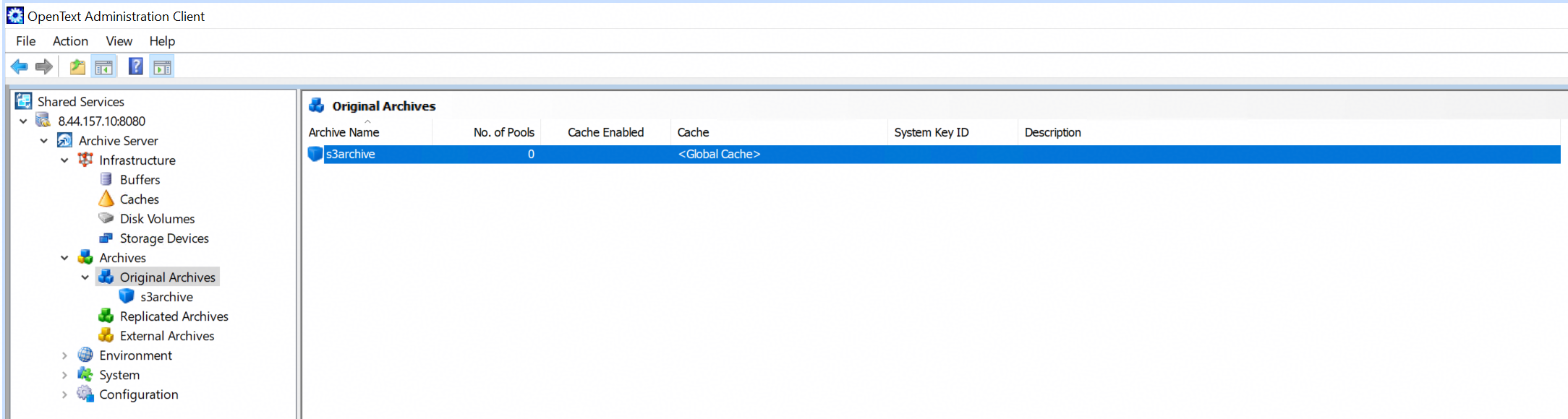 2.2 Modify the security of the archive. 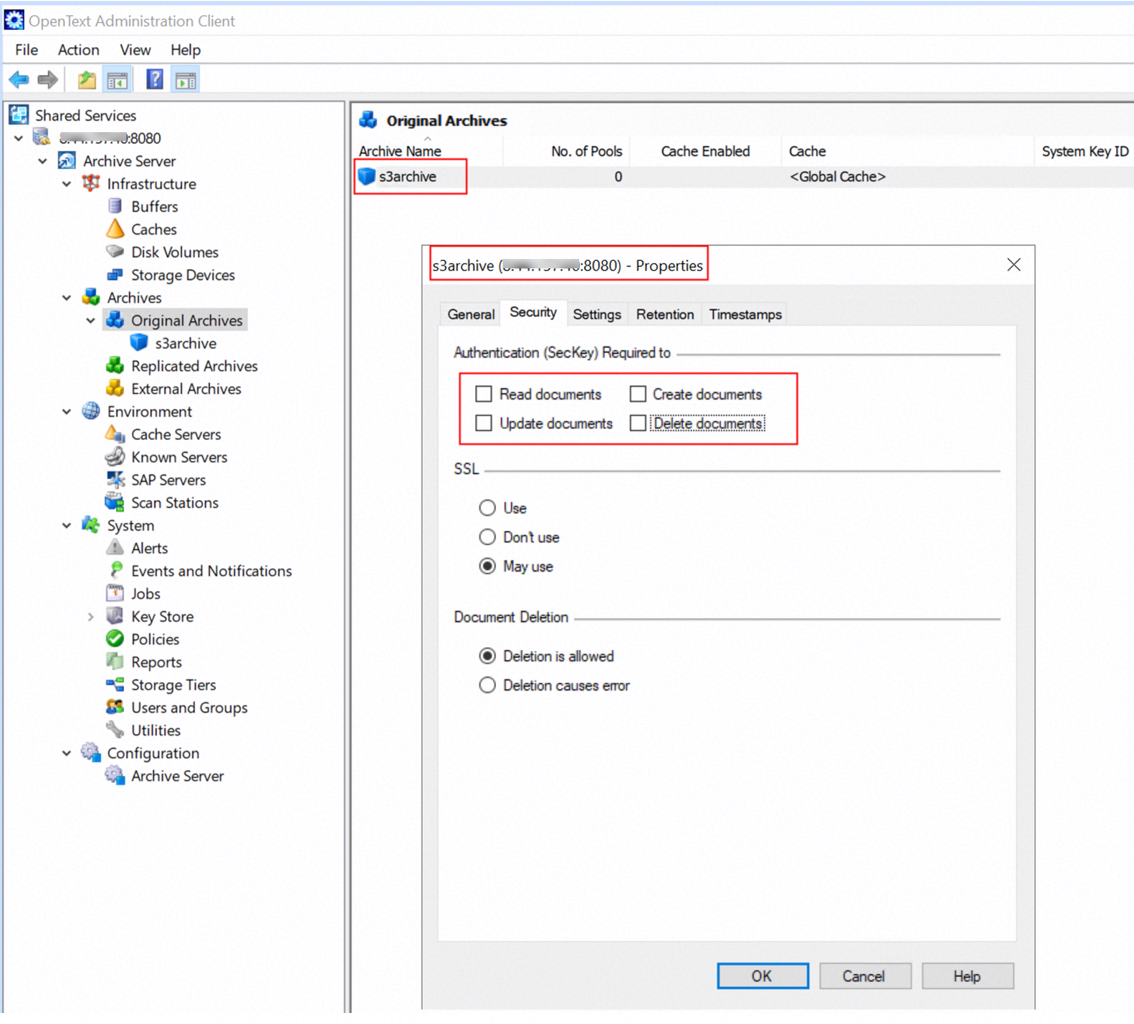 2.3 Set the Retention period of the archive. 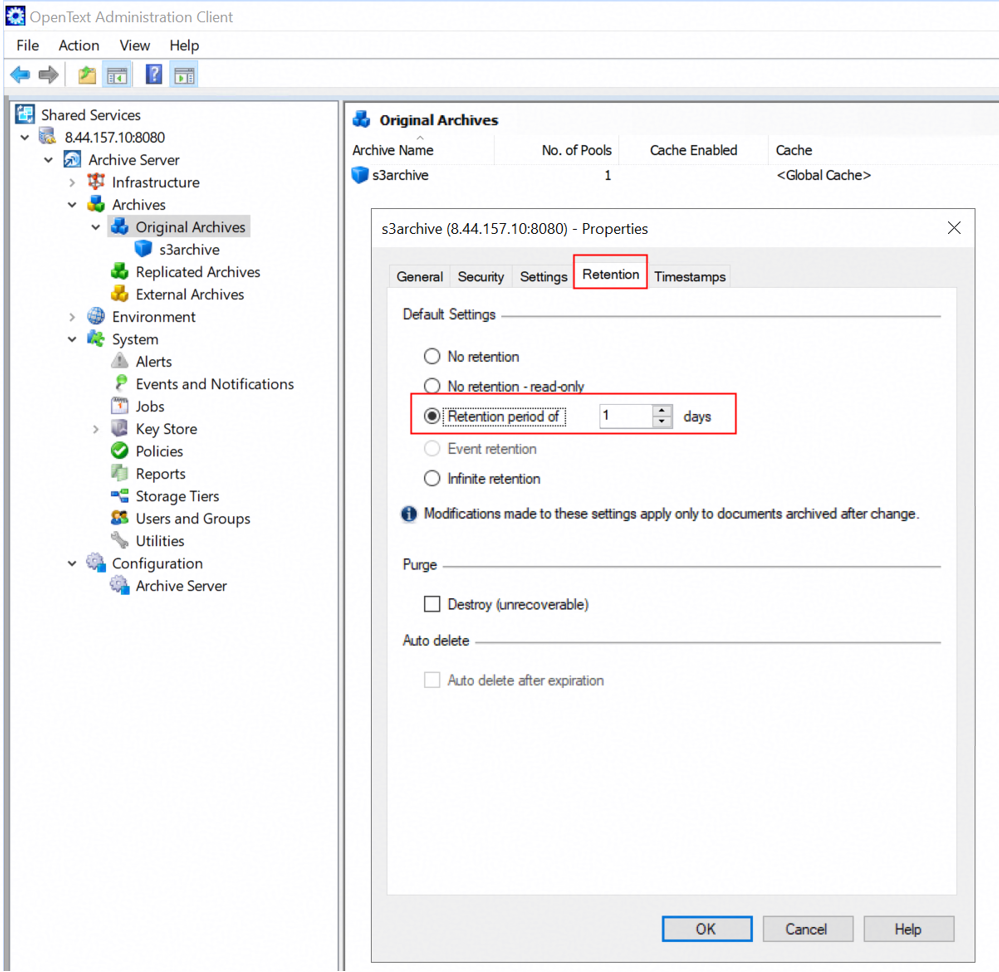 2.4 Create a storage tier on the archive server. 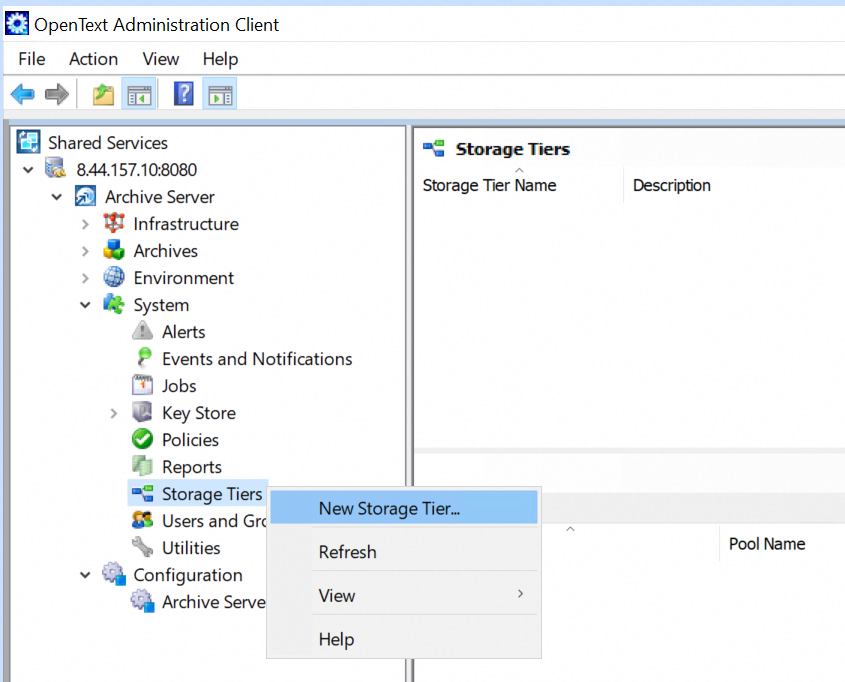 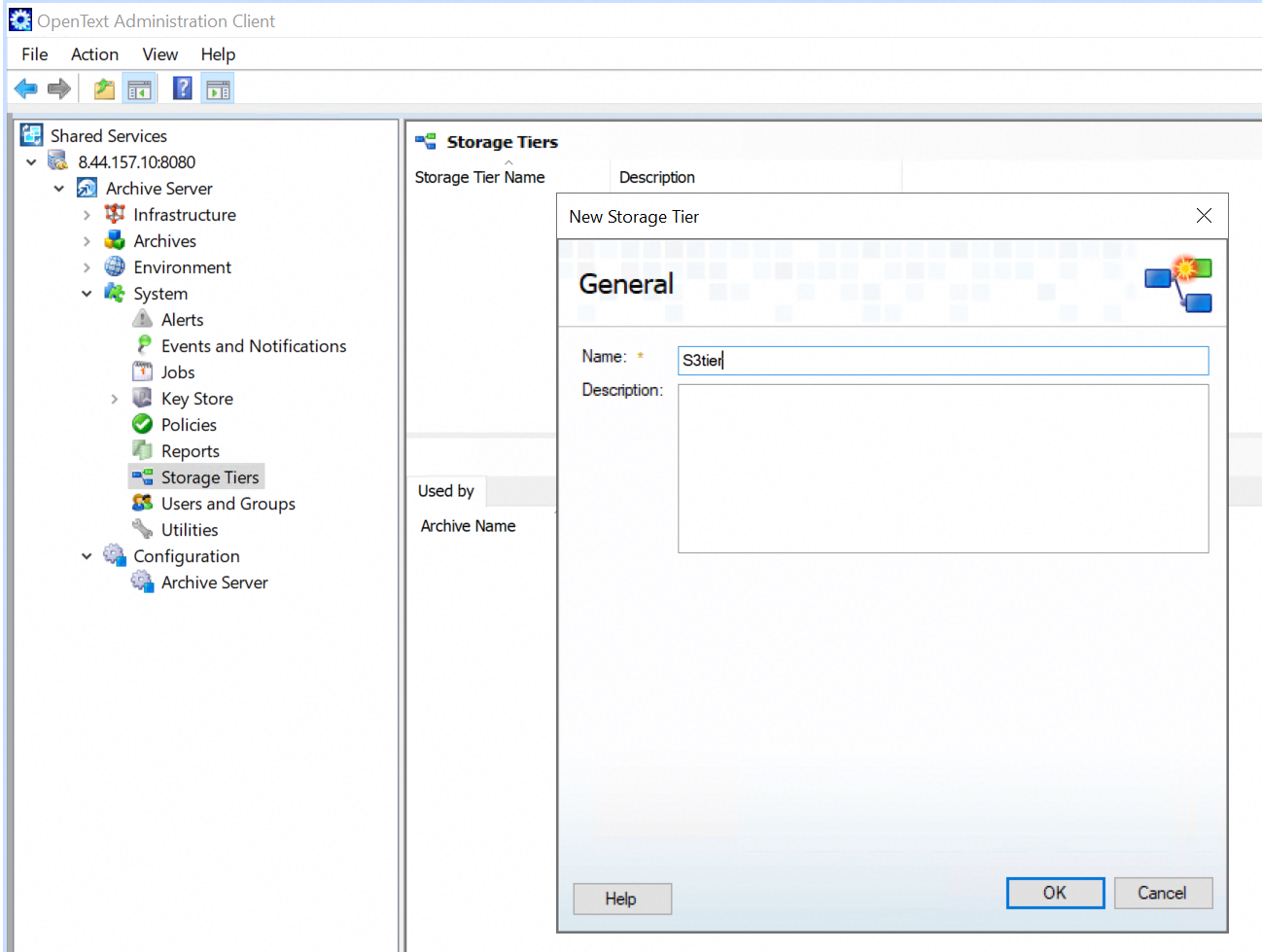 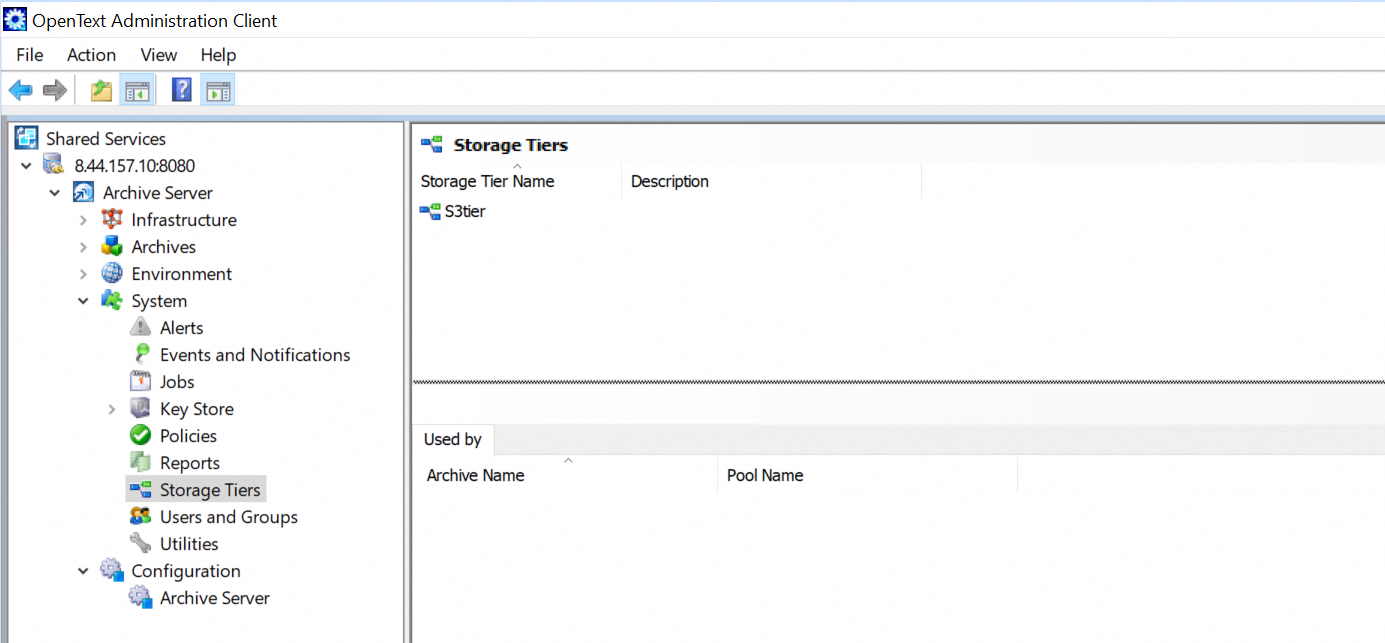 2.5 Create a new pool for archive in Single file (VI) type. 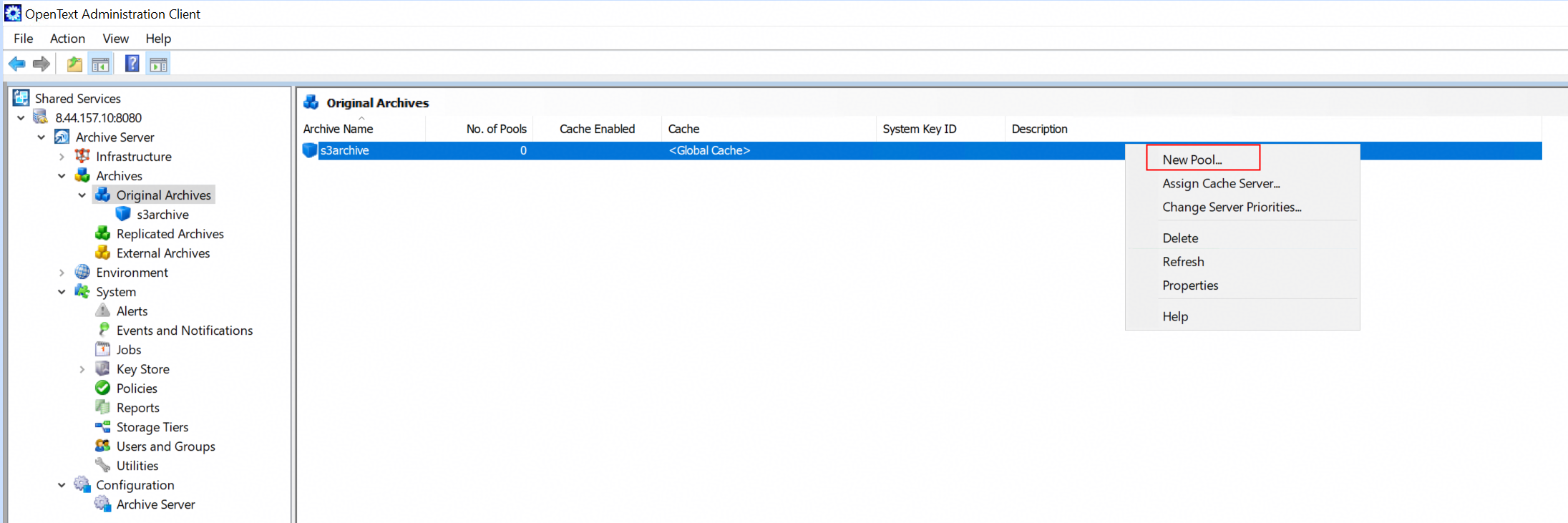 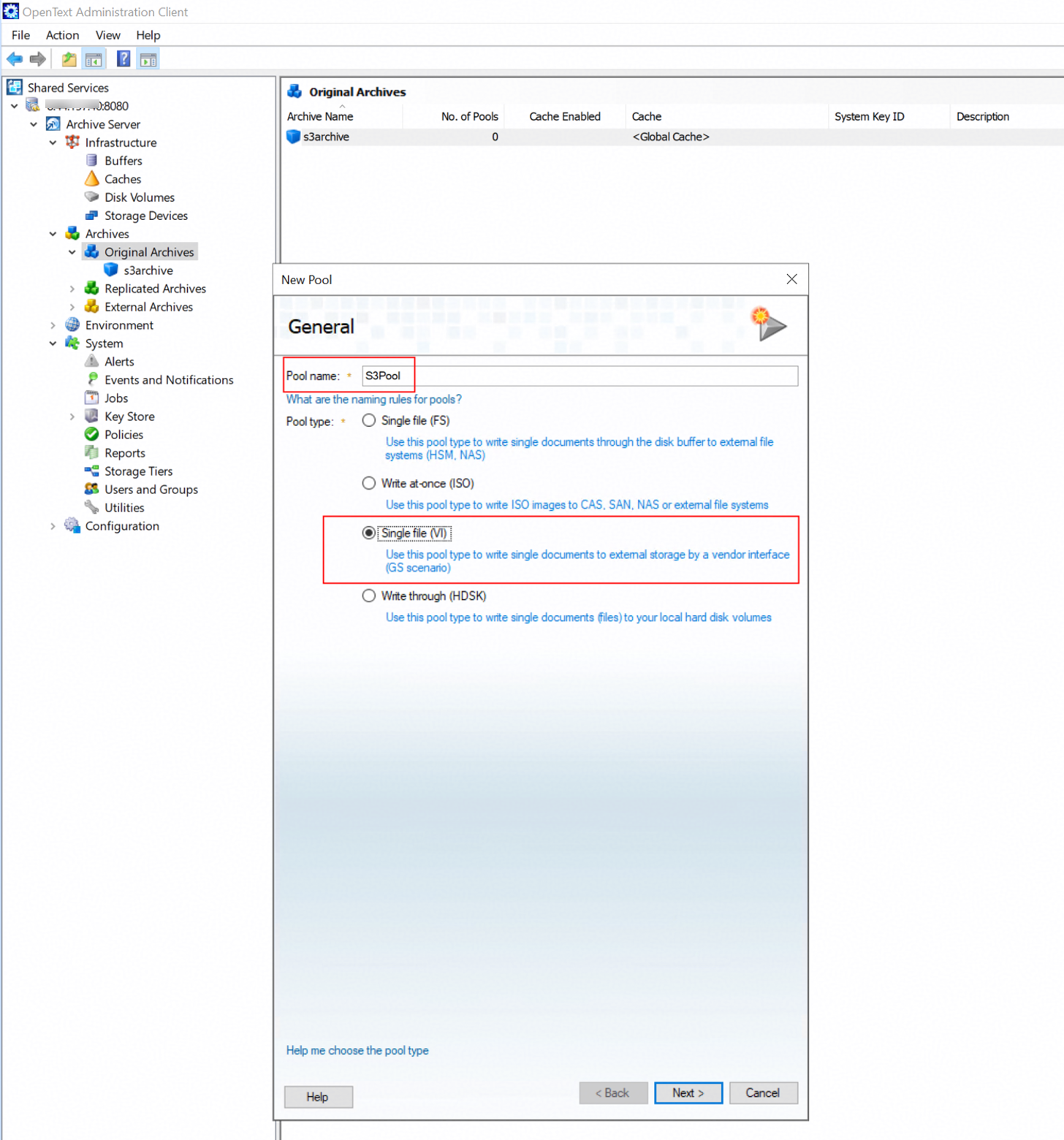 2.6 Select the disk buffer and storage tier created in previous step. 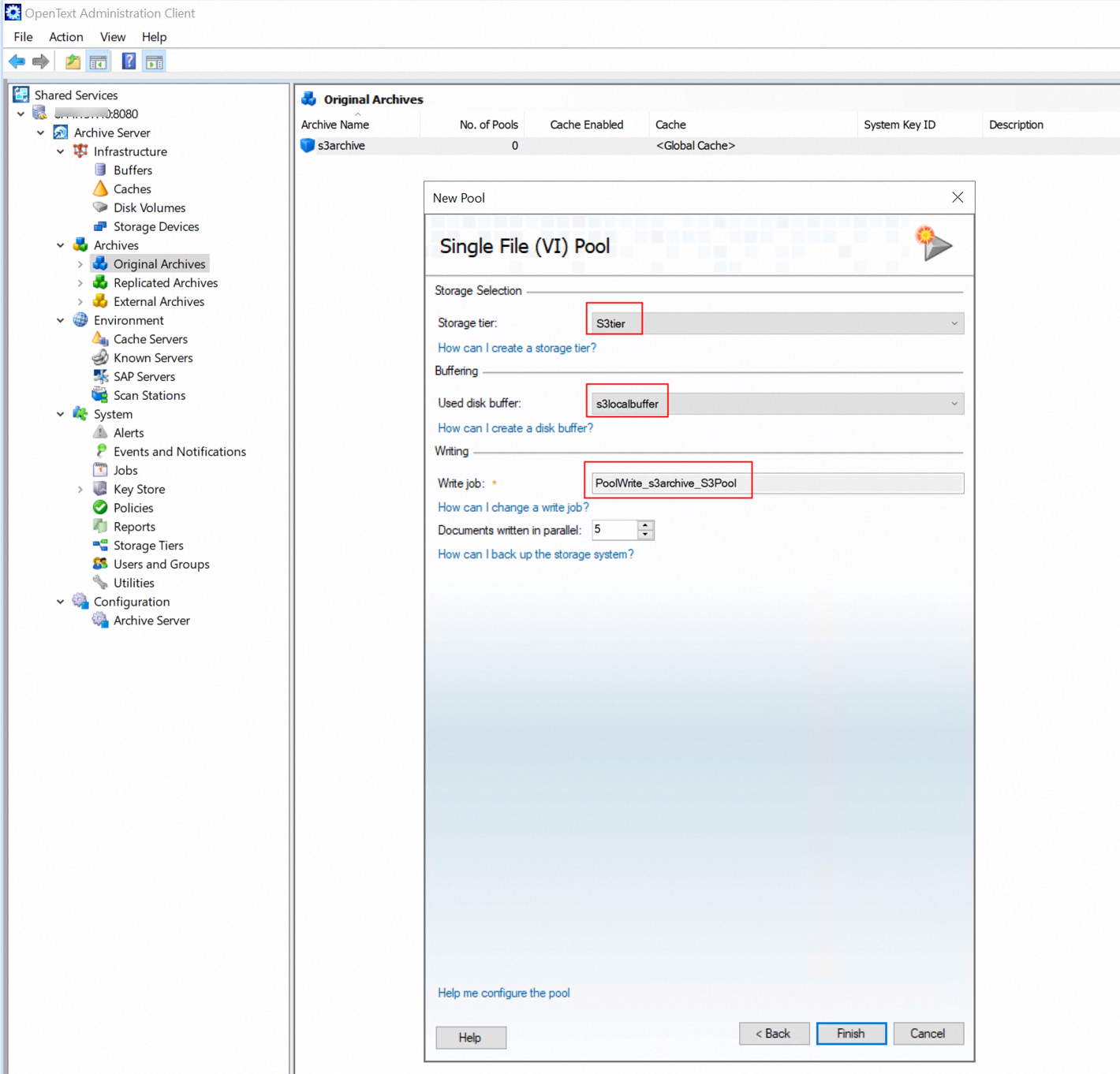 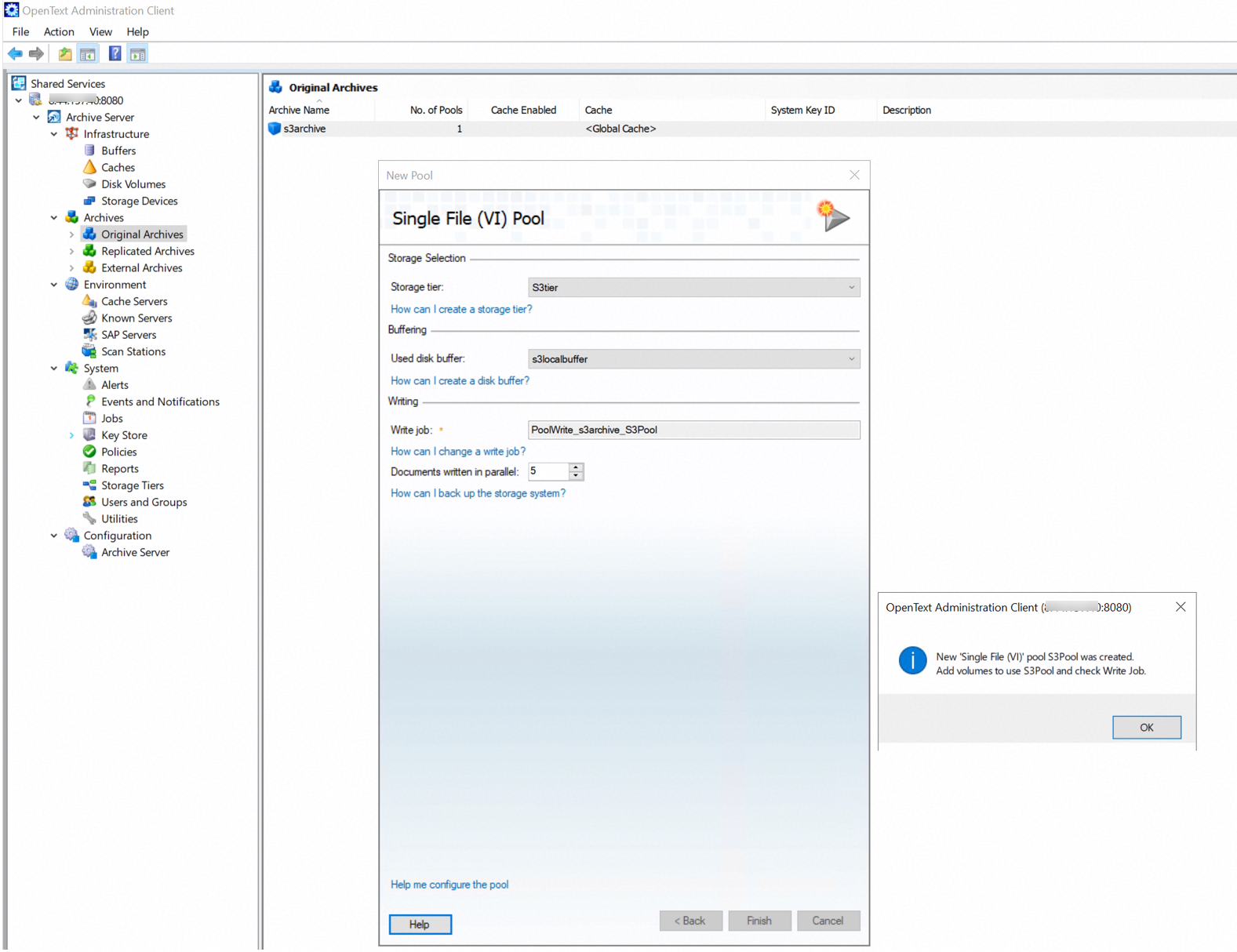 2.6 Attach the volume to the pool. 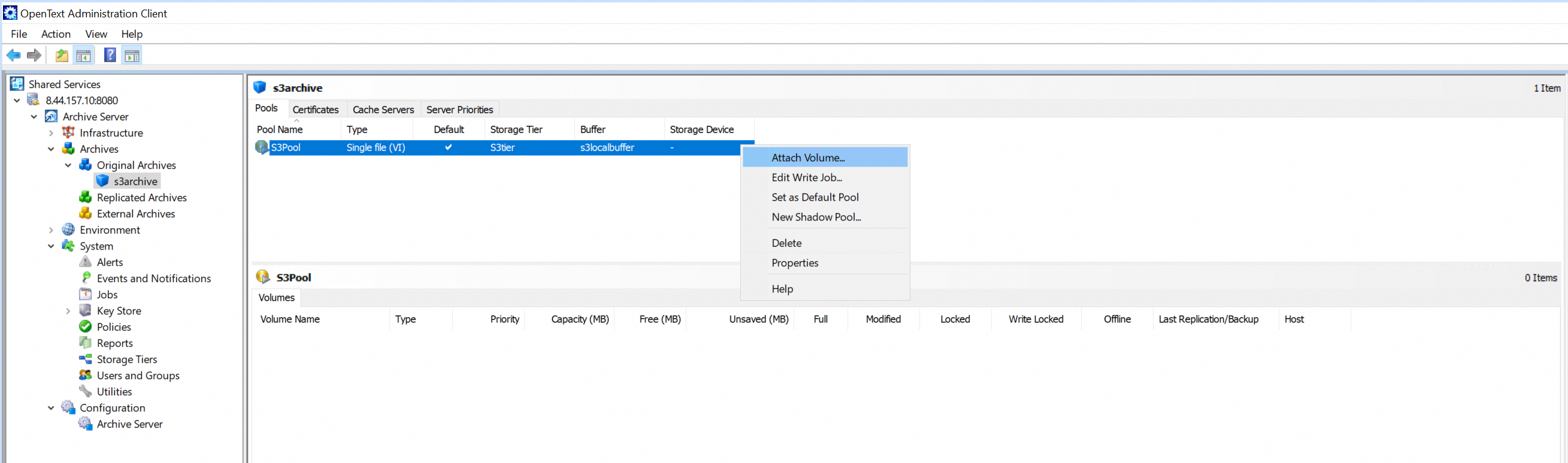 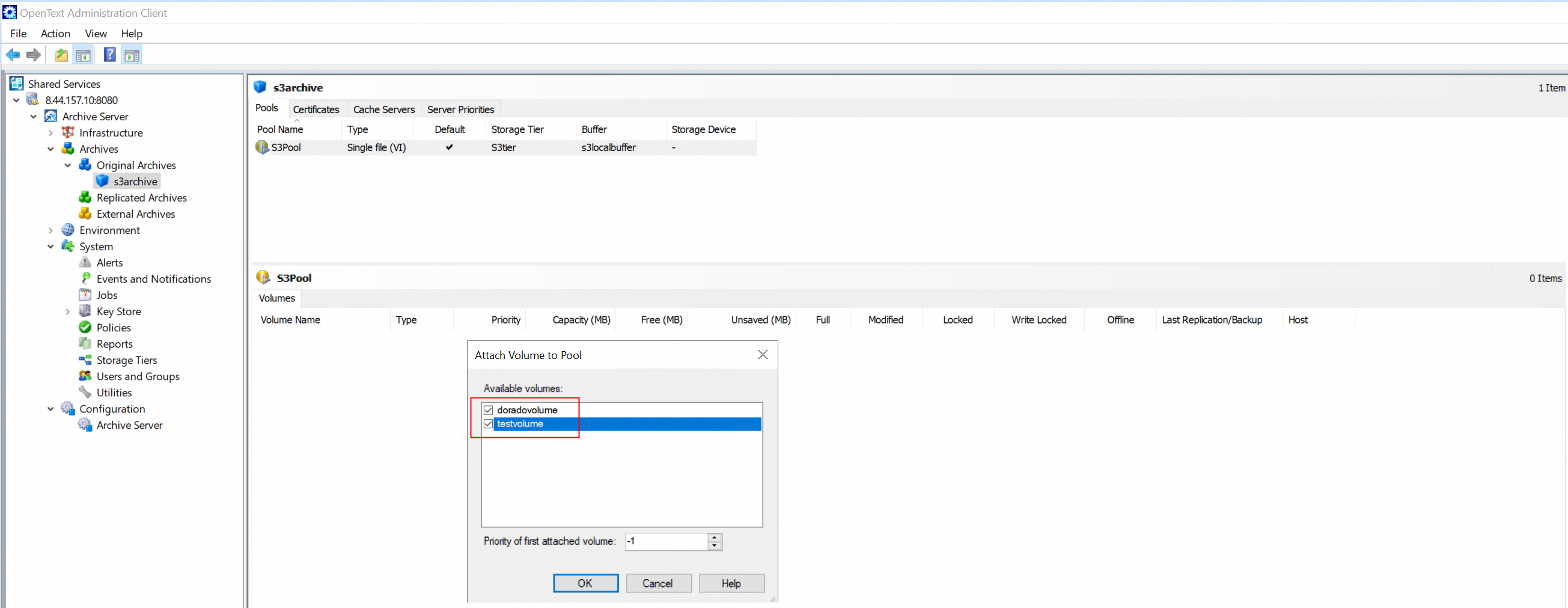 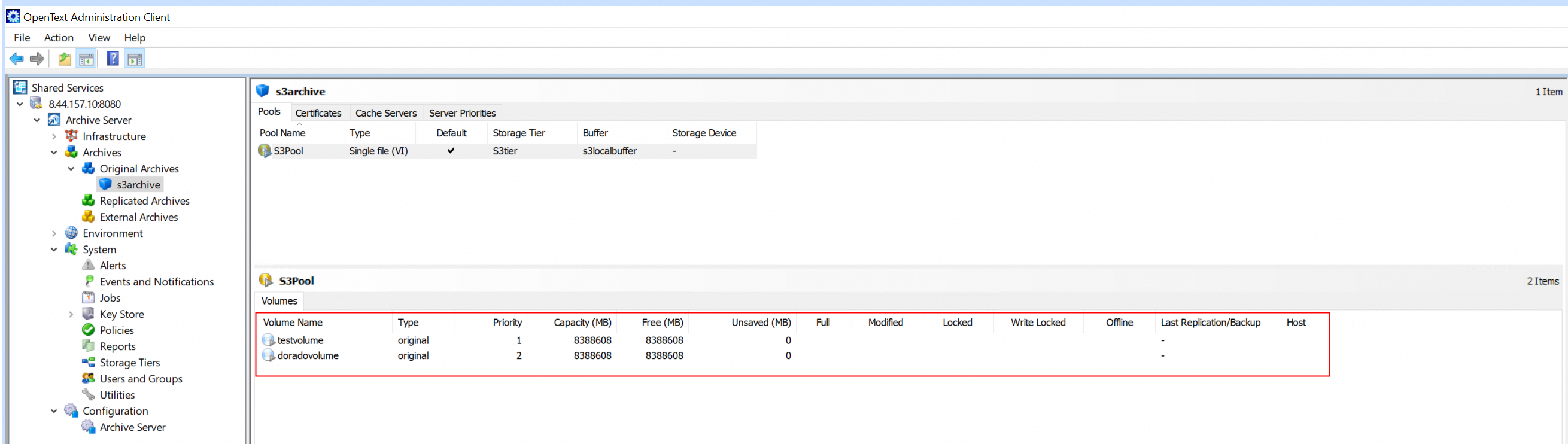 3. Prepare some files and write the files to the archive server’s local buffer. Check the files in the archive server’s local buffer. 3.1 Test files are created. 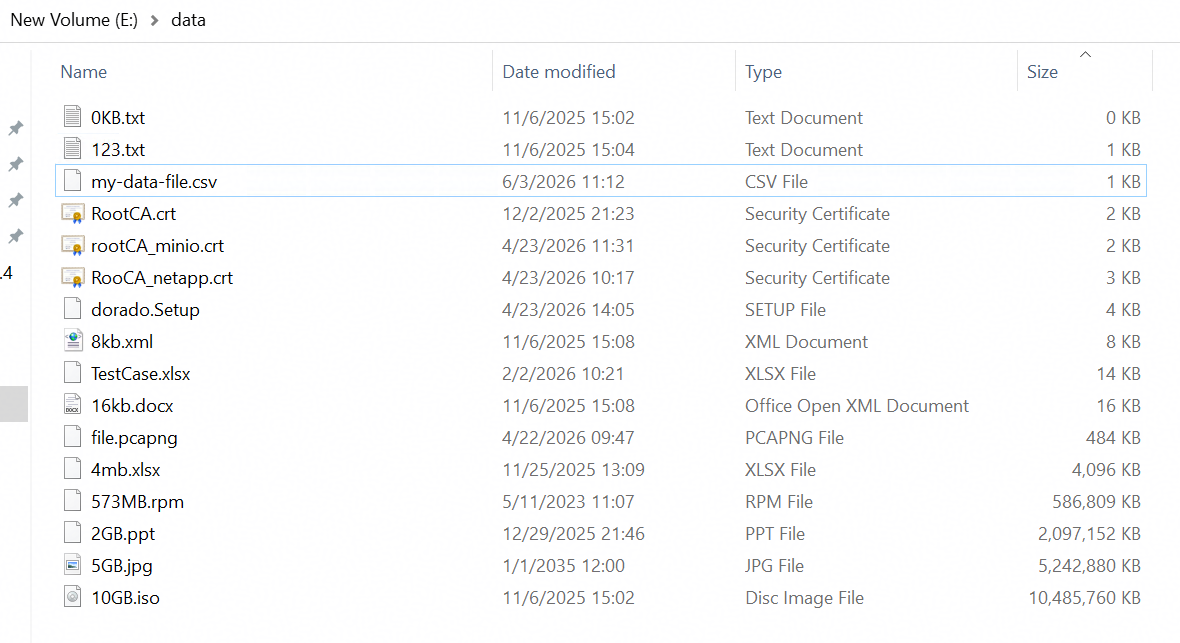 3.2 Write the test files to the archive server’s local buffer. 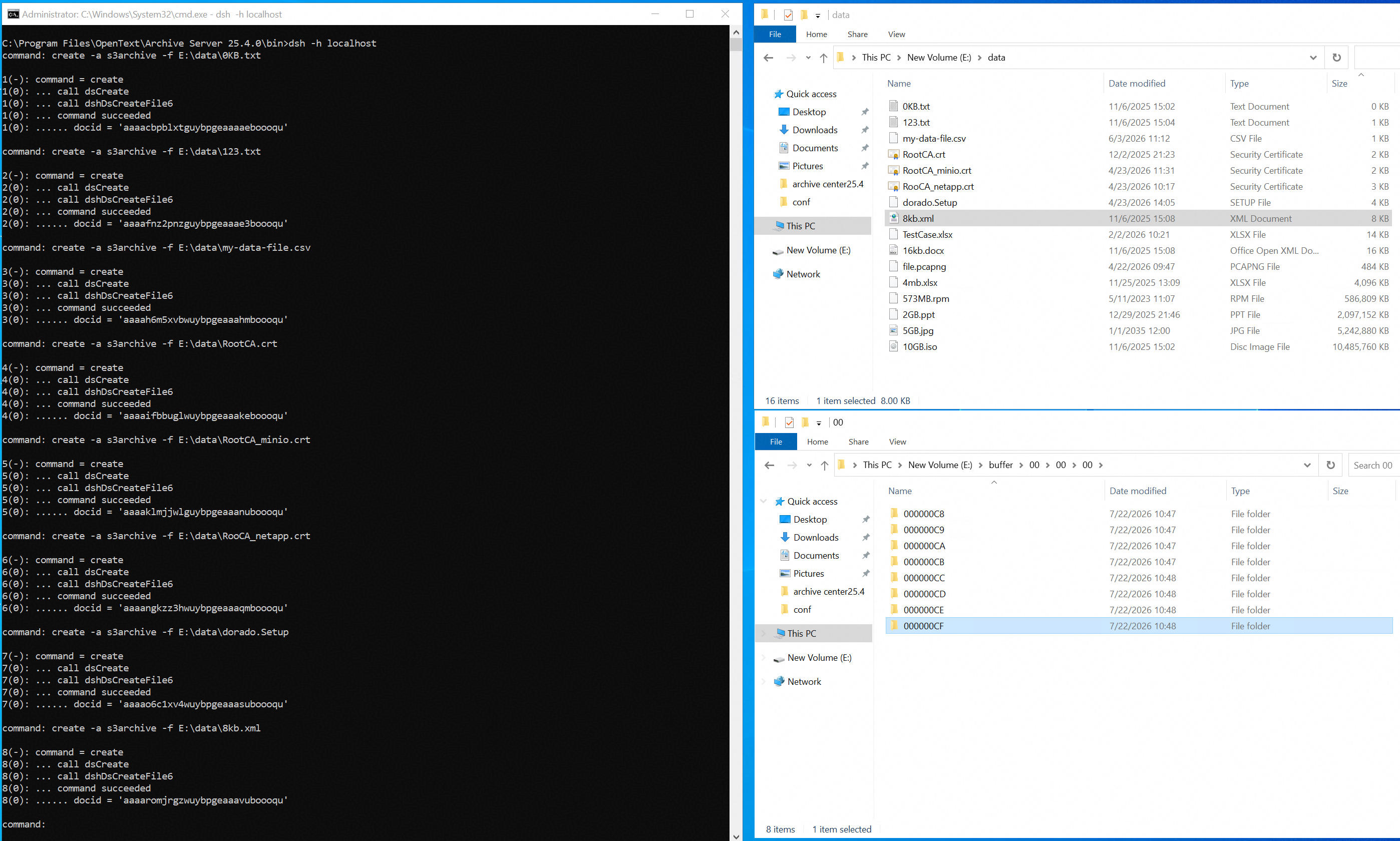 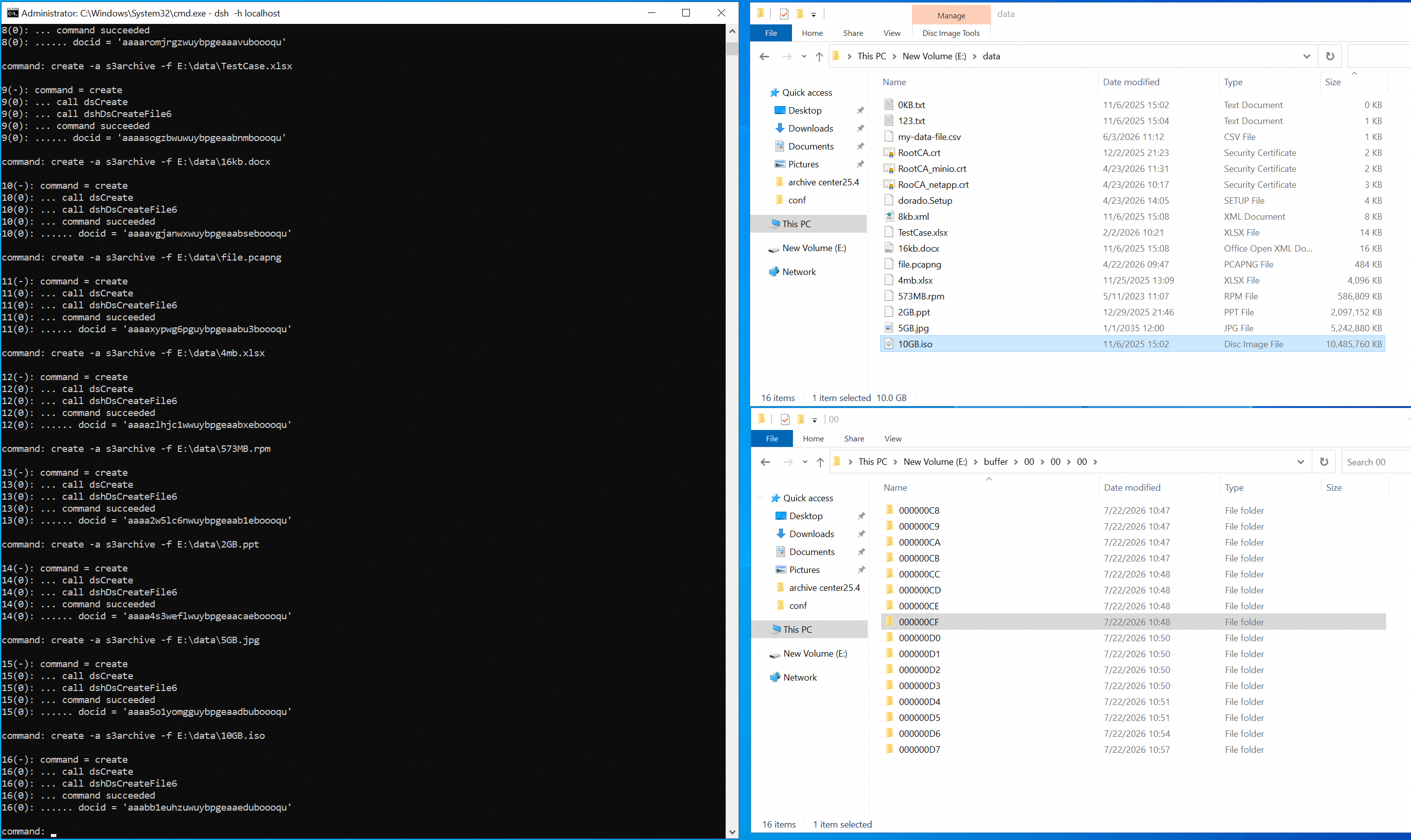 3.3 Data of the test files has been written into the local buffer. 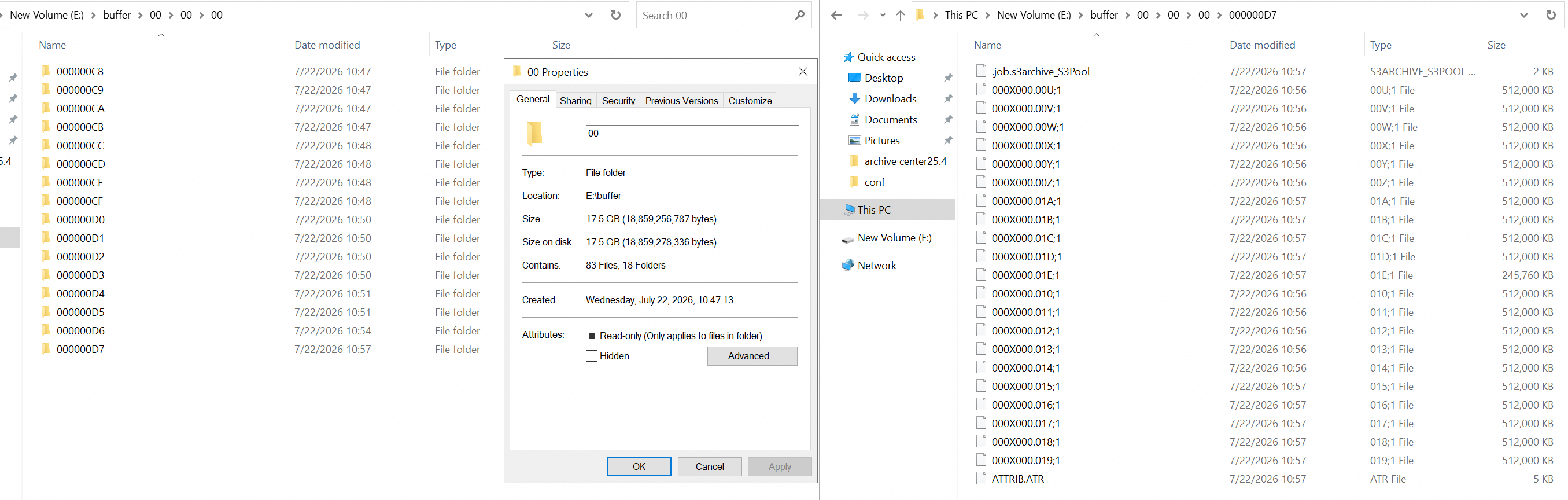 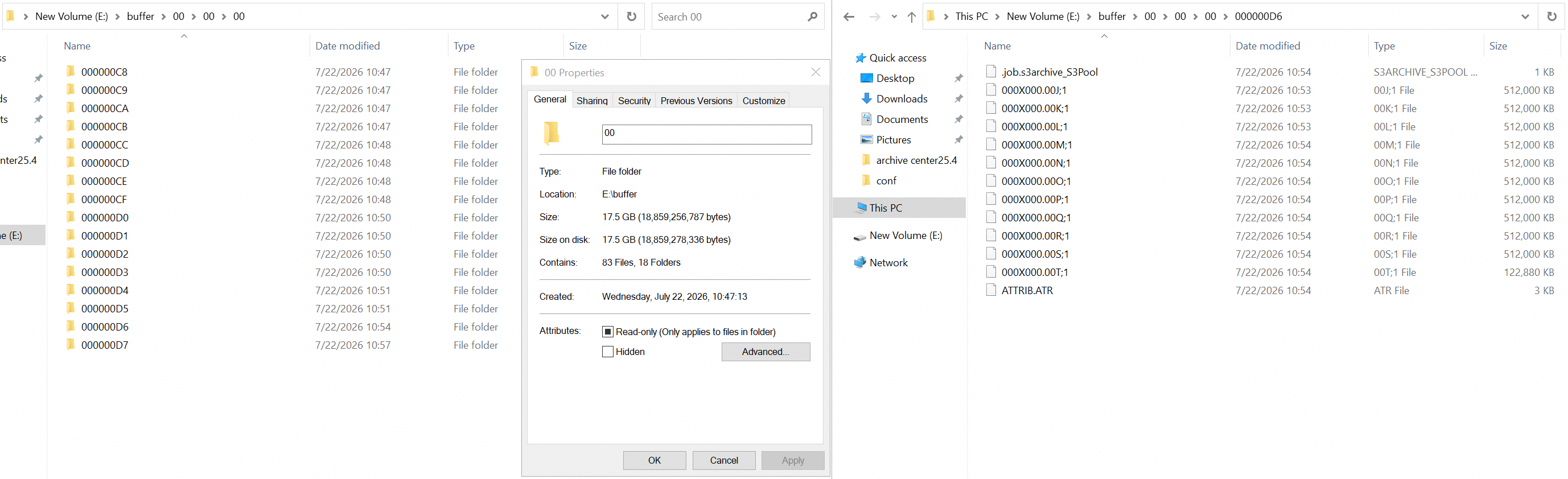 4. Run related PoolWrite job to write the files in the archive server’s local buffer to the volumes of the storage. Check the bucket data through S3 Browser. 4.1 Start the related PoolWrite job. 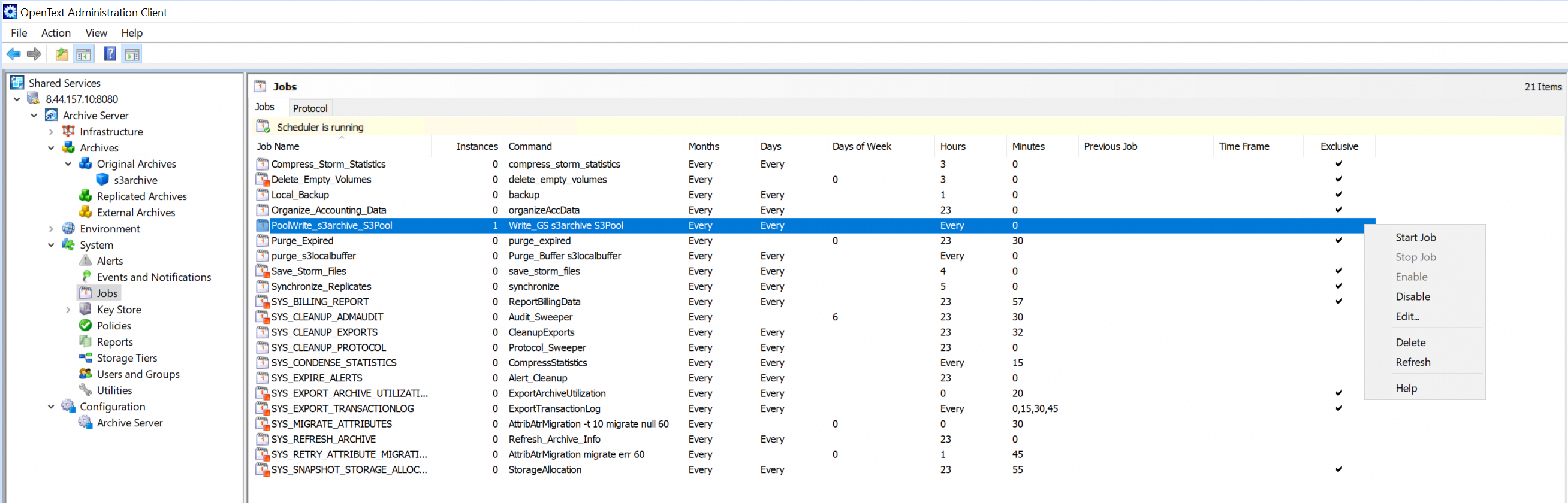 4.2 Job has been completed successfully and files have been archived. 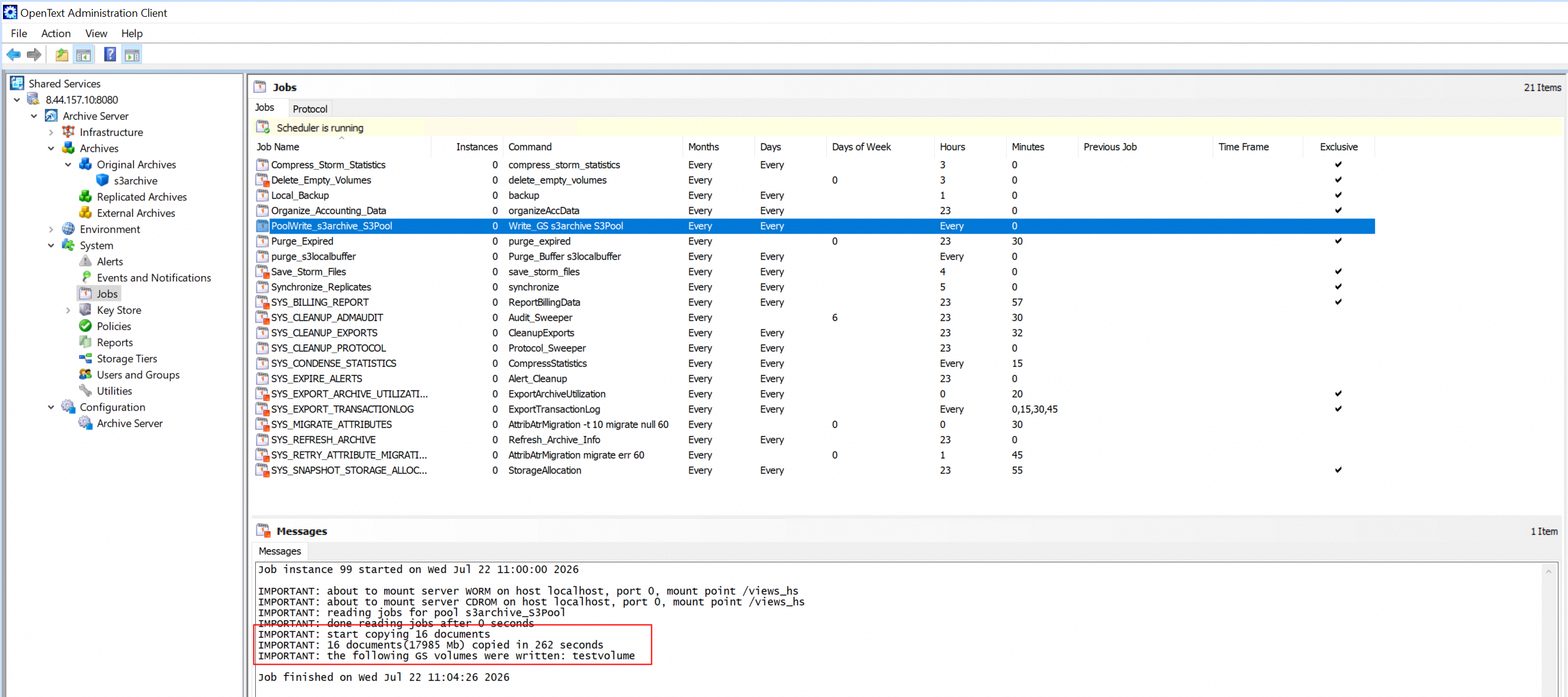 4.3 The files have been written into the storage successfully. 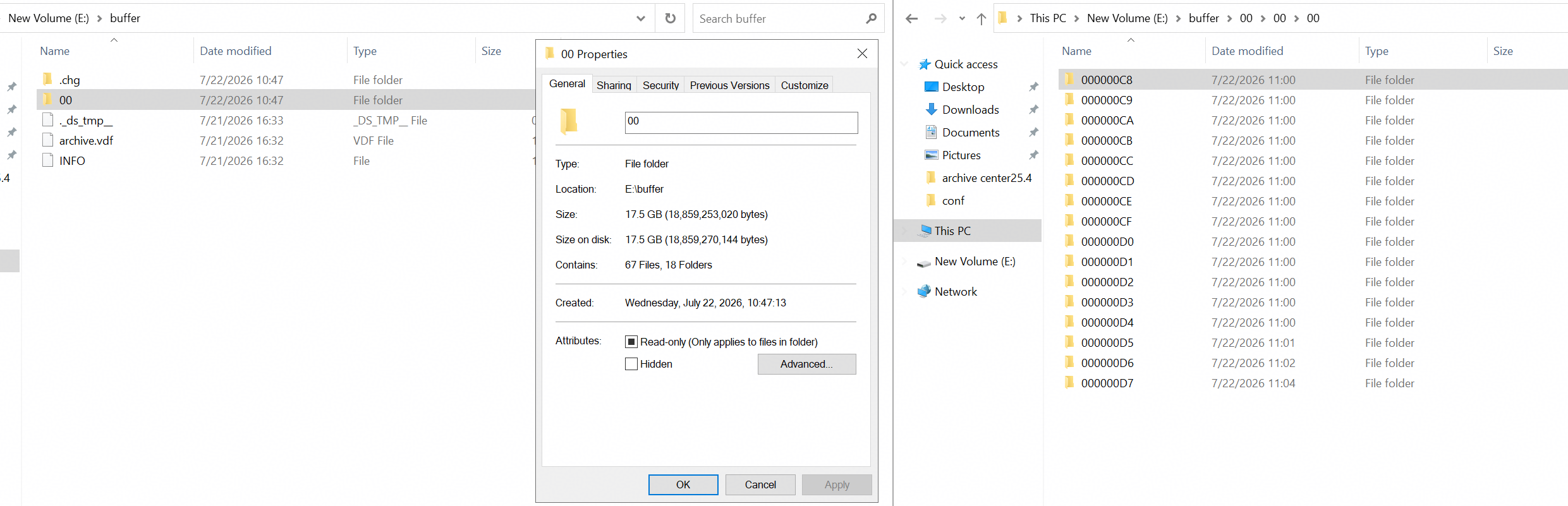 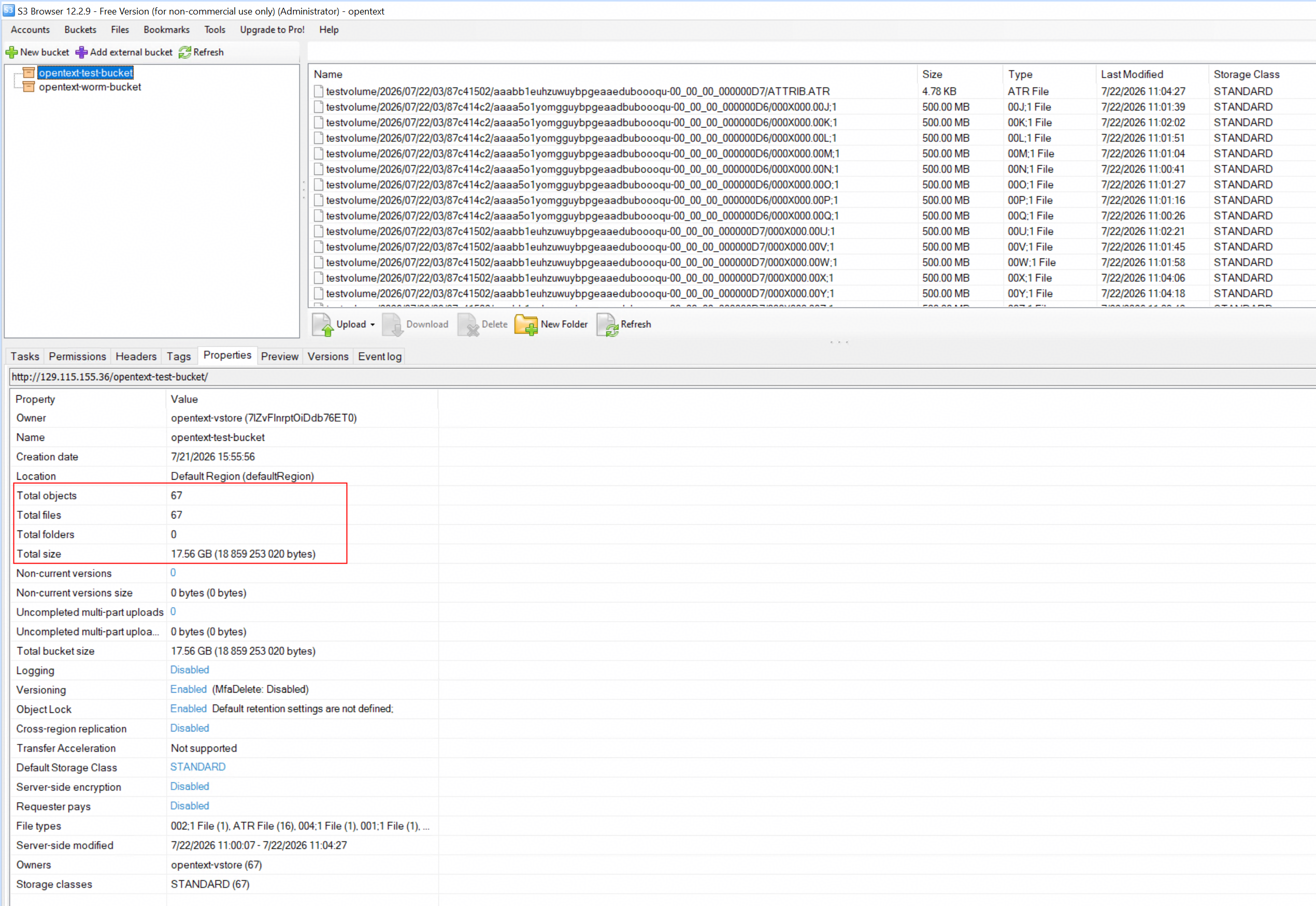 4.4 The folder structure in the storage is the same as that in the local buffer. 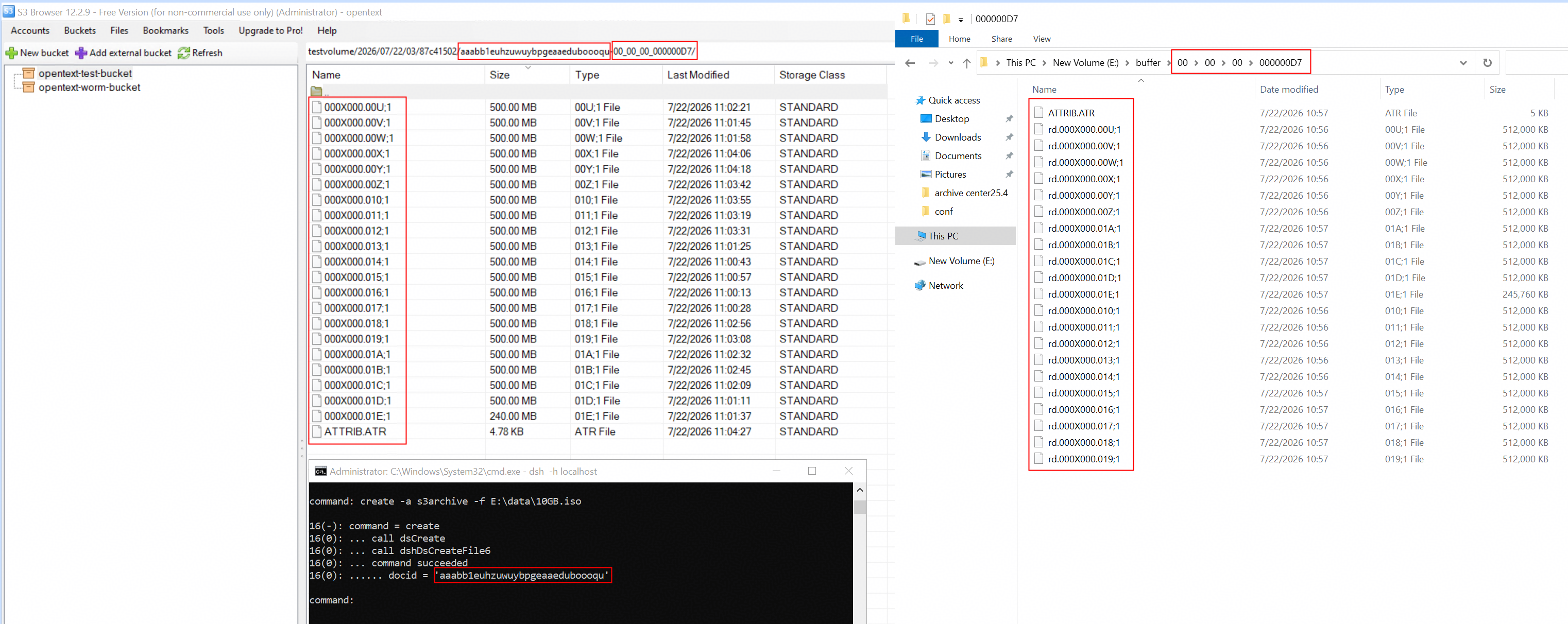 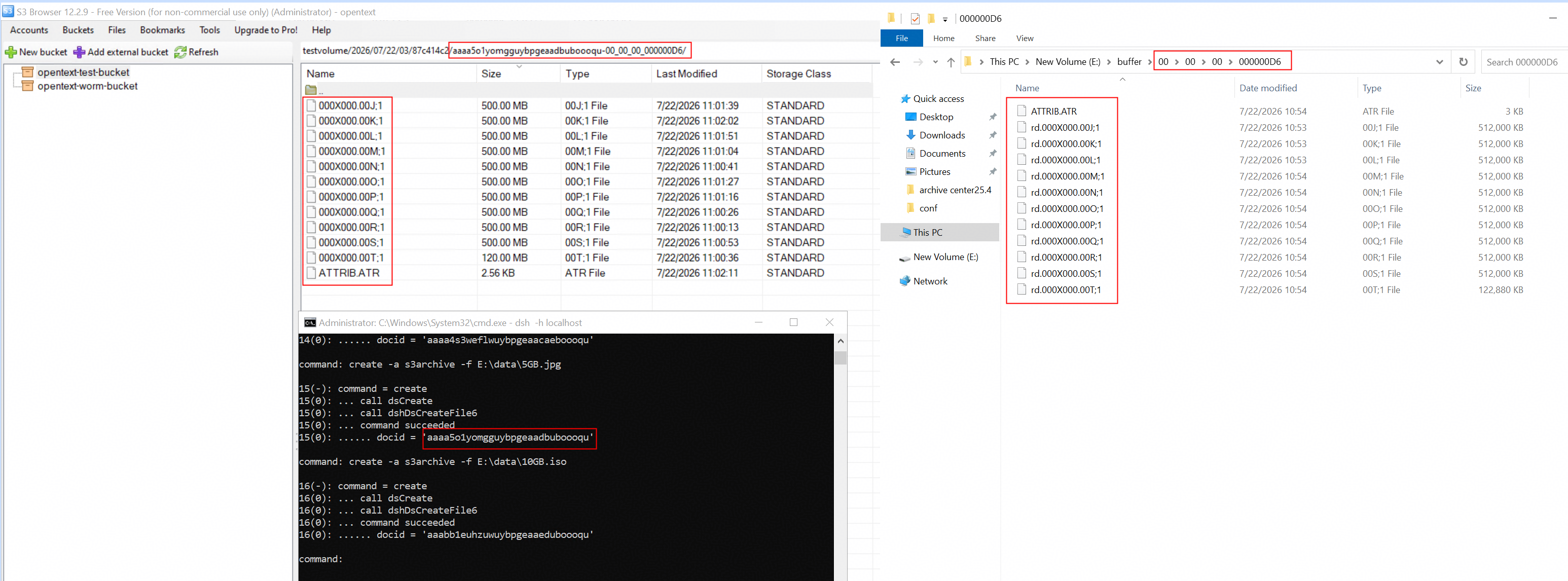 5. Check the headers of the archive files. The objects retention period is 1 day as expected. 5.1 On the S3 browser, the headers of the archive files on the storage contain the ‘x-amz-object-lock-mode’ and the value is COMPLIANCE. And the headers of the archive files on the storage contain the ‘x-amz-object-lock-retain-until-date’ and the value is 2026-07-23T02:53:43Z. 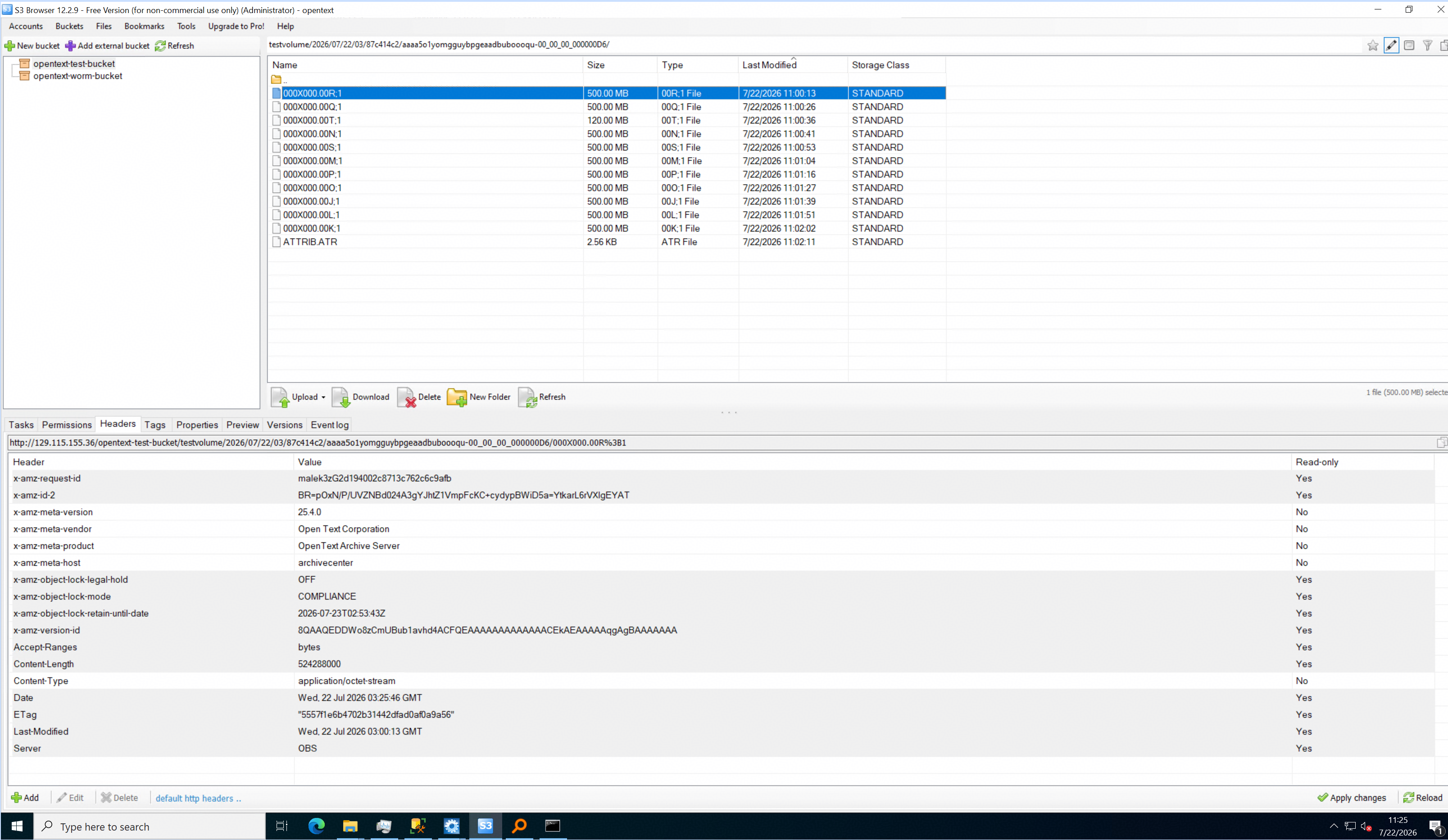 5.2 On the S3 browser, the headers of the archive files on the storage contain the ‘x-amz-object-lock-mode’ and the value is COMPLIANCE. And the headers of the archive files on the storage contain the ‘x-amz-object-lock-retain-until-date’ and the value is 2026-07-23T02:55:59Z. 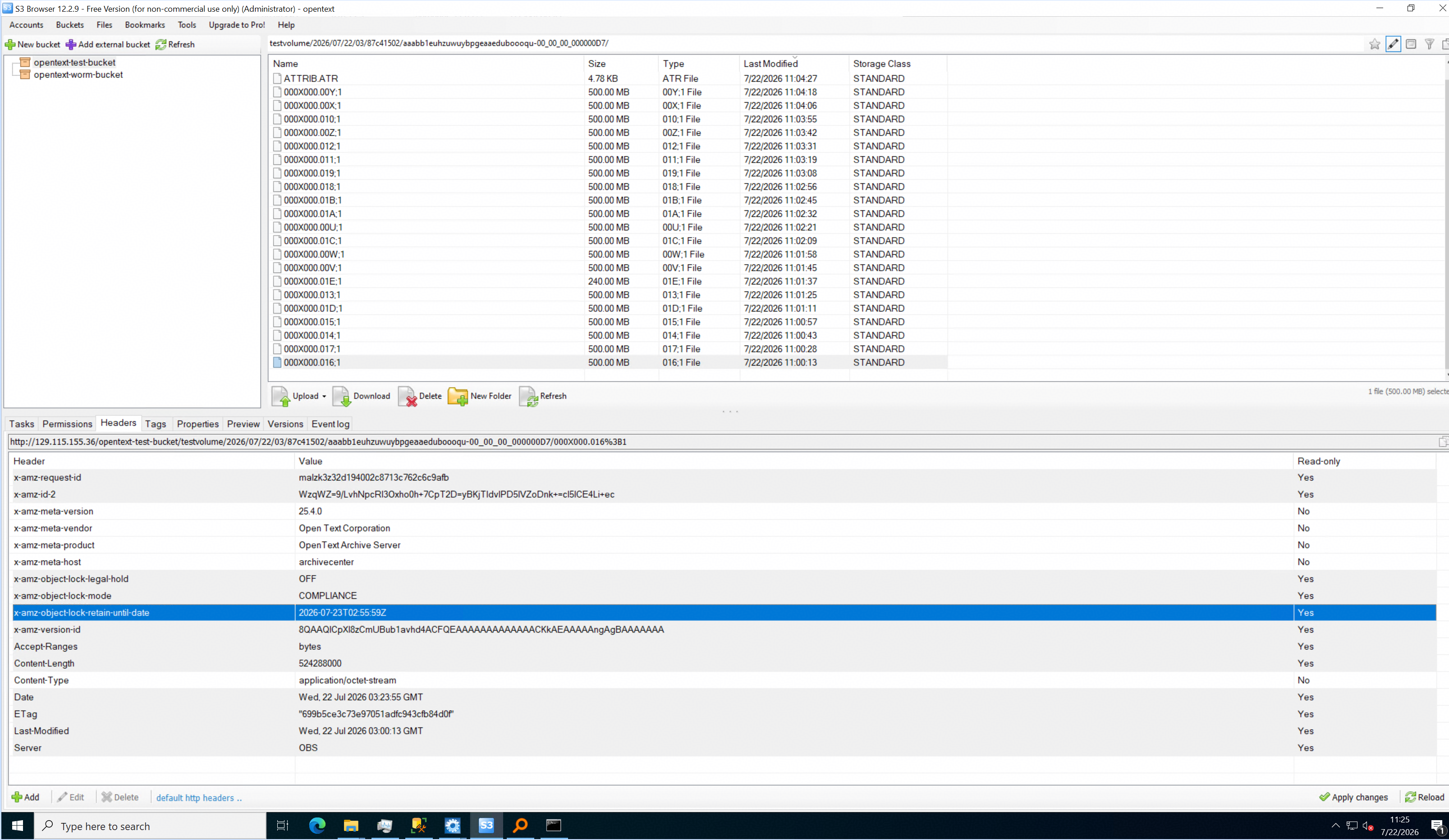 |
Test Conclusion | Passed |
3.4 Retrieve archived files from S3 Storage Device
Test Purpose | To verify that archived files can be retrieved from S3 Storage Device. |
Network Diagram | Reference to Figure 1.1 |
Prerequisites |
|
Test Procedures | Step 1: Run related Purge job to clean the archive server’s local buffer. And check the files in the archive server’s local buffer. Step 2: Prepare a destination directory for retrieving files. Step 3 In the archive server, retrieve the archived files from the storage to the destination directory. Step 4: Check the consistency of the retrieved files and original files. |
Expected Results |
|
Test Results | Prerequisites The docids have been recorded while archiving the files. E:\data\10GB.iso docid = ‘aaabb1euhzuwuybpgeaaeduboooqu’ E:\data\5GB.jpg docid = ‘aaaa5o1yomgguybpgeaadbuboooqu’ E:\data\2GB.ppt docid = ‘aaaa4s3weflwuybpgeaacaeboooqu’ E:\data\573MB.rpm docid = ‘aaaa2w5lc6nwuybpgeaab1eboooqu’ E:\data\4mb.xlsx docid = ‘aaaazlhjc1wwuybpgeaabxeboooqu’ E:\data\file.pcapng docid = ‘aaaaxypwg6pguybpgeaabu3boooqu’ E:\data\16kb.docx docid = ‘aaaavgjanwxwuybpgeaabseboooqu’ E:\data\TestCase.xlsx docid = ‘aaaasogzbwuwuybpgeaabnmboooqu’ E:\data\8kb.xml docid = ‘aaaaromjrgzwuybpgeaaavuboooqu’ E:\data\dorado.Setup docid = ‘aaaao6c1xv4wuybpgeaaasuboooqu’ E:\data\RooCA_netapp.crt docid = ‘aaaangkzz3hwuybpgeaaaqmboooqu’ E:\data\RootCA_minio.crt docid = ‘aaaaklmjjwlguybpgeaaanuboooqu’ E:\data\RootCA.crt docid = ‘aaaaifbbuglwuybpgeaaakeboooqu’ E:\data\my-data-file.csv docid = ‘aaaah6m5xvbwuybpgeaaahmboooqu’ E:\data\123.txt docid = ‘aaaafnz2pnzguybpgeaaae3boooqu’ E:\data\0KB.txt docid = ‘aaaacbpblxtguybpgeaaaaeboooqu’ Test Results 1. Run related Purge job to clean the archive server’s local buffer. And check the files in the archive server’s local buffer. 1.1 Before running the job, folder ‘00’ is in the local buffer. 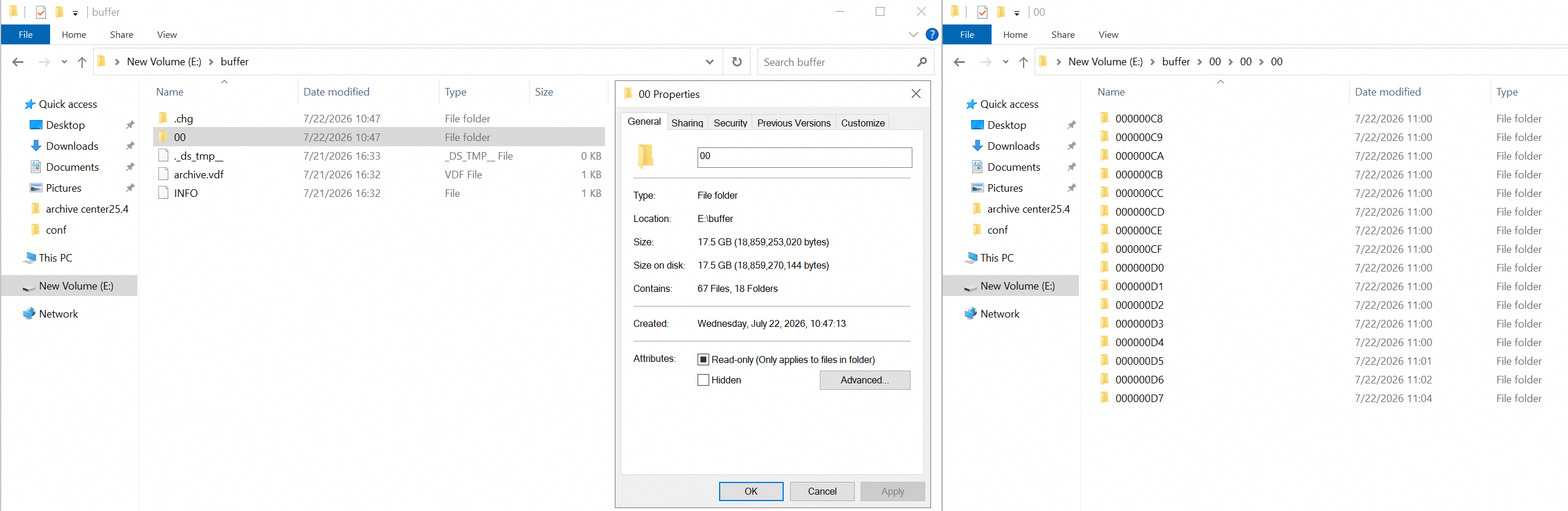
1.2 Change Min. free space to ‘100%’ in related buffer properties, so that the data can be purged immediately for testing purposes. 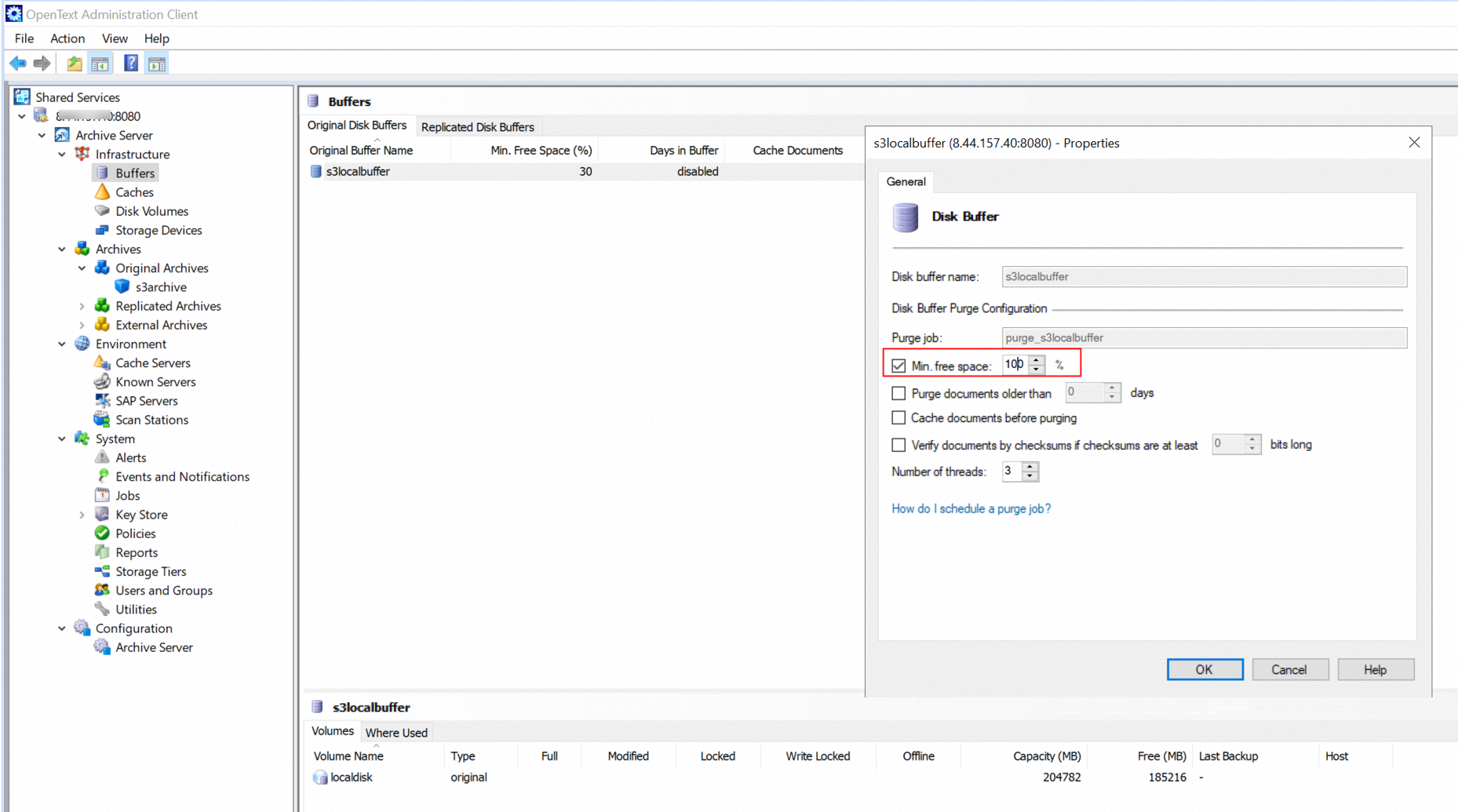
1.3 Start the purge job. 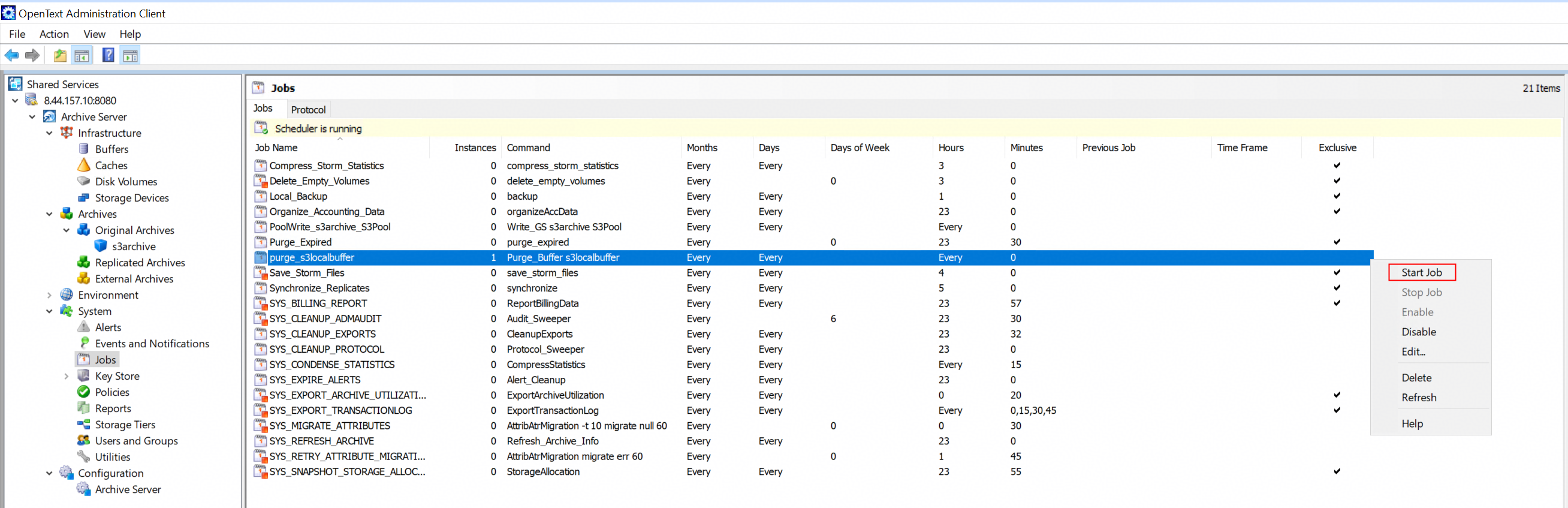
1.4 The folder ‘00’ in the archive server local buffer has been removed. 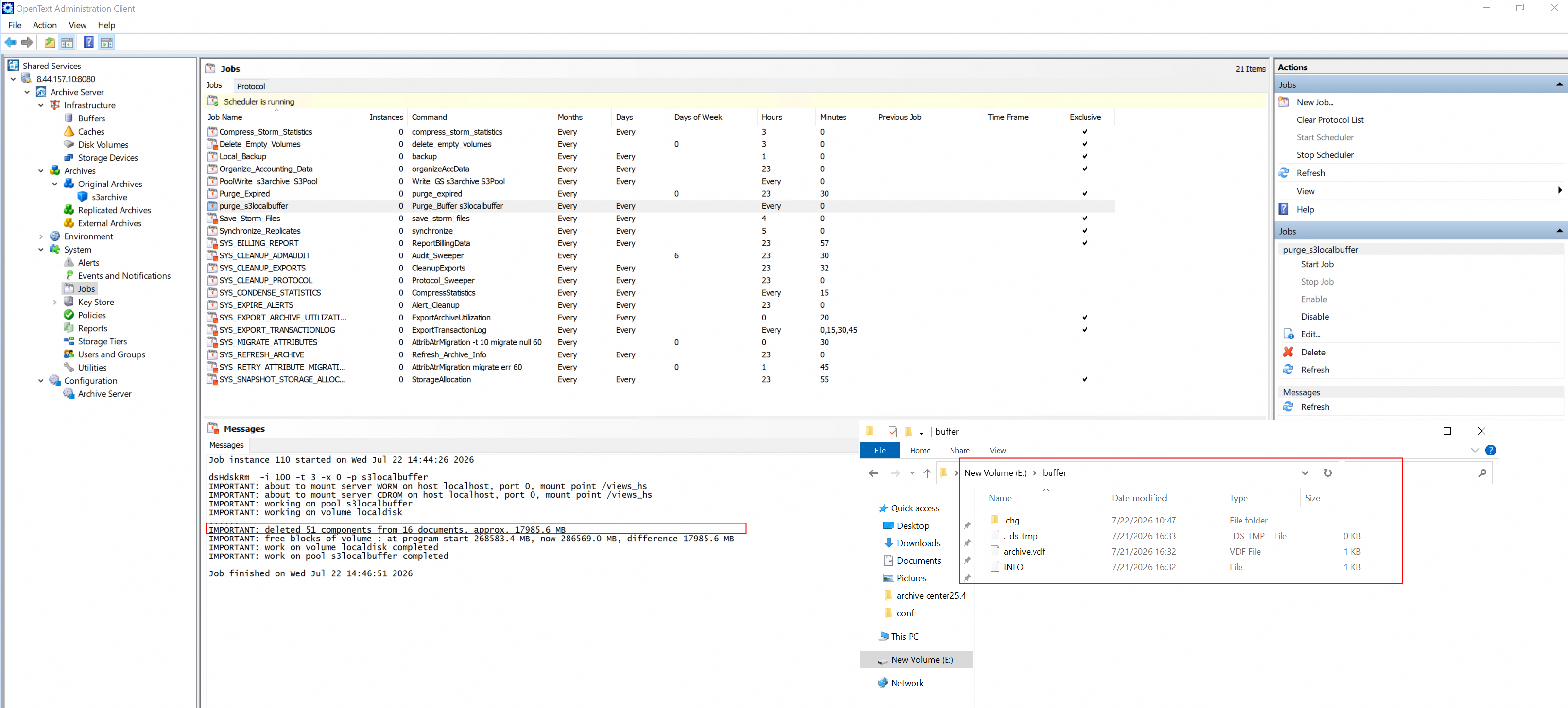
2. Create a new folder in the local disk as the destination directory for retrieving files. 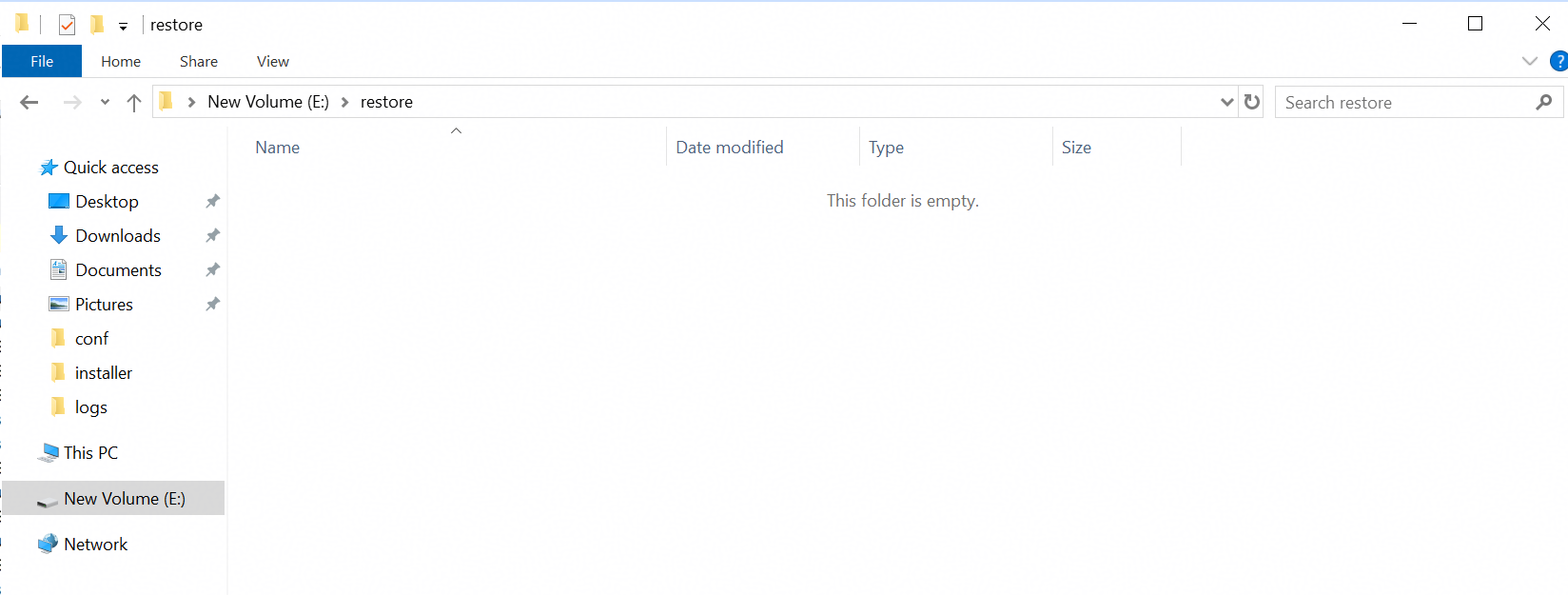
3. In the archive server, retrieve the archived files with the docid recorded earlier from the storage to the destination directory. 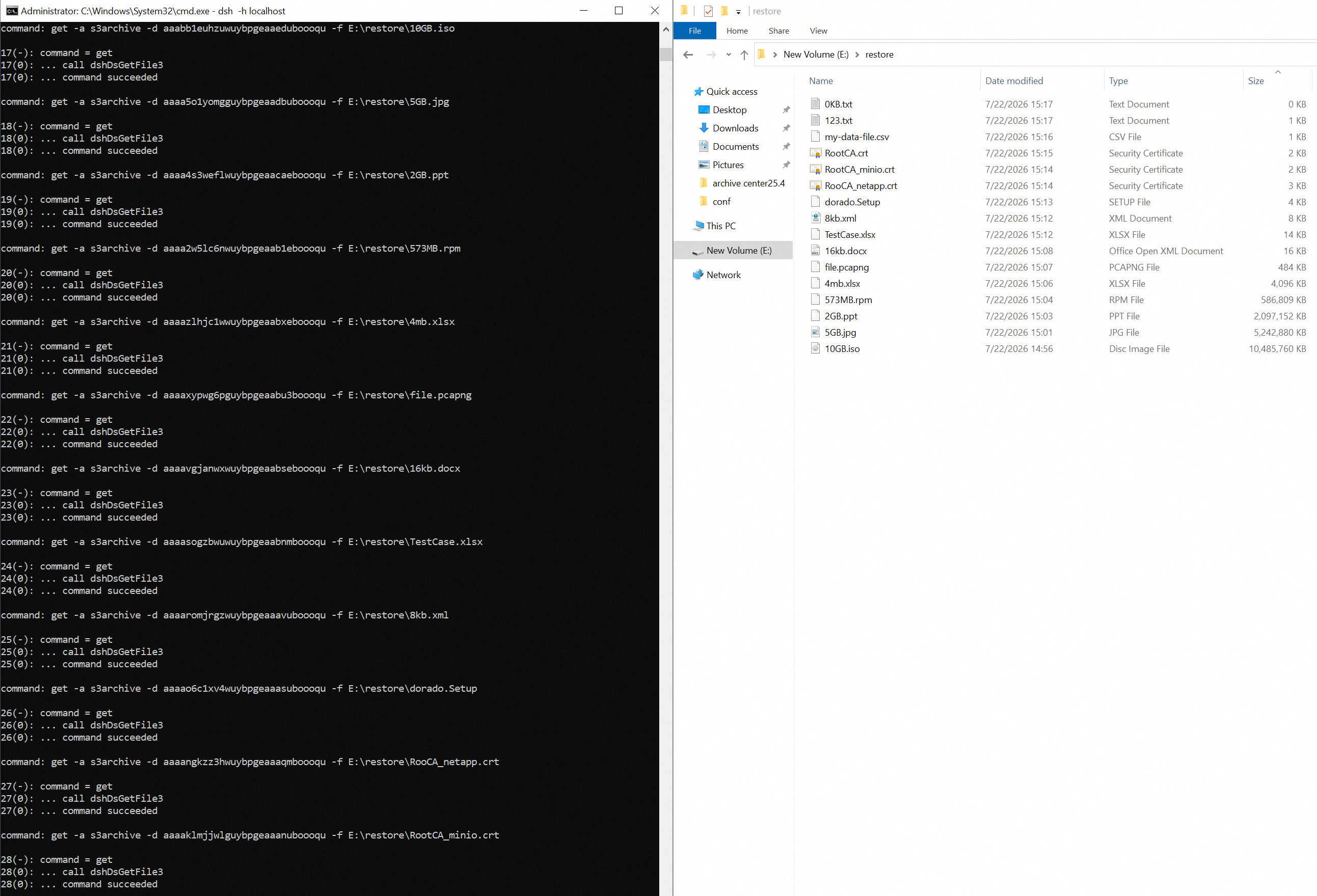 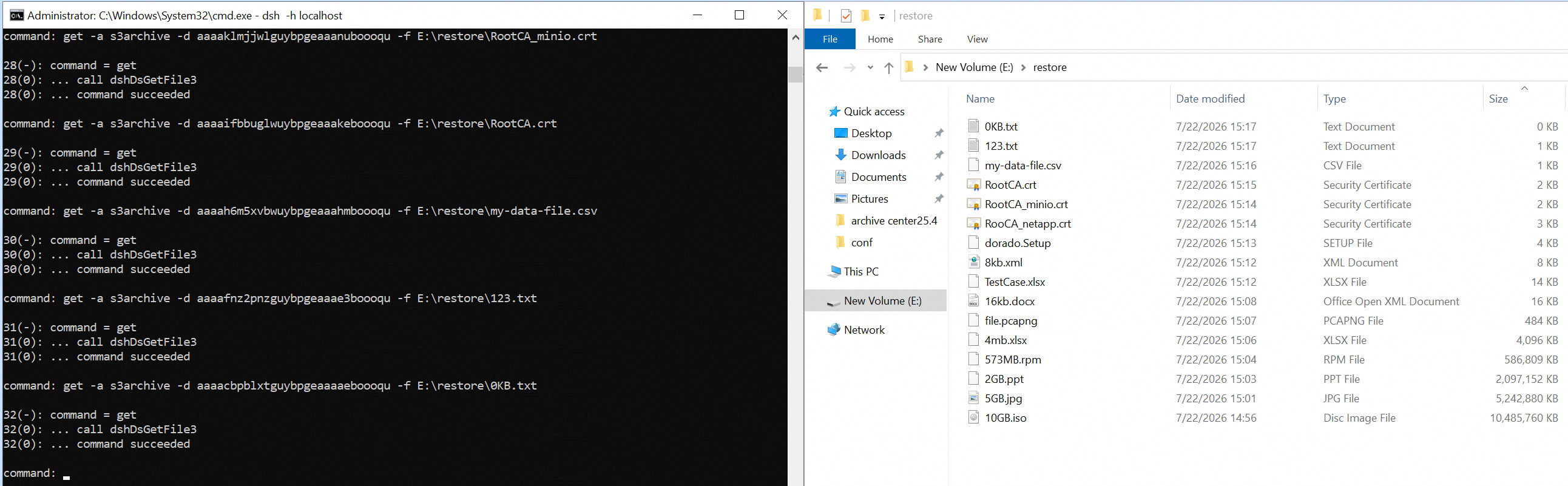
4. The MD5 value of the retrieved files and original files are the same. That indicates the retrieved files and original files are consistent. 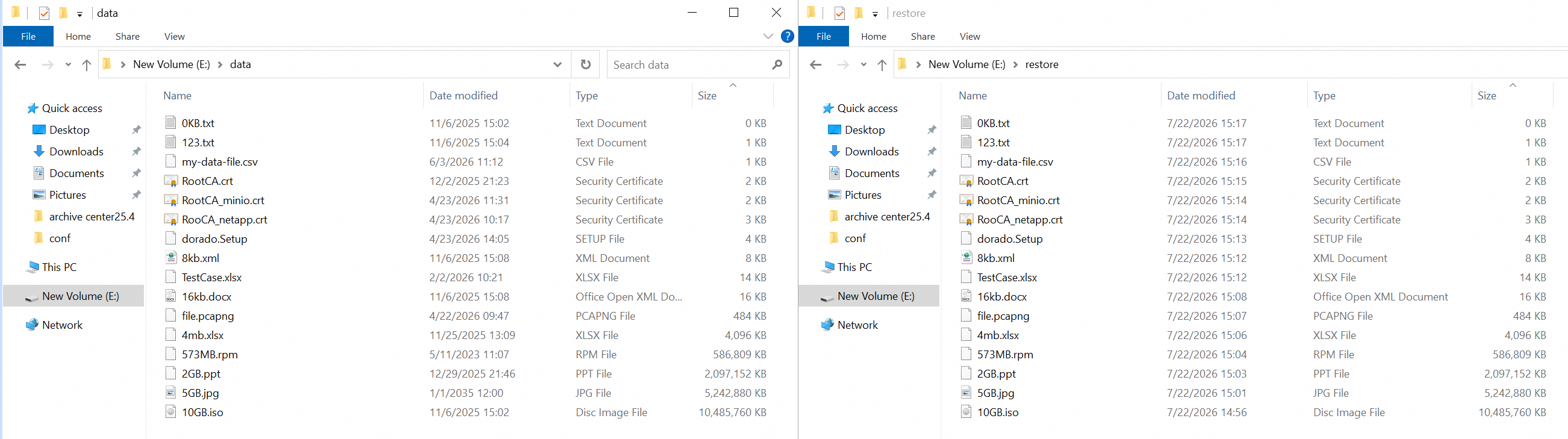 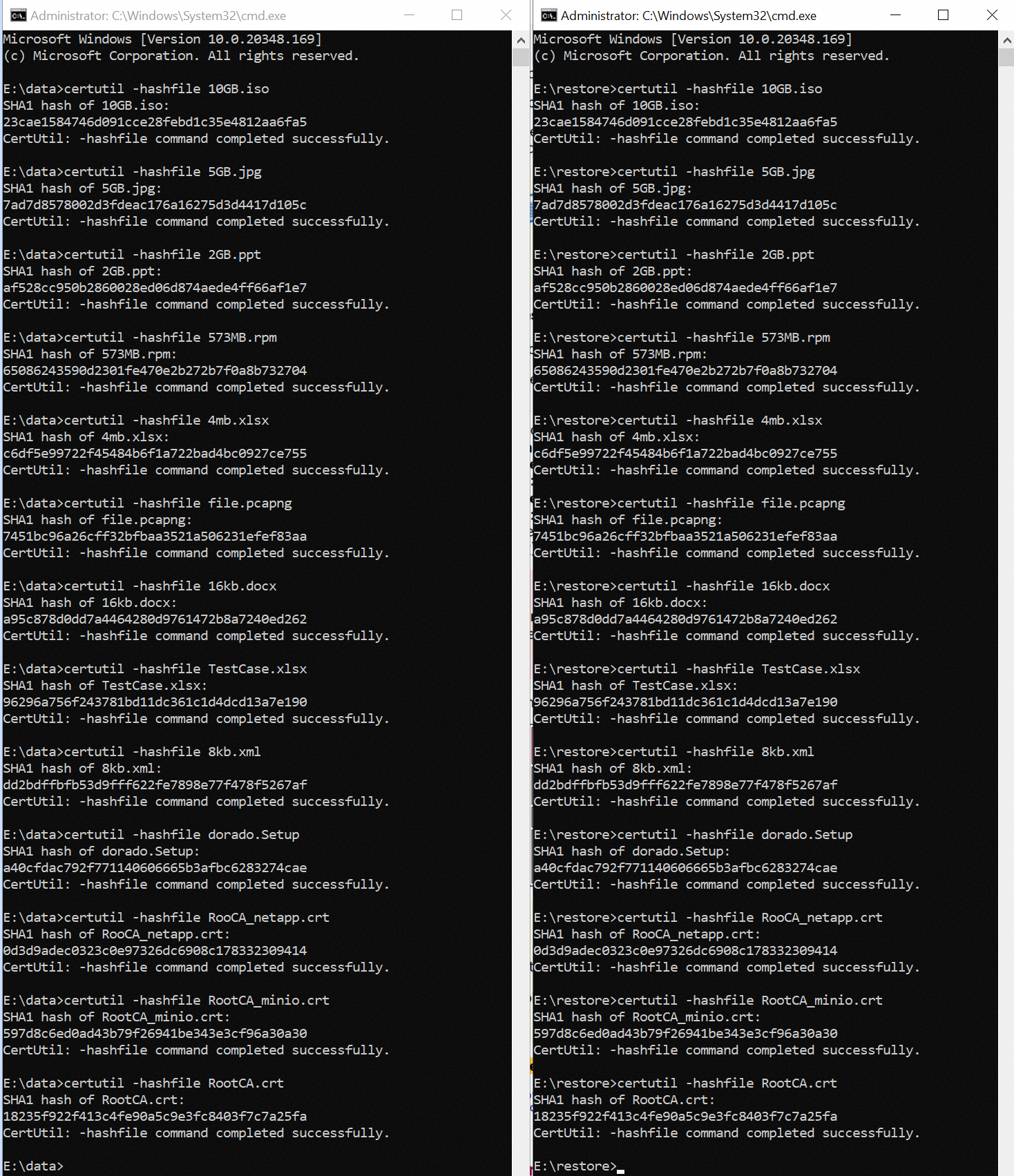 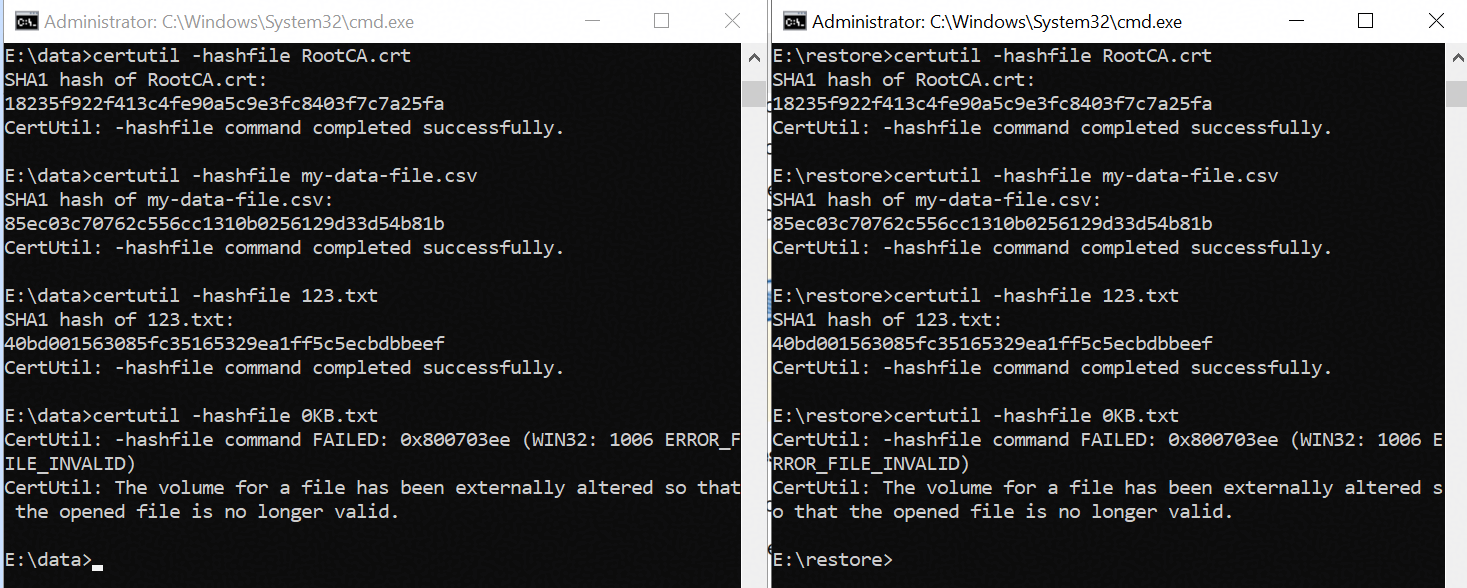
|
Test Conclusion | Passed |
3.5 Verify Retention Period of S3 Storage Device
Test Purpose | To verify that the retention period is supported when the storage is used as S3 Storage Device of the archive server. |
Network Diagram | Reference to Figure 1.1 |
Prerequisites |
|
Test Procedures | Step 1: Check the headers of the archived files through S3 Browser. Step 2: Delete the archived files within the retention period through S3 Browser. Step 3: Delete the archived files after the retention period expires through S3 Browser. |
Expected Results |
|
Test Results |
Failed – AccessDenied: Operation not permitted. 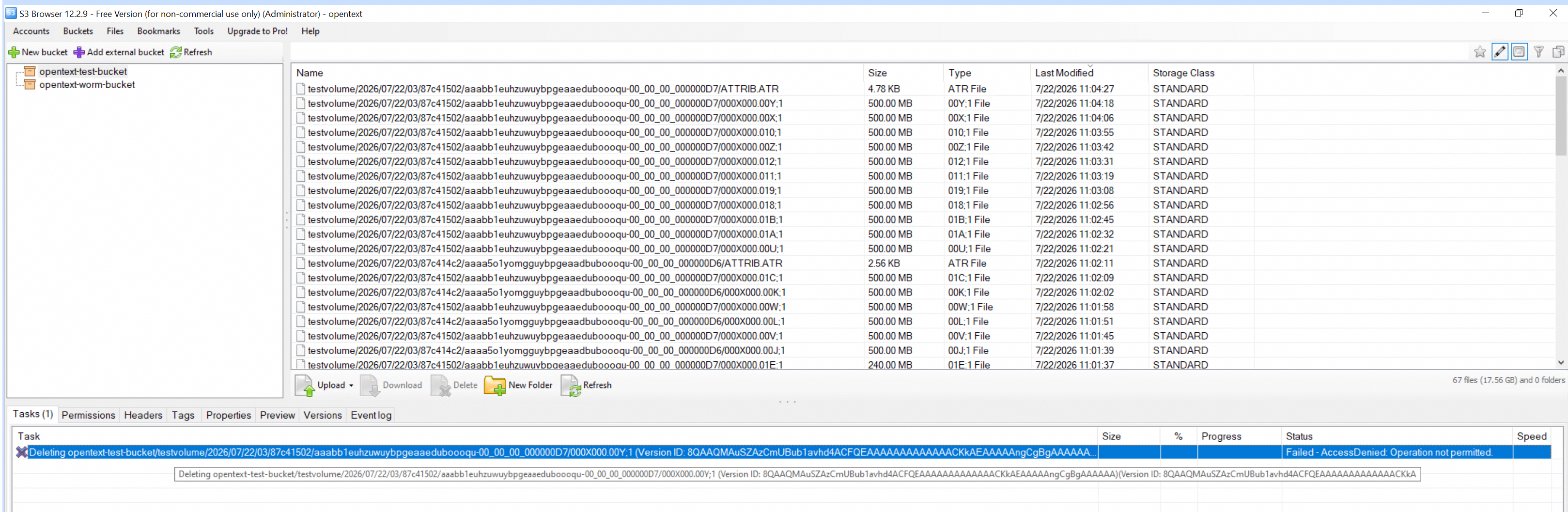 3. The archive files could be deleted on the s3 browser without the retention period(2026-07-23T02:55:59Z UTC+0 / 2026-07-23T10:55:59 UTC+8). 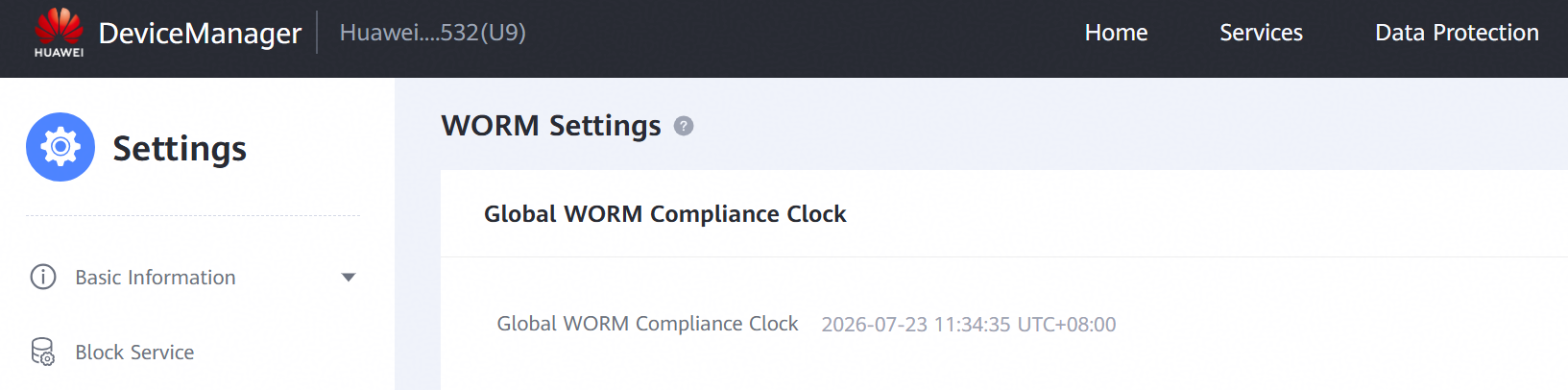 |
Test Conclusion | Passed |
4. Reference
4.1 Huawei OceanStor Dorado All-Flash Storage User Guide
https://support.huawei.com/hedex/hdx.do?docid=EDOC1100489522&id=public_path_object_base_config_003
