Huawei OceanStor Dorado All-Flash Storage and VMware SRM 9.0.2
Interoperability Test Report

Executive Summary
Axians Global (“Axians”) assessed the interoperability of Huawei OceanStor Dorado All-Flash Storage (hereinafter referred to as “the storage” as well) and VMware SRM 9.0.2 operating system through FC and iSCSI.
In the assessment, Axians has determined that VMware SRM 9.0.2 operating system will function with Huawei OceanStor Dorado All-Flash Storage for the following scenarios:
Storage Tested | Protocol(s) Tested | Test Scenario | Result |
OceanStor Dorado All-Flash Storage | FC and iSCSI | Basic Connectivity Test | Passed |
Reliability Test | Passed |
1. Environment Configuration
1.1 Networking Diagram
Figure 1.1 Storage and VMware SRM Compatibility Test Networking
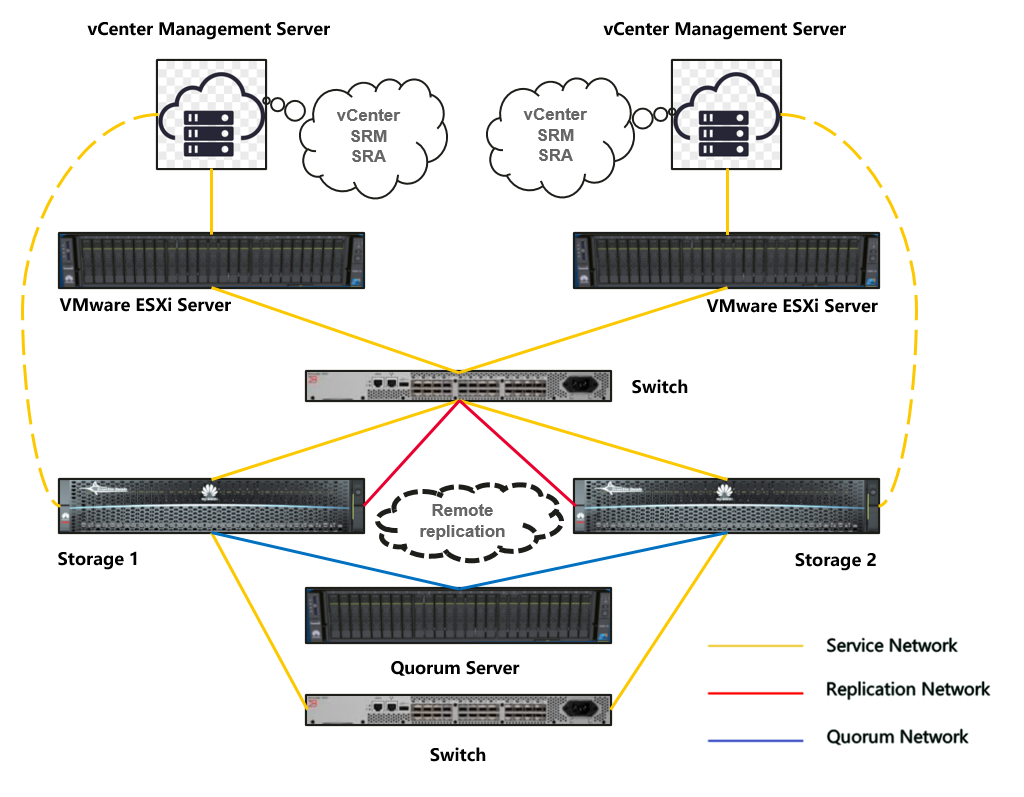
Networking description:
Deploy the SRA plugin on both SRM hosts and register the vCenter host to form the vCenter management server.
The vCenter management server connects to the ESXi hosts, which are in turn connected to the storage via a switch. Use the storage resources to create multiple virtual machines.
The two storage systems are connected through a remote replication link, and the SRA plugin synchronizes the storage information to the vCenter management server for unified management.
Each controller has a network port configured with an IP to connect to the quorum server network.
1.2 Hardware and Software Configuration
1.2.1 Storage Configuration
Table 1-1 Storage Configuration Table
Name | Description | Version | Quantity |
Storage | OceanStor Dorado All-Flash Storage | V700 | 2 |
1.2.2 Other Hardware Configuration
Table 1-2 Hardware Configuration
Name | Description | Quantity | Usage |
Fibre Channel Switch | SNS2248-16Gb Fibre Channel Switch | 1 | Service Network Switch |
Ethernet Switch | Huawei CE6850 Ethernet Switch | 1 | Service Network Switch |
1.2.3 Test Software and Tools
Table 1-3 Test Software and Tool List
Software Name | Description | Version |
VMware SRM | A business continuity and disaster recovery solution Platform | 9.0.2 |
Huawei eSDK_Storage_SRA | A communication bridge between a storage system and SRM | 2.6.3 |
VMware vCenter | VMware Virtualization Management Platform | 8.0U3 |
VMware ESXi | VMware Virtualization Platform | 8.0U3 |
Red Hat Enterprise Linux | Virtual Machine | 8.8 |
Windows server | Virtual Machine | 2019 |
2. Basic Connectivity Test
2.1 DR Test in The Synchronous Replication Scenario
Test Purpose | To Verify That Basic DR Tests Can be Performed in Synchronous Replication Scenarios |
Test Networking | Storage and VMware SRM Compatibility Test Networking |
Prerequisites | 1. The network between the production site and DR secondary site is normal. 2. iSCSI or FC connections have been established between the storage array of the DR secondary site and the host or cluster of the DR secondary site. 3. The vCenter Server, ESXi host, and SRM at the production site and DR secondary site are running properly. 4. The storage arrays at the production site and DR secondary site are normal. 5. VMs, protected groups, and recovery plans have been created and are in the normal state. |
Test Procedure | 1. Configure a remote replication pair for a LUN in synchronous replication mode. 2. Create VMs at the production site. 3. Log in to the SRM management screen. 4. Select the created recovery plan and perform the test. 5. After the test is successful, check the disaster recovery site. 6. Clear the test data at the DR site and restore the resource status to the status before the test. |
Expected Result | 1. In step 1, The synchronous replication link has been successfully created and is functioning normally. 2. In step 2, The virtual machine has been successfully created, and VMware Tools is running. 3. In step 3, The login to the SRM management page is successful. 4. In step 4, Select the created recovery plan. The test can be performed successfully. 5. In step 5, The test is successful. The secondary snapshot is created and activated, and the secondary snapshot VM is started. 6. In step 6, The data is cleared successfully. The secondary snapshot and VM are deleted. |
Test Record | 1. Configure a remote replication pair for LUNs in synchronous replication mode. 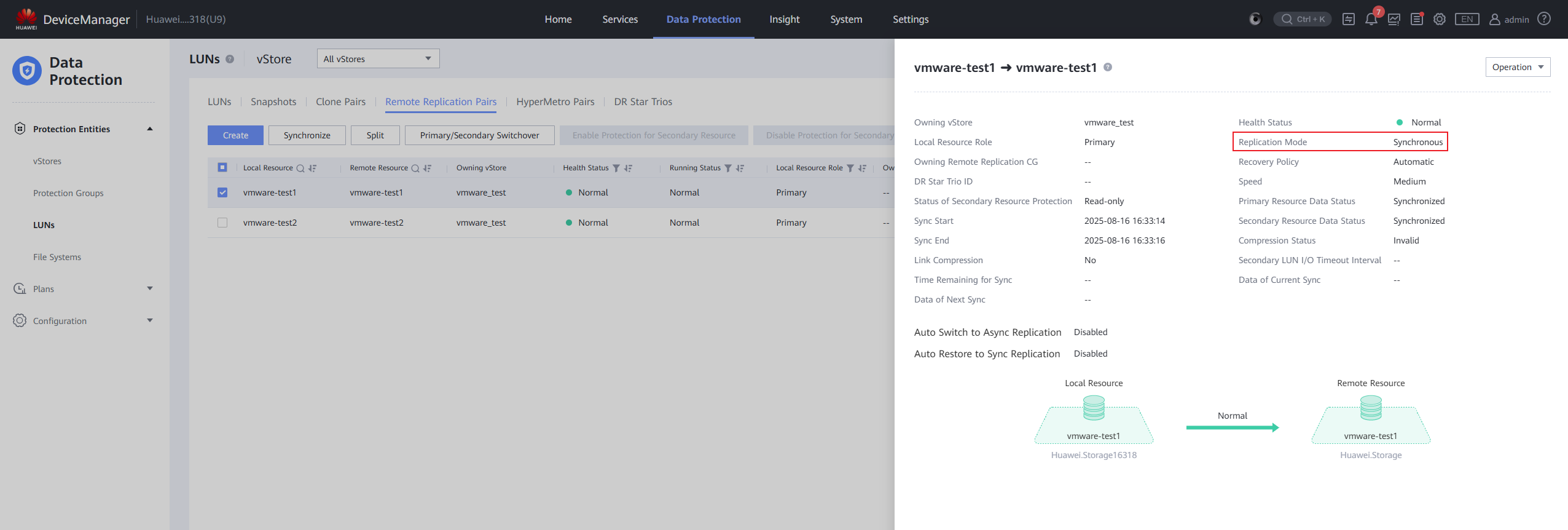
2. Create VMs at the production site. 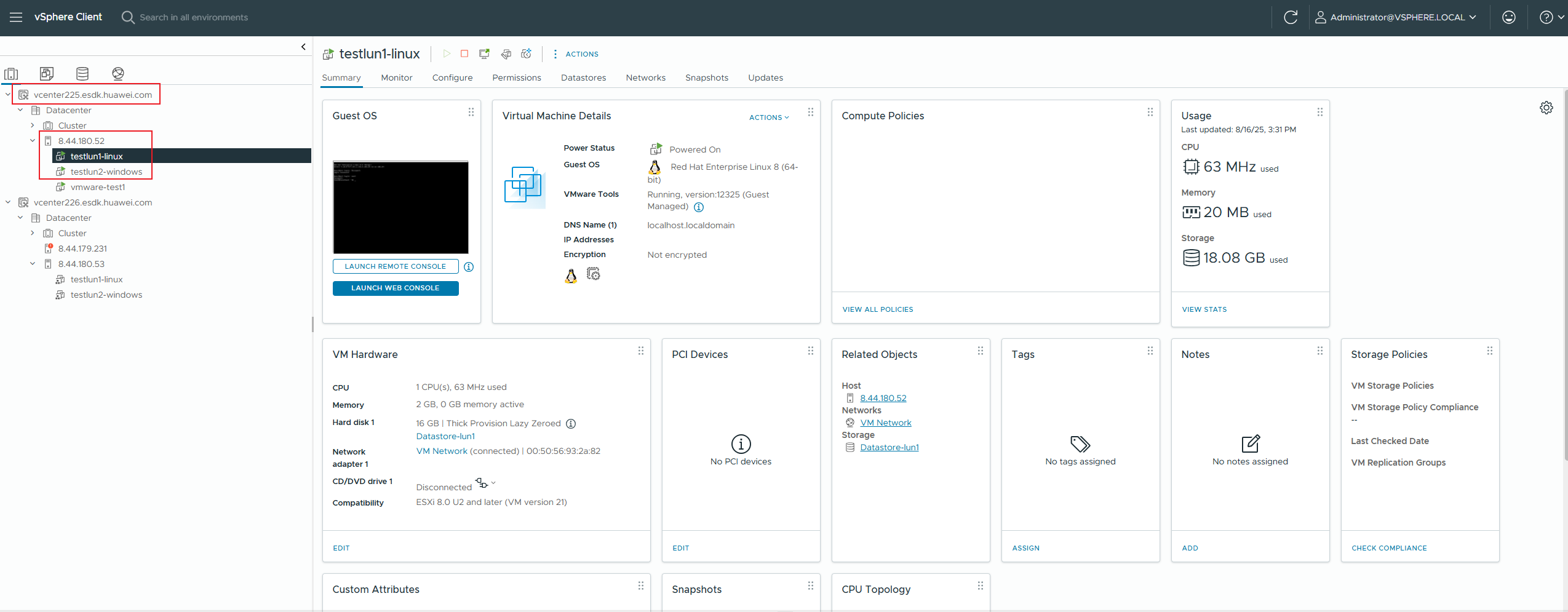
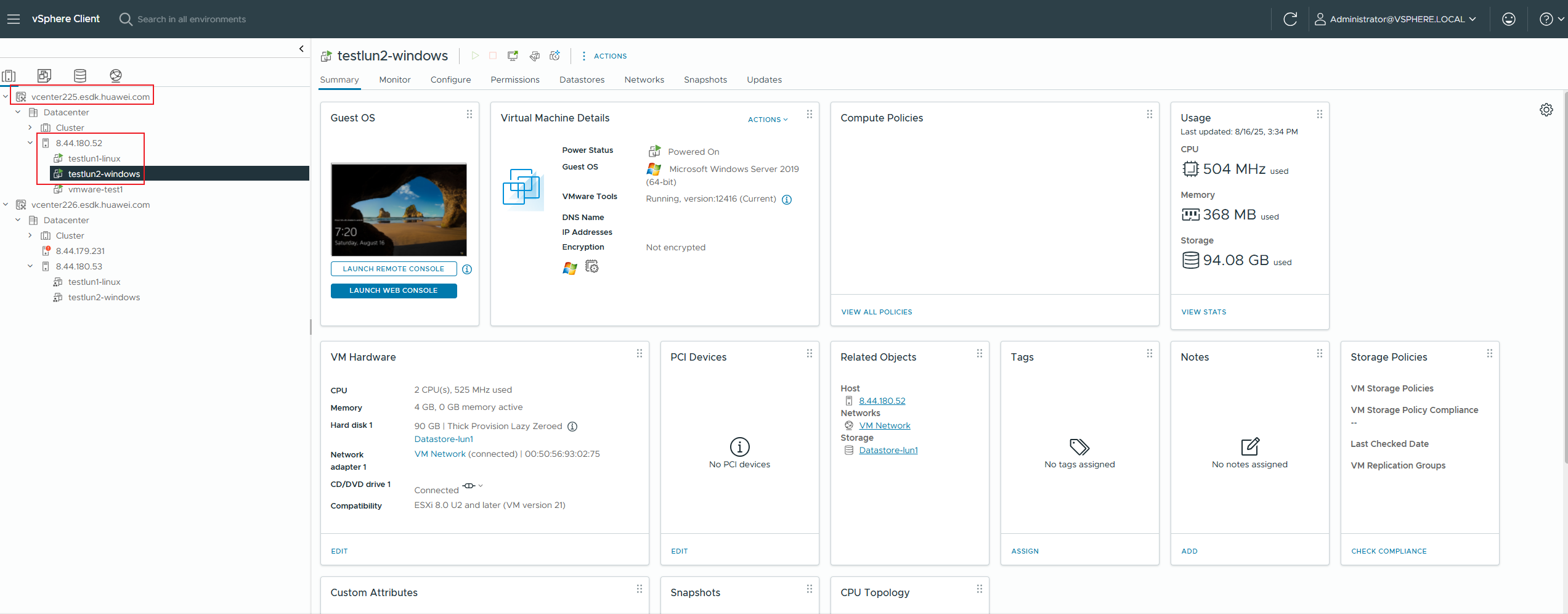
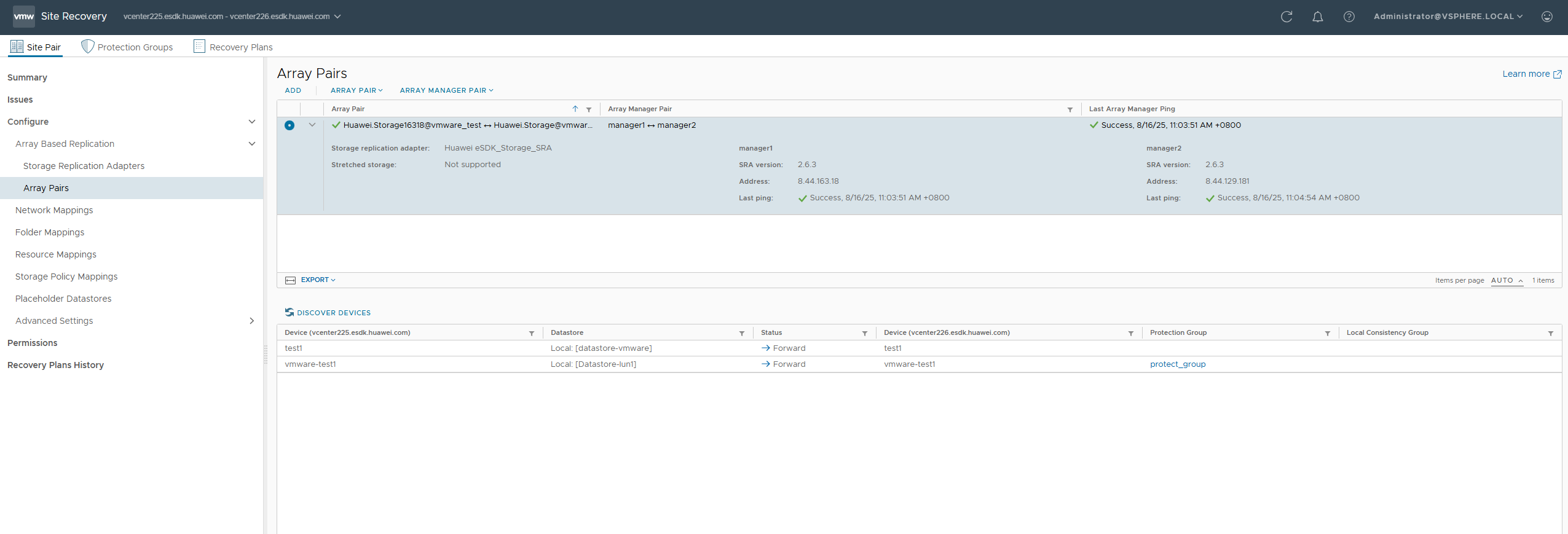
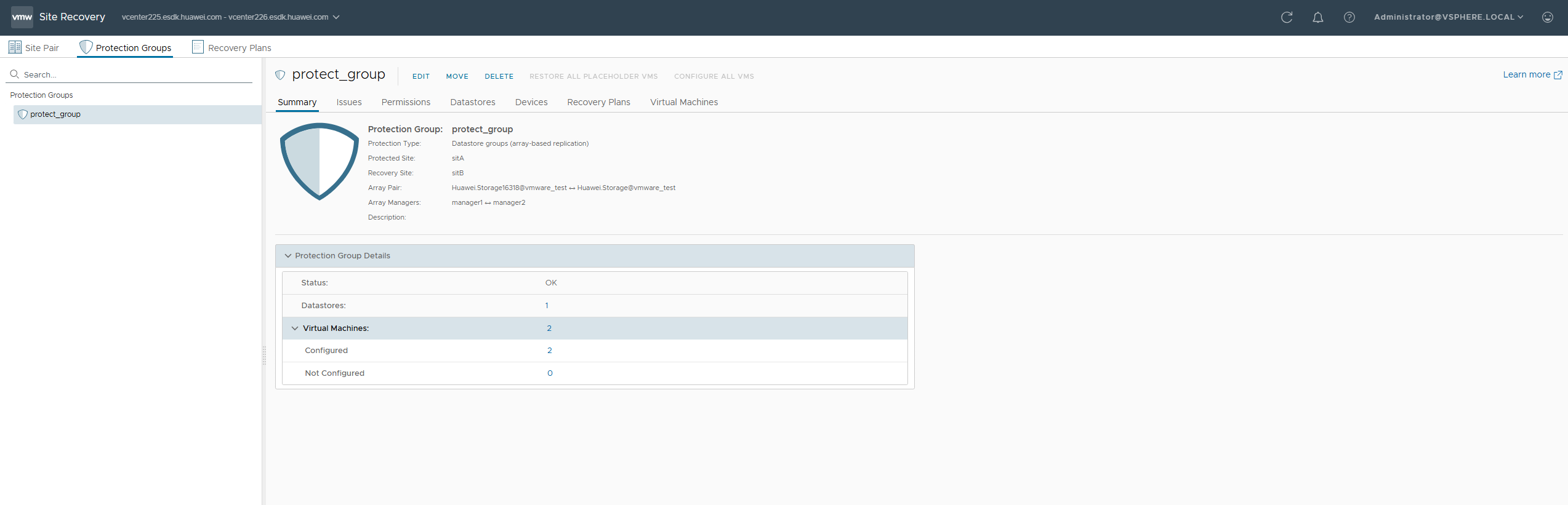
3. You have logged in to the SRM management page and configured the array pair and protection group. 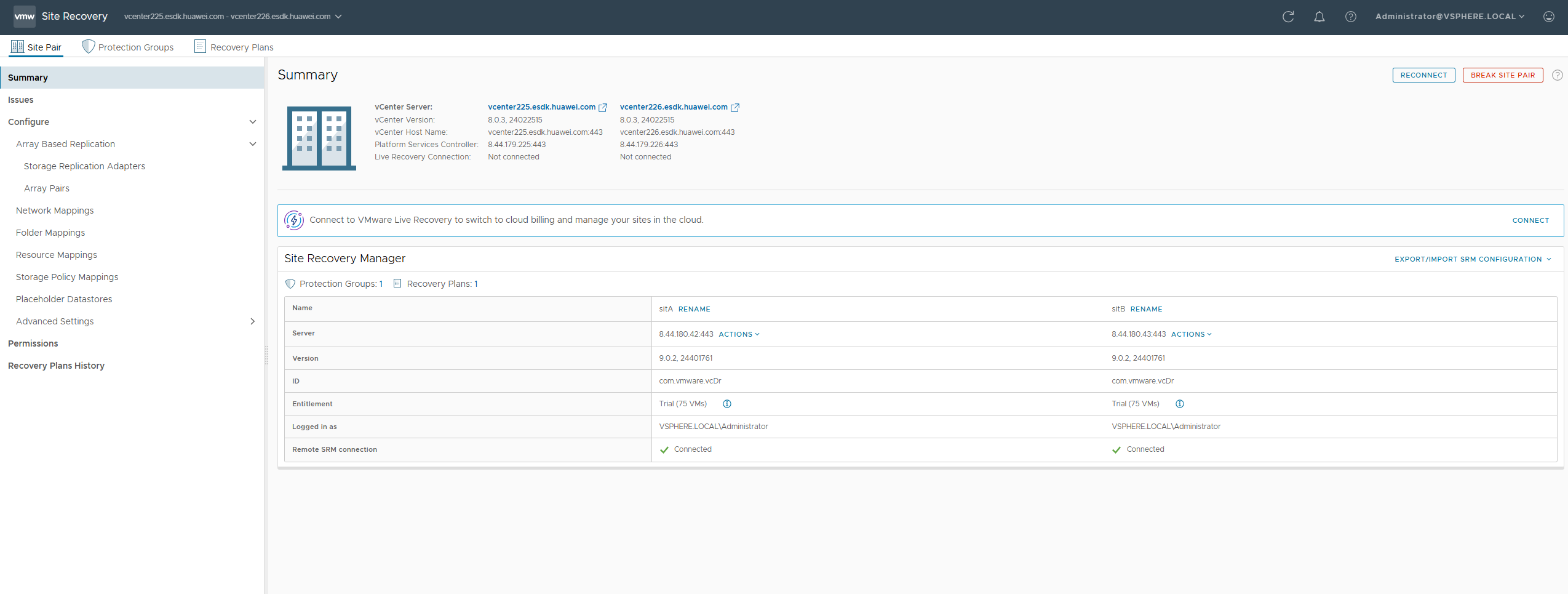
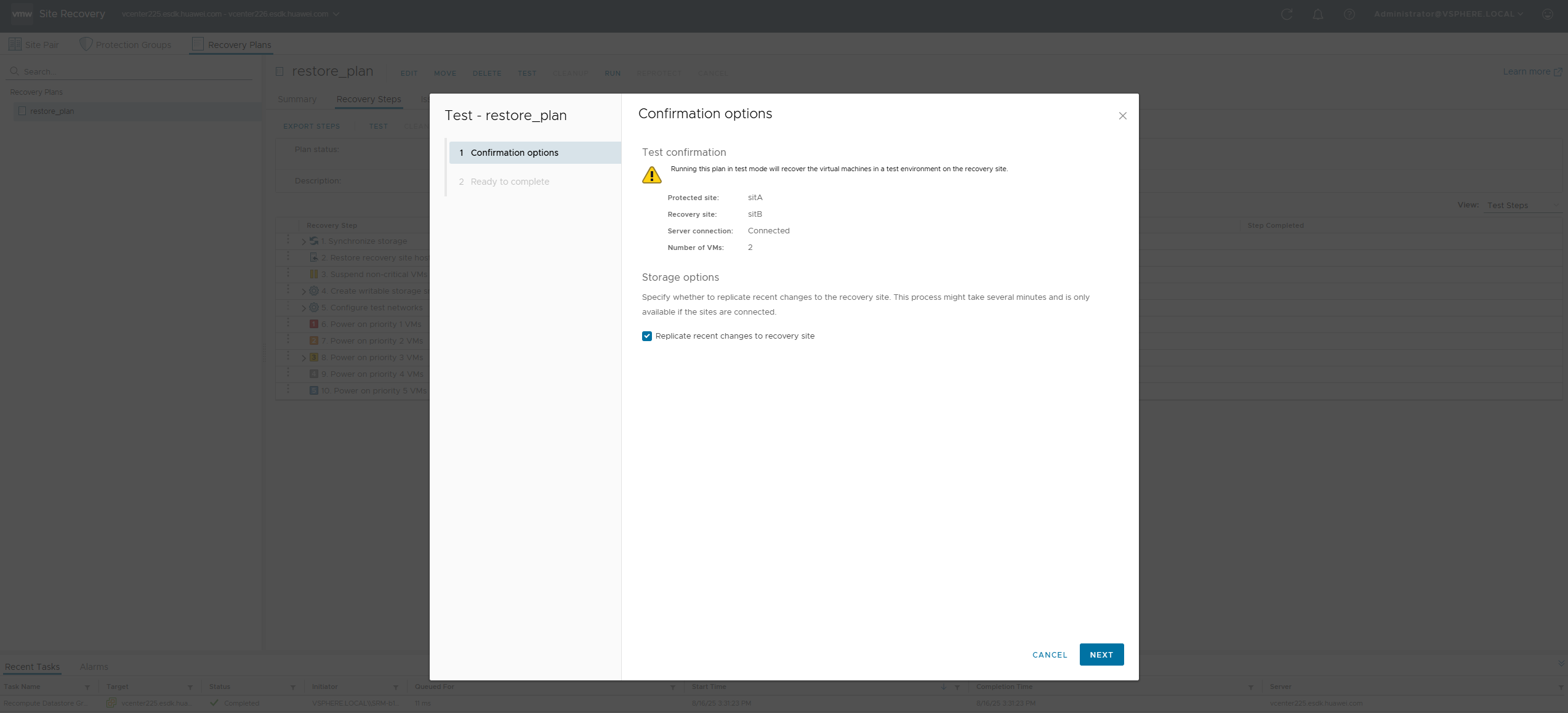
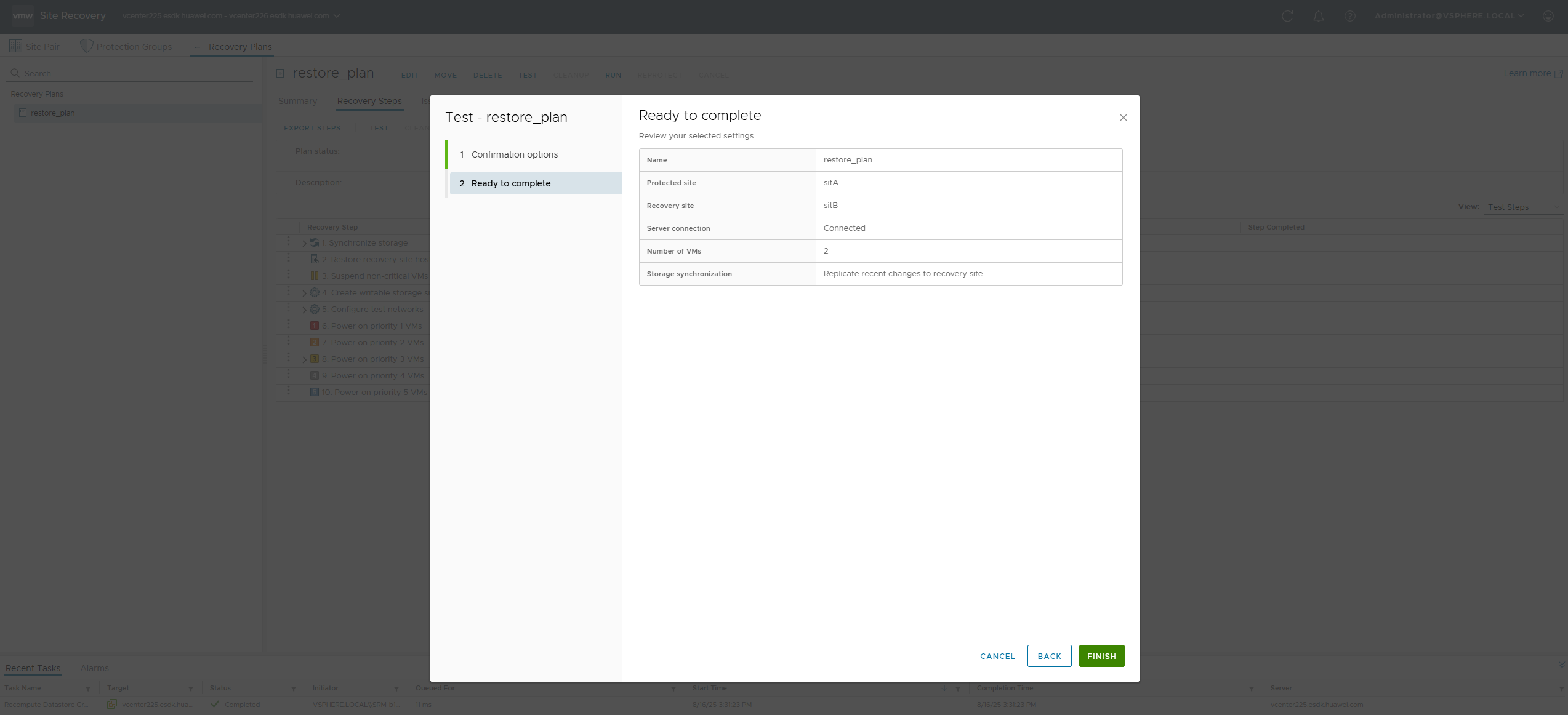
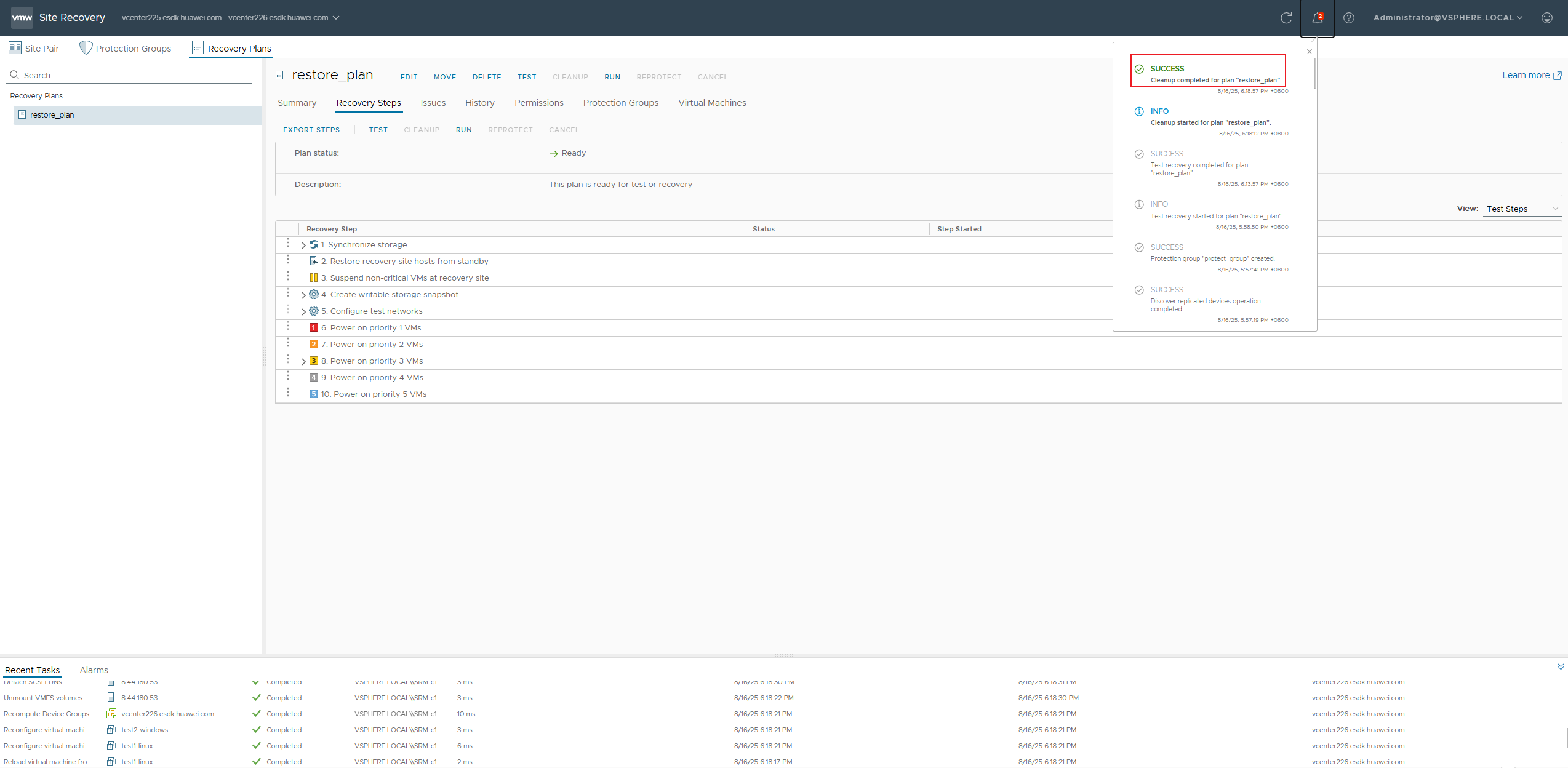
4. Select the created recovery plan and perform the test. 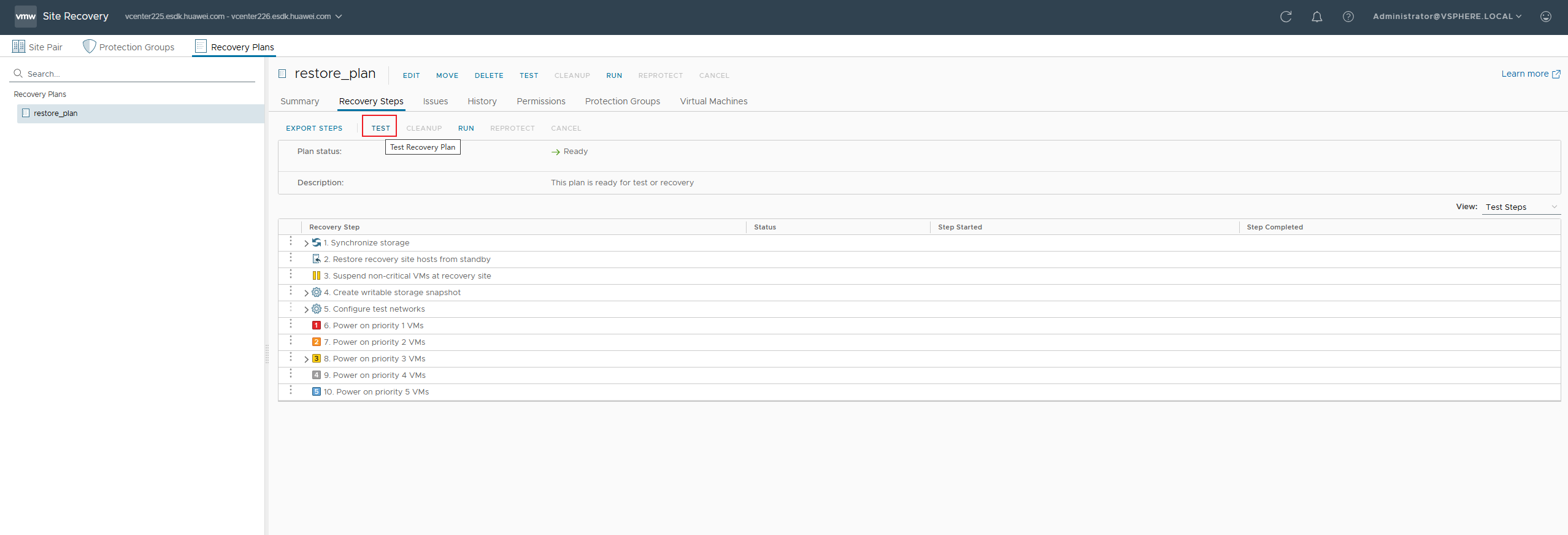
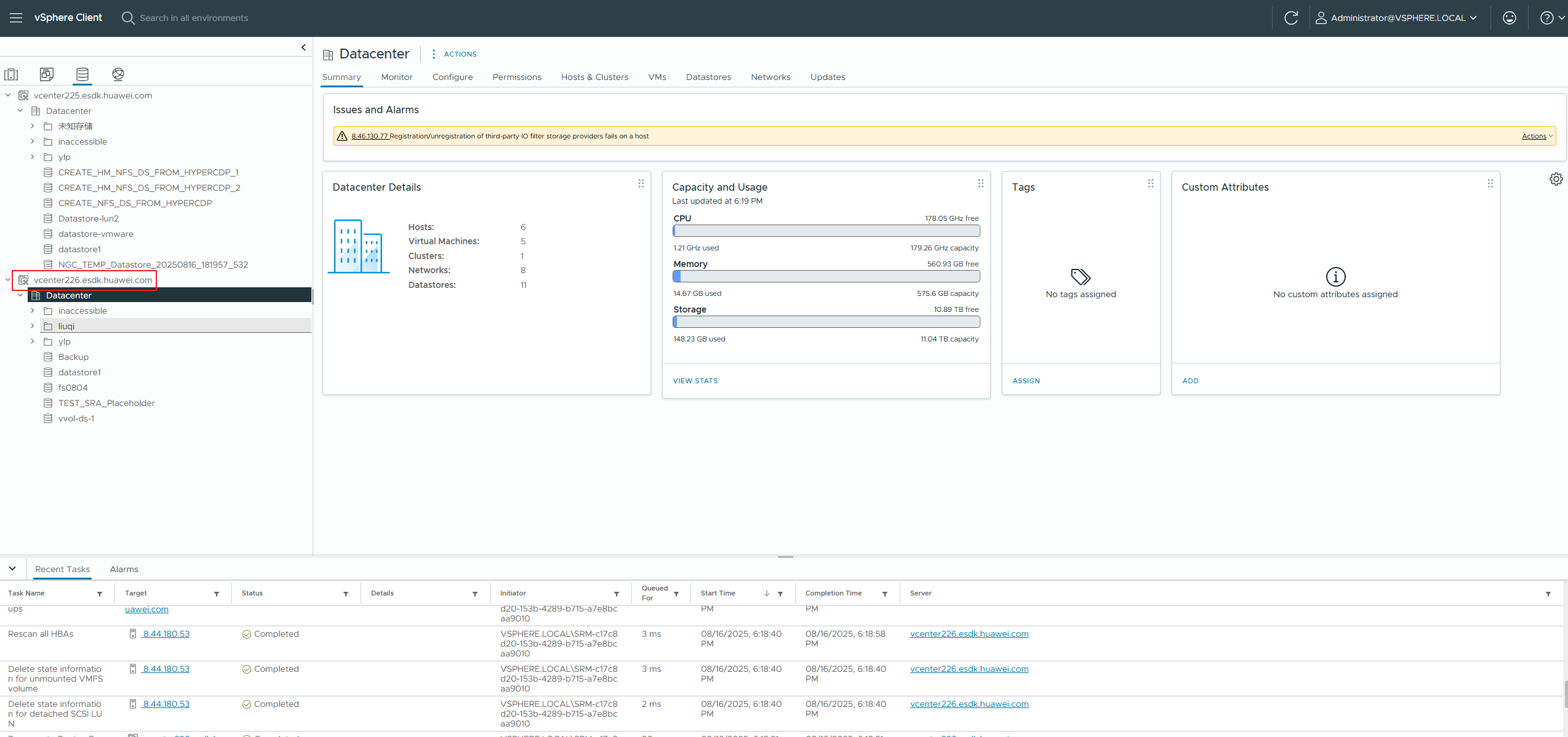
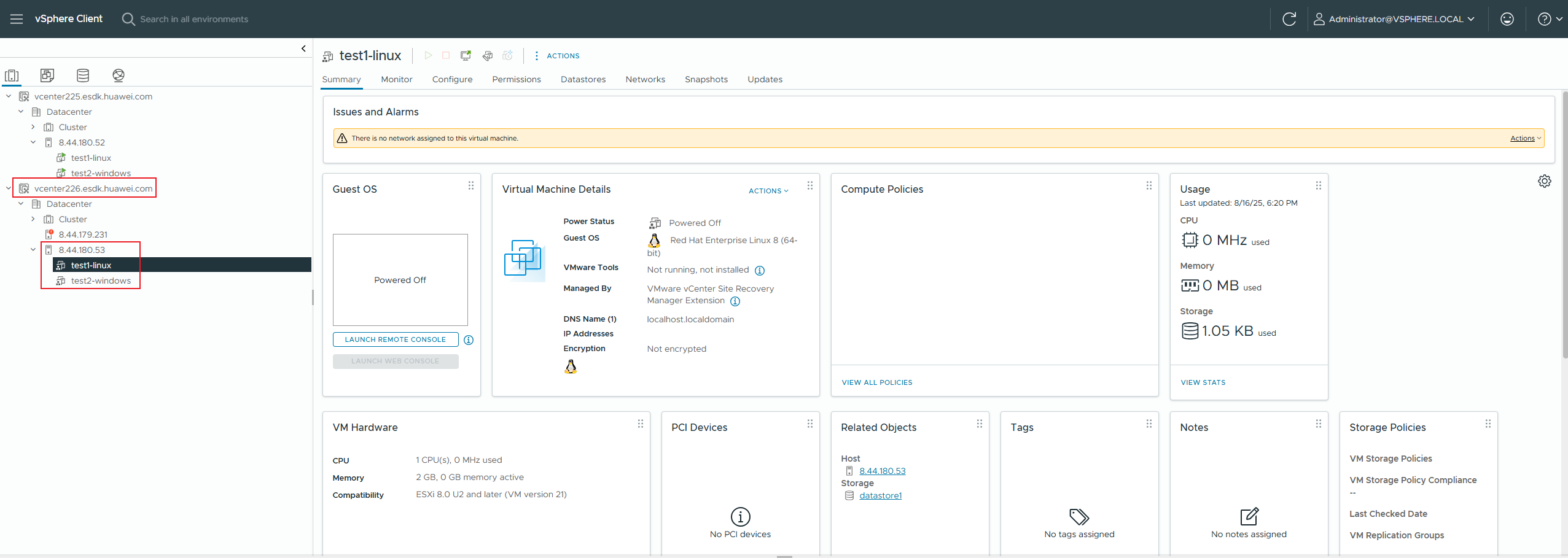
5. The test is successful. The snapshot is created and activated successfully at the DR site, and the VM is started successfully. 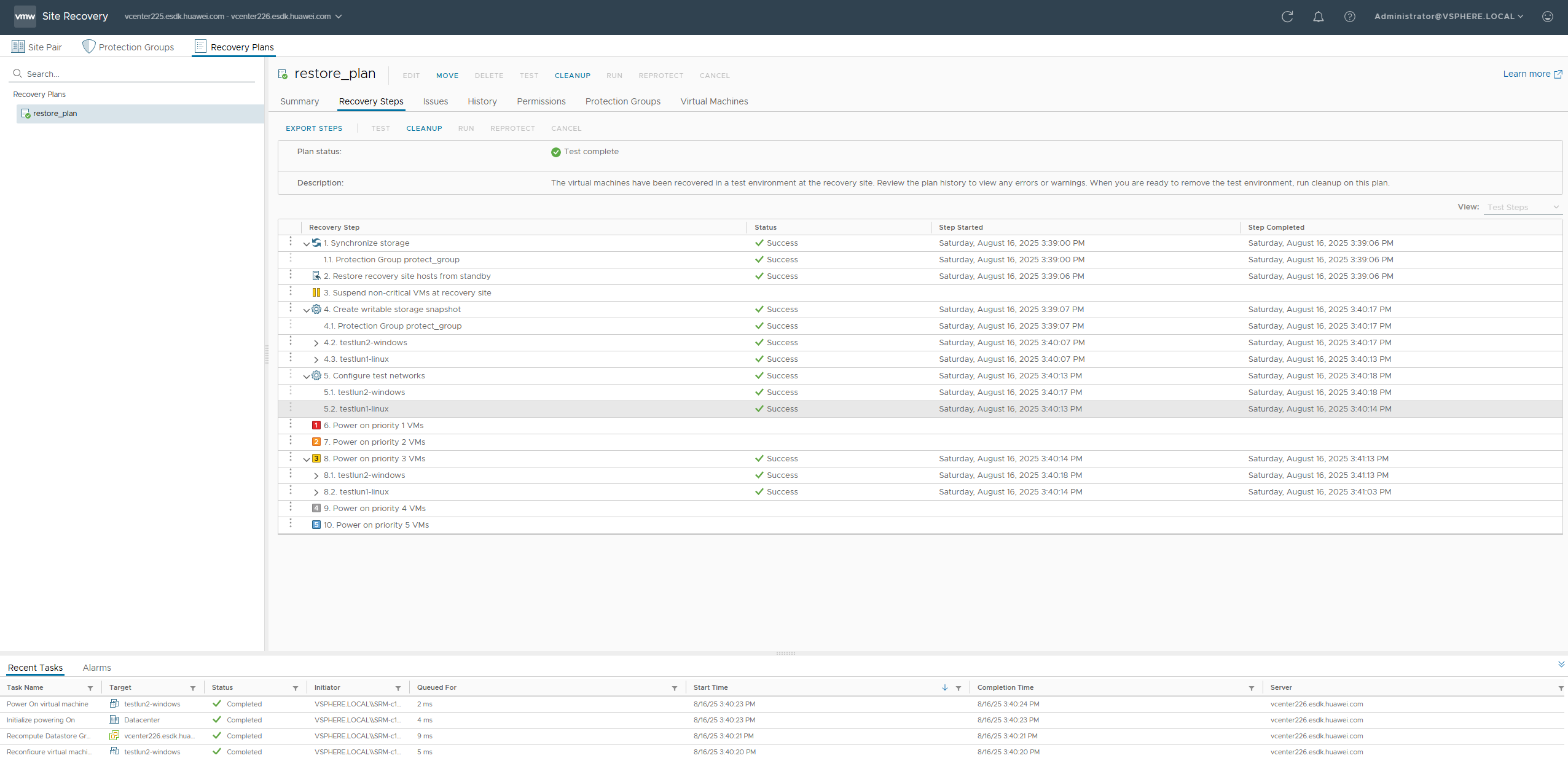
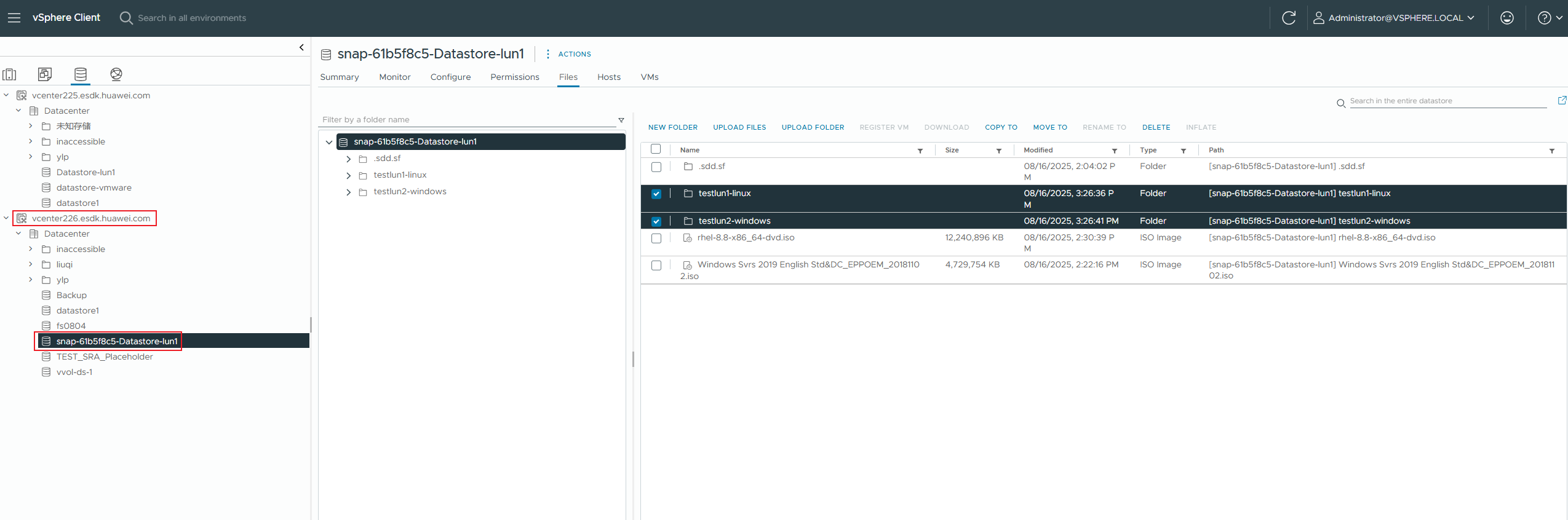
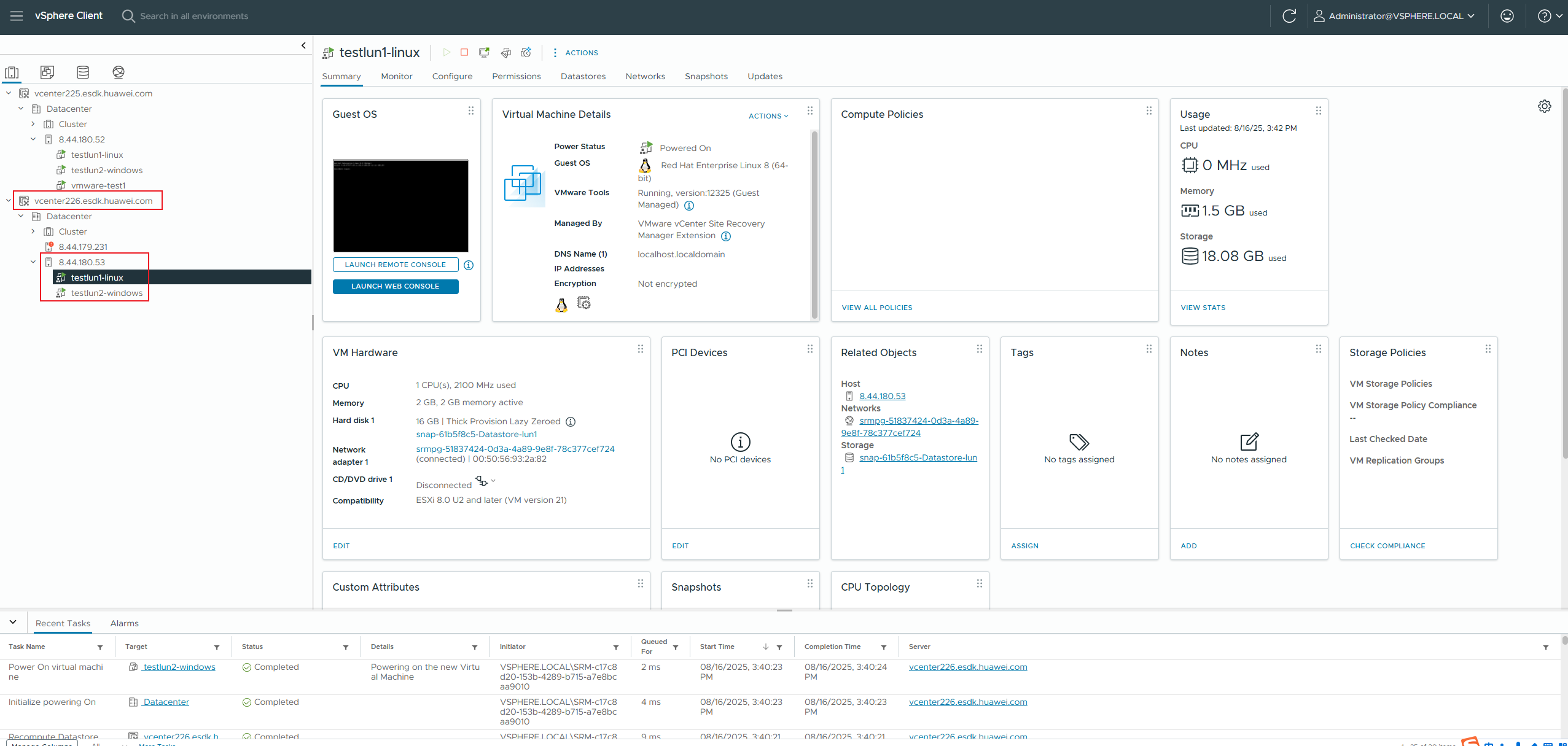
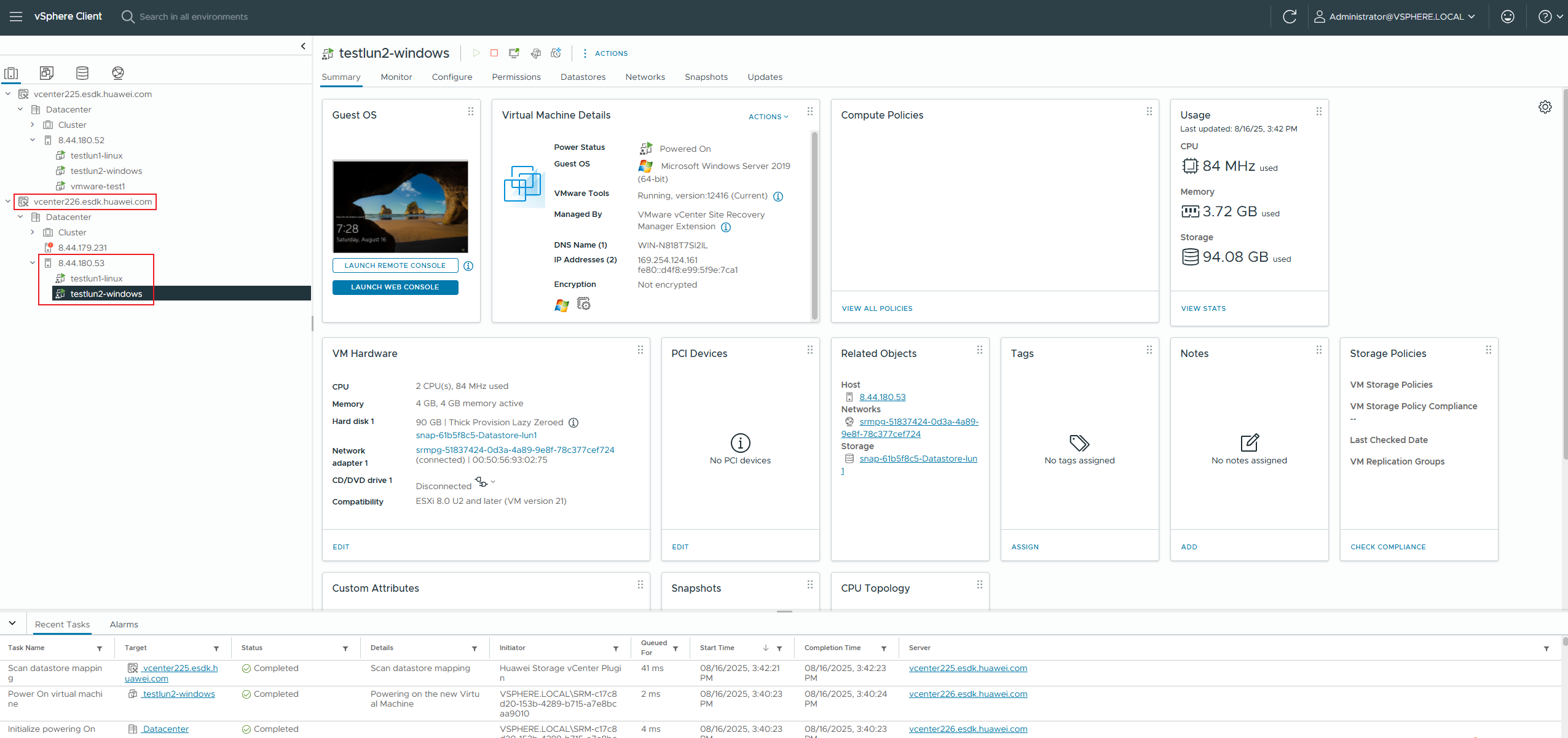
6. The data is cleared successfully. Snapshots and VMs are successfully deleted from the DR site. 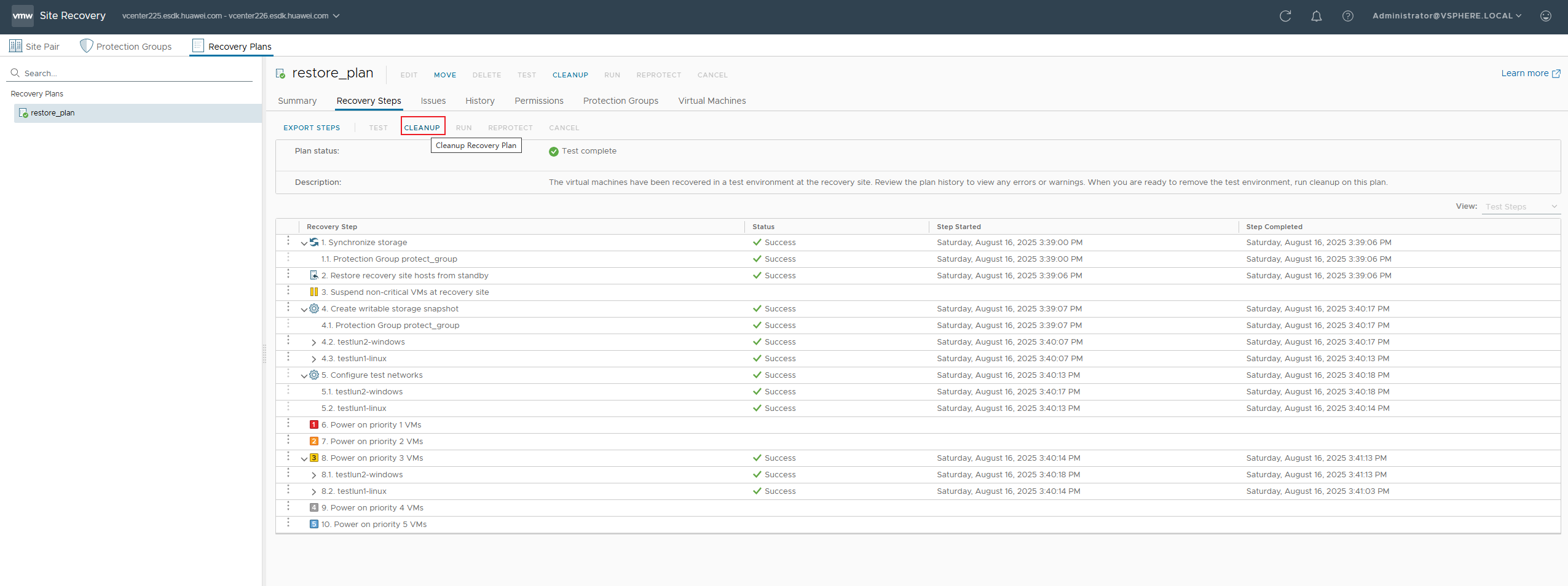
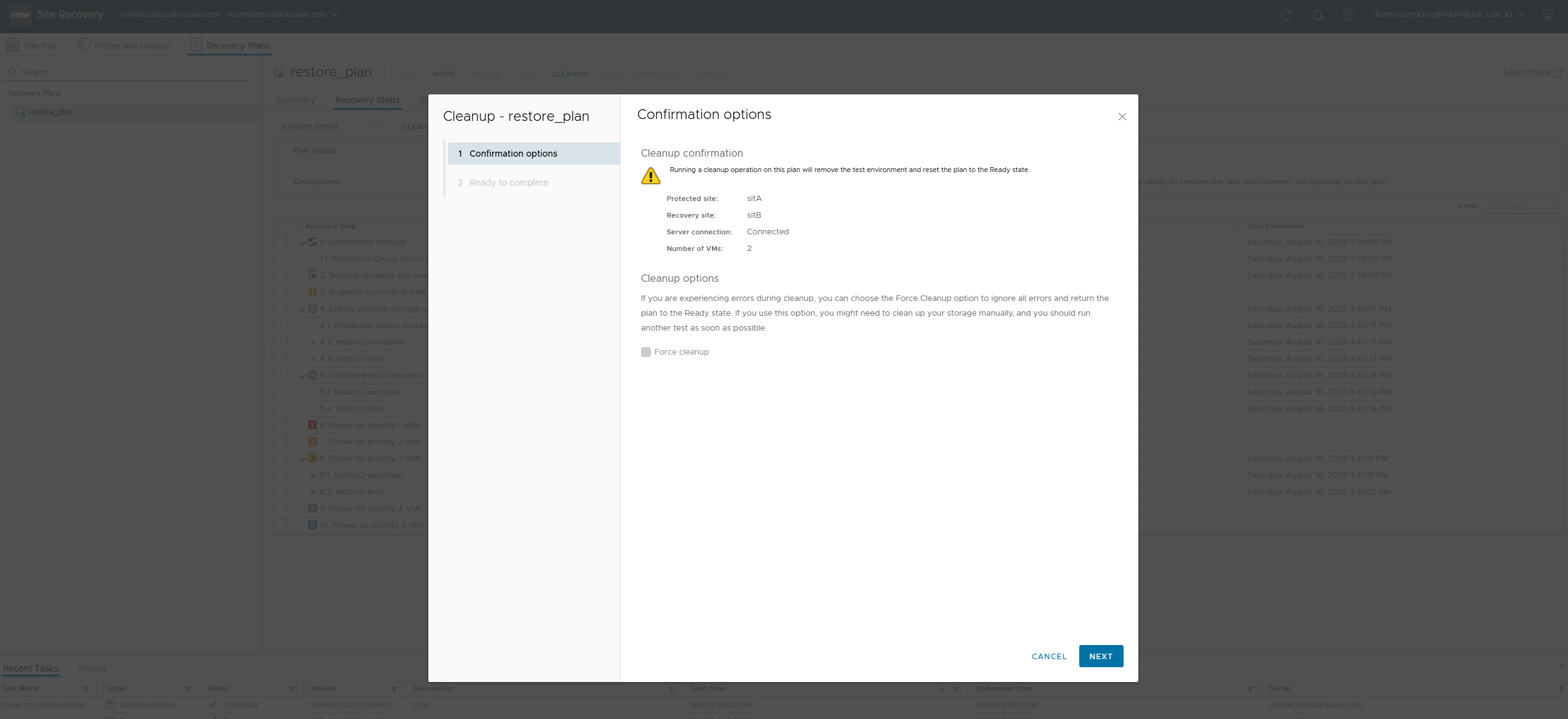
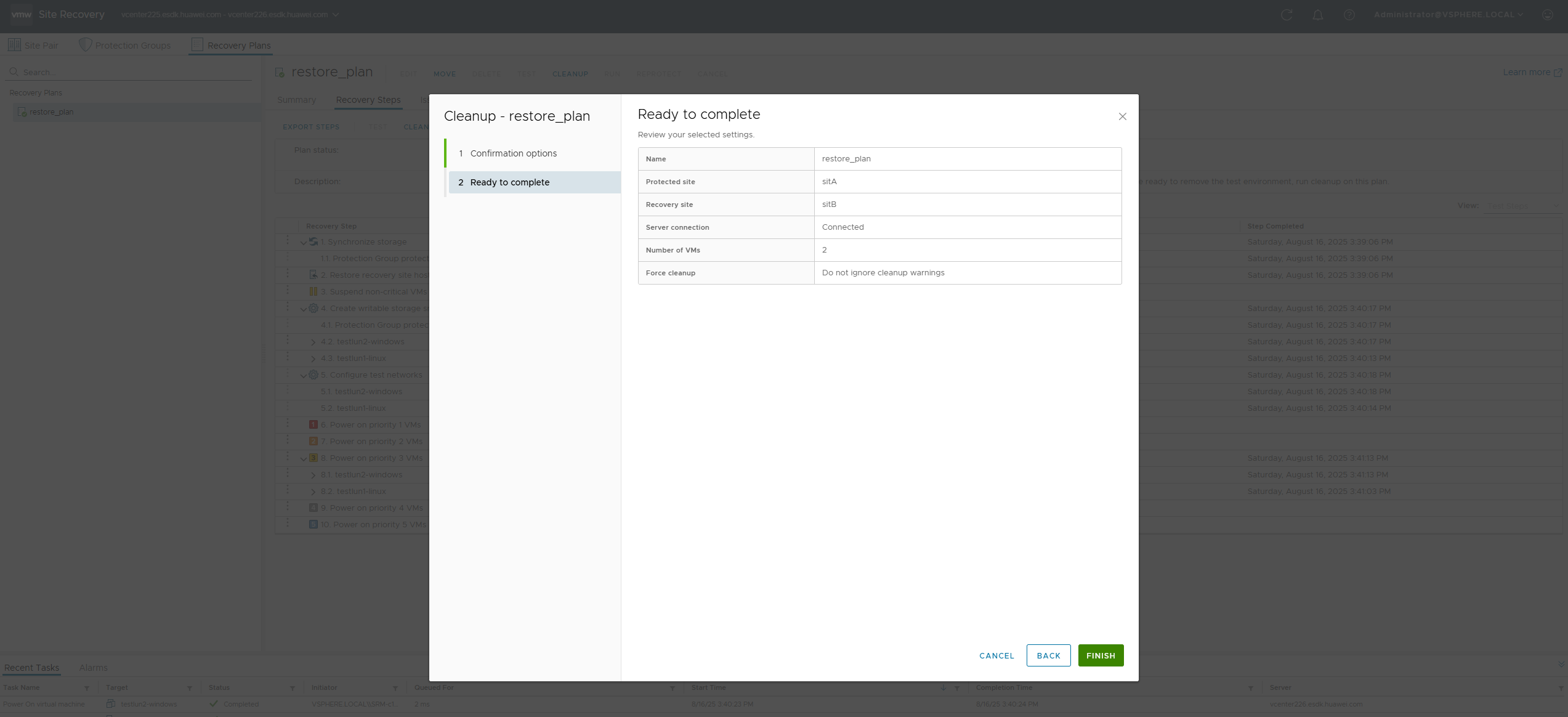
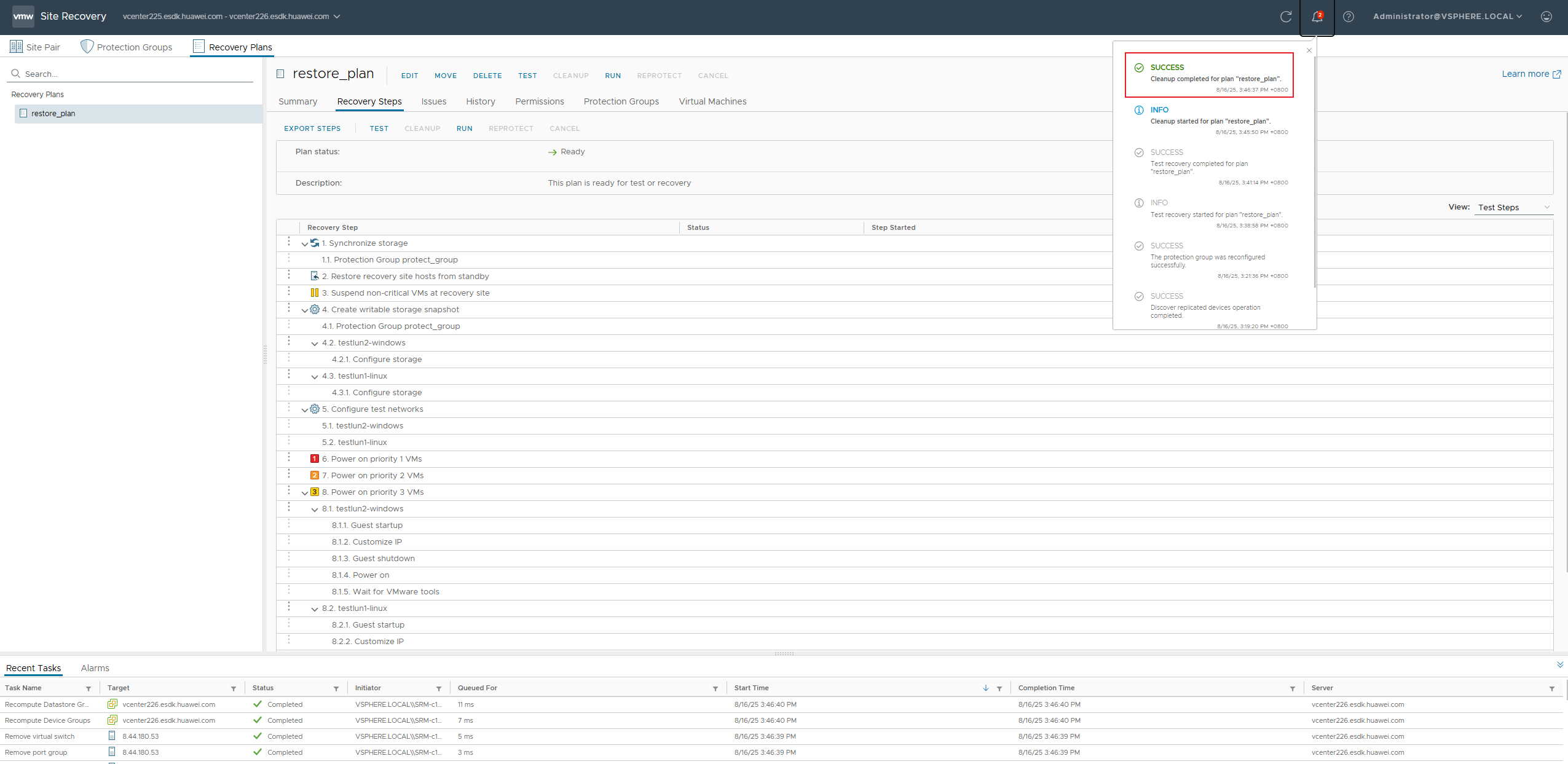
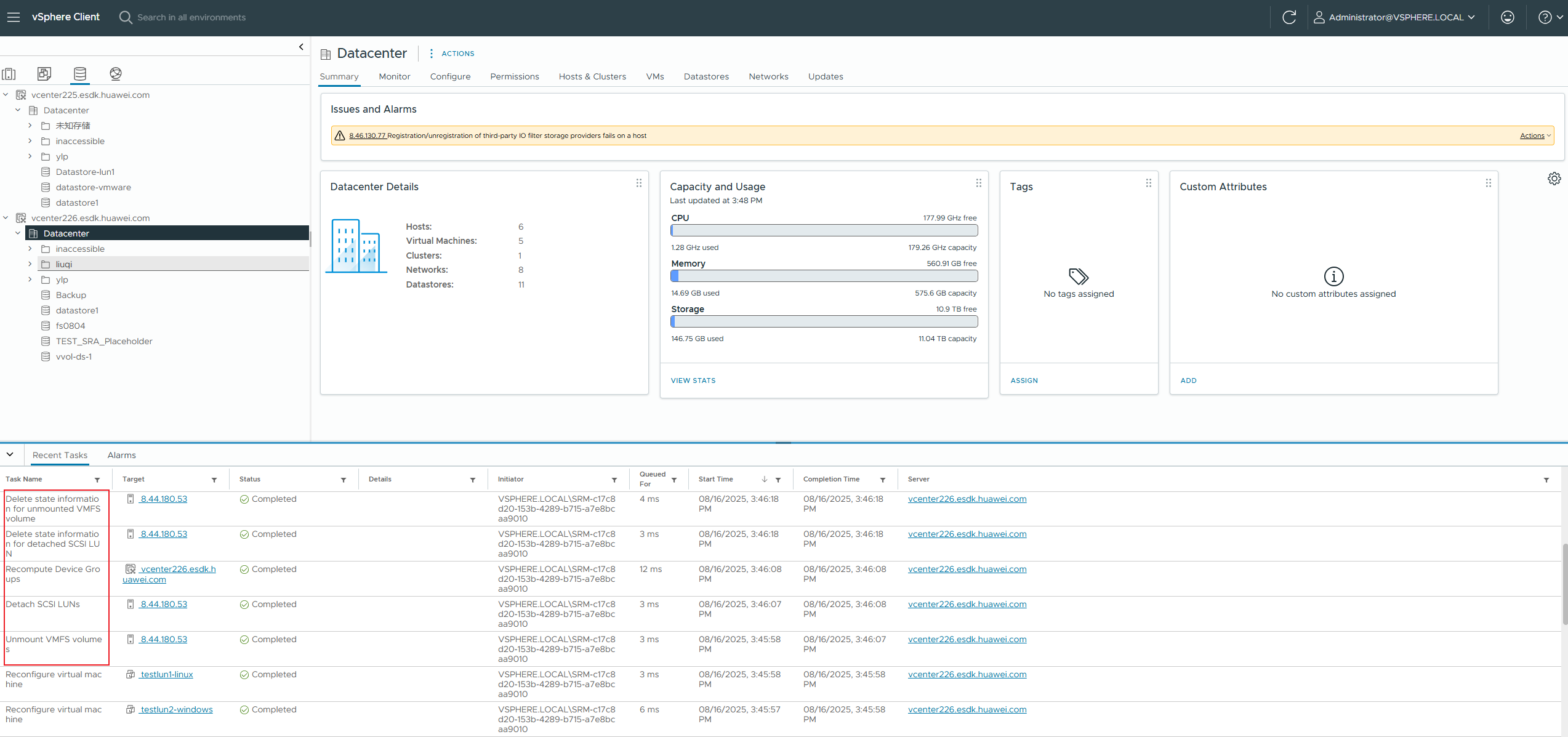
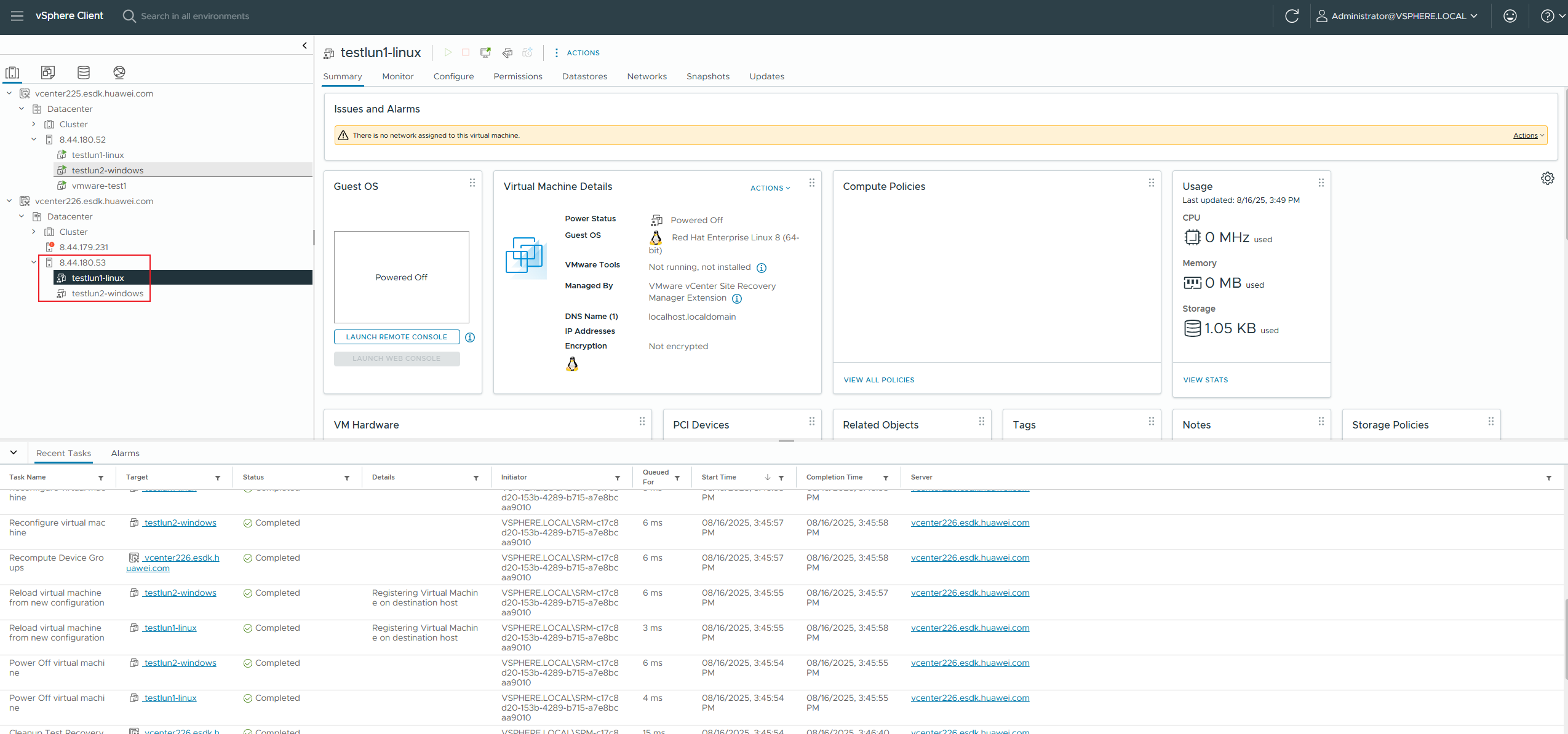
|
Test Conclusion | Passed |
2.2 DR Test in The Asynchronous Replication Scenario
Test Purpose | To Verify That Basic DR Tests Can be Performed in The Asynchronous Replication Scenario |
Test Networking | Storage and VMware SRM Compatibility Test Networking |
Prerequisites | 1. The network between the production site and DR secondary site is normal. 2. iSCSI or FC connections have been established between the storage array of the DR secondary site and the host or cluster of the DR secondary site. 3. The vCenter Server, ESXi host, and SRM at the production site and DR secondary site are running properly. 4. The storage arrays at the production site and DR secondary site are normal. 5. VMs, protected groups, and recovery plans have been created and are in the normal state. |
Test Procedure | 1. Configure a remote replication pair for a LUN in asynchronous replication mode. 2. Create VMs at the production site. 3. Log in to the SRM management screen. 4. Select the created recovery plan and perform the test. 5. After the test is successful, check the disaster recovery site. 6. Clear the test data at the DR site and restore the resource status to the status before the test. |
Expected Result | 1. In step 1, The asynchronous replication link has been successfully created and is functioning normally. 2. In step 2, The virtual machine has been successfully created, and VMware Tools is running. 3. In step 3, The login to the SRM management page is successful. 4. In step 4, Select the created recovery plan. The test can be performed successfully. 5. In step 5, The test is successful. The secondary snapshot is created and activated, and the secondary snapshot VM is started. 6. In step 6, The data is cleared successfully. The secondary snapshot and VM are deleted. |
Test Record | 1. Configure a remote replication pair for LUNs in asynchronous replication mode. 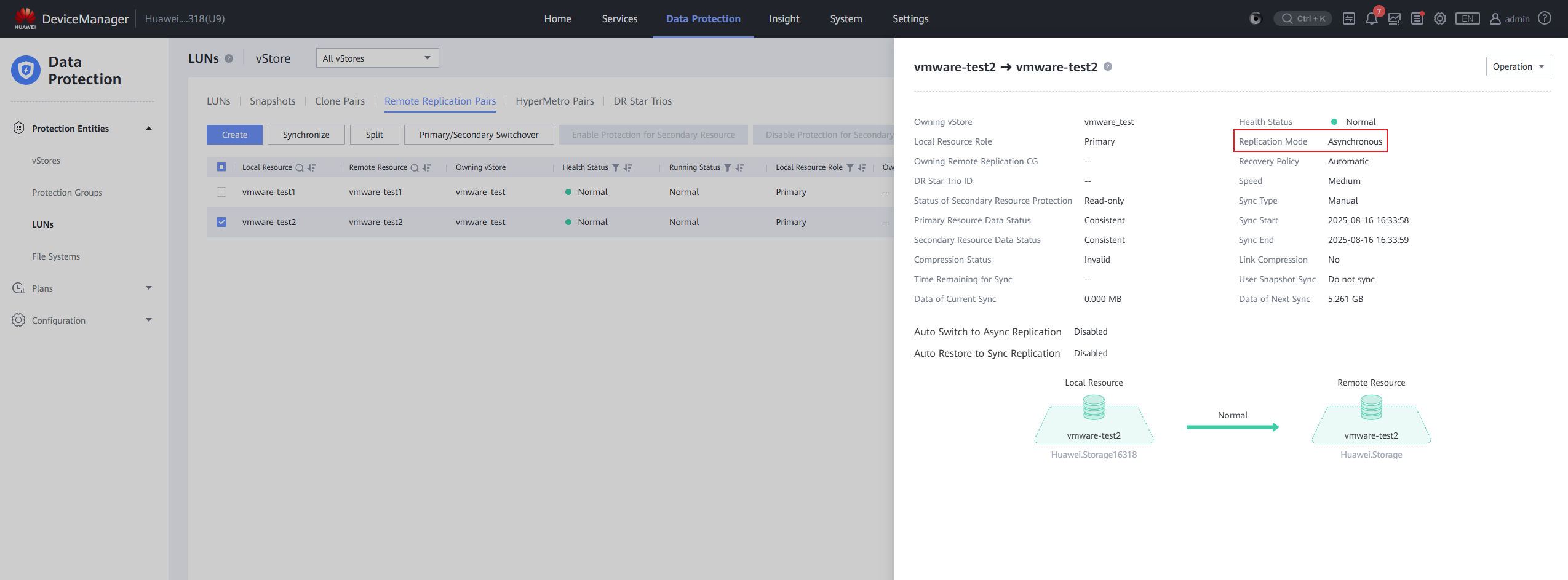
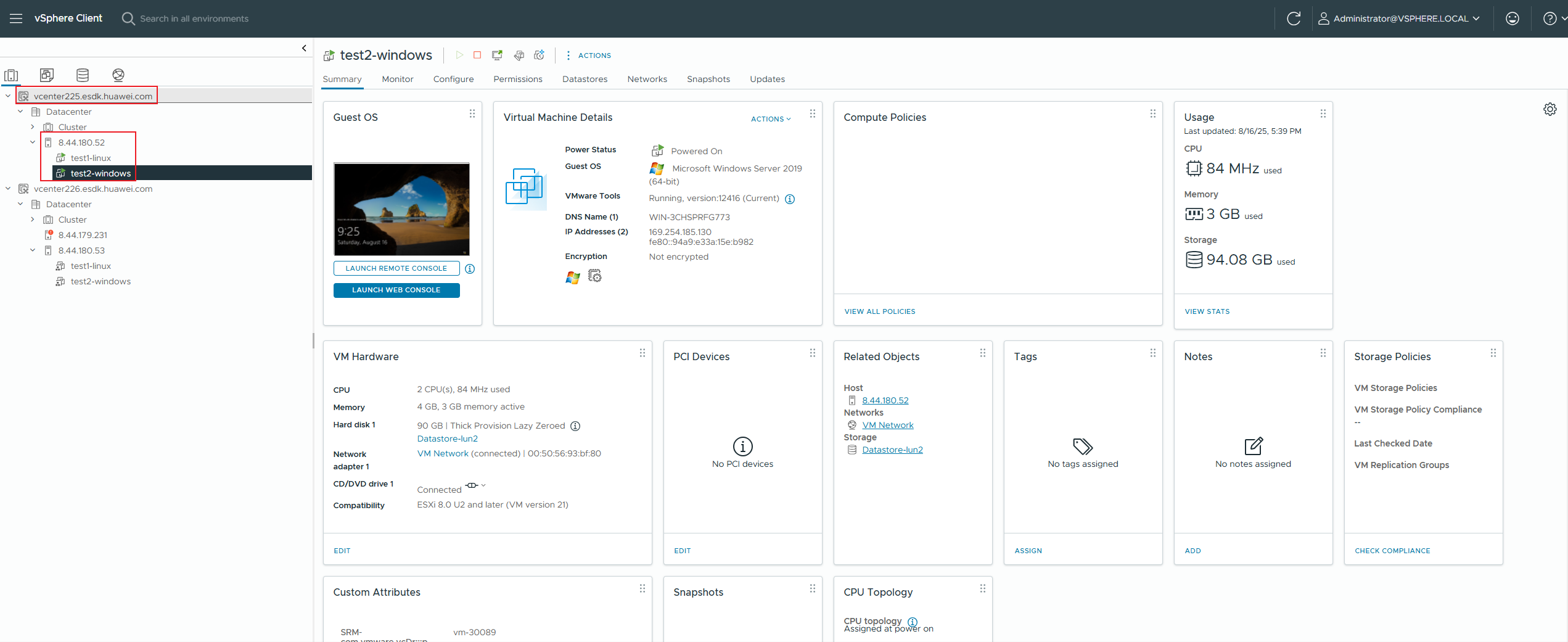
2. Create VMs at the production site. 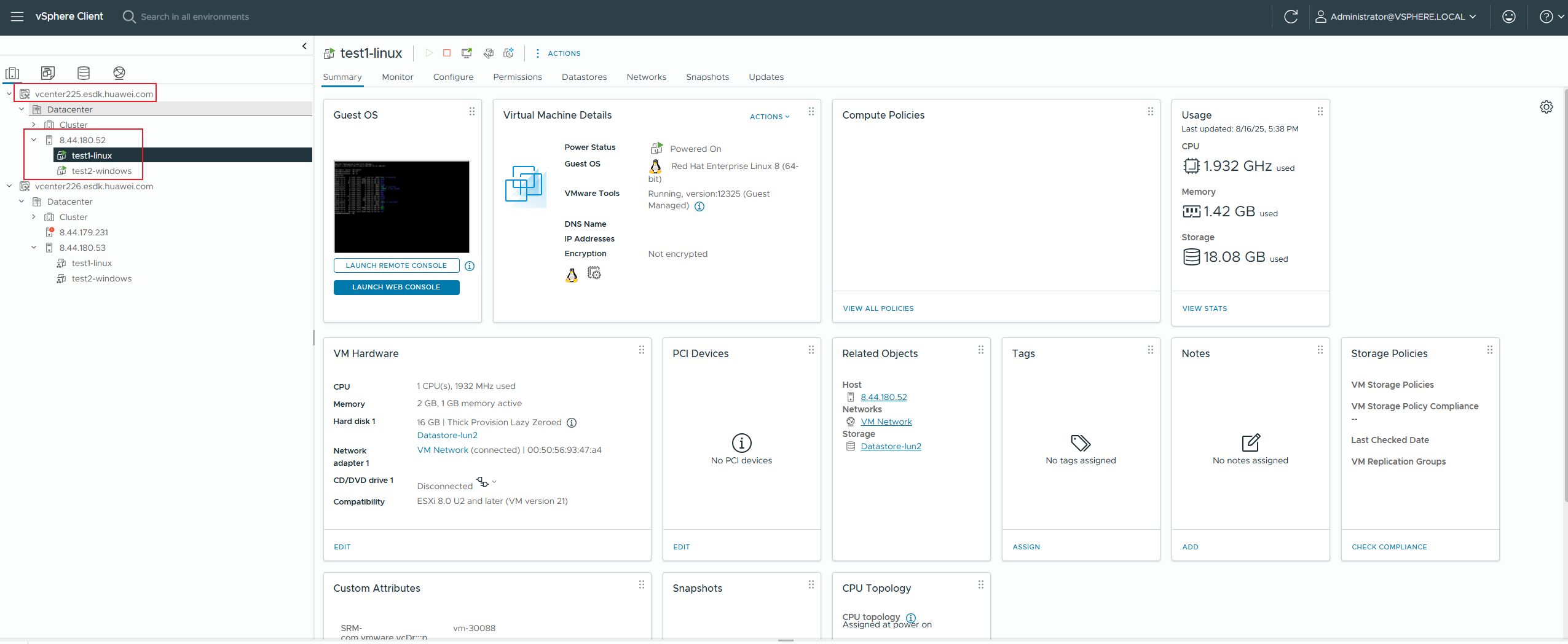
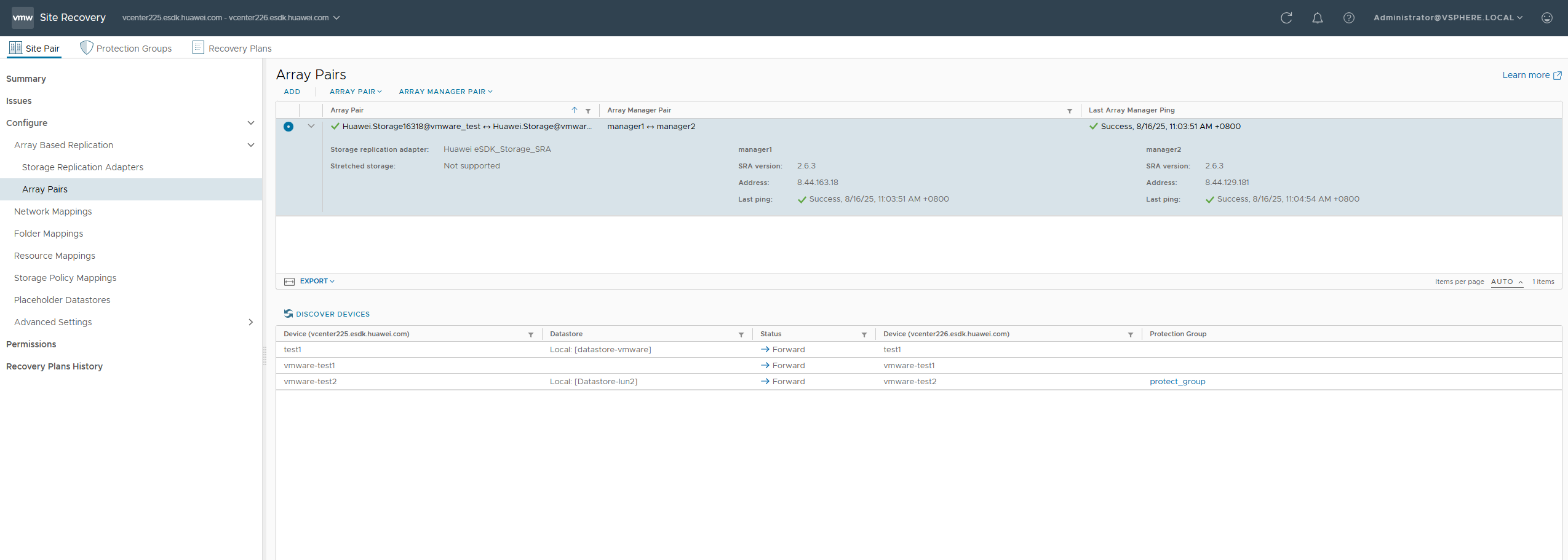
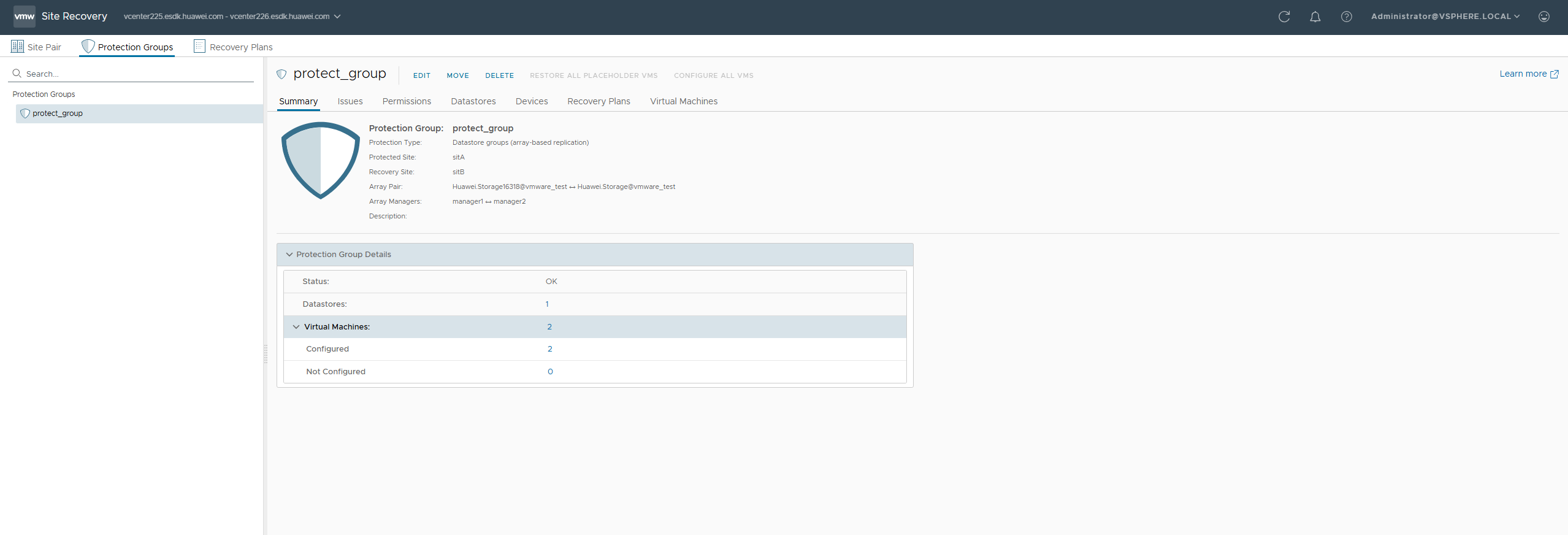
3. You have logged in to the SRM management page and configured the array pair and protection group. 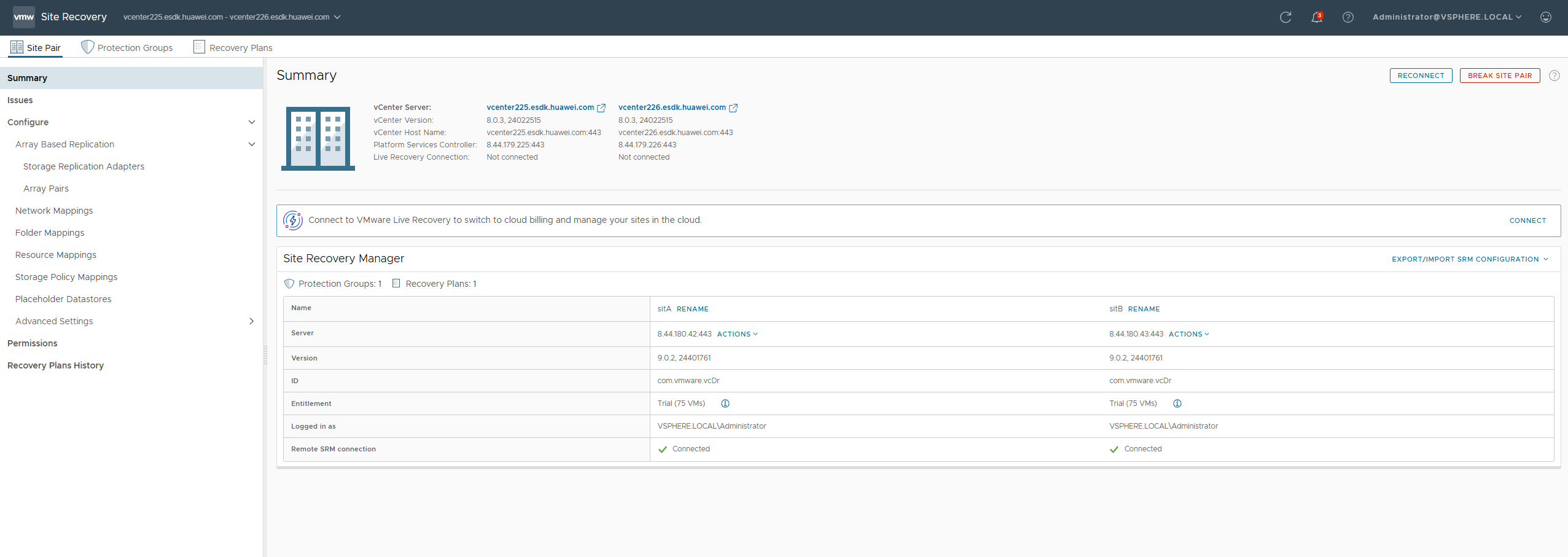
4. Select the created recovery plan and perform the test. 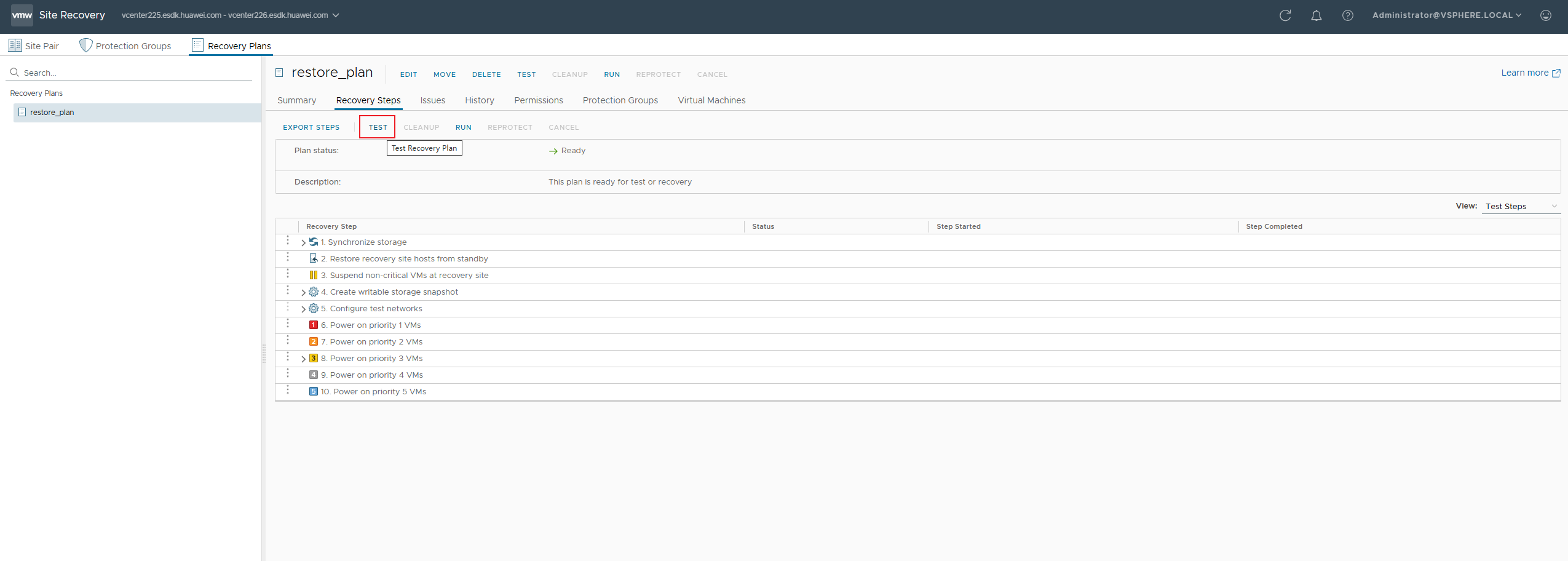
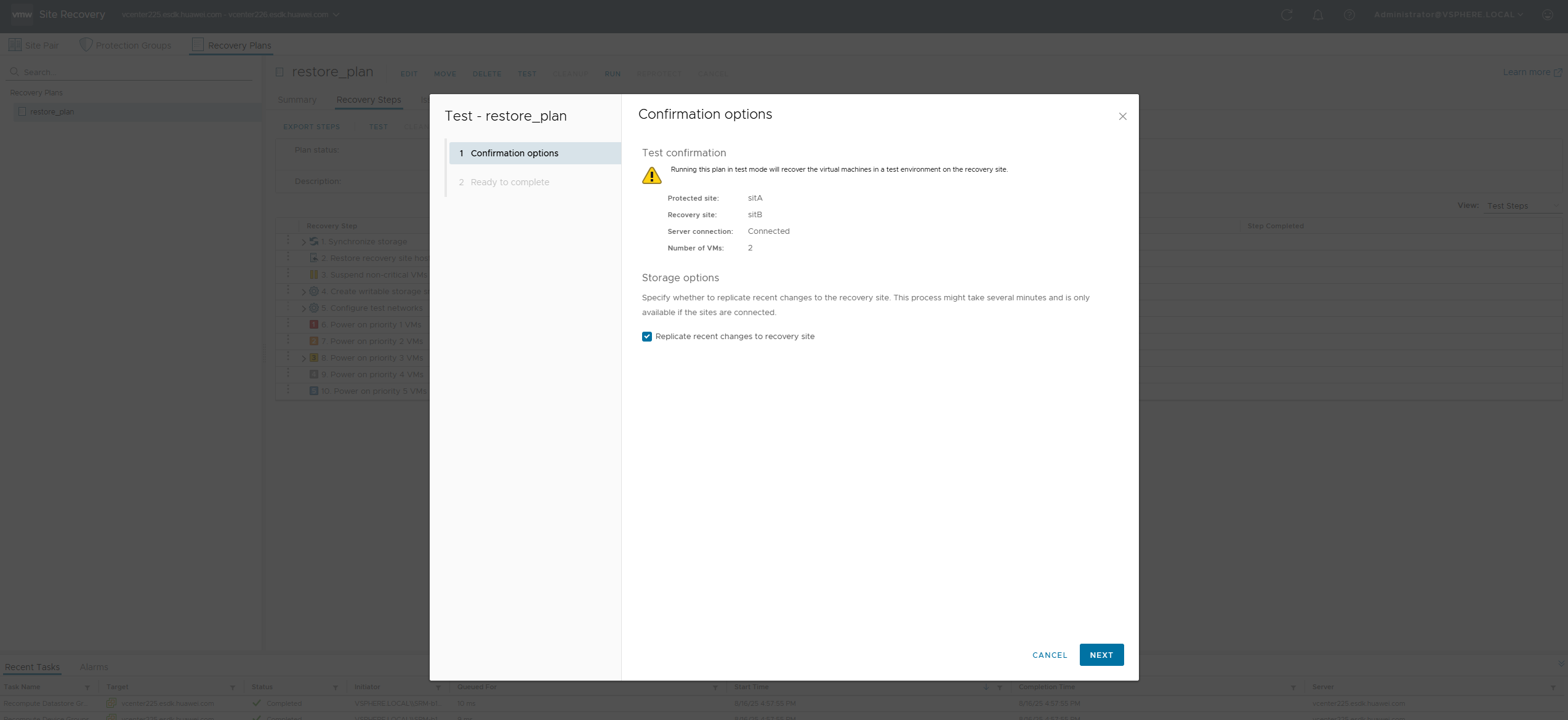
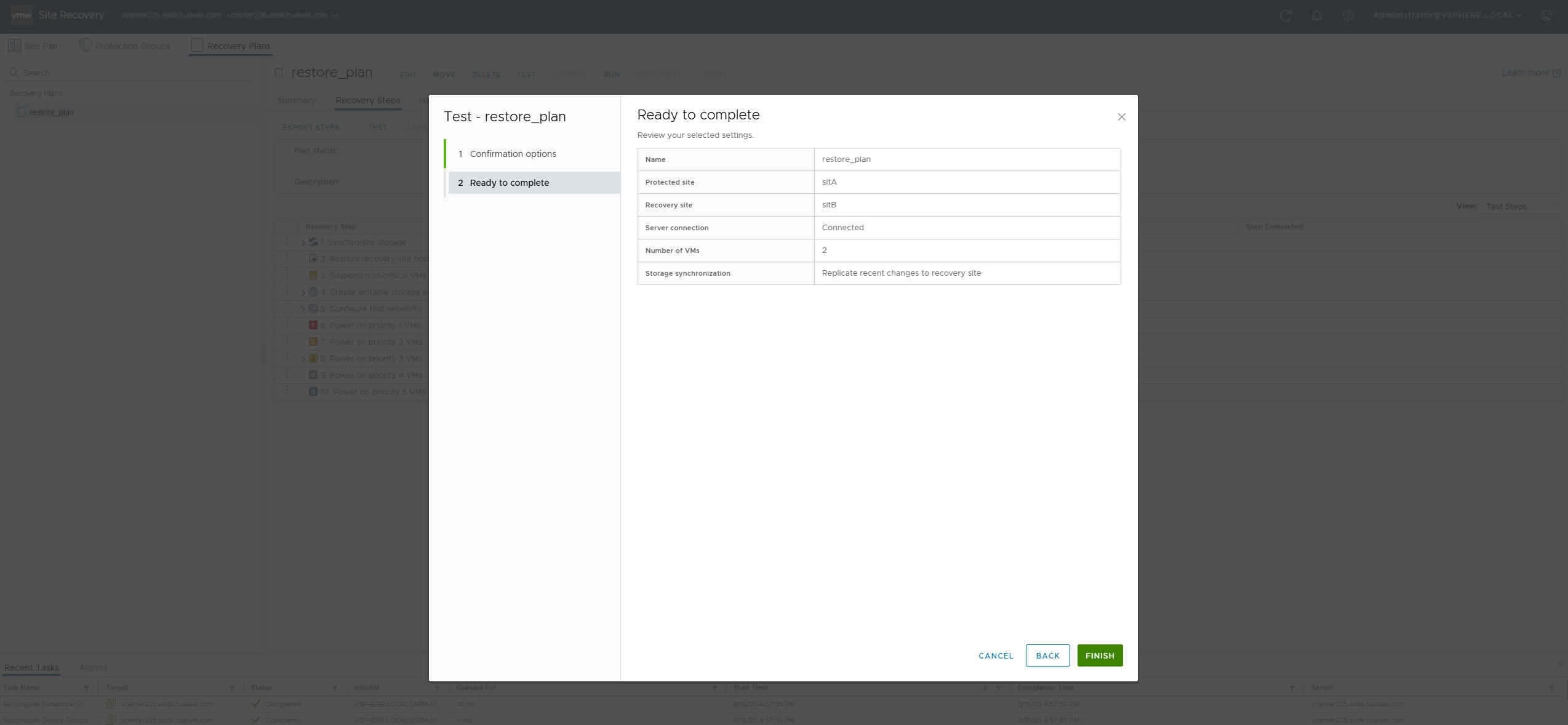
5. The test is successful. The snapshot is successfully created and activated at the DR site, and the VM is successfully started. 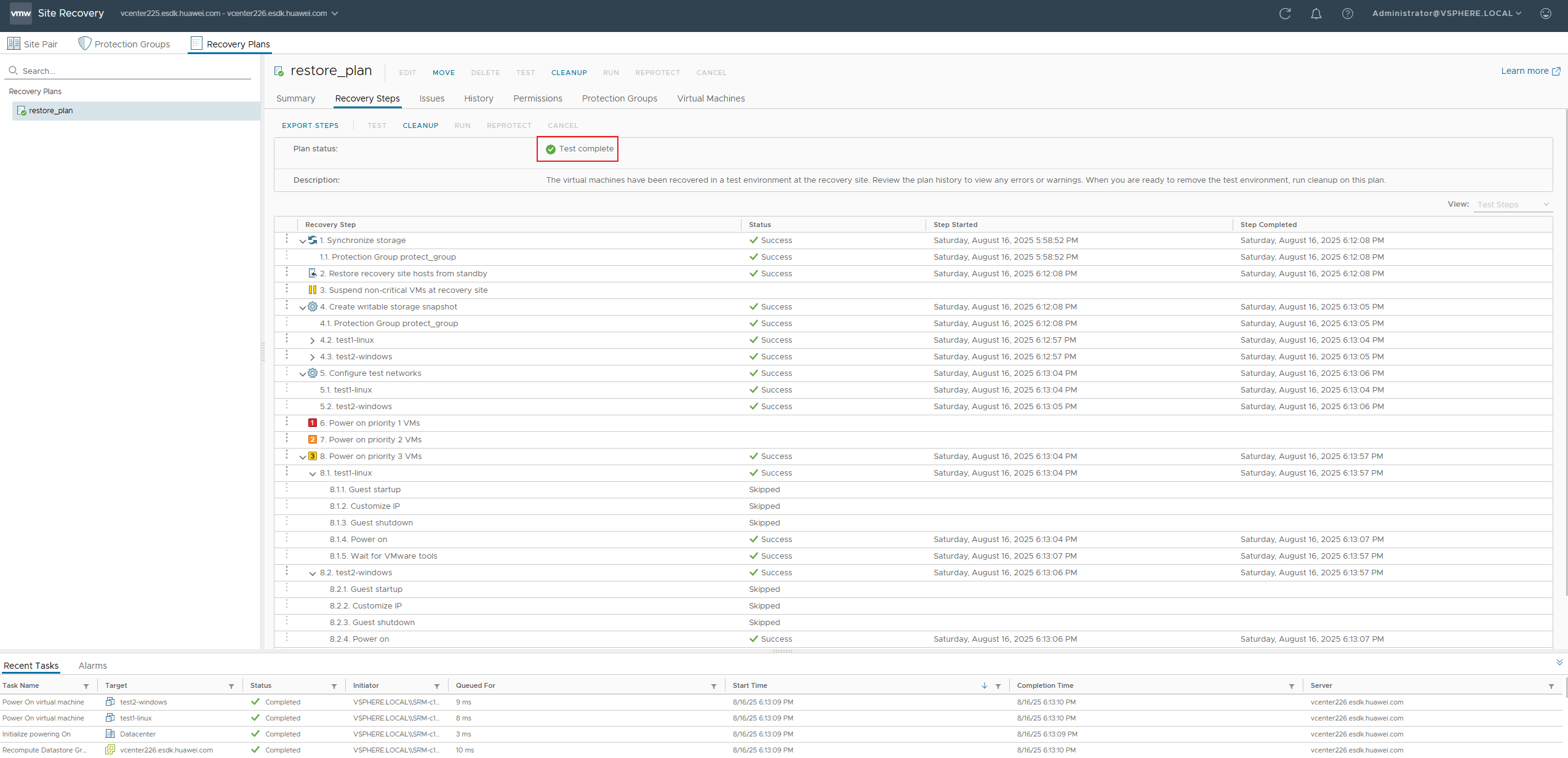
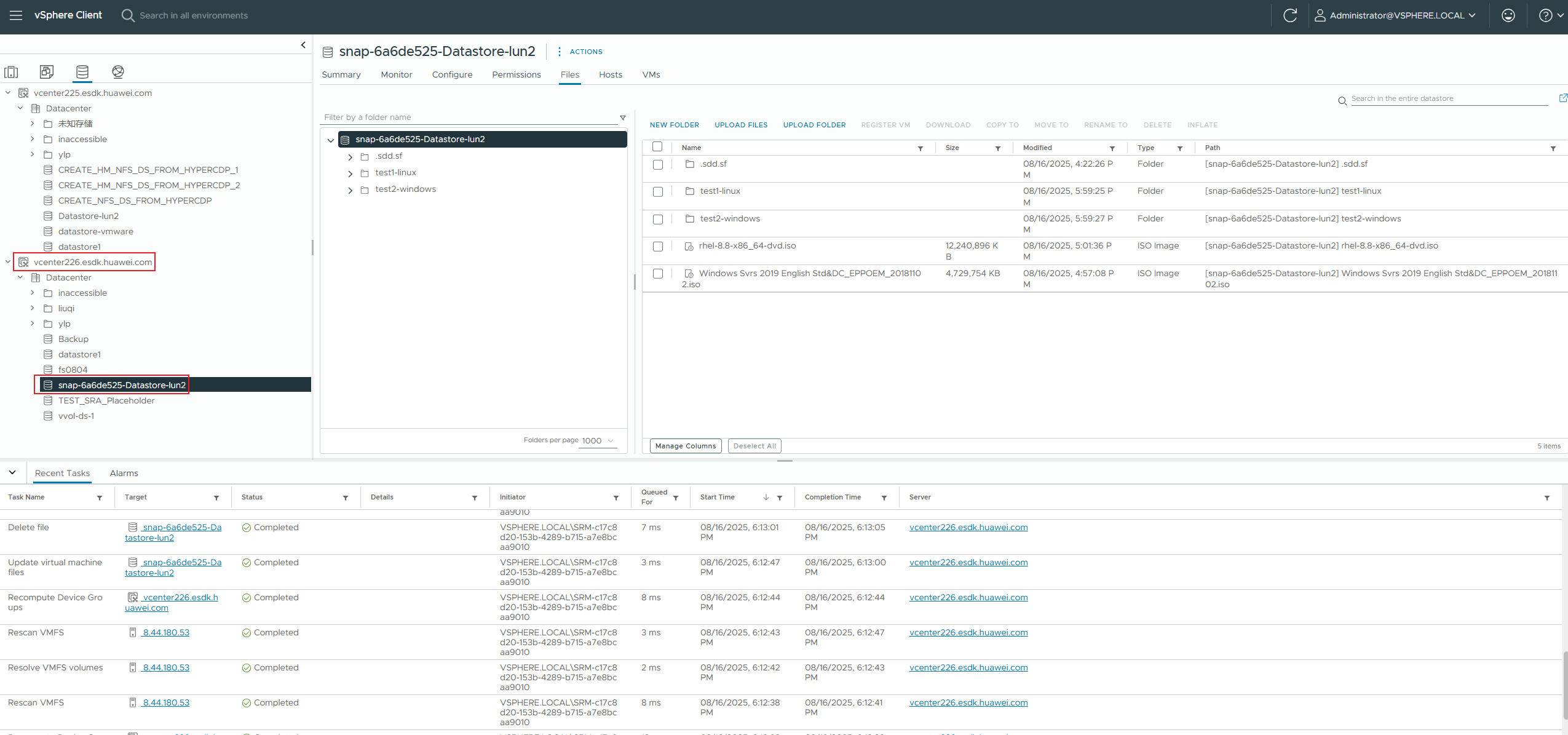
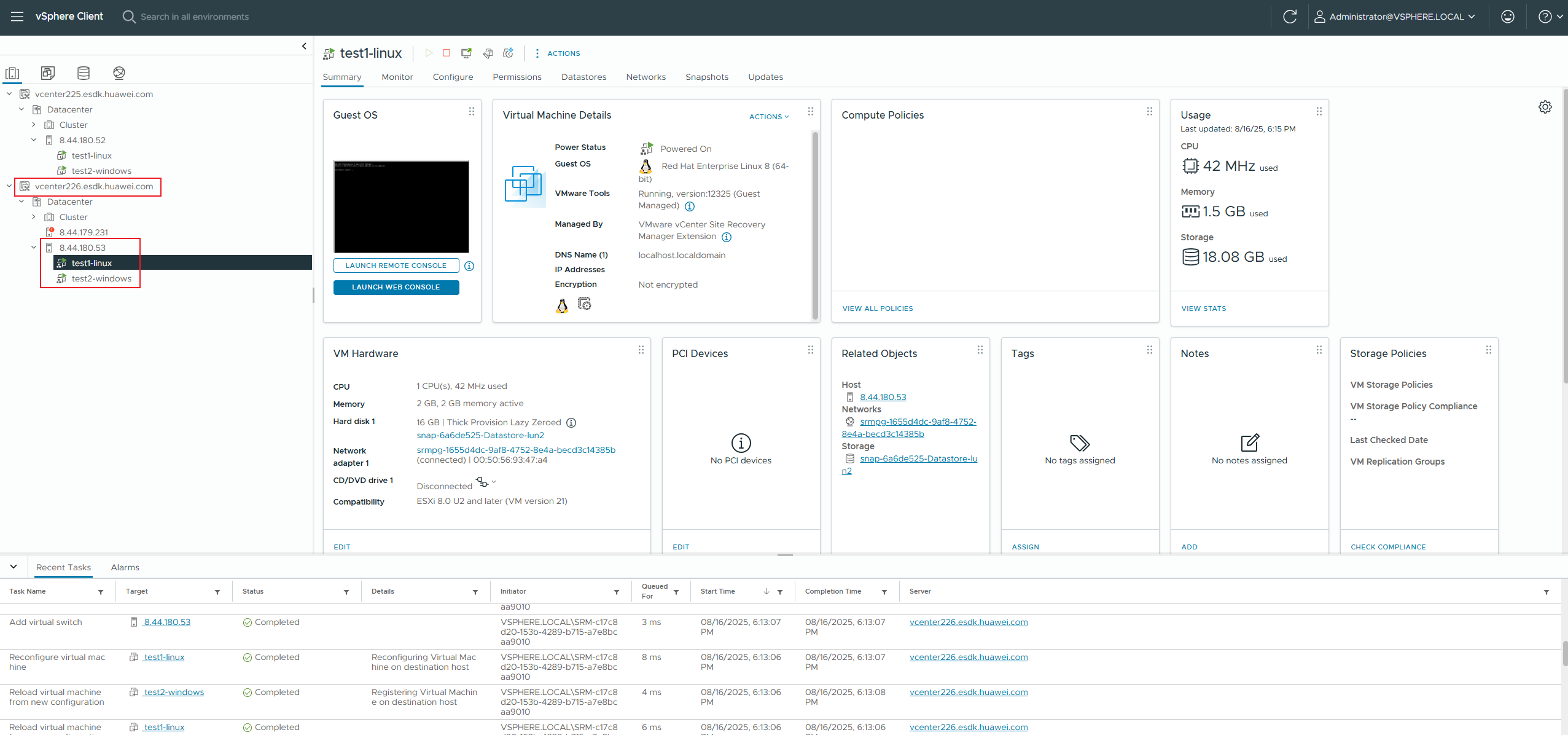
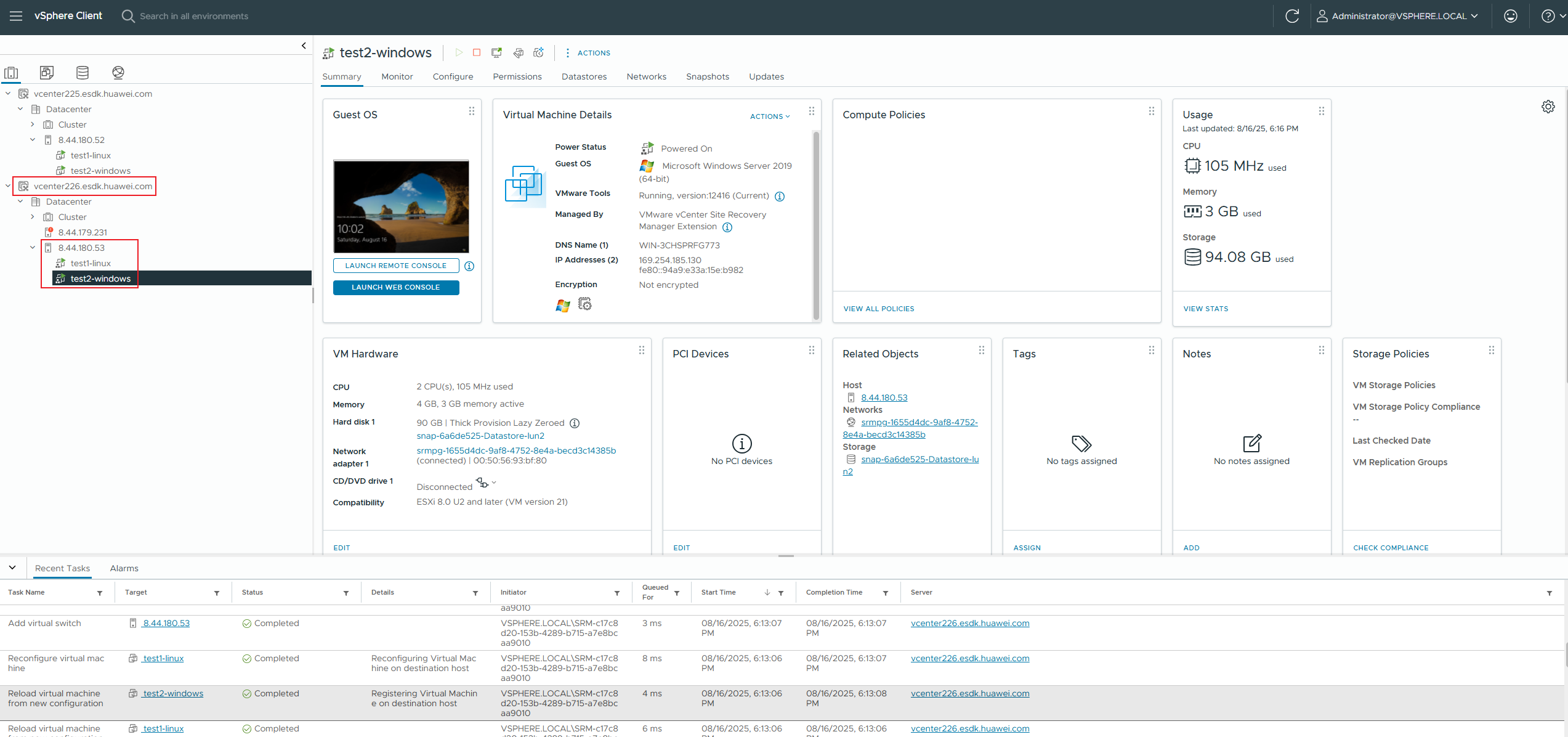
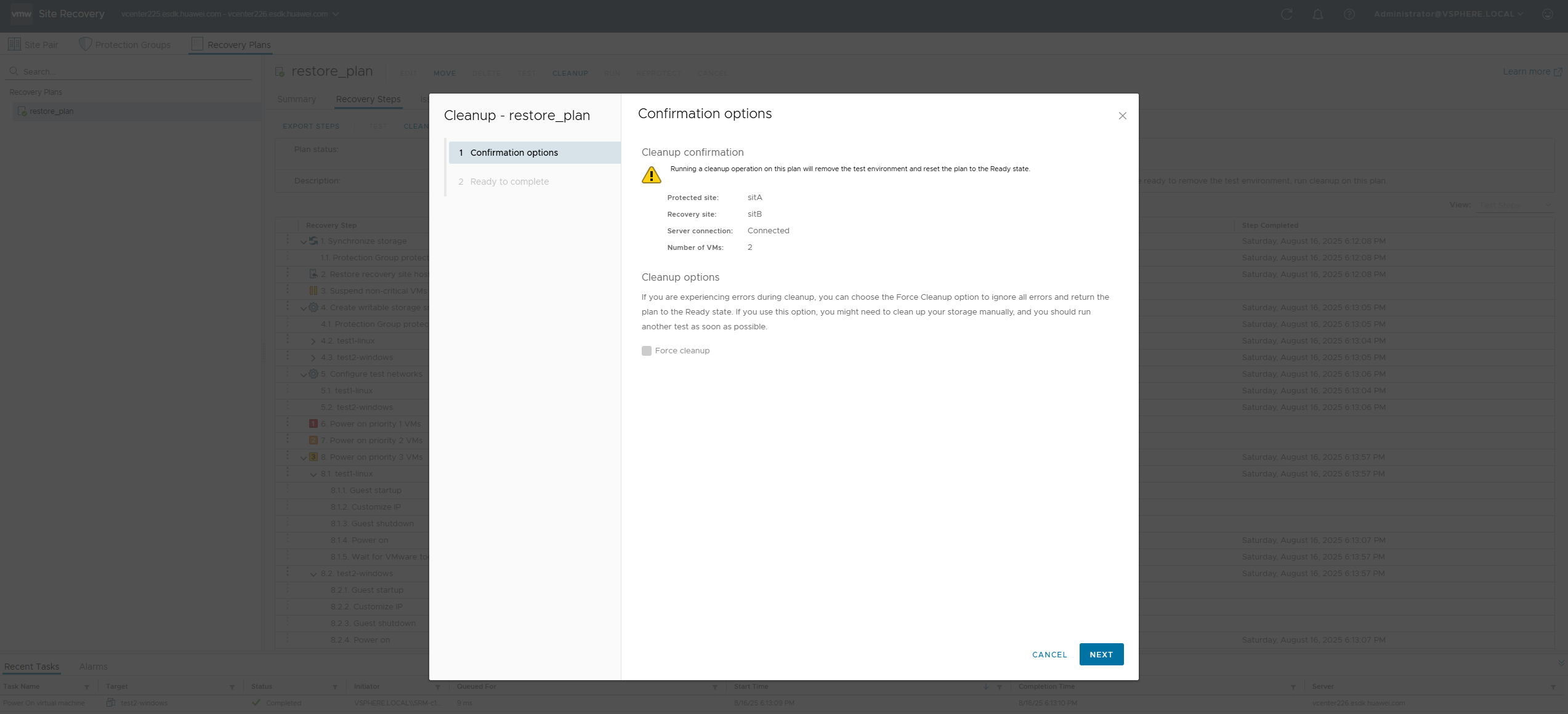
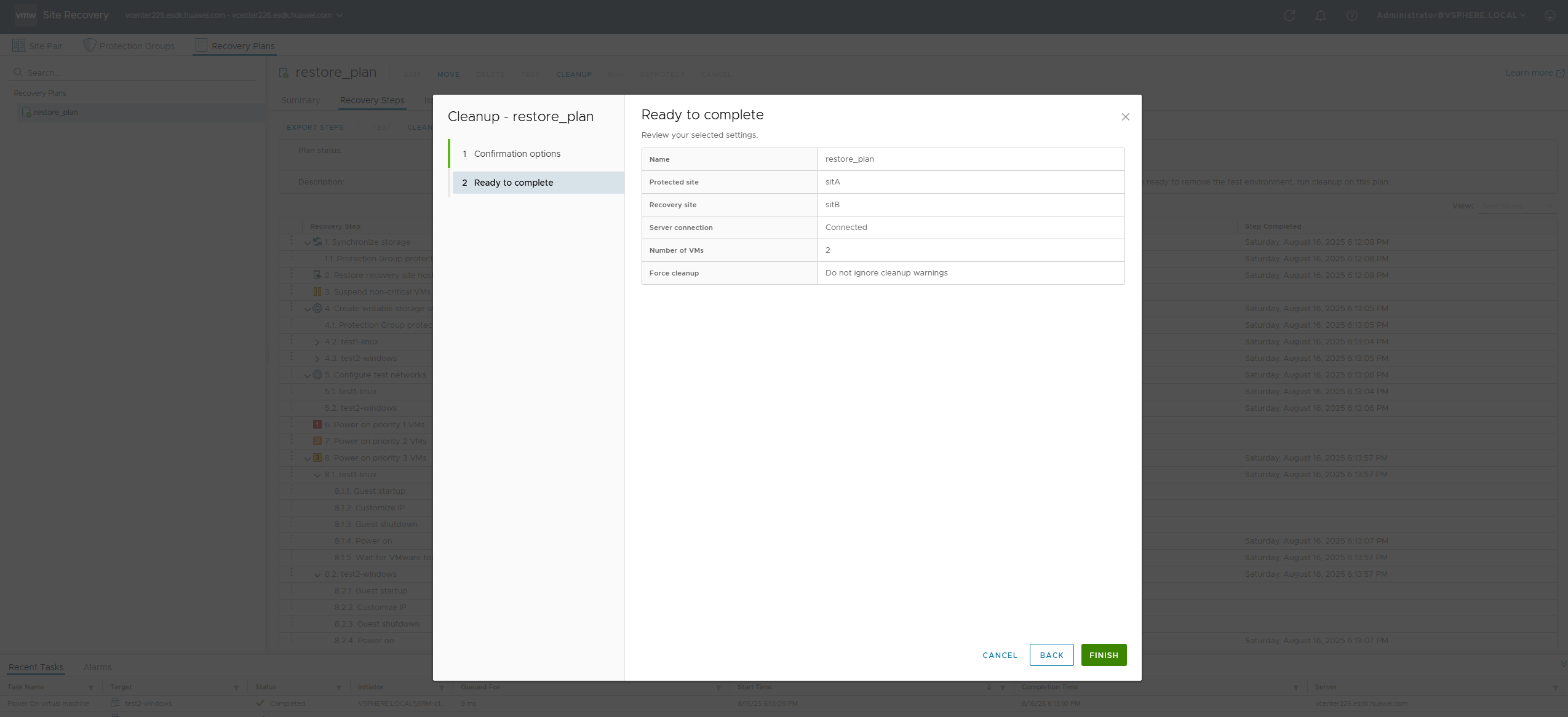
6. The data is cleared successfully. Snapshots and VMs are successfully deleted from the DR site. 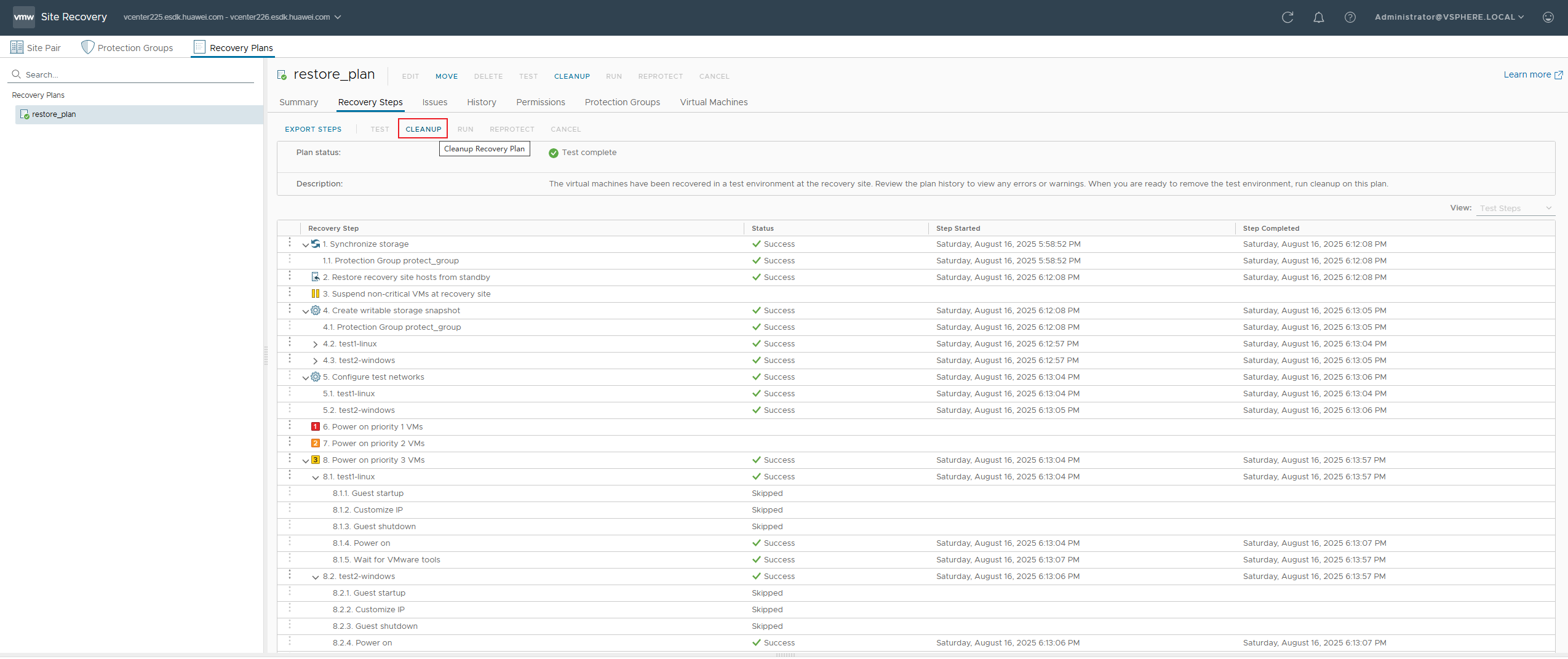
|
Test Conclusion | Passed |
3. Reliability Test
3.1 Disaster Recovery in The Synchronous Replication Scenario
Test Purpose | To Verify That Services are Running Properly in The DR Scenario of Synchronous Replication |
Test Networking | Storage and VMware SRM Compatibility Test Networking |
Prerequisites | 1. The network between the production site and DR secondary site is normal. 2. iSCSI or FC connections have been established between the storage array of the DR secondary site and the host or cluster of the DR secondary site. 3. The vCenter Server, ESXi host, and SRM at the production site and DR secondary site are running properly. 4. The storage arrays at the production site and DR secondary site are normal. 5. VMs, protected groups, and recovery plans have been created and are in the normal state. |
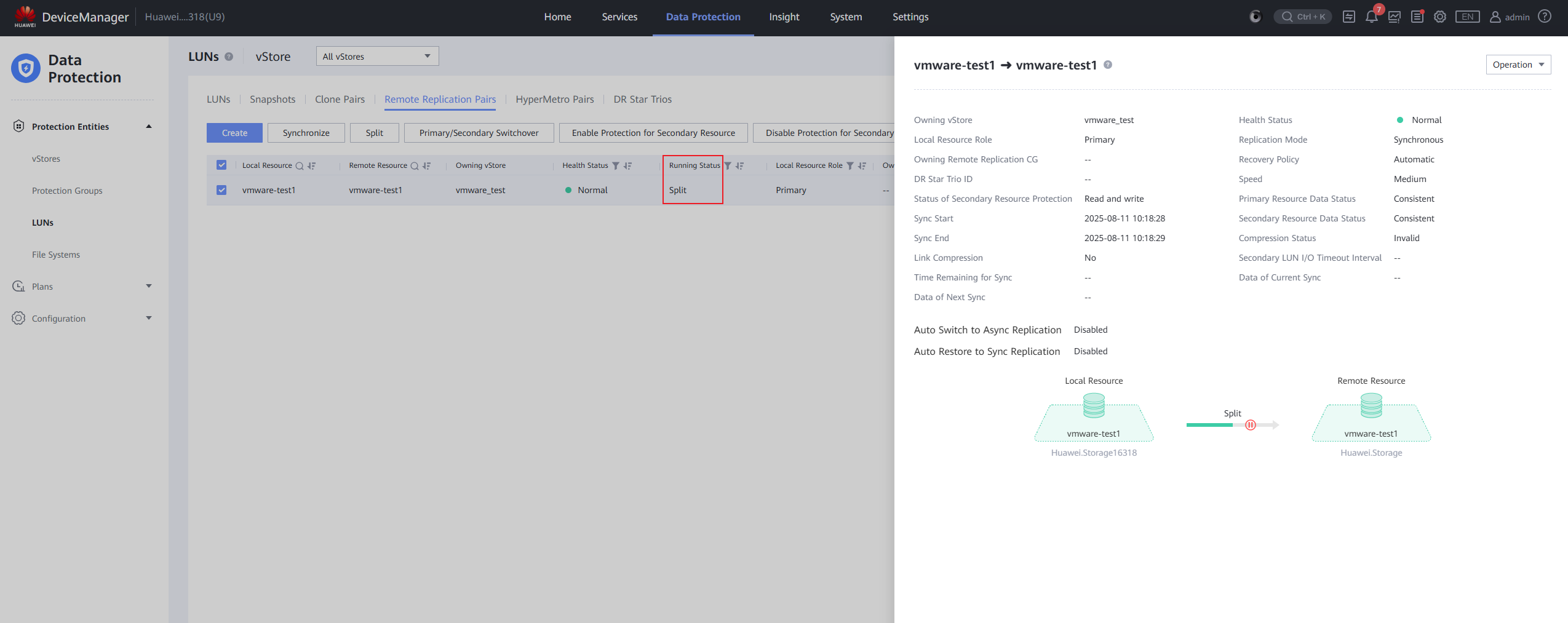
Test Procedure | 1. Configure a remote replication pair for a LUN in synchronous replication mode. 2. Induce failures in the hosts and virtual machines at the production site. 3. Log in to the SRM management screen. 4. Select the created recovery plan to run and Select Disaster Recovery as the recovery type. 5. After the operation is successful, check the disaster recovery site. |
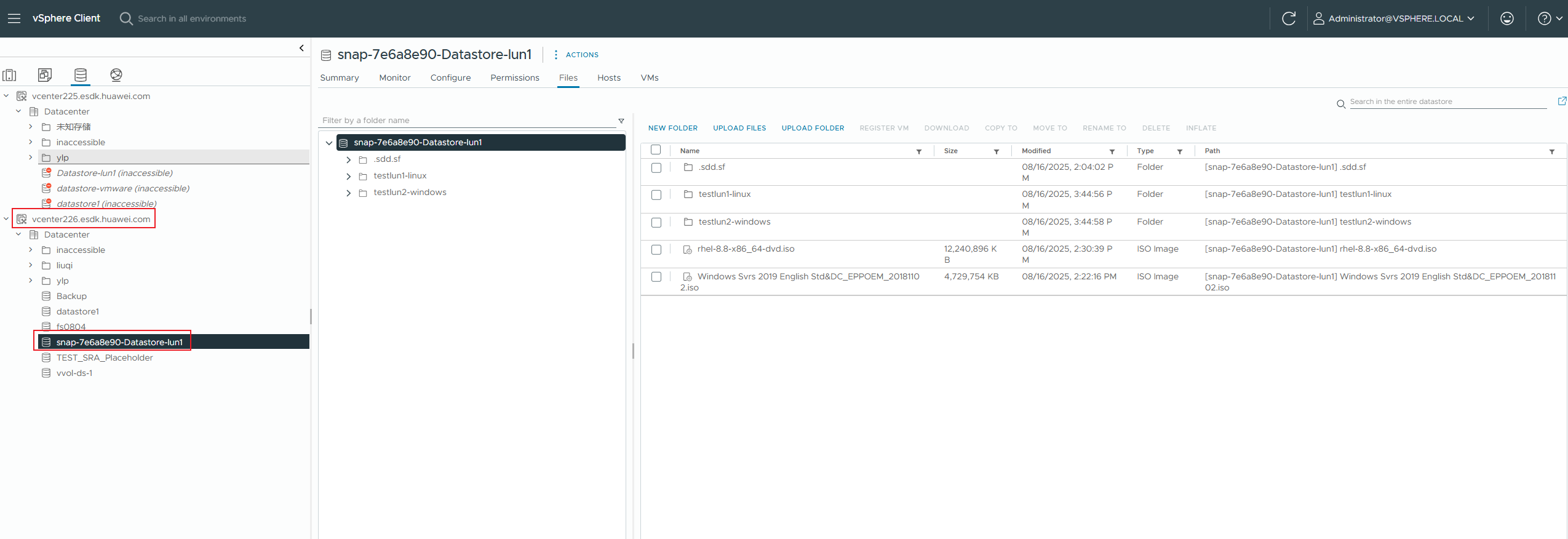
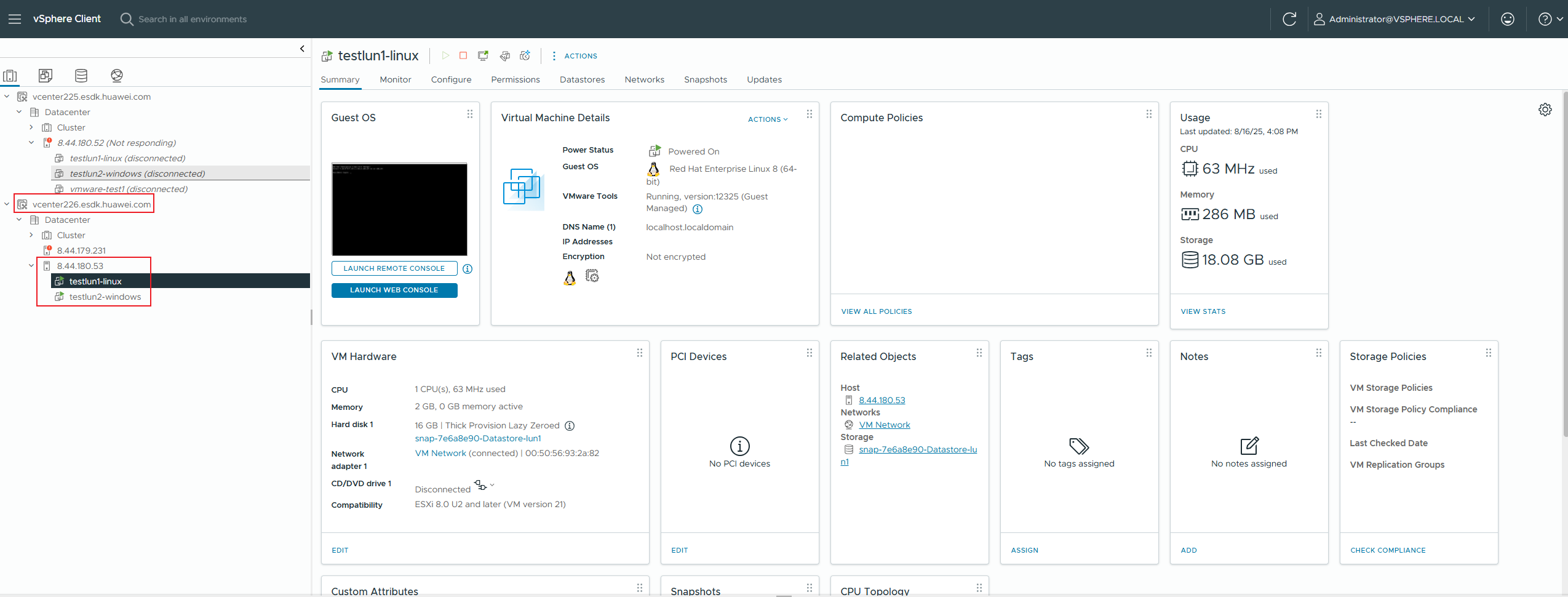
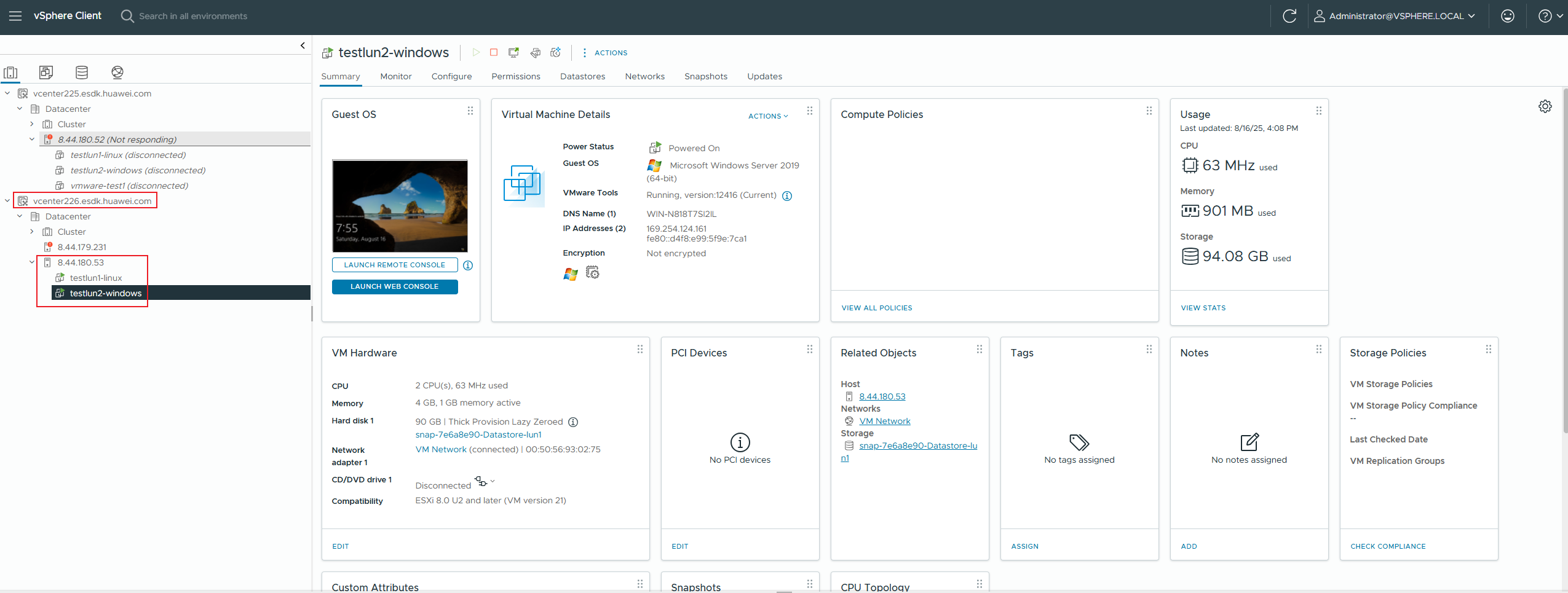
Expected Result | 1. In step 1, The synchronous replication link has been successfully created and is functioning normally. 2. In step 2, The host and VM at the production site are faulty. 3. In step 3, The login to the SRM management page is successful. 4. In step 4, Select the created recovery plan. The test can be performed successfully. 5. In step 5, After the disaster recovery is successful, the remote replication is split and the standby VM is started. |
Test Record | 1. Configure a remote replication pair for LUNs in synchronous replication mode. 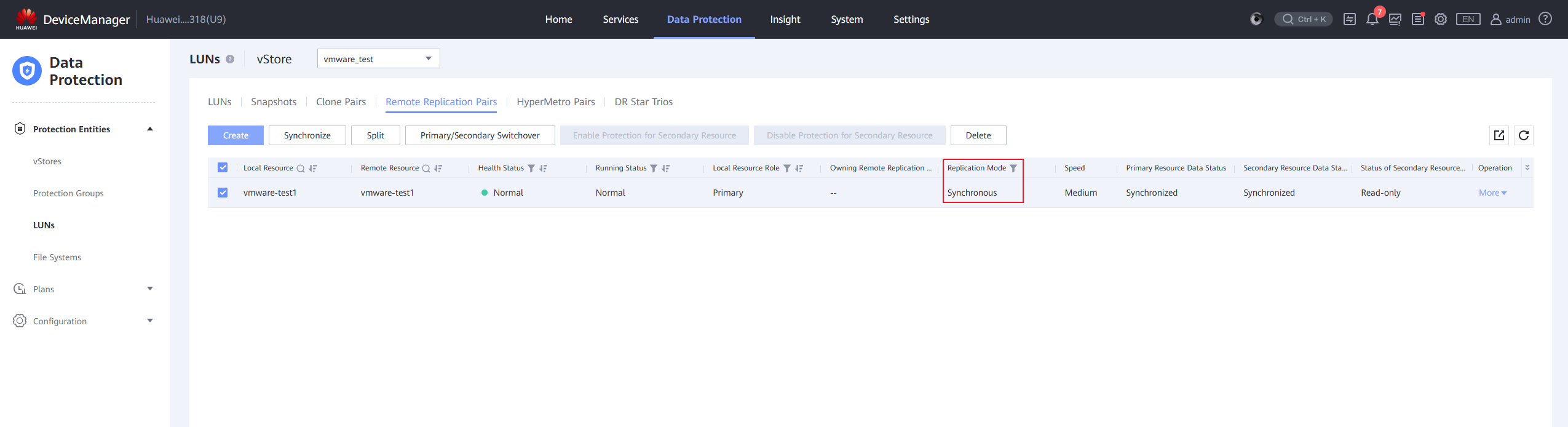
2. The host and VM at the production site are faulty. 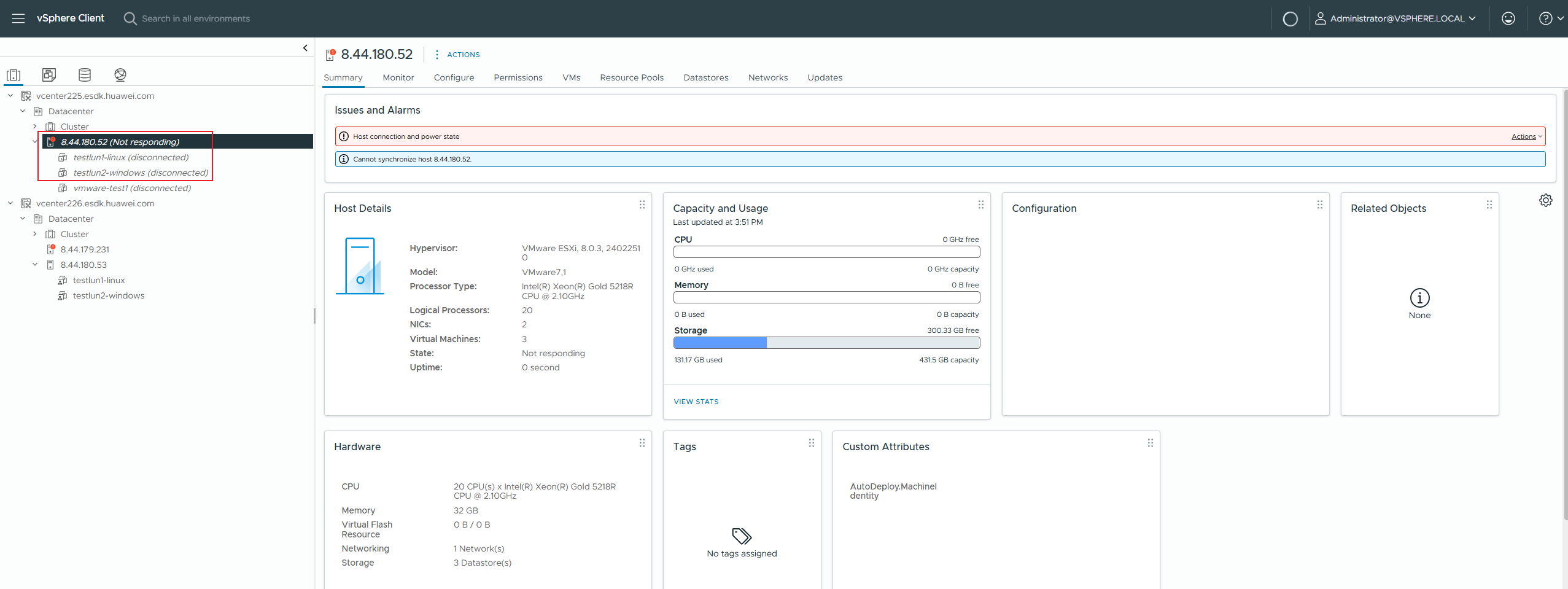
3. The login to the SRM management page is successful. 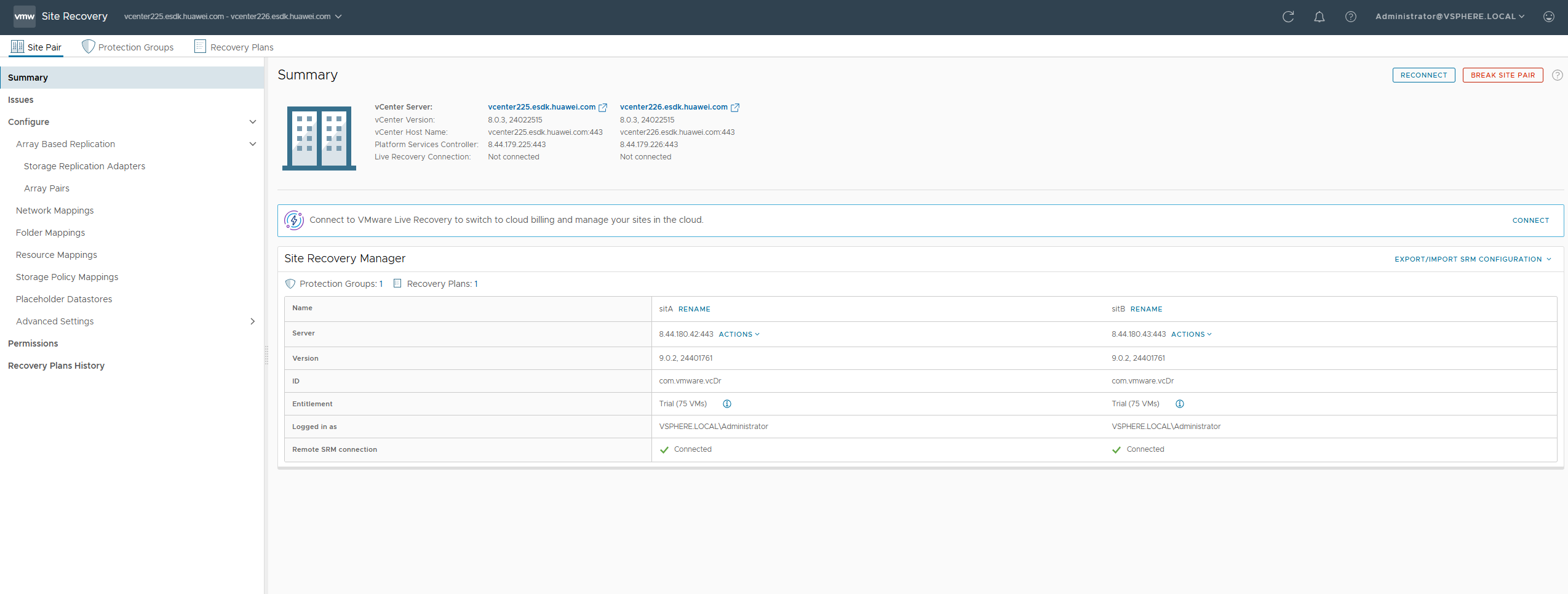
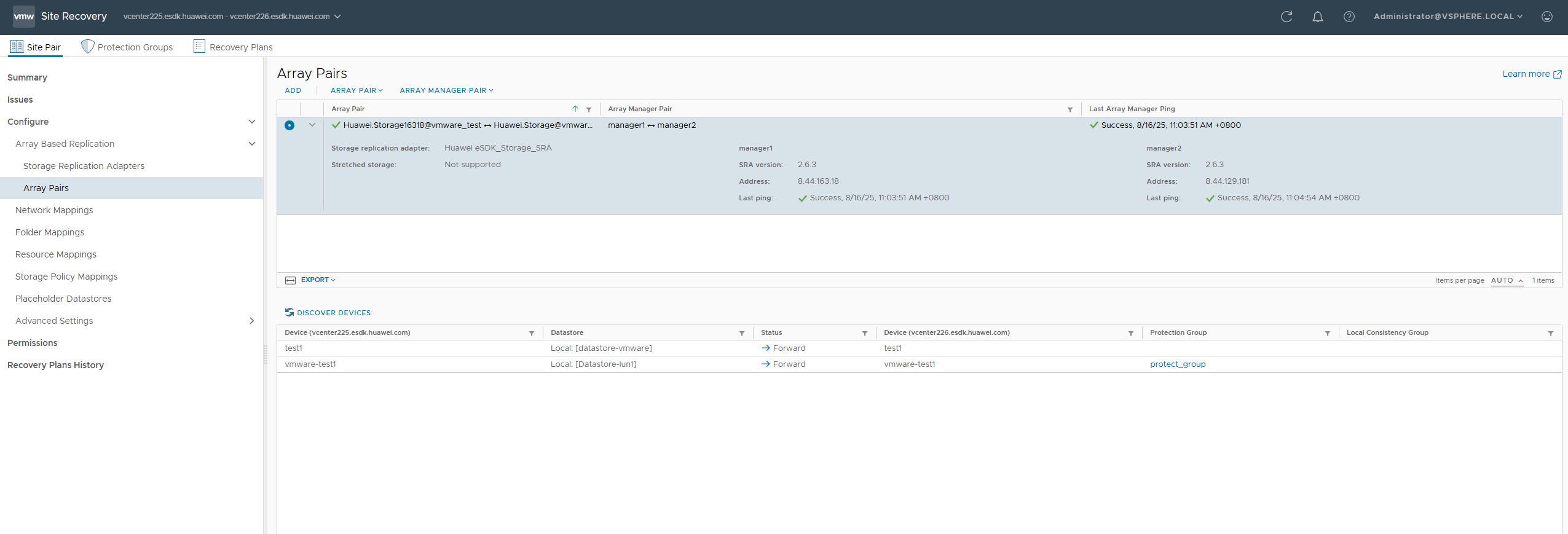
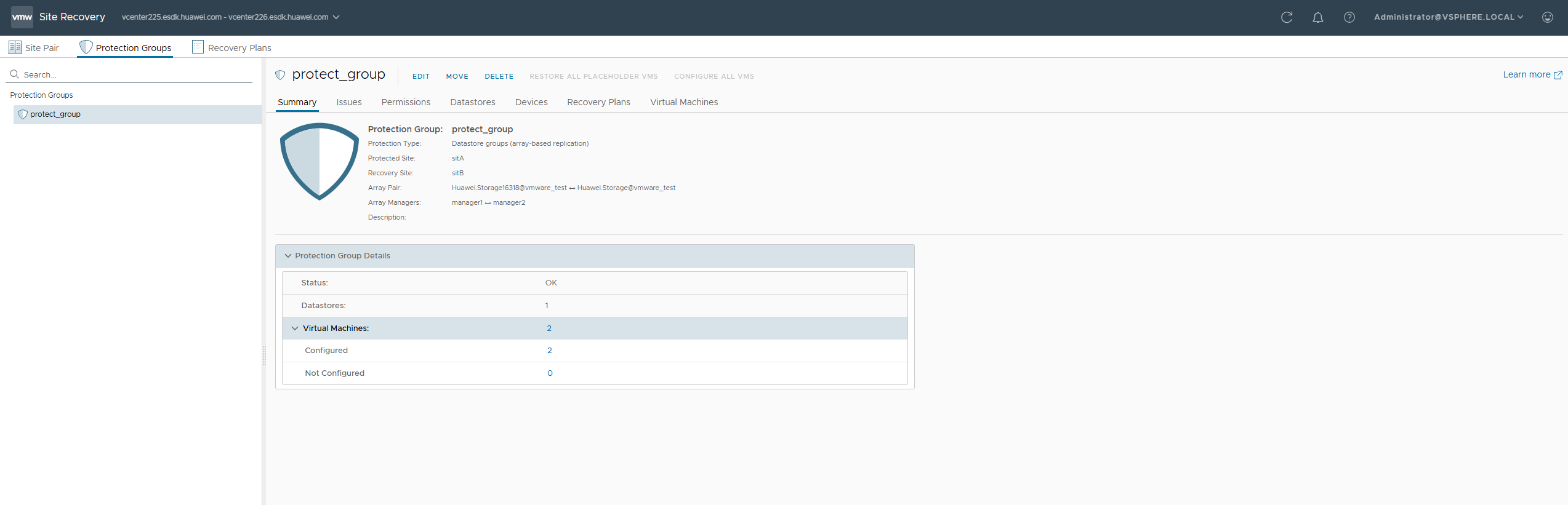
4. Select the created recovery plan and run it. 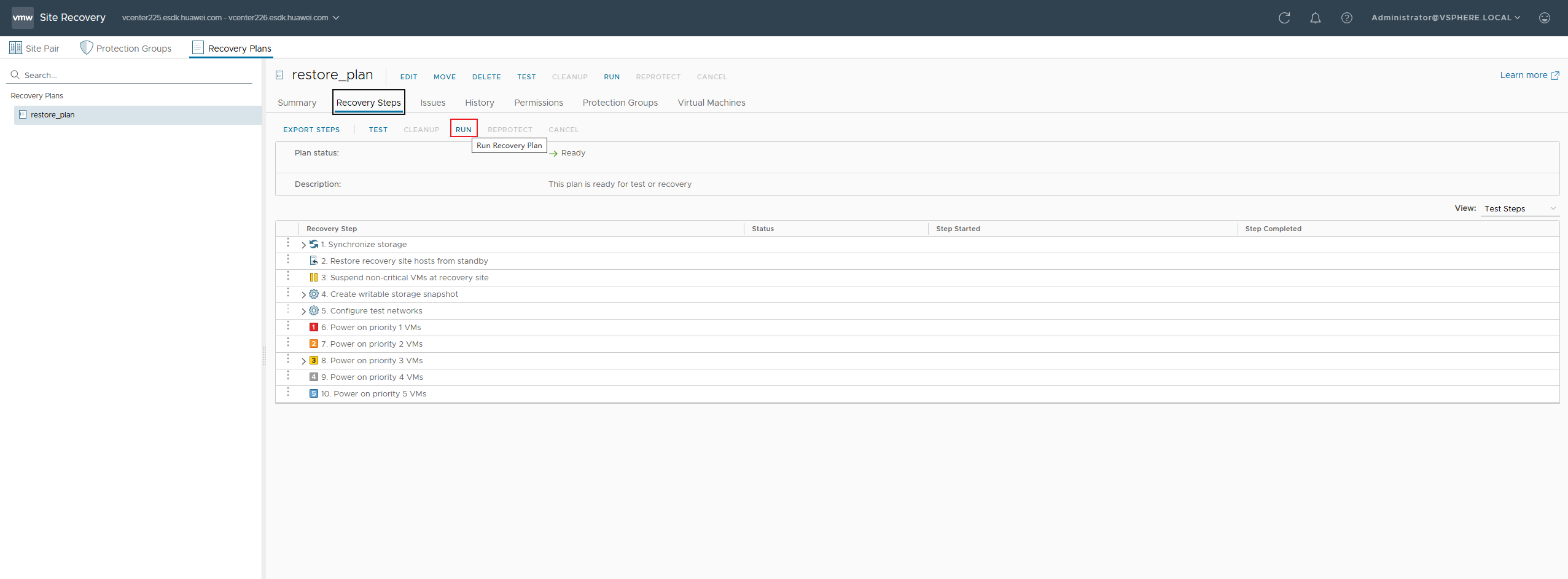
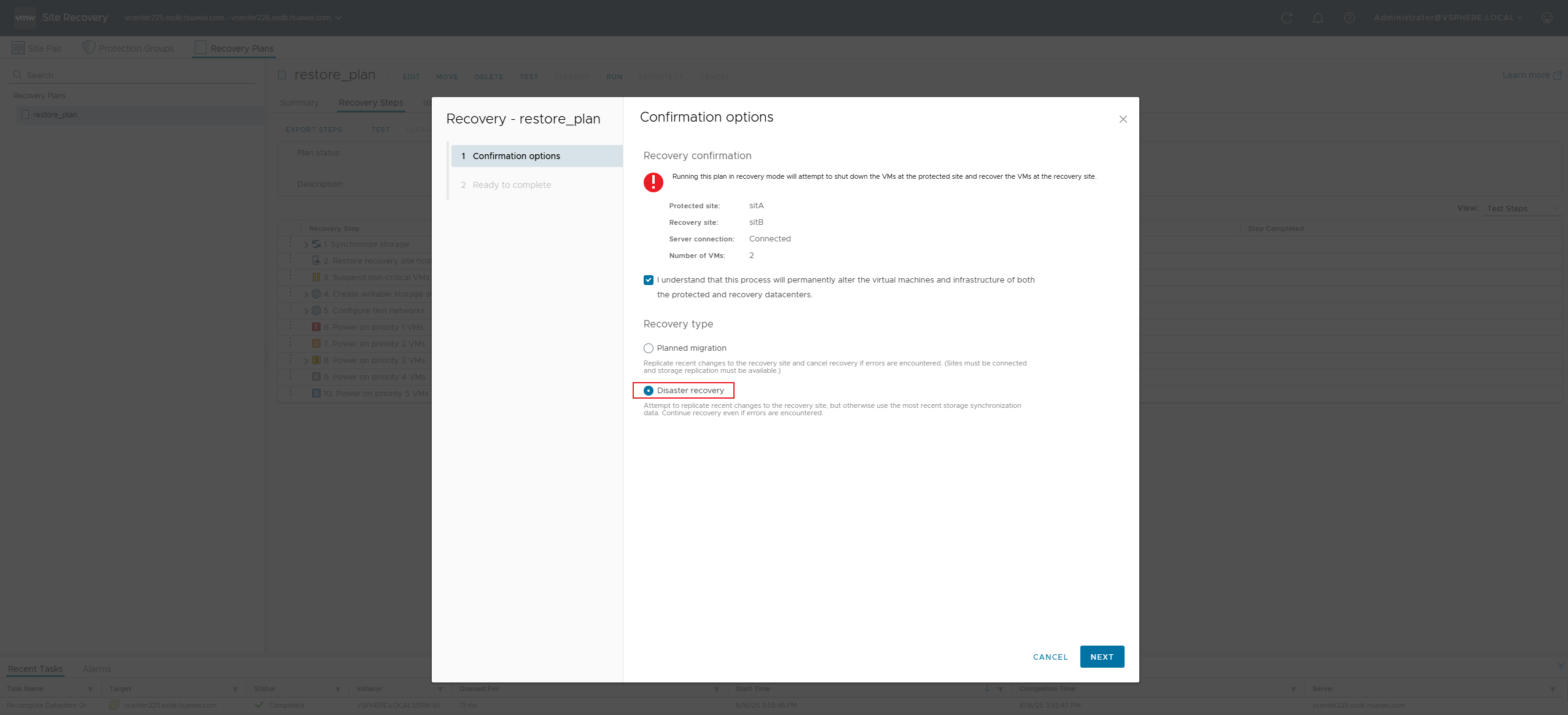
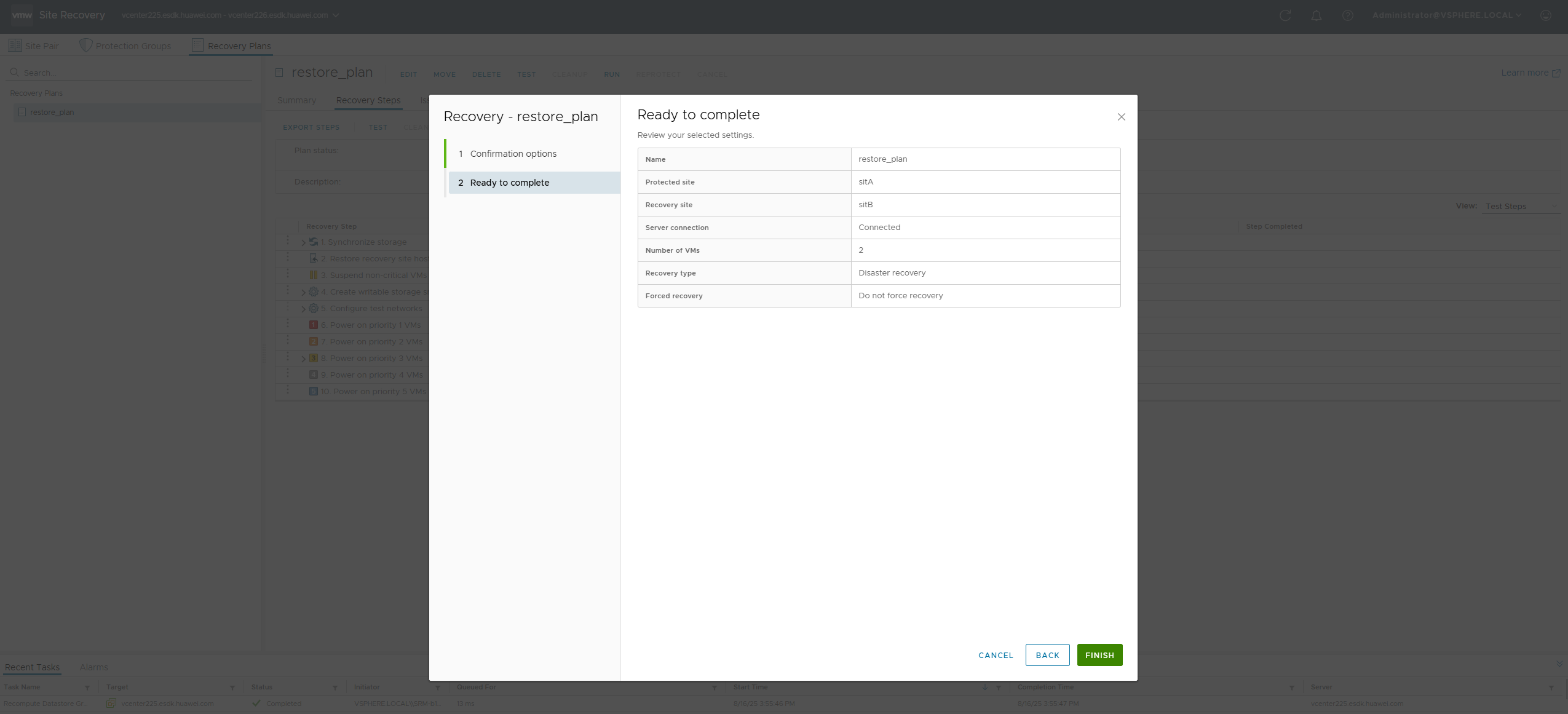
5. After the disaster recovery is complete, the remote replication link is split and the VM at the DR end is started. 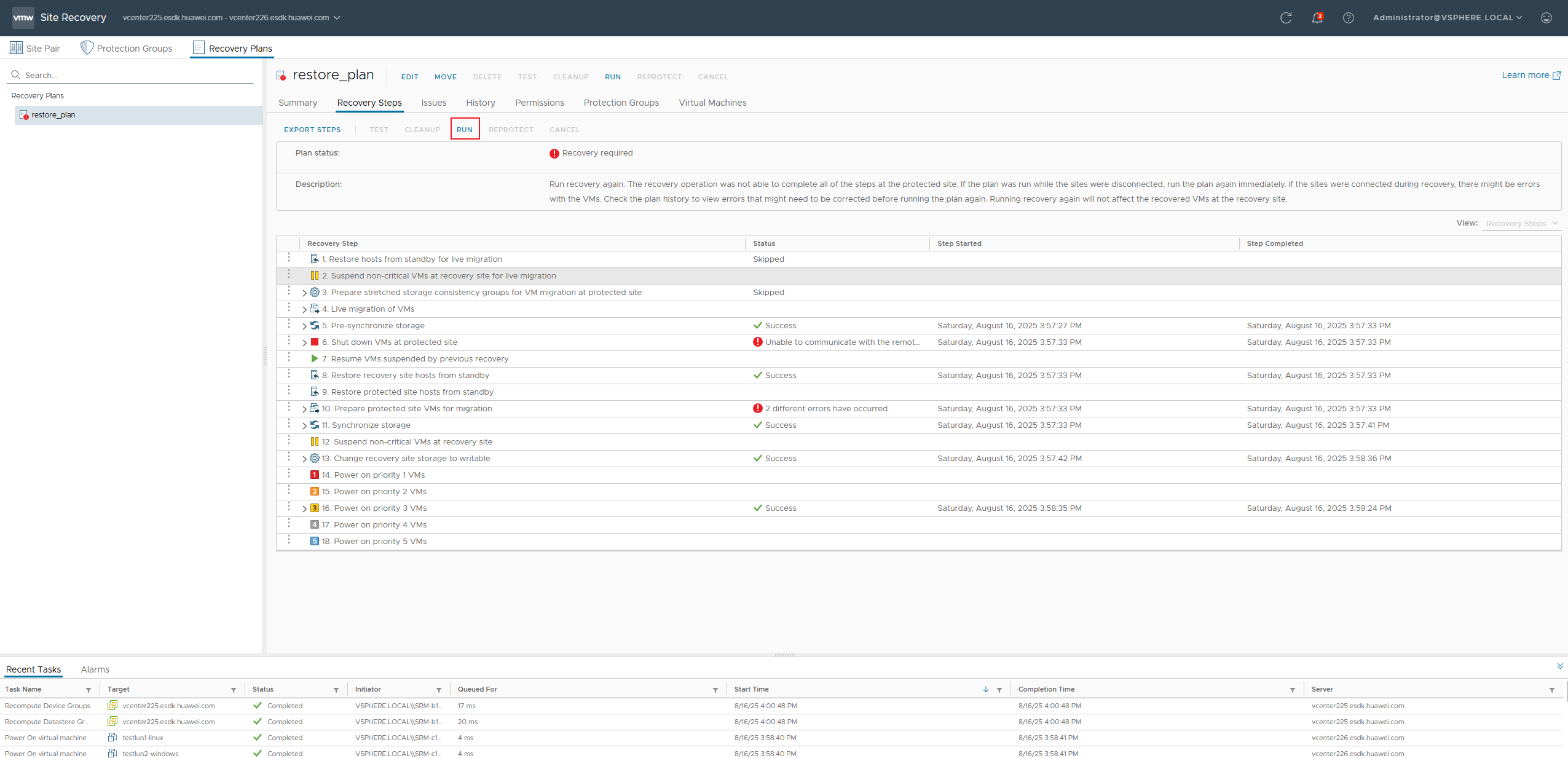
|
Test Conclusion | Passed |
3.2 Synchronous Replication Reprotection
Test Purpose | To Verify That Services are Normal in The Synchronous Replication Reprotection Scenario |
Test Networking | Storage and VMware SRM Compatibility Test Networking |
Prerequisites | 1. Planned migration or fault recovery has been completed. 2. The vCenter Server, ESXi host, and SRM at the production site have recovered. 3. The storage array at the production site has recovered. 4. The replication link between the production site and the DR secondary site has recovered. |
Test Procedure | 1. Restore the host and VM at the production site. 2. Run the recovery plan again. 3. Log in to the SRM management screen. 4. Select the recovery plan of the VM to be restored and click Reprotect. 5. Configuration completed and running 6. After the operation is successful, check the remote replication and protected group. |
Expected Result | 1. In step 1, The host and virtual machines at the production site have returned to normal. 2. In step 2, The recovery plan was successfully executed again. 3. In step 3, The login to the SRM management page is successful. 4. In step 4, Operation successful with no errors reported. 5. In step 5, The reprotection operation is successful. 6. In step 6, The remote replication link is reversed and synchronized successfully, and the protected group status is restored. |
Test Record | 1. Restore the host and VM at the production site. 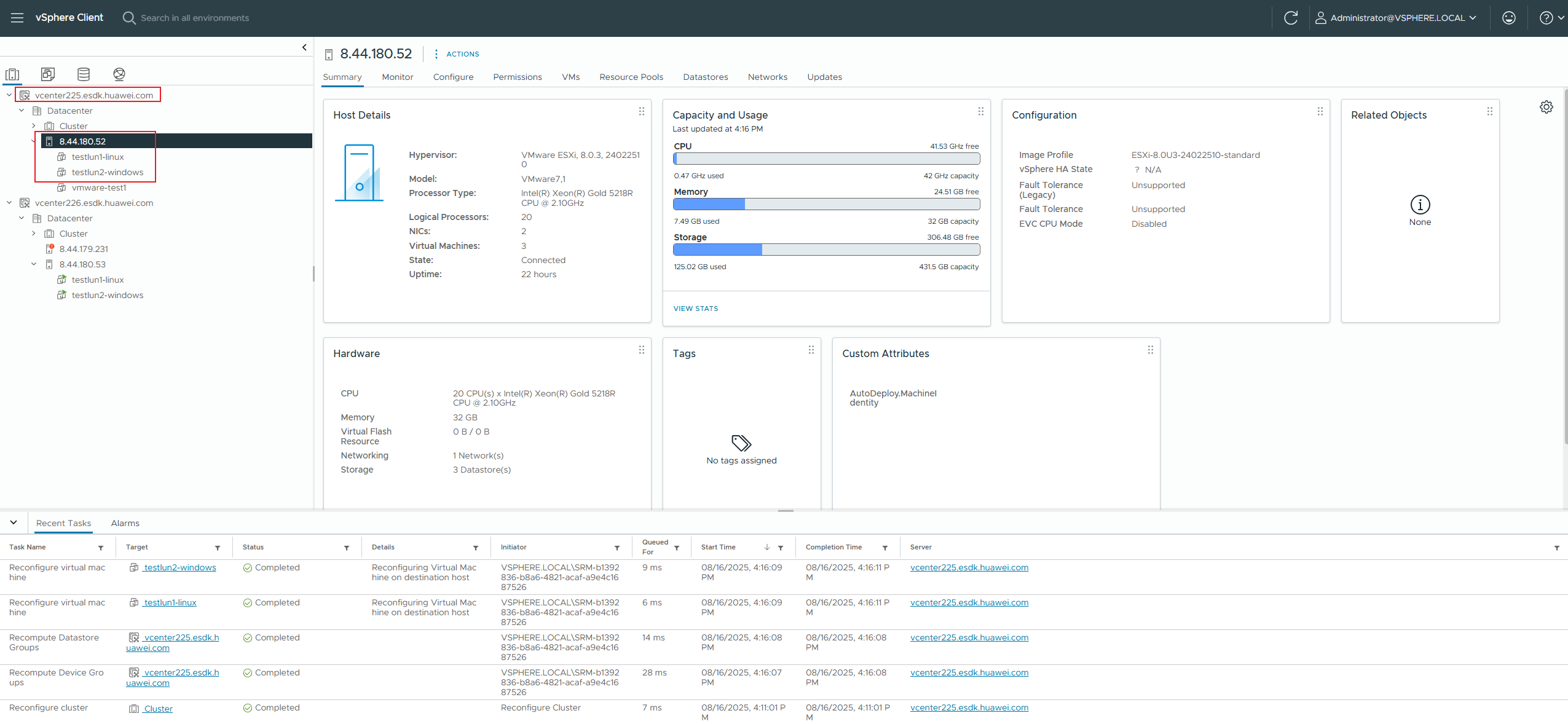
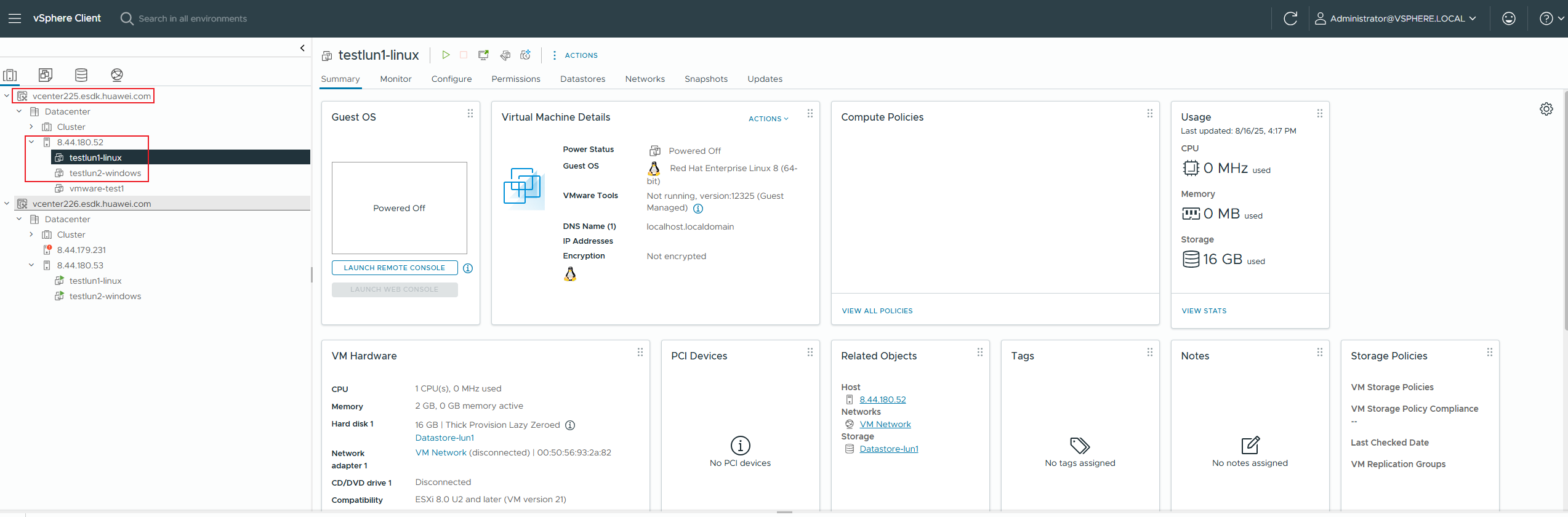
2. Run the recovery plan again. The DR plan is successfully executed. 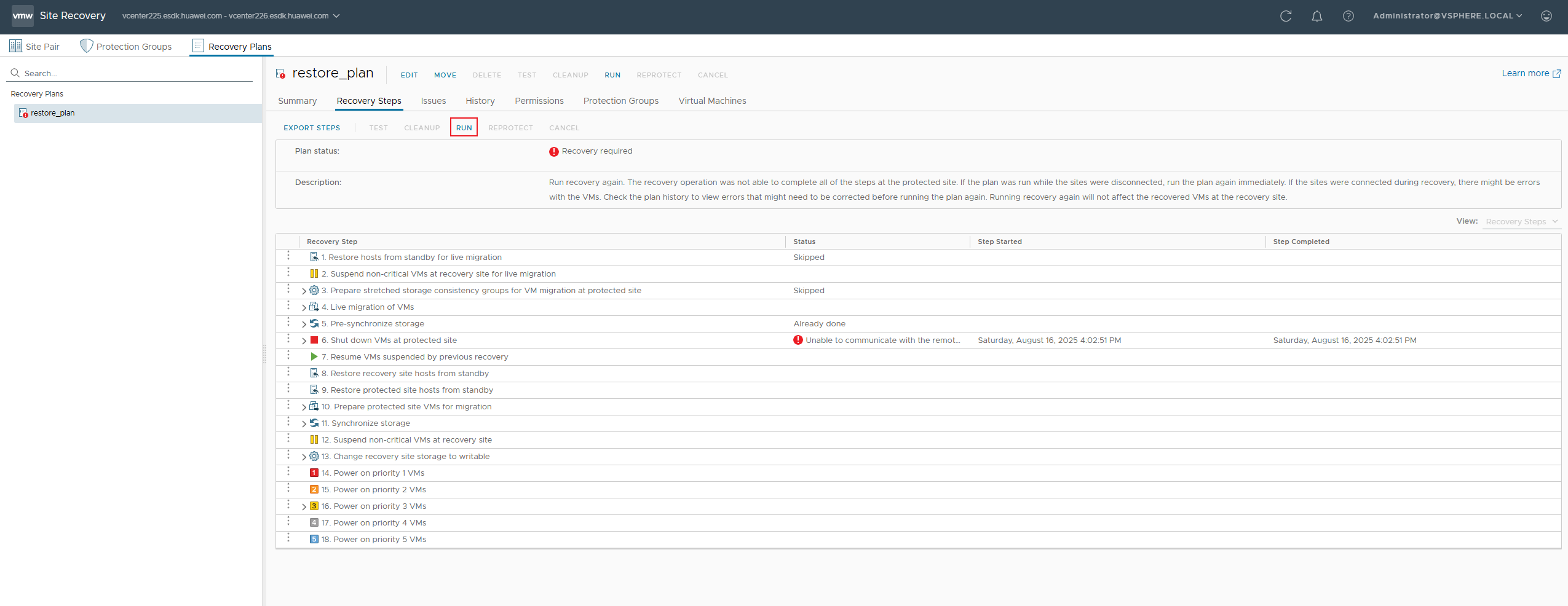
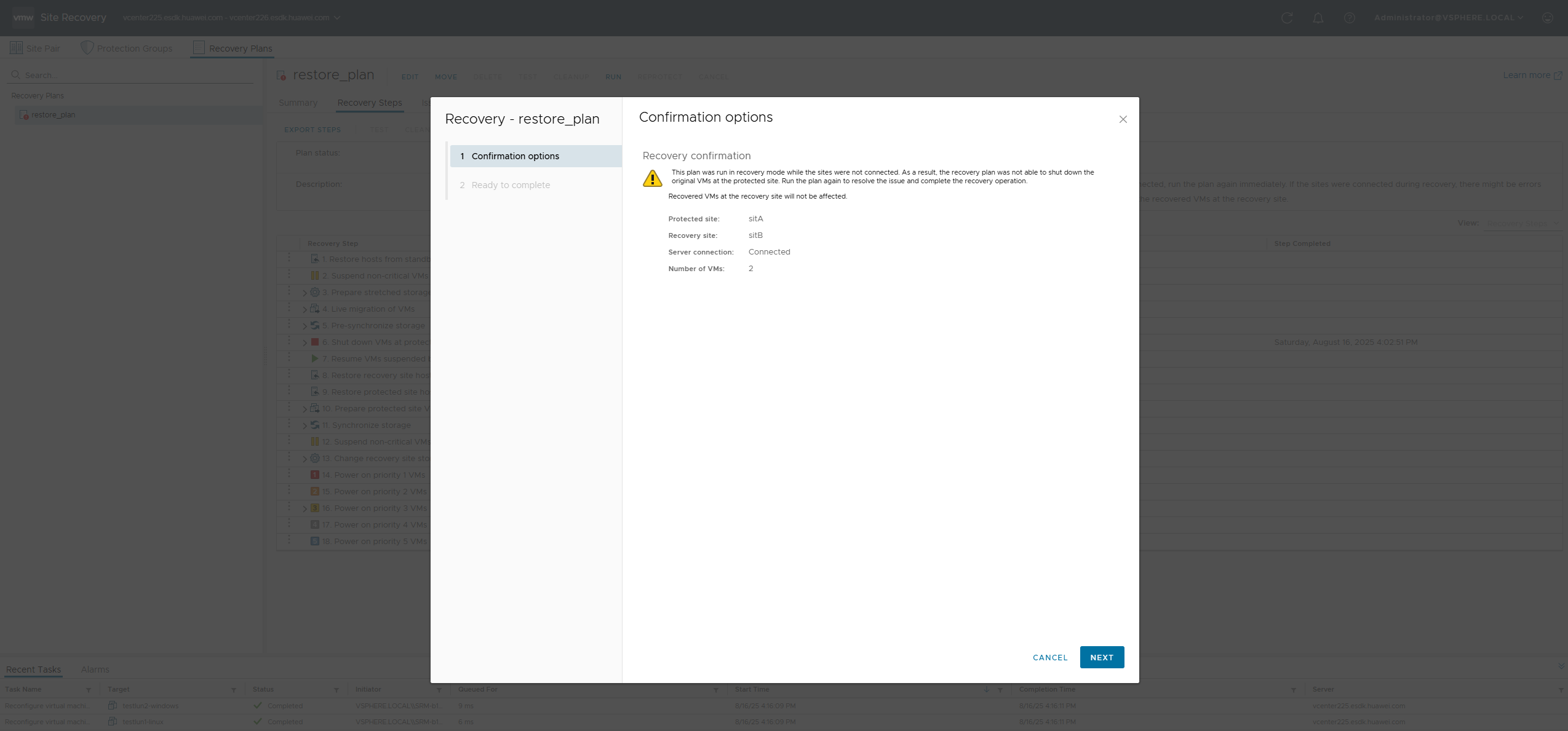
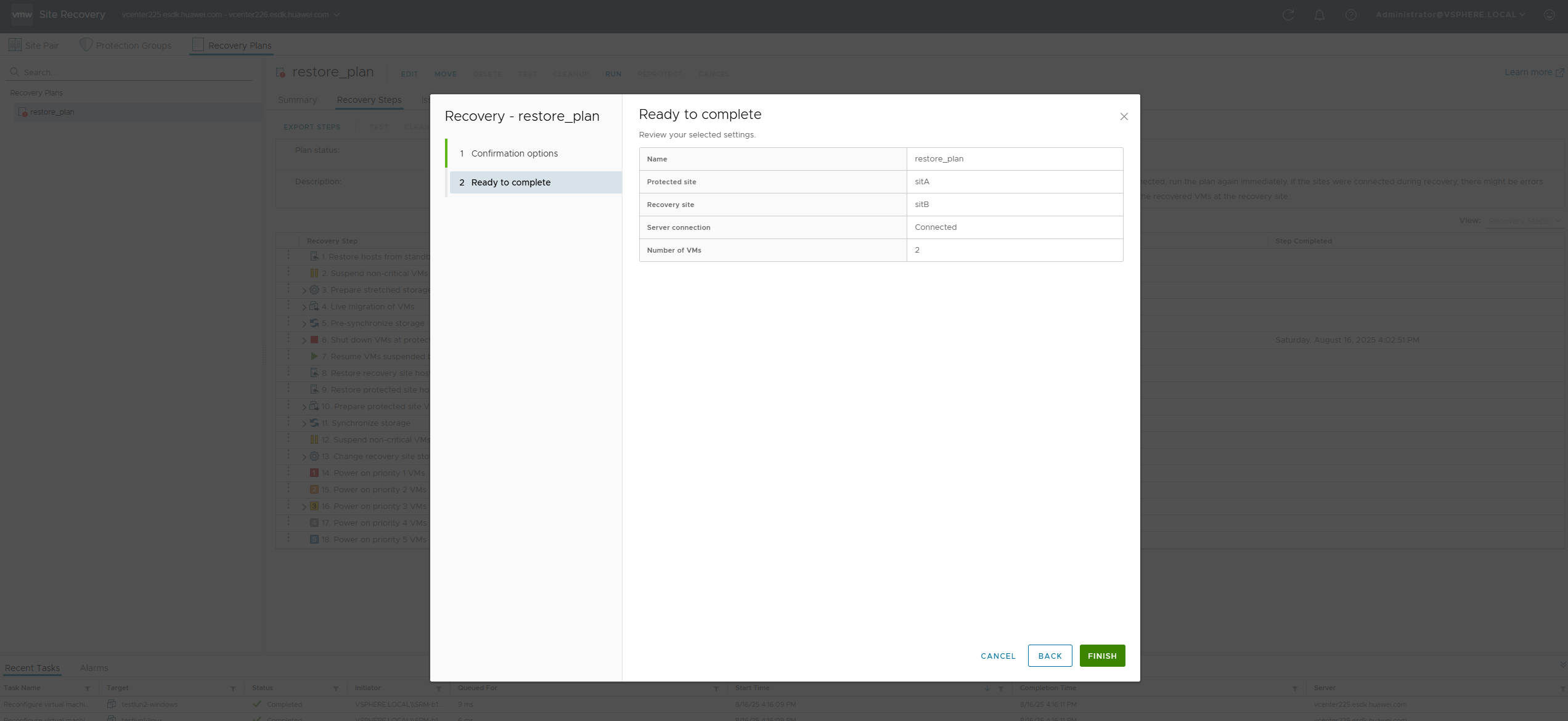
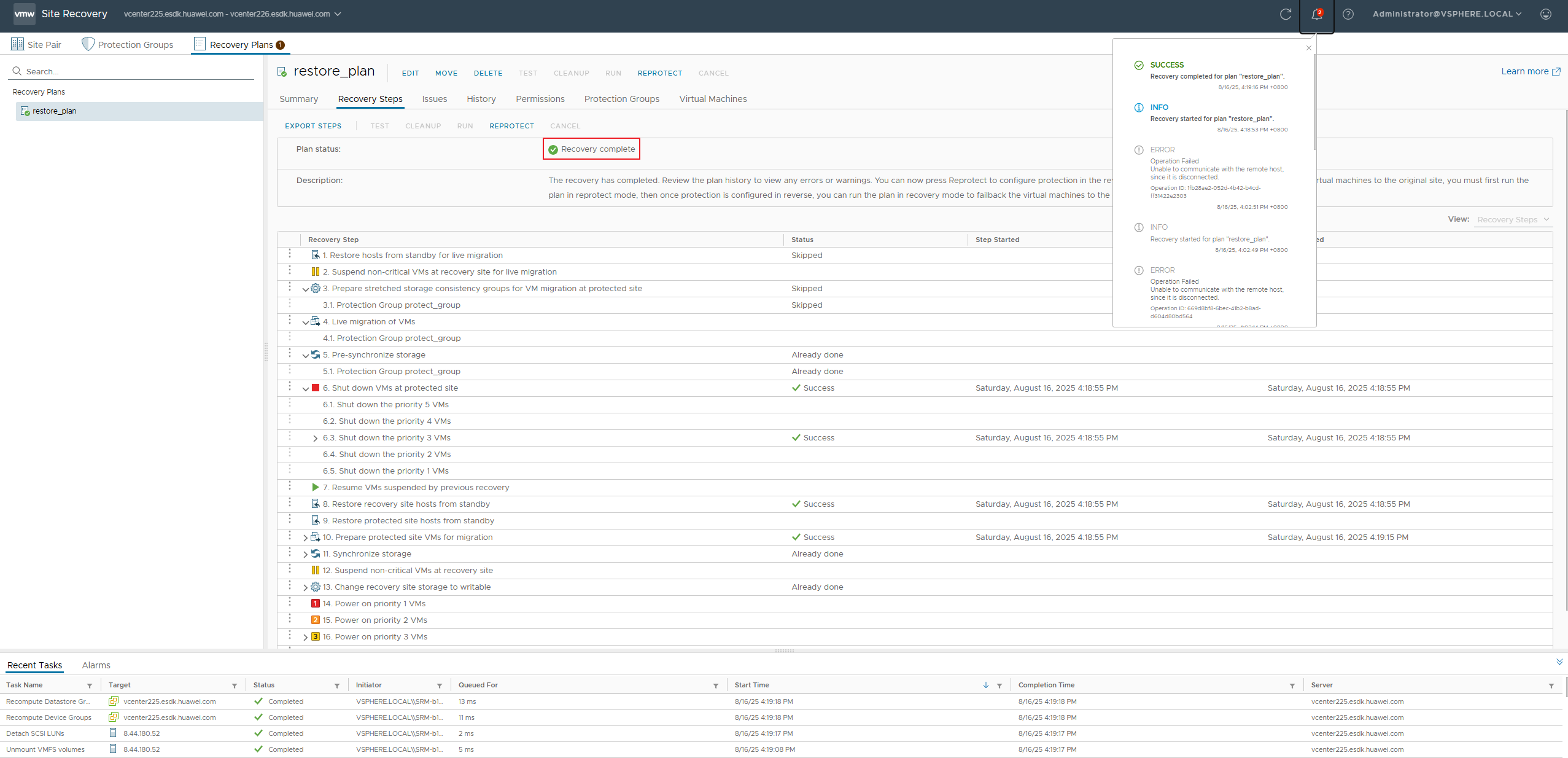
3. The login to the SRM management page is successful. 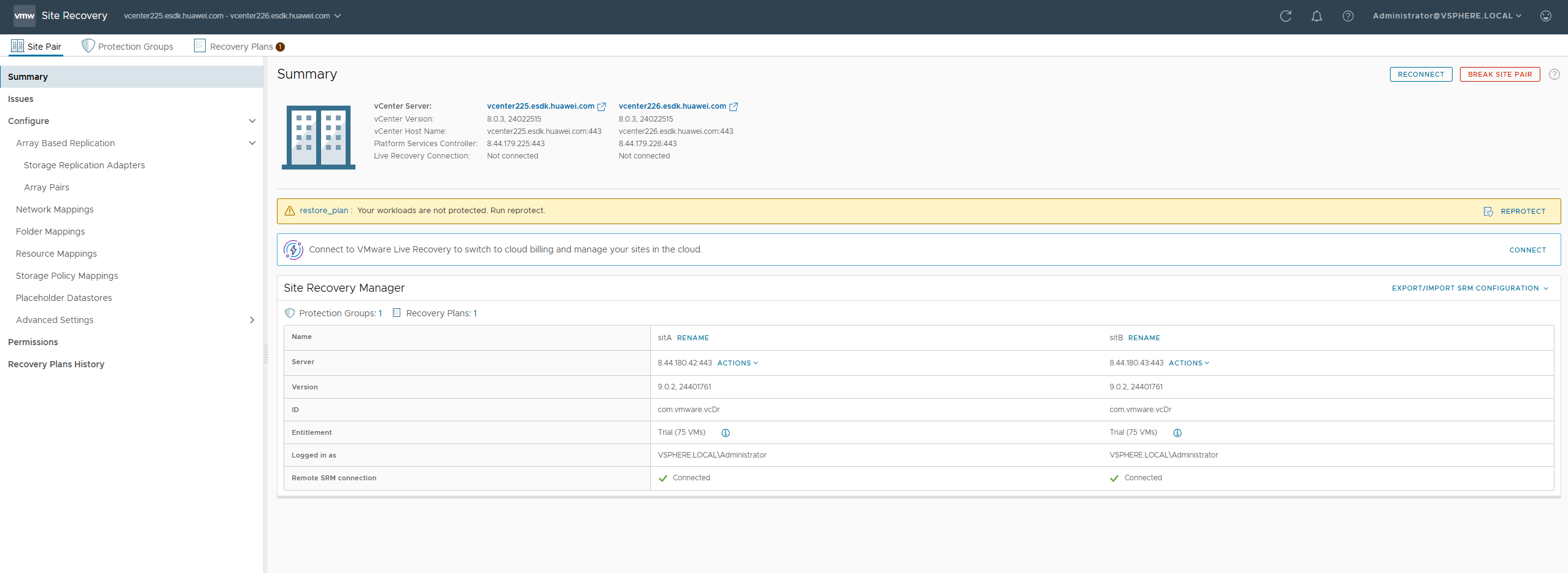
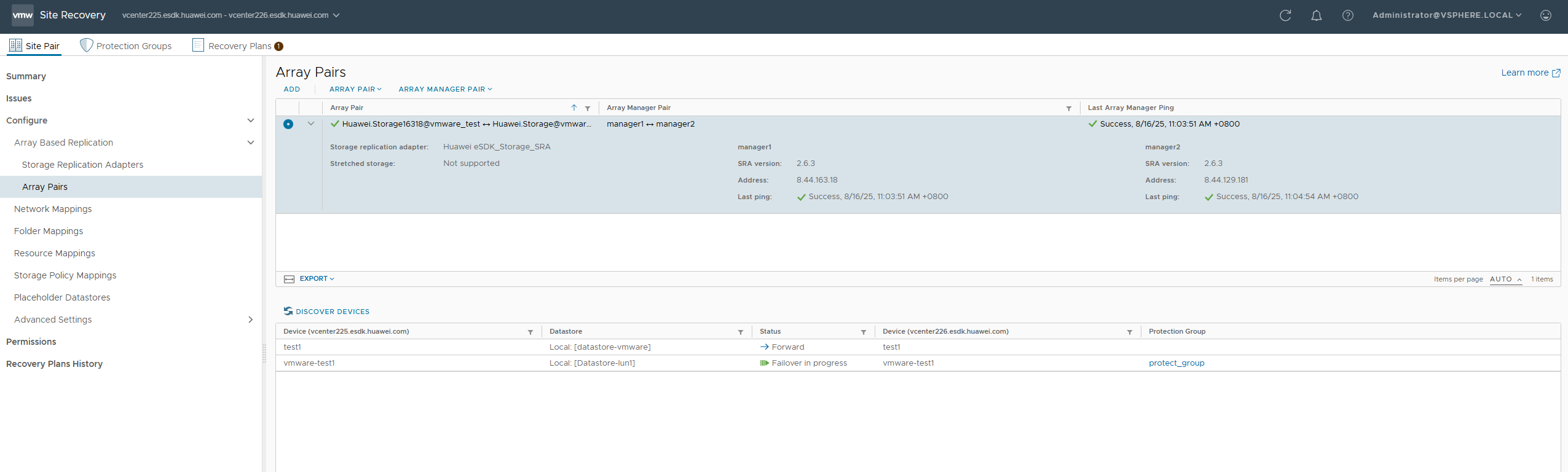
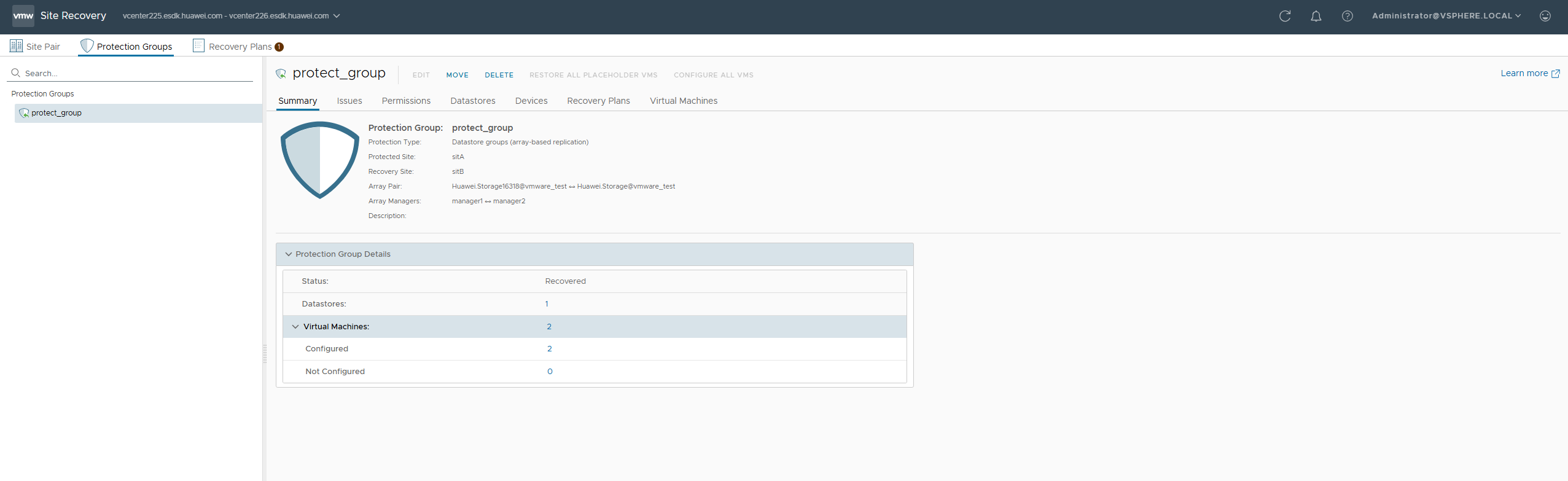
4. Select the recovery plan of the VM to be restored and click Reprotect. 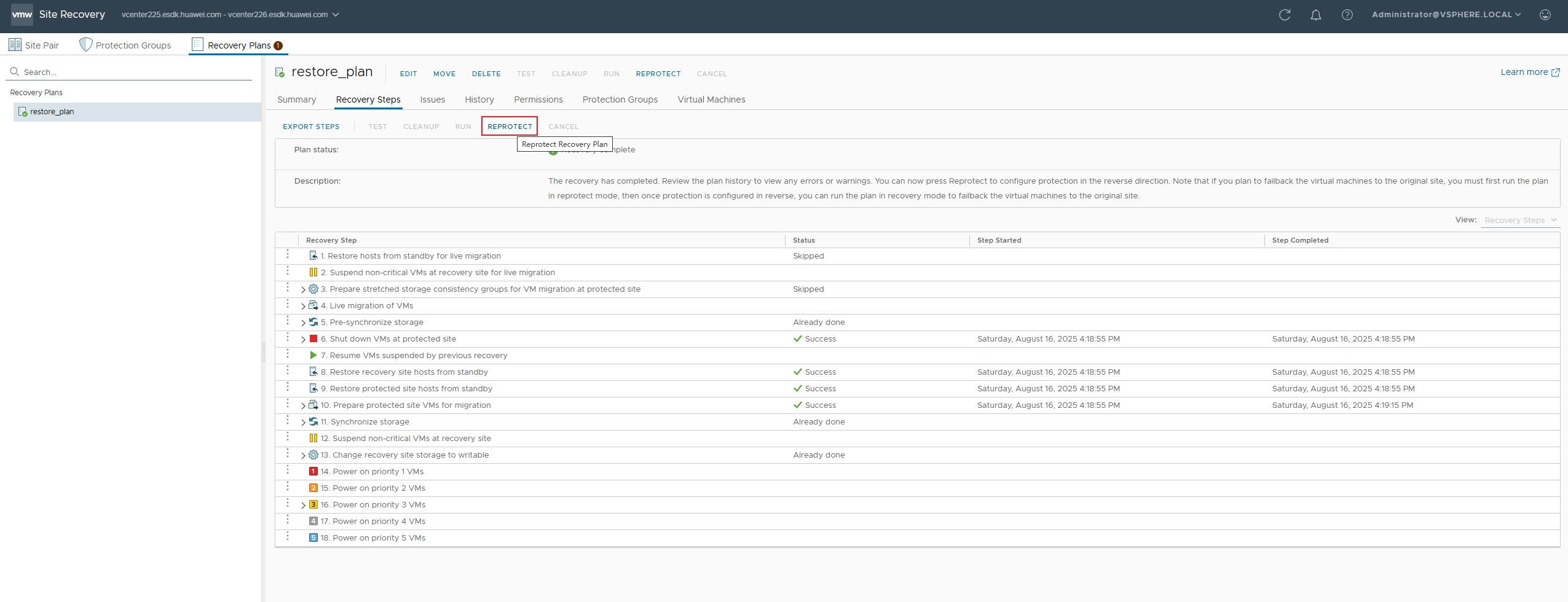
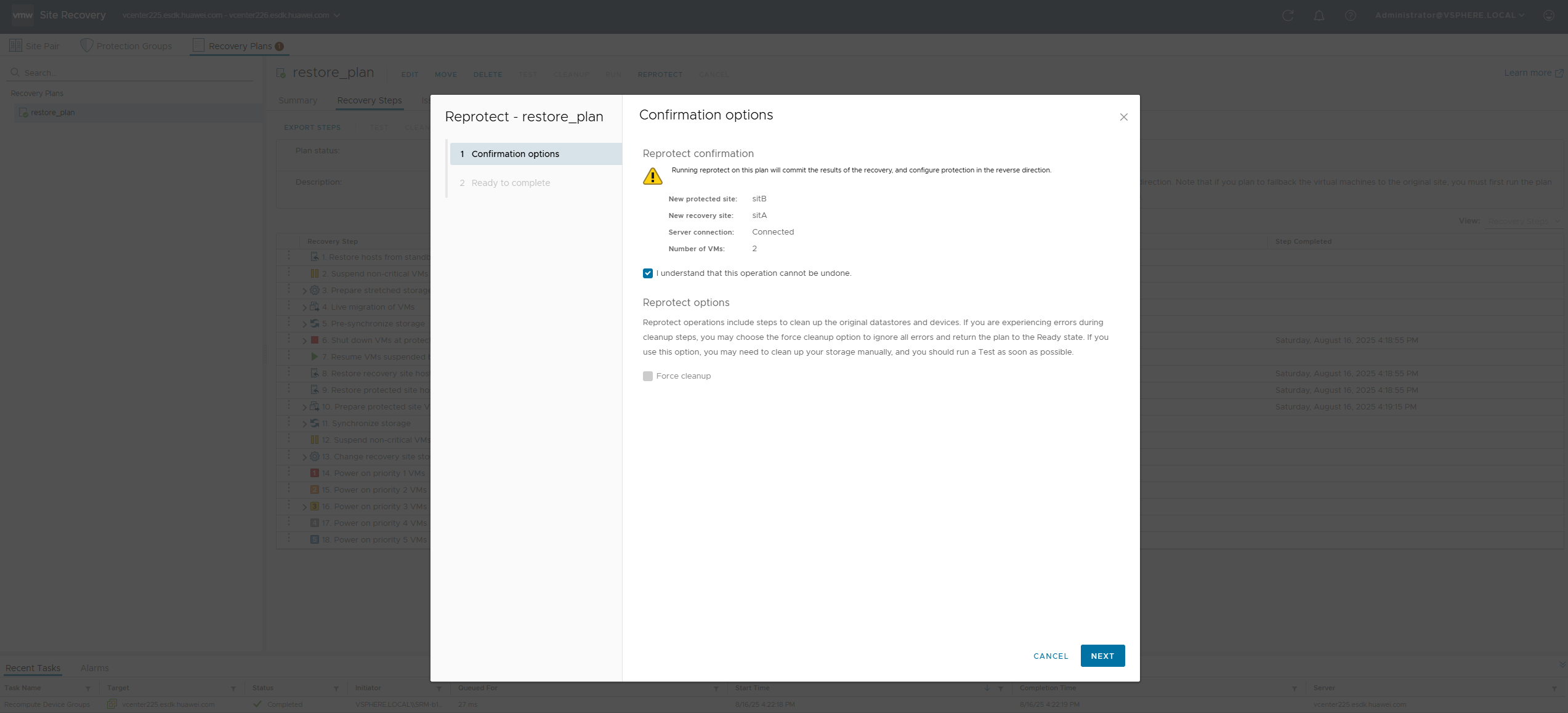
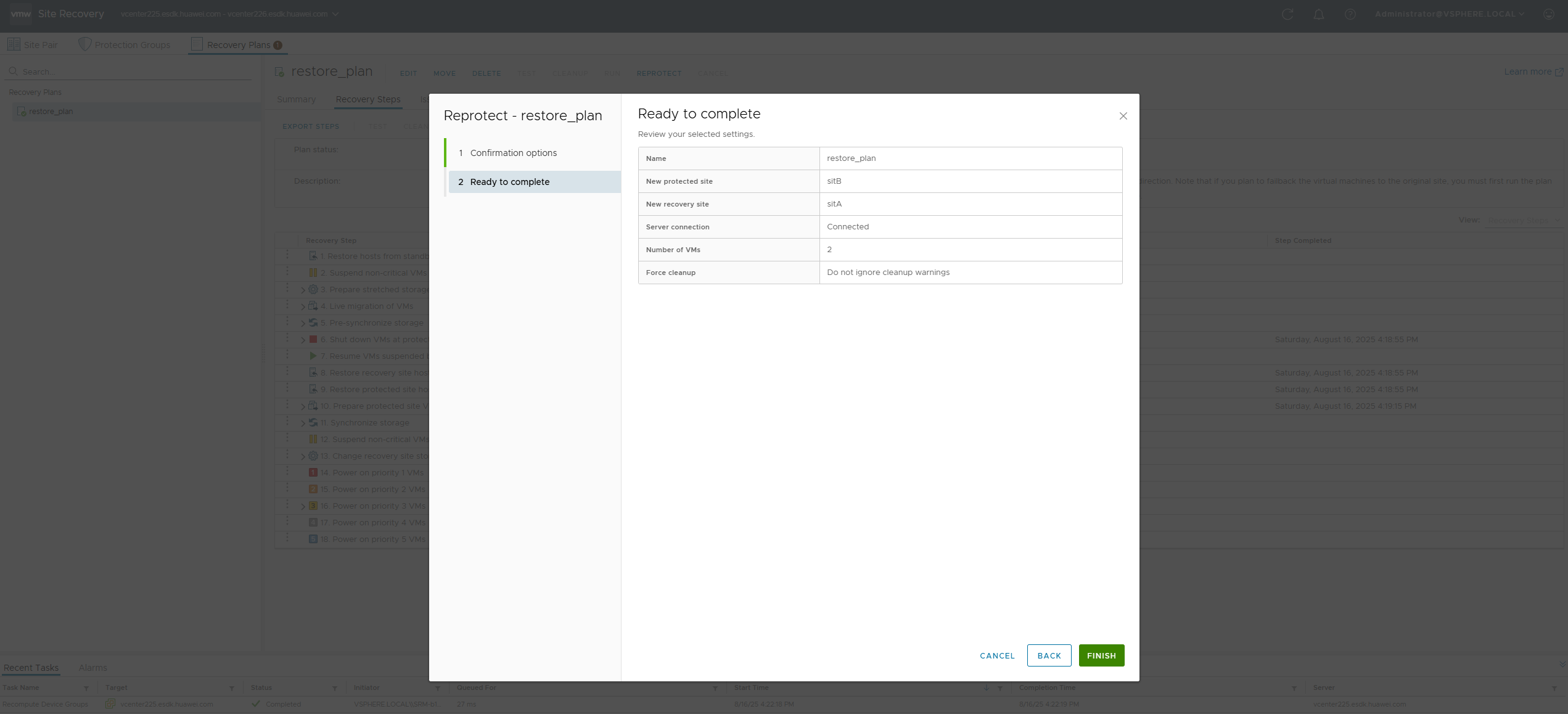
5. The re-protection operation is successful. 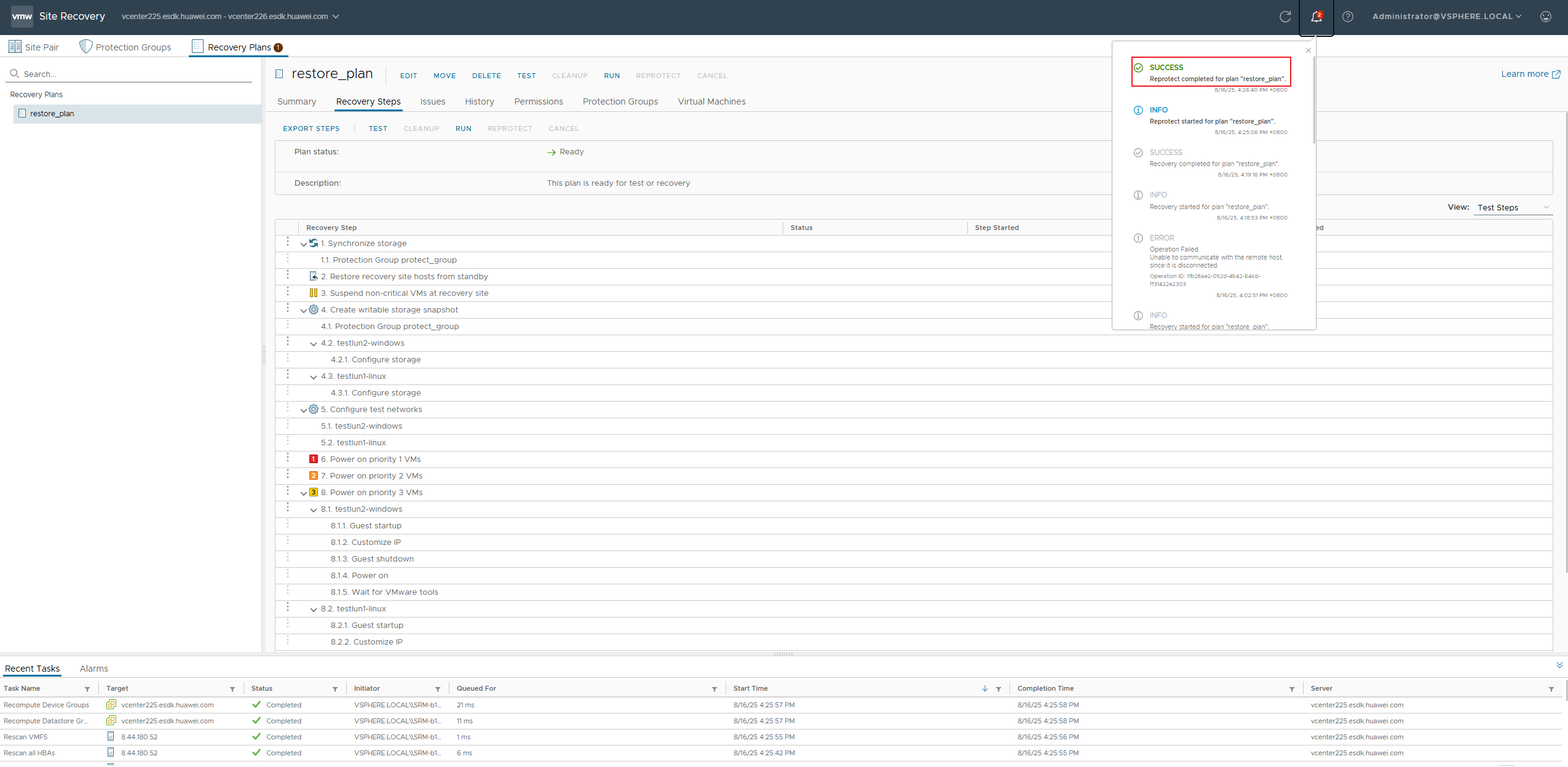
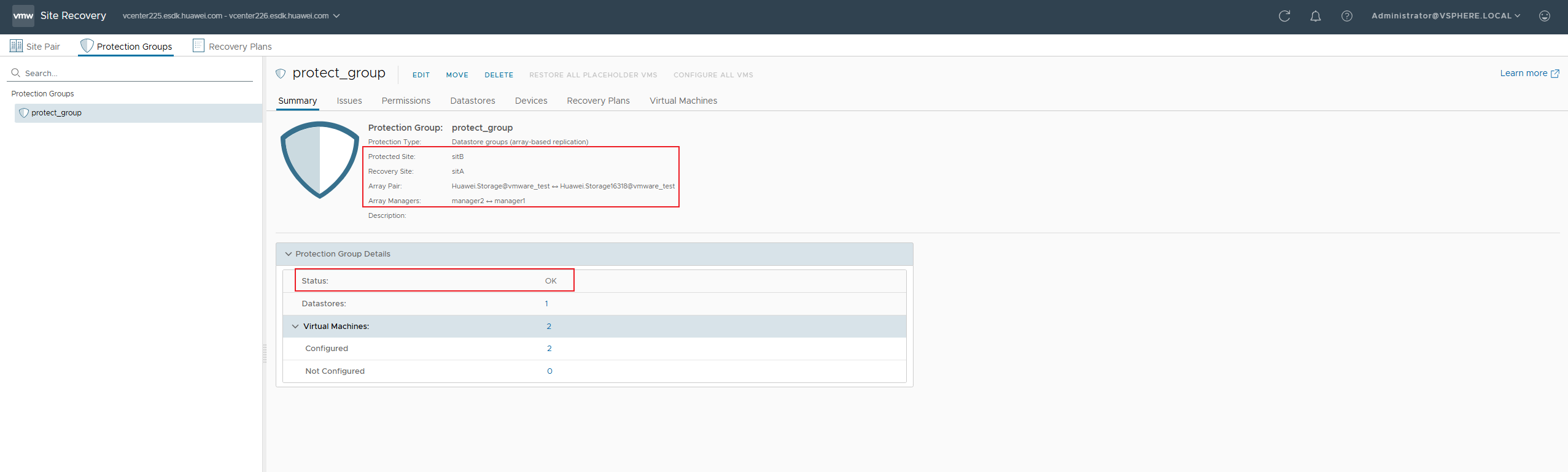
6. After the protection is successfully reprotected, the remote replication link is reversed and synchronized successfully. The protected group status is restored. 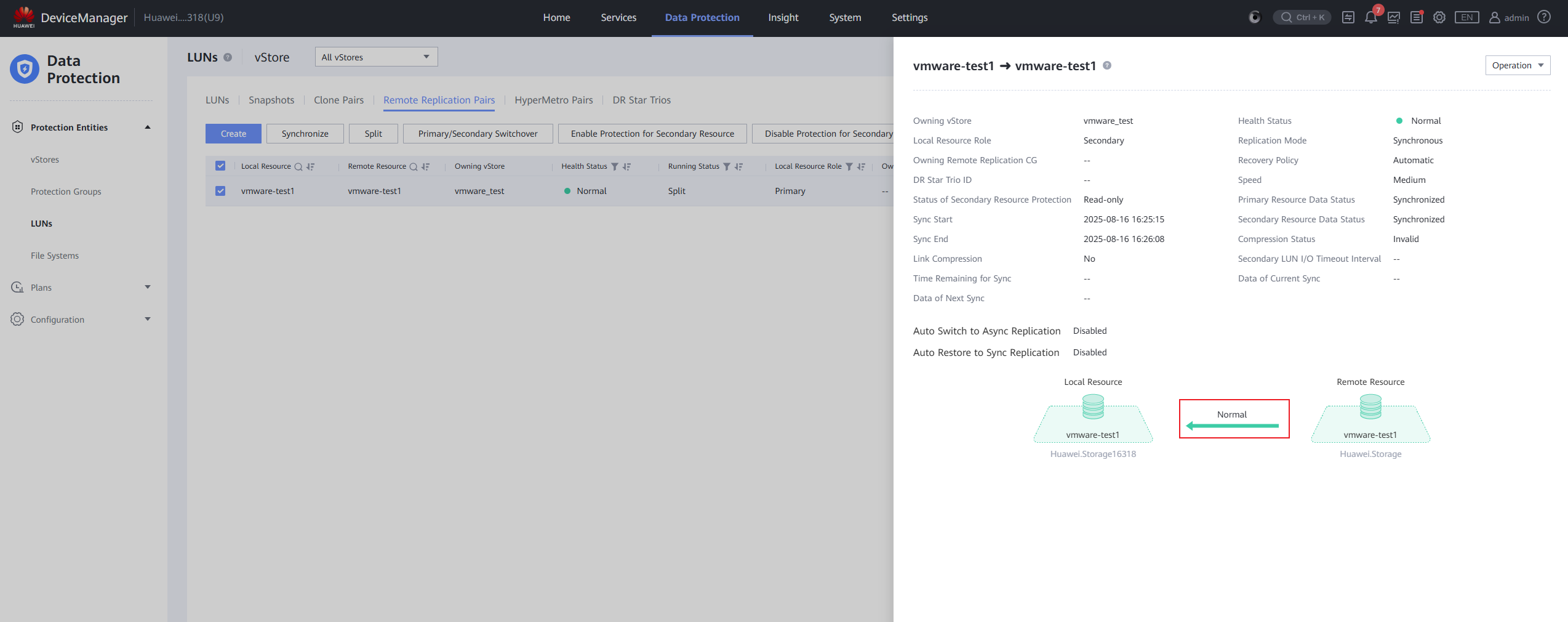
|
Test Conclusion | Passed |
3.3 Planned Migration in The Asynchronous Replication Scenario
Test Purpose | To Verify That Services are Running Properly in The Planned Migration Scenario of Asynchronous Replication |
Test Networking | Storage and VMware SRM Compatibility Test Networking |
Prerequisites | 1. The network between the production site and DR secondary site is normal. 2. iSCSI or FC connections have been established between the storage array of the DR secondary site and the host or cluster of the DR secondary site. 3. The vCenter Server, ESXi host, and SRM at the production site and DR secondary site are running properly. 4. The storage arrays at the production site and DR secondary site are normal. 5. VMs, protected groups, and recovery plans have been created and are in the normal state. |
Test Procedure | 1. Configure a remote replication pair for a LUN in asynchronous replication mode. 2. Log in to the SRM management screen. 3. Select the created recovery plan to run and Select Planned migration as the recovery type. 4. Configuration completed and running 5. After the operation is successful, check the disaster recovery site. |
Expected Result | 1. In step 1, The asynchronous replication link has been successfully created and is functioning normally. 2. In step 2, The login to the SRM management page is successful. 3. In step 3, Operation successful with no errors reported. 4. In step 4, The recovery plan of the planned migration type is successfully executed. 5. In step 5, The migration is successful, the remote replication is split, and the standby VM is started. |
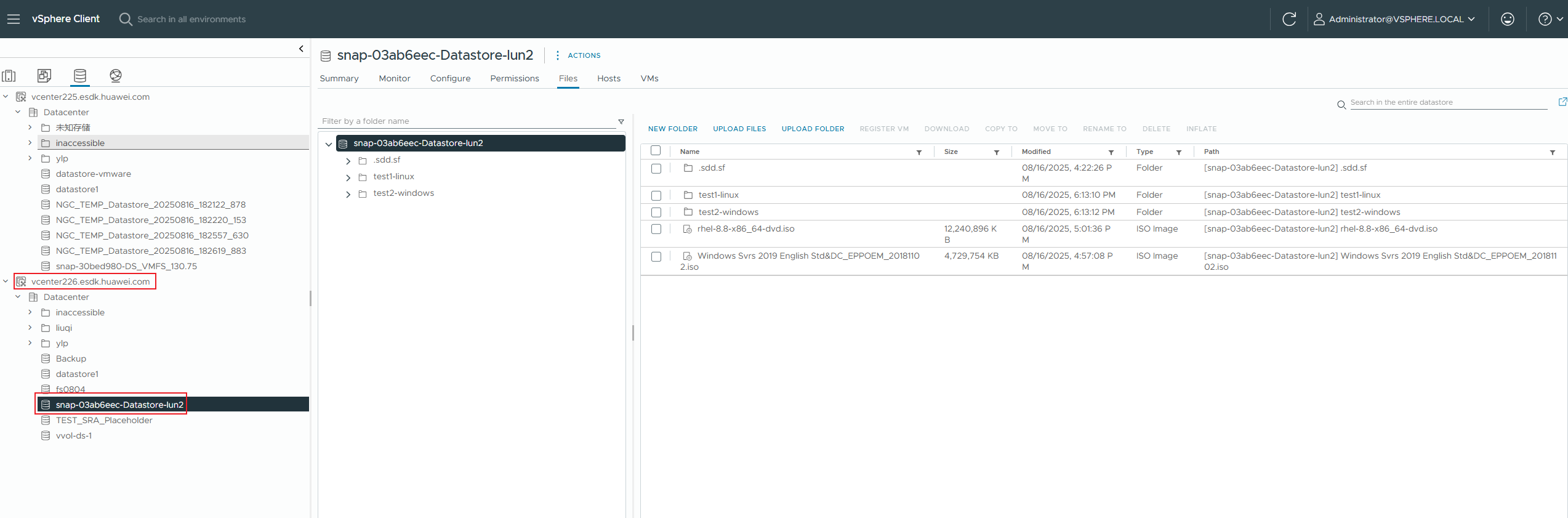
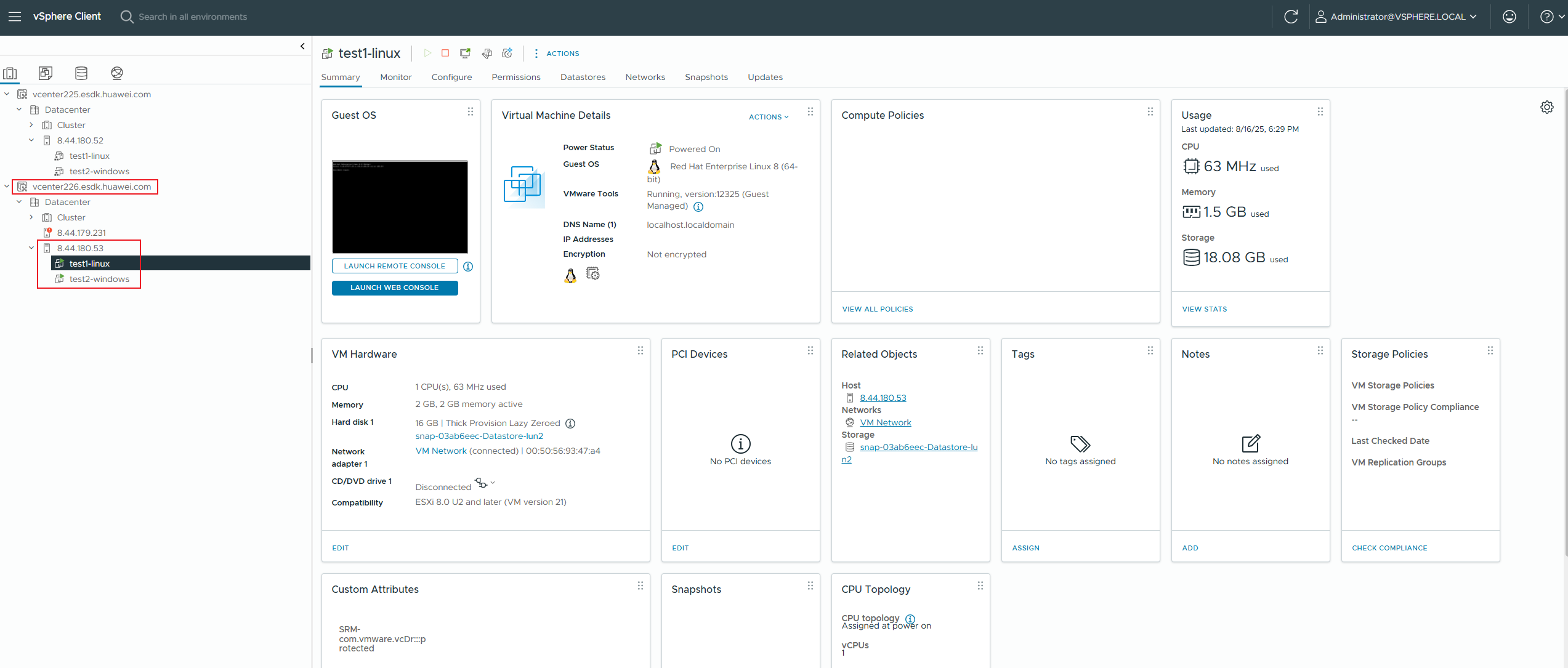
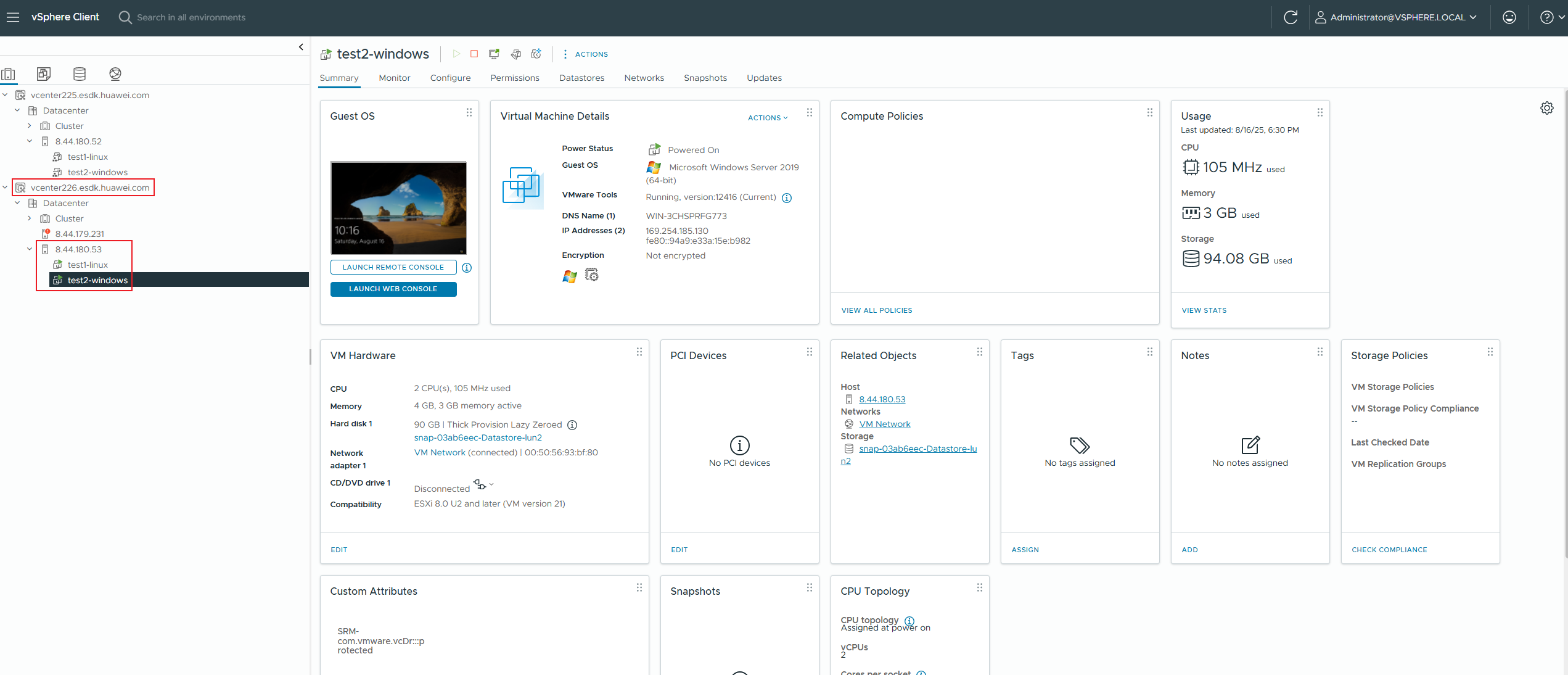
Test Record | 1. Configure a remote replication pair for LUNs in asynchronous replication mode. 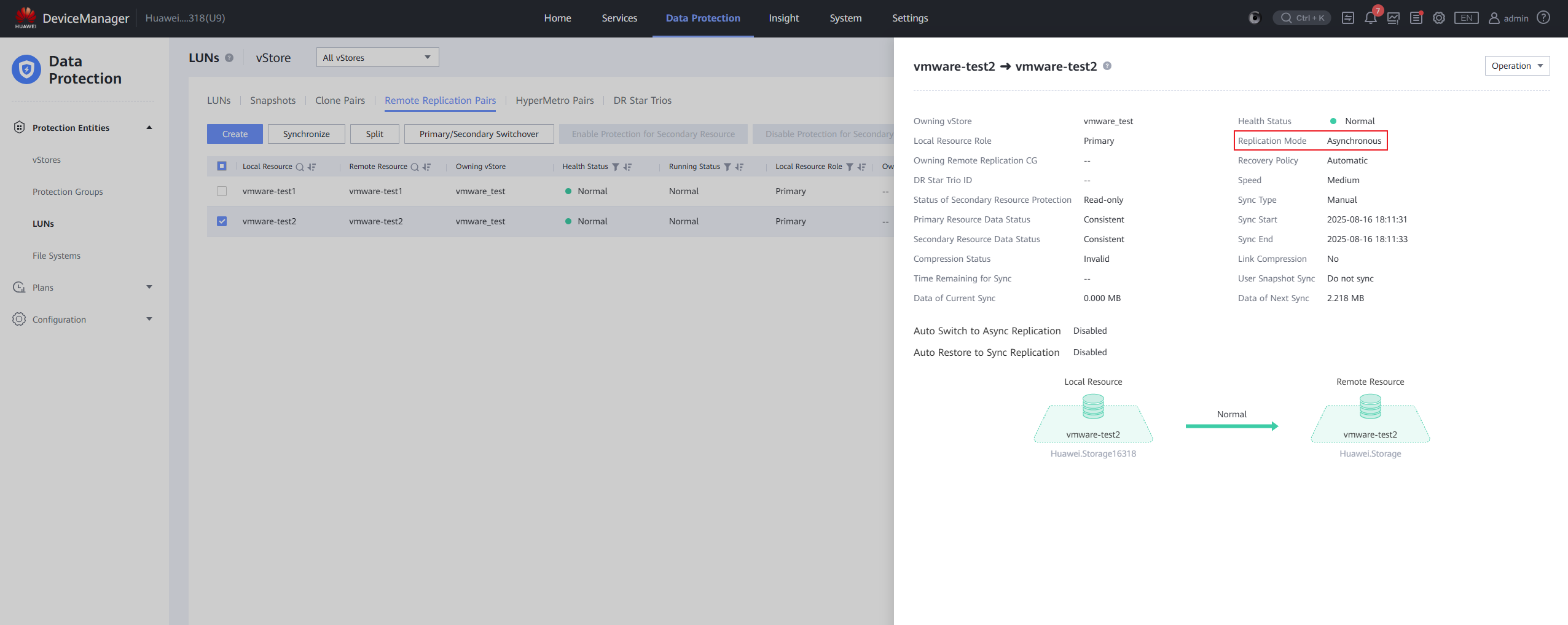
2. The login to the SRM management page is successful. 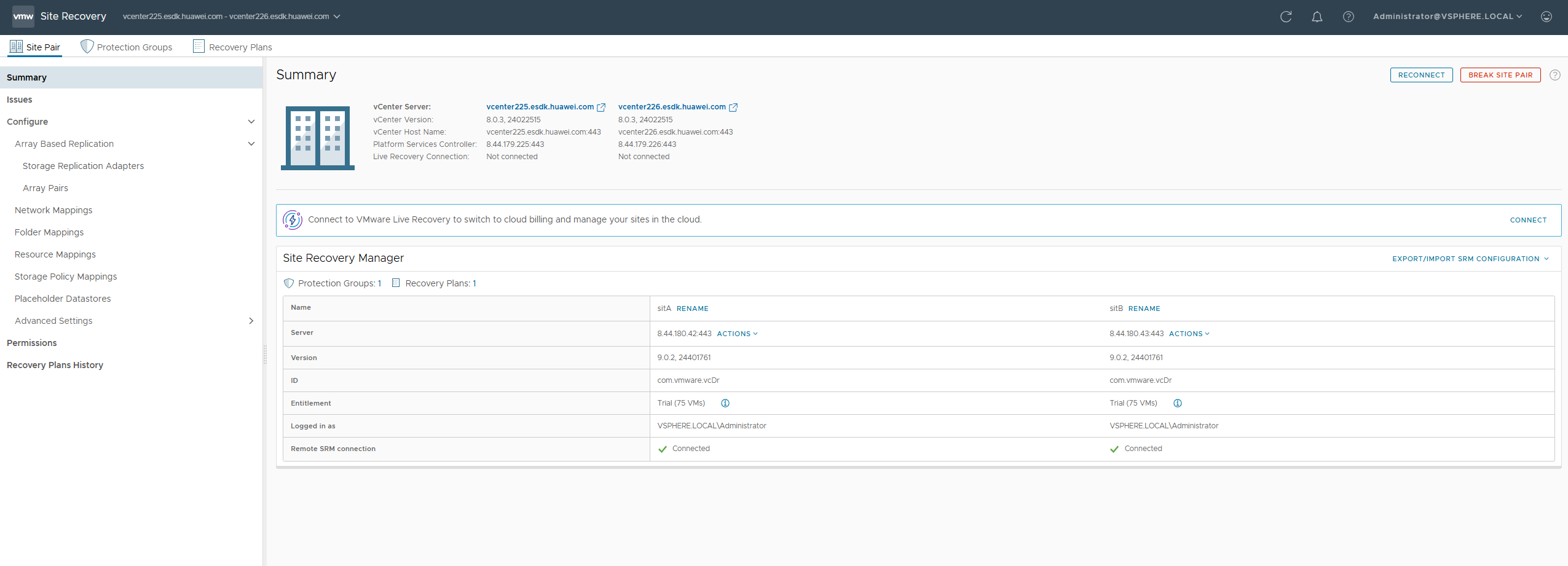
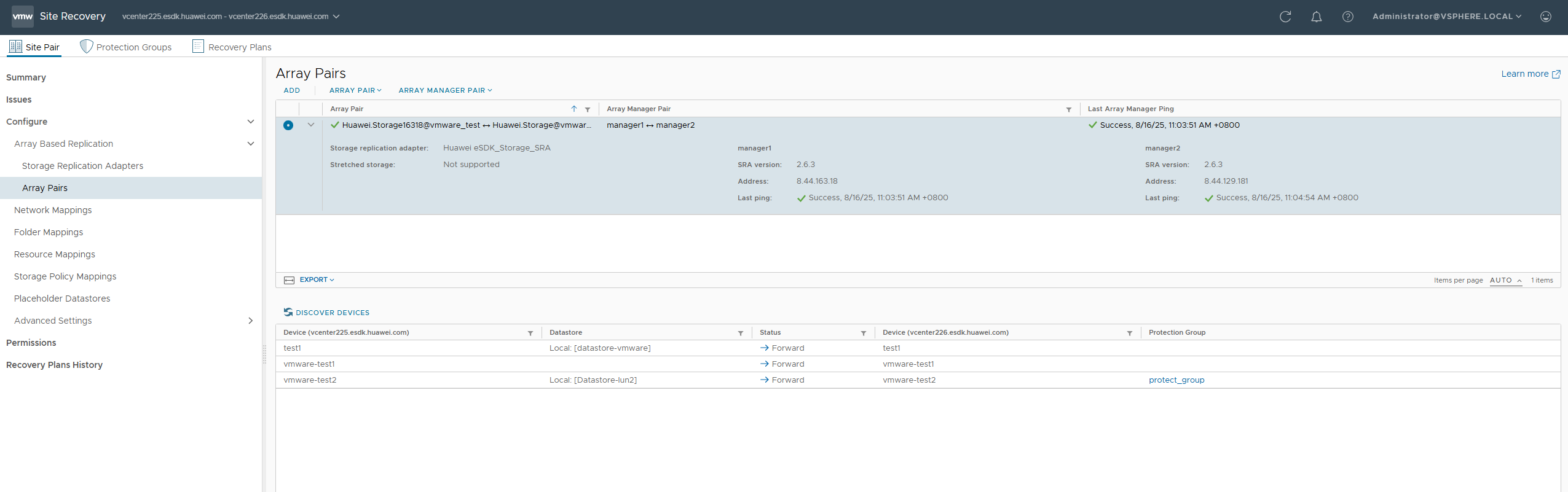
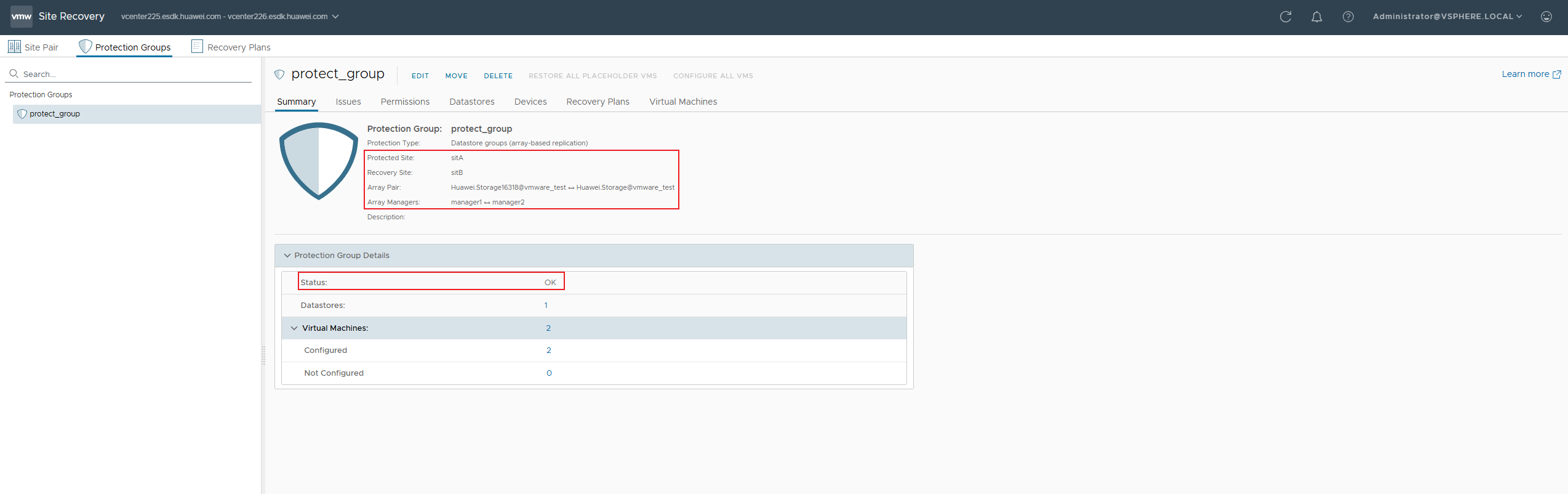
3. Select the created recovery plan and run it. 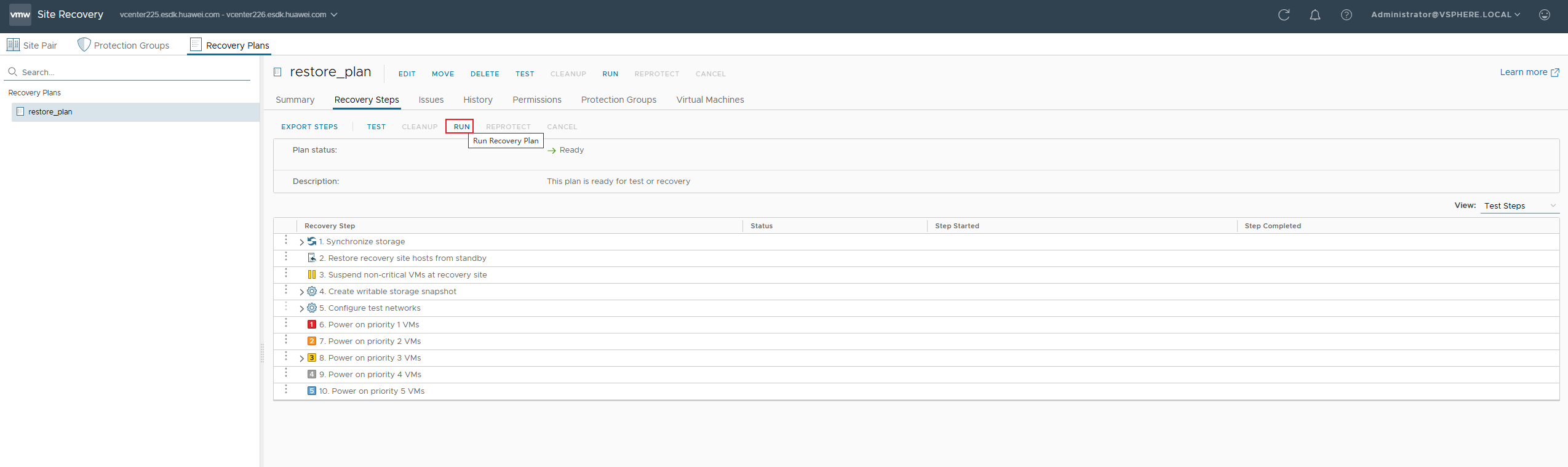
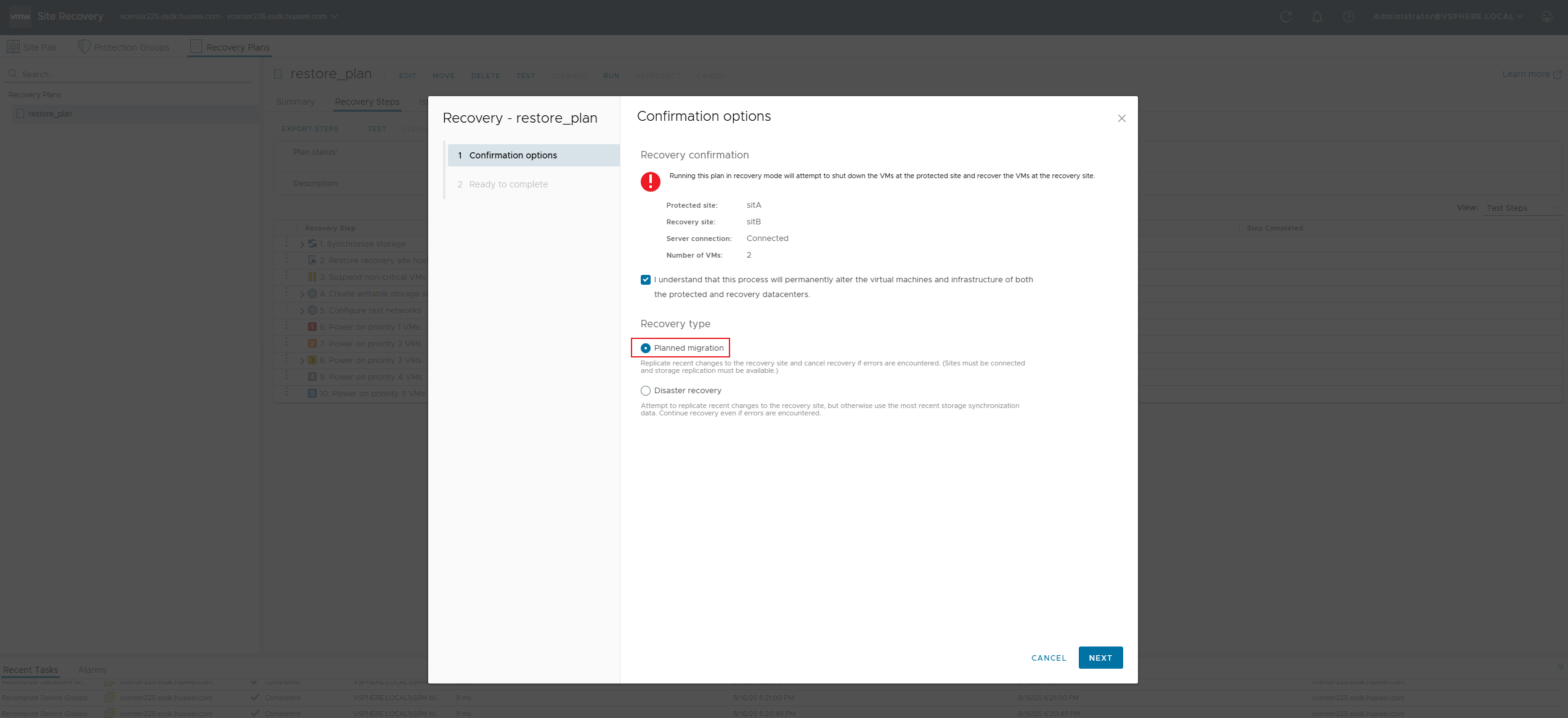
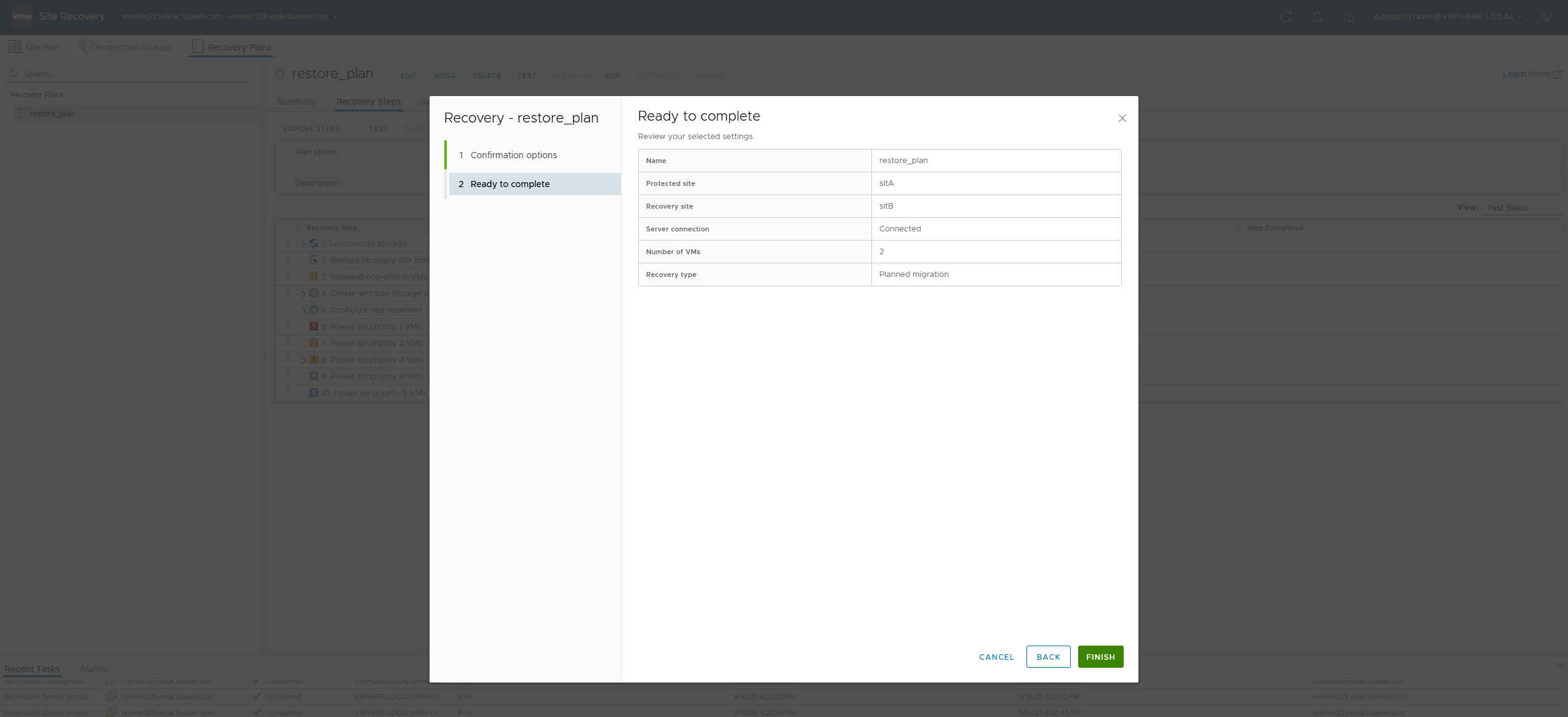
4. The recovery plan of the planned migration type is successfully executed. 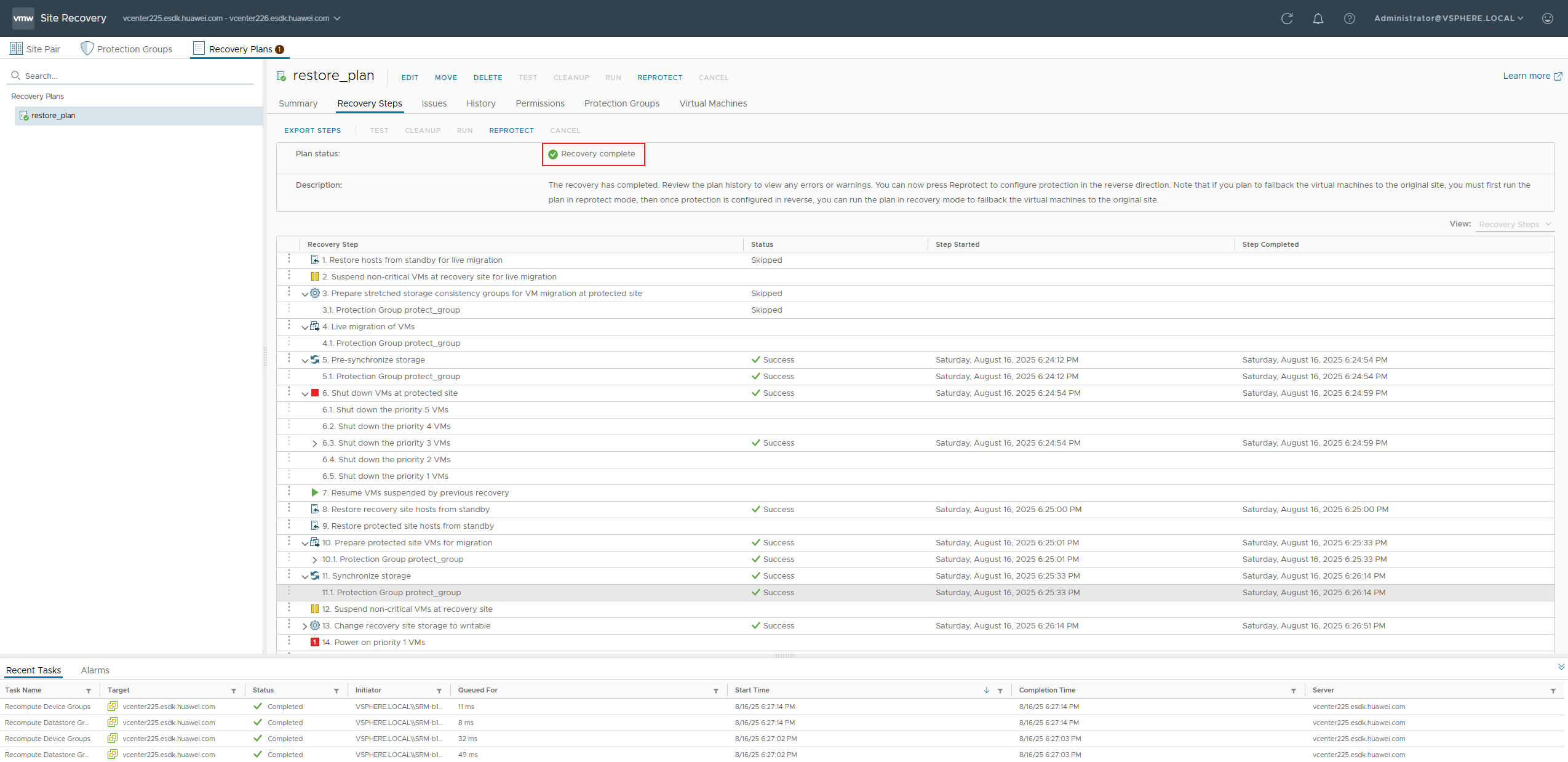
5. After the planned migration is successful, the remote replication link is split and the VM at the DR end is started. 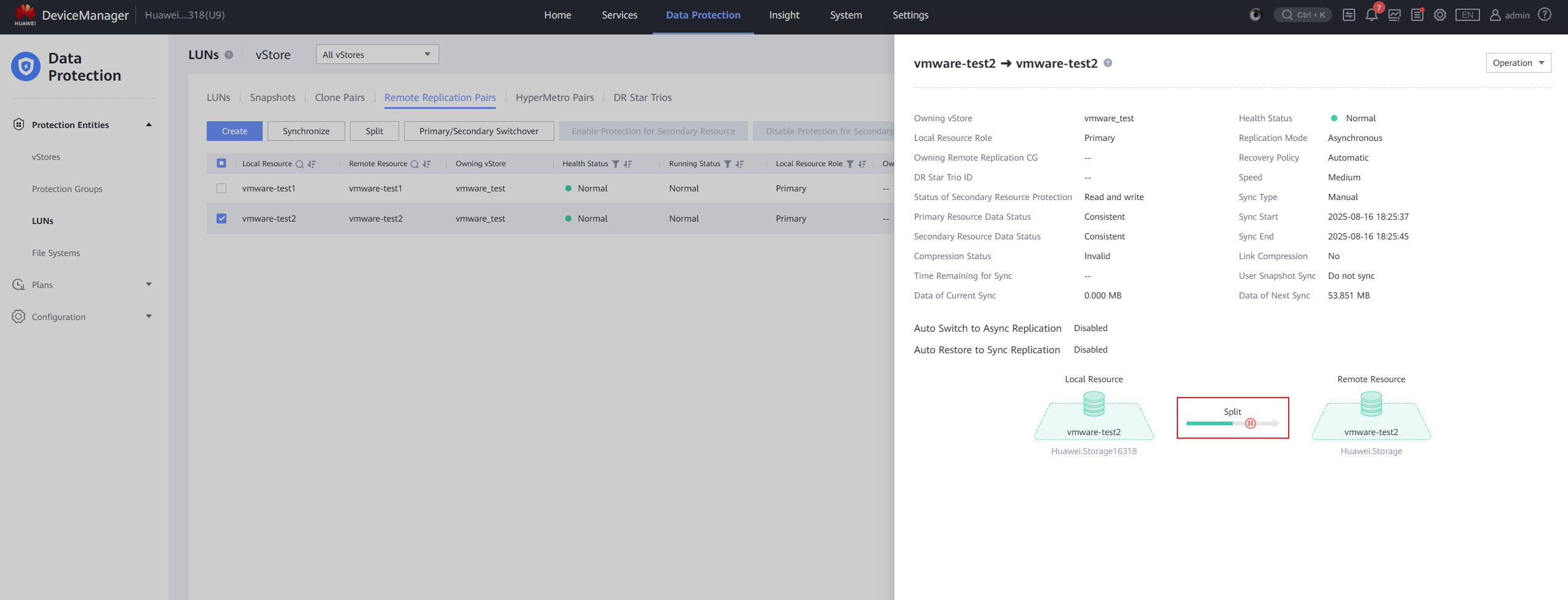
|
Test Conclusion | Passed |
3.4 Reprotection in The Asynchronous Replication Scenario
Test Purpose | To Verify That Services are Running Properly in The Reprotection Scenario of Asynchronous Replication |
Test Networking | Storage and VMware SRM Compatibility Test Networking |
Prerequisites | 1. Planned migration or fault recovery has been completed. 2. The vCenter Server, ESXi host, and SRM at the production site have recovered. 3. The storage array at the production site has recovered. 4. The replication link between the production site and the DR secondary site has recovered. |
Test Procedure | 1. Log in to the SRM management screen. 2. Select the recovery plan of the VM to be restored and click Reprotect. 3. Configuration completed and running 4. After the operation is successful, check the remote replication and protected group. |
Expected Result | 1. In step 1, The login to the SRM management page is successful. 2. In step 2, Operation successful with no errors reported. 3. In step 3, The recovery plan of the reprotection type is successfully executed. 4. In step 4, The reprotection is successful, and the remote replication is reversed and synchronized. |
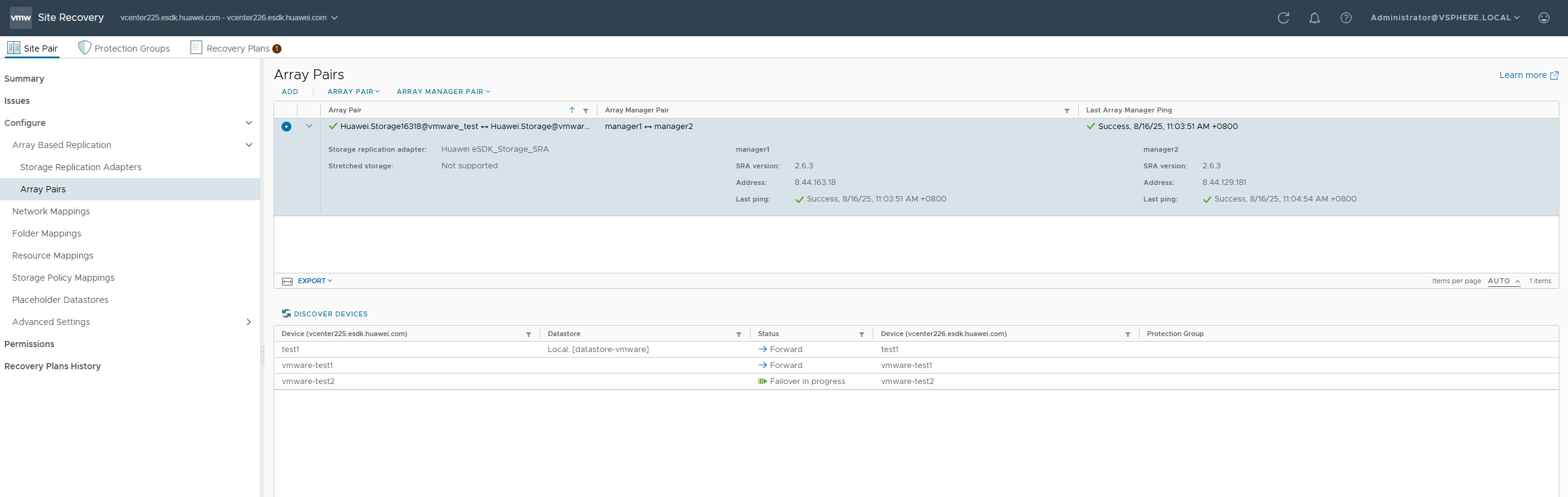
Test Record | 1. The login to the SRM management page is successful. 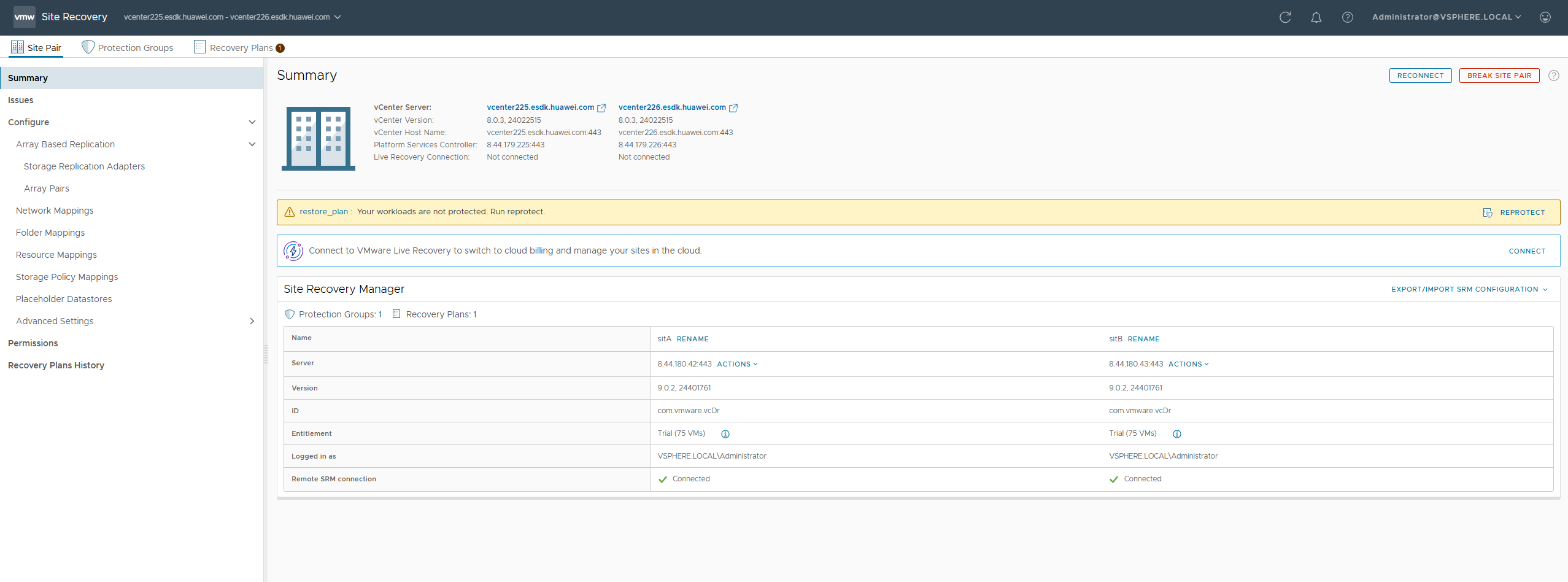

2. Select the recovery plan of the VM to be restored and click Reprotect. 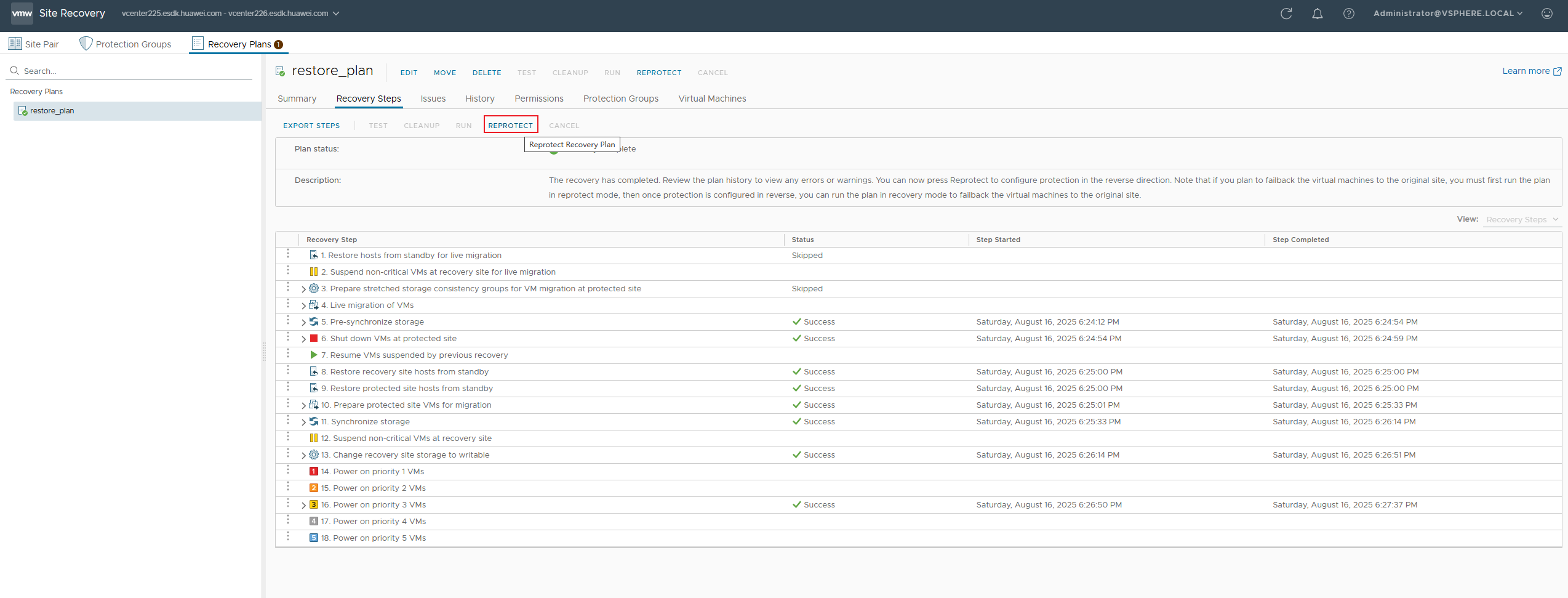
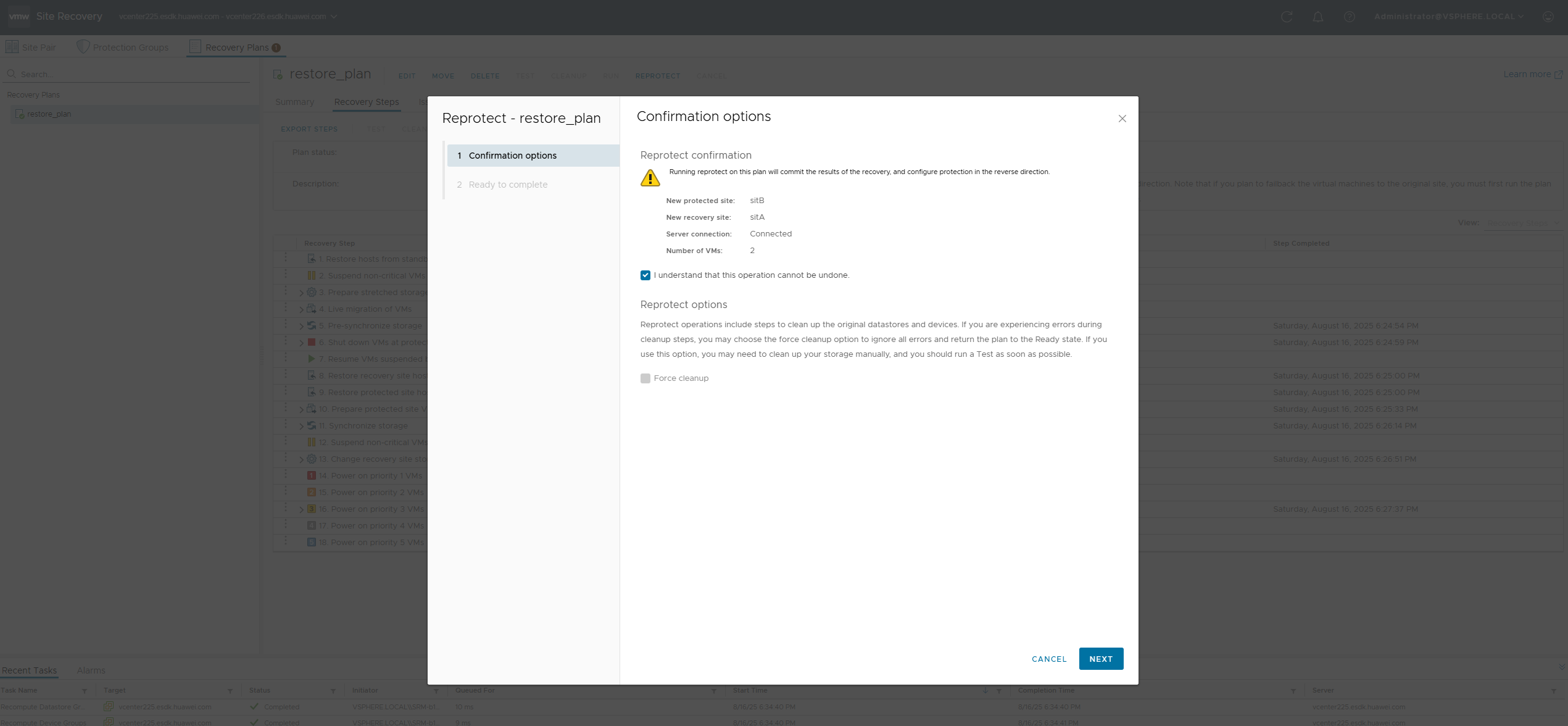
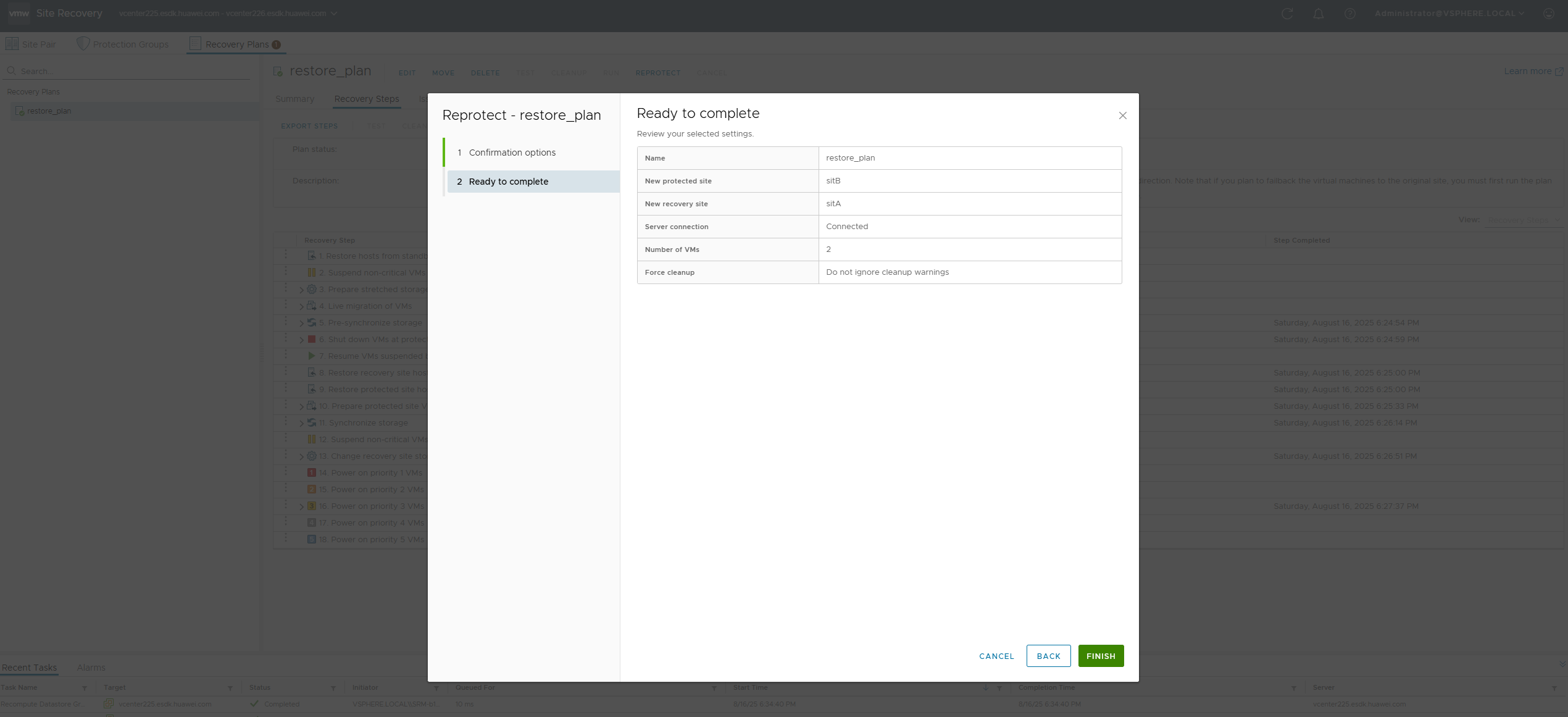
3. The re-protection operation is successful. 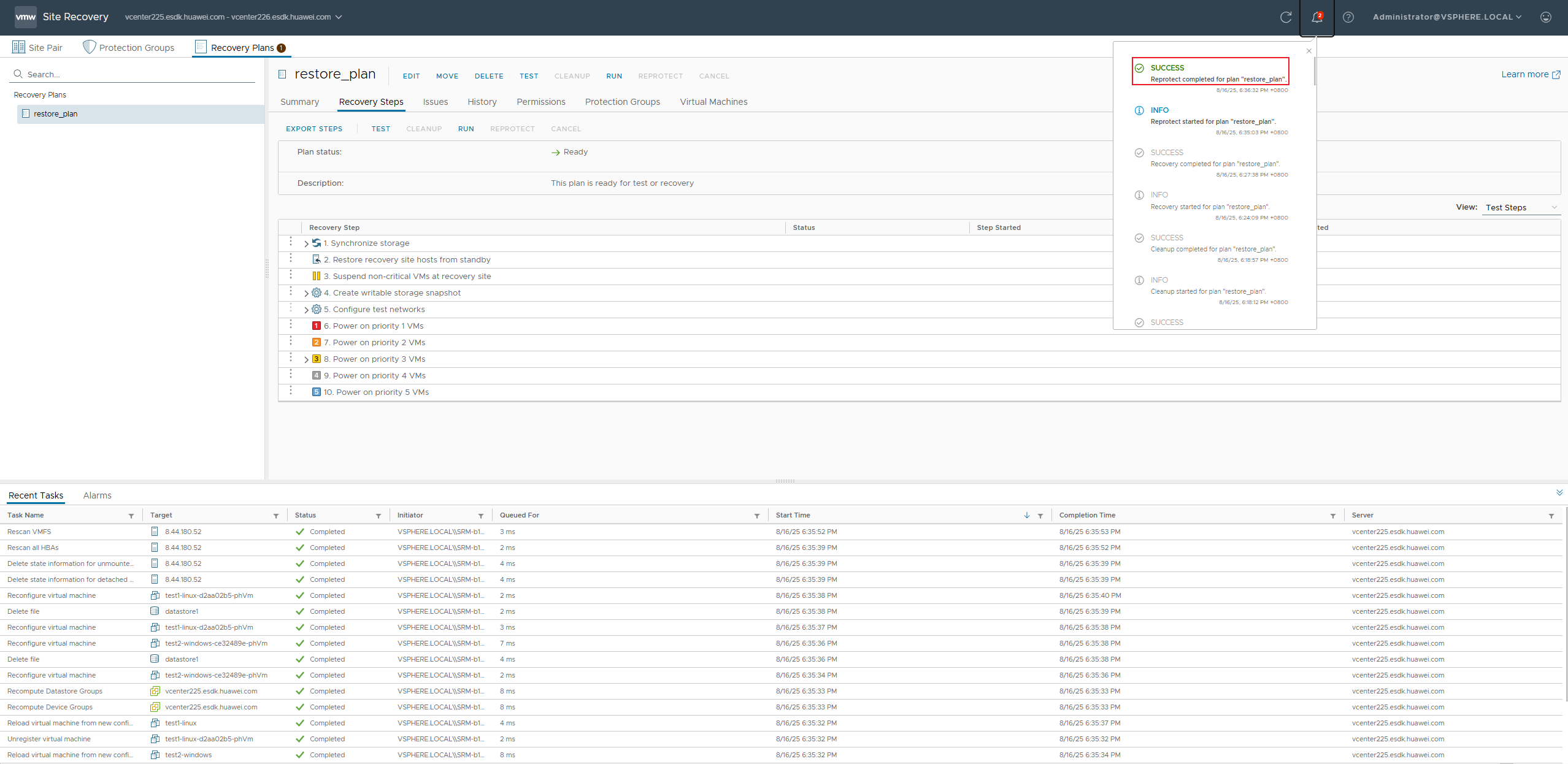
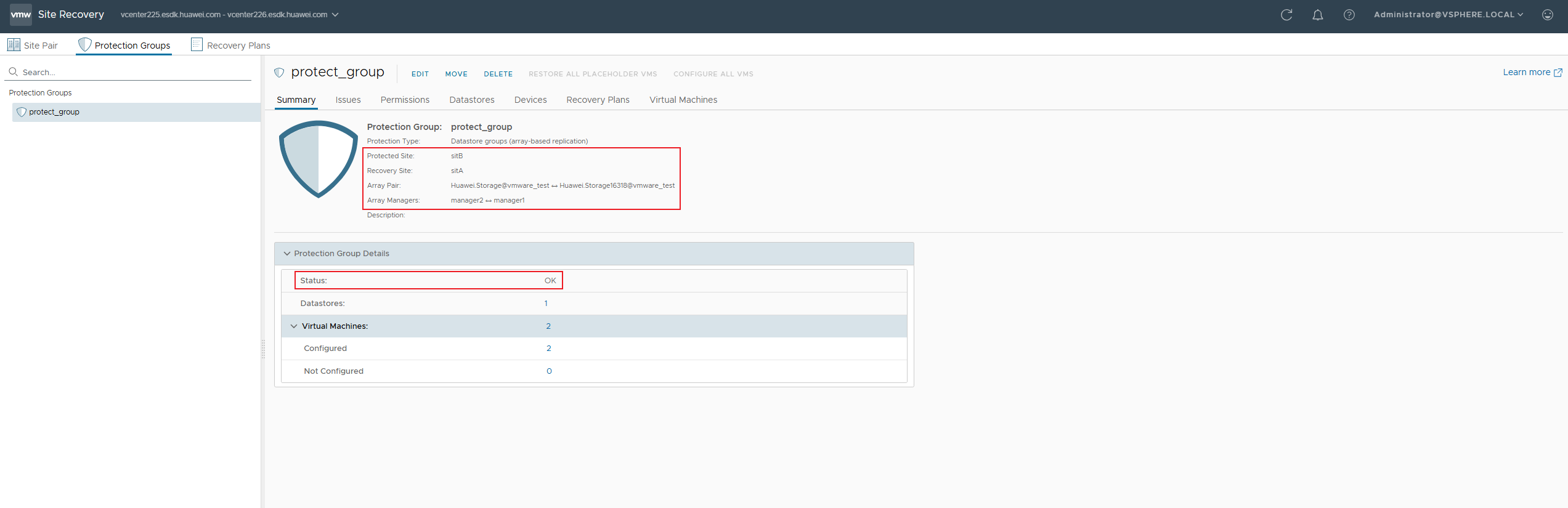
4. After the protection is successfully reprotected, the remote replication link is reversed and synchronized successfully. The protected group status is restored. 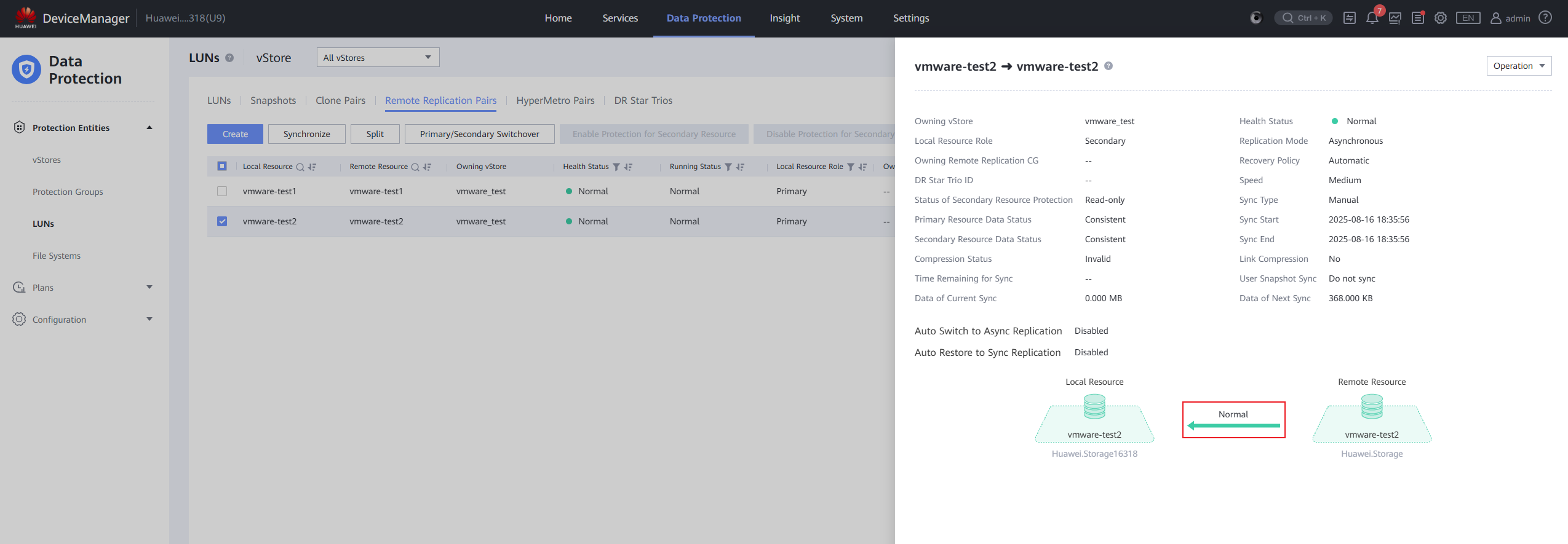
|
Test Conclusion | Passed |
