Huawei OceanStor Dorado All-Flash Storage and Splunk Enterprise SmartStore
Interoperability Test Report
Axians Global
All Rights Reserved
Executive Summary
Axians Global (“Axians”) assessed the interoperability of Splunk Enterprise SmartStore with Huawei OceanStor Dorado All-Flash Storage. The goal of the assessment is to validate that Splunk is interoperable with Huawei OceanStor Dorado All-Flash Storage.
During the assessment, all interoperability test cases were successfully completed. Splunk Enterprise SmartStore can use Huawei OceanStor Dorado All-Flash storage as repository to back up and restore indexes.
In the assessment, Axians has determined that Splunk Enterprise SmartStore will function with Huawei OceanStor Dorado All-Flash Storage for the following scenarios:
Test Scenario
Software Involved
Storage Involved
Protocol(s) Tested
Result
Test Scenario 1: Used as Local Storage for hot data
Splunk Enterprise SmartStore
Huawei OceanStor Dorado All-Flash Storage
ISCSI
Passed
Test Scenario 2: Used as Remote Storage for warm data
Splunk Enterprise SmartStore
Huawei OceanStor Dorado All-Flash Storage
S3
Passed
In this document, you will find details on the above test cases and the captured output. The procedures conducted in the tests are referenced from standard online documentation from Splunk and Huawei.
Tips:All test results are also applicable to Huawei OceanStor Capacity Flash Storage and Huawei OceanStor Hybrid Flash Storage.
1.Environment Configuration
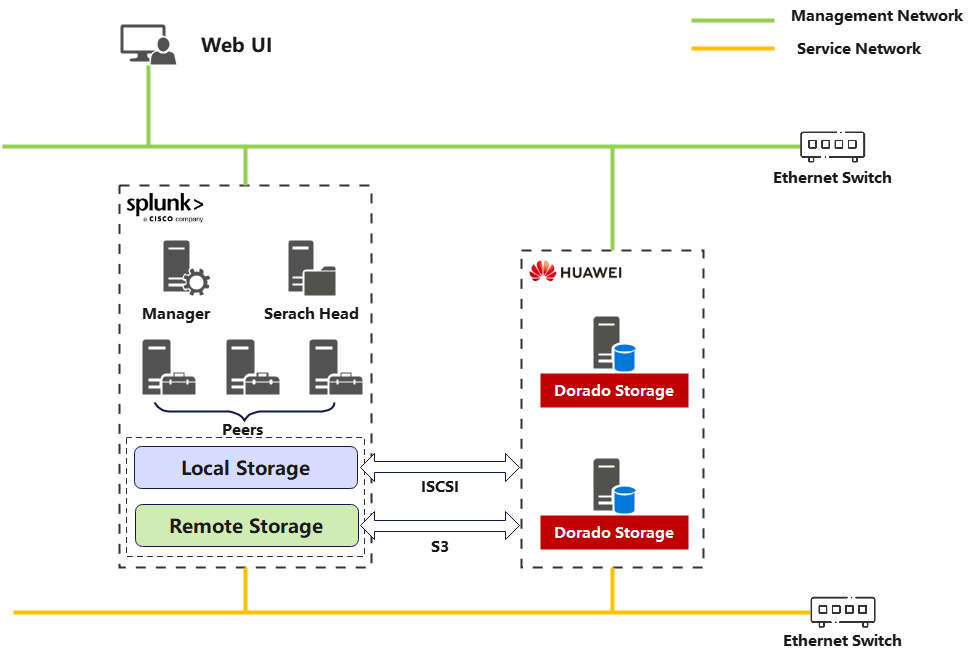
1.1 Network Diagram
Figue 1.1 Huawei OceanStor Dorado All-Flash Storage as the SmartStore Test Network
1.2 Hardware and Software Configuration
1.2.1 Hardware Configuration
Hardware Name
Configuration
Usage
Quantity
Dorado Storage
Huawei OceanStor Dorado 5000
CPU: 2*kunpeng920
Memory: 256 GB
Network: 4 x 10GE optical ports
Disk: 8* HSSD-D7N23AL3T8V
Used as Splunk Enterprise SmartStore local and remote storage
2
Splunk Enterprise Master server
x86 server
CPU:2* Silver 4208
Memory: 256 GB
Network: 4 x 10GE optical ports
Primary storage disk: 2 x 3.84 TB SSD
Manage cluster st.tus and unify configuration.
1
Splunk Enterprise Search Head server
x86 server
CPU:2* Silver 4208
Memory: 256 GB
Network: 4 x 10GE optical ports
Primary storage disk: 2 x 3.84 TB SSD
Deploy for Distributed Search.
1
Splunk Enterprise Slave server
x86 server
CPU:2* Silver 4208
Memory: 256 GB
Network: 4 x 10GE optical ports
Primary storage disk: 2 x 3.84 TB SSD
Peer nodes form each other and perform search and storage tasks.
3
Ethernet switch
Huawei 6855 10GE Network Switch
Ethernet switches for management Network and service Network.
2
1.2.2 Test Software and Tools
Software Name
Configuration
Version
Quantity
Dorado Storage
Huawei OceanStor Dorado All-Flash Storage
(Hereinafter referred to as “Dorado Storage” as well)
V700
1
Splunk Enterprise
Splunk Enterprise Software
10
1
Operation System
Install the Linux Hosts
Rocky Linux 9
5
2.Test Praparation
2.1 Install the Splunk Enterprise software
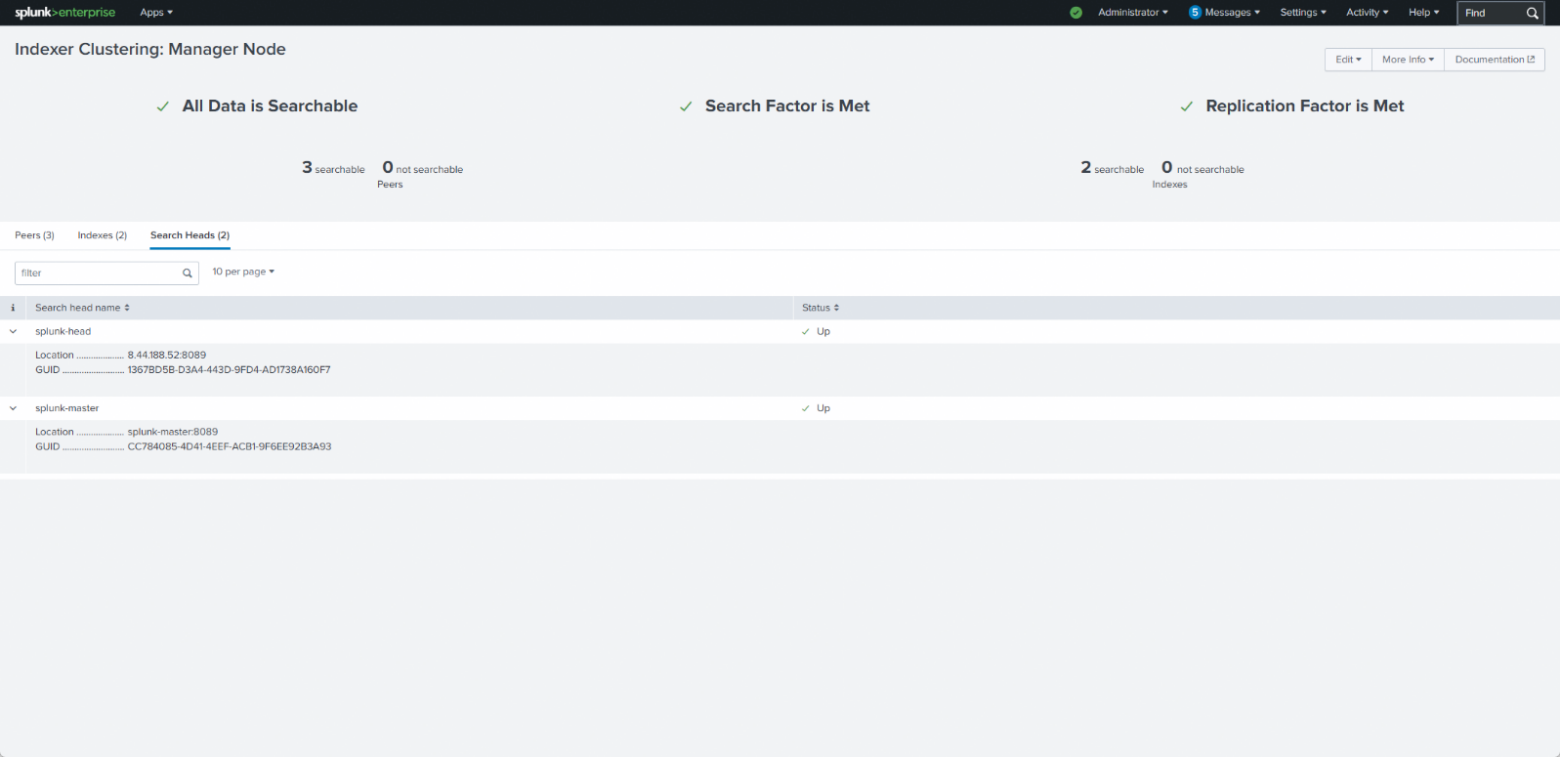
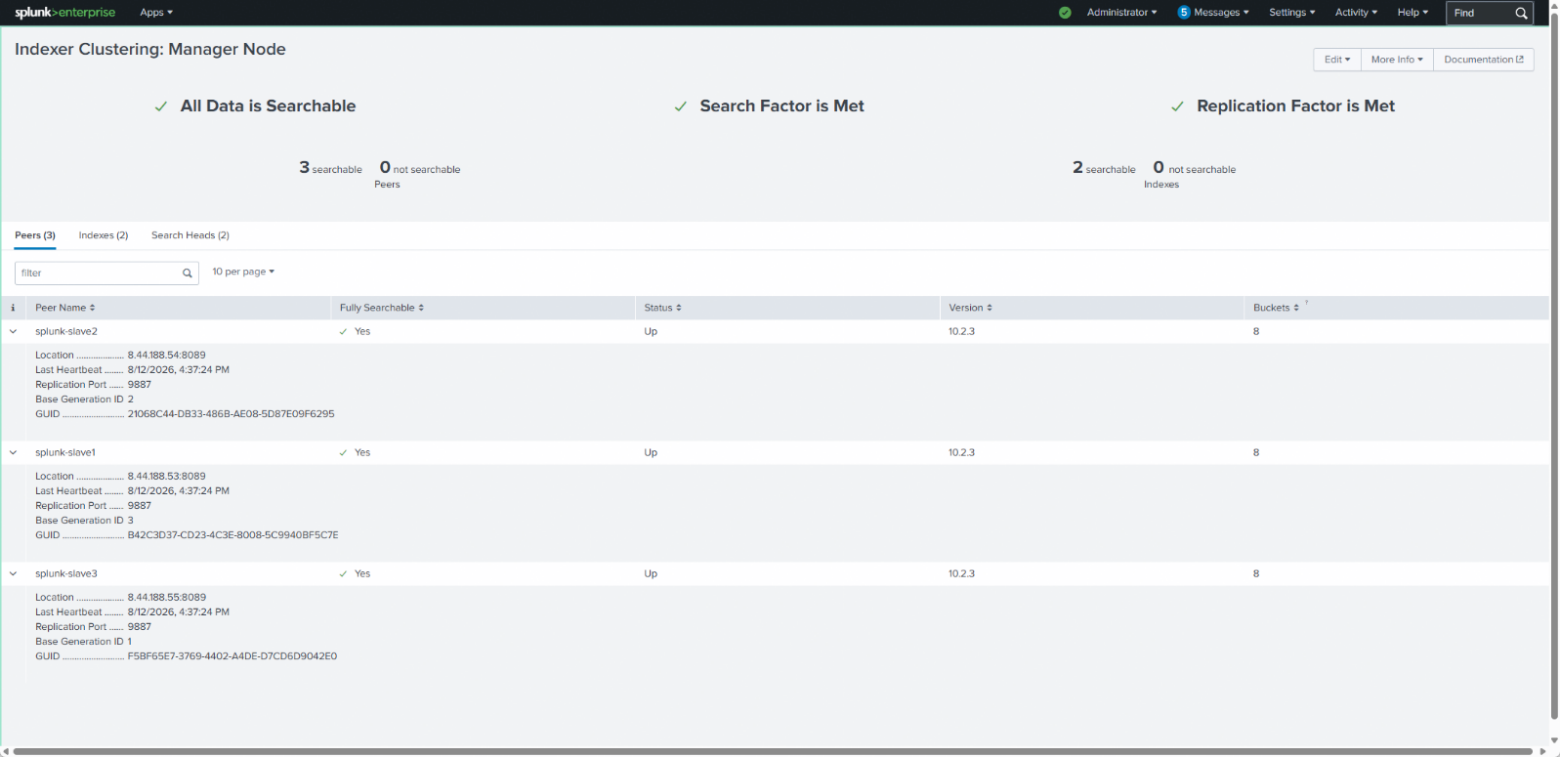
2.1.1 Install the Manager server and Search Head server succsessfully
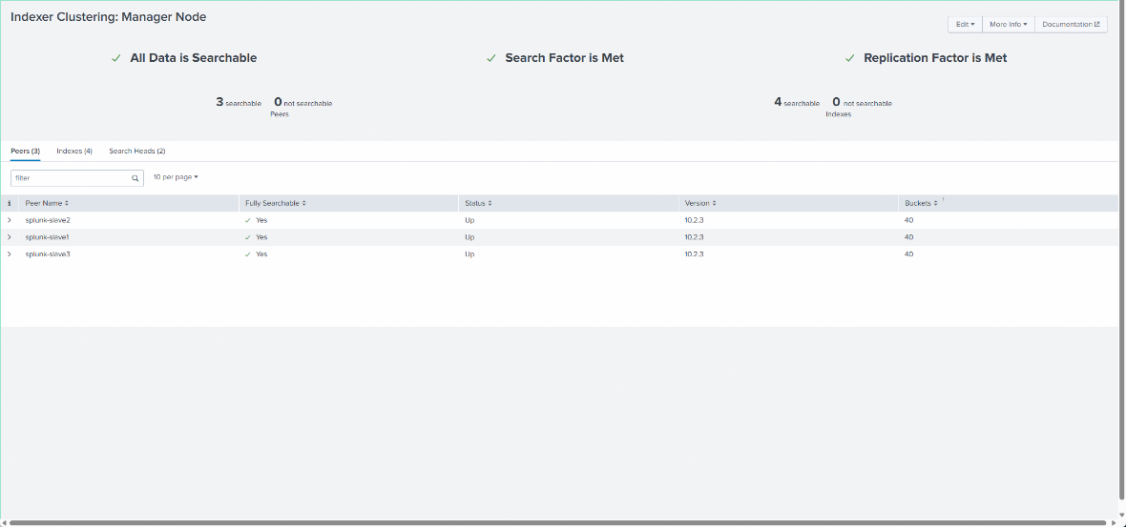
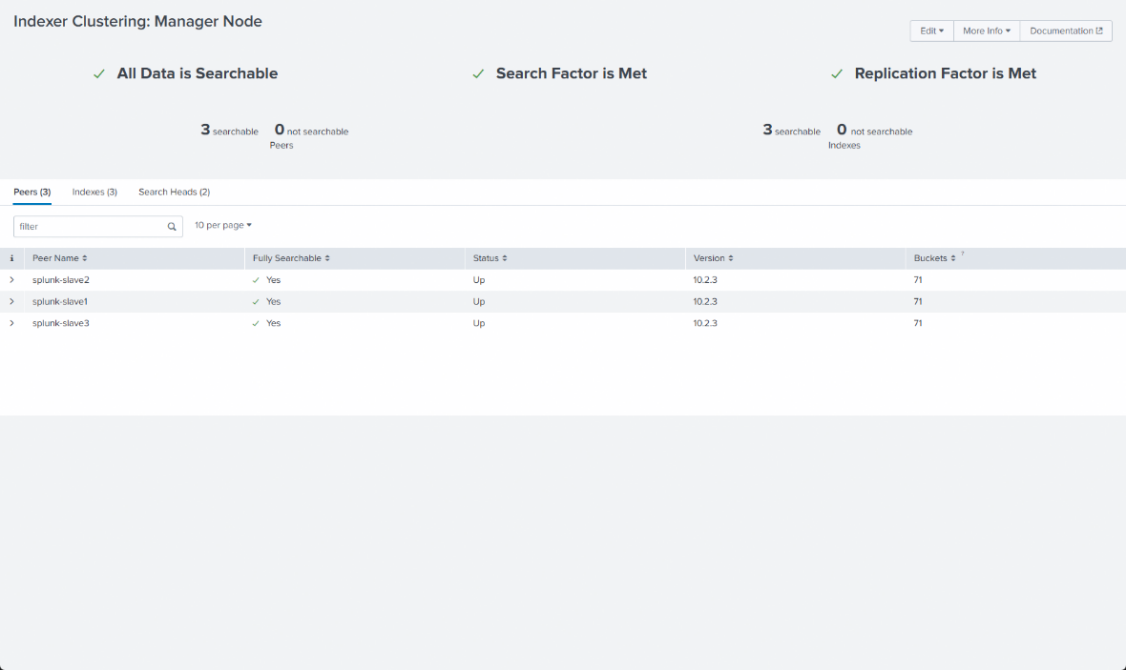
2.1.2 Install the slave servers successfully
2.2 Configure the Dorado Storage
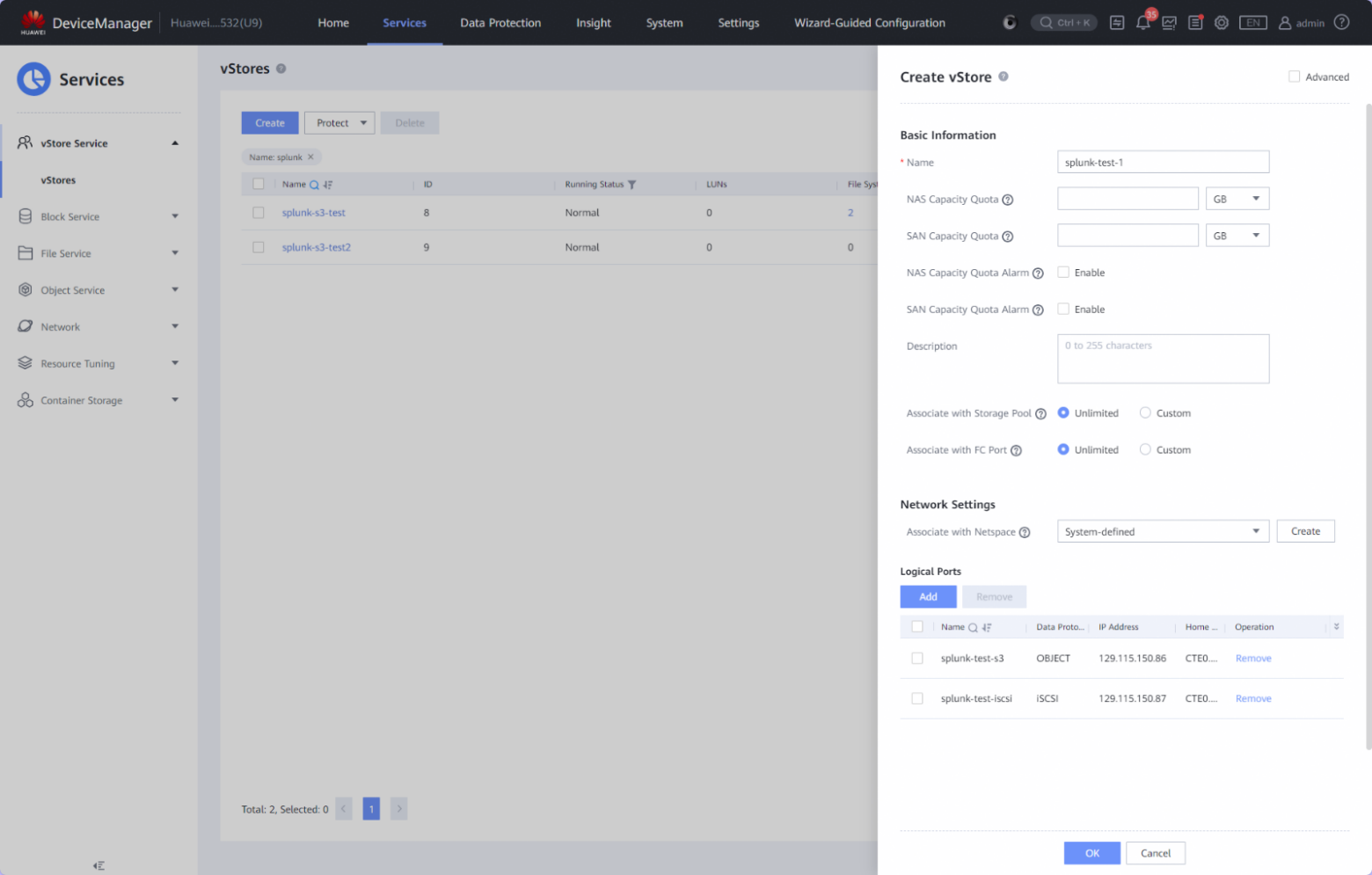
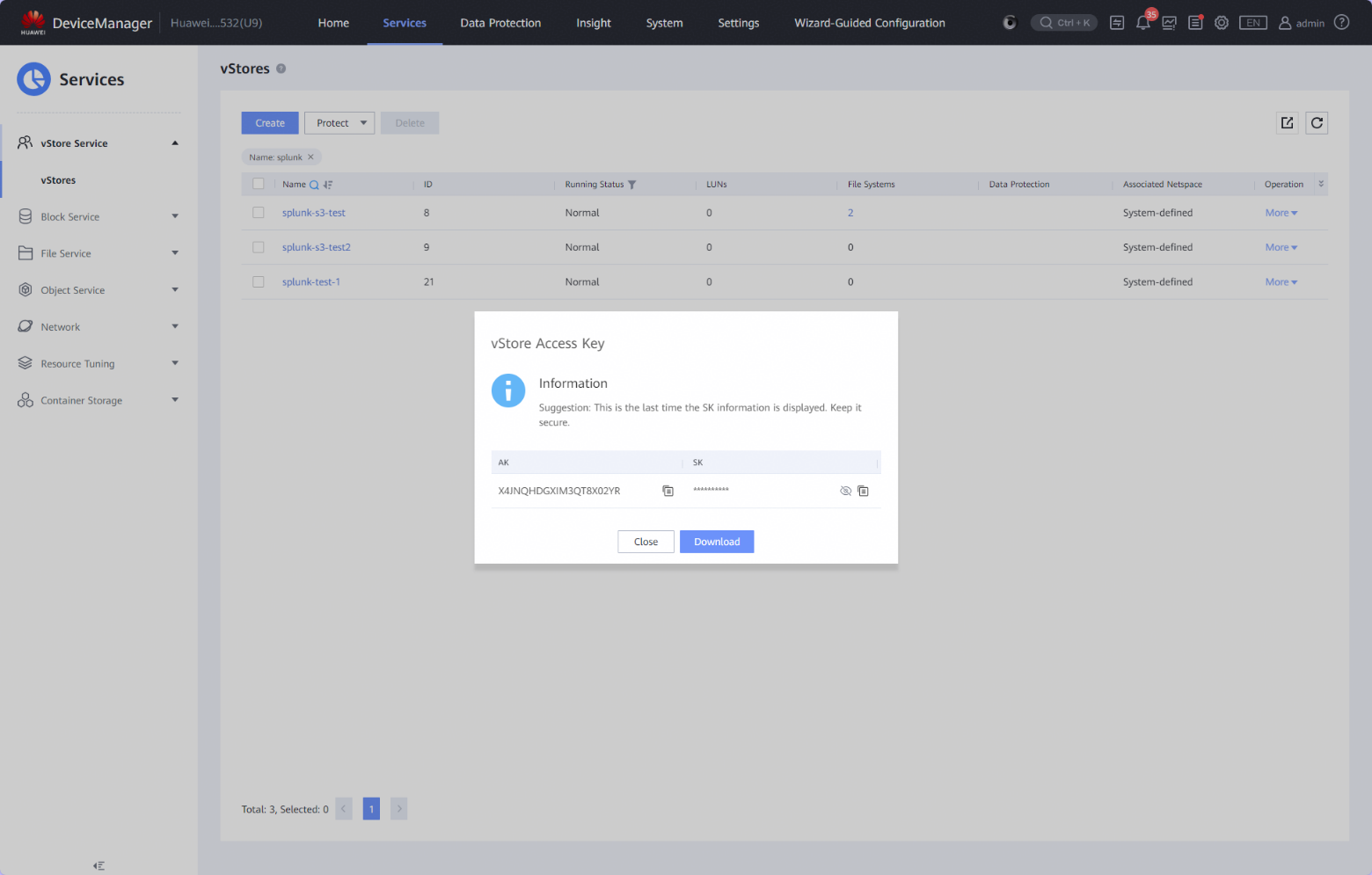
2.2.1 Create the vStore and logical ports on the Dorado Storage
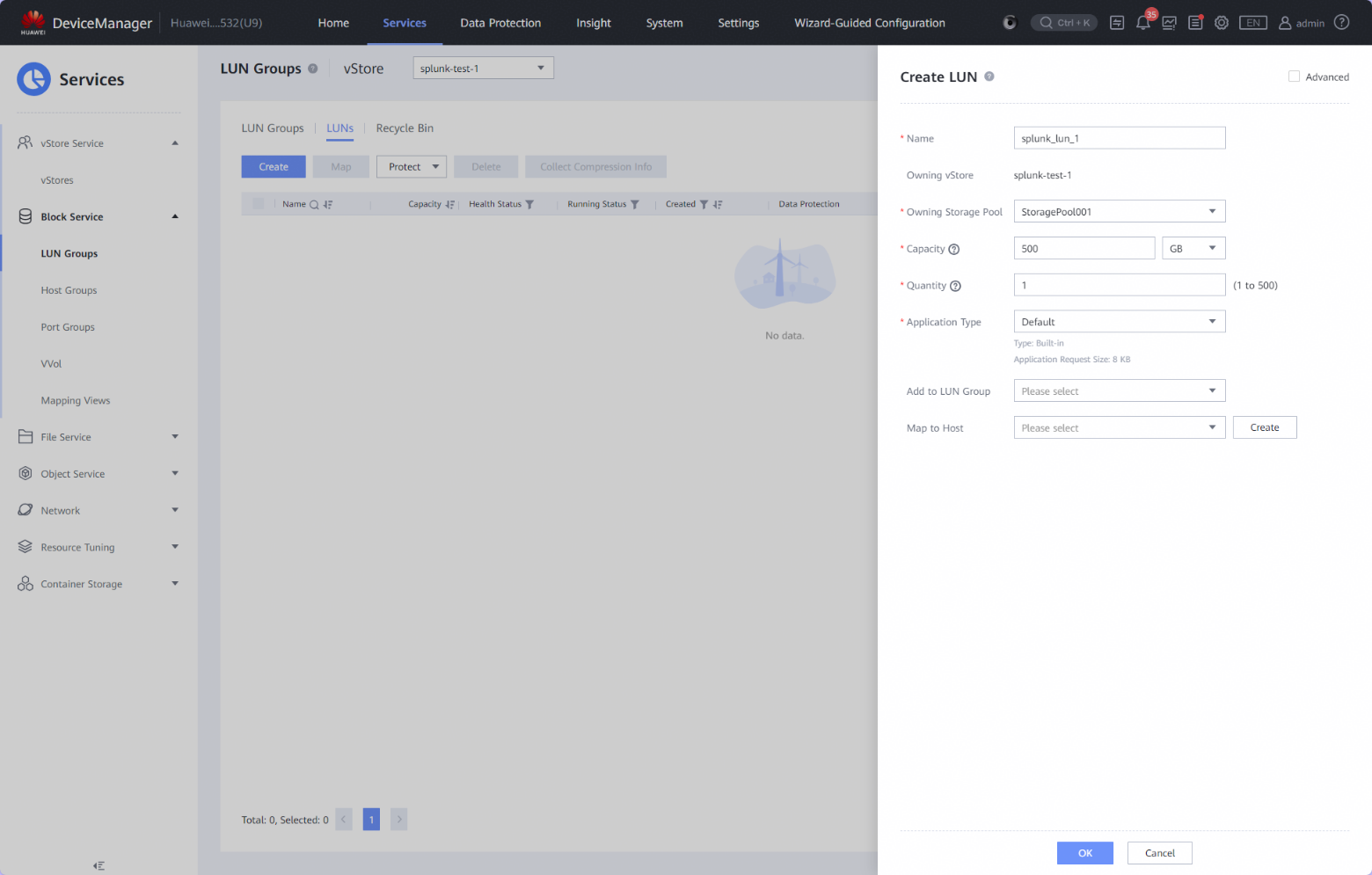
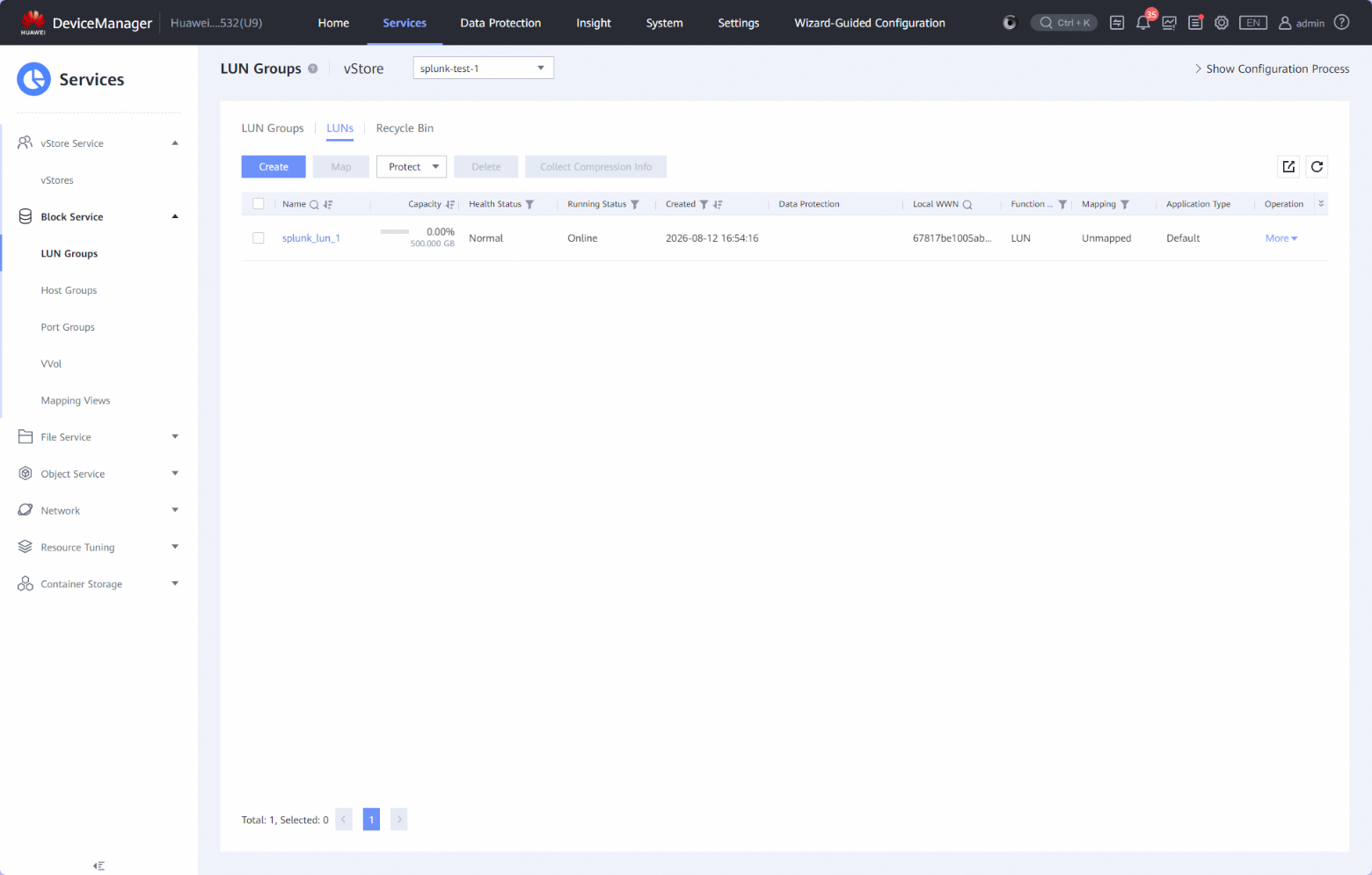
2.2.2 Create the LUN on the Dorado Storage
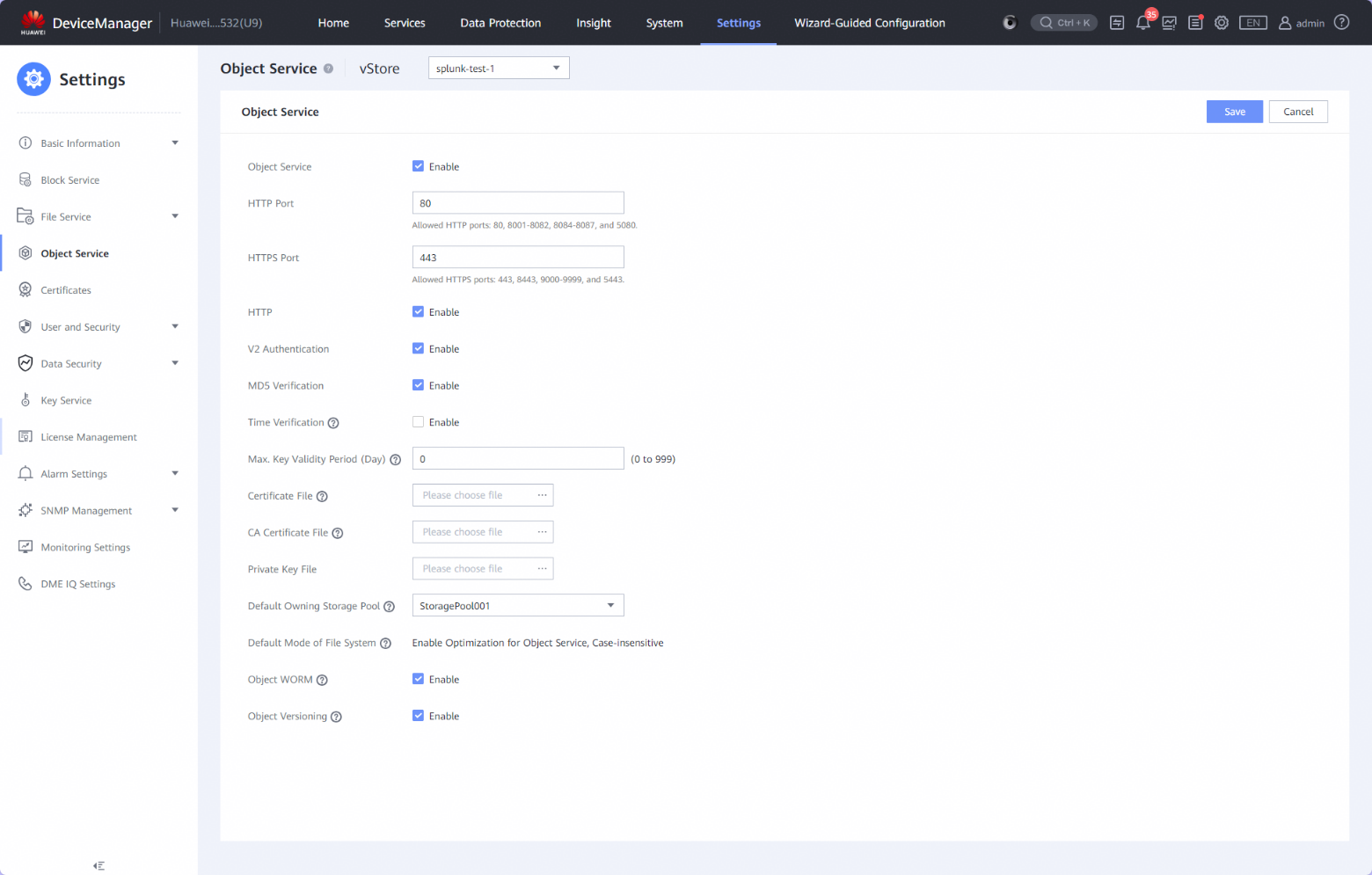
2.2.3 Configure the object storage service
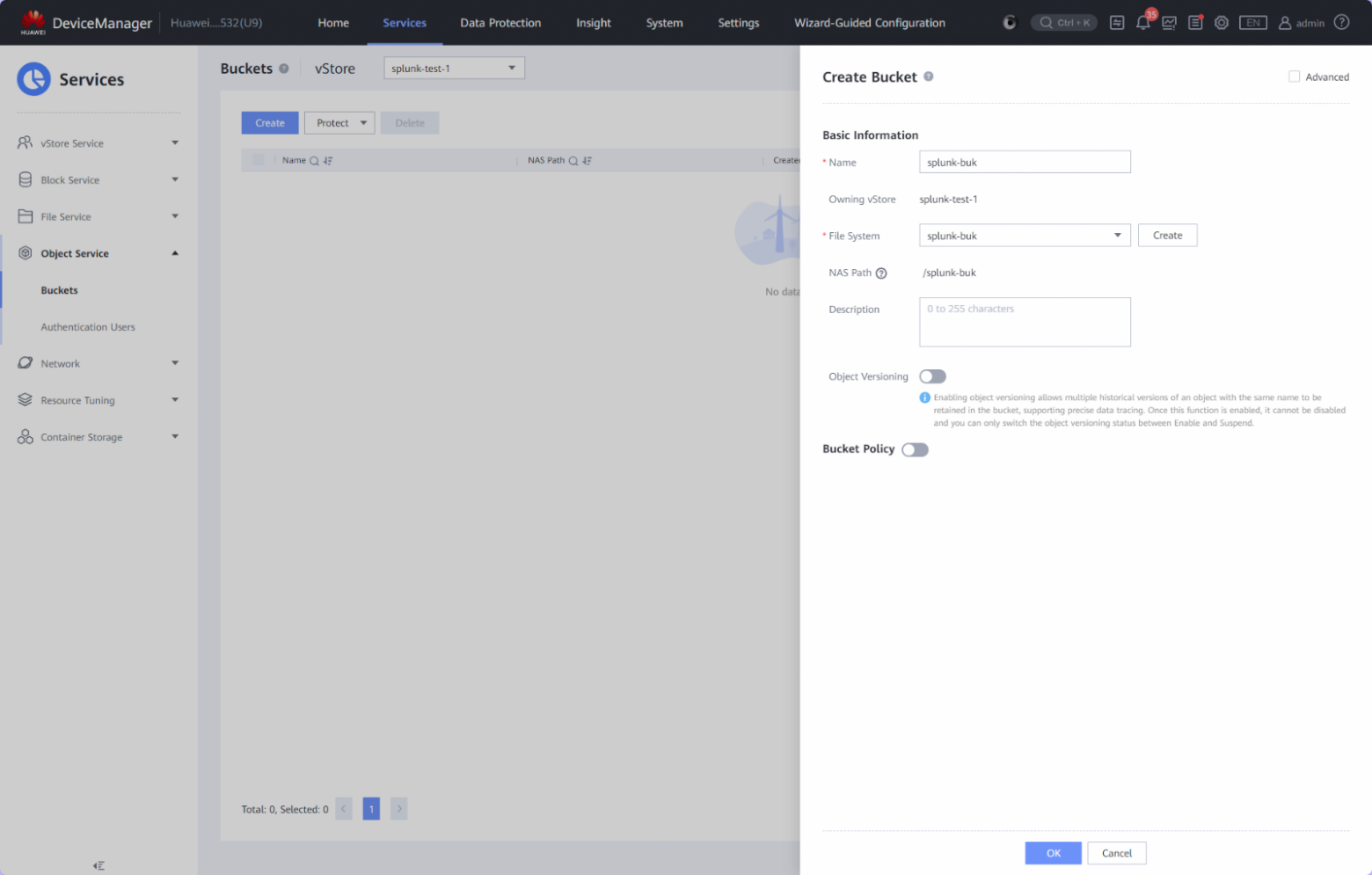
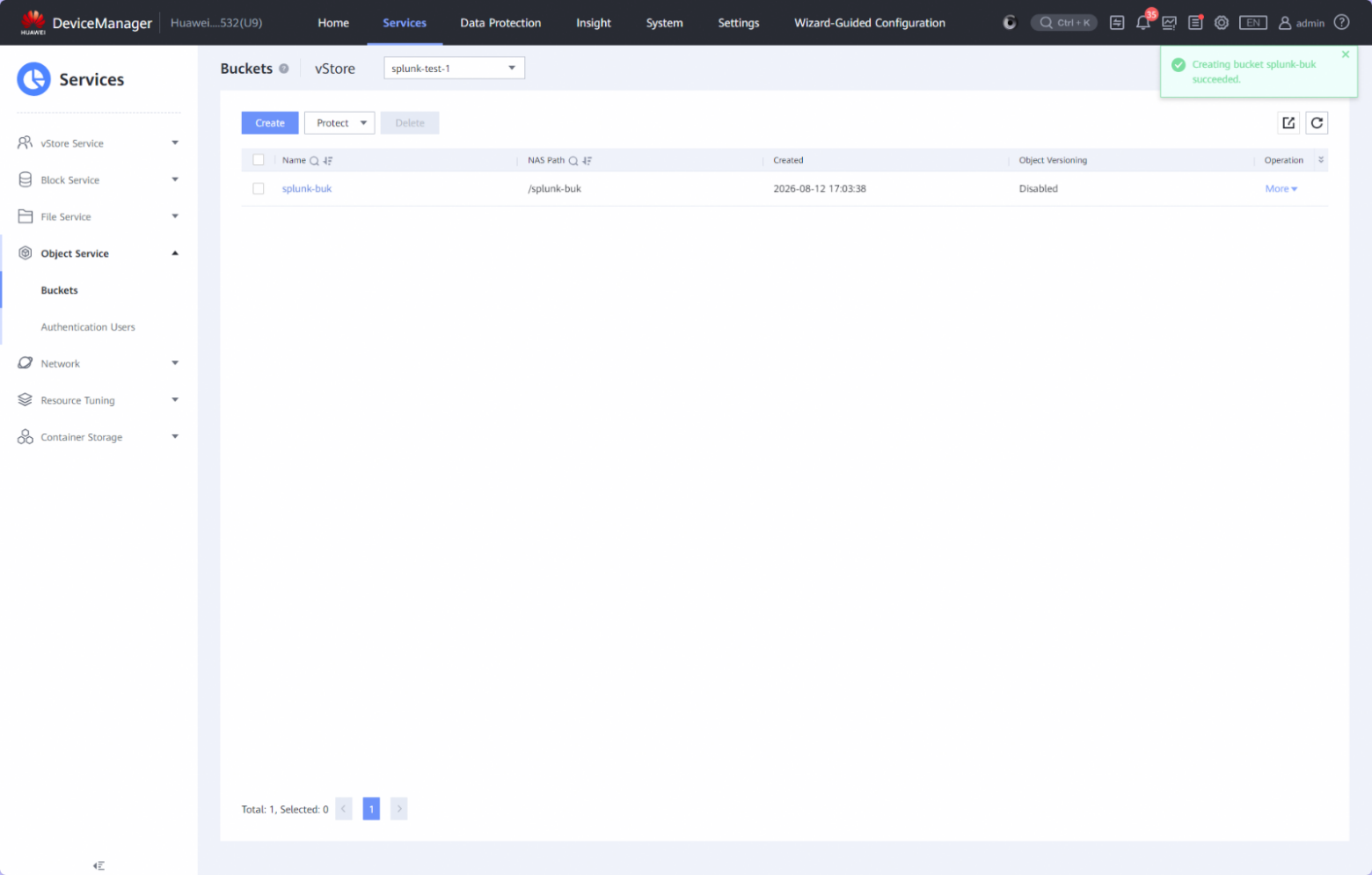
2.2.4 Create the Bucket on the Dorado Storage
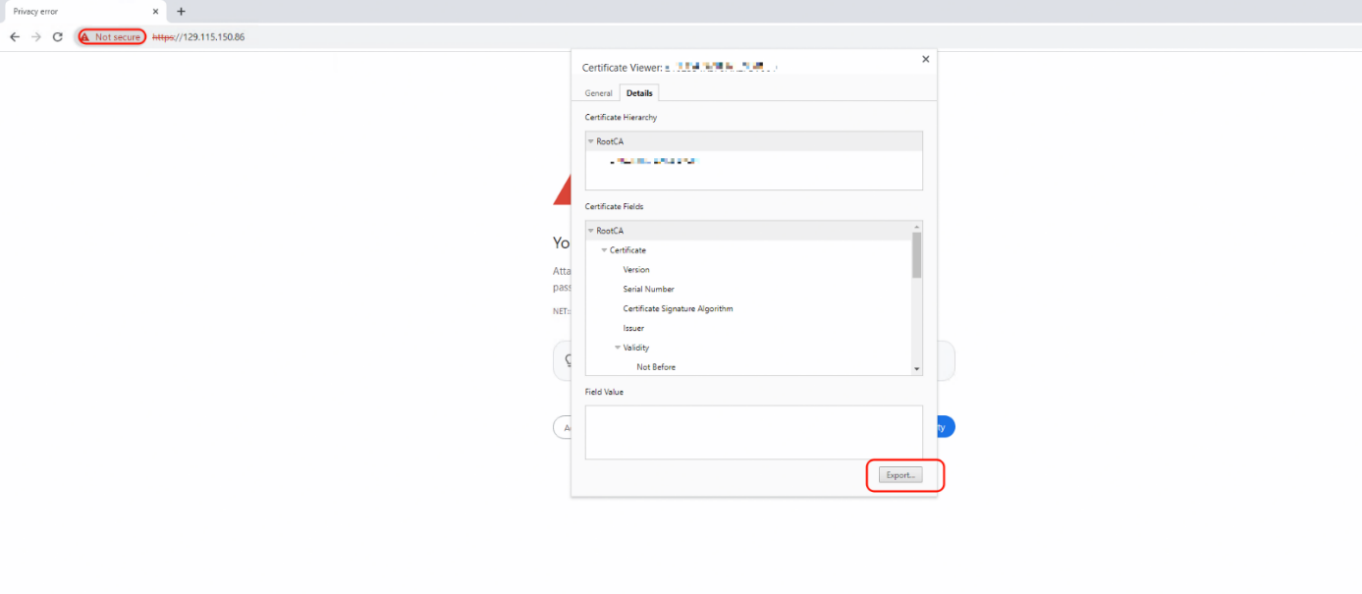
2.2.5 Configure the Certificate on the Splunk Servers
Export the Root CA certificate in the Dorado Storage with browser.
Install the Root CA certificate on the Splunk Enterprise servers.
2.3 Configure the Network
2.3.1 Configure the DNS on the Splunk servers
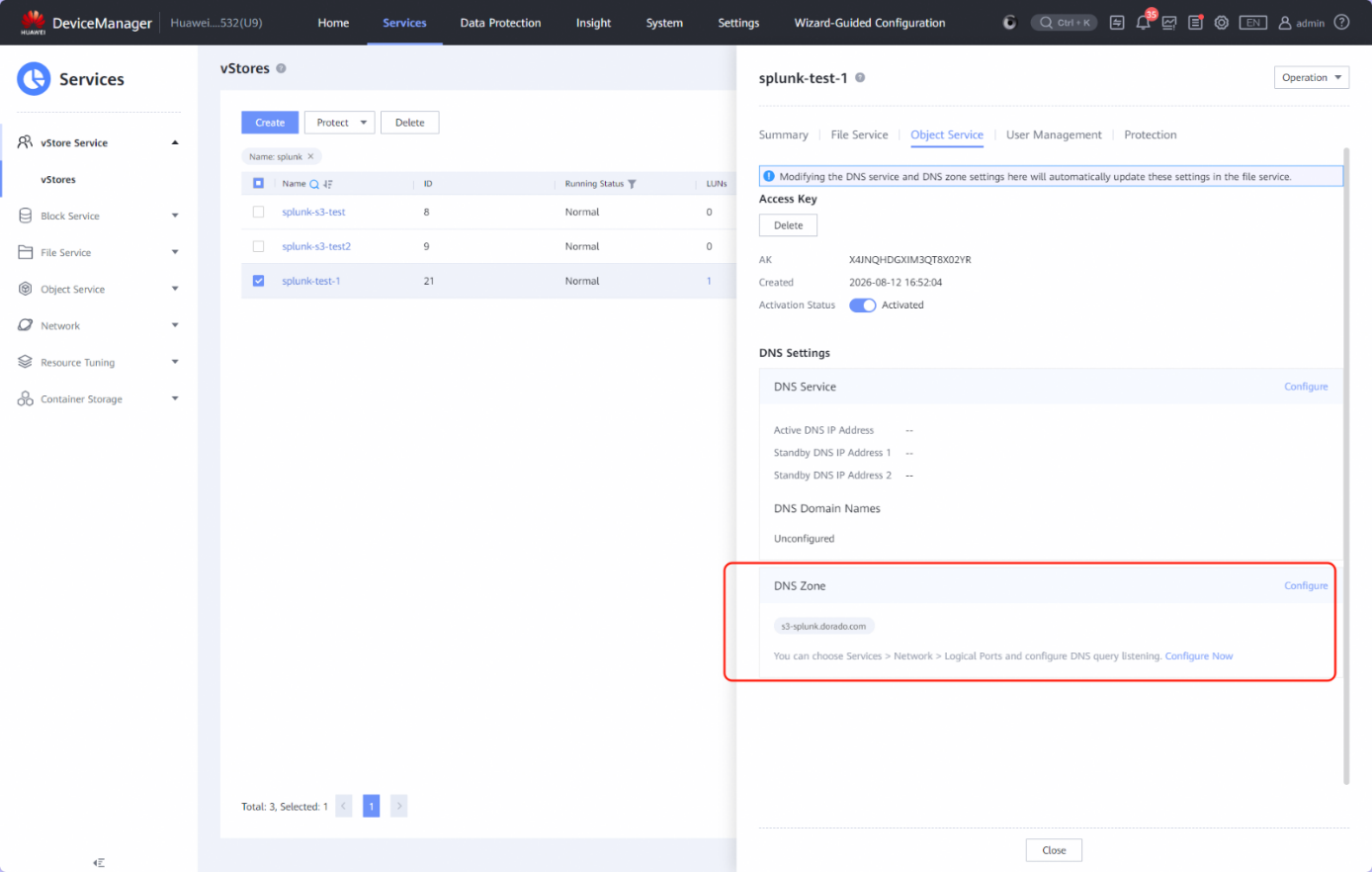
Check the vStore FQDN in the Dorado Storage.
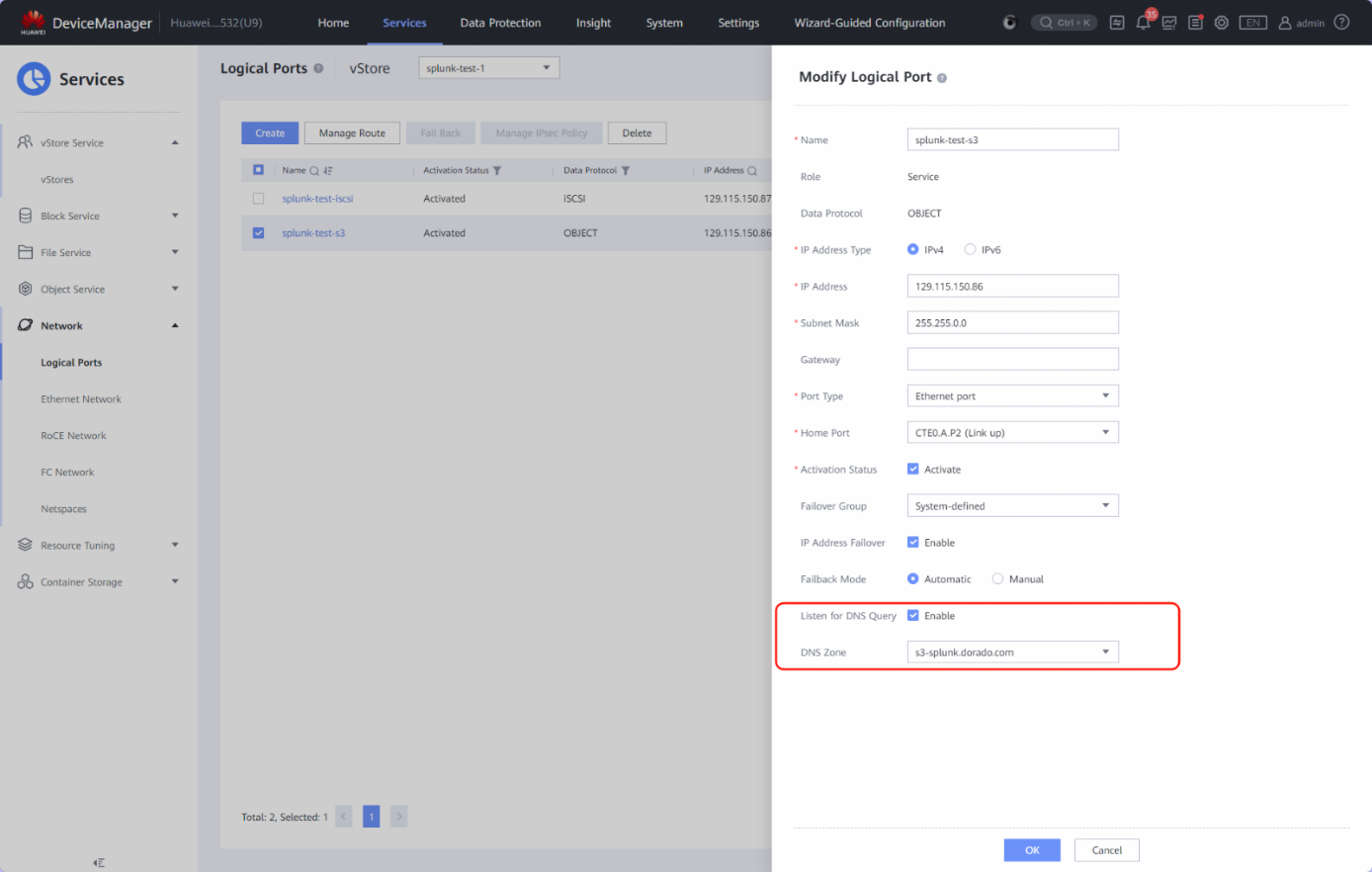
Configure logical port DNS service.
Configure the DNS IP address in the Splunk Enterprise servers.
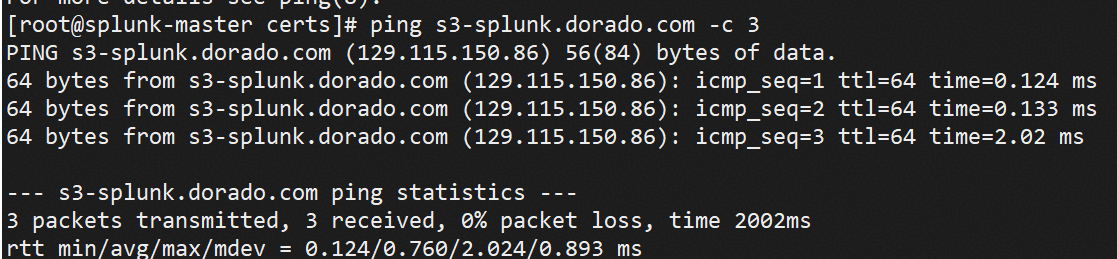
Check whether the DNS service is working properly.
2.4 Mount the LUNs to the Splunk server through ISCSI
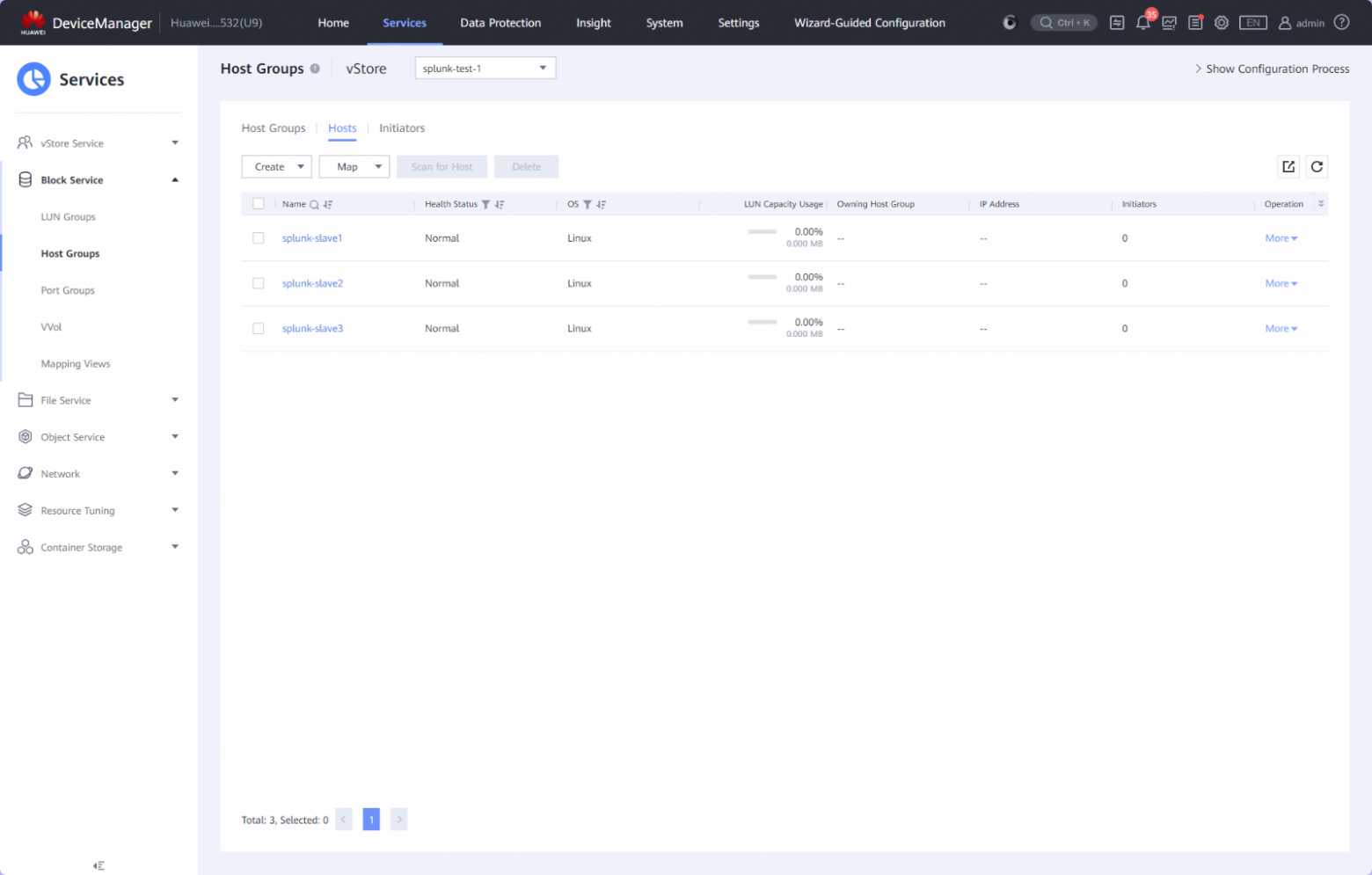
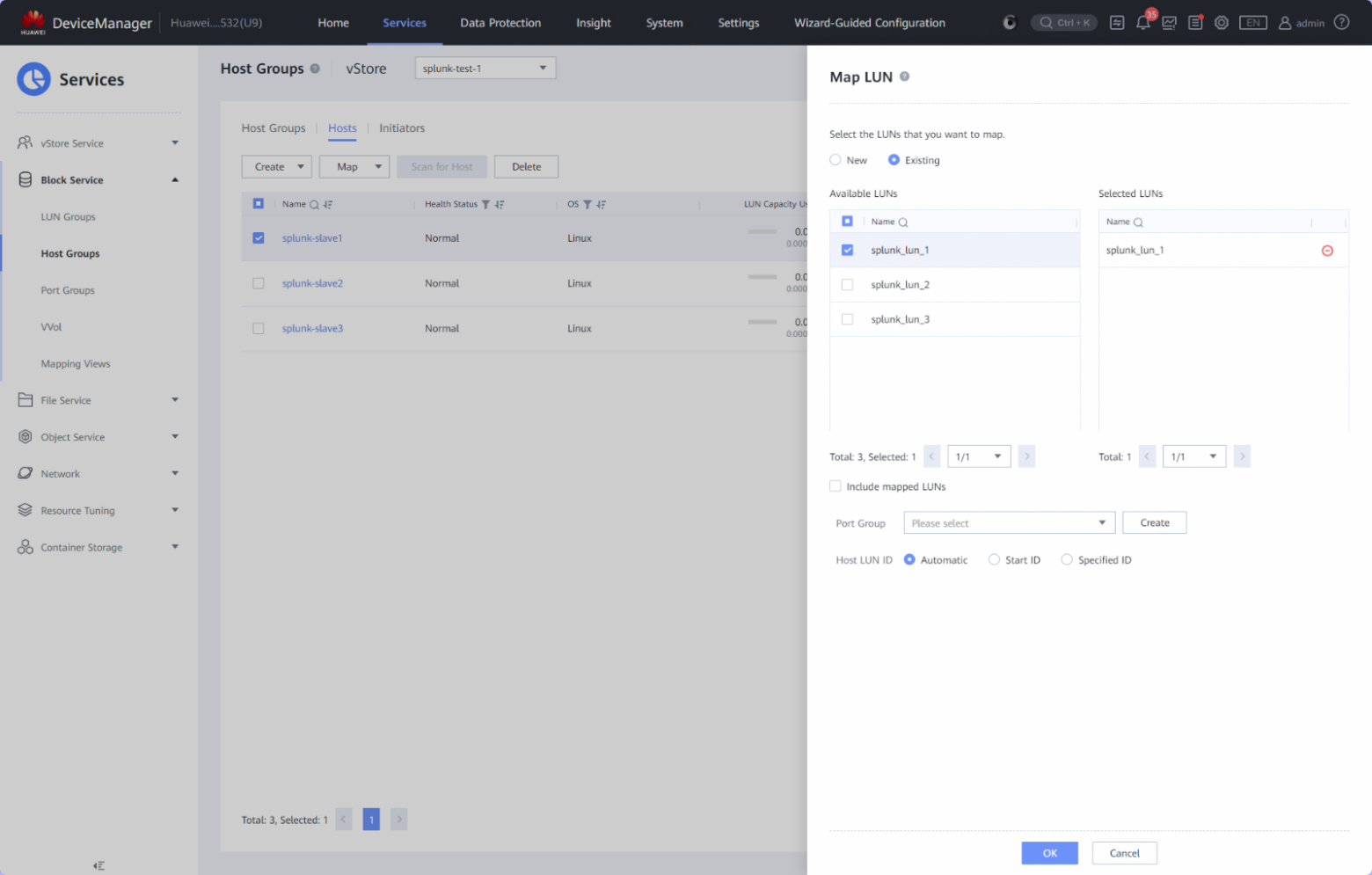
2.4.1 Map the LUN to the host
2.4.2 Discover the ISCSI target and login
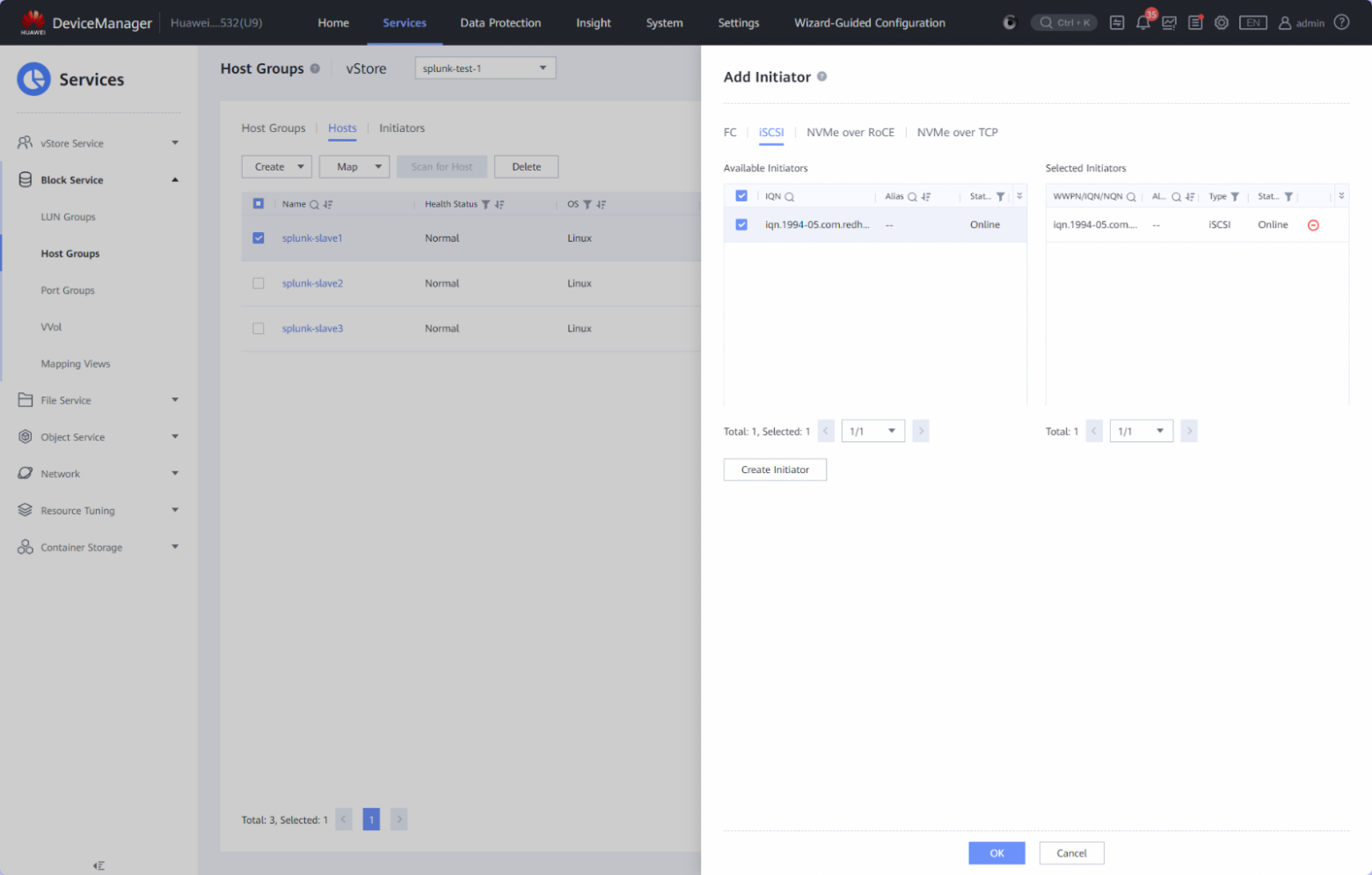
2.4.3 Add the Initiator to the host
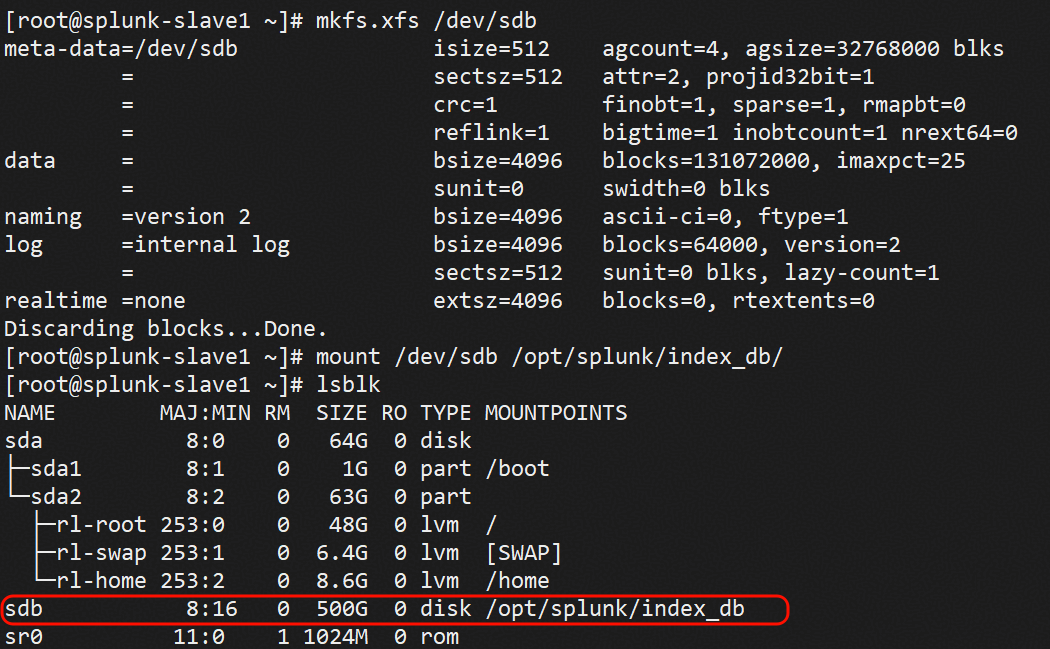
2.4.4 Mount the LUN in the Splunk server
3.Test Scenario 1 and Results
3.1 Use the LUNs to store the indexes in the local storage
Test Purpose
Storage can be used as Spunk Enterprise SmartStore local storage
Test Network
Reference to Figure 1.1
Prerequisites
Dorado Storage,Splunk Enterprise servers deployment and Network have been completed.
Luns are mounted on the Splunk peer servers successfully.
Test Procedure
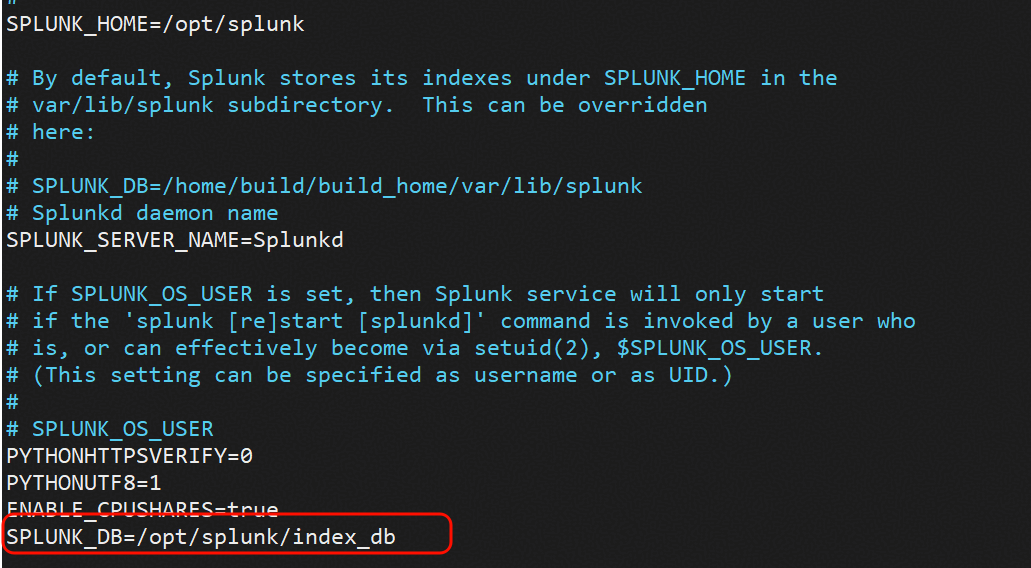
Step 1: Modify the local storage path.
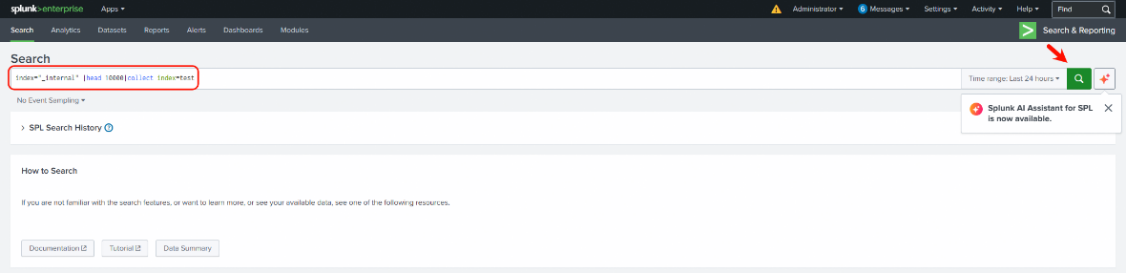
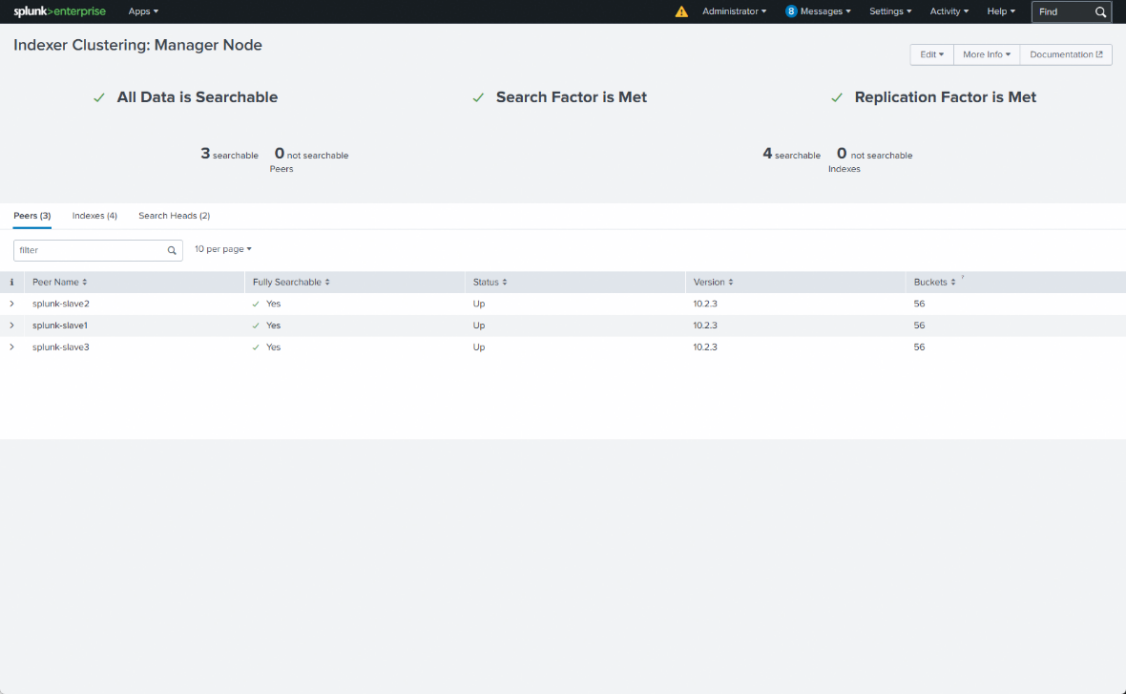
Step 2: Import the index to the new index.
Step 3: Check whether the index are stored in the mounted storage.
Expected Result
In step 3, data are stored in the mounted storage successfully.
Test Result
Modify the local storage path.
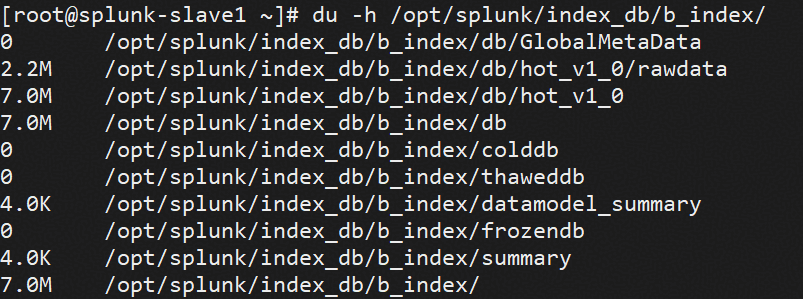
Import the index to the new index.
Check whether the index are stored in the mounted storage
Test Conclusion
Passed
4.Test Scenario 2 and Results
4.1 Add the bucket as remote storage through IP+HTTP protocol
Test Purpose
Storage can be used as SmartStore remote storage with IP+HTTP endpoint configured
Test Network
Reference to Figure 1.1
Prerequisites
Dorado Storage,Splunk Enterprise servers deployment and Network have been completed.
Object Service is enabled on the Dorado Storage.
Bucket has been configured.
Test Procedure
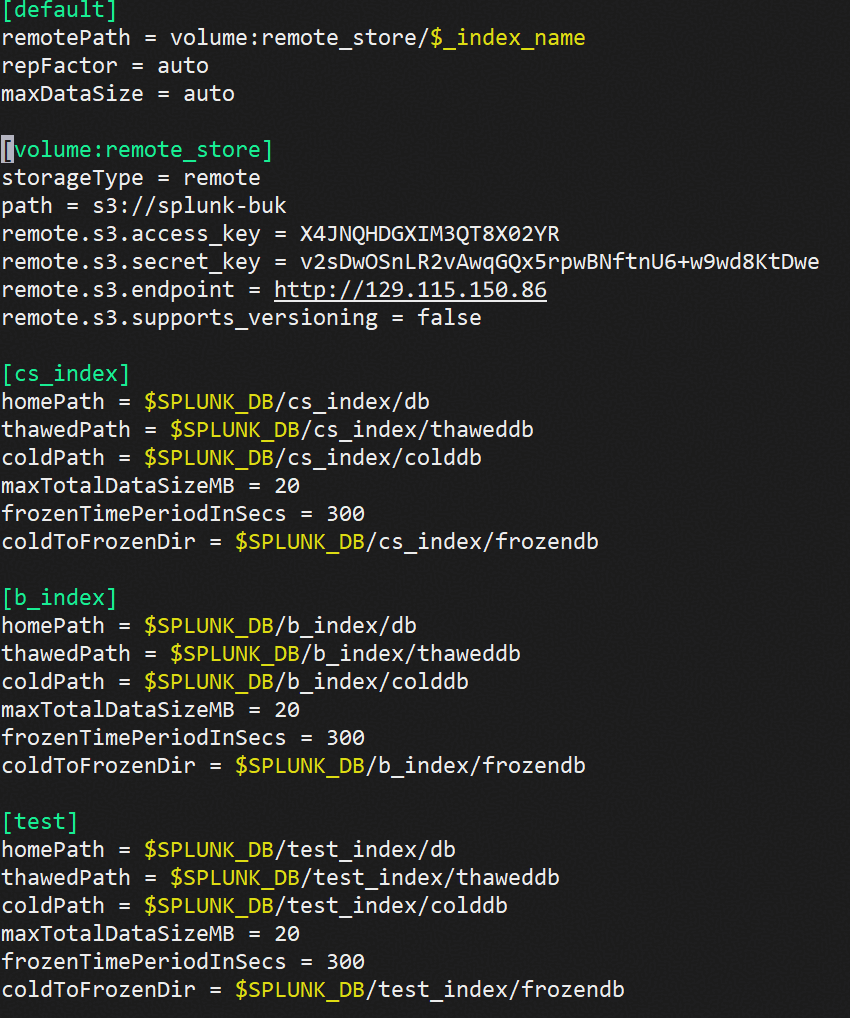
Step 1: In the configuration file indexes.conf,configure the endpoint with IP and HTTP url.
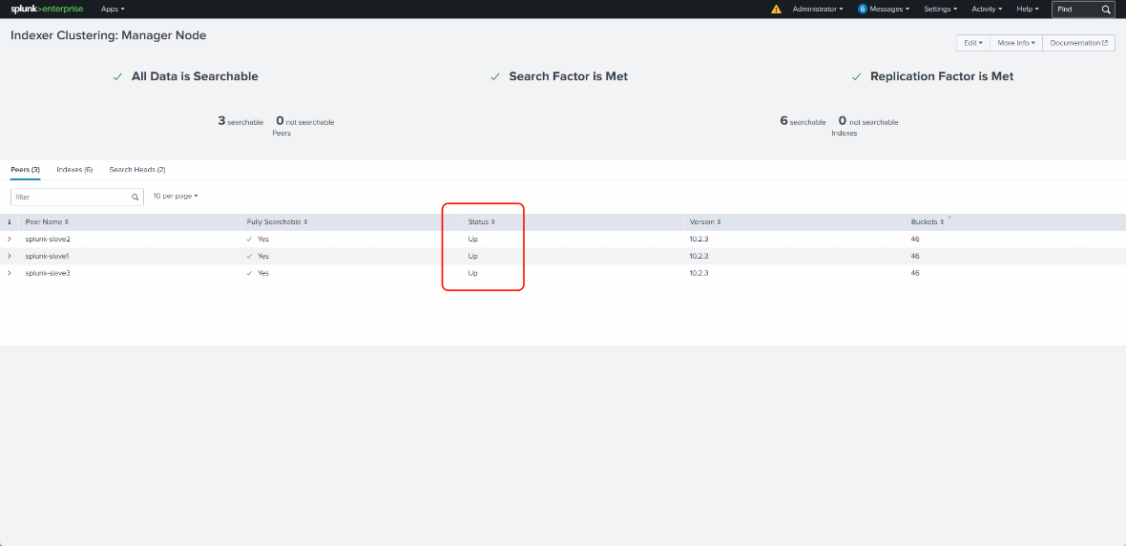
Step 2: Synchronizing Configurations to other nodes.
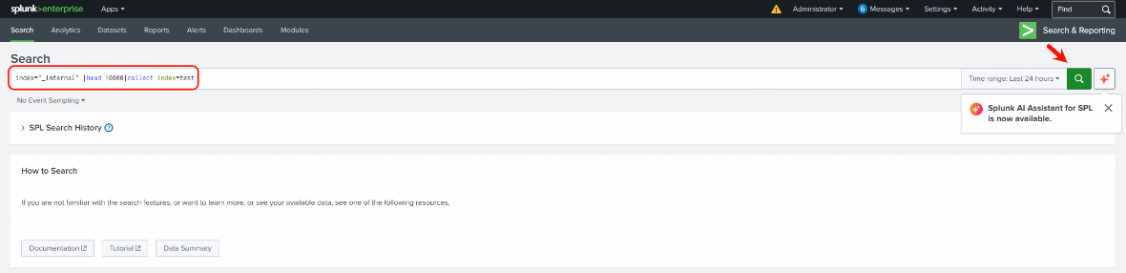
Step 3: Import internal index data to the new index.
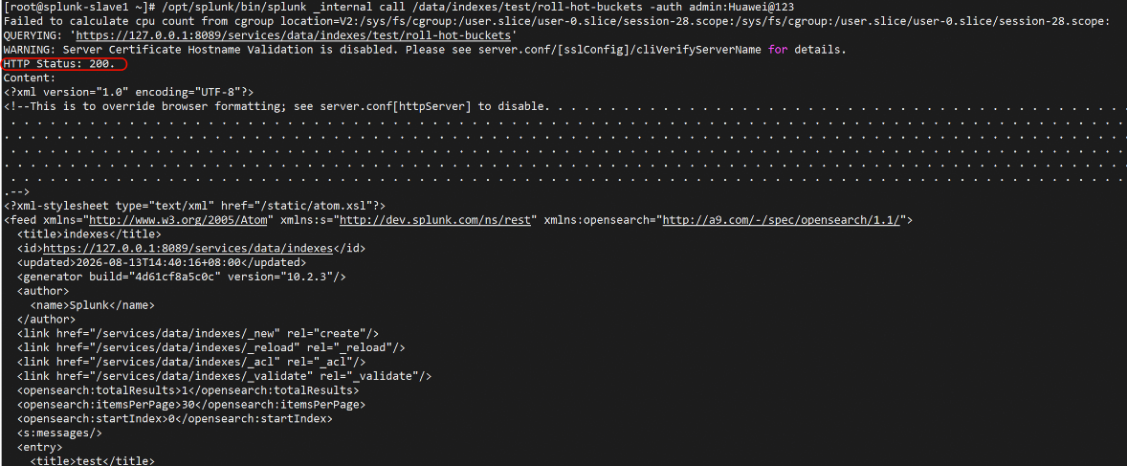
Step 4: Manually convert hot data to worm data.
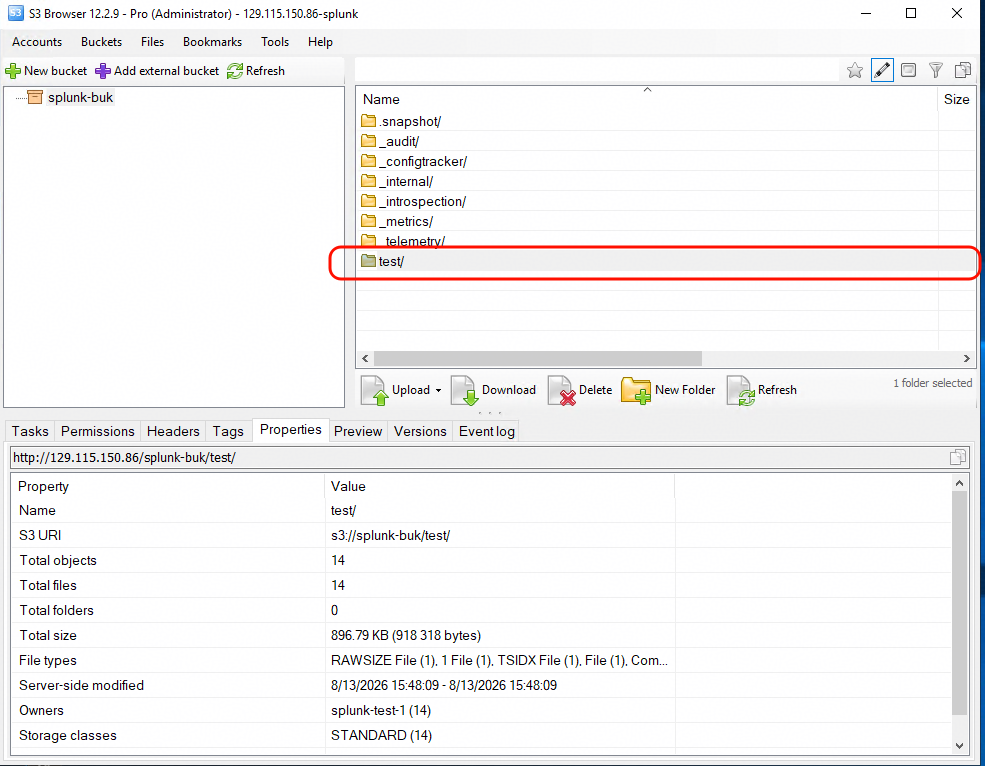
Step 5: Check whether the data are uploaded to the bucket.
Expected Result
In step 5, data are uploaded to the bucket successfully.
Test Result
configure the endpoint with IP and HTTP url in the configuration file.
Synchronizing Configurations to other nodes.
Import internal index data to the new index “test”.
Manually convert hot data to worm data in “test” index.
Data are uploaded to the bucket successfully.
Test Conclusion
Passed
4.2 Add the bucket as remote storage through DN+HTTPS protocol
Test Purpose
Storage can be used as SmartStore with DN+HTTPS endpoint configured
Test Network
Reference to Figure 1.1
Prerequisites
Dorado Storage,Splunk Enterprise servers deployment and Network have been completed.
Object Service is enabled on the Dorado Storage.
Bucket has been configured.
Test Procedure
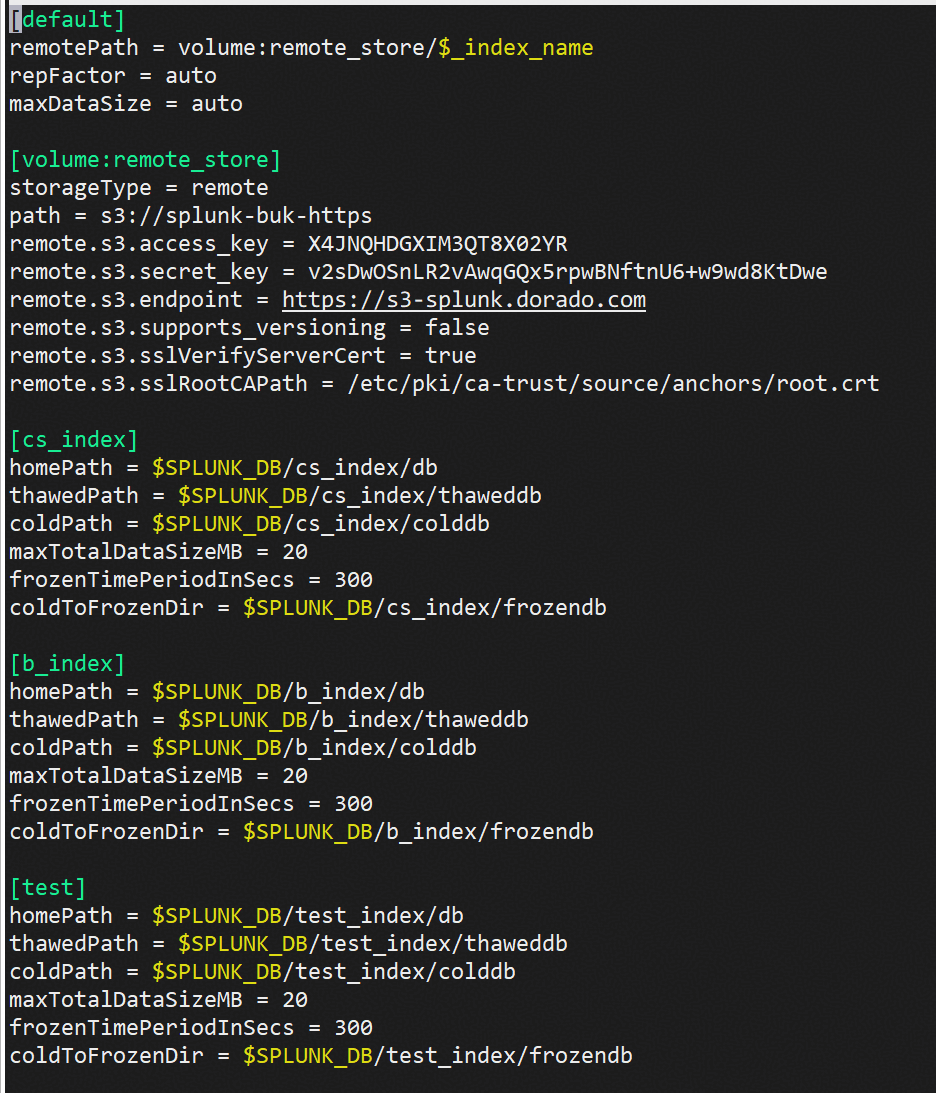
Step 1: In the configuration file indexes.conf,configure the endpoint with DN and HTTPS url.
Step 2: Synchronizing Configurations to other nodes.
Step 3: Import internal index data to the new index.
Step 4: Manually convert hot data to worm data.
Step 5: Check whether the data are uploaded to the bucket.
Expected Result
In step 5, data are uploaded to the bucket successfully.
Test Result
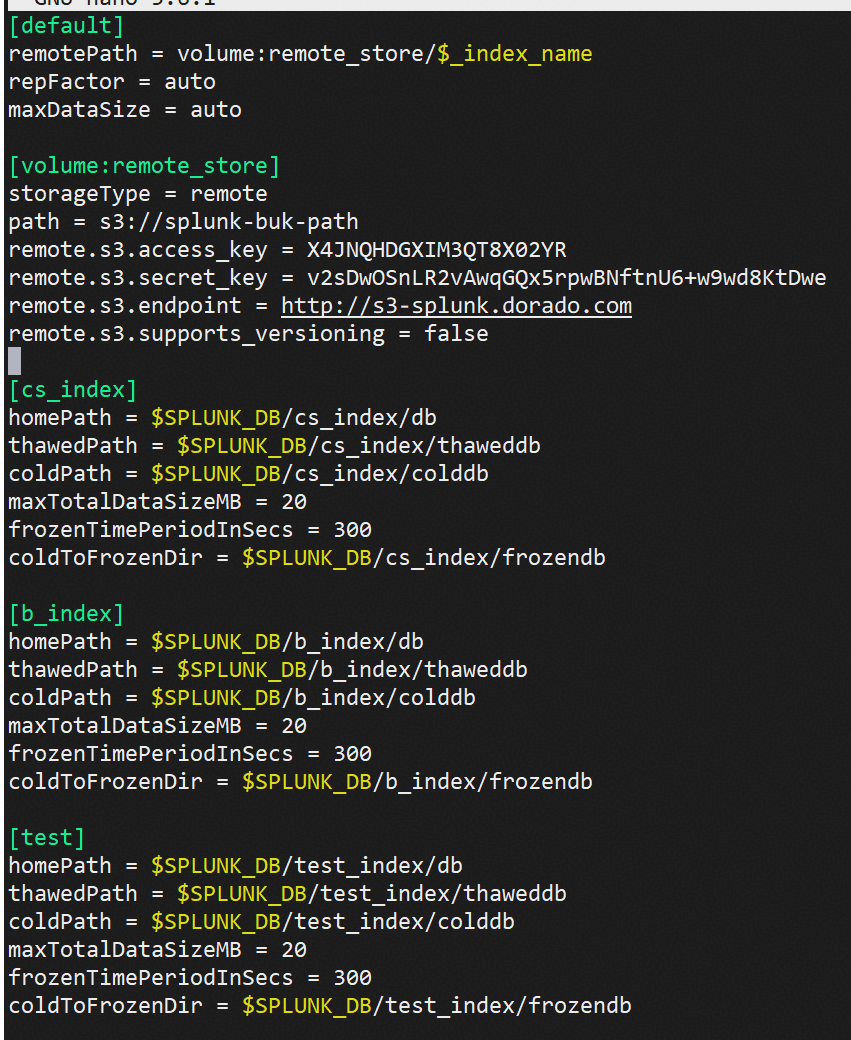
configure the endpoint with DN and HTTPS url in the configuration file.
Synchronizing Configurations to other nodes.
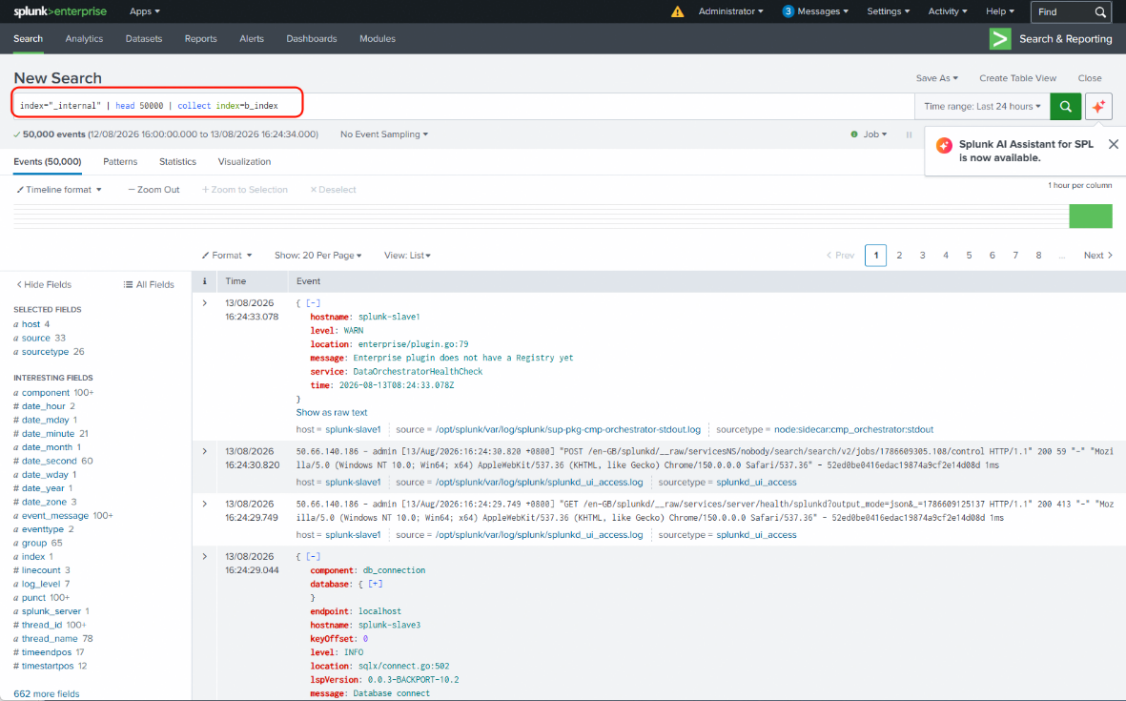
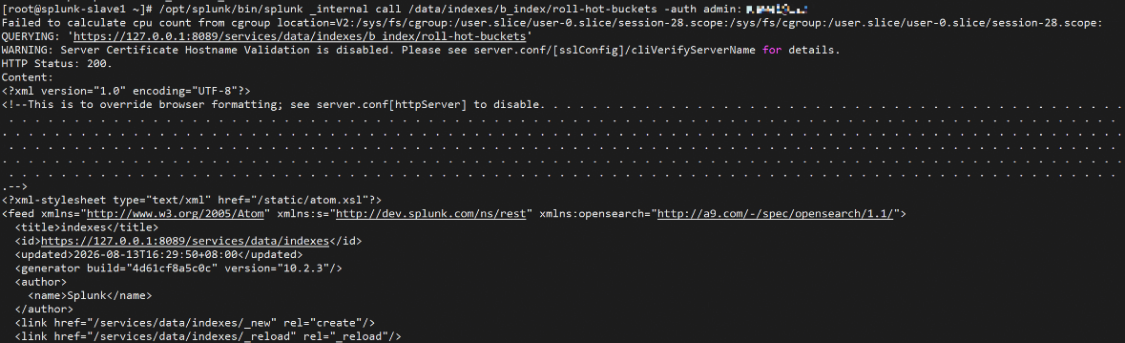
Import internal index data to the new index “b_index”.
Manually convert hot data to worm data in “b_index”.
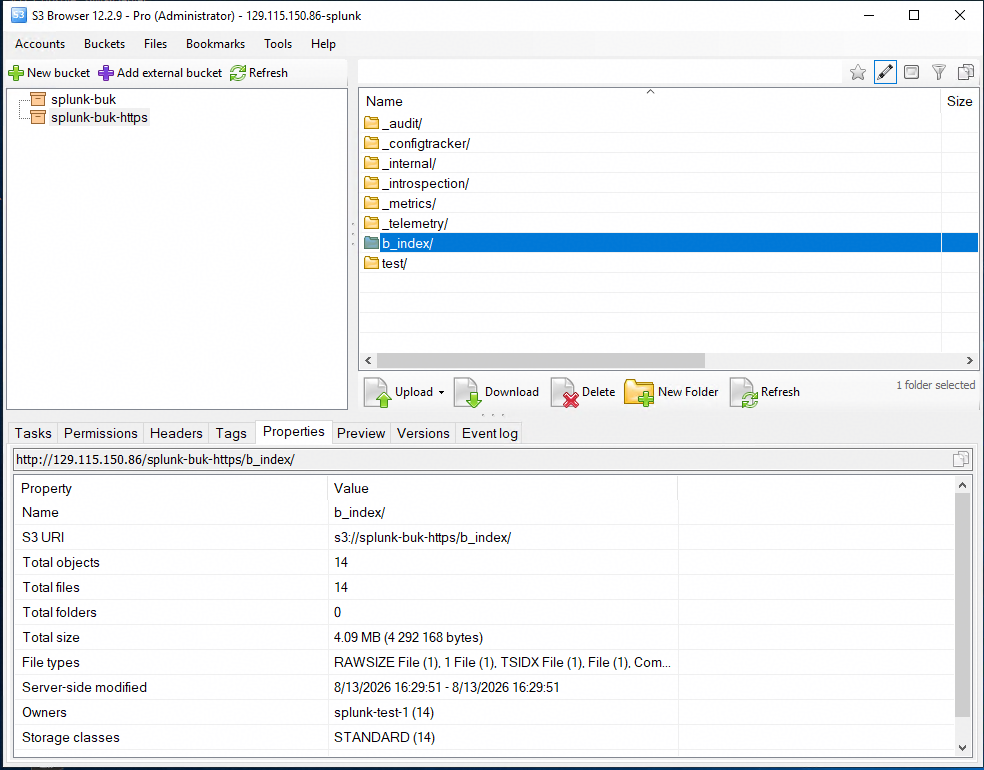
Data are uploaded to the bucket successfully.
Test Conclusion
Passed
4.3 Add the bucket as remote storage with Path Style
Test Purpose
Storage can be used as SmartStore with Path style configured
Test Network
Reference to Figure 1.1
Prerequisites
Dorado Storage,Splunk Enterprise servers deployment and Network have been completed.
Object Service is enabled on the Dorado Storage.
Bucket has been configured.
Test Procedure
Step 1: In the configuration file indexes.conf,configure the endpoint with Path style.
Step 2: Synchronizing Configurations to other nodes.
Step 3: Import internal index data to the new index.
Step 4: Manually convert hot data to worm data and capture the packages.
Step 5: Check whether the data are uploaded to the bucket and check the packages.
Expected Result
In step 5, data are uploaded to the bucket successfully and can verify the hostname.
Test Result
configure the endpoint with Path in the configuration file.
Synchronizing Configurations to other nodes.
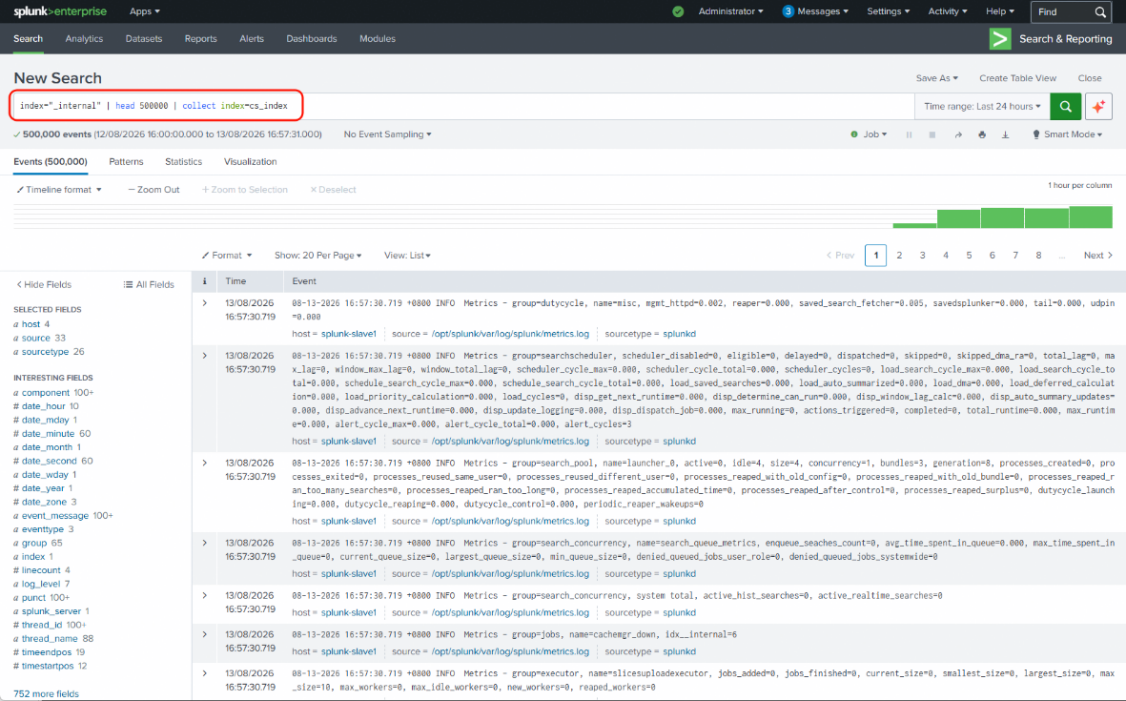
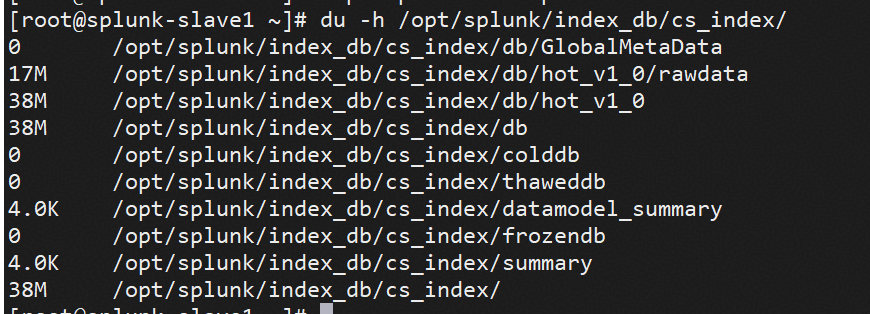
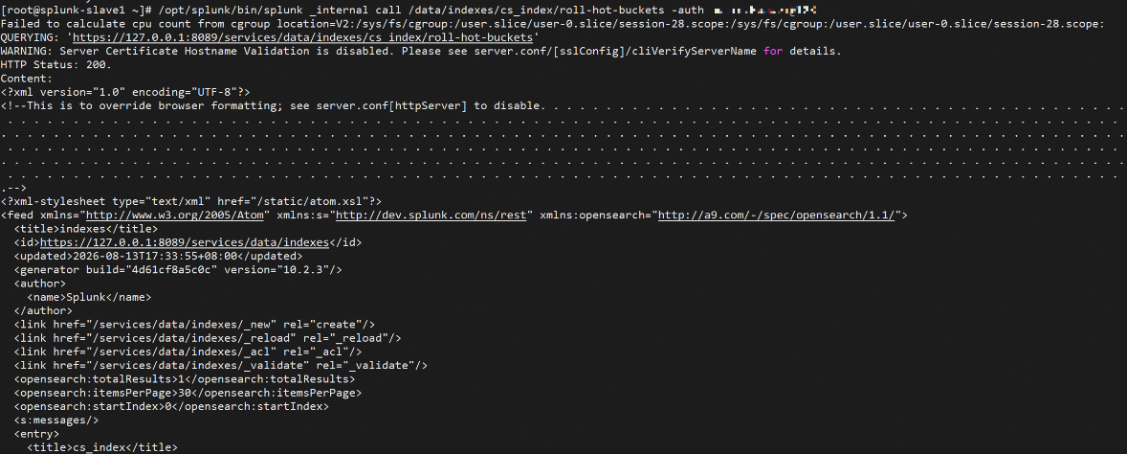
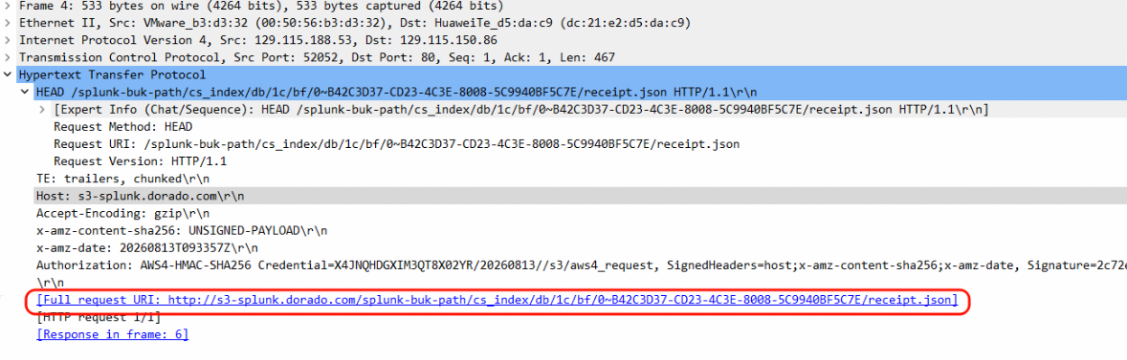
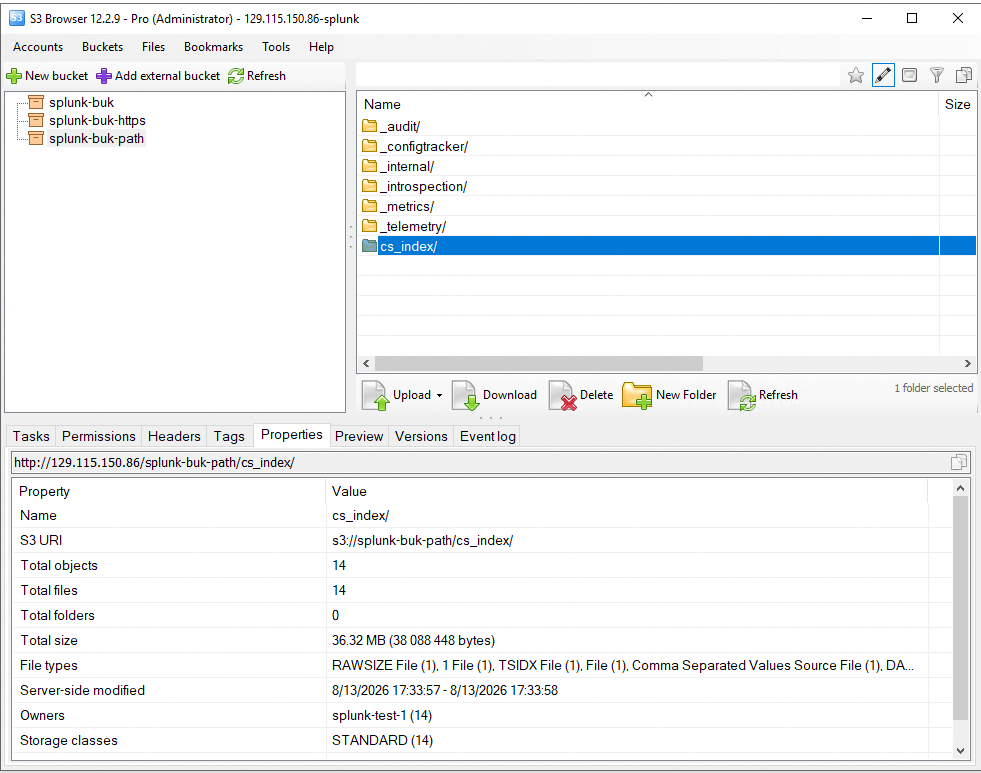
Import internal index data to the new index “cs_index”.
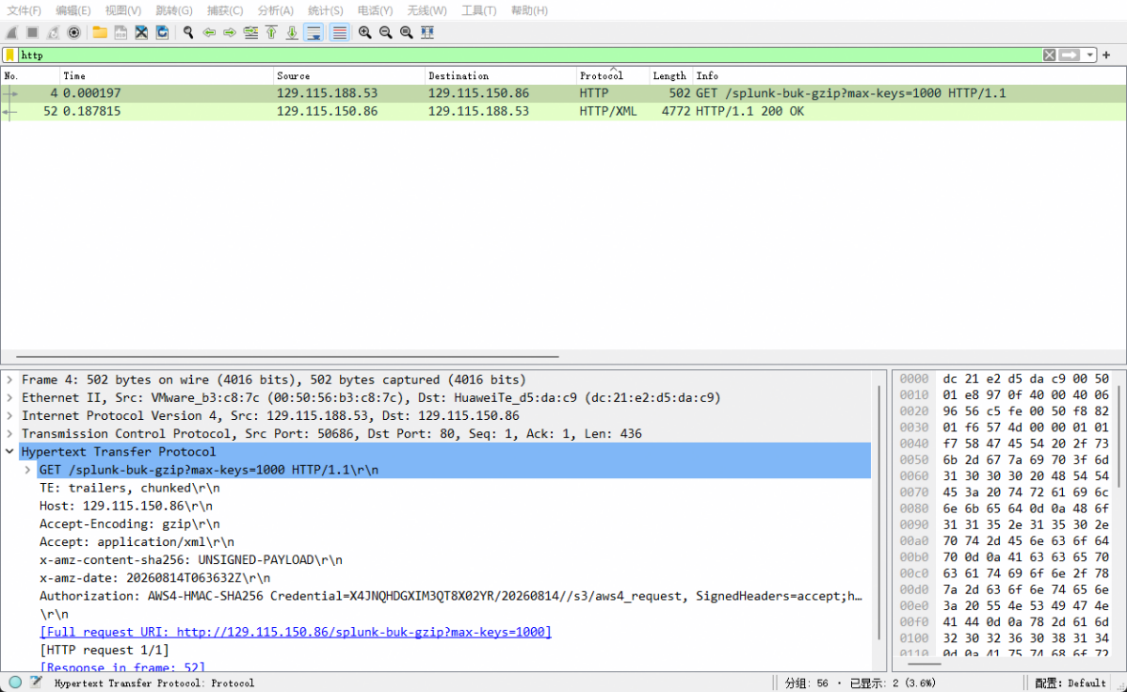
Manually convert hot data to worm data in “cs_index” and capture the packages.
Data are uploaded to the bucket successfully and can verify the hostname.
Test Conclusion
Passed
4.4 Add the bucket as remote storage with Virtual Host Style
Test Purpose
Storage can be used as SmartStore with Virtual Host style configured
Test Network
Reference to Figure 1.1
Prerequisites
Dorado Storage,Splunk Enterprise servers deployment and Network have been completed.
Object Service is enabled on the Dorado Storage.
Bucket has been configured.
Test Procedure
Step 1: In the configuration file indexes.conf,configure the endpoint with Virtual Host style style.
Step 2: Synchronizing Configurations to other nodes.
Step 3: Import internal index data to the new index.
Step 4: Manually convert hot data to worm data and capture the packages.
Step 5: Check whether the data are uploaded to the bucket and check the packages.
Expected Result
In step 5, data are uploaded to the bucket successfully and can verify the hostname.
Test Result
configure the endpoint with Virtual Host style in the configuration file.
Synchronizing Configurations to other nodes.
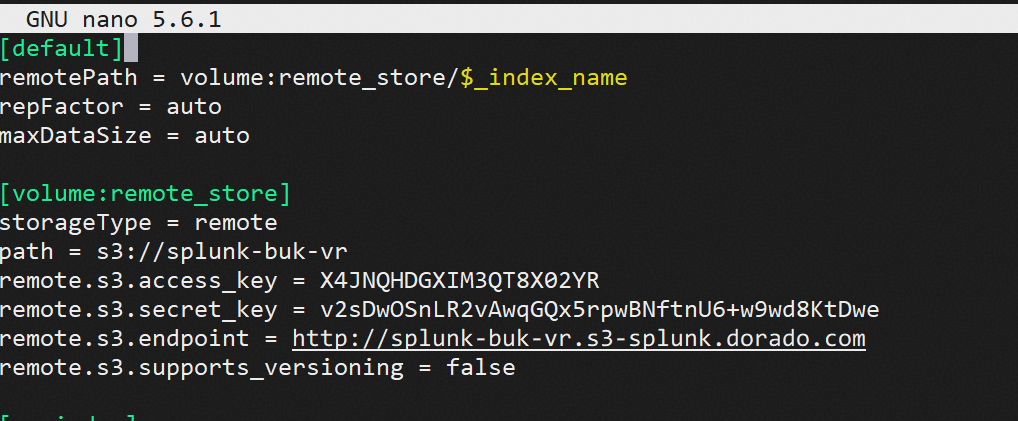
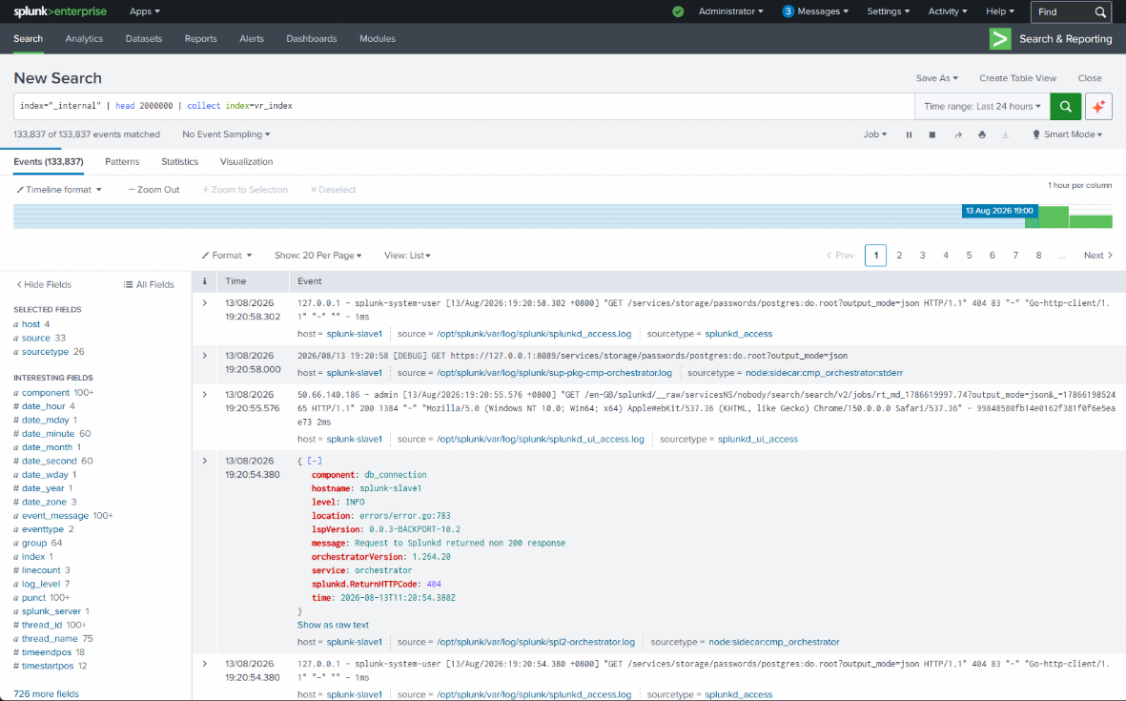
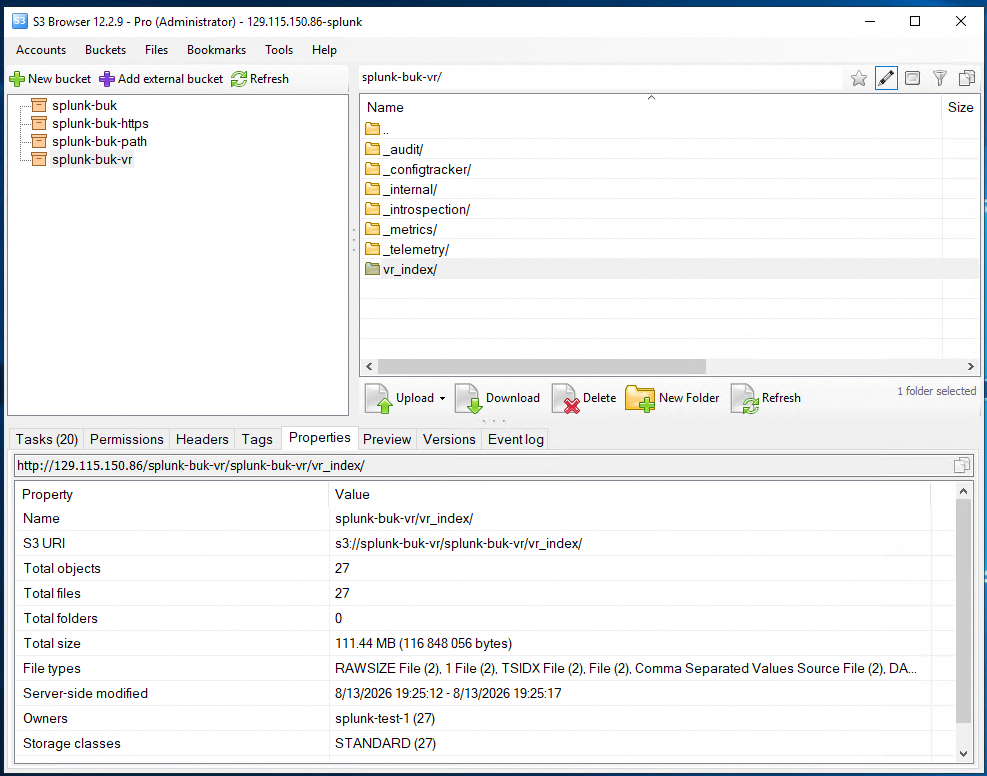
Import internal index data to the new index “vr_index”.
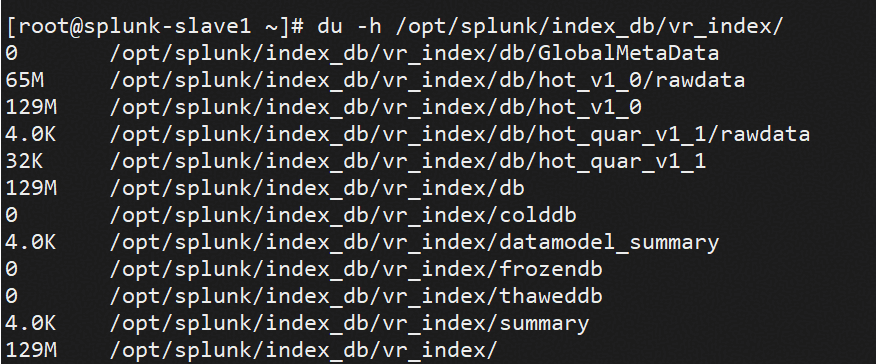
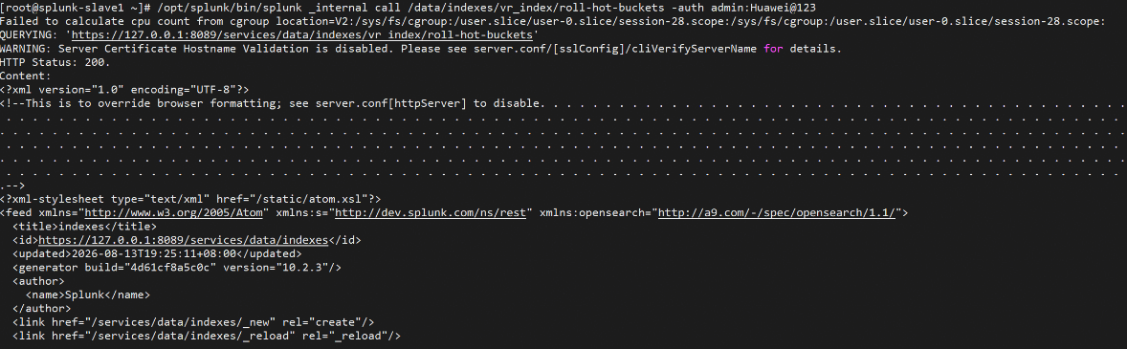
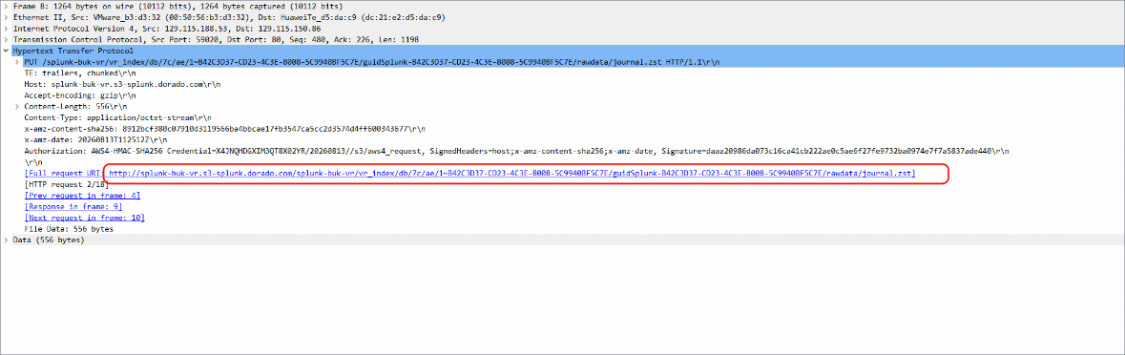
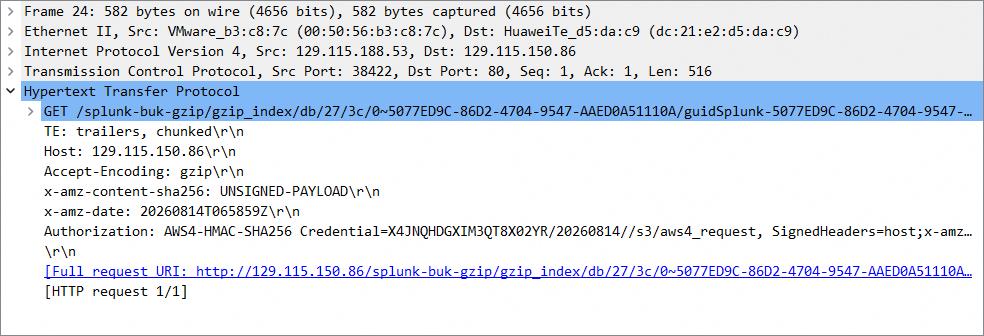
Manually convert hot data to worm data in “vr_index” and capture the packages.
Data are uploaded to the bucket successfully and can verify the hostname.
Test Conclusion
Passed
4.5 Add the bucket as remote storage with versioning enabled
Test Purpose
Storage can be used as SmartStore with versioning enabled
Test Network
Reference to Figure 1.1
Prerequisites
Dorado Storage,Splunk Enterprise servers deployment and Network have been completed.
Object Service is enabled on the Dorado Storage.
Bucket has been configured.
Test Procedure
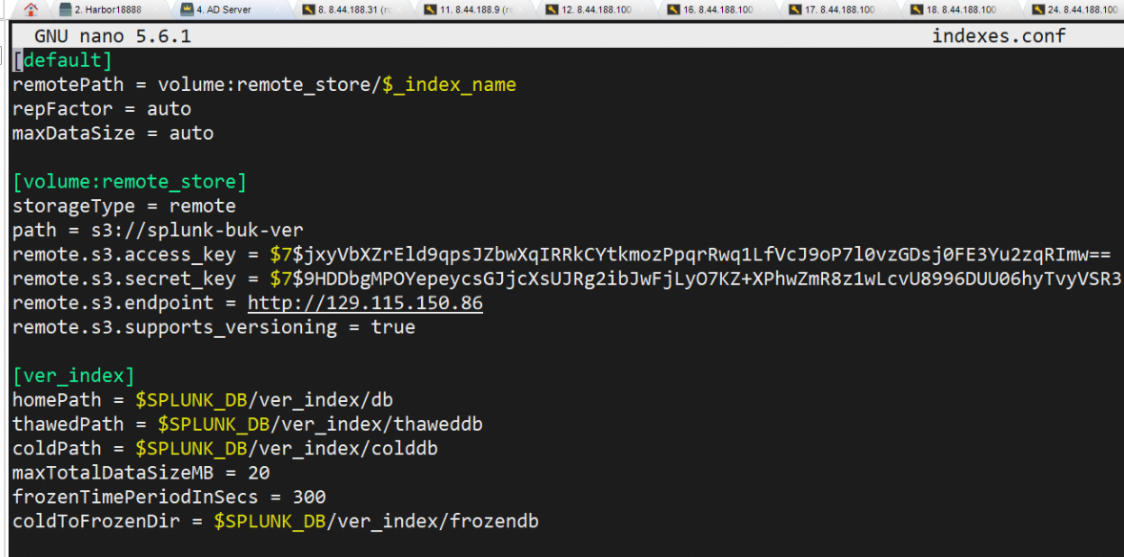
Step 1: In the configuration file indexes.conf,configure the endpoint with versioning enabled.
Step 2: Synchronizing Configurations to other nodes.
Step 3: Import internal index data to the new index.
Step 4: Manually convert hot data to worm data.
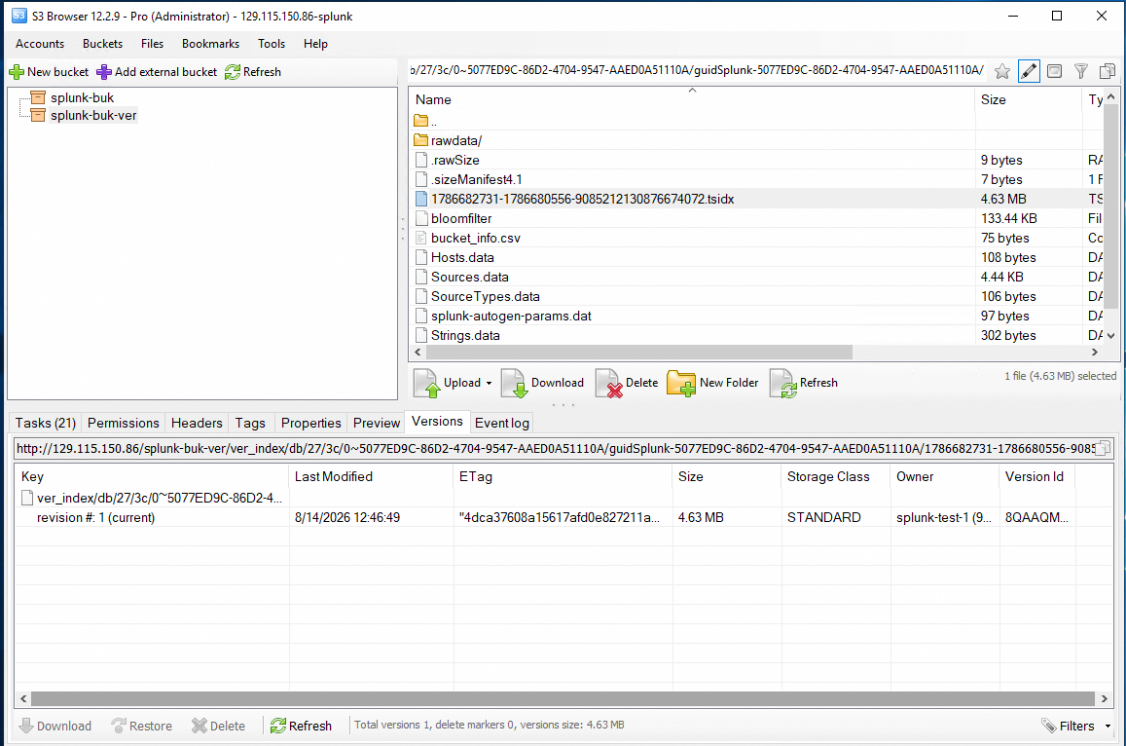
Step 5: Check whether the data are uploaded to the bucket.
Expected Result
In step 5, data are uploaded to the bucket successfully.
Test Result
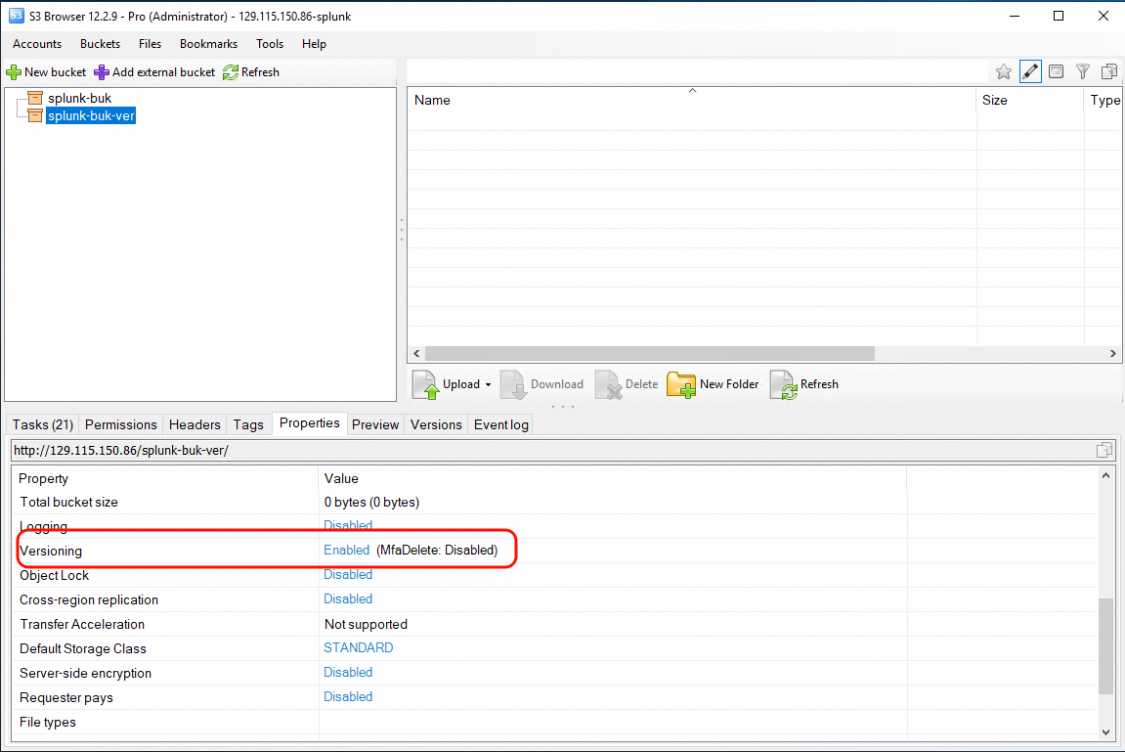
configure the endpoint with versioning enabled in the configuration file.
Synchronizing Configurations to other nodes.
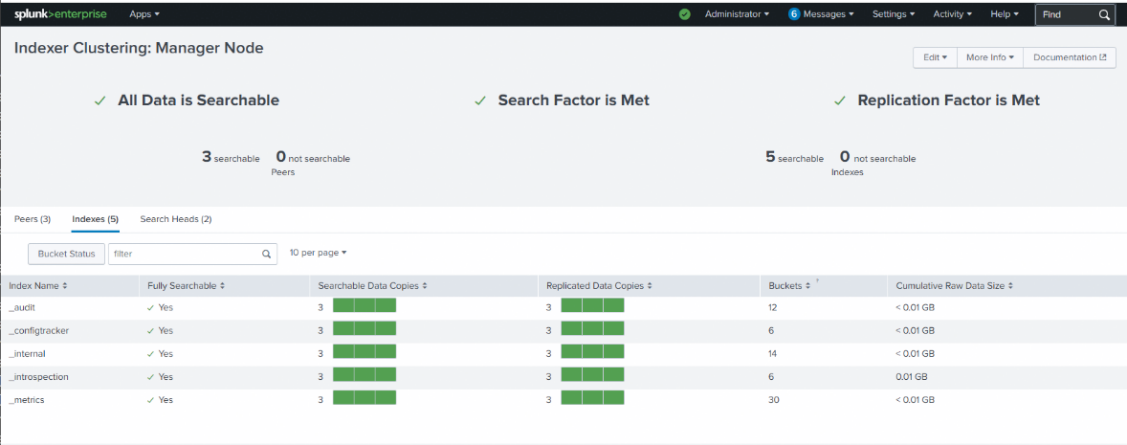
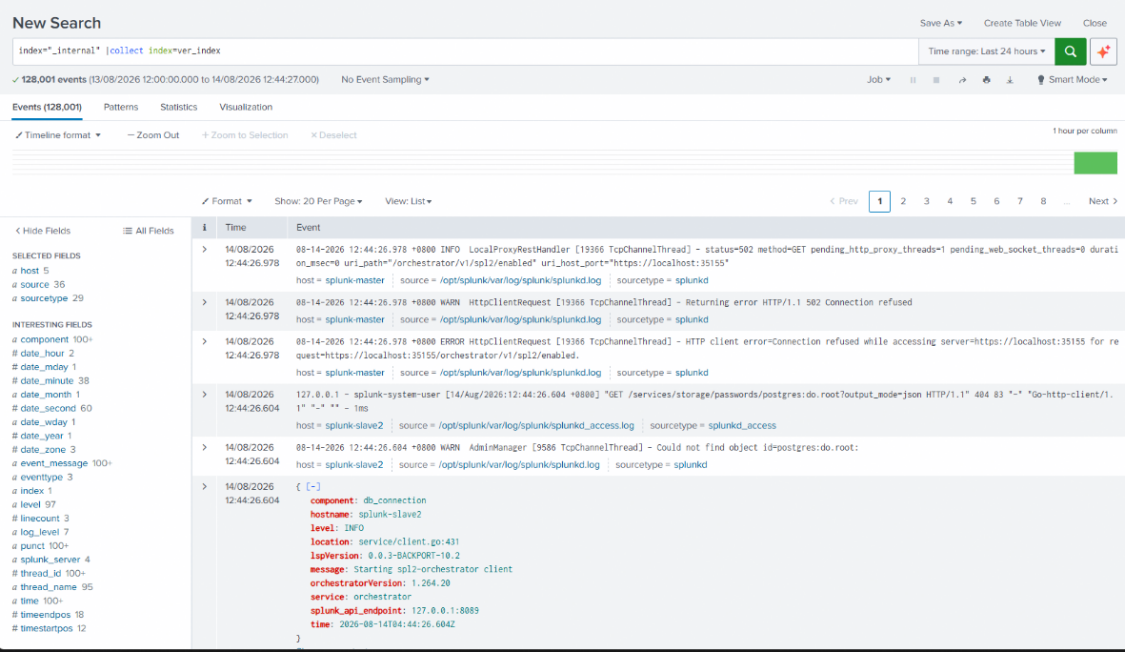
Import internal index data to the new index “ver_index”.
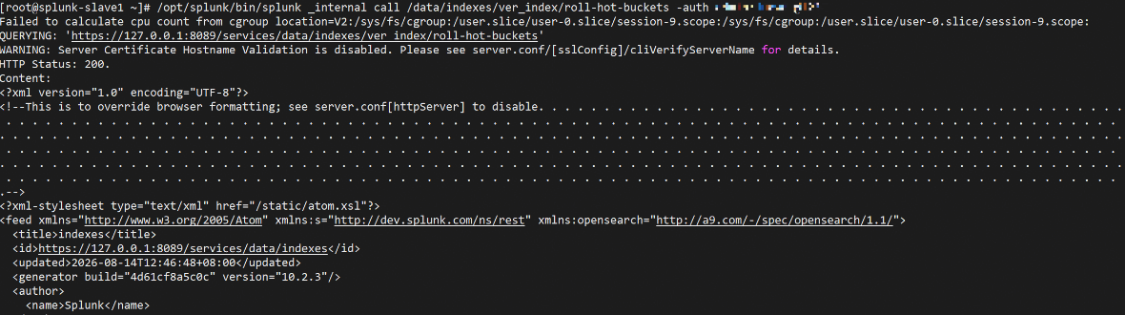
Manually convert hot data to worm data in “ver_index”.
Data are uploaded to the bucket successfully.
Test Conclusion
Passed
4.6 Upload gzip-compressed journal data to SmartStore
Test Purpose
Storage can upload gzip-compressed journal data to the SmartStore
Test Network
Reference to Figure 1.1
Prerequisites
Dorado Storage,Splunk Enterprise servers deployment and Network have been completed.
Object Service is enabled on the Dorado Storage.
Bucket has been configured with a special name.
Test Procedure
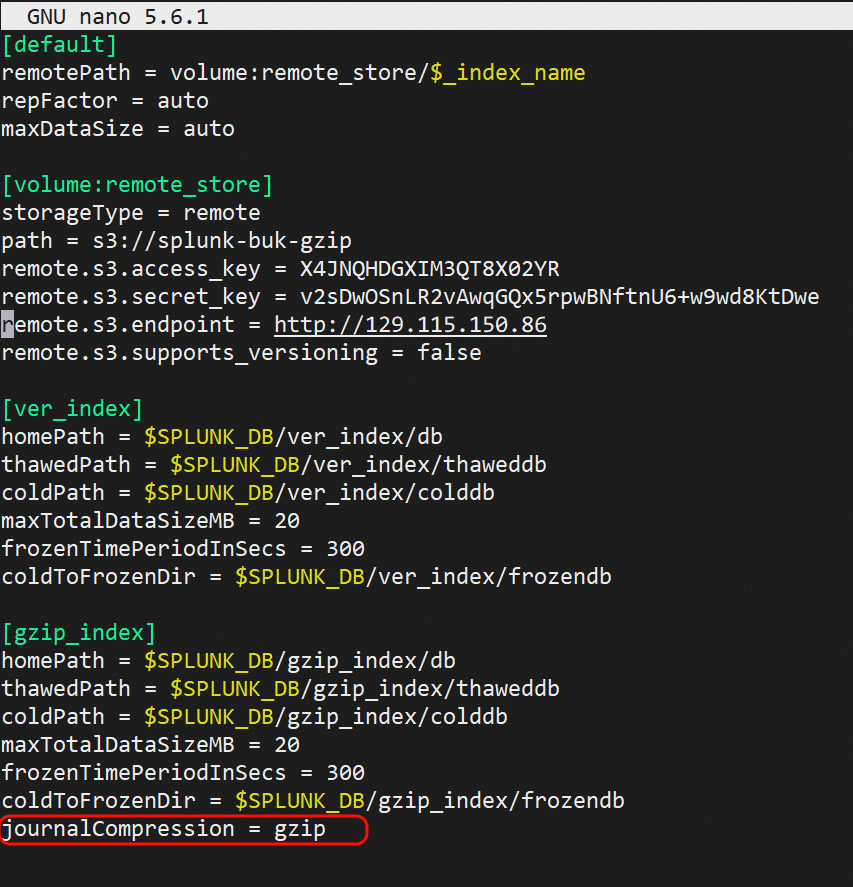
Step 1: Set up the object bucket connection details and the gzip-compressed index in the configuration file.
Step 2: Synchronizing Configurations to other nodes.
Step 3: Import internal index data to the new index.
Step 4: Manually convert hot data to worm data.
Step 5: Check whether the data are uploaded to the bucket.
Expected Result
In step 5, data are uploaded to the bucket successfully
Test Result
Set up the object bucket connection details and the gzip-compressed index in the configuration file.
Synchronizing Configurations to other nodes.
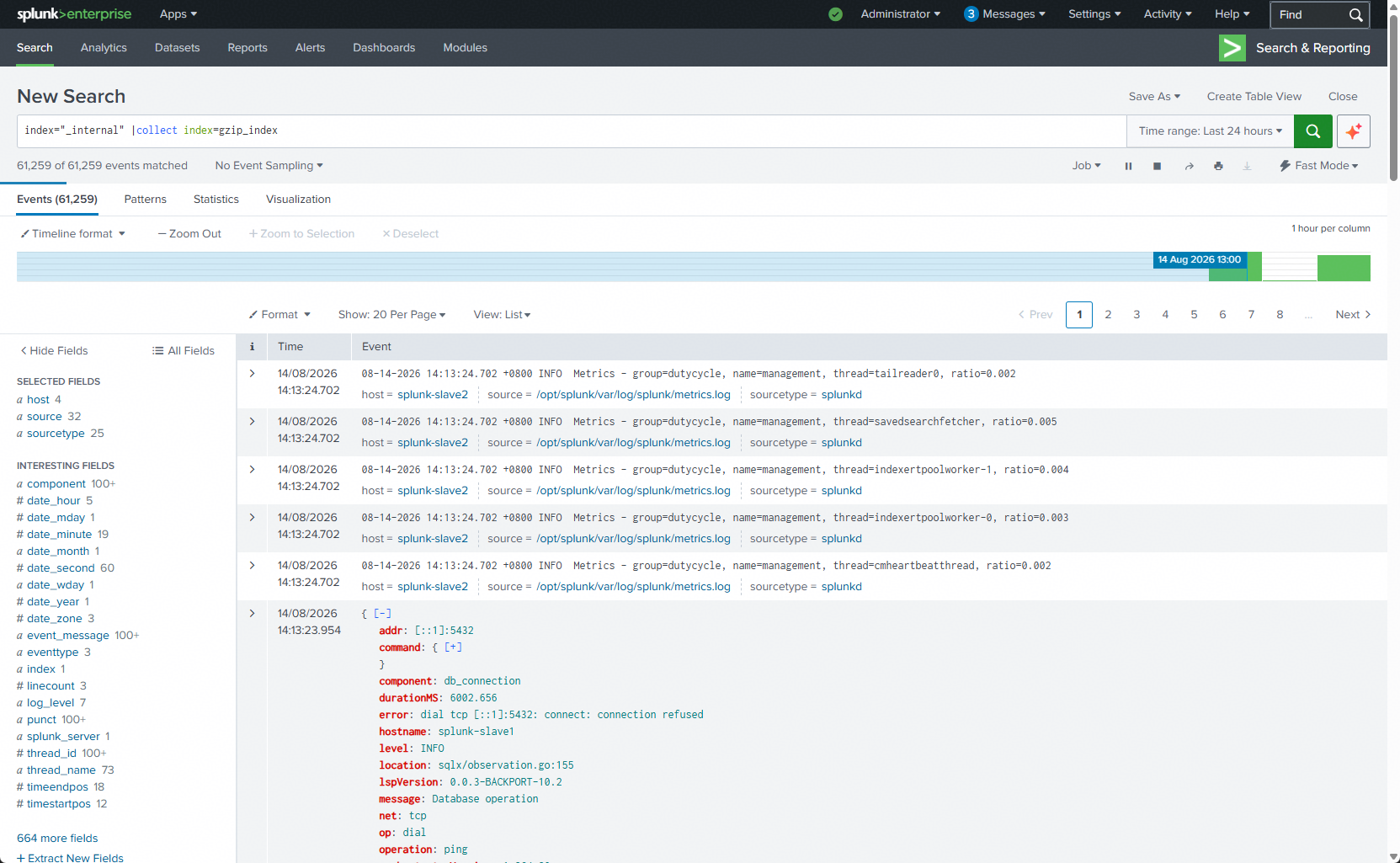
Import internal index data to the new index “gzip_index”.
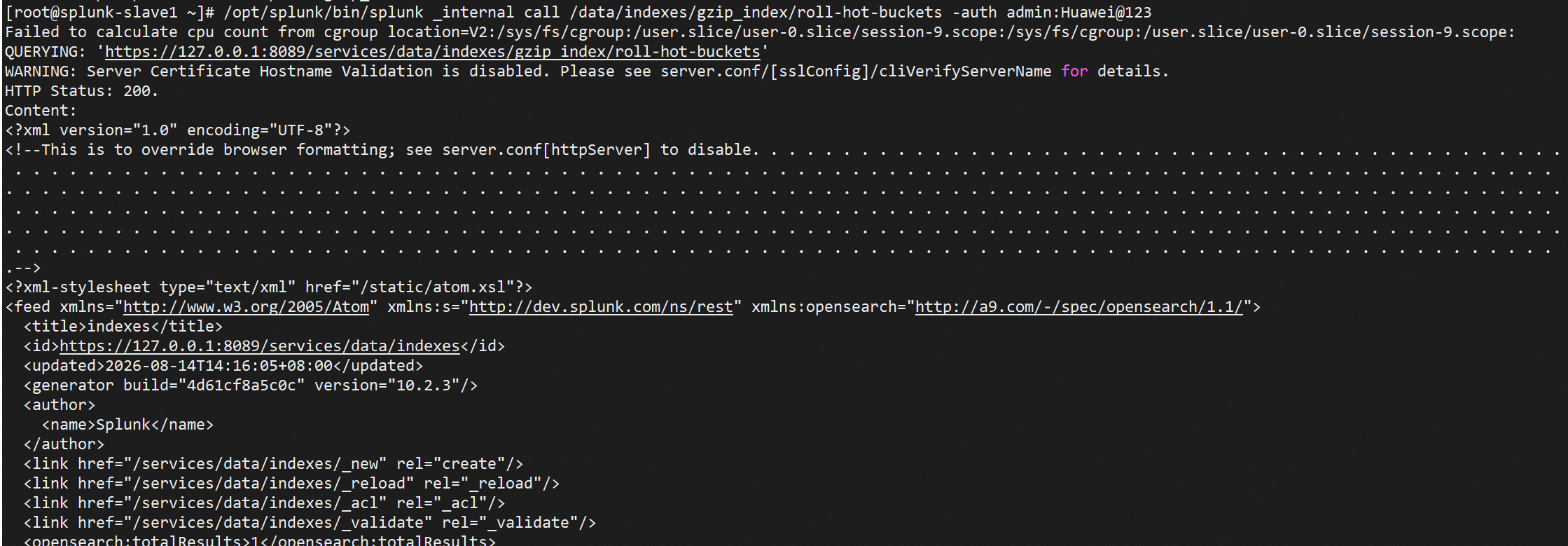
Manually convert hot data to worm data in “gzip_index”.
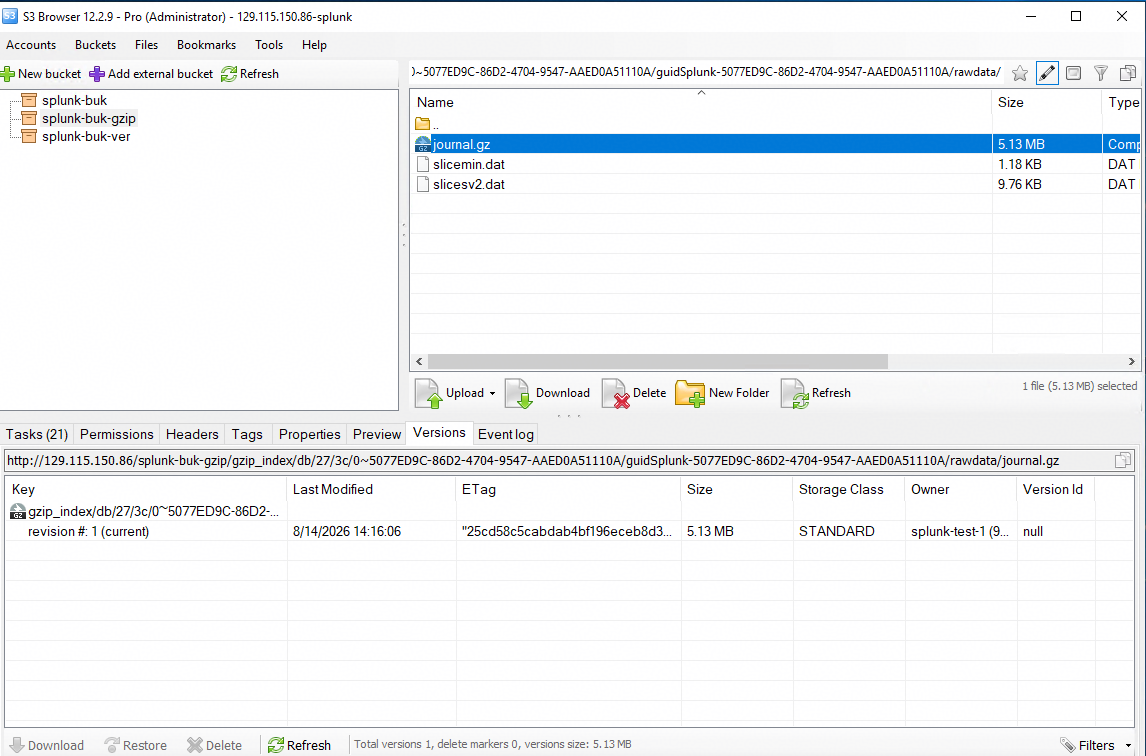
Data are uploaded to the bucket successfully and can be verified.
Test Conclusion
Passed
4.7 Get and download the files from the bucket
Test Purpose
Verify Splunk can download the file from the remote storage
Test Network
Reference to Figure 1.1
Prerequisites
Dorado Storage,Splunk Enterprise servers deployment and Network have been completed.
Object Service is enabled on the Dorado Storage.
Bucket has been configured.
Upload the data to the bucket successfully.
Test Procedure
Step 1: Check the files in the bucket on the S3 client.
Step 2: Get the files info on the slave server.
Step 3: Download the specified file from bucket.
Expected Result
In step 2,list the objects in the bucket successfully.
In step 3,successfully download the file.
Test Result
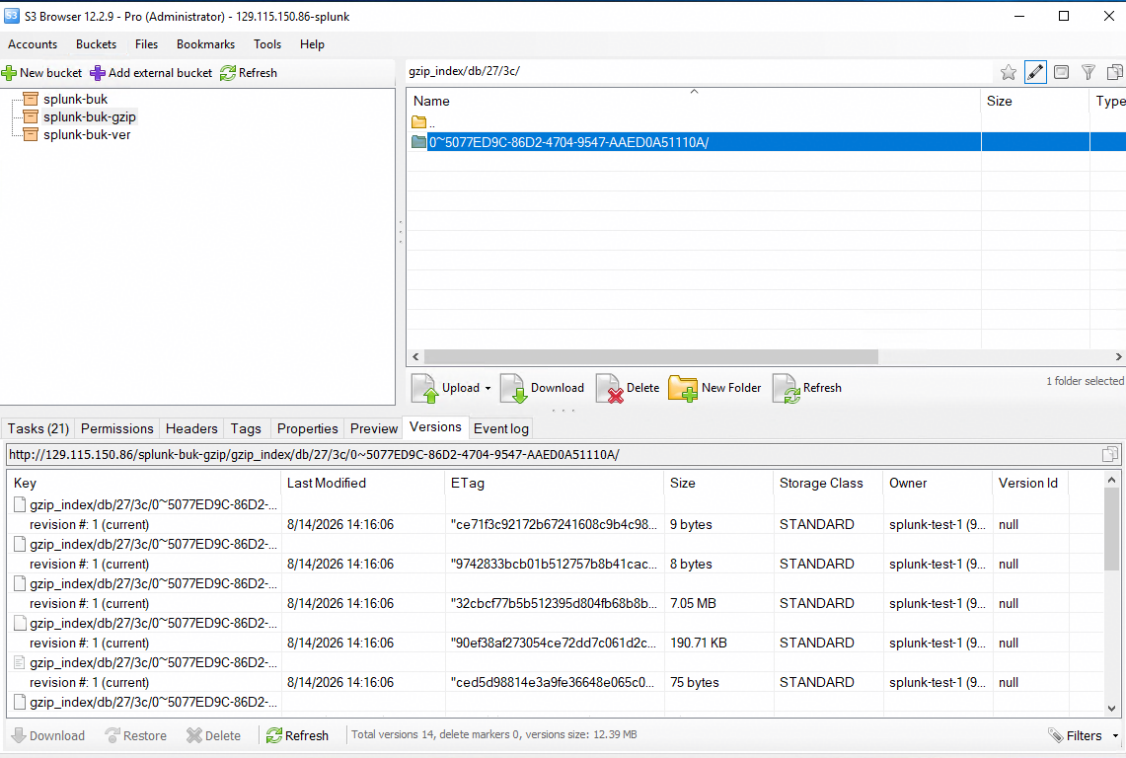
Check the files in the bucket on the S3 client.
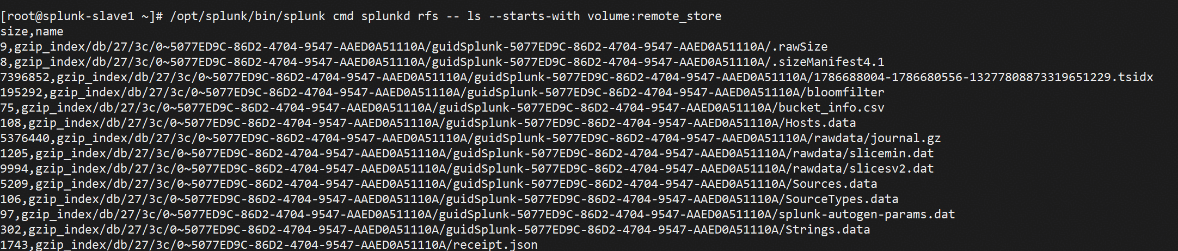
Get the files info on the slave server successfully .
Download the specified file from bucket successfully.