OceanProtect V200R001C10 Backup Storage Ransomware Protection Solution Best Practice (Integration with Veeam Backup & Replication)
Interoperability Test Report

Axians Global All Rights Reserved
1. About This Document
Ransomware is a type of malware that encrypts the victim’s files or locks the system to require ransom payment to restore access. Ransomware is usually spread through phishing emails, malicious links, or vulnerabilities. Ransomware mainly leads to the following hazards:
Data loss: After files are encrypted by ransomware, victims cannot access key data, causing service interruptions.
Financial loss: Ransom payment does not guarantee data restoration, and the ransom amount is usually high.
Reputation damage: Data leakage or service interruptions can seriously damage the company’s reputation.
Compliance risks: Data leakage may cause enterprises to encounter lawsuits and fines due to violation of data protection laws and regulations.
Traditional network security measures, such as firewalls, intrusion detection systems (IDSs), and antivirus software, are mainly used to defend against known threats. However, attackers continuously use new technologies and means, making it difficult for traditional security measures to effectively cope with the attacks.
Traditional data protection solutions only check whether data is successfully backed up. They lack a mechanism for detecting backup data content, a mechanism for preventing backup copies from being tampered with, and the resilience of backup systems against ransomware attacks.
1.1 Introduction
This document describes the best practices for the OceanCyber 300 Data Security Appliance using the OceanCyber V200R001C10, OceanProtect X8000 V200R001C10SPC100, Veeam Backup 13, and OceanStor BCManager eReplication 8.6.1. The following contents are covered:
- Integrating the OceanProtect X series products with Veeam through secure snapshots
- Replicating data to an isolation zone using the Air Gap technology of OceanStor BCManager
- Restoring data in an isolation zone and reversely replicating such data to the production backup storage
- Using the OceanCyber 300 Data Security Appliance to perform in-depth detection on the backup data backed up by Veeam to the OceanProtect and marking suspicious backup copies
The solution helps users build data foundation resilience to implement secure data restoration.
1.2 Intended Audience
This document is intended for:
- Marketing engineers
- Technical support engineers
1.3 Change History
Issue 02 (2026-04-30)
This issue is the second official release.
Issue 01 (2025-11-05)
This issue is the first official release.
2. Solution Overview
OceanProtect X8000 V200R001C10SPC100 integrates the backup software (Veeam Backup 13) and connects to an external OceanCyber 300 Data Security Appliance to perform in-depth detection on backup data and mark the security status of backup copies. Based on the Air Gap function of the OceanStor BCManager component, data from a specified file system in the production zone is periodically replicated to the isolation zone. After the replication is complete, secure snapshots are automatically generated for secure isolation and anti-tampering of important data. The solution prevents data from being stolen through transmission links between backup storage devices, backup links, and storage layers.
The entire network consists of a production zone and an isolation zone. The isolation zone connects to the production zone only through specified replication ports. Generally, the replication ports are disconnected and are connected only during replication. If restoration verification is required for the isolation zone, you are advised to deploy restoration verification hosts in the isolation zone to verify the data in the isolation zone.
2.4 Typical Application Scenarios
2.1 Solution Architecture
This best practice involves two solutions: deploying OceanStor BCManager management servers or using OceanCyber Data Security Appliances in the isolation zones.
The following deployment methods are available. You can select a method as required.
- Method 1: Deploy the OceanCyber Data Security Appliance in the production zone but not in the isolation zone. OceanStor BCManager deployed in the isolation zone supports Air Gap. For details about the architecture, see 2.1.1 Solution Architecture (Using the OceanStor BCManager Management Server in the Isolation Zone).
- Method 2: Deploy the OceanCyber Data Security Appliance in the production and isolation zones. The OceanCyber Data Security Appliance deployed in the isolation zone supports only Air Gap. For details about the architecture, see 2.1.2 Solution Architecture (Using the OceanCyber Data Security Appliance in the Isolation Zone).
- Method 3: Deploy the OceanCyber Data Security Appliance in the production and isolation zones. The OceanCyber Data Security Appliance deployed in the isolation zone supports Air Gap as well as detection and analysis. For details about the architecture, see 2.1.2 Solution Architecture (Using the OceanCyber Data Security Appliance in the Isolation Zone).
- Method 4: Deploy the OceanCyber Data Security Appliance in the isolation zone but not in the production zone. The OceanCyber Data Security Appliance deployed in the isolation zone supports Air Gap as well as detection and analysis. For details about the architecture, see 2.1.2 Solution Architecture (Using the OceanCyber Data Security Appliance in the Isolation Zone).

If only OceanProtect X8000 is deployed in the production zone and isolation zone, the Air Gap capability of the OceanCyber Data Security Appliance is recommended. If both OceanStor Dorado and OceanProtect X8000 are deployed, the Air Gap capability of OceanStor BCManager eReplication is recommended.
2.1.1 Solution Architecture (Using the OceanStor BCManager Management Server in the Isolation Zone)
Figure 2-1 Solution architecture
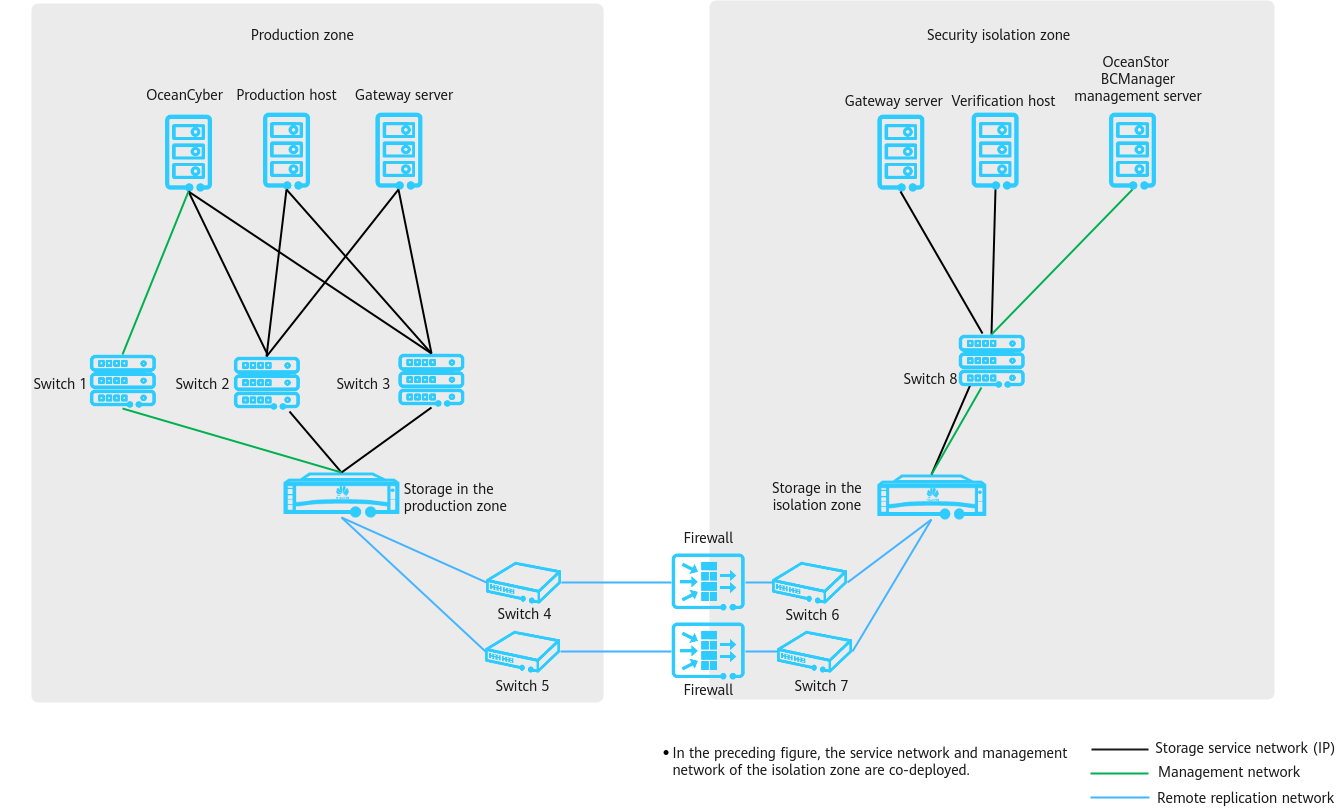
As shown in Figure 2-1, the network is composed of a production zone and an isolation zone.
- Production zone
Consists of the production hosts, backup server, OceanCyber 300 Data Security Appliance, backup storage in the production zone, and switches connected to the backup storage in the isolation zone.
- Isolation zone
Consists of the verification hosts, OceanStor BCManager management server, backup server, backup storage in the isolation zone, and switches connecting the verification hosts to the backup storage in the isolation zone. The verification hosts in the isolation zone can verify the consistency of replicated data. The OceanStor BCManager management server must be able to communicate with the management network of the storage device in the isolation zone and controls the connectivity of replication links by enabling or disabling the ports used by replication links of the storage device in the isolation zone. In this way, the links are connected during data transmission and disconnected after data transmission is complete.
- Ethernet switches are used to connect replication links between the storage devices in the production zone and in the isolation zone. Firewalls can be configured between replication links to further improve replication link security.
- In actual scenarios, considering that the isolation zone ensures data security and provides management and maintenance functions, it is recommended that a management console be deployed in the isolation zone and connected to the production zone over an independent network. To ensure security, access authentication, such as VPN and token authentication, is required.
Table 2-1 Components in the solution networking diagram
Component | Description | Deployment Position | Configuration Requirement |
|---|---|---|---|
Production host | Functions as an application system host in the data center of the production zone, which can be a common production host, such as an Oracle database host and VMware ESXi host. | Production zone | The production host is configured based on actual service requirements. |
Gateway server | Creates, executes, and schedules backup jobs, and configures backup policies. | Production zone | The backup server can be deployed independently or together with the media server. It is deployed together with the media server in this best practice. |
OceanCyber 300 Data Security Appliance | Protects data of the OceanProtect Backup Storage and provides functions such as ransomware detection and data restoration. | Production zone | Two 25GE or 100GE ports are configured. |
Switch 1 | Functions as a service switch deployed in the data center of the production zone, which is used for management network data transmission between the OceanCyber 300 Data Security Appliance and the storage device in the production zone. | Production zone |
|
Switch 2/3 | Functions as a service switch deployed in the data center of the production zone, which is used for data transmission between the OceanCyber 300 Data Security Appliance, the production host, and the storage device in the production zone. | Production zone |
|
Backup storage in the production zone | Stores data. | Production zone |
|
Switch 4/5 | Functions as an Air Gap replication link switch deployed in the data center of the production zone, which is used to synchronize data from storage in the production zone to that in the isolation zone. | Production zone |
|
Switch 6/7 | Functions as an Air Gap replication link switch deployed in the data center of the isolation zone, which is used to synchronize data from storage in the production zone to that in the isolation zone. | Isolation zone |
|
(Optional) Firewall | Restricts the communication of non-replication ports. A firewall is recommended when replication links are not in point-to-point connections or pass through public network links. | Isolation zone | A firewall restricts the communication of non-replication ports only and is not for enabling or disabling replication ports. In deployment, the replication link traffic needs to be evaluated to prevent the firewall from becoming a bottleneck. |
Verification host | Functions as an application system host in the data center of the isolation zone, which can be used to start applications and detect virus for application data in the isolation zone. | Isolation zone | Verification hosts are configured based on customers’ services. Typical hardware configurations of production hosts are recommended. |
Switch 8 | Used for the communication among the host, OceanStor BCManager management server, and storage devices. | Isolation zone |
|
OceanStor BCManager management server | Connects or disconnects the Air Gap replication links. | Isolation zone |
|
Backup storage in the isolation zone | Protects and rolls back production data. | Isolation zone |
|
Gateway server | Creates, executes, and schedules backup jobs, and configures backup policies. | Isolation zone | It can be deployed independently or together with the media server. It is deployed together with the media server in this best practice. |
2.1.2 Solution Architecture (Using the OceanCyber Data Security Appliance in the Isolation Zone)
Figure 2-2 Solution architecture
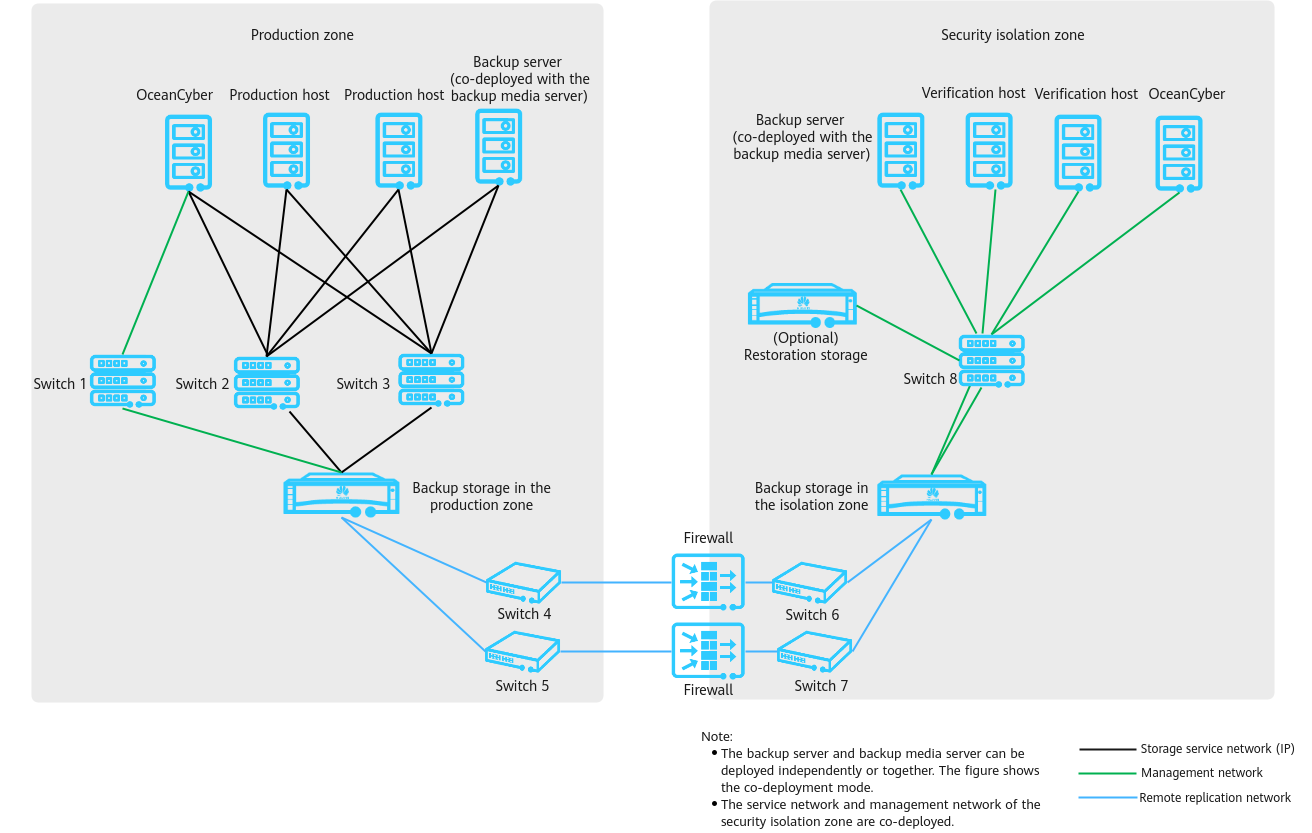
As shown in Figure 2-2, the network is composed of a production zone and an isolation zone.
- Production zone
Consists of the production hosts, backup server, OceanCyber 300 Data Security Appliance, backup storage in the production zone, and switches connected to the backup storage in the isolation zone.
- Isolation zone
Consists of the verification hosts, OceanCyber 300 Data Security Appliance, backup server, backup storage in the isolation zone, restoration storage (optional), and switches connected to the backup storage in the isolation zone.
- The verification hosts in the isolation zone can verify the consistency of replication data.
- The OceanCyber Data Security Appliance of the isolation zone must be able to communicate with the storage management network in the isolation zone and controls the connectivity of replication links by enabling or disabling the ports used by replication links of the storage device in the isolation zone. In this way, the links are connected during data transmission and disconnected after data transmission is complete.
- Ethernet switches or Fibre Channel switches are used to connect replication links between the storage devices in the production and isolation zones (Ethernet switches are used in this solution). Firewalls can be configured between replication links to further improve replication link security.
Table 2-2 Components in the solution networking diagram
Component | Description | Deployment Position | Configuration Requirement |
|---|---|---|---|
Production host | Functions as an application system host in the data center of the production zone, which can be a common production host, such as an Oracle database host or VMware ESXi host. | Production zone | The production host is configured based on actual service requirements. |
Backup server (deployed together with the media server) | Creates, executes, and schedules backup jobs, and configures backup policies. | Production zone | The backup server can be deployed independently or together with the media server. It is deployed together with the media server in this best practice. |
OceanCyber 300 Data Security Appliance | Protects data of the OceanProtect Backup Storage and provides functions such as ransomware detection and data restoration. | Production zone | Two 25GE or 100GE ports are configured. |
Switch 1 | Functions as a service switch deployed in the data center of the production zone, which is used for data transmission between the data security appliance and storage in the production zone. | Production zone |
|
Switch 2/3 | Functions as a service switch deployed in the data center of the production zone, which is used for data transmission between the data security appliance, production host, and storage in the production zone. | Production zone |
|
Backup storage in the production zone | Stores data. | Production zone |
|
Switch 4/5 | Functions as an Air Gap replication link switch deployed in the data center of the production zone, which is used to synchronize data from storage in the production zone to that in the isolation zone. | Production zone |
|
Switch 6/7 | Functions as an Air Gap replication link switch deployed in the data center of the isolation zone, which is used to synchronize data from storage in the production zone to that in the isolation zone. | Security isolation zone |
|
(Optional) Firewall | Restricts the communication of non-replication ports. A firewall is recommended when replication links are not in point-to-point connections or pass through public network links. | Production zone | A firewall restricts the communication of non-replication ports only and is not for enabling or disabling replication ports. In deployment, the replication link traffic needs to be evaluated to prevent the firewall from becoming a bottleneck. |
Restricts the communication of non-replication ports. A firewall is recommended when replication links are not in point-to-point connections or pass through public network links. | Security isolation zone | A firewall restricts the communication of non-replication ports only and is not for enabling or disabling replication ports. In deployment, the replication link traffic needs to be evaluated to prevent the firewall from becoming a bottleneck. | |
Verification host | Functions as an application system host in the data center of the isolation zone, which can be used to start applications and detect virus for application data in the isolation zone. | Security isolation zone | Verification hosts are configured based on customers’ services. Typical hardware configurations of production hosts are recommended. |
Switch 8 | Configures communication between the storage and devices such as hosts and the OceanCyber 300 Data Security Appliance. | Security isolation zone |
|
OceanCyber 300 Data Security Appliance | Air Gap Ransomware detection | Security isolation zone | Two 25GE or 100GE ports are configured. |
Backup storage in the isolation zone | Protects and rolls back production data. | Security isolation zone |
|
Backup server (deployed together with the media server) | Creates, executes, and schedules backup jobs, and configures backup policies. | Security isolation zone | It can be deployed independently or together with the media server. It is deployed together with the media server in this best practice. |
2.2 Solution Components
2.3 Key Technologies
- Copy detection performed by the OceanCyber 300 Data Security Appliance
Based on a predefined policy, OceanCyber 300 periodically creates snapshots for the OceanProtect Backup Storage and performs in-depth detection on the snapshots to check whether the backup data of files, NAS, and VMware VMs has been encrypted by ransomware. If an exception is detected, the backup copy is marked as infected, and alarms and Air Gap link disconnection are triggered to prevent infected data from being replicated to the isolation zone. If no exception is found, the backup copy is marked as uninfected and converted to a secure snapshot.

The detection and analysis function of OceanCyber 300 provides ransomware encryption detection and in-depth detection on backup copies. The built-in detection function of the OceanProtect Backup Storage (X8000 and later models) supports only ransomware encryption detection on backup copies.
Ransomware encryption detection on backup copies: After data backup is complete, ransomware encrypts backup copies. The detection and analysis function can identify the backup copies that are attacked by ransomware and mark them as infected.
In-depth detection on backup copies: If a large amount of production data, such as data in files or VMware, is encrypted by ransomware, the detection and analysis function parses the contents of the backup copies after the backup software backs up the data. This function can identify whether the original files or files in VMware are infected. If yes, the backup copies they will be marked as infected.
- Air Gap
The Air Gap capability can be provided by OceanStor BCManager or OceanCyber 300. The replication link is enabled only when a replication job is running and is immediately disabled after the replication is complete. The enabling and disabling of the entire replication links can be controlled only in the isolation zone. This solution uses the OceanCyber Data Security Appliance in the isolation zone to configure Air Gap replication policies. In this way, the replication links are enabled only during data replication and disabled immediately after data replication is complete.
The Air Gap capability of OceanCyber 300 and that of OceanStor BCManager eReplication are described as follows:
OceanStor BCManager eReplication is deployed in the isolation zone. Its Air Gap capability asynchronously replicates differential data from the storage in the production zone to the storage in the isolation zone based on policies. After the replication is complete, the replication port of the storage in the isolation zone is disconnected and secure snapshots are automatically created. The Air Gap capability of OceanCyber 300 in the production zone only disconnects the replication port in the production zone when an exception is detected to prevent infected data from being replicated to the isolation zone. Air Gap replication of OceanStor BCManager eReplication can be used together with Air Gap link disconnection of the OceanCyber Data Security Appliance. In the production zone, Air Gap link disconnection of the OceanCyber Data Security Appliance cannot replace Air Gap replication of OceanStor BCManager eReplication. In the isolation zone, the OceanCyber Data Security Appliance provides the Air Gap replication of OceanStor BCManager eReplication and performs detection after replication.

Built-in detection of the OceanProtect Backup Storage does not support the Air Gap link disconnection capability.
- Secure snapshot
Secure snapshots can be configured for data storage to prevent data copies from being maliciously deleted by using the super administrator permissions after virus attacks.
- WORM
WORM can be configured for file systems in backup storage, preventing backup copy data from being tampered with after the backup storage is attacked by ransomware.
2.4 Typical Application Scenarios
- Protection of core service systems in the production zone
- a. A core service system, if encrypted by ransomware, can be quickly restored to the latest time point before encryption.
The backup software uses the latest snapshot copy to restore service data. The restoration process in this scenario is the same as that in the centralized backup solution and is not described here.
The OceanCyber 300 Data Security Appliance performs data source backtracking on backup storage copies through restoration to the original location or shared location.
b. The backup server is attacked and file systems are deleted after backup storage administrator permissions are obtained; or the storage file systems and backup data are maliciously deleted.
If the backup server is attacked and backup storage administrator permissions are obtained, or data is deleted maliciously, since super administrators cannot delete data within a data protection period, WORM file systems can prevent backup data from being tampered with.
- After the production zone is infected, data can be restored from the isolation zone, ensuring that secure and reliable data is available for restoration.
If the backup storage in the production zone is attacked (for example, all backup data is infected due to security vulnerabilities or ransomware latency period beyond the backup data protection period), a data isolation zone is established to further improve data security. If all backup storage in the production zone is infected, clear data can be used to restore data and even provide the minimum service running capability.
- Data restoration in the isolation zone can be started on demand to implement testing or virus detection, reducing the impact on the running of core systems in the production zone. Air gap replication links are used to periodically synchronize data in the isolation zone.
After a verification host is configured in the isolation zone, system services can be started based on the data stored in the isolation zone. After the services are started, the service system can be tested, or the virus scanning software can be connected to detect viruses.
3. Planning and Configurations
This section describes the planning and configurations of the production zone and isolation zone. You can use LLDesigner to generate networks, and create an LLD project manually or based on a template. You can also plan storage networks and storage resources, export LLD configurations offline, and customize cabinet planning. LLDesigner is available in the URL.
3.1 Planning and Configurations of the Production Zone
3.2 Planning and Configurations of the Isolation Zone
3.1 Planning and Configurations of the Production Zone
3.1.1 OceanCyber in the Production Zone
- OceanCyber 300 Data Security Appliance configurations
For details about how to install and initialize OceanCyber 300, see the OceanCyber V200R001C10 Installation Guide.
- Detection and analysis policy configuration of the OceanCyber 300 Data Security Appliance
Configuration principle: The detection is performed after the backup window.
Assume that the backup window is from 18:00 to 22:00 every day and the backup data retention period is one month. In the typical configuration, the OceanCyber 300 Data Security Appliance generates snapshots from 22:00 to 00:00 every day, detects and analyzes snapshots, converts uninfected snapshots into secure snapshots, and retains secure snapshots for one month. You can adjust the policy based on service requirements.
3.1.2 Planning of Backup Storage in the Production Zone
You need to pay attention to the storage pool capacity usage in time and reserve sufficient capacity to ensure normal running of the host services.

- The size of a secure snapshot space is related to the number of secure snapshots and the amount of data to be overwritten.
- The planned secure snapshot space must be set based on the Veeam backup policy.
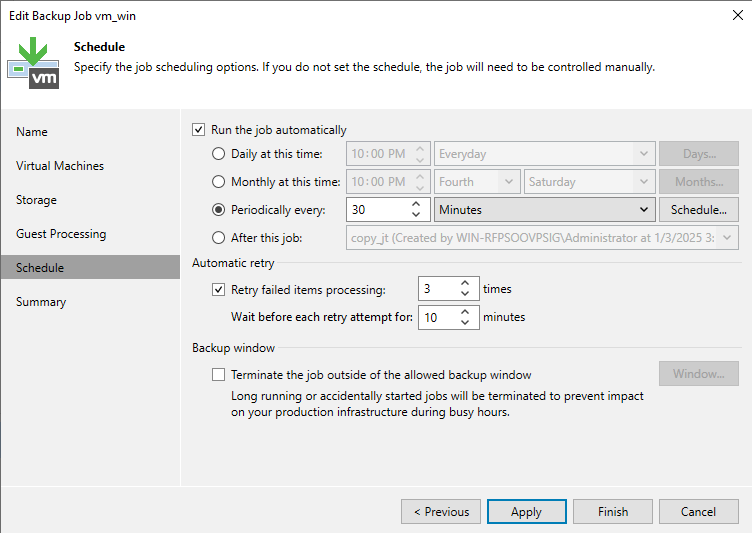
For example, the total space of an NAS file system to be protected is 1 TB. A secure snapshot is created every day and retained for seven days. The amount of data to be overwritten is 0.1% (the amount of data to be overwritten is increased based on the new data). It is recommended that a snapshot be generated every hour. The required capacity is 16.8% (0.1% x 168 = 16.8%). That is, an extra space of 16.8% is required.
3.1.3 Backup Repository Planning
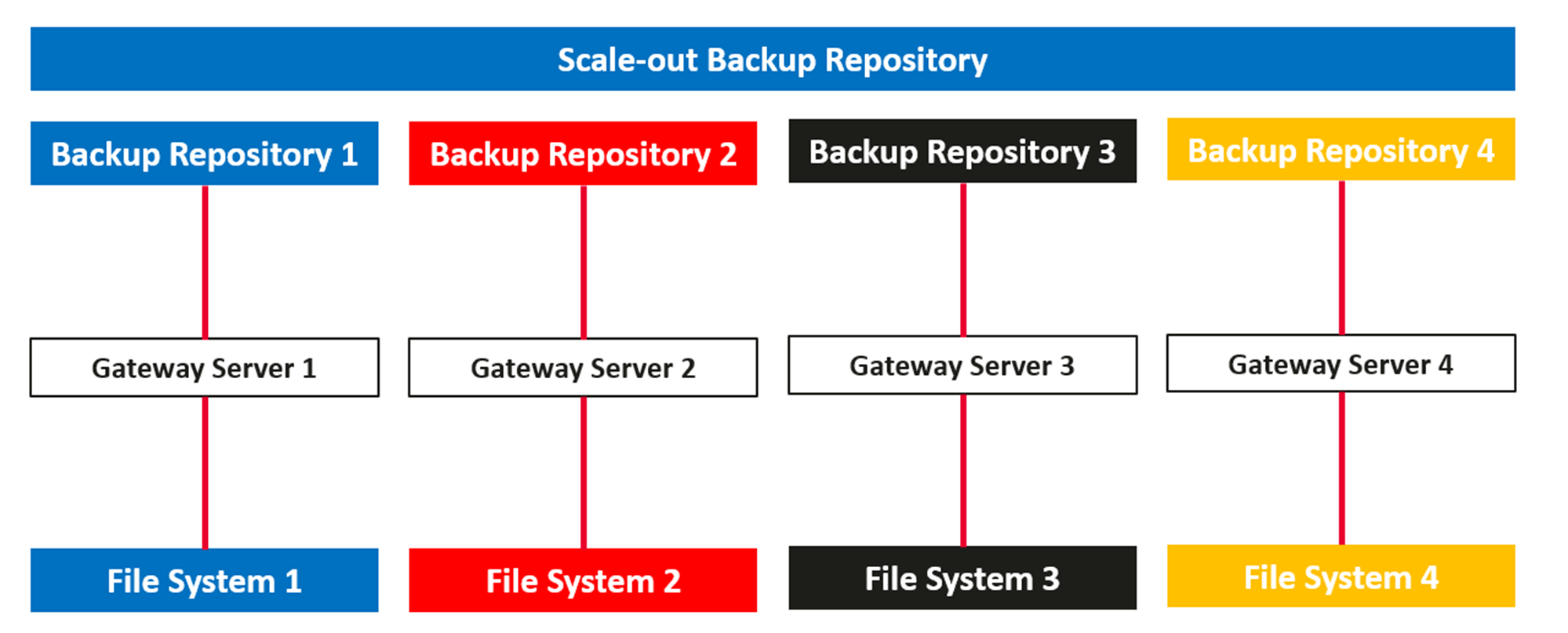
The file systems created on OceanProtect X8000 are mounted to the gateway servers so that they can be used by Veeam. This solution uses the DataTurbo protocol for mounting. You are advised to mount the file systems based on the following principles:
To ensure backup performance and reduction ratio, it is recommended that the number of file systems created on OceanProtect X8000 be the same as that of gateway servers, one file system be mounted to each gateway server, and each mount point be created as an independent backup repository.
Make plans based on the performance and number of gateway servers in the actual environment.
Figure 3-1 Backup repository planning in the scenarios with a single and dual gateway servers
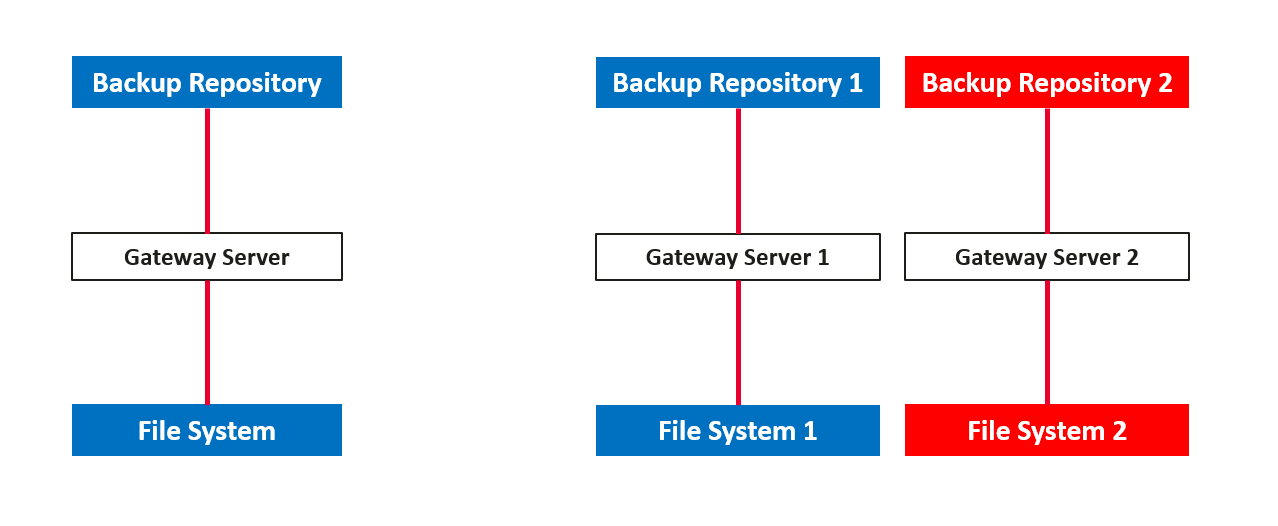
Figure 3-2 Scale-out backup repository planning in the scenario with four gateway servers
3.1.4 Policy Planning for the Production Zone
Construction of intelligent detection policies for the OceanCyber 300 Data Security Appliance:
- Backup copy in-depth detection
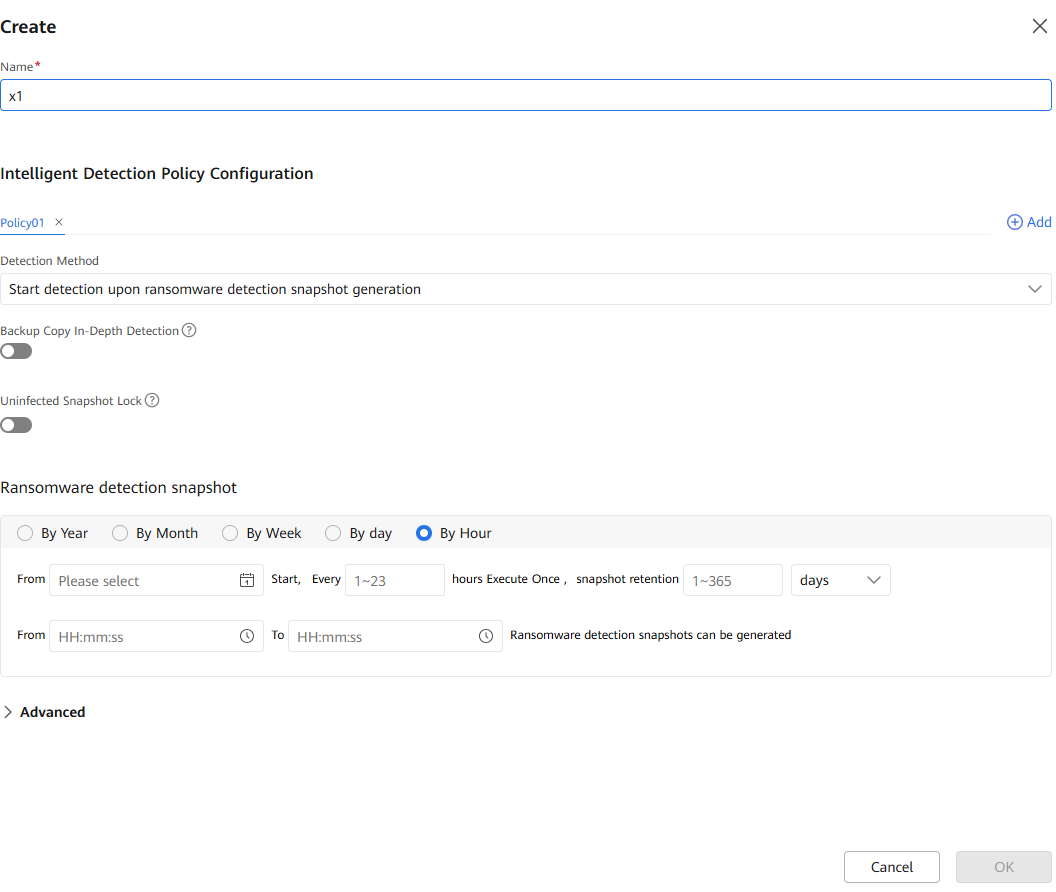
After this function is enabled, the system performs in-depth parsing and detection on backup copies in the backup storage, which may prolong the overall detection time. You are advised to enable this function when the intelligent detection policy is applied to file systems of an OceanProtect storage device.
- Uninfected snapshot lock
After this function is enabled, uninfected snapshots will change to secure snapshots, and the snapshot retention period will be prolonged. Modification or deletion is not allowed before the snapshots expire.
- Ransomware detection snapshot
Select the time and period for automatically executing the periodic detection job, and the snapshot retention period. You are advised to select a time range of 00:00–06:00.
- Advanced
Retain the default values.

If the in-depth detection of backup copies is enabled, do not enable the advanced settings and self-learning functions. Otherwise, the detection result will be uninfected.
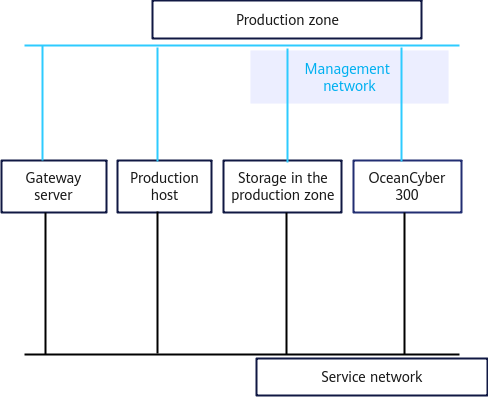
3.1.5 Network Planning for the Production Zone
For details, see the best practices for connecting Veeam systems with the OceanProtect.
Figure 3-3 Network planning for the production zone
3.2 Planning and Configurations of the Isolation Zone
This section describes the configuration planning of the isolation zone in the ransomware protection solution.
3.2.1 Network Planning for the Isolation Zone
This section describes the network planning of the isolation zone in the ransomware protection solution.
3.2.1.1 Network Planning Using OceanStor BCManager in the Isolation Zone
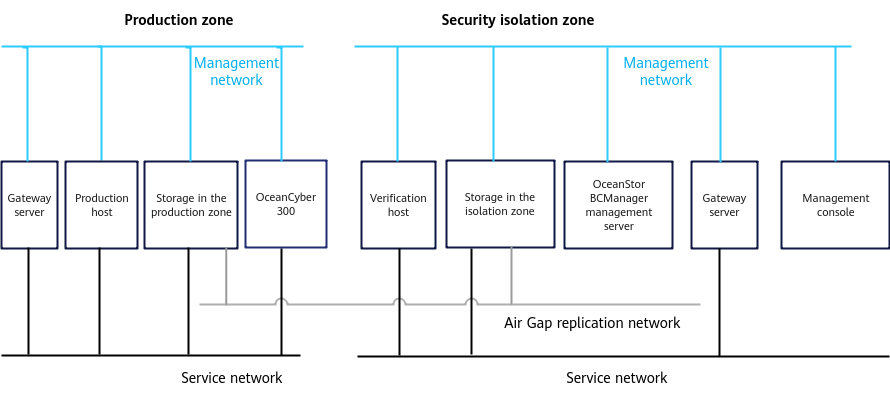
Figure 3-4 Network planning diagram
- Network planes
- The management networks are used for system management and network communication between devices.
- The Air Gap replication network is used for replication data communication between the backup storage in the production zone and that in the isolation zone.
- The service networks are used for network communication between hosts and storage devices.
- Network planning for backup storage in the production zone/isolation zone
- Physical port planning: You need to plan network ports for connecting the gateway server to backup storage, and network ports used for the replication link between backup storage in the production zone and that in the isolation zone. You can plan ports based on service requirements.
- Logical port planning: Logical ports are created for connections among the remote replication between storage arrays by using Air Gap, the gateway server, and backup storage. You are advised to configure at least one logical port for each 10GE port. If Fibre Channel is used for replication links between storage arrays or links between hosts and storage arrays, you do not need to create logical ports.
- Network planning for hosts
Physical port planning: Plan physical ports based on the data to be backed up. It is recommended that each host have at least two 10GE physical ports.
- Network planning for gateway servers
Physical port planning: Plan physical ports based on the data to be backed up. It is recommended that each gateway server have at least four 10GE physical ports.
- Network planning for backup servers
Physical port planning: Ensure that the management network of the backup server can communicate with that of the gateway server.
- Network planning for the OceanCyber 300 Data Security Appliance
For details, see « Installation Planning and Preparation » in the OceanCyber V200R001C10 Installation Guide.
- Routine O&M management planning
Configure a management console in the isolation zone to access the storage devices in the isolation zone and maintain OceanStor BCManager.
3.2.1.2 Network Planning Using the OceanCyber Data Security Appliance in the Isolation Zone
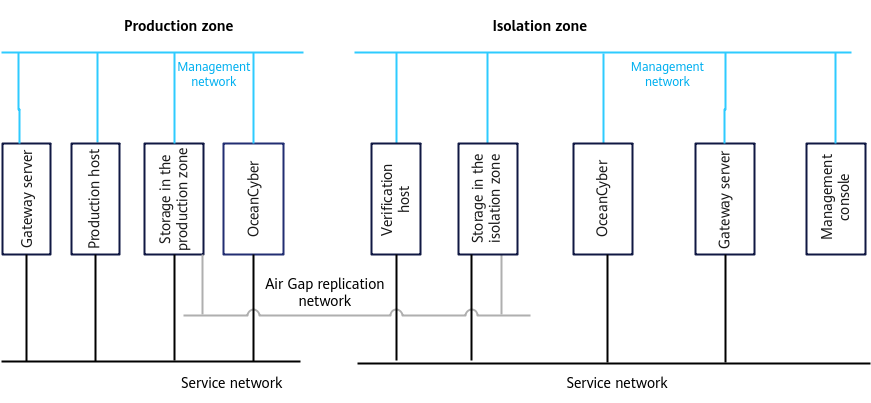
Figure 3-5 Network planning diagram
- Network planes
- The management networks are used for system management and network communication between devices.
- The Air Gap replication network is used for replication data communication between the backup storage in the production zone and that in the isolation zone.
- The service networks are used for network communication between hosts and storage devices.
- Network planning for backup storage in the production zone/isolation zone
- Physical port planning: You need to plan network ports for connecting the gateway server to backup storage, and network ports used for the replication link between backup storage in the production zone and that in the isolation zone. You can plan ports based on service requirements.
- Logical port planning: Logical ports are created for connections among the remote replication between storage arrays by using Air Gap, the gateway server, and backup storage. You are advised to configure at least one logical port for each 10GE port. If Fibre Channel is used for replication links between storage arrays or links between hosts and storage arrays, you do not need to create logical ports.
- Network planning for hosts
Physical port planning: Plan physical ports based on the data to be backed up. It is recommended that each host have at least two 10GE physical ports.
- Network planning for gateway servers
Physical port planning: Plan physical ports based on the data to be backed up. It is recommended that each gateway server have at least four 10GE physical ports.
- Network planning for backup servers
Physical port planning: Ensure that the management network of the backup server can communicate with that of the gateway server.
- Network planning for the OceanCyber 300 Data Security Appliance
For details, see « Installation Planning and Preparation » in the OceanCyber 300 Data Security Appliance V200R001 Installation Guide.
- Routine O&M management planning
Configure a management console in the isolation zone to access the storage devices in the isolation zone and maintain the OceanCyber.
3.2.2 Storage Planning for the Isolation Zone
Storage capacity planning:
The storage capacity of OceanProtect X8000 in the isolation zone is planned based on the capacity of the file systems that need to be replicated to the isolation zone in the space of OceanProtect X8000 in the production zone. The isolation zone has scenarios where the data retention period of periodic secure snapshots is prolonged and snapshot clone volumes are used for restoration and verification. Therefore, you are advised to reserve a space of at least 20% capacity of the original file system. This prevents insufficient capacity of the storage pool in the isolation zone from affecting data synchronization from the production zone to the isolation zone.
The size of a secure snapshot space is related to the number of secure snapshots, the amount of data to be overwritten, and the retention period of secure snapshots.

For example, the total space of an NAS file system to be protected is 1 TB. A secure snapshot is created every day and retained for 14 days. The amount of data to be overwritten is 0.1% (the amount of data to be overwritten is increased based on the new data). It is recommended that a snapshot be generated every hour. The required capacity is 33.6% (0.1% x 336 = 33.6%). That is, an extra space of 33.6% is required.
3.2.3 Air Gap Planning for the Isolation Zone
This section describes the Air Gap planning for isolation zones. In the ransomware protection solution, the Air Gap capability of the isolation zone can be provided by OceanStor BCManager or by the OceanCyber Data Security Appliance in the isolation zone.

If only OceanProtect X8000 is deployed in the production zone and isolation zone, the Air Gap capability of the OceanCyber Data Security Appliance is recommended. If both OceanStor Dorado and OceanProtect X8000 are deployed, the Air Gap capability of OceanStor BCManager eReplication is recommended.
3.2.3.1 Using the OceanStor BCManager Management Server in the Isolation Zone
- OceanStor BCManager deployment
The management network of the OceanStor BCManager management server must be able to communicate with the storage device in the isolation zone. The OceanStor BCManager management server can be deployed on a physical server or VM platform and must be deployed on an independent server. It cannot be deployed on the same server as the service host. For details, see the OceanStor BCManager eReplication Product Documentation.
- Protection policy configuration on OceanStor BCManager
Typically, the synchronization time window is configured at 00:00–06:00, synchronization is executed every 24 hours, and a secure snapshot is generated after the synchronization is complete. You can adjust the policy based on service requirements.
- Secure snapshot configuration policy
It is recommended that a secure snapshot be generated in the isolation zone every day and the protection period be one month. The secure snapshot policy is configured on OceanStor BCManager. In the protection policy, a secure snapshot is created in the isolation zone each time after data synchronization is complete by using Air Gap. You can adjust the policy based on service requirements.
- License requirements
To use the Air Gap function of OceanStor BCManager, you need to import the advanced license and apply for a physical host. If no license is imported, the system provides a 90-day trial period. You can perform all Air Gap operations. After the trial period ends, the system automatically switches to the basic edition. As a result, the data restoration function is unavailable.
3.2.3.2 Using the OceanCyber Data Security Appliance in the Isolation Zone
- If the isolation zone uses the OceanCyber Data Security Appliance to provide the Air Gap capability, the management network of the OceanCyber Data Security Appliance must be able to communicate with the storage system in the isolation zone. If detection is required after replication completion, the service network of the OceanCyber Data Security Appliance must be able to communicate with the storage system in the isolation zone.
- Configuring Air Gap replication policies for the OceanCyber Data Security Appliance
Replication is performed after the backup is complete. The OceanCyber Data Security Appliance cannot detect the backup completion time of the backup software. Therefore, the backup completion time must be estimated manually, and replication should be performed accordingly.
- License requirements
To use the Air Gap capability of the OceanCyber Data Security Appliance in the isolation zone, you need to import the required license in advance. Otherwise, the capability cannot be used.
3.2.4 Planning of Verification Hosts in the Isolation Zone
Verification hosts are configured as required. Backup storage data can be accessed from the isolation zone. It is recommended that at least one verification host and backup server be deployed for periodic data consistency check.
4. Configuration Examples
This chapter describes how to configure and verify the ransomware protection in the production and isolation zones of the OceanCyber 300+OceanProtect X8000+Veeam Backup 13 ransomware protection backup storage solution.
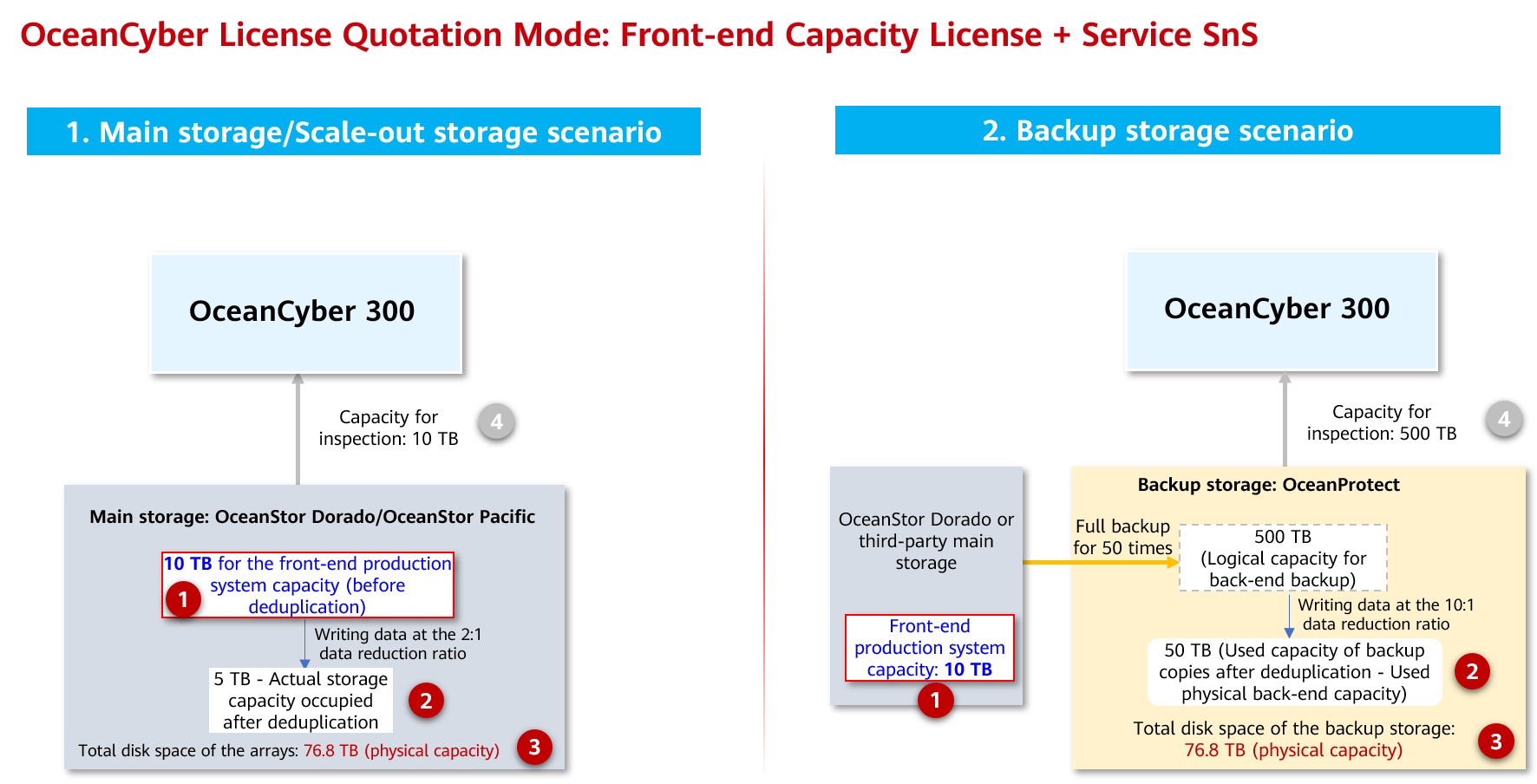
- Capacity configurations of the OceanCyber 300 Data Security Appliance
Figure 4-1 Capacity configuration
4.1 Networking for the Configuration Example
4.2 Hardware and Software Configurations
4.3 Production Zone Protection
4.1 Networking for the Configuration Example
4.1.1 Networking Example Using OceanStor BCManager in the Isolation Zone
- Networking diagram 1 in the LLD template for reference
Figure 4-2 Template of the ransomware protection storage solution (for external OceanCyber)
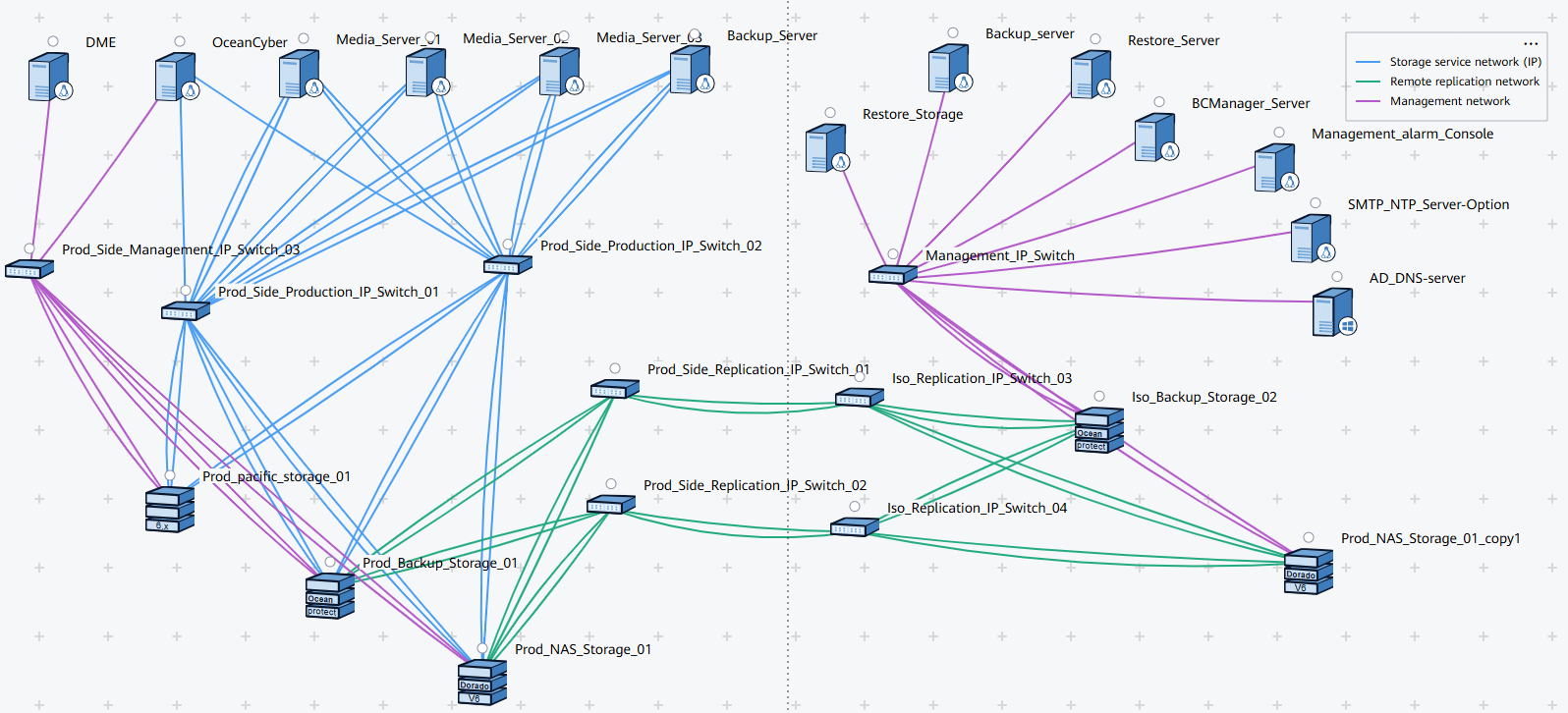
Figure 4-3 Networking diagram of the isolation zone using OceanStor BCManager instance
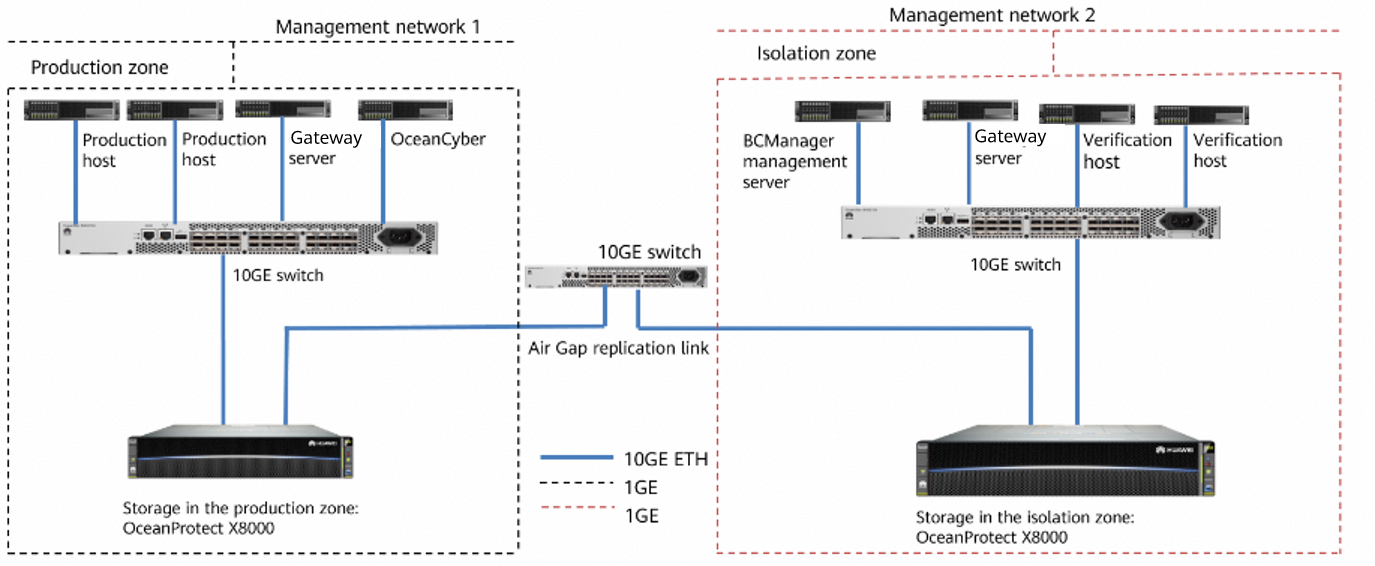
The diagram is for reference only. For details about how to connect the OceanProtect X8000 backup storage to the production host and backup server, see section « Hardware Installation » in the OceanProtect X6000, X8000 1.x Installation Guide.
Networking description:
- Production zone: In this document, the production zone consists of one production host, one backup storage OceanProtect X8000, one backup server (deployed together with the gateway server), one OceanCyber 300 Data Security Appliance, and one 10GE switch.
- Each production host is connected to the gateway server through at least two 10GE links of a 10GE switch.
- The backup storage OceanProtect X8000 in the production zone is connected to the gateway server through at least two 10GE links of a 10GE switch.
- The backup server and gateway server are co-deployed on the same server.
- The OceanCyber 300 Data Security Appliance is connected to OceanProtect X8000 through a 10GE switch. For details about the port connection, see « Installation Planning and Preparation > Network Planning » in the OceanCyber V200R001C10 Installation Guide.
- Isolation zone: In this document, the isolation zone consists of one verification host (optional), one backup storage OceanProtect X8000, one backup server (co-deployed with the media server) (optional), one OceanStor BCManager management server, and one 10GE switch.
- Each verification host is connected to the gateway server through at least two 10GE links of a 10GE switch.
- The backup storage OceanProtect X8000 in the isolation zone is connected to the gateway server through at least two 10GE links of a 10GE switch.
- The backup server and gateway server are co-deployed on the same server.
- The management network of the OceanStor BCManager management server can communicate with that of the backup storage OceanProtect X8000 in the isolation zone.
- Replication link
In the actual test, the replication links between the production zone and isolation zone are connected to one switch. The storage devices in the production zone and isolation zone are connected to the switch through four 10GE optical fibers, two for controller A and the other two for controller B of each storage device.
Table 4-1 Example of IP address planning for the networking (public IP addresses are in the same network segment)
Component | Network Type | Port Rate | IP Address Planning |
|---|---|---|---|
Production host | Management network | One GE port: 1000 Mbit/s | Public IP address (configured based on service requirements) |
Backup service network (connected to the 10GE switch) | One 10GE port: 10 Gbit/s | 192.168.100.x | |
OceanCyber 300 Data Security Appliance | Management network | One GE port: 1000 Mbit/s | Public IP address (configured based on service requirements) |
Detection and analysis service network (connected to the 10GE switch) | One 10GE port: 10 Gbit/s | 192.168.100.x | |
Gateway server | Management network | One GE port: 1000 Mbit/s | Public IP address (configured based on service requirements) |
Backup service network (connected to the 10GE switch) | One 10GE port: 10 Gbit/s | 192.168.100.x | |
OceanProtect X8000 | Management network | One GE port per controller: 1000 Mbit/s | Public IP address (configured based on service requirements) |
Backup service network (connected to the 10GE switch) | Two 10GE ports per controller: 10 Gbit/s | Controller A: 192.168.100.x Controller B: 192.168.100.x | |
Replication link network (connected to the 10GE switch) | Two 10GE ports per controller: 10 Gbit/s | 192.168.101.x-192.168.101.x | |
OceanStor BCManager | Management network | One GE port: 1000 Mbit/s | Public IP address (configured based on service requirements) |

The IP address planning is for reference only. The actual configuration depends on the live network.
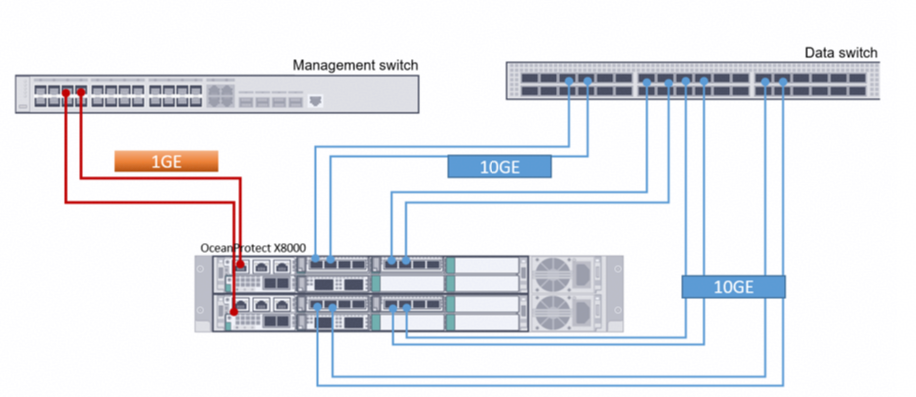
Figure 4-4 Networking for connecting OceanProtect X8000 to switches
4.1.2 Networking Example Using the OceanCyber Data Security Appliance in the Isolation Zone
- Networking diagram 1 in the LLD template for reference
Figure 4-5 Template of the ransomware protection storage solution (for external OceanCyber)
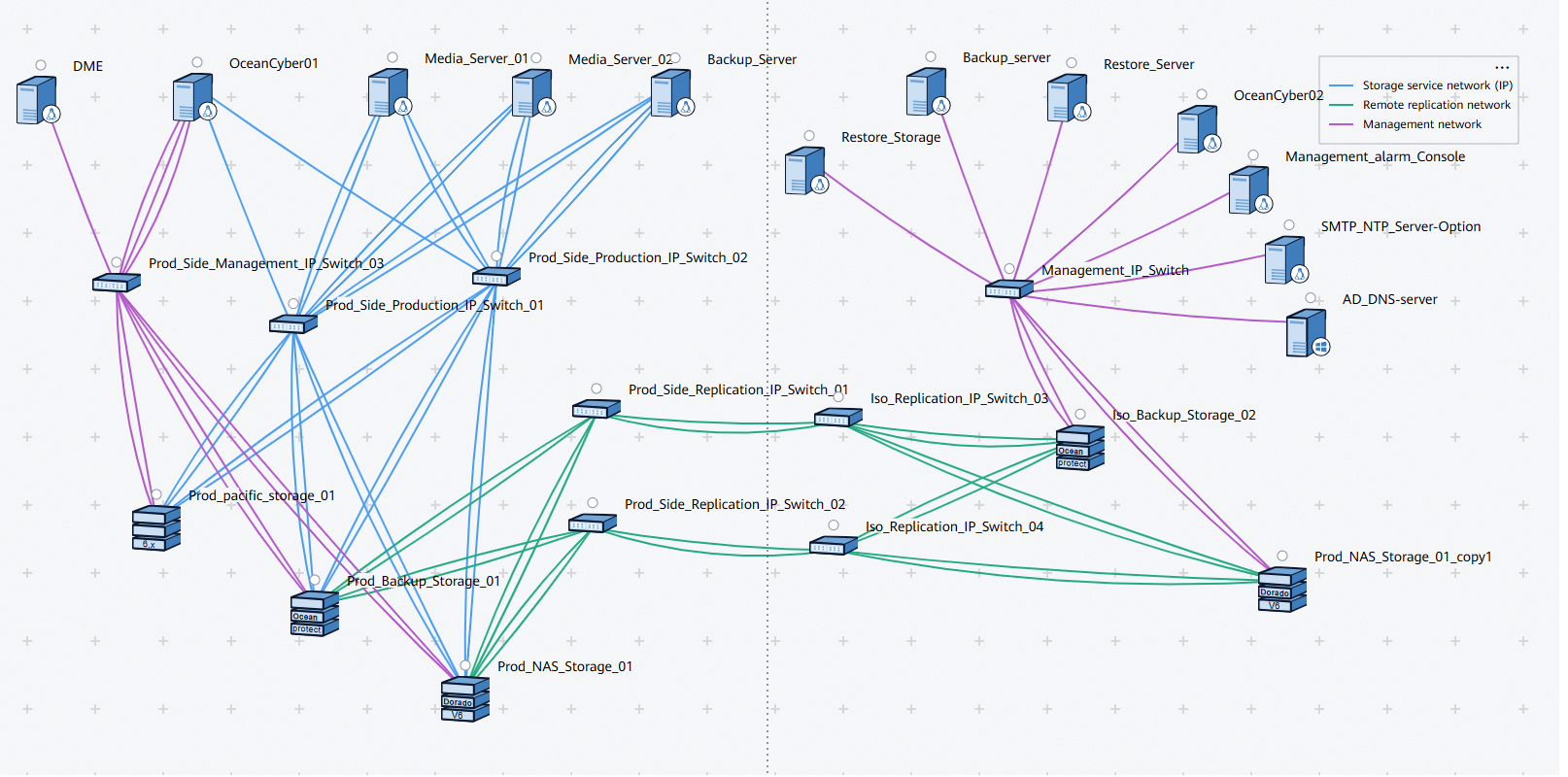
Figure 4-6 Networking diagram of the isolation zone using the OceanCyber Data Security Appliance
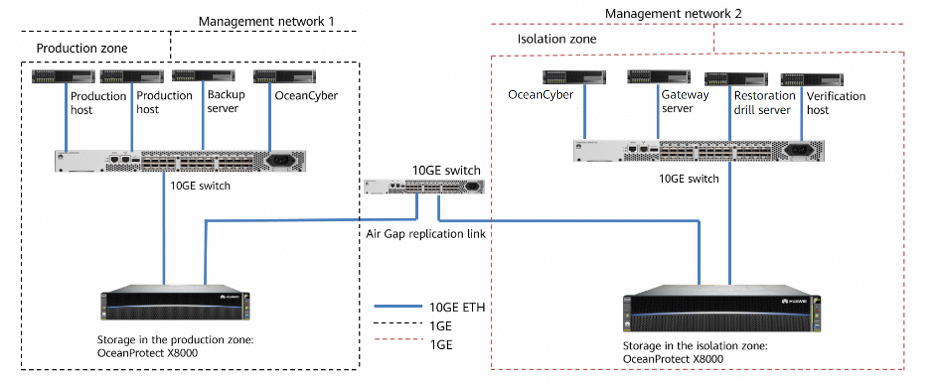
Figure 4-6 is for reference only. For details about how to connect the OceanProtect X8000 backup storage to the production host and backup server, see section « Hardware Installation » in the OceanProtect X6000, X8000 1.x Installation Guide.
Networking description:
- Production zone: In this document, the production zone consists of one production host, one backup storage OceanProtect X8000, one backup server (deployed together with the gateway server), one OceanCyber 300 Data Security Appliance, and one 10GE switch.
- Each production host is connected to the gateway server through at least two 10GE links of a 10GE switch.
- The backup storage OceanProtect X8000 in the production zone is connected to the gateway server through at least two 10GE links of a 10GE switch.
- The backup server and gateway server are co-deployed on the same server.
- The OceanCyber 300 Data Security Appliance is connected to OceanProtect X8000 through a 10GE switch. For details about the port connection, see « Installation Planning and Preparation > Network Planning » in the OceanCyber V200R001C10 Installation Guide.
- Isolation zone: In this practice, the isolation zone consists of one verification host (optional), one OceanProtect X8000 Backup Storage, one gateway server (optional), one OceanCyber Data Security Appliance, and one 10GE switch.
- Each verification host is connected to the gateway server through at least two 10GE links of a 10GE switch.
- The backup server and backup media server are deployed together on the same server.
- The data security appliance is connected to OceanProtect X8000 through a 10GE switch in the isolation zone. For details about the port connection, see « Installation Planning and Preparation > Network Planning » in the OceanCyber V200R001C10 Installation Guide.
- Replication link
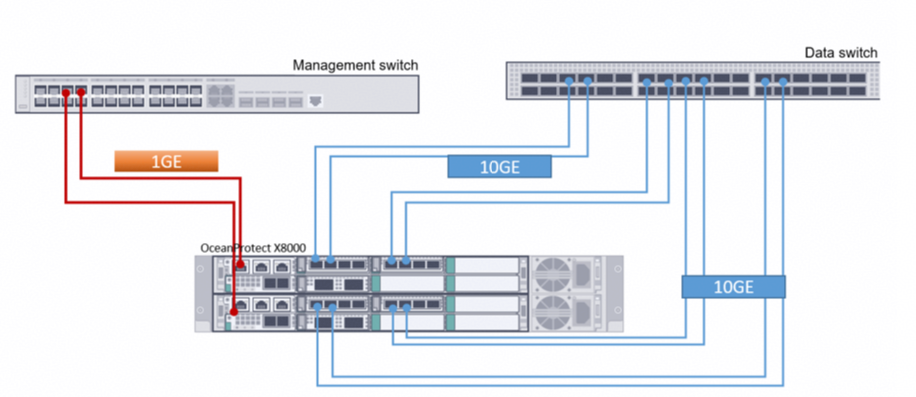
In the actual test, the replication links between the production zone and isolation zone are connected to one switch. The storage devices in the production zone and isolation zone are connected to the switch through four 10GE optical fibers, two for controller A and the other two for controller B of each storage device.
Table 4-2 Example of IP address planning for the networking (public IP addresses are in the same network segment)
Component | Network Type | Port Rate | IP Address Planning |
|---|---|---|---|
Production host | Management network | One GE port: 1000 Mbit/s | Public IP address (configured based on service requirements) |
Backup service network (connected to the 10GE switch) | One 10GE port: 10 Gbit/s | 192.168.100.x | |
OceanCyber 300 Data Security Appliance | Management network | One GE port: 1000 Mbit/s | Public IP address (configured based on service requirements) |
Detection and analysis service network (connected to the 10GE switch) | One 10GE port: 10 Gbit/s | 192.168.100.x | |
Gateway server | Management network | One GE port: 1000 Mbit/s | Public IP address (configured based on service requirements) |
Backup service network (connected to the 10GE switch) | One 10GE port: 10 Gbit/s | 192.168.100.x | |
OceanProtect X8000 | Management network | One GE port per controller: 1000 Mbit/s | Public IP address (configured based on service requirements) |
Backup service network (connected to the 10GE switch) | Two 10GE ports per controller: 10 Gbit/s | Controller A: 192.168.100.x Controller B: 192.168.100.x | |
Replication link network (connected to the 10GE switch) | Two 10GE ports per controller: 10 Gbit/s | 192.168.101.x-192.168.101.x |

The IP address planning is for reference only. The actual configuration depends on the live network.
Figure 4-7 Networking for connecting OceanProtect X8000 to switches
4.2 Hardware and Software Configurations
4.2.1 Hardware Configurations
Table 4-3 Hardware configurations
Name | Description | Quantity | Function |
|---|---|---|---|
Production/Verification host |
| 2 | Data host running the SUSE Linux Enterprise Server 12 |
Gateway server |
| 2 | Veeam Backup master server, which runs the backup policy, starts backup and restoration, and runs the Windows operating system |
OceanStor BCManager server |
| 1 | Server where OceanStor BCManager is installed in the isolation zone. The server management network can communicate with the storage management network in the isolation zone. |
Backup storage in the production zone/isolation zone | OceanProtect X8000, dual-controller, twelve 1.920 TB SSDs, and two 4-port FE 10GE I/O modules | 2 | Stores backup data. |
10GE switch | Huawei CE6850 | 5 | 10GE switches between replication nodes, between gateway servers and backup storage, and between gateway servers and hosts |
OceanCyber 300 Data Security Appliance |
| 1 | Used for backup data detection and analysis in the production zone. |
4.2.2 OceanProtect Configurations
Table 4-4 Configurations of OceanProtect X8000 in the production zone
Name | Description | Quantity |
|---|---|---|
OceanProtect engine | OceanProtect X8000 with two controllers | 2 |
10GE front-end interface module | 10 Gbit/s SmartIO interface module | 2 |
10GE interface module for replication between storage devices (Encryption modules can be used.) | 10 Gbit/s SmartIO interface module | 2 |
SSD | 1.920 TB SSDs | 12 |
Table 4-5 Configurations of OceanProtect X8000 in the isolation zone
Name | Description | Quantity |
|---|---|---|
OceanProtect engine | OceanProtect X8000 with two controllers | 2 |
10GE front-end interface module | 10 Gbit/s SmartIO interface module | 2 |
10GE interface module for replication between storage devices (Encryption modules can be used.) | 10 Gbit/s SmartIO interface module | 2 |
SSD | Huawei 1.920 TB SSDs | 12 |
4.2.3 Test Software and Tools
Table 4-6 Software description
Software Name | Description |
|---|---|
OceanStor BCManager 8.6.1 | OceanStor BCManager eReplication management software |
Suse 12 | SUSE Linux OS, used for installation of the OceanStor BCManager eReplication management software |
CentOS 7.6 | CentOS Linux |
Windows 2016 | Windows 2016 OS, used as the operating system of the backup software Veeam gateway server and backup server |
Xshell | SSH terminal connection tool |
OceanCyber V200R001C10 | OceanCyber 300 uses the Huawei-developed ransomware detection algorithm and supports unified ransomware protection management for multiple devices of different types. It features accurate detection, high detection performance, comprehensive protection, and fast data restoration. |
Veeam Backup 13 | It is used for data backup and restoration in the virtualization environment. It can also be used to back up physical servers, cloud platforms, files, and services. |
OceanProtect X8000 V200R001C10SPC100 | OceanProtect X8000 is a high-performance backup storage solution developed by Huawei to meet enterprise-level data protection requirements. It integrates advanced backup technologies, efficient storage management, and flexible data restoration functions to help enterprises effectively cope with risks such as data loss and damage. |
4.3 Production Zone Protection
4.3.1 Configurations in the Production Zone
4.3.1.1 Configuring the OceanCyber Data Security Appliance
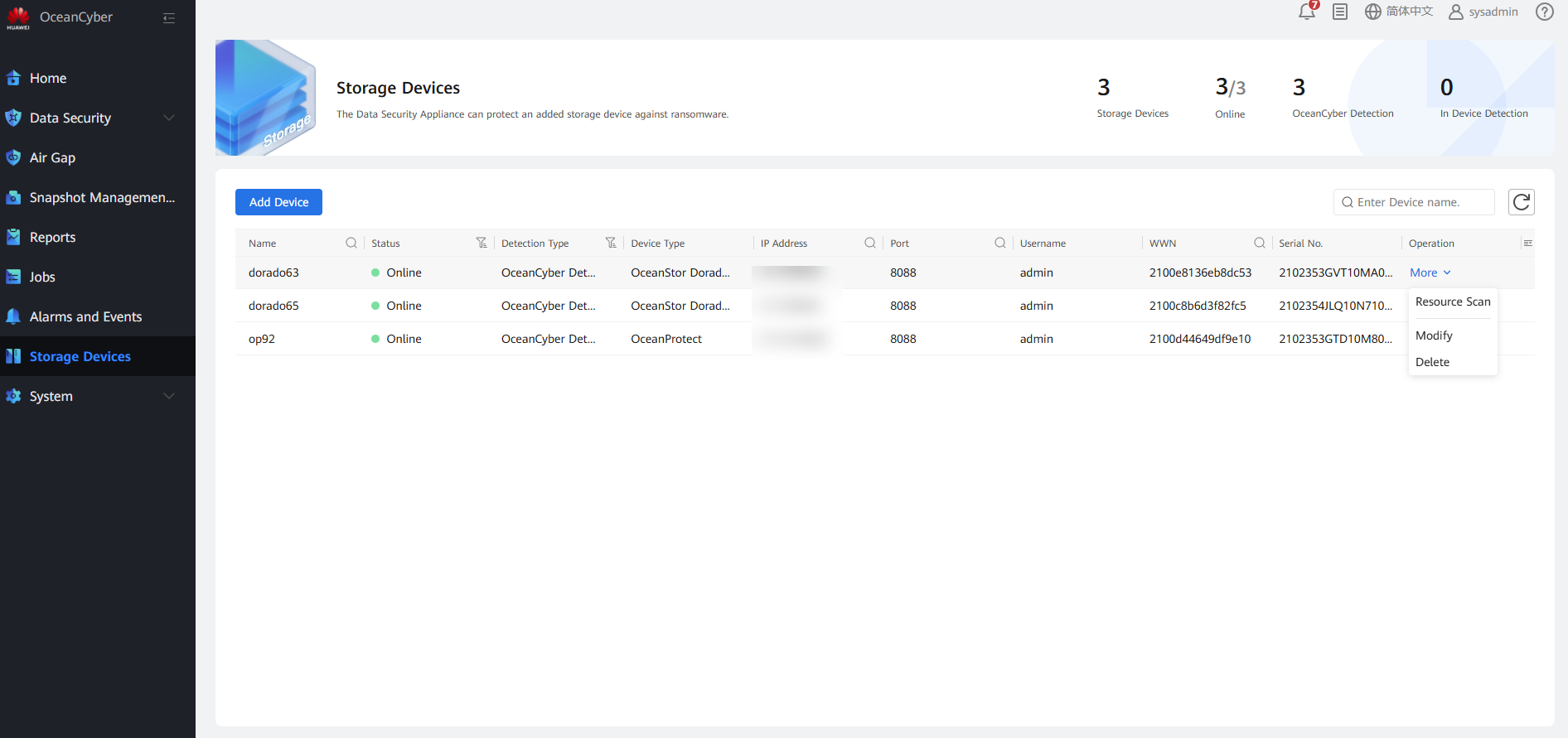
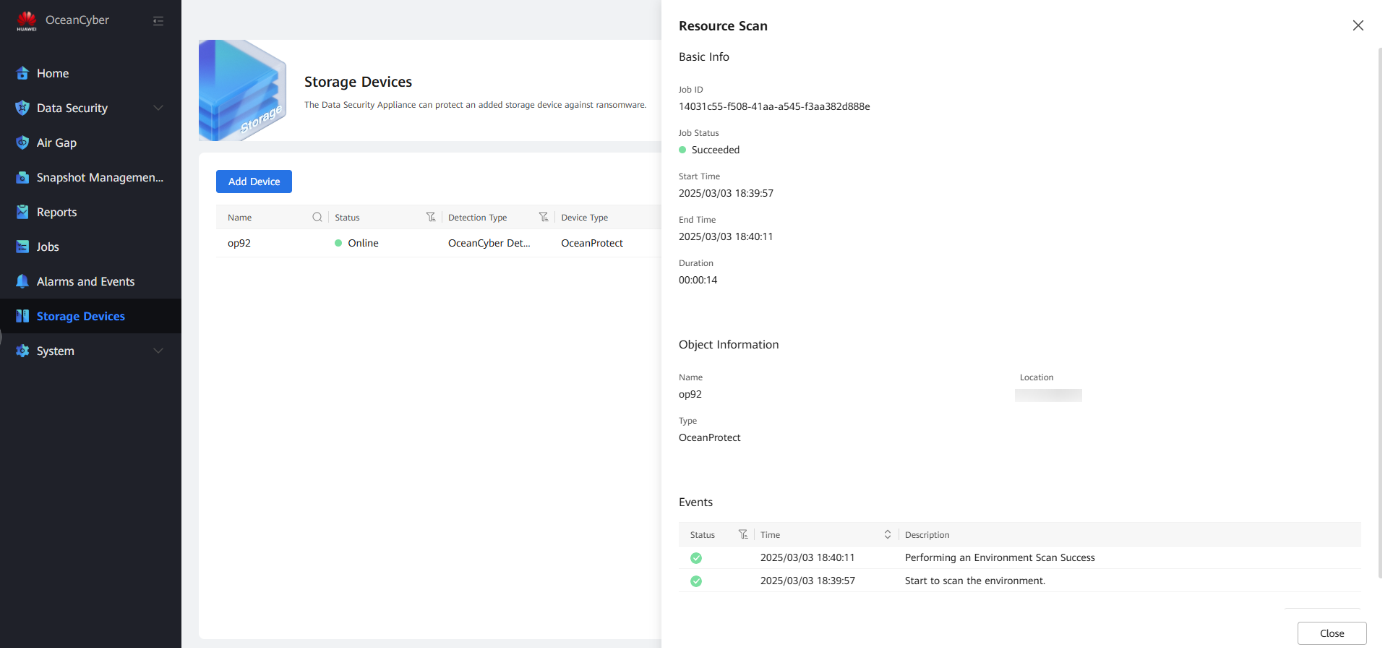
Step 1 Log in to the OceanCyber Data Security Appliance, choose Data Security > Storage Devices, and click Add Device. The Add Device page is displayed. Set Detection Type to OceanCyber Detection and Device Type to OceanProtect. Customize the device name, enter the storage IP address, username, and password of the OceanProtect X8000 in the production center, and click OK.
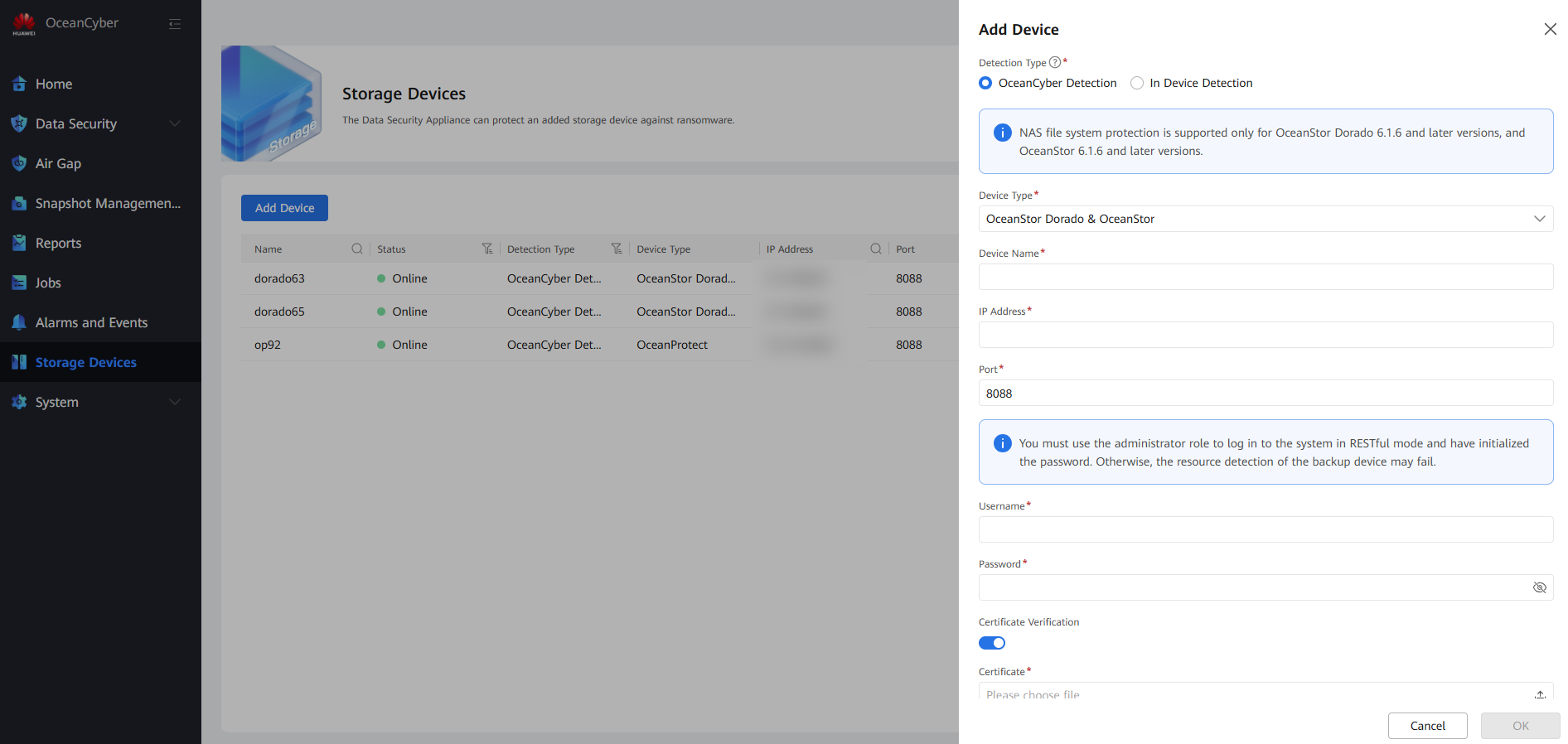
Step 2 After a storage device is added, select it, and choose More > Resource Scan to scan the local file system of the storage device.
View storage resource updates.
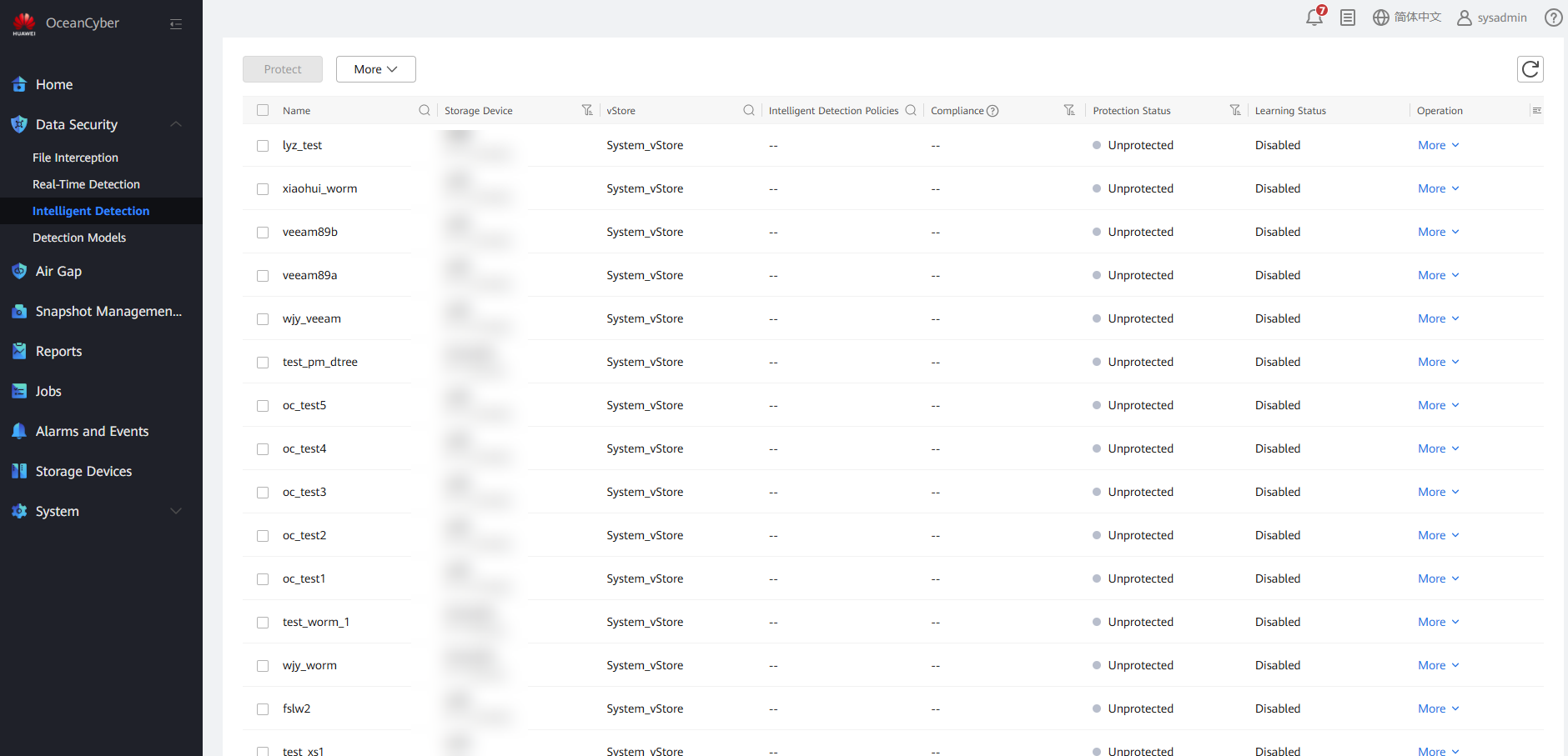
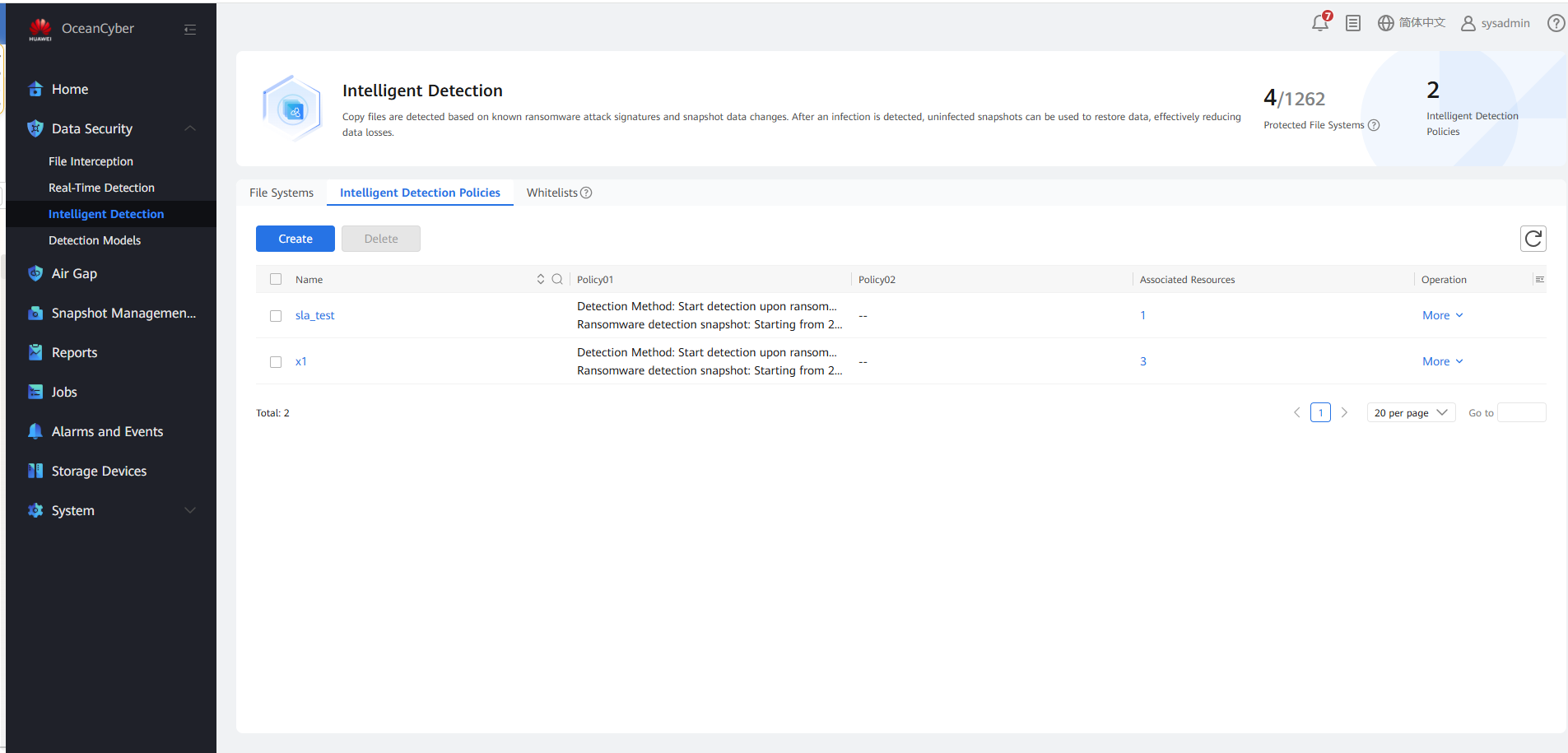
Step 3 Choose Data Security > Intelligent Detection > Intelligent Detection Policies.
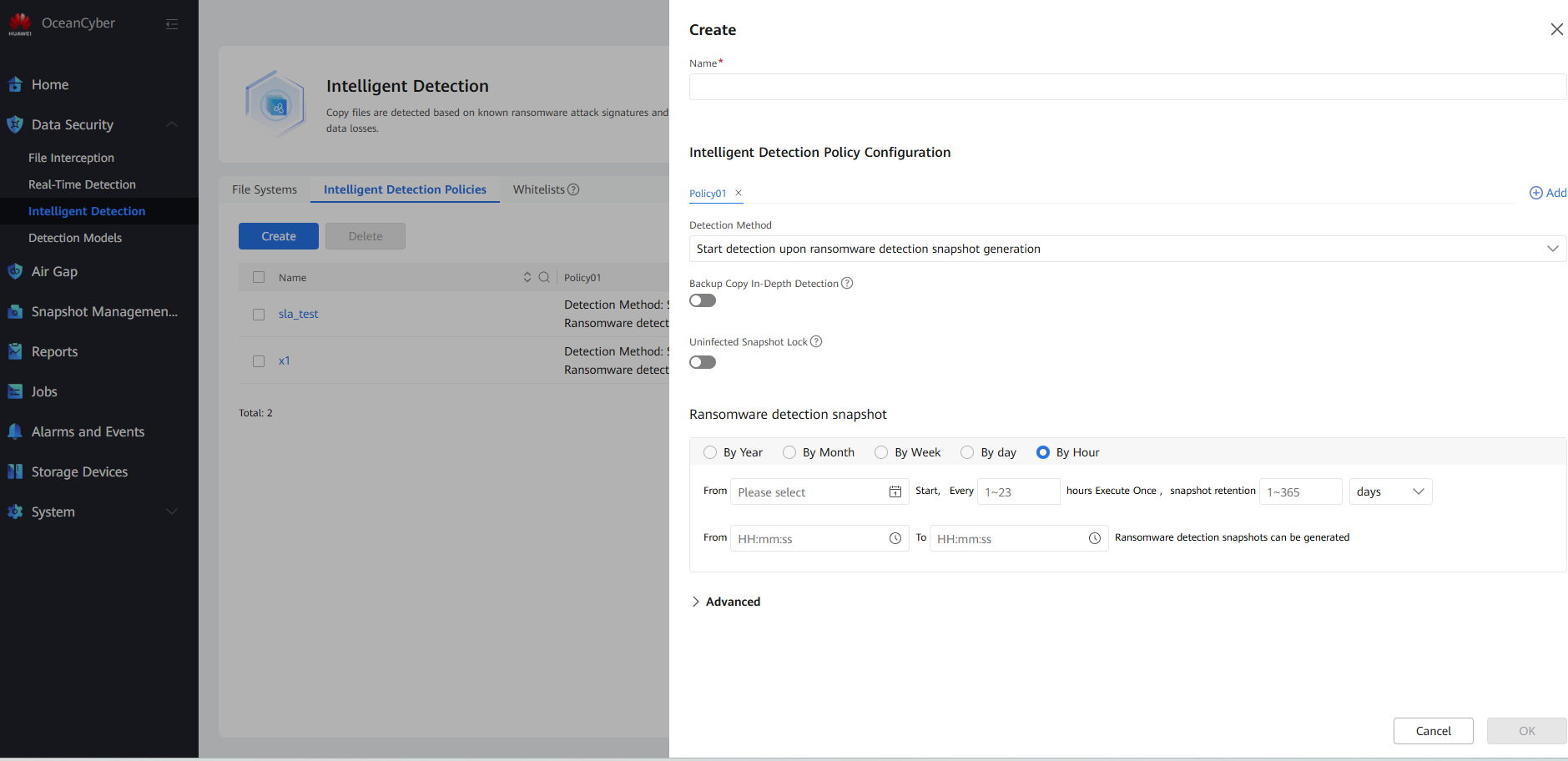
Step 4 Click Create. On the page that is displayed, enable Backup Copy In-Depth Detection (After this function is enabled, the system performs in-depth parsing and detection on backup copies in the backup storage, which may prolong the overall detection time. You are advised to enable this function when the intelligent detection policy is applied to file systems of an OceanProtect storage device.) and Uninfected Snapshot Lock (After this function is enabled, uninfected snapshots will change to secure snapshots, and the snapshot retention period will be prolonged. Modification or deletion is not allowed before the snapshots expire.)
—-End
4.3.1.2 Configuring Backup Storage
According to the plan in this solution, create file systems and CIFS shares on OceanProtect X8000. The configuration procedure is as follows: Create a storage pool, logical port, file system, local Windows authentication user, and CIFS share.
Creating a Storage Pool
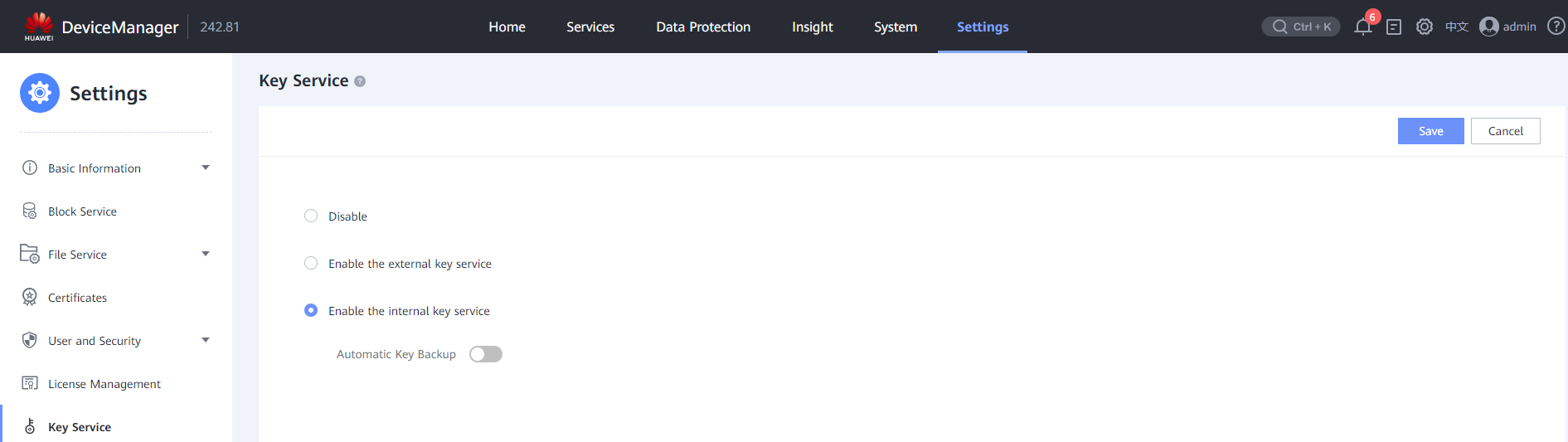
- Configure the key service.
Log in to DeviceManager, choose Settings > Key Service > Modify, and select Enable the external key service or Enable the internal key service as required. This best practice uses the internal key service. If the external key service is enabled, an external key server must be configured. The basic process is the same.
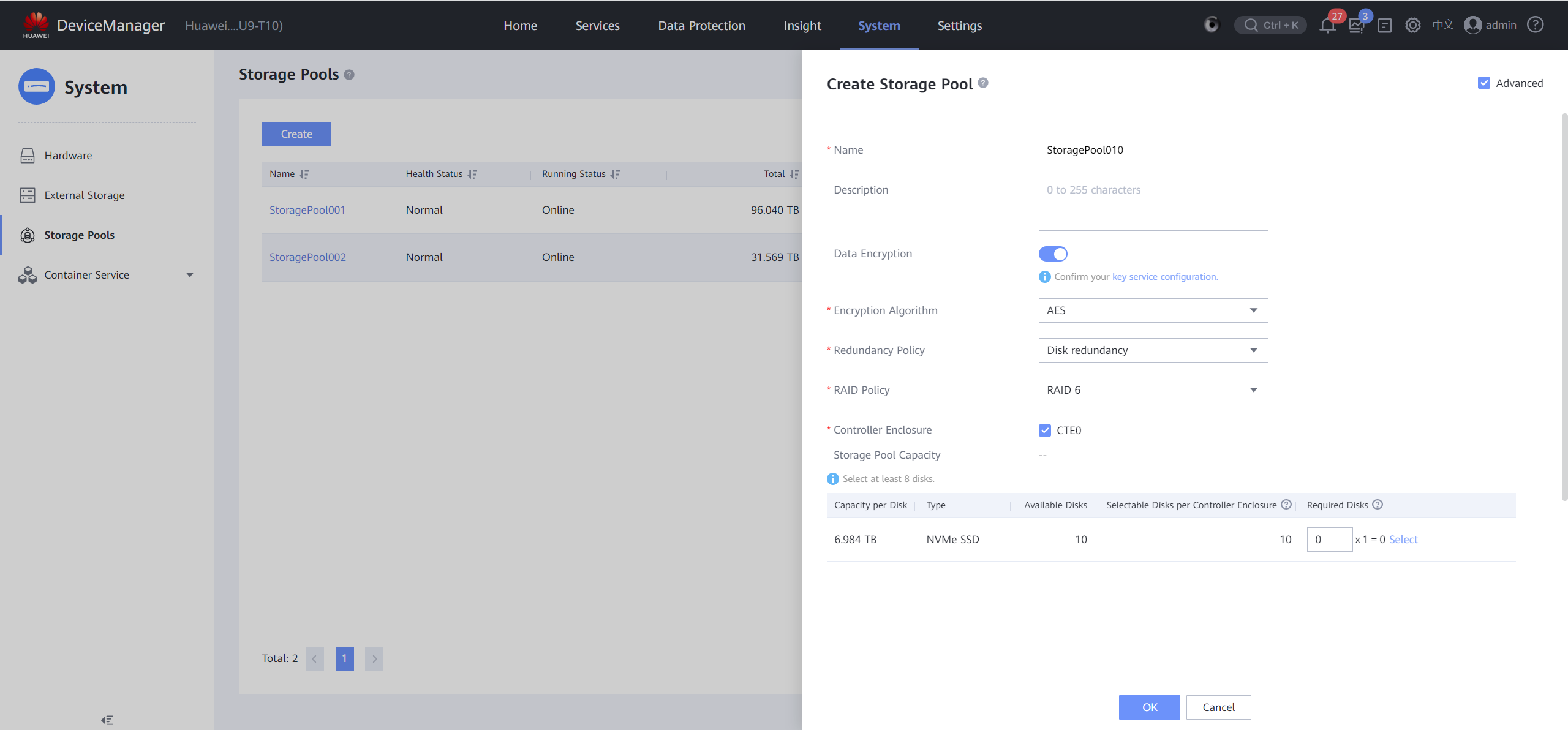
2. Create a self-encrypting storage pool.
Choose System > Storage Pools > Create. On the page that is displayed, select Advanced, enable Data Encryption, and select an encryption algorithm.
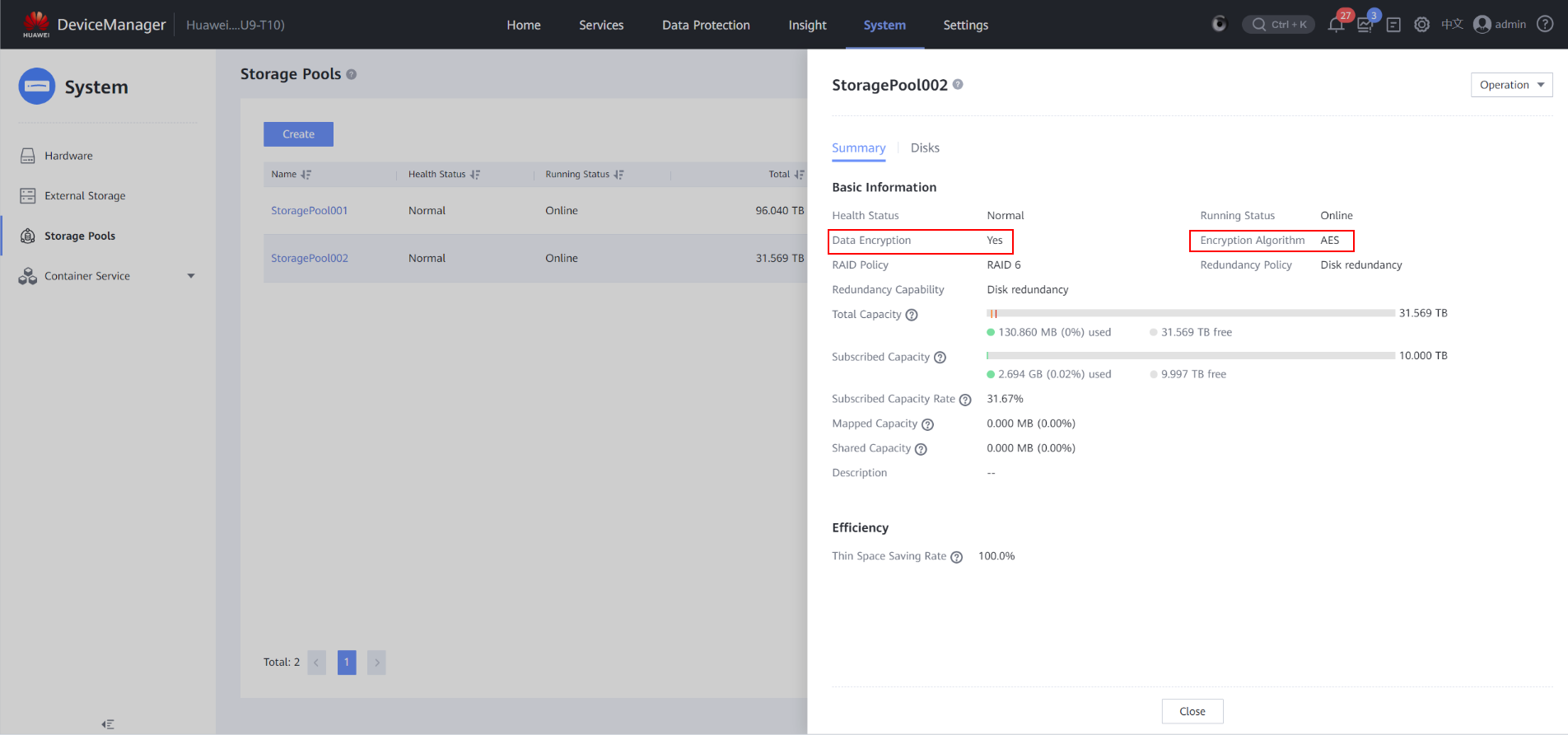
3. View the created self-encrypting storage pool.
Choose System > Storage Pools, locate the created self-encrypting storage pool, and click the storage pool name to view its summary. The value of Data Encryption is Yes and that of Encryption Algorithm is the encryption algorithm you have selected.
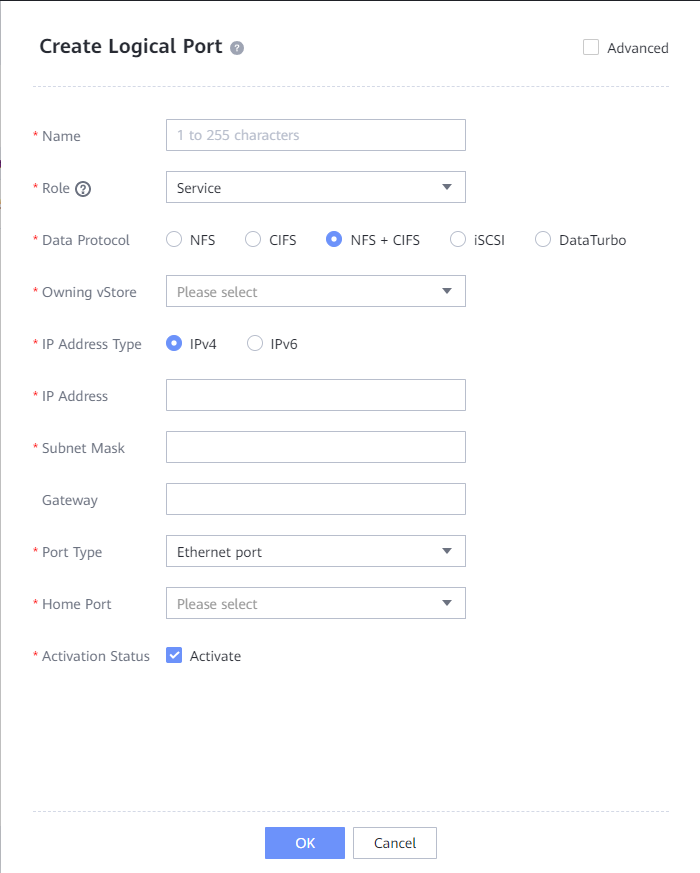
4.3.1.2.2 Creating a Logical Port
In this best practice, OceanProtect X8000 has two physical ports. Select a physical port to create a logical port for mounting the file system to the Veeam backup software. Set Data Protocol to NFS + CIFS.
The following figure shows a logical port configuration example.
4.3.1.2.3 Creating a File System and a Share
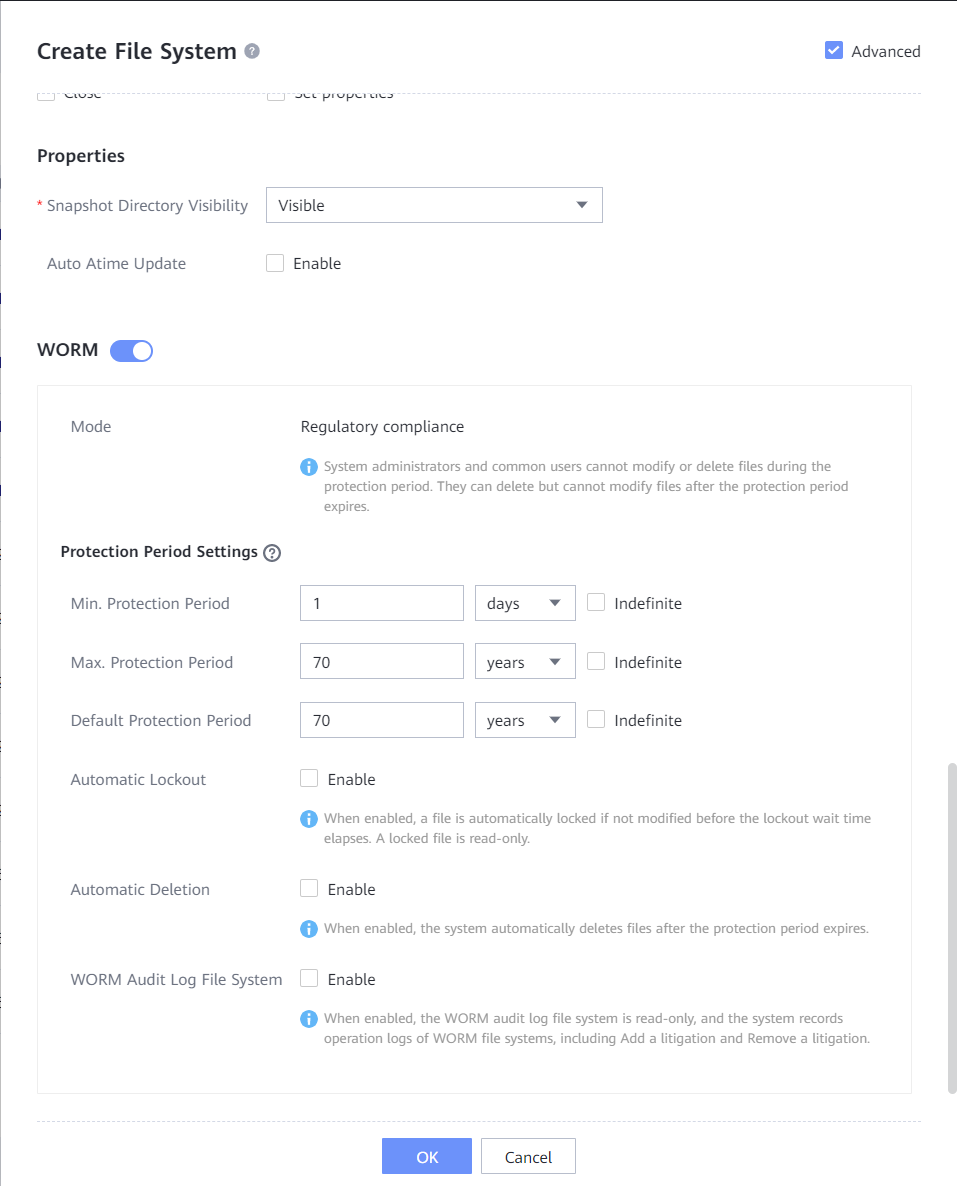
- Create a file system, enter the file system name, and set Owning vStore and Owning Storage Pool. If the backup proxy of Veeam Backup 13 runs the Windows OS, set Security Style of the file system to NTFS. If the backup proxy of Veeam Backup 13 runs the Linux OS, set Security Style of the file system to UNIX. (This practice uses the Windows OS as an example.) Select Advanced, and configure WORM attributes of the file system. Set Min. Protection Period, Max. Protection Period, and Default Protection Period (the WORM retention period of backup copies must be within the minimum to maximum protection period of the file system). Keep Automatic Lockout disabled.
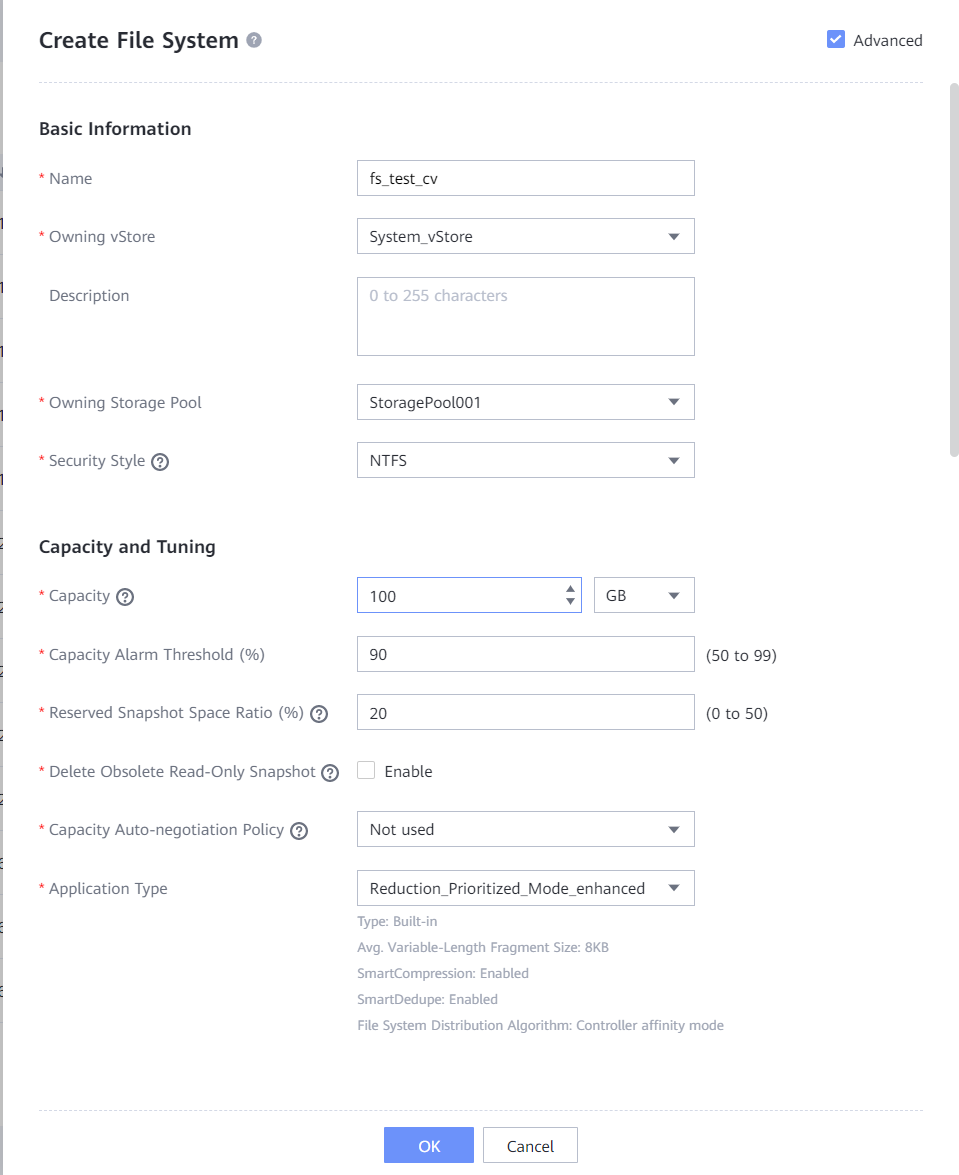
Setting parameters
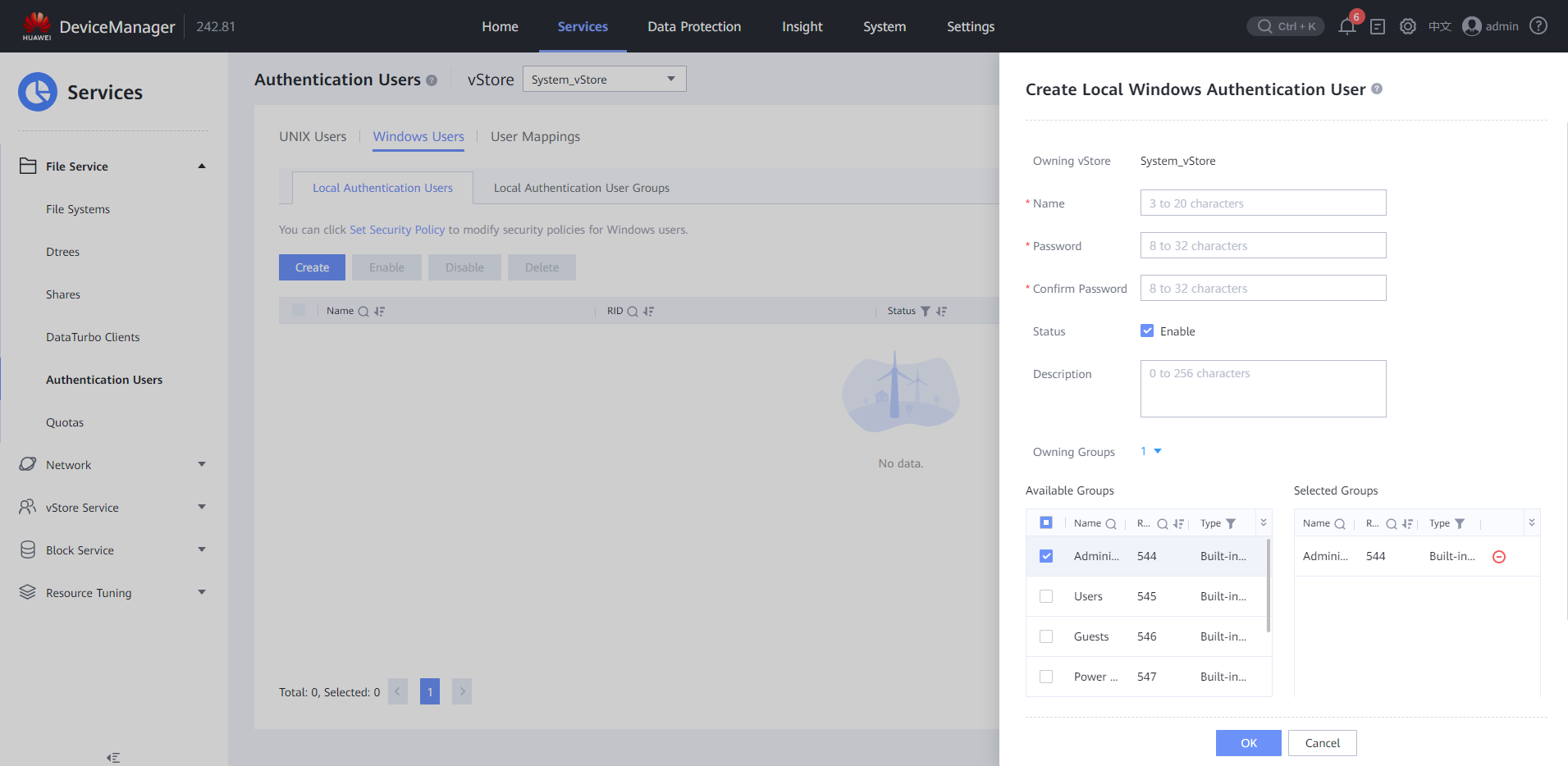
2.Create a local Windows user group. Specifically, choose Services > Authenticated Users > Windows Users > Local Authentication Users > Create to create a local Windows authentication user. Select the Administrators built-in group.
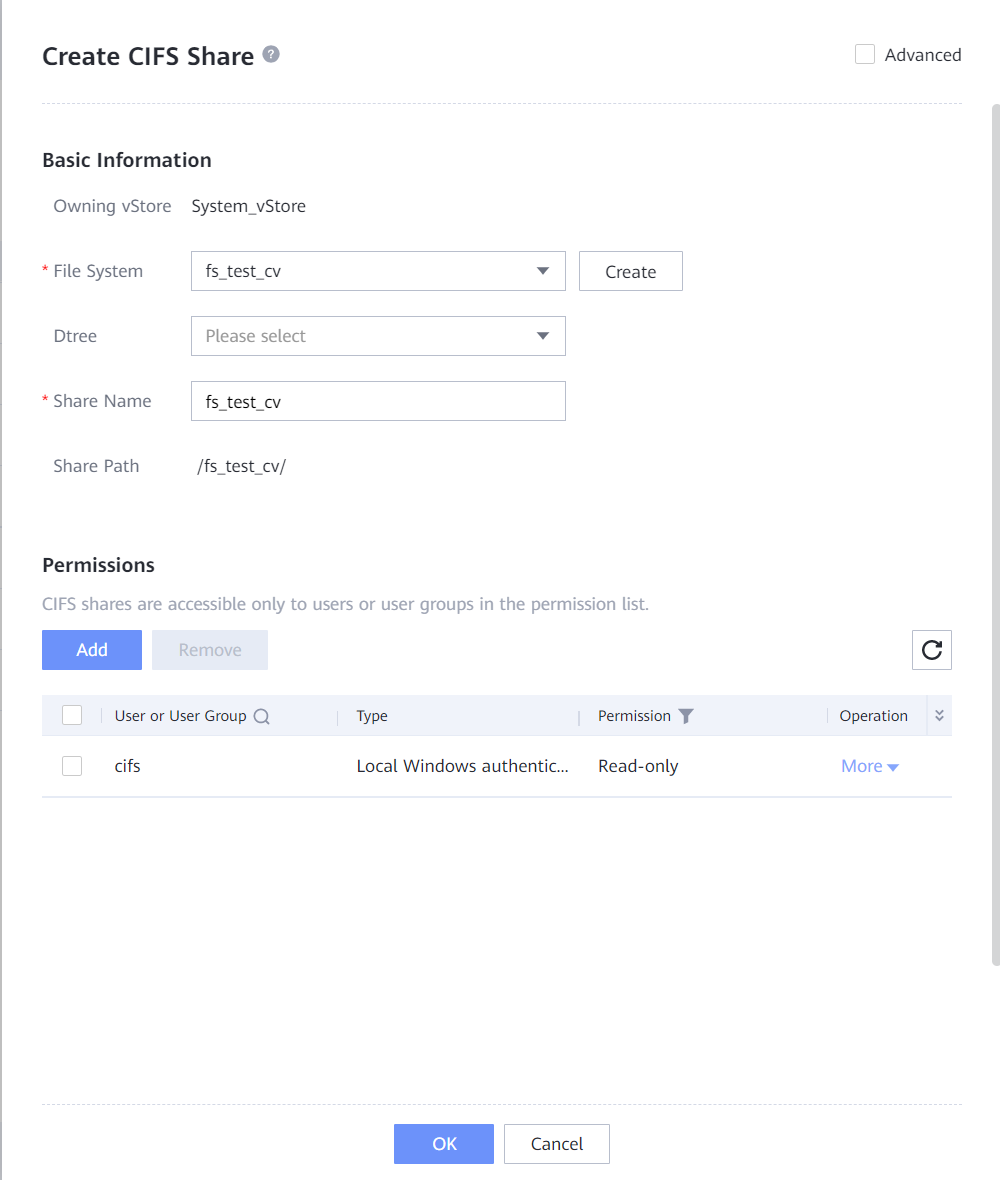
3.Create a CIFS share. Specifically, choose Services > Shares > CIFS Shares > Create, select the file system for which you want to create a CIFS share, click Add, select the created local Windows authentication user, and set Permission to Full control.
4.3.1.3 Installing the Veeam Backup and Replication Backup Software
You are advised to deploy the software by referring to the officially released guide.
4.3.1.4 Configuring the Veeam Backup Environment
4.3.1.4.1 Configuring OceanProtect
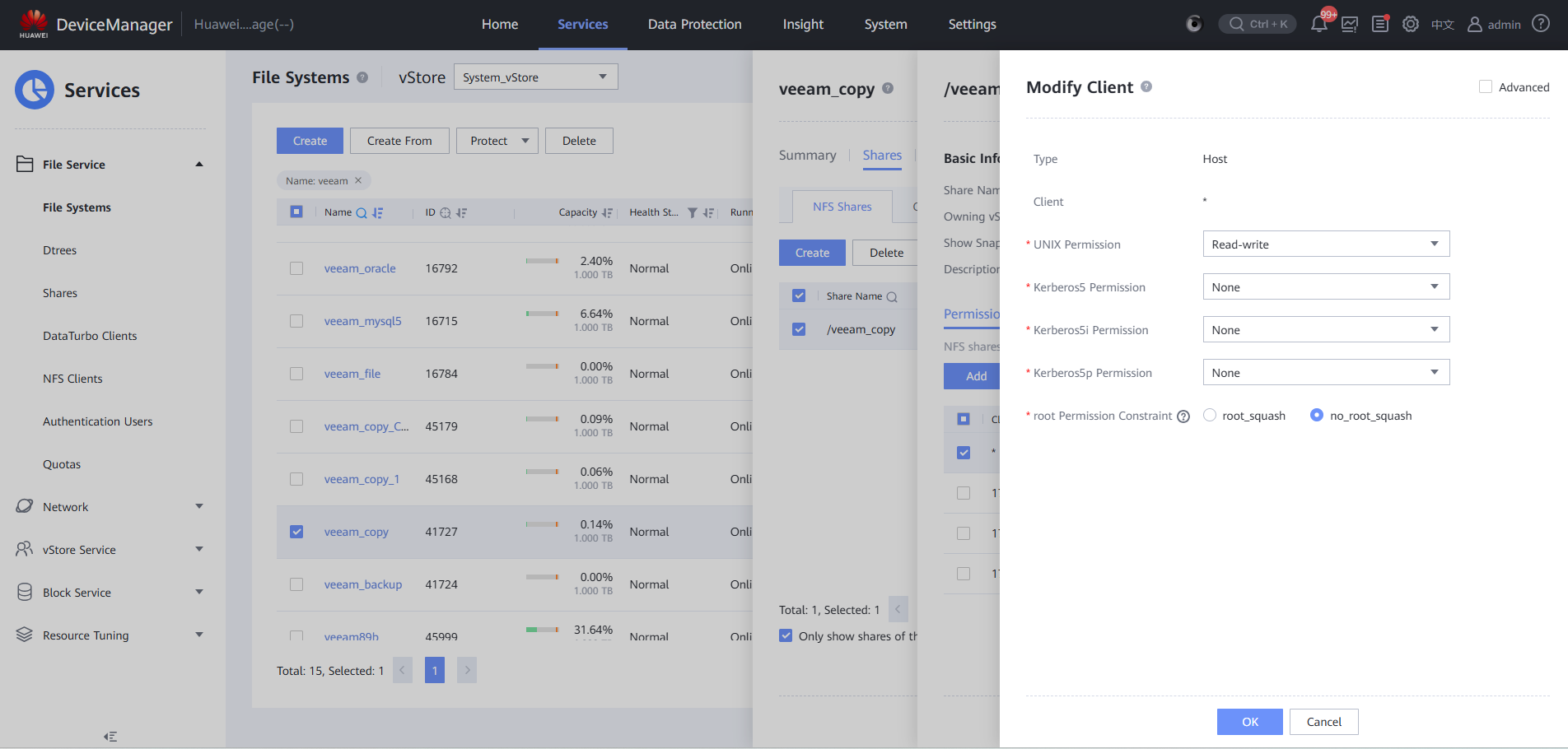
Step 1 Ensure that a file system and an NFS share have been created on the OceanProtect storage (Change Root Permission Constraint on the Modify Client page to no_root_squash). You can access the share through the host where the storage node resides.
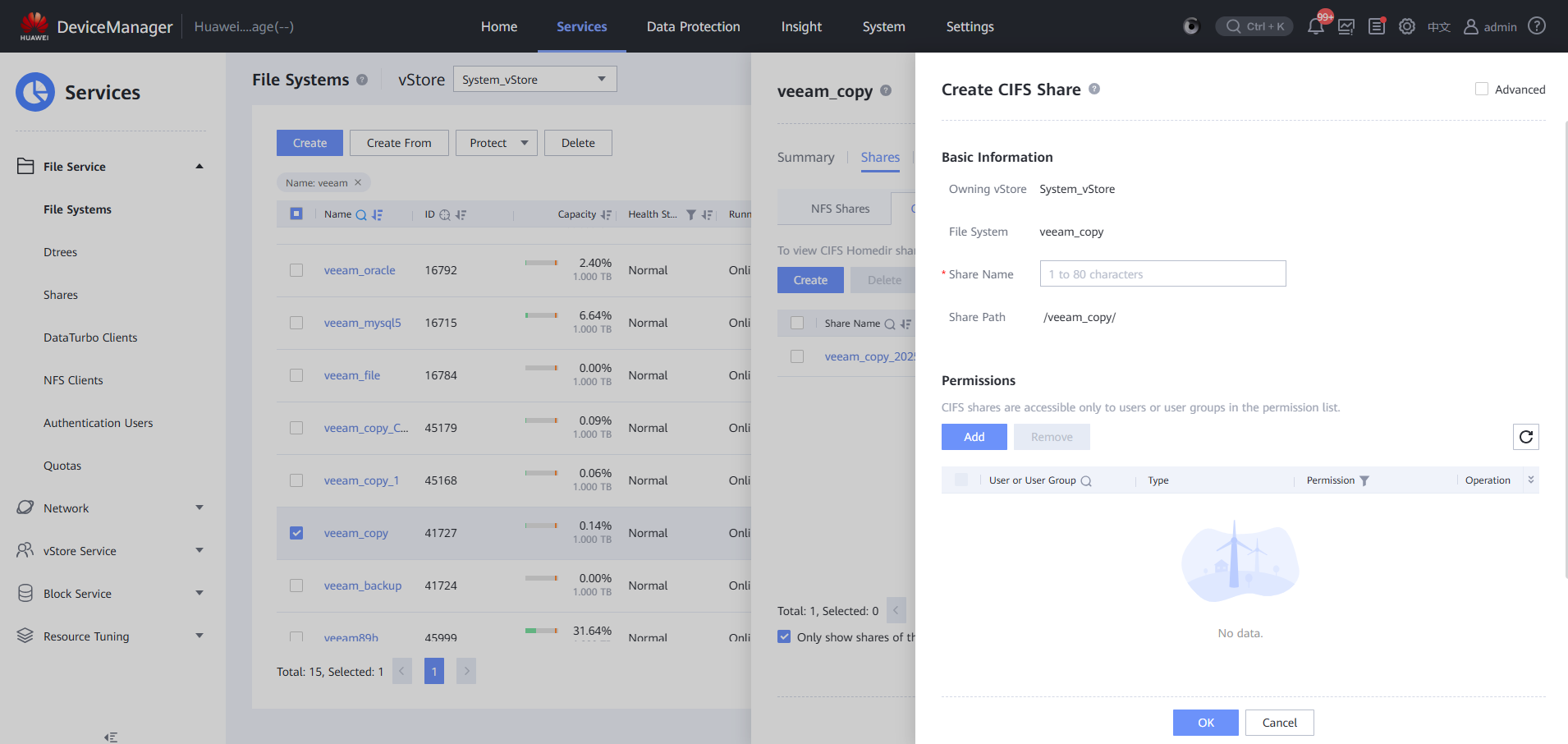
Step 2 Add CIFS to OceanProtect.
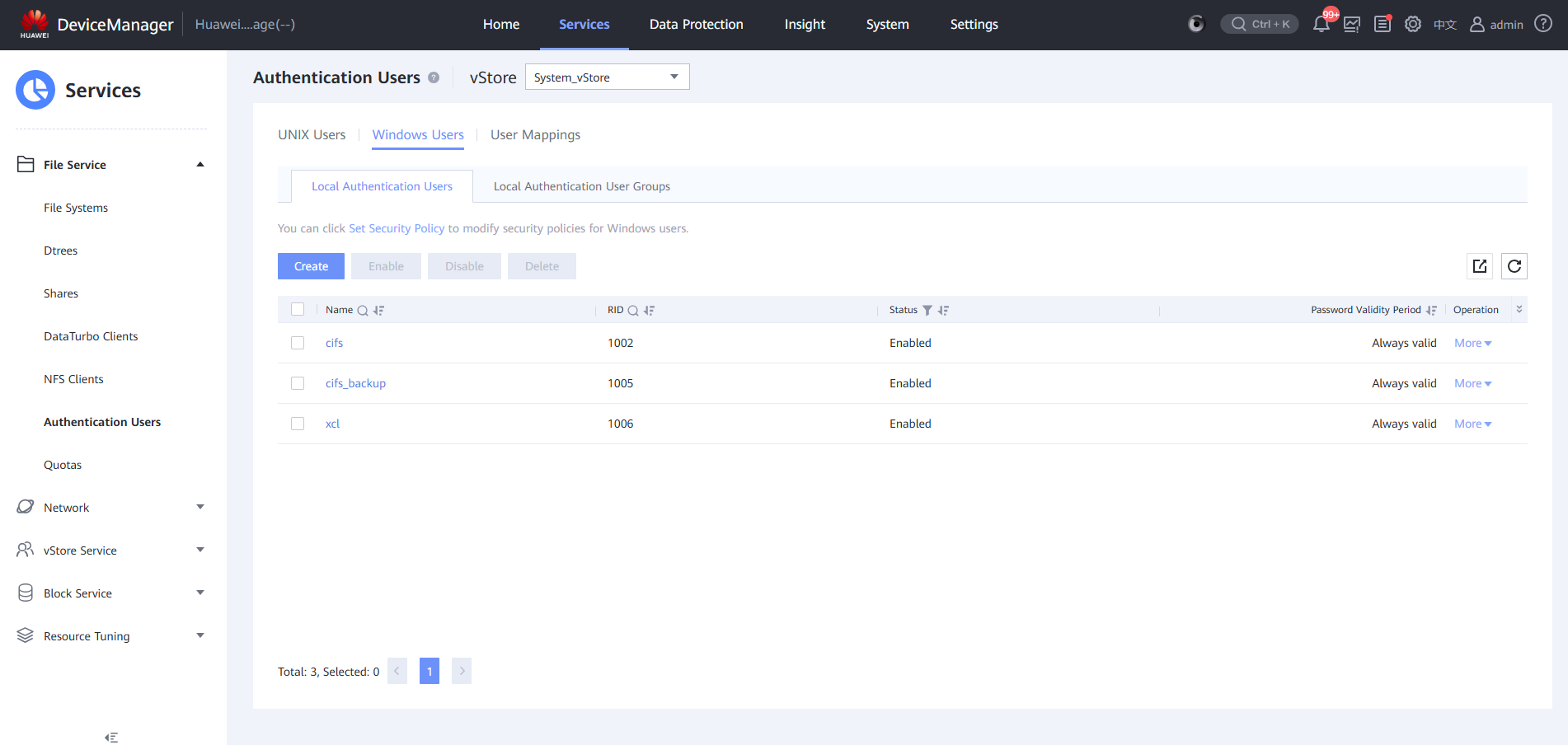
Step 3 Access and view information by using a user set on the storage device or a shared port.
—-End
4.3.1.4.2 Adding Veeam to OceanProtect
Step 1 Before creating a Veeam repository, manage the Linux host server where the gateway server resides. (The procedure for creating a Veeam repository for Windows is the same and is omitted here.)
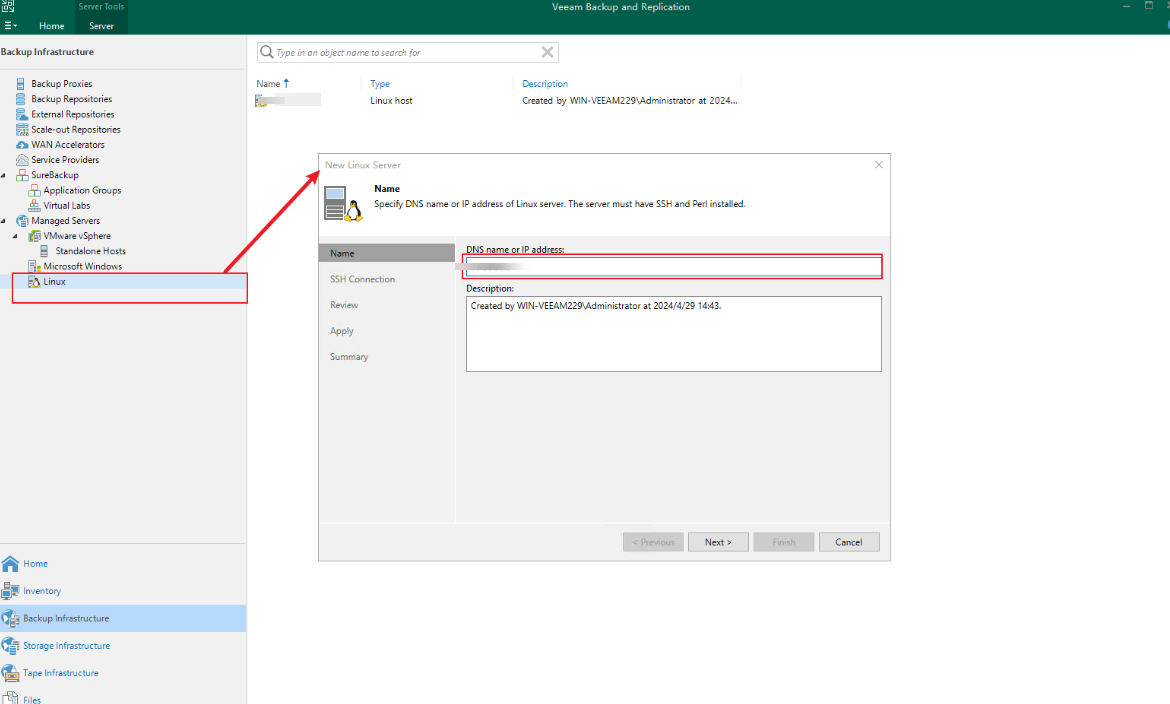
Mount a VM.
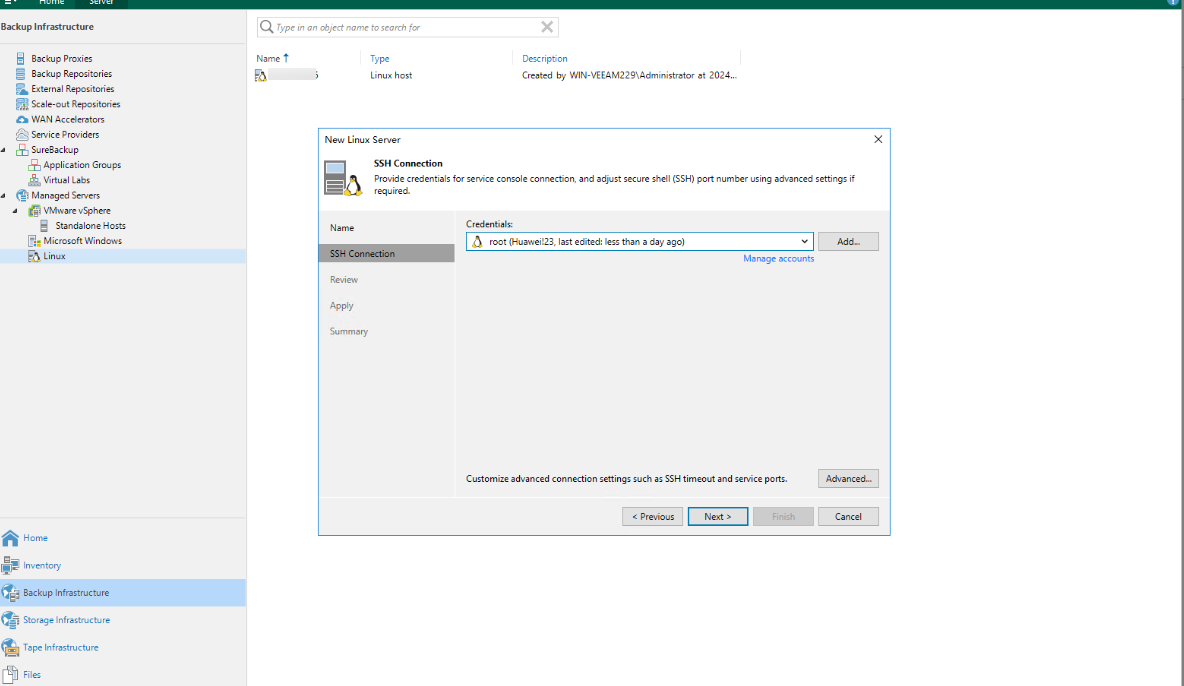
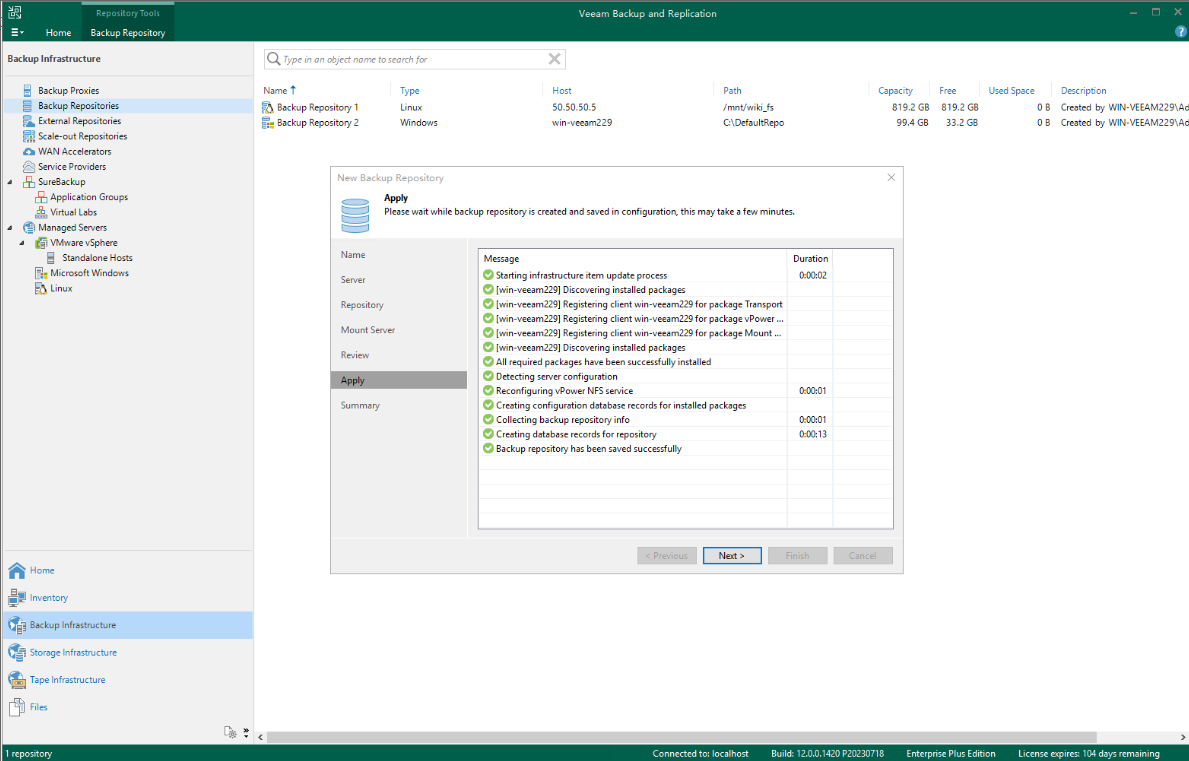
Step 2 Add a Veeam repository.
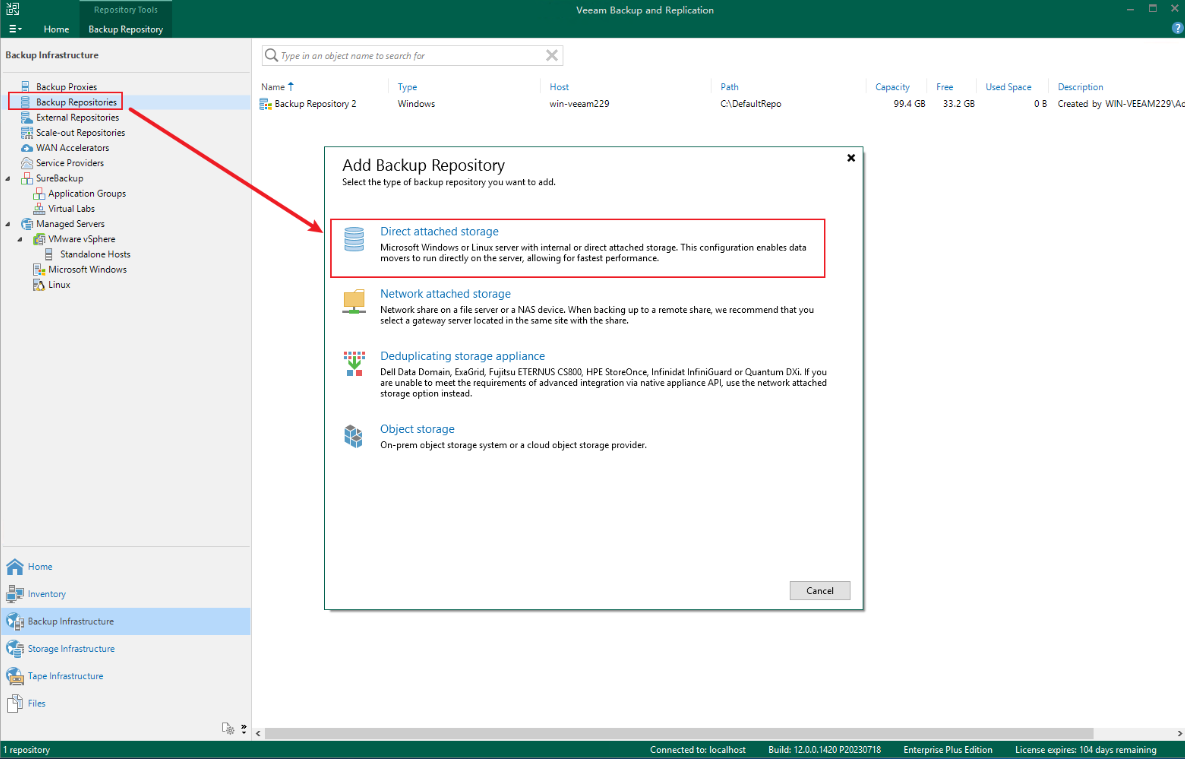
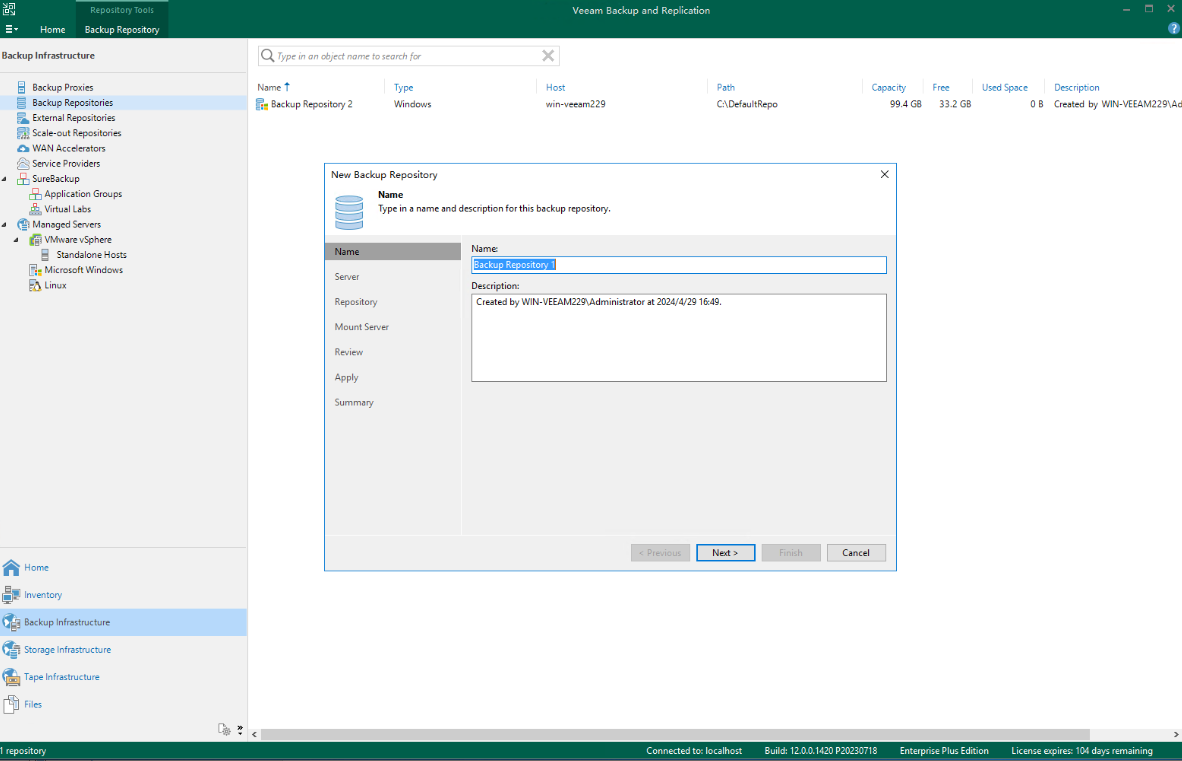
Set parameters and click Next.
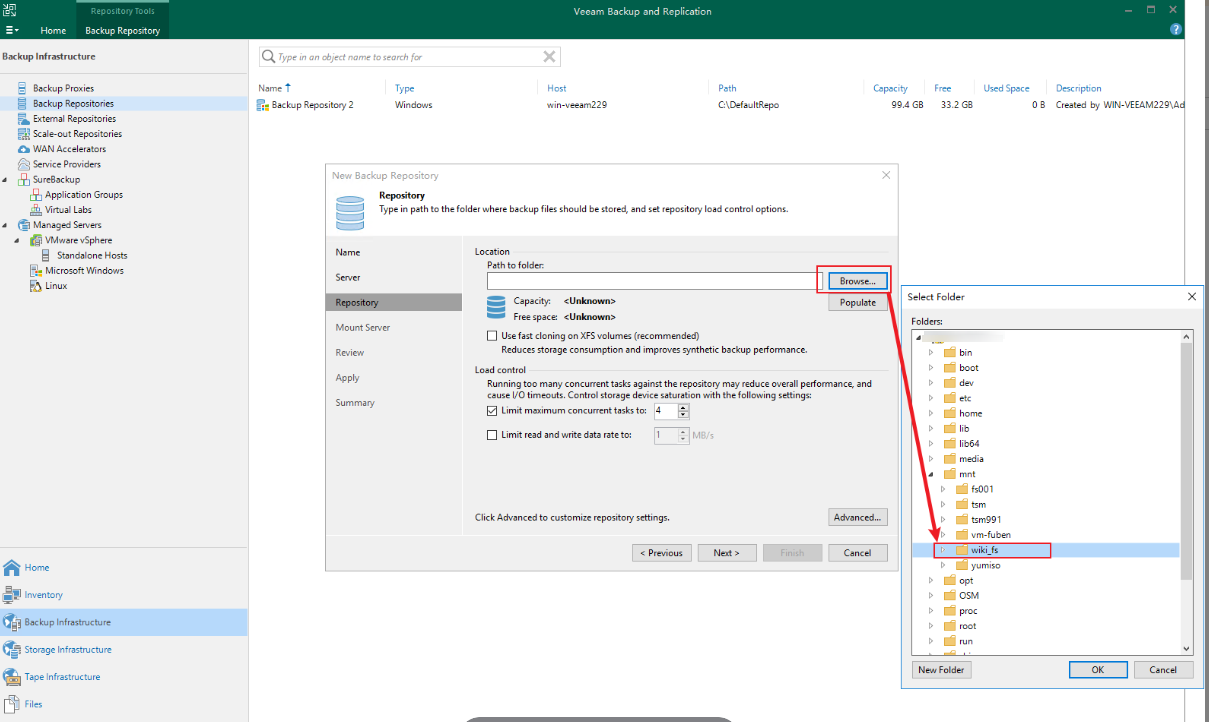
Step 3 Select the mount point on the Veeam gateway, that is, the file system mounted to the production zone, as the backup copy storage area.
Step 4 Click Apply. Check that the Veeam repository is successfully created.
—-End
4.3.1.4.3 Backup and Restoration Process of Veeam
Adding a File Share
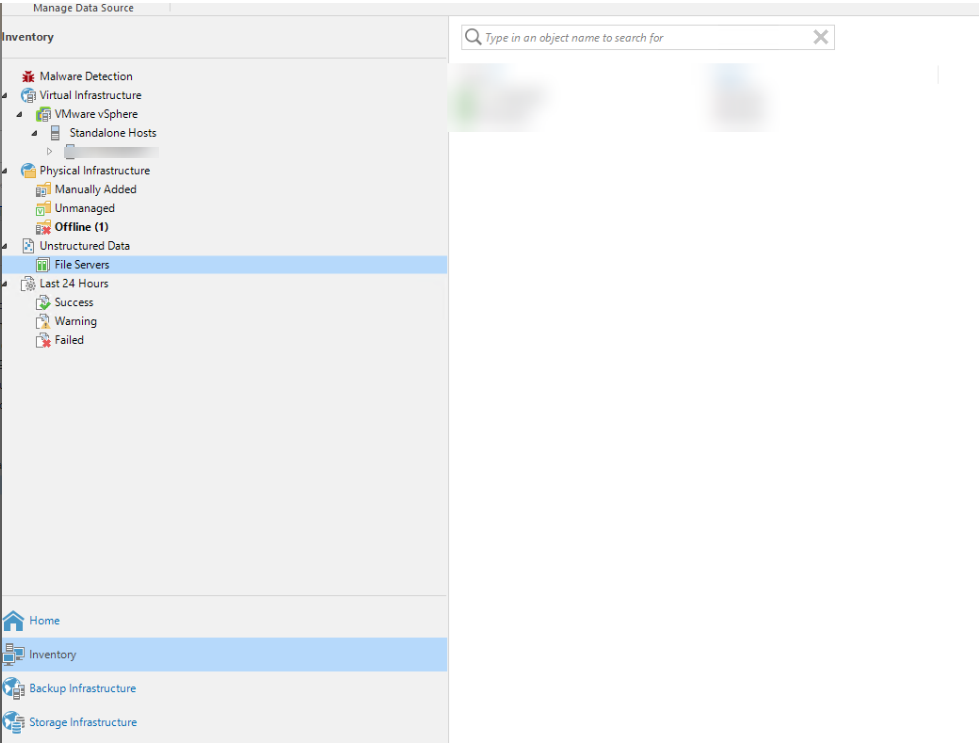
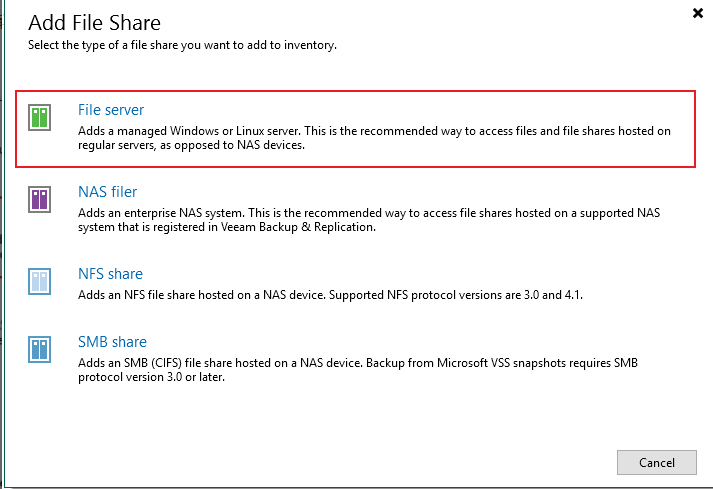
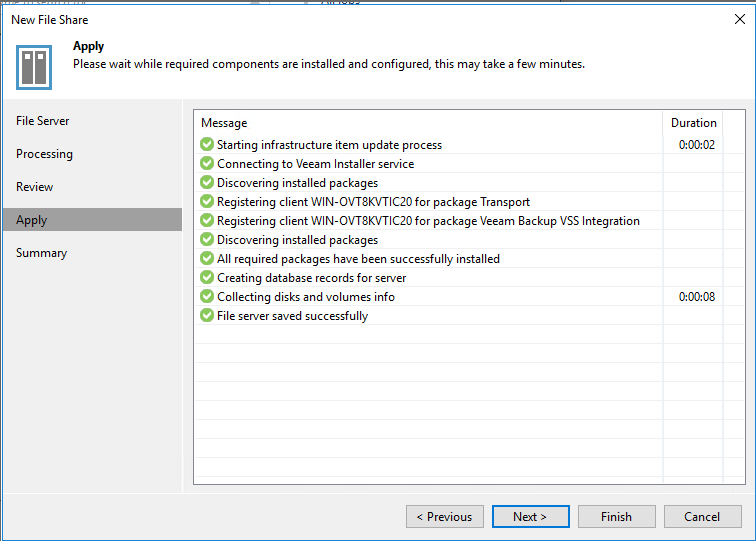
Step 1 Add a file share.
Select a share type.
Click Apply and view the application information.
Step 2 Choose BACKUP INFRASTRUCTURE, and add Linux.
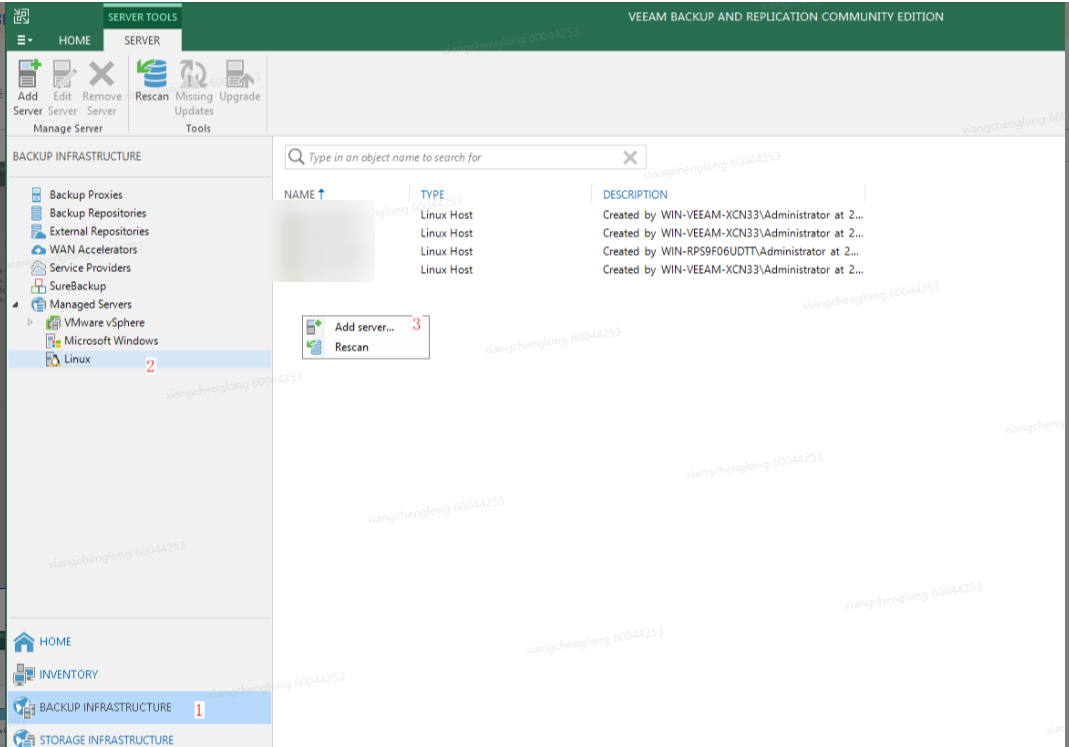
Add a Linux host.
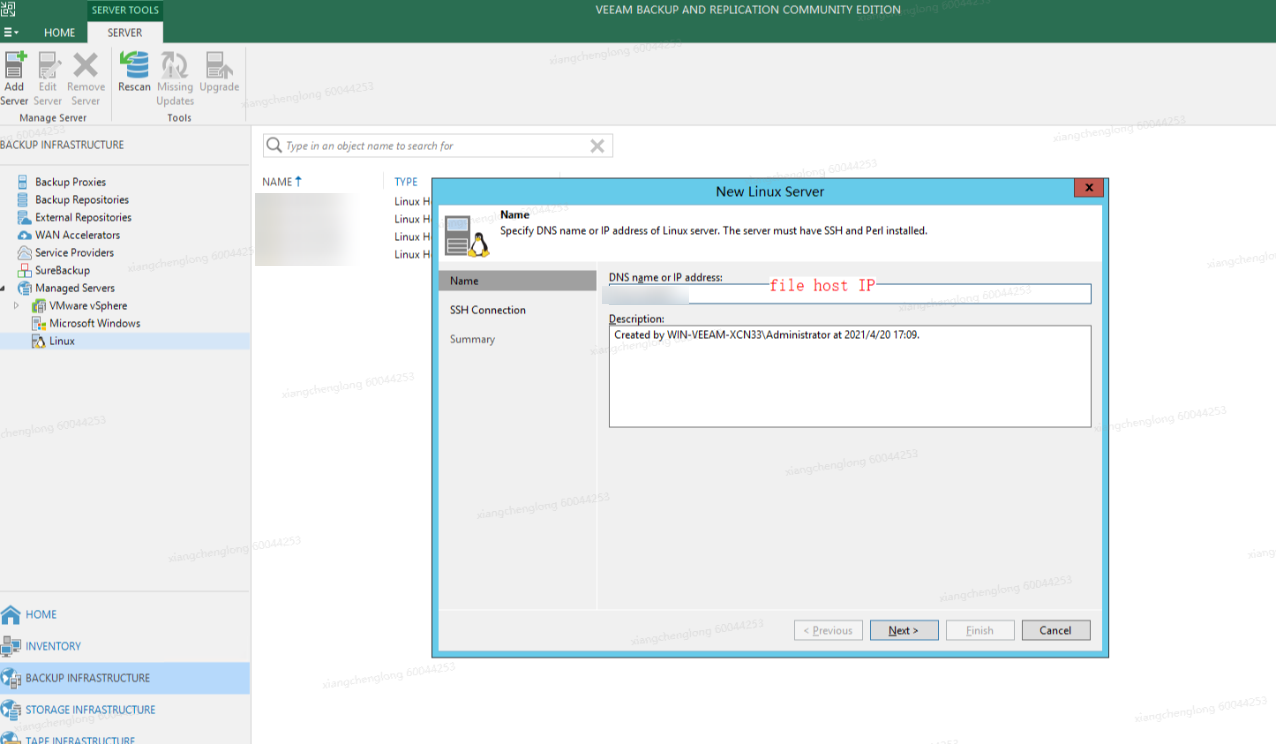
Click Apply.
Step 3 Back up a file system.
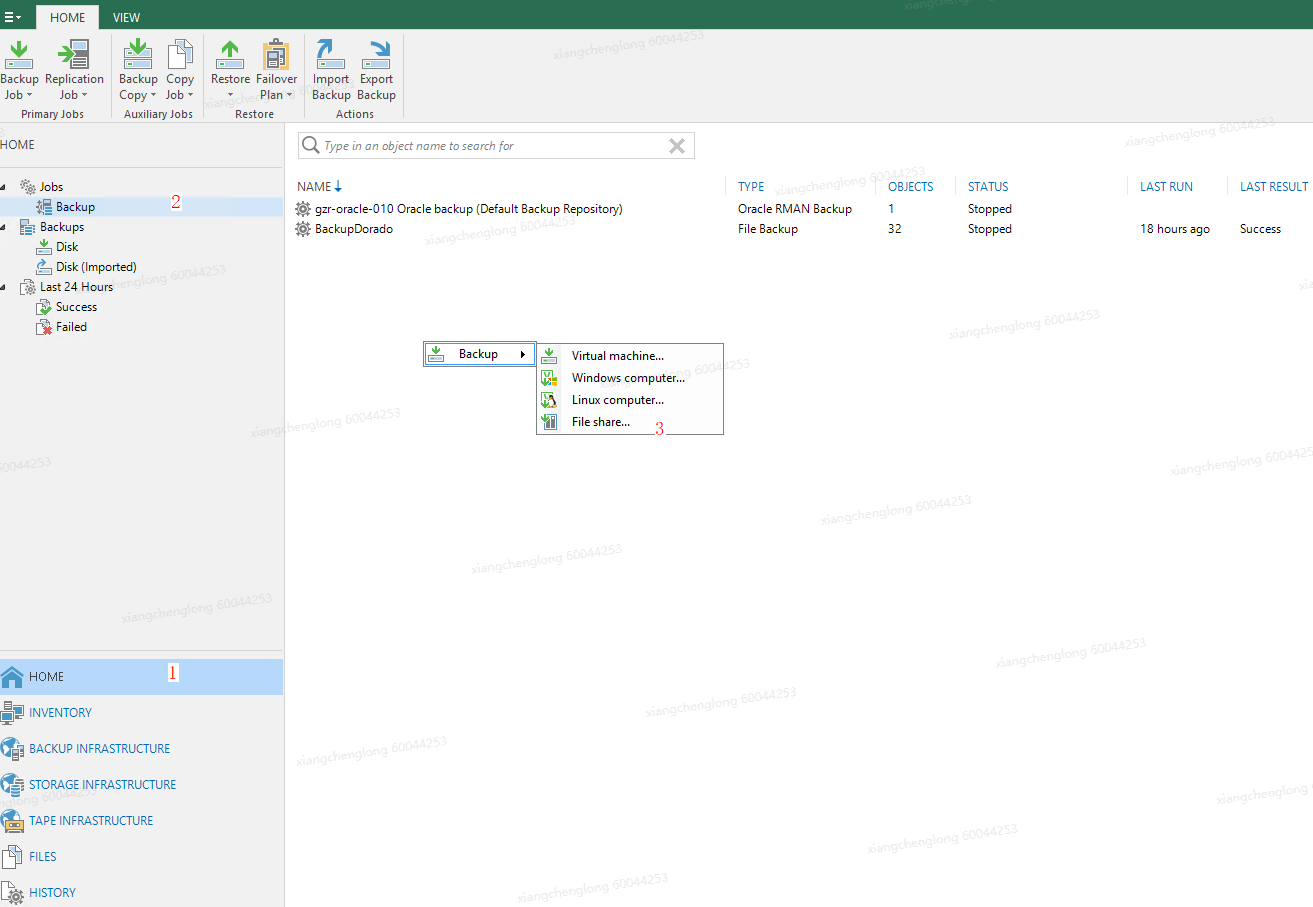
Choose HOME > Jobs > Backup and select File share from the shortcut menu.
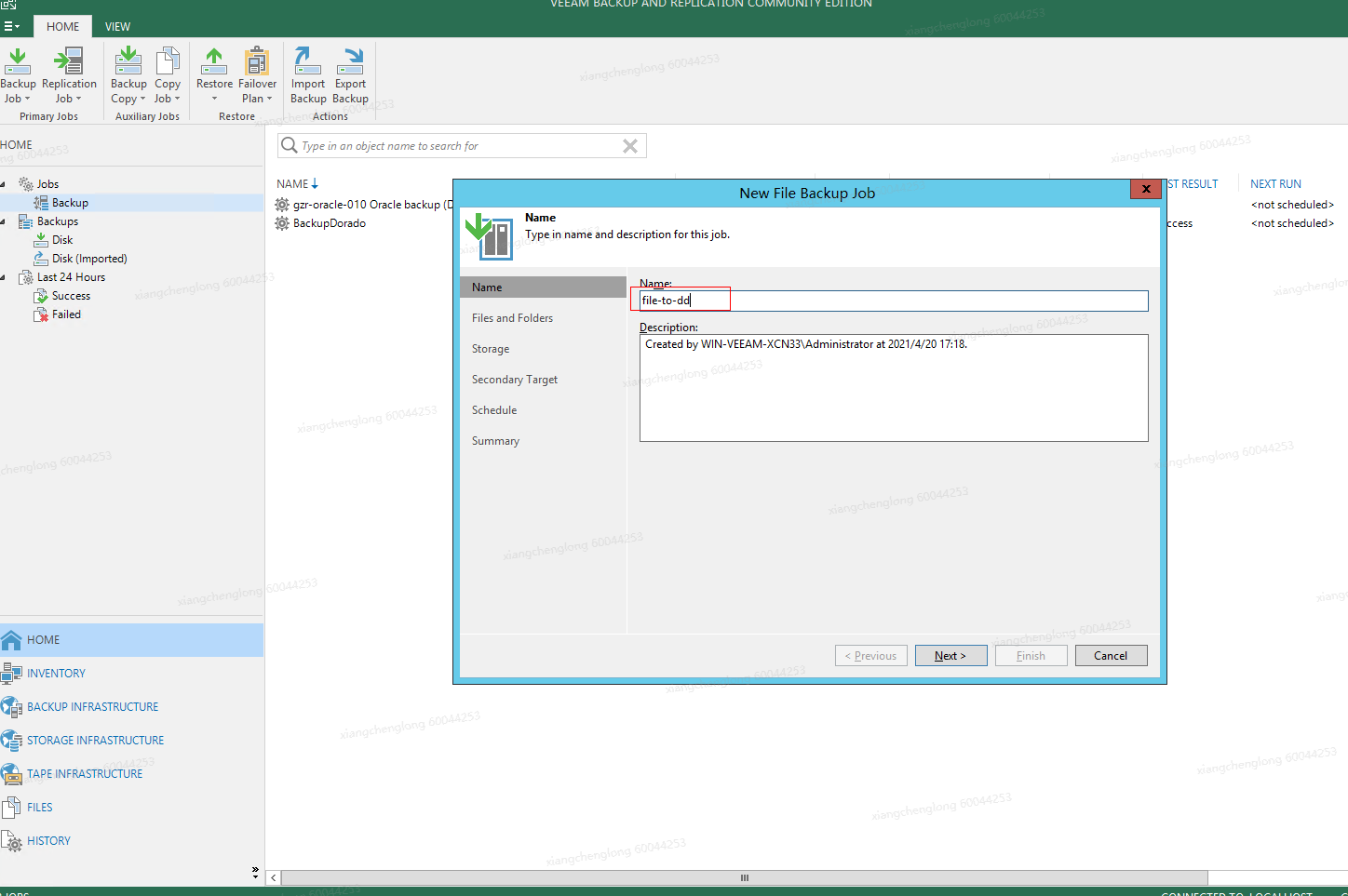
On the backup job details page that is displayed, add the backup job name.
Select a target data file to be backed up.
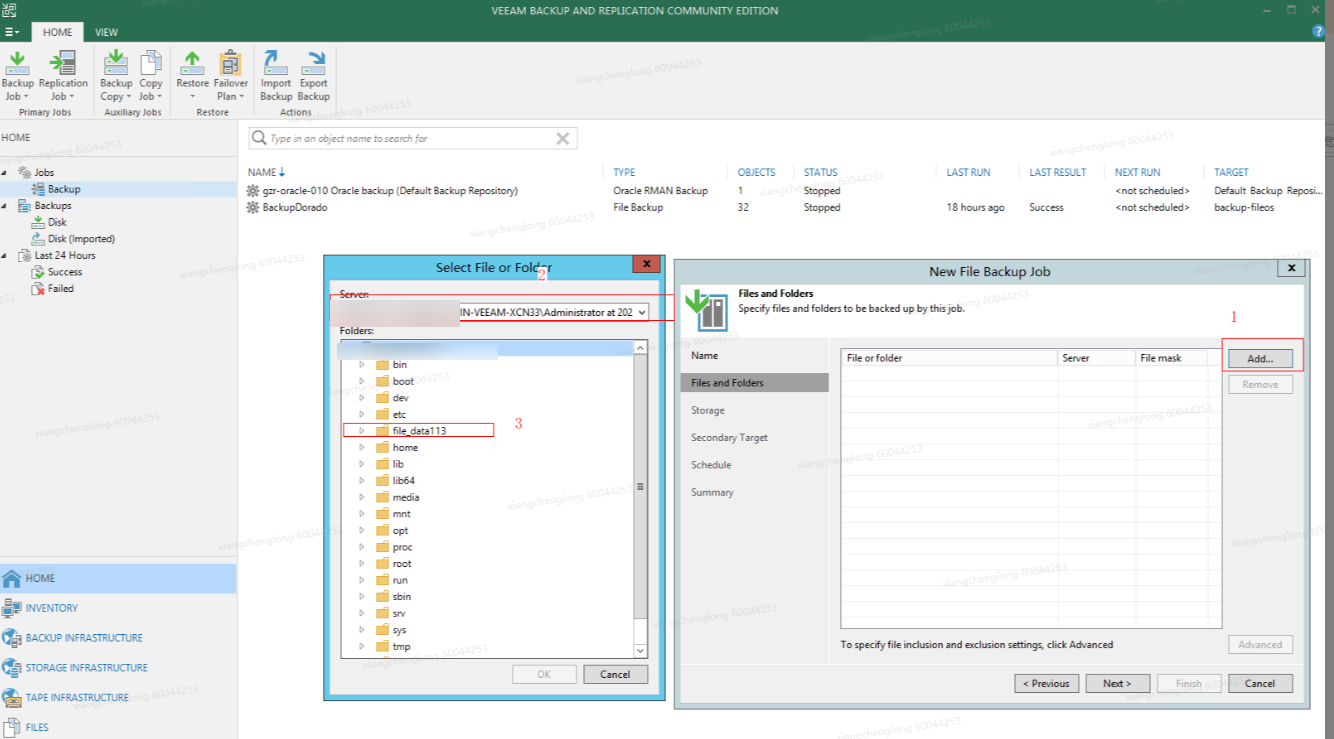
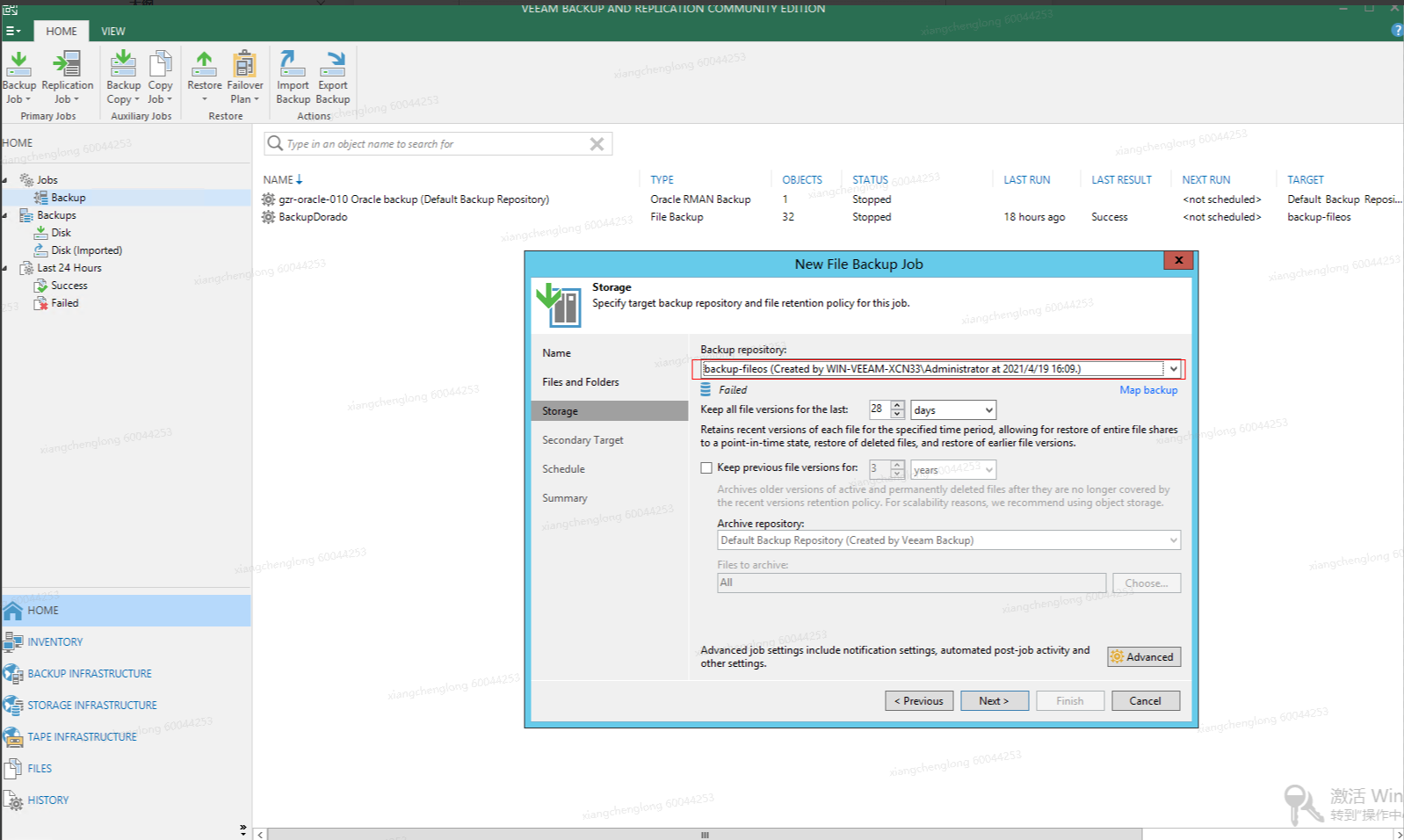
Select a created repository.
Click Next > Apply > Finish to retain the default settings.
Step 4 Back up a VM.
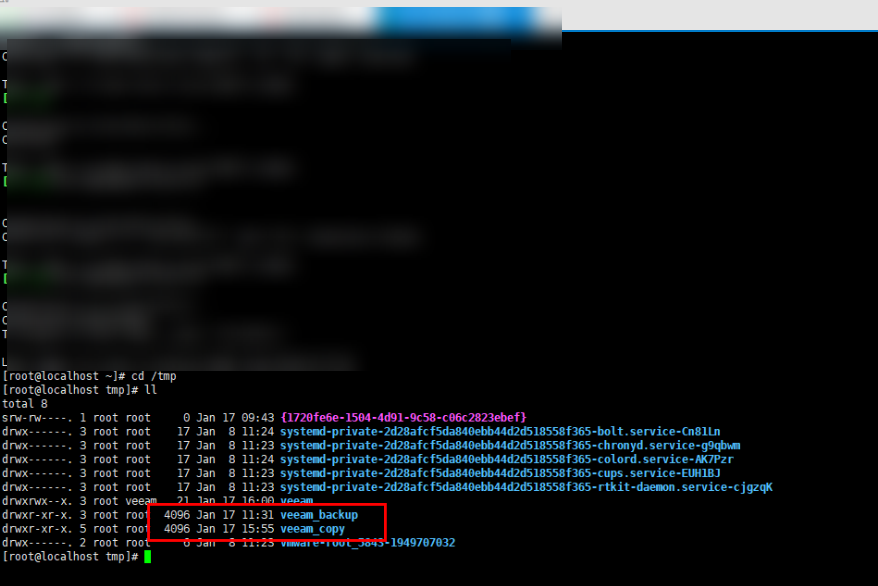
Mount a file system through an available port.
To mount the file system, run the mount -t nfs -o vers=3 xxx.xxx.xxx.xxx:/guige65 /mnt/guige65 command.
Choose Home > Jobs > Backup > Linux computer, and create a backup job for the VM.
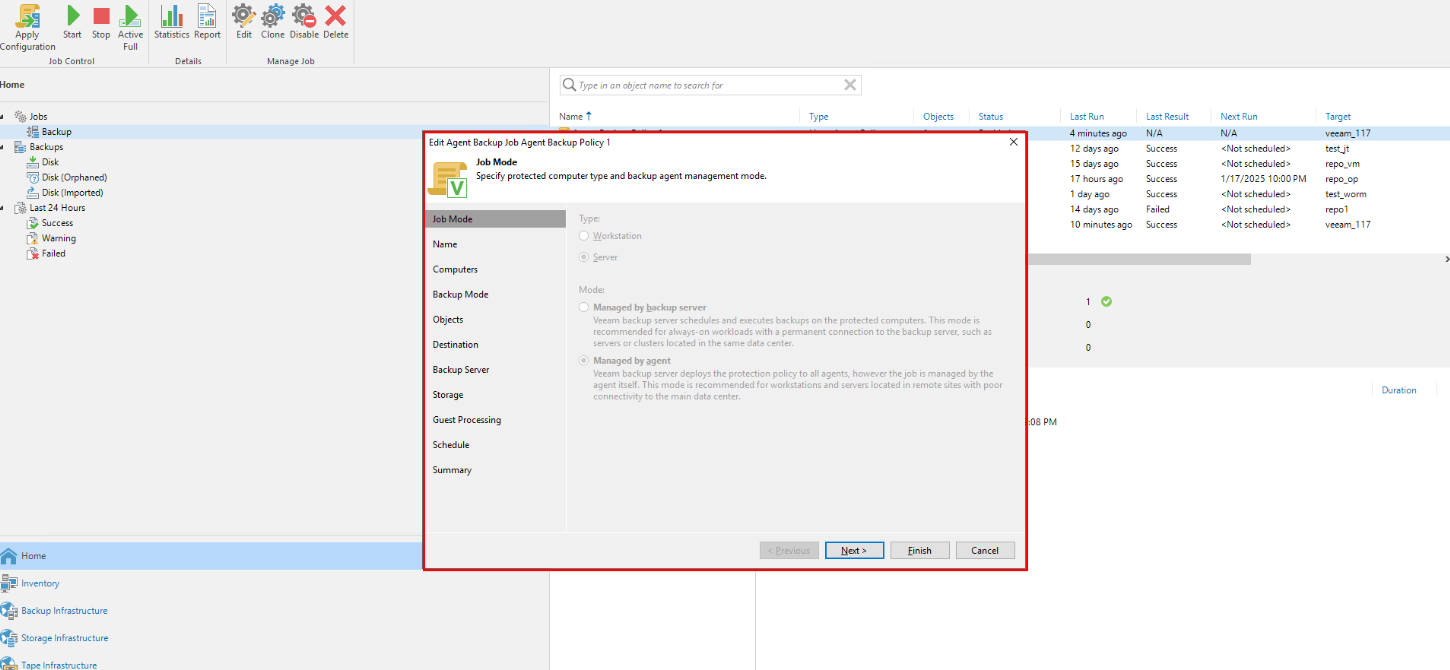
For VM backup, select the second mode. The agent manages the Veeam backup server and deploys the protection policy to all agents. However, the job is performed by the agent itself. This mode is recommended for workstations and servers at remote sites to connect to the primary data center.
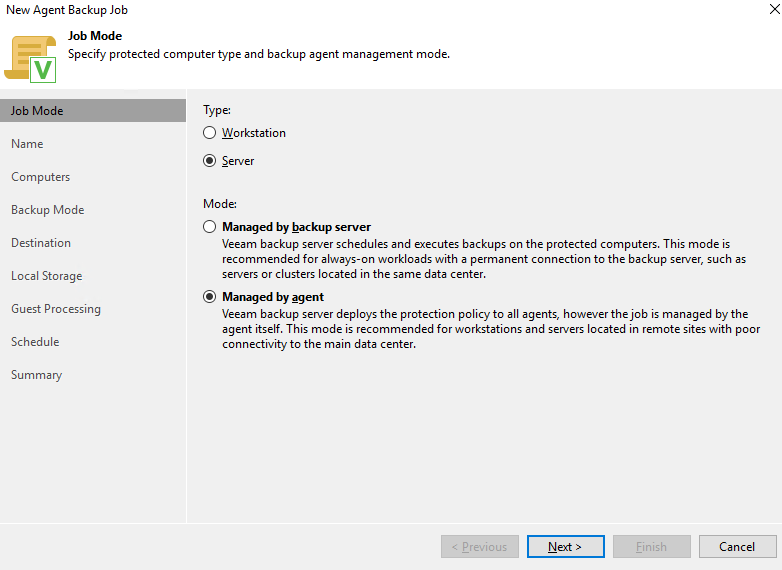
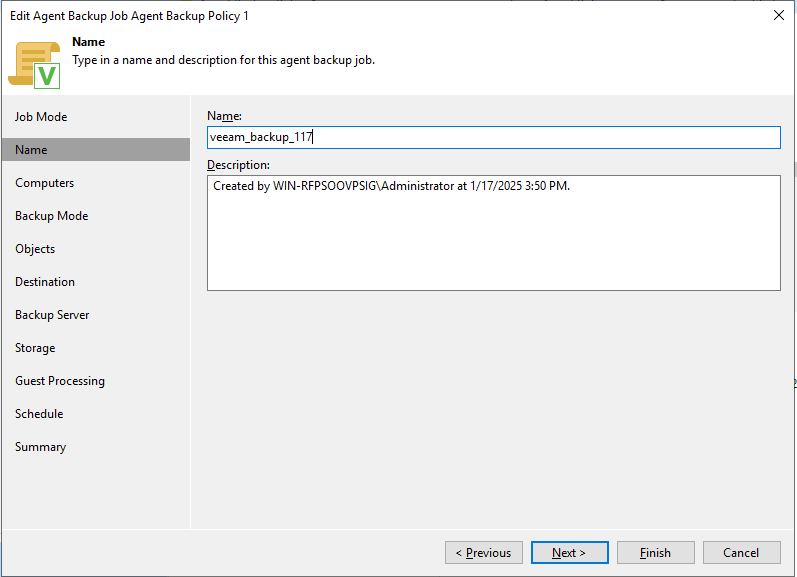
Name the backup job.
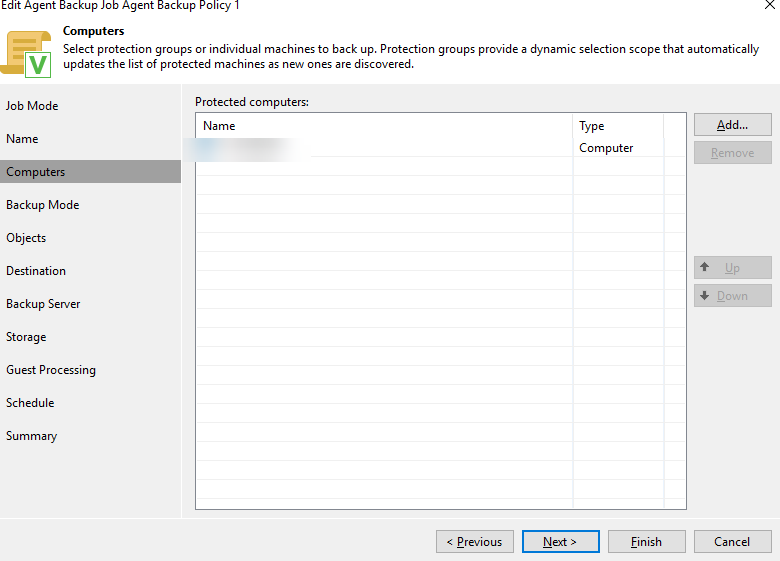
Add a backup VM.
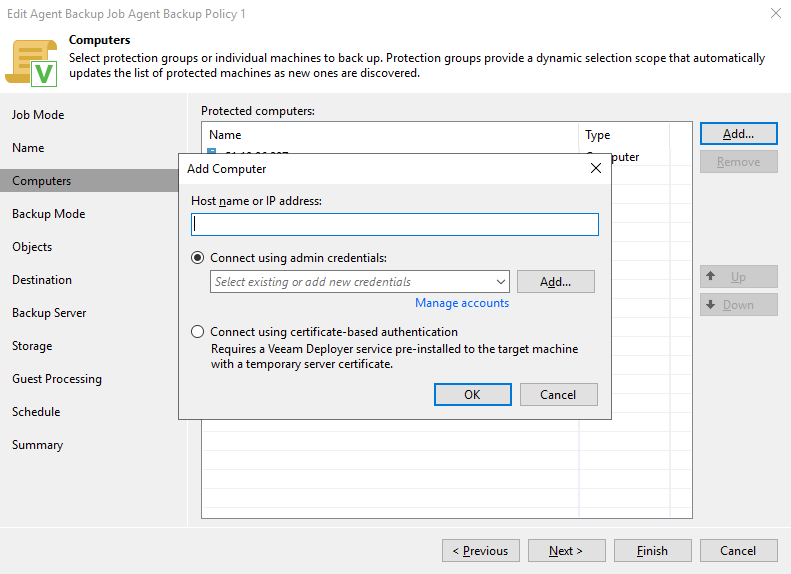
Enter the IP address and key of the VM for backup.
Select a file system for backup.
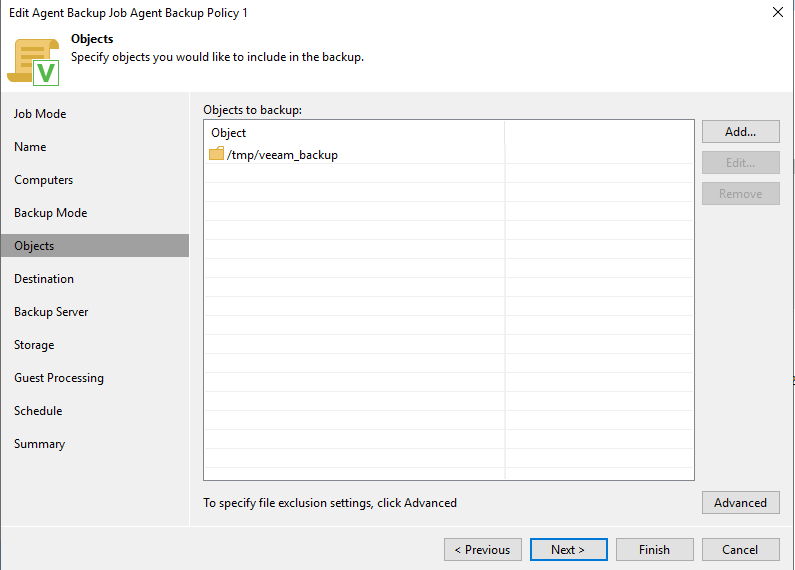
Select a repository.
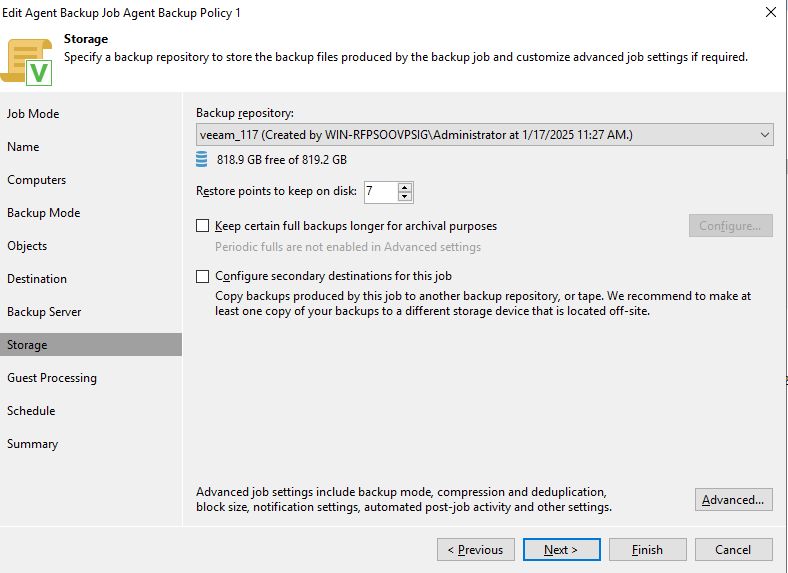
Disable deduplication and compression.
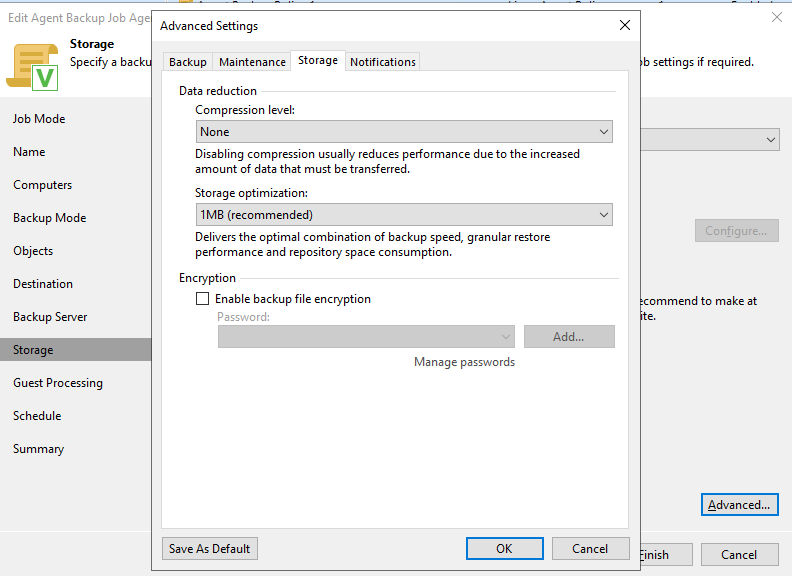
Retain the default values for other parameters and click Apply.
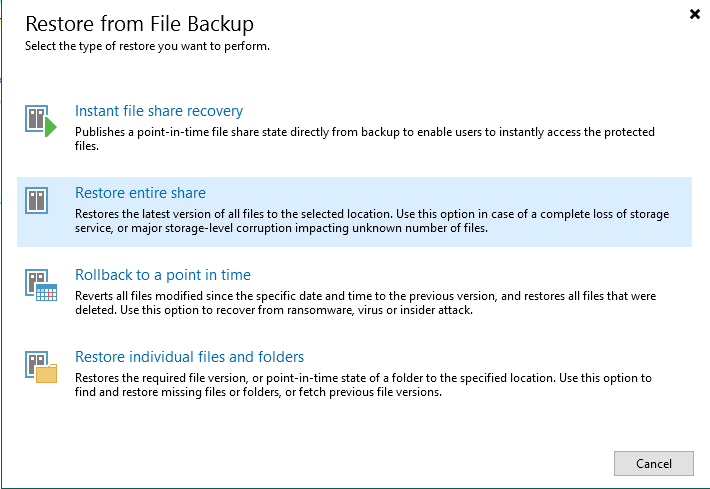
Step 5 Restore a file system share.
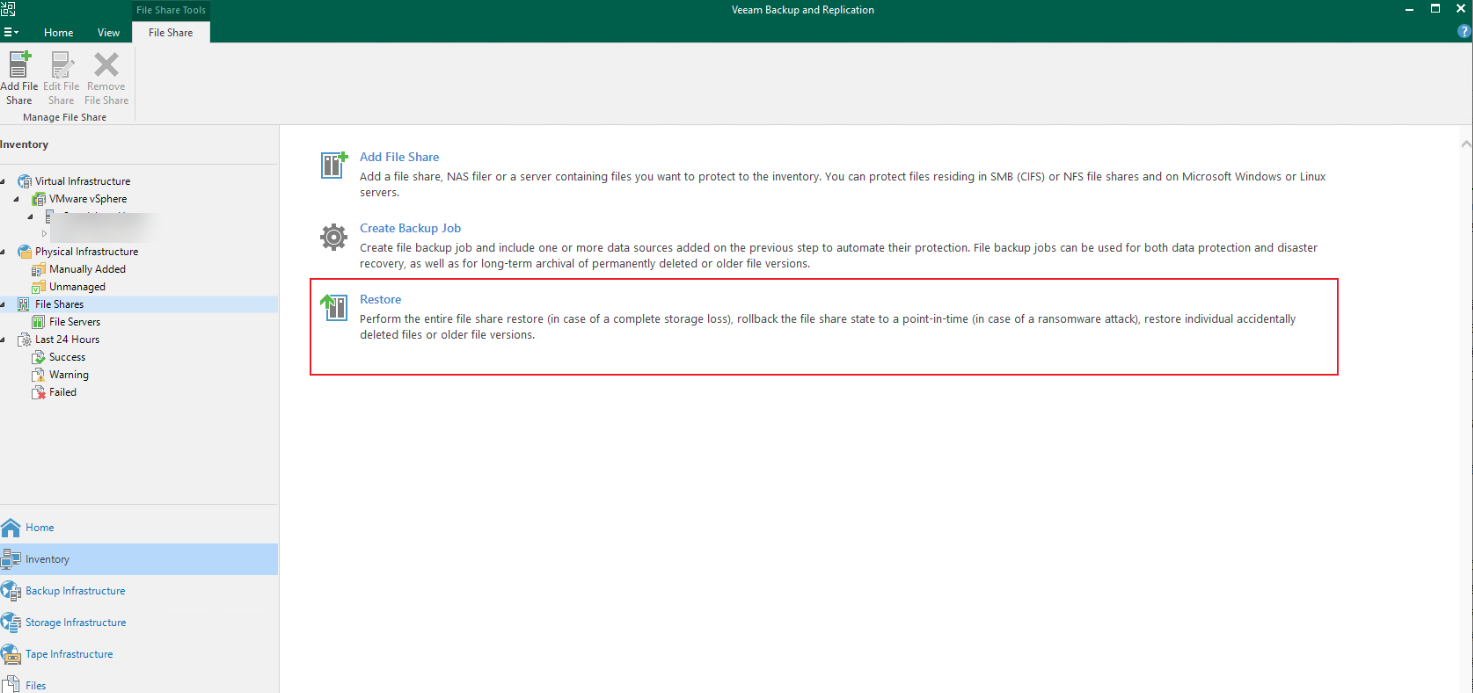
Select a mode for restoration.
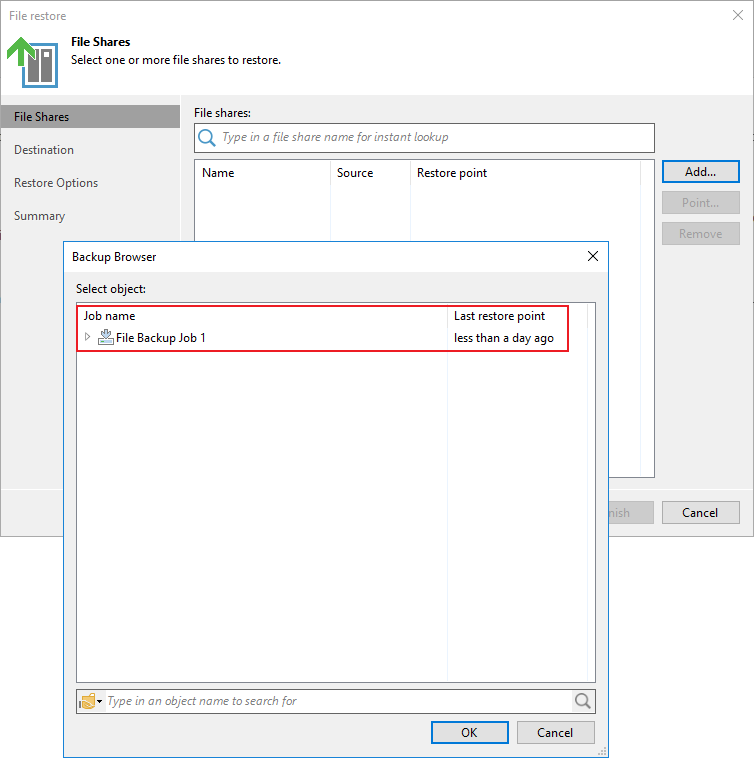
Select a backup job.
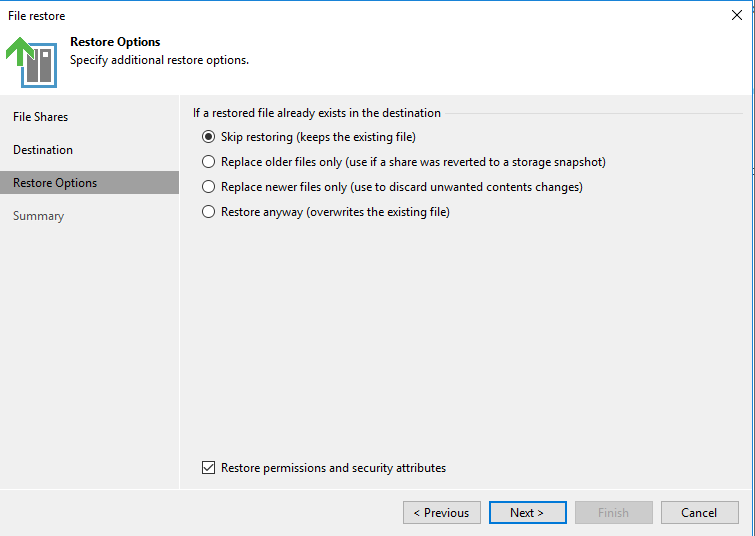
Select a data restoration mode.
—-End
Restoring a VM
Step 1 Choose Restore and start the restoration job process.
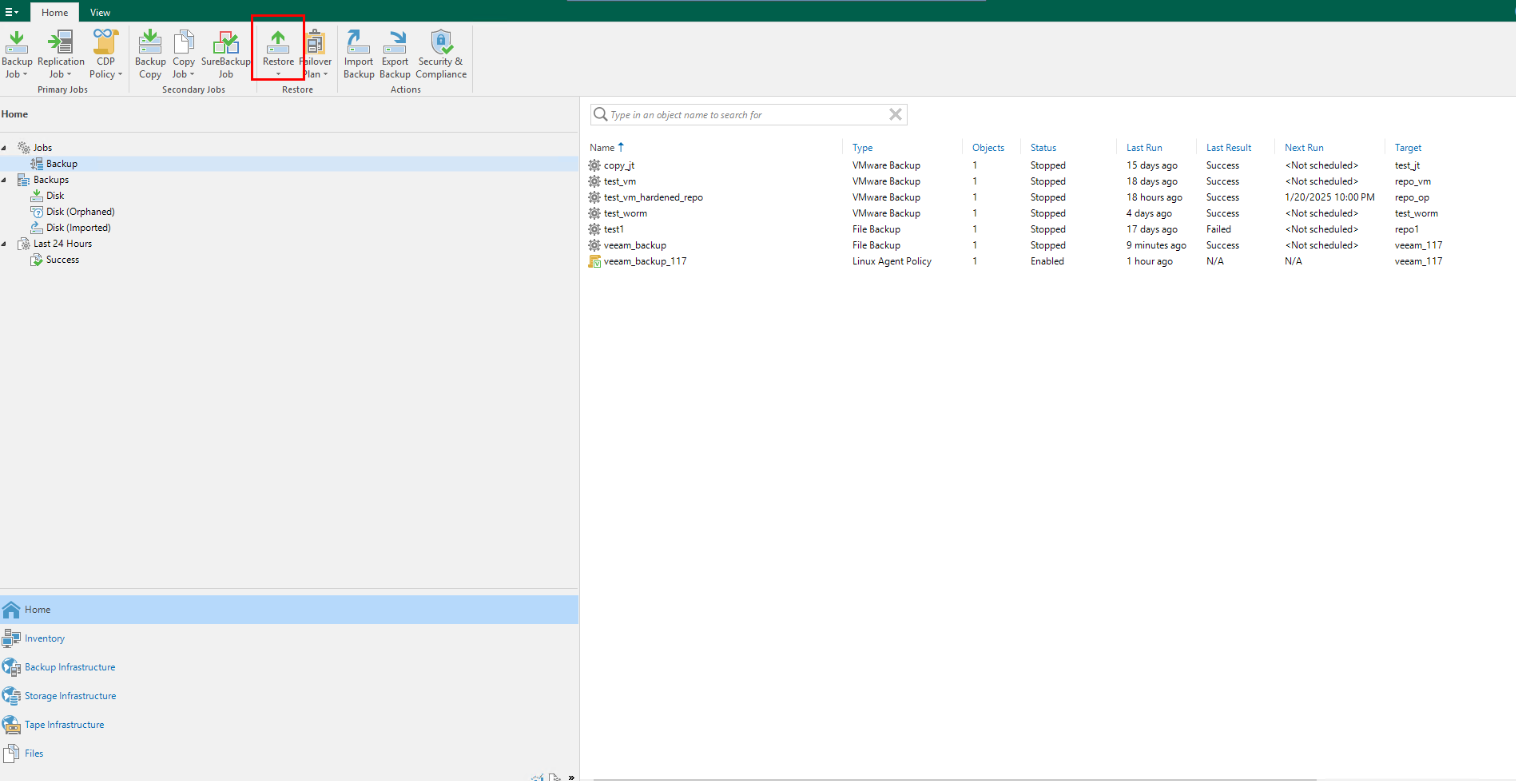
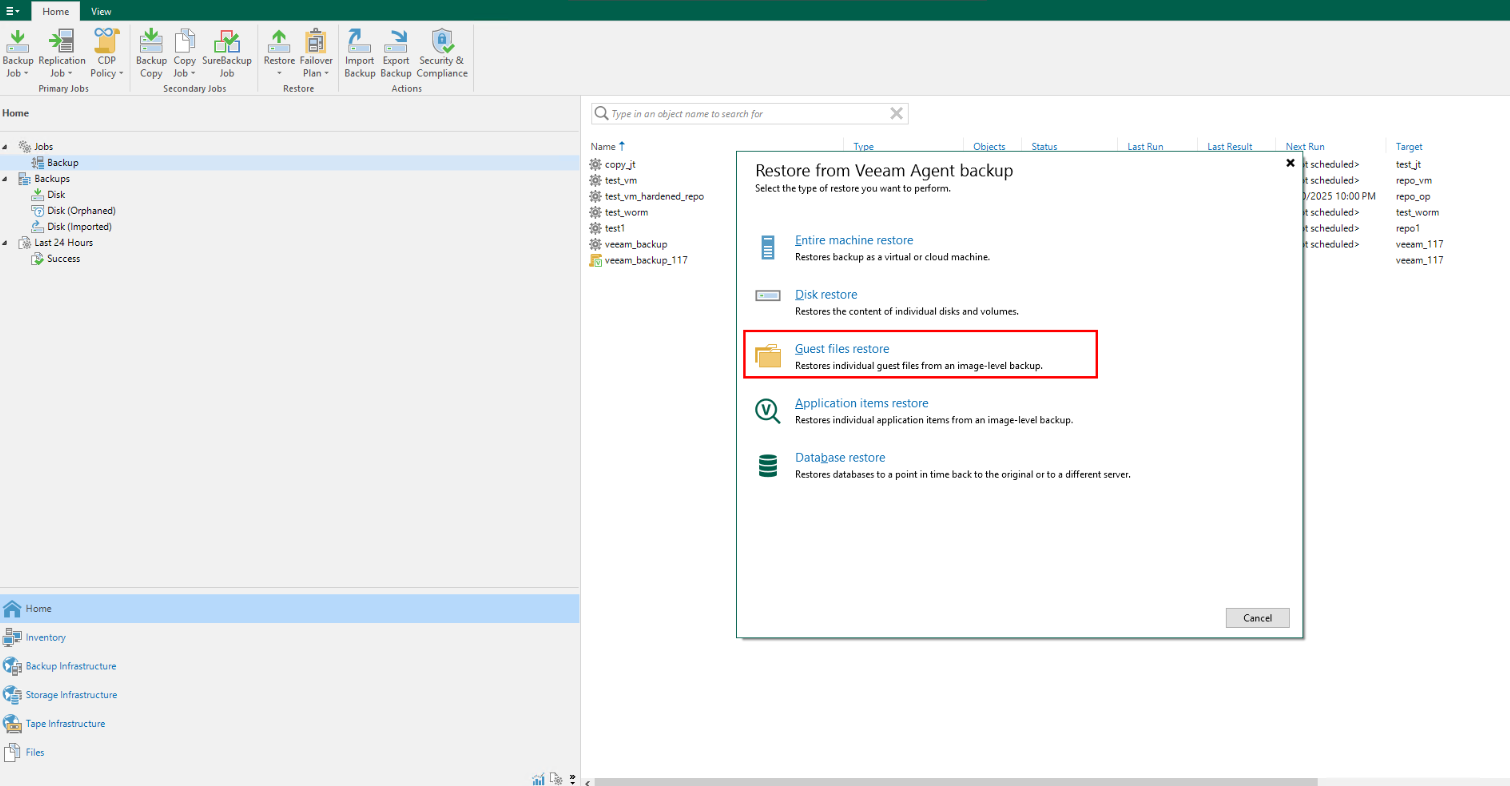
Step 2 Select Agent, select a restoration mode, and select Guest files restore.
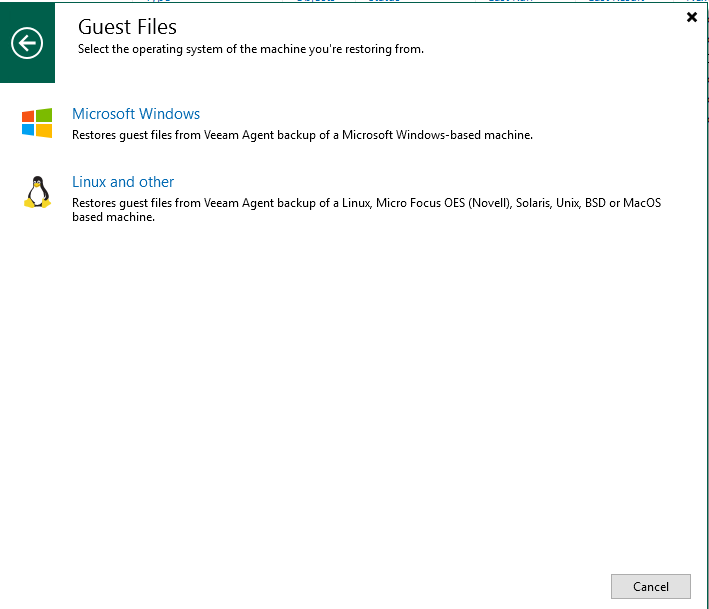
Step 3 Select Linux and other because the file system in the NFS share on the Linux host is mounted.
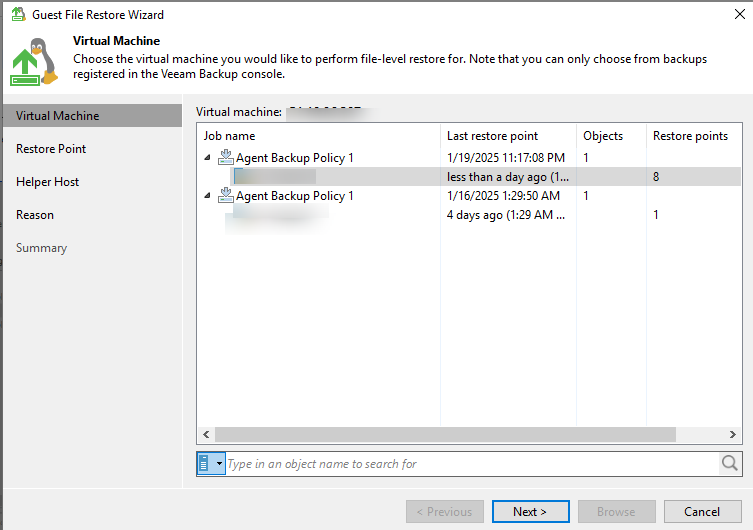
Step 4 Select a VM to be restored based on the registered Veeam mounting VM.
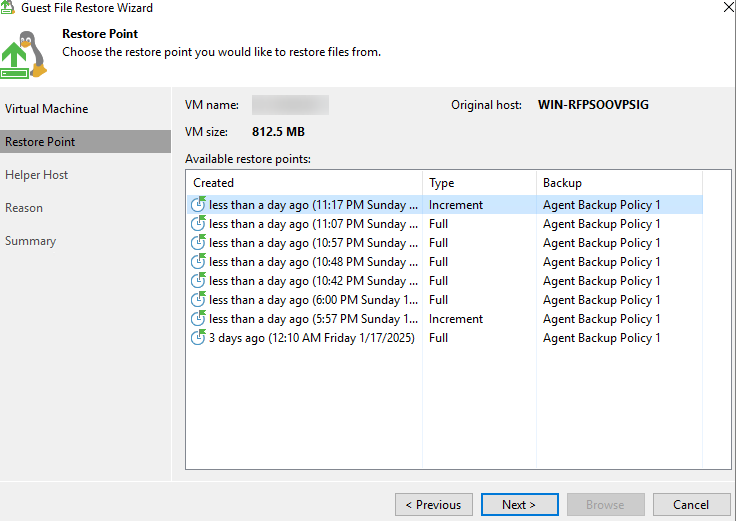
Step 5 Select a backup copy to be restored.
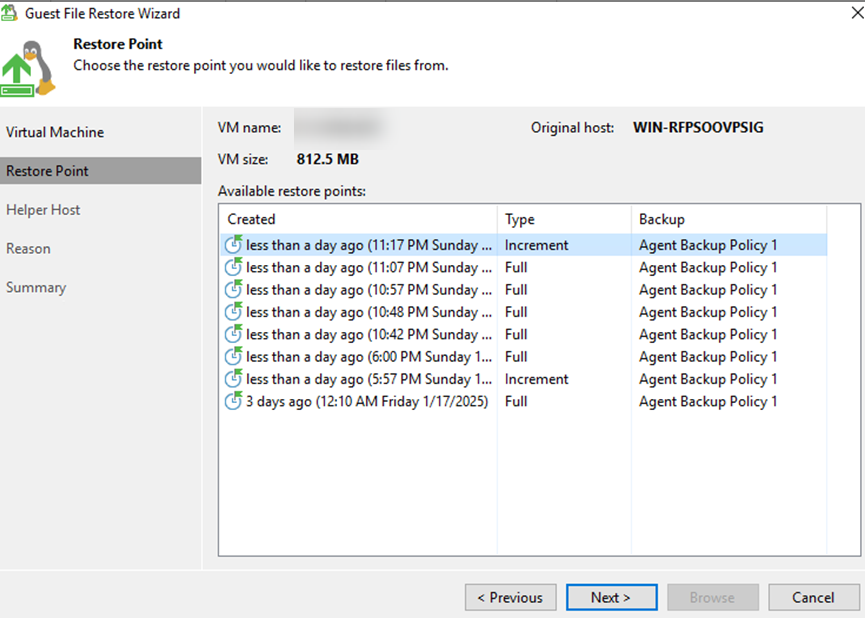
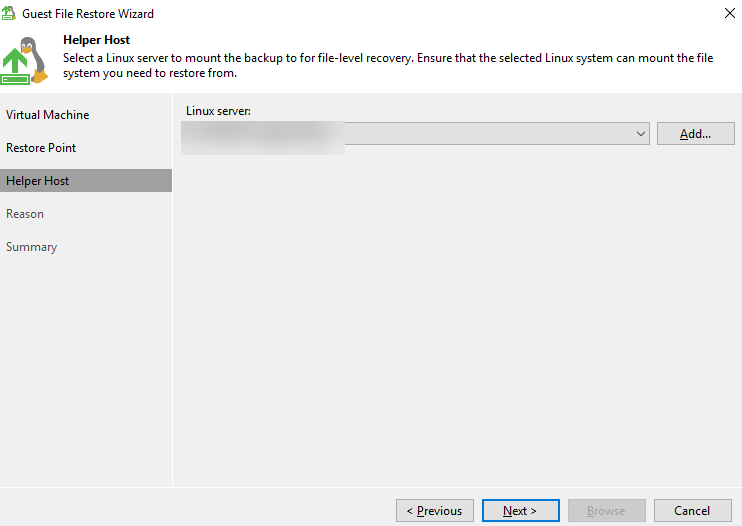
Step 6 Select the Linux server where the backup is to be loaded for file-level restoration. Ensure that the selected Linux system can mount the file from the system to be restored.
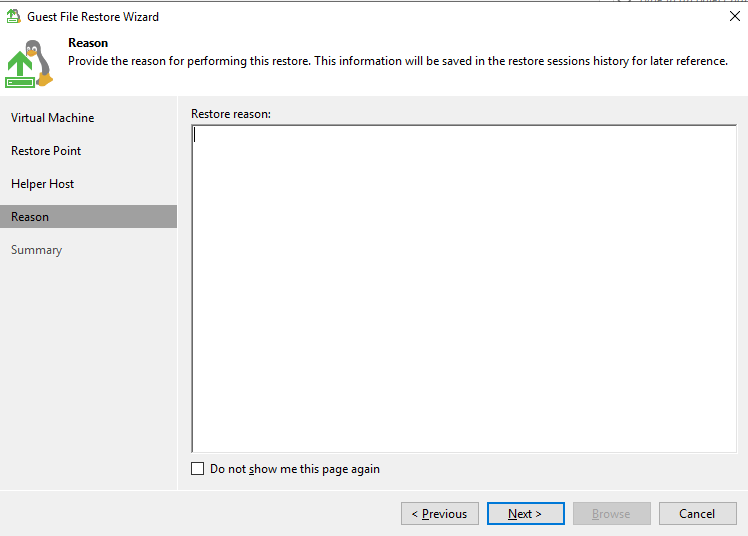
Step 7 Enter the restoration reason or remarks.
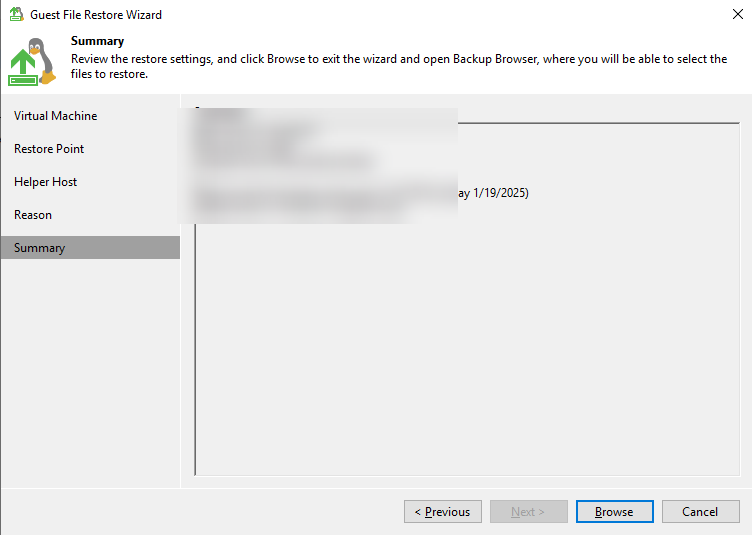
Step 8 View the configuration summary.
Step 9 View the restoration job using a copy, and view the restoration result on the virtual host to which the file system is mounted.
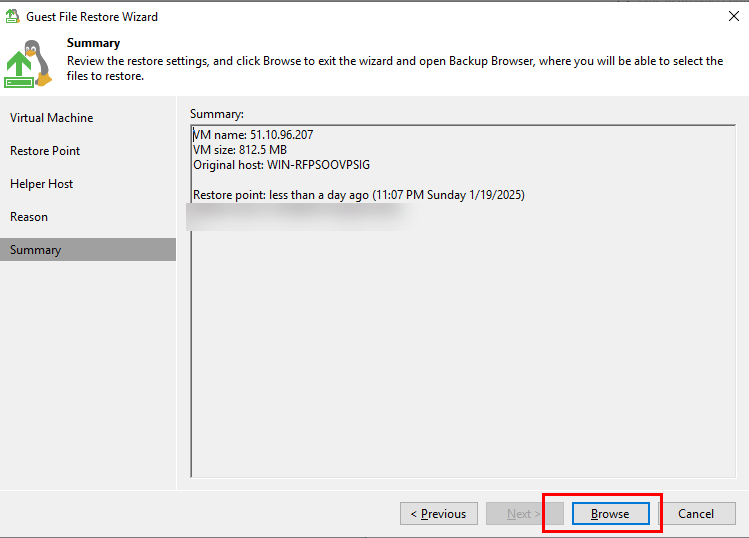
Step 10 Select fine-grained data restoration.
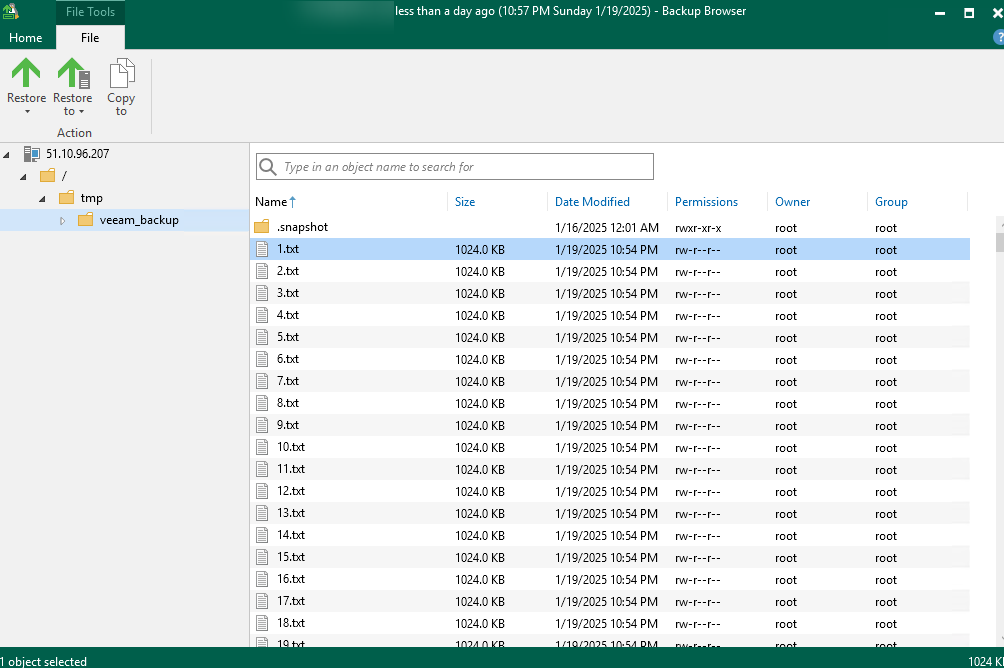
Step 11 View the original data on the backup VM.
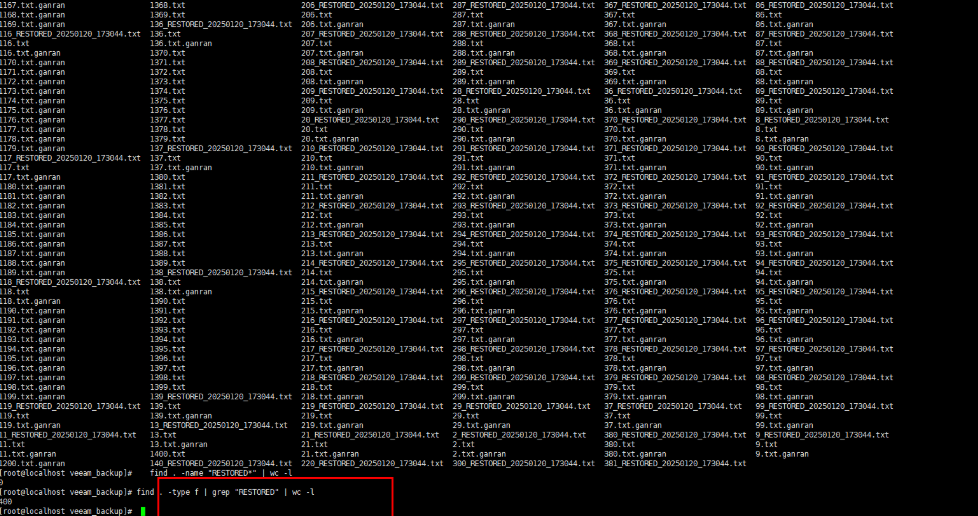
—-End
4.3.2 Restoring Data in the Production Zone
4.3.2.1 Using Veeam to Back Up Data
Step 1 Create a backup job for the OceanProtect backup file system mounted to a virtual host.
Follow the backup job process to perform this step.
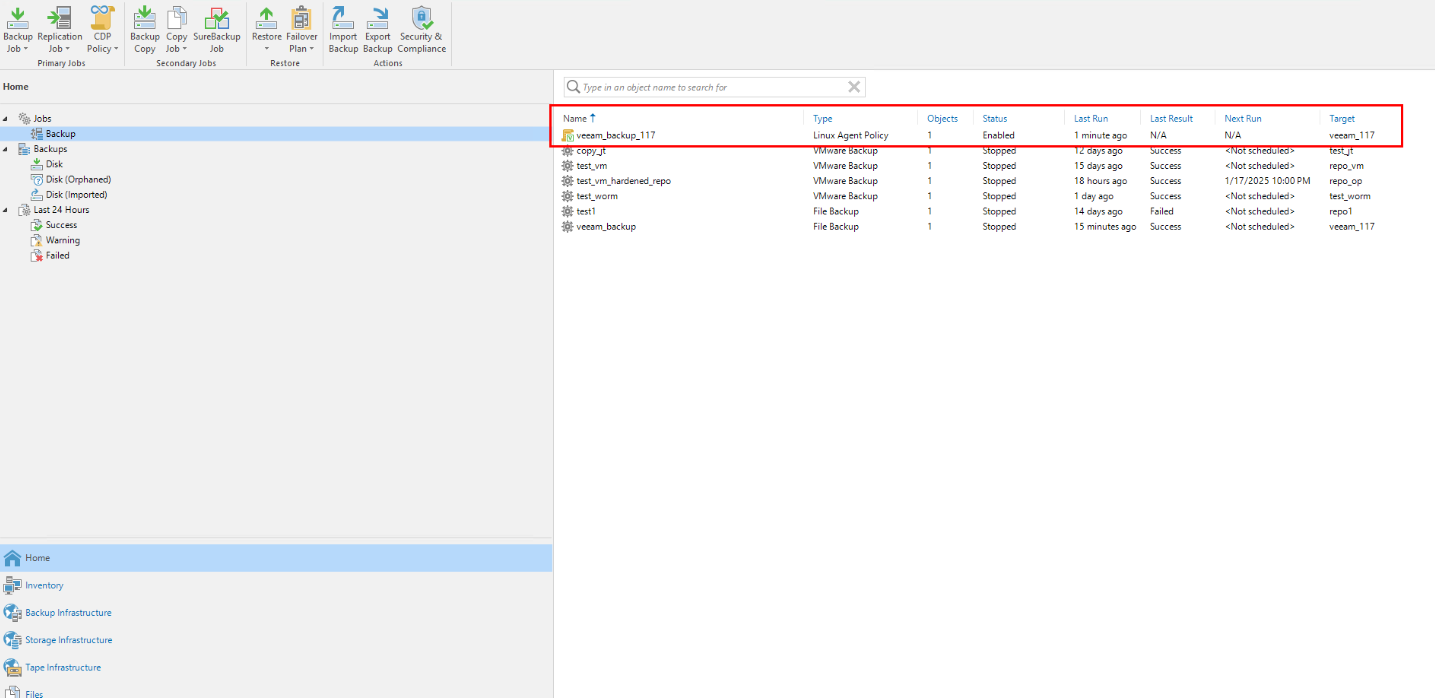
Step 2 Click the job and click Active full to perform full backup.
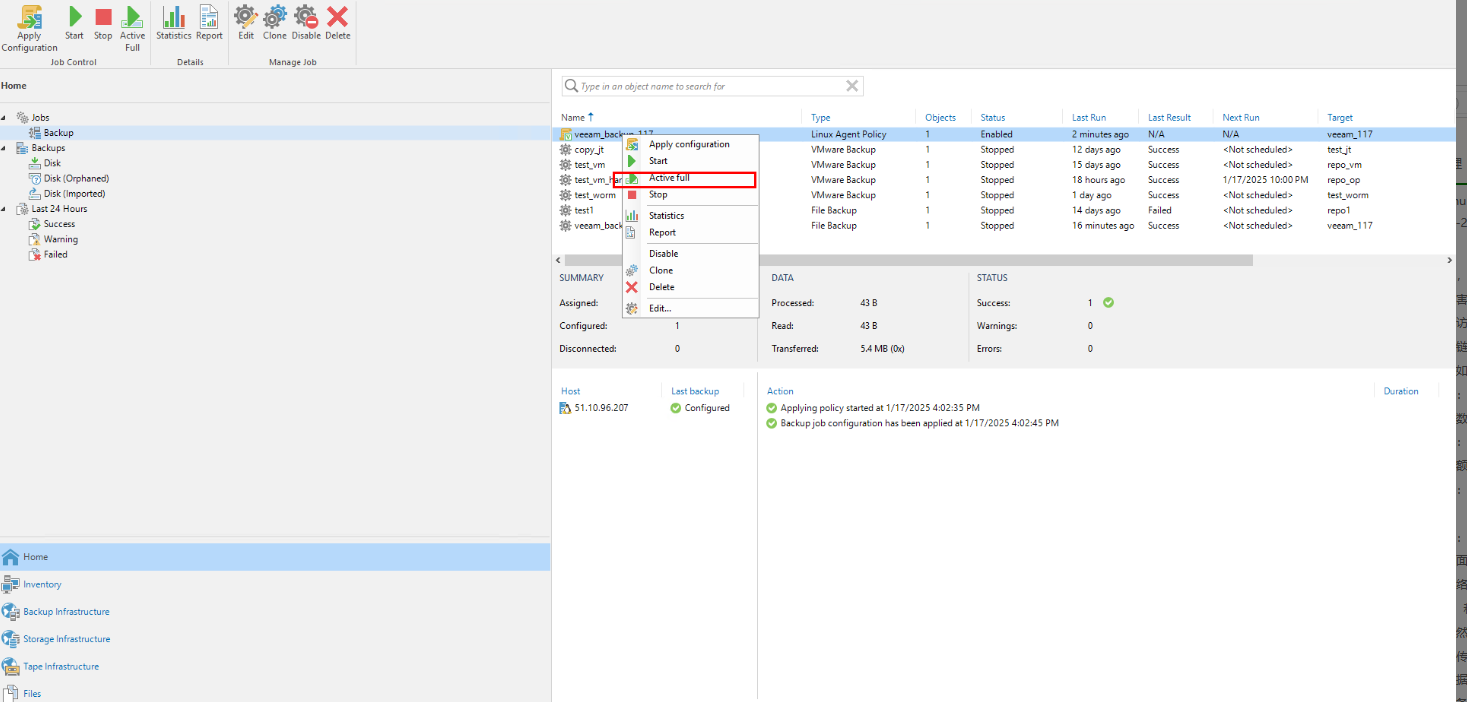
Step 3 Observe the backup job progress.
Click the backup job or choose Last 24 Hours to view the job progress.
Step 4 Check the copy generation result of the file system where the repository of the corresponding backup copy resides.
Check the generation of the repository file system copy of the CIFS share.
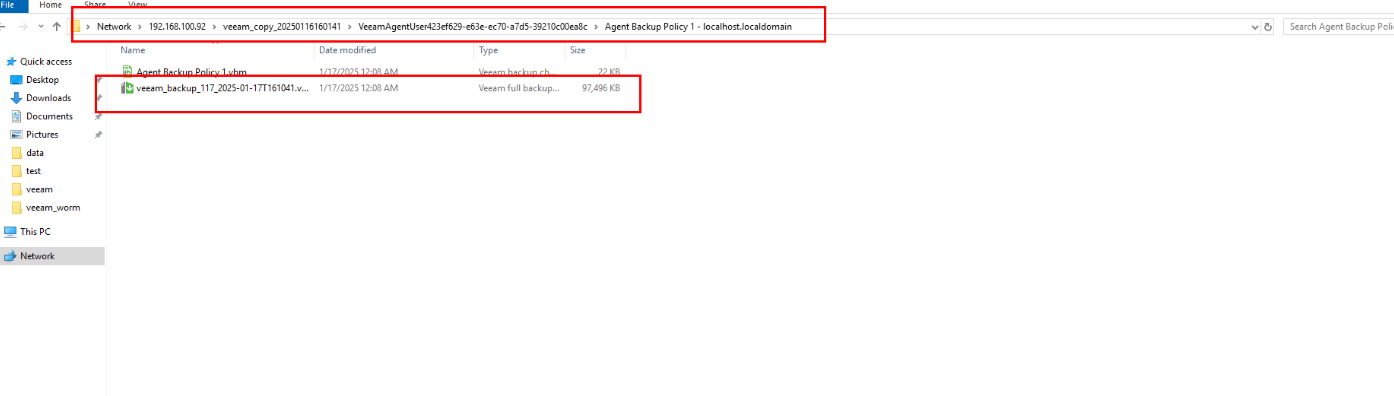
Step 5 Check the copy records in the VM mount directory of the NFS share.
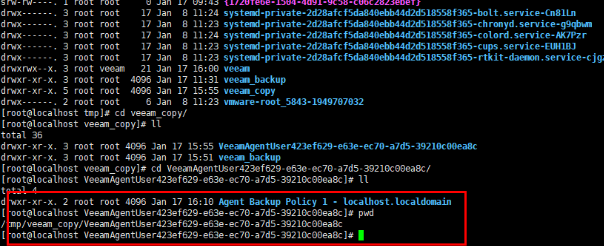
—-End
4.3.2.2 Performing Intelligent Copy Detection
Step 1 Log in to OceanCyber and view device information.
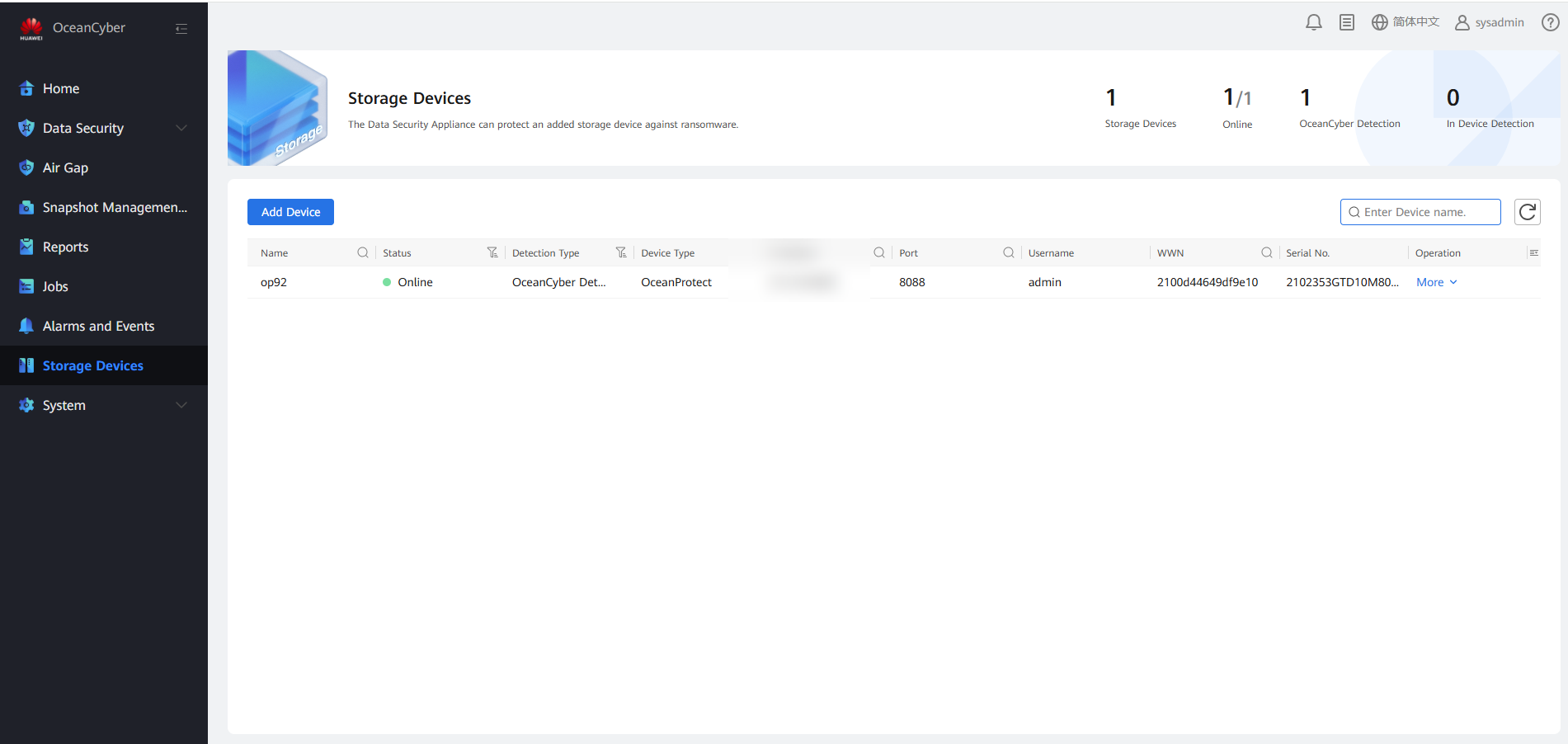
Step 2 Click More, select a storage device in the production zone, and click Resource Scan.
Step 3 Choose Data Security > Intelligent Detection to view the corresponding file system.
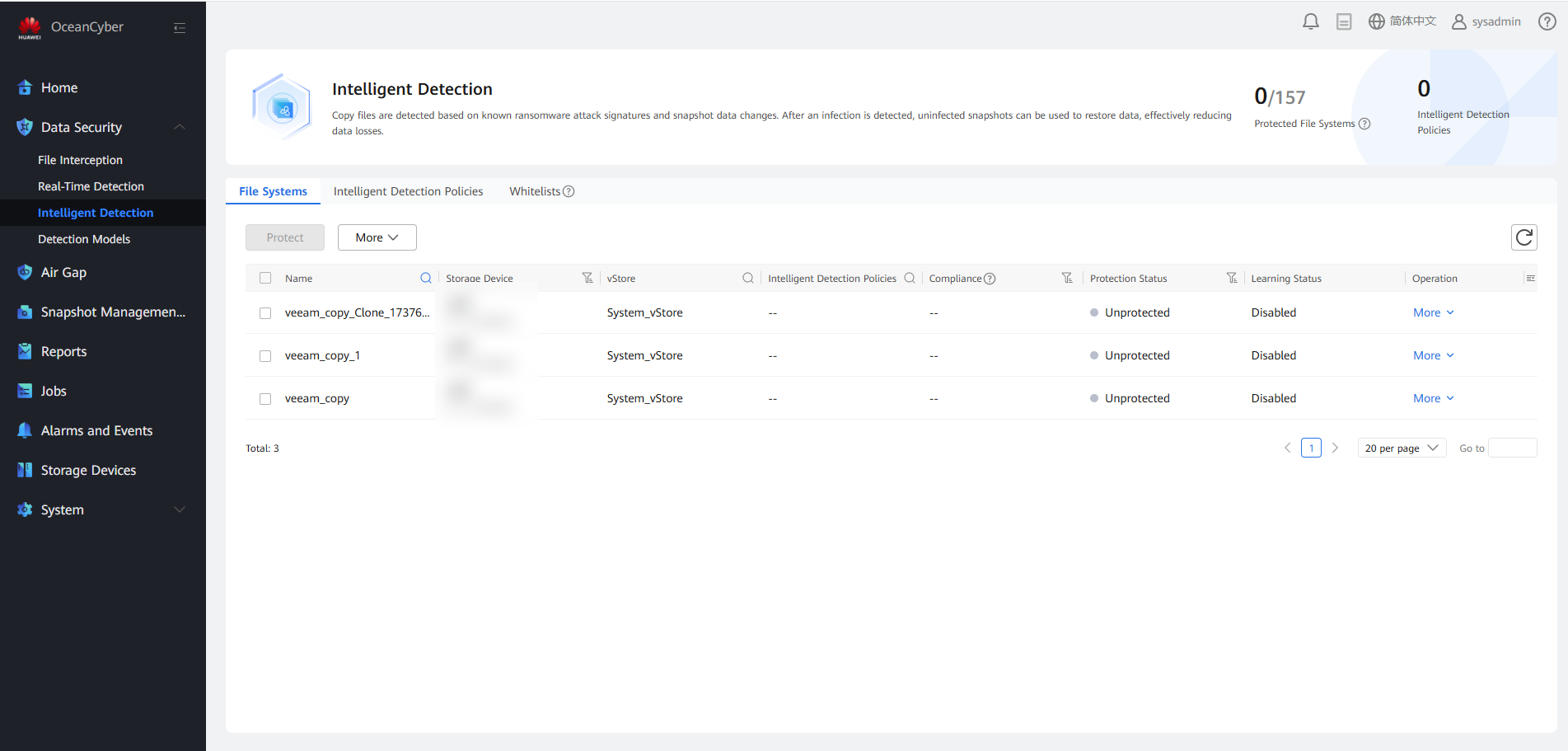
Step 4 Select the corresponding storage repository file system and click Protect to add an intelligent detection policy, or click Create to configure an intelligent detection policy for protection.
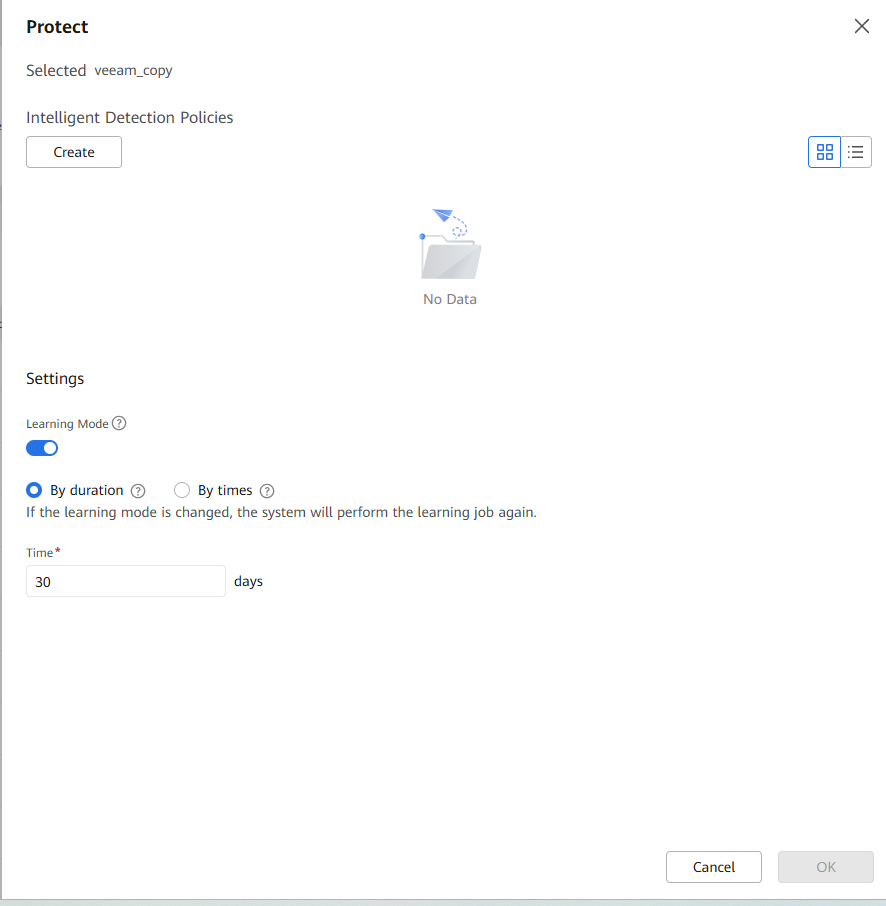

1. You are advised to enable the learning mode so that you can better evaluate the data features of backup copies. No alarm or infected content will be reported before the learning is complete. This parameter is valid only when the storage device type is OceanProtect and the backup copy in-depth detection function is enabled. If this function is disabled, false detection results may be generated during copy in-depth detection.
2. The configured learning duration (learning times) is the minimum learning duration (minimum number of learning times). To evaluate the data features of backup copies based on a required amount of data, the actual learning duration (learning times) may be longer than the configured learning duration (greater than the configured learning times).
3. You are advised to learn by learning duration. Learning by learning duration can greatly ensure that the file system obtains the required amount of data.
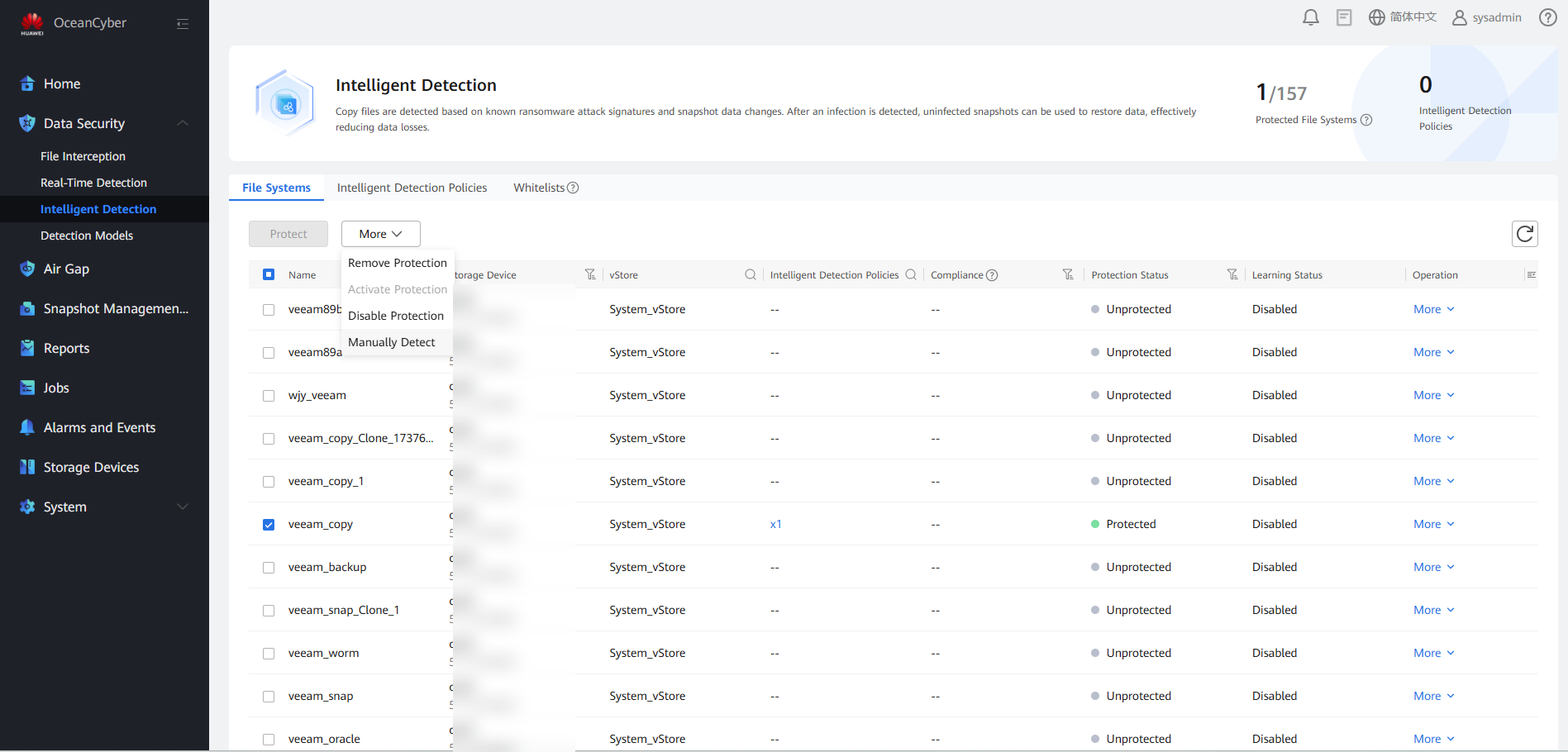
Step 5 Select the corresponding file system, and choose More > Manual Detection.
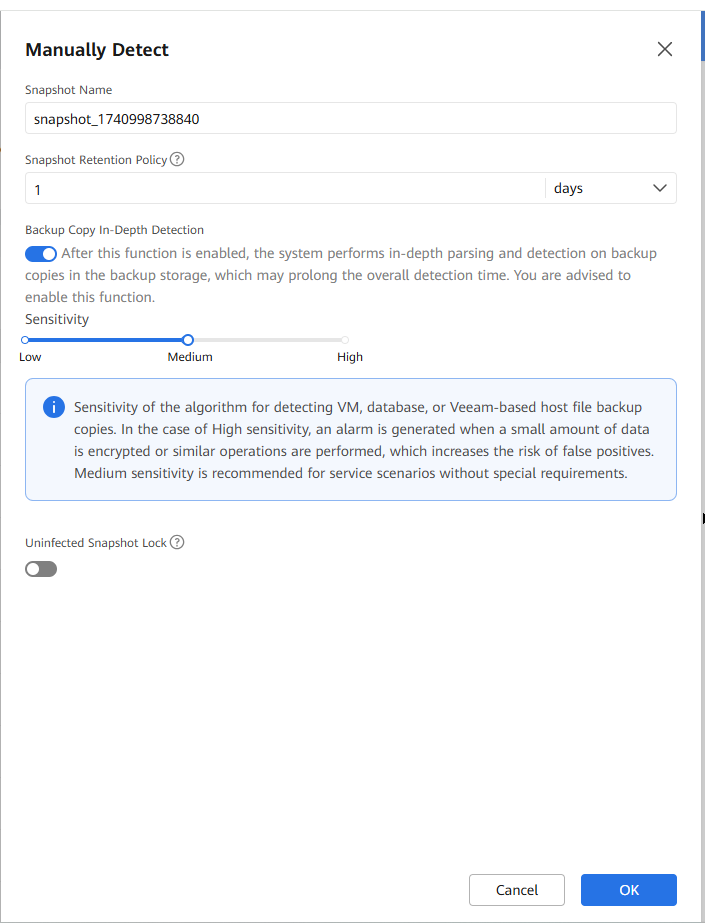
Step 6 Enable Backup Copy In-Depth Detection and click OK.
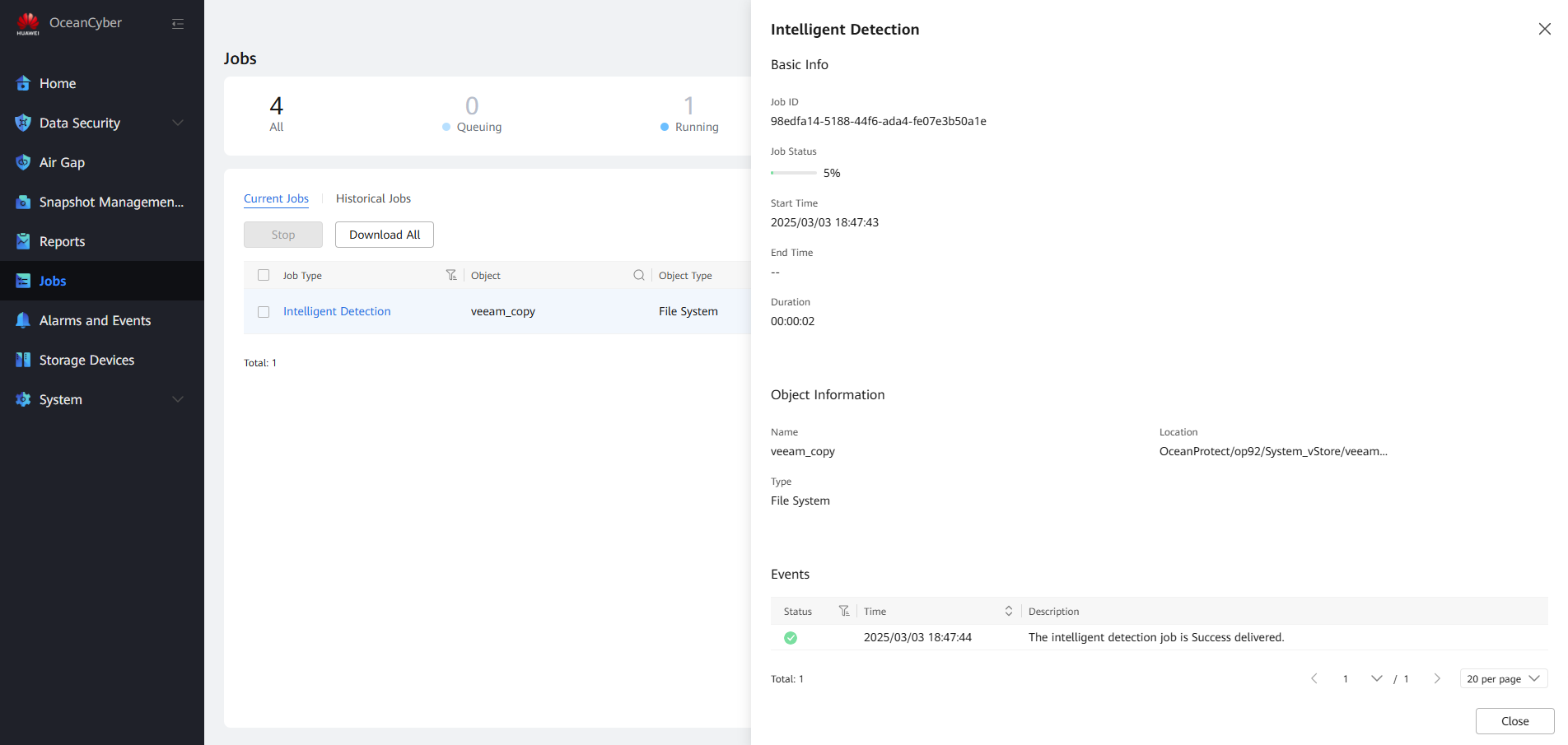
Step 7 Choose Jobs and view the detection job.
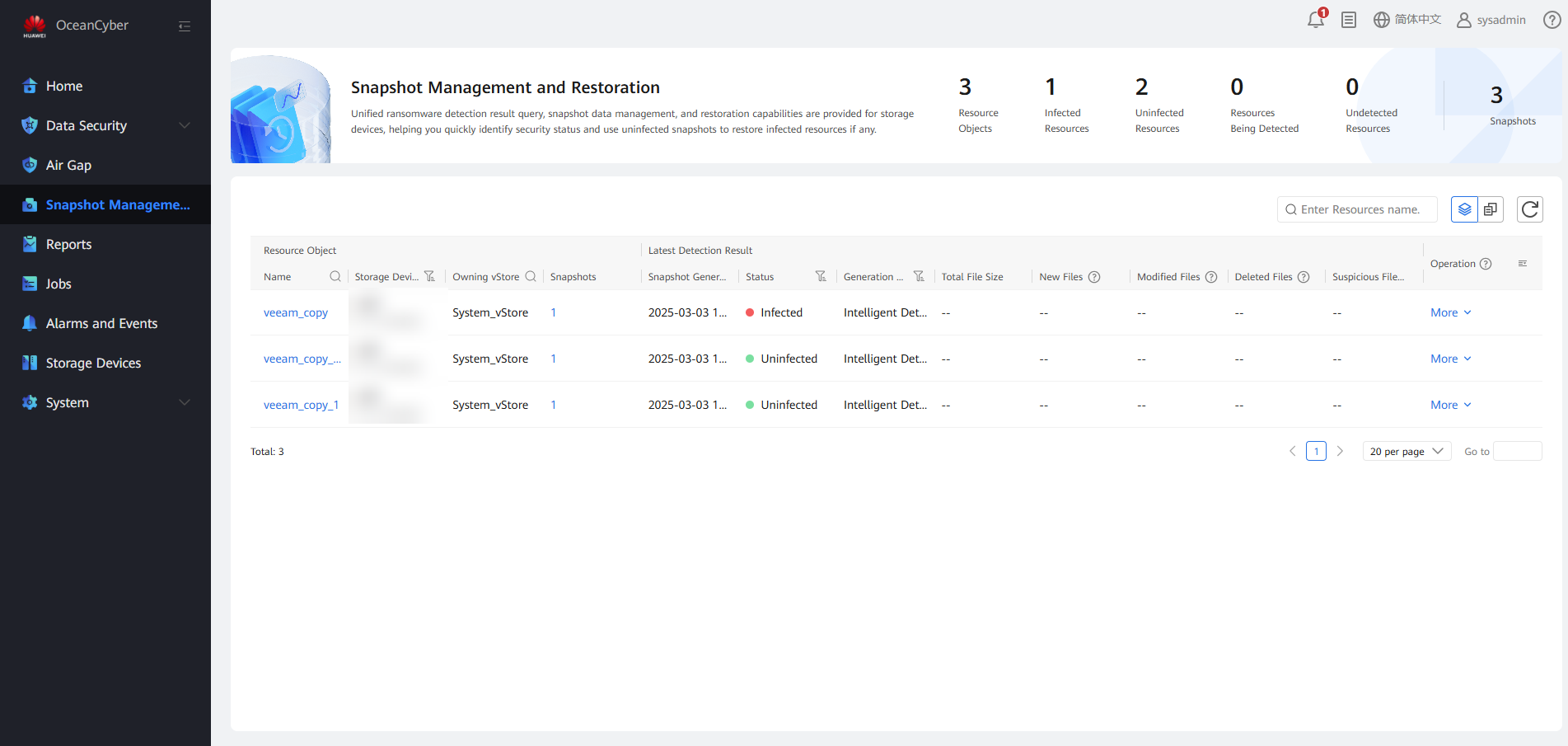
Step 8 Choose Snapshot Management and Restoration, locate the snapshot data of the corresponding file system, and choose More to view information of Latest Detection Result and backup copies.
Step 9 View the backup job details.
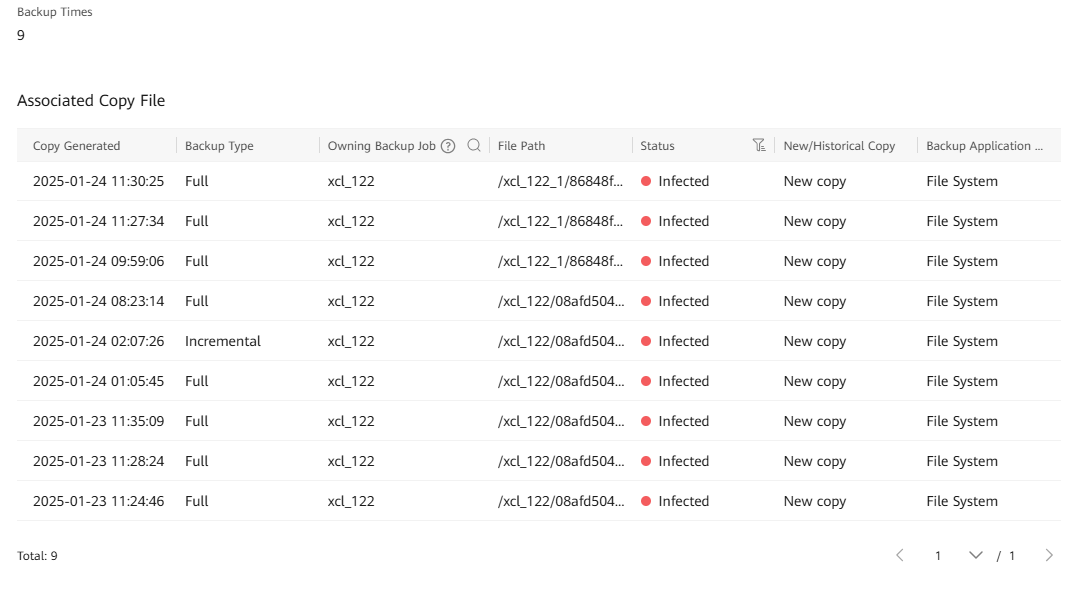
—-End
4.3.2.3 Splitting a Secure Snapshot Clone
Step 1 View the snapshot details and the detection conclusion generated after a target backup copy is detected.
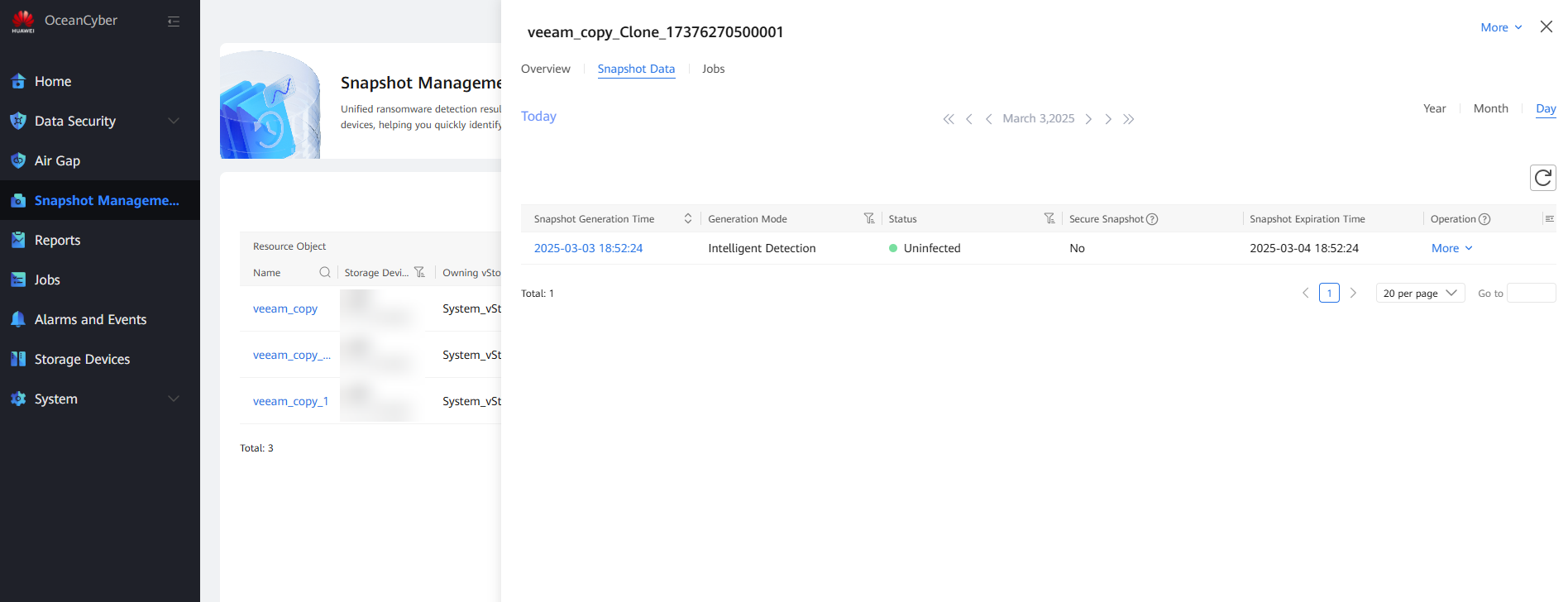
Step 2 Locate the target copy on the corresponding storage device.
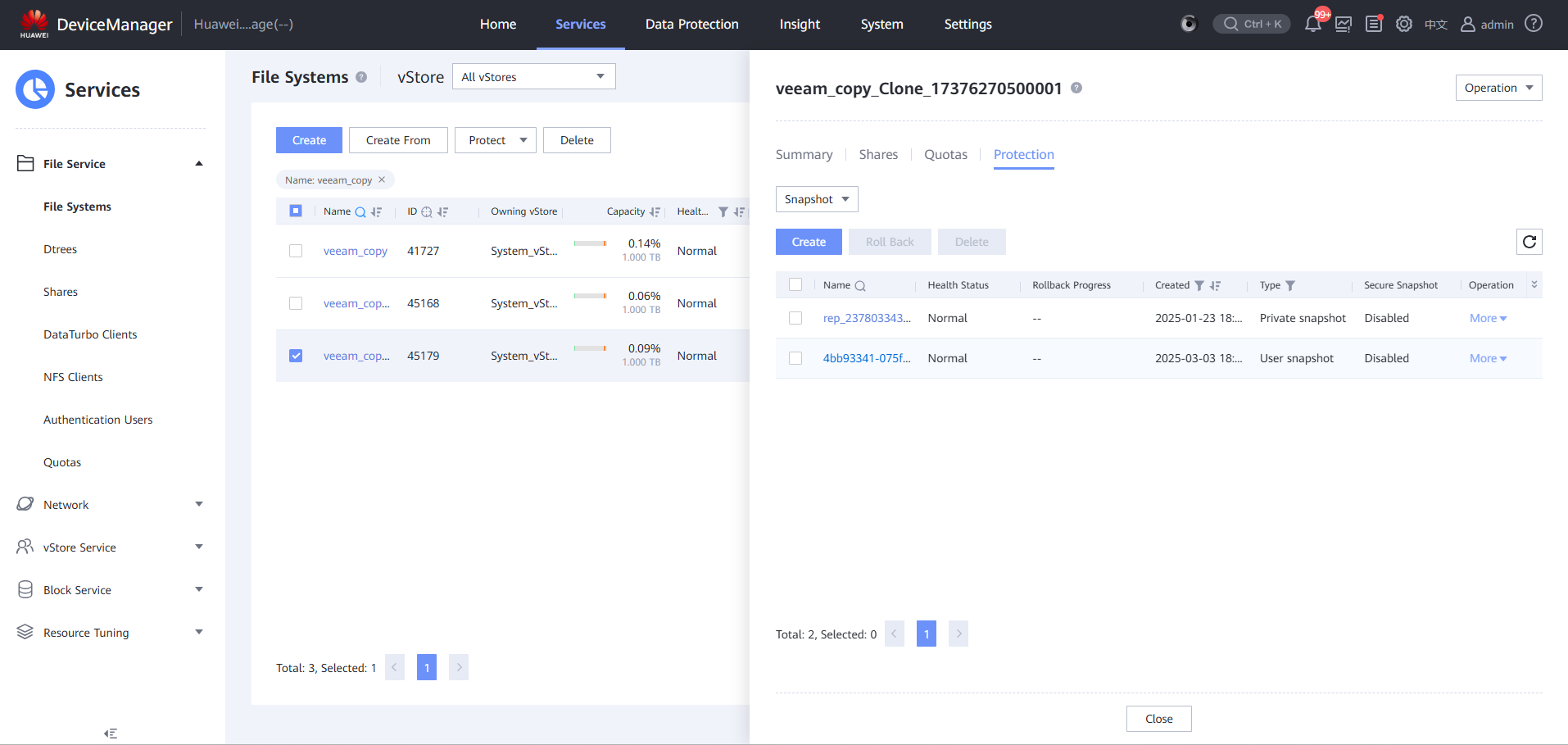
Step 3 Create a clone file system.
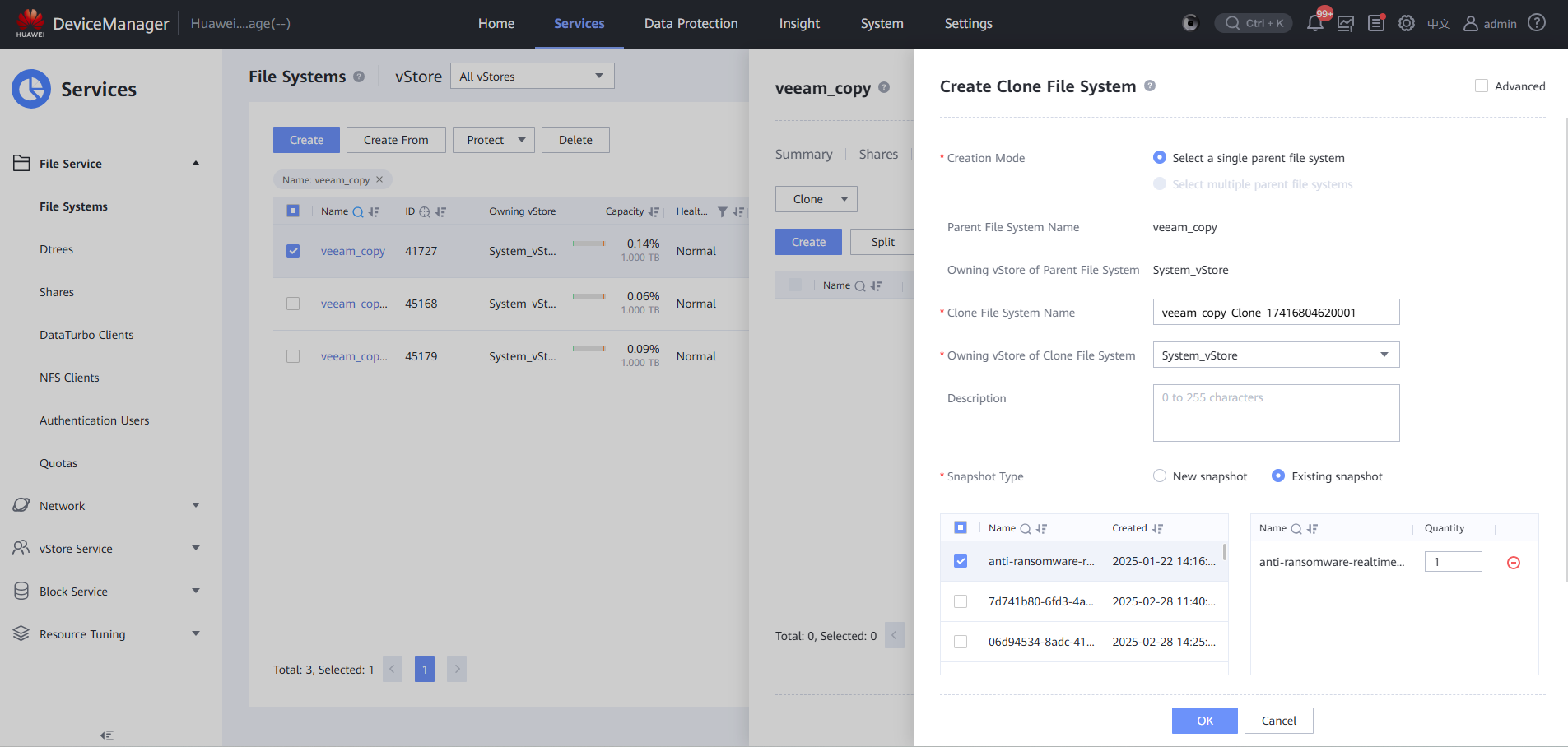
Step 4 Click Split to copy new data from the original data.
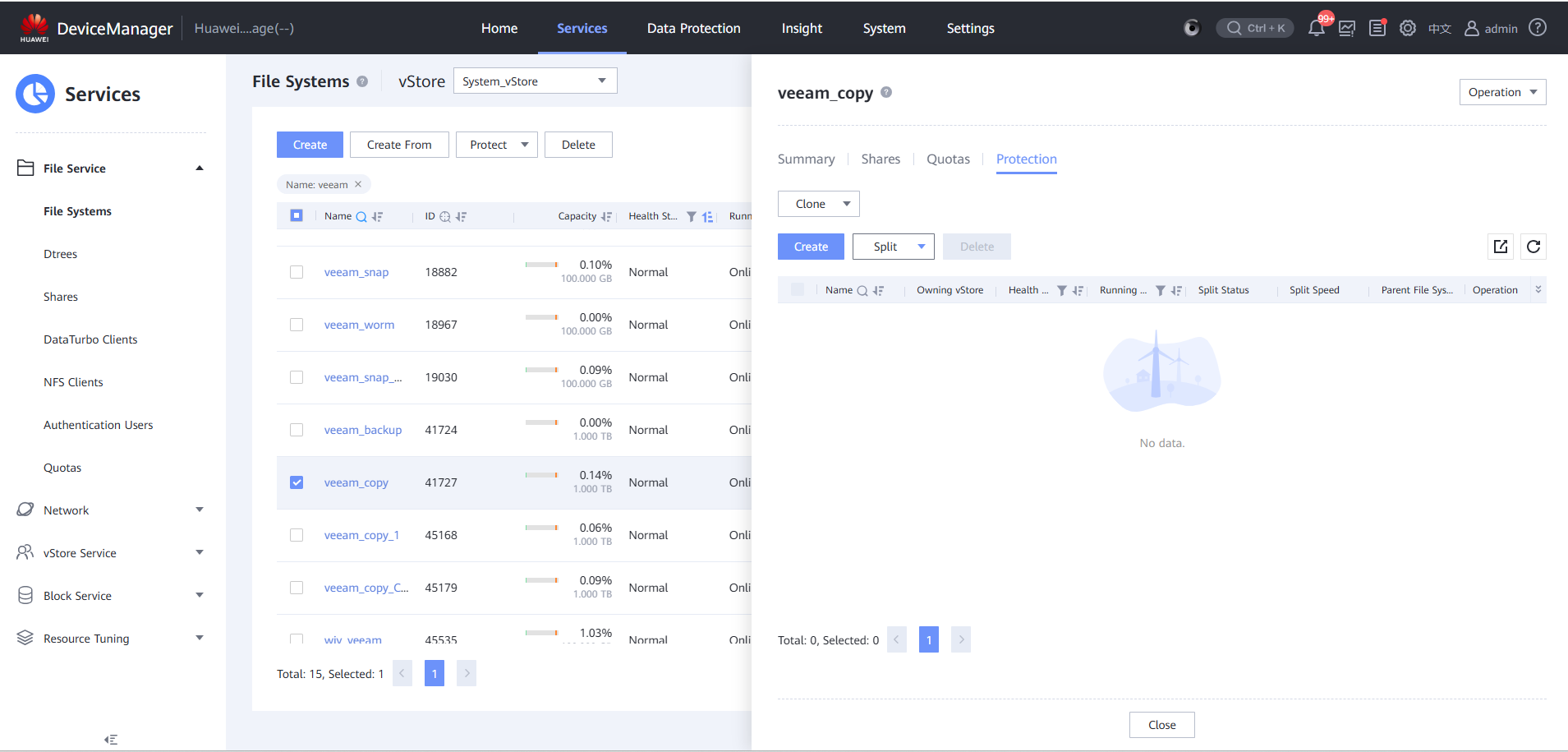
Step 5 View a clone file system.
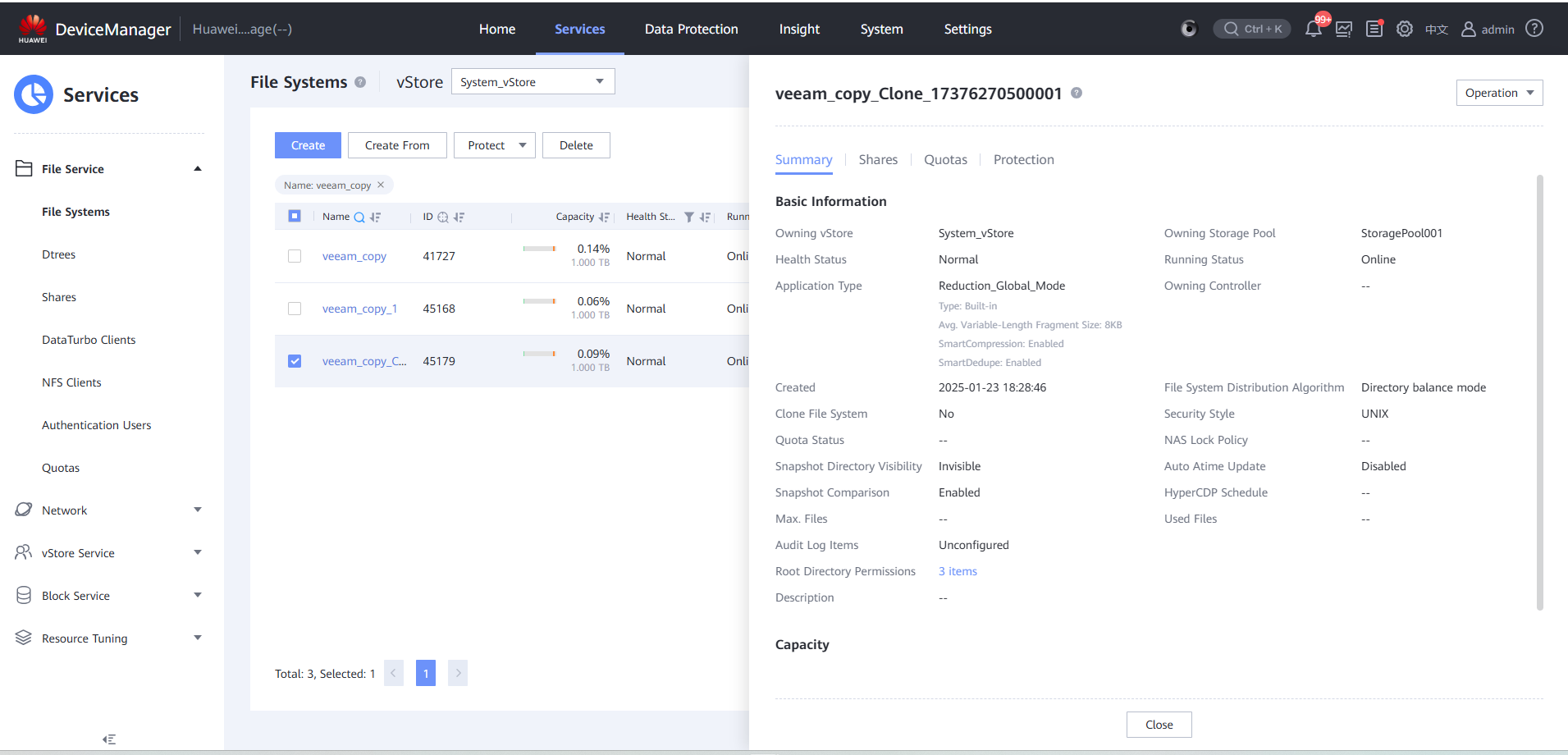
Step 6 Create a file system share classified by clone.
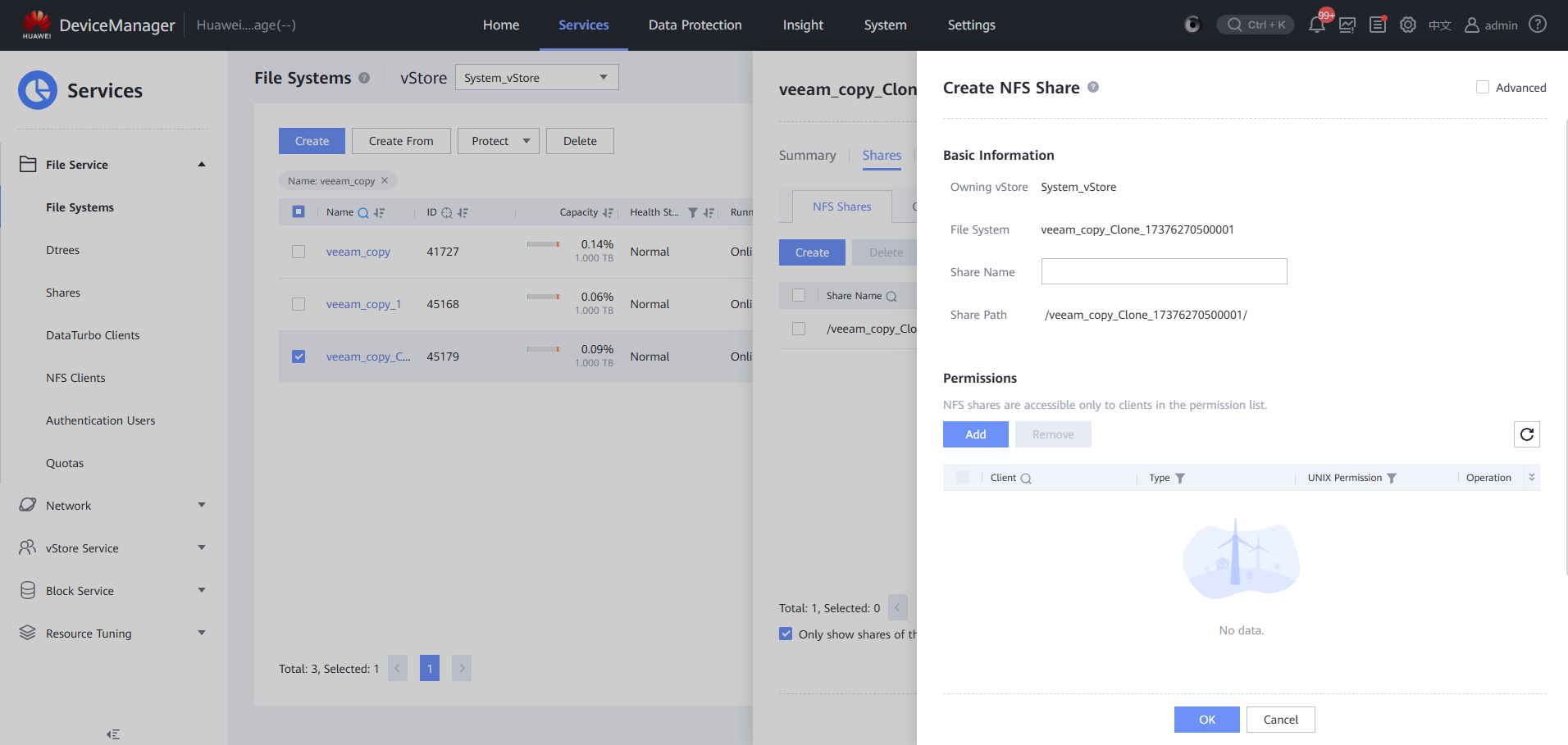
Step 7 Create a CIFS share.
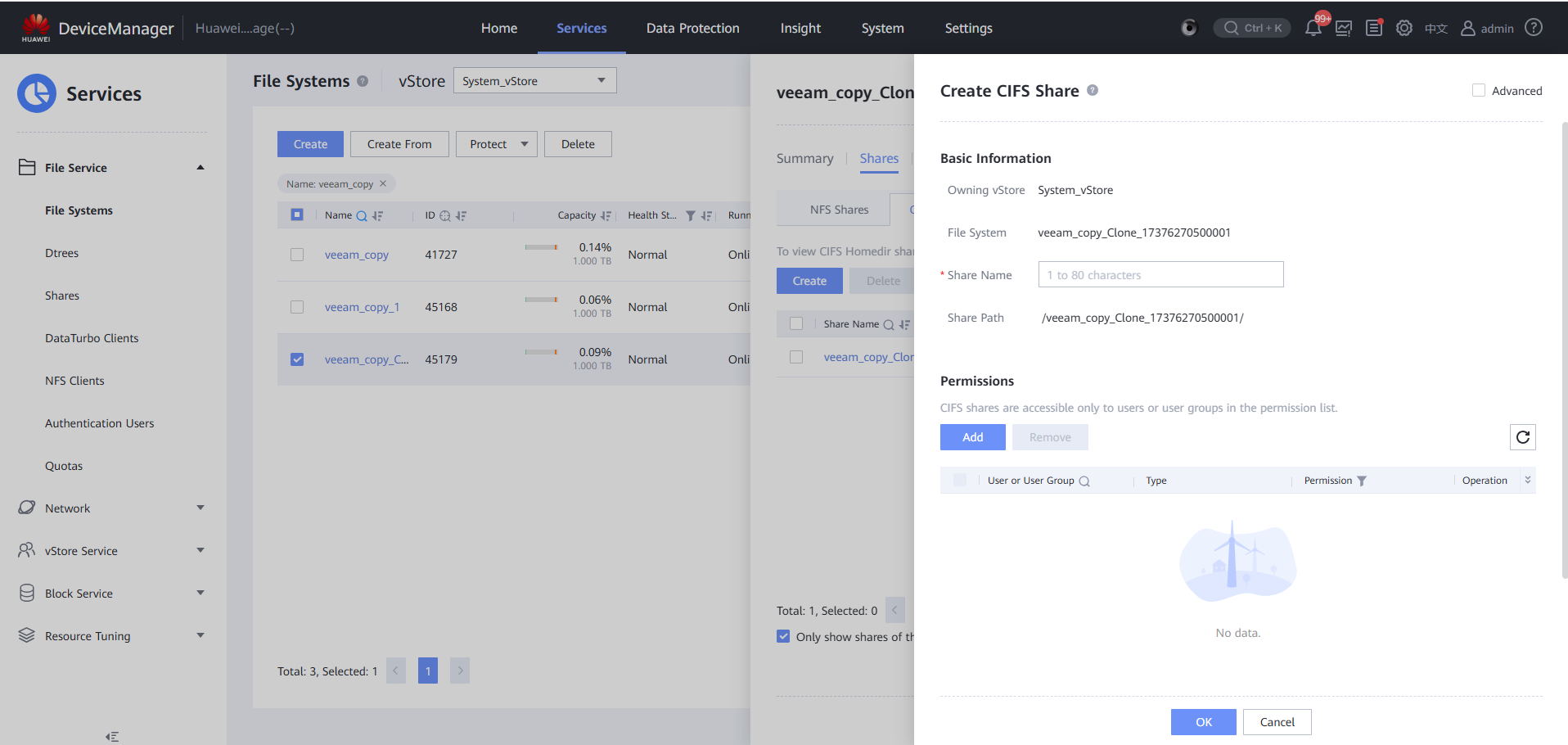
Step 8 Create a remote replication pair for a clone file system.
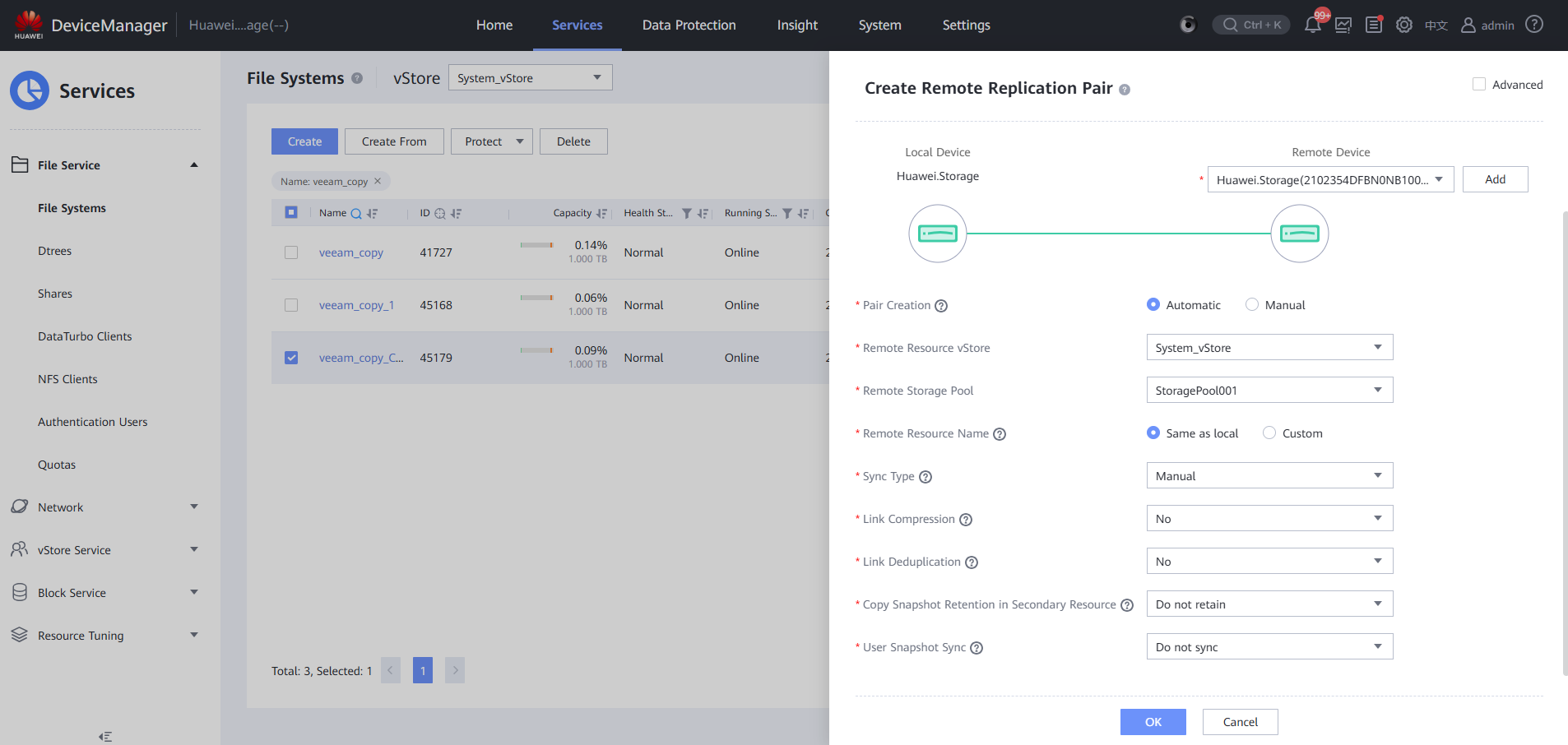
Step 9 Log in to the remote device and enable the remote replication logical port.
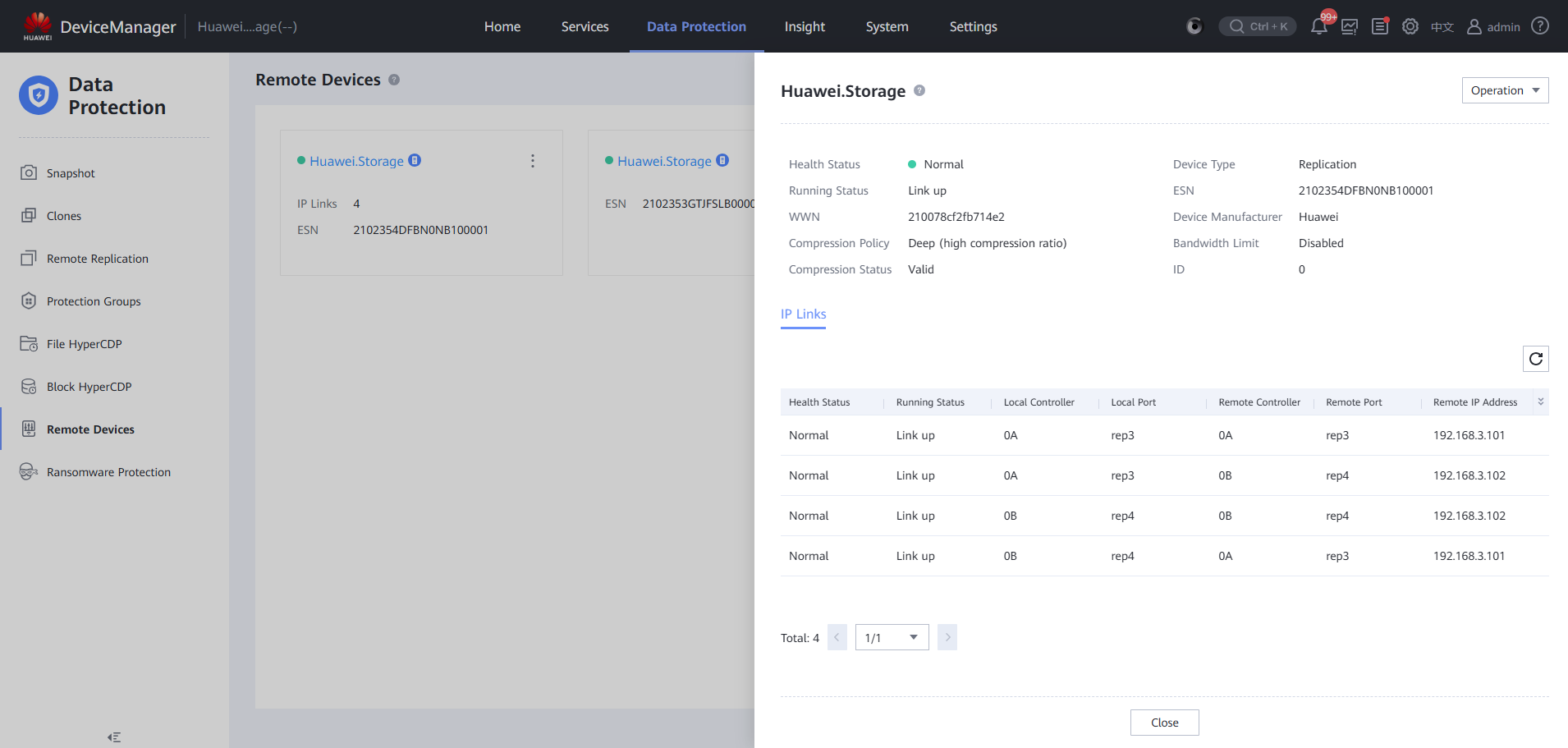
Step 10 View and copy files on the remote device.
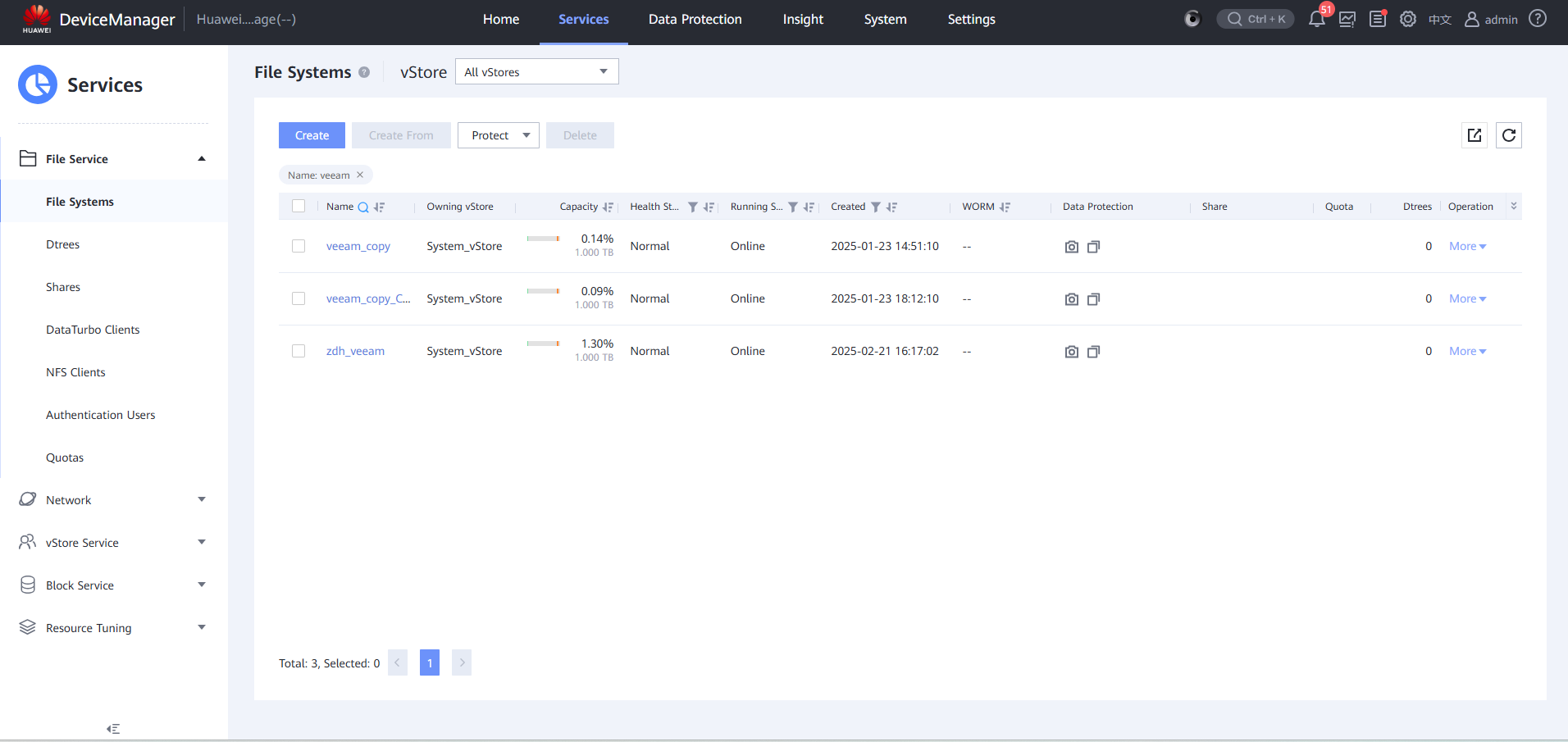
—-End
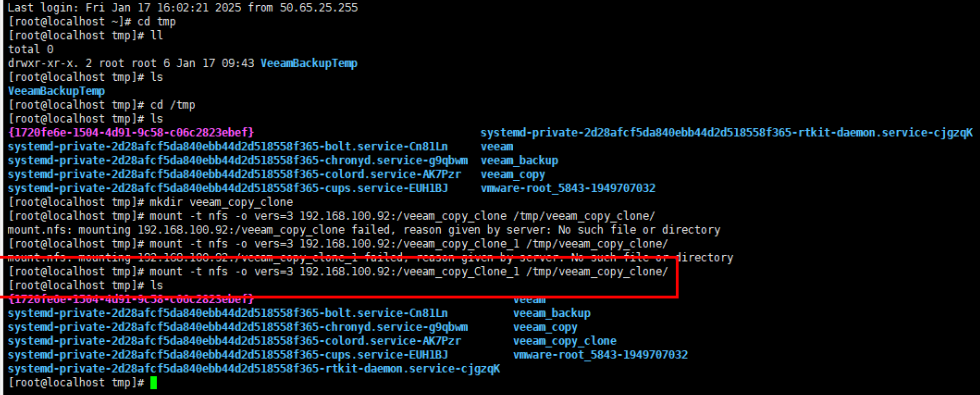
4.3.2.4 Mounting a Clone File System
Step 1 Mount a file system split by clone to the VM using the backup software.
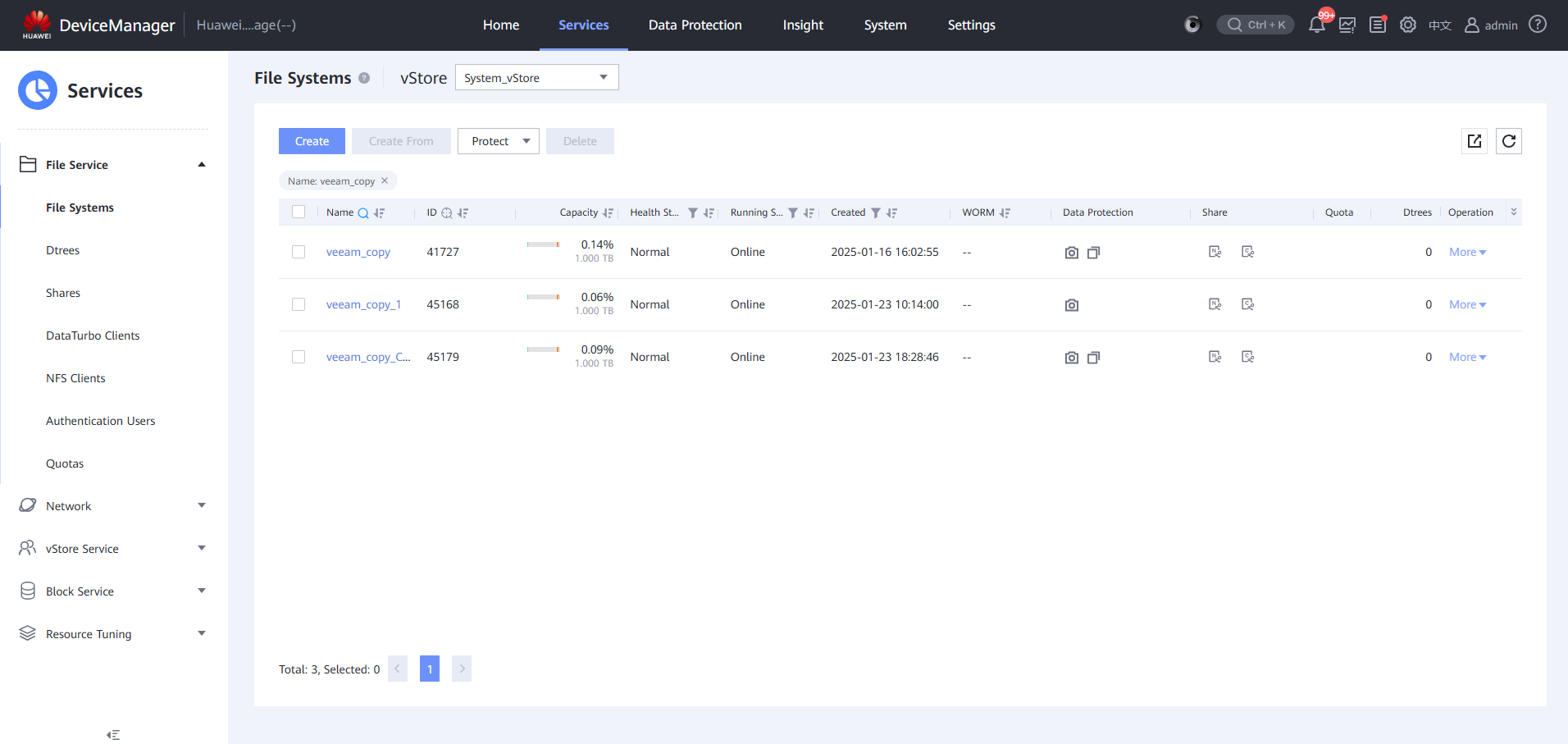
Step 2 Check that the VM is mounted successfully.
Step 3 View the file system of a CIFS share on the Veeam GUI.
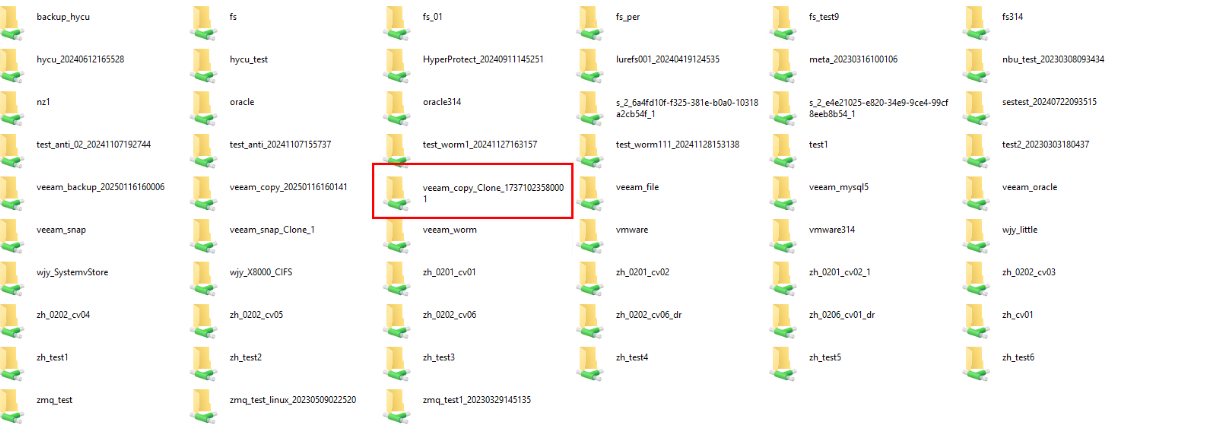
—-End
4.3.2.5 Selecting a Clean Copy for Restoration
Step 1 Simulate file system infection for a backup file system on the mounted host.
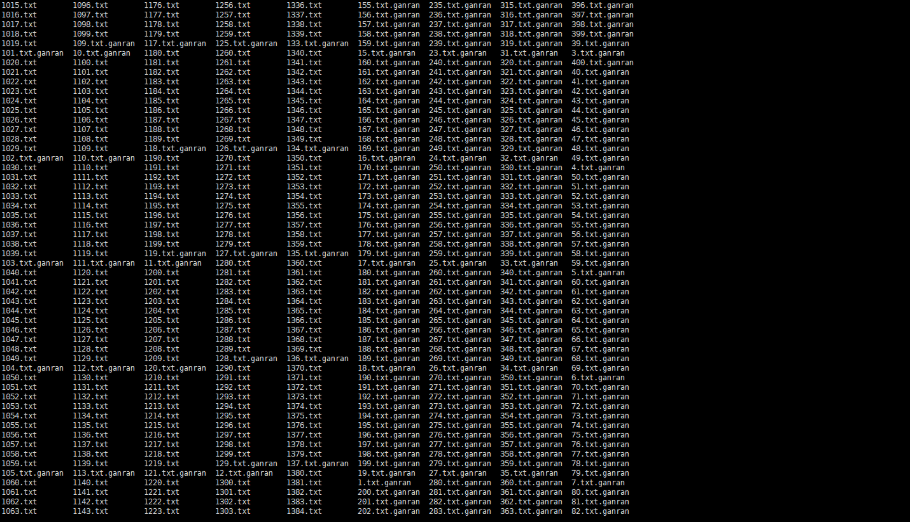

An infection script is as follows:
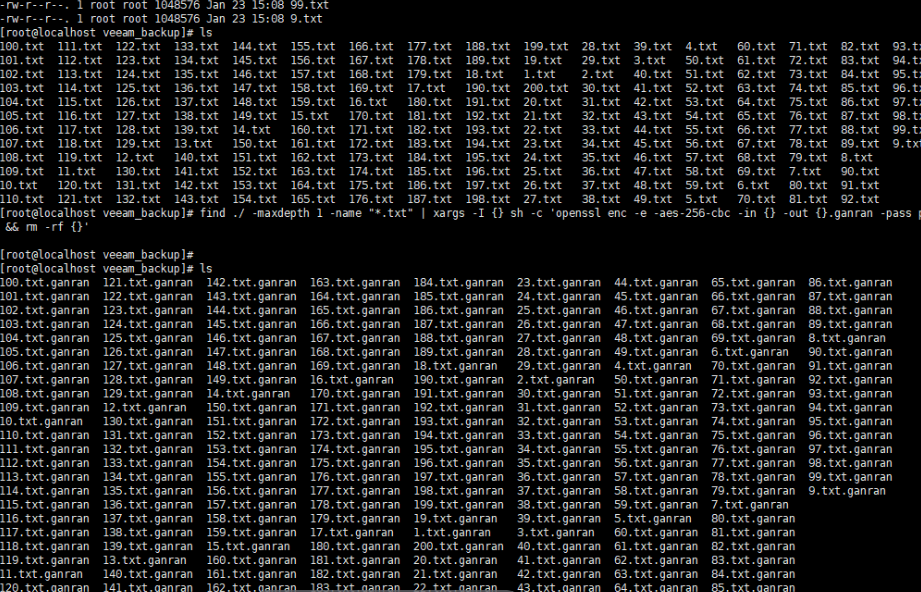
To generate a file, run the command: for i in $(seq 1 20); do yes « abc_$i » | dd of=$i.txt bs=10K count=1 iflag=fullblock;done
To simulate the infection of a file, run the command: find ./ -maxdepth 1 -name « *.txt » | xargs -I {} sh -c ‘openssl enc -e -aes-256-cbc -in {} -out {}.ganran -pass pass:huawei && rm -rf {}’
Step 2 On the Veeam WebUI, click a created backup job and choose Active full for full backup.
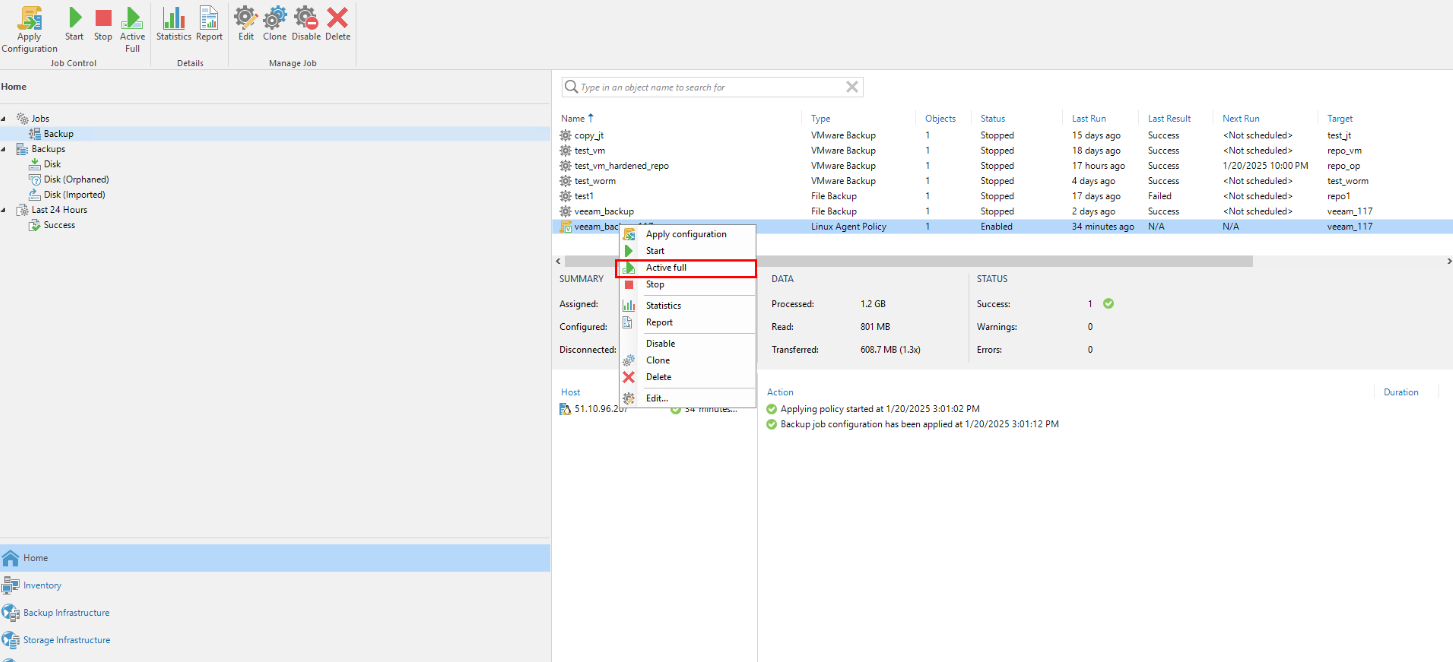
Step 3 Complete full backup of the backup job, and wait until a backup copy is generated.
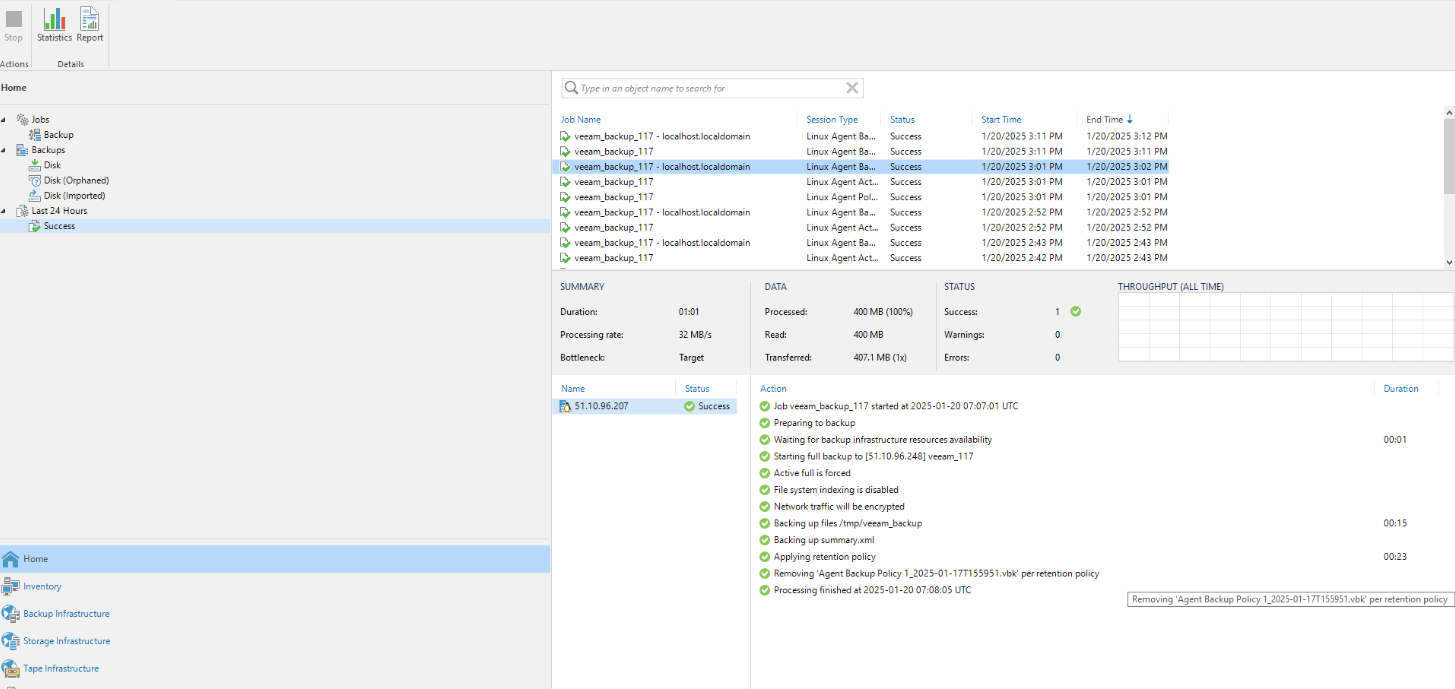
Step 4 View backup copies in the repository using CIFS.
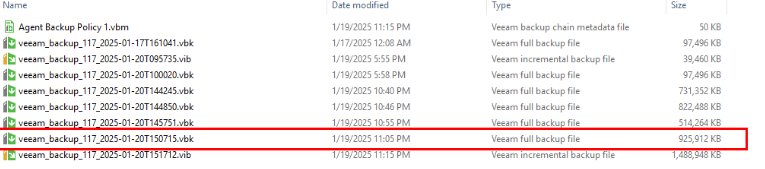
Step 5 Choose Data Security > Intelligent Detection and locate the file system of the backup job copy.
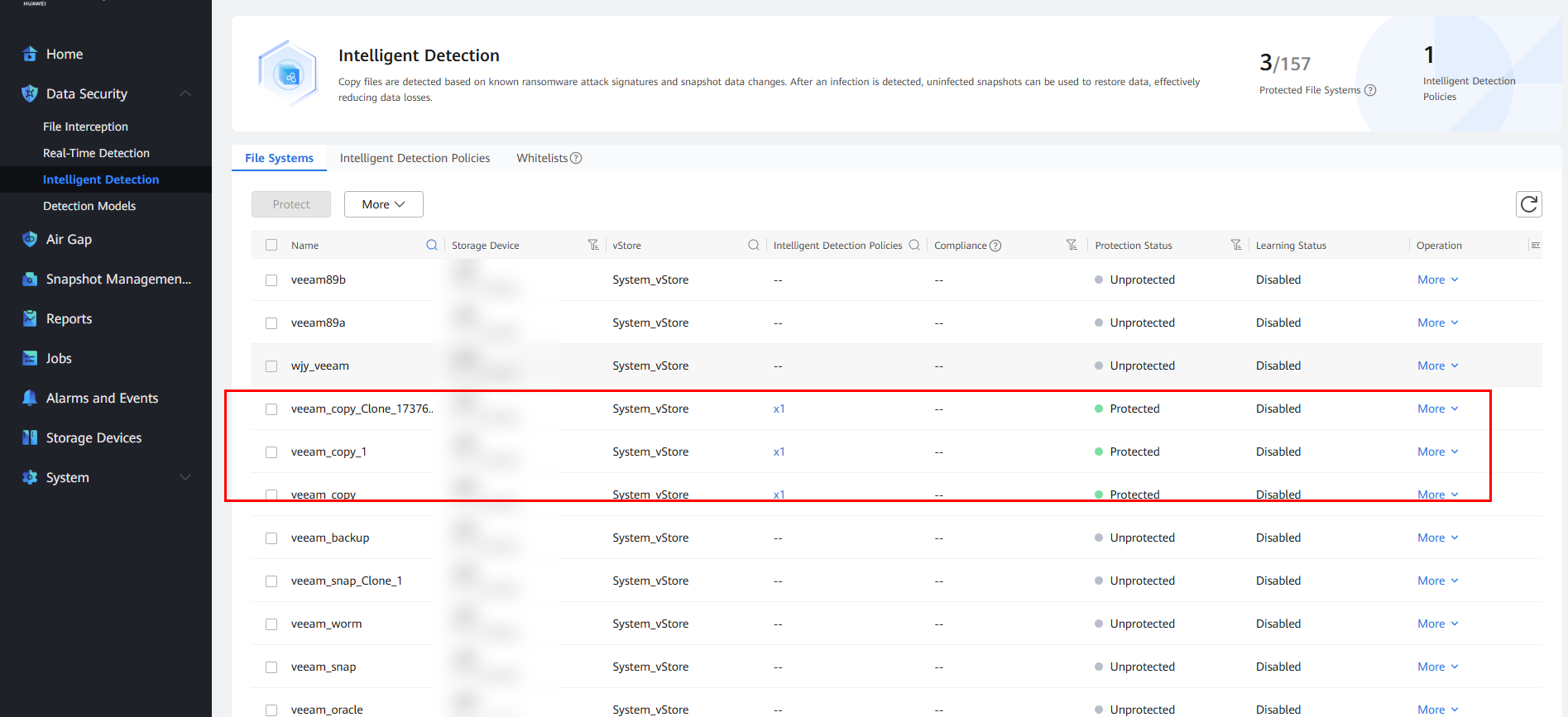
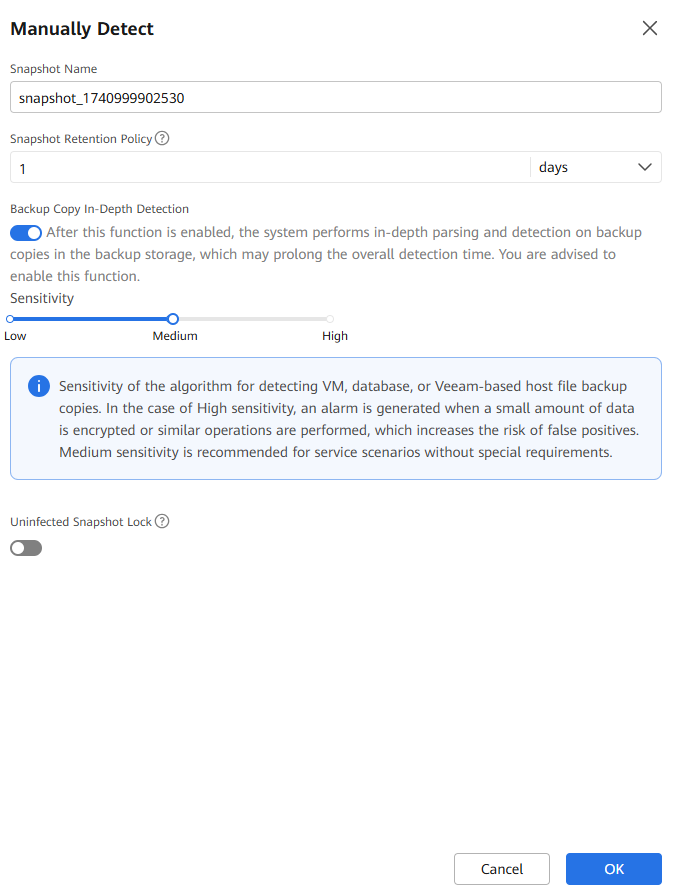
Step 6 Select the file system, and choose More > Manually Detect. On the page that is displayed, modify other parameters as required and click OK to start the copy detection job.
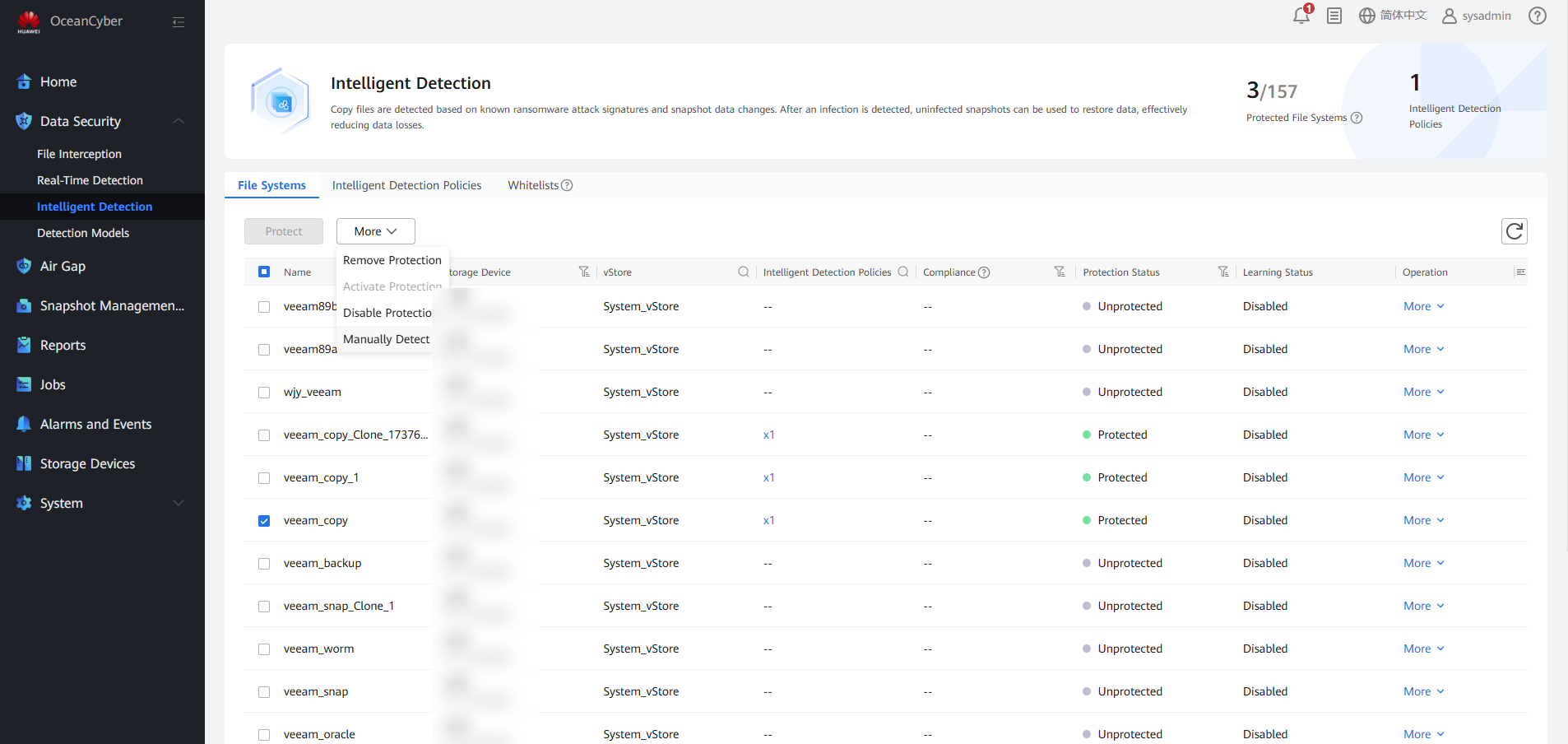
Step 7 Enable Backup Copy In-Depth Detection.
Step 8 Choose Snapshot Management and Restoration, choose Resource Object > Name, and enter the file system name to search for the generated snapshot.
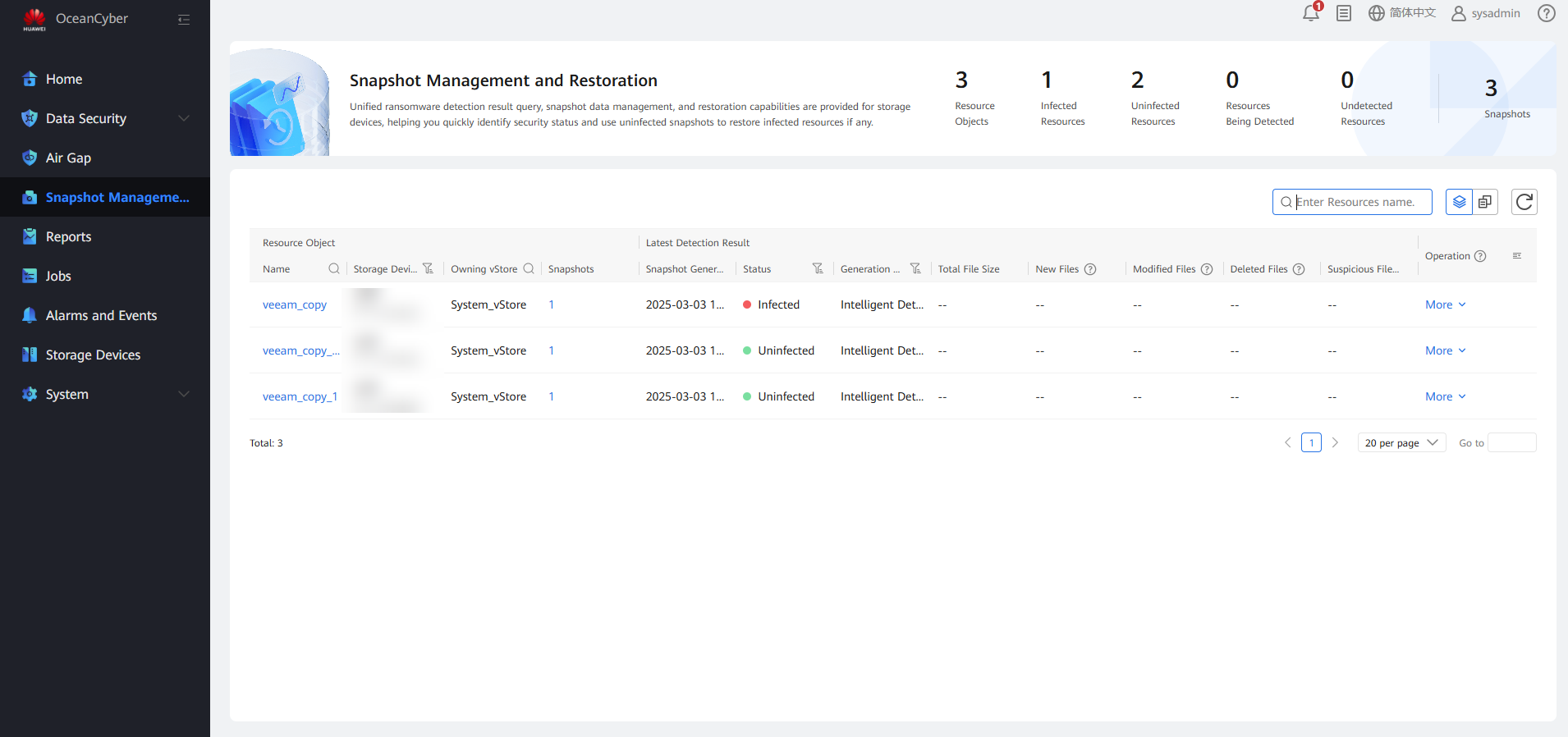
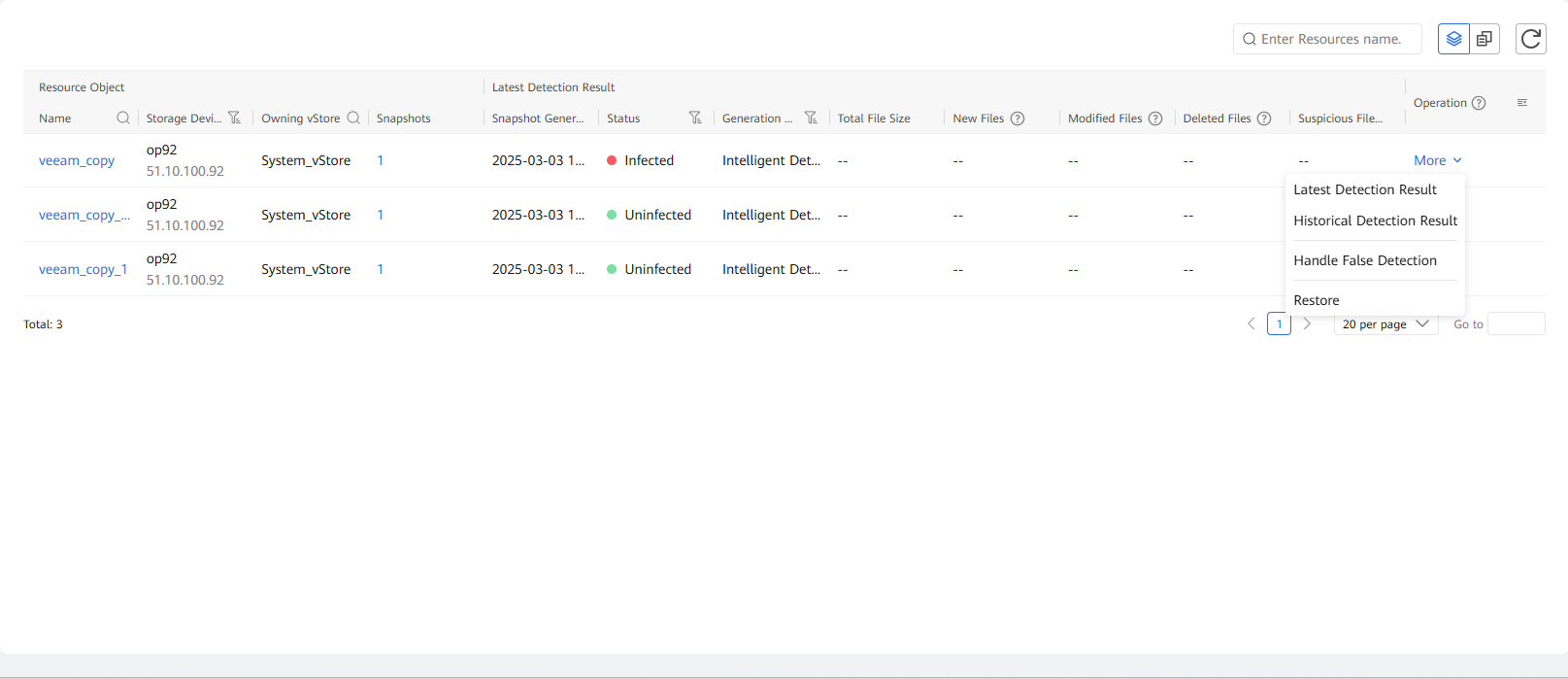
Step 9 Choose More > Latest Detection Result to view the in-depth detection result of the latest full backup copy job. You can also choose Historical Detection Result to view the historical copy detection result.
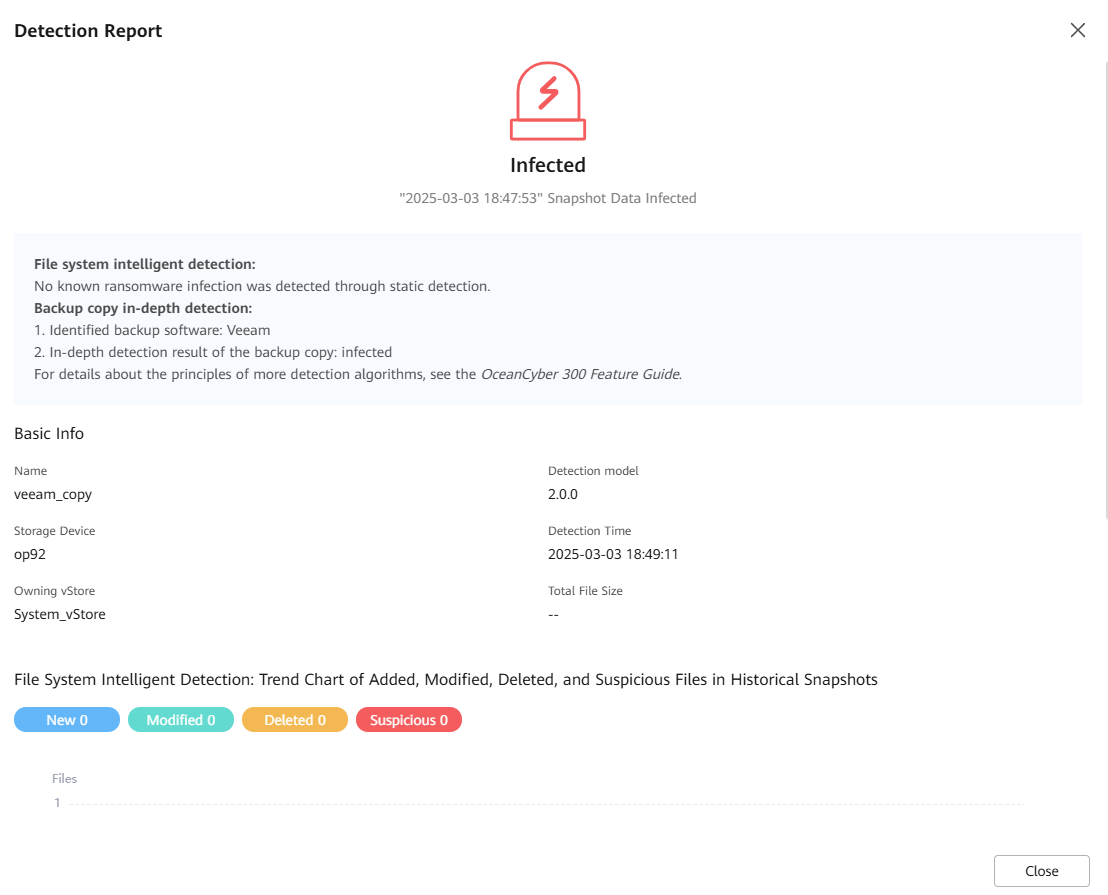
Step 10 View the result in the detection report.
Step 11 Click the name of a protected object to view the copy list of the protected object.
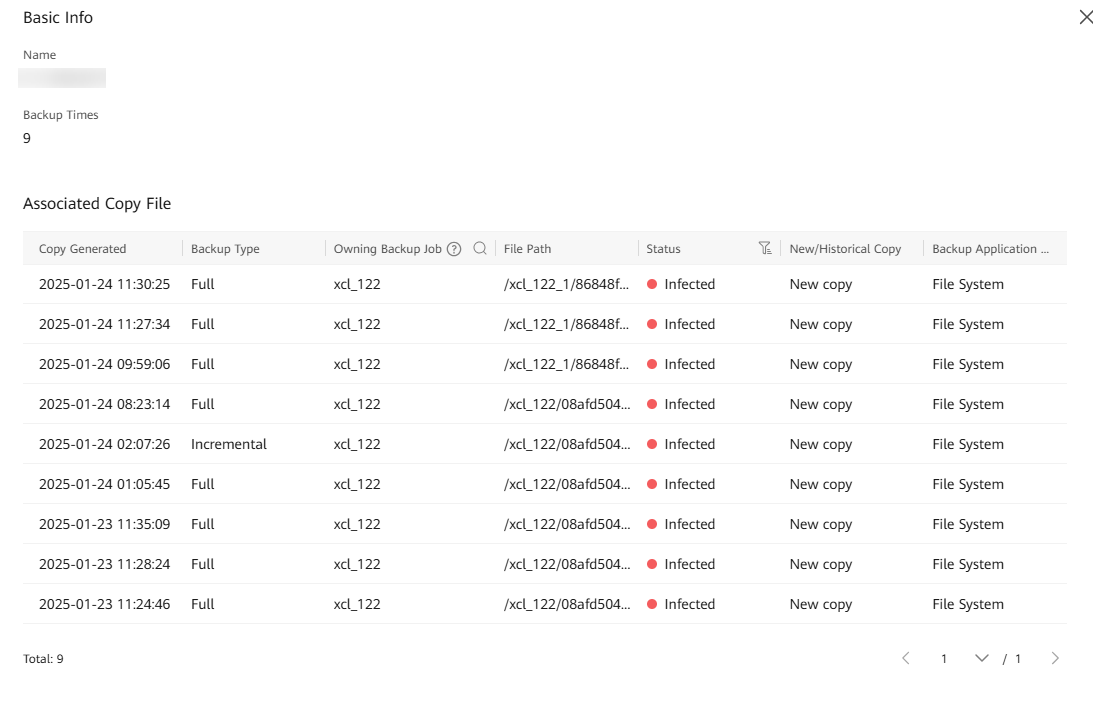
Step 12 Locate the full copy whose security status is infected. Click File Path to view the storage space path of the copy job.
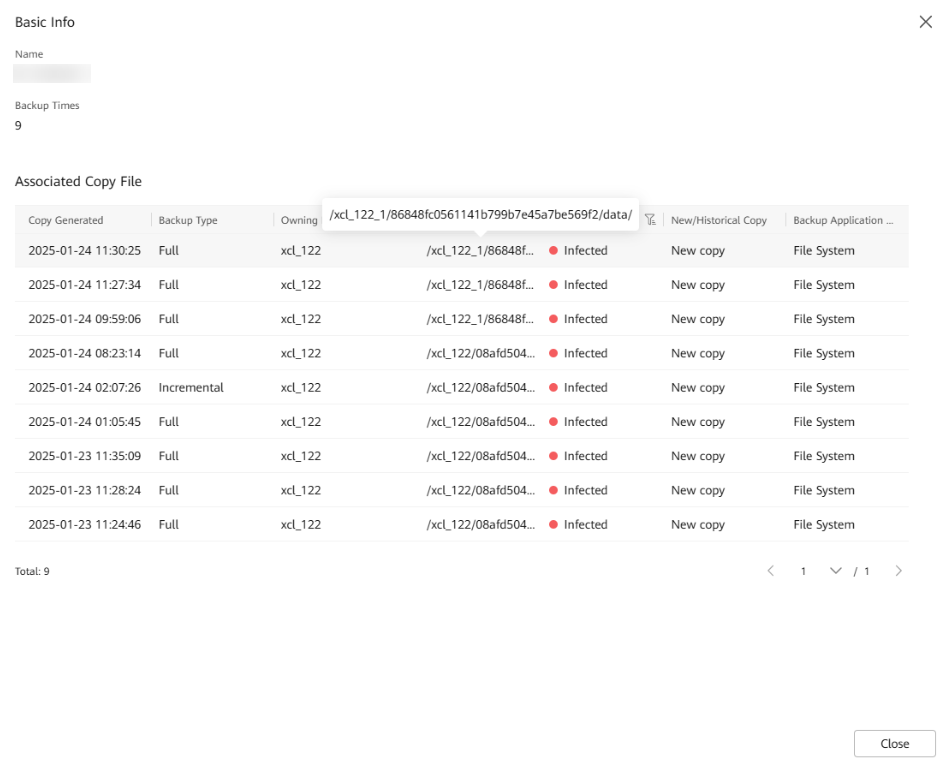
Step 13 Go back to the Veeam host page and locate the file system where the repository resides.
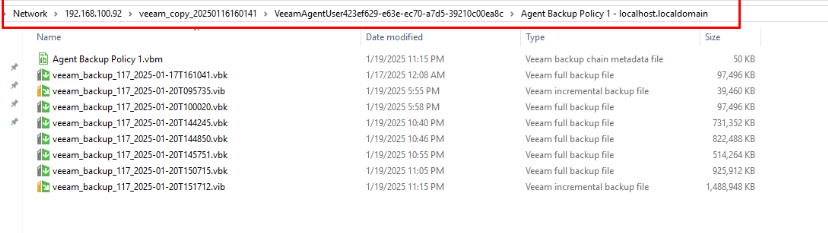
Step 14 View the copy for restoration.
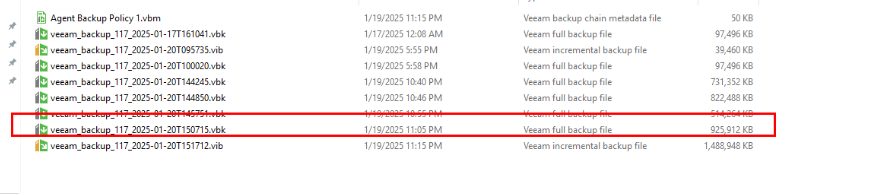
Step 15 Query incremental backup copies in the same way as that in the preceding steps.
—-End
4.3.2.6 Verifying Air Gap Linked Detection Configuration in the Production Zone
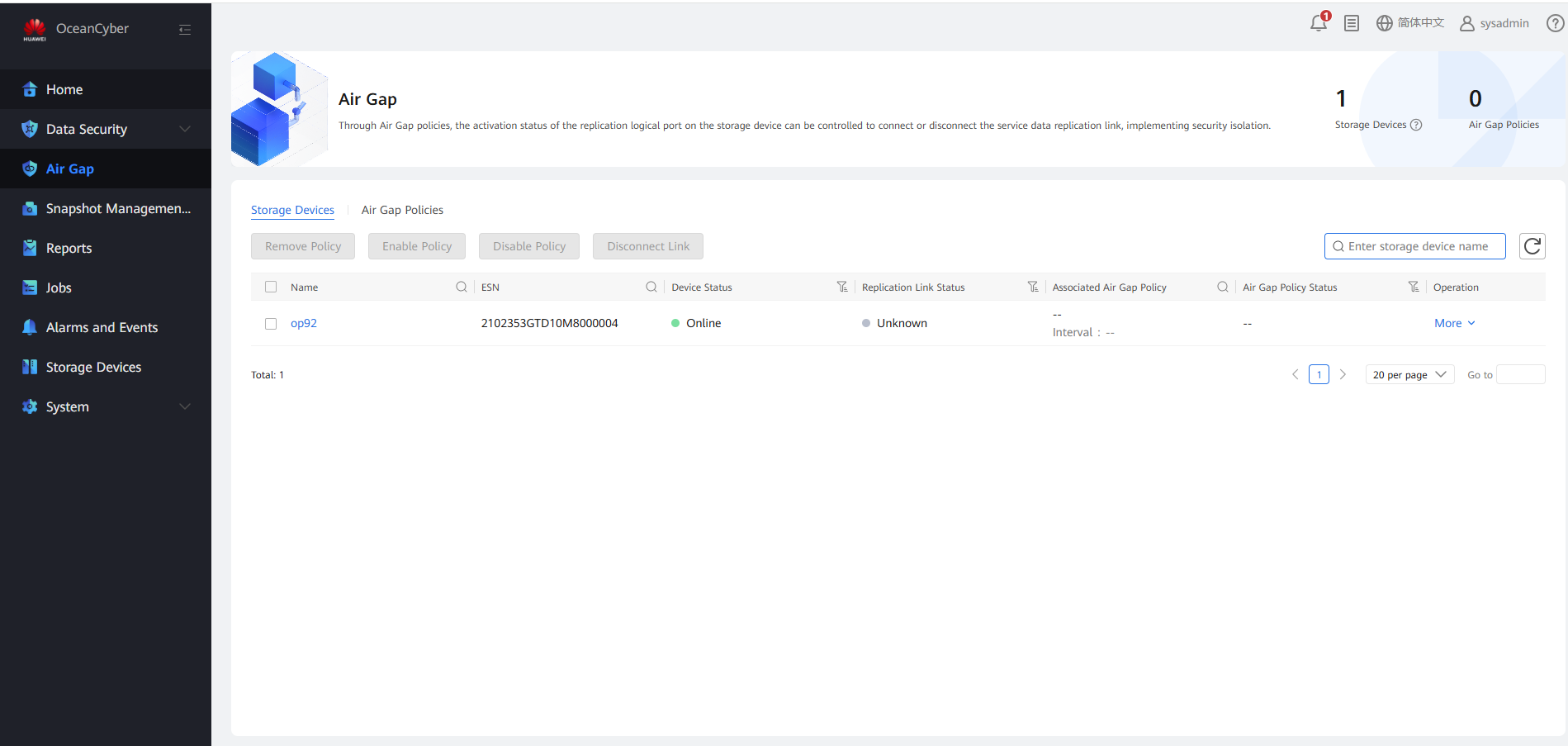
Step 1 Log in to OceanCyber 300 and choose Air Gap in the navigation pane.
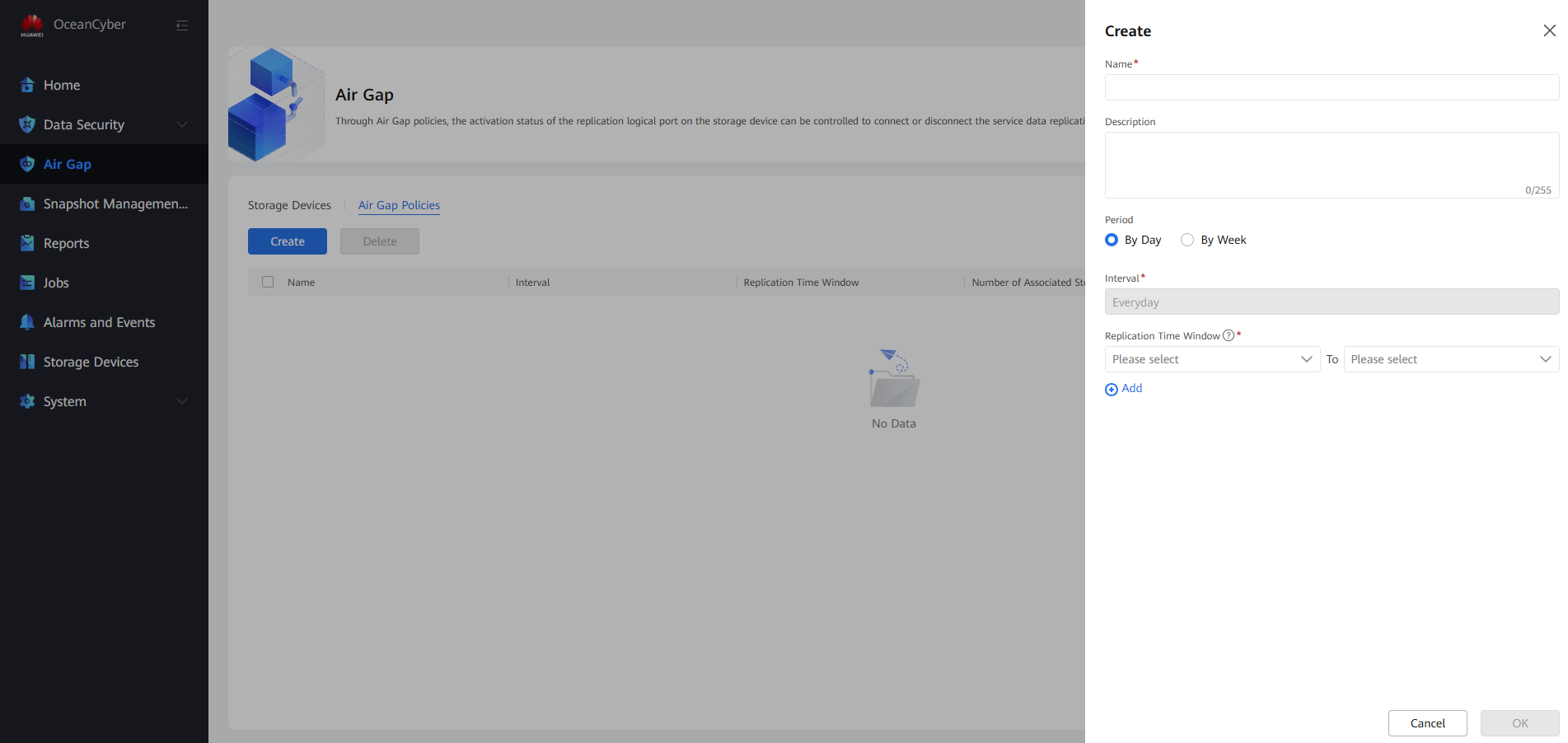
Step 2 On the Air Gap Policies tab page, click Create, set related parameters, and click OK to create a policy. The replication time window of the current policy must be the same as that of the protection policy on OceanStor BCManager in the isolation zone to prevent a replication logical port from being disabled due to inconsistent time periods for automatic replication control. Otherwise, the automatic replication job will fail and security data will not be retained.
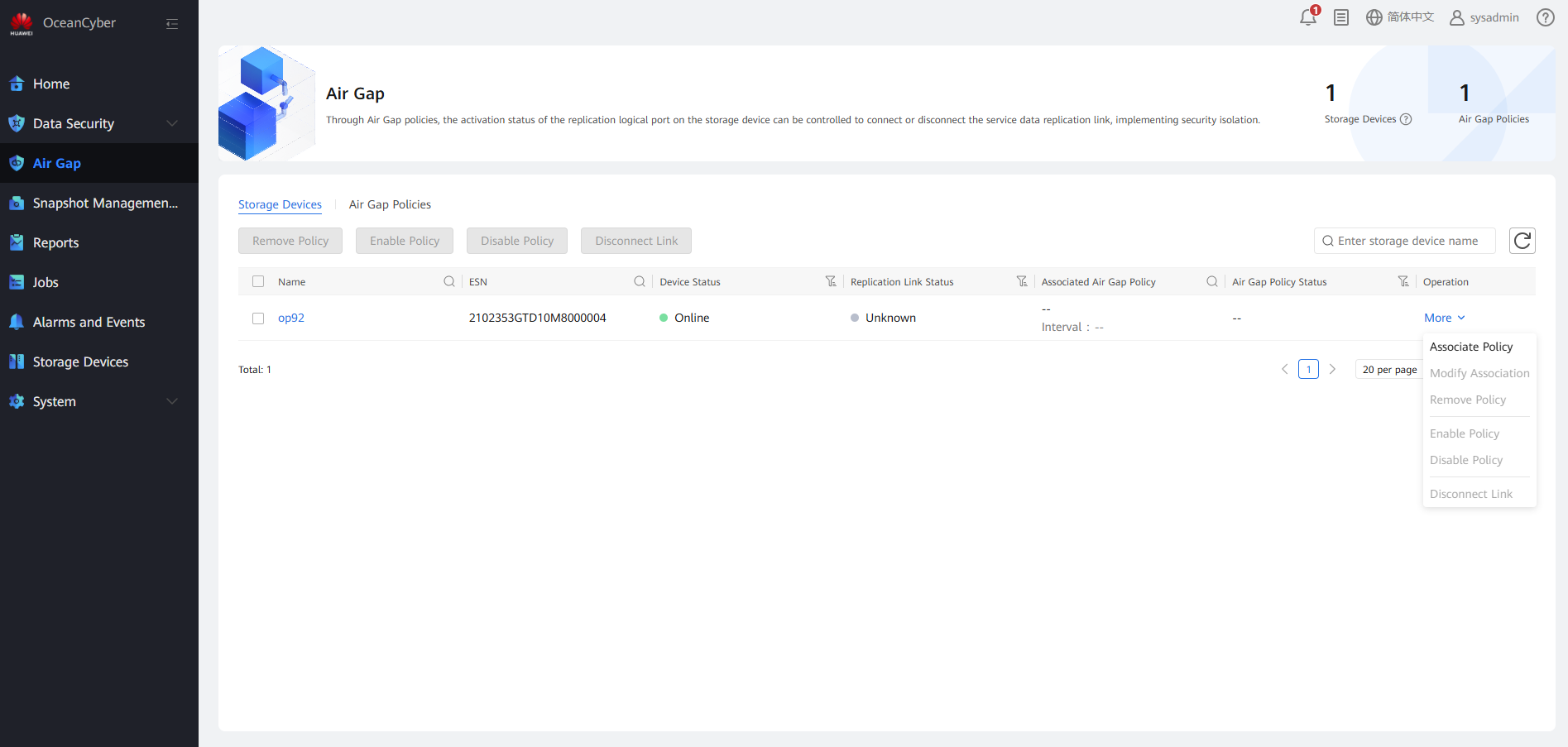
Step 3 On the Storage Devices tab page, select a storage device added to the production zone, and choose More.
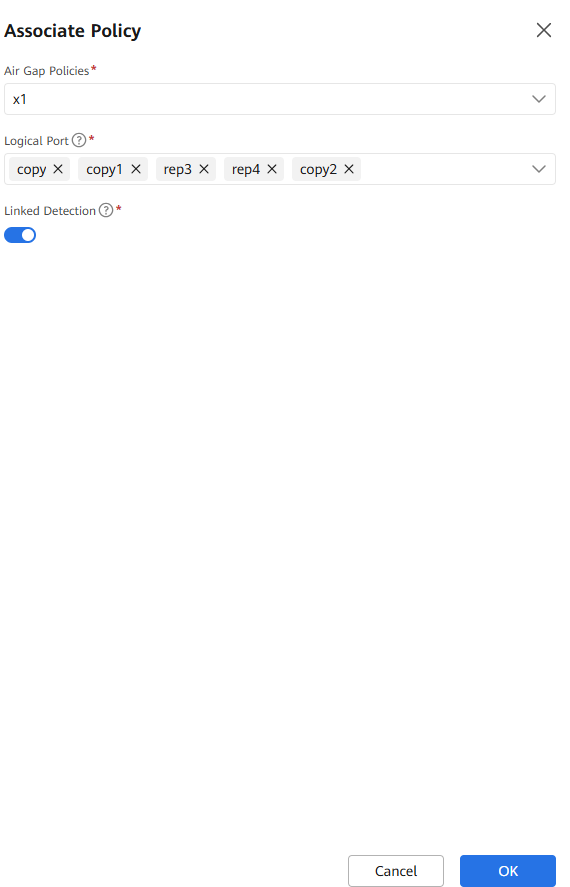
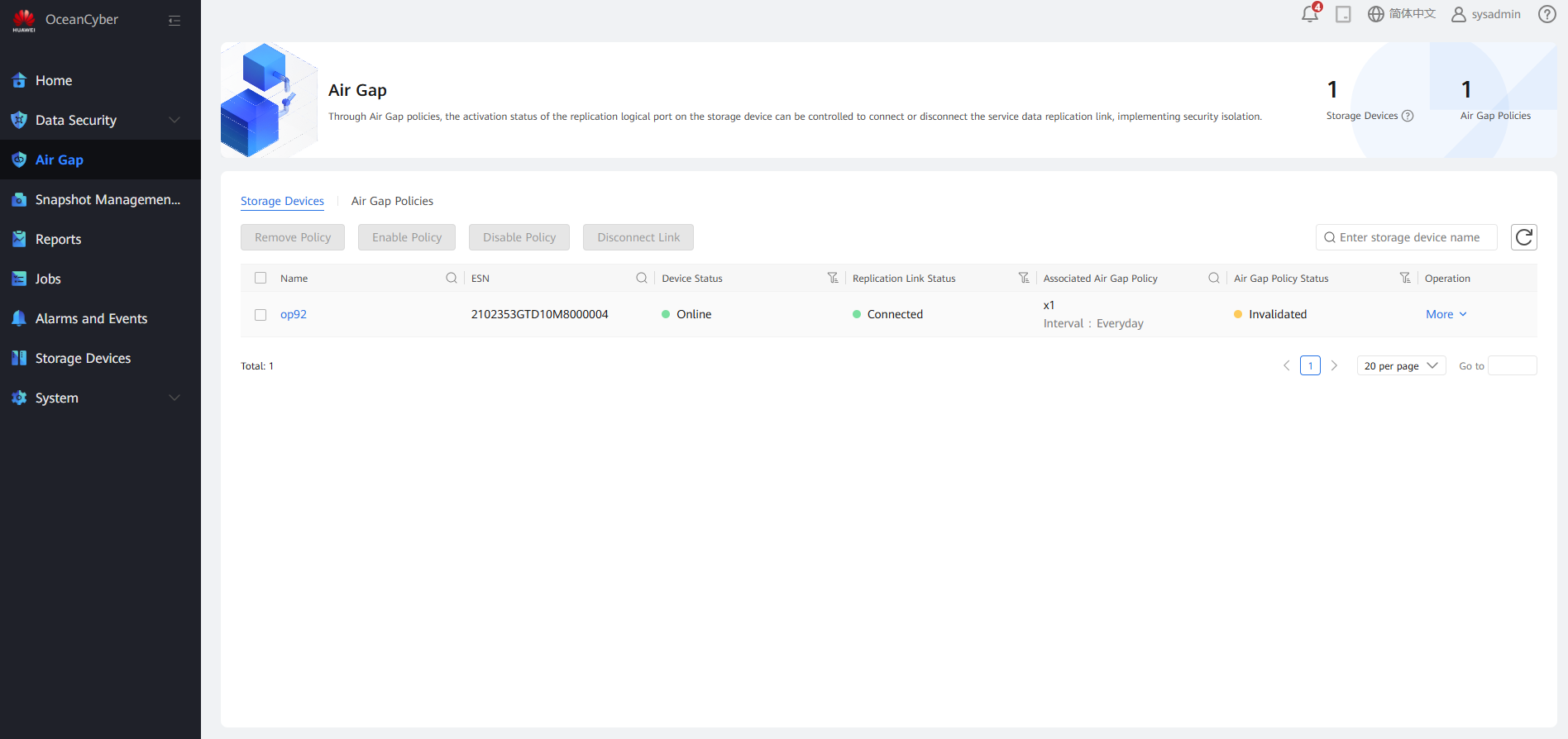
Step 4 Click Associate Policy, select the target Air Gap policy and logical port, and enable the association policy. In this way, when a copy is infected, the replication link disconnection mechanism is triggered and the infected copy is not remotely replicated to the isolation zone.
Step 5 Click Disable Policy.
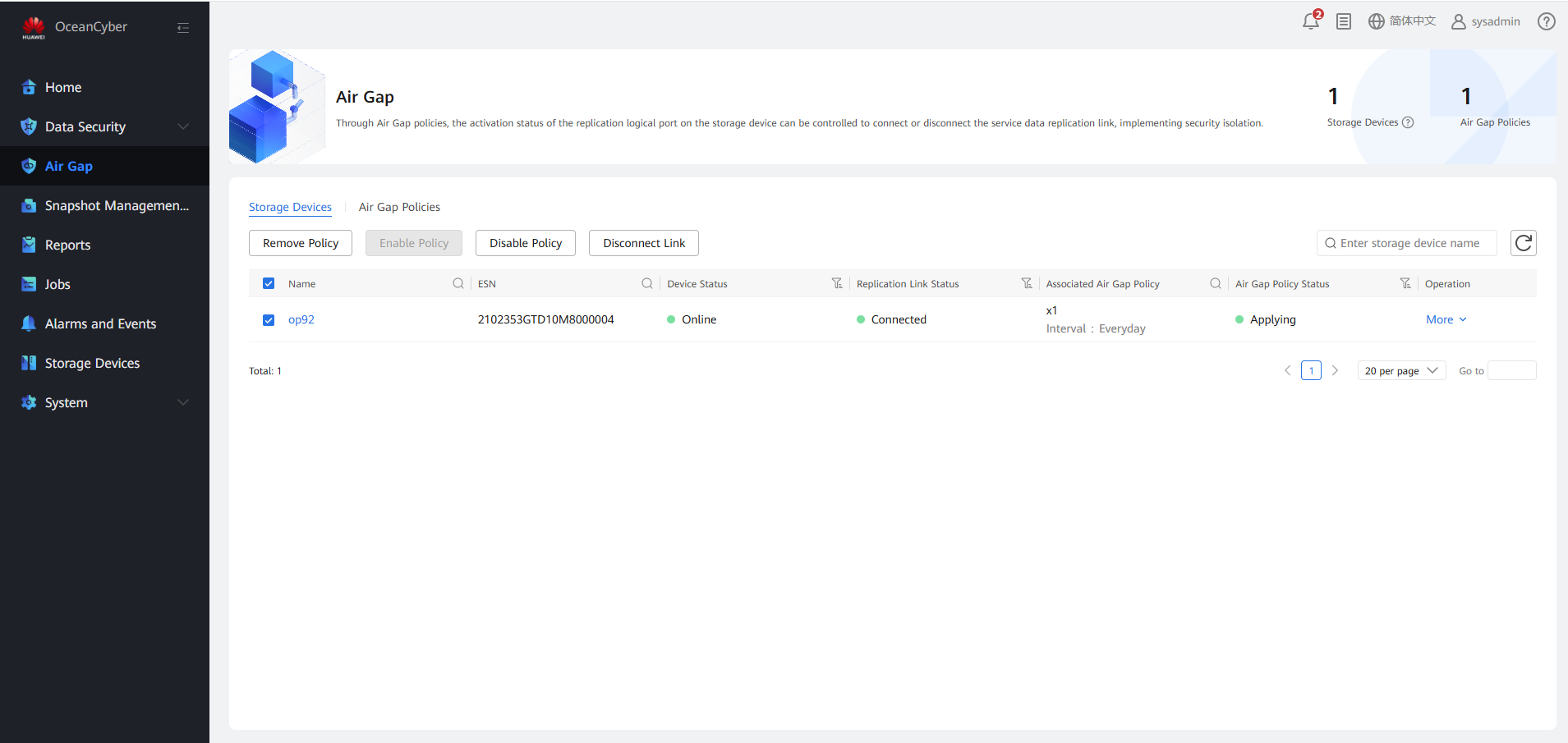
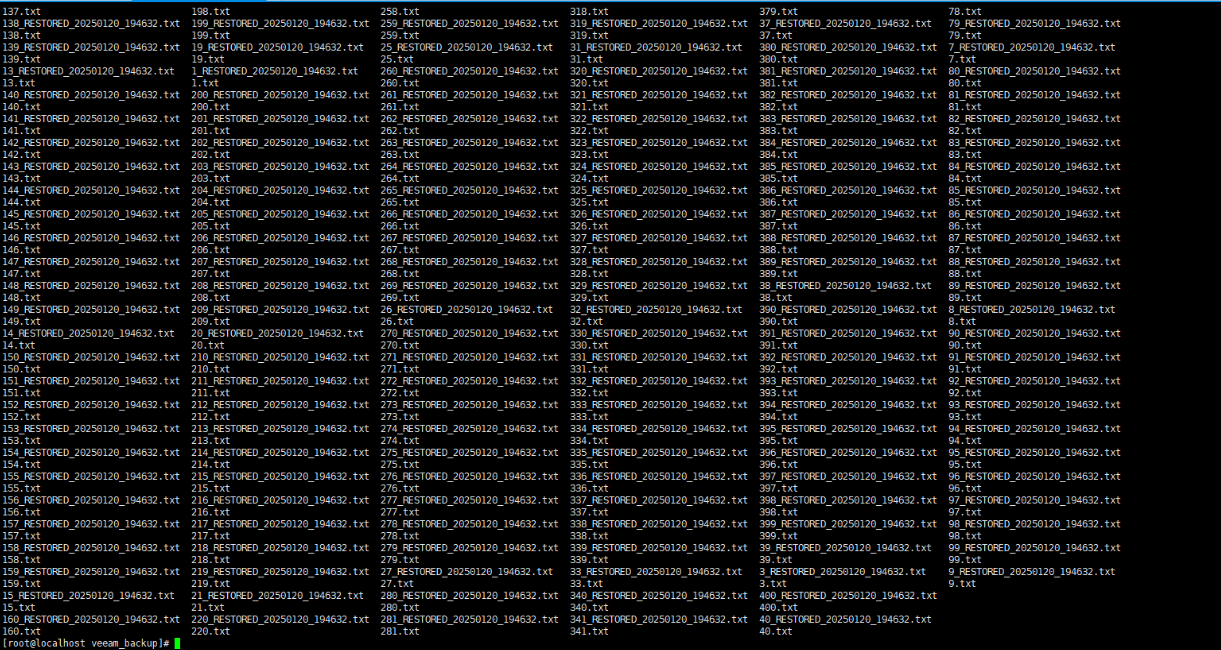
Step 6 Log in to the Veeam page, select a backup job, and create an infected copy.
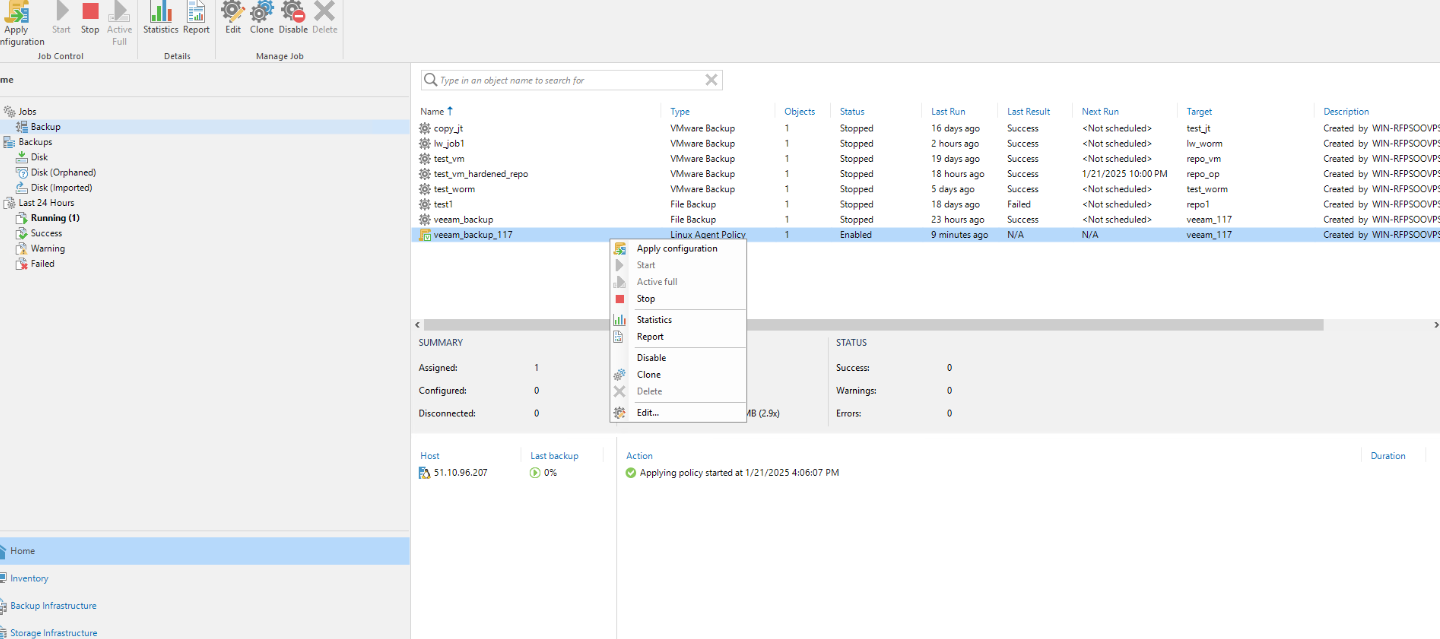
Step 7 Select the backup job and click Start to start the incremental backup job.
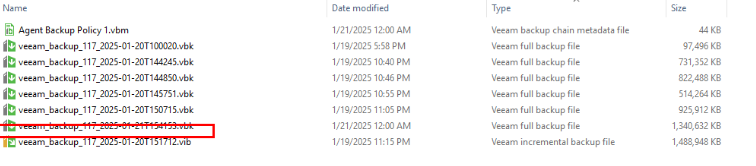
Step 8 View the latest copy in the storage repository file system through file sharing.
Step 9 Log in to OceanCyber 300 and start the detection process.
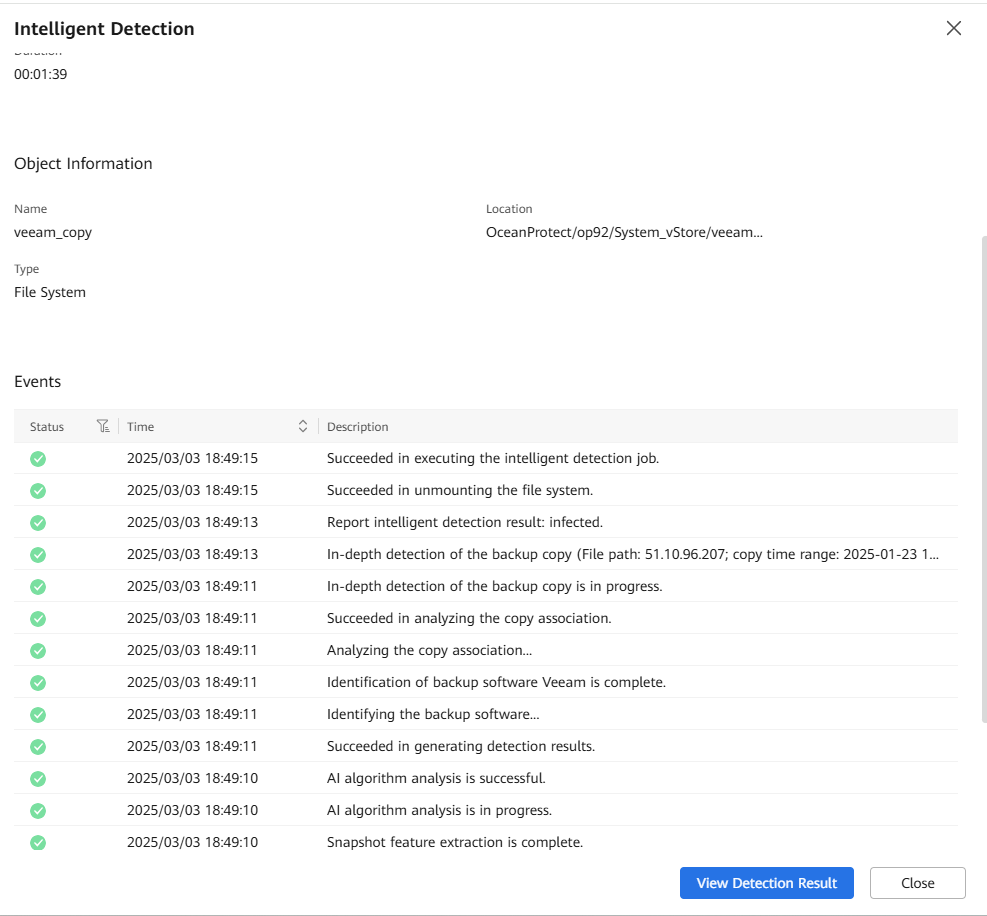
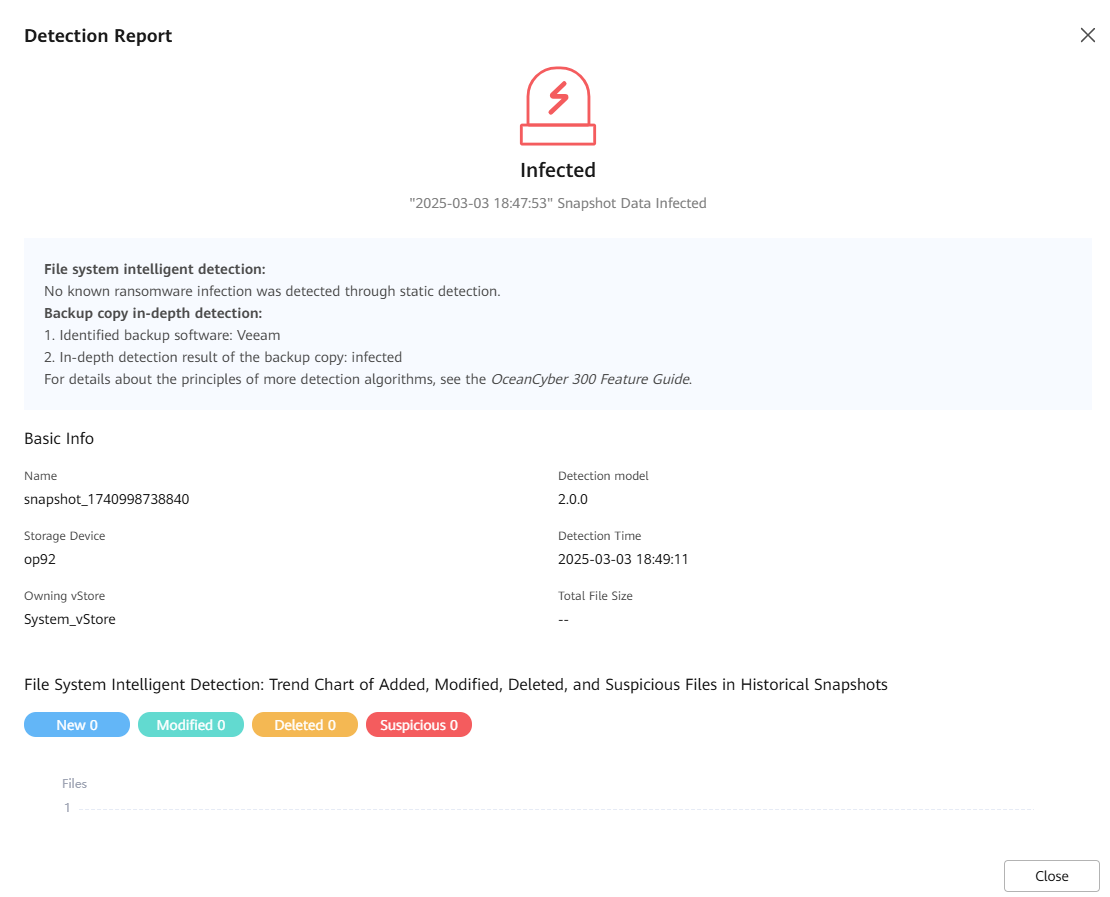
Step 10 Choose Snapshot Management and Restoration to view the latest copy status. Choose More > Latest Detection Result to view details.
Step 11 Choose Air Gap. Check the replication link status of storage devices in the production zone.
Step 12 Log in to DeviceManager in the production zone and choose Data Protection > Remote Devices.
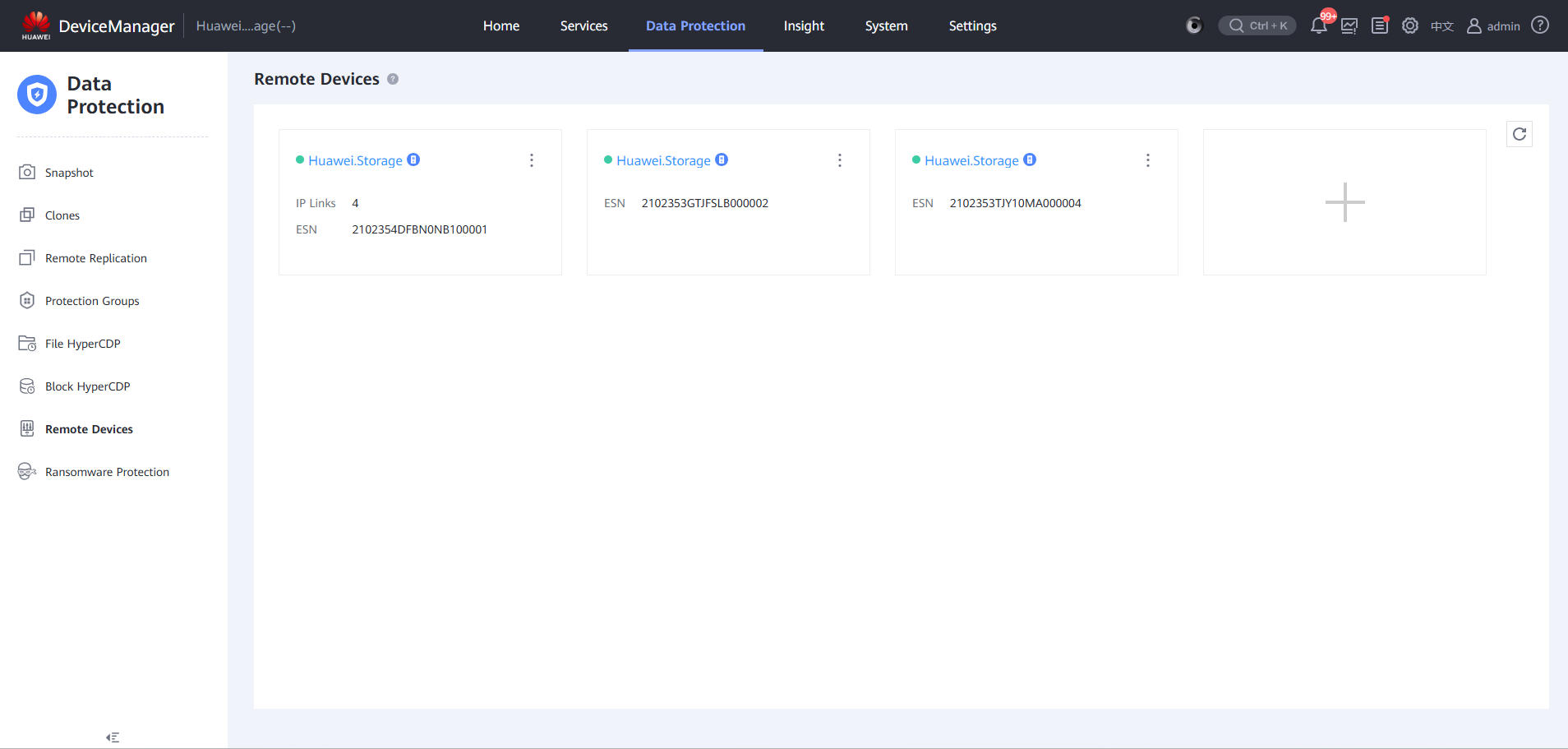
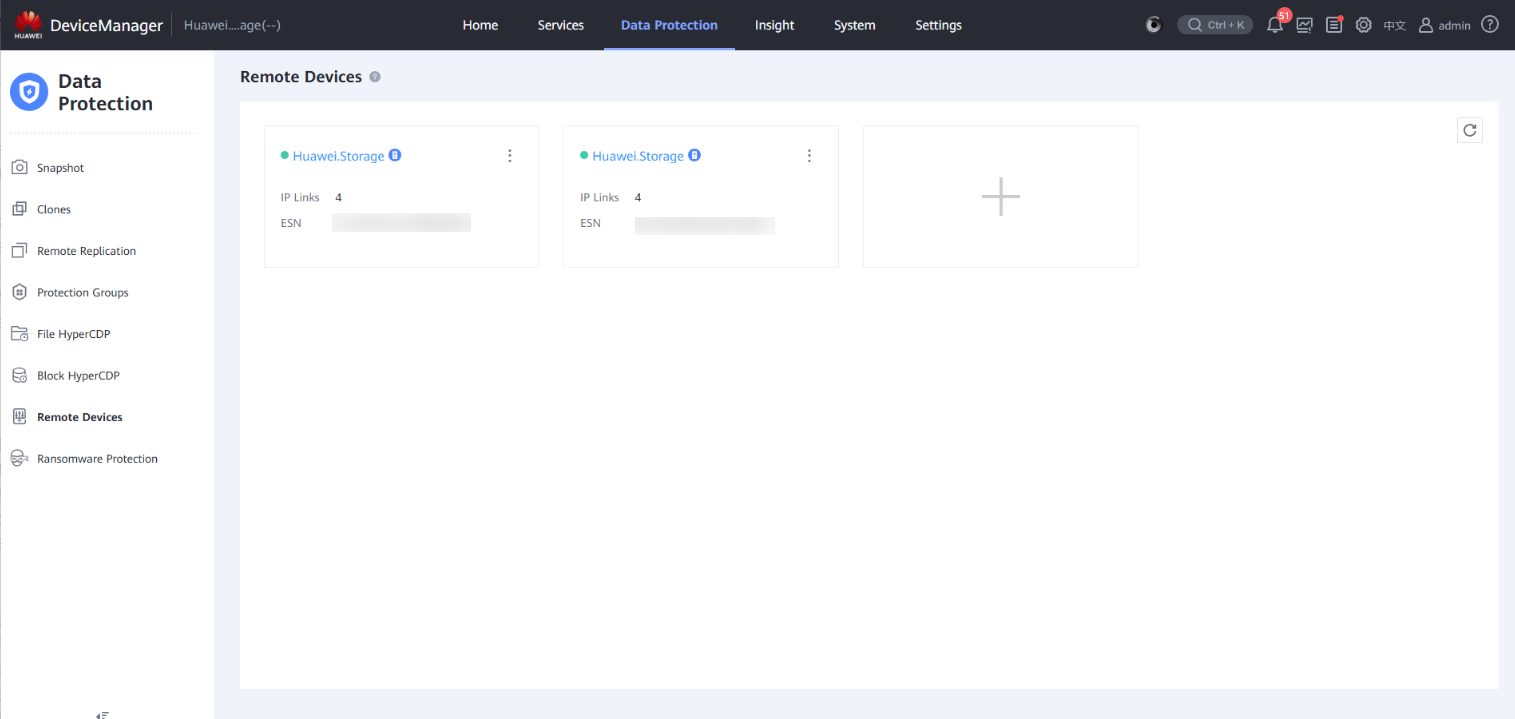
Step 13 Locate a remote device in the isolation zone.
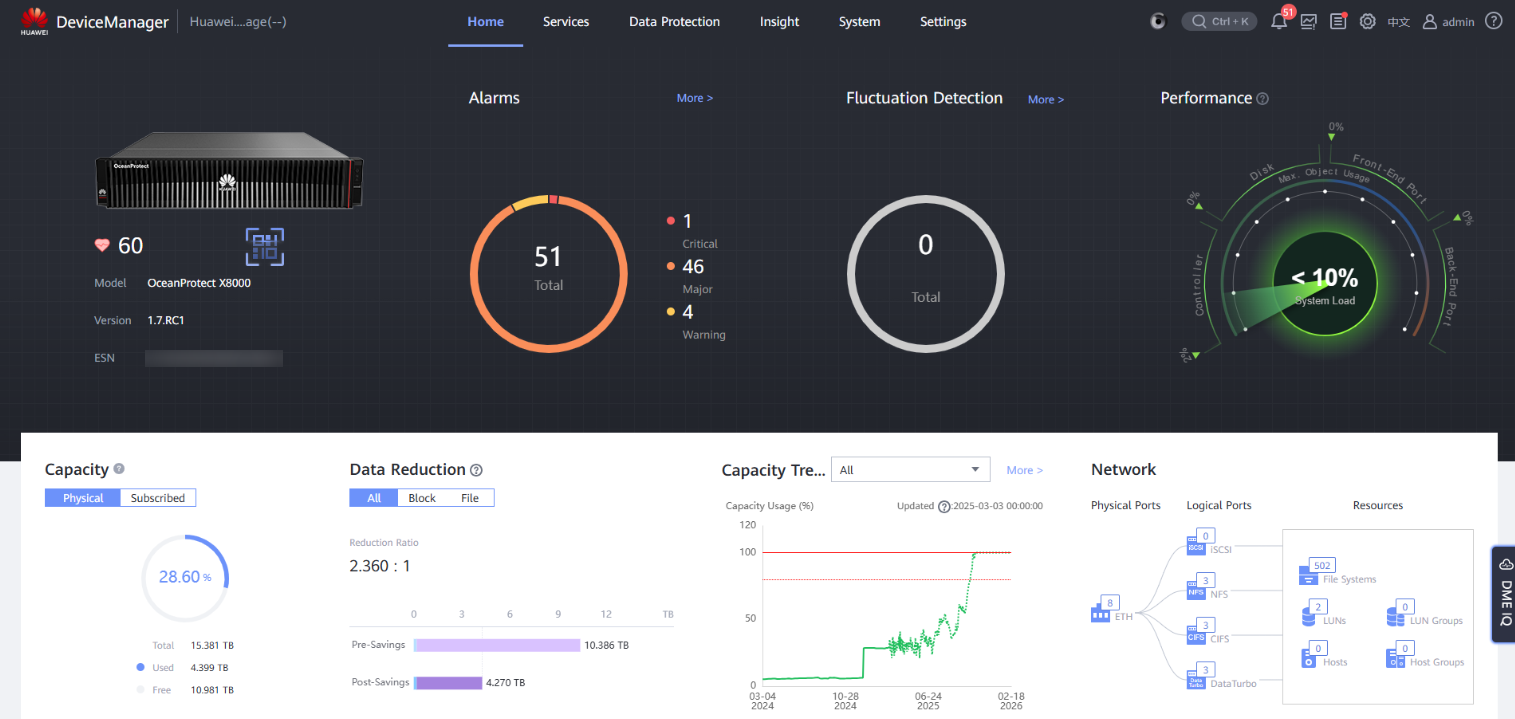
Step 14 Check the status of the remote device.
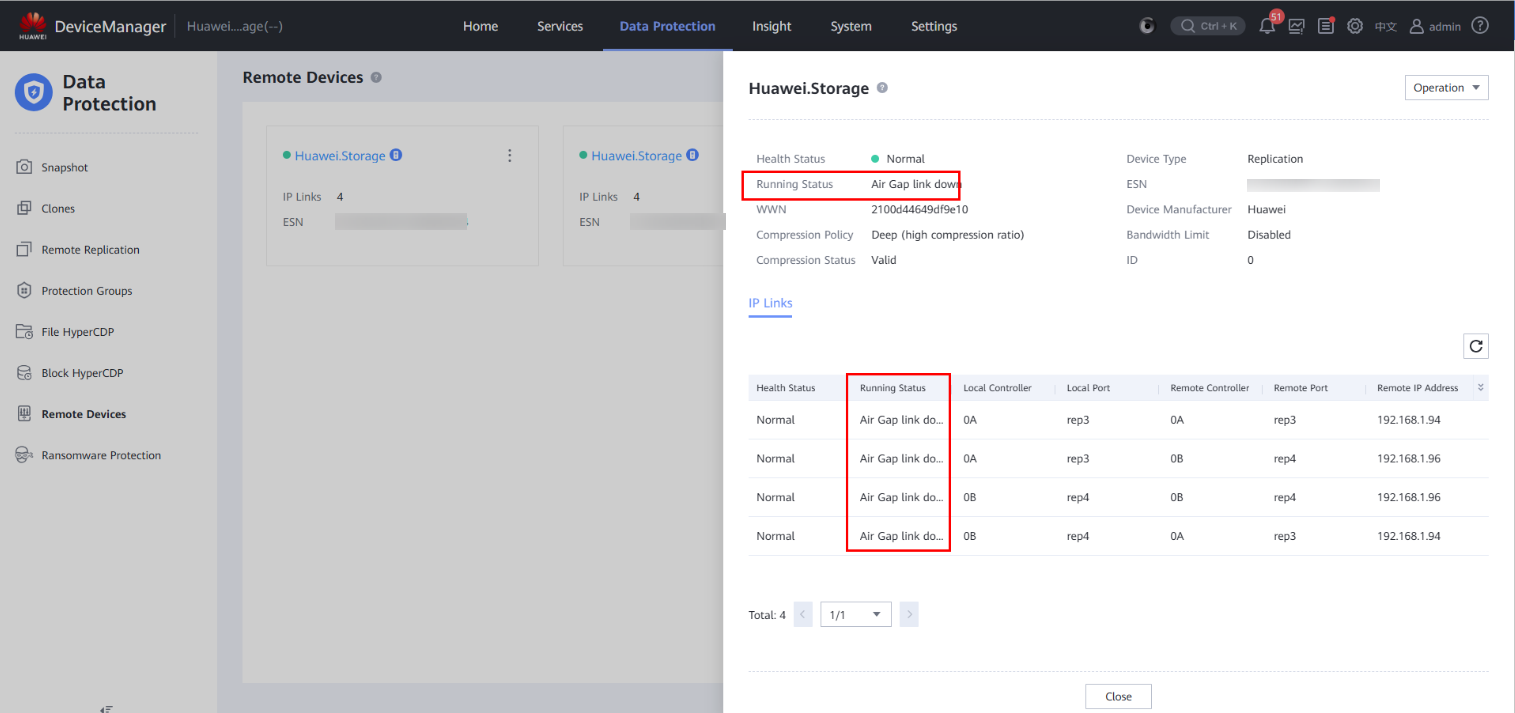
Step 15 Check the running status of the remote device and the running status of the replication logical port in the IP link. All the links are disconnected.
—-End
4.3.2.7 Using a Backup Copy for Restoration
Step 1 On OceanCyber 300, choose Snapshot Management and Restoration. Then, locate an uninfected backup copy in the file system snapshot.
The copy job name corresponds to the file path details in the snapshot in snapshot management. In this way, copies can be located at the infection point.
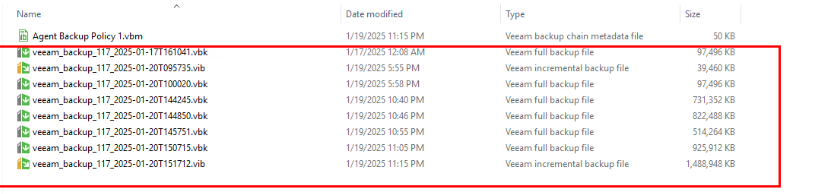
Step 2 Restore file data on the Veeam page.
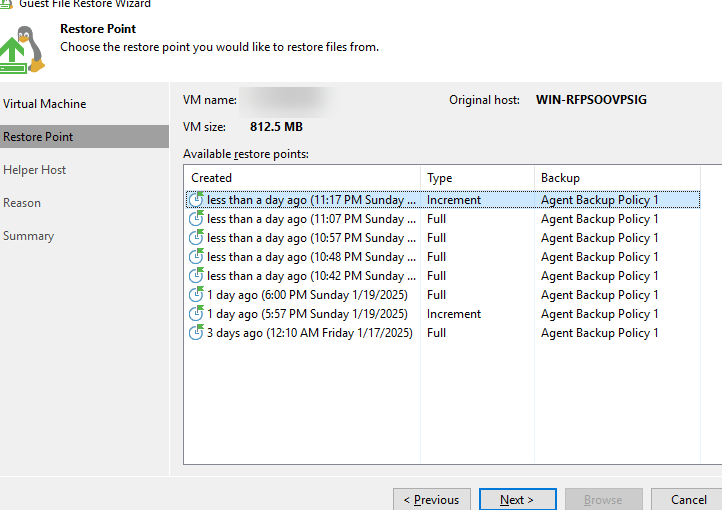
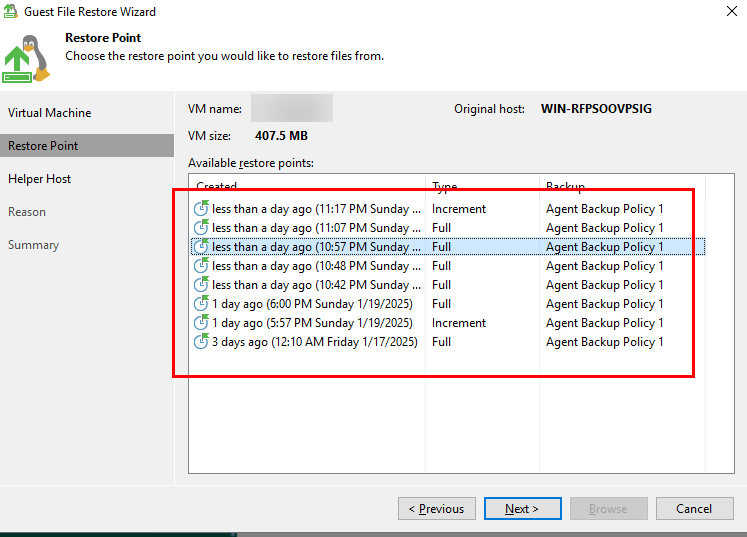
Step 3 Select clean copies for restoration based on the detection result and sort the copies based on the copy generation time.
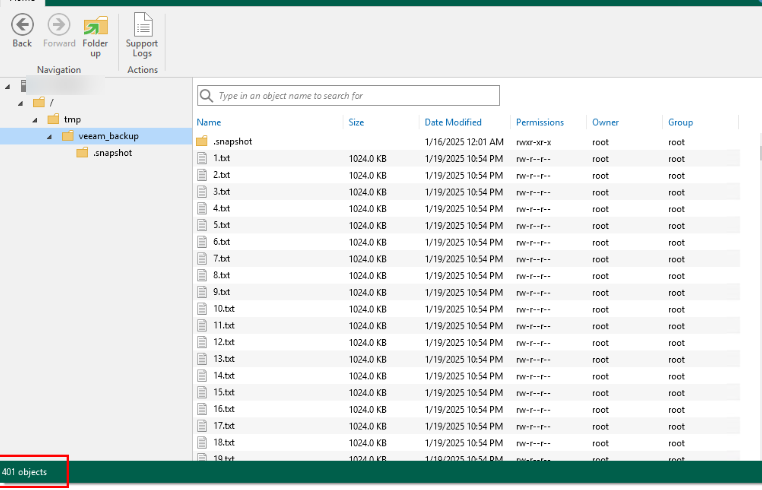
Query the fine-grained data.
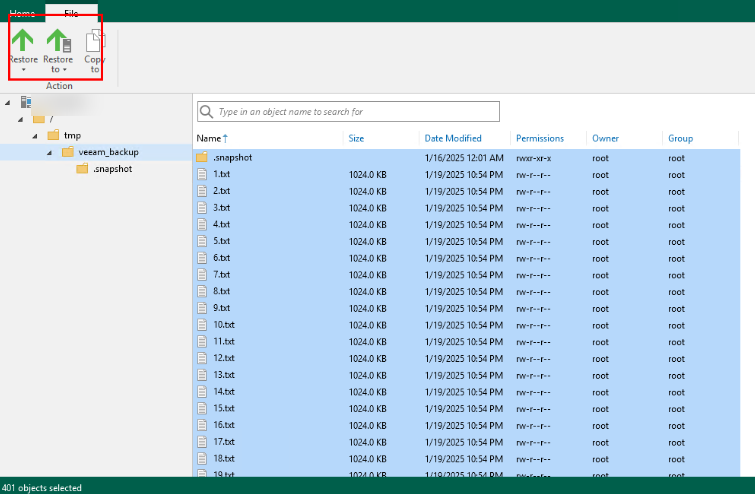
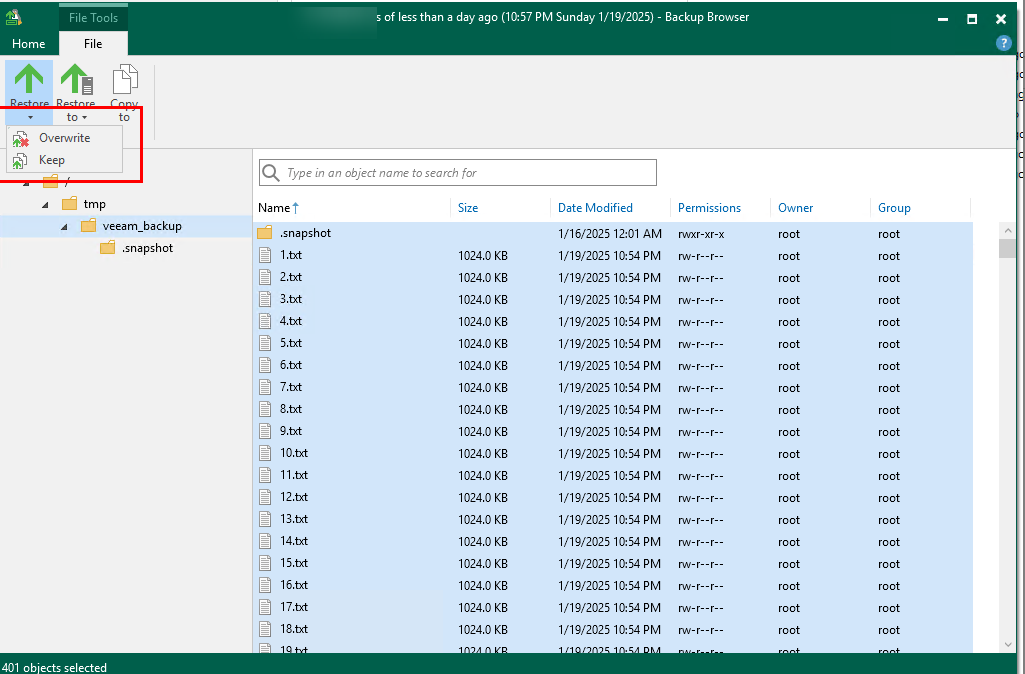
Step 4 Select a file to be restored, click Restore, and select the restoration mode of the original location.
Step 5 View the original data for restoration of the file system mounted to the VM, overwrite the metadata for restoration, and update the metadata for restoration.
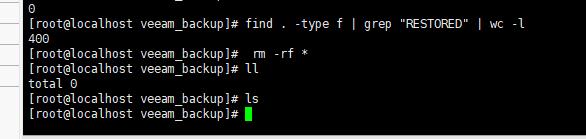
Step 6 Delete all data.
Step 7 Overwrite the original data.
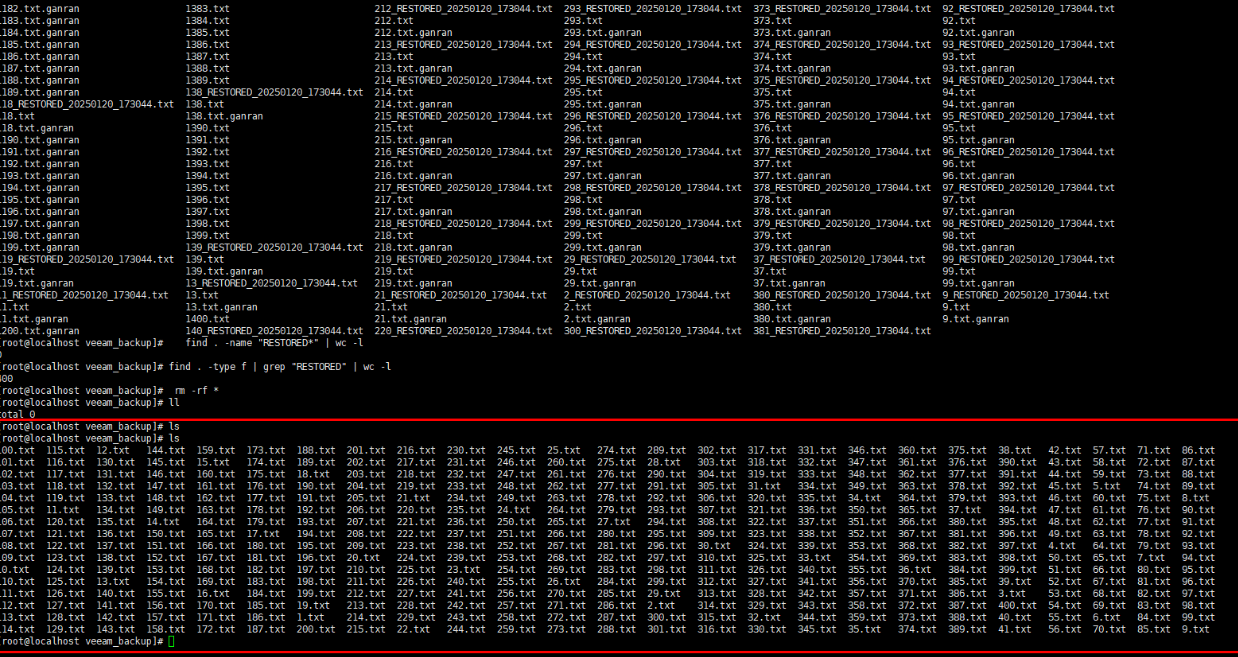
Step 8 Update the original backup data for restoration.
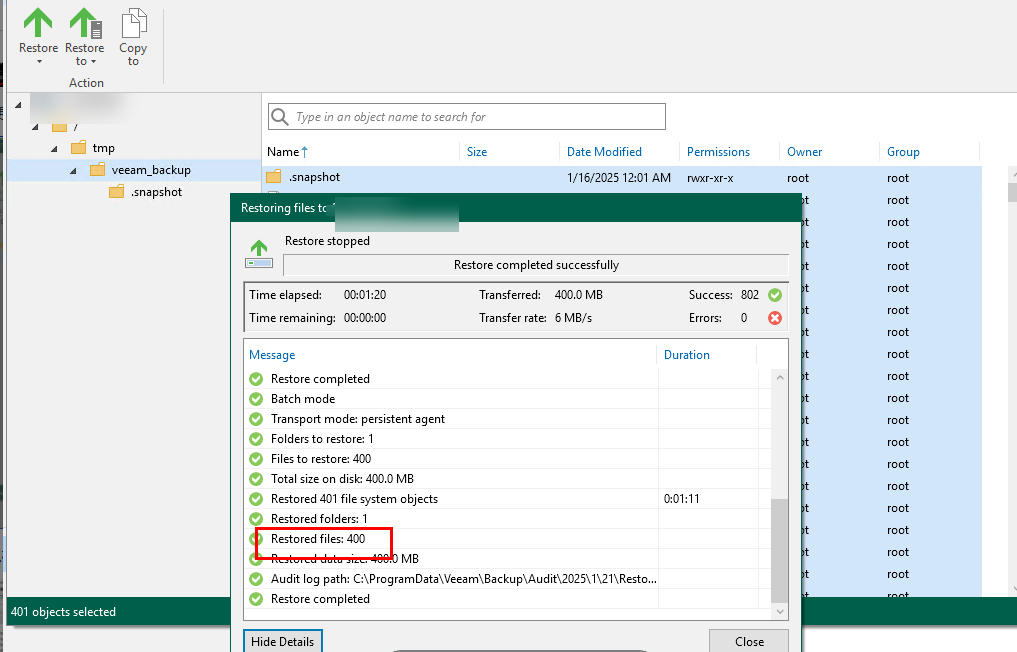
Step 9 View the restored data on a VM.
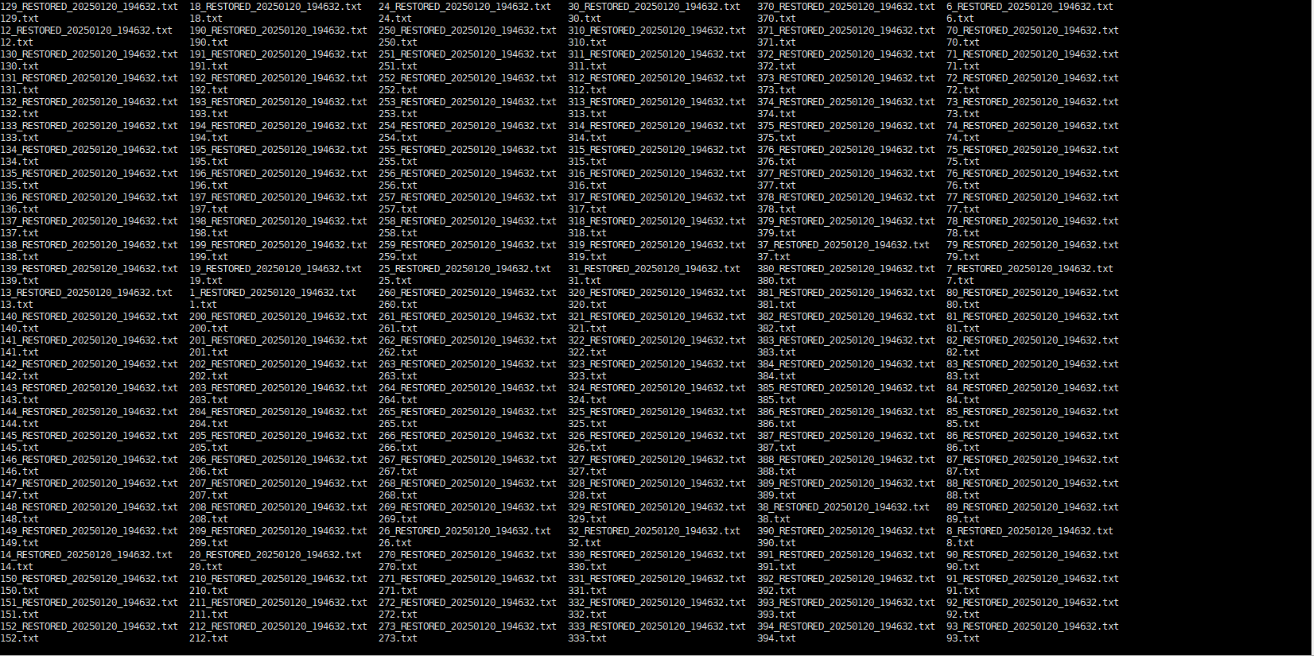
Step 10 View the total number of restored data records.

—-End
4.4. Isolation Zone Protection
4.4.1 Configuring an Isolation Zone
Prerequisite: Protection has been configured for the production zone.
Figuez 4-8 Process for configuring isolation zone protection
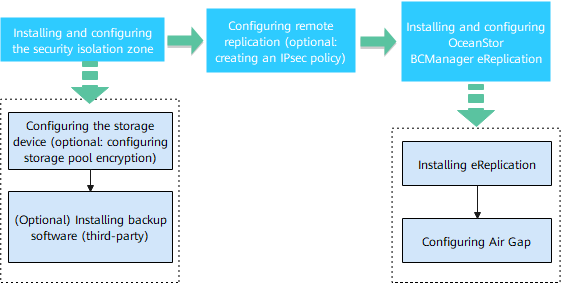
4.4.1.1 Installing and Configuring the Isolation Zone
For the storage configuration of the isolation zone, you only need to create a storage pool. For details about how to configure storage pool encryption, see the configurations in the production zone.
4.4.1.2 Configuring Remote Replication
To implement remote replication, you need to create logical ports on both the backup storage in the production zone and that in the isolation zone. If replication link encryption is required, configure at least one encryption module on each of controllers A and B in both the production zone and the isolation zone. In addition, create a remote device administrator on the backup storage in the isolation zone.
Step 1 Create a remote device.
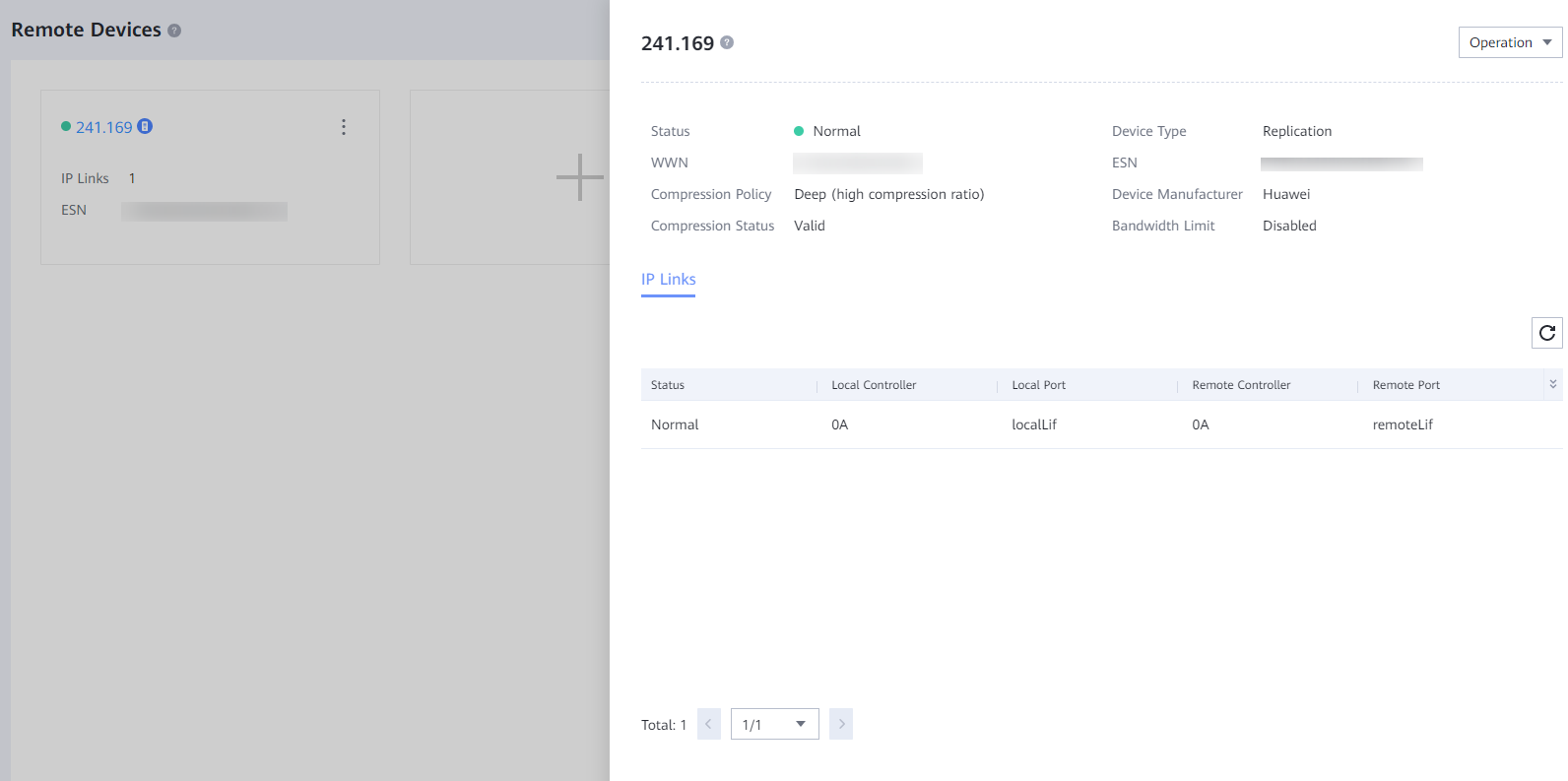
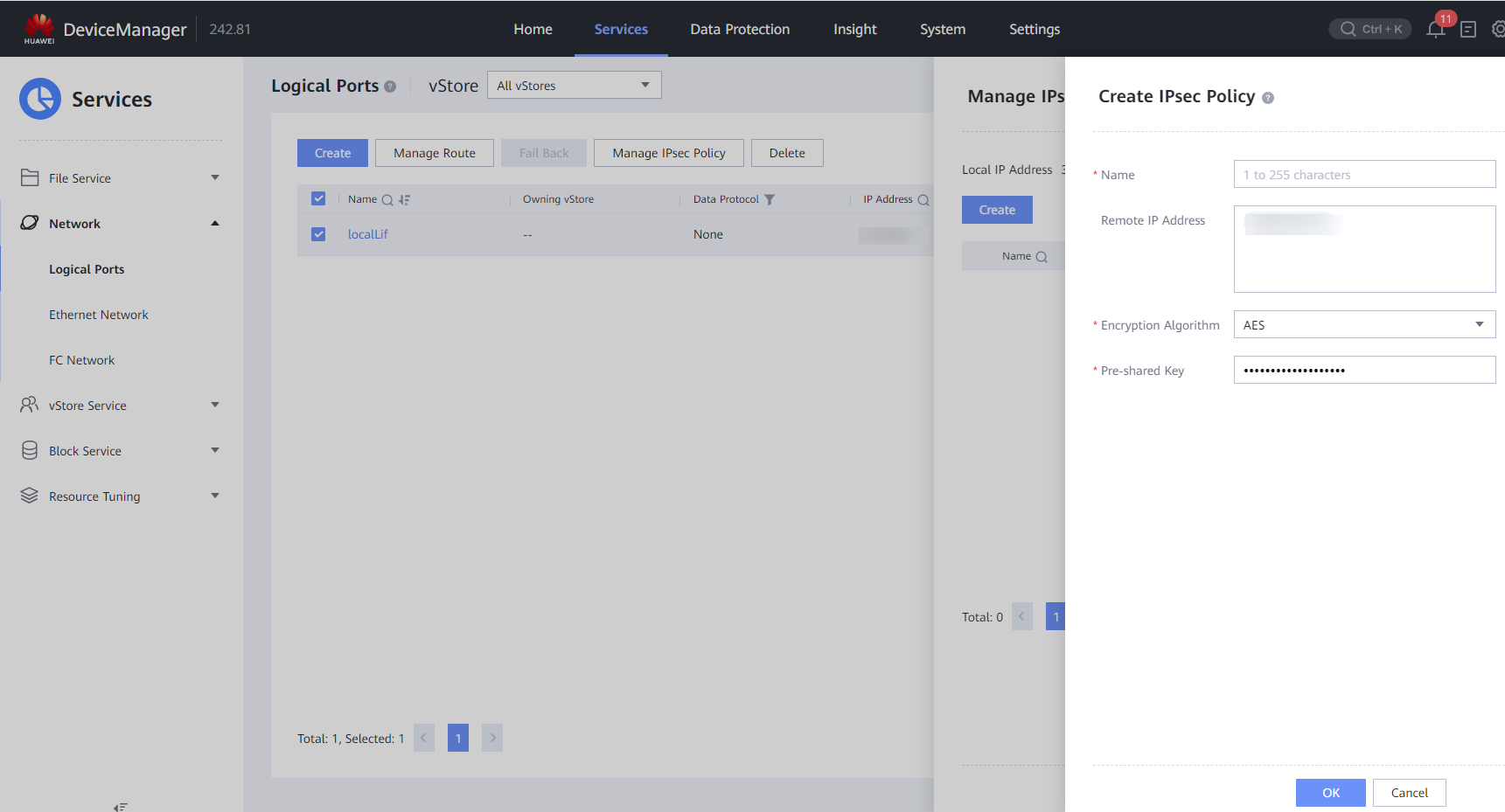
(Optional) Configure replication link encryption (IPsec policy).
Requirements on hardware: Encryption modules must be used at both the primary and secondary ends of remote replication.
After logical ports have been created for the encryption module ports, log in to DeviceManager, choose Services > Network > Logical Ports, select a created logical port, choose More > Manage IPsec Policy in the Operation column, click Create to create an IPsec policy, enter the IP address of the logical port corresponding to the remote device, and set the pre-shared key. Perform this operation for all logical ports for replication encryption on the controllers and for devices at both the primary and secondary ends.
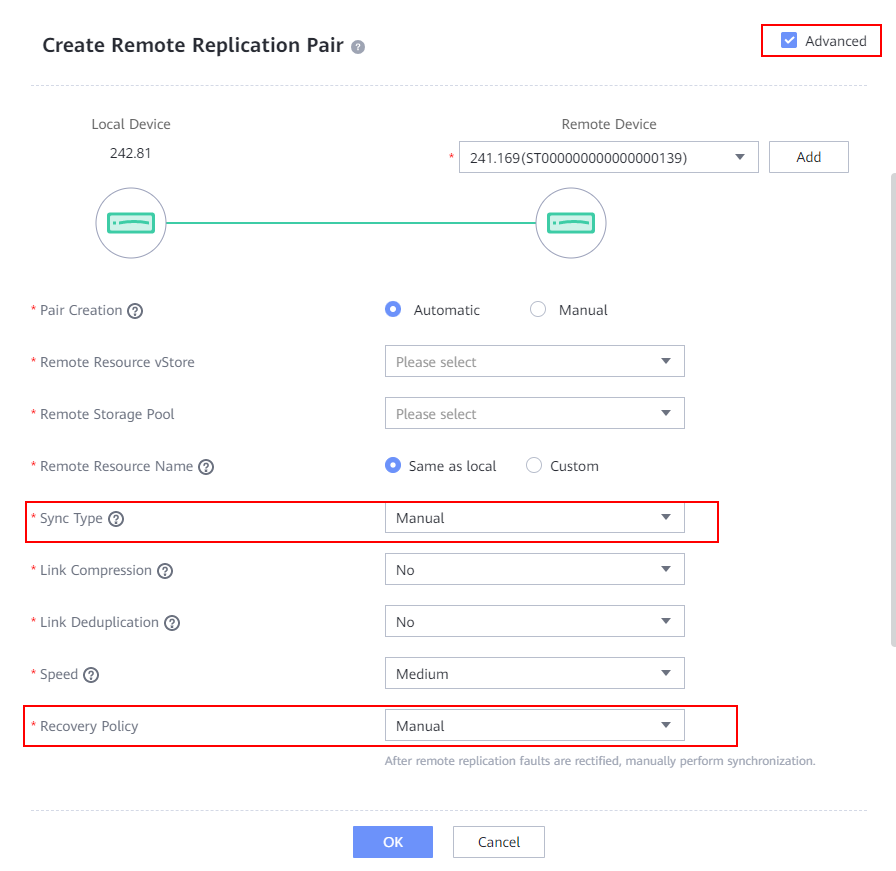
Step 2 Create a remote replication pair for a file system. Select the file system for which a remote replication pair is to be created. The replication mode must be asynchronous. Set Sync Type and Recovery Policy to Manual. Retain the default values for other parameters.
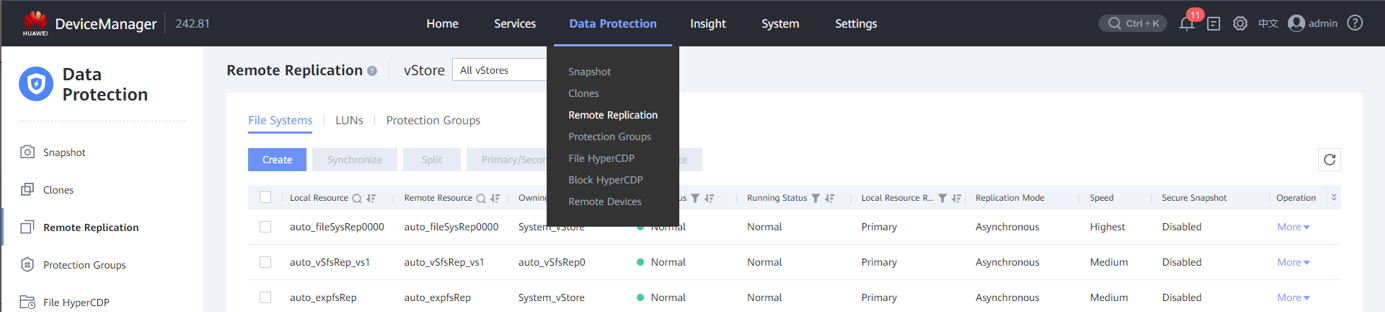
Step 3 After the remote replication pair is created, start initial synchronization.
—-End
4.4.1.3 Configuring Air Gap in an Isolation Zone
This section describes how to configure Air Gap in an isolation zone, including configuring OceanStor BCManager eReplication and the OceanCyber Data Security Appliance.
4.4.1.3.1 Installing and Configuring OceanStor BCManager eReplication
The OceanStor BCManager eReplication software is configured in the isolation zone, and its management network must communicate with the storage device in the isolation zone. This section describes how to configure OceanStor BCManager. For details about its installation, see the user guide of the specific version.
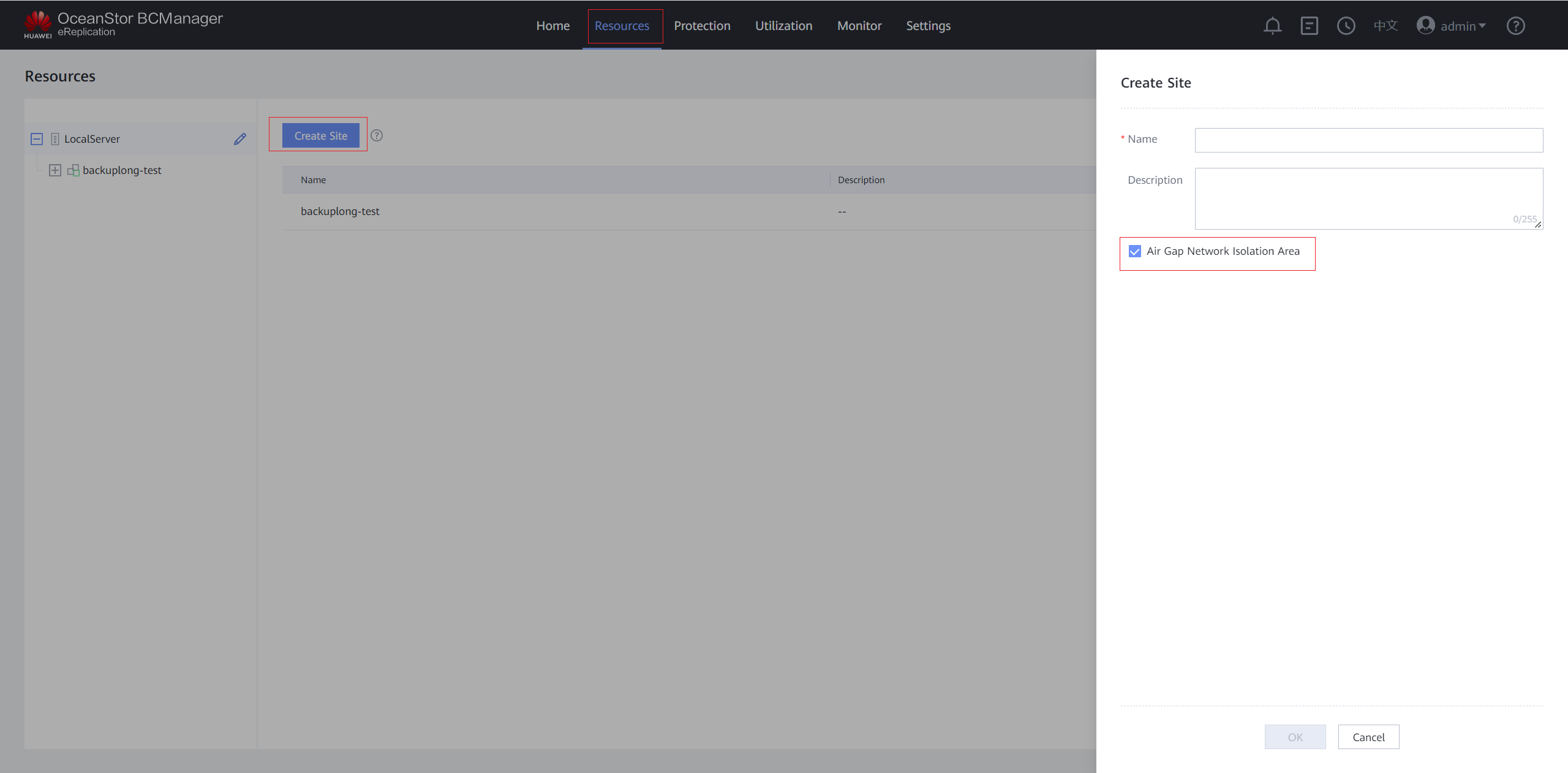
Step1 Log in to OceanStor BCManager eReplication, choose Resources > Create Site, and select Air Gap Network Isolation Area.
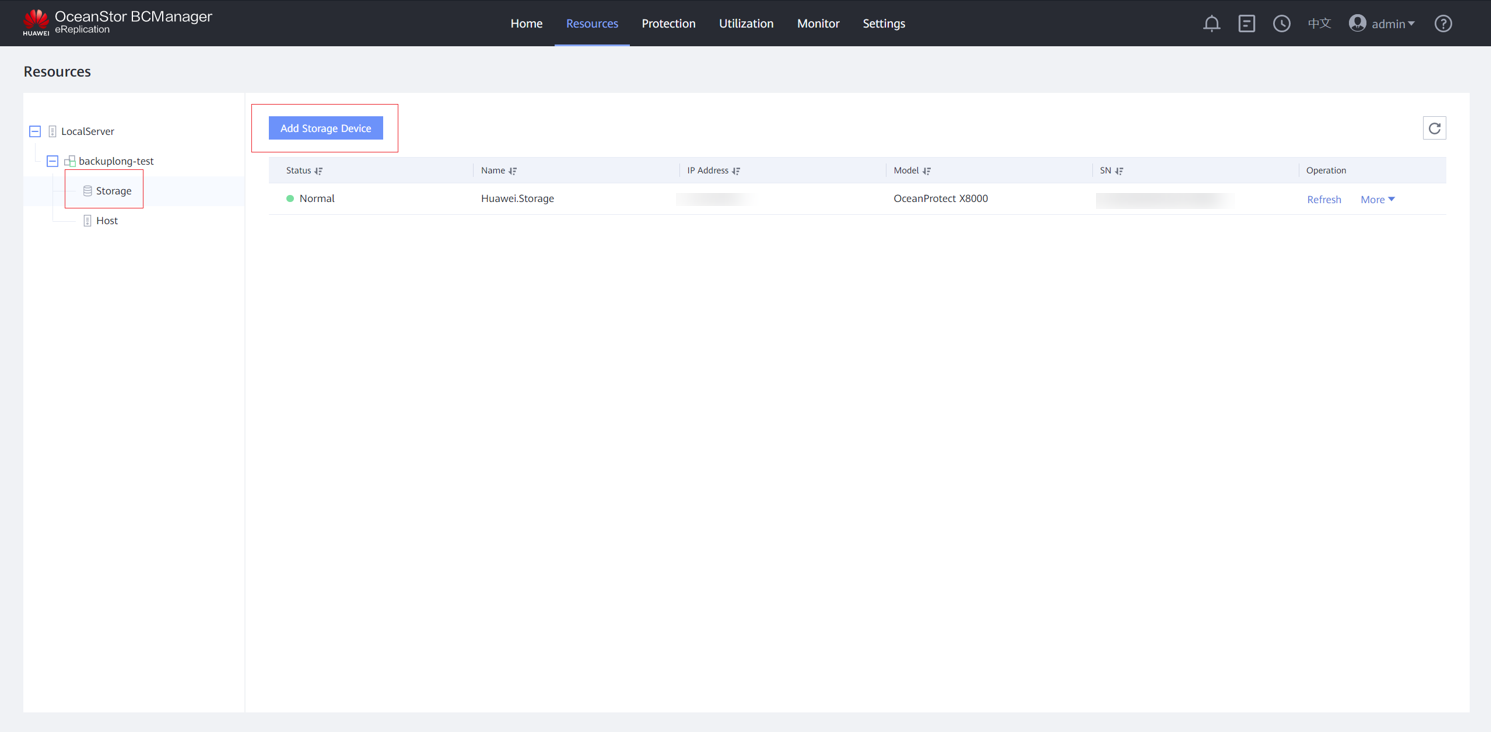
Step 2 After the site is created, add a storage device to the site.
Step 3 Enter the IP address, username and password for logging in to DeviceManager of the storage device in the isolation zone, and click Confirm. After the storage device is added, the corresponding ports in the Air Gap Port Group are in the inactive state.
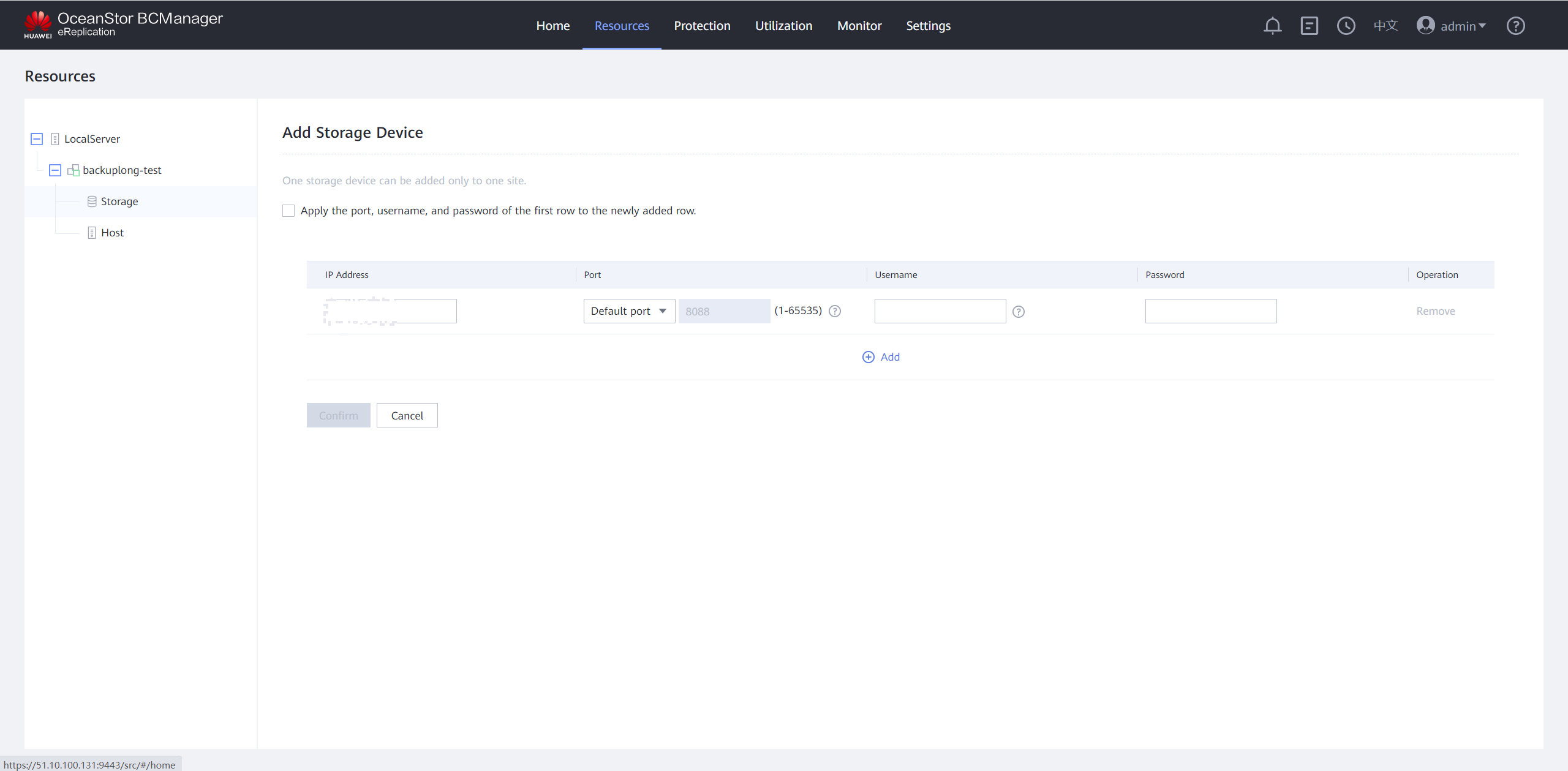
Step 4 Check the information of the Air Gap storage.
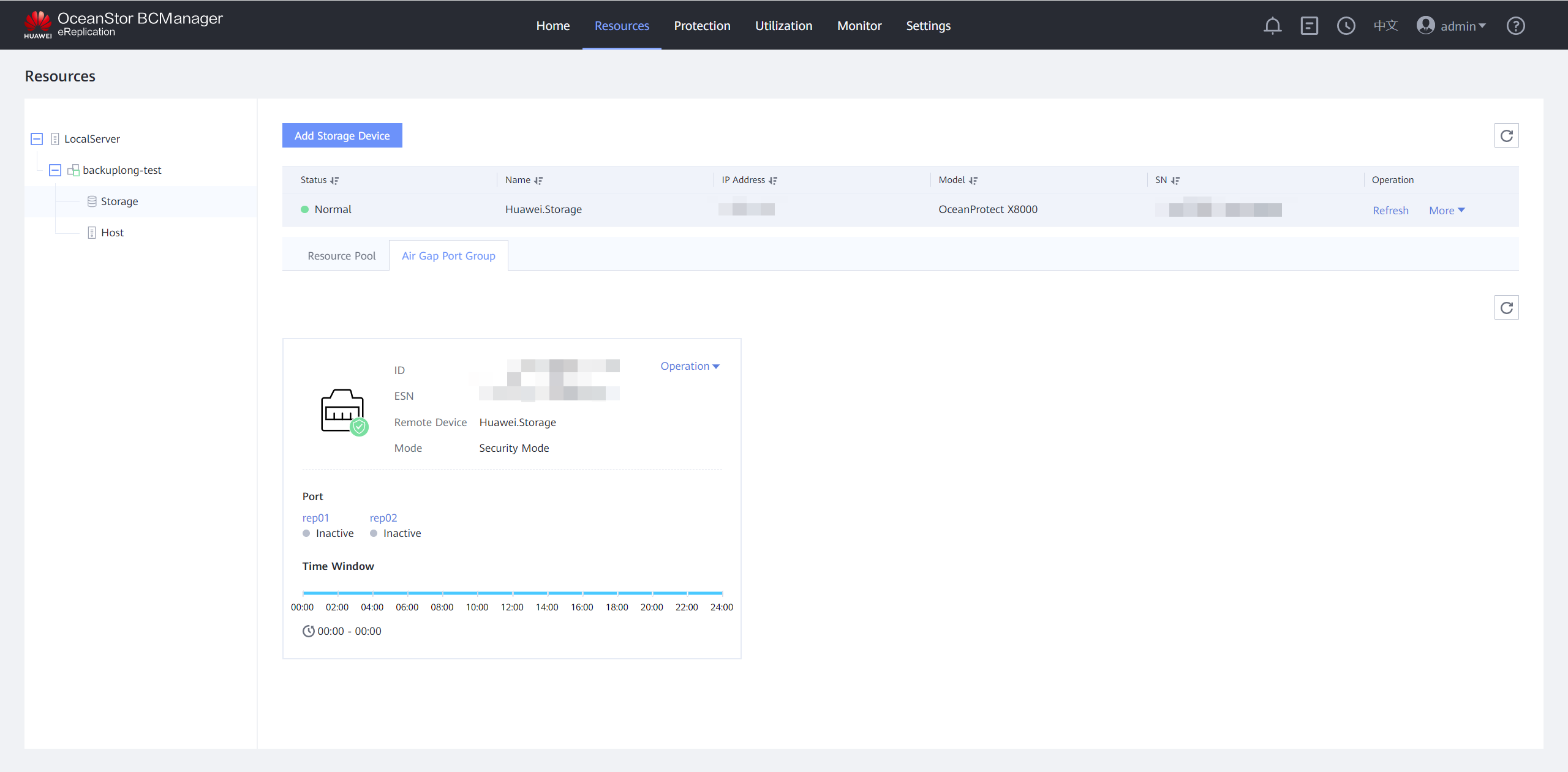
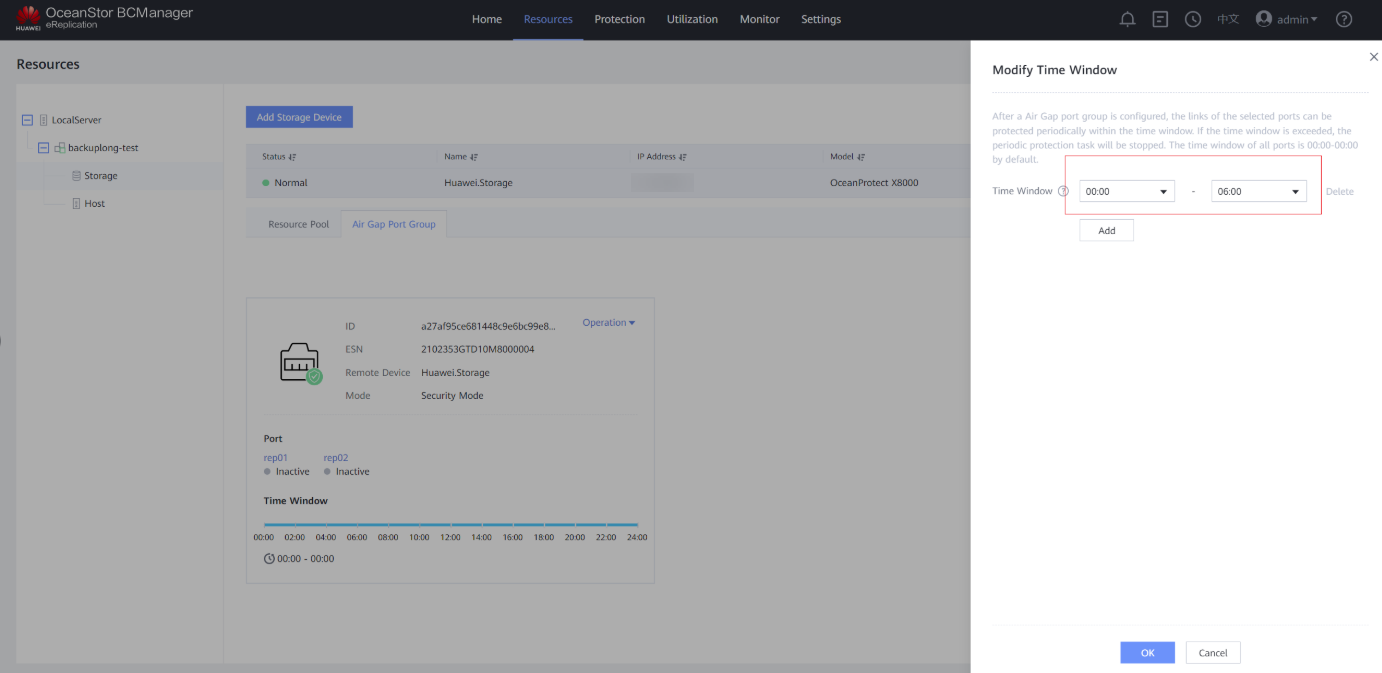
Step 5 Modify the time window. Click the Air Gap Port Group tab, select the corresponding remote device, and choose Operation > Modify Time Window. Set the time window based on your service requirements. You are advised to set the time window to off-peak hours, for example, 00:00 to 06:00.
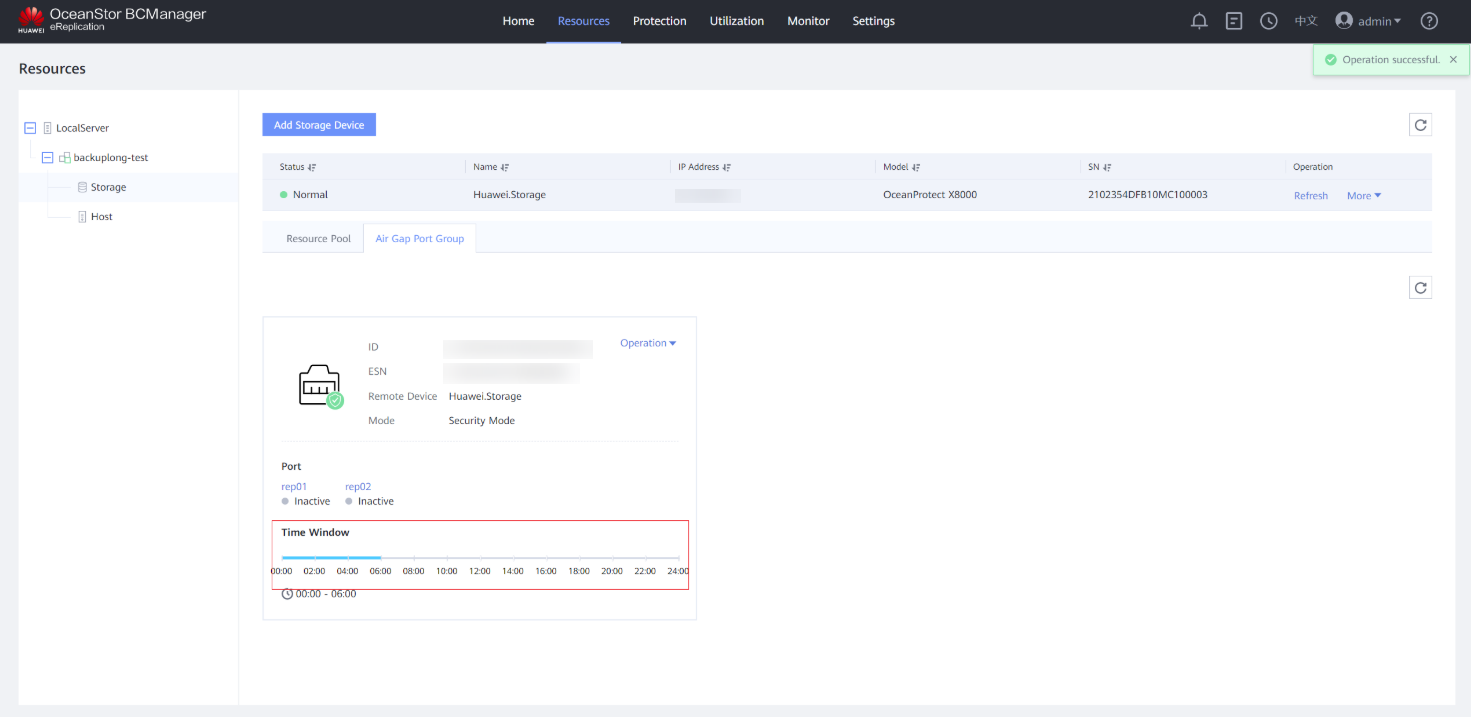
Step 6 View the updated time window on the Air Gap Port Group tab page.
Step 7 Choose Protection > Create to create protection.
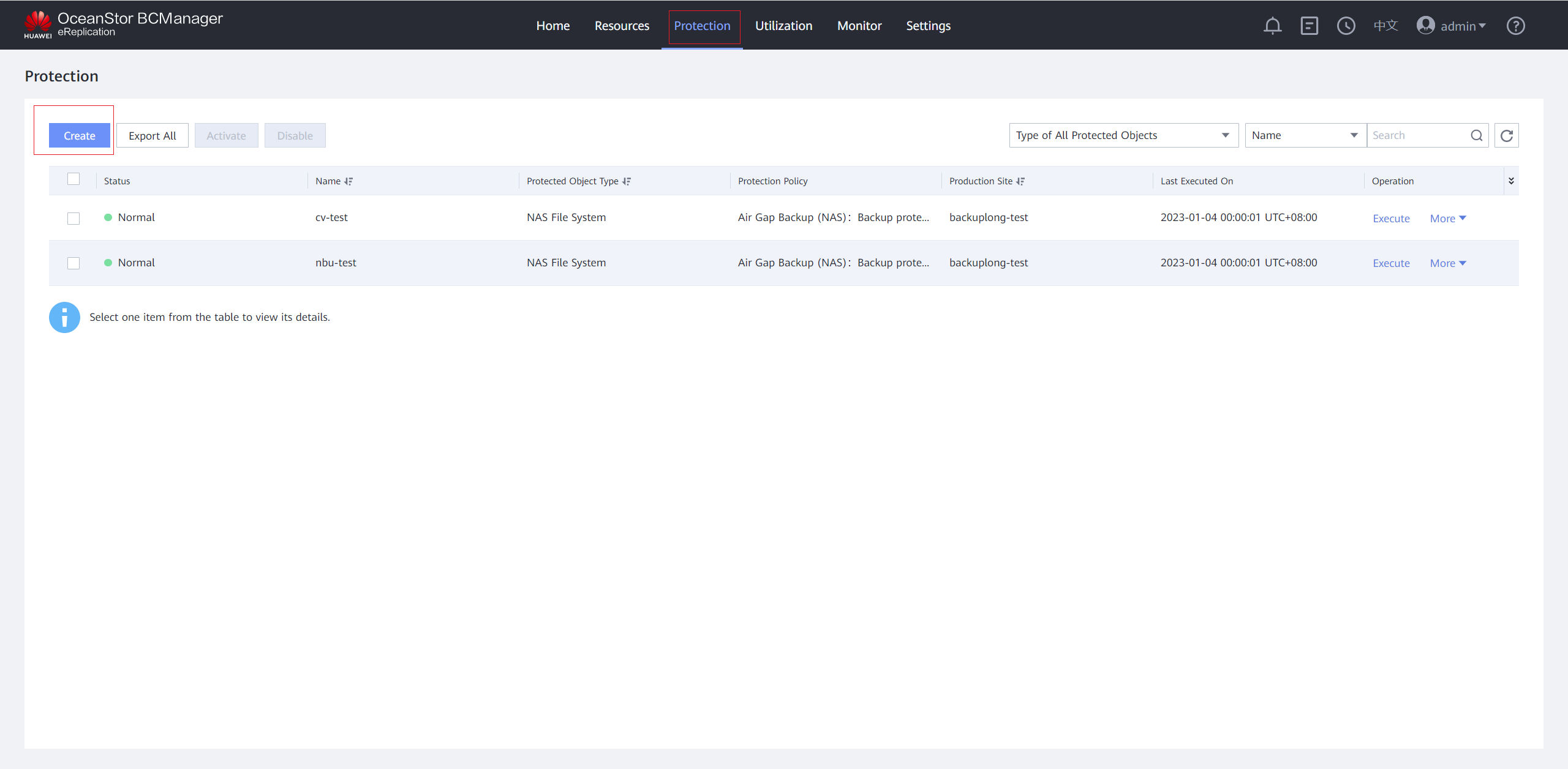
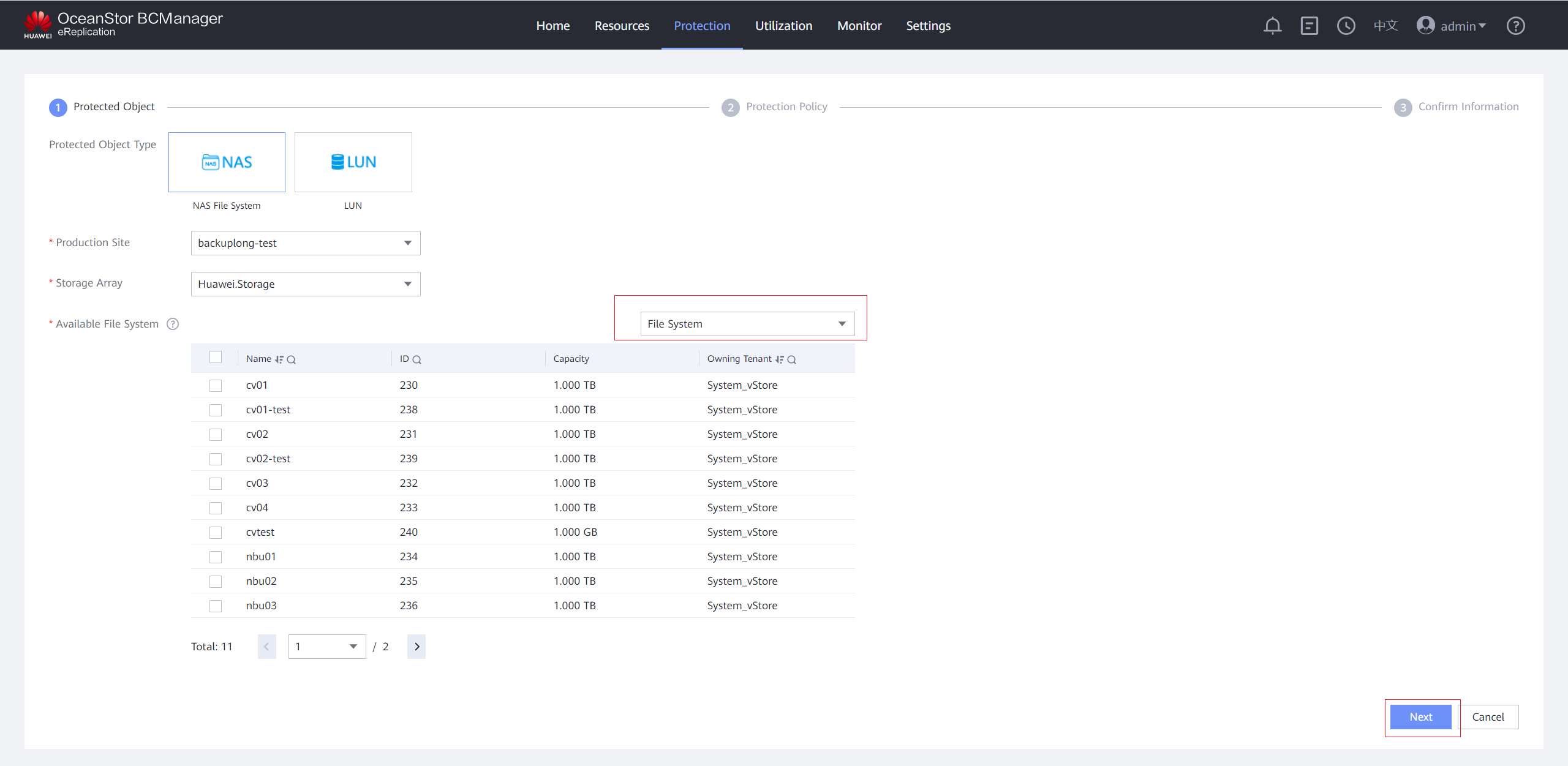
Step 8 On the Protected Object page, set Protected Object Type to NAS File System, Production Site to the created site, and Storage Array to the isolation zone storage device added to the site. In Available File System area, select vStore or File System, select the file system to be protected, and click Next.
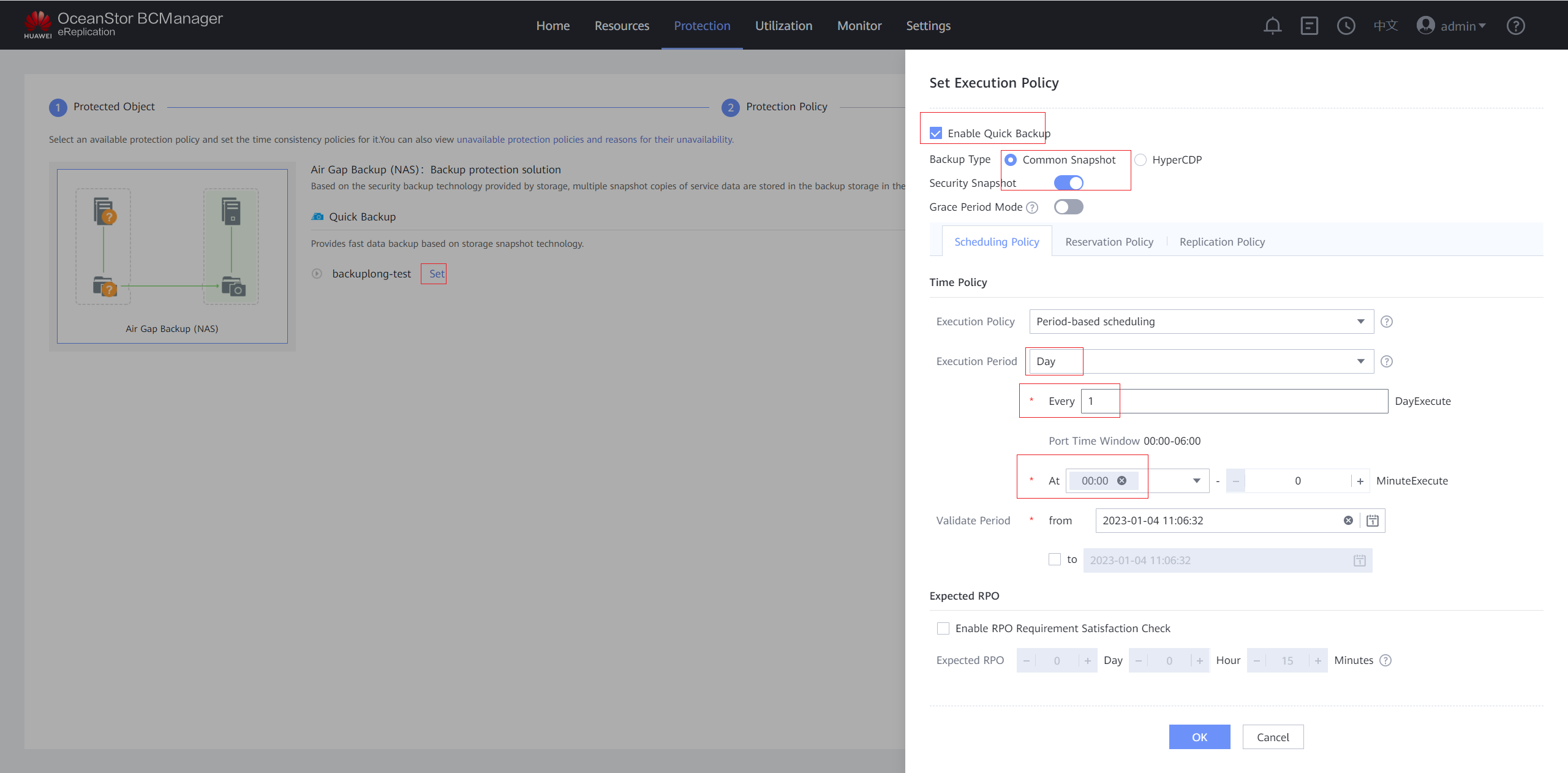
Step 9 On the Protection Policy page, click Set in the Quick Backup area, select Enable Quick Backup, and set a protection policy. You are advised to enable Security Snapshot. On the Scheduling Policy tab page, set the time policy to execute every 1 day at 00:00. On the Reservation Policy tab page, set Copy Validity Period to 30 days. Click OK.
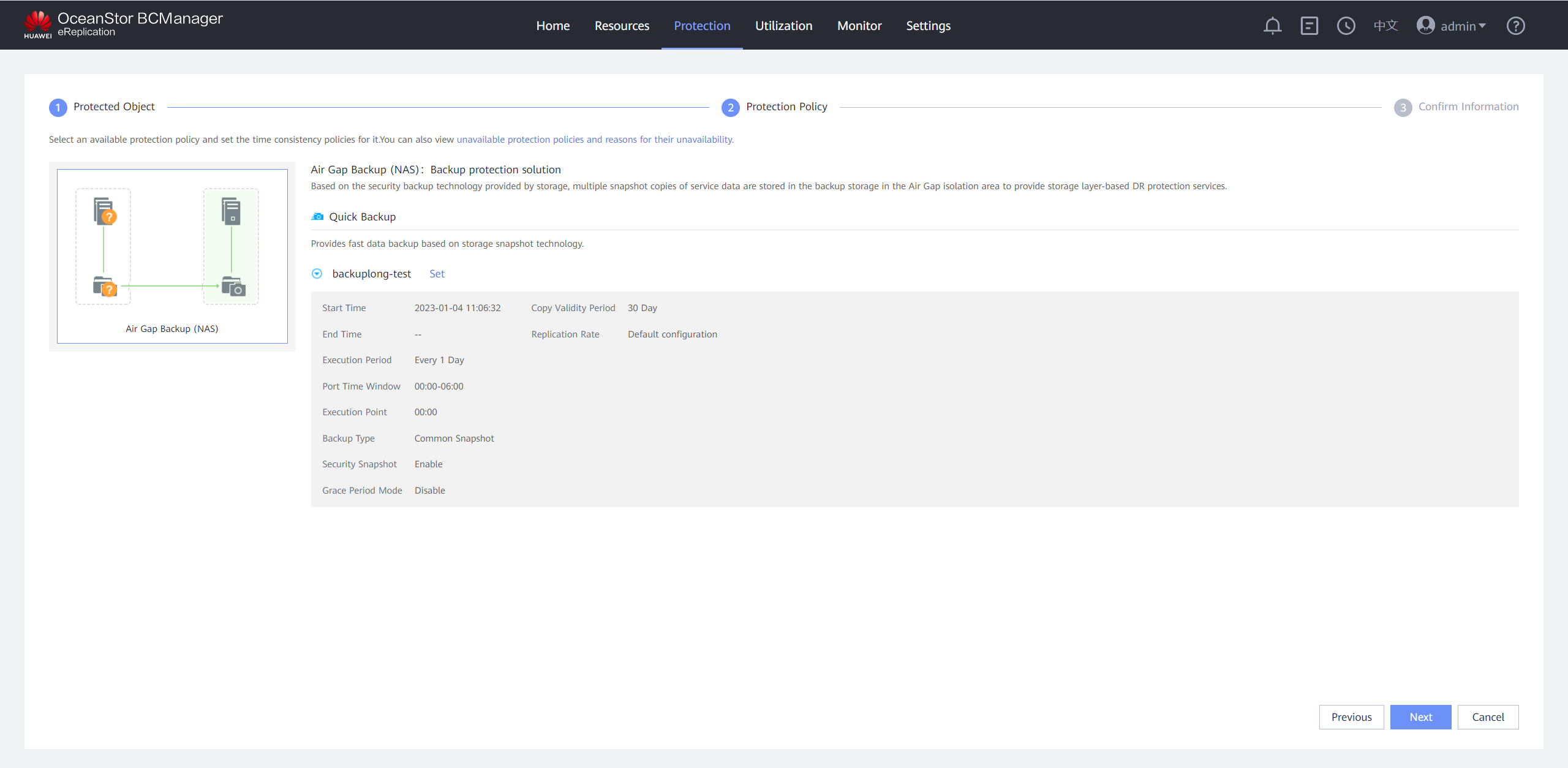
Step 10 Confirm the quick backup policy.
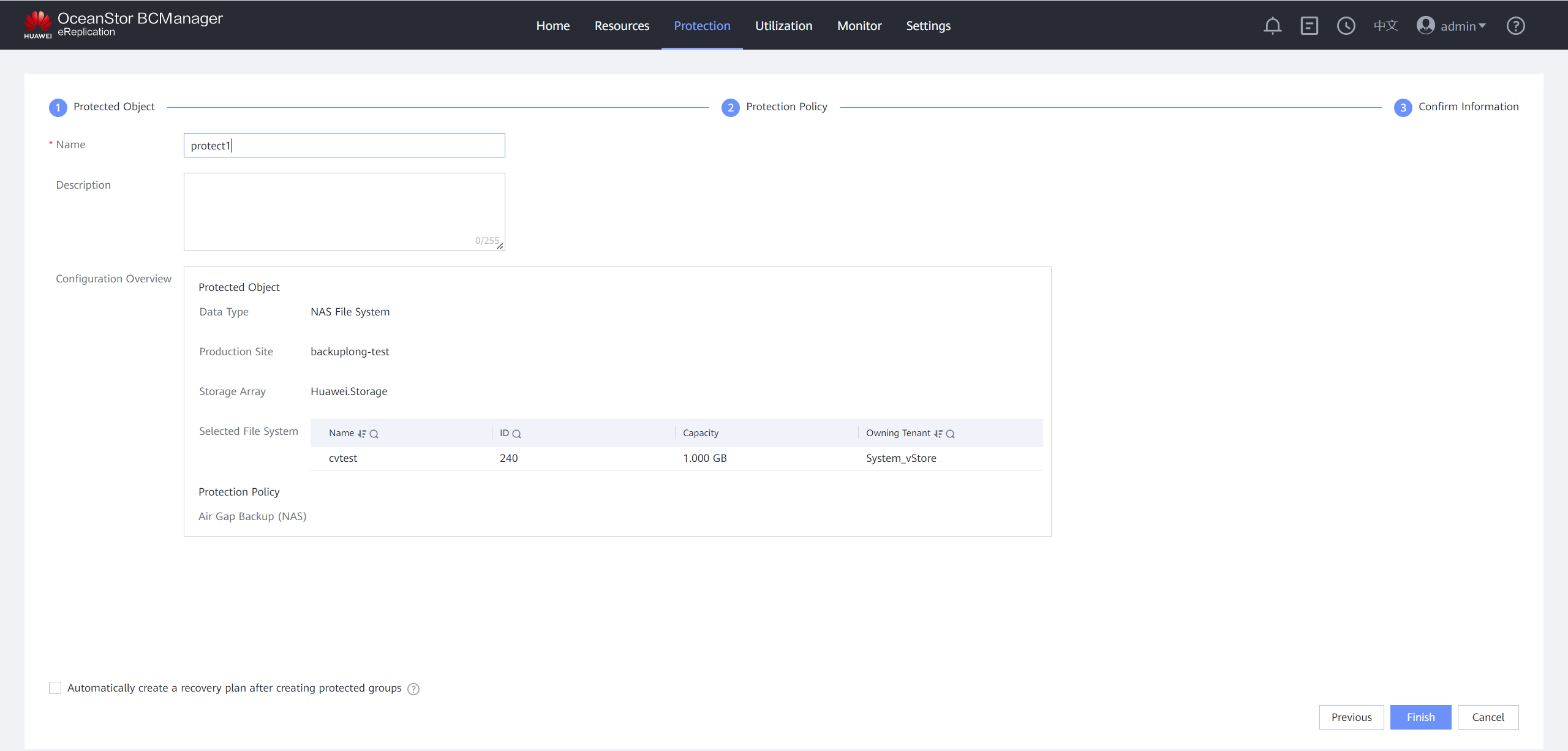
Step 11 On the Confirm Information page, set Name, deselect Automatically create a recovery plan after creating protected groups, and click OK.
—-End
4.4.1.3.2 Configuring Air Gap for the OceanCyber Data Security Appliance in the Isolation Zone
Replication is performed after the backup is complete. The OceanCyber Data Security Appliance cannot detect the backup completion time of the backup software. Therefore, the backup completion time must be estimated and configured manually, and replication should be performed accordingly.
Procedure
Step 1 Click the Storage Devices tab, select a storage device, click Change Network Zone, and select the Isolation Zone.
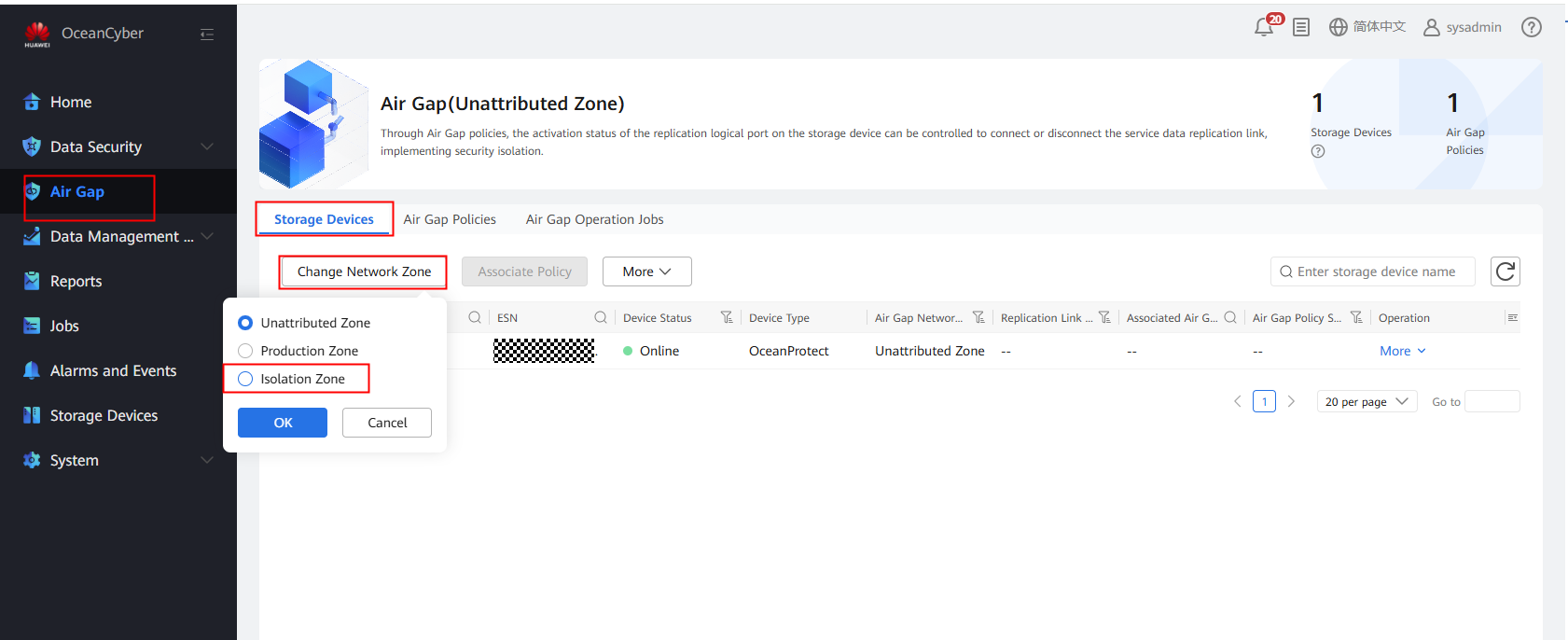
Step 2 Log in to the OceanCyber 300 Data Security Appliance, choose Air Gap > Air Gap Policies in Isolation Zone, click Create, and set related parameters. You are advised to enable Grace Mode and Intelligent Detection to ensure data consistency and security in the isolation zone.
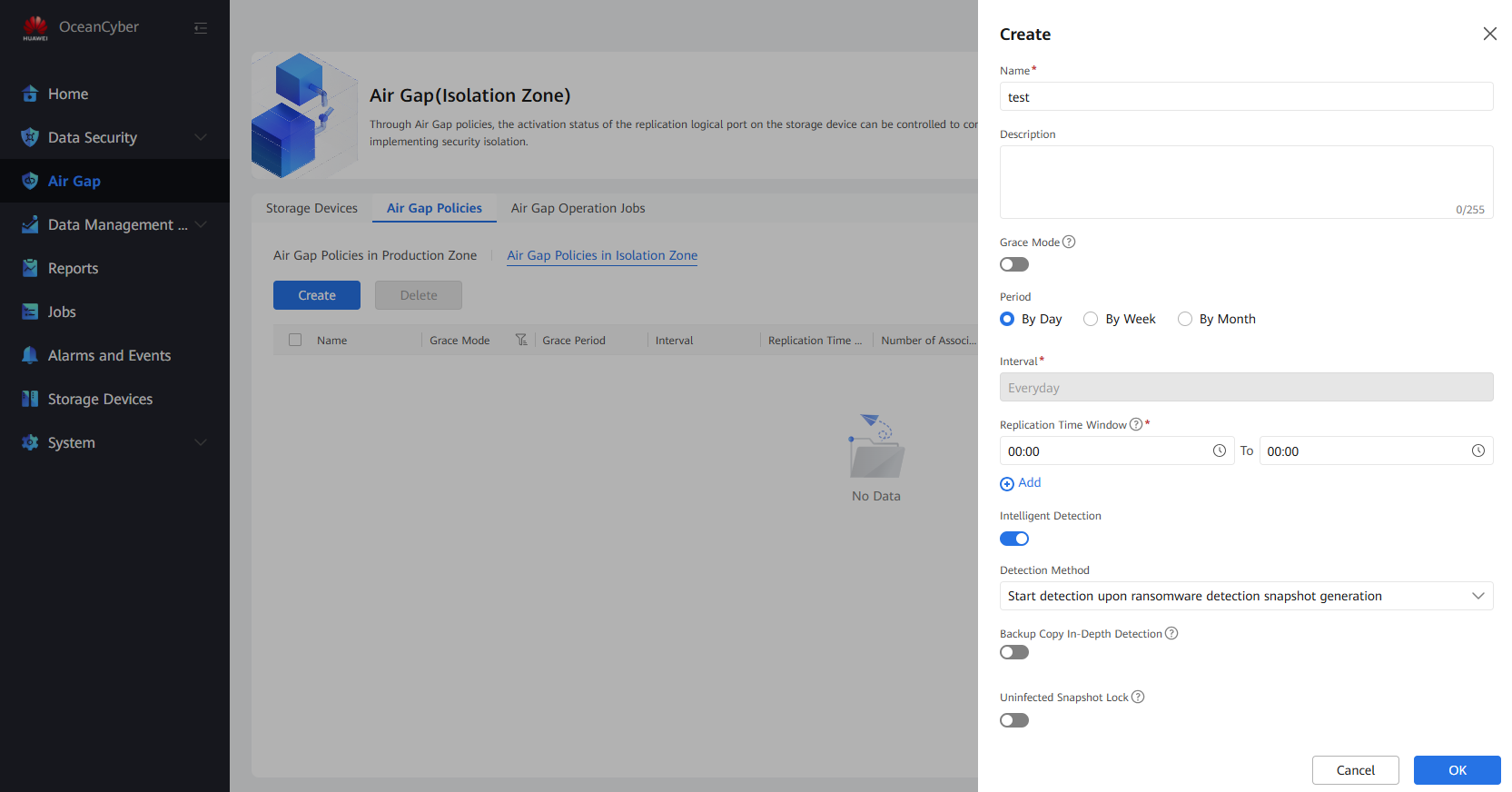

Grace Mode: If this function is enabled and a remote replication task is not completed within the time window specified in the policy, the system does not stop the task.
Intelligent Detection: If this function is enabled, the file system will be detected and analyzed after Air Gap replication is complete.
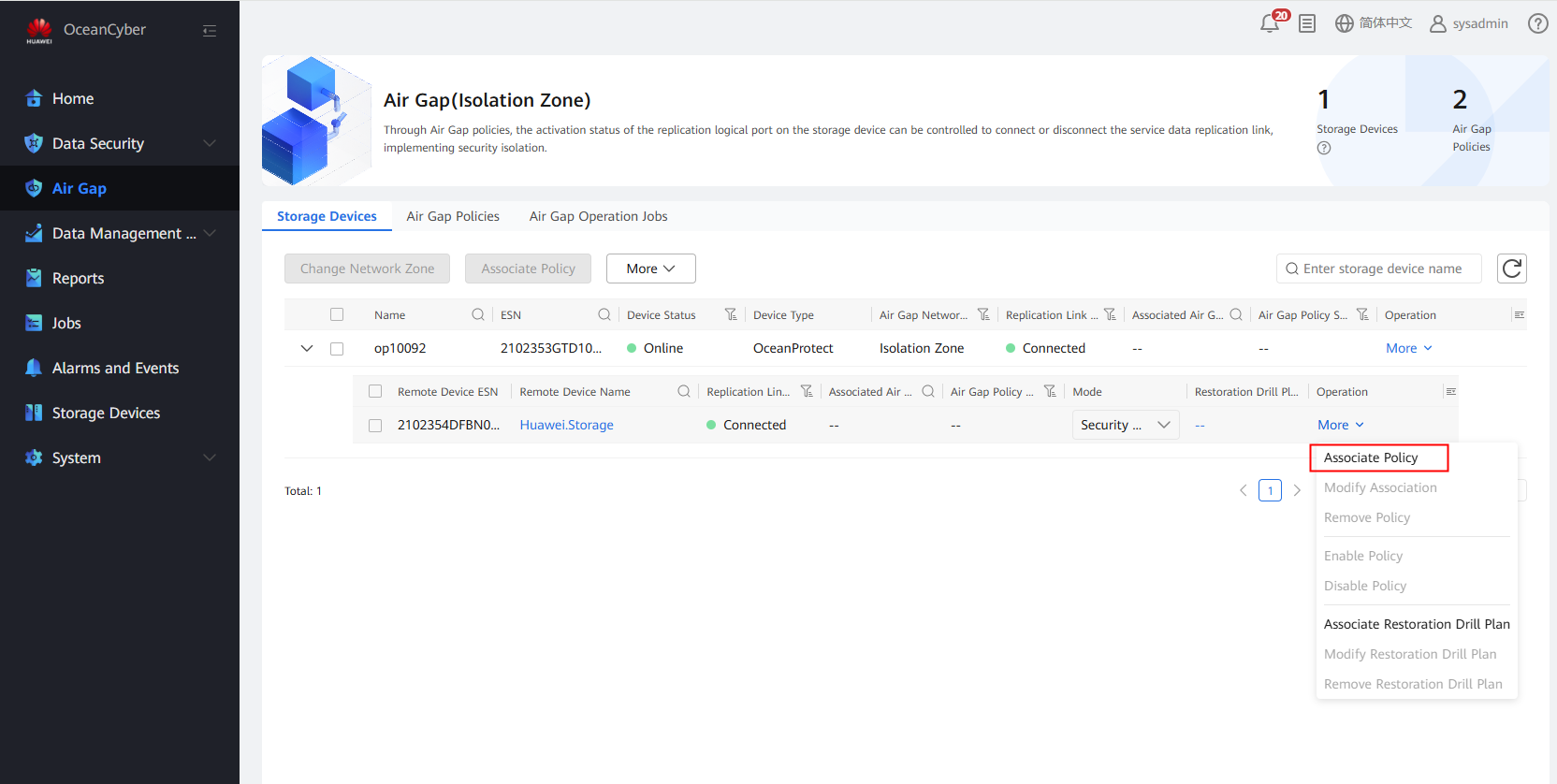
Step 3 On the Storage Devices tab page, locate the row that contains the storage device for which you want to configure an Air Gap policy, and choose More > Associate Policy.
—-End
4.4.2 Air Gap Verification in Isolation Zone
If only OceanProtect X8000 is deployed in the production zone and isolation zone, the Air Gap capability of the OceanCyber Data Security Appliance is recommended. If both OceanStor Dorado and OceanProtect X8000 are deployed, the Air Gap capability of OceanStor BCManager is recommended.
4.4.2.1 Verifying Air Gap on OceanStor BCManager in the Isolation Zone
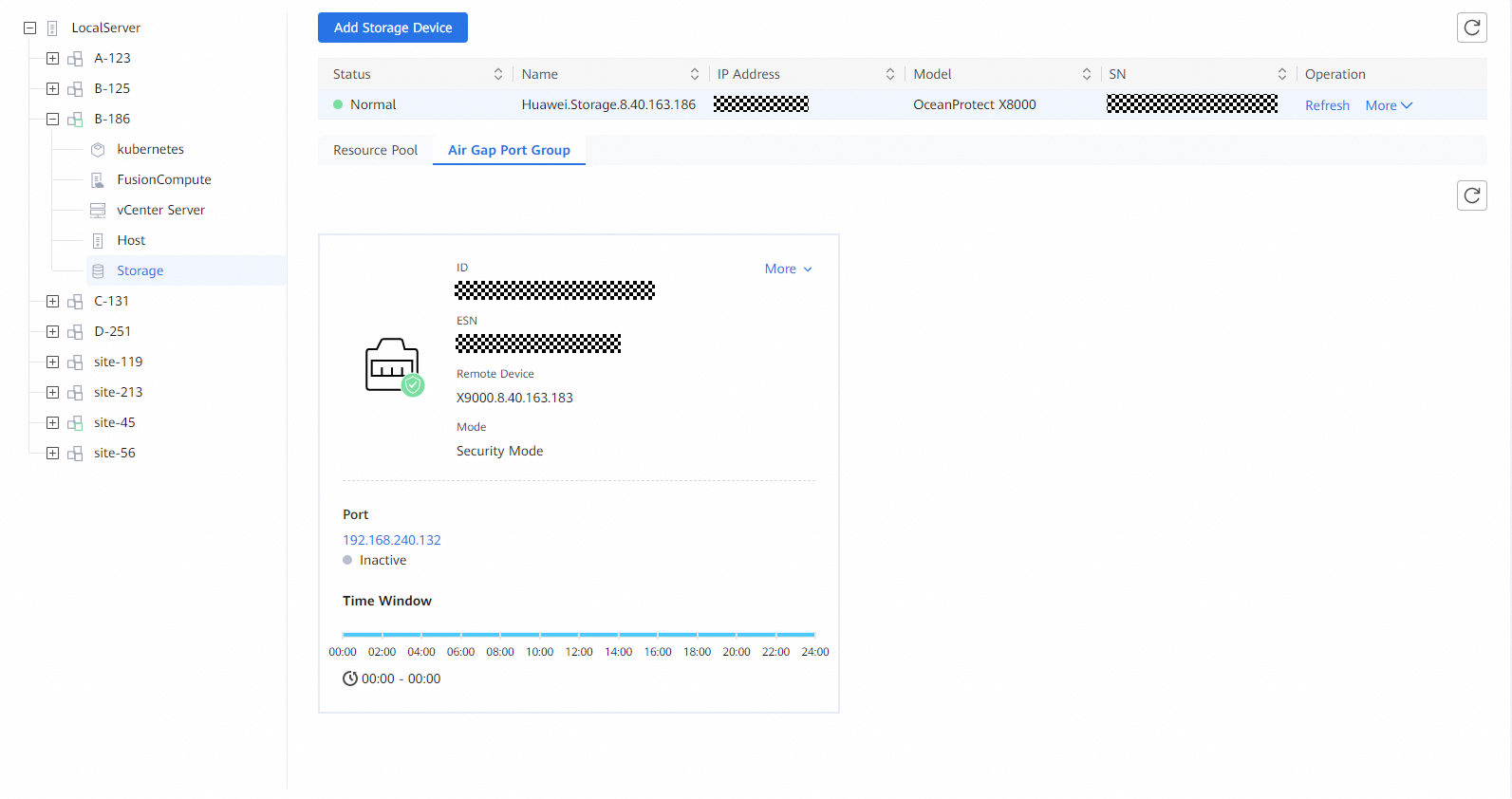
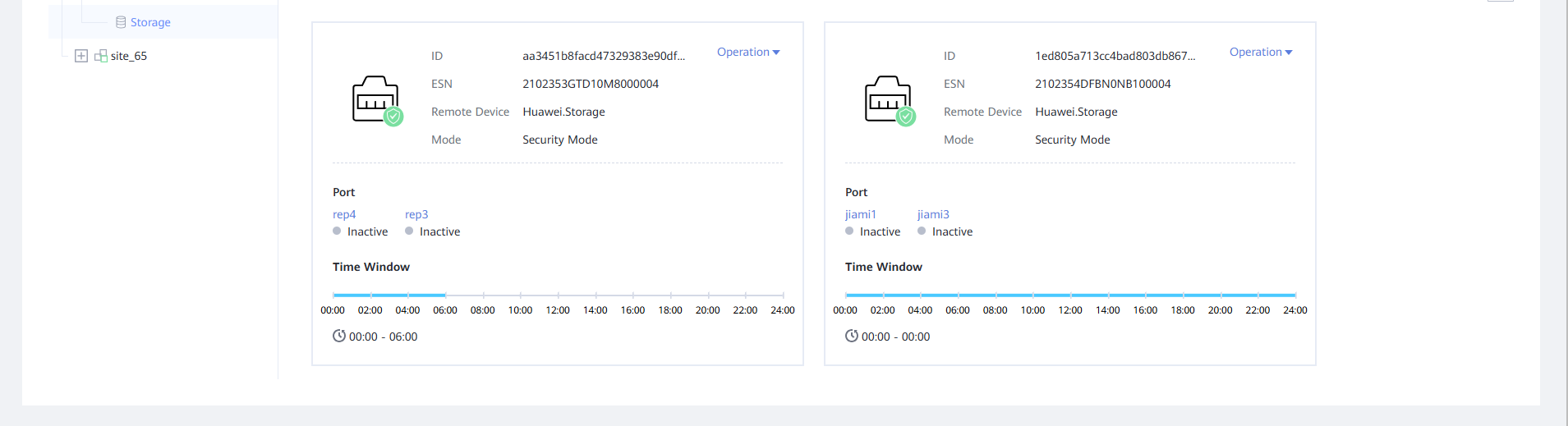
Step 1 Log in to OceanStor BCManager eReplication as an administrator and check the time window of the storage device. The ports are in the inactive state.
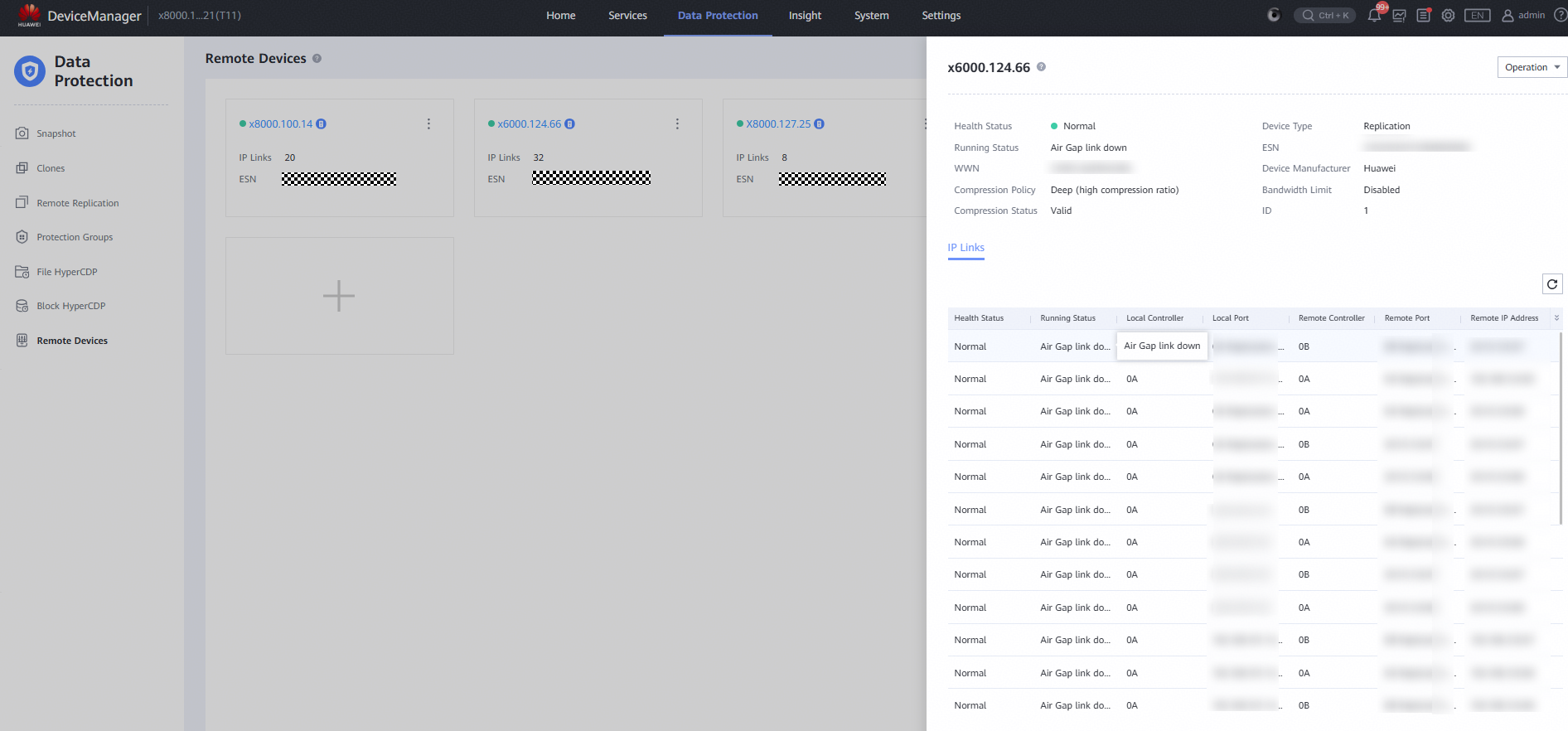
Step 2 Check the running status of remote devices on storage devices in the production and isolation zones. It is in the Air Gap link down state.
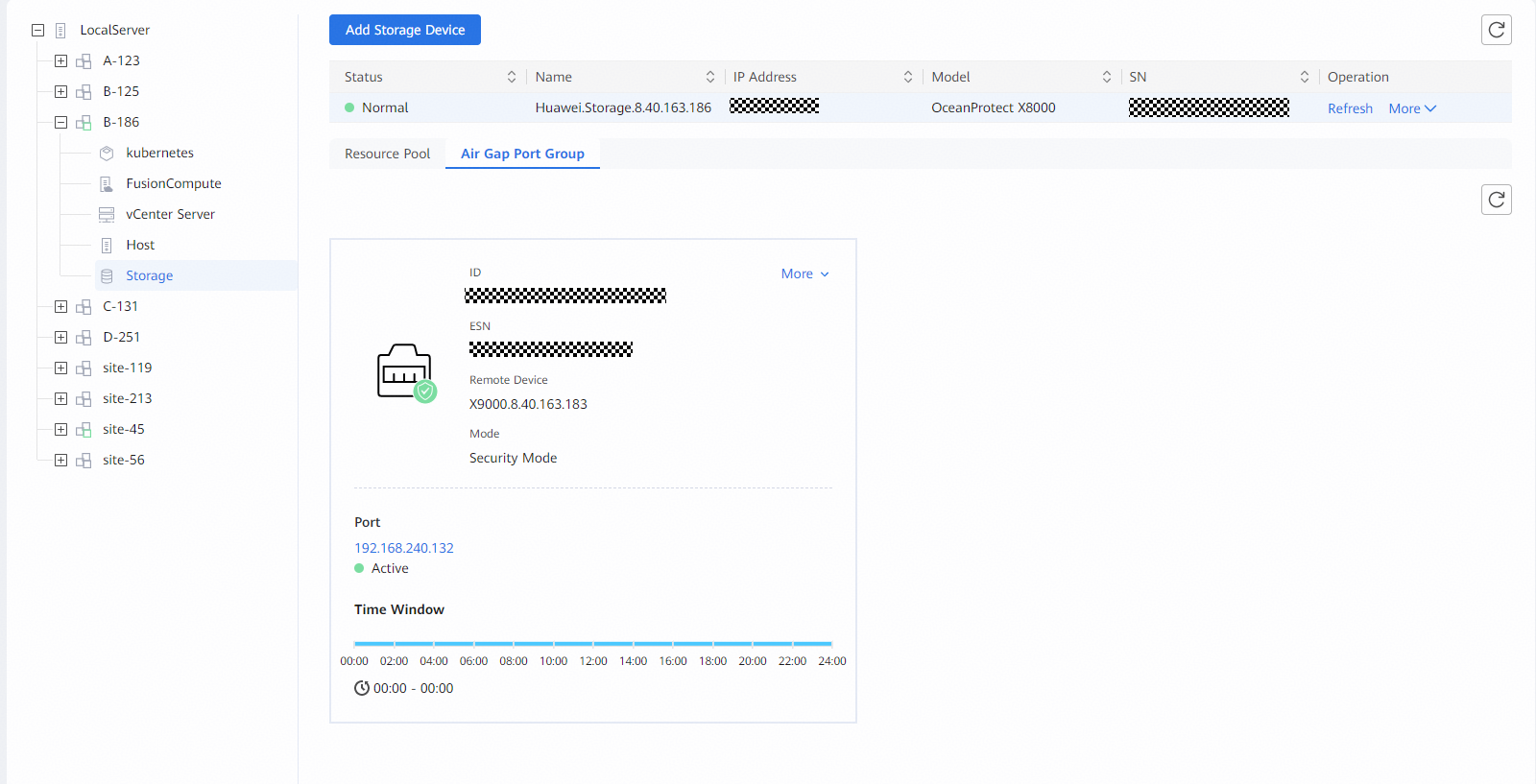
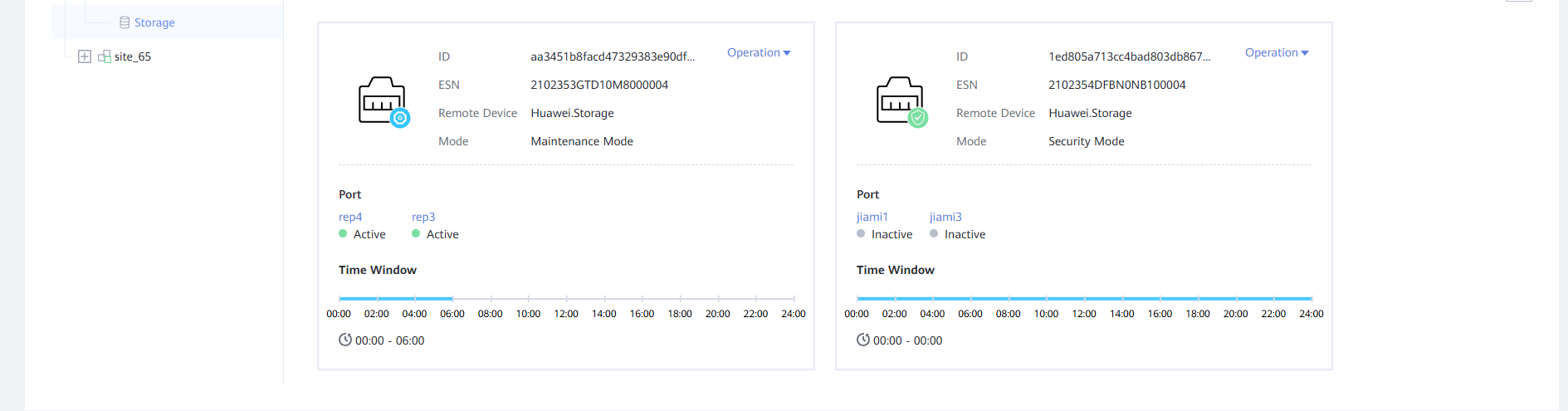
Step 3 Log in to OceanStor BCManager eReplication as an administrator and verify that the ports are in the active state during protection execution.
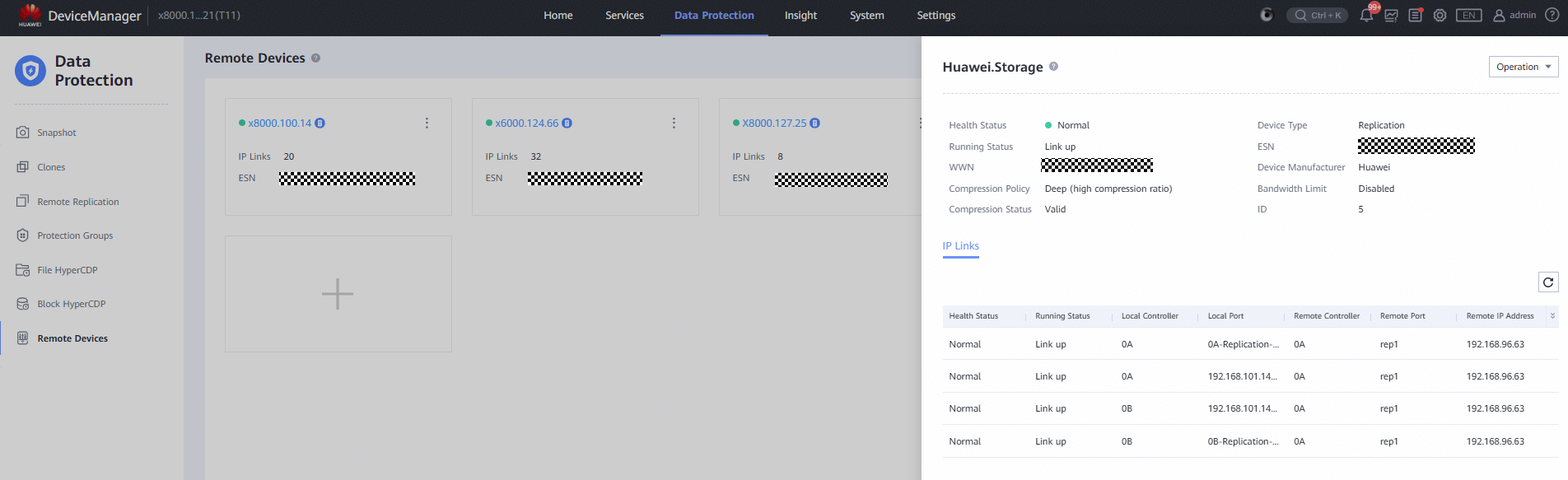
Step 4 Check the status of the remote device on the storage devices in the production and isolation zones. It is in the normal state.
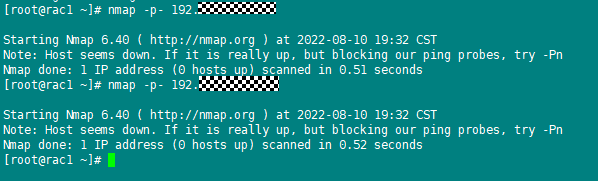
Step 5 To check whether the replication link ports comply with the Air Gap replication policy to connect and disconnect ports, run the nmap -p- IP address of the remote replication logical port in the isolation zone command to scan a port, as shown in the following figure.
—-End
4.4.2.2 Verifying Air Gap of the OceanCyber Data Security Appliance in the Isolation Zone
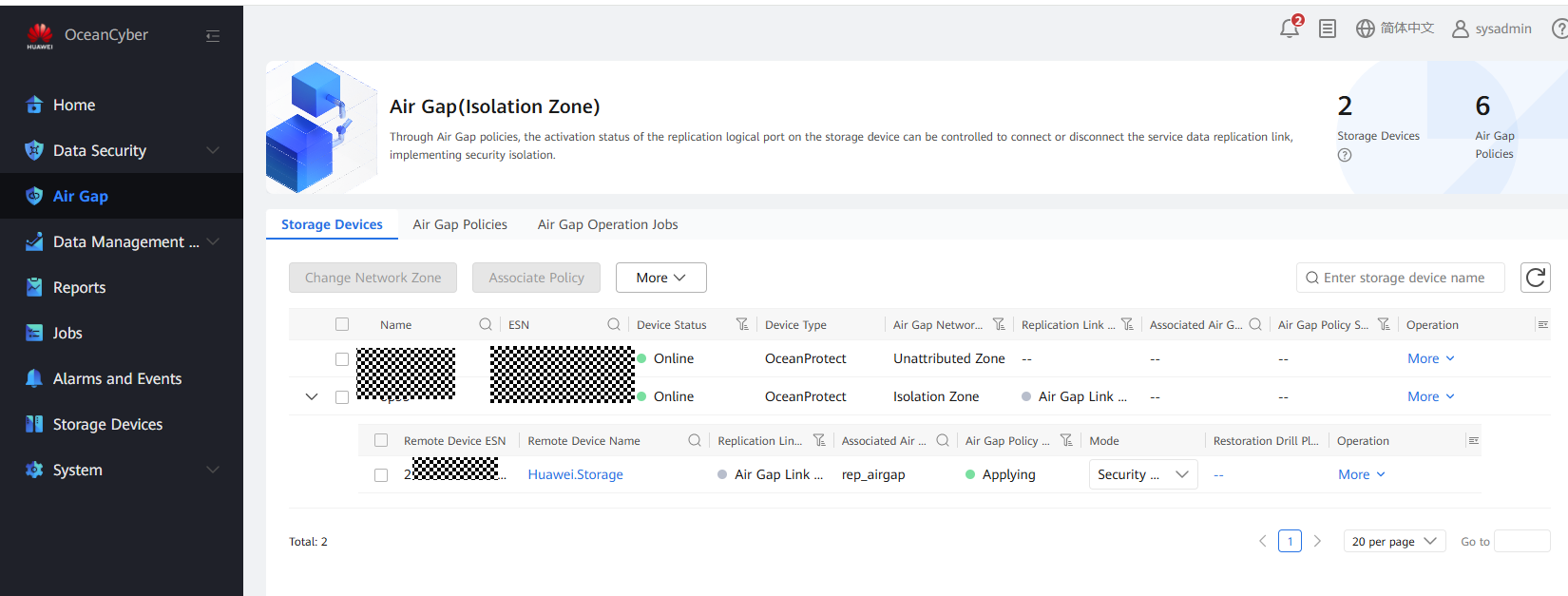
Step 1 Log in to the OceanCyber Data Security Appliance as an administrator and choose Air Gap. When no task is executed or the task is beyond time window, the Replication Link Status is Air Gap Link Down.
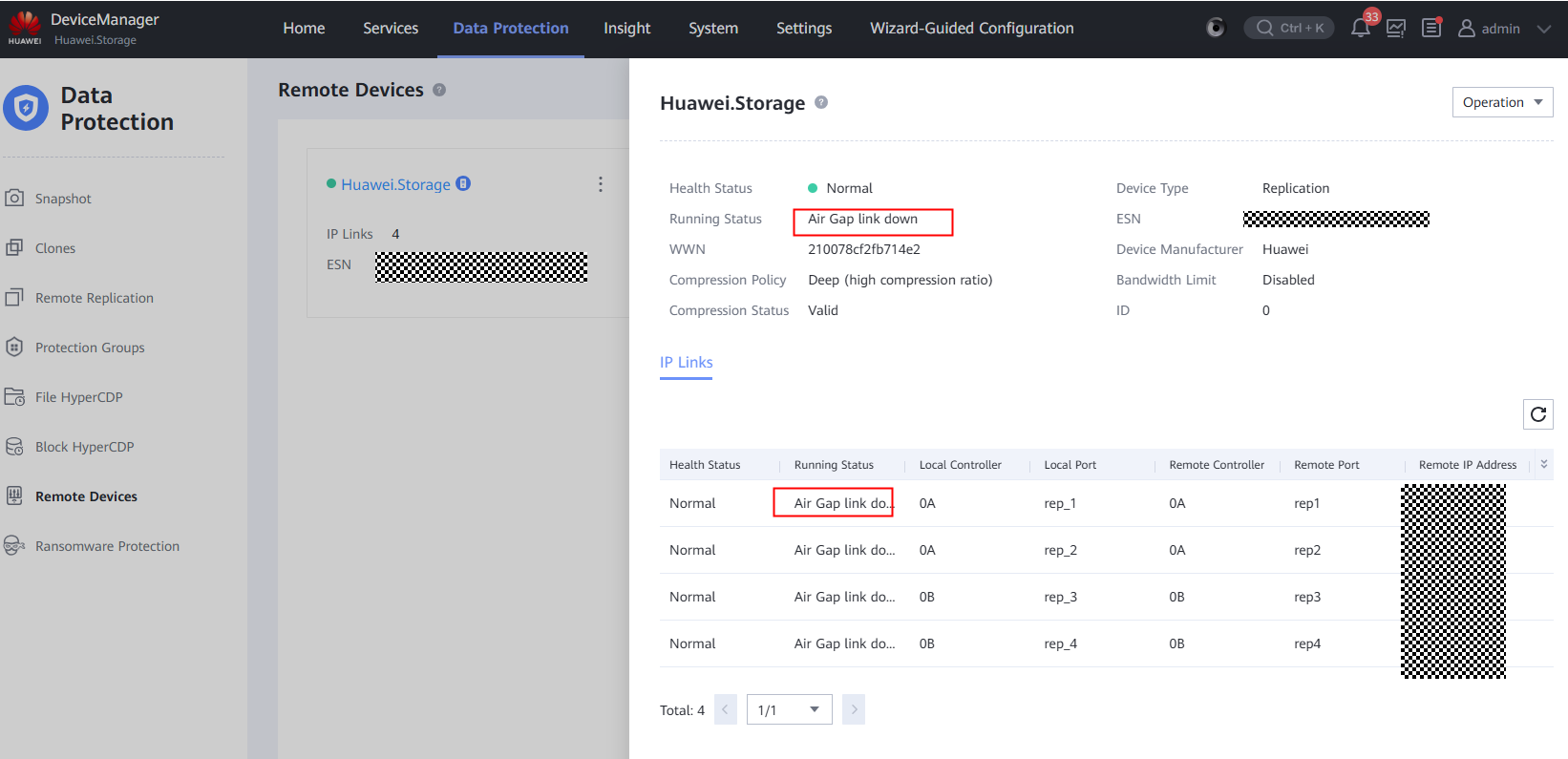
Step 2 Check the running status of remote devices on storage devices in the production and isolation zones. It is in the Air Gap link down state.
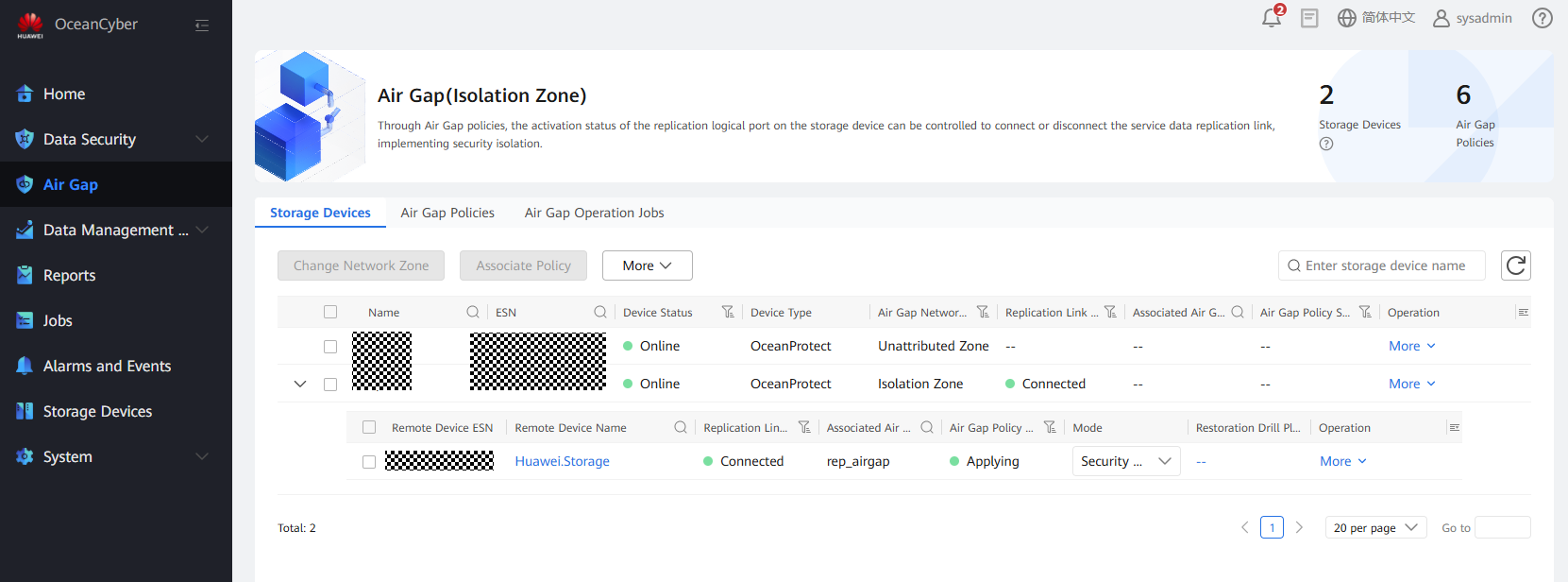
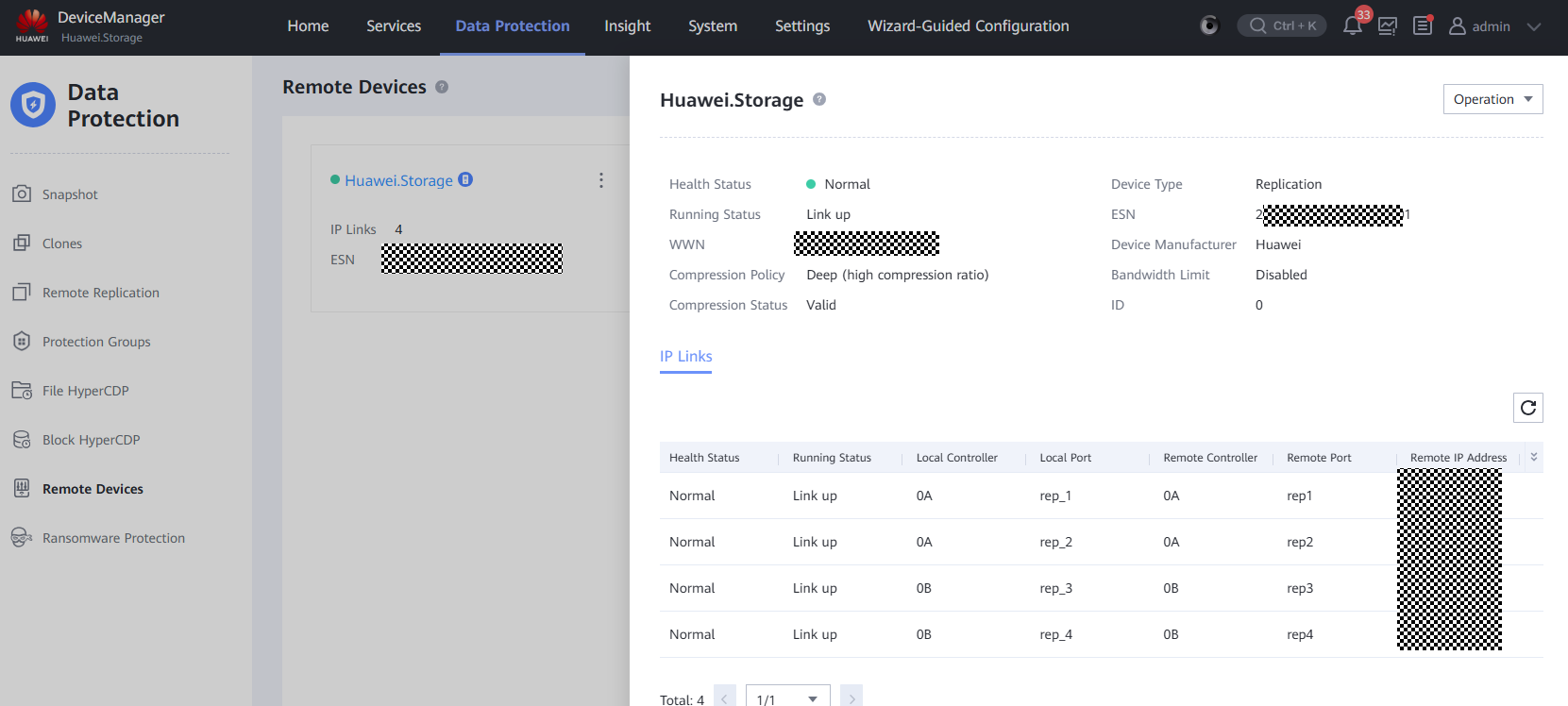
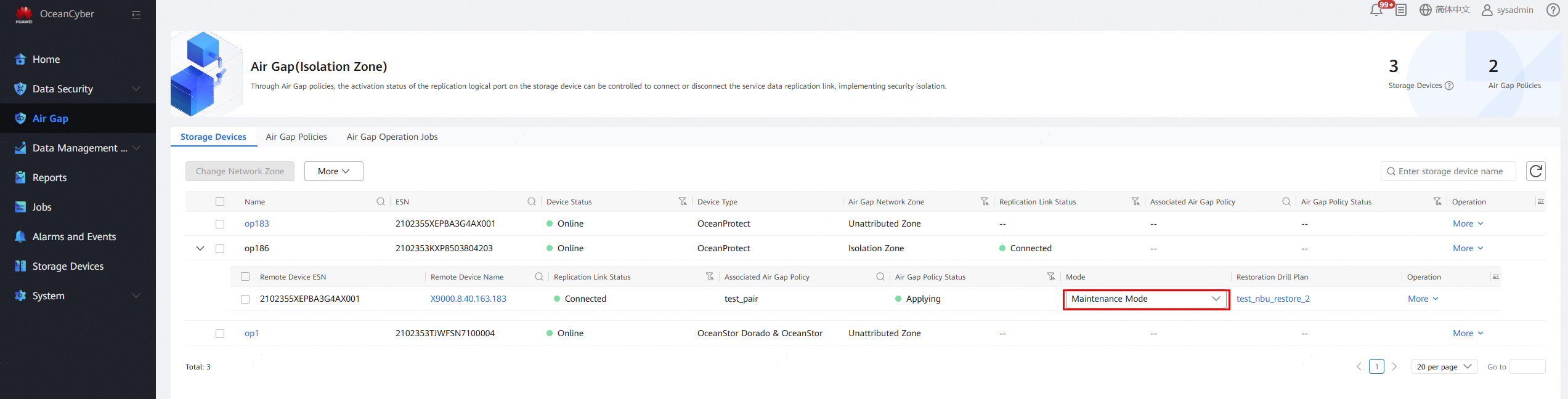
Step 3 Log in to the OceanCyber Data Security Appliance as an administrator and choose Air Gap. When the task is executed, the Replication Link Status is Connected.
Step 4 Check the status of the remote device on the storage devices in the production and isolation zones. It is in the normal state.
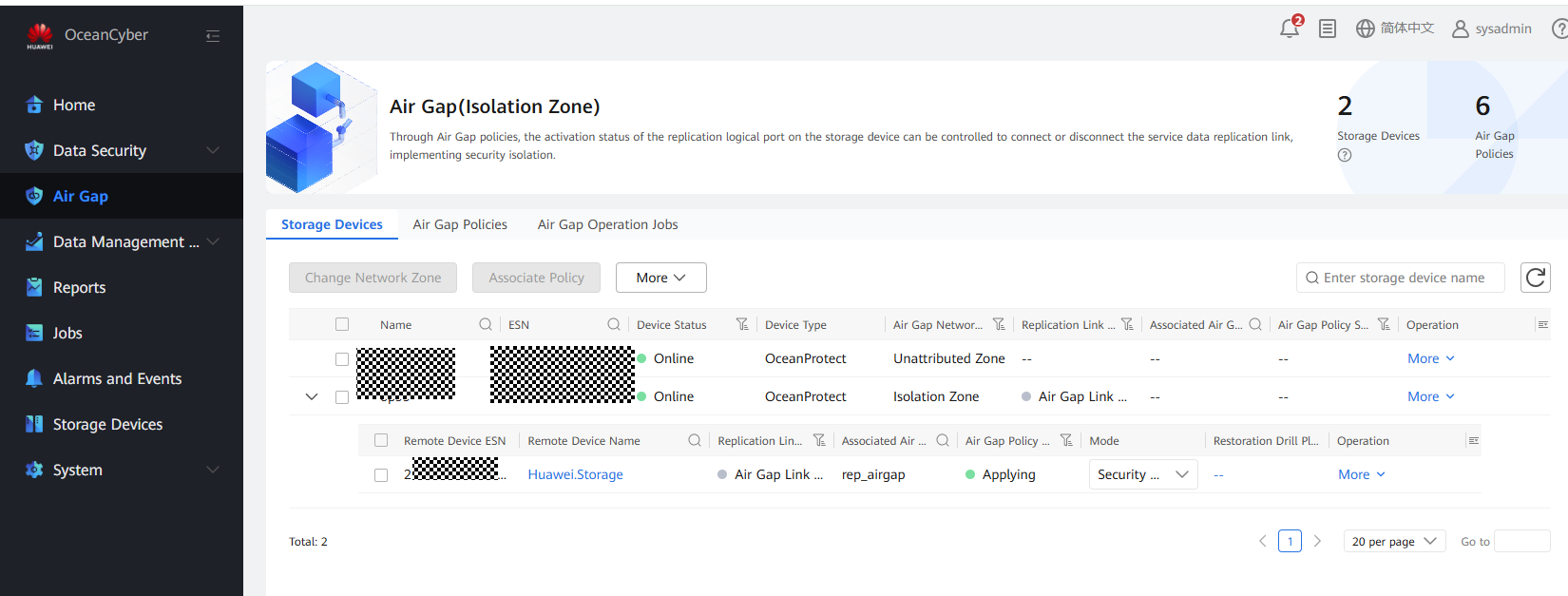
Step 5 After the replication task is complete, log in to the OceanCyber Data Security Appliance WebUI. The Replication Link Status is Air Gap Link Down.
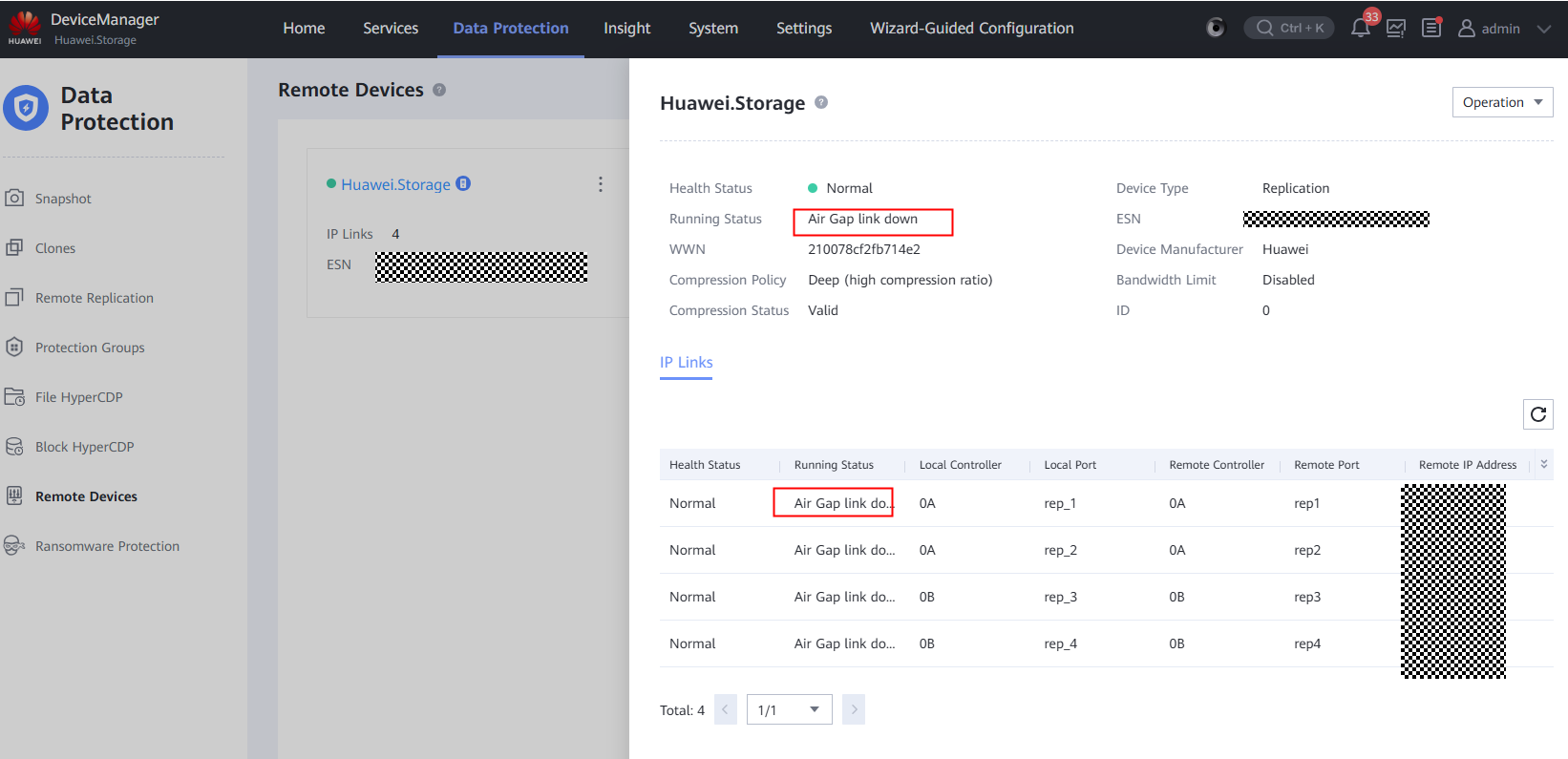
Step 6 Check the running status of remote devices on storage devices in the production and isolation zones. It is in the Air Gap link down state.
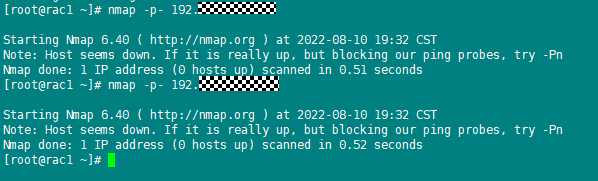
Step 7 To check whether the replication link ports comply with the Air Gap replication policy to connect and disconnect ports, run the nmap -p- IP address of the remote replication logical port in the isolation zone command to scan a port, as shown in the following figure.
—-End
4.4.3 Restoring Data Using the Isolation Zone
4.4.3.1 Splitting Storage Clones in the Isolation Zone
The latest backup copies at the production end are available. A remote replication is created for a storage file system. The remote replication is synchronized to the storage system in the isolation zone. The protection job is executed on OceanStor BCManager. The remote replication is synchronized. Clean snapshots in the remote replication file in the production and isolation zones have been created.
Step 1 View the latest clean snapshots.
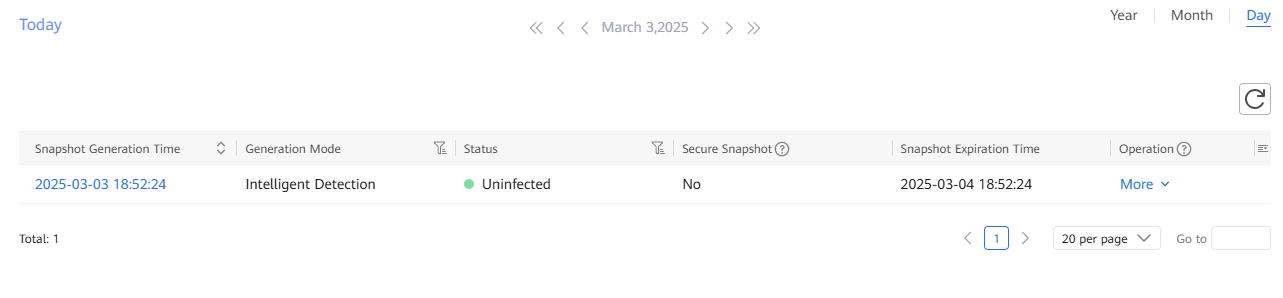
Step 2 View the comparison of copies on the storage devices.
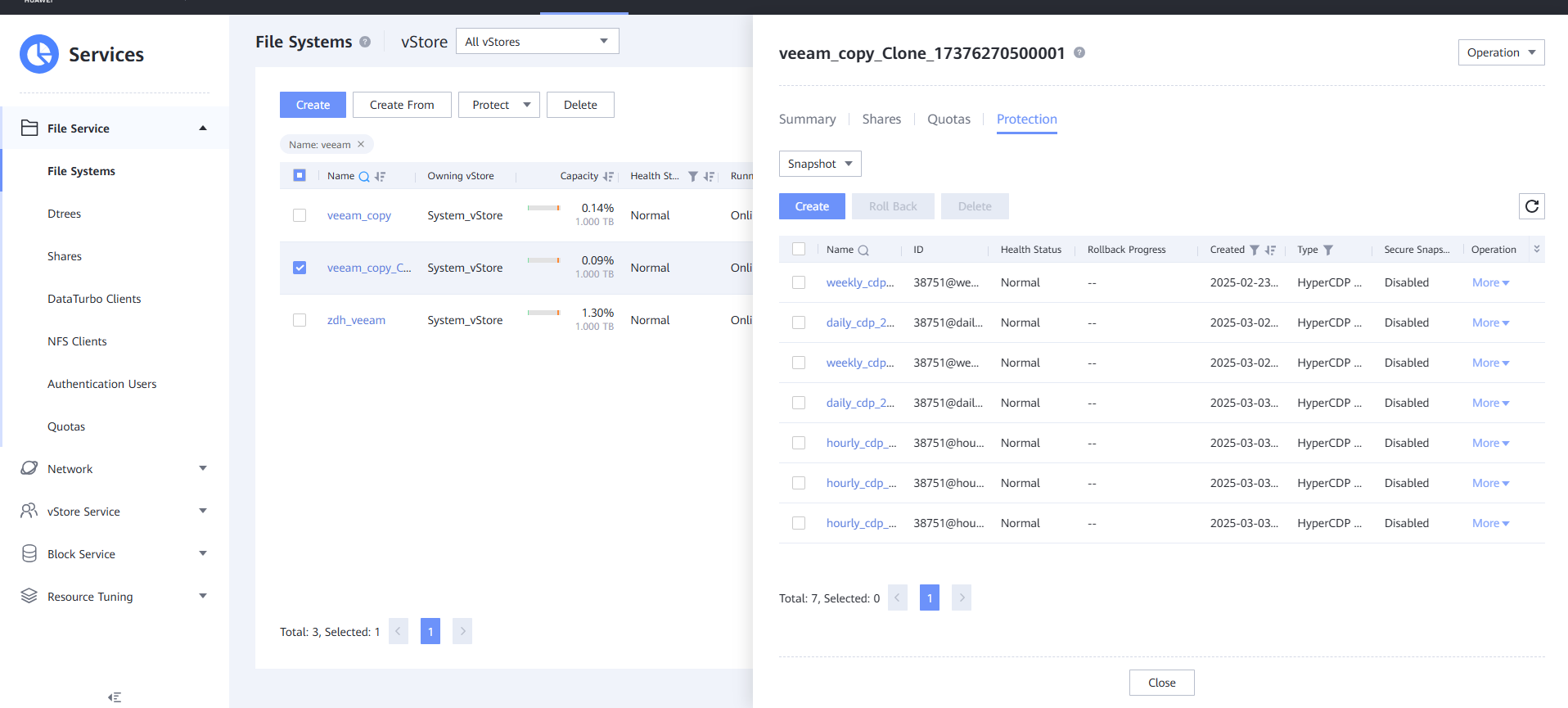
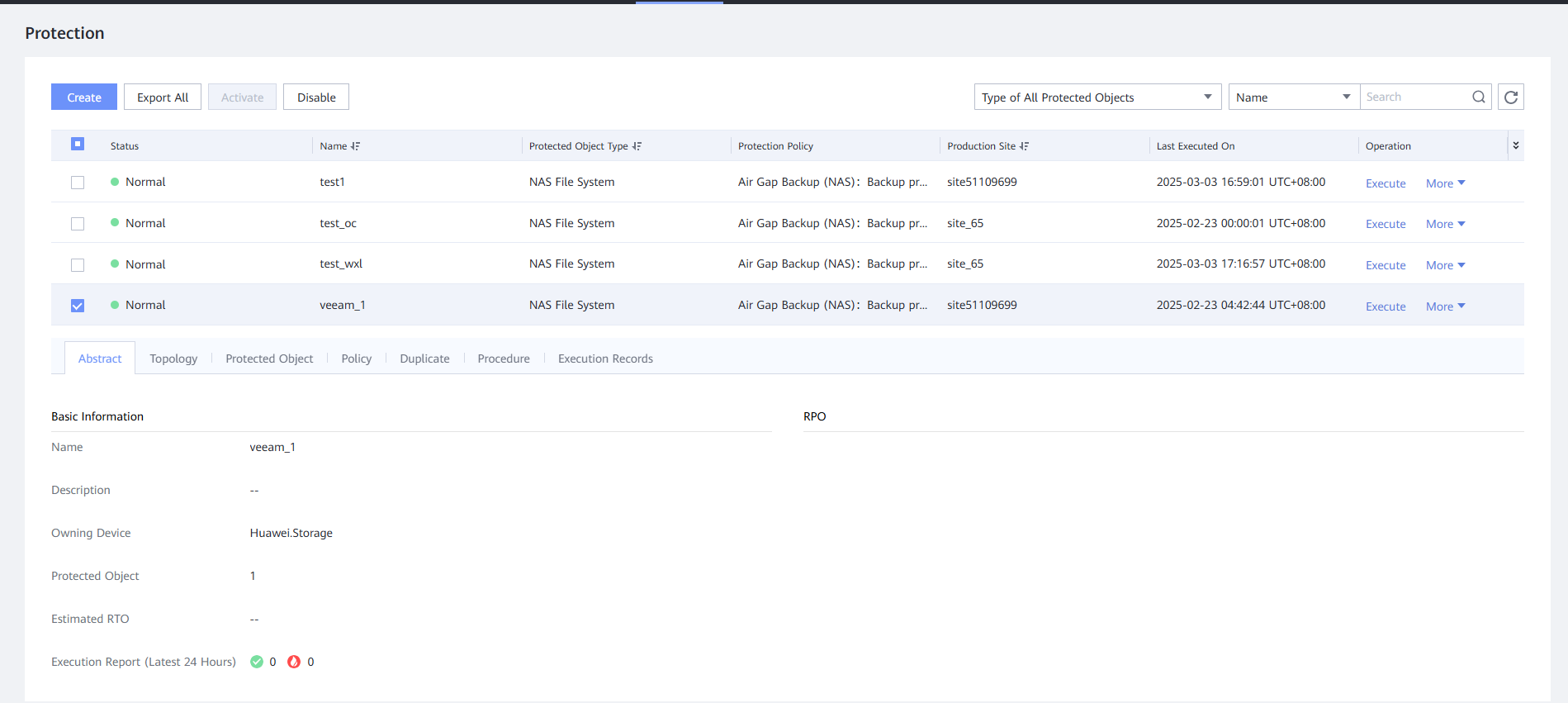
Step 3 Log in to OceanStor BCManager, select a job, and click Execute to synchronize the latest clean copies to the remote replication file system in the isolation zone.
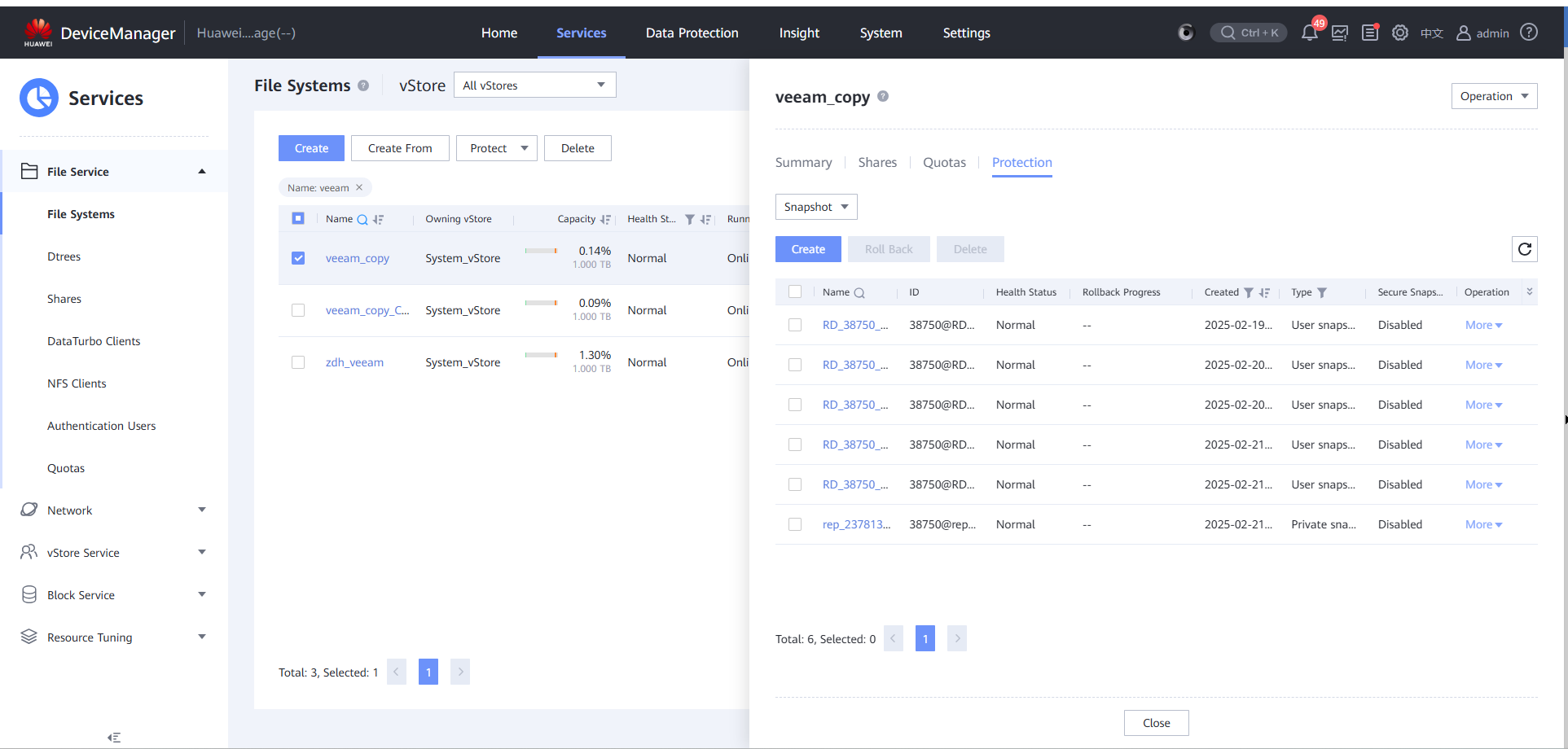
Step 4 Log in to DeviceManager in the isolation zone and check whether a snapshot is generated. The snapshot is synchronized from clean data.
Step 5 Simulate infection of the file system where the backup copies are stored in the current production zone.
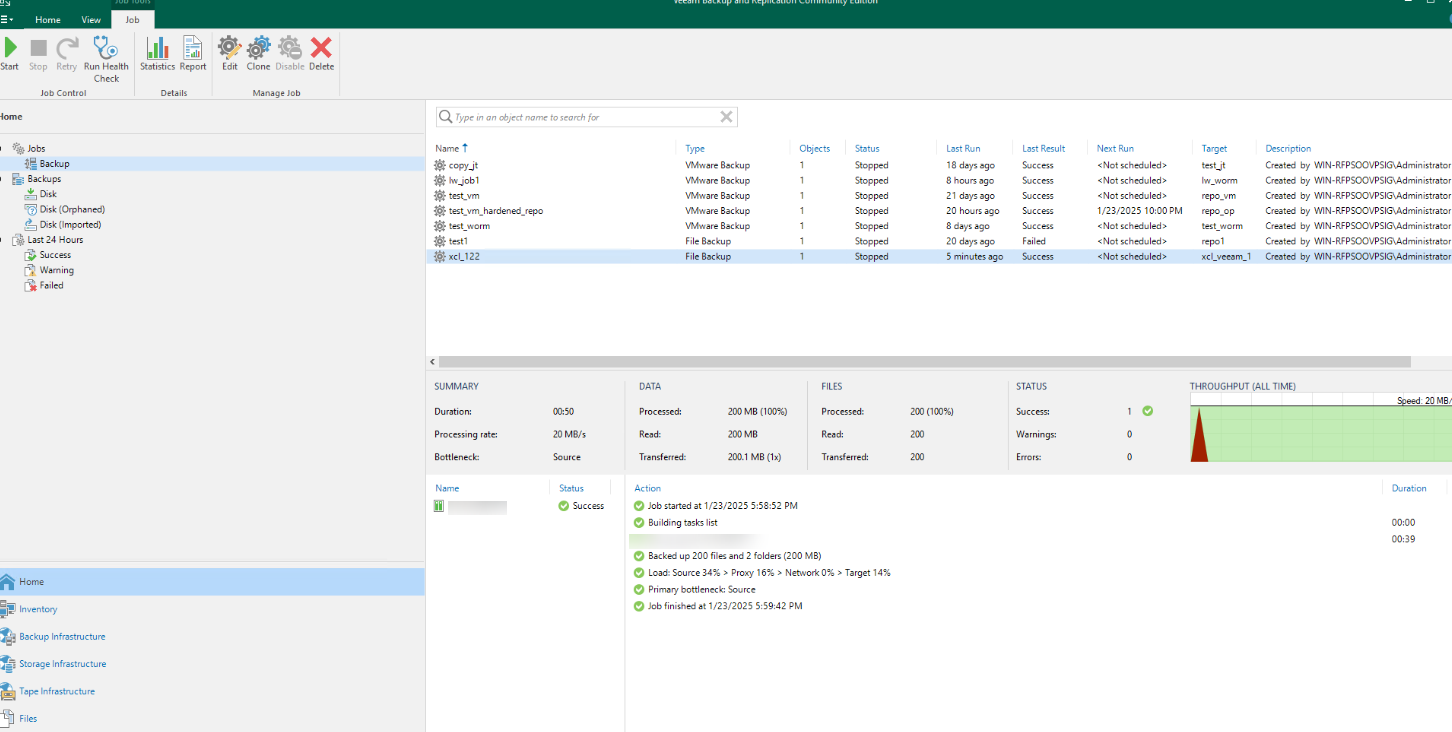
Step 6 Perform backup.
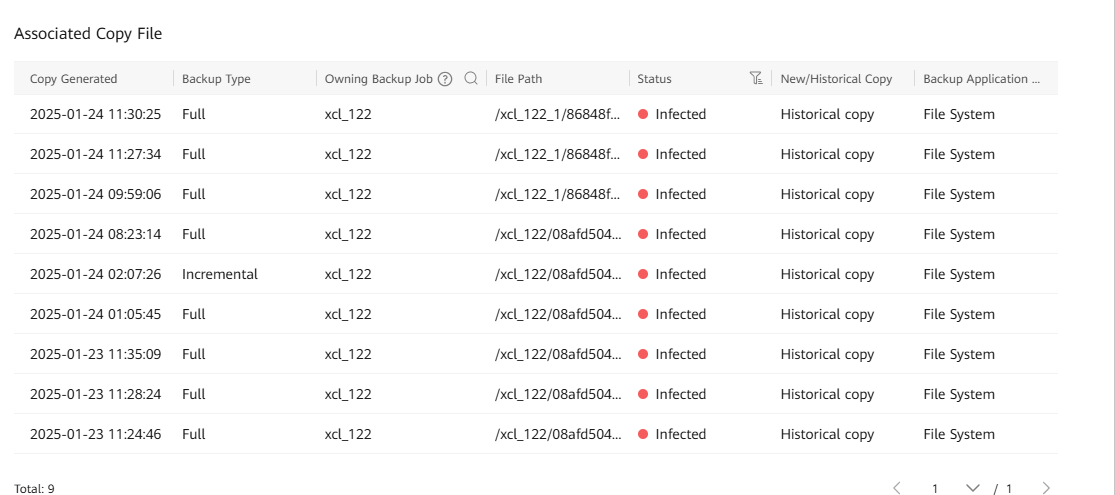
Step 7 Check the detection result on the OceanCyber 300 Data Security Appliance.
Step 8 Log in to a storage device in the isolation zone.
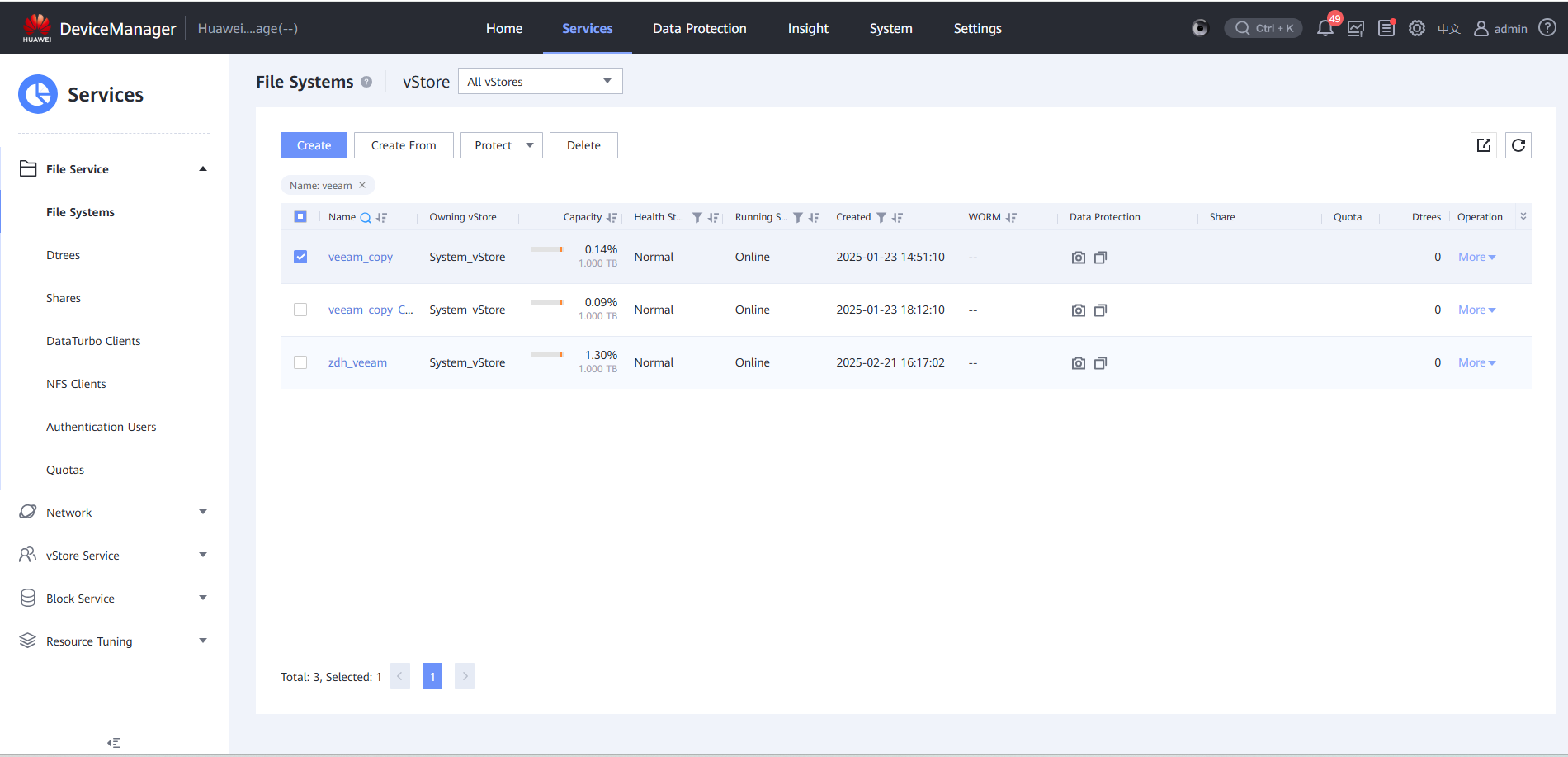
Step 9 Select the file system of the remote replication and click the Protection tab.
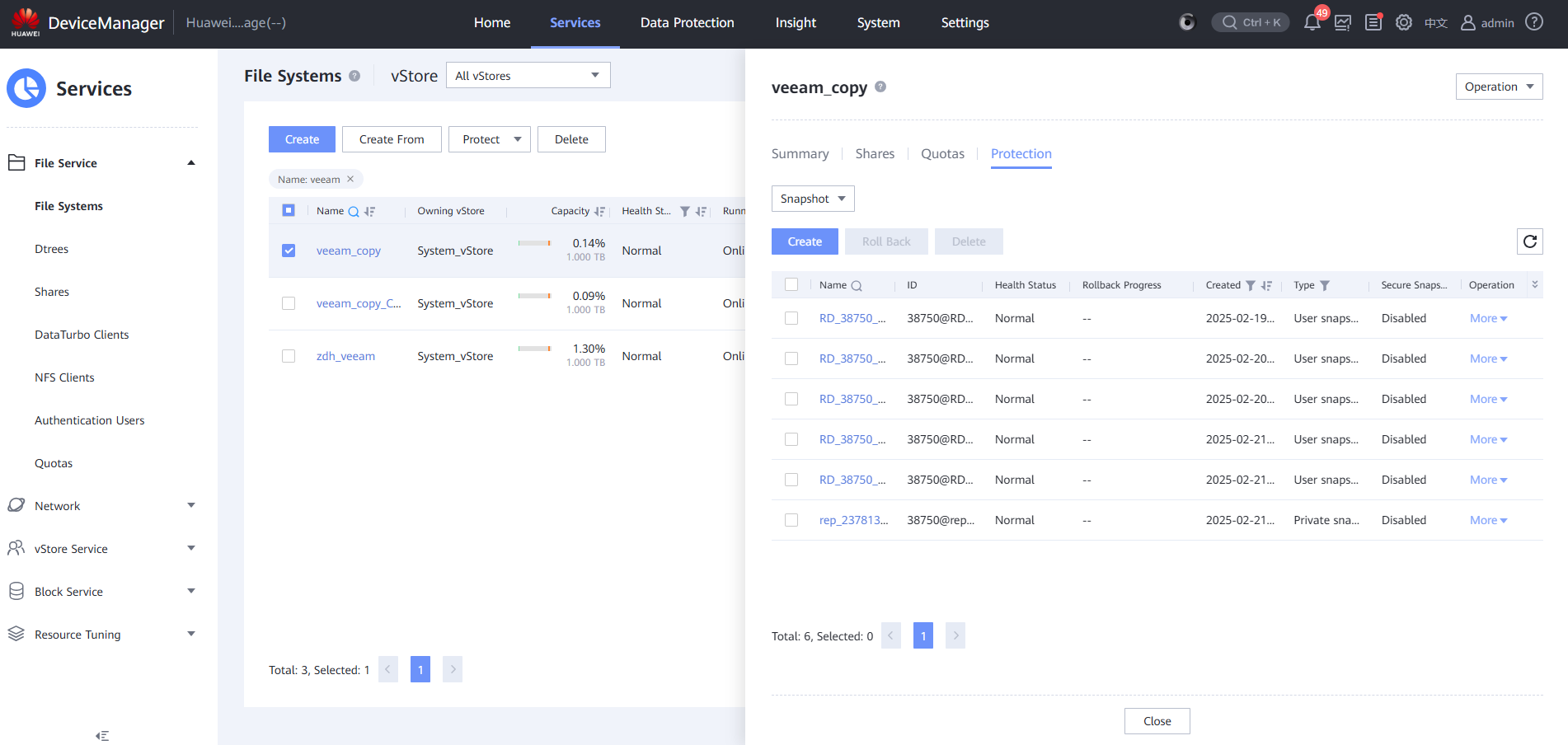
Step 10 Select Snapshot and select a clean copy.
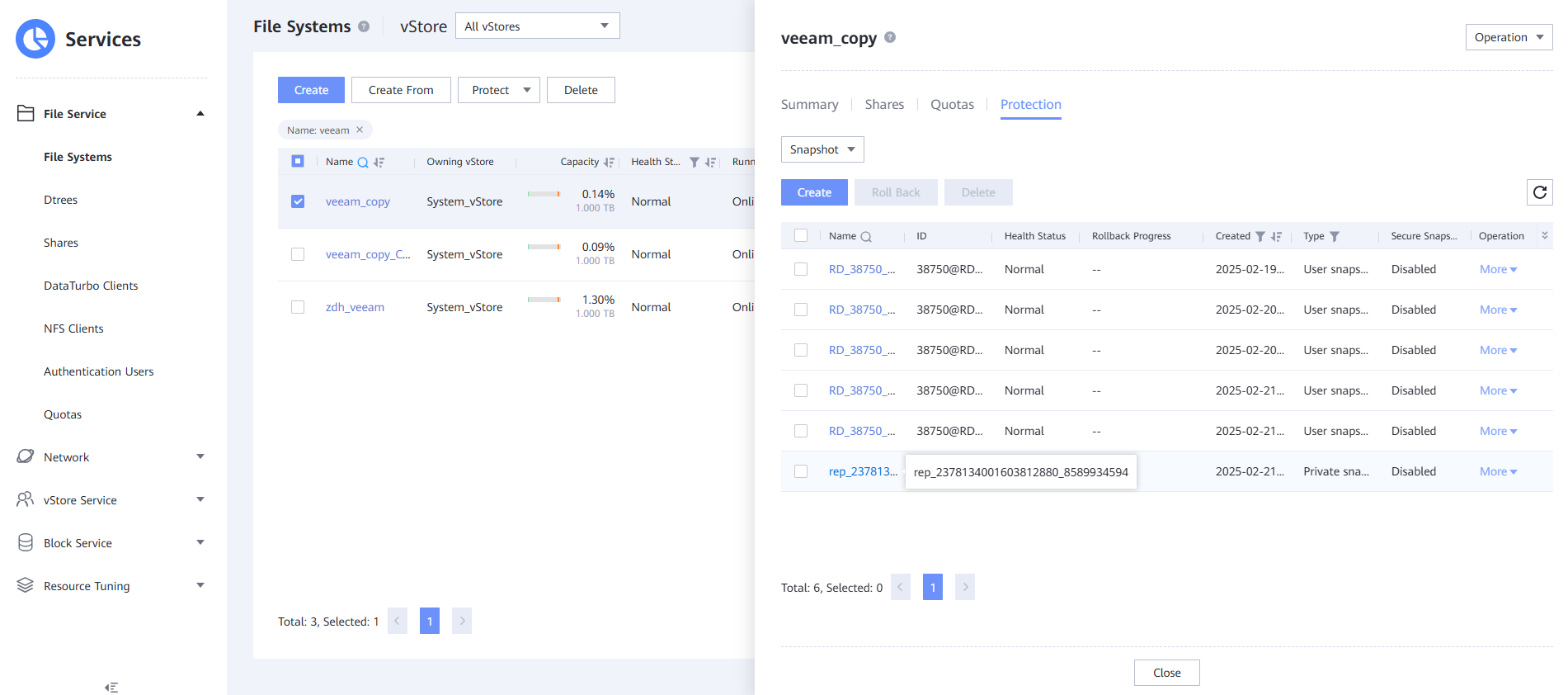
Step 11 Click Clone, click Create, select an existing snapshot, and click OK.
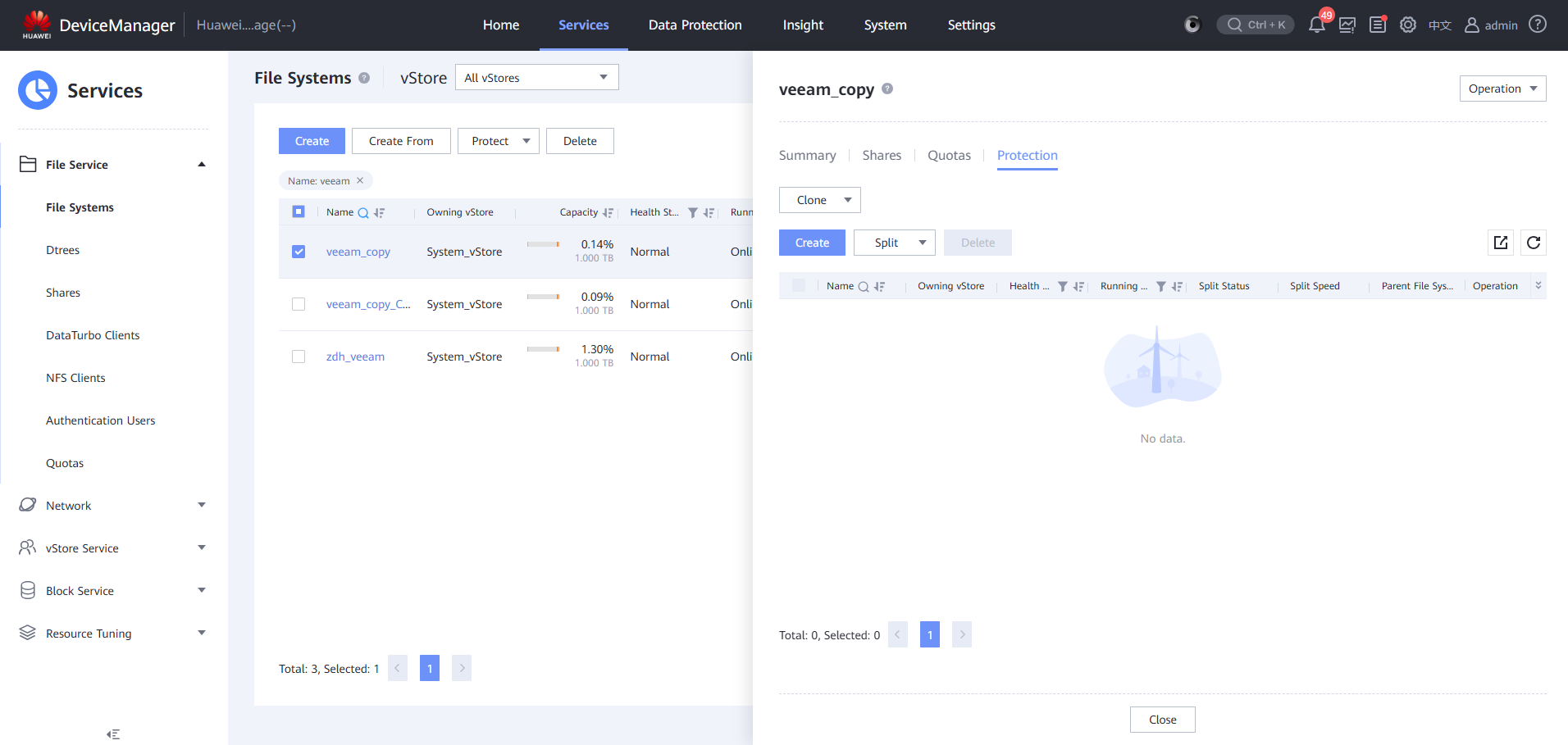
Step 12 Create a clone file system.
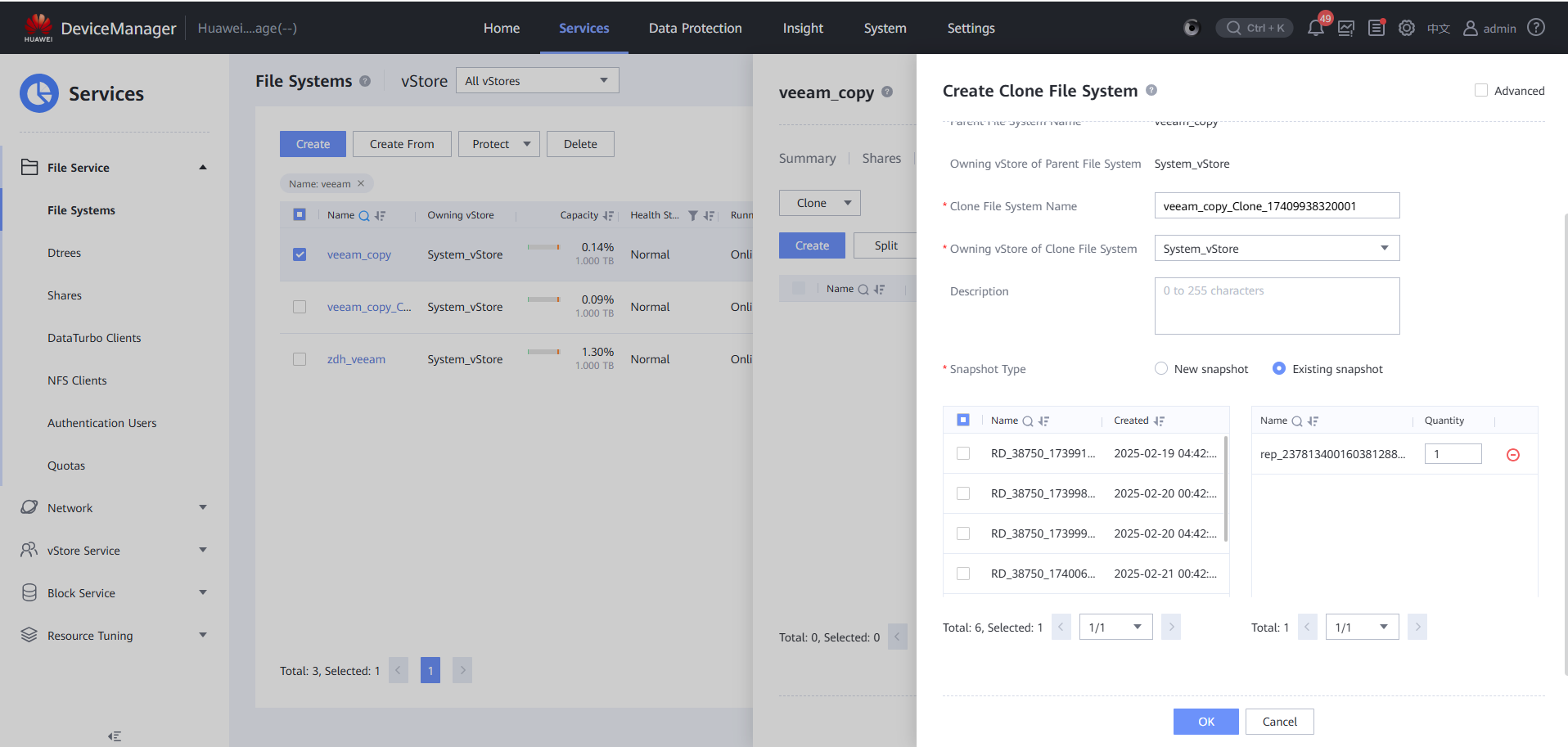
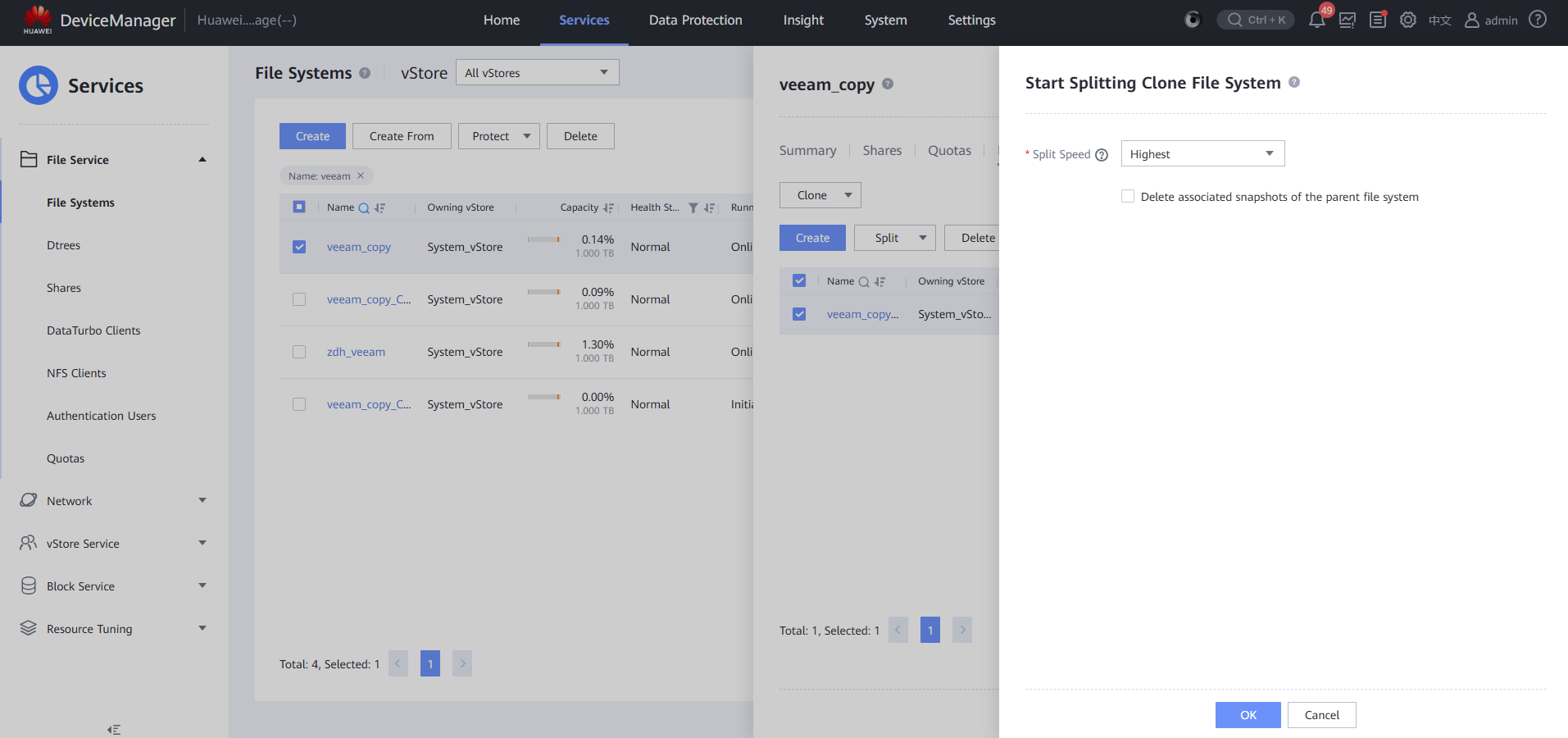
Step 13 Click Split, click Start, and set Split Speed to Highest.
—-End
4.4.3.2 Replicating and Restoring Data Reversely
Step 1 If the replication is based on OceanStor BCManager eReplication, perform Step 2 and Step 3. If the replication is based on the OceanCyber isolation zone, perform Step 4.
Step 2 Log in to OceanStor BCManager, and choose Resources. On the Air Gap Port Group tab page, set Mode to Maintenance Mode for the storage device and Port to Active for the replication port.
Step 4 Log in to the OceanCyber WebUI, choose Air Gap > Storage Devices, select the corresponding storage device, and switch the mode of the required remote storage device to Maintenance Mode to connect the remote replication links.
Step 5 Check that the port is connected.
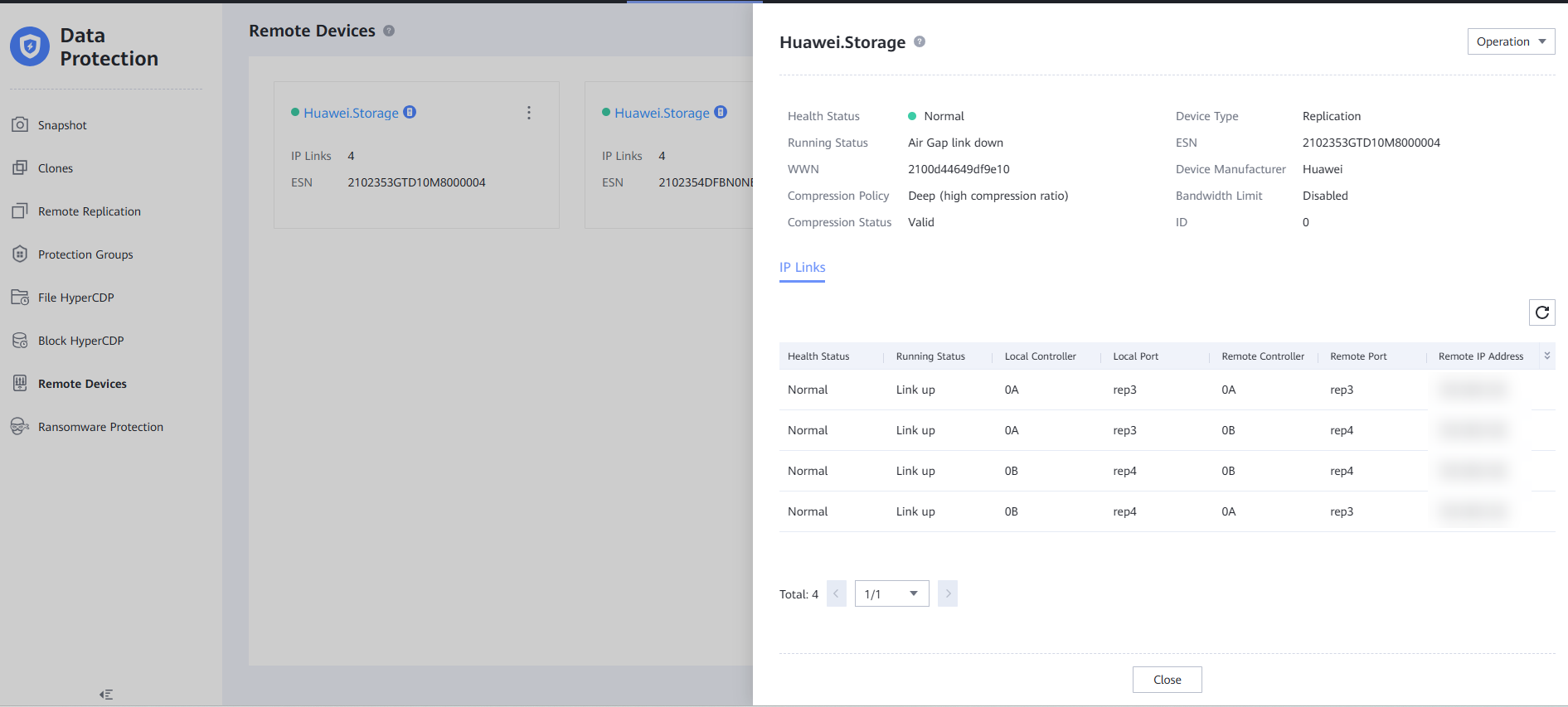
Step 6 Return to DeviceManager in the isolation zone, select a file system, and choose More > Create Remote Replication Pair.
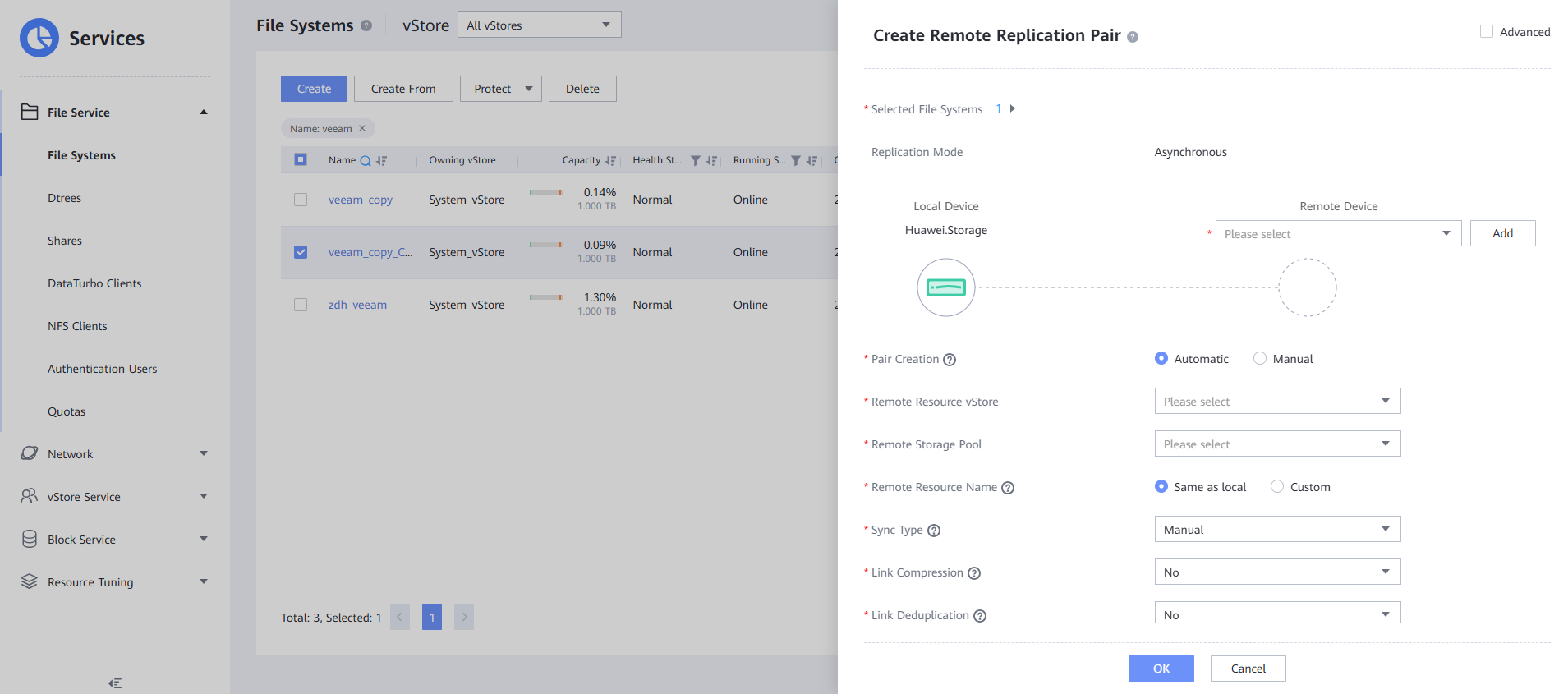
Step 7 Check that the creation is successful.
Log in to the original storage device in the production zone and check whether the replication is successful.
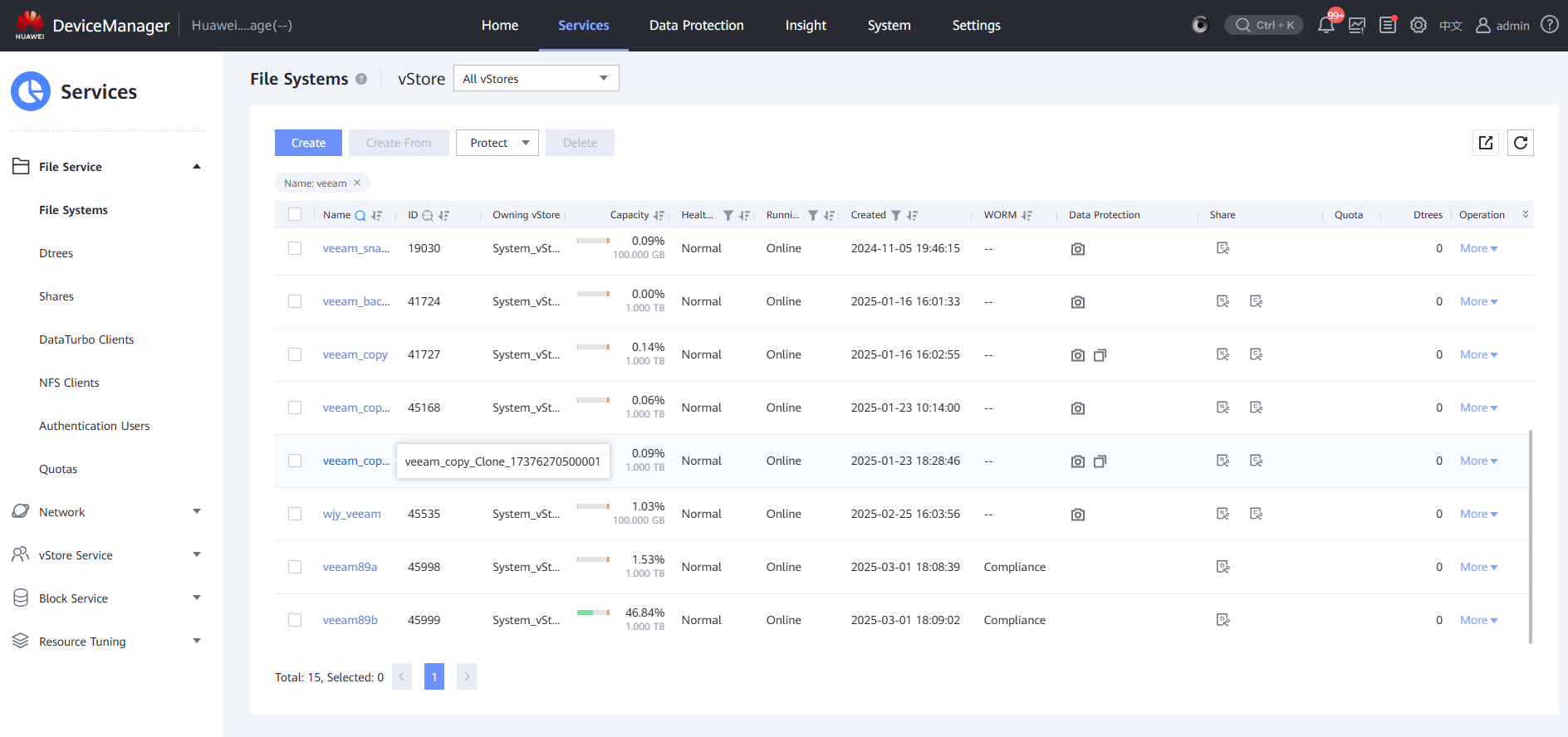
—-End
4.4.3.3 Importing Data for Restoration
Step 1 Add the share mode for a clone file system in the isolation zone and mount the file system to a virtual host.
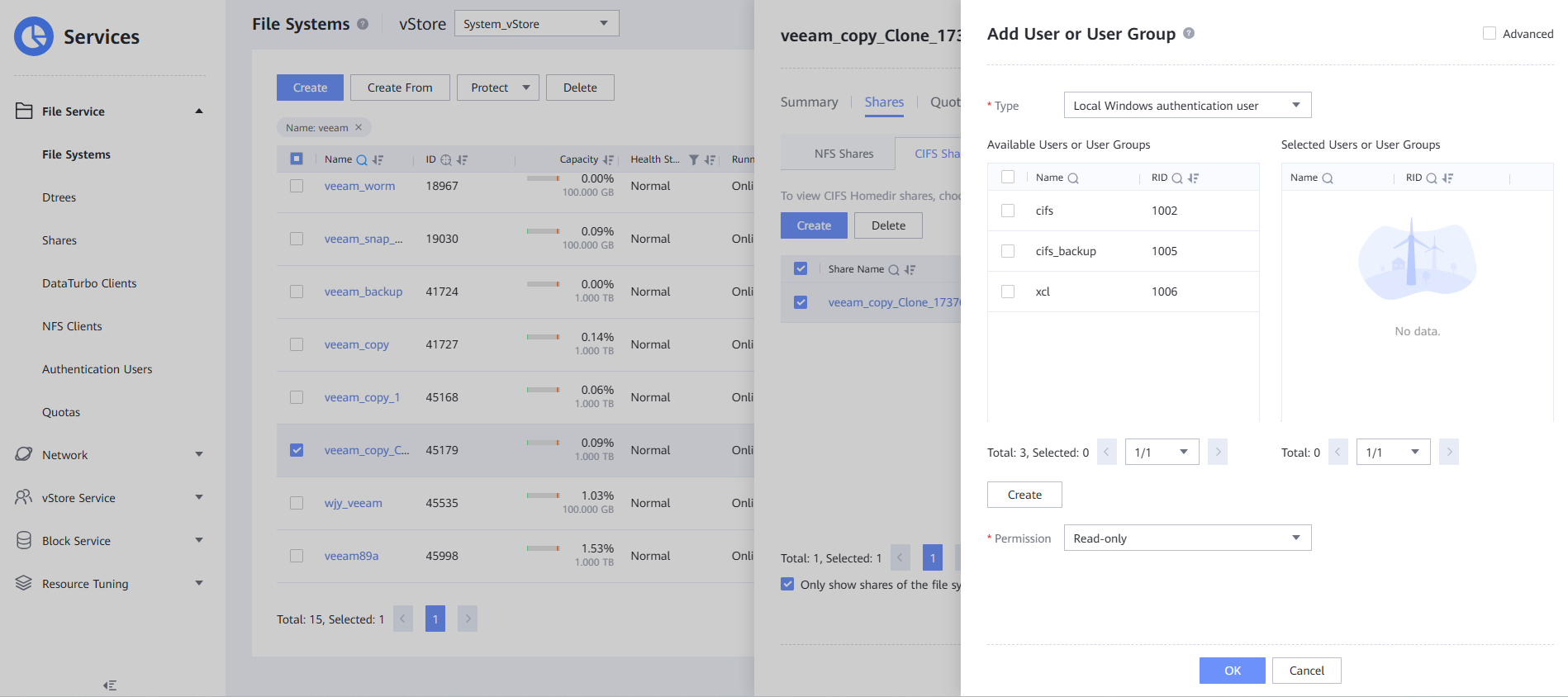
Add permissions on the NFS and CIFS shares.
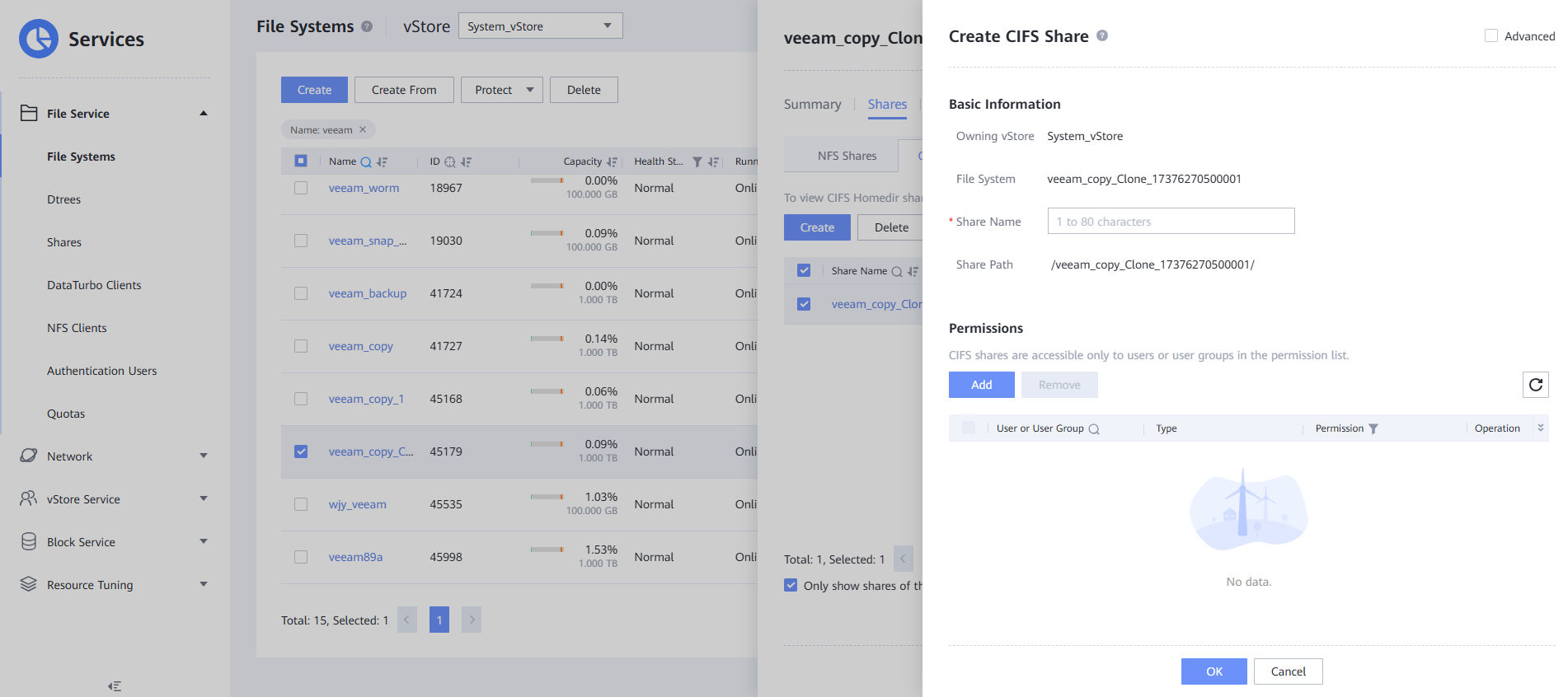
Step 2 Add user authentication.
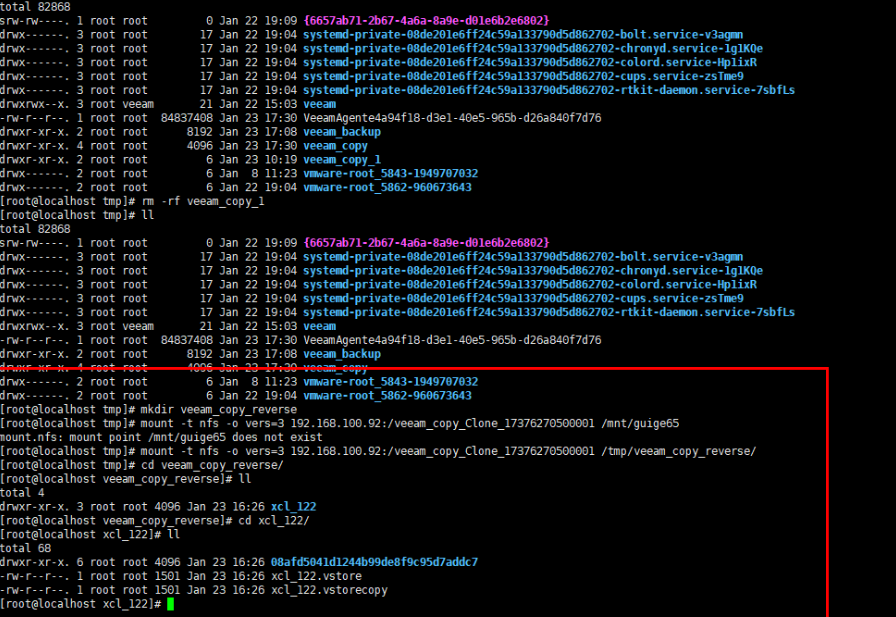
Step 3 Mount a VM.
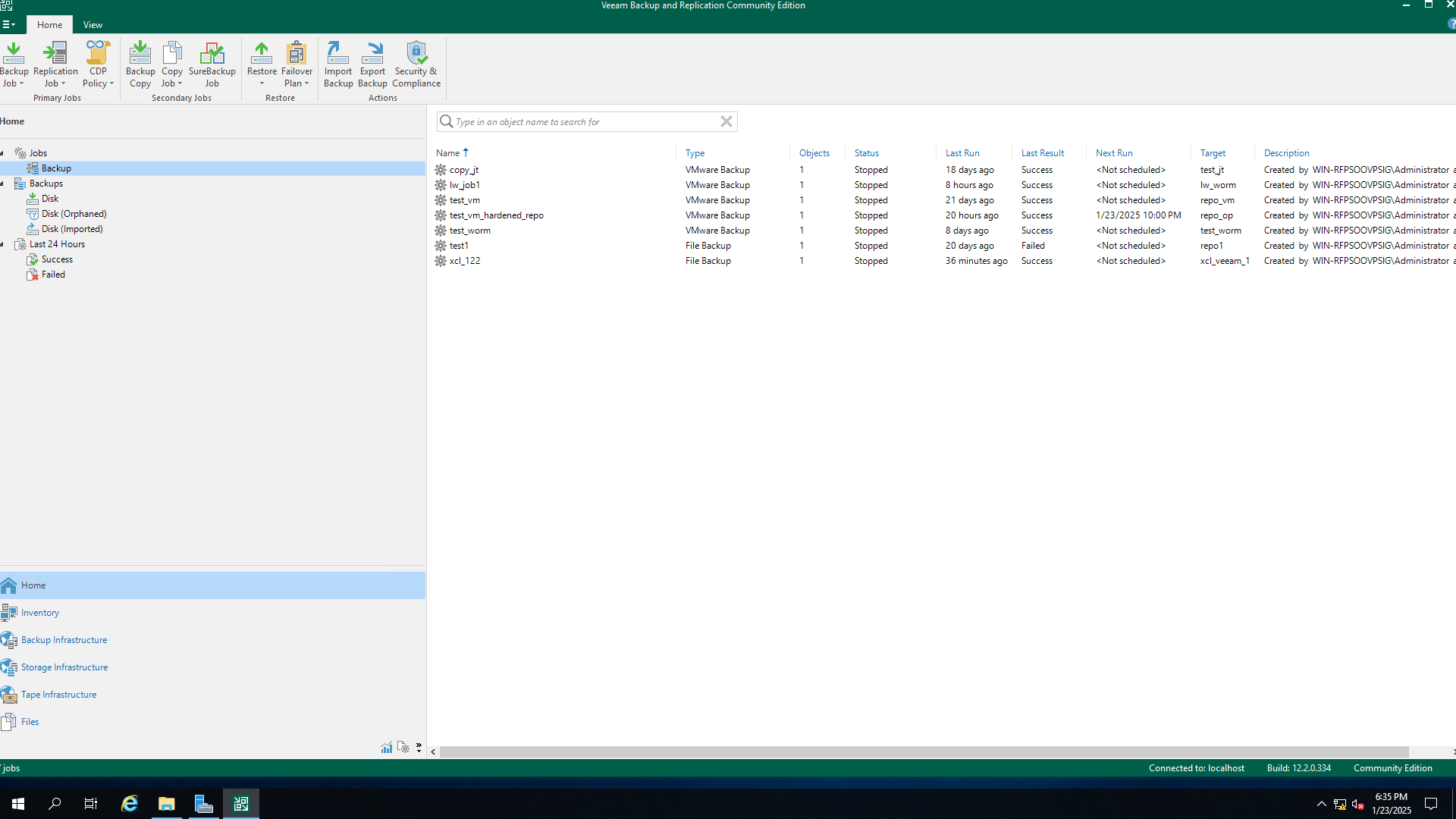
Step 4 Log in to the Veeam host in the production zone and choose Backup Infrastructure.
Step 5 Create a repository.
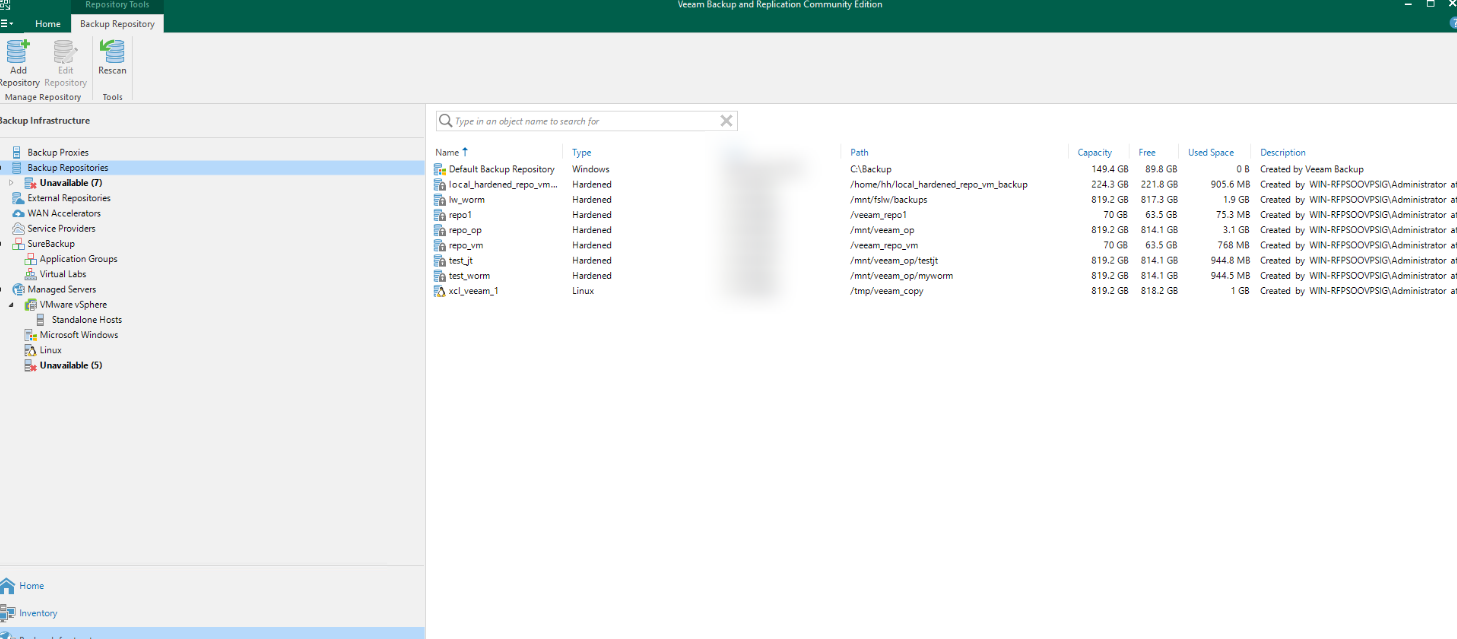
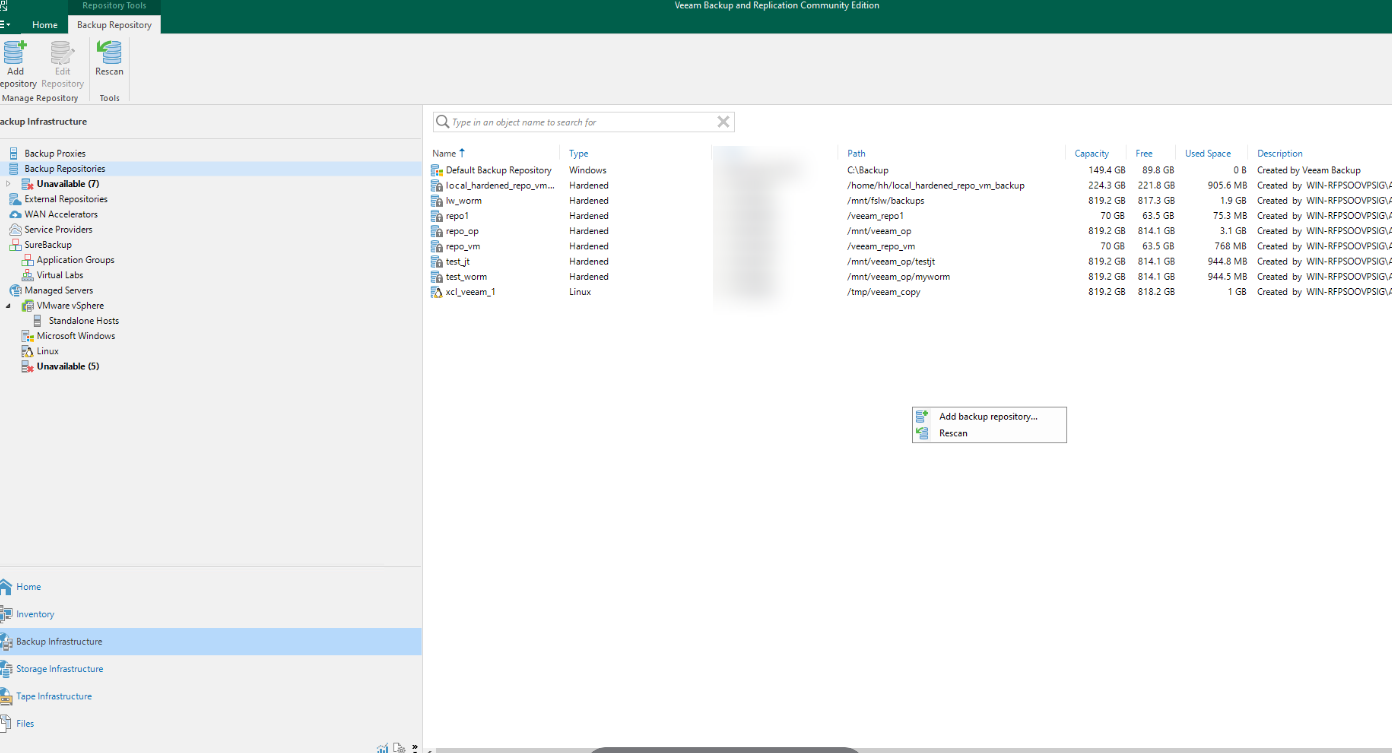
Step 6 Right-click Backup Repositories and choose Add backup repositories from the shortcut menu.
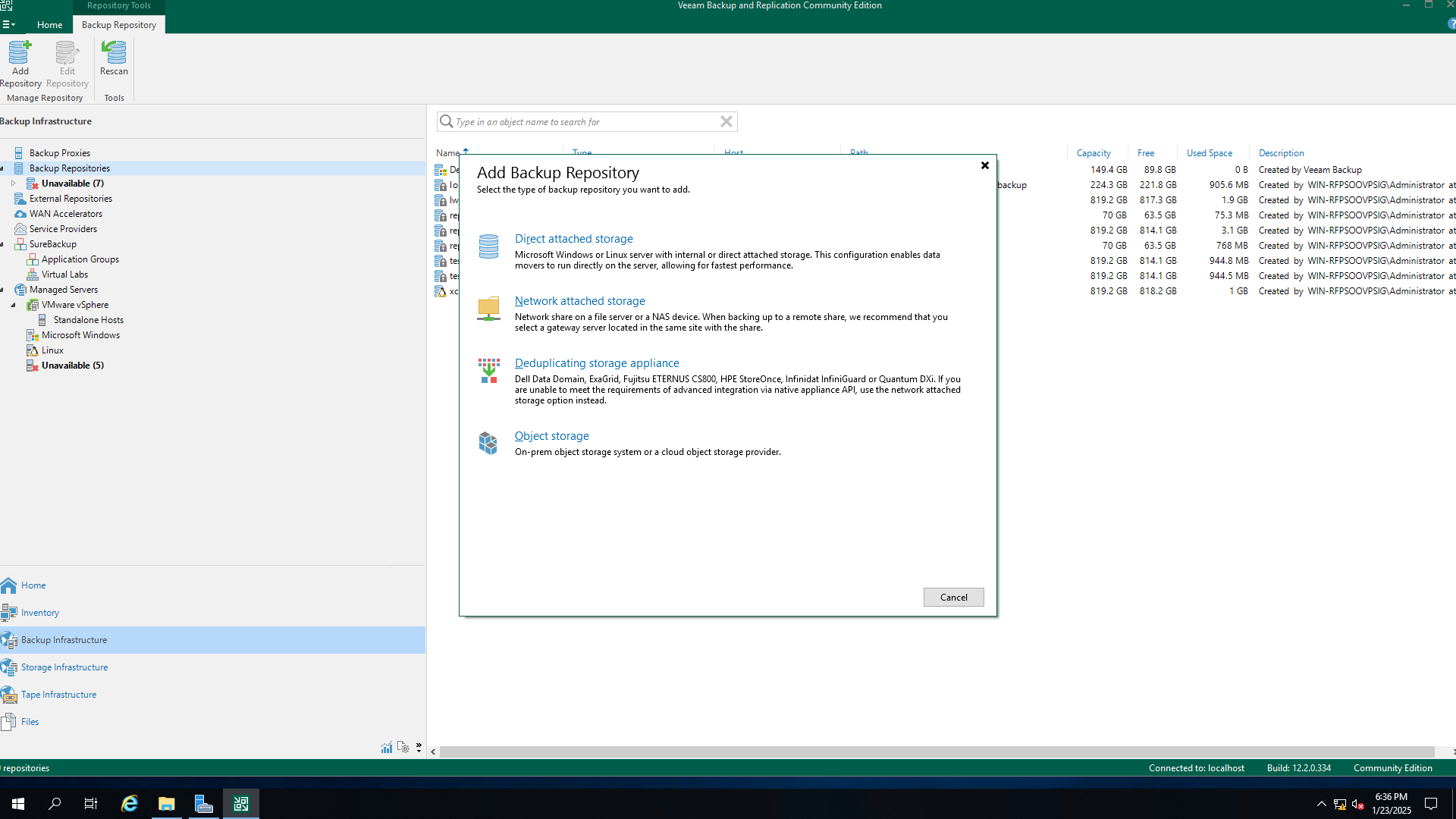
Step 7 Click Direct attached storage and select Linux.
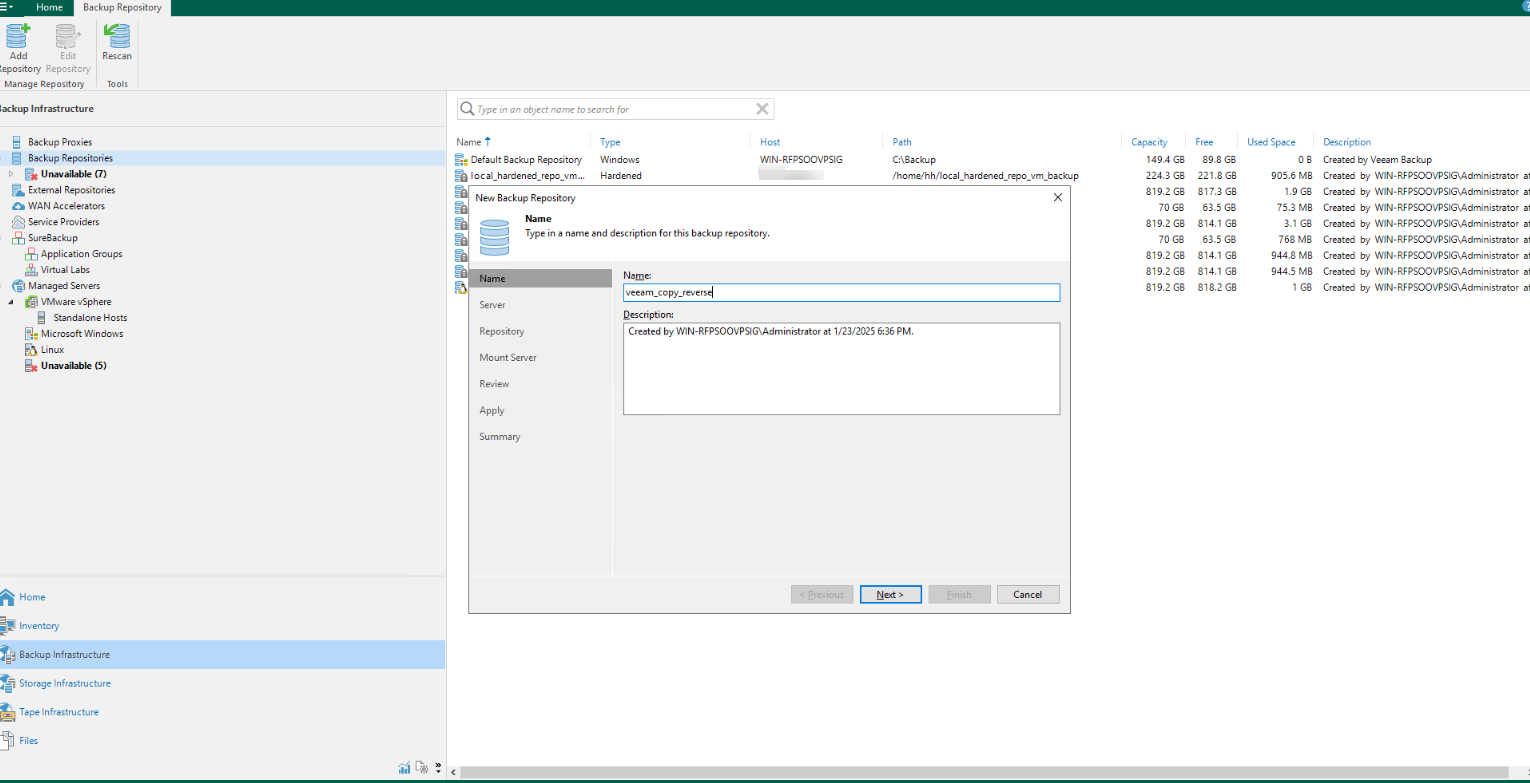
Step 8 Name the repository on the backup repository page.
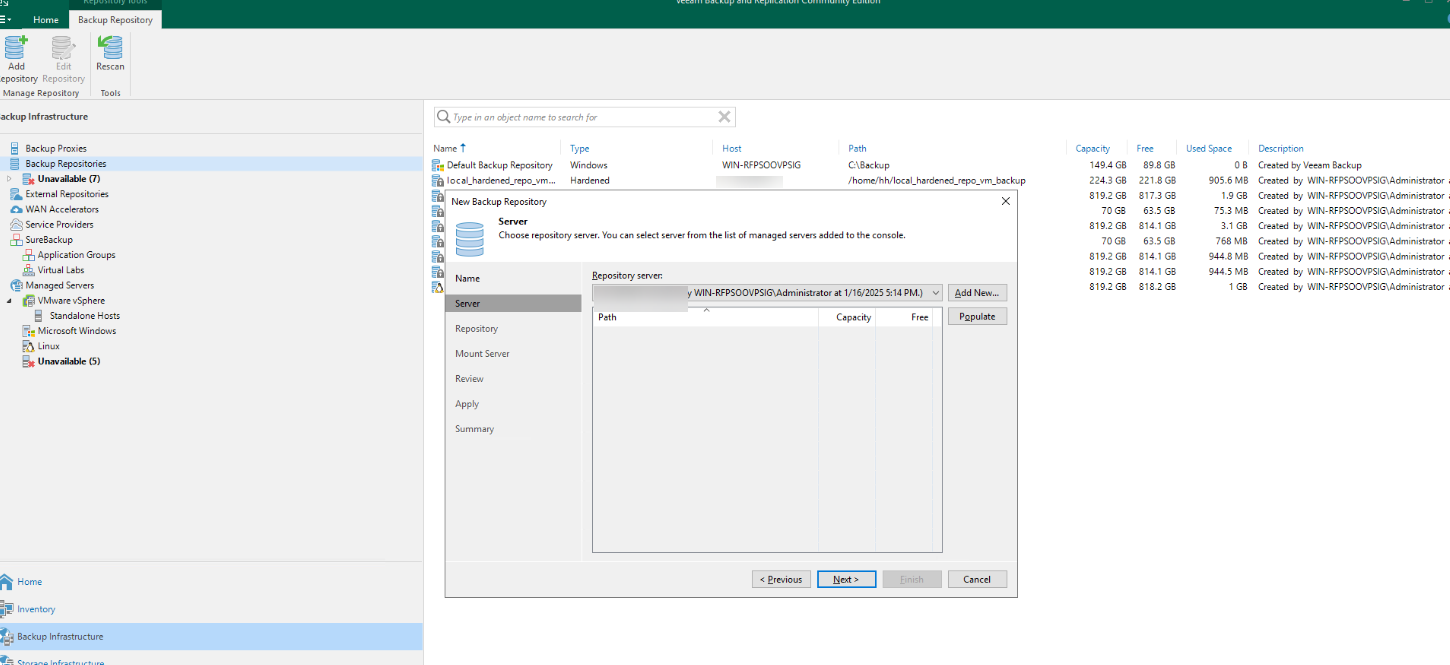
Step 9 Select a server, that is, the VM to which the file system is mounted.
Step 10 Select a partition for restoration.
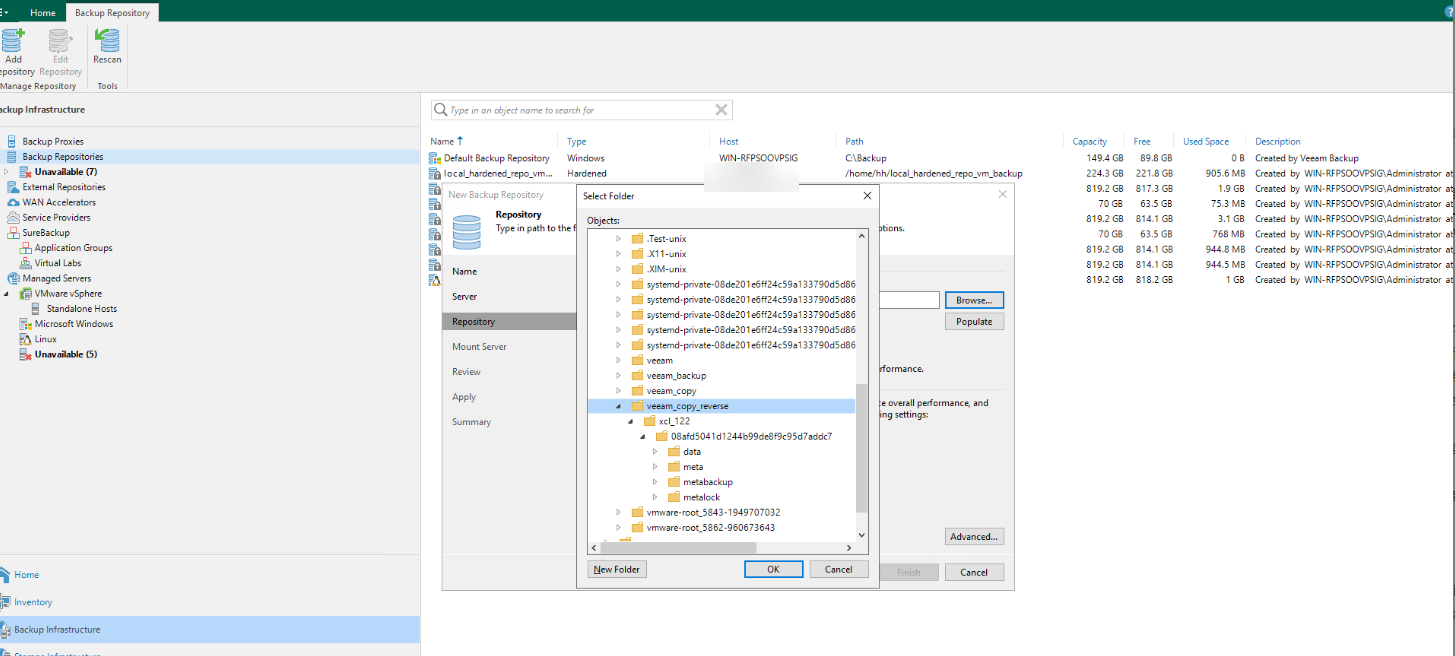
Step 11 Select a directory and click Next.
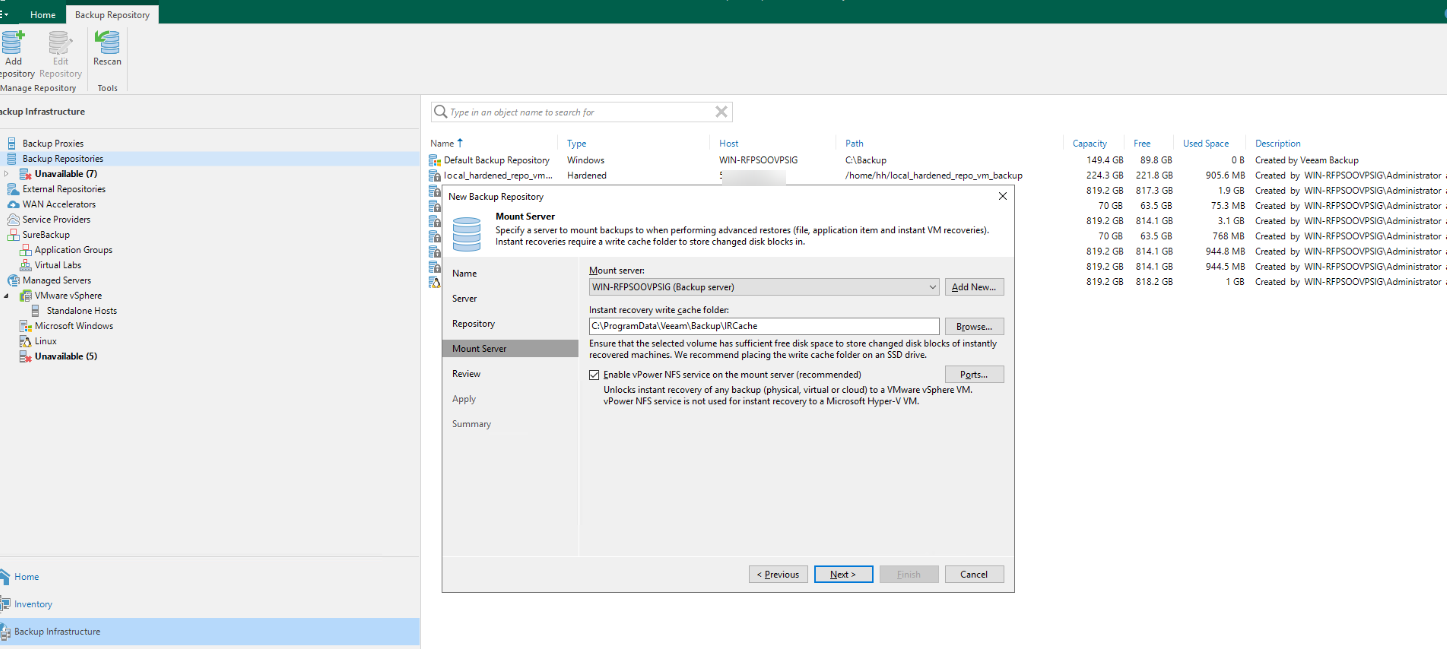
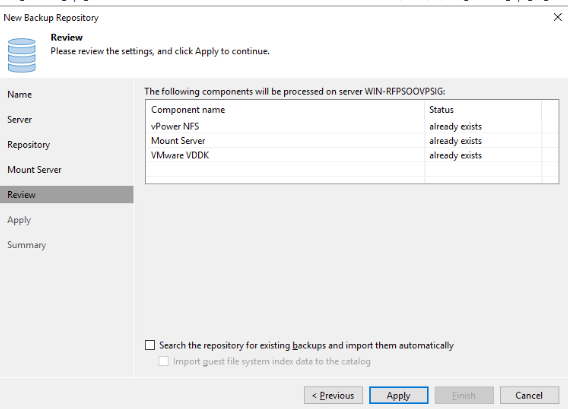
Step 12 On the Review page, select two items and click Apply.
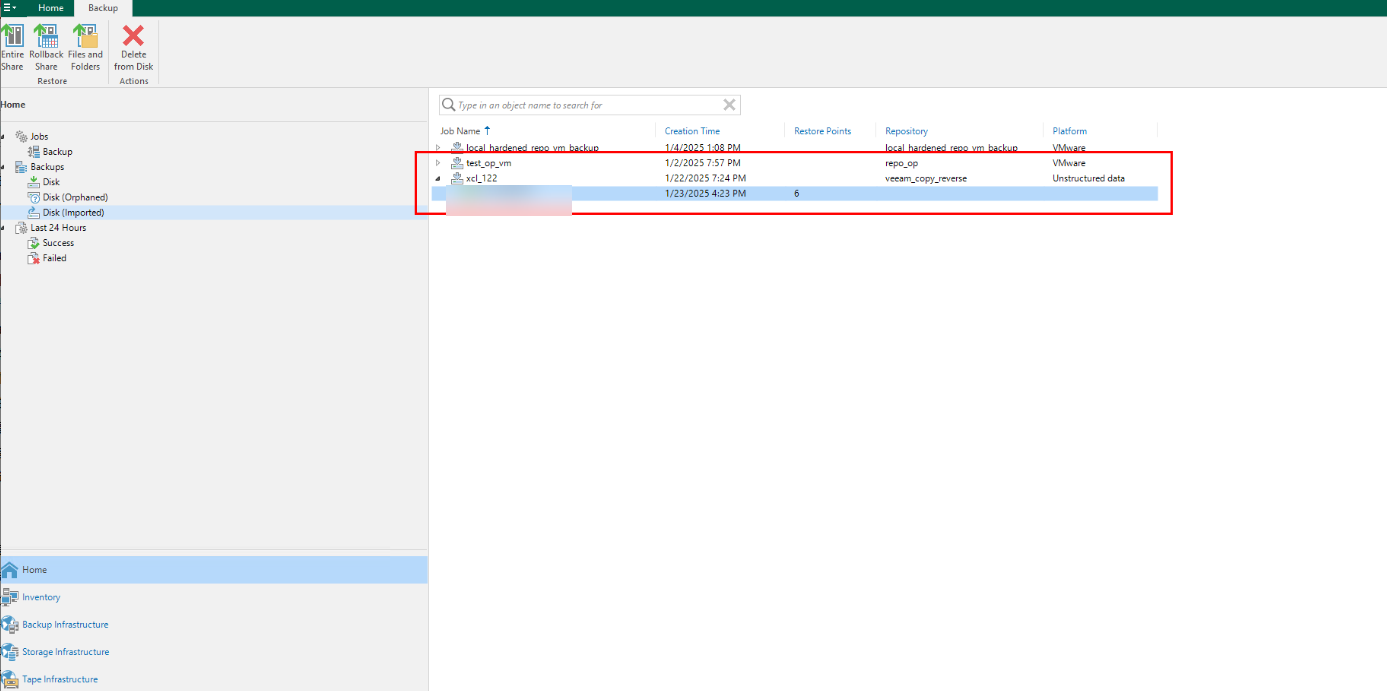
Step 13 Go back to the Home directory. The number of copies in the latest mounted file backup repository is displayed in the Disk (Imported) area under Backups.
Step 14 Right-click Properties and choose Rollback to a point in time from the shortcut menu.
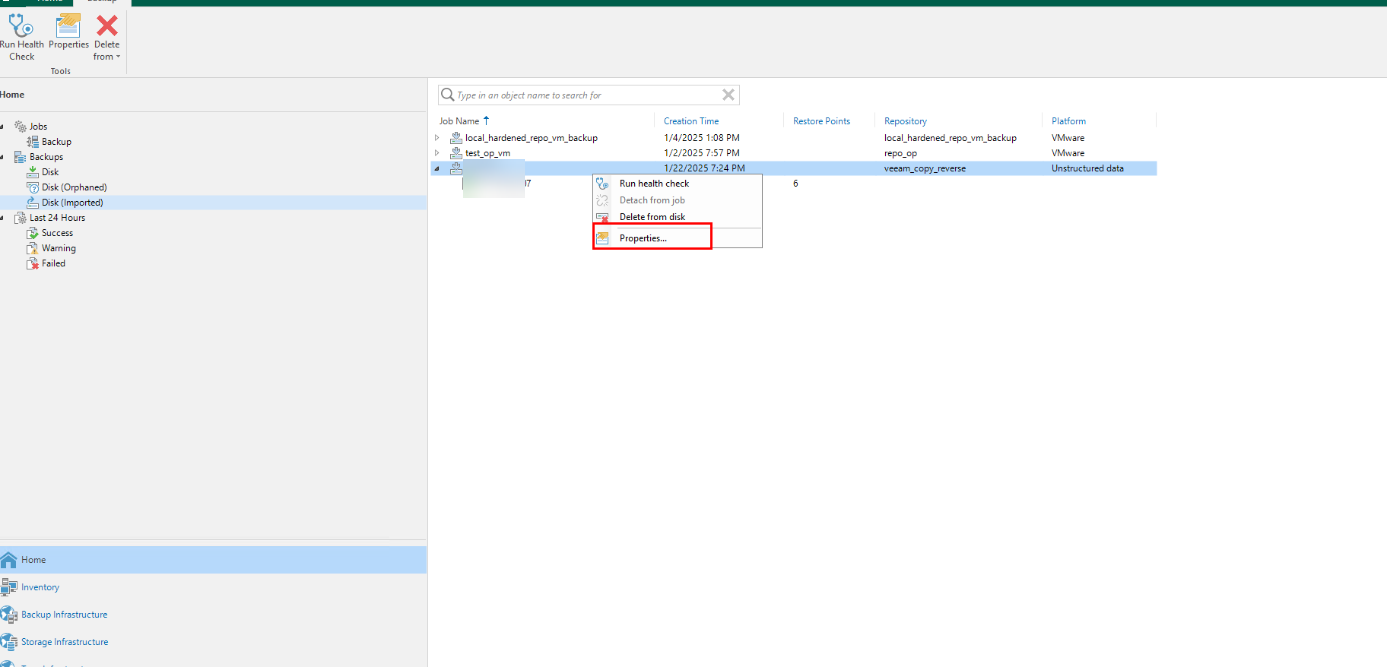
Step 15 Locate a copy of the backup job of the corresponding resource and backup server.
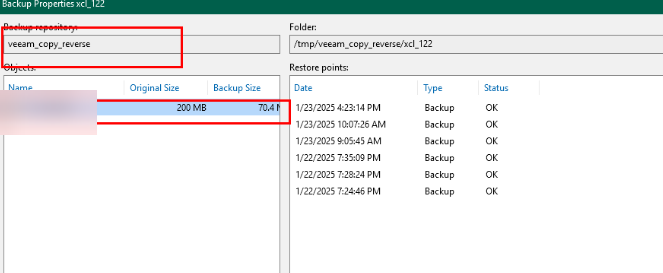
Step 16 Select the file share and select the target for restoration.
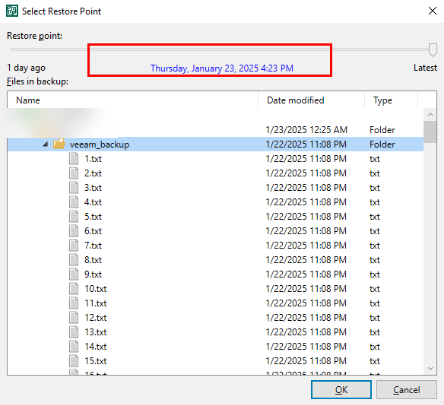
Step 17 Delete the existing data. After the restoration, check whether the imported restoration data is consistent with the original secure snapshot data.
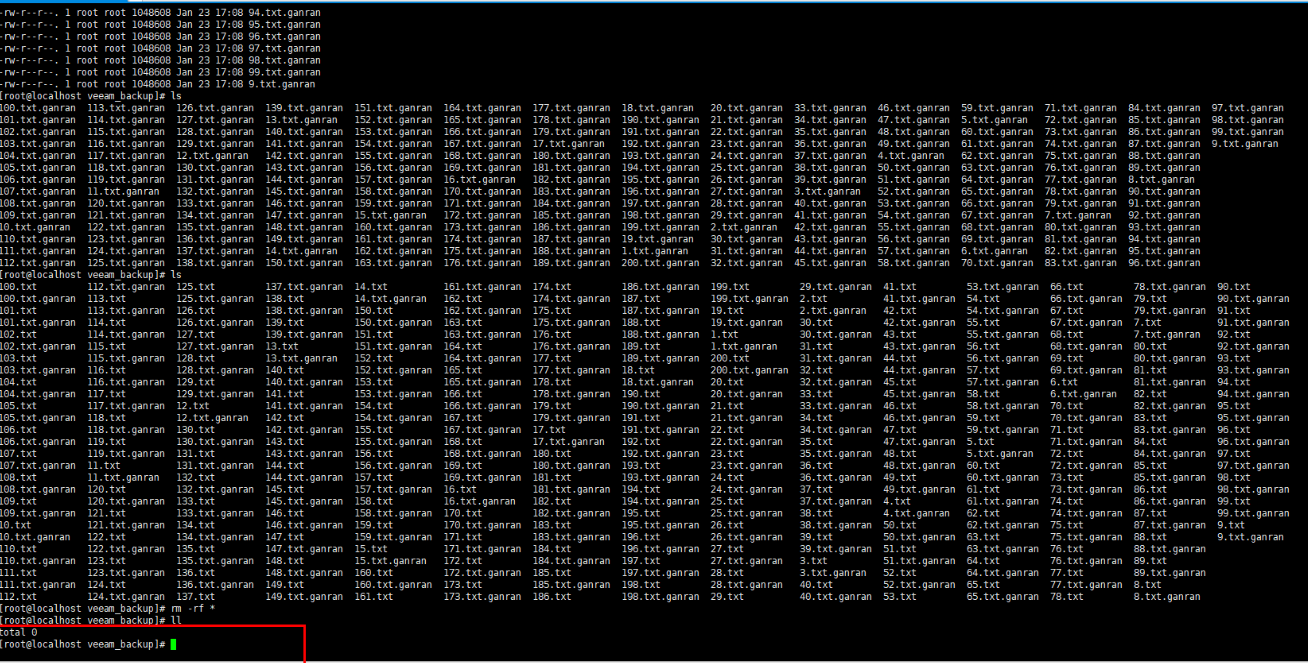
Step 18 View the restored data.
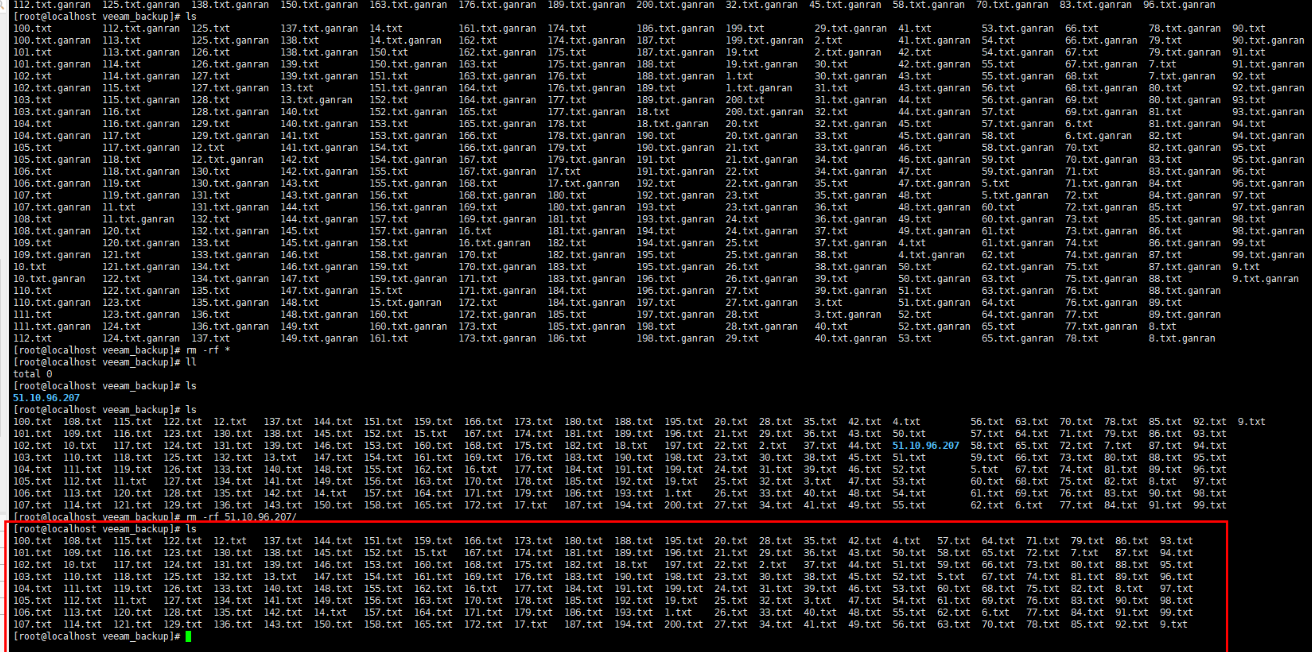
—-End
4.4.3.4 Starting Services on a Different Host
If the production zone is attacked and broken down (the production host, production storage, and Veeam software at the production end break down), start the Veeam software with configurations same as those in the production zone in the isolation zone to start services, restore data to the production host, and start services on the production host.
Step 1 Check the Veeam software available in the isolation zone.
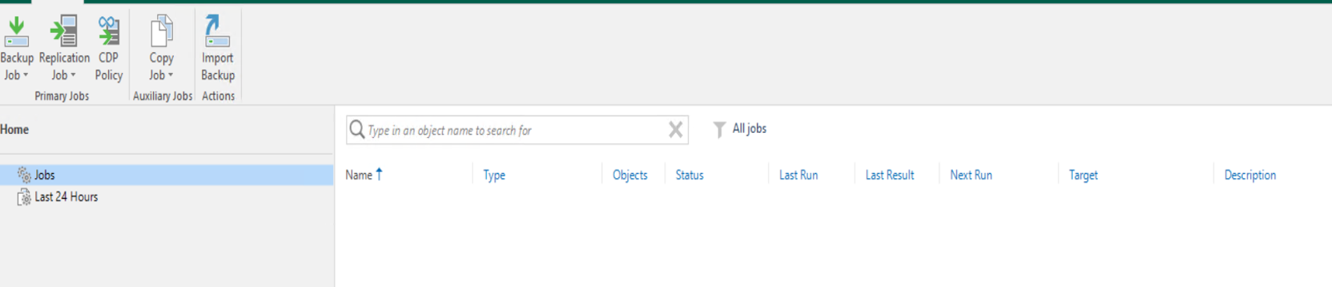
Step 2 Run the clean Veeam software in the isolation zone, and create a backup repository same as that of the software attribute backup repository in the production zone. Open the software function bar, open Configuration Backup, select a configuration data backup repository of the Veeam software from the drop-down list box, and click Restore to restore the Veeam software to a different host in the isolation zone.
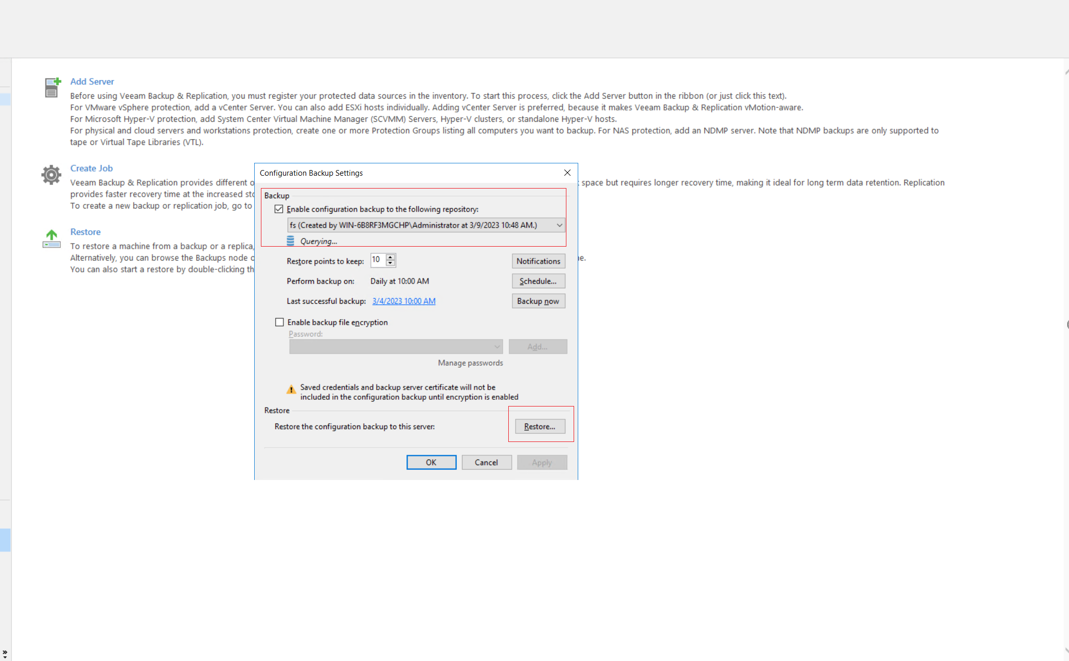
Step 3 Select Restore to restore data, and then click Next.
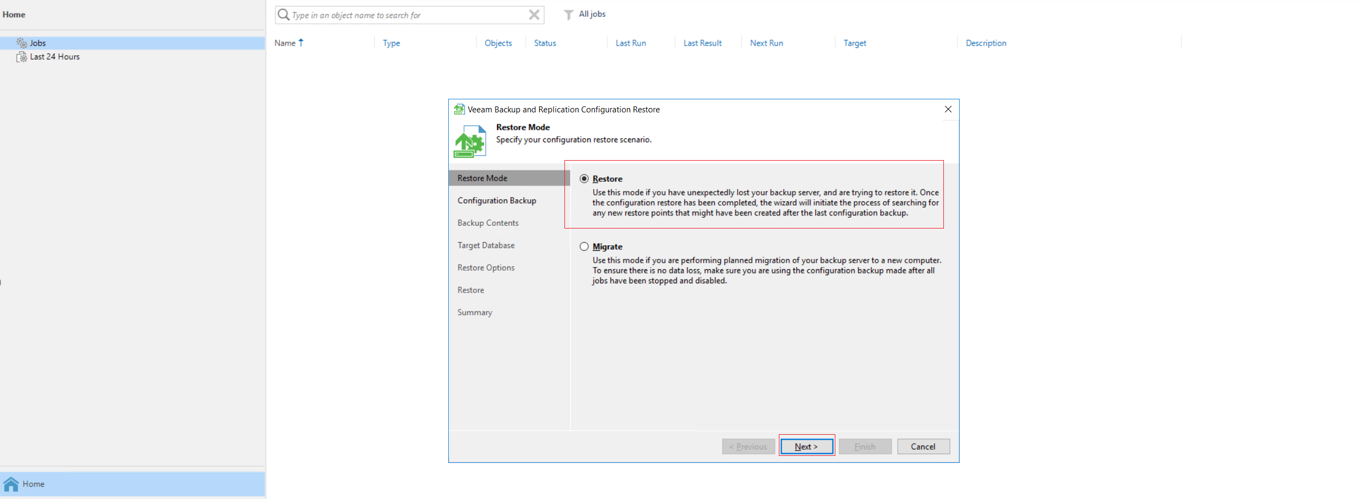
Step 4 Open the drop-down list box, select the backup database (-fs) for restoration, and click Next.
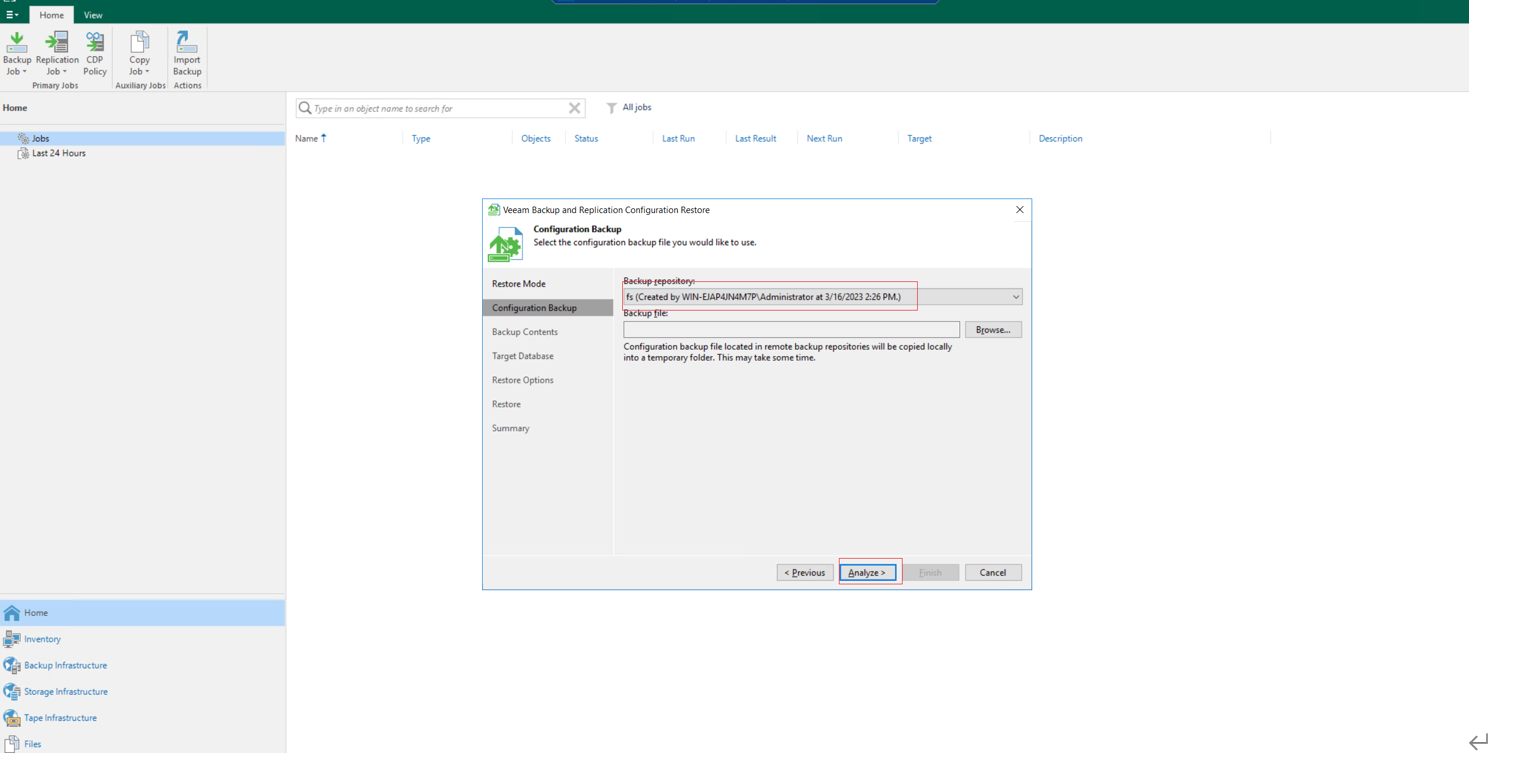
Step 5 Click Browse. In the dialog box that is displayed, open the VeeamConfigBackup folder, and select the backup configuration data. Click OK, and click Next to start data identification.
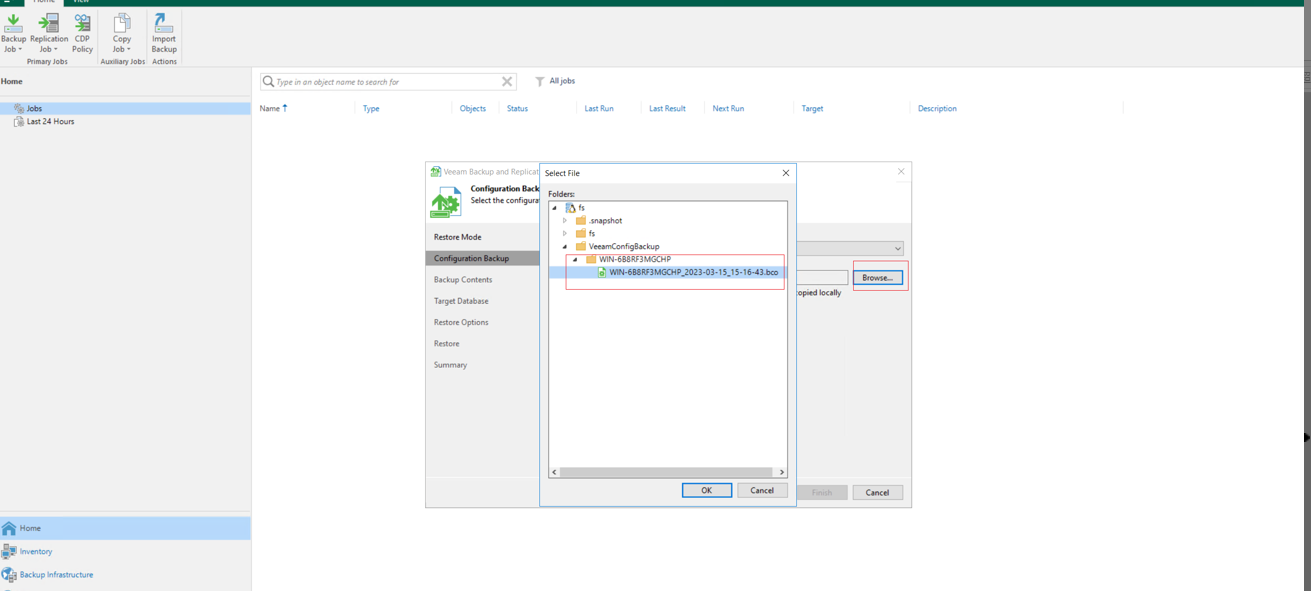
Step 6 Check whether the restored configuration data is the same as that of the Veeam software in the production zone. If yes, click Next.
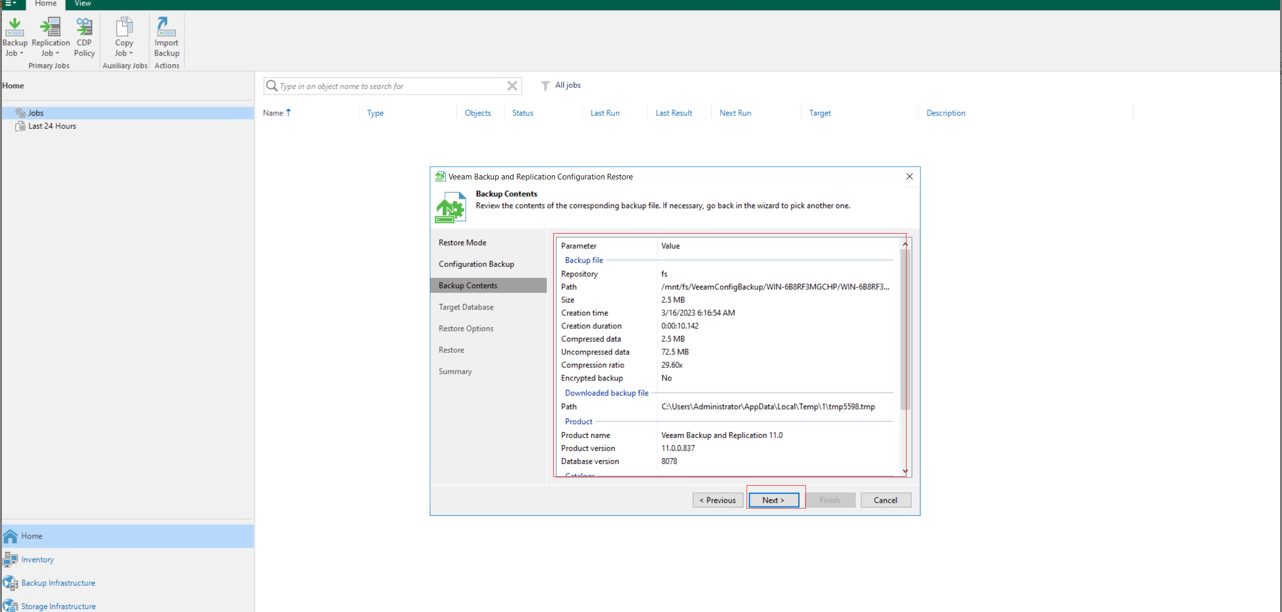
Step 7 By default, click Connect to connect to the Veeam database.
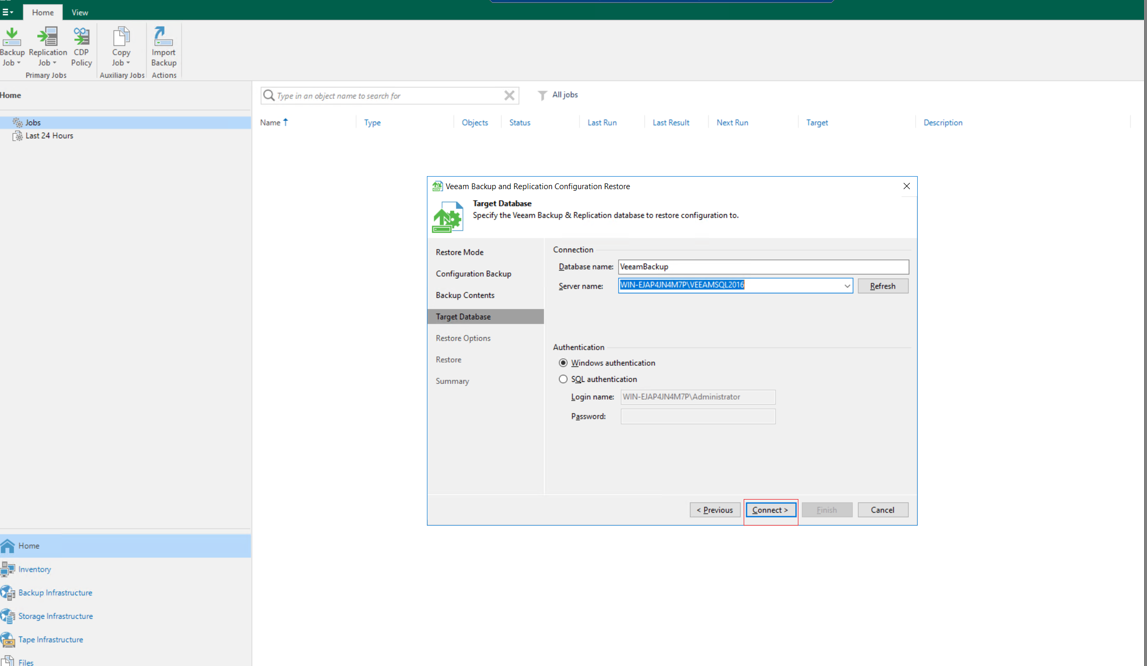
Step 8 After the database is connected, click Next by default to restore the configuration data.
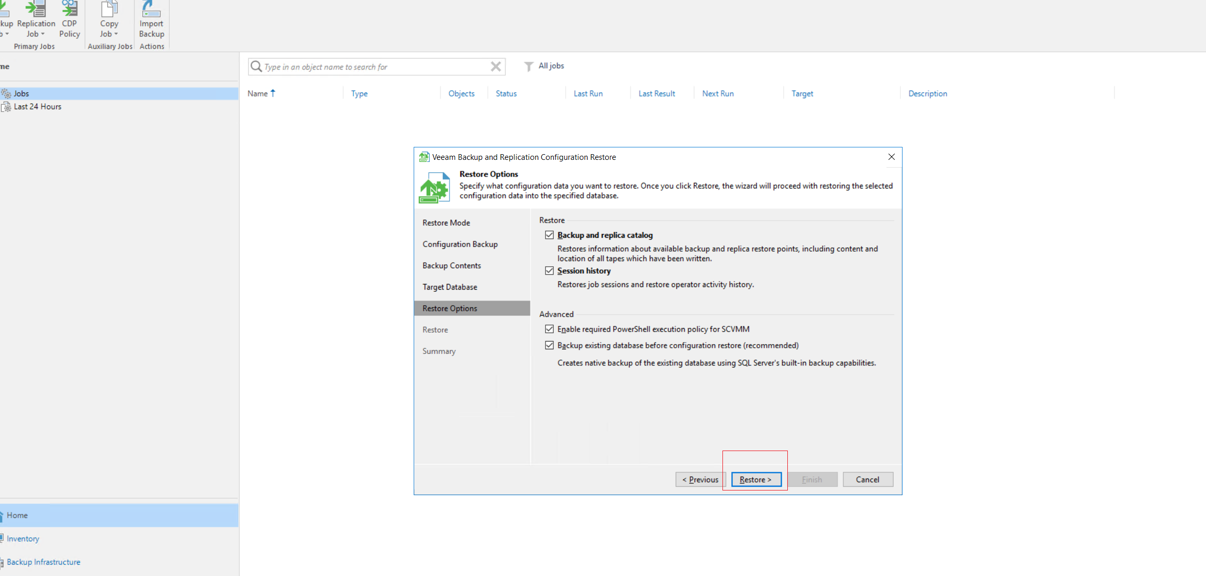
Step 9 Click Yes in the displayed warning box to start the data restoration job.
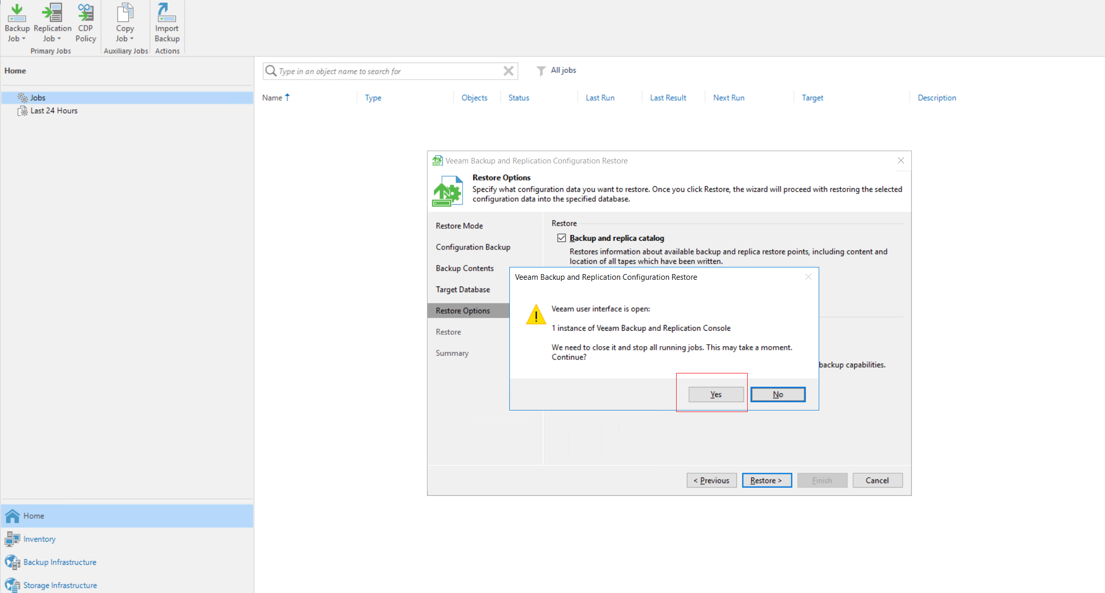
Step 10 After the restoration, check that the Veeam software configuration data in the production zone is consistent with that in the isolation zone. Services are successfully started on another host.
Confirm the configuration of Back Repositories in the production zone.

Step 11 Check that the configuration data restored by the Veeam software in the isolation zone is the same as that in the production zone.
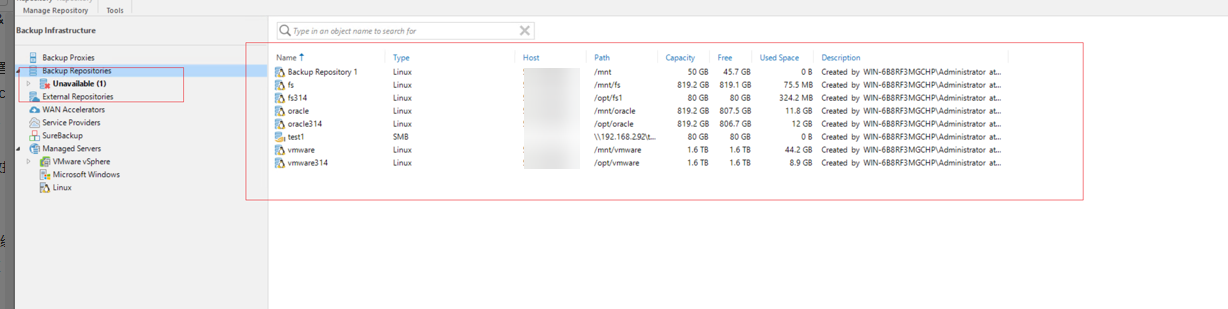
Step 12 Import data. The clone file system contains clean and uninfected backup data. After the restored data is mounted to the Veeam software in the isolation zone, restore the data of the production host.
Refresh the data warehouse Backup Repositories when the clone file system is mounted to the Veeam software.
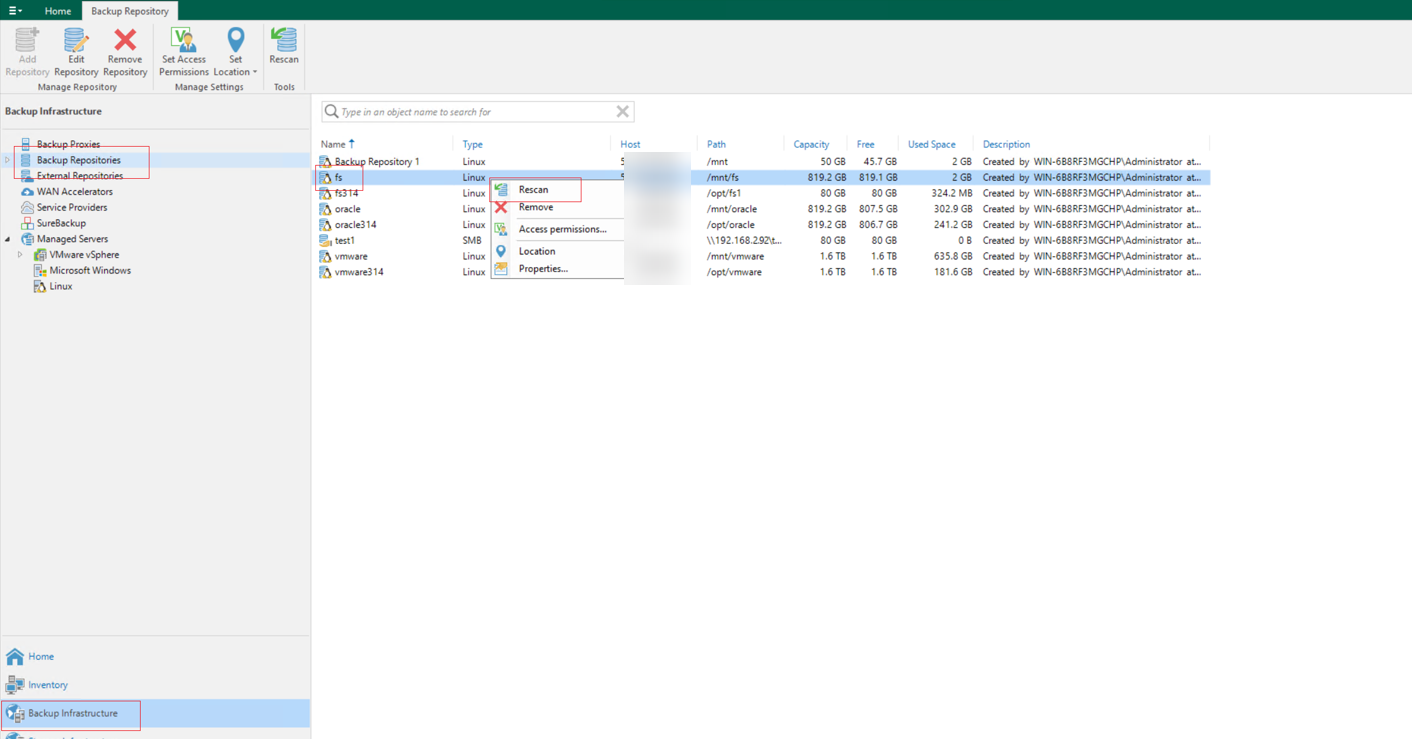
Step 13 In the Home directory, choose Backups > Disk (Imported) to identify the backup data. Right-click the backup data at a time point and choose Rollback to a point in time.. from the shortcut menu to restore the data.
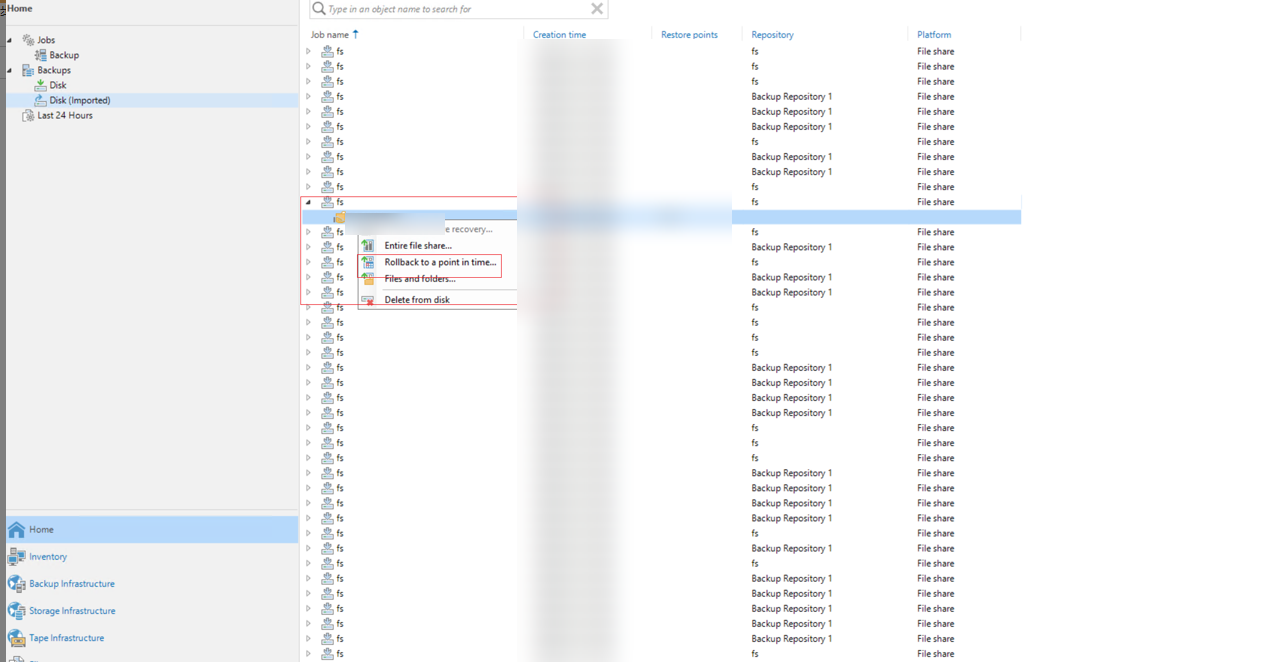
Step 14 After the data is restored, restore the data on the production host.
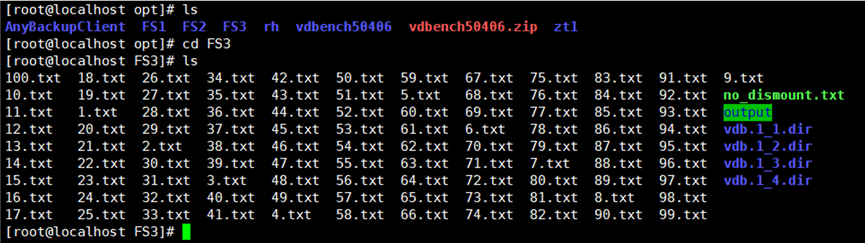
—-End
5.Conclusion
The OceanCyber 300+Veeam Backup & Replication 12.2+OceanProtect X8000 ransomware protection storage solution uses the enterprise mission-critical service system model and adopts a secure architecture consisting of production and isolation zones. Secure snapshots, Air Gap, and other features can protect data from being tampered with. If service systems are encrypted by ransomware, management networks are intruded, or the production zone is attacked by ransomware, service data can be quickly restored by using secure snapshots in the isolation zone and Air Gap, ensuring service continuity.
Based on the test configurations in this best practice, the OceanCyber 300+Veeam Backup & Replication 12.2+OceanProtect X8000 ransomware protection storage solution can implement multi-level protection for the production and isolation zones. Through ransomware drills and restoration of data at the customer side, the data in the production zone is successfully restored. The suggestions and guidance in this document provide reference for IT system solutions of customers and help improve the O&M efficiency of data protection using the OceanCyber 300+Veeam Backup & Replication 12.2+OceanProtect X8000 ransomware protection storage solution.
