Huawei OceanStor Pacific Scale out Storage and Linux Version of Splunk Enterprise 10.2
Interoperability Test Report

Axians Global
All Rights Reserved
Executive Summary
Axians Global (“Axians”) assessed the interoperability of Huawei OceanStor Pacific Scale out Storage (hereinafter referred to as “the storage” as well) and Splunk Enterprise 10.2 through Huawei Splunk Plugin.
In the assessment, Axians has determined that Splunk Enterprise 10.2 will function with Huawei OceanStor Pacific Scale out Storage for the following scenarios:
Storage Tested | Protocol(s) Tested | Test Scenario | Result |
OceanStor Pacific Scale out Storage | REST API | Basic Connectivity Test | Passed |
Basic Functions Test | Passed |
1.Environment Configuration
1.1 Networking Diagram
Figure 1.1 Storage and Splunk Enterprise Compatibility Test Networking
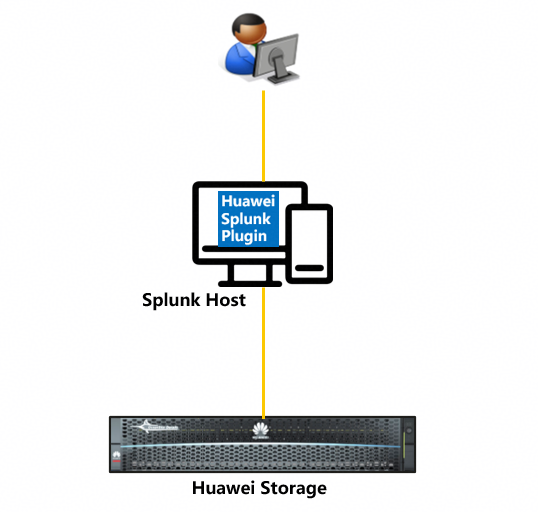
Networking description:
The Huawei Splunk Pugin is installed on the Splunk Enterprise host. By adding the management IP address of the storage system, the Plugin can access and monitor storage information. Administrators can view the storage information and status in real time on the Splunk web UI.
1.2 Hardware and Software Configuration
1.2.1 Storage Configuration
Table 1-1 Storage Configuration Table
Name | Description | Version | Quantity |
Storage | Huawei OceanStor Pacific Scale out Storage | V800 | 1 |
1.2.2 Test Software and Tools
Table 1-2 Test Software and Tool List
Software Name | Description | Version | Quantity |
Splunk Enterprise | Splunk Enterprise Software | 10.2 | 1 |
Ubuntu | Splunk Host | 24.04 | 1 |
Huawei Splunk Plugin | Splunk plugin installation package | 25.5.0 | 1 |
2.Basic Connectivity Test
2.1 Install Huawei Splunk Plugin on Linux System
Test Purpose | Verify whether the plugin can be installed and used properly on the Linux system |
Test Networking | |
Prerequisites | 1. Splunk is installed on a Linux system and is operating normally. |
Test Procedure | 1. Install the Splunk plugin according to the plugin installation process. |
Expected Result | 1. Step 1: The plugin has been successfully installed. |
Test Record | 1. Install the Splunk plugin according to the plugin installation process. 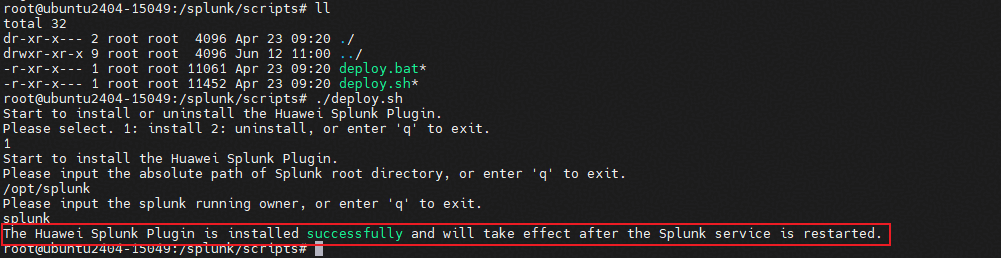
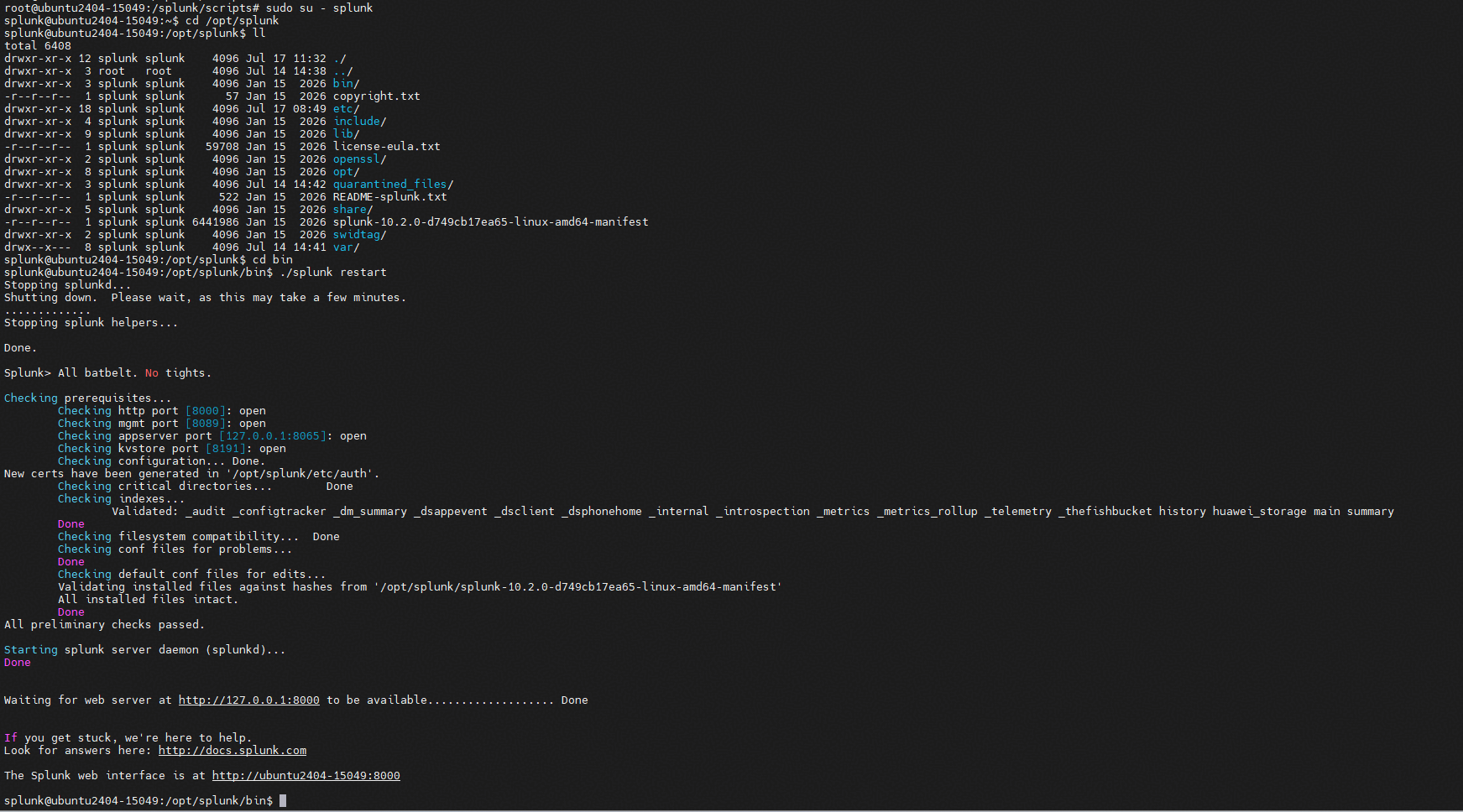
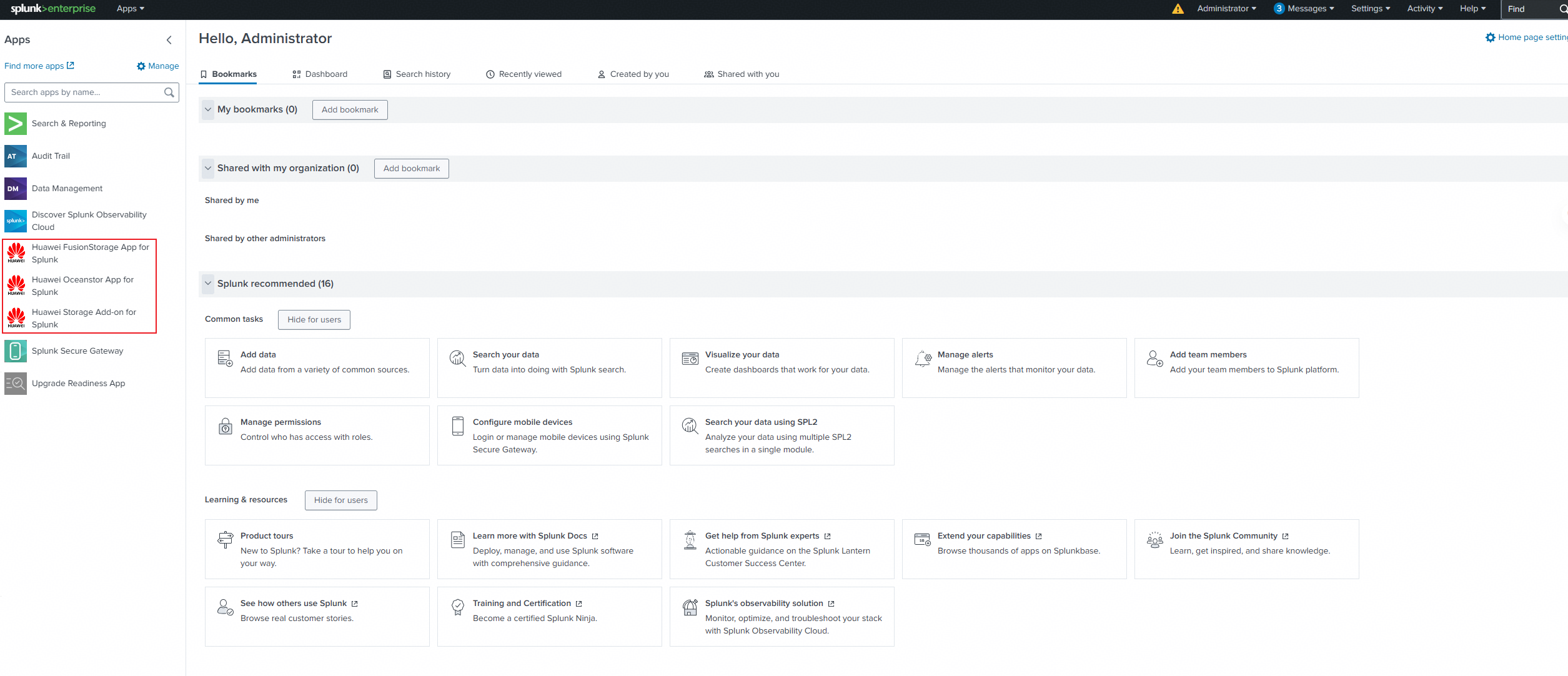
|
Test Conclusion | Passed |
2.2 Register Storage Array
Test Purpose | Verify that the storage can be registered and monitored properly |
Test Networking | Storage and Splunk Enterprise Compatibility Test Networking |
Prerequisites | 1. The storage system is operating normally; 2. The Splunk platform is operating normally; 3. The Splunk plugin has been correctly installed. |
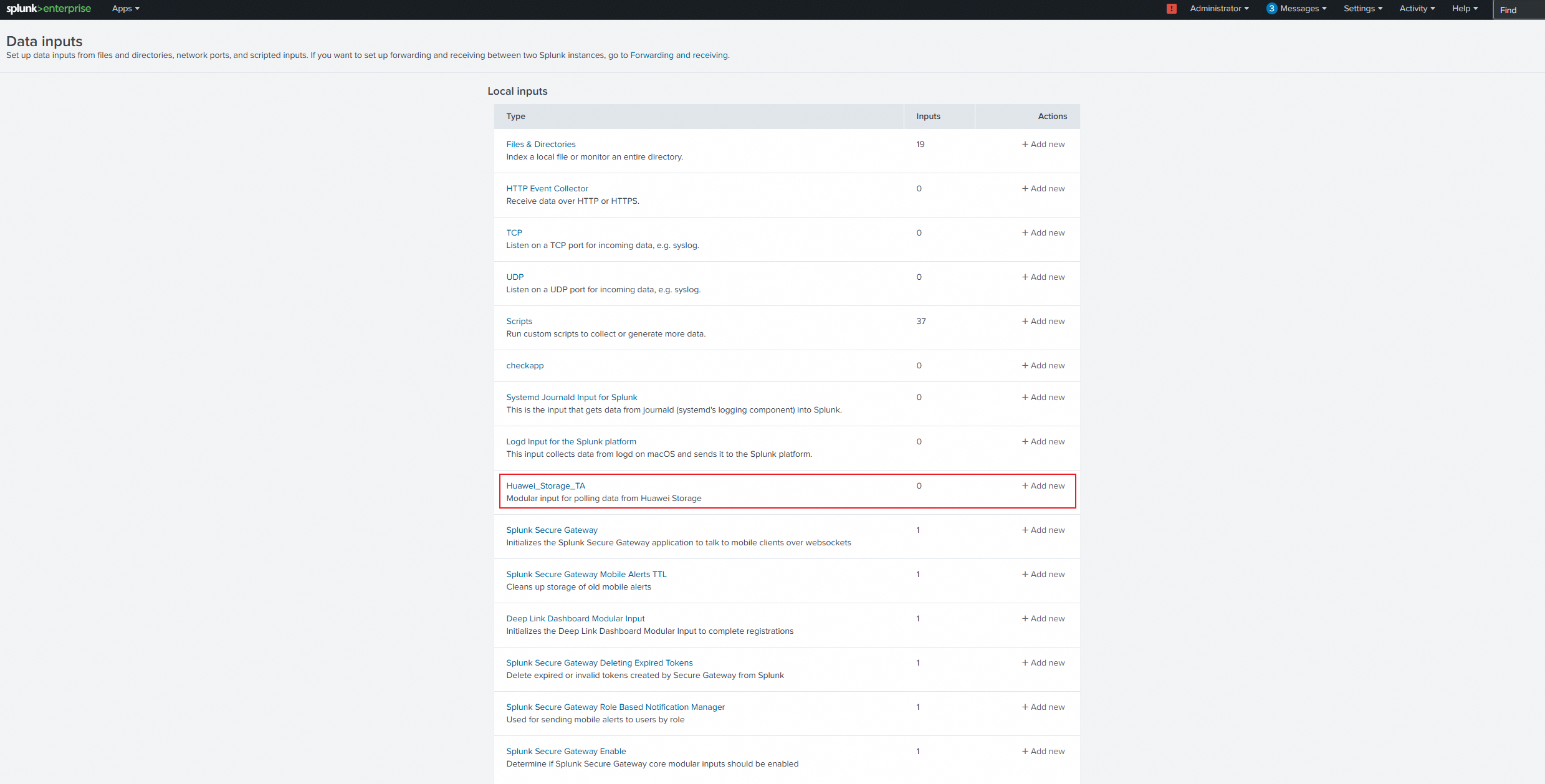
Test Procedure | 1. Click on Splunk Add-on for Splunk; 2. Click on Settings –> Data Input –> Huawei_Storage_TA, then click on Huawei_Storage_TA –> New; 3. Enter the correct array information to register the storage; 4. Click Next; 5. Check whether the array has been successfully registered. |
Expected Result | 1. Step 5: Registration of storage was successful. The Splunk page displayed: « Modular input has been successfully created. » |
Test Record | 1. Click on Splunk Add-on for Splunk; 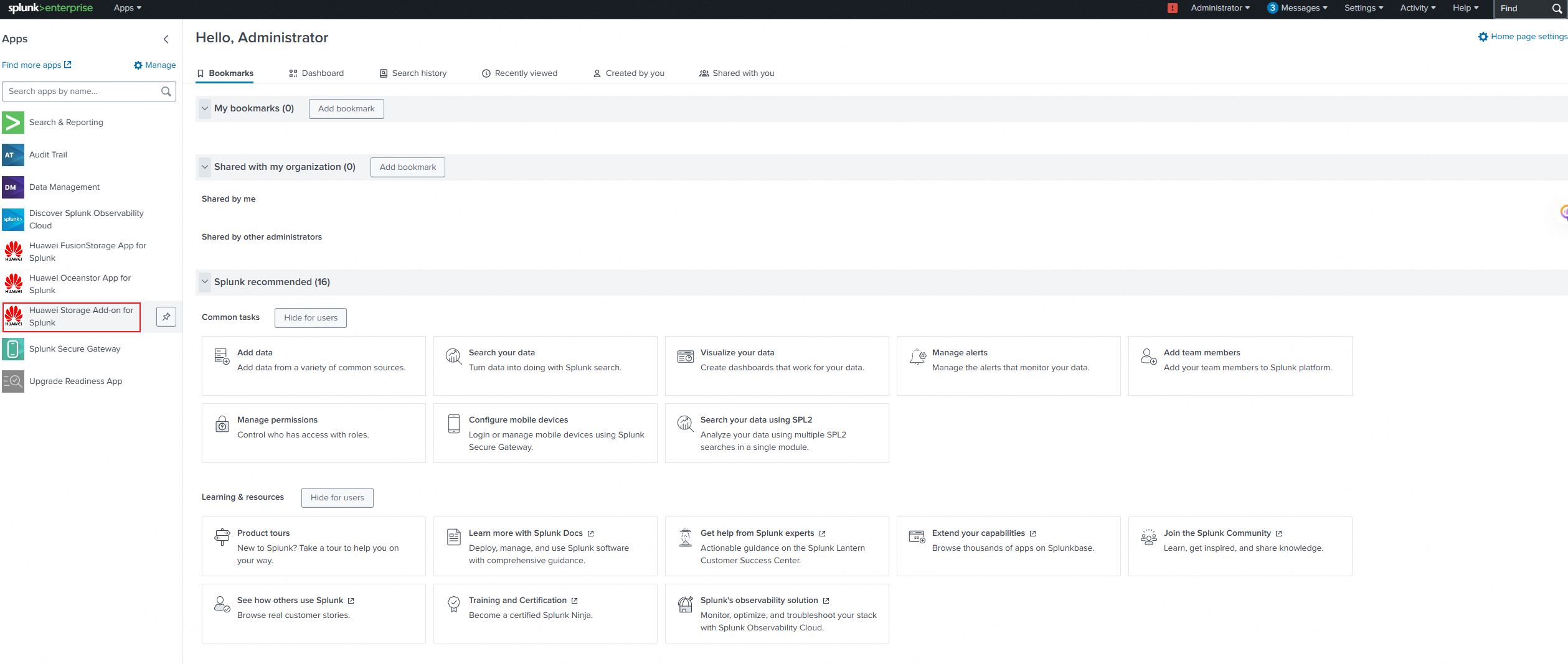
2. Click on Settings –> Data Input –> Huawei_Storage_TA, then click on Huawei_Storage_TA –> New; 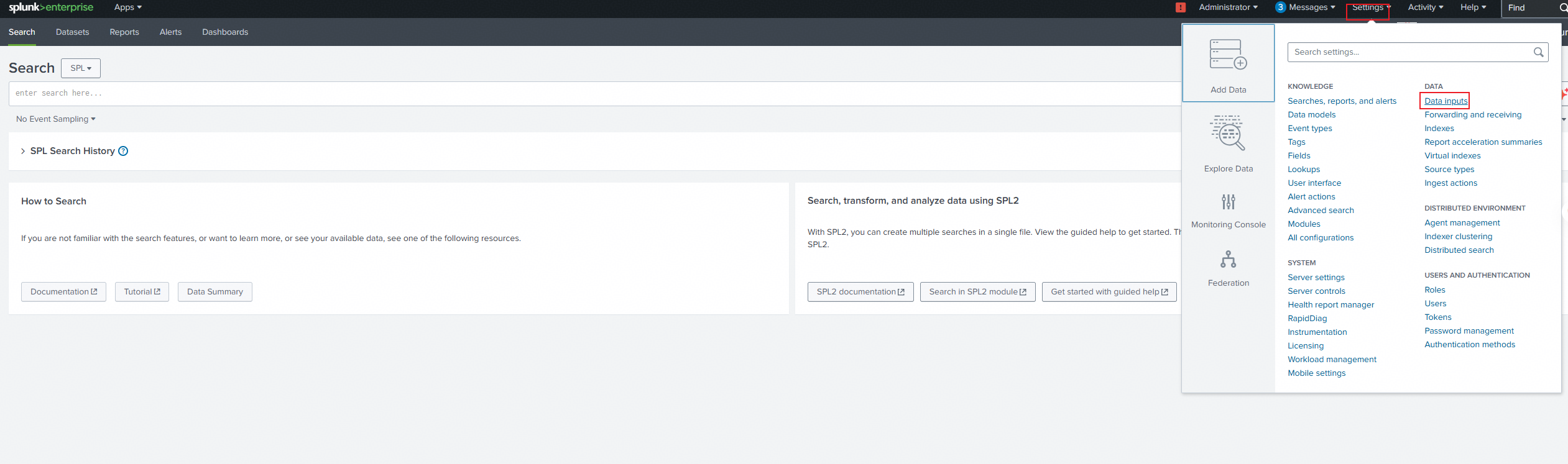
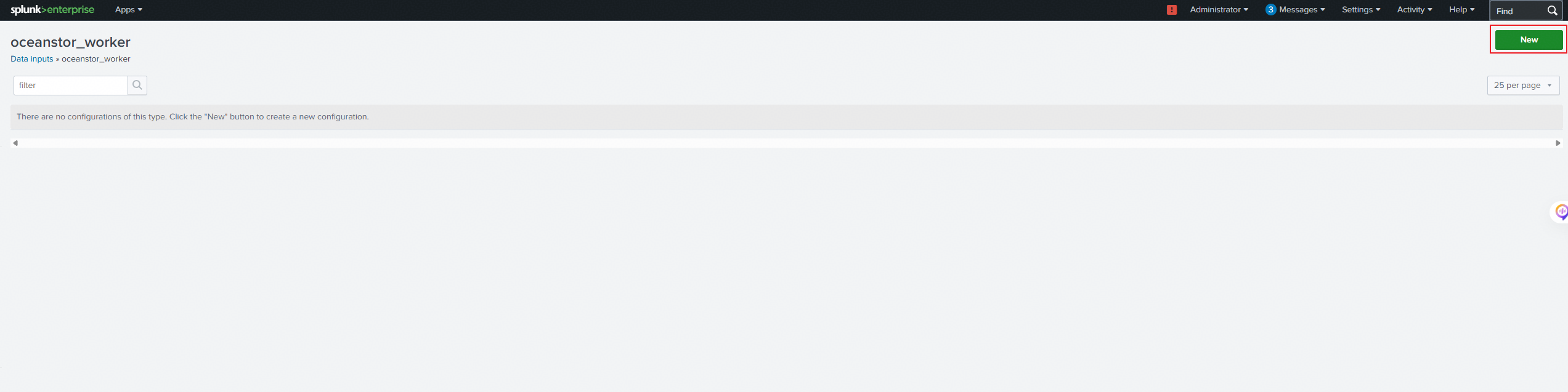
3. Enter the correct array information to register the storage; 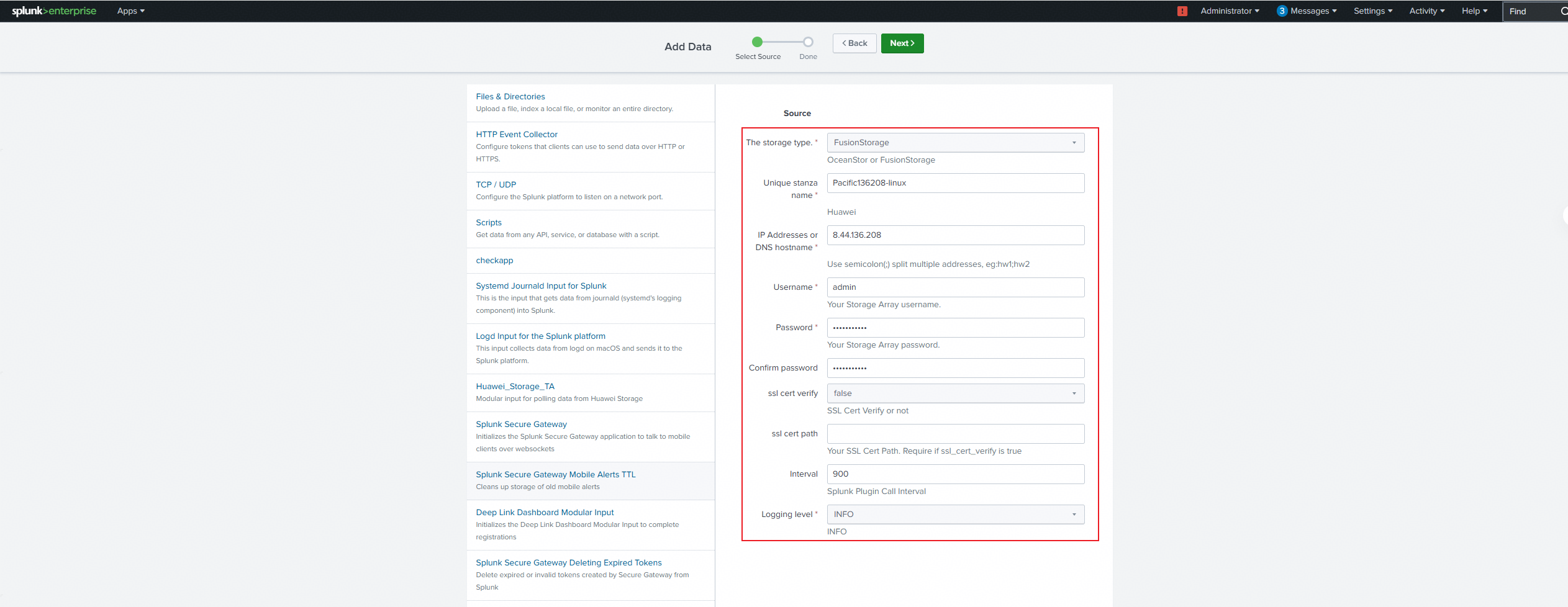
4. Click Next; 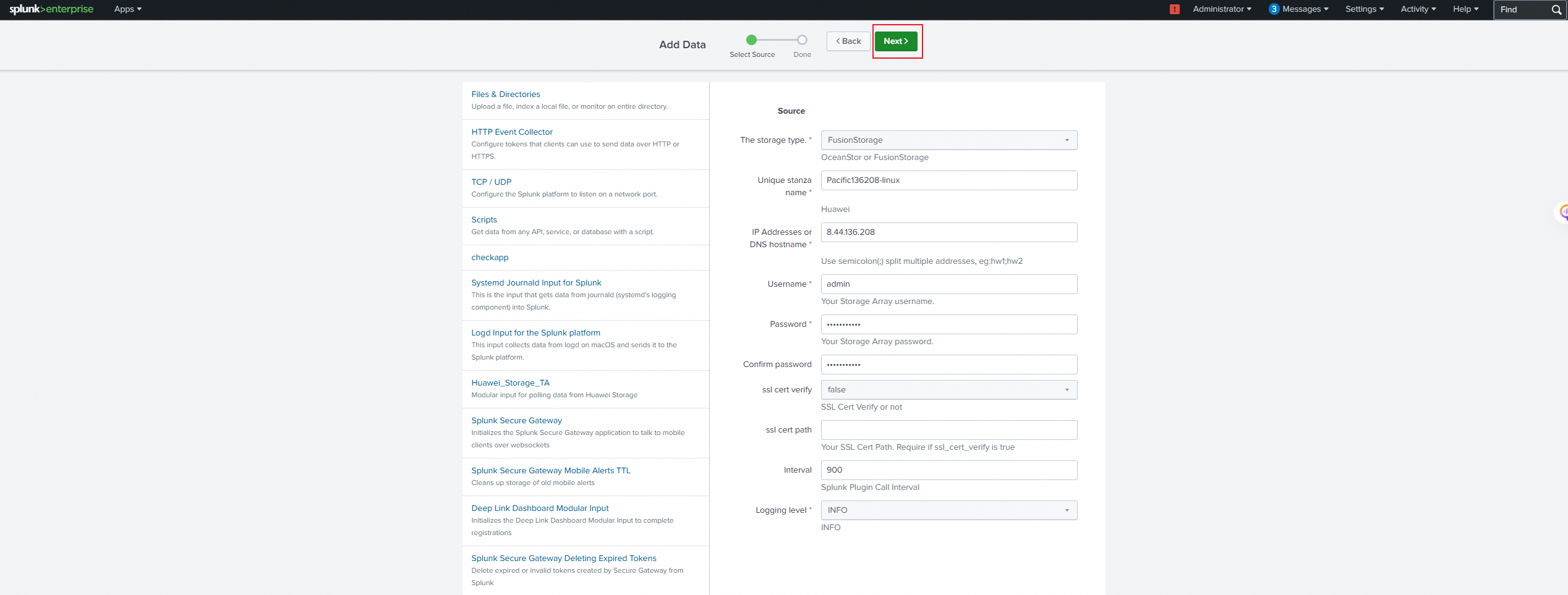
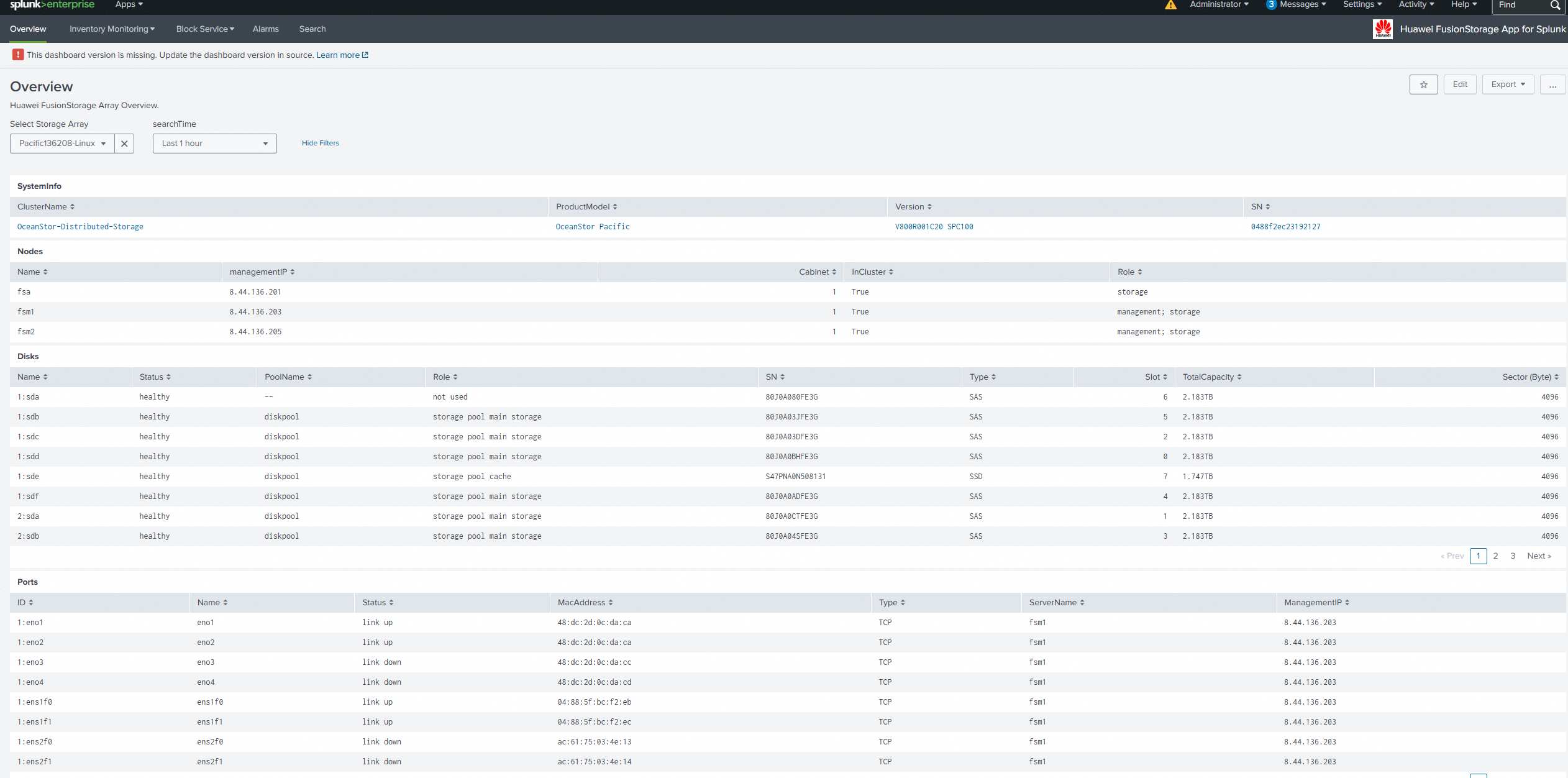
5. Check whether the array has been successfully registered. 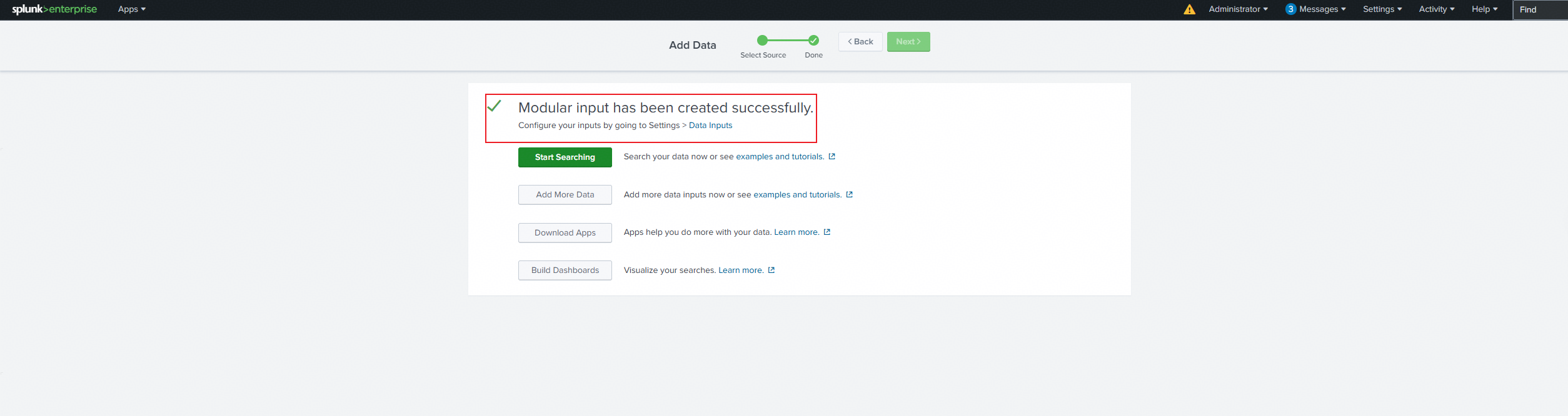
|
Test Conclusion | Passed |
3.Basic Functions Test
3.1 View system overview information
Test Purpose | Verify that the storage system information can be correctly viewed |
Test Networking | Storage and Splunk Enterprise Compatibility Test Networking |
Prerequisites | 1. The Splunk platform has been connected to storage devices. 2. The storage device is running properly. |
Test Procedure | 1. On the Splunk platform, click to enter the « Huawei FusionStorage App for Splunk » page. 2. Click to enter the Overview tab interface. 3. In the Select Storage Array, select the storage. In the searchTime, select the time period to view the SystemInfo metric items. 4. On the storage array, view the above metric items and compare them with the monitoring metrics on the Splunk platform. |
Expected Result | 1. Step 4: The monitoring metrics of the Splunk platform are consistent with the actual information stored, with the same quantity. |
Test Record | 1. On the Splunk platform, click to enter the « Huawei FusionStorage App for Splunk » page. 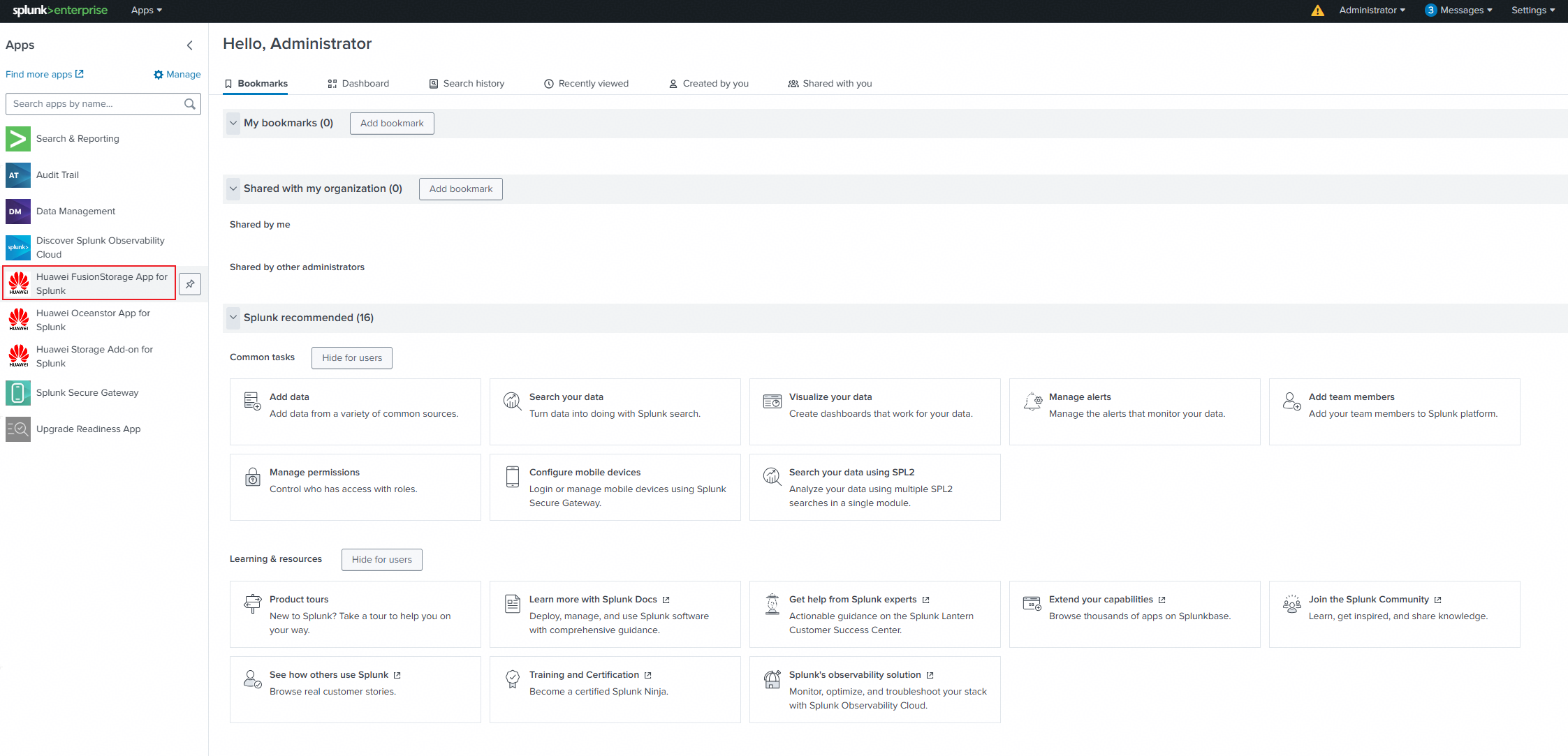
2. Click to enter the Overview tab interface. 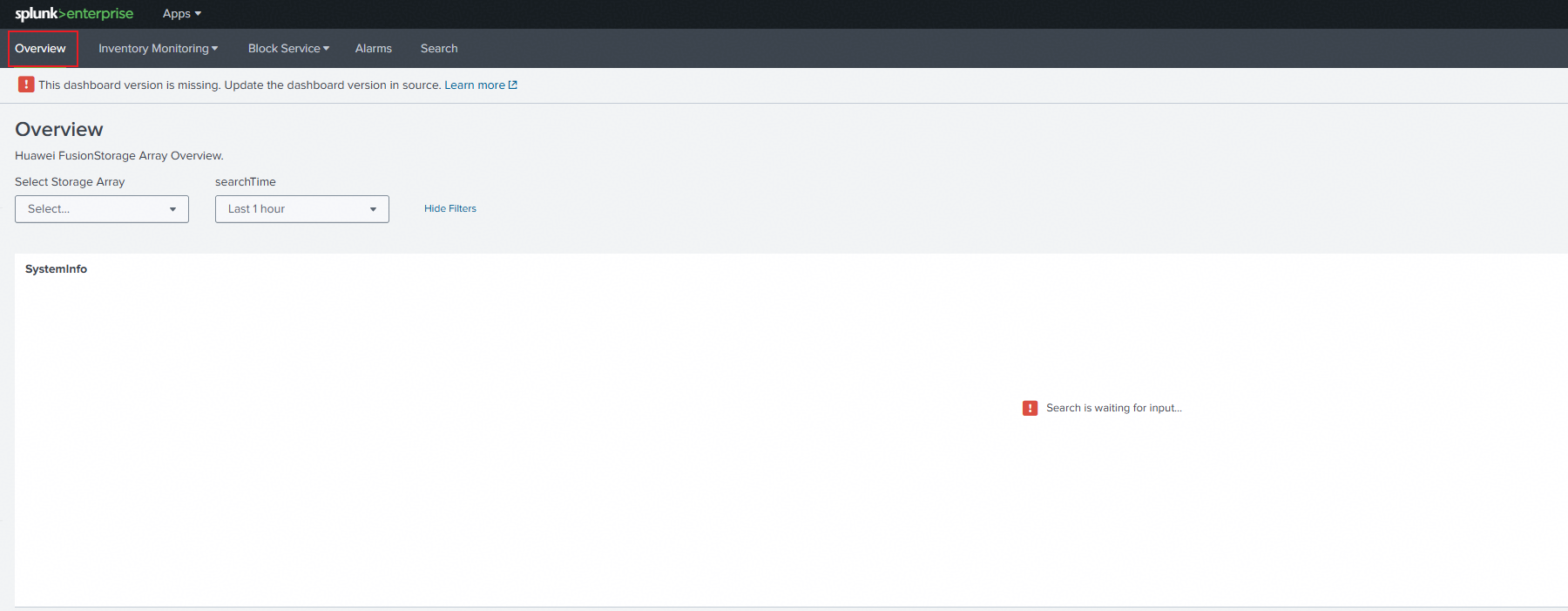
3. In the Select Storage Array, select the storage. In the searchTime, select the time period to view the SystemInfo metric items. 
4. On the storage array, view the above metric items and compare them with the monitoring metrics on the Splunk platform. 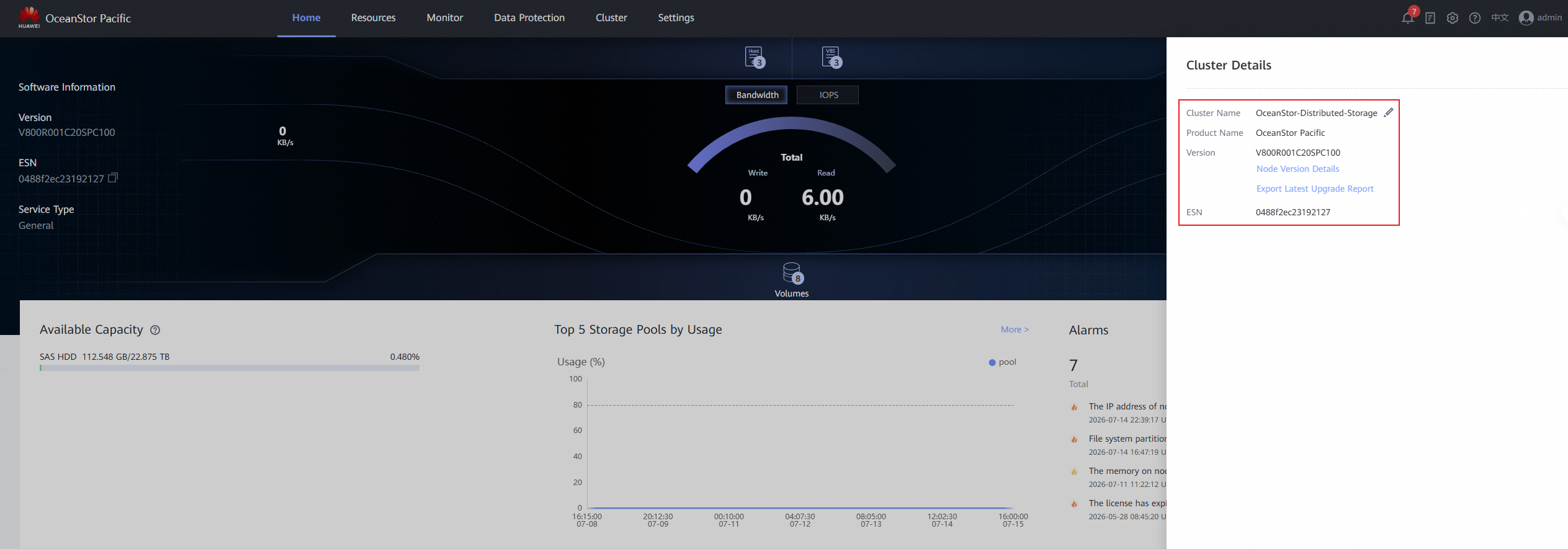
|
Test Conclusion | Passed |
3.2 Monitor Disk Information
Test Purpose | Verify that the storage disks information can be correctly monitored |
Test Networking | Storage and Splunk Enterprise Compatibility Test Networking |
Prerequisites | 1. The Splunk platform has been connected to storage devices. 2. The storage device is running properly. |
Test Procedure | 1. On the Splunk platform, click to enter « Huawei FusionStorage App for Splunk. » 2. In the Inventory Monitoring tab, click to enter Disks monitoring. 3. In the Select Storage Array, select the storage, choose a time period in searchTime, and view the metric items of Disks. 4. On the storage array, view the above metric items and compare them with the monitoring metrics on the Splunk platform. |
Expected Result | 1. Step 4: The monitoring metrics of the Splunk platform are consistent with the actual information stored, with the same quantity. |
Test Record | 1. On the Splunk platform, click to enter « Huawei FusionStorage App for Splunk. » 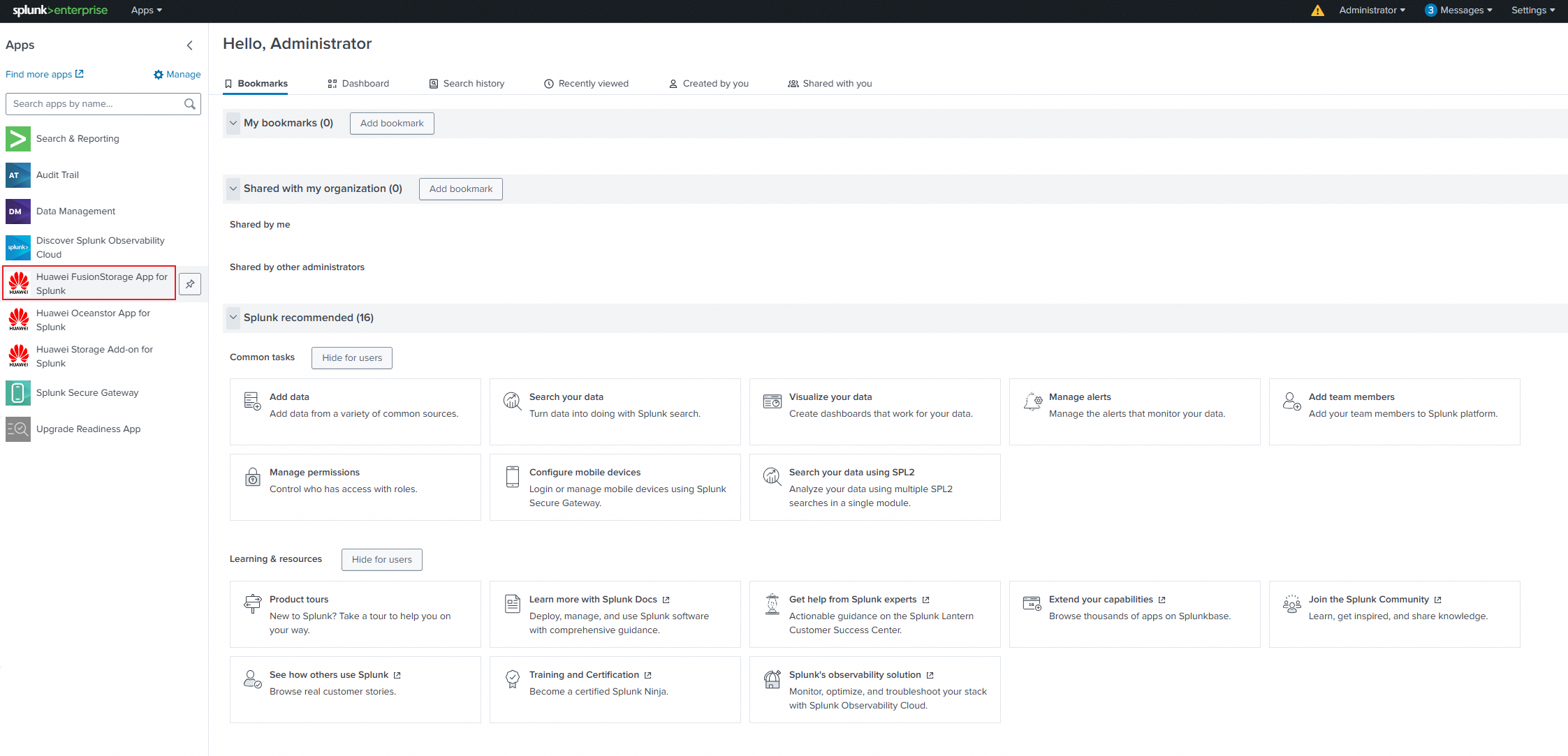
2. In the Inventory Monitoring tab, click to enter Disks monitoring. 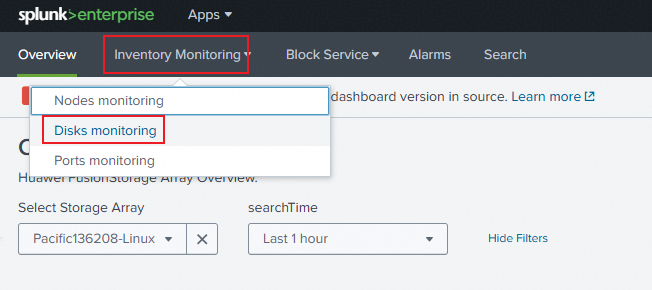
3. In the Select Storage Array, select the storage, choose a time period in searchTime, and view the metric items of Disks. 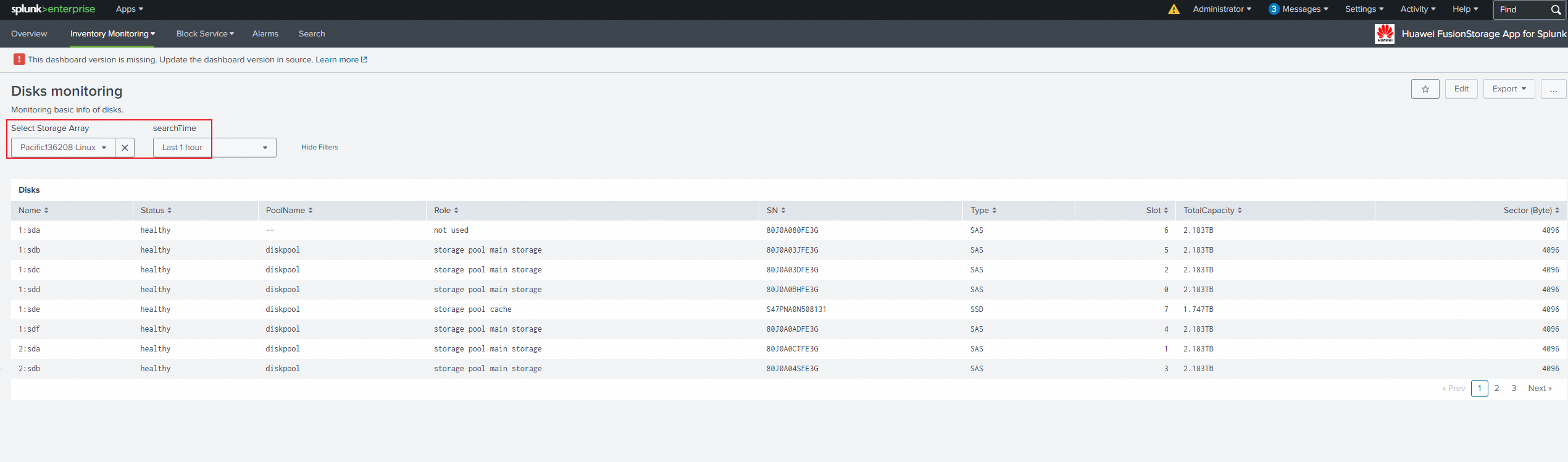
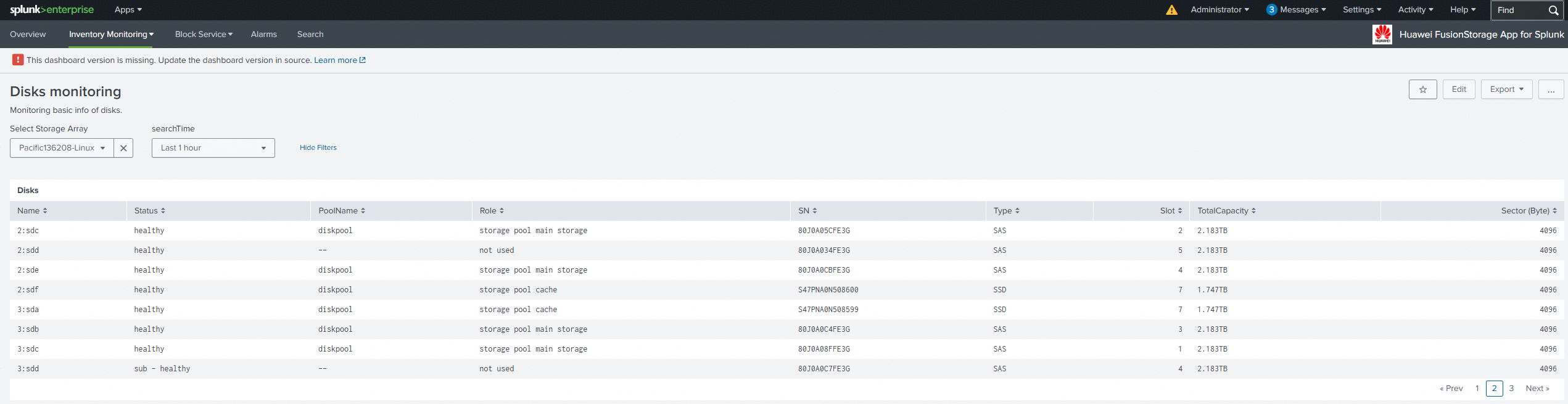

4. On the storage array, view the above metric items and compare them with the monitoring metrics on the Splunk platform. 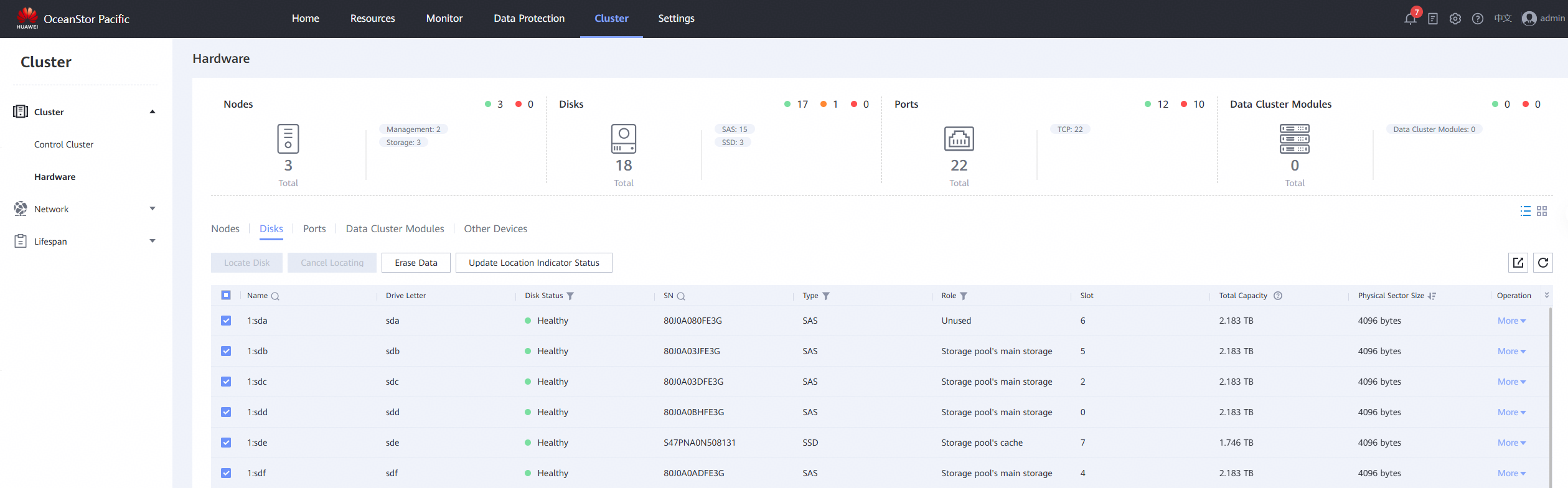
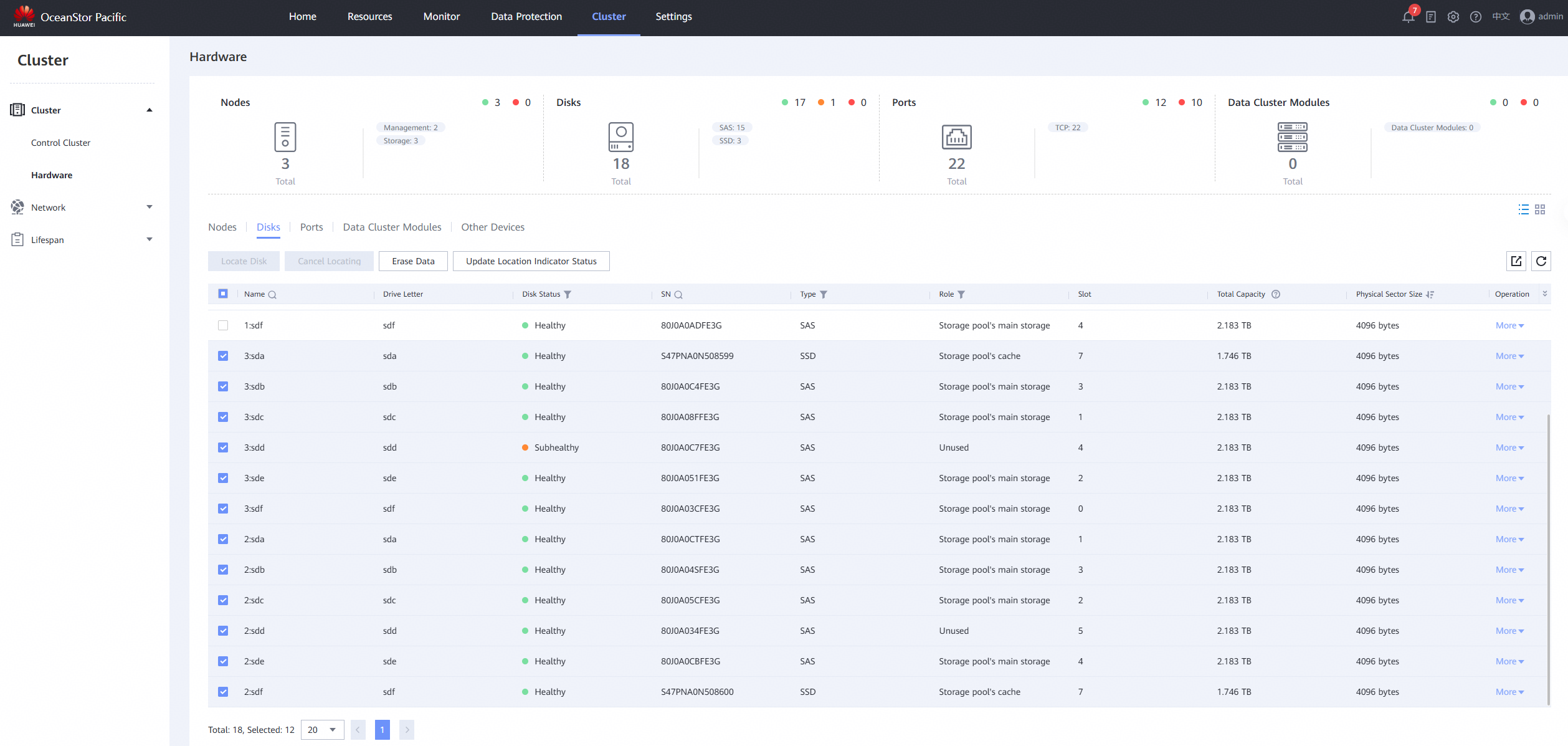
|
Test Conclusion | Passed |
3.3 Monitor Hosts Information
Test Purpose | Verify that the storage hosts information can be correctly monitored |
Test Networking | Storage and Splunk Enterprise Compatibility Test Networking |
Prerequisites | 1. The Splunk platform has been connected to storage devices. 2. The storage device is running properly. |
Test Procedure | 1. On the Splunk platform, click to enter « Huawei FusionStorage App for Splunk. » 2. In the Block Service tab, click to enter Hosts monitoring. 3. In the Select Storage Array, select the storage, choose a time period in searchTime, and view the metric items of the Hosts. 4. On the storage array, view the above metric items and compare them with the monitoring metrics on the Splunk platform. |
Expected Result | 1. Step 4: The monitoring metrics of the Splunk platform are consistent with the actual information stored, with the same quantity. |
Test Record | 1. On the Splunk platform, click to enter « Huawei FusionStorage App for Splunk. » 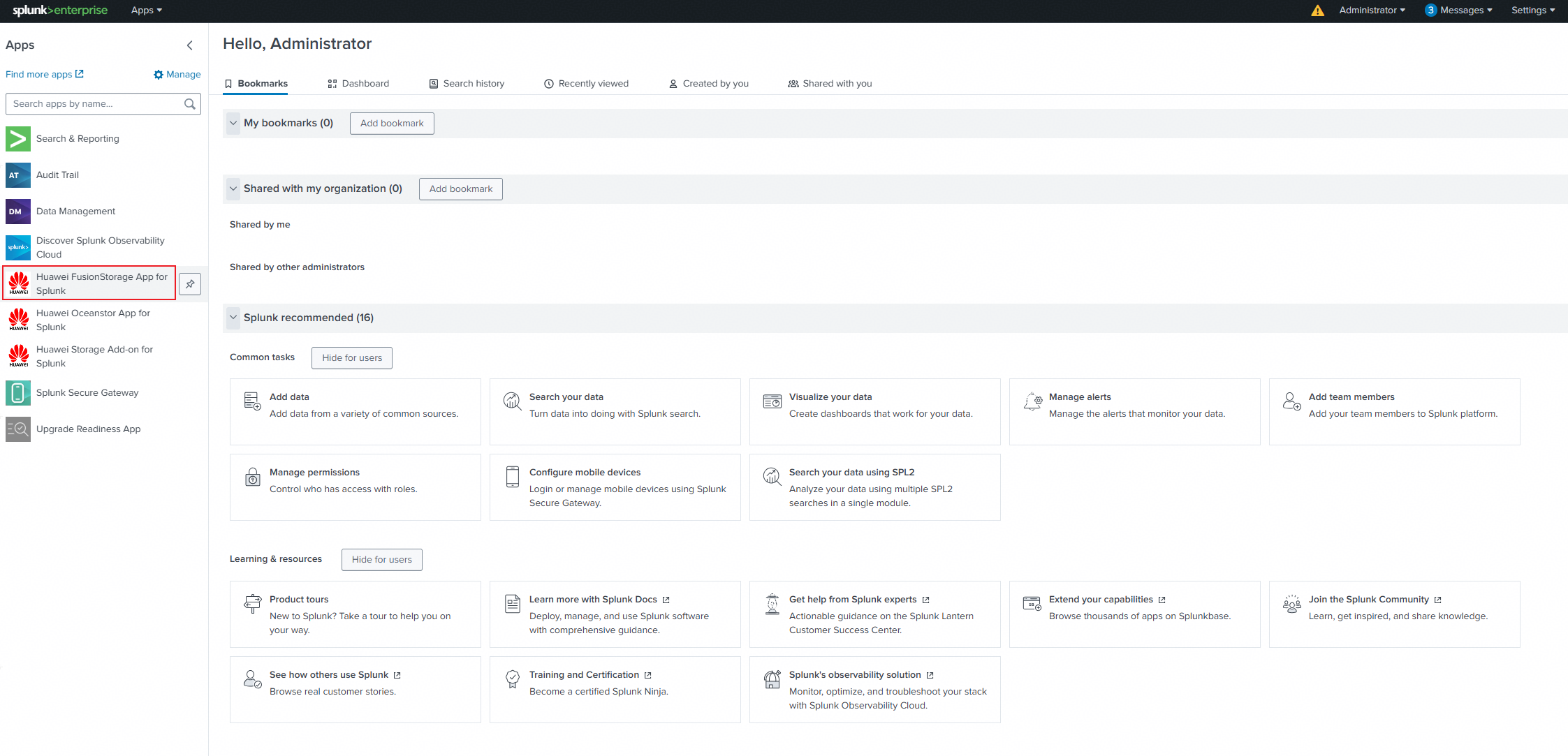
2. In the Block Service tab, click to enter Hosts monitoring. 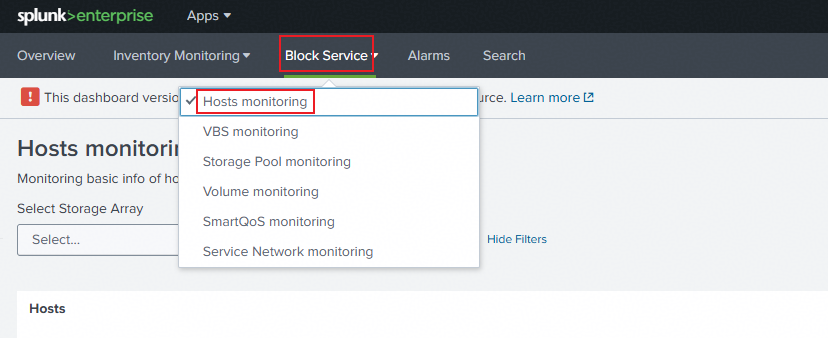
3. In the Select Storage Array, select the storage, choose a time period in searchTime, and view the metric items of the Hosts. 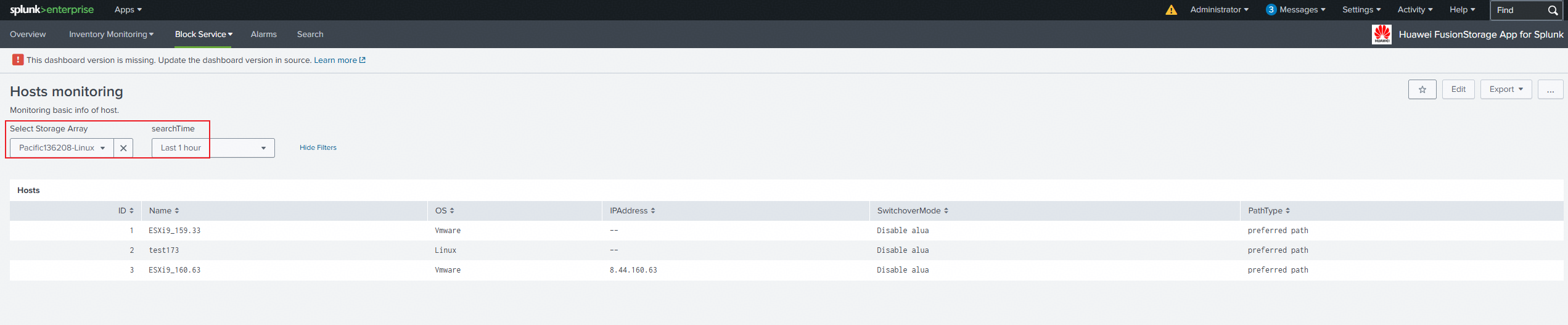
4. On the storage array, view the above metric items and compare them with the monitoring metrics on the Splunk platform. 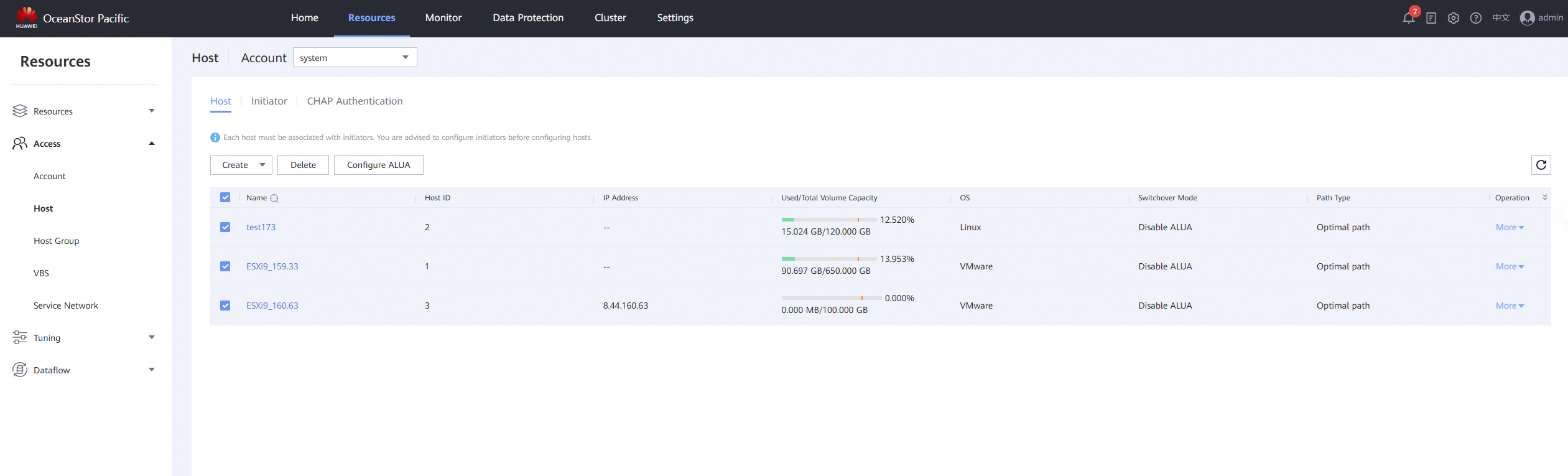
|
Test Conclusion | Passed |
3.4 Monitor Nodes Information
Test Purpose | Verify that the storage nodes information can be correctly monitored |
Test Networking | Storage and Splunk Enterprise Compatibility Test Networking |
Prerequisites | 1. The Splunk platform has been connected to storage devices. 2. The storage device is running properly. |
Test Procedure | 1. On the Splunk platform, click to enter « Huawei FusionStorage App for Splunk. » 2. In the Inventory Monitoring tab, click to enter Nodes Monitoring. 3. In Select Storage Array, select the storage, choose a time period in searchTime, and view the metric items of Nodes. 4. On the storage array, view the above metric items and compare them with the monitoring metrics on the Splunk platform. |
Expected Result | 1. Step 4: The monitoring metrics of the Splunk platform are consistent with the actual information stored, with the same quantity. |
Test Record | 1. On the Splunk platform, click to enter « Huawei FusionStorage App for Splunk. » 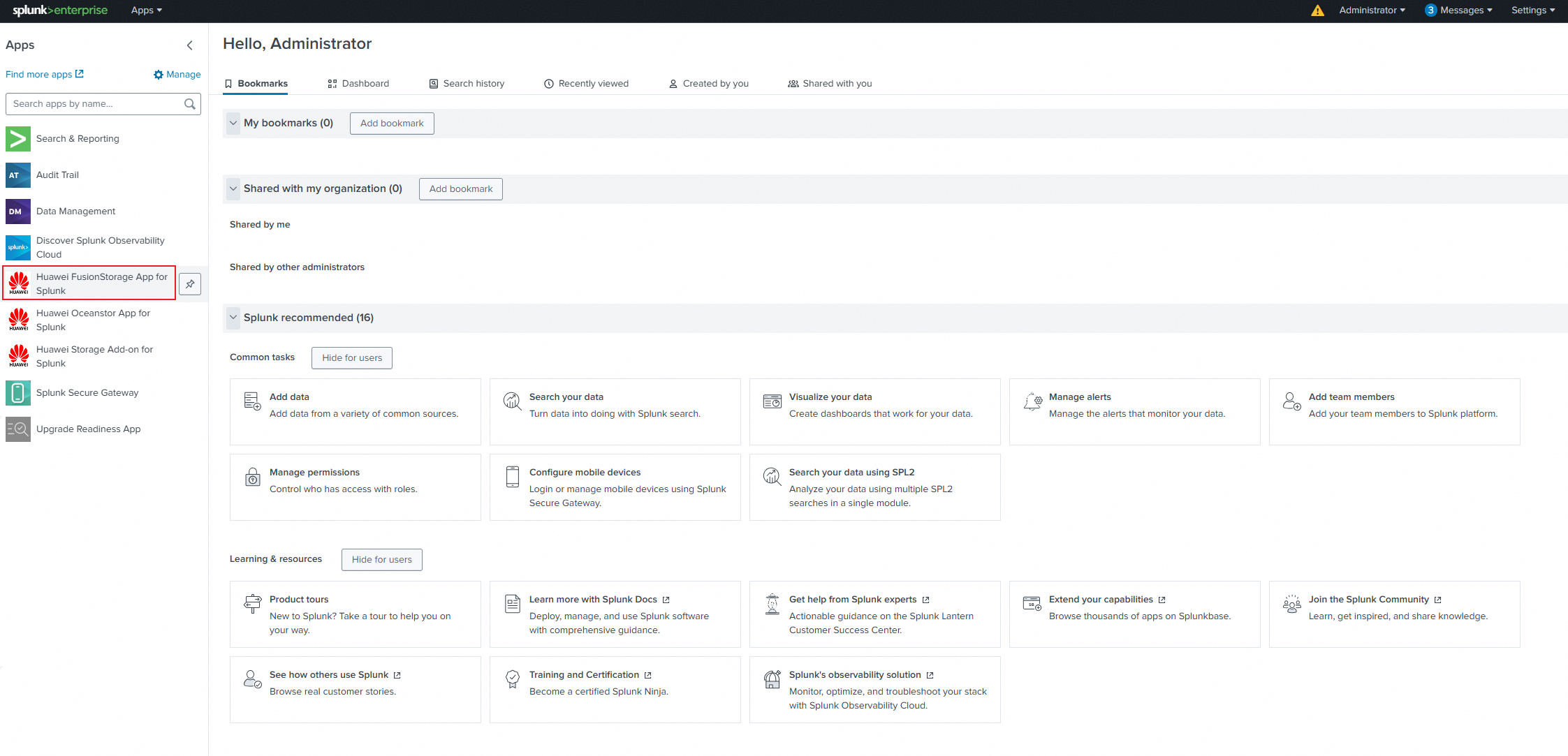
2. In the Inventory Monitoring tab, click to enter Nodes Monitoring. 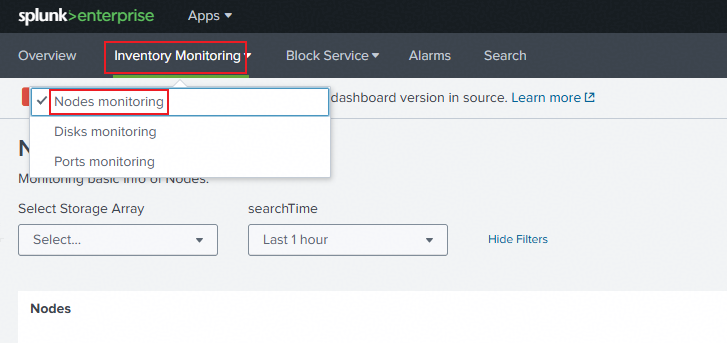
3. In Select Storage Array, select the storage, choose a time period in searchTime, and view the metric items of Nodes. 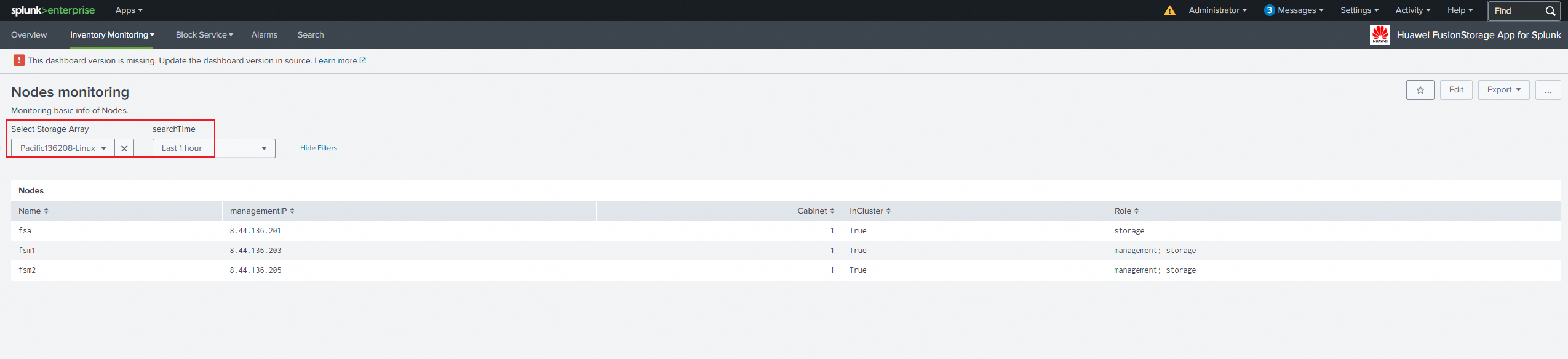
4. On the storage array, view the above metric items and compare them with the monitoring metrics on the Splunk platform. 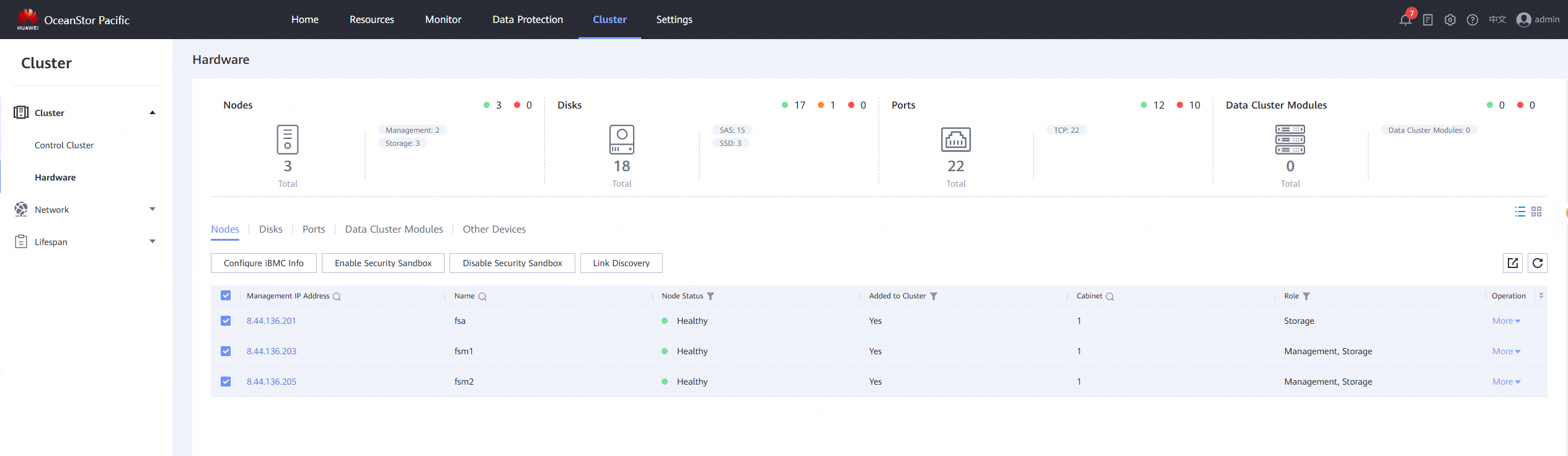
|
Test Conclusion | Passed |
3.5 Monitor Ports Information
Test Purpose | Verify that the storage ports information can be correctly monitored |
Test Networking | Storage and Splunk Enterprise Compatibility Test Networking |
Prerequisites | 1. The Splunk platform has been connected to storage devices. 2. The storage device is running properly. |
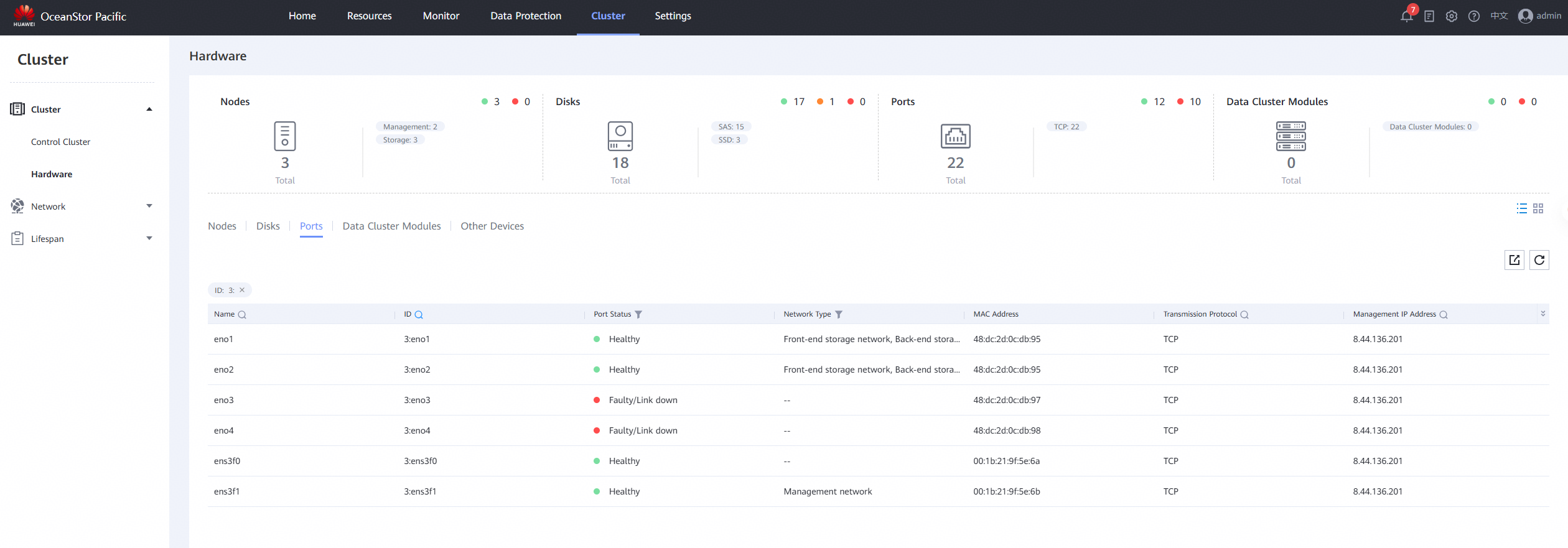
Test Procedure | 1. On the Splunk platform, click to enter « Huawei FusionStorage App for Splunk. » 2. In the Inventory Monitoring tab, click to enter Ports Monitoring. 3. In the Select Storage Array, select the storage, choose a time period in searchTime, and view the metric items of Ports. 4. On the storage array, view the above metric items and compare them with the monitoring metrics on the Splunk platform. |
Expected Result | 1. Step 4: The monitoring metrics of the Splunk platform are consistent with the actual information stored, with the same quantity. |
Test Record | 1. On the Splunk platform, click to enter « Huawei FusionStorage App for Splunk. » 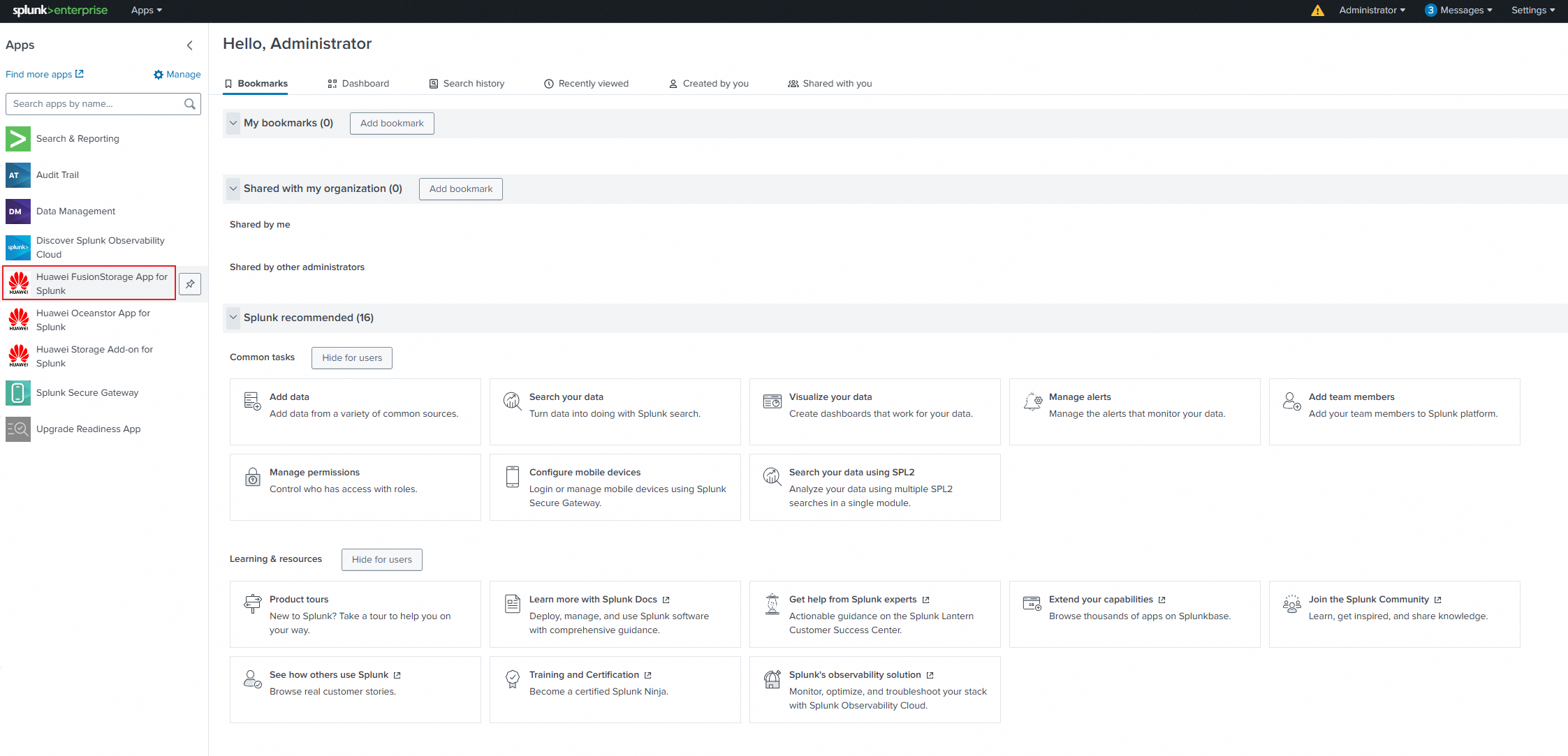
2. In the Inventory Monitoring tab, click to enter Ports Monitoring. 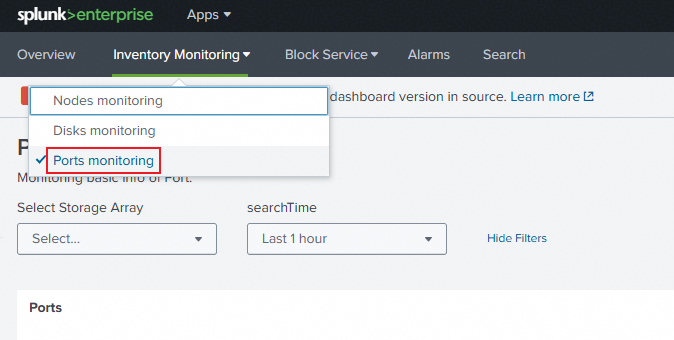
3. In the Select Storage Array, select the storage, choose a time period in searchTime, and view the metric items of Ports. 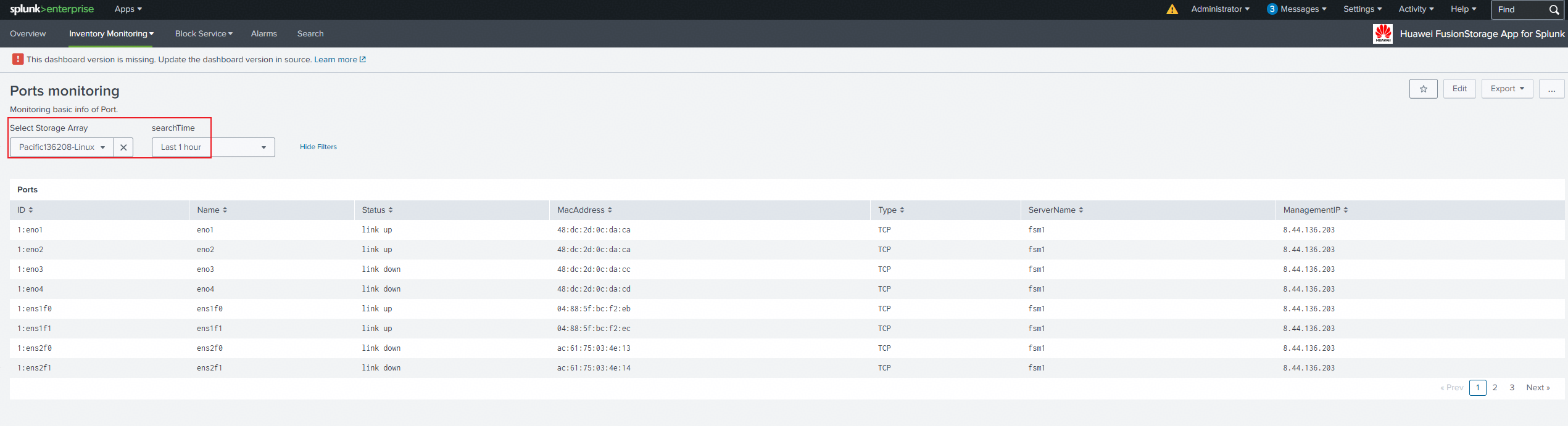
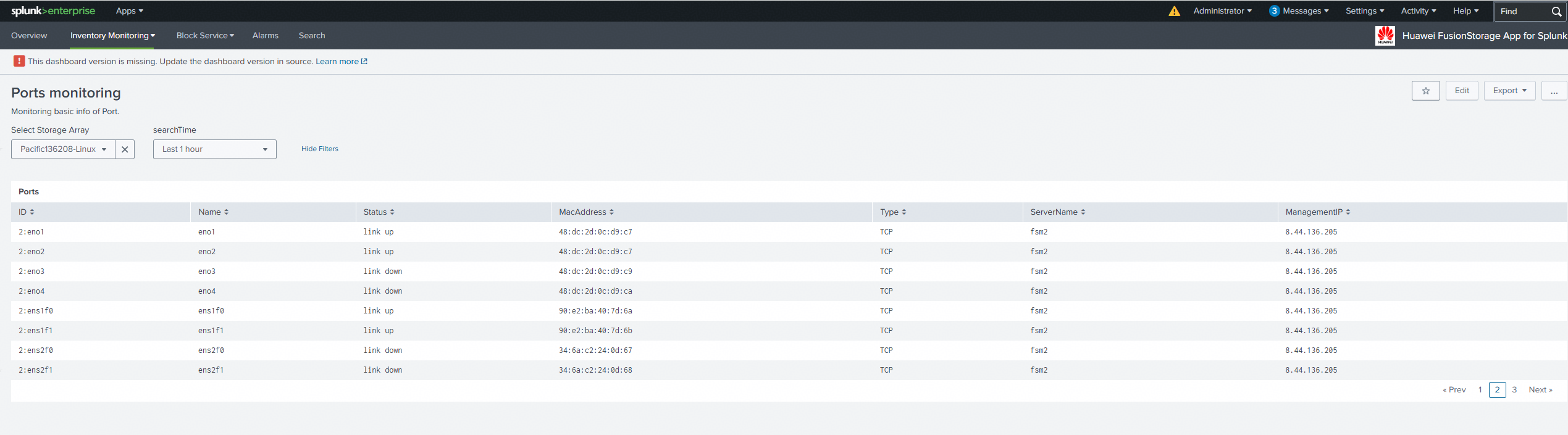
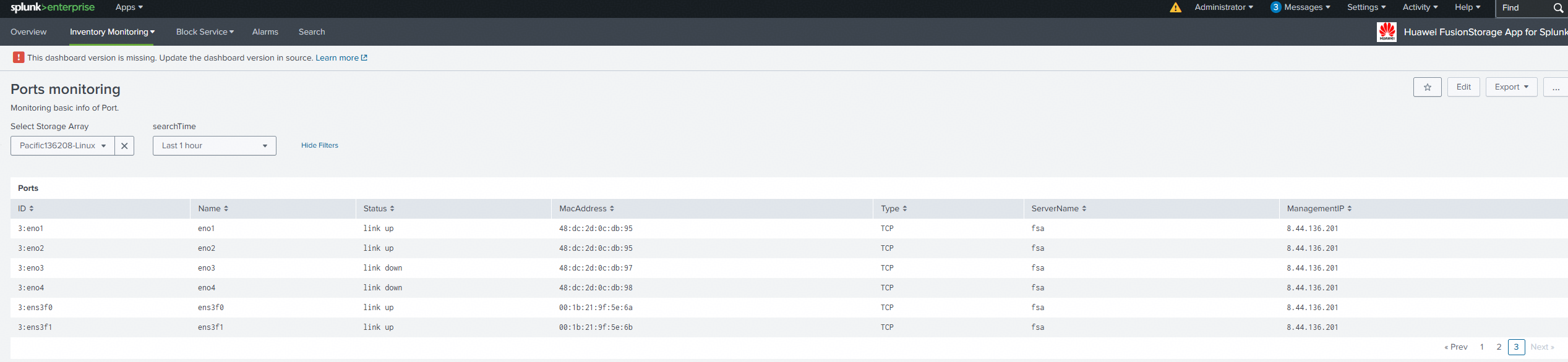
4. On the storage array, view the above metric items and compare them with the monitoring metrics on the Splunk platform. 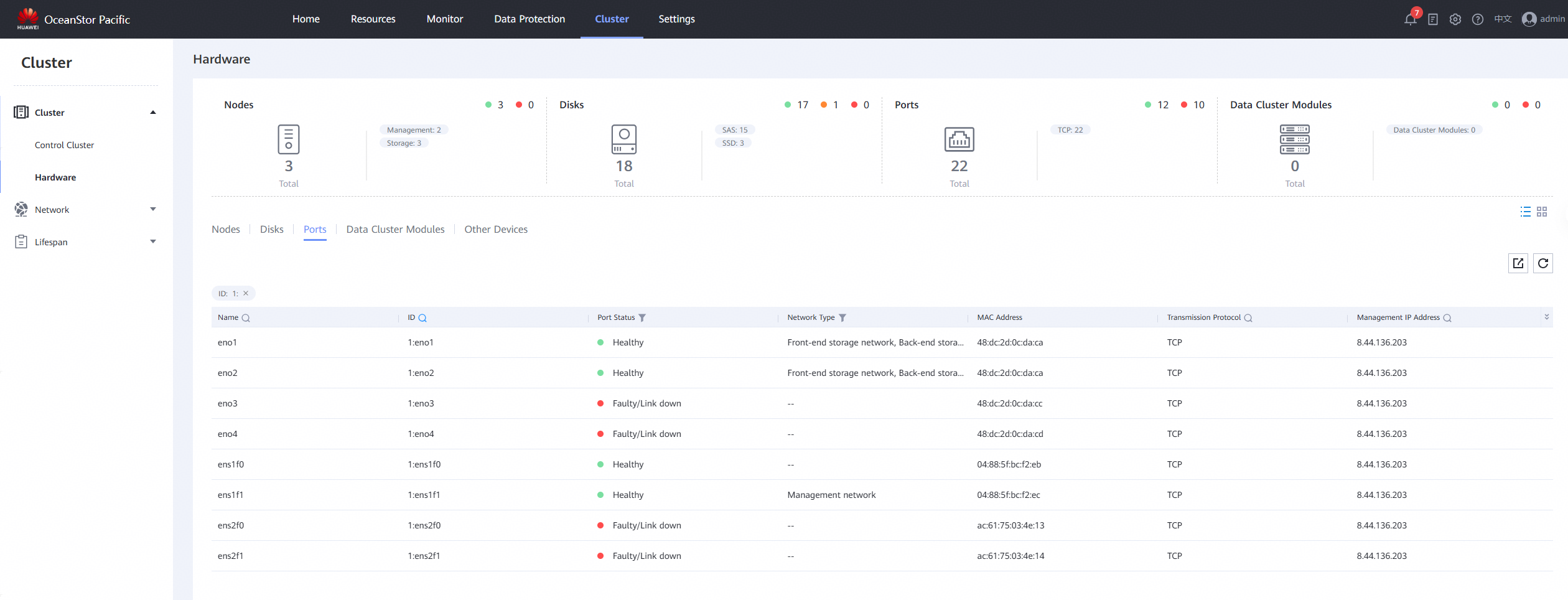
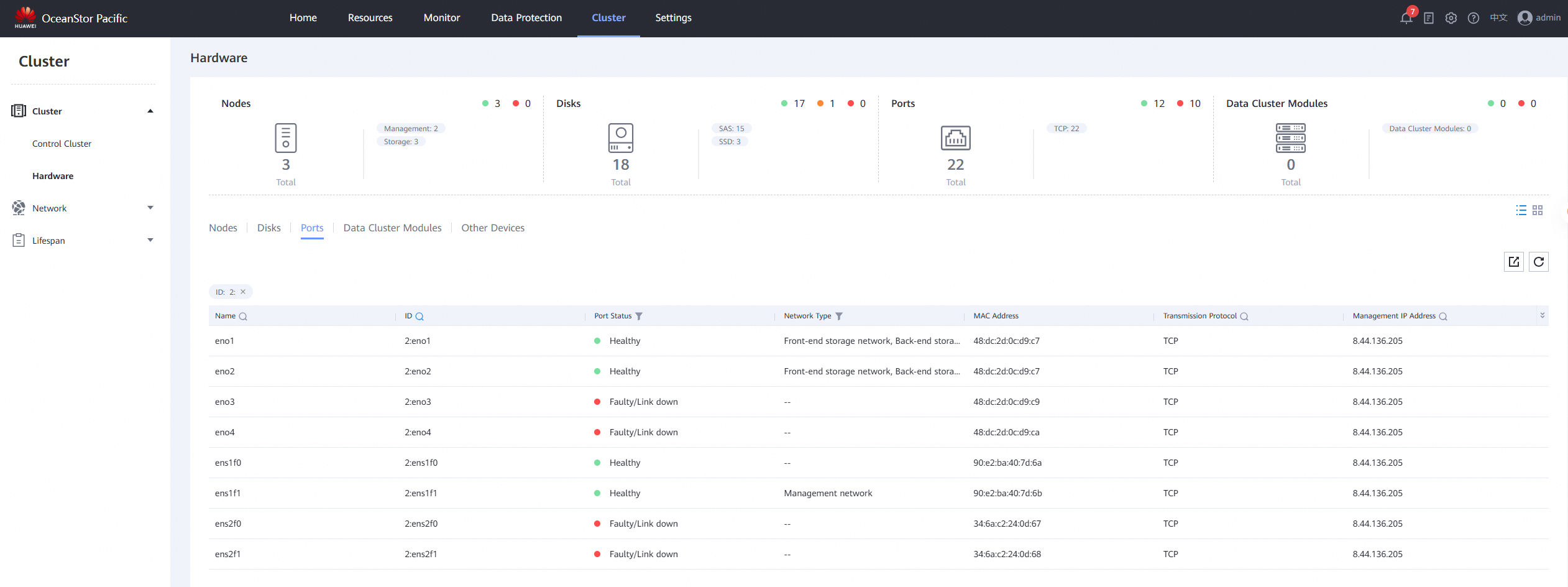
|
Test Conclusion | Passed |
3.6 Monitor SmartQoS information
Test Purpose | Verify that the storage SmartQoS information can be correctly monitored |
Test Networking | Storage and Splunk Enterprise Compatibility Test Networking |
Prerequisites | 1. The Splunk platform has been connected to storage devices. 2. The storage device is running properly. |
Test Procedure | 1. On the Splunk platform, click to enter « Huawei FusionStorage App for Splunk. » 2. In the Block Service tab, click to enter SmartQoS monitoring. 3. In the Select Storage Array, select the storage. In the searchTime, select the time period to view the SmartQoS indicator items. 4. On the storage array, view the above indicator items and compare them with the monitoring indicators on the Splunk platform. |
Expected Result | 1. Step 4: The monitoring metrics of the Splunk platform are consistent with the actual information stored, with the same quantity. |
Test Record | 1. On the Splunk platform, click to enter « Huawei FusionStorage App for Splunk. » 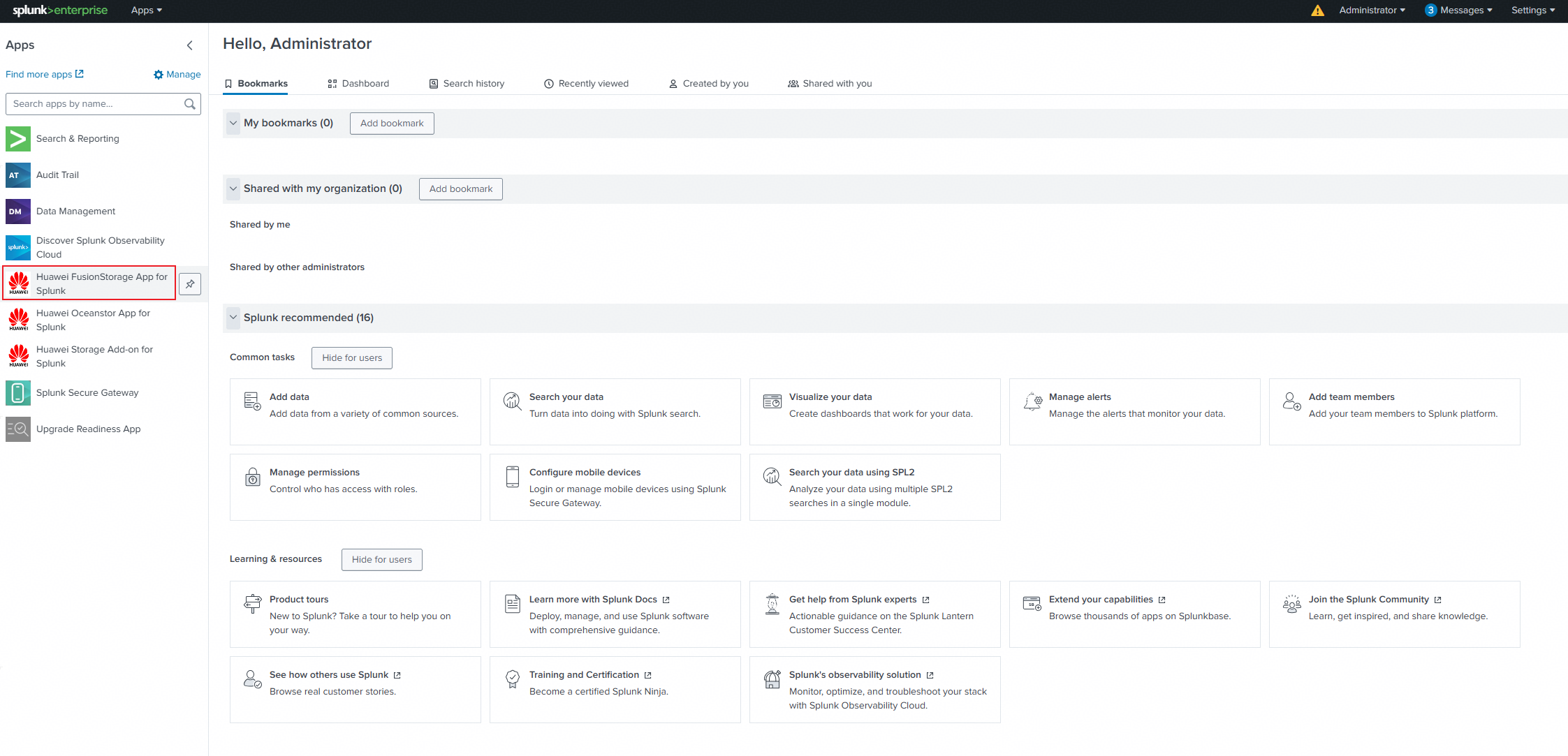
2. In the Block Service tab, click to enter SmartQoS monitoring. 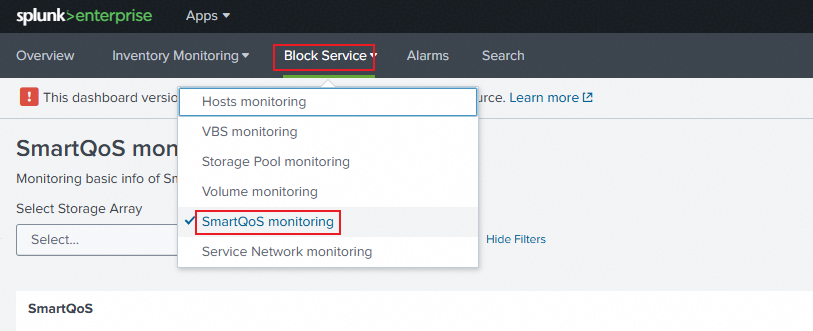
3. In the Select Storage Array, select the storage. In the searchTime, select the time period to view the SmartQoS indicator items. 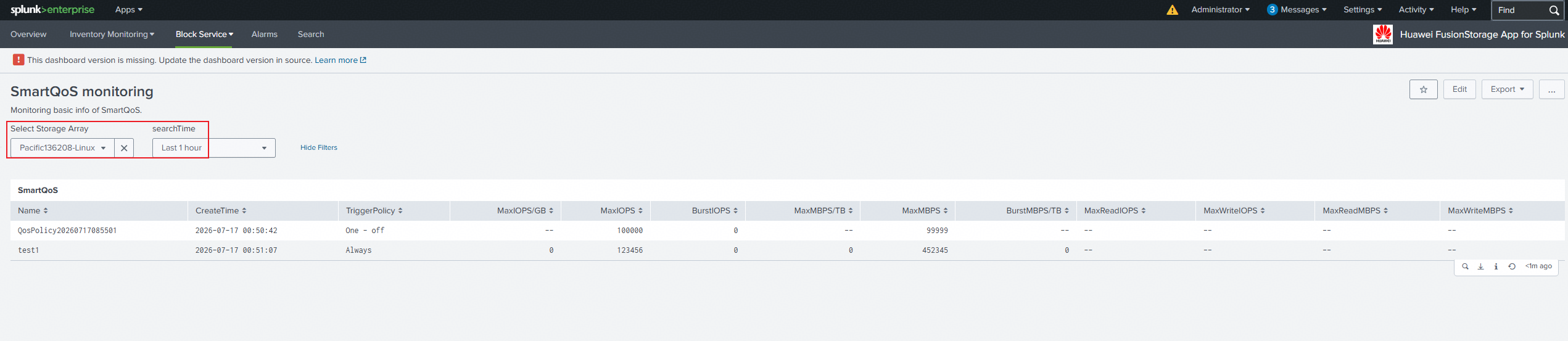
4. On the storage array, view the above indicator items and compare them with the monitoring indicators on the Splunk platform. 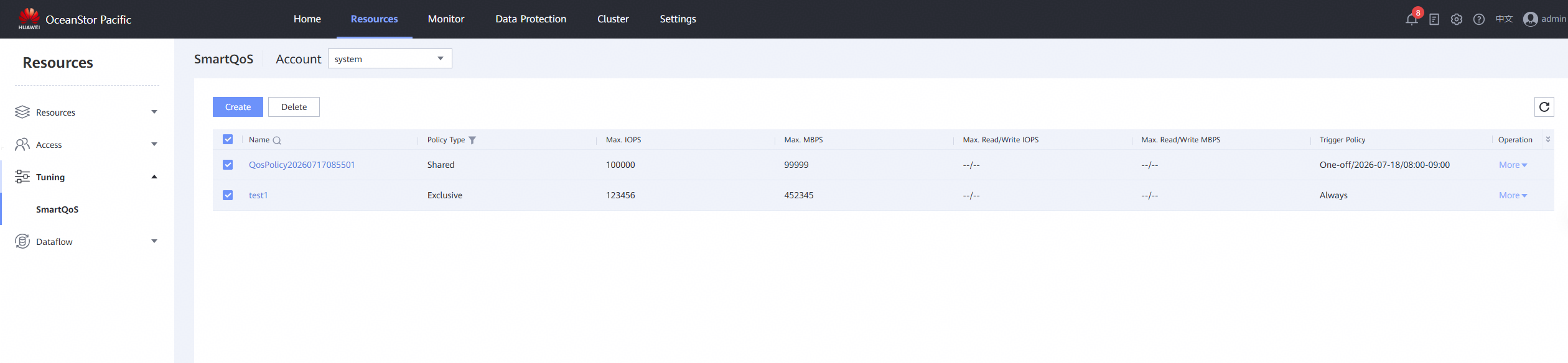
|
Test Conclusion | Passed |
3.7 Monitor VBS information
Test Purpose | Verify that the storage VBS information can be correctly monitored |
Test Networking | Storage and Splunk Enterprise Compatibility Test Networking |
Prerequisites | 1. The Splunk platform has been connected to storage devices. 2. The storage device is running properly. |
Test Procedure | 1. On the Splunk platform, click to enter « Huawei FusionStorage App for Splunk. » 2. In the Block Service tab, click to enter VBS monitoring. 3. In the « Select Storage Array » section, select the storage array. Then, in the « searchTime » section, select the time period to view the VBS metric items. 4. On the storage array, view the above metric items and compare them with the monitoring metrics on the Splunk platform. |
Expected Result | 1. Step 4: The monitoring metrics of the Splunk platform are consistent with the actual information stored, with the same quantity. |
Test Record | 1. On the Splunk platform, click to enter « Huawei FusionStorage App for Splunk. » 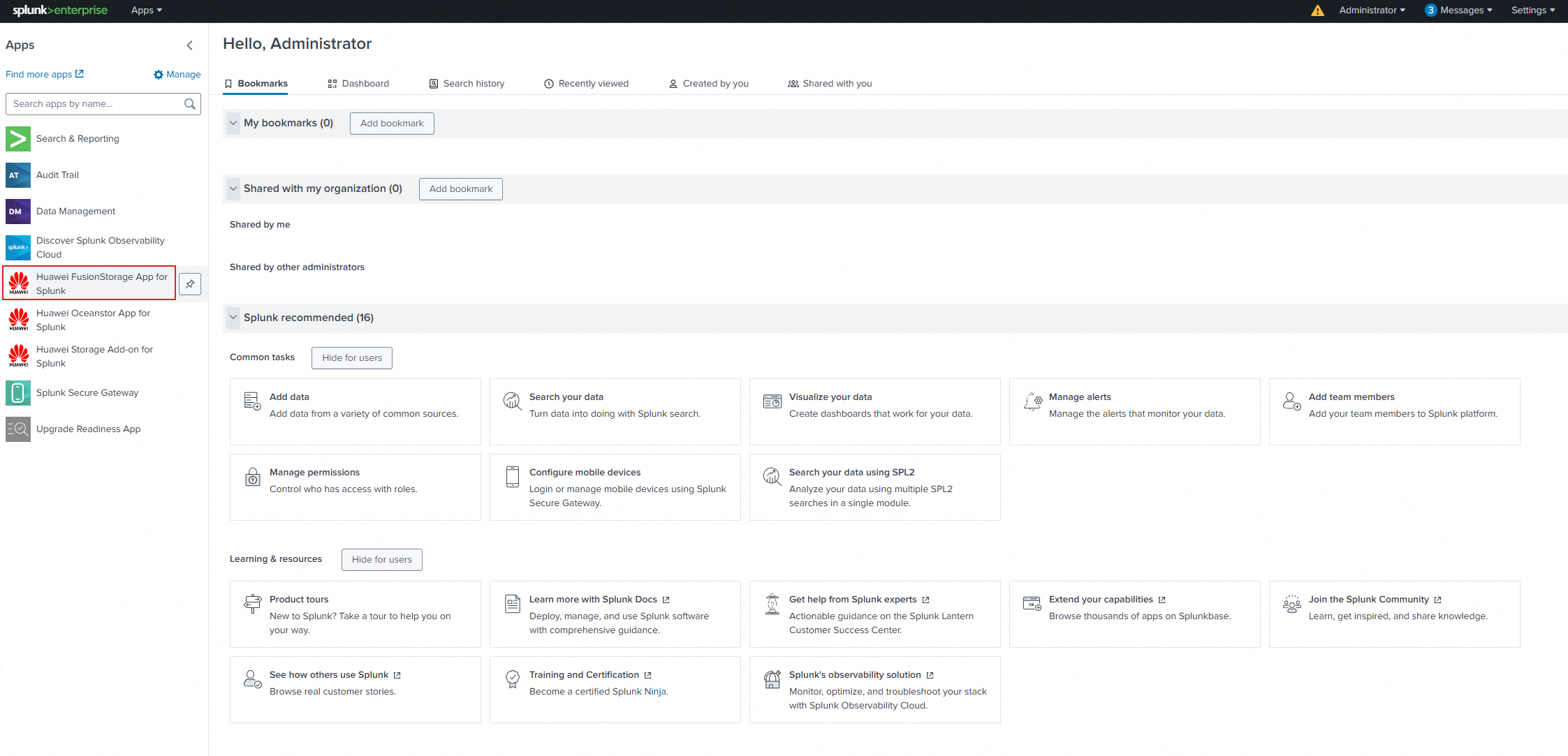
2. In the Block Service tab, click to enter VBS monitoring. 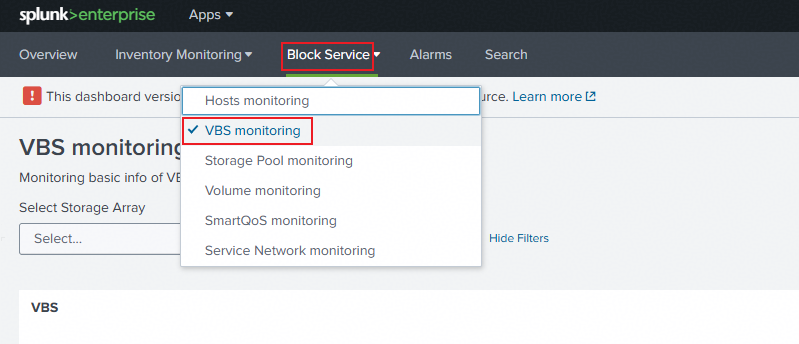
3. In the « Select Storage Array » section, select the storage array. Then, in the « searchTime » section, select the time period to view the VBS metric items. 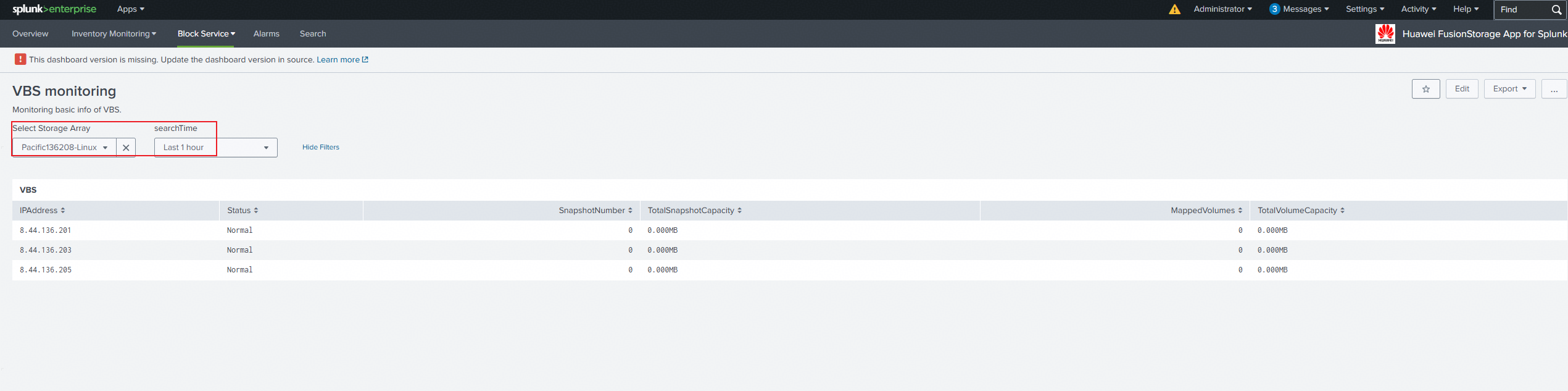
4. On the storage array, view the above metric items and compare them with the monitoring metrics on the Splunk platform. 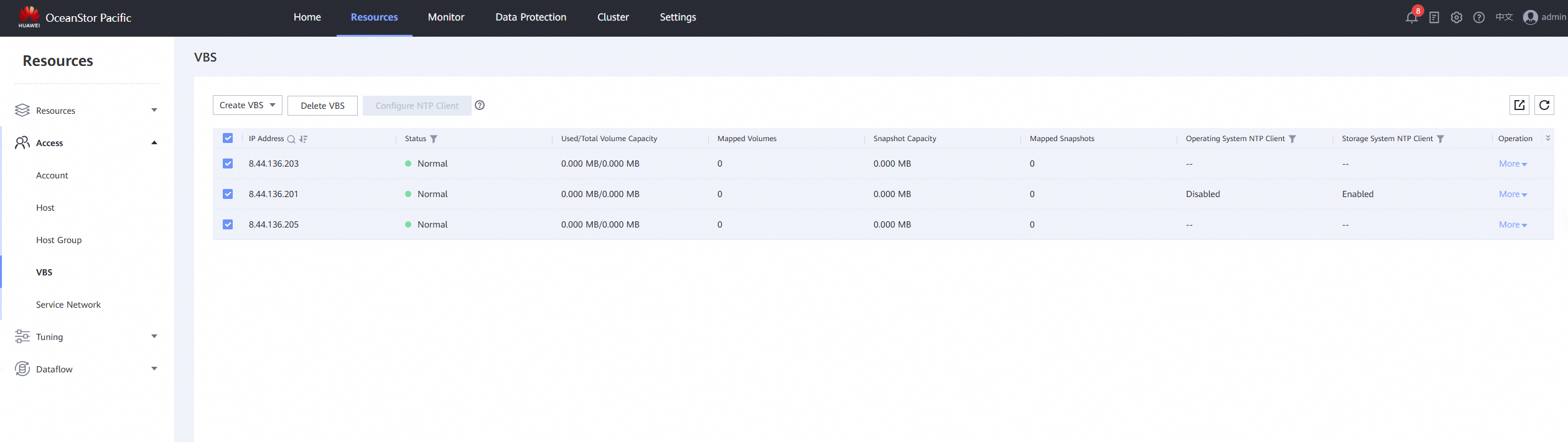
|
Test Conclusion | Passed |
3.8 Monitor Service Network Information
Test Purpose | Verify that the storage Service Network information can be correctly monitored |
Test Networking | Storage and Splunk Enterprise Compatibility Test Networking |
Prerequisites | 1. The Splunk platform has been connected to storage devices. 2. The storage device is running properly. |
Test Procedure | 1. On the Splunk platform, click to enter « Huawei FusionStorage App for Splunk. » 2. In the Block Service tab, click to enter Service Network monitoring. 3. In the Select Storage Array, select the storage, choose a time period in searchTime, and view the metric items of the Service Network. 4. On the storage array, view the above metric items and compare them with the monitoring metrics on the Splunk platform. |
Expected Result | 1. Step 4: The monitoring metrics of the Splunk platform are consistent with the actual information stored, with the same quantity. |
Test Record | 1. On the Splunk platform, click to enter « Huawei FusionStorage App for Splunk. » 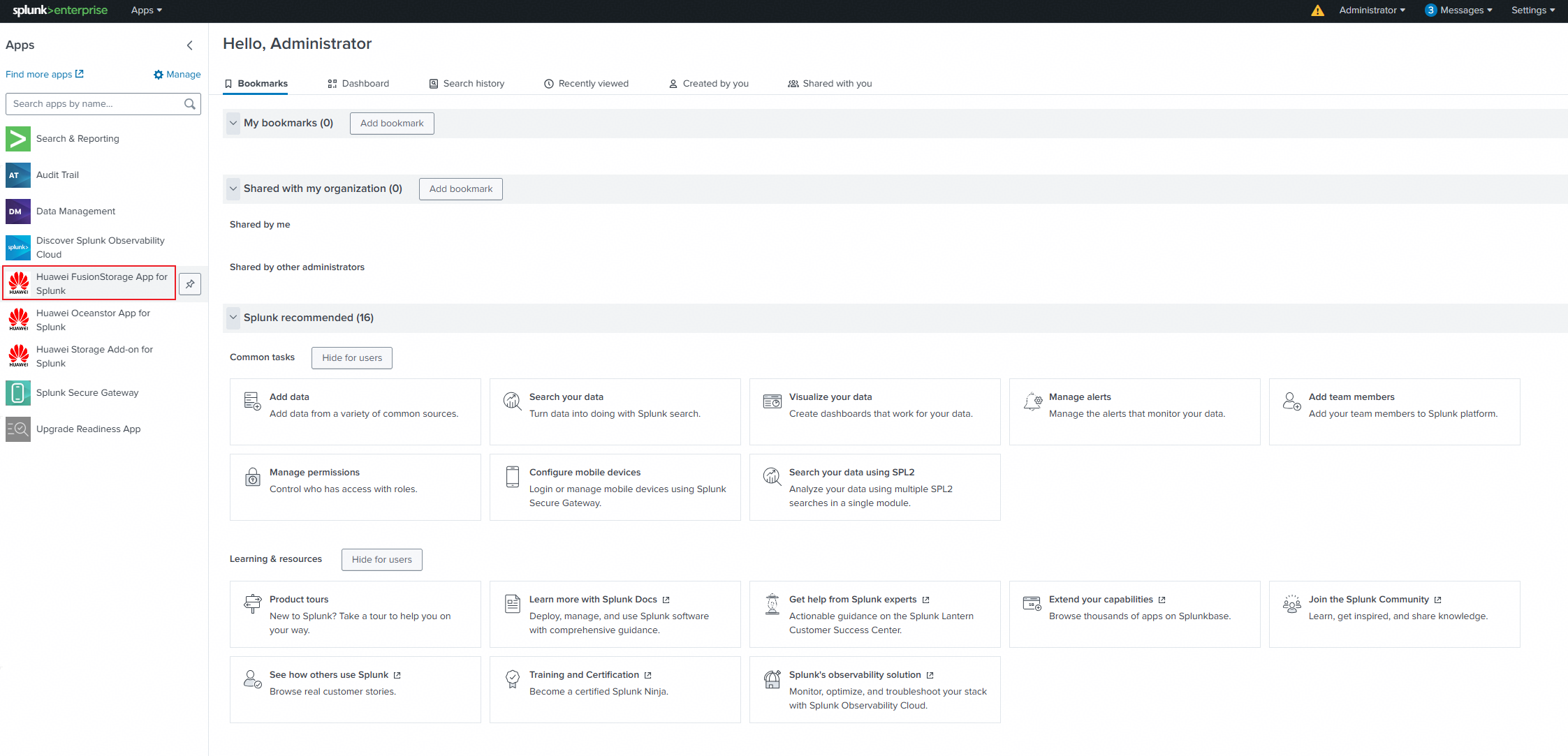
2. In the Block Service tab, click to enter Service Network monitoring. 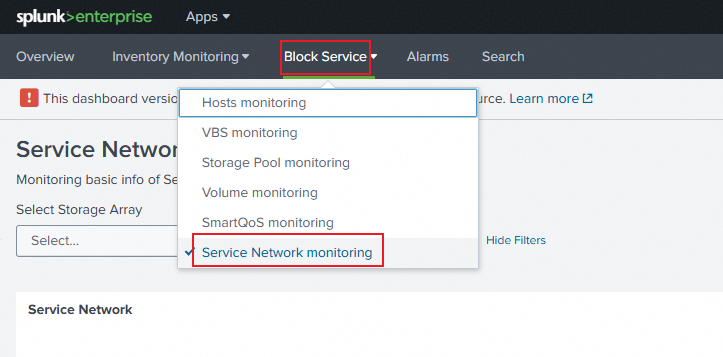
3. In the Select Storage Array, select the storage, choose a time period in searchTime, and view the metric items of the Service Network. 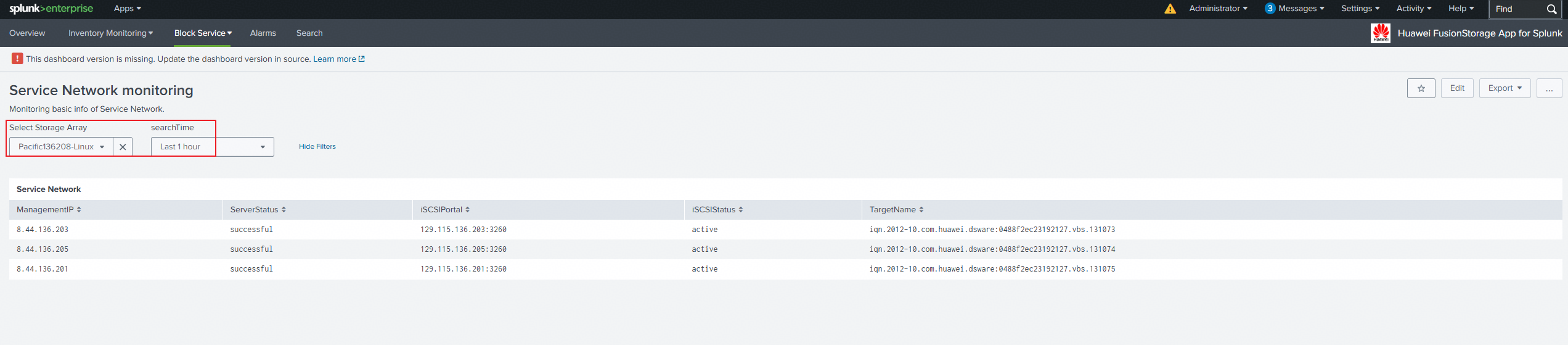
4. On the storage array, view the above metric items and compare them with the monitoring metrics on the Splunk platform. 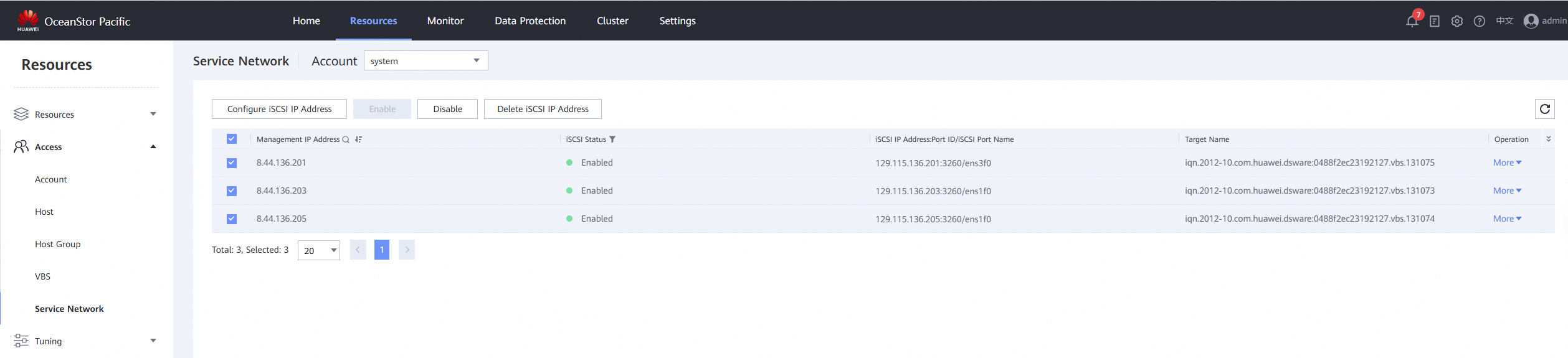
|
Test Conclusion | Passed |
3.9 Monitor Volume Information
Test Purpose | Verify that the storage volume information can be correctly monitored |
Test Networking | Storage and Splunk Enterprise Compatibility Test Networking |
Prerequisites | 1. The Splunk platform has been connected to storage devices. 2. The storage device is running properly. |
Test Procedure | 1. On the Splunk platform, click to enter « Huawei FusionStorage App for Splunk. » 2. In the Block Service tab, click to enter Volume monitoring. 3. In the Select Storage Array, select the storage, choose a time period in searchTime, and view the volume’s metric items. 4. On the storage array, view the above metric items and compare them with the monitoring metrics on the Splunk platform. |
Expected Result | 1. Step 4: The monitoring metrics of the Splunk platform are consistent with the actual information stored, with the same quantity. |
Test Record | 1. On the Splunk platform, click to enter « Huawei FusionStorage App for Splunk. » 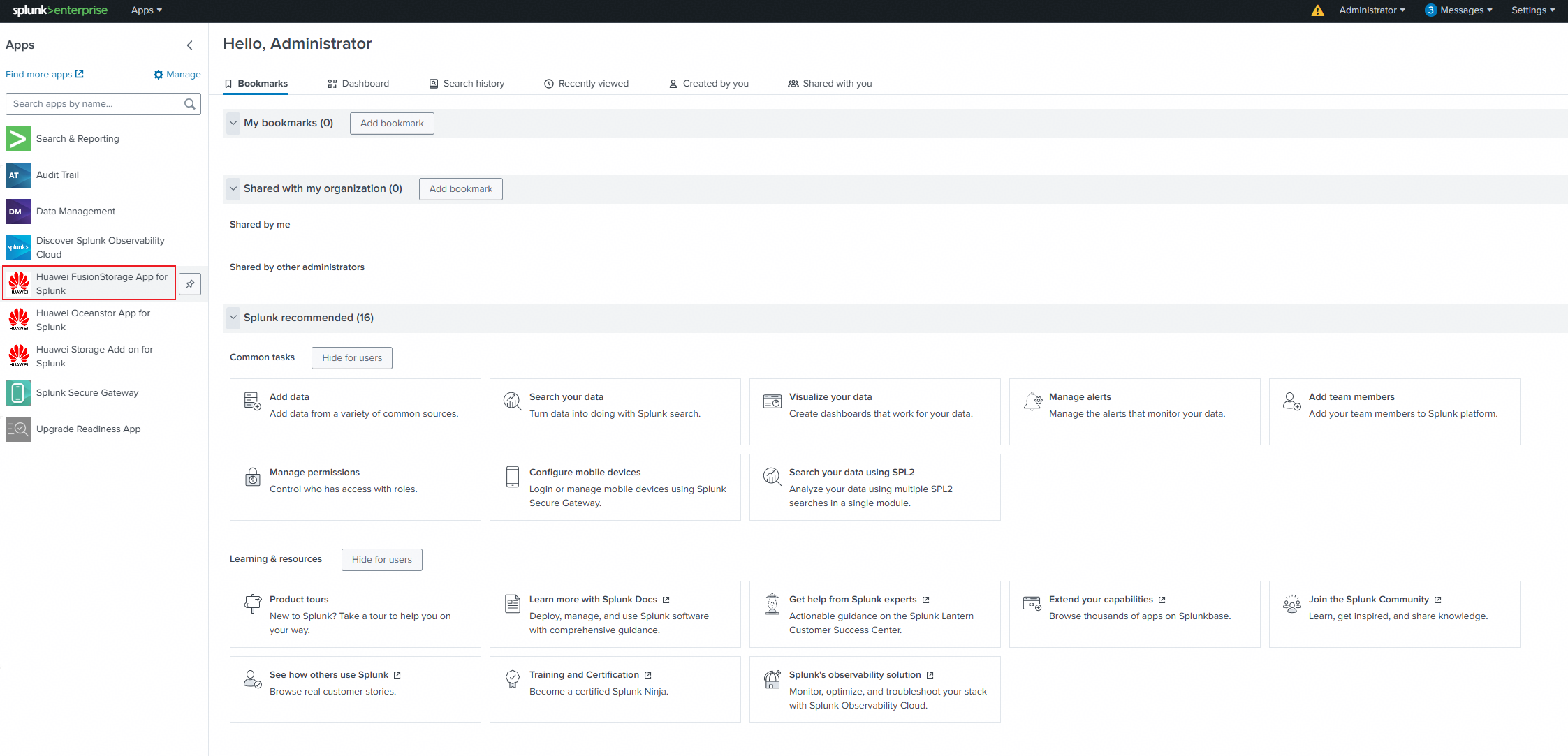
2. In the Block Service tab, click to enter Volume monitoring. 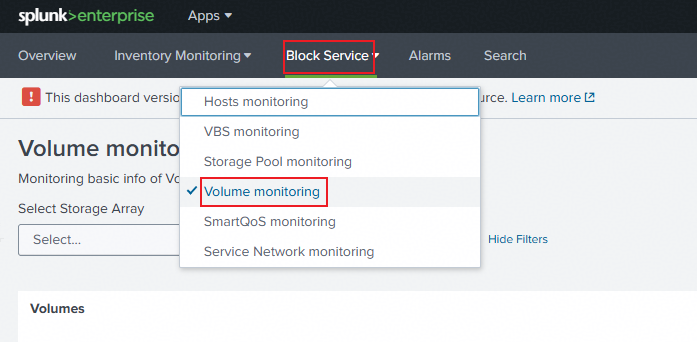
3. In the Select Storage Array, select the storage, choose a time period in searchTime, and view the volume’s metric items. 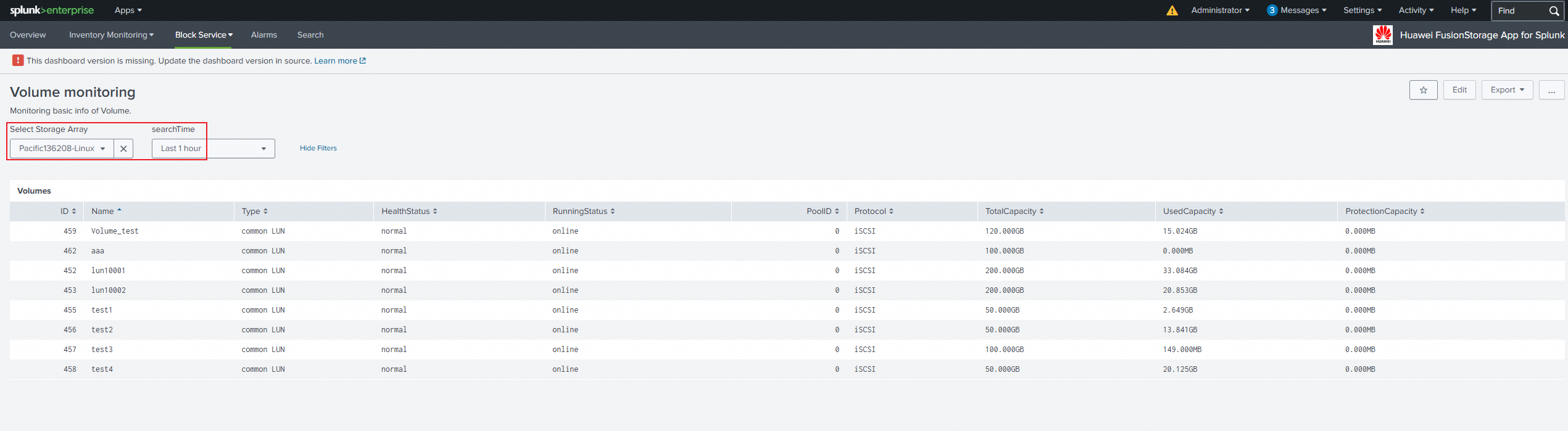
4. On the storage array, view the above metric items and compare them with the monitoring metrics on the Splunk platform. 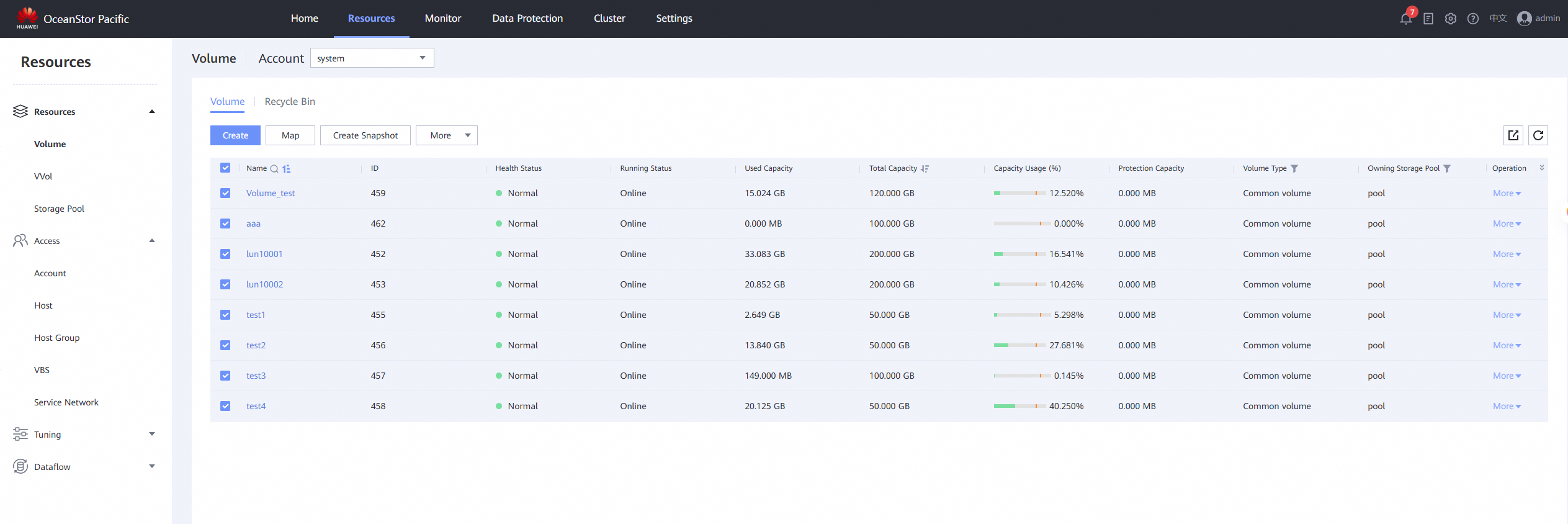
|
Test Conclusion | Passed |
3.10 Monitor Storage Pool Information
Test Purpose | Verify that the storage pool information can be correctly monitored |
Test Networking | Storage and Splunk Enterprise Compatibility Test Networking |
Prerequisites | 1. The Splunk platform has been connected to storage devices. 2. The storage device is running properly. |
Test Procedure | 1. On the Splunk platform, click to enter « Huawei FusionStorage App for Splunk. » 2. In the Block Service tab, click to enter Storage Pool monitoring. 3. In the Select Storage Array, select the storage, choose a time period in searchTime, and view the metric items of the Storage Pool. 4. On the storage array, view the above metric items and compare them with the monitoring metrics on the Splunk platform. |
Expected Result | 1. Step 4: The monitoring metrics of the Splunk platform are consistent with the actual information stored, with the same quantity. |
Test Record | 1. On the Splunk platform, click to enter « Huawei FusionStorage App for Splunk. » 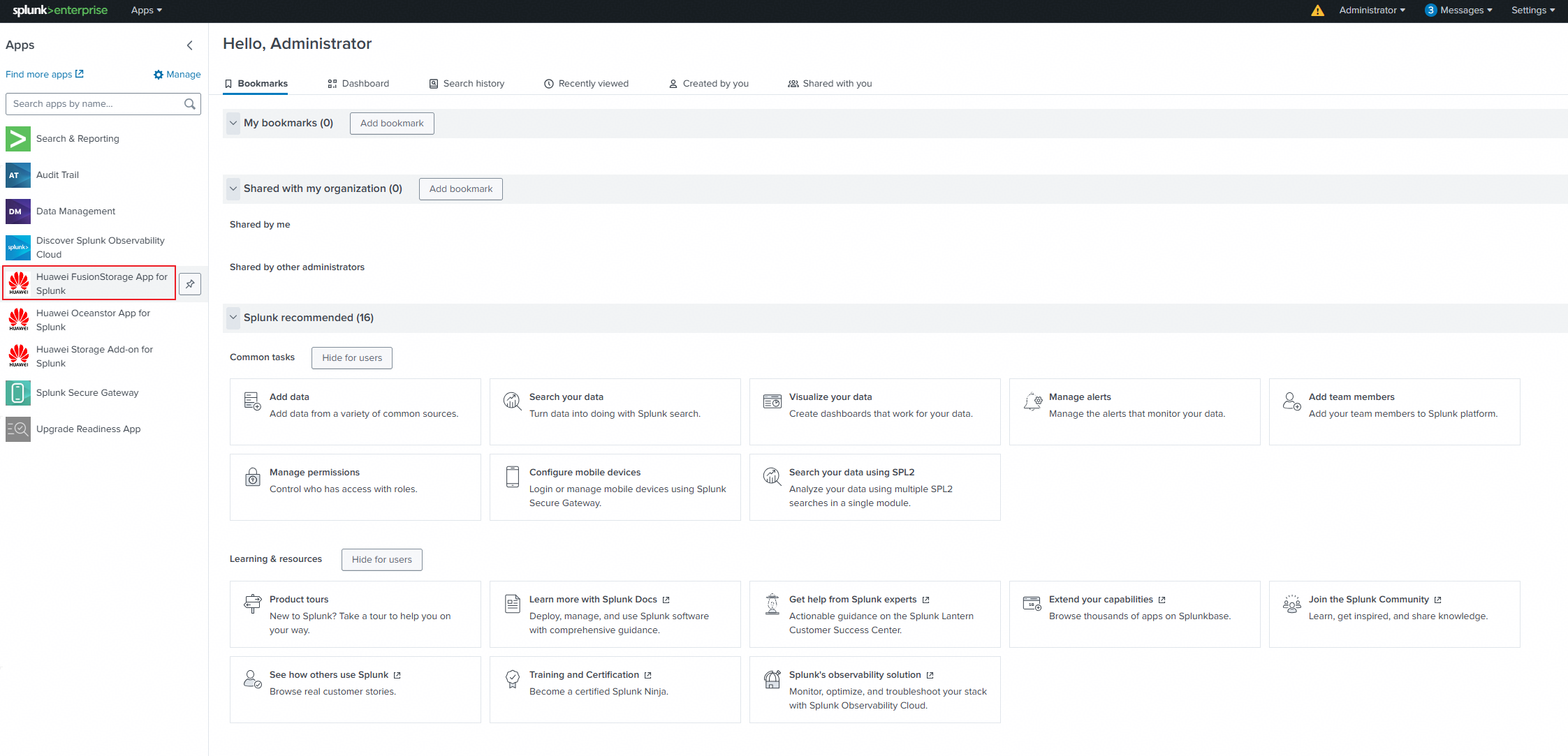
2. In the Block Service tab, click to enter Storage Pool monitoring. 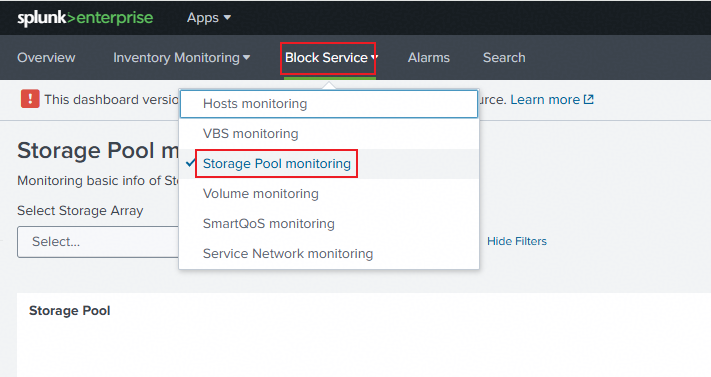
3. In the Select Storage Array, select the storage, choose a time period in searchTime, and view the metric items of the Storage Pool. 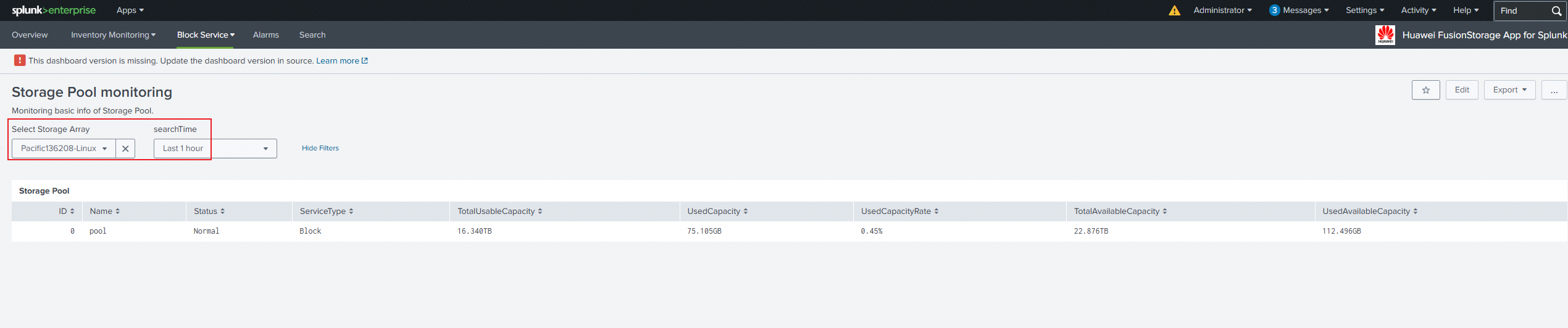
4. On the storage array, view the above metric items and compare them with the monitoring metrics on the Splunk platform. 
|
Test Conclusion | Passed |
3.11 Monitoring and storing system Alarms information
Test Purpose | Verify that the storage alarms information can be correctly monitored |
Test Networking | Storage and Splunk Enterprise Compatibility Test Networking |
Prerequisites | 1. The Splunk platform has been connected to storage devices. 2. The storage device is running properly. |
Test Procedure | 1. On the Splunk platform, click to enter the « Huawei FusionStorage App for Splunk » interface. 2. Click to enter the Alarms tab interface. 3. In the Select Storage Array, select the storage, and in the searchTime, select the time period to view the Alarms information. 4. On the storage array, view the above alarm information and compare it with the monitoring information on the Splunk platform |
Expected Result | 1. Step 4: The monitoring metrics of the Splunk platform are consistent with the actual information stored, with the same quantity. |
Test Record | 1. On the Splunk platform, click to enter « Huawei FusionStorage App for Splunk. » 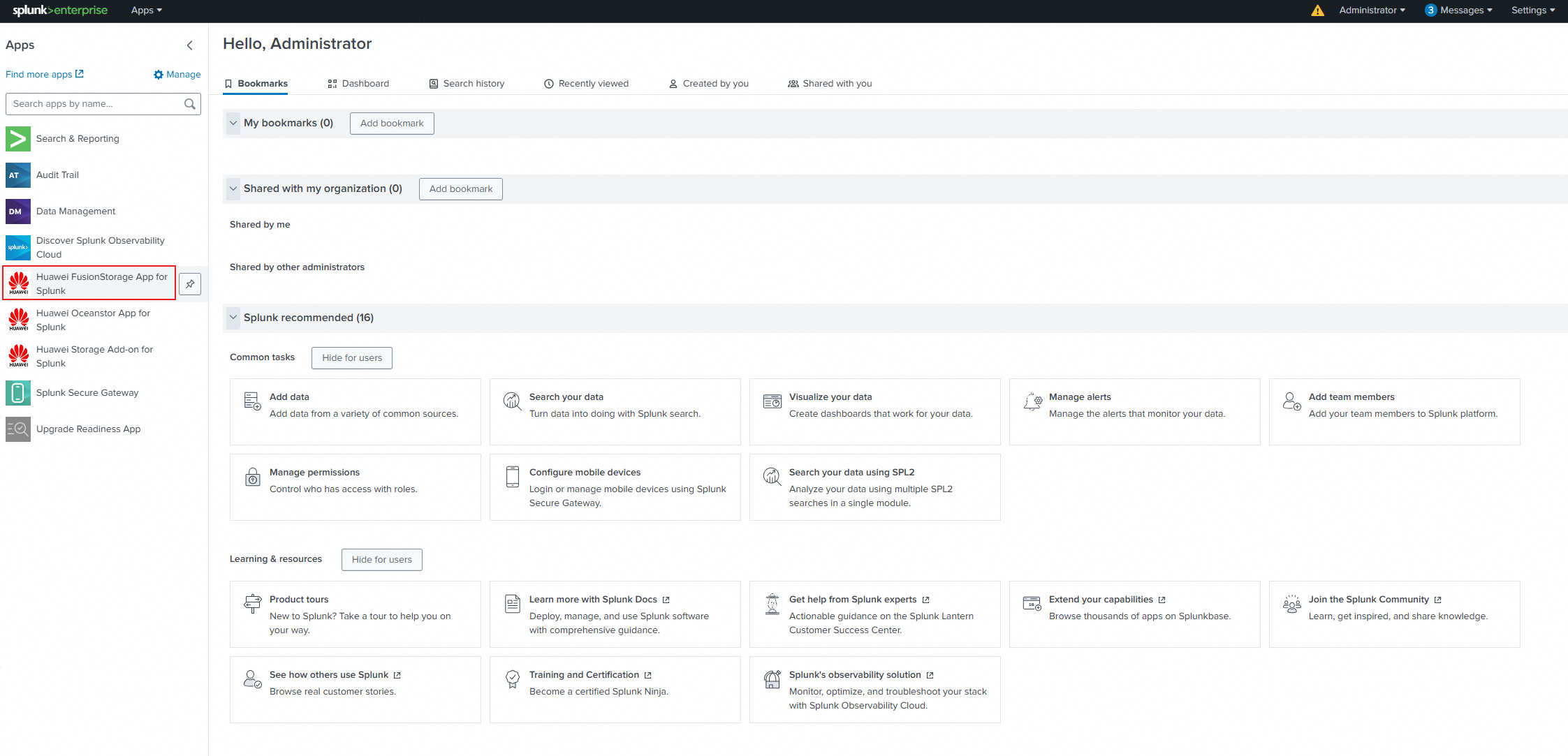
2. Click to enter the Alarms tab interface. 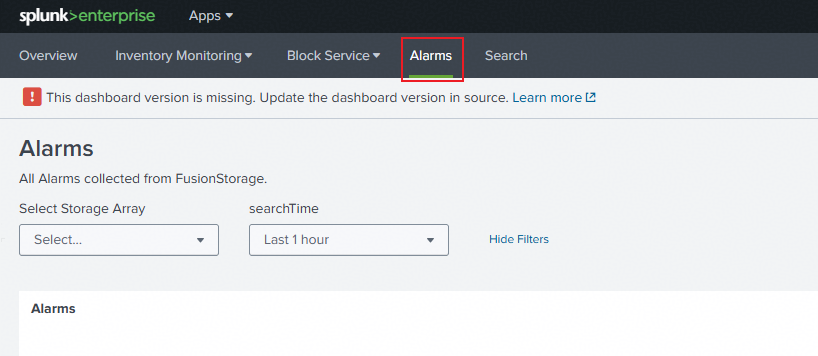
3. In the Select Storage Array, select the storage, and in the searchTime, select the time period to view the Alarms information. 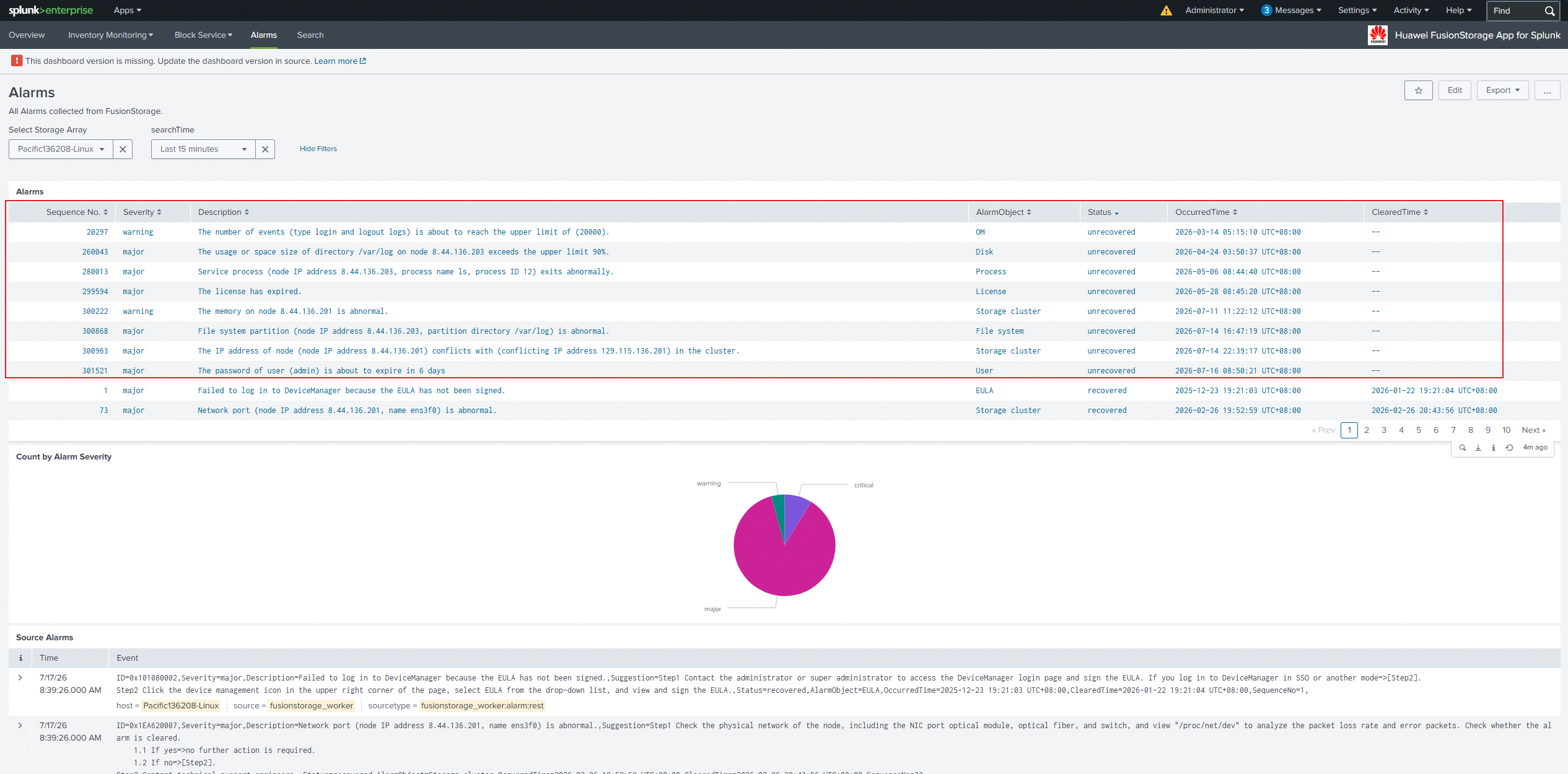
4. On the storage array, view the above metric items and compare them with the monitoring metrics on the Splunk platform. 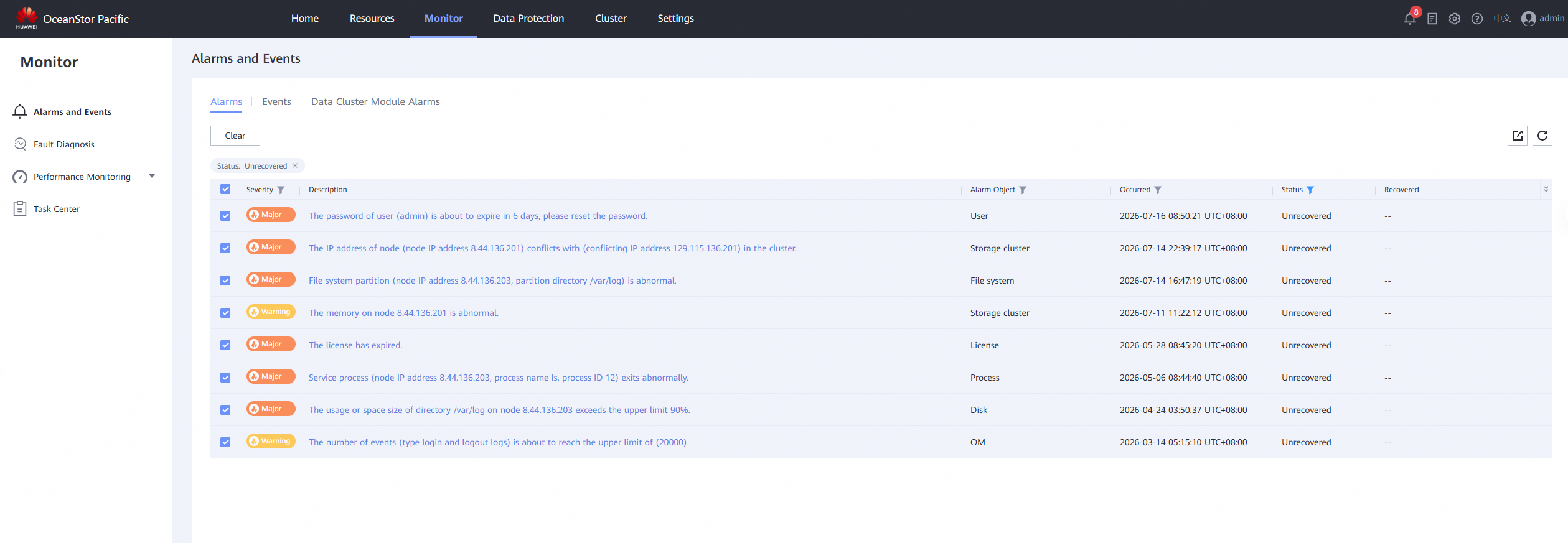
|
Test Conclusion | Passed |
