Huawei OceanStor Flash Storage and OpenText Archive Center
Interoperability Test Report
Axians Global All Rights Reserved
Executive Summary
Axians Global (“Axians”) assessed the interoperability of OpenText Archive Center software with Huawei OceanStor Dorado All-Flash Storage/OceanStor Capacity Flash Storage/OceanStor Hybrid Flash Storage. The goal of the assessment is to validate that OpenText Archive Center is interoperable with Huawei OceanStor Dorado All-Flash Storage/OceanStor Capacity Flash Storage/OceanStor Hybrid Flash Storage.
In the assessment, Axians has determined that OpenText Archive Center software archiving and retrieving jobs will function with Huawei OceanStor Dorado All-Flash Storage/OceanStor Capacity Flash Storage/OceanStor Hybrid Flash Storage for the following cases:
Test Case | Storage Involved | Protocol(s) Tested | Results |
Add the storage to the archive server as S3 target storage using Virtual Style | Huawei OceanStor Dorado All-Flash Storage/OceanStor Capacity Flash Storage/OceanStor Hybrid Flash Storage | S3 | Passed |
Add the storage to the archive server as S3 target storage using Path Style | Huawei OceanStor Dorado All-Flash Storage/OceanStor Capacity Flash Storage/OceanStor Hybrid Flash Storage | S3 | Passed |
Archive files to the S3 target storage through the archive server | Huawei OceanStor Dorado All-Flash Storage/OceanStor Capacity Flash Storage/OceanStor Hybrid Flash Storage | S3 | Passed |
Retrieve archived files from the S3 target storage through the archive server | Huawei OceanStor Dorado All-Flash Storage/OceanStor Capacity Flash Storage/OceanStor Hybrid Flash Storage | S3 | Passed |
All the interoperability test cases were completed. The Huawei OceanStor Dorado All-Flash Storage/OceanStor Capacity Flash Storage/OceanStor Hybrid Flash Storage (hereinafter referred to as Huawei OceanStor Flash Storage) supports connecting to the OpenText Archive Server through the S3 protocol as target storage. The system works as expected for file archiving, retrieving. With regards to the test results, the Huawei OceanStor Flash Storage and the OpenText Archive Server are well interoperable.
In this document, you will find details on the above test cases and the captured output. The procedures conducted in the tests are referenced from standard online documentation from OpenText Archive Center and Huawei.
1. Environment Configuration
1.1 Networking Diagram
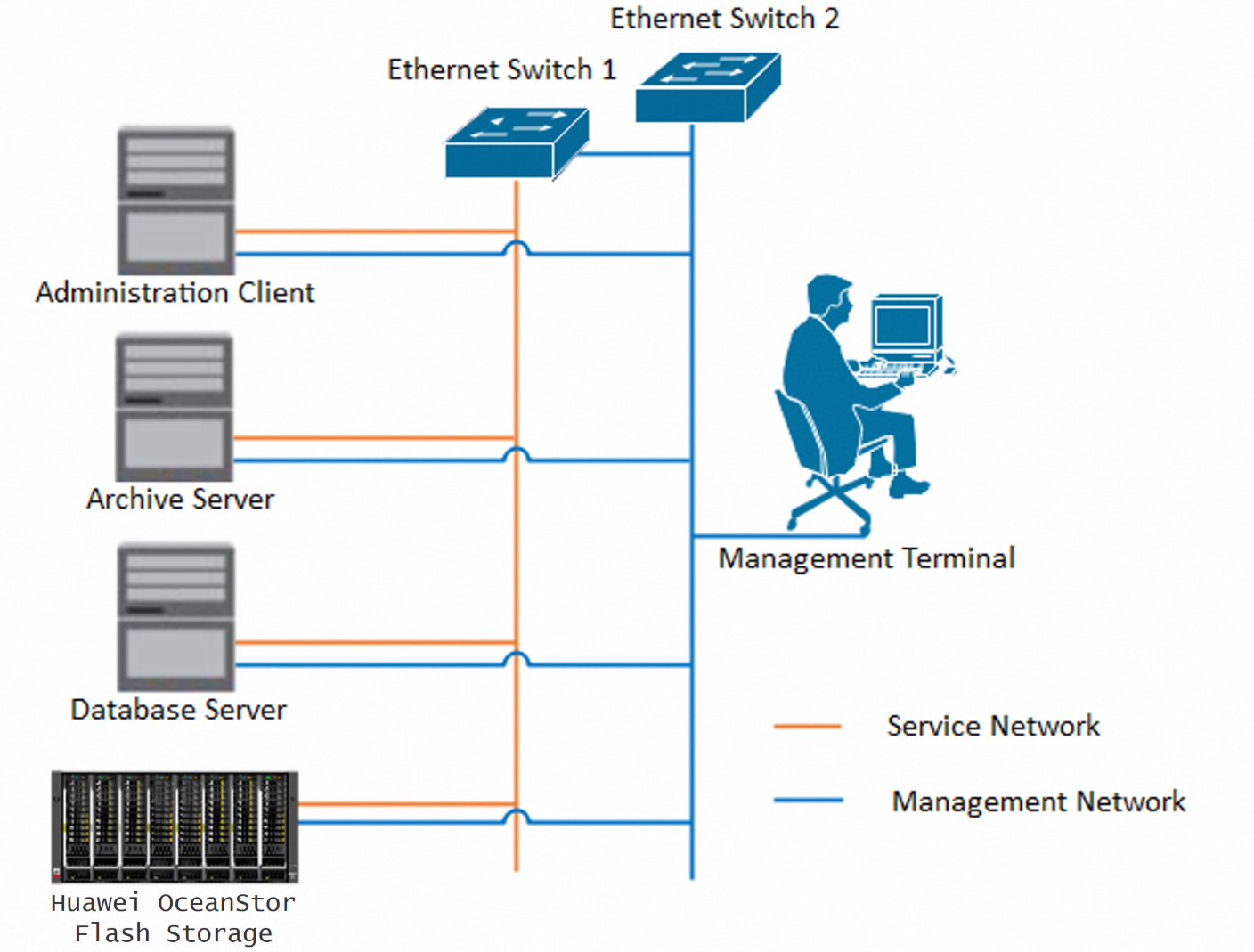
Figure 1.1 Huawei OceanStor Flash Storage and Archive Server Test Networking
Networking Description:
The management network and service network are connected to the Administration client, Archive server, Database Server, and Huawei OceanStor Flash Storage through switches.
1.2 Hardware and Software Configuration
1.2.1 Storage Configuration
Table 1-1 Huawei storage configuration table
Name | Model | Version | Quantity |
Storage | Huawei OceanStor Dorado All-Flash Storage/OceanStor Capacity Flash Storage/OceanStor Hybrid Flash Storage (hereinafter referred to as Huawei OceanStor Flash Storage) | V700R001C20 | 1 |
1.2.2 Matching Hardware Configuration
Table 1-2 Hardware Configuration
Name | description | Quantity |
Administration Client | Install the OpenText Administration Client software for management. | 1 |
Archive Server | Install the OpenText Archive Server software. | 1 |
Database Server | Install the SQL server and hold the configuration information for OpenText Archive Server. | 1 |
Ethernet switch | Ethernet switches for management networking and service networking. | 2 |
1.2.3 Test Software and Tools
Table 1-3 Test Software and Tool List
Software Name | Version | Quantity |
Administration Client | 22.4 | 1 |
Archive Server | 22.4 | 1 |
SQL Server | SQL Server 2019 | 1 |
Operation System | Windows 2019 | 1 |
Software Version:
SQL Server:

Windows:
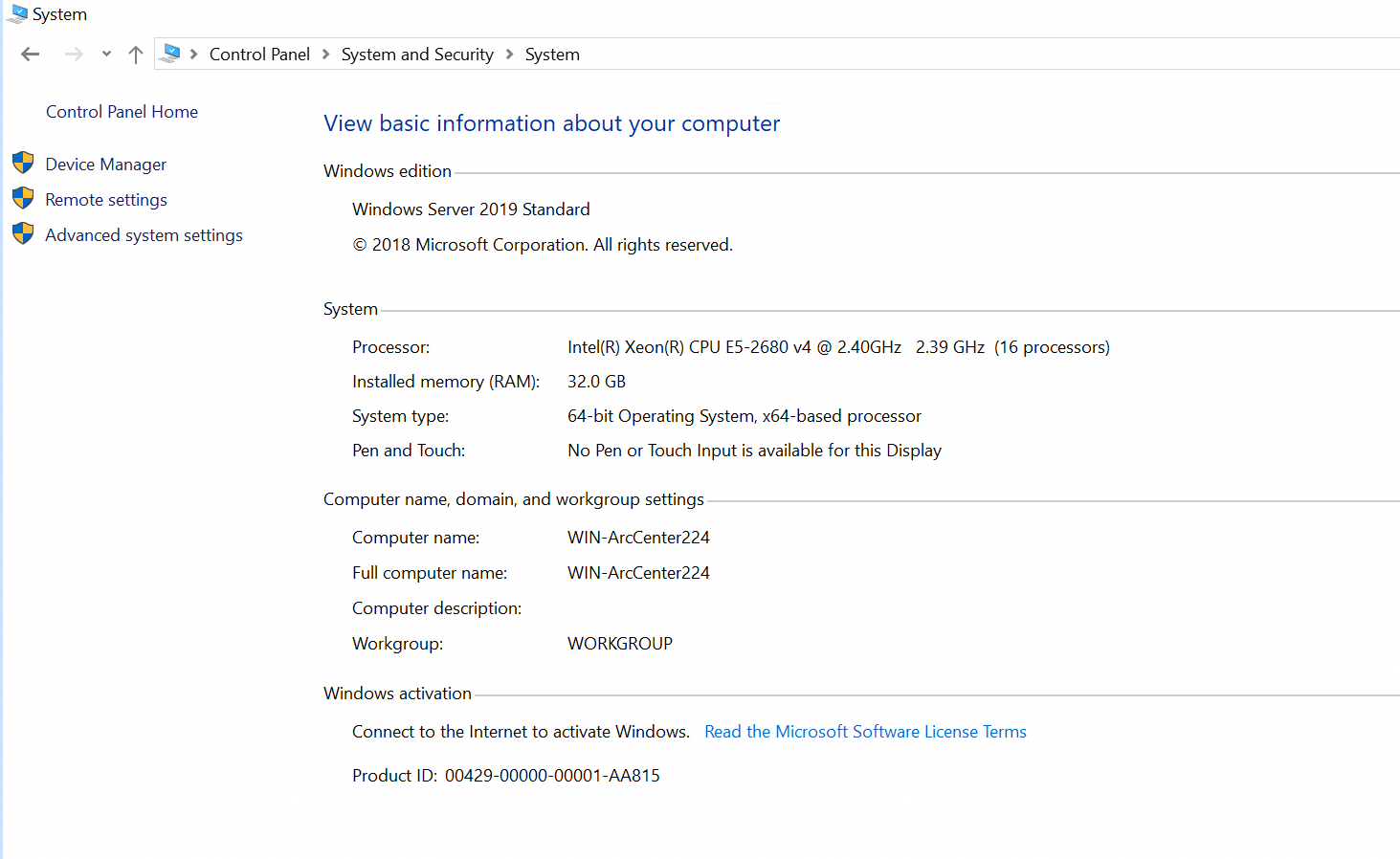
Archive Server and Administrator Client

2. Test Preparation
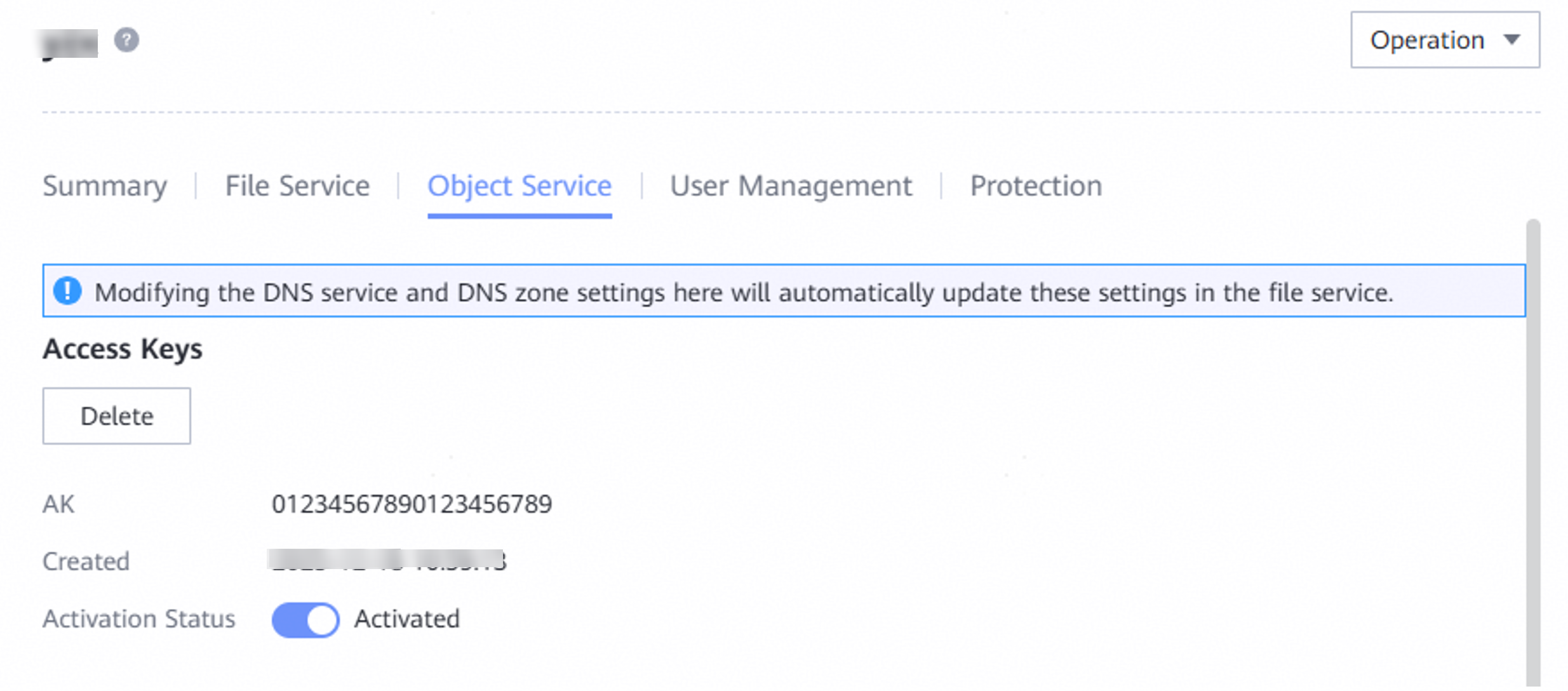
2.1 Create the Account and save the AK&SK on the Huawei OceanStor Flash Storage
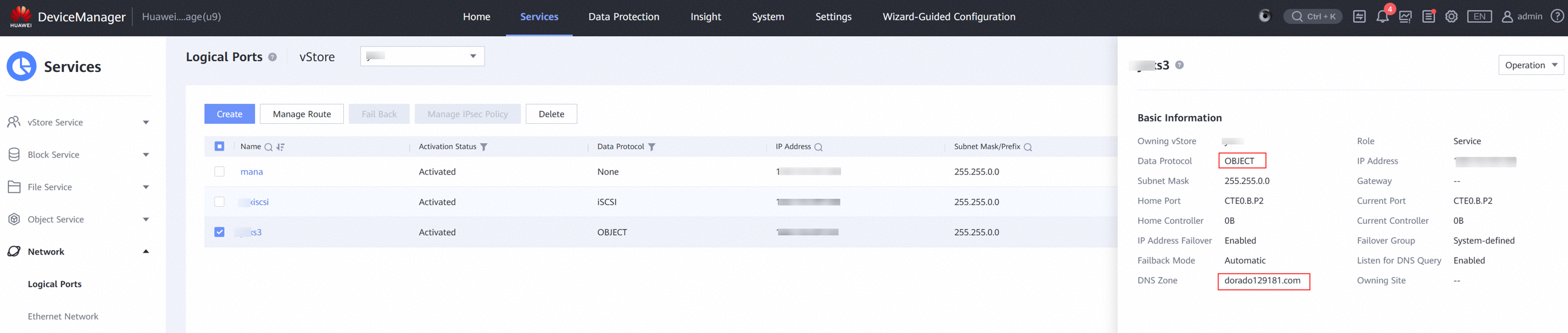
2.2 Create the Service Network on the Huawei OceanStor Flash Storage
2.3 Create the Bucket on the Huawei OceanStor Flash Storage

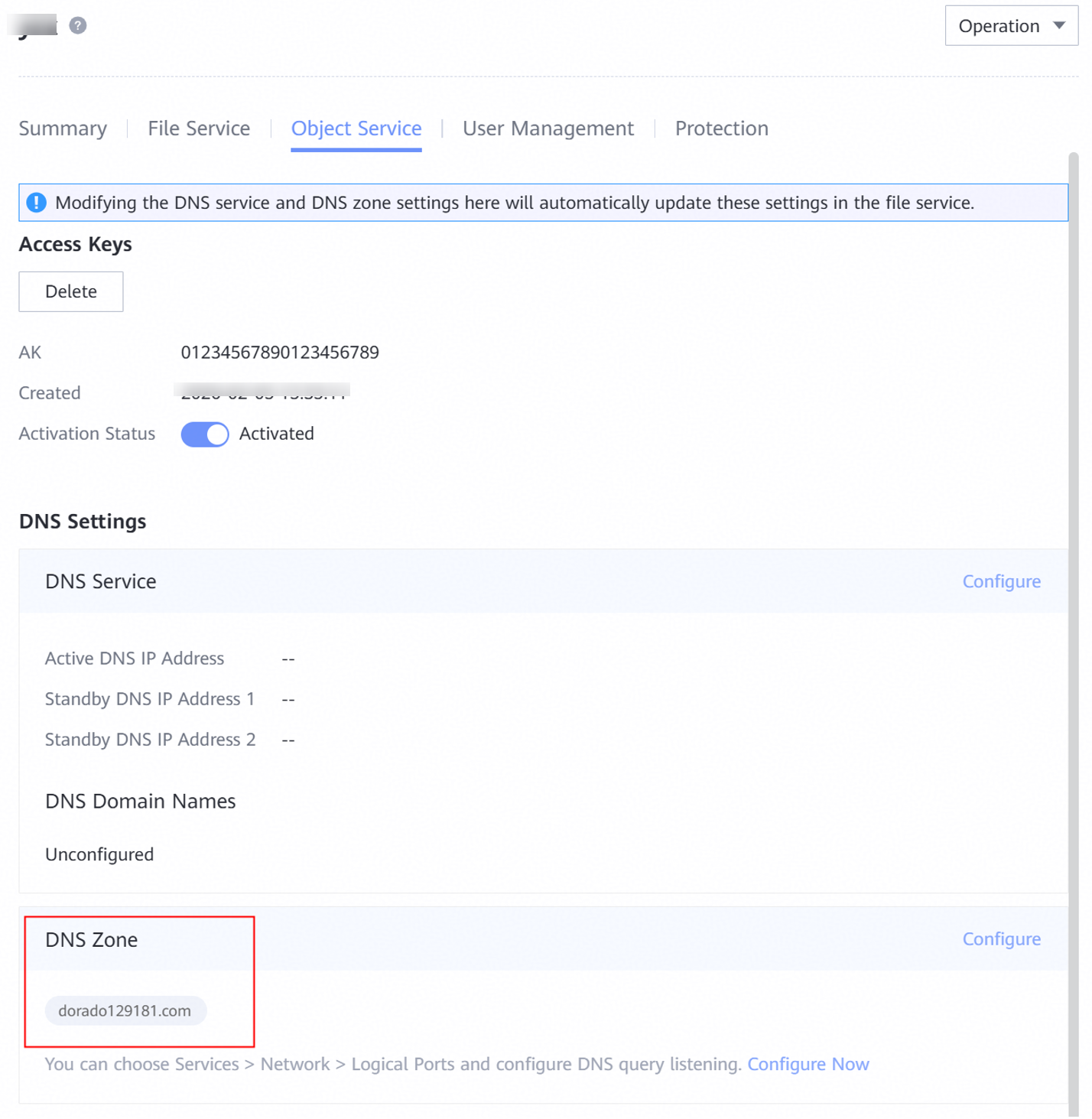
2.4 Configure the DNS on the Huawei OceanStor Flash Storage
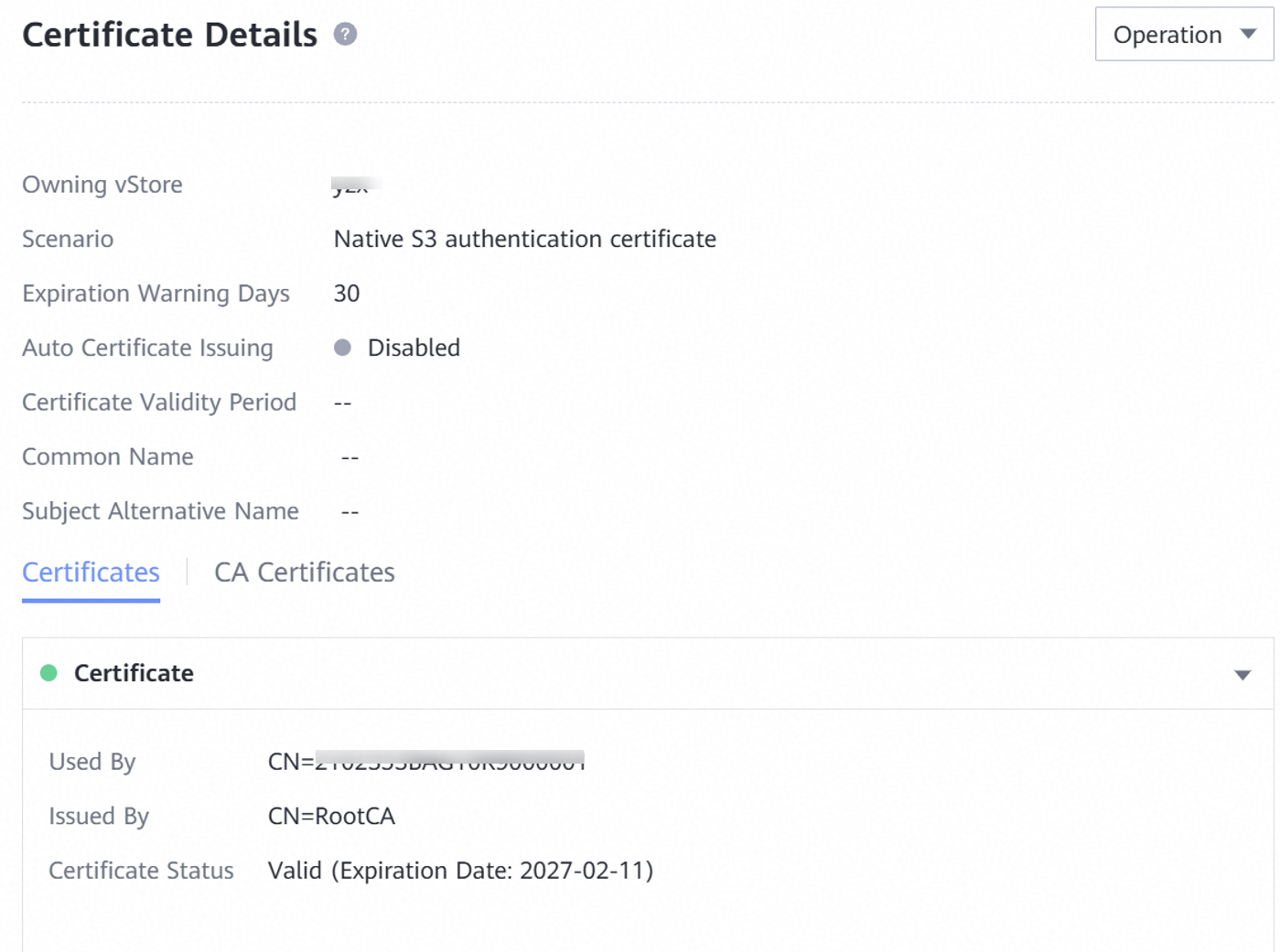
2.5 Configure the SSL certificate on the Huawei OceanStor Flash Storage
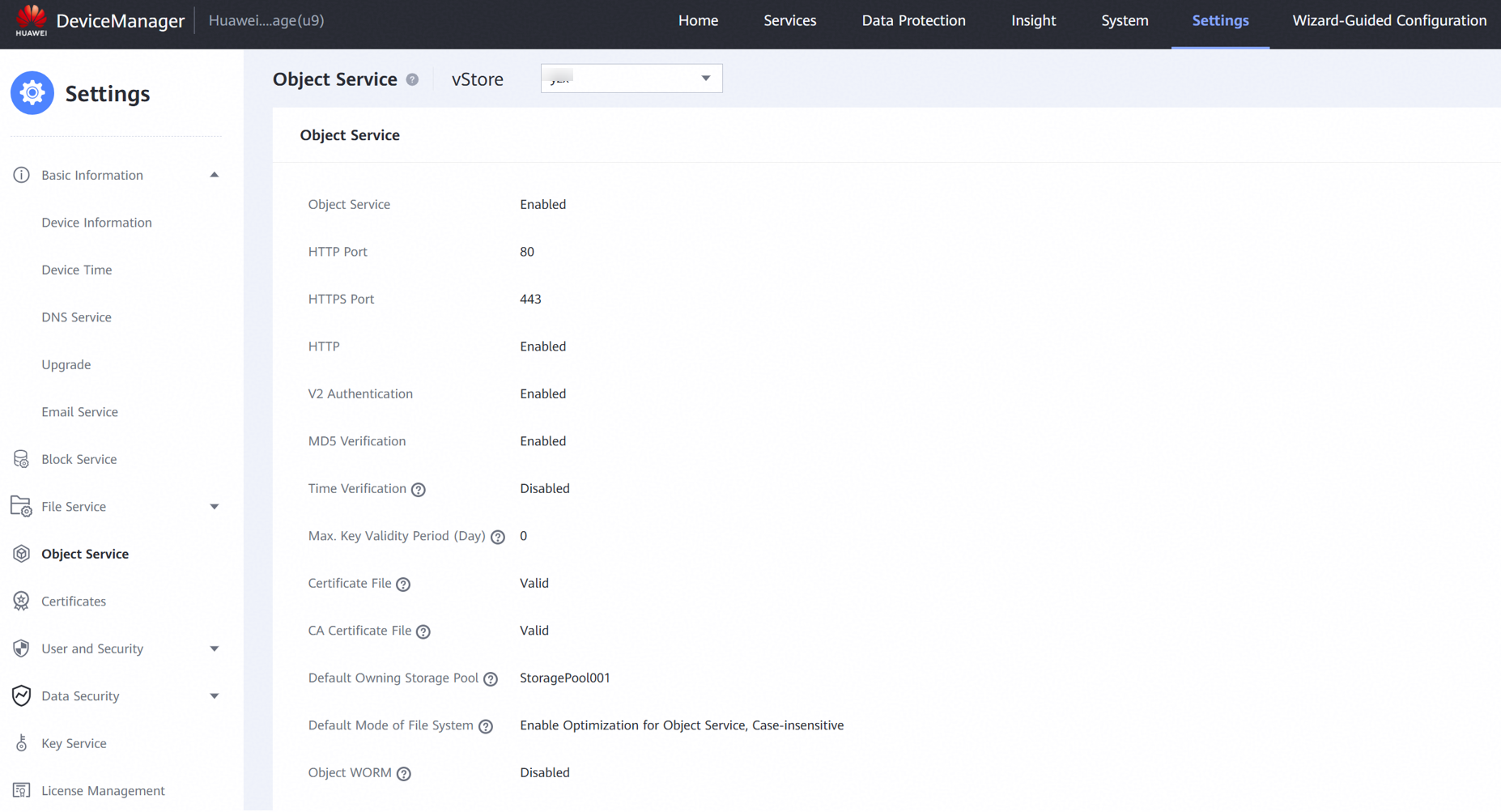
2.1 Configure the object service on the Huawei OceanStor Flash Storage
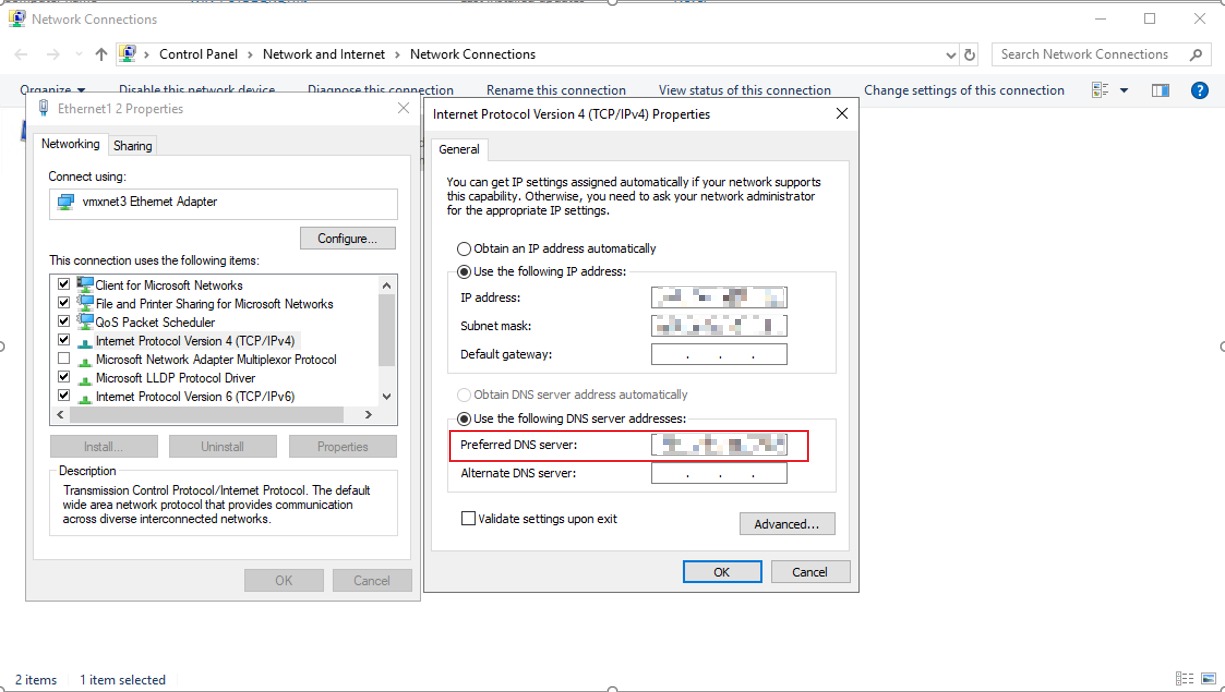
2.2 Configure DNS on the Archive server
3. Verification
3.1 Add the storage to the archive server as S3 target storage using Virtual Style
Test Purpose | To verify that the storage can be added to the archive server as S3 target storage using Virtual style. |
Test Networking | Huawei OceanStor Flash Storage and Archive Server Test Networking |
Prerequisites |
|
Test Procedure |
|
Expected Result |
|
Test Results | 1. On the administration client, add the archive server. 1.1 Input the IP address of the archive server in the Server name field. And input the Port and Display name. Then click OK. 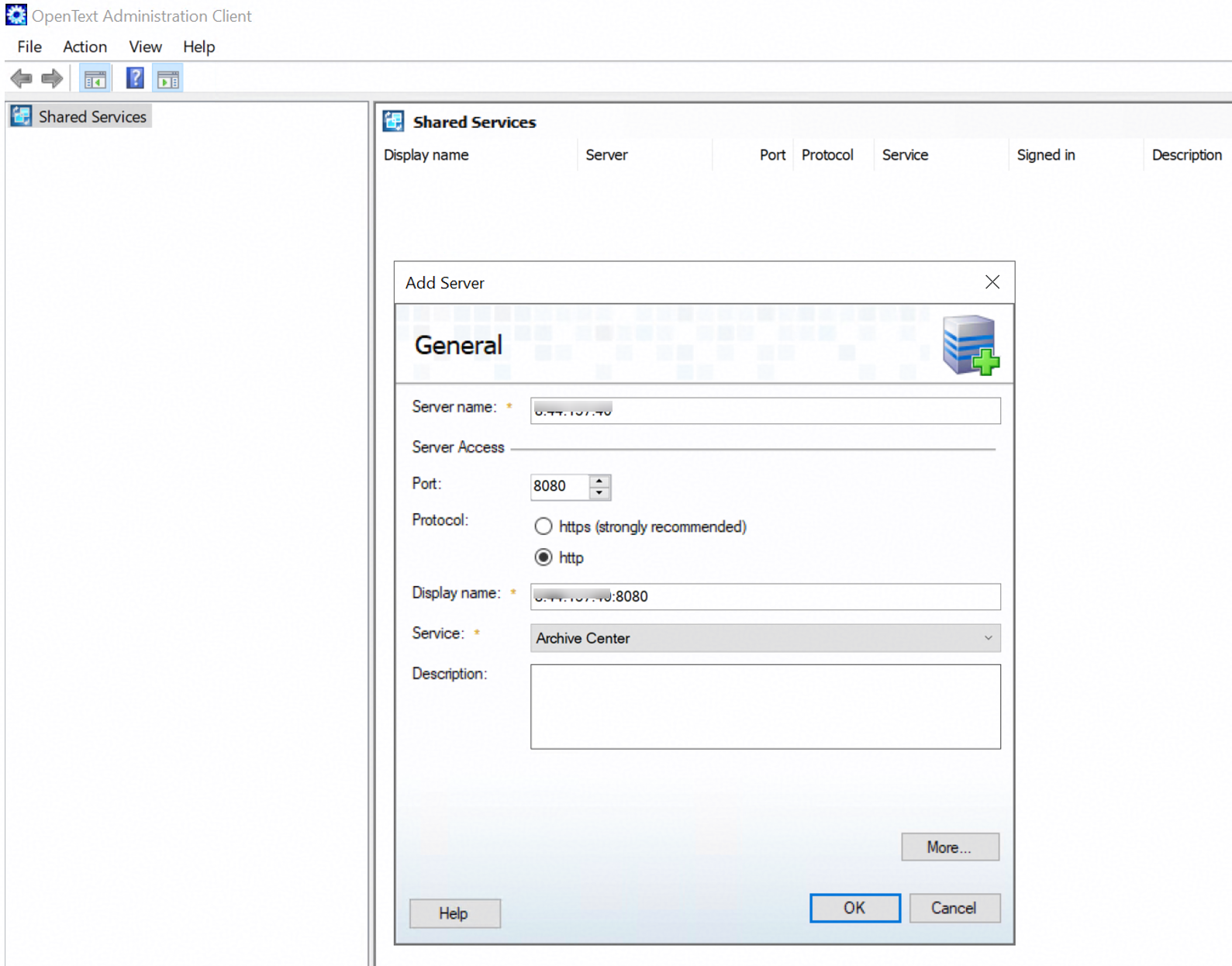
1.2 Sign in to the archive server created in the previous step. 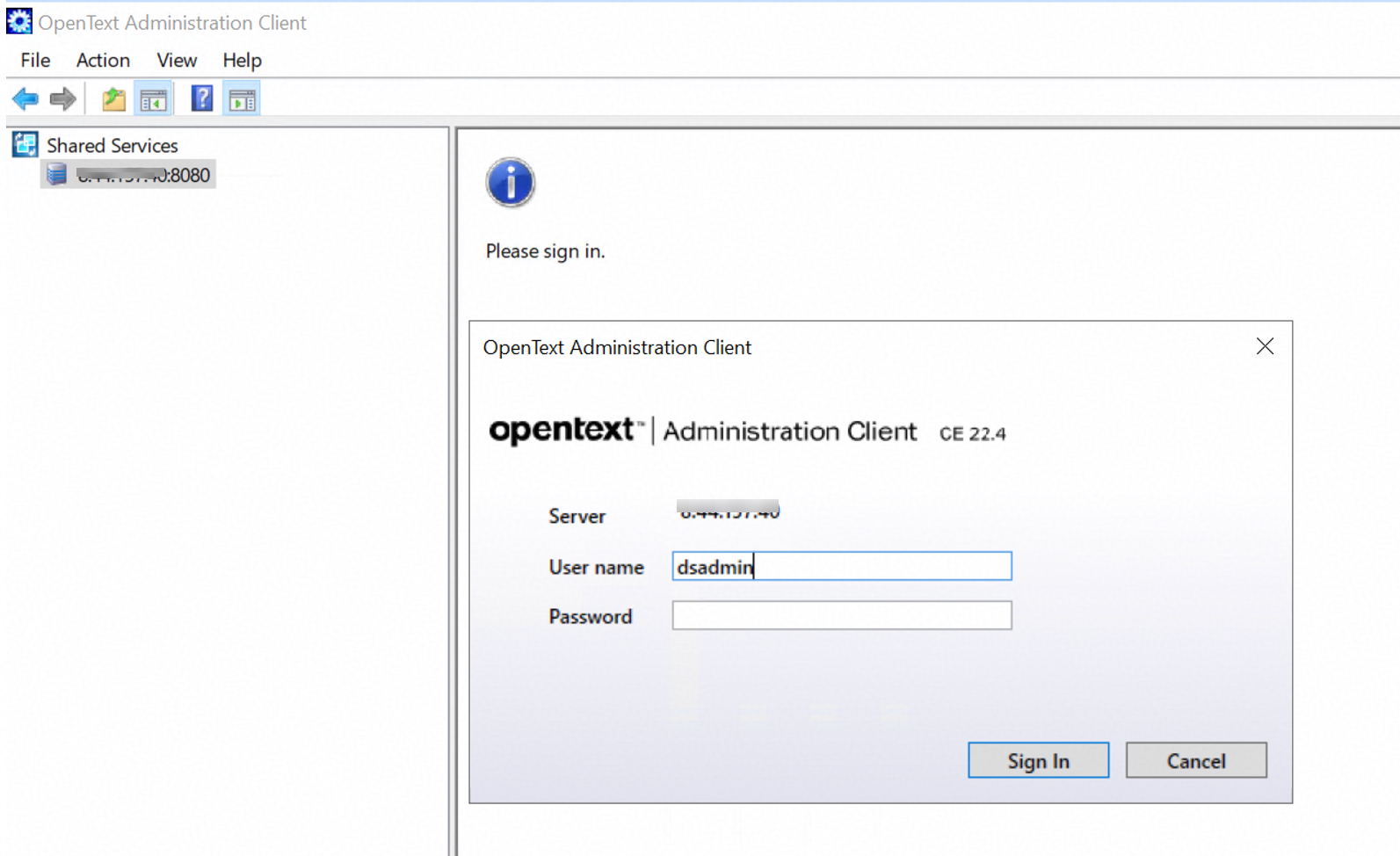
2. Add the storage to the archive server through the S3 protocol. 2.1 Right-click Storage Devices and choose Add Storage Device. 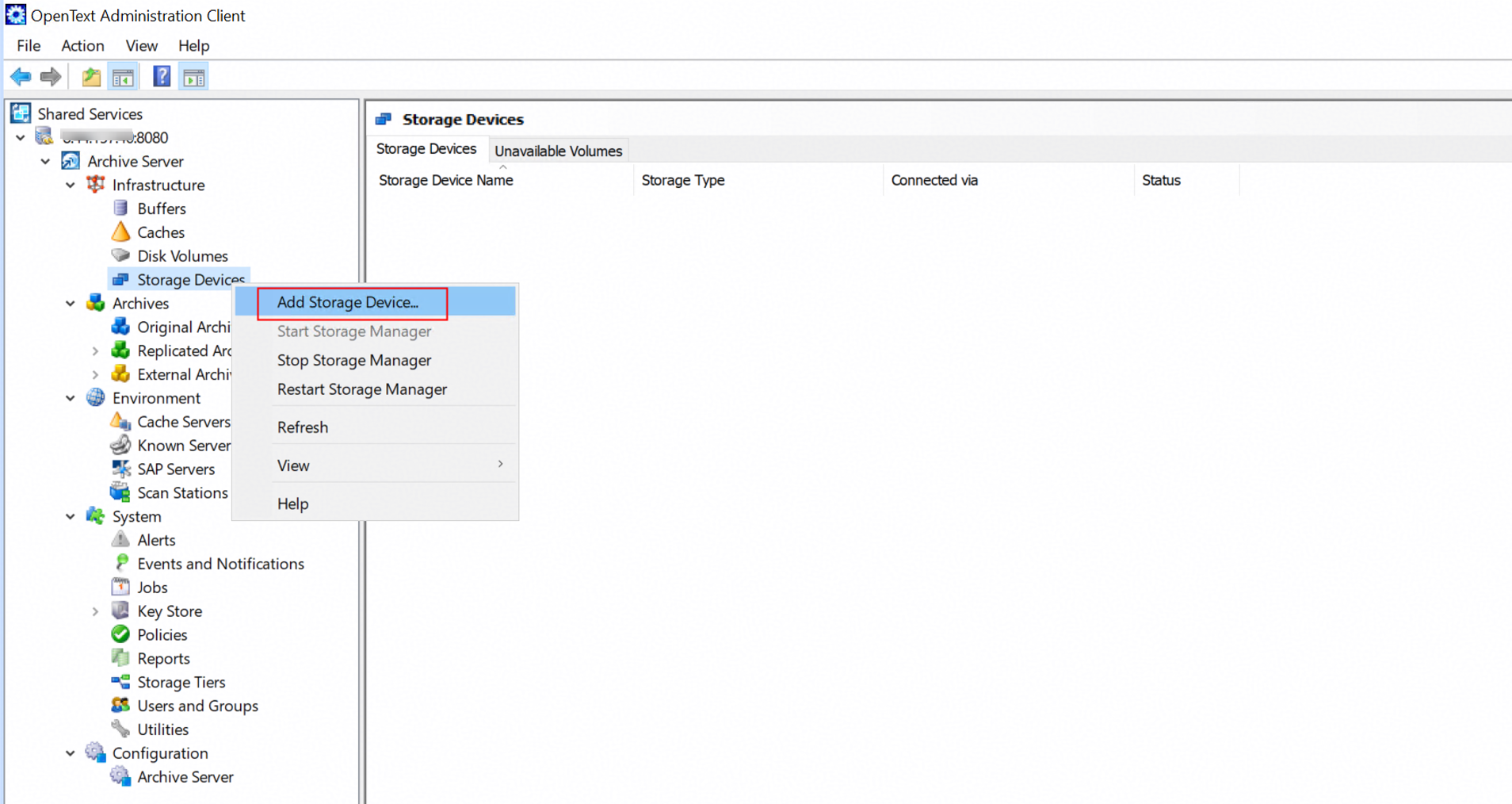
2.2 Input the Storage Device name, and select Simple Storage Service(S3) as the Storage type. 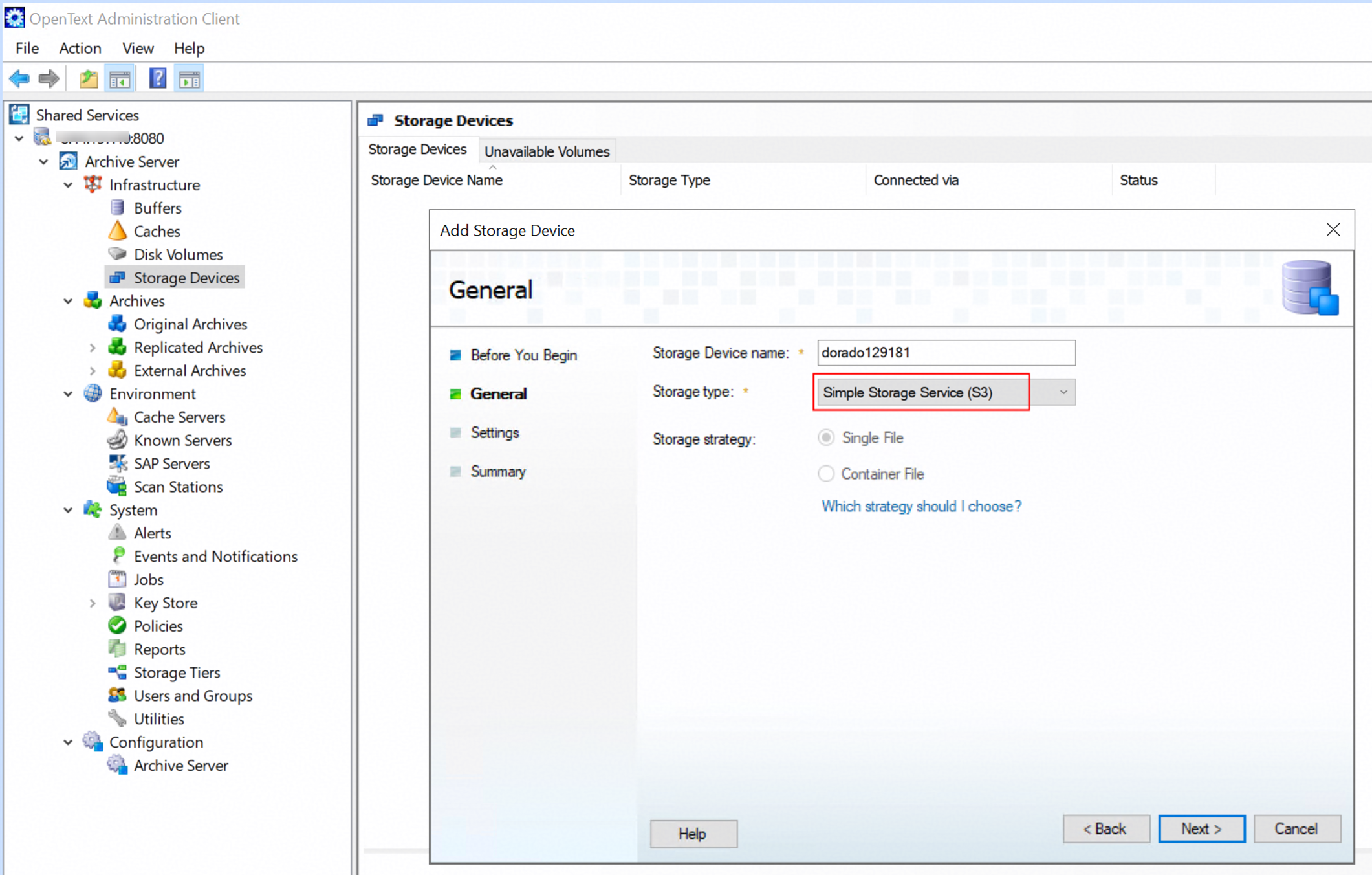
2.3 Input the domain name of the storage in the Service Address field, and choose the RootCA certificate exported from the storage as the SSL certificates. Select the VIRTUAL_HOST_STYLE in the Bucket Address Style field. Configure the Signature Version to 4 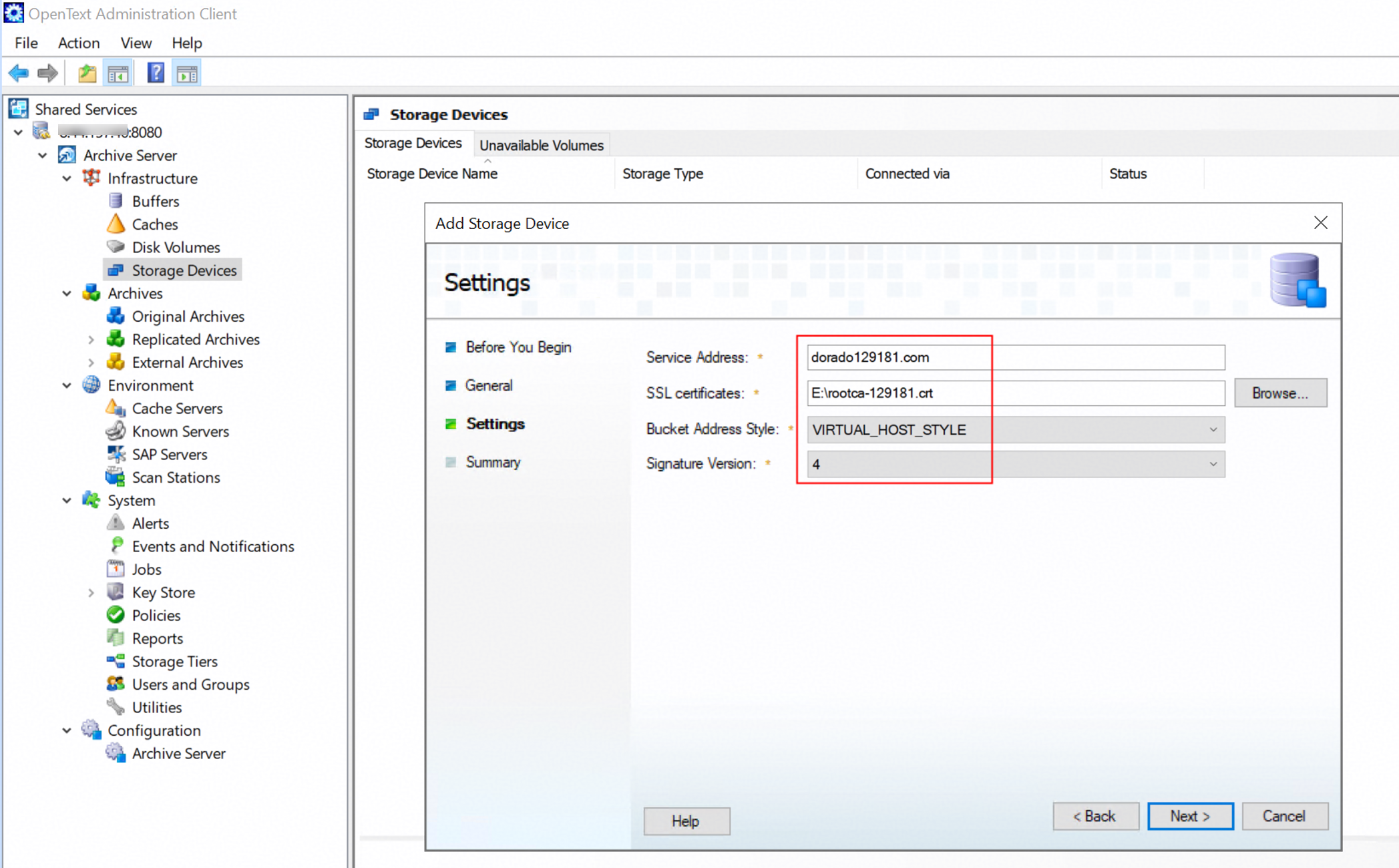
2.4 Click Finish to complete Add Storage Device. 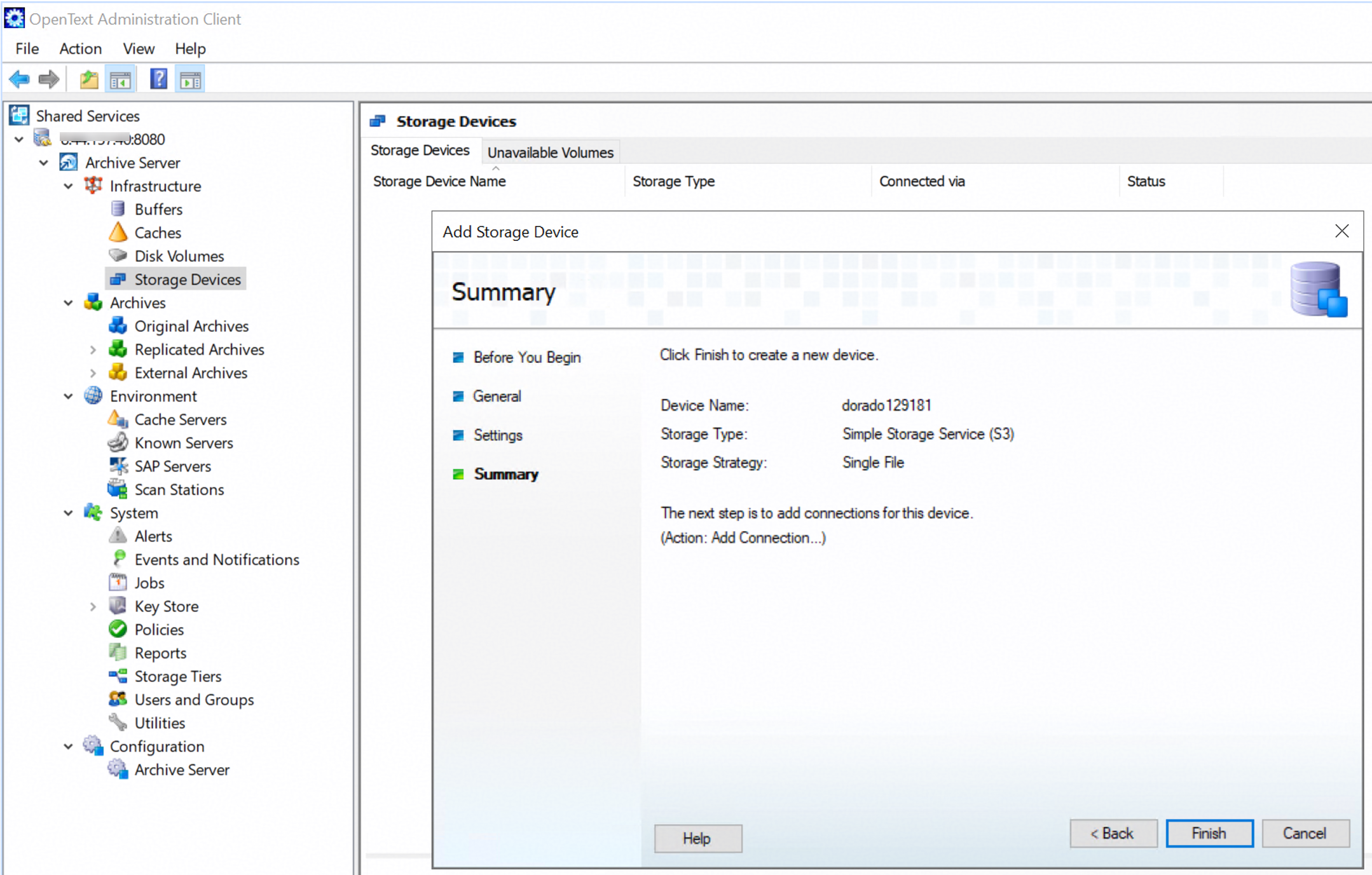 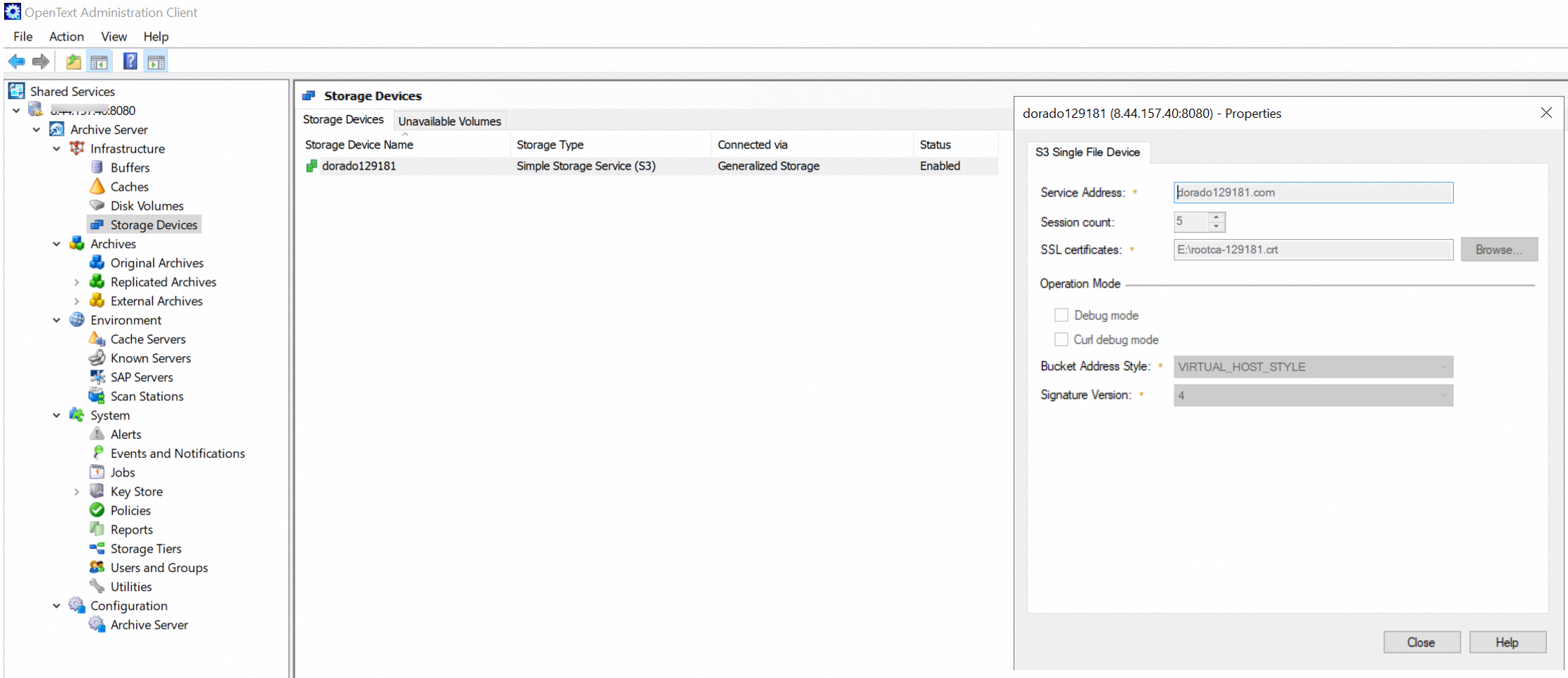
3. Test the connection between the storage and the archive server. 3.1 Right-click the storage device created in the previous step, and choose Add connection. 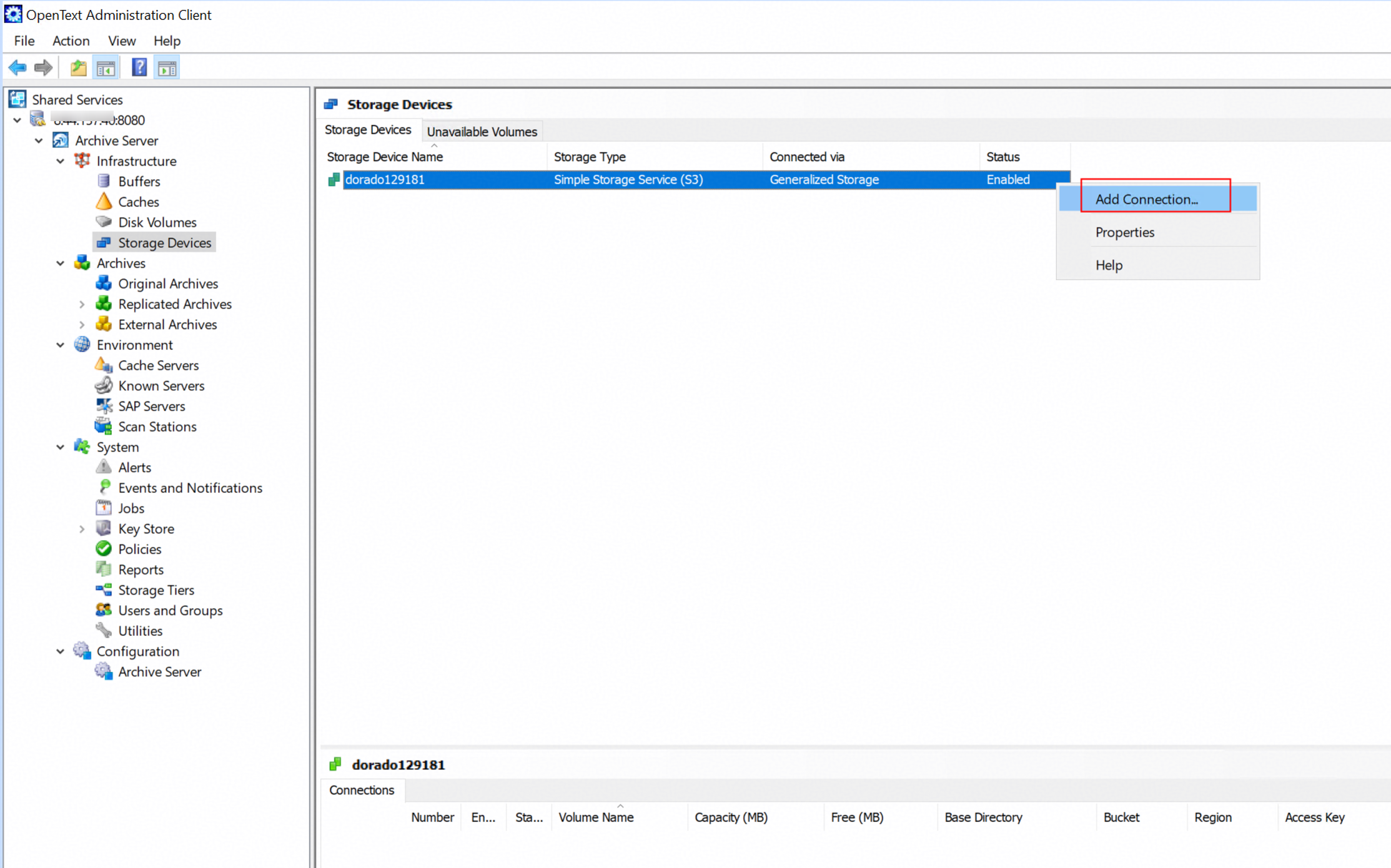
3.2 Input a name in the Bucket field. Select defaultRegion in the Region field. Input the Access key and Secret key of the storage. 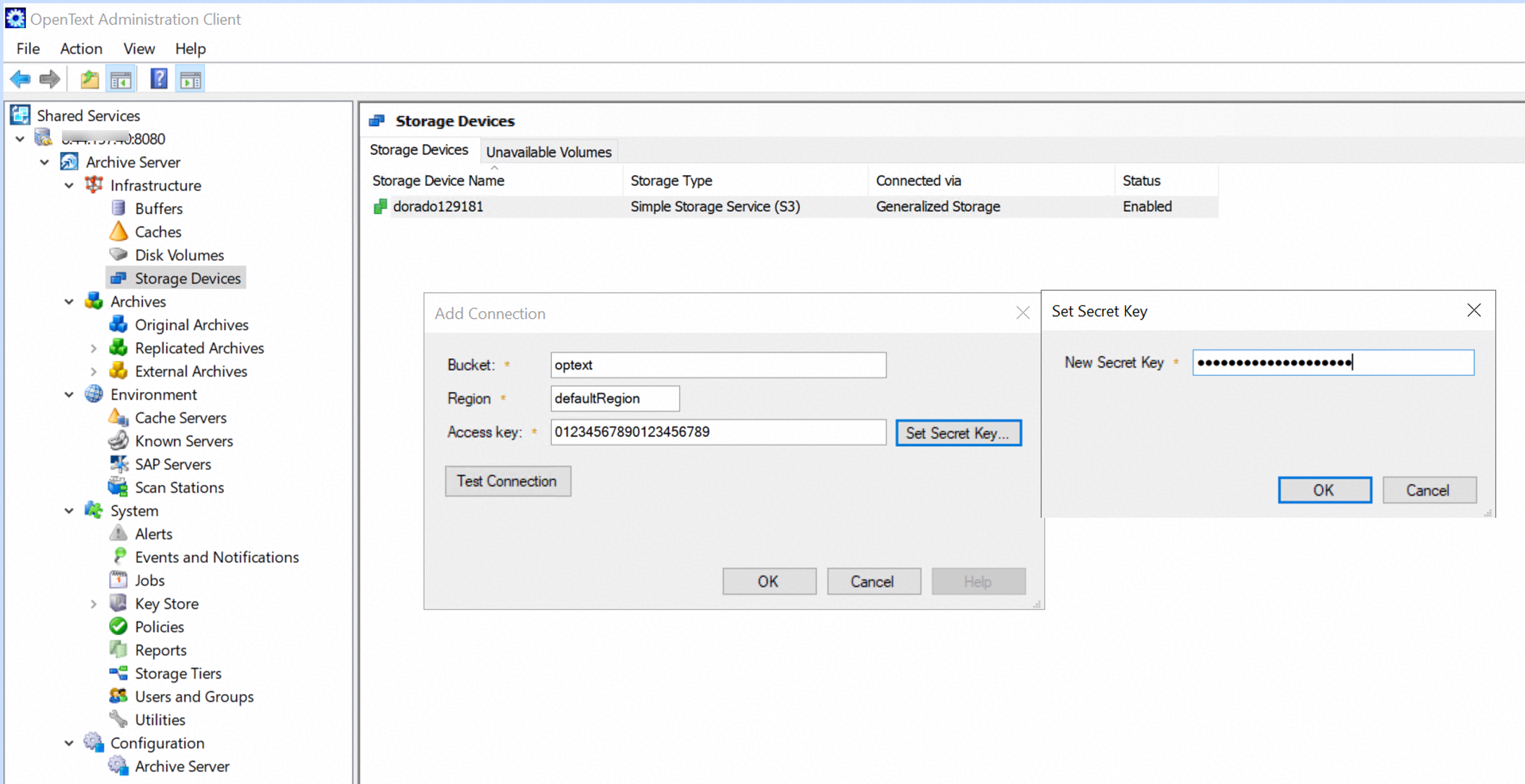
3.3 Click Test Connection and the result is OK. 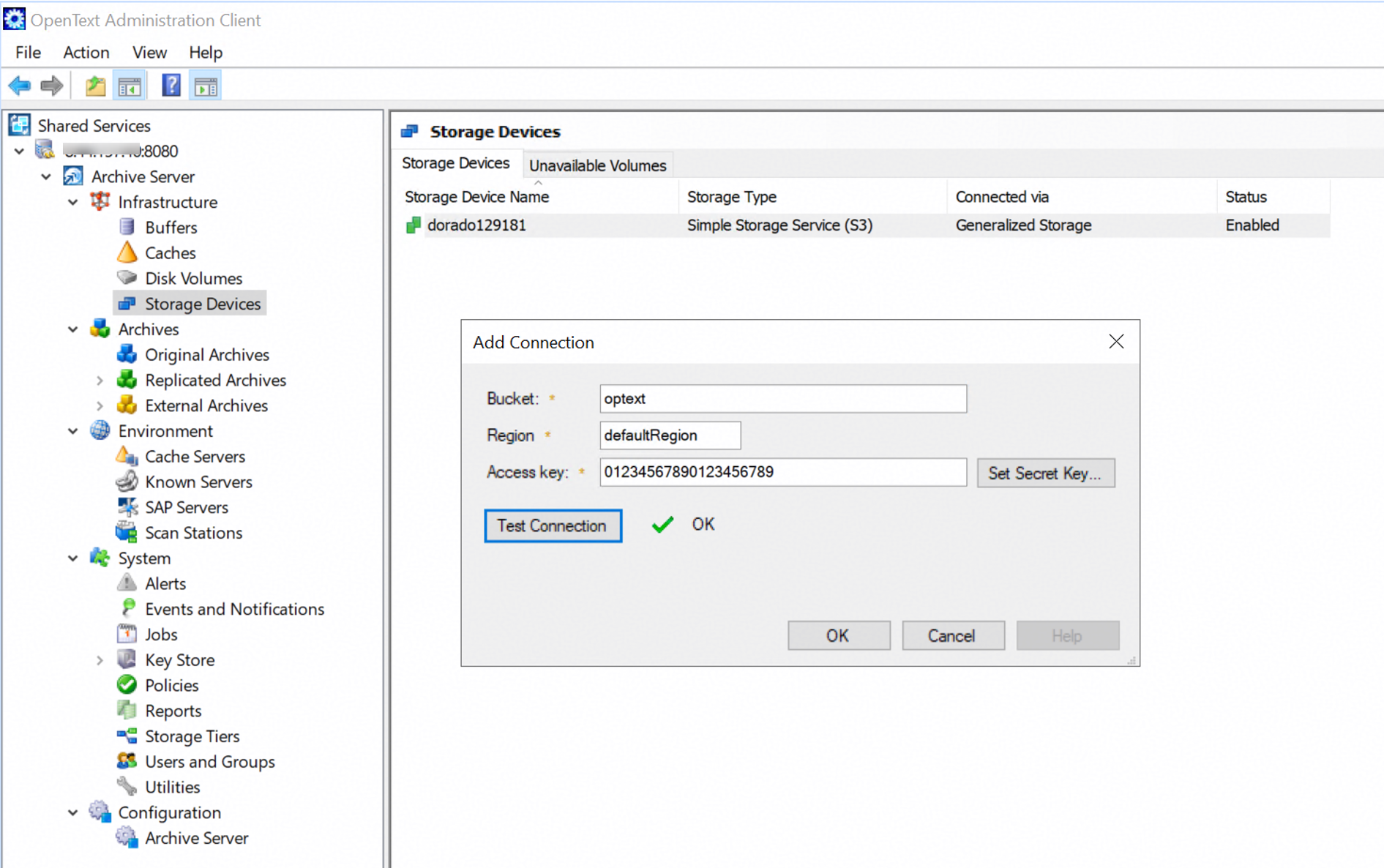
4.Add the connection for the storage device. 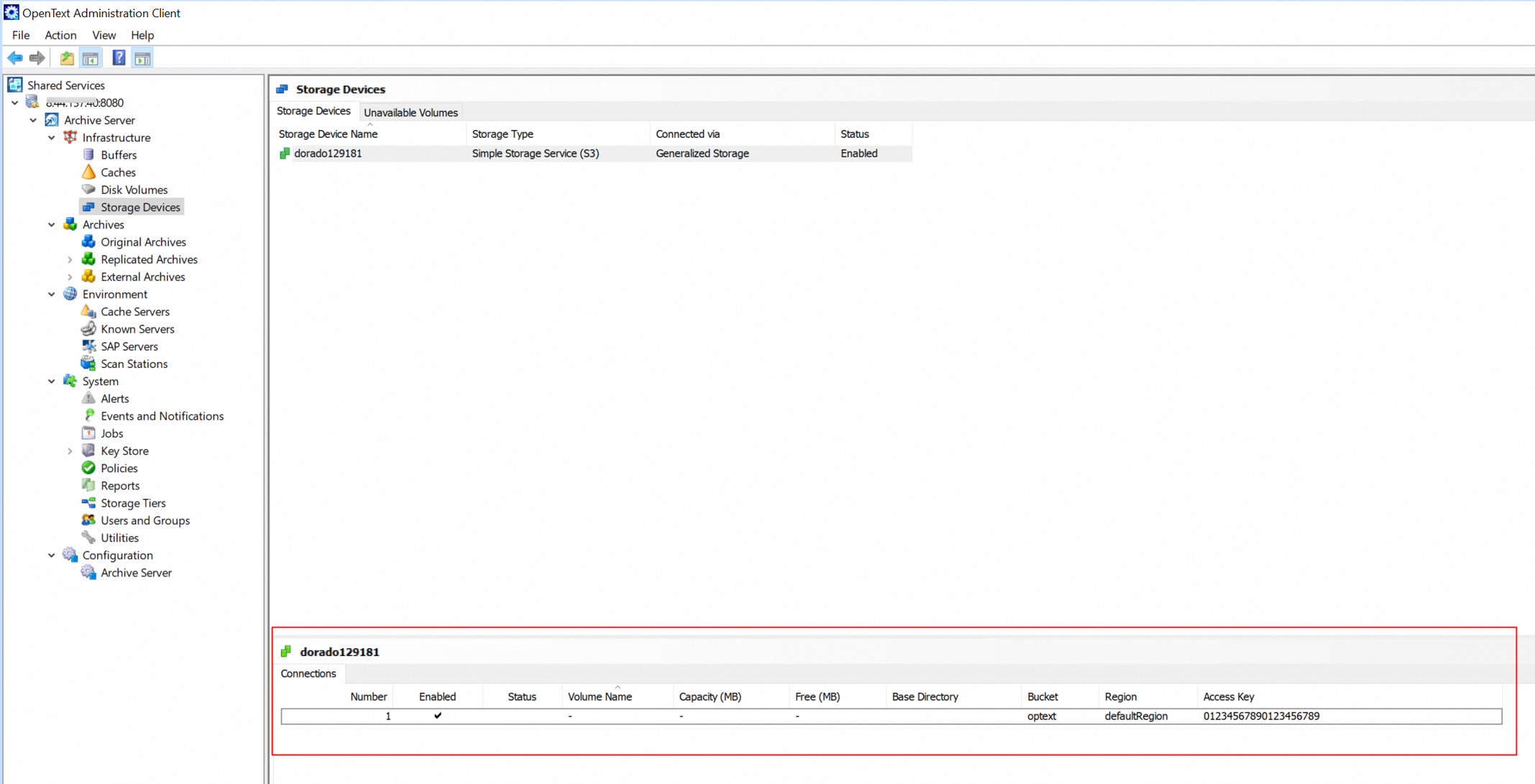
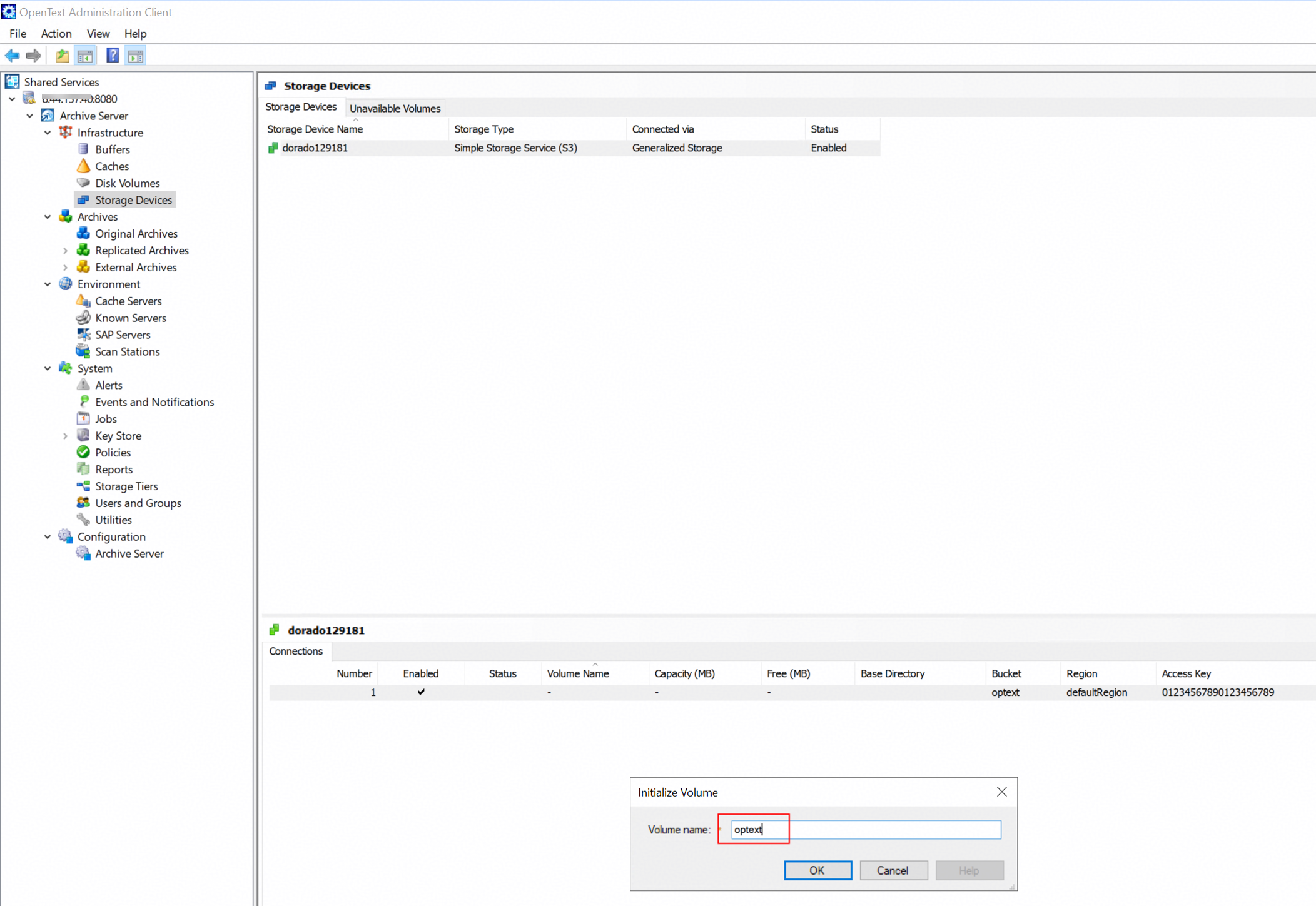
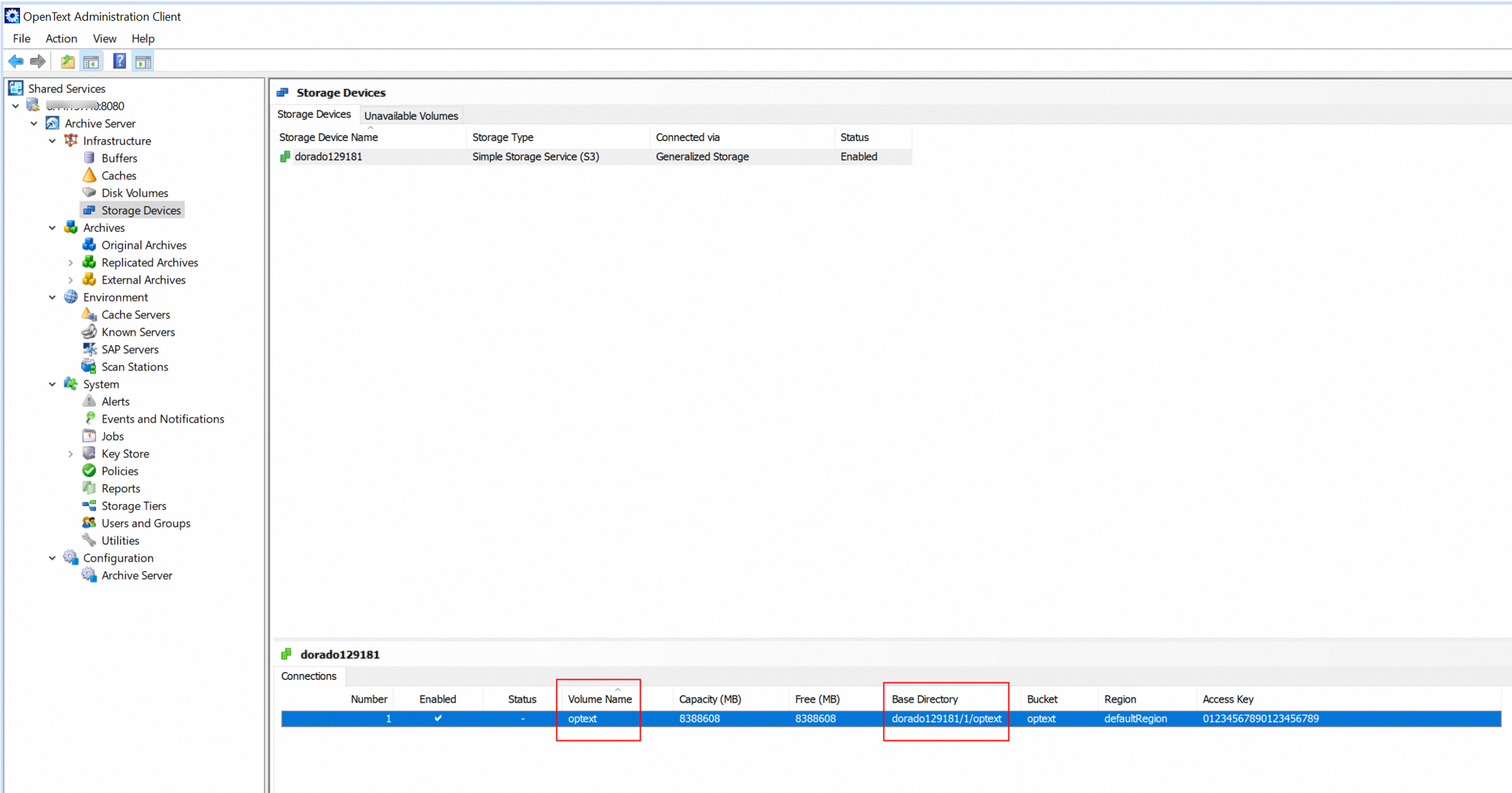
5. Initialize volume for the connection. 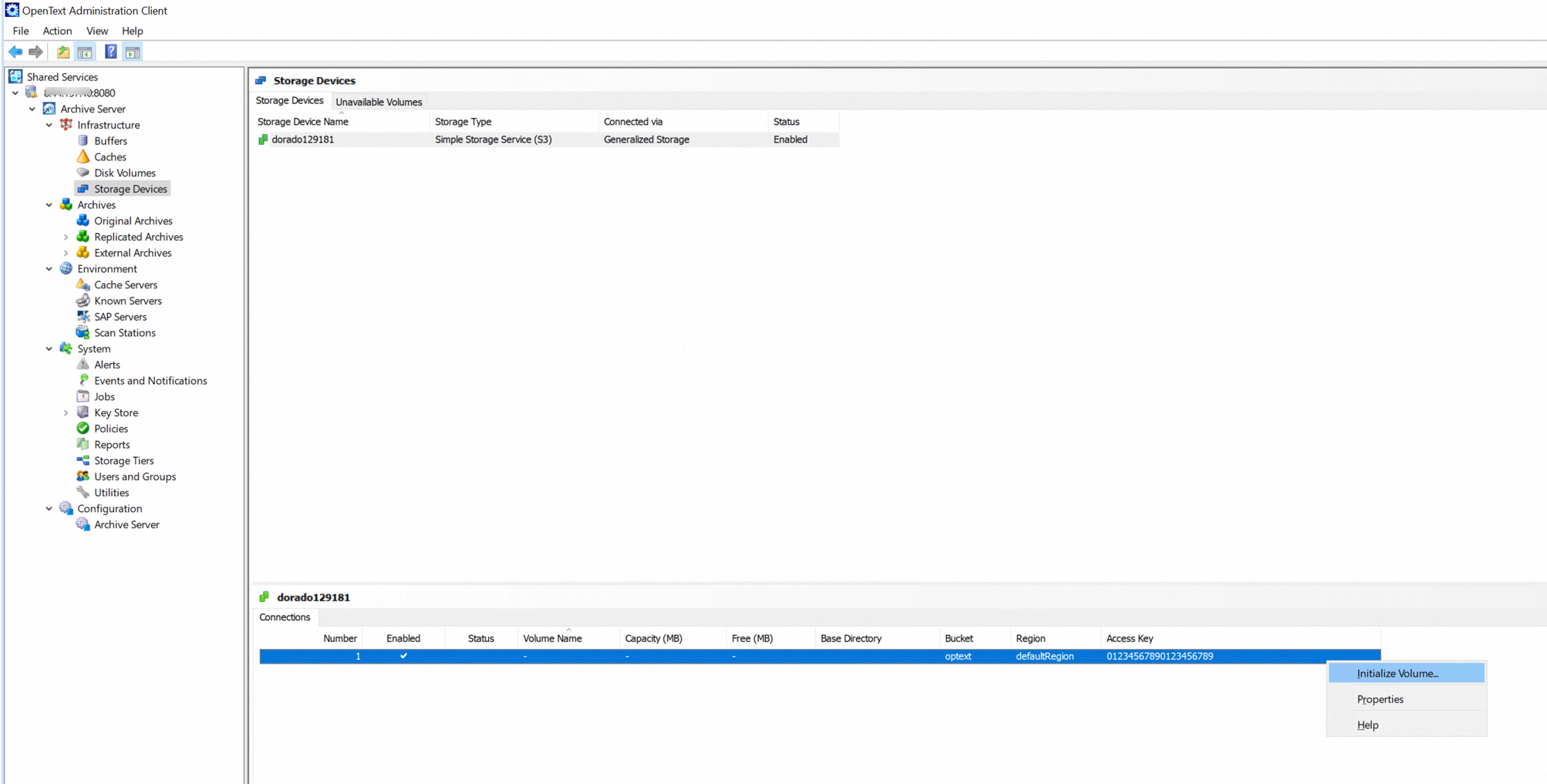
|
Test Conclusion | Passed |
3.2 Add the storage to the archive server as S3 target storage using Path Style
Test Purpose | To verify that the storage can be added to the archive server as S3 target storage using Path Style. |
Test Networking | Huawei OceanStor Flash Storage and Archive Server Test Networking |
Prerequisites |
|
Test Procedure |
|
Expected Result |
|
Test Results |
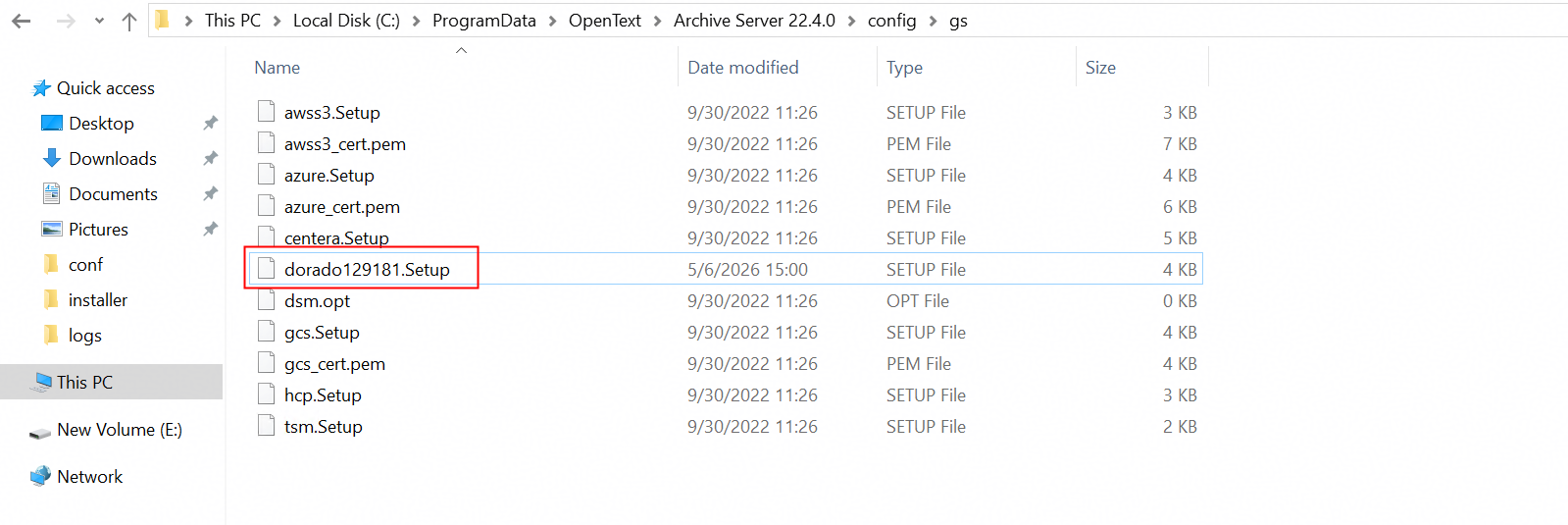 1.2 Check the OceanStor129181.setup file. 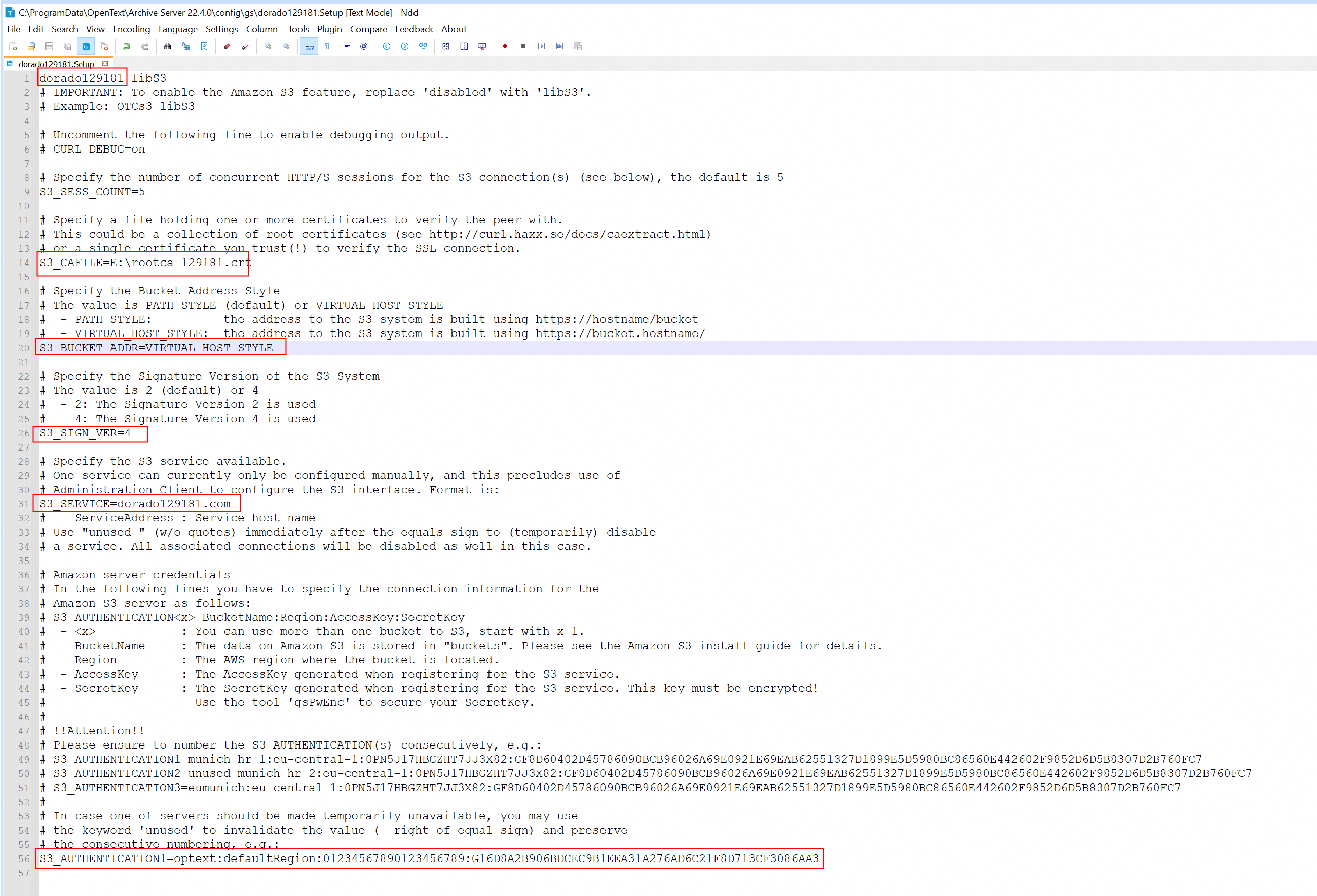 1.3 Modify the OceanStor129181.setup file and set the S3_BUCKET_ADDR parameter to PATH_STYLE. Save the changes. 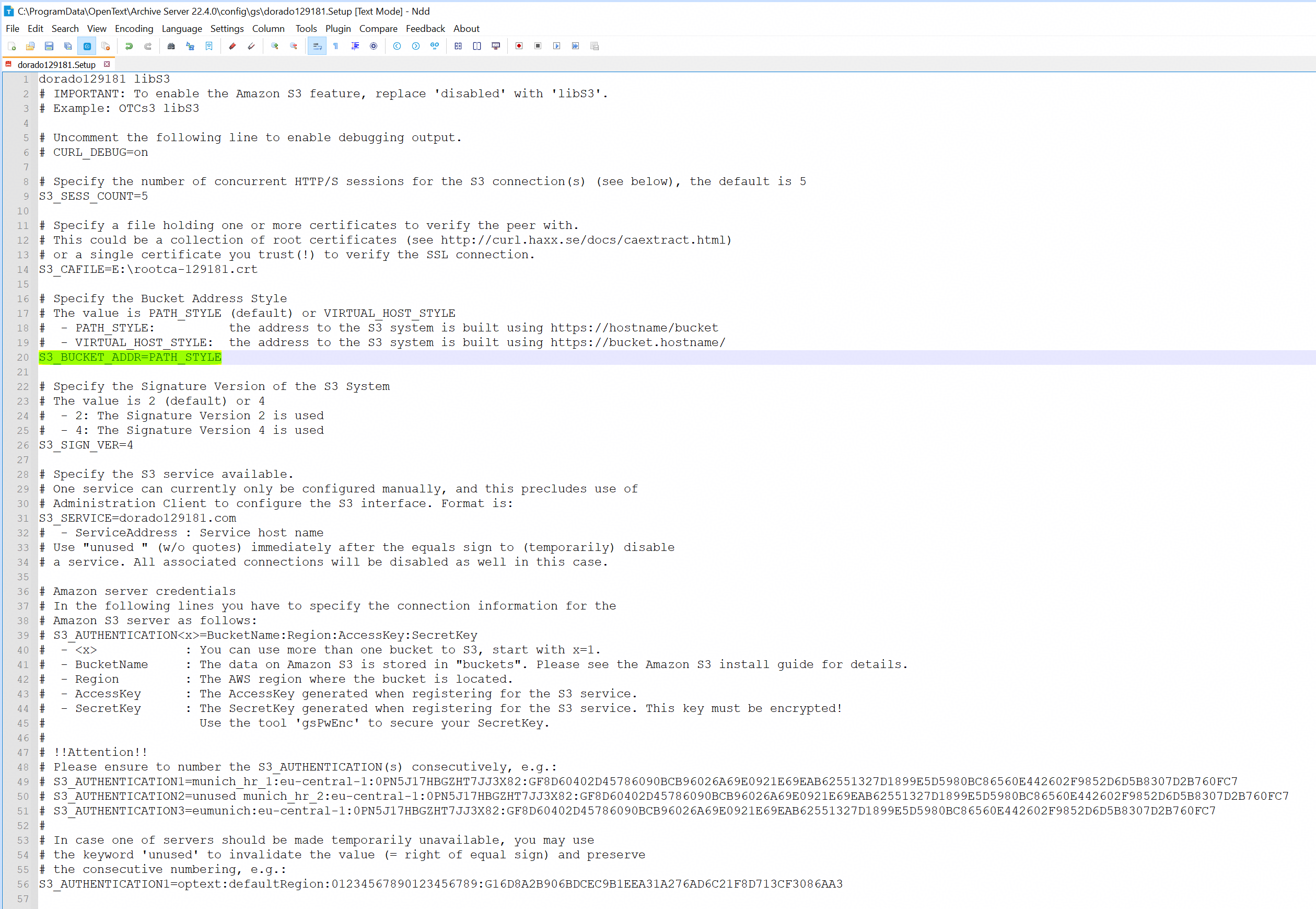 1.4 Refresh the storage device on the archive server and check the property of the storage device.
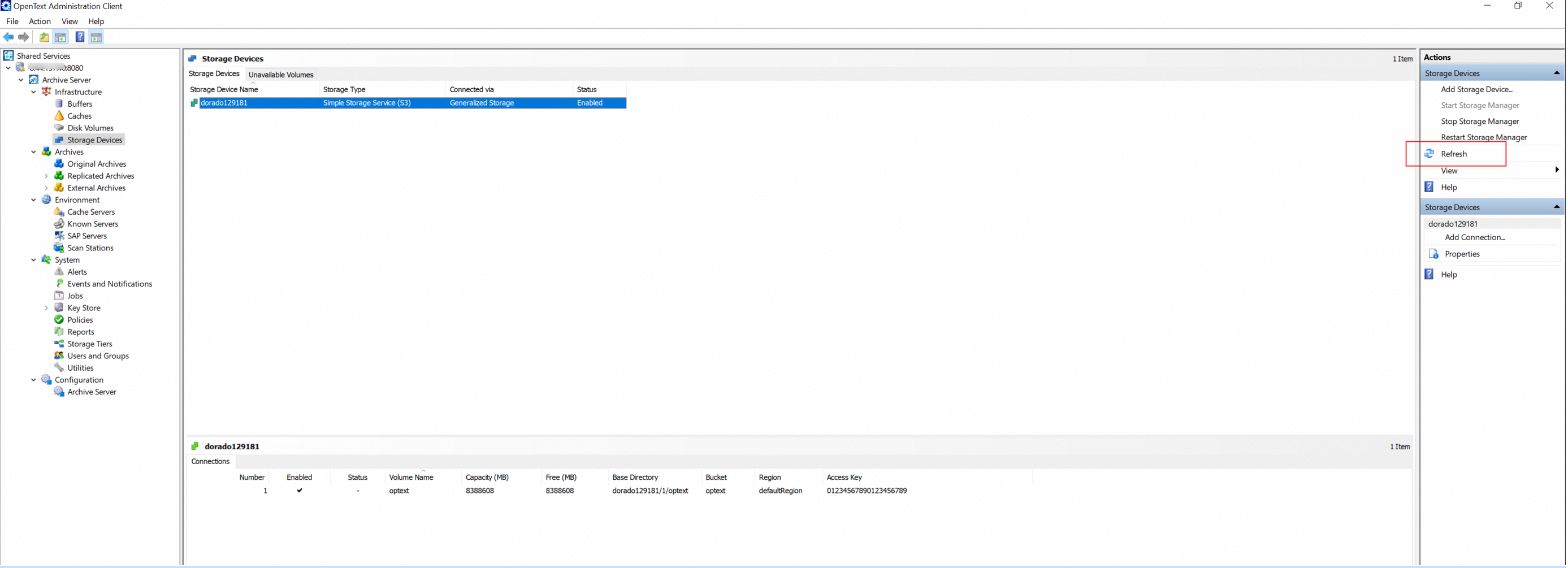 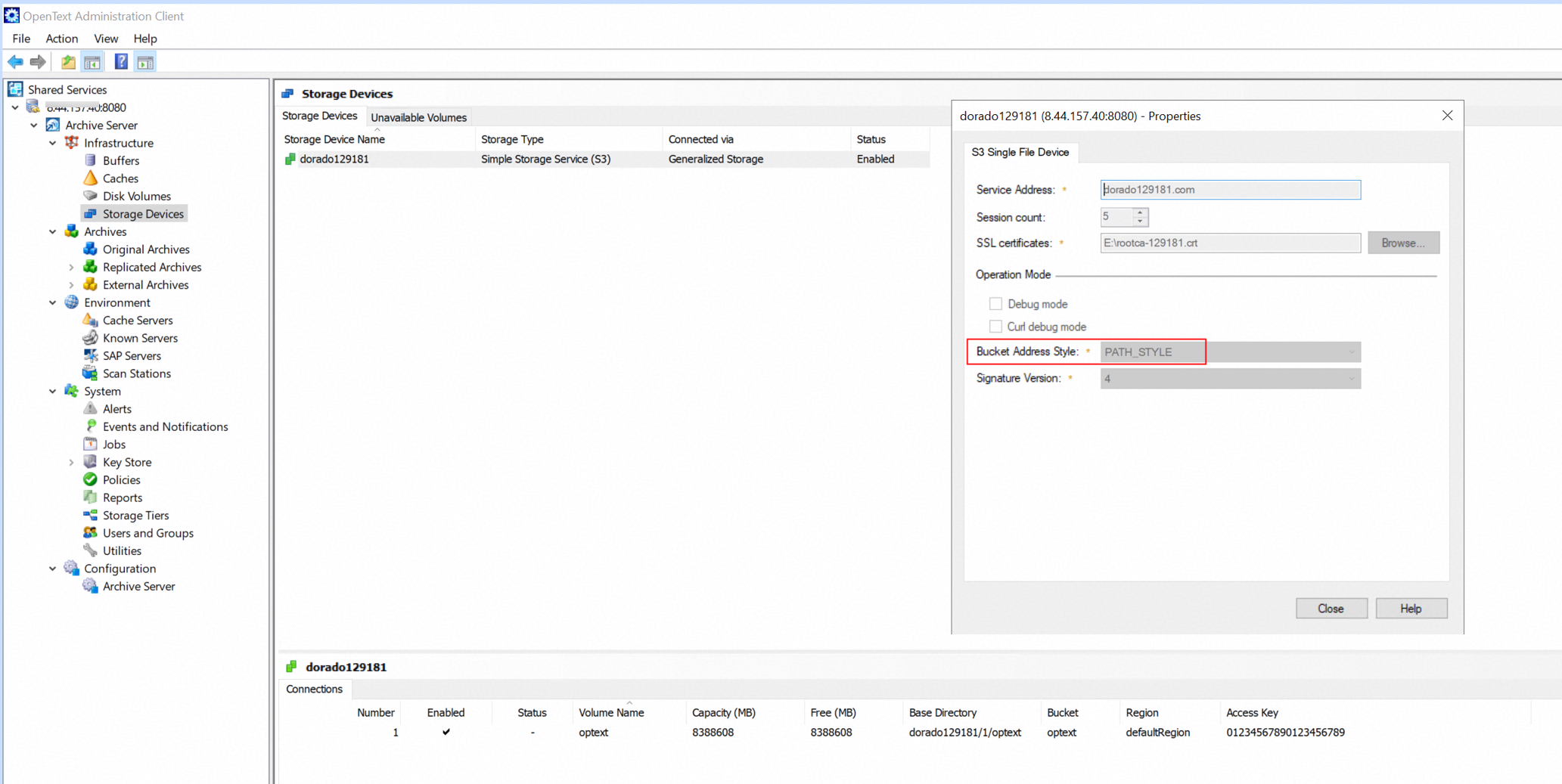 2. Test the connection between the storage and the archive server.
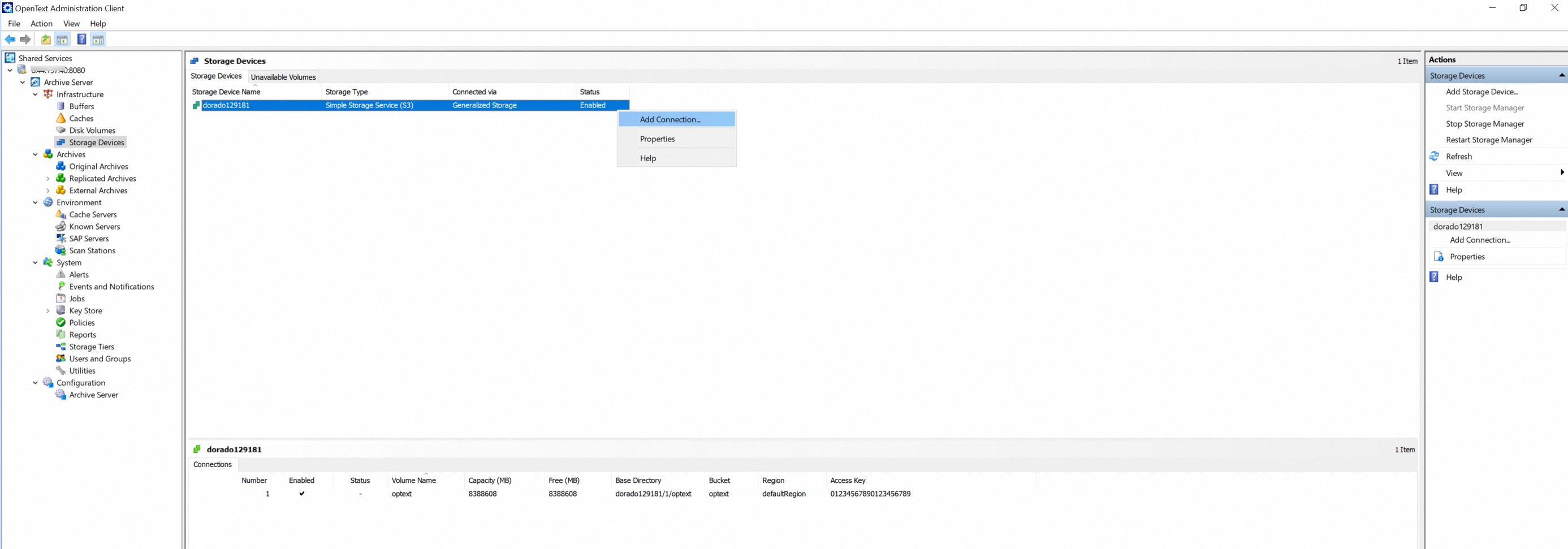
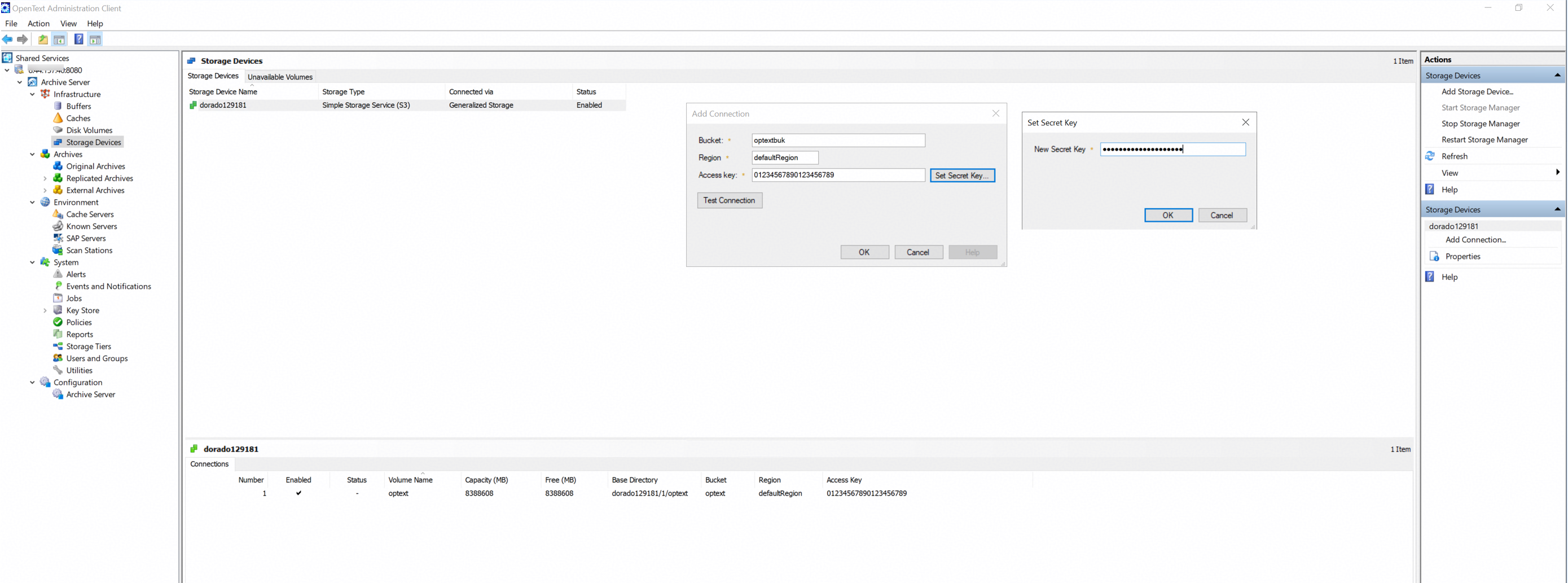
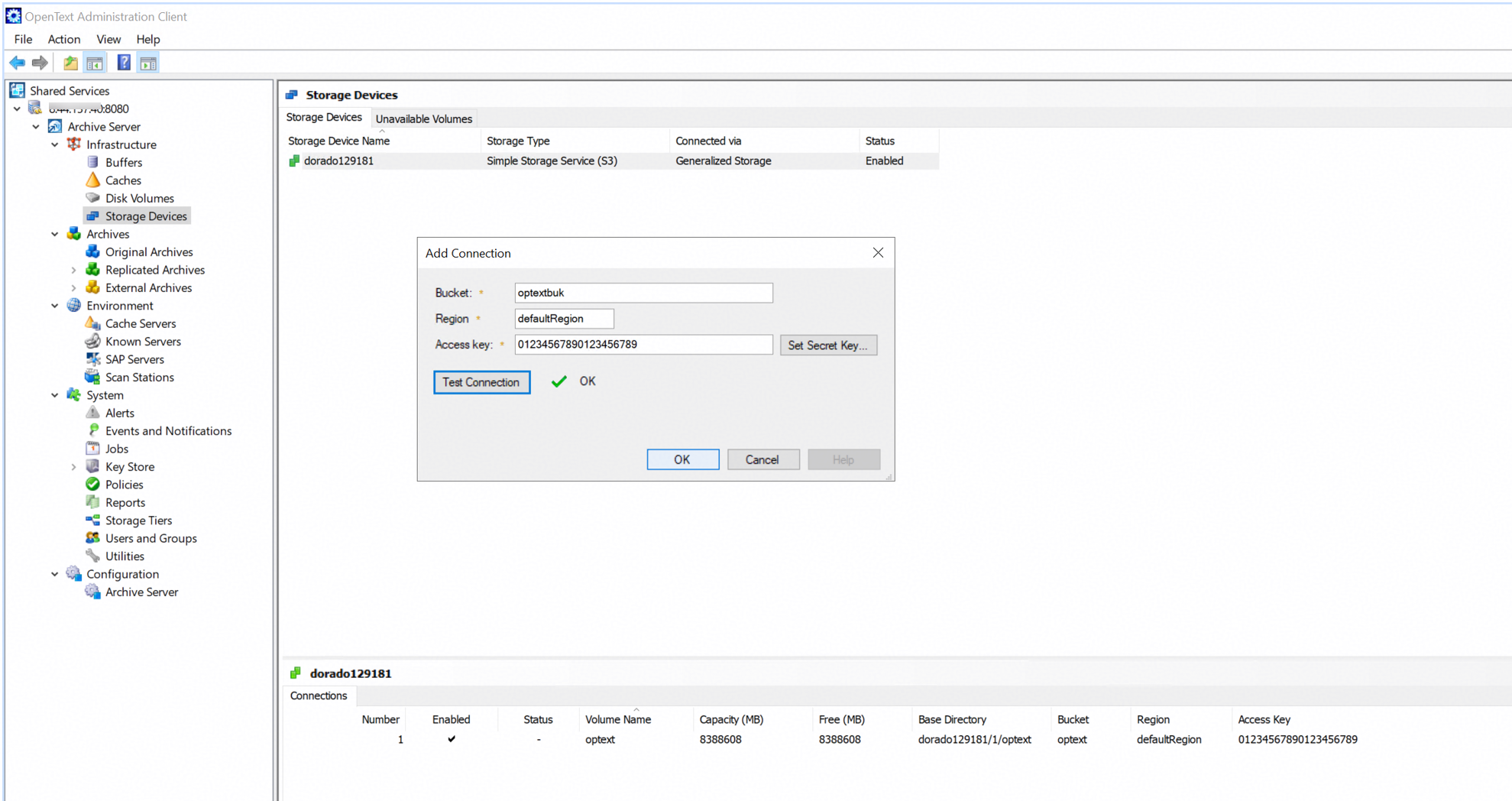 3. Add the connection for the storage device. 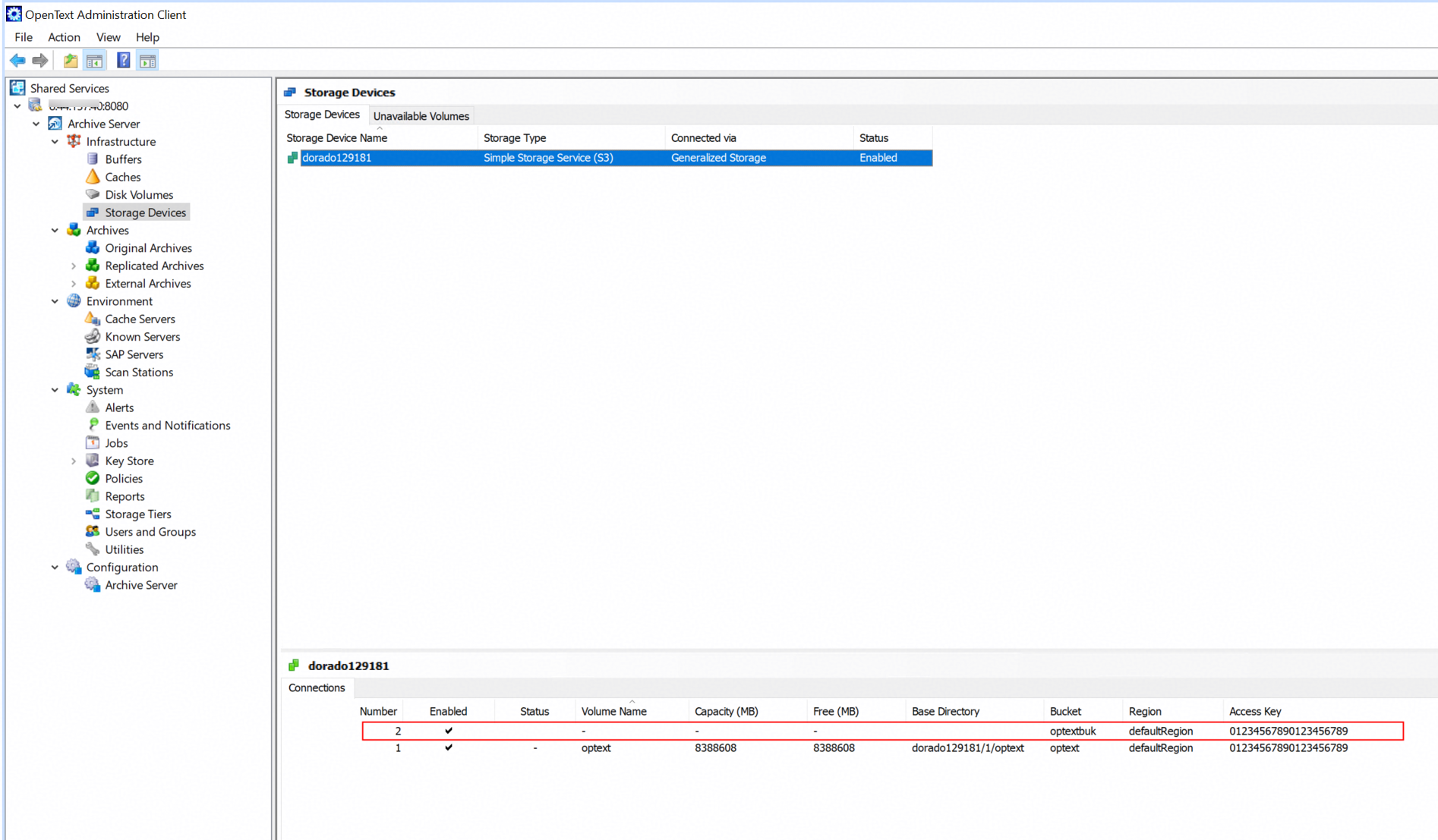 4. Initialize volume for the connection. 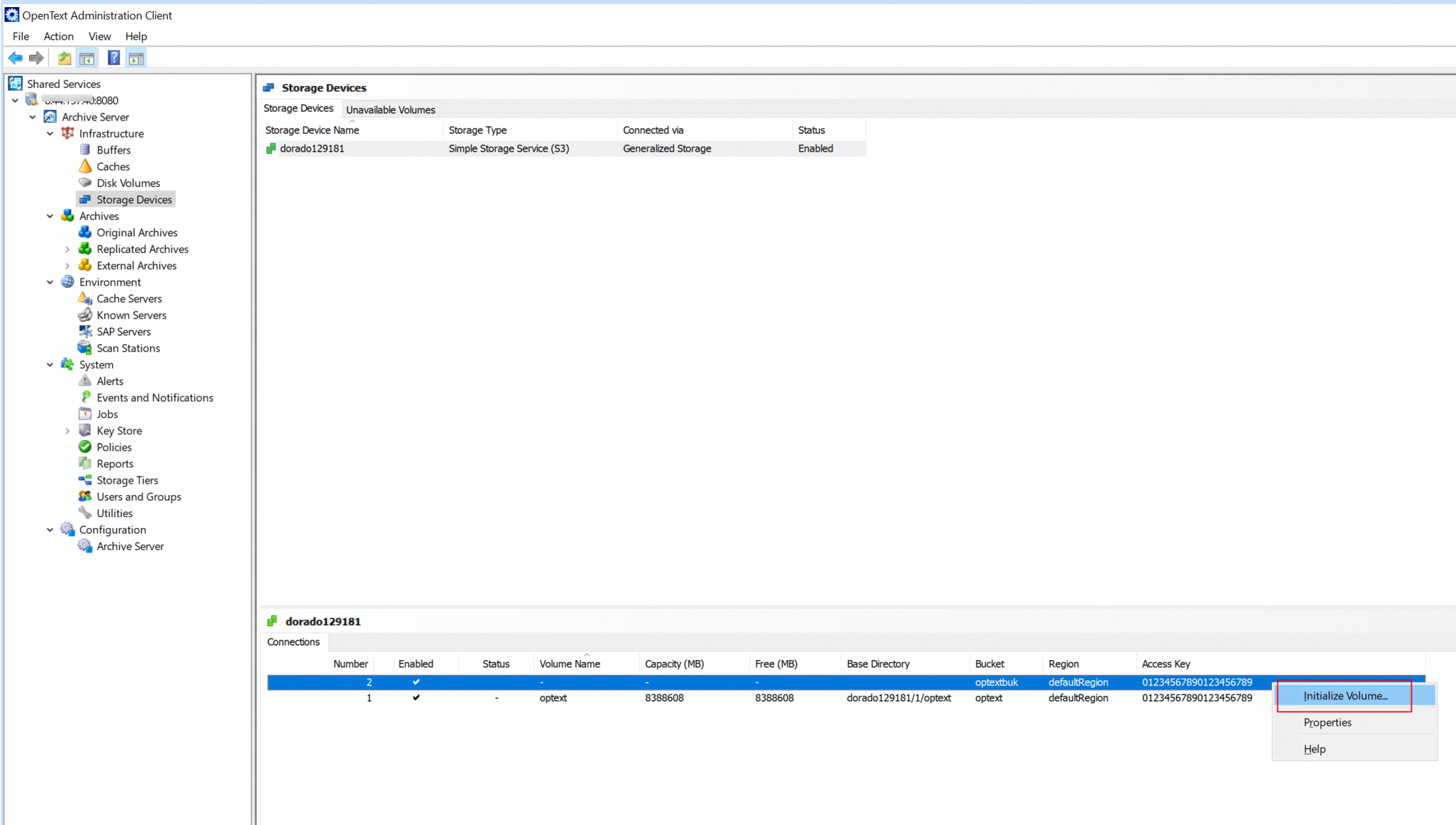 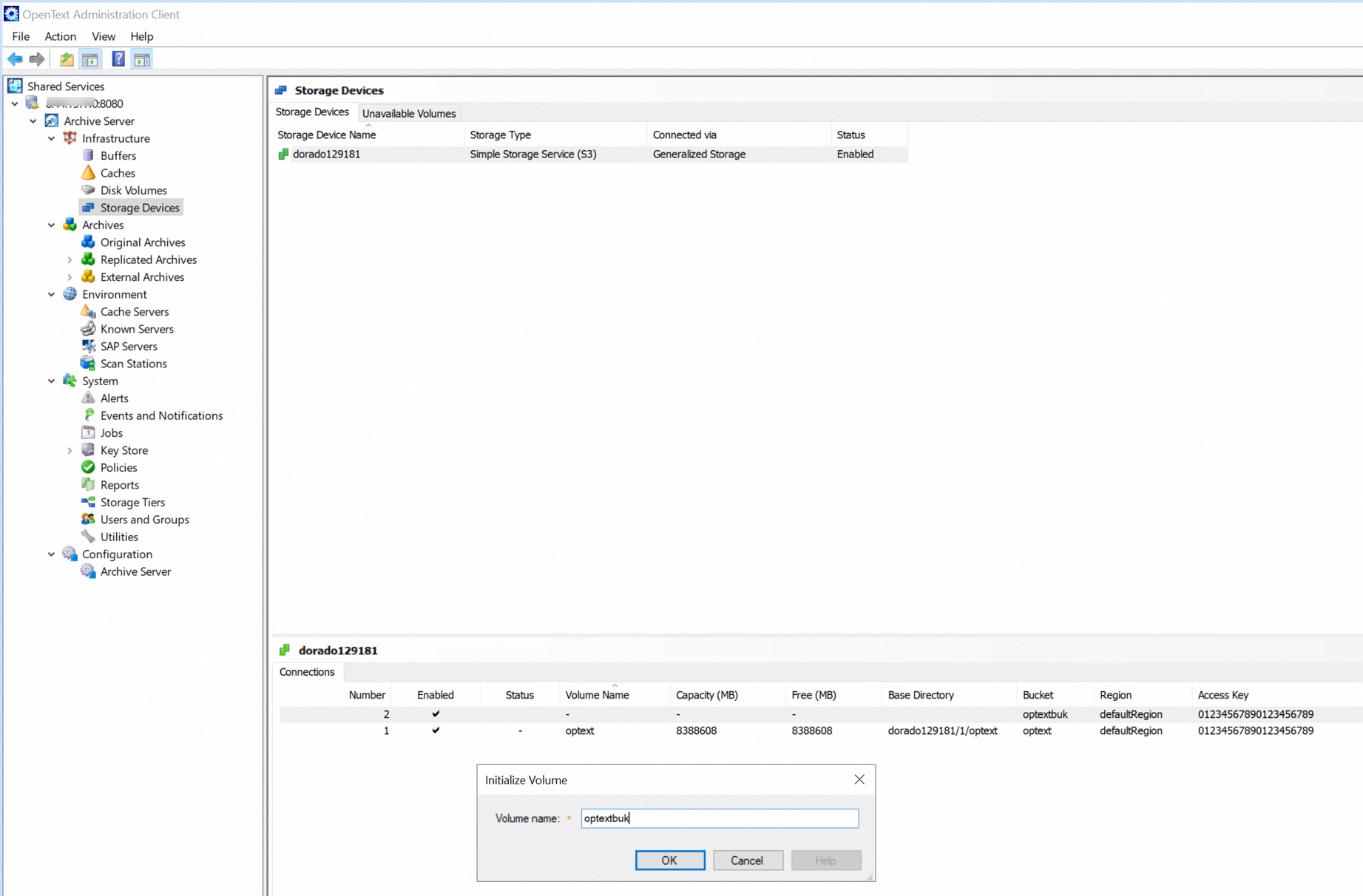 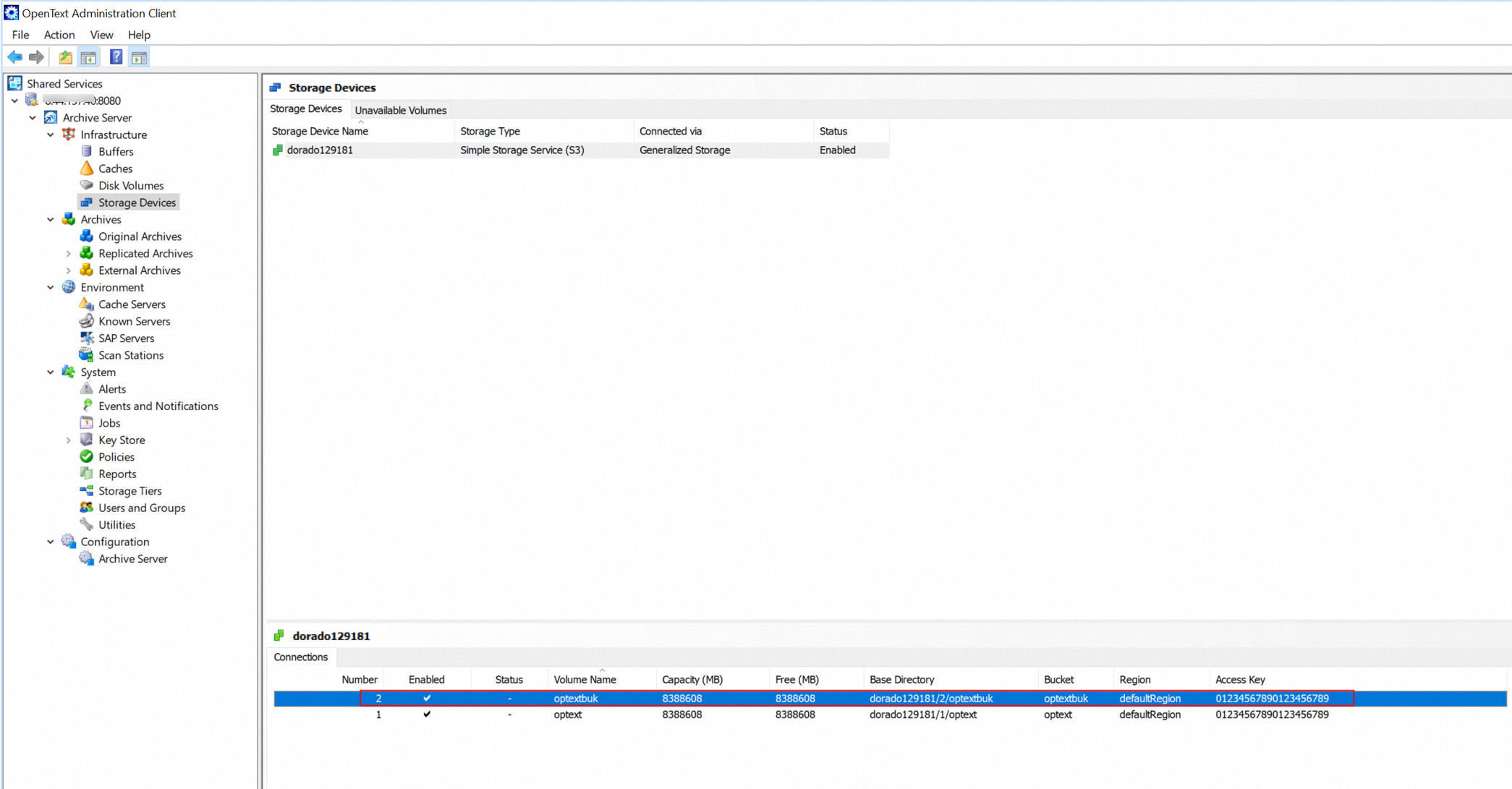 |
Test Conclusion | Passed |
3.3 Archive files to the S3 target storage through the archive server
Test Purpose | To verify that the archive server can archive files to the storage. |
Test Networking | Huawei OceanStor Flash Storage and Archive Server Test Networking |
Prerequisites |
|
Test Procedure |
|
Expected Result |
|
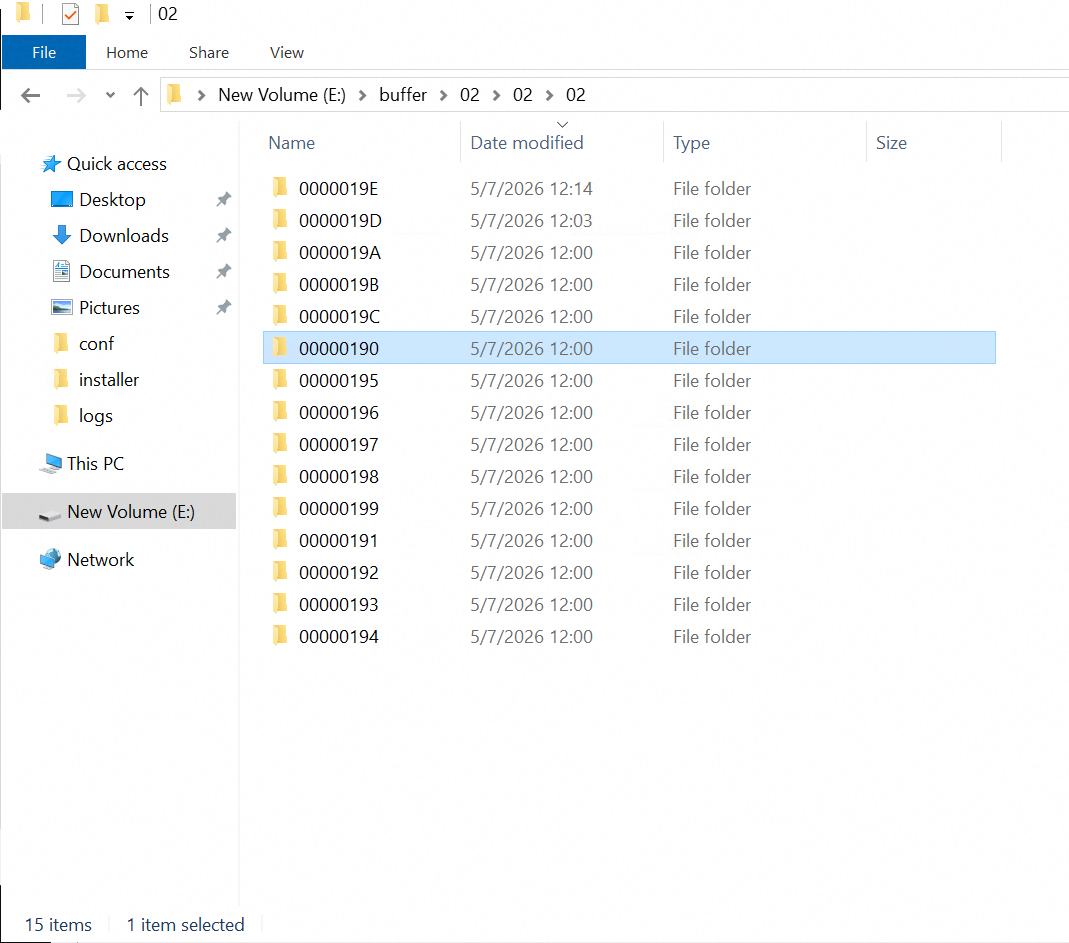
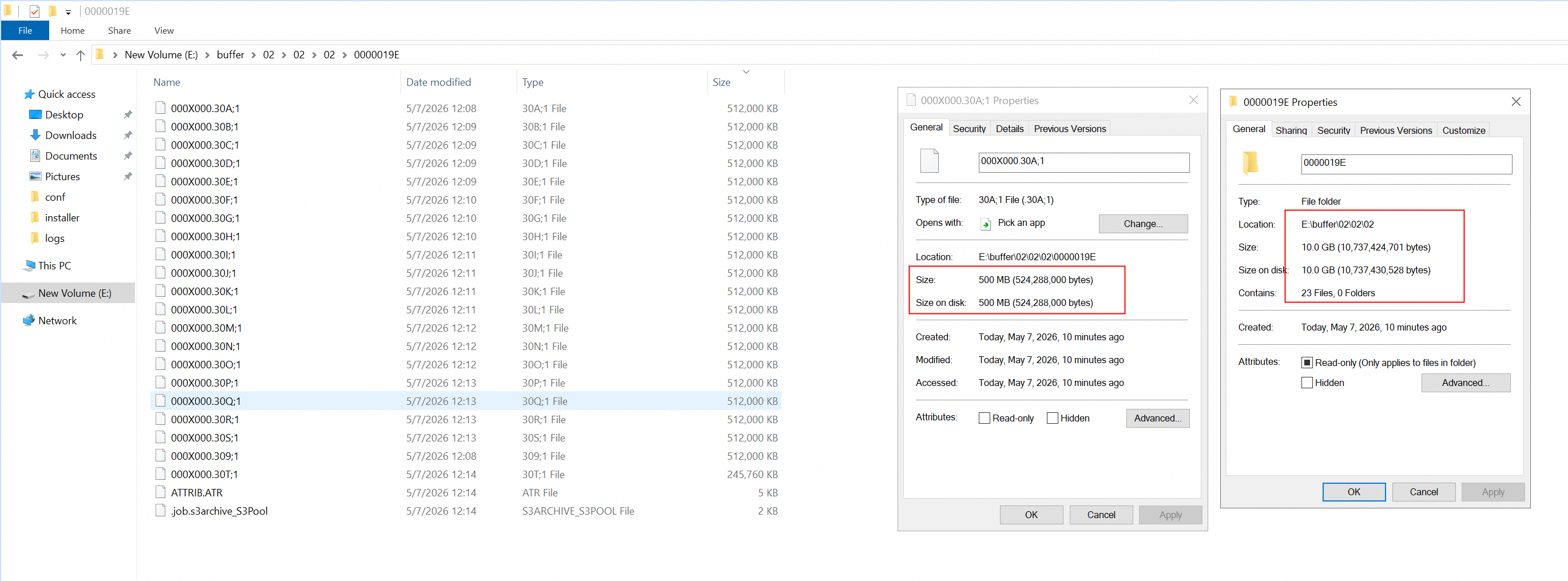
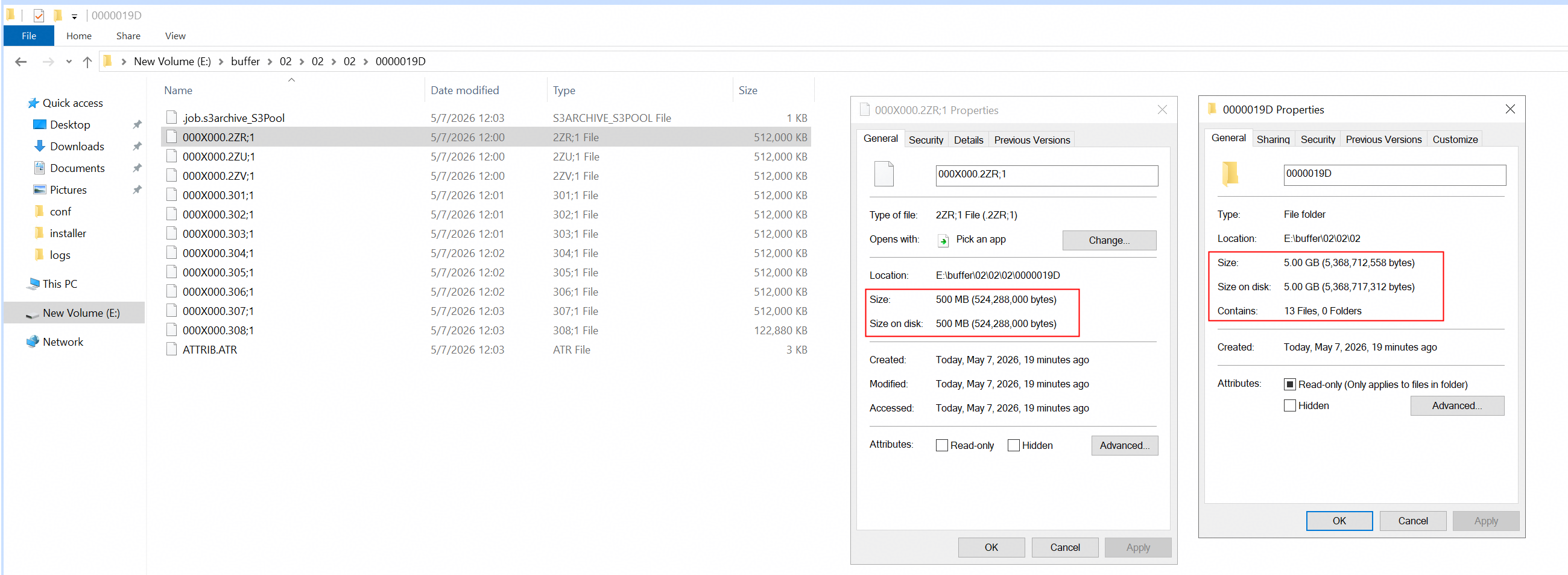
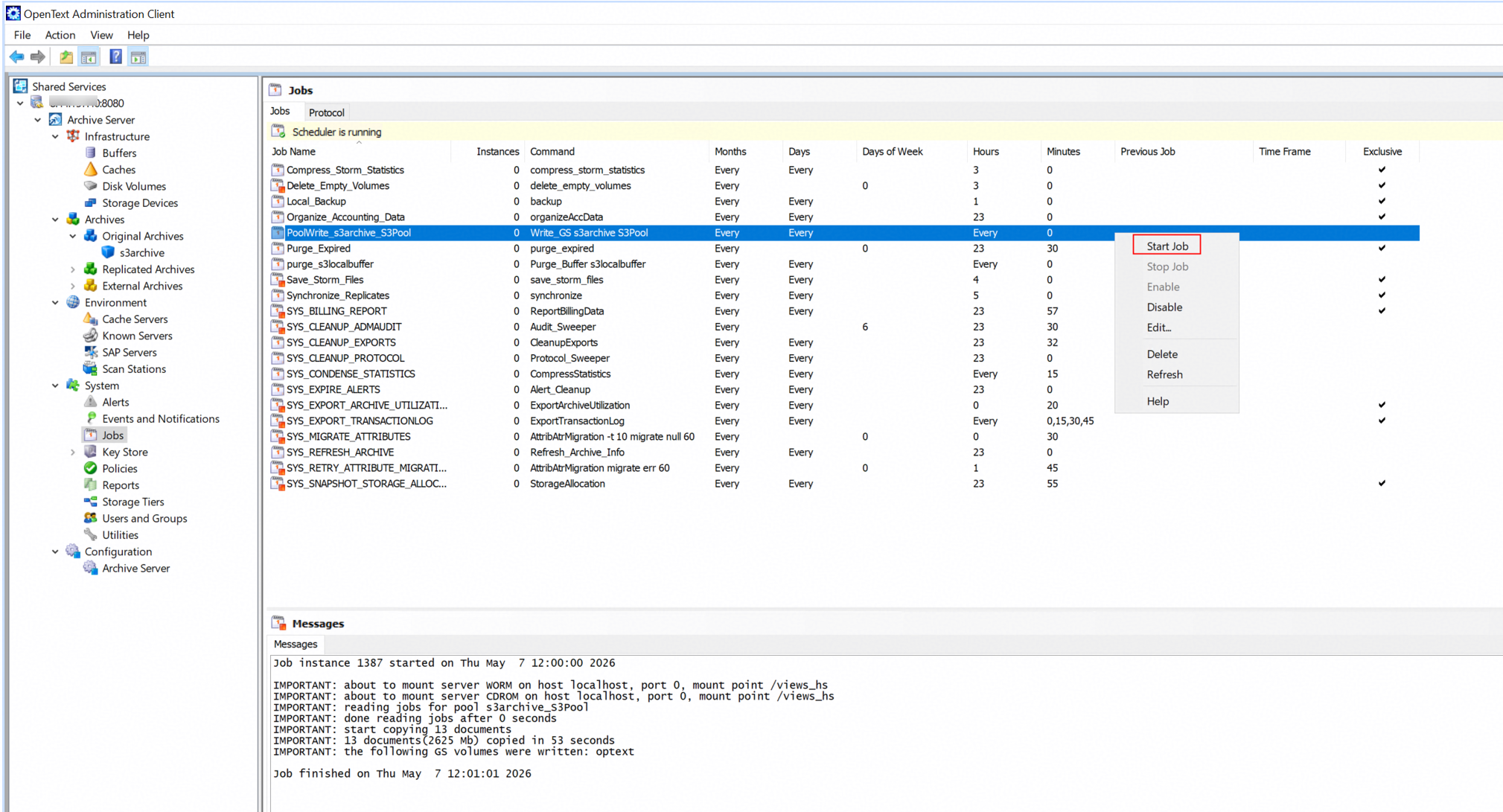
Test Results |
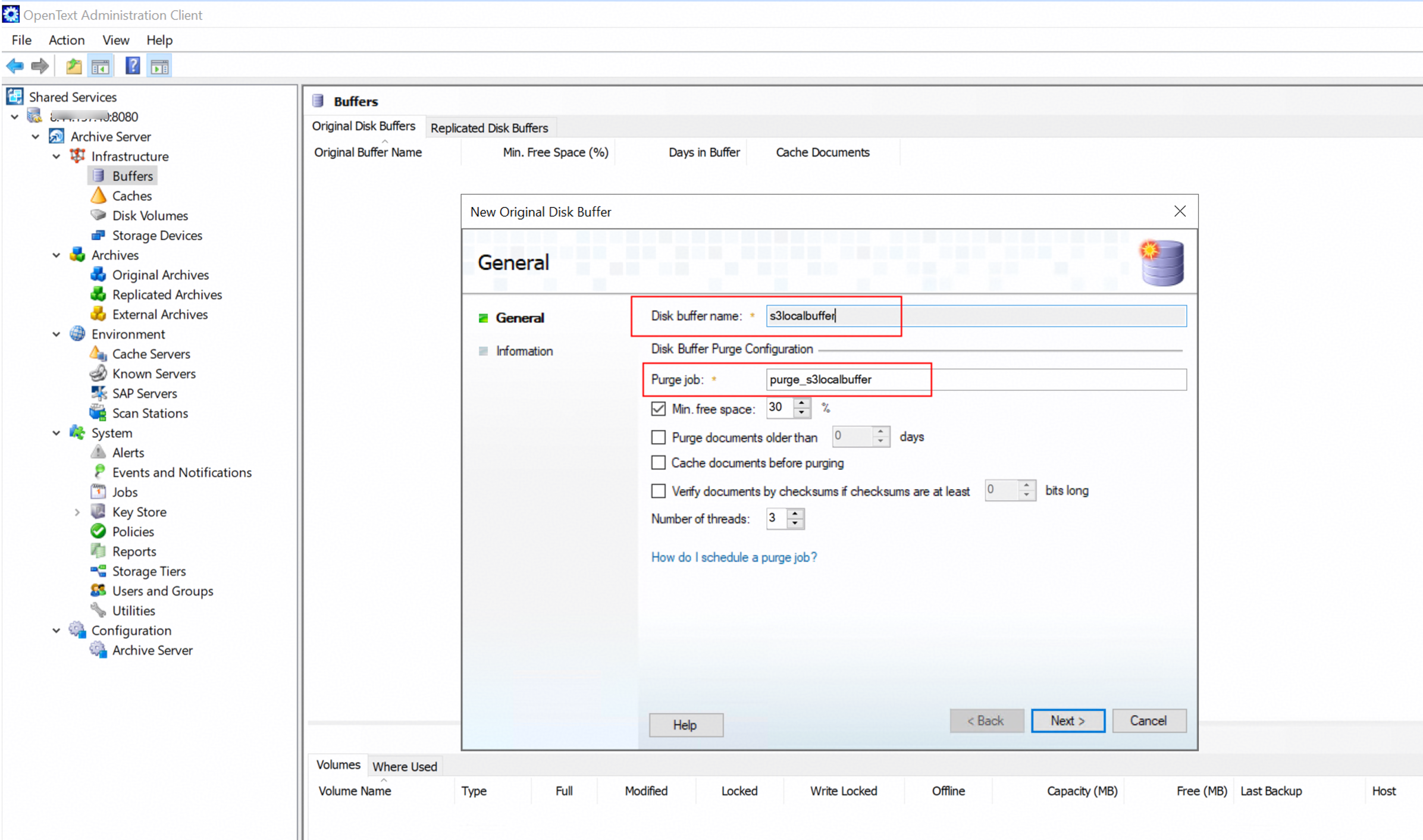
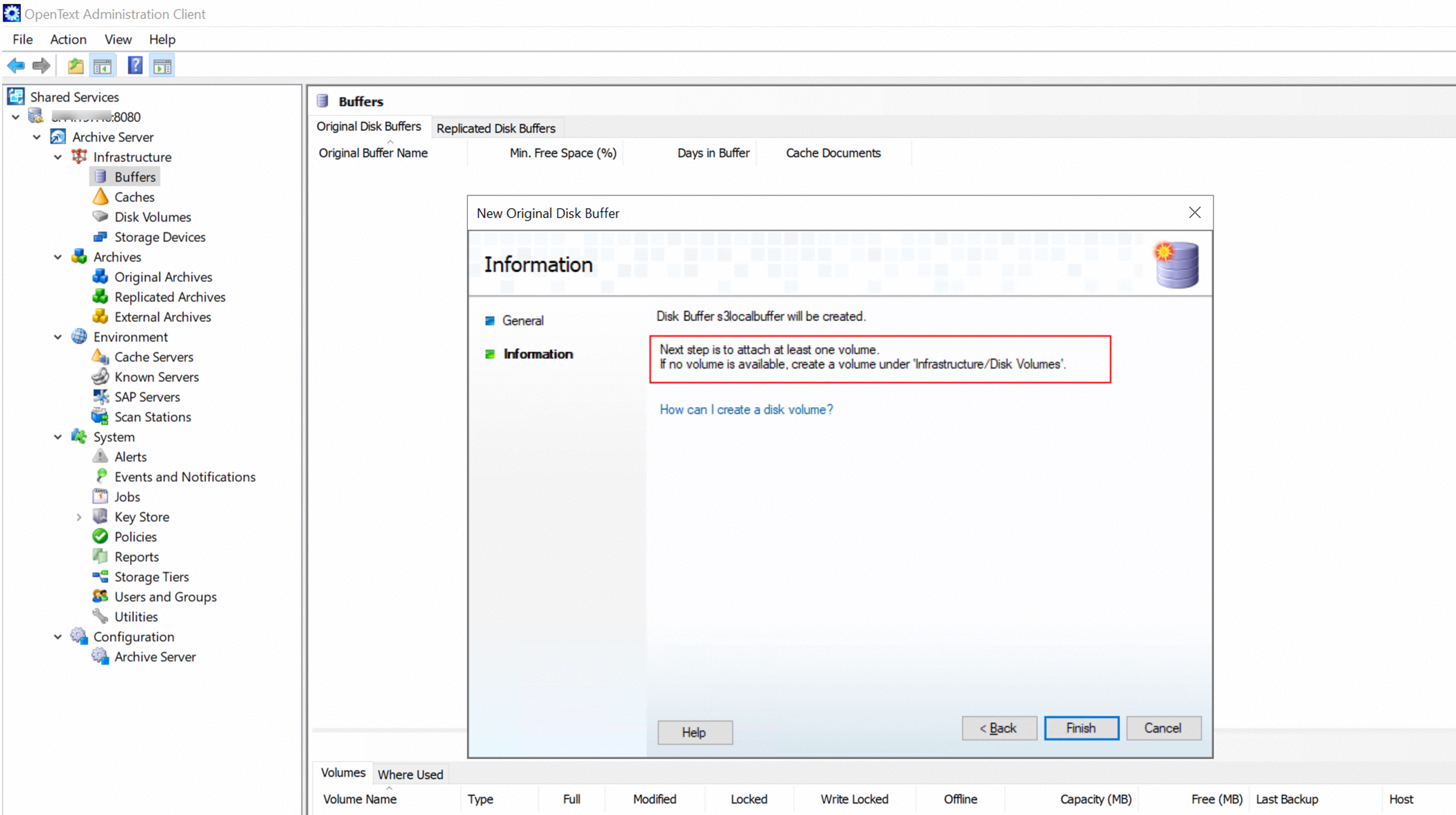
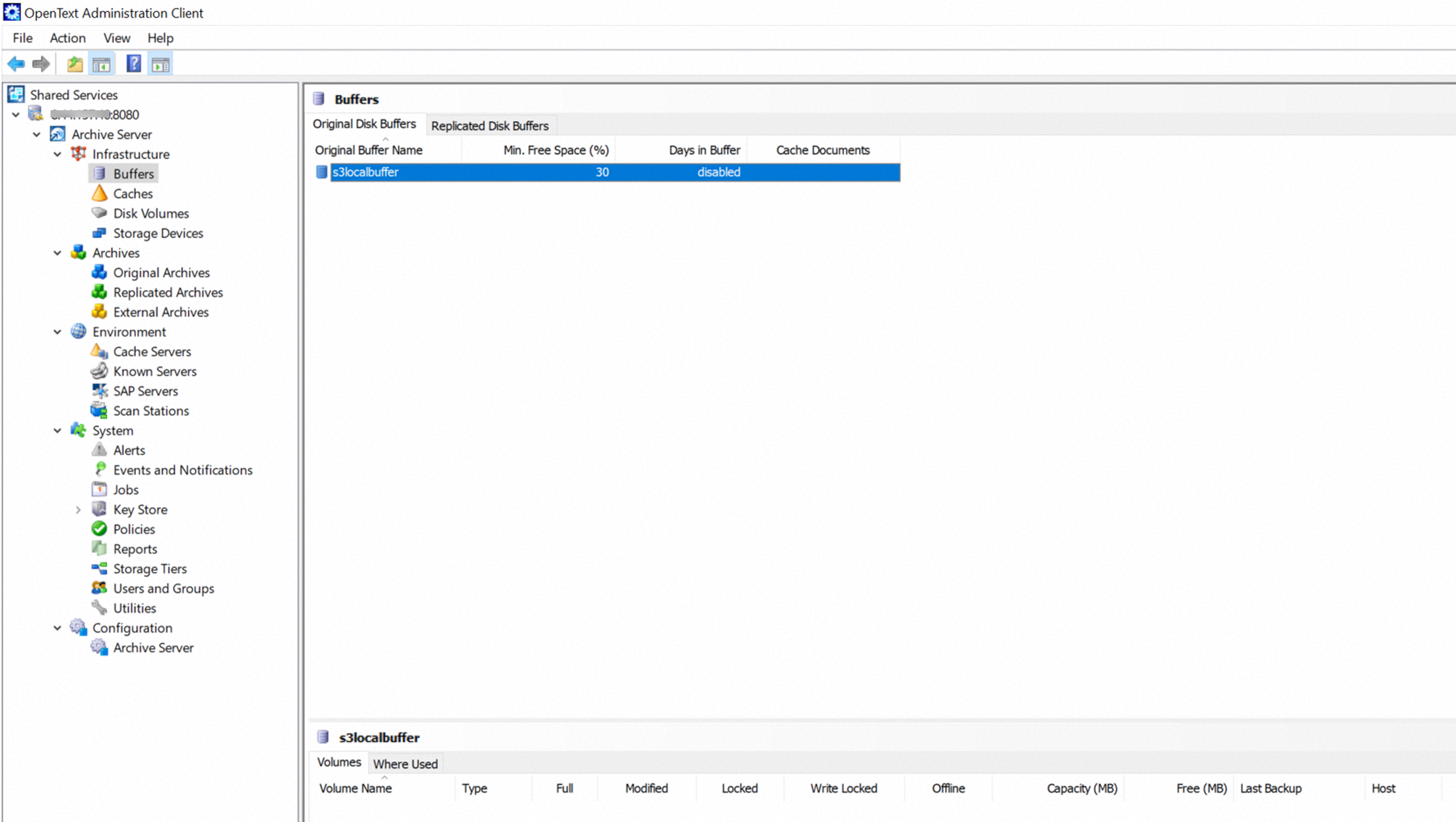
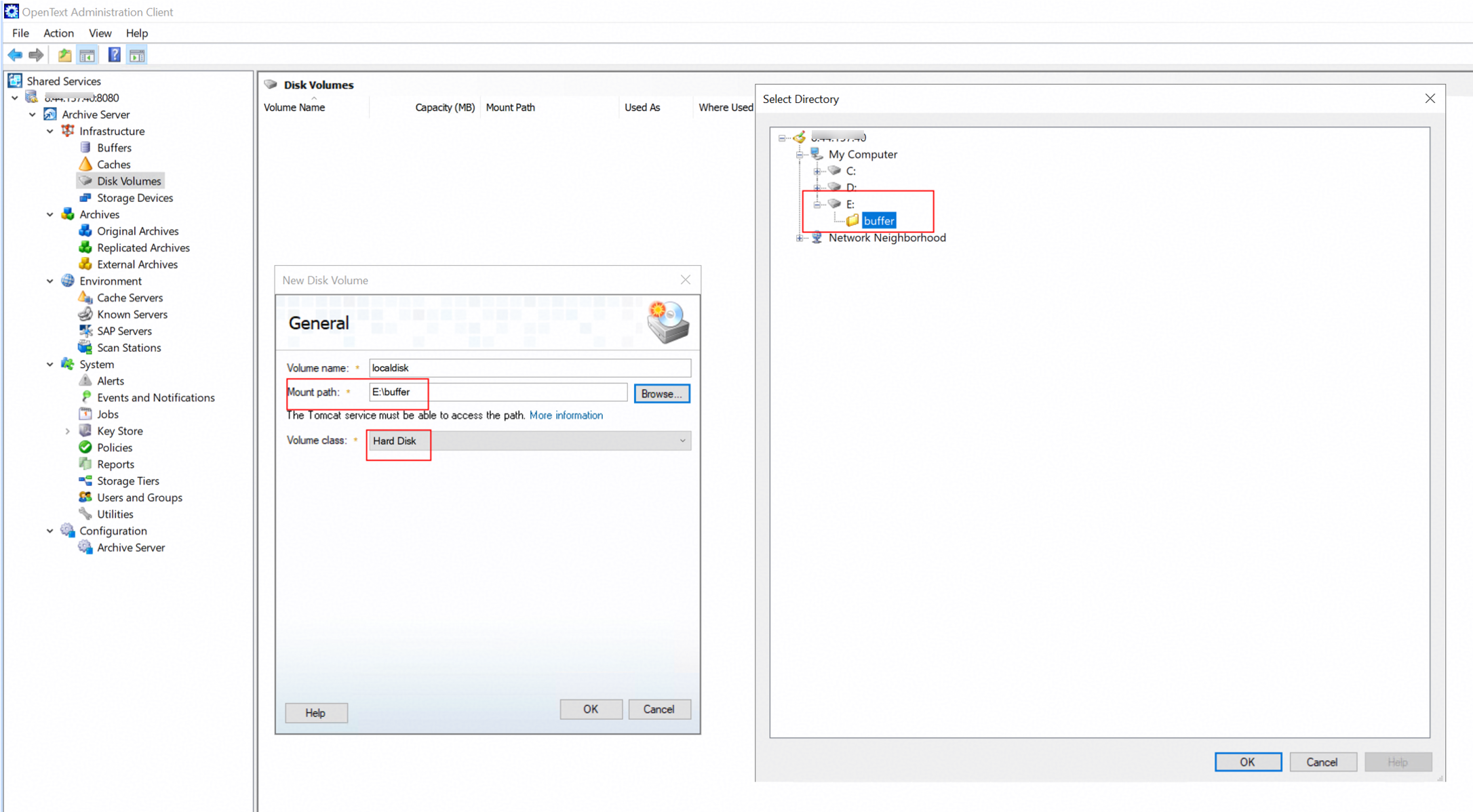 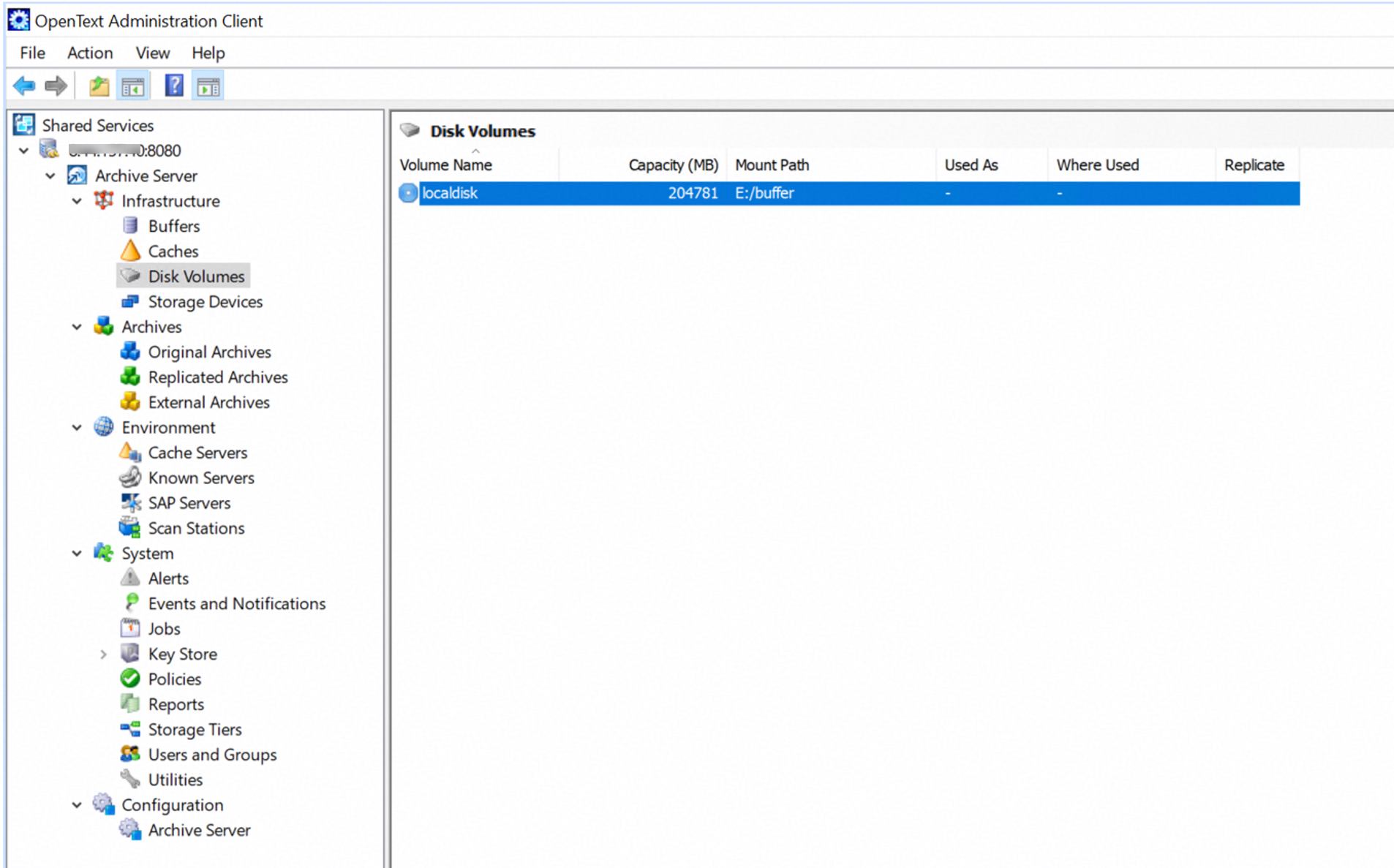 1.2 Create a new disk buffer.
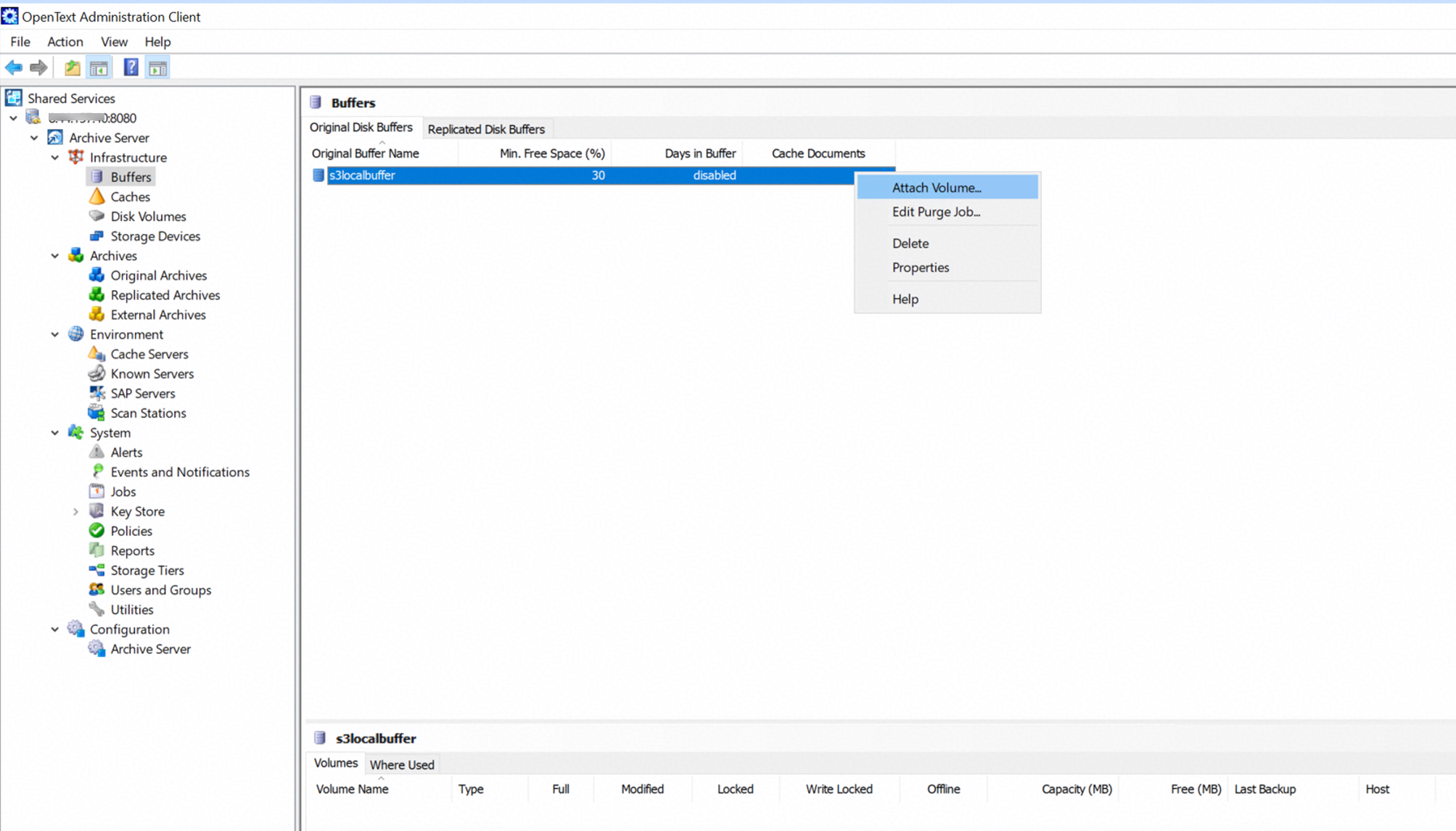 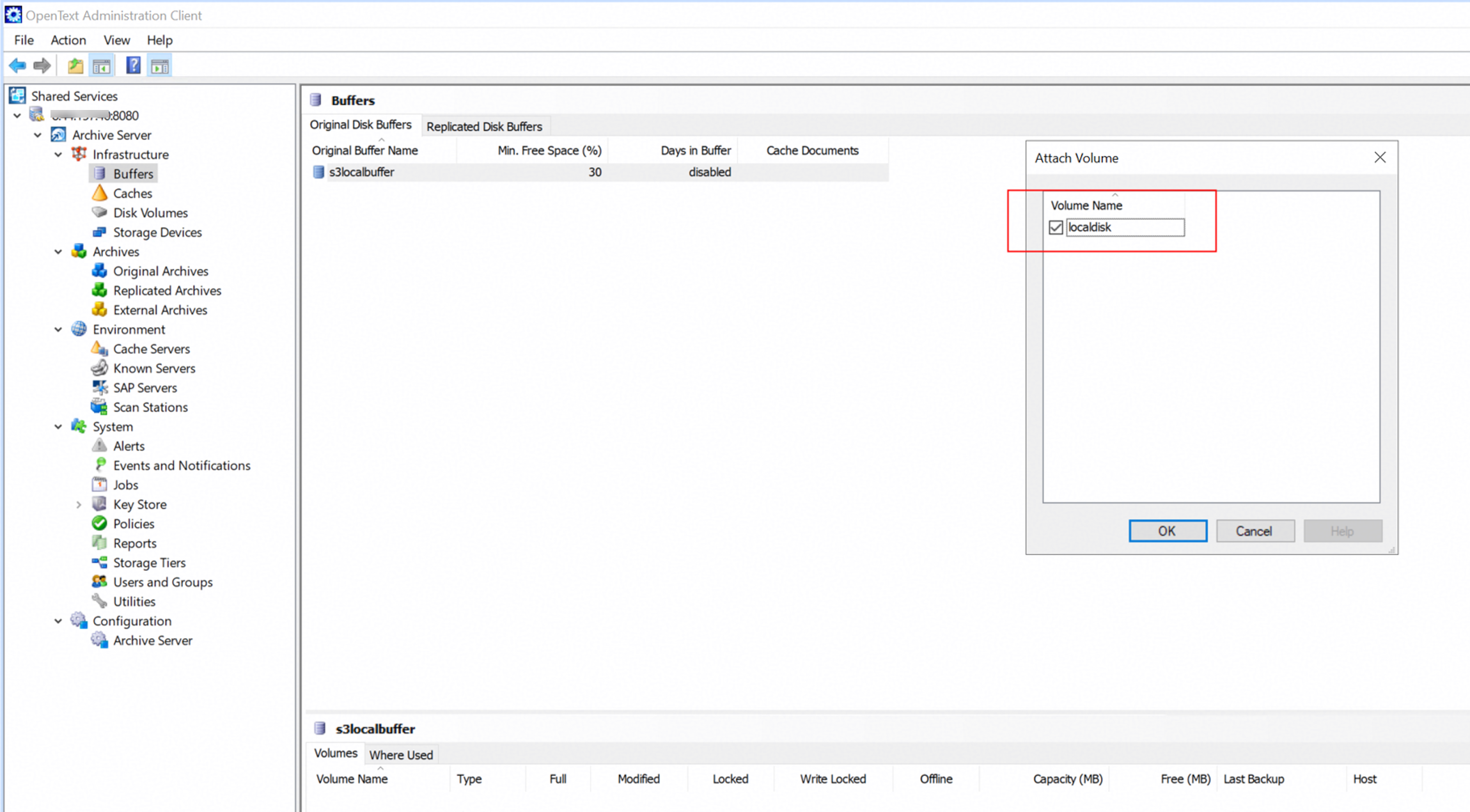
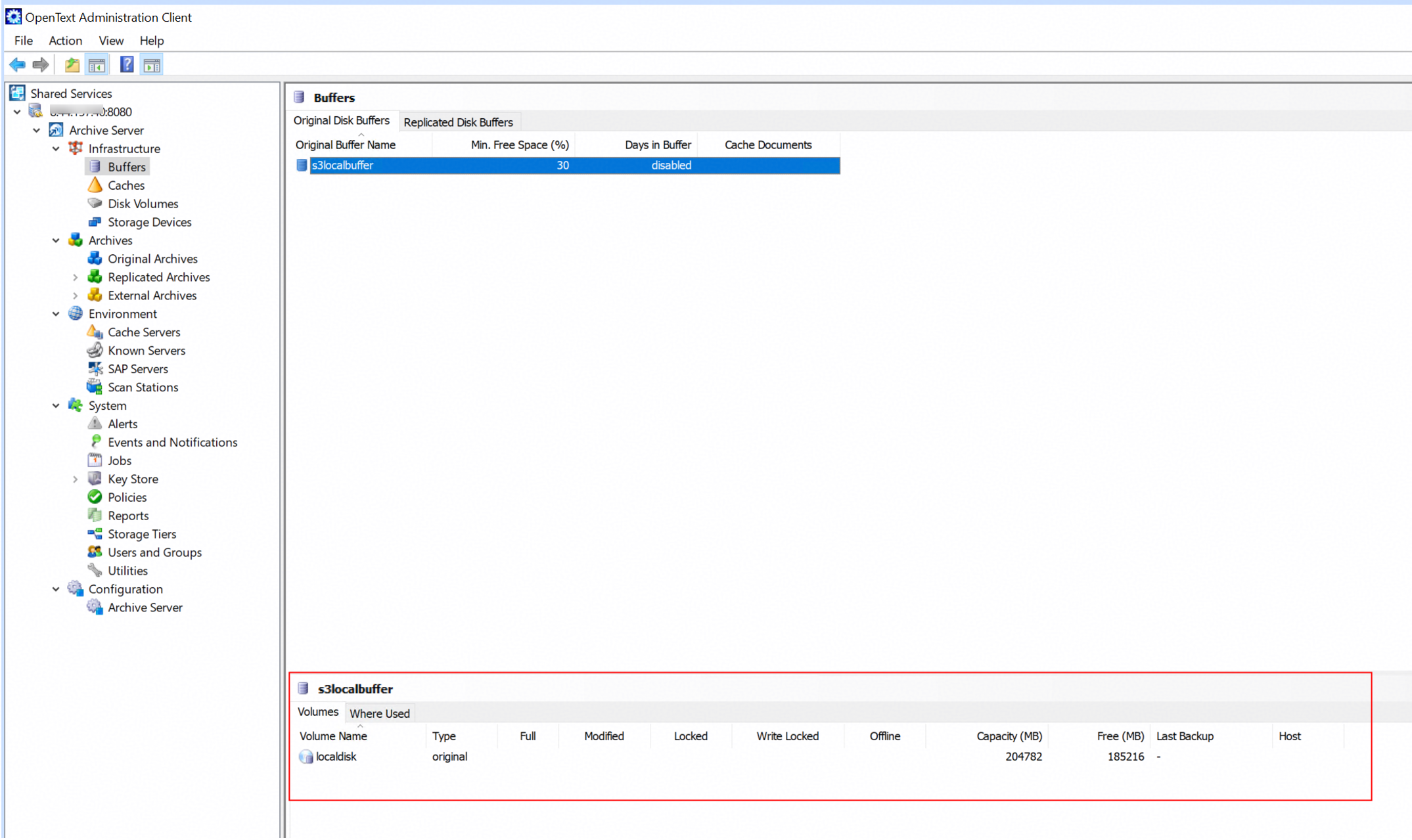 2. Create the Original Archive on the archive server.
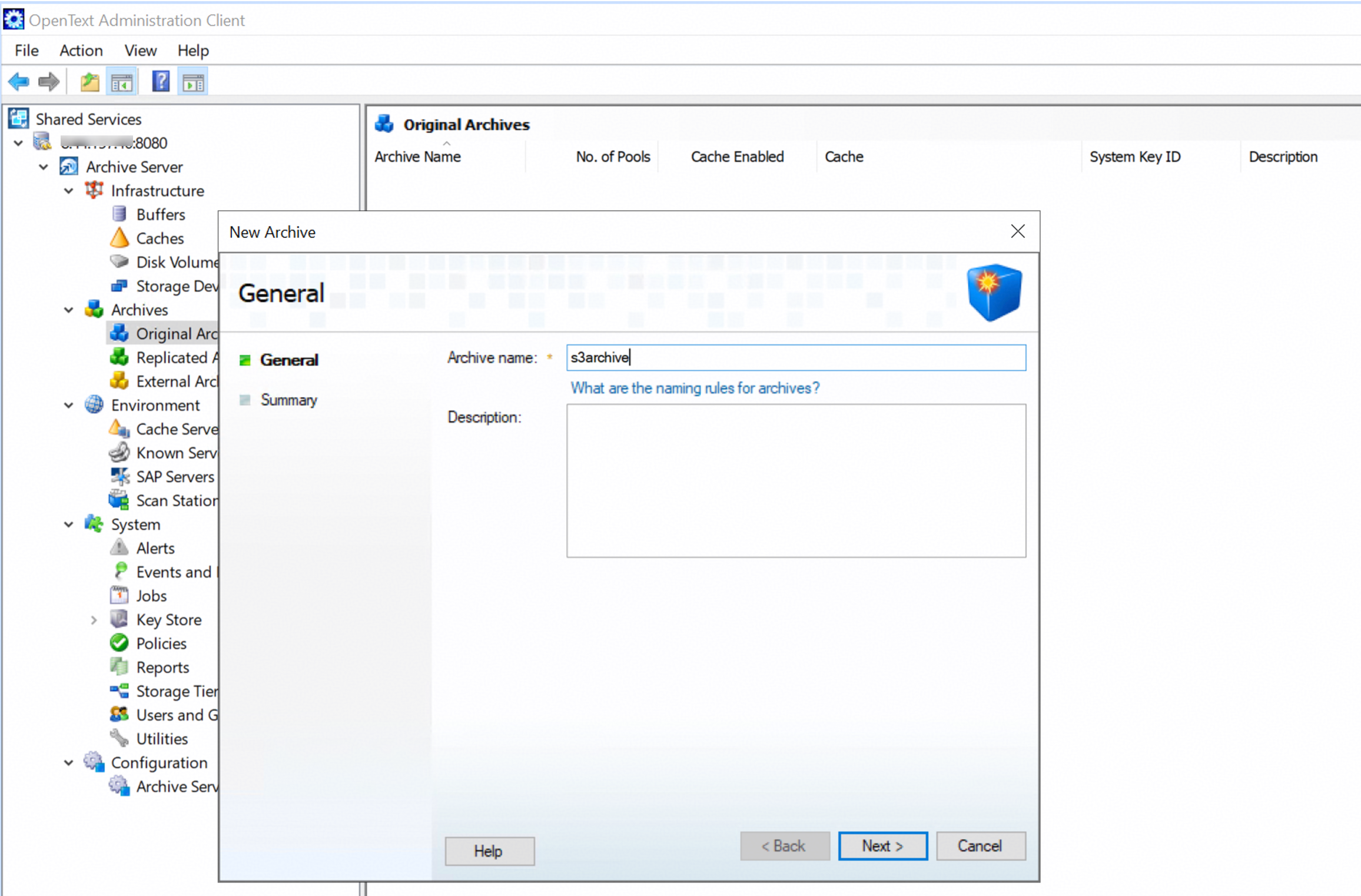
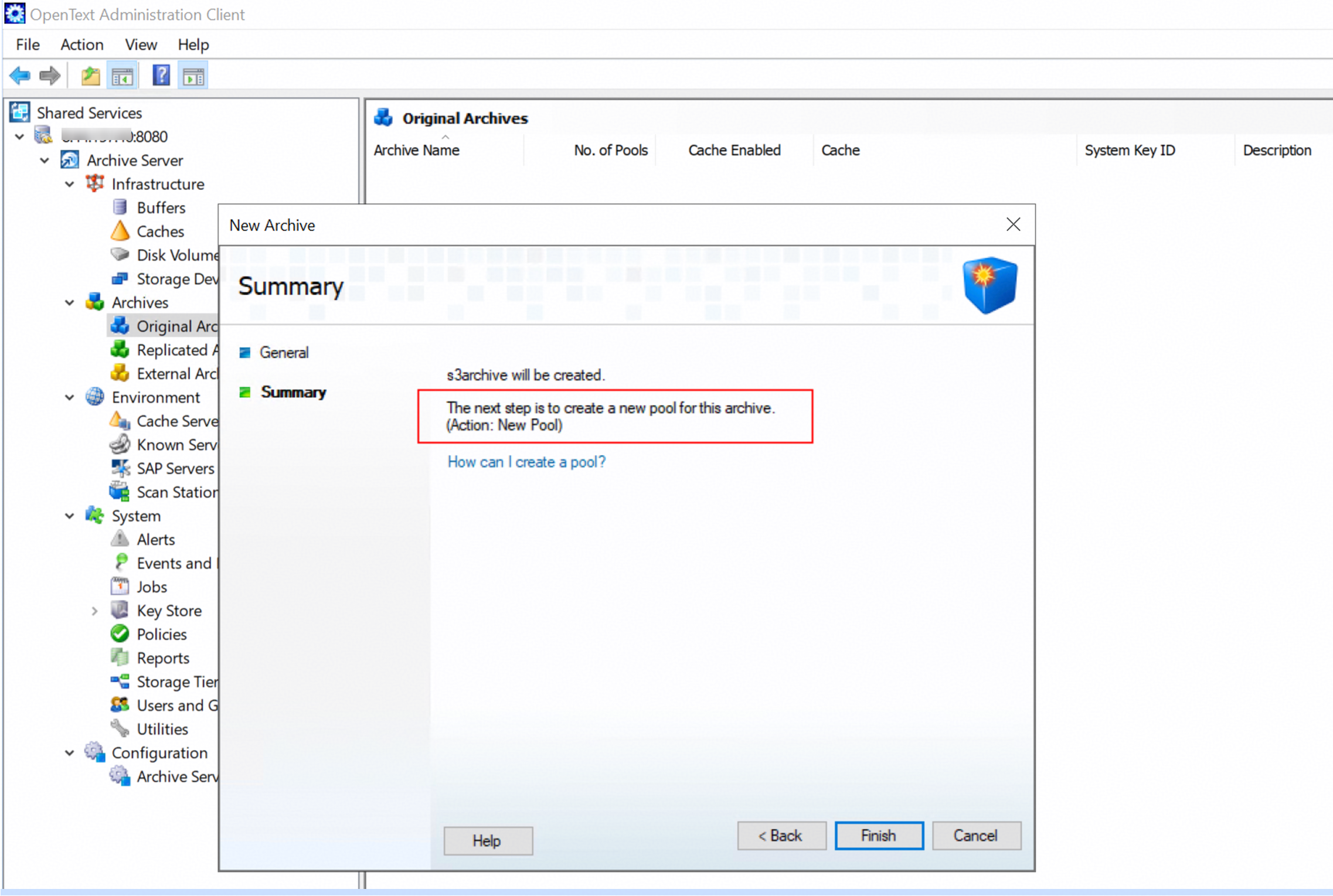 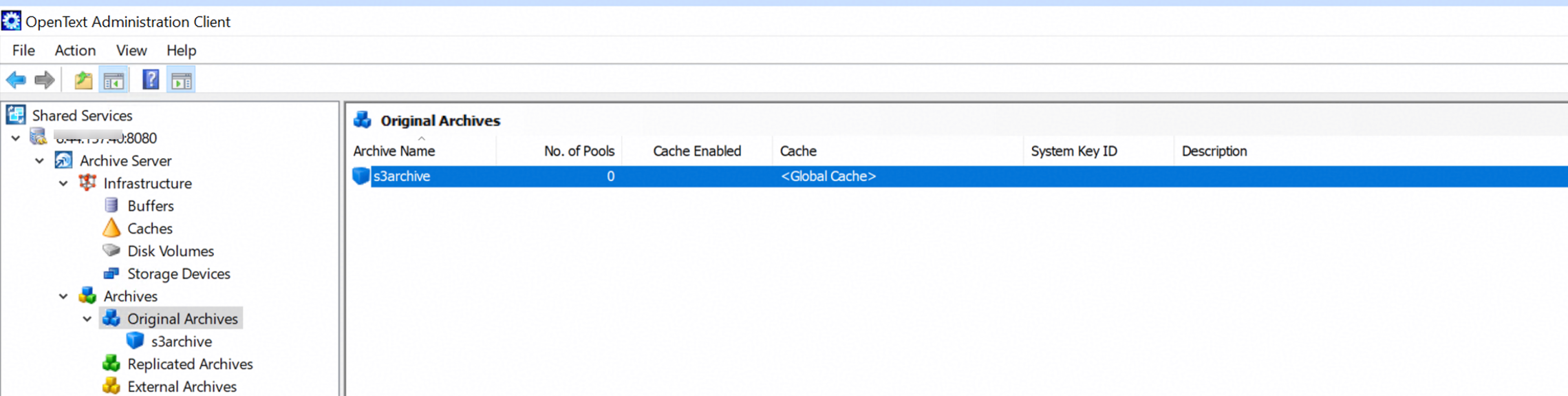 2.2 Modify the security of the archive. 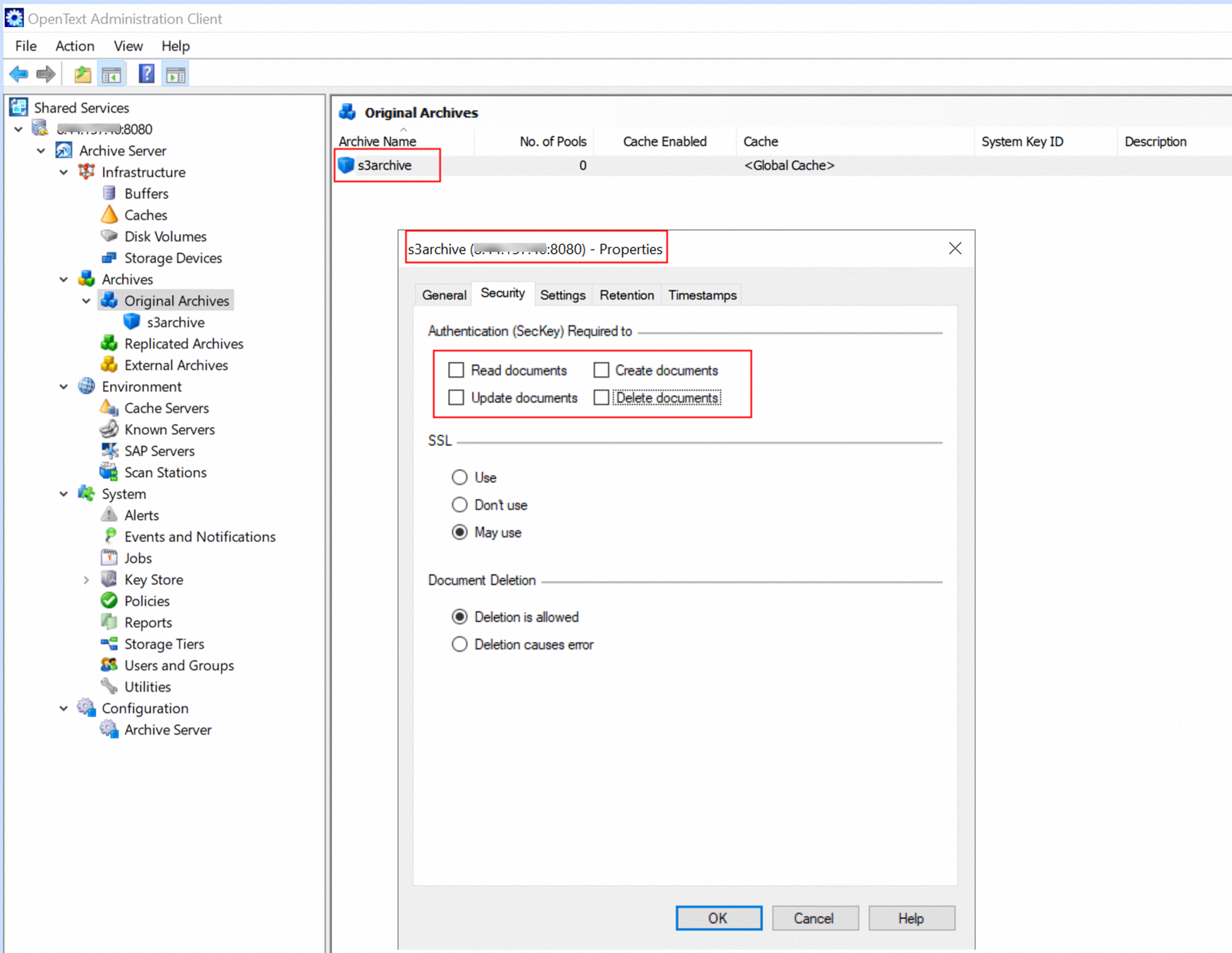 2.3 Create a storage tier on the archive server. 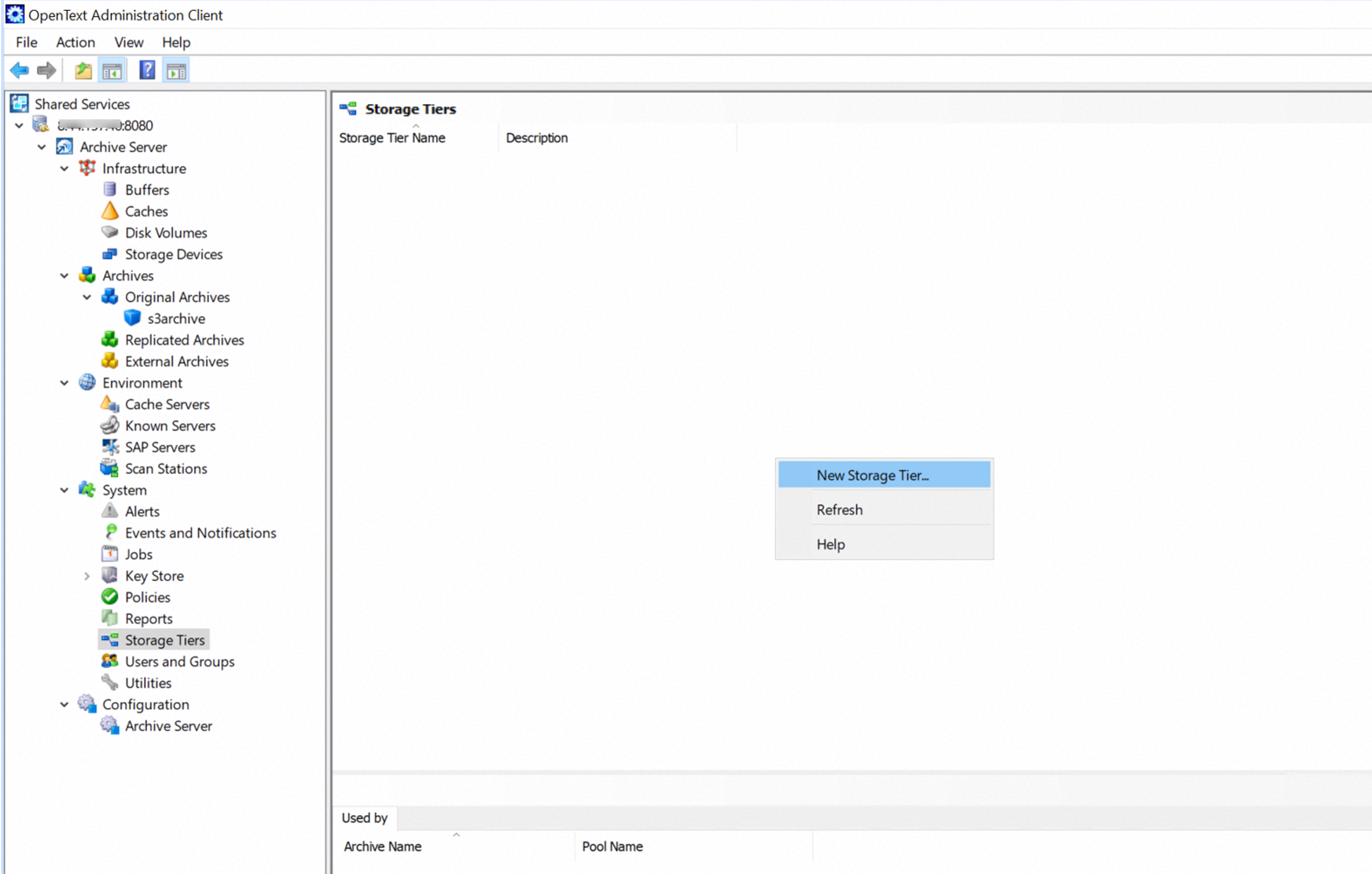 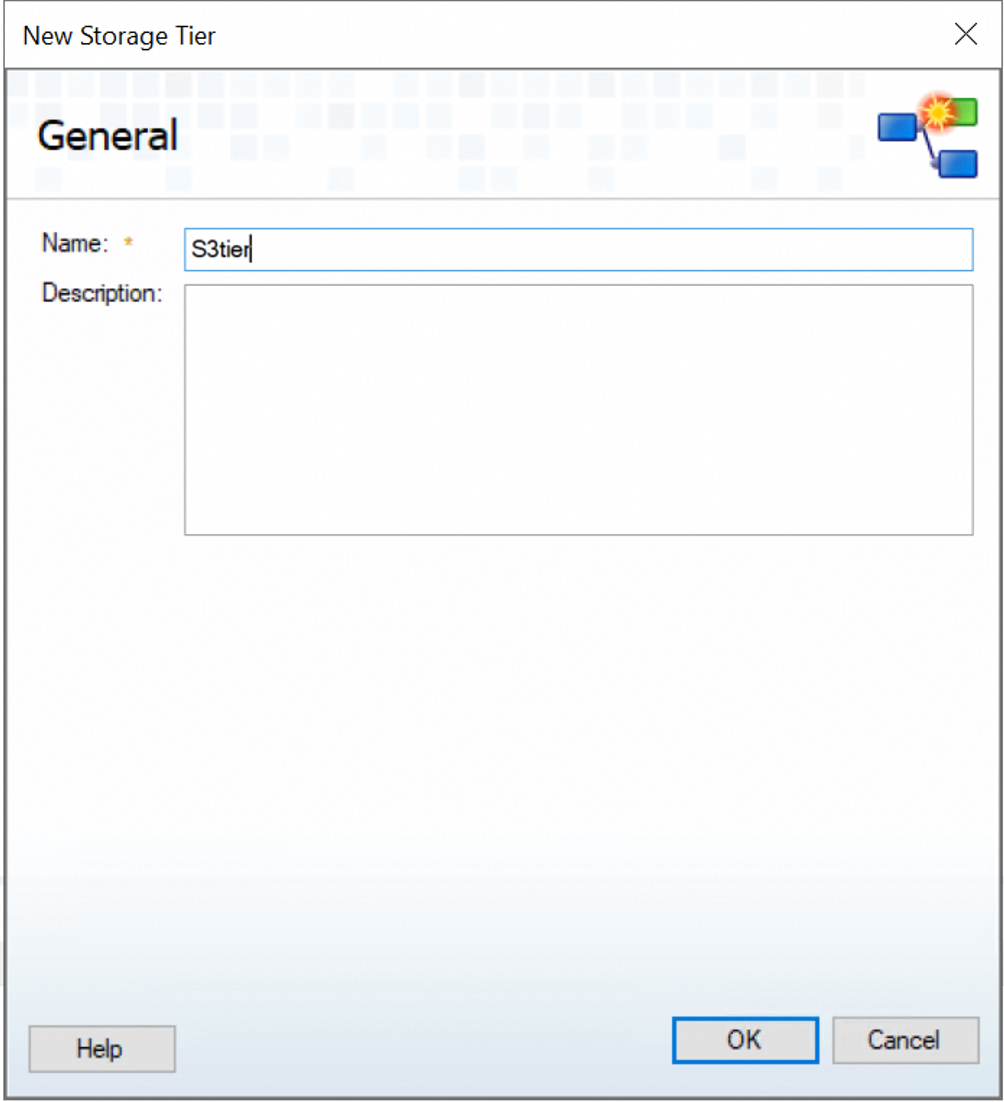 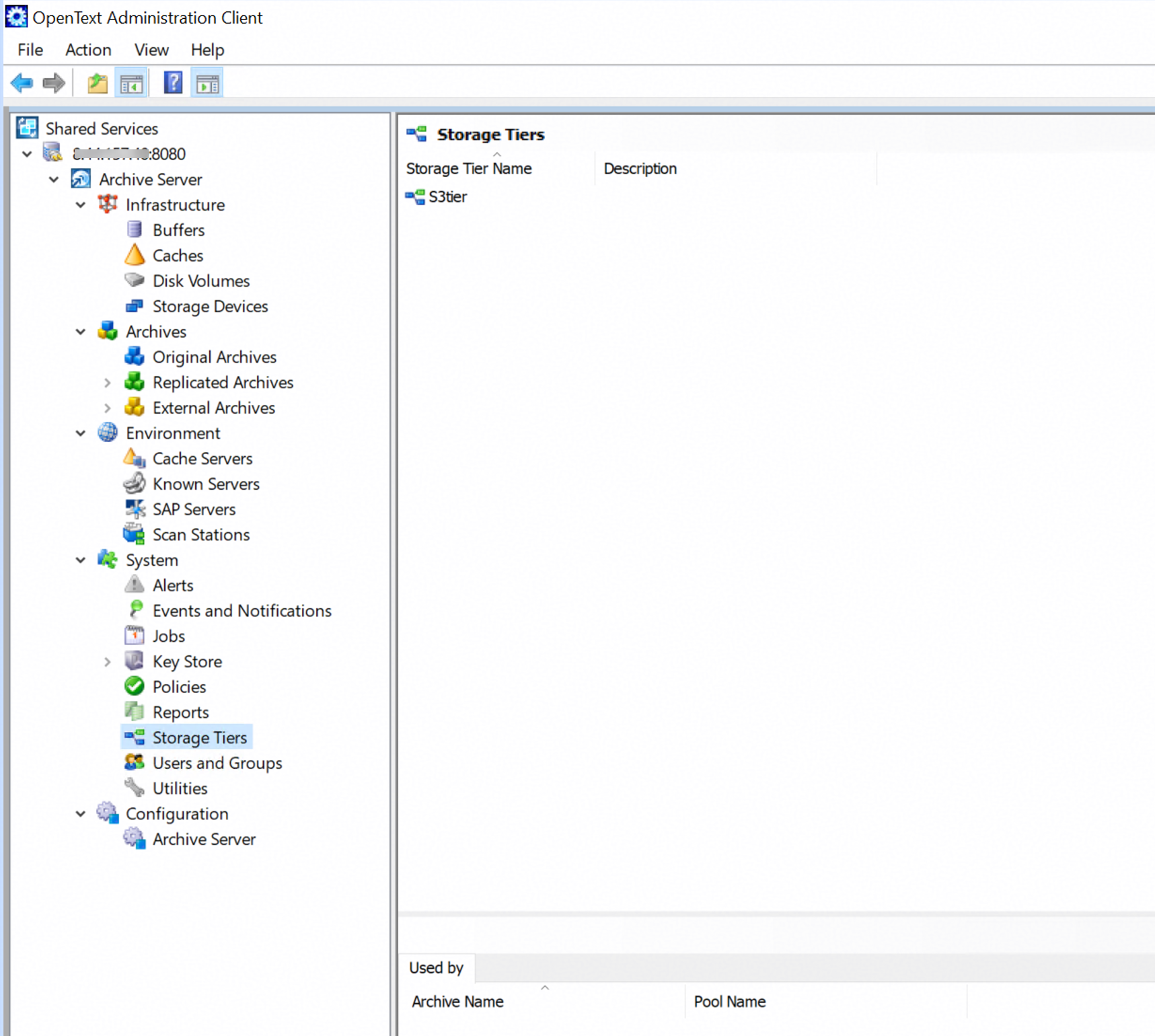
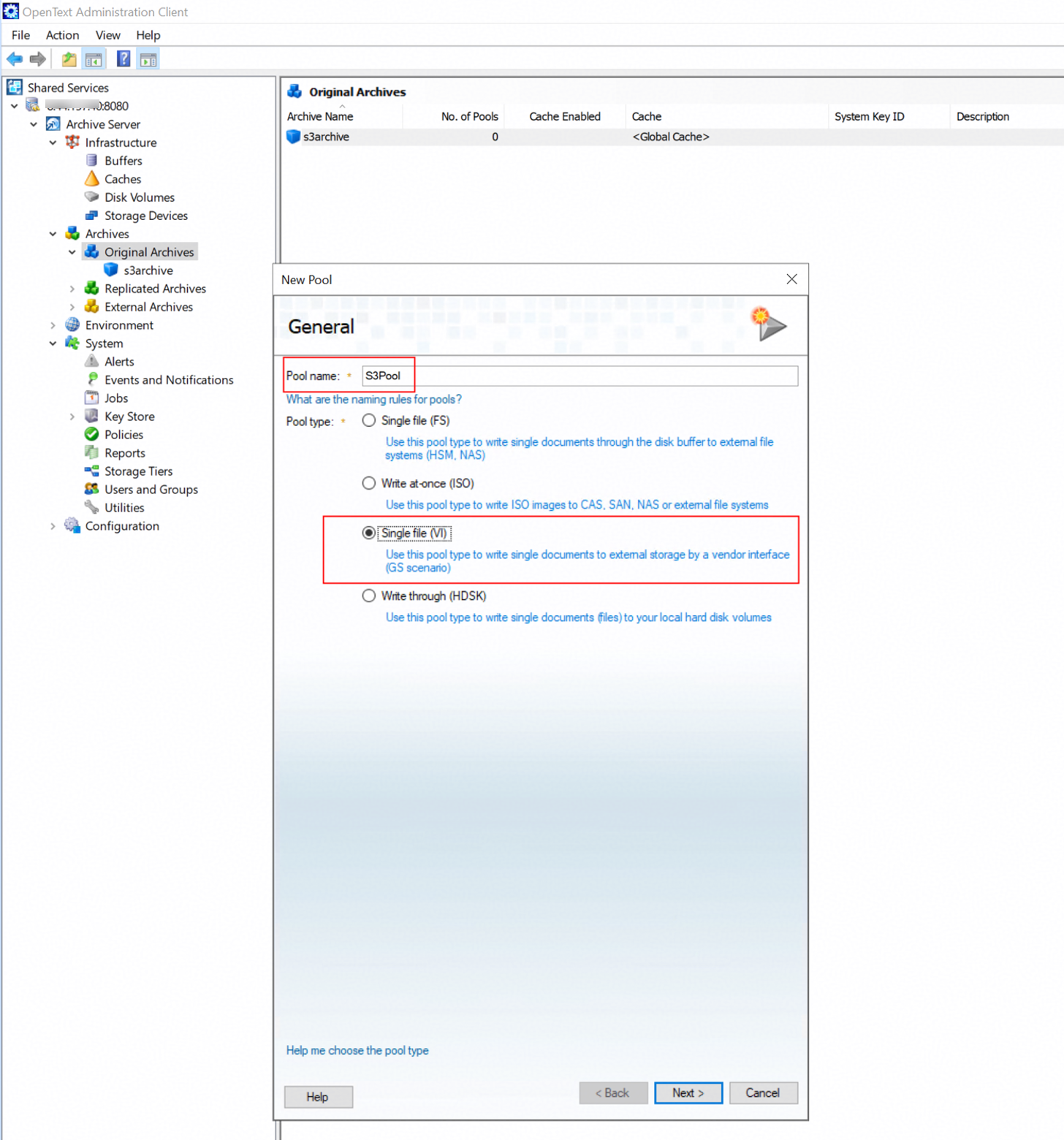
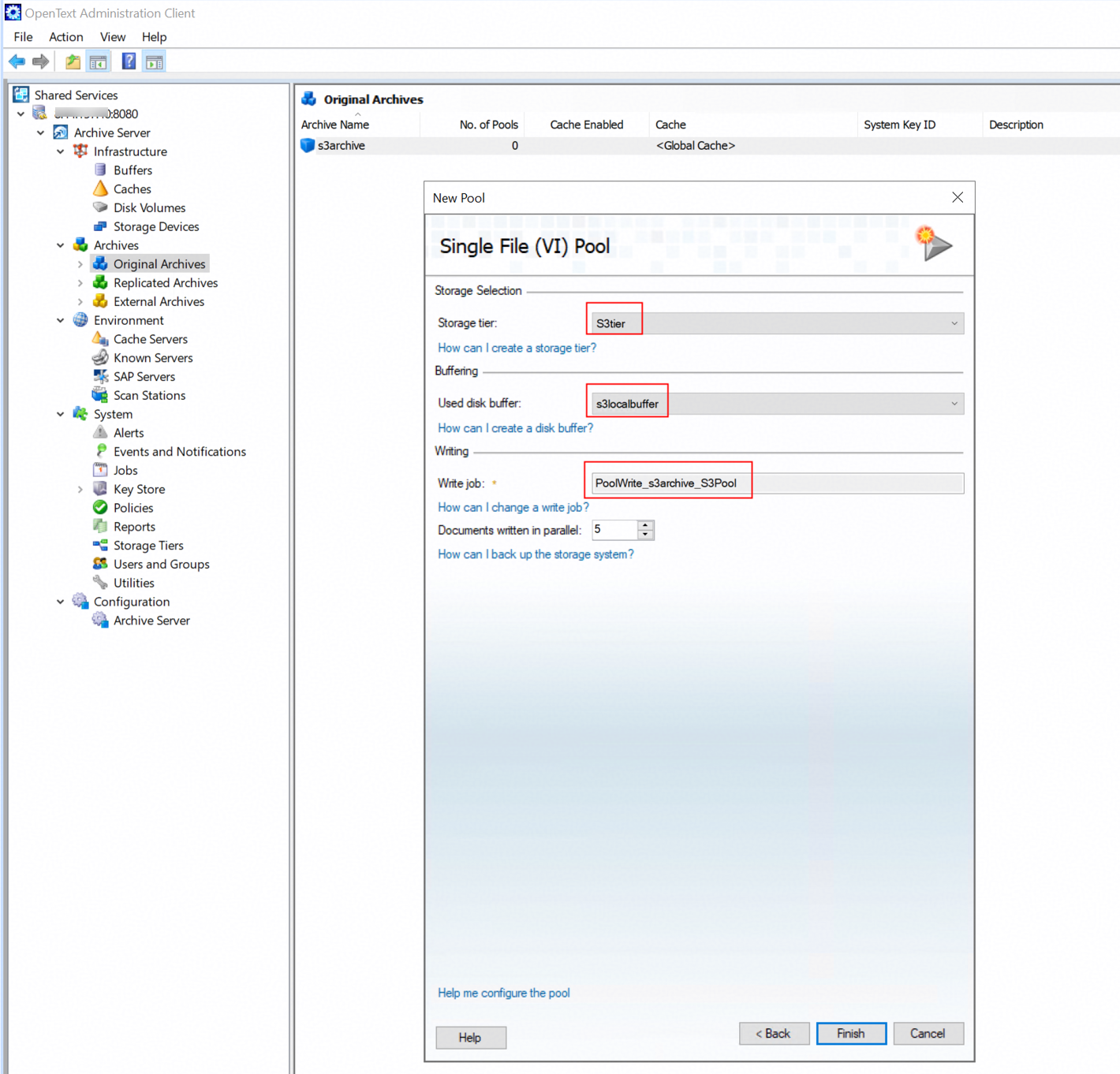 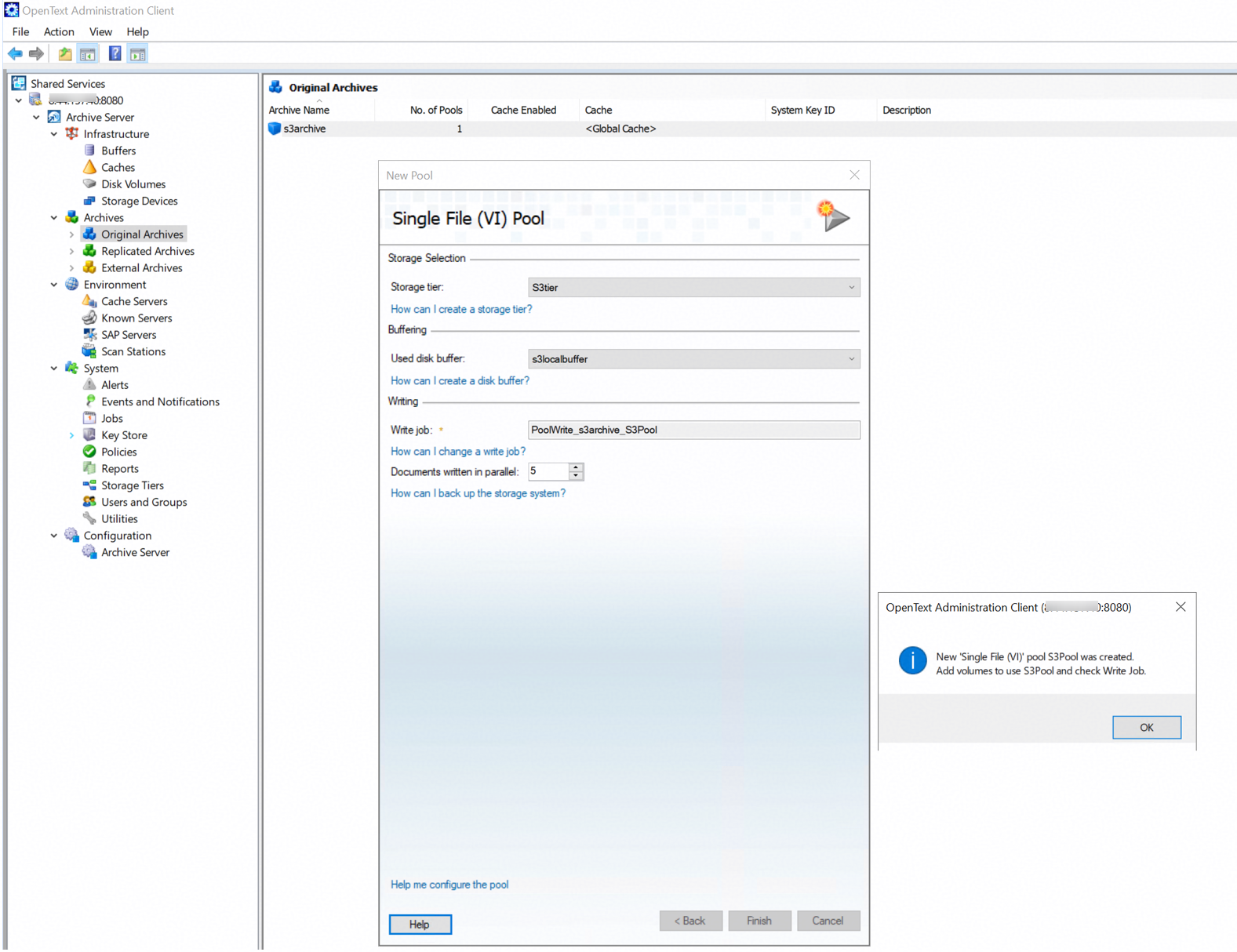
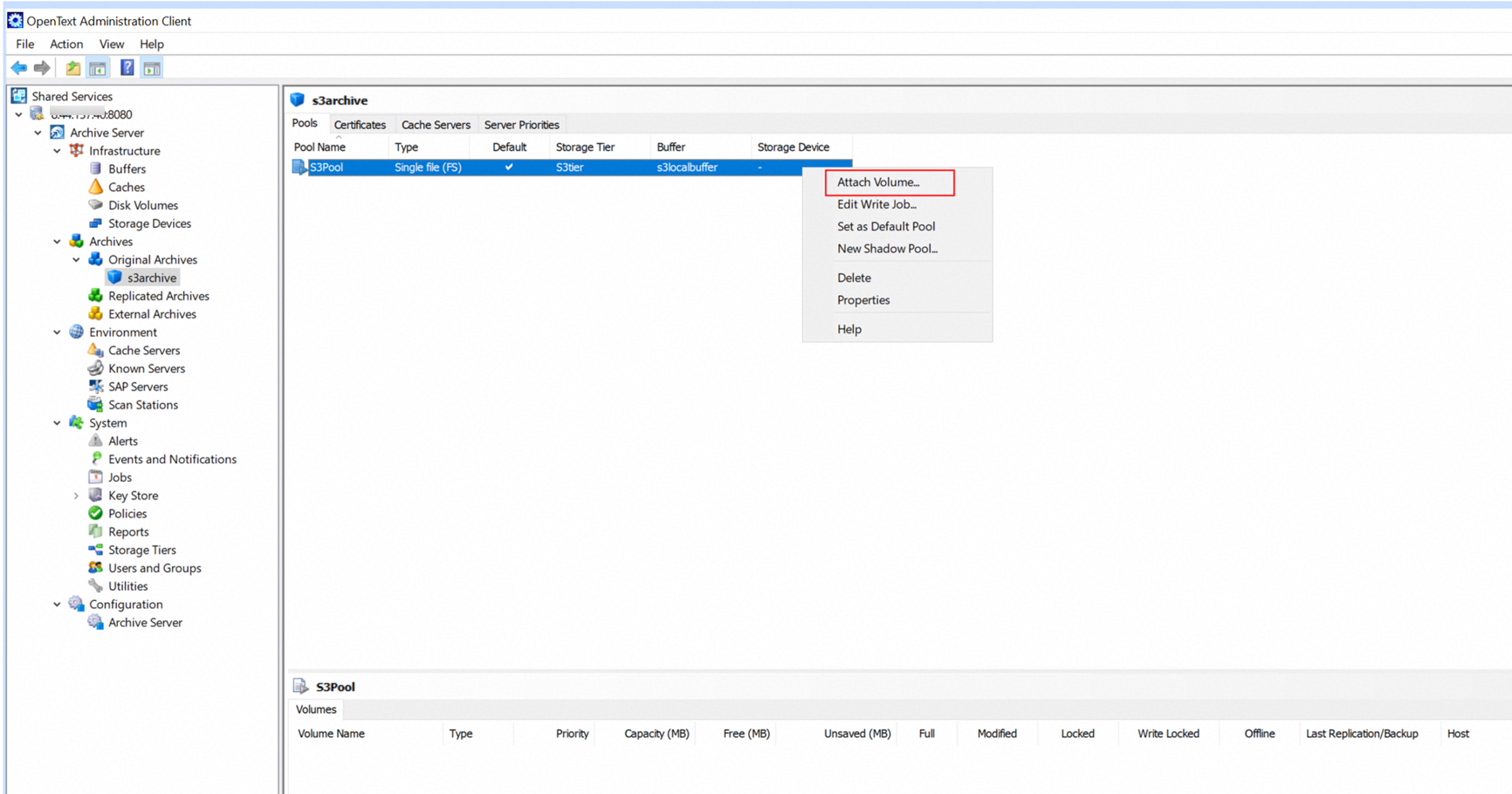
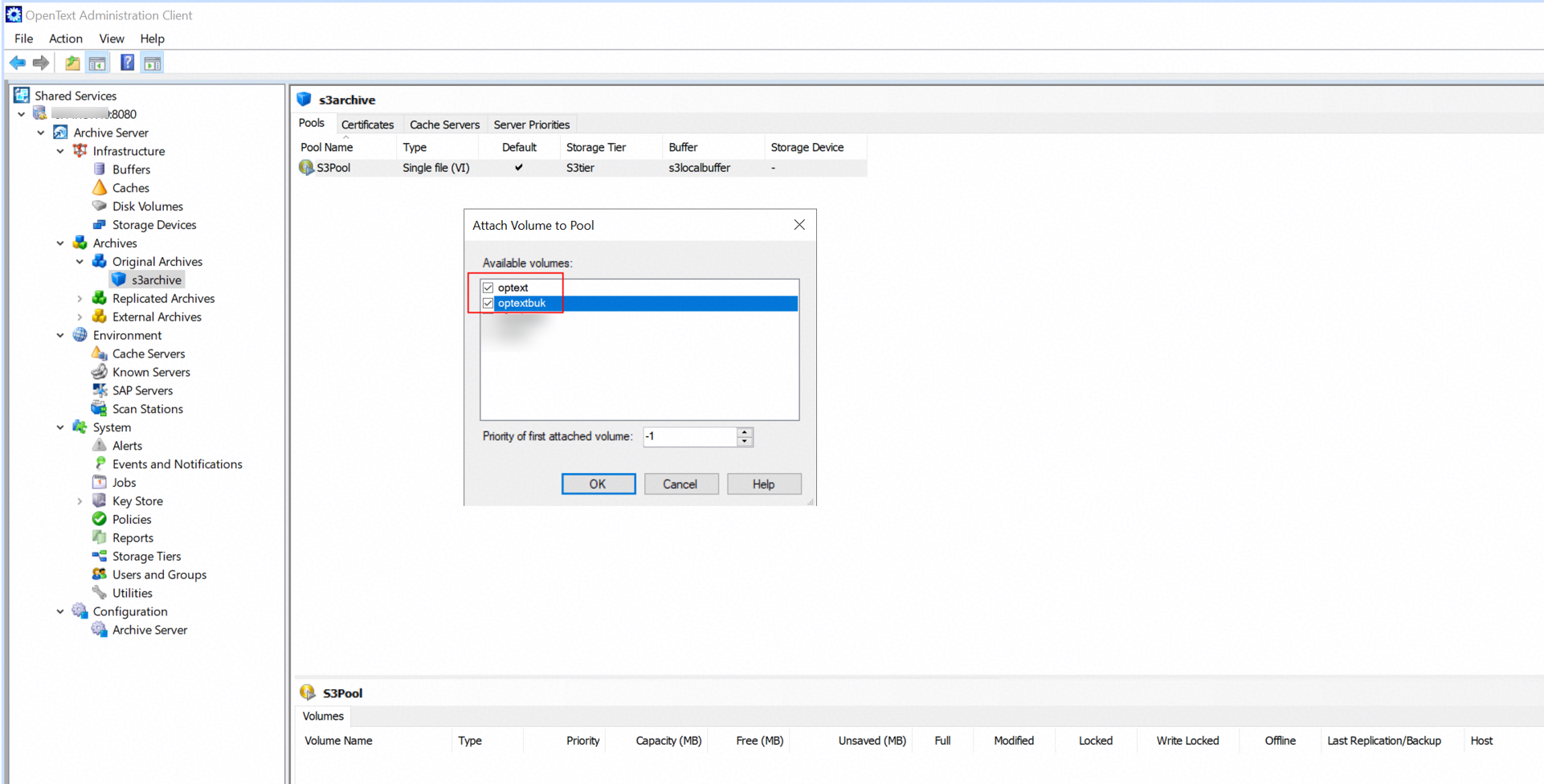
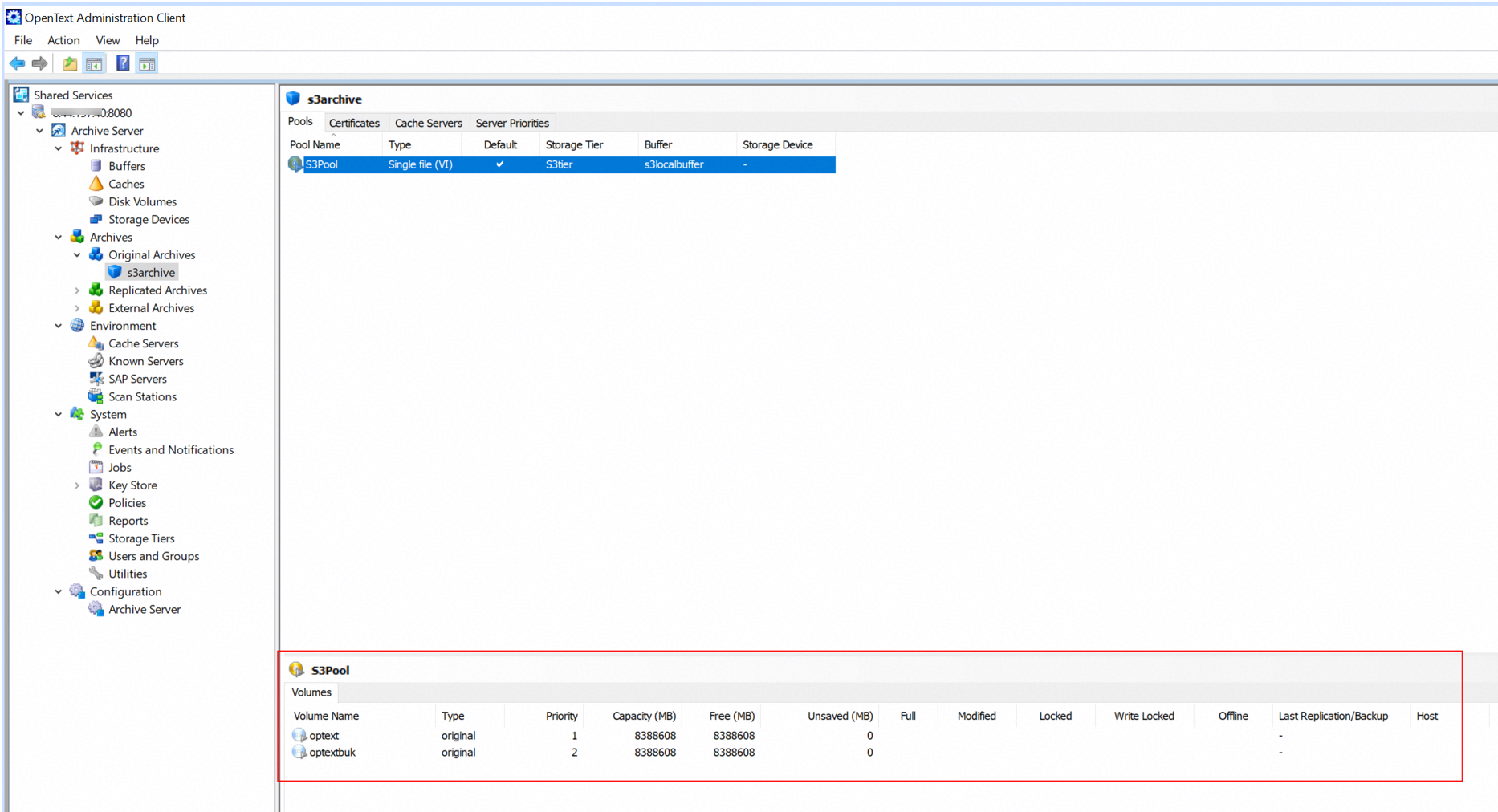
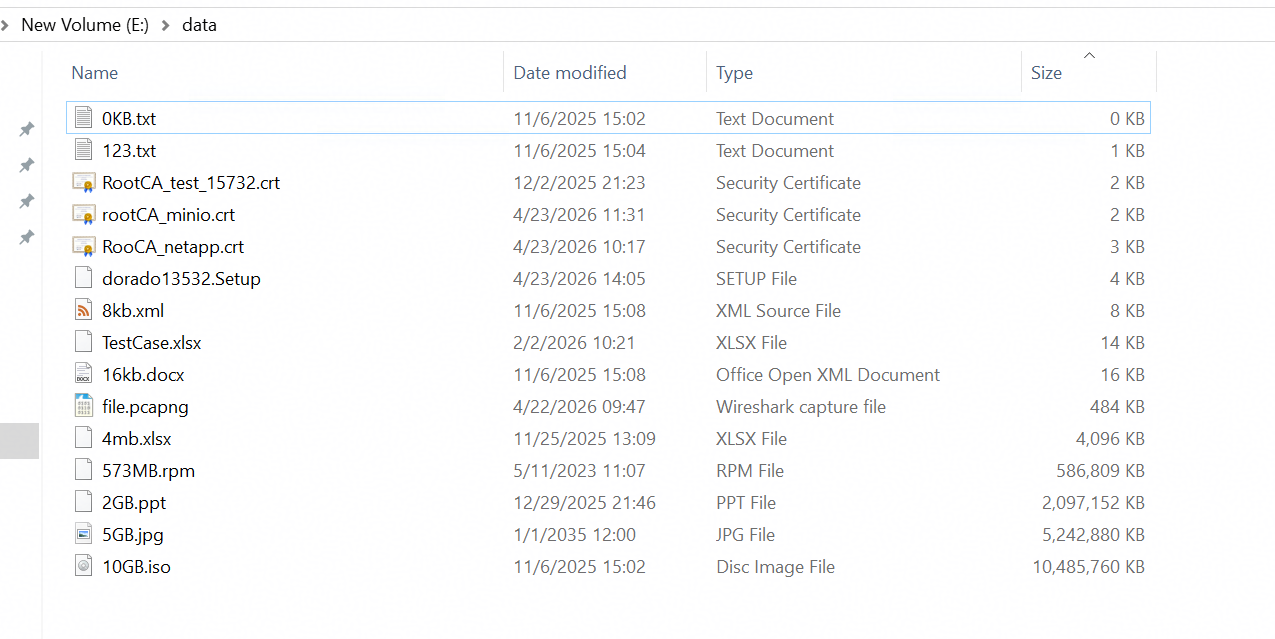
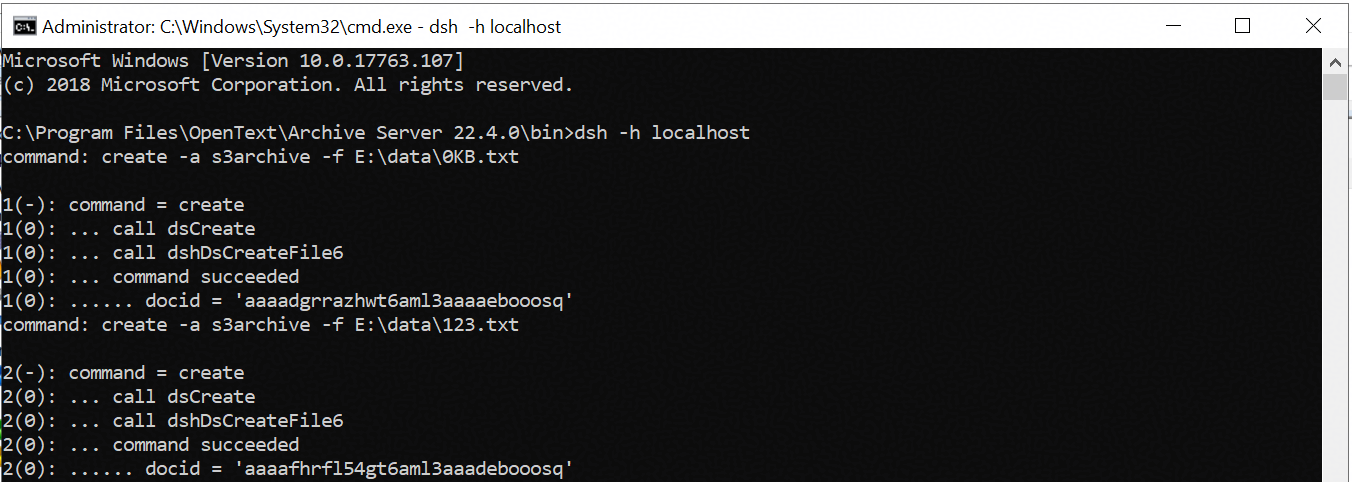 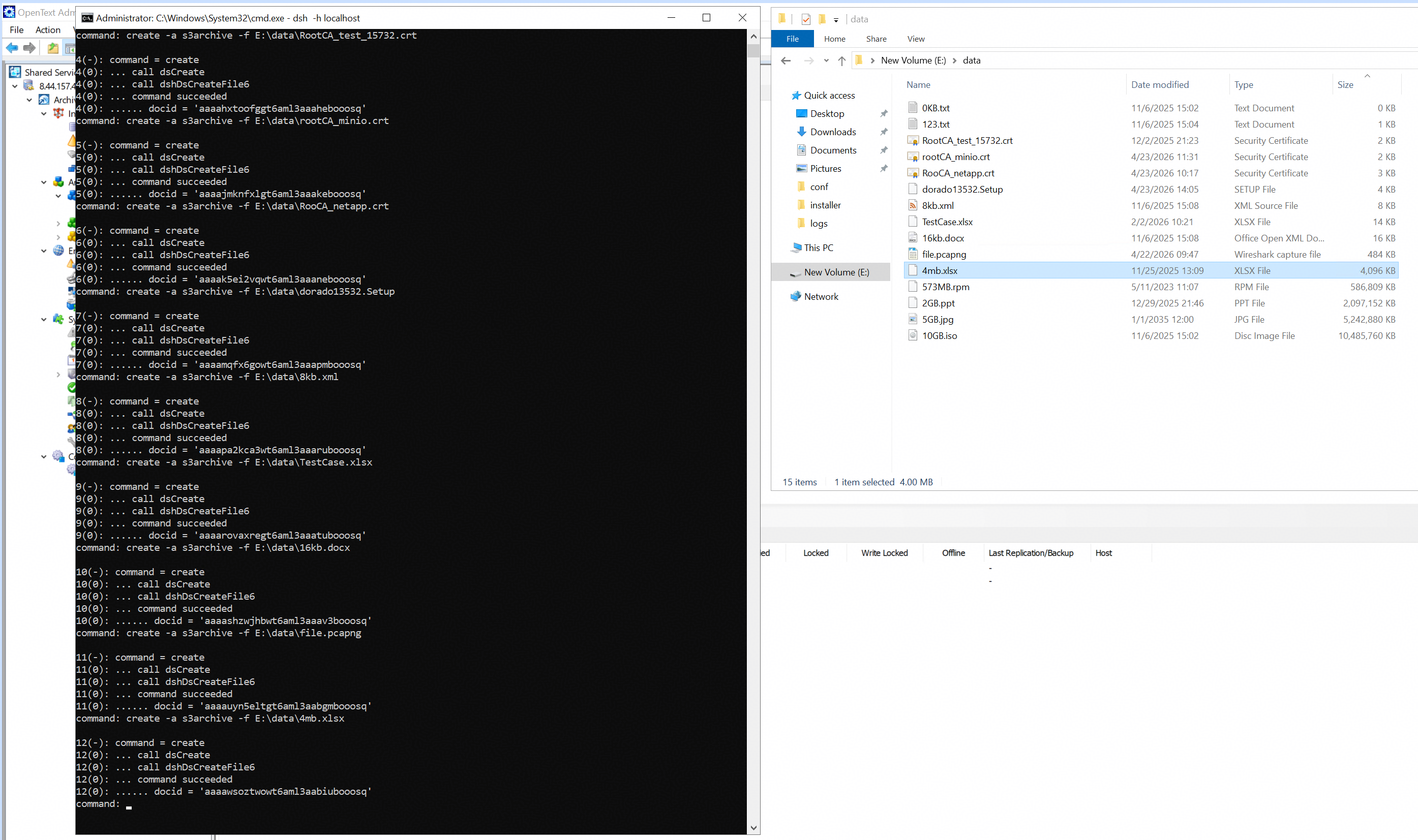
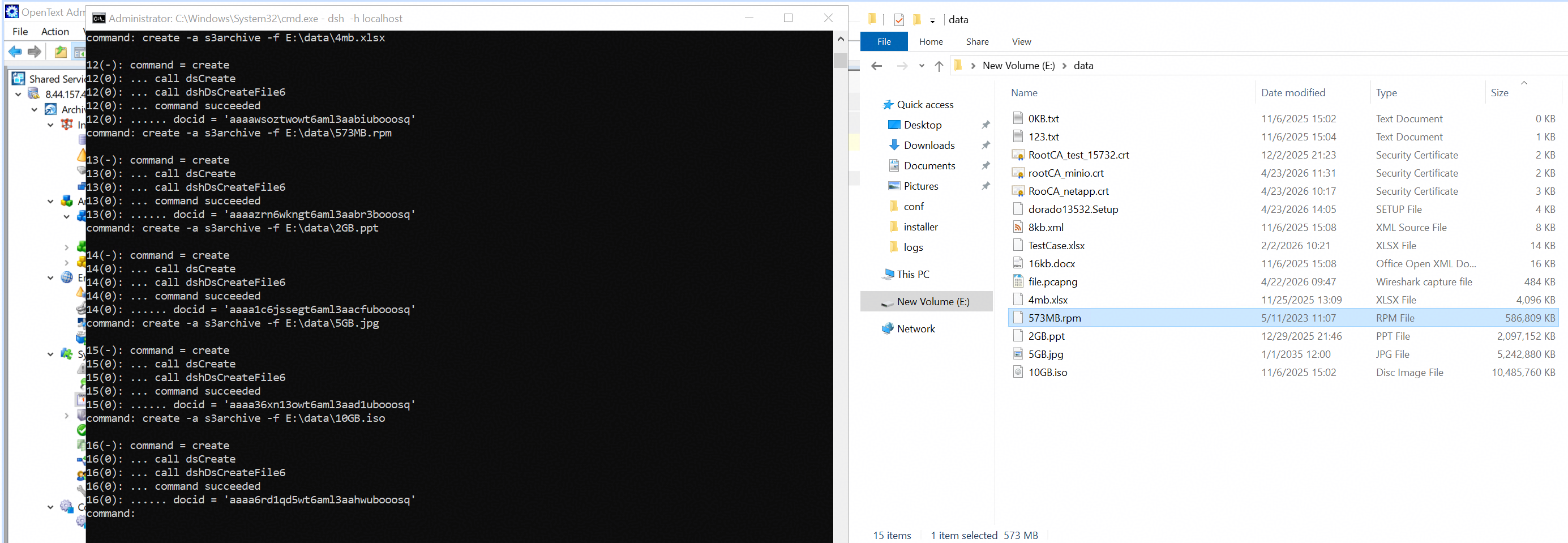
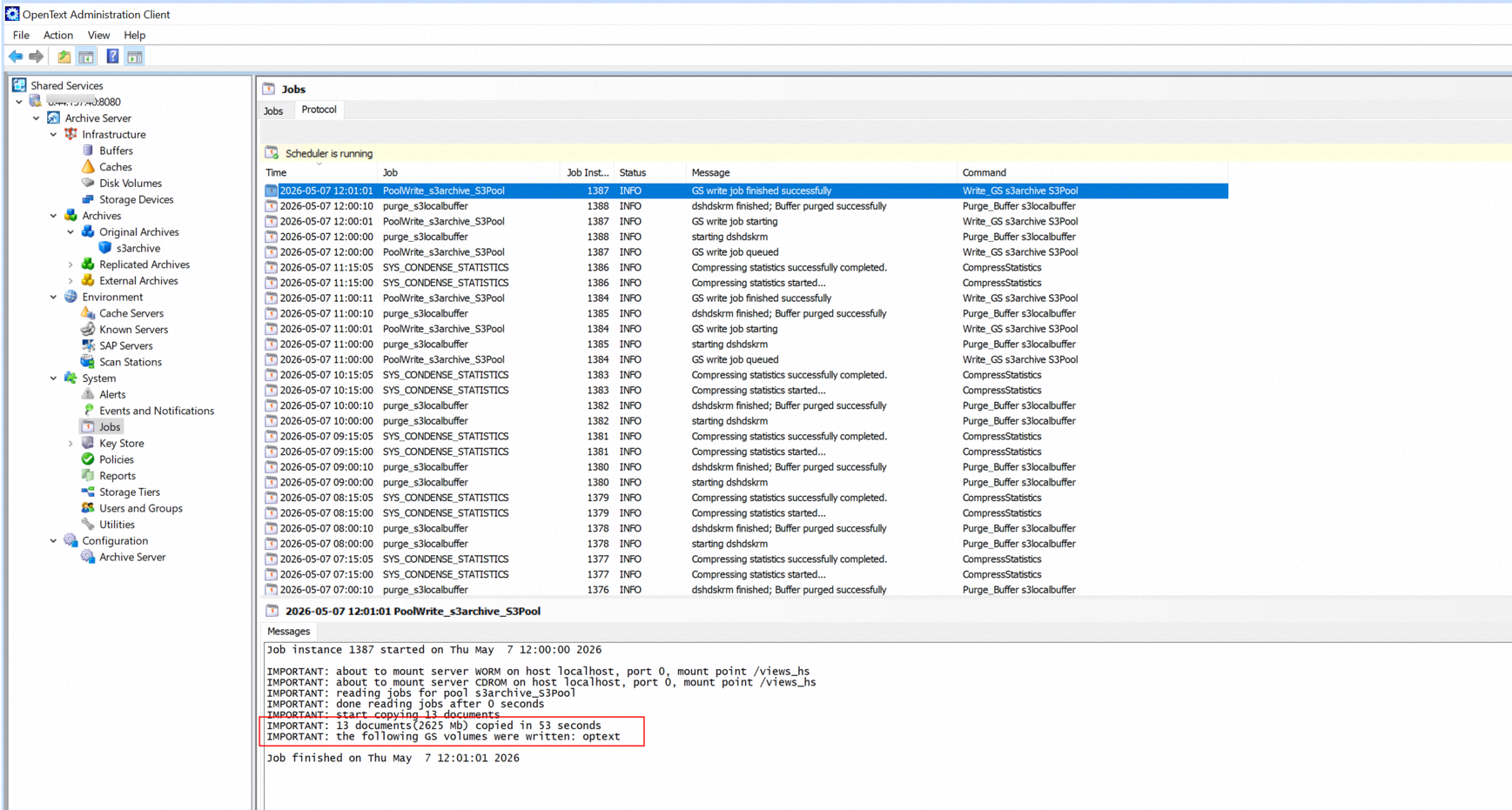
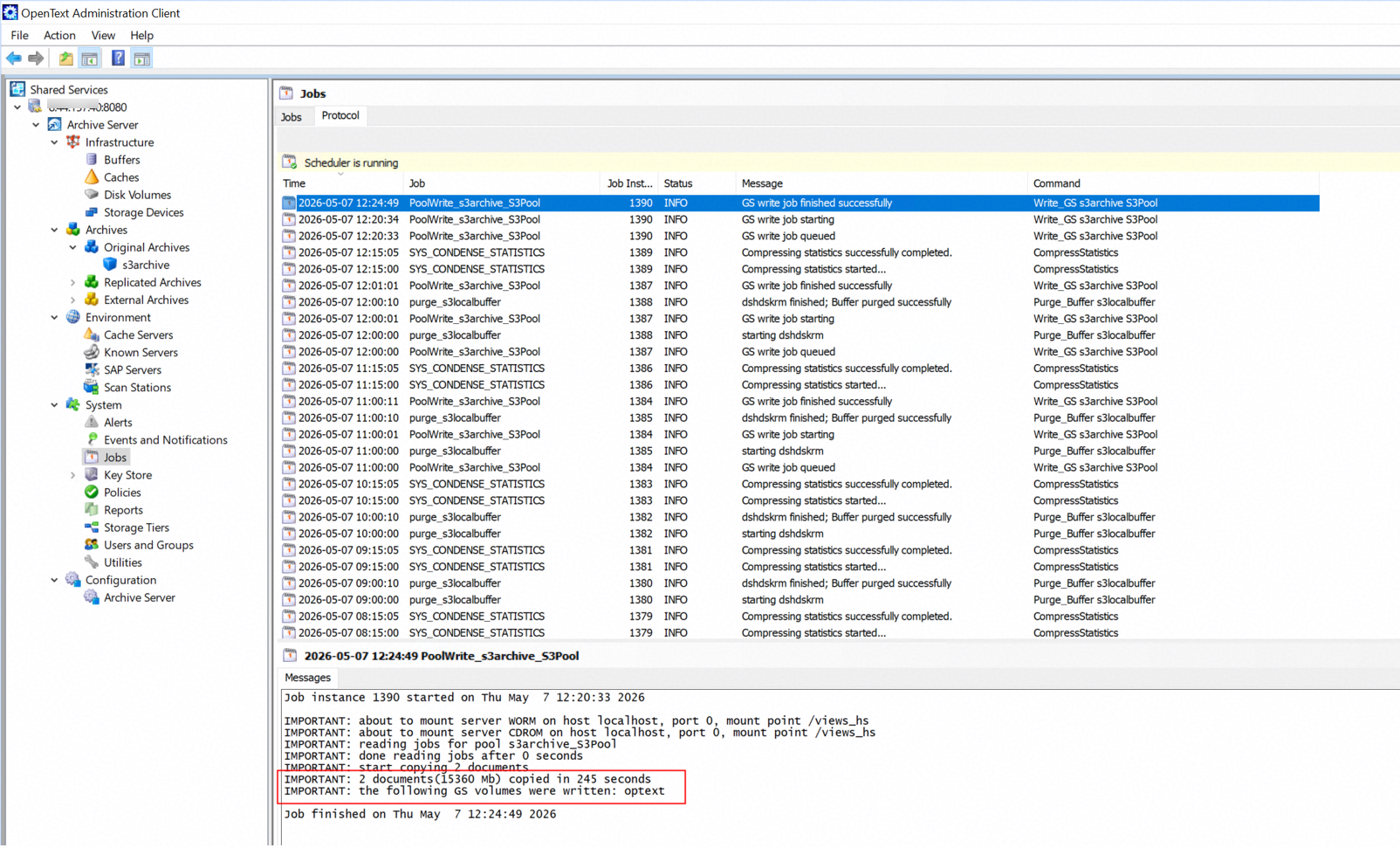
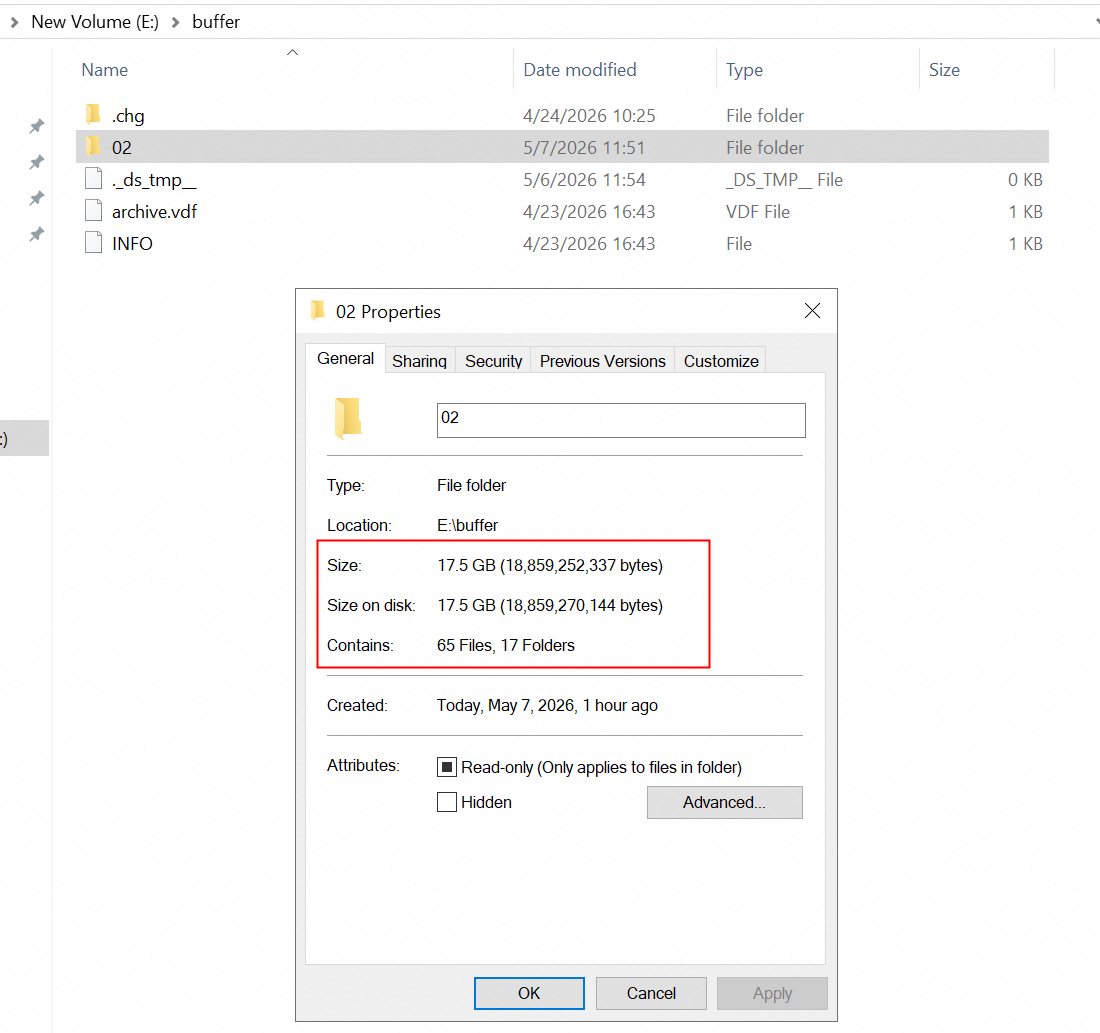
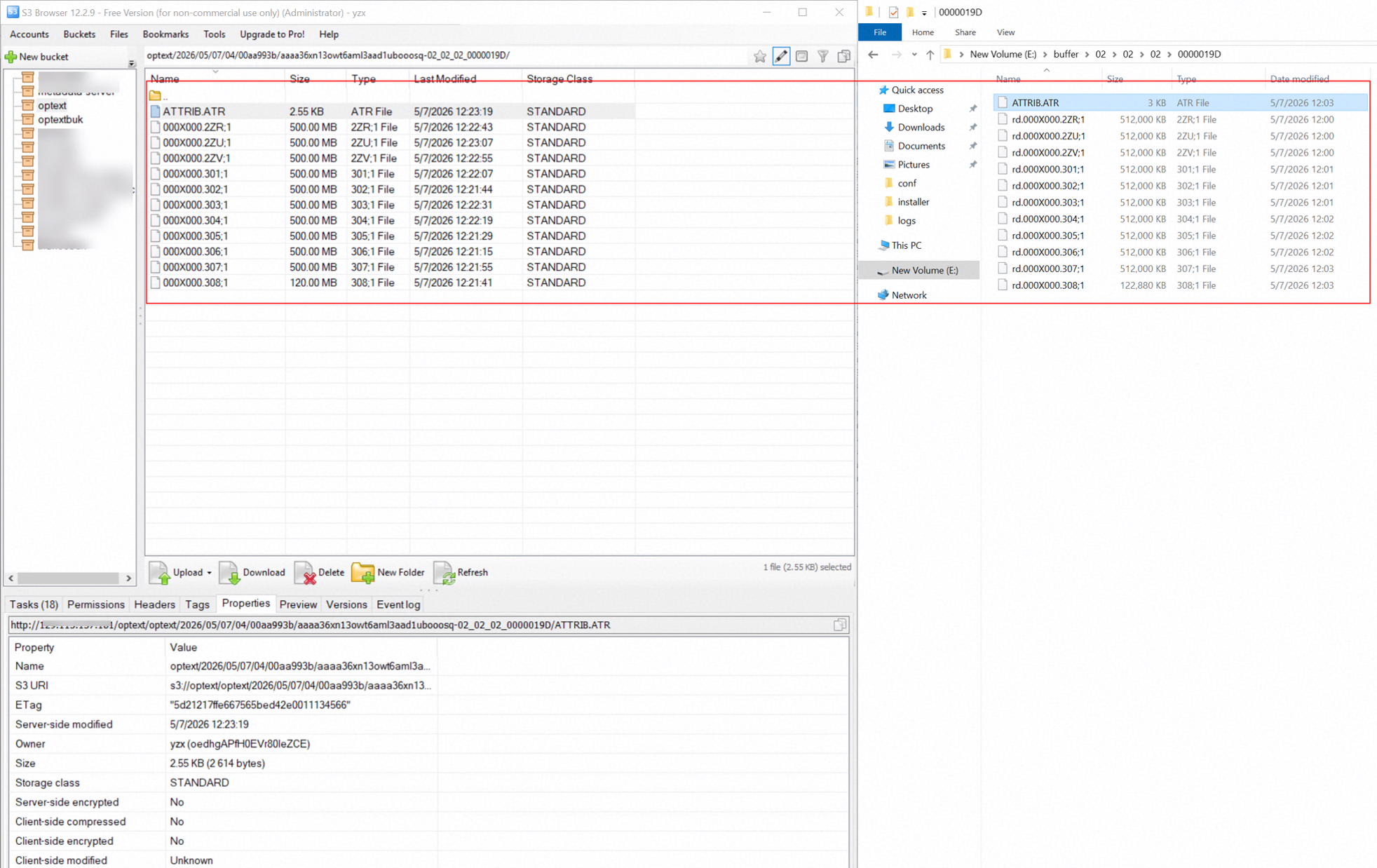 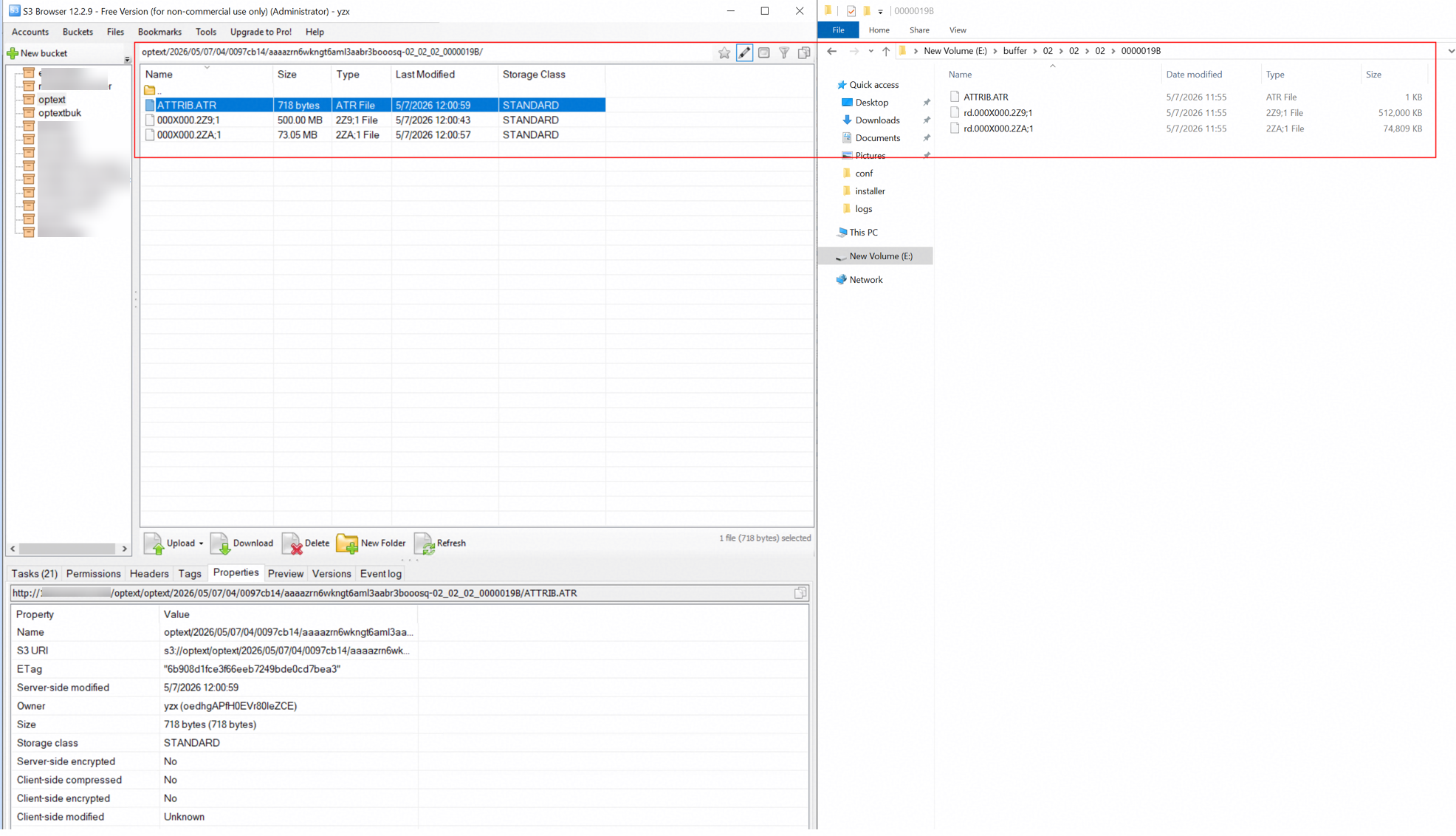
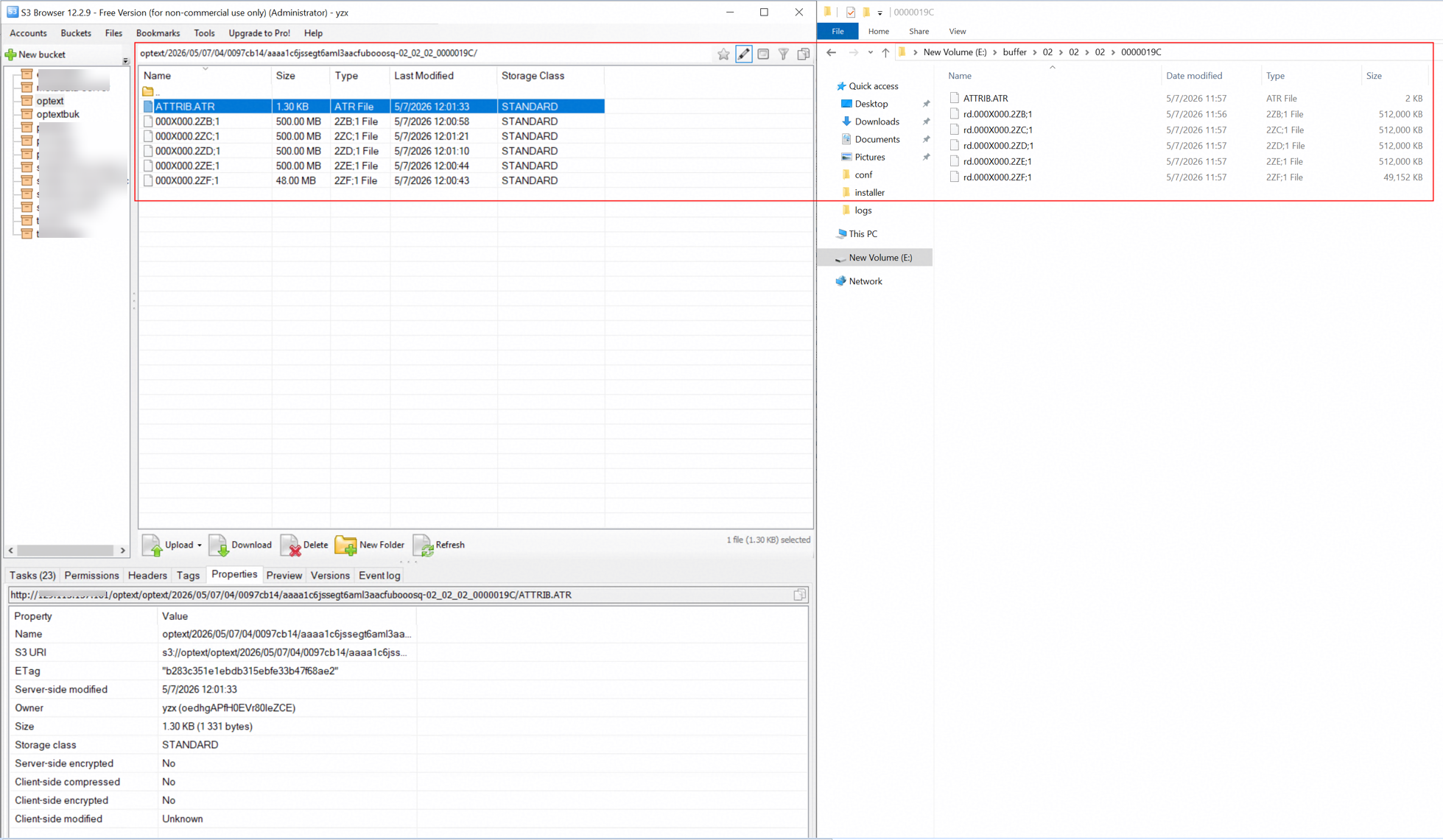 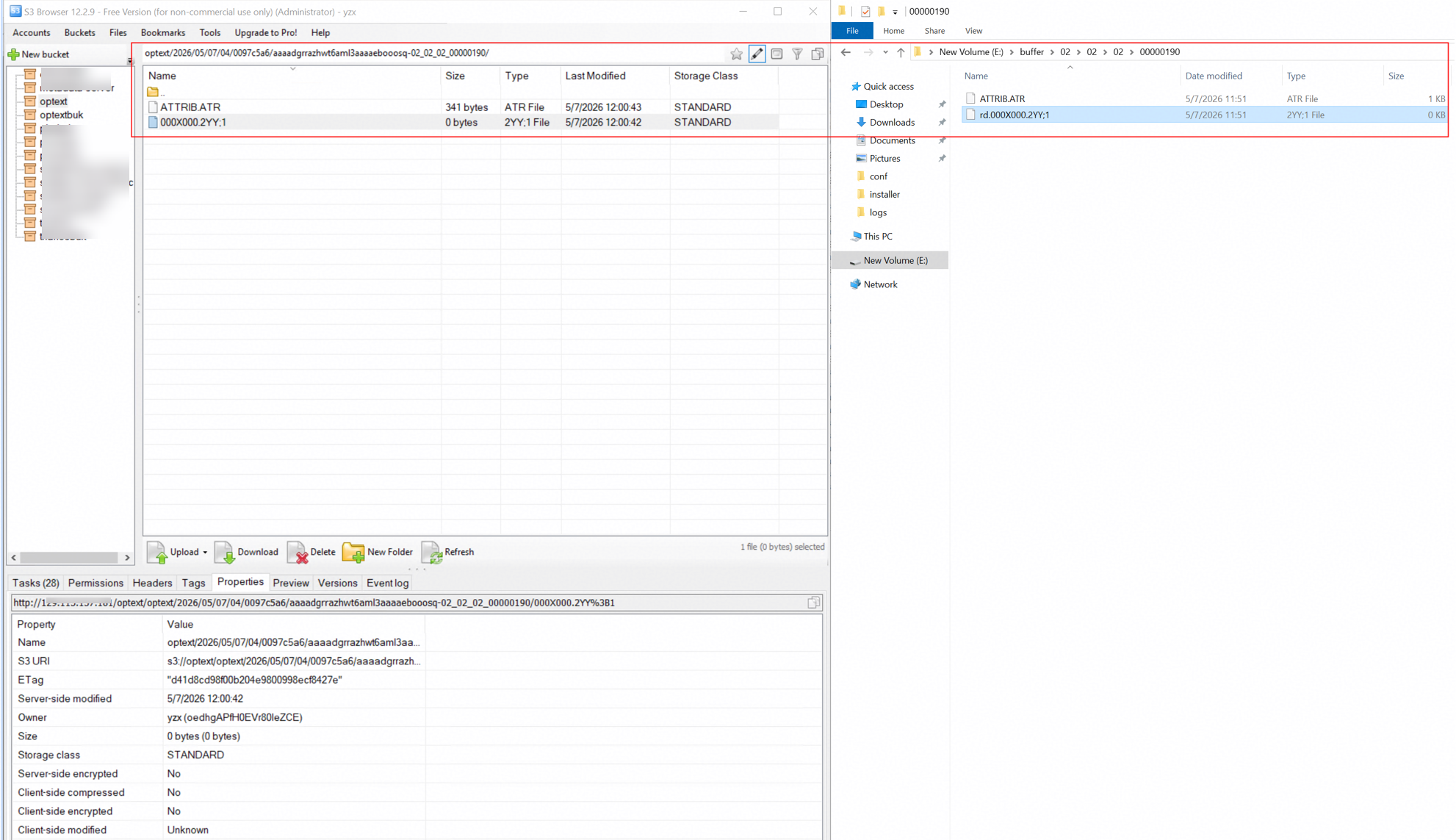
|
Test Conclusion | Passed |
3.4 Retrieve archived files from the S3 target storage through the archive server
Test Purpose | To verify that archived files can be retrieved from the storage through the archive server. |
Test Networking | Huawei OceanStor Flash Storage and Archive Server Test Networking |
Prerequisites |
|
Test Procedure |
|
Expected Result |
|
Test Results | Prerequisites The docids have been recorded while archiving the files. E:\data\10GB.iso docid = ‘aaaa6rd1qd5wt6aml3aahwubooosq’ E:\data\5GB.jpg docid = ‘aaaa36xn13owt6aml3aad1ubooosq’ E:\data\2GB.ppt docid = ‘aaaa1c6jssegt6aml3aacfubooosq’ E:\data\573MB.rpm docid = ‘aaaazrn6wkngt6aml3aabr3booosq’ E:\data\4mb.xlsx docid = ‘aaaawsoztwowt6aml3aabiubooosq’ E:\data\file.pcapng docid = ‘aaaauyn5eltgt6aml3aabgmbooosq’ E:\data\16kb.docx docid = ‘aaaashzwjhbwt6aml3aaav3booosq’ E:\data\TestCase.xlsx docid = ‘aaaarovaxregt6aml3aaatubooosq’ E:\data\8kb.xml docid = ‘aaaapa2kca3wt6aml3aaarubooosq’ E:\data\OceanStor13532.Setup docid = ‘aaaamqfx6gowt6aml3aaapmbooosq’ E:\data\RooCA_netapp.crt docid = ‘aaaak5ei2vqwt6aml3aaanebooosq’ E:\data\rootCA_minio.crt docid = ‘aaaajmknfxlgt6aml3aaakebooosq’ E:\data\RootCA_test_15732.crt docid = ‘aaaahxtoofggt6aml3aaahebooosq’ E:\data\123.txt docid = ‘aaaafhrfl54gt6aml3aaadebooosq’ E:\data\0KB.txt docid = ‘aaaadgrrazhwt6aml3aaaaebooosq’ Test Result 1. Run related Purge job to clean the archive server’s local buffer. And check the files in the archive server’s local buffer. 1.1 Before running the job, folder ‘02’ is in the local buffer. 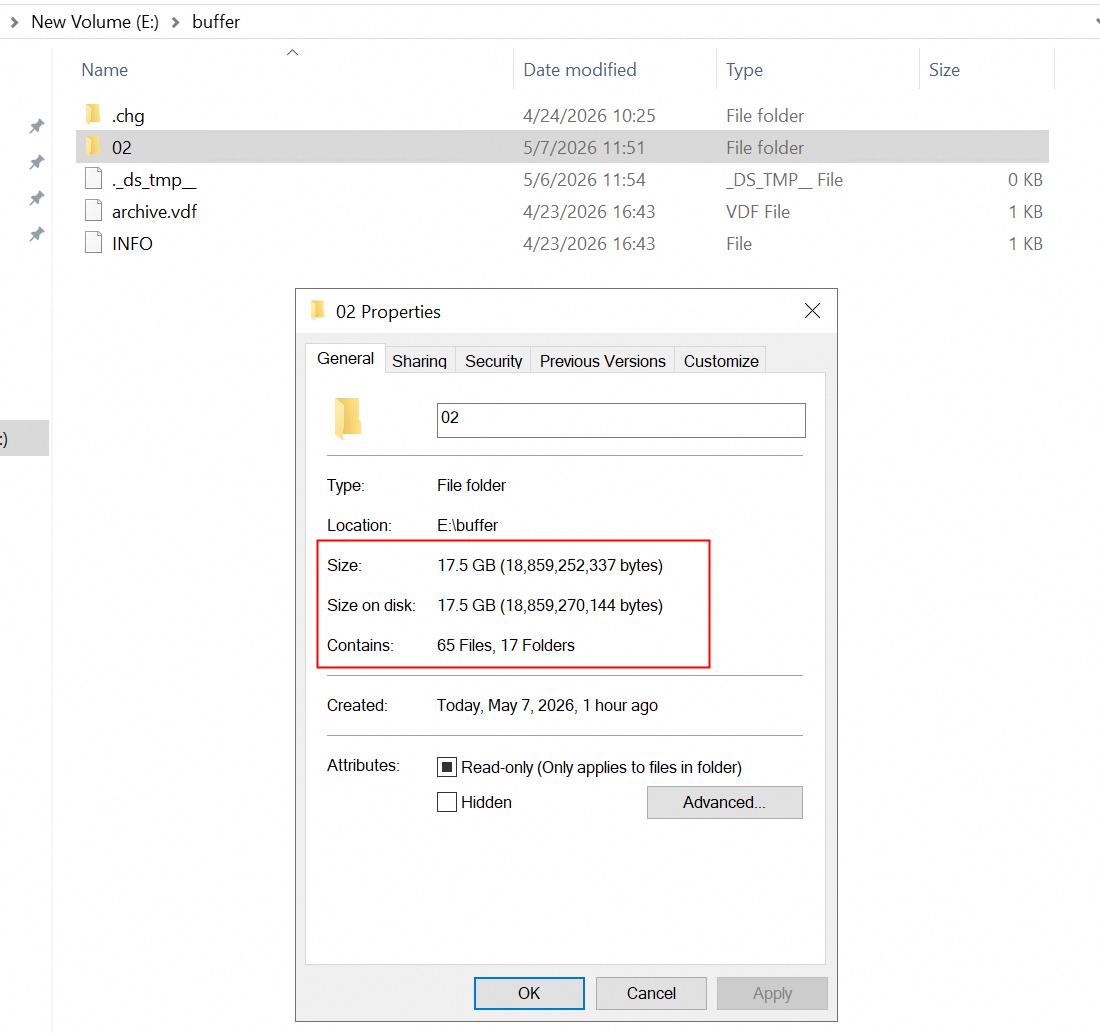 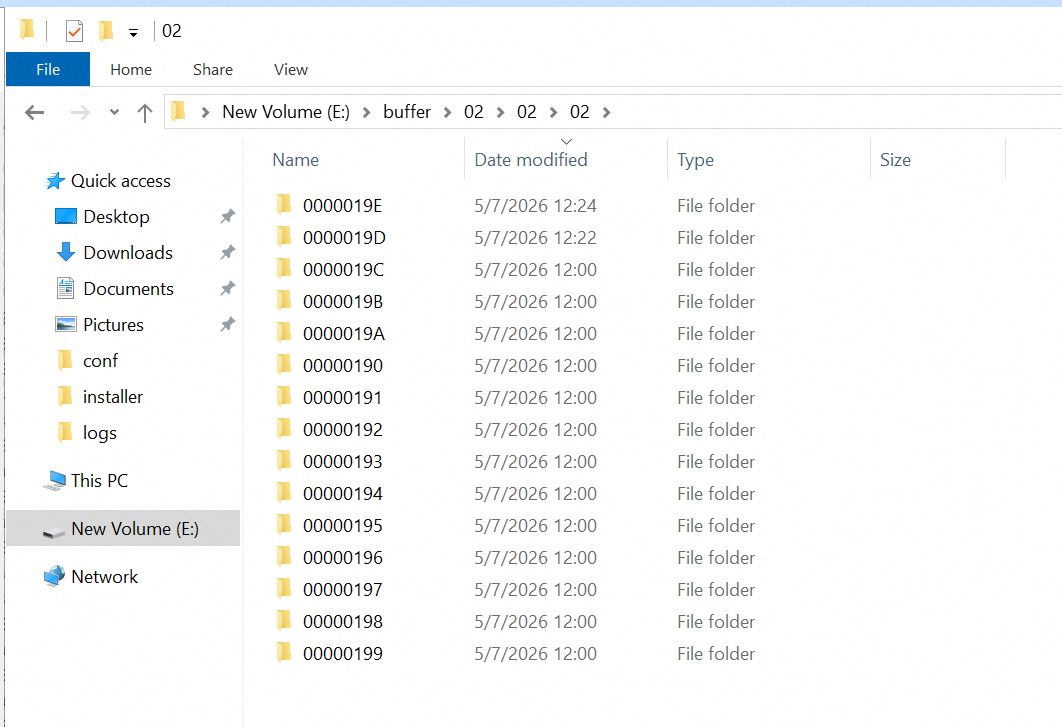
1.2 Change Min. free space to ‘100%’ in related buffer properties, so that the data can be purged immediately for testing purposes. 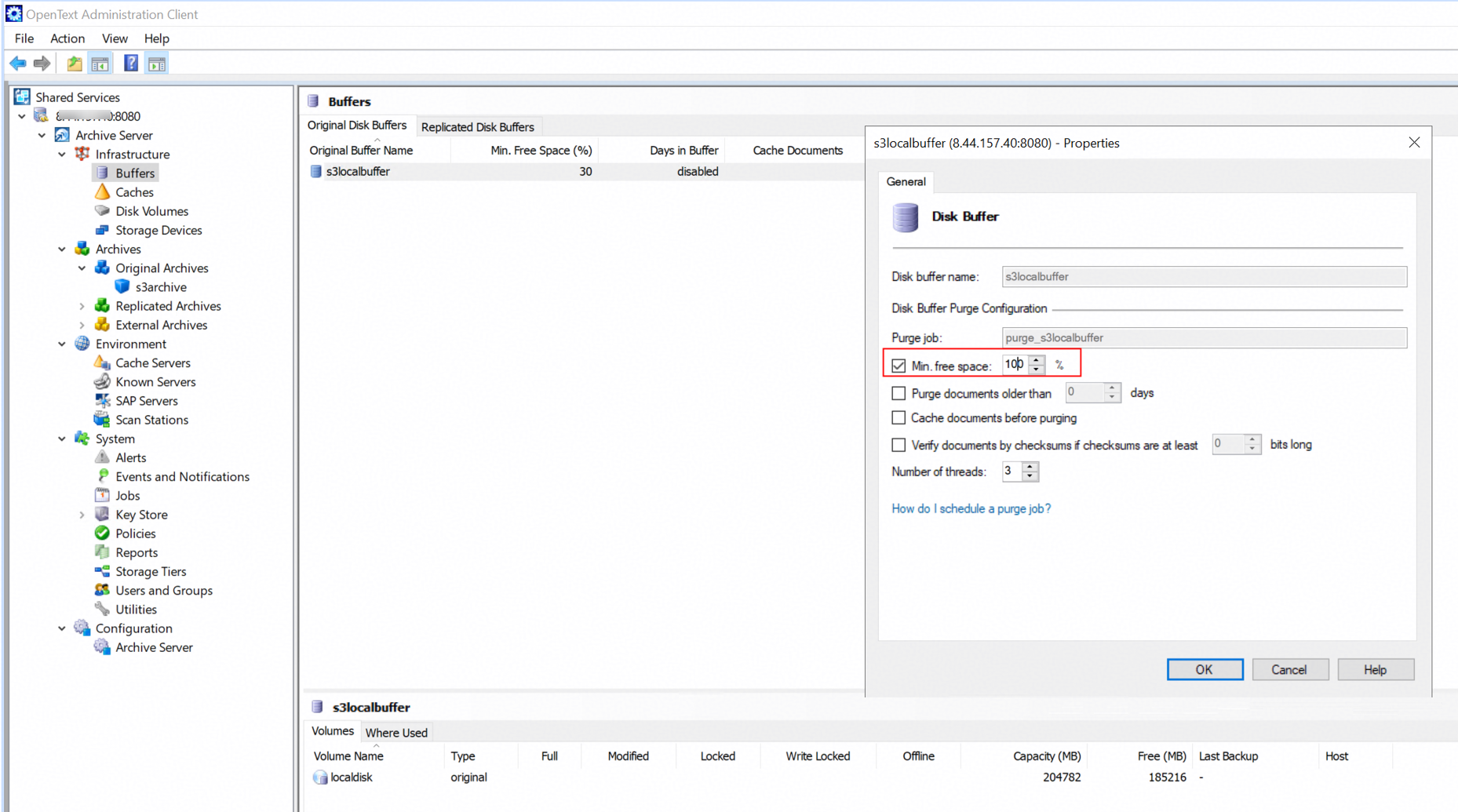
1.3 Start the purge job. 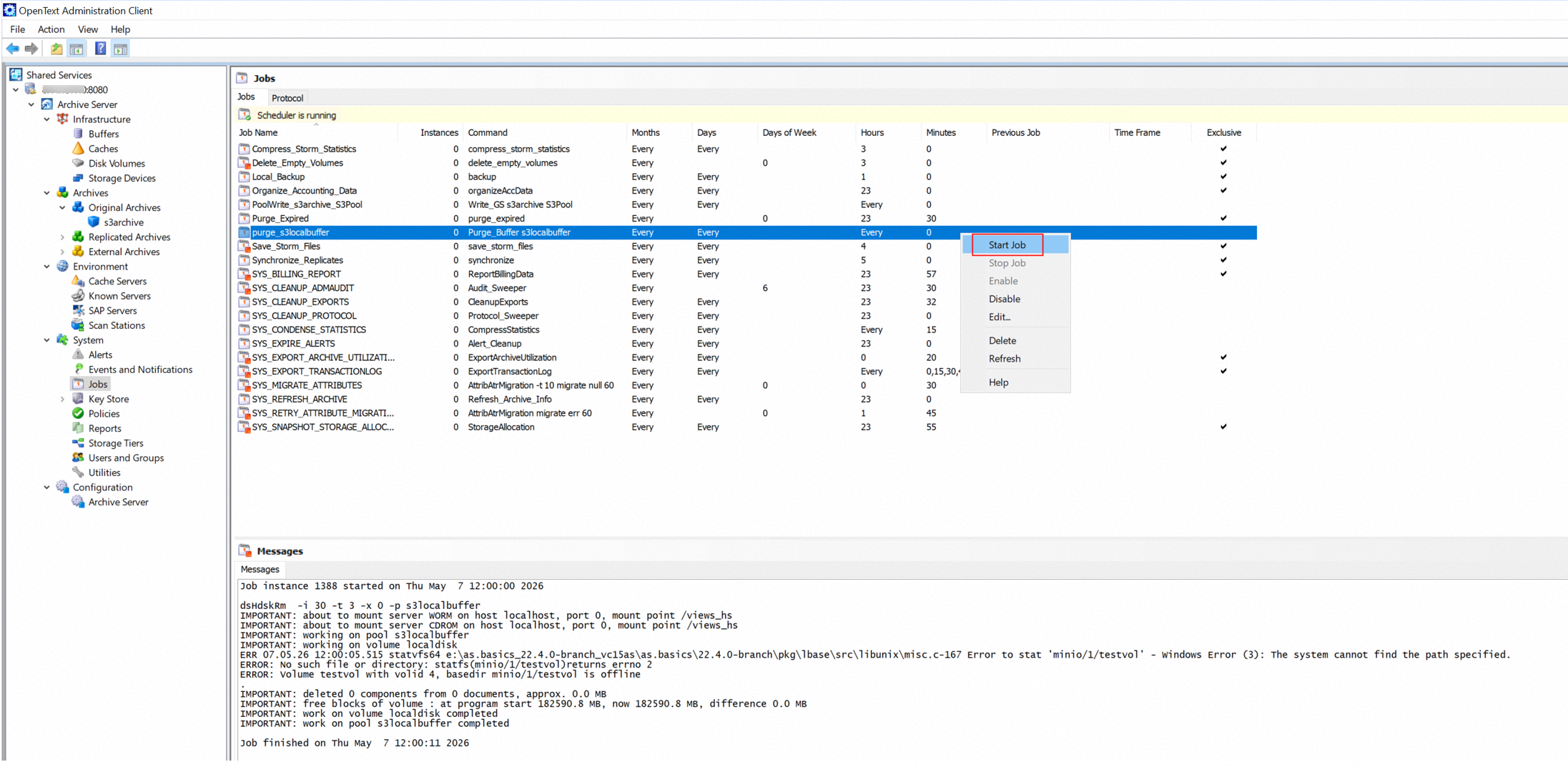
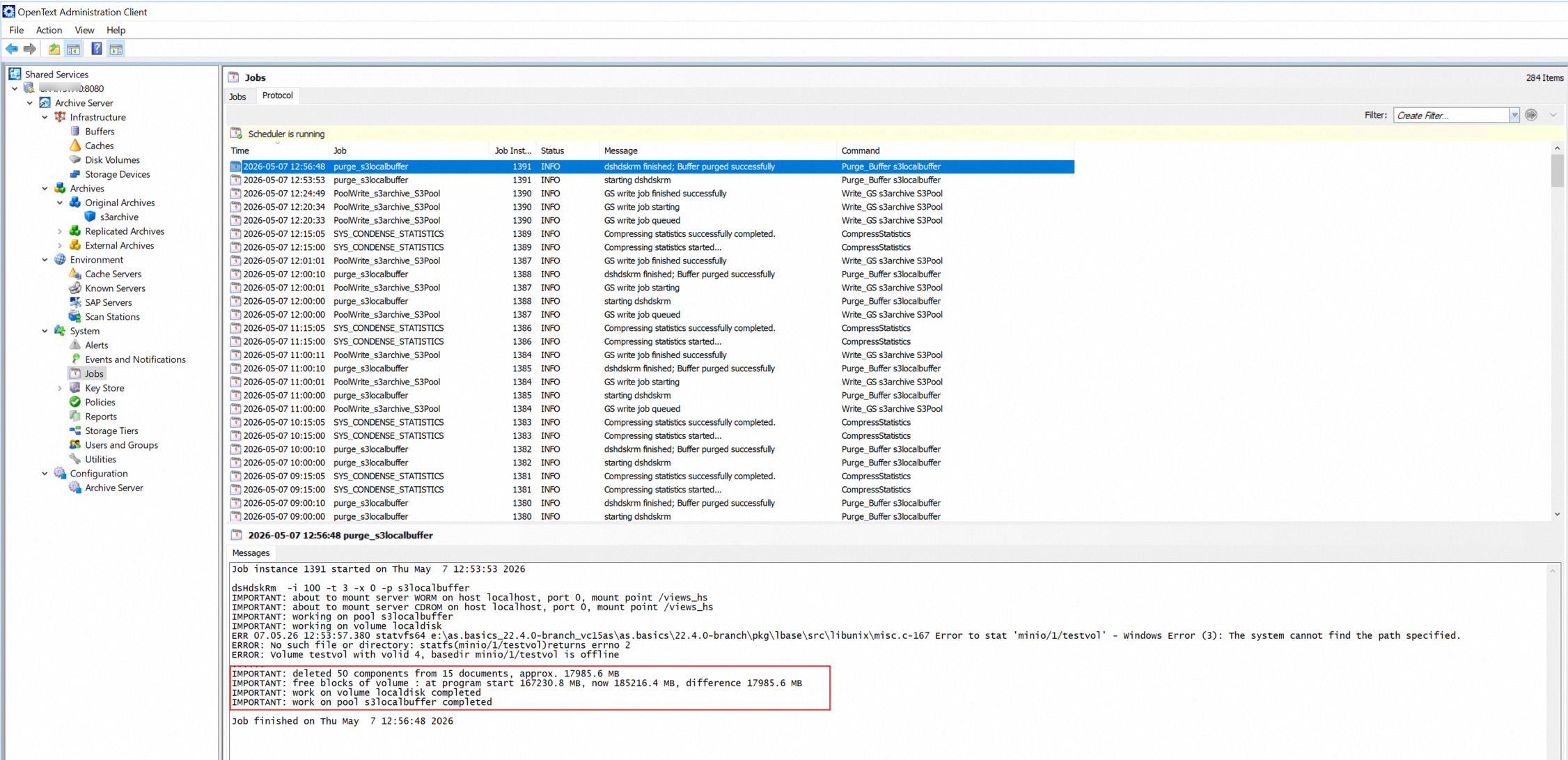
1.4 The folder ‘02’ in the archive server local buffer has been removed. 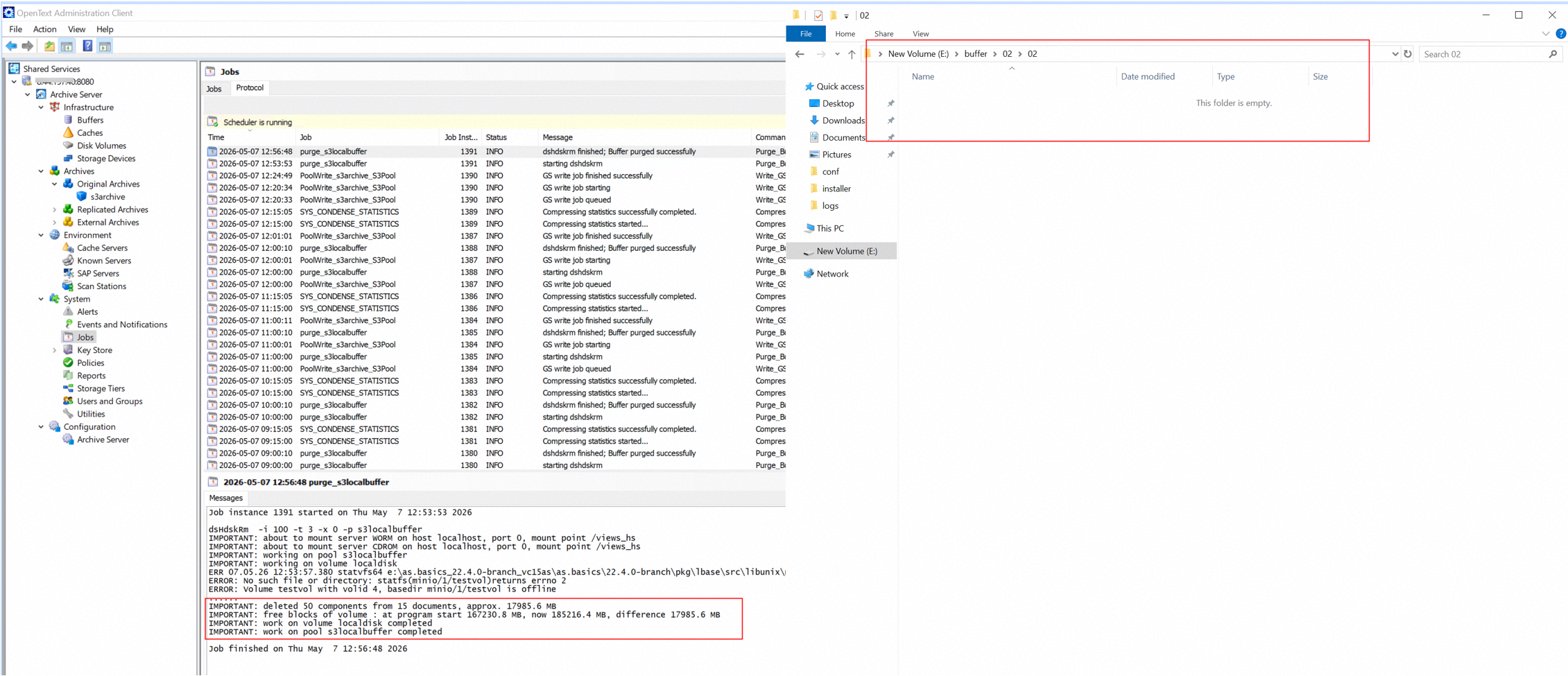
2. Create a new folder in the local disk as the destination directory for retrieving files. 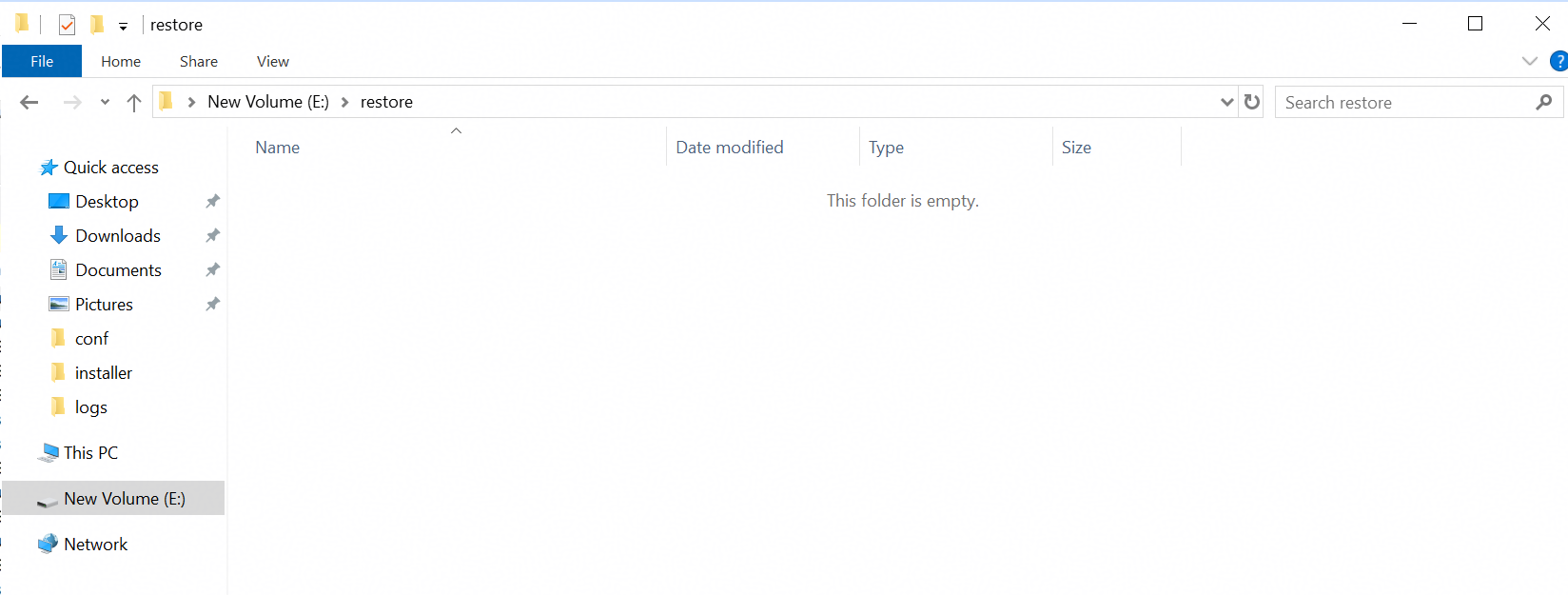
3. In the archive server, retrieve the archived files with the docids recorded earlier from the storage to the destination directory. 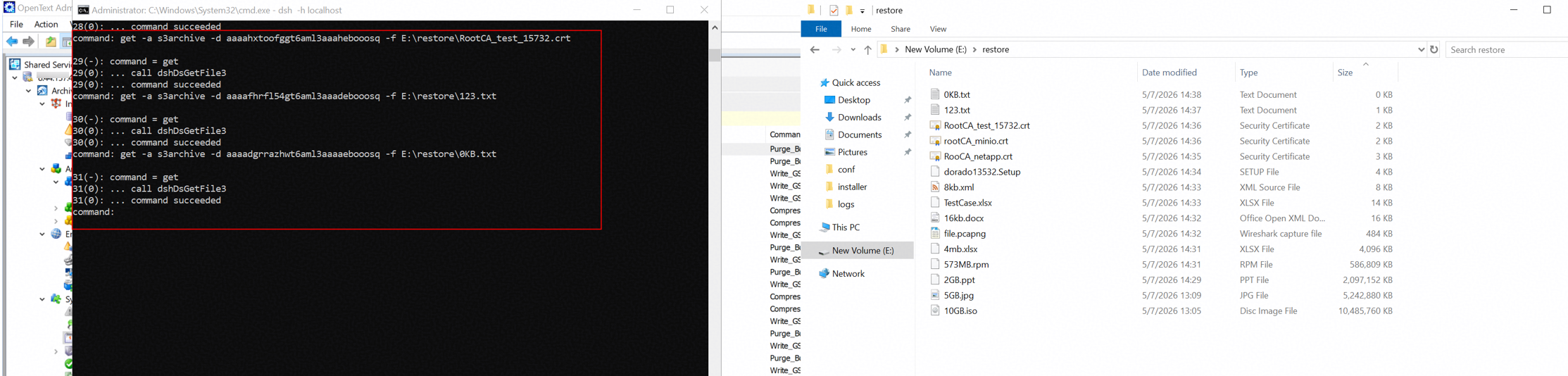
4. The MD5 value of the retrieved files and original files are the same. That indicates the retrieved files and original files are consistent. 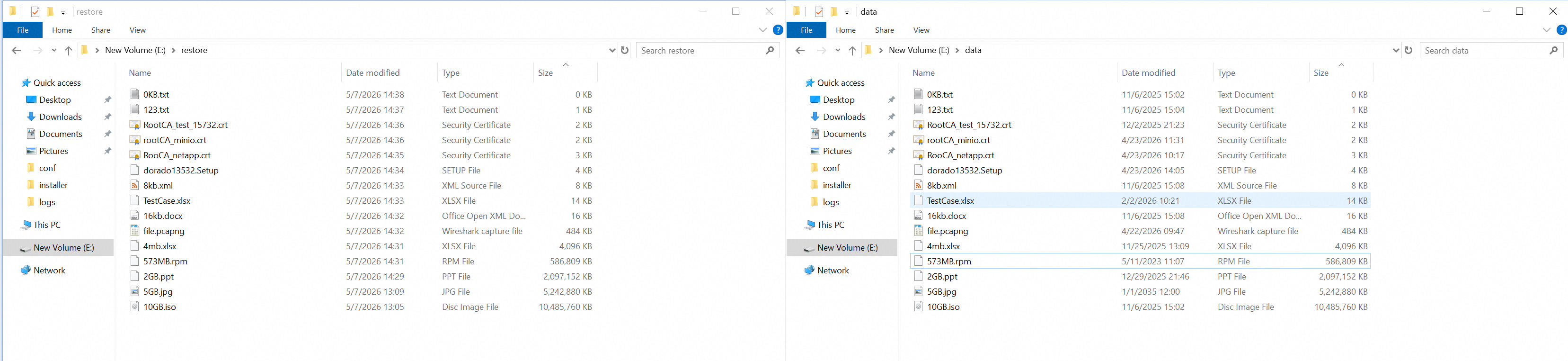 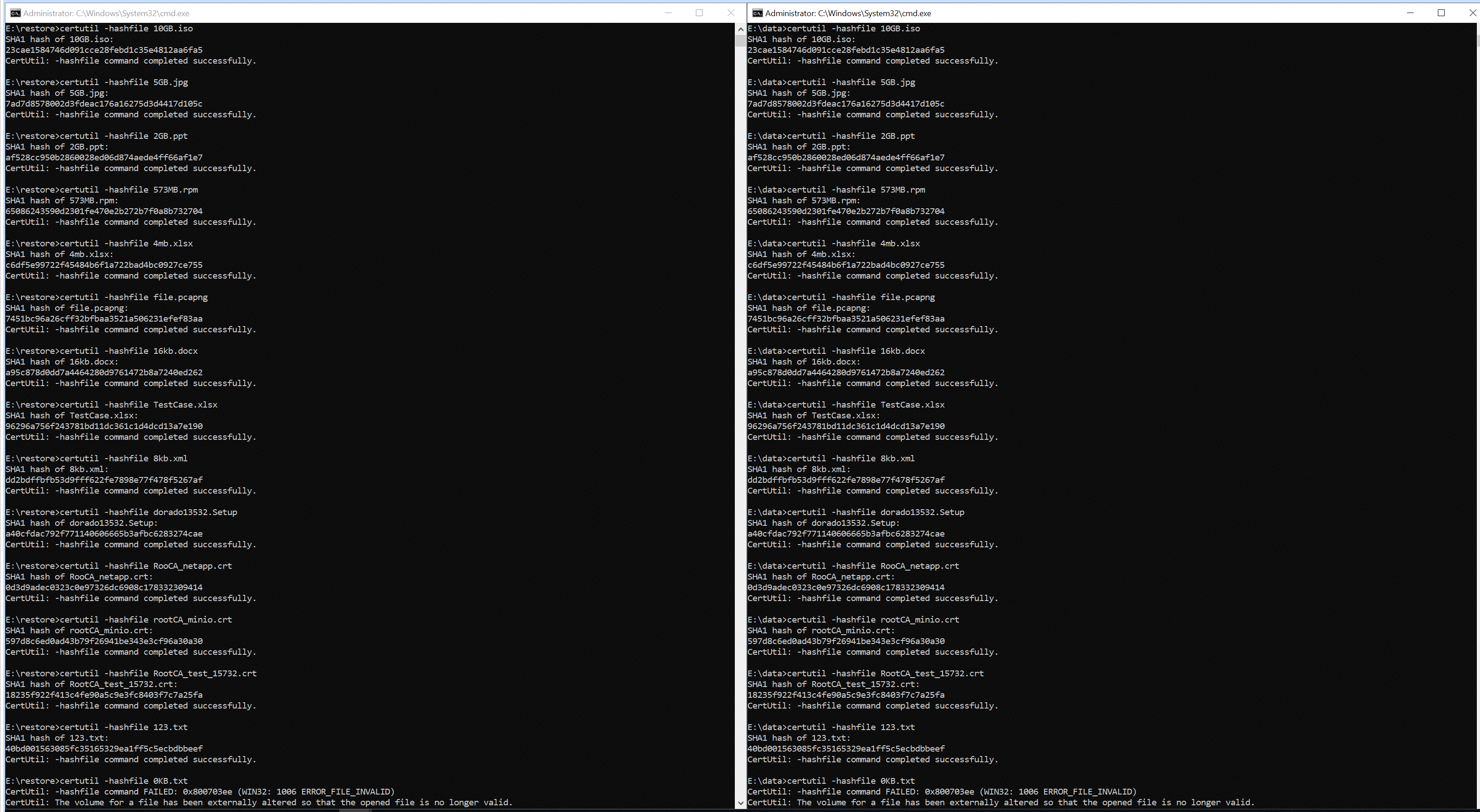
|
Test Conclusion | Passed |
4. Reference
Huawei OceanStor Flash Storage Service Configuration Guide for Object
https://support.huawei.com/hedex/hdx.do?docid=EDOC1100233761&id=oceanstor_5x10_C10_132
